

Page 1

BLADE OS™
BBI Quick Guide
RackSwitch™ G8000
V ersion 5.1
Part Number: BMD00139, November 2009
2350 Mission College Blvd.
Suite 600
Santa Clara, CA 95054
www.bladenetwork.net
Page 2

BLADE OS 5.1 BBI Guide
Copyright © 2009 Blade Network T echnologies, Inc., 2350 Mission College Blvd., Suite 600, Santa
Clara, California, 95054, USA. All rights reserved. Part Number: BMD00139.
This document is protected by copyright and distributed under licenses restricting it s use, copying,
distribution, and decompilation. No part of this document may be reproduced in any form by any
means without prior written authorization of Blade Network T echnologies, Inc. Documentation is
provided “as is” without warranty of any kind, either express or implied, including any kind of
implied or express warranty of non-infringement or the implied warranties of merchantability or
fitness for a particular purpose.
U.S. Government End Users: This document is provided with a “commercial item” as d efined by F AR
2.101 (Oct. 1995) and contains “commercial technical data” and “commercial software
documentation” as those terms are used in F AR 12.211-12.212 (Oct. 1995). Government End Users
are authorized to use this documentation only in accordance with those rights and restrictions set forth
herein, consistent with F AR 12.211- 12.212 (Oct. 1995), DFARS 227.7202 (JUN 1995) and DF ARS
252.227-7015 (Nov . 1995).
Blade Network T echnologies, Inc. reserves the right to change any products described herein at any
time, and without notice. Blade Network T echnologies, Inc. assumes no responsibility or liability
arising from the use of products described herein, except as expressly agreed to in writing by Blade
Network T echnologies, Inc. The use and purchase of this product does not convey a license under any
patent rights, trademark rights, or any other intellectual property rights of Blade Network
T echnologies, Inc.
Originated in the USA.
RackSwitch is a trademark of Blade Networks, Inc. in the United States and certain other countries.
®
and EtherChannel® are registered trademarks of Cisco Systems, Inc. in the United States and
Cisco
certain other countries. Any other trademarks appearing in this manual are owned by their respective
companies.
2 BMD00139, November 2009
Page 3

Contents
Preface 5
Who Should Use This Book
Related Documentation
Typographic Conventions
How to Get Help
7
Chapter 1: Getting Started
Features
Requirements
Switch Set Up
IP Interfaces
9
9
10
10
Enabling/Disabling BBI Access
Web Browser Set Up
Starting the BBI
10
11
5
5
6
9
10
Chapter 2: Browser-Based Interface Basics
Toolbar
Navigation Window
Forms Window
Message Window
16
Context Tabs
Commands
16
18
16
17
18
15
Chapter 3: Configuring the Switch
Configuration Steps
Using the BBI to Load Switch Software
Chapter 4: Viewing Statistics
Steps for Displaying Statistics
BMD00139, November 2009 3
19
19
21
25
25
Page 4

BLADE OS 5.1 BBI Guide
Chapter 5: The Dashboard 27
Steps for Displaying Dashboards
27
Contents BMD00139, November 2009
4
Page 5

Preface
The Blade OS Browser-Based Interface (BBI) software is included with the RackSwitch G8000
(G8000). The BBI software lets you use your Web browser to access switch information and
statistics, and to perform switch configuration via the Internet.
This BBI Quick Guide provides an overview of how to access and use the Blade OS
Browser-Based Interface.
Who Should Use This Book
This BBI Quick Guide is intended for network installers and system administrators engaged in
configuring and maintaining a network. It assumes that you are familiar with your G8000, your Web
browser, Ethernet concepts, IP addressing, the IEEE 802.1d Spanning Tree Protocol, and SNMP
configuration parameters.
Related Documentation
For documentation on installing the switch physically, see the Installation Guide for your
G8000.
For details about the switch information, statistics, and configuration parameters available using the
Blade OS BBI, see the Blade OS Command Reference and Application Guide.
BMD00139, November 2009 5
Page 6

BLADE OS 5.1 BBI Guide
Typographic Conventions
The following table describes the typographic styles used in this book.
Table 1 Typographic Conventions
T ypeface or
Symbol
Meaning Example
AaBbCc123 This type is used for names of commands,
files, and directories used within the text.
It also depicts on-screen computer output
and prompts.
AaBbCc123 This bold type appears in command
examples. It shows text that must be typed
in exactly as shown.
<AaBbCc123>This italicized type appears in command
examples as a parameter placeholder.
Replace the indicated text with the
appropriate real name or value when using
the command. Do not type the brackets.
This also shows book titles, special terms,
or words to be emphasized.
[ ] Command items shown inside brackets are
optional and can be used or excluded as the
situation demands. Do not type the
brackets.
V i ew the readme.txt file.
Main#
Main# sys
To establish a Telnet session, enter:
host# telnet <IP address>
Read your User’s Guide thoroughly.
host# ls [-a]
: Preface BMD00139, November 2009
6
Page 7

BLADE OS 5.1 BBI Guide
How to Get Help
If you need help, service, or technical assistance, call Blade Network Technologies Technical
Support:
US toll free calls: 1-800-414-5268
International calls: 1-408-834-7871
You also can visit our website at the following address:
http://www.bladenetwork.net
Click the Support tab.
The warranty card received with your product provides details for contacting a customer
support representative. If you are unable to locate this information, please contact your reseller.
Before you call, prepare the following information:
Serial number of the switch unit
Software release version number
Brief description of the problem and the steps you have already taken
Techni cal support dump information (# show tech-support)
BMD00139, November 2009 : Preface
7
Page 8

BLADE OS 5.1 BBI Guide
: Preface BMD00139, November 2009
8
Page 9

CHAPTER 1
Getting St arted
This chapter briefly describes the software features and requirements for the Blade OS
Browser-Based Interface (BBI), and explains how to access the BBI start page.
Features
The network administrator can access switch configuration and monitoring functions through the
BBI, a Web-based switch management interface. The BBI has the following features:
Many of the same configuration and monitoring functions as the command-line interface
Intuitive and easy-to-use interface structure
Password protection
Nothing to install; the BBI is part of the Blade OS switch software
Automatically upgraded with each new software release
Note – You can perform most configuration and monitoring tasks through the BBI.
For a comprehensive set of commands, use the command-line interface. Refer to the
Blade OS Command Reference for the RackSwitch G8000.
Requirements
RackSwitch G8000 switch
Installed Blade OS switch software
PC or workstation with network access to the switch
BMD00139, November 2009 9
Page 10
BLADE OS 5.1 BBI Guide
Frame-capable Web-browser software, such as the following:
Netscape Navigator 4.7x or higher
Internet Explorer 6.0x or hig her
Mozilla FireFox 1.0.4 or higher
JavaScript enabled in your Web browser
Switch Set Up
Before you can access the BBI, minimal configuration is required on the G8000.
IP Interfaces
At least one IP interface must be configured on the switch. Each IP interface address provides a
point of access for Blade OS switch management. The default management interface is 1, which
allows access to Blade OS switch management.
For complete information about configuring IP interfaces, see your G8000 Installation Guide.
Enabling/Disabling BBI Access
By default, BBI access is enabled. If you need to disable or re-enable access, use the following
command from the command-line interface:
RS G8000 (config)# [no] access http enable
For more information on the accessing and configuring the switch through the command-line
interface, see your Command Reference.
Web Browser Set Up
Most modern Web browsers work with frames and JavaScript by default, and require no additional
set up. However, you should check your Web browser’s features and configuration to make sure
frames and JavaScript are enabled.
Note – JavaScript is not the same as Java. Please make sure that JavaScript is enabled in your W eb
browser.
Chapter 1: Getting Started BMD00139, November 2009
10
Page 11
BLADE OS 5.1 BBI Guide
St arting the BBI
When the switch and browser set up is done, follow these steps to launch the BBI:
1. Start your Web browser.
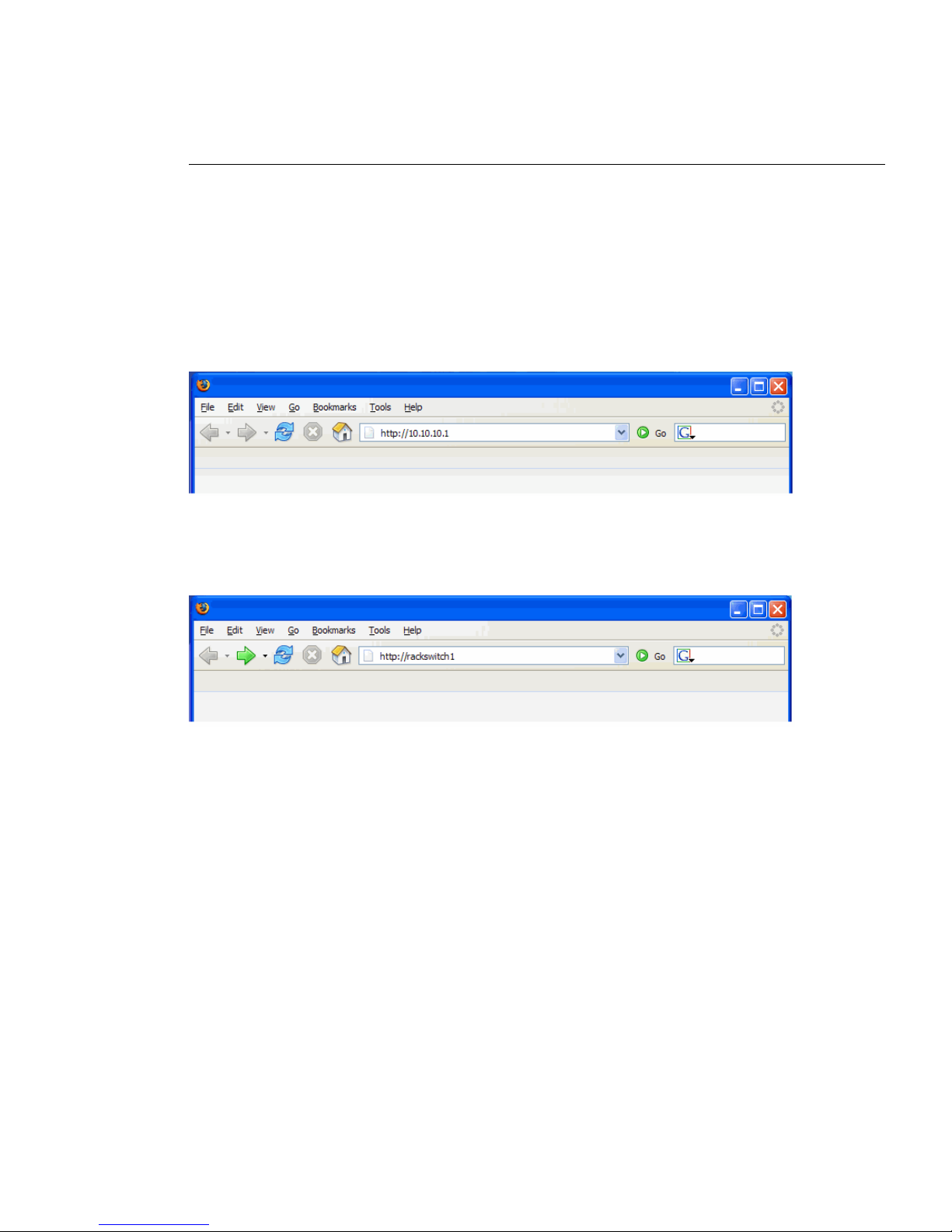
2. Enter the switch IP interface address in the Web browser’s URL field.
For example, consider an IP interface with a network IP address of 10.0.0.1
You could enter the following:
If the IP interface’s address has a name on your local domain name server , you could enter the name
instead. For example, you could enter the following:
3. Log in to the switch.
BMD00139, November 2009 Chapter 1: Getting Started
11
Page 12
BLADE OS 5.1 BBI Guide
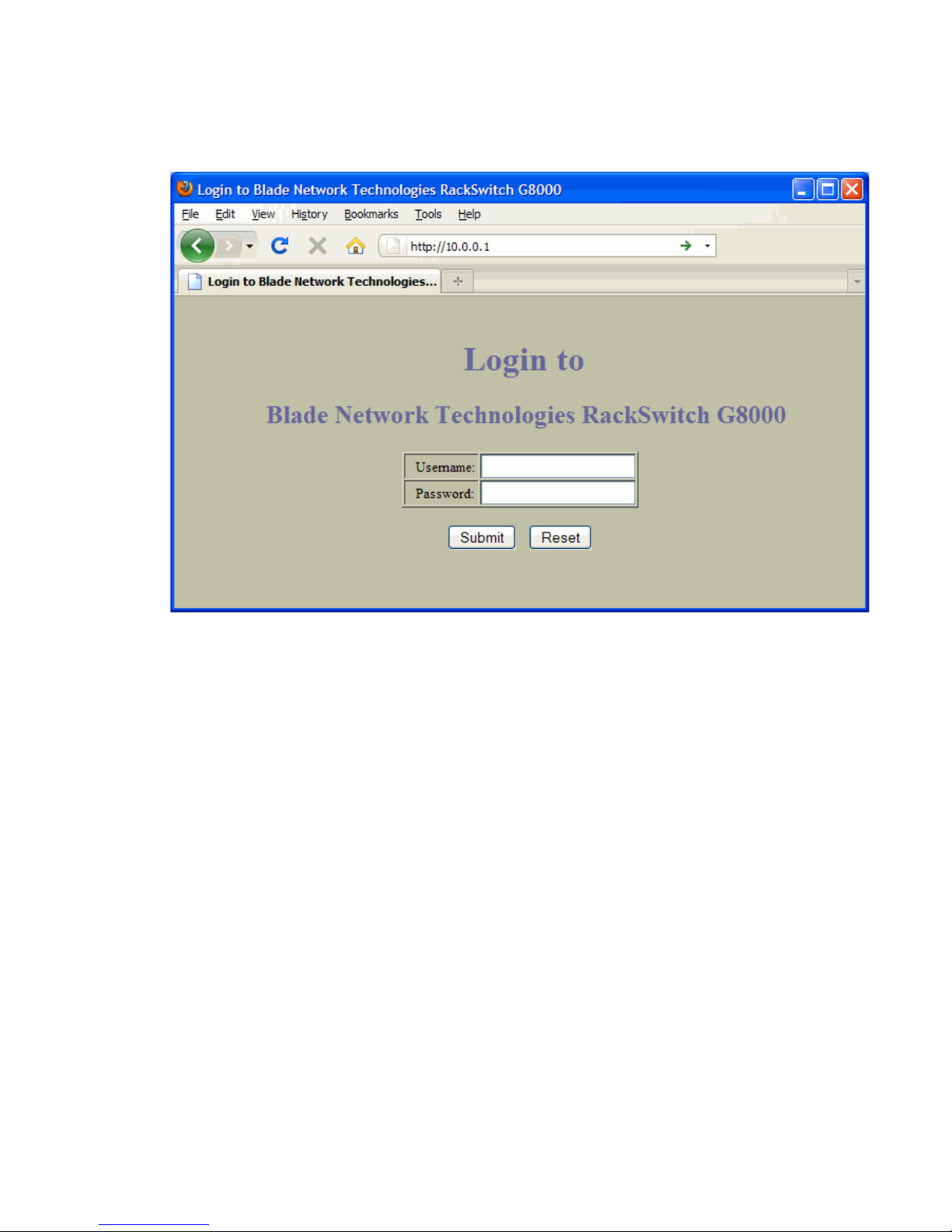
If your switch and browser are properly configured, you are asked to enter a password:
Enter the account name and password for the switch’s administrator or user account.
The default account name is admin, and the default password is admin. For more password
information, see your Command Reference.
Chapter 1: Getting Started BMD00139, November 2009
12
Page 13
BLADE OS 5.1 BBI Guide
4. Allow the BBI Dashboard page to load.
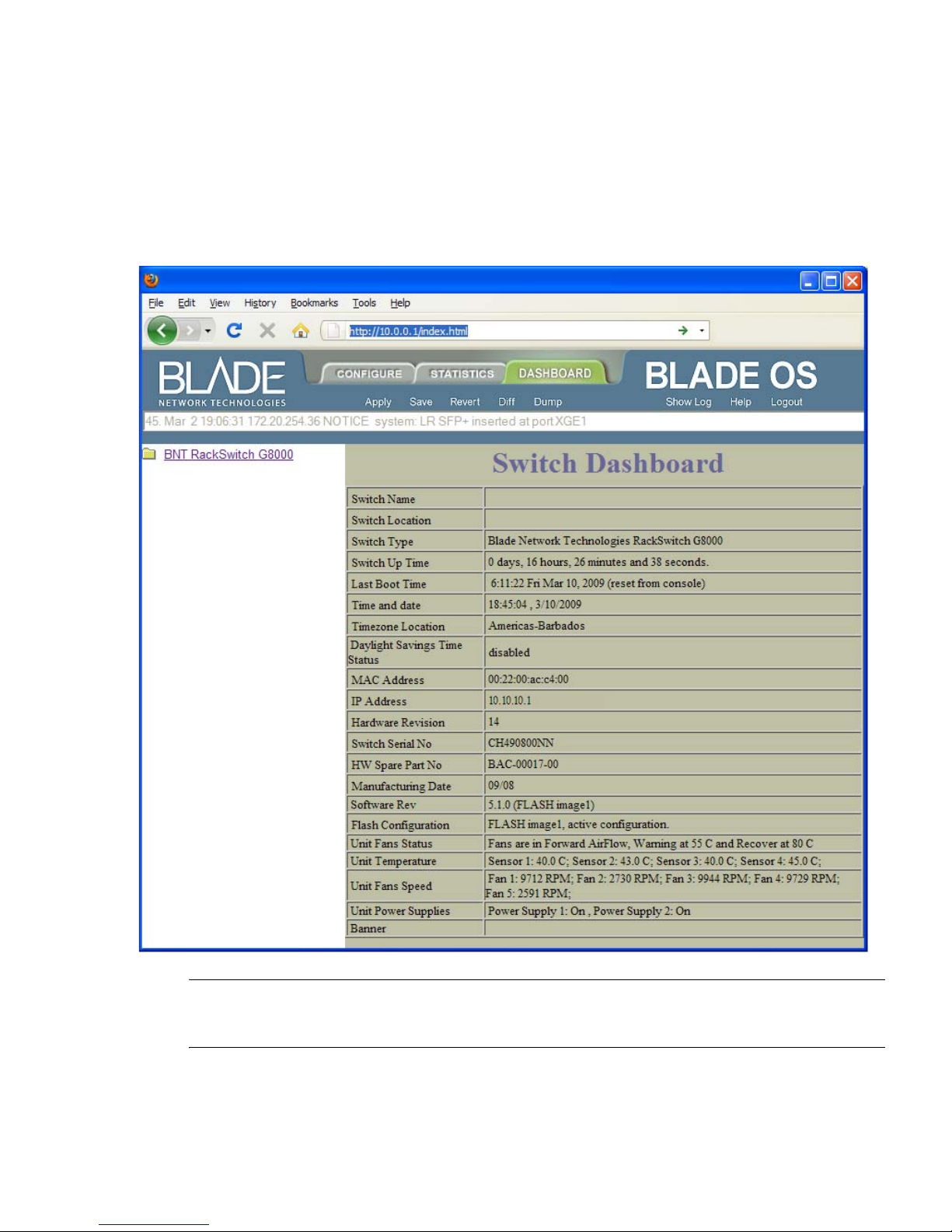
When the proper account name and password combination is entered, the BBI Dashboard page is
displayed in your browser’s viewing area. There may be a slight delay while the Dashboard page is
being initialized. You should not stop the browser while loadin g is in progress. When loading is
complete, a folder icon appears in the left-hand navigation window.
Note – The sample screens that appear in this document might differ slightly from the screens
displayed by your system. Screen content varies based on the type of switch unit that you are using
and the firmware versions and options that are installed.
BMD00139, November 2009 Chapter 1: Getting Started
13
Page 14

BLADE OS 5.1 BBI Guide
Chapter 1: Getting Started BMD00139, November 2009
14
Page 15
CHAPTER 2
Browser-Based Interface Basics
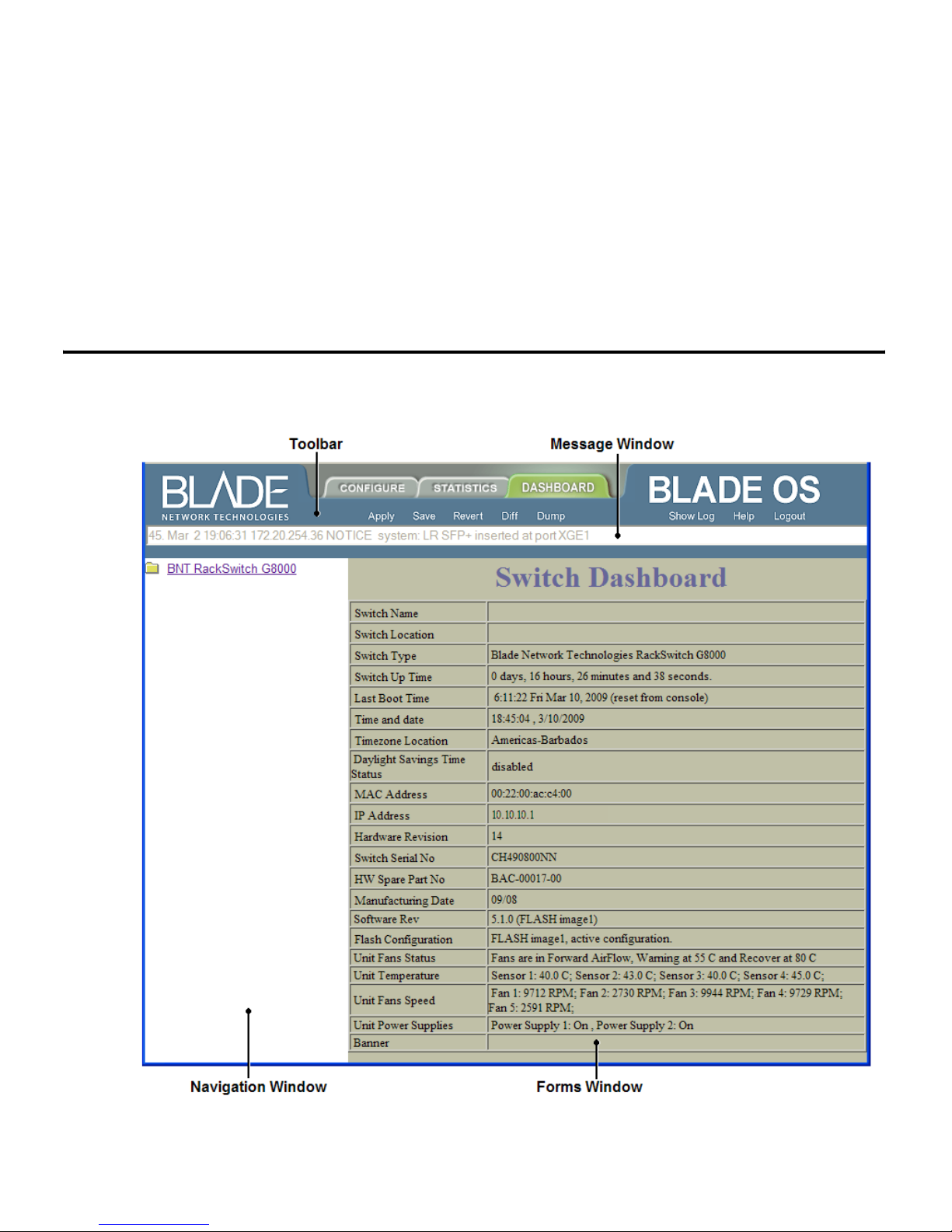
Once you are properly logged in, the Blade OS Browser-Based Interface (BBI) appears in your W eb
browser’s viewing window:
BMD00139, November 2009 15
Page 16

BLADE OS 5.1 BBI Guide
There are four main regions on the Blade OS BBI screen:
The toolbar is used for selecting the context for your actions in the other windows.
The navigation window is used for selecting particular items or features to act upon.
The forms window is used for viewing or altering switch information.
The message window is used for displaying the most recent switch syslog messages and
events.
Toolbar
Context Tabs
The toolbar is used for setting the context for your actions in the application. There are three context
tabs:
Configure
Statistics
Dashboard
The selected context tab is highlighted, to remind you of the current context mode.
When selected, you can access the switch configuration forms.
Configuration forms can be altered only if you are logged in using the
administrator account. Select an item in the navigation window to display
the desired configuration form in the forms window.
When selected, you can view information about switch performance.
Select an item in the navigation window to display the desired statistics in
the forms window.
This context tab is selected by default when the BBI is first activated.
When selected, basic switch information and status can be viewed in the
forms window. Select an item in the navigation window to display the
desired dashboard information in the forms window.
Commands
The following general commands are available on the toolbar:
Save to Active
Config
Saves the current configuration to the startup configuration block.
Save to Backup
Config
Show Config
Chapter 2: Browser-Based Interface Basics BMD00139, November 2009
16
Saves the current configuration to the backup configuration block.
Opens a new Web-browser window that display s the running
configuration.
Page 17
BLADE OS 5.1 BBI Guide
Show Log
Opens a new Web-browser window that displays the most recent switch
log messages. Close the log browser when finished.
Help
Opens a new Web-browser window that display s basic online hel p
information. Close the Help browser when finished.
Logout
Log off the switch and exit the BBI.
Navigation Window
The navigation window is used for selecting a particular switch feature to act upon. Status,
statistics, or configuration forms for the selected item will appear in the forms window, depending
on the context chosen on the toolbar.
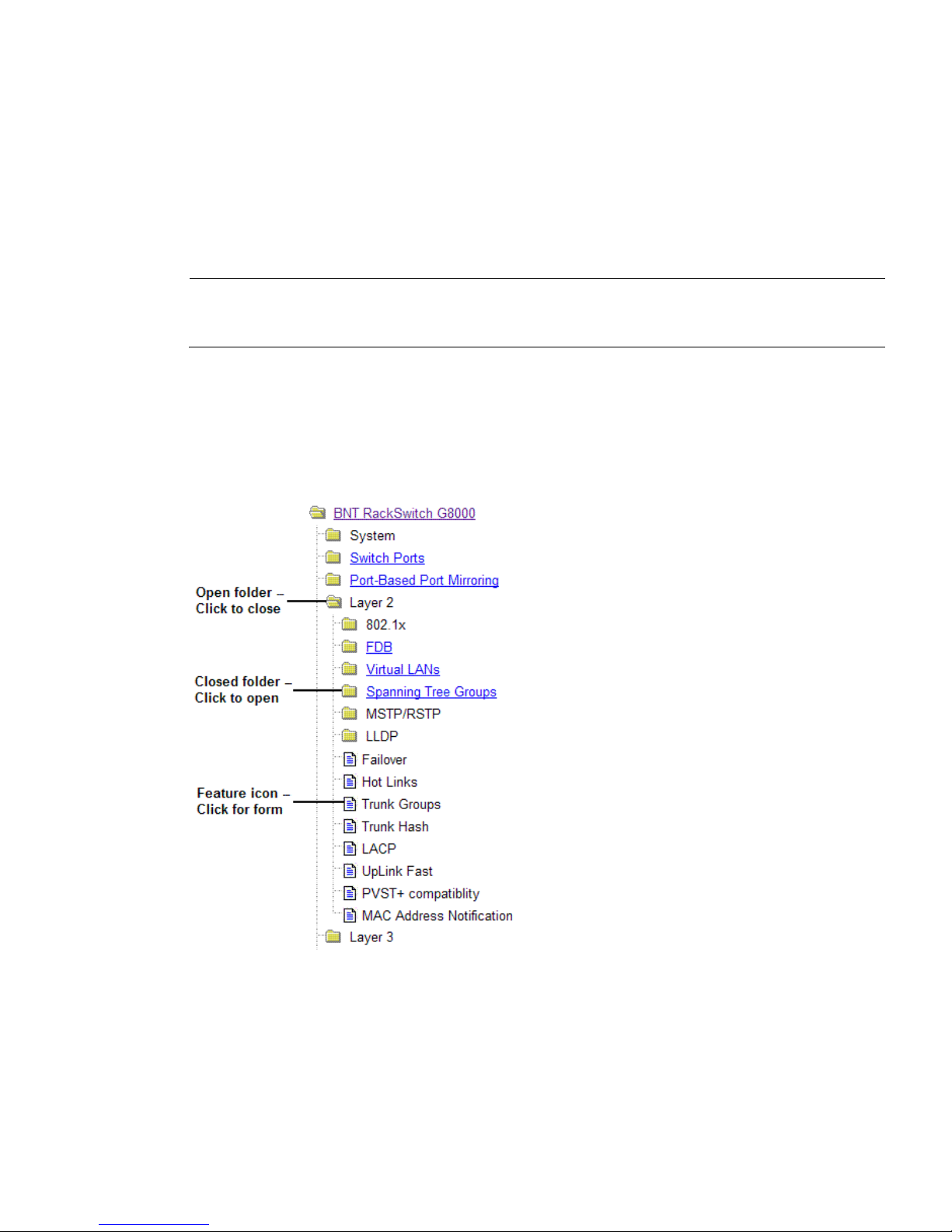
The navigation window contains a tree of folders, sub-folders, and feature icons:
You can click on any closed folder to open it and reveal its contents. Click on any open folder to
close it. Click on any feature icon to load the appropriate status, statistics, or configuration form in
the forms window.
Some folders also have forms. If the name of the folders is underlined, click on the name to display
the appropriate form.
BMD00139, November 2009 Chapter 2: Browser-Based Interface Basics
17
Page 18

BLADE OS 5.1 BBI Guide
Forms Window
When a feature icon is selected on the navigation window , a status, statistics, or configuration form
is displayed in the forms window. The exact nature of the form depends on the current context
selected on the toolbar, as well as the type of information availabl e. Not all feature icons have forms
for all contexts.
Some forms display switch information such as settings, status, or statistics. Others allow you to
make configuration changes to switch parameters.
Message Window
Switch log messages are generated by events such as login/logout activity, password changes,
configuration changes, and switch reboot. The BBI records the most recent messages and displays
each one briefly in the message window. When the last message has been displayed, the cycle is
repeated.
To view all messages at the same time, select the Show Log command on the toolbar. A new
Web-browser window will be opened to display the log information. Close the window when
finished.
Chapter 2: Browser-Based Interface Basics BMD00139, November 2009
18
Page 19
CHAPTER 3
Configuring the Switch
The Blade OS Browser-Based Interface (BBI) can be used to view and change switch configuration
parameters. The same configuration parameters that are available through the switch’s
command-line interface are present on the BBI configuration forms.
The following provides a basic outline for switch configuration. You should first be familiar with
configuration as covered in the Blade OS Command Reference manual.
Note – You must be logged in using the administrator account in order to change switch
configuration settings.
Configuration Step s
Follow these basic steps for viewing or configuring switch parameters:
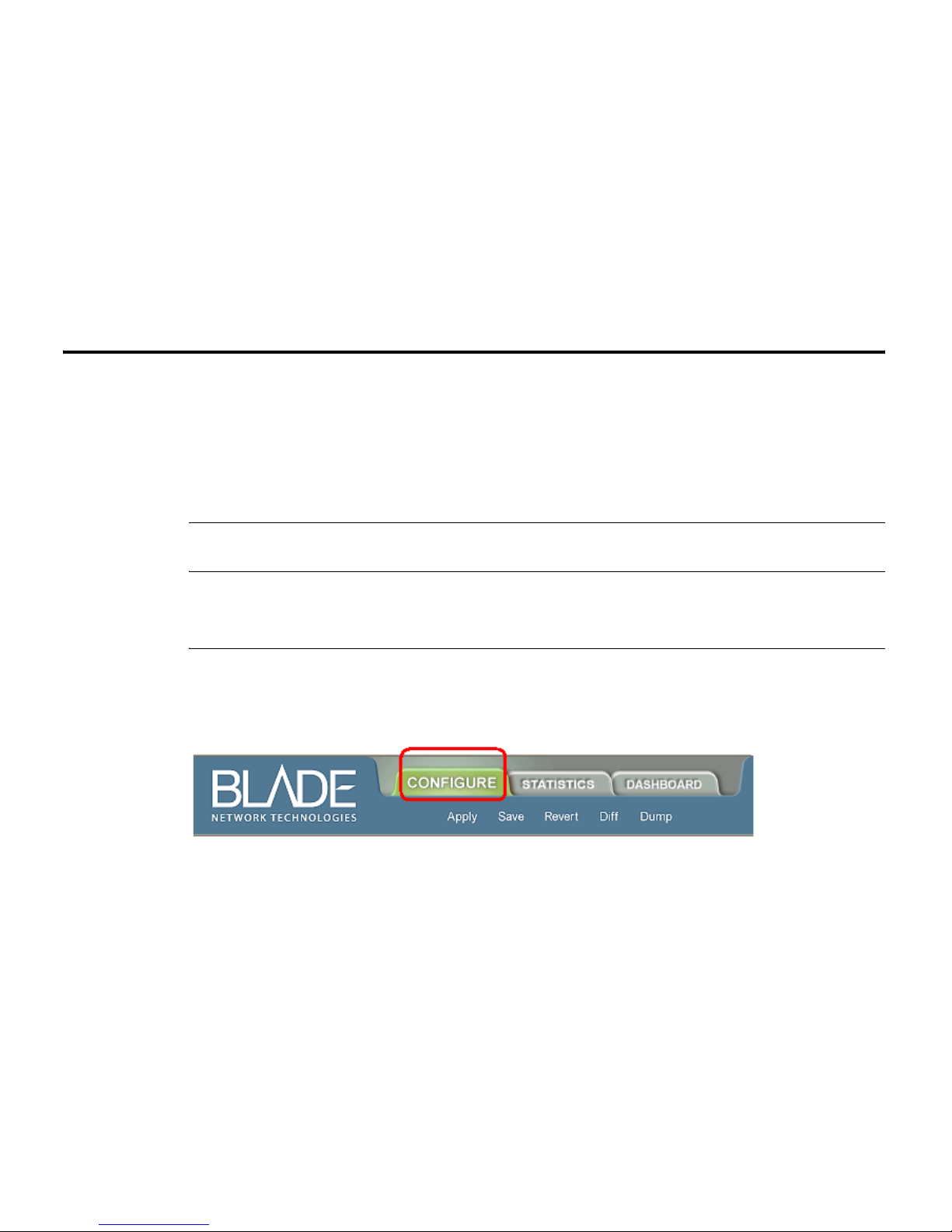
1. Click the Configure context tab in the BLADE OS toolbar:
BMD00139, November 2009 19
Page 20
BLADE OS 5.1 BBI Guide
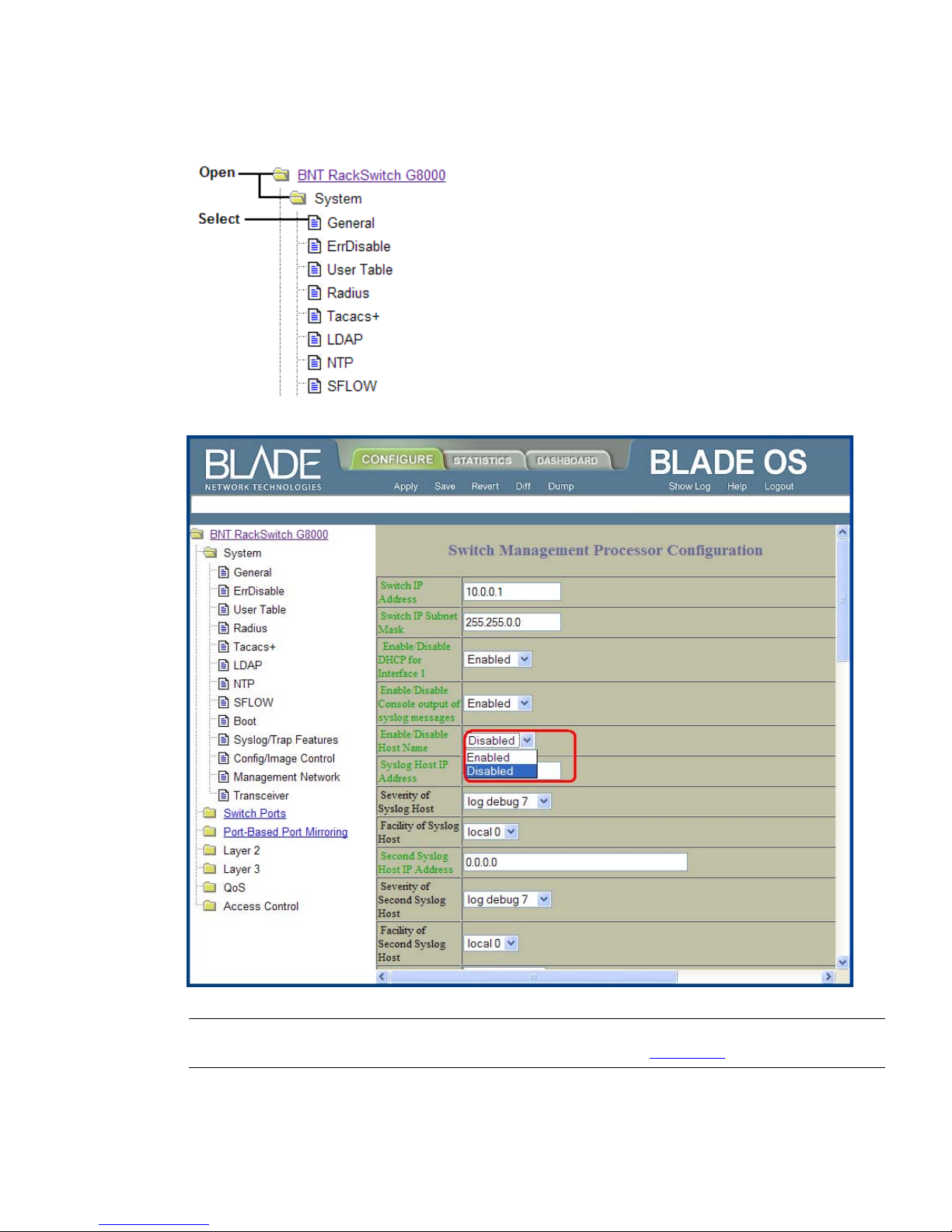
2. Select a feature icon in the navigation window. For example:
3. View or make changes to the settings shown in the forms window. For example:
Note – Fields which must be configured for proper switch operations are highlighted on the forms
in GREEN type. Items which load other forms when selected are underlined.
4. Click the Submit button on the bottom of the form to submit the form contents to the switch.
Chapter 3: Configuring the Switch BMD00139, November 2009
20
Page 21
BLADE OS 5.1 BBI Guide
Using the BBI to Load Switch Software
You can use the Browser-Based Interface to load software onto the G8000. The software image to
load can reside in one of the following locations:
FTP server
TFTP server
Local computer
After you log onto the BBI, perform the following steps to load a software image:
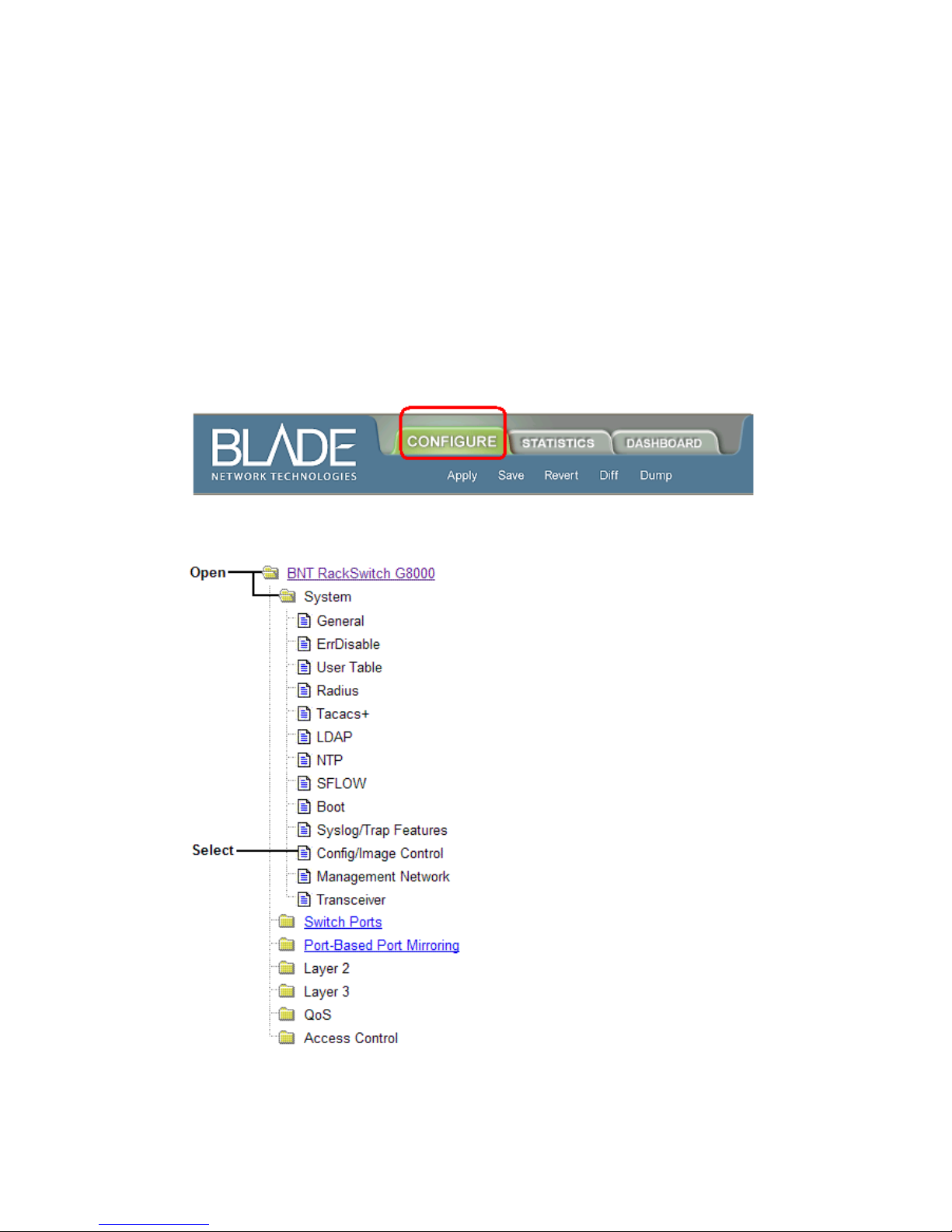
1. Click the Configure context tab in the BLADE OS toolbar:
2. In the Navigation Window, select System > Config/Image Control.
BMD00139, November 2009 Chapter 3: Configuring the Switch
21
Page 22
BLADE OS 5.1 BBI Guide
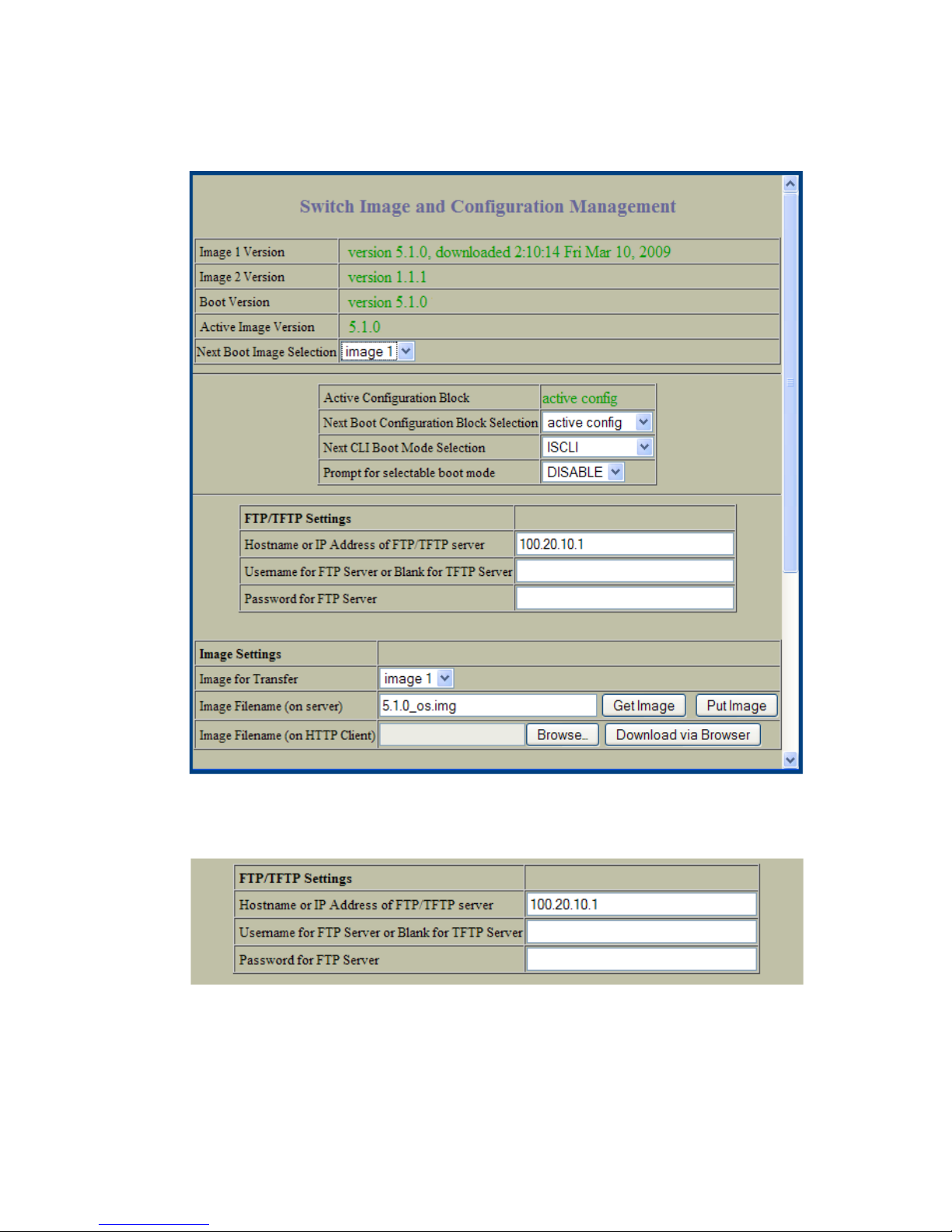
The Switch Image and Configuration Management page appears.
3. If you are loading software from your computer (HTTP client), go to Step 4. If you are loading
software from a FTP/TFTP server, enter the server’s information in the FTP/TFTP Settings section.
Chapter 3: Configuring the Switch BMD00139, November 2009
22
Page 23
BLADE OS 5.1 BBI Guide
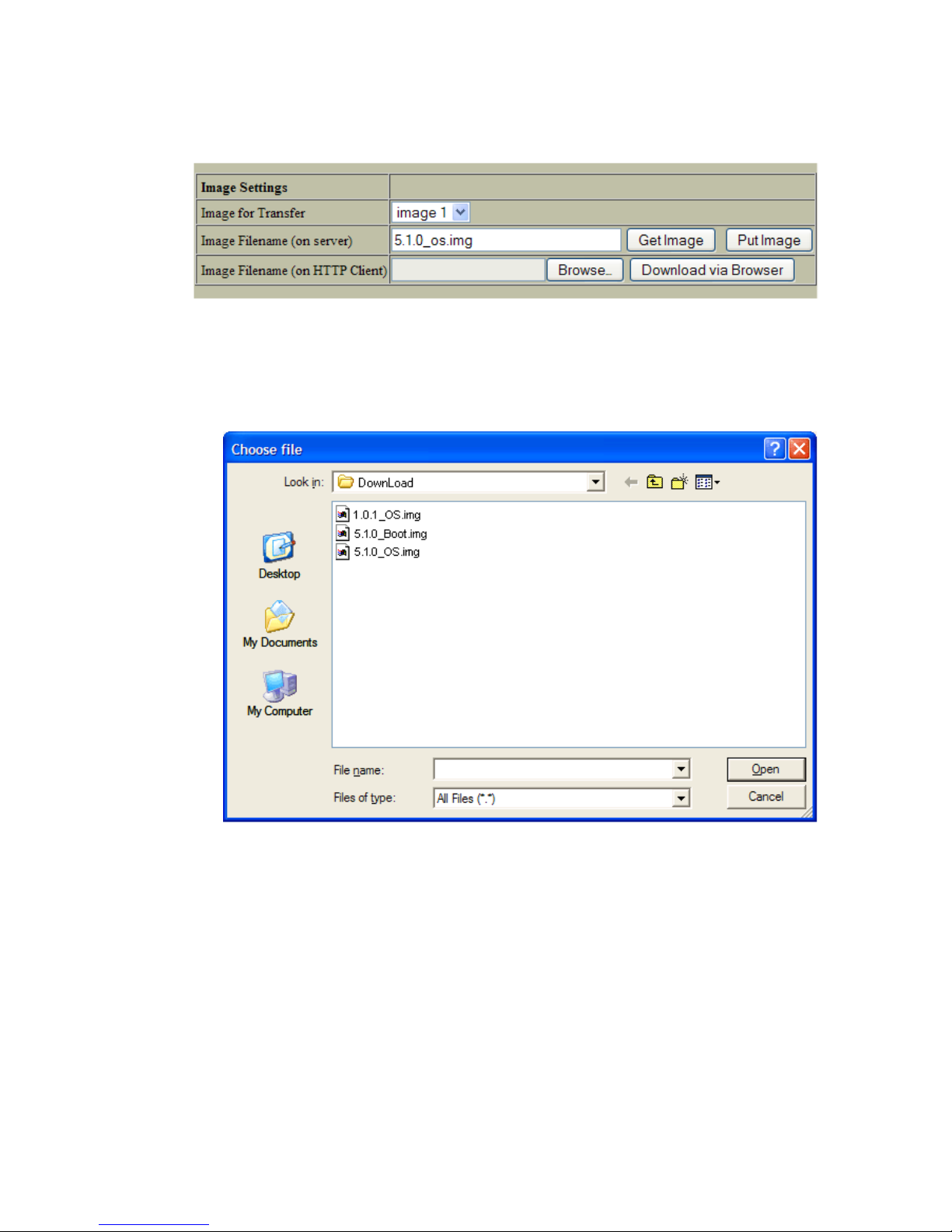
4. In the Image Settings section, select the image version you want to replace (Image for Transfer).
If you are loading software from a FTP/TFTP server, enter the file name and click
Get Image.
If you are loading software from your computer, click Browse. In the File Download Dialog,
select the file and click OK. Click Download via Browser.
Once the image has loaded, the page refreshes to show the new software.
BMD00139, November 2009 Chapter 3: Configuring the Switch
23
Page 24

BLADE OS 5.1 BBI Guide
Chapter 3: Configuring the Switch BMD00139, November 2009
24
Page 25
CHAPTER 4
Viewing S t atistics
The Blade OS Browser-Based Interface (BBI) can be used to view a variety of switch performance
statistics. The same statistics that are available through the switch’s command-line interface are
present on the BBI statistics forms.
The following provides a basic outline for viewing statistics. You should first be familiar with
available statistics as covered in the Blade OS Command Reference manual.
Step s for Displaying Statistics
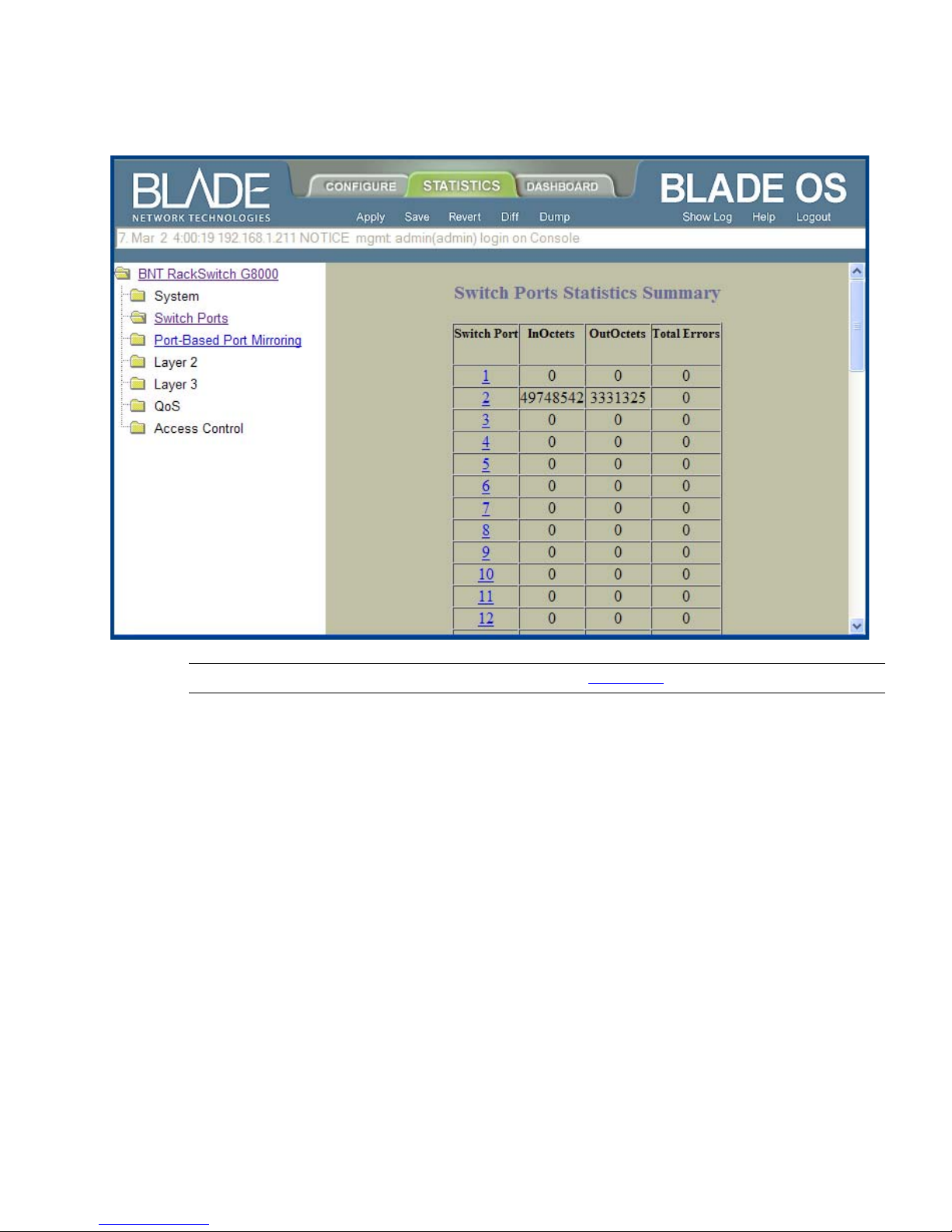
Follow these basic steps for viewing switch statistics:
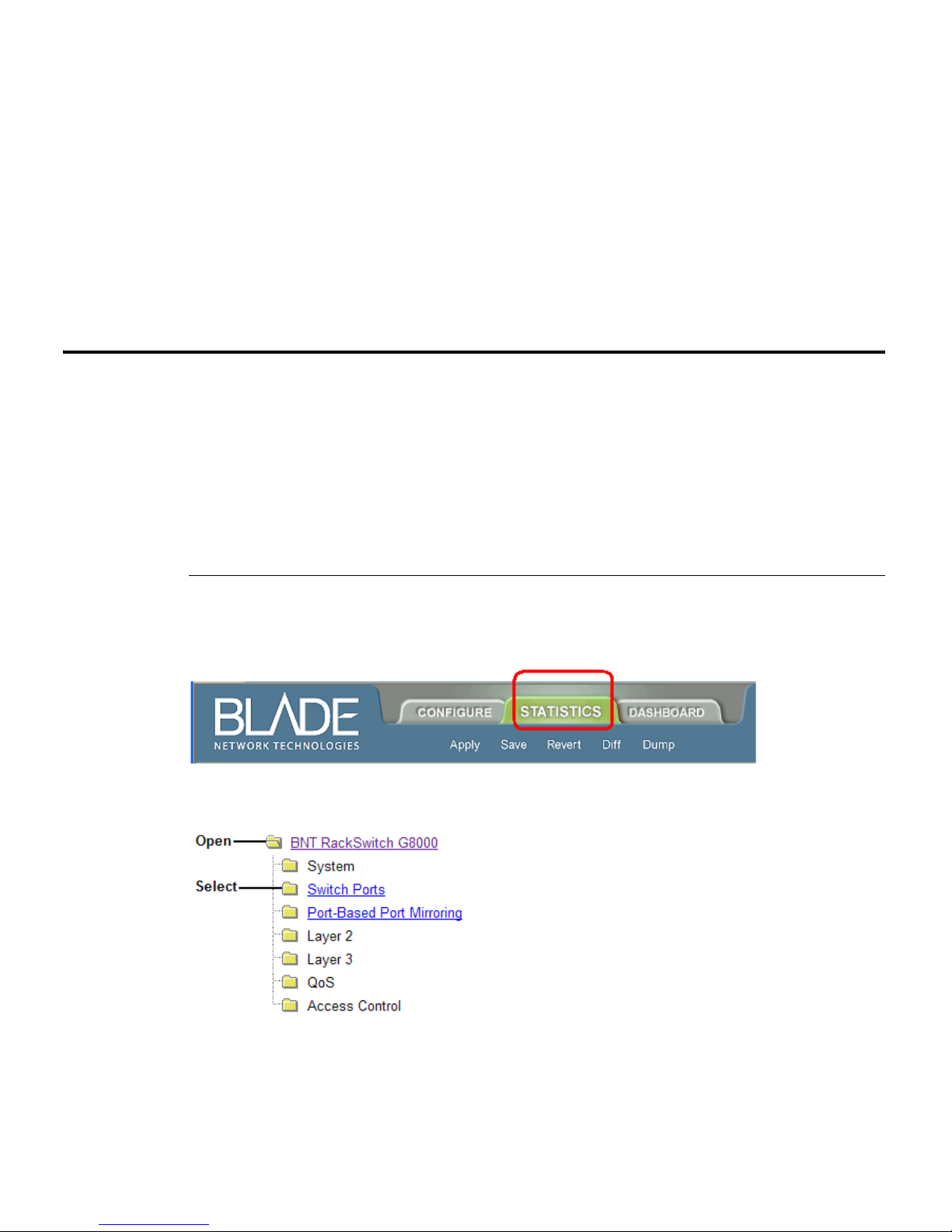
1. Select the Statistics context tab in the Blade OS toolbar:
2. Select a feature icon or underlined folder in the navigation window. For example:
BMD00139, November 2009 25
Page 26
BLADE OS 5.1 BBI Guide
3. V i ew the statistics in the forms window. For example:
Note – Items which load other forms when selected are underlined.
Chapter 4: Viewing Statistics BMD00139, November 2009
26
Page 27
CHAPTER 5
The Dashboard
The Blade OS Browser-Based Interface (BBI) can be used to view the present settings and
operating status of a variety of switch features. The same information available through the switch’s
command-line interface is present on the dashboard forms.
The following provides a basic outline for viewing the dashboard forms. You should fi rst be
familiar with configuration as covered in the Blade OS Command Reference manual.
Step s for Displaying Dashboards
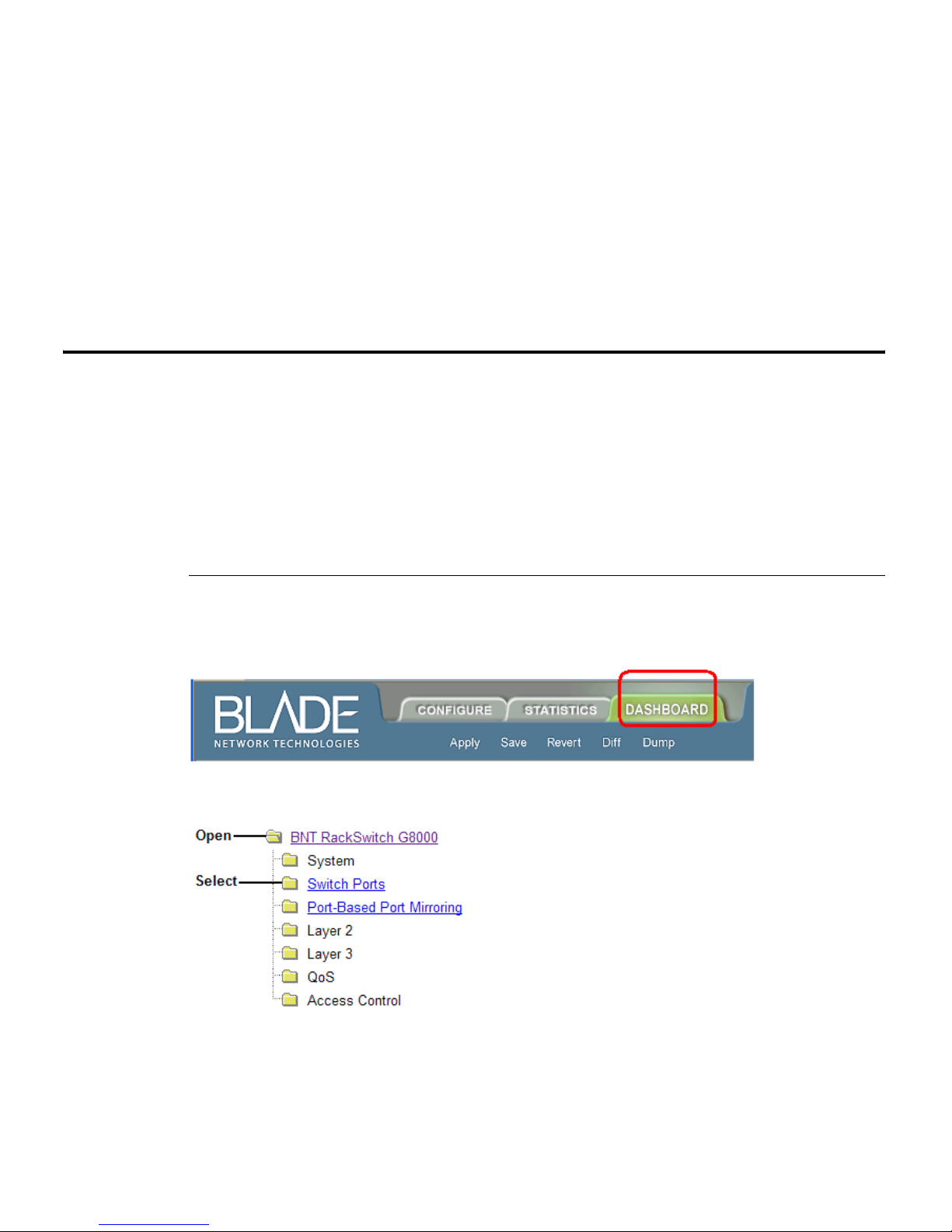
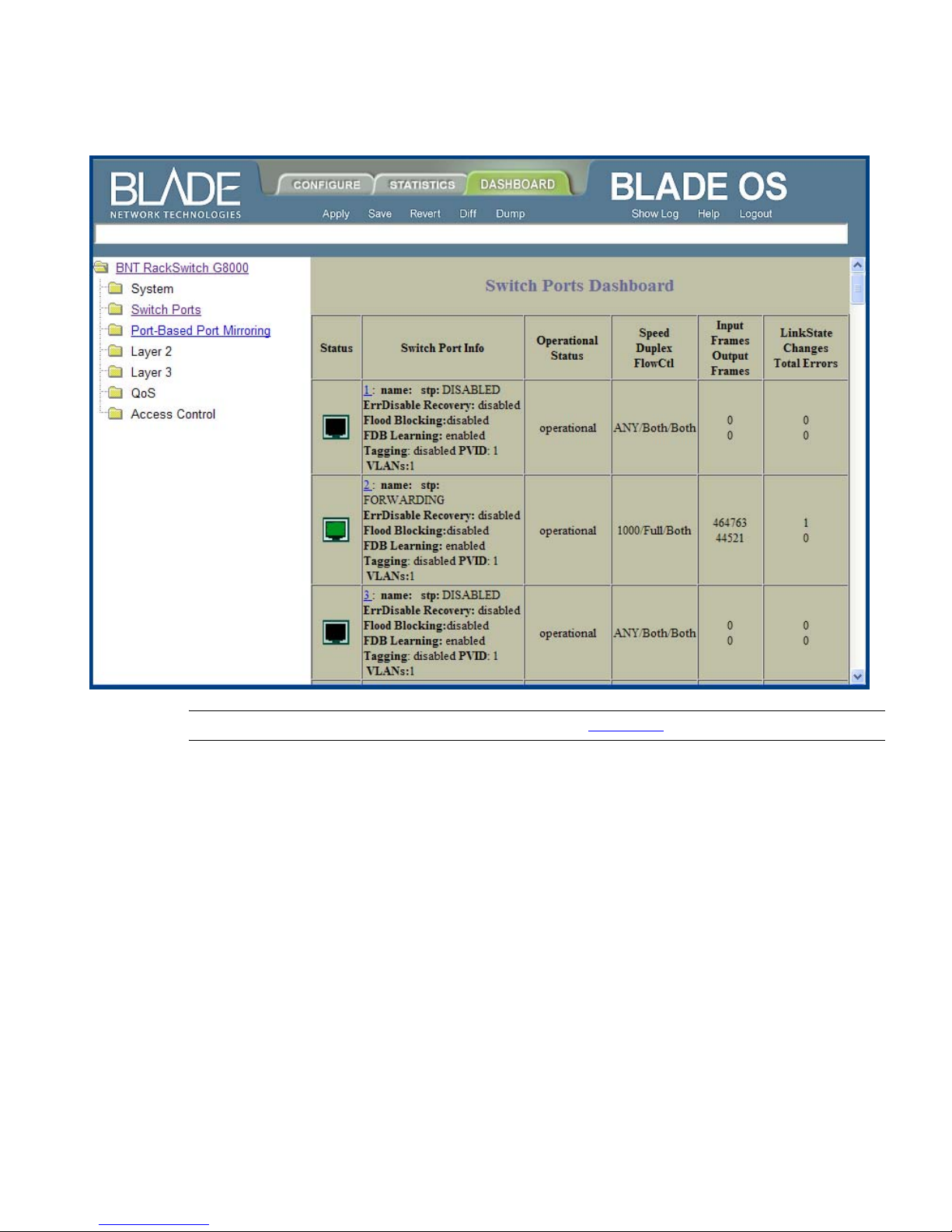
Follow these basic steps for viewing switch dashboard forms:
1. Select the Dashboard context tab in the BBI toolbar:
2. Select a feature icon in the navigation window. For example:
BMD00139, November 2009 27
Page 28
BLADE OS 5.1 BBI Guide
3. View information shown in the forms window. For example:
Note – Items which load other forms when selected are underlined.
Chapter 5: The Dashboard BMD00139, November 2009
28
 Loading...