

Page 1

Blackwire™ C310-M/
C320-M
USB Corded Headset
User Guide
Page 2

Contents
Welcome 3
System Requirements 3
Need More Help? 3
What's in the Box 4
Headset Basics 5
Wearing Your Headset 6
Adjust the Headband 6
Position the Boom 6
Adjust the Boom 6
Daily Use 7
Headset Power 7
Incoming/Outgoing Calls 7
Adjust Your Headset Volume 7
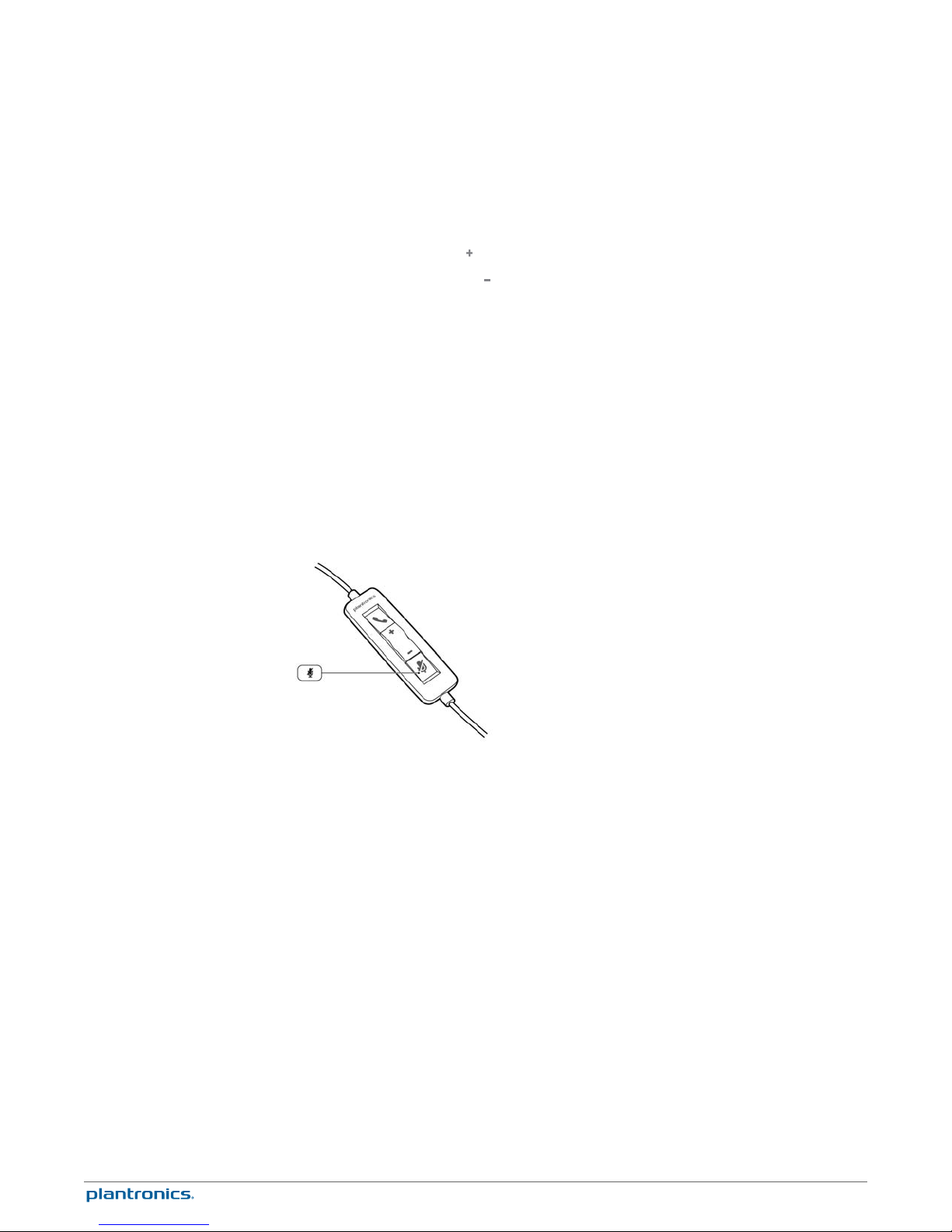
Mute a Call 8
Troubleshooting 9
Headset 9
11
2
Page 3

Welcome
System Requirements
Congratulations on purchasing your new Plantronics product. This guide contains instructions
for setting up and using your Blackwire C310-M/C320-M headset.
Please refer to the safety instructions in the quick start guide for important product safety
information prior to installation or use of the product.
Computer
• Supported Operating Systems: Windows® 7, Windows XP®, Windows Vista
• Processor: 400 MHz Pentium® processor or equivalent (Minimum); 1 GHz Pentium processor
or equivalent (Recommended)
• RAM: 96 MB (Minimum); 256 MB (Recommended)
• Hard Disk: 280 MB (Minimum); 500 MB or more (Recommended)
• Microsoft Windows XP-Service Pack 3 (SP3) or later (Recommended) Microsoft Windows VistaService Pack 1 (SP1) or later (Recommended)
®
Need More Help?
Display
• At least 800 x 600, 256 colors
• 1024 x 768 high color, 32-bit (Recommended)
Browser
• Internet Explorer® V6 or better must be on the user’s system (Required)
Visit our website at plantronics.com/support for technical support including frequently asked
questions, compatibility and accessibility information.
3
Page 4
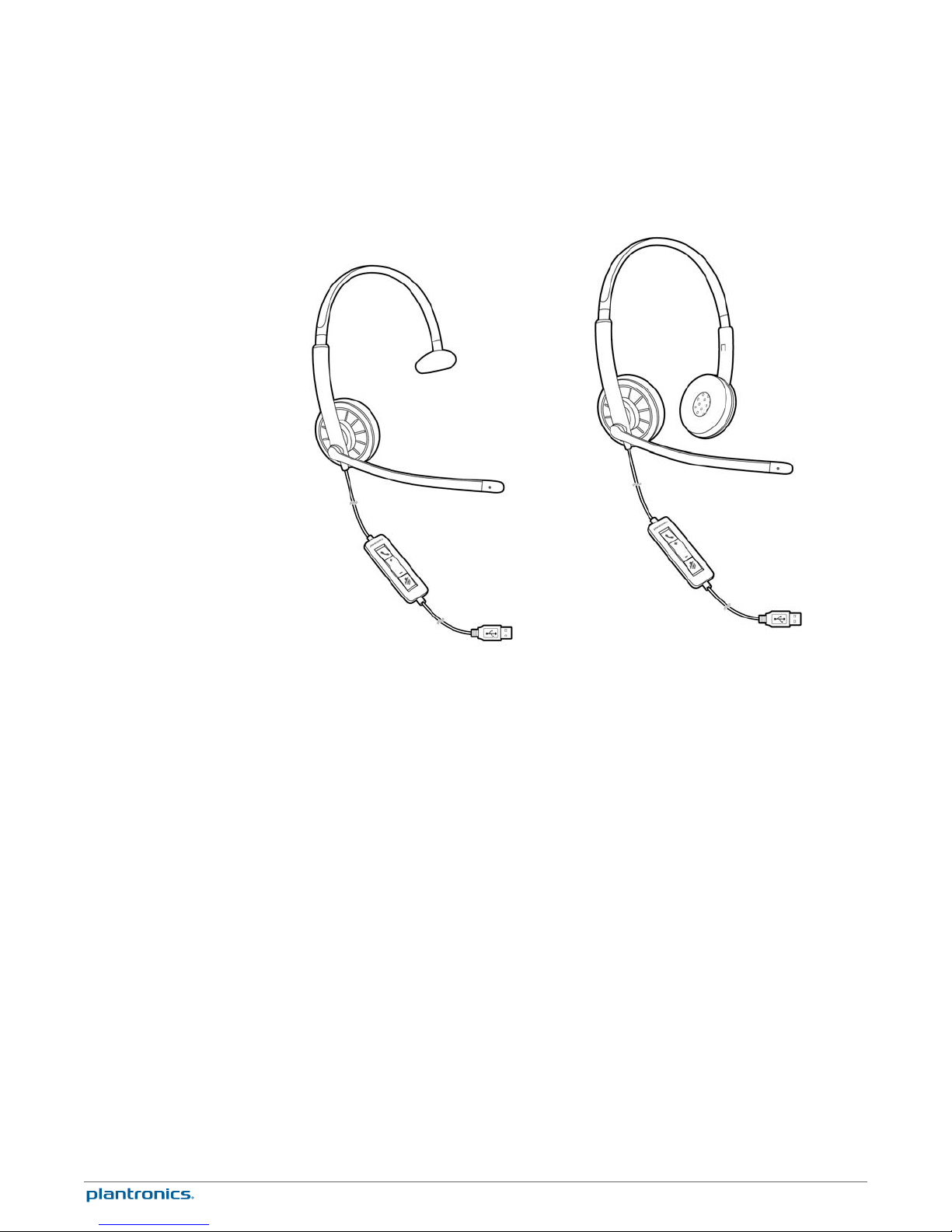
What's in the Box
Blackwire C310 Blackwire C320
4
Page 5
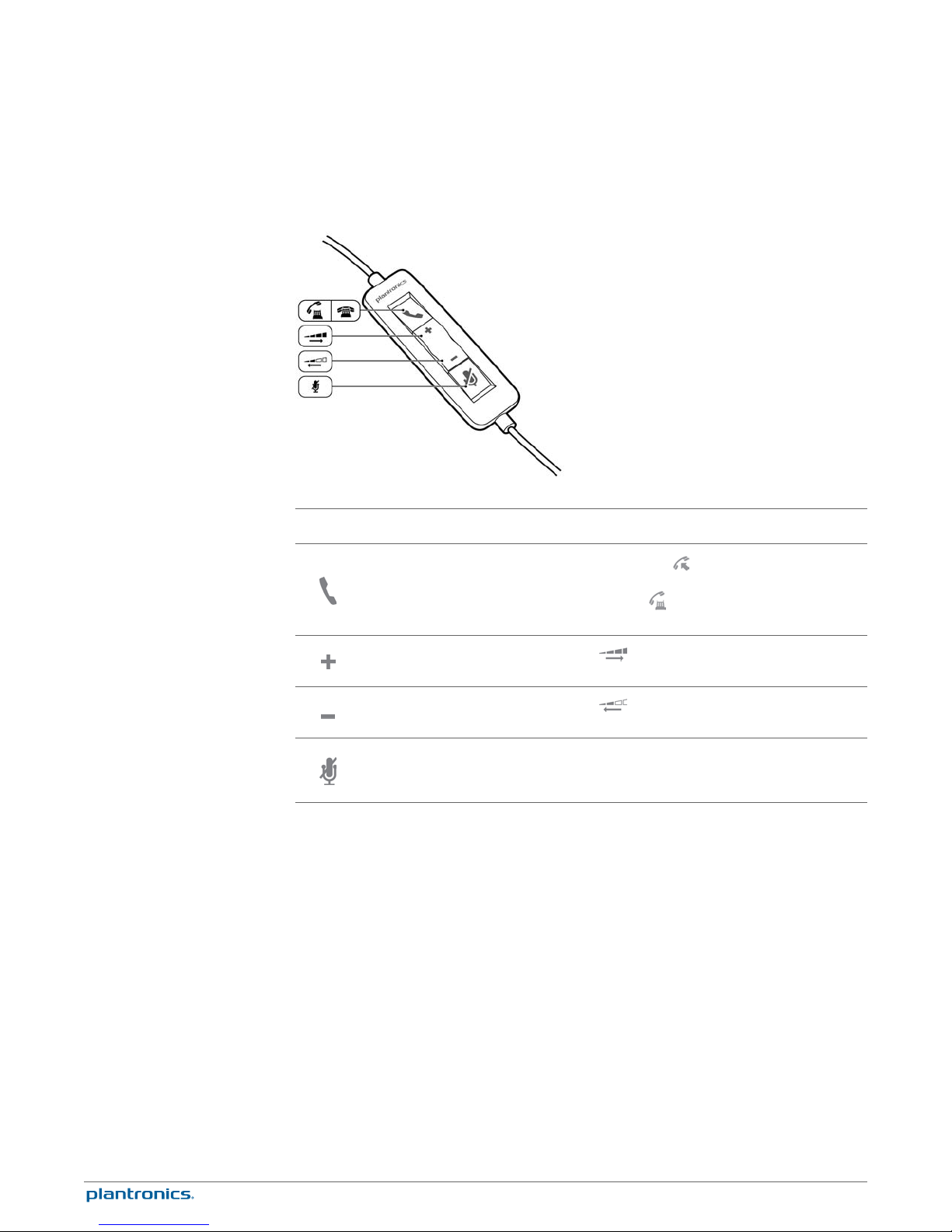
Headset Basics
Headset inline control icons Function
Answer/End button*
Answers or ends a call
Volume up button
Volume down button
Mute/Unmute button
Mutes/unmutse the headset
microphone
* Plantronics software required. Plantronics software enables call control features including call
answer/end control.
Incoming call
Flashes green
On a call
Solid green
Increases the listening volume
Decreases the listening volume
Solid red when muted
5
Page 6
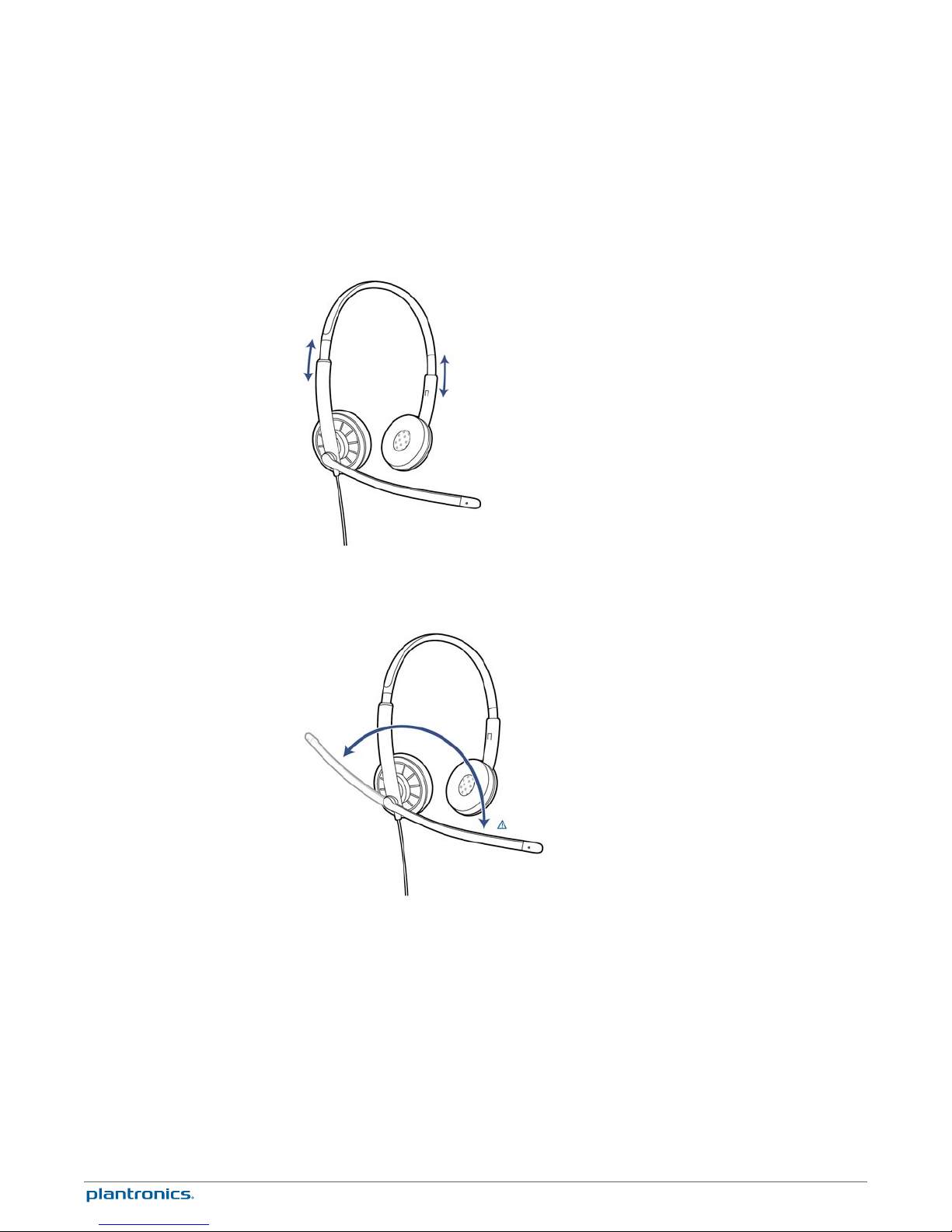
Wearing Your Headset
Adjust the Headband
Position the Boom
Lengthen or shorten the band until it fits comfortably. The foam cushions should sit
comfortably over the center of your ears.
This headset can be worn on the left or right side.
Rotate the boom to align with your mouth.
CAUTION To avoid breaking the boom, only rotate it up and over 180°.
Adjust the Boom
Gently bend the boom in or out so it is approximately two finger widths from the corner of your
mouth.
6
Page 7
Daily Use
Headset Power
Incoming/Outgoing Calls
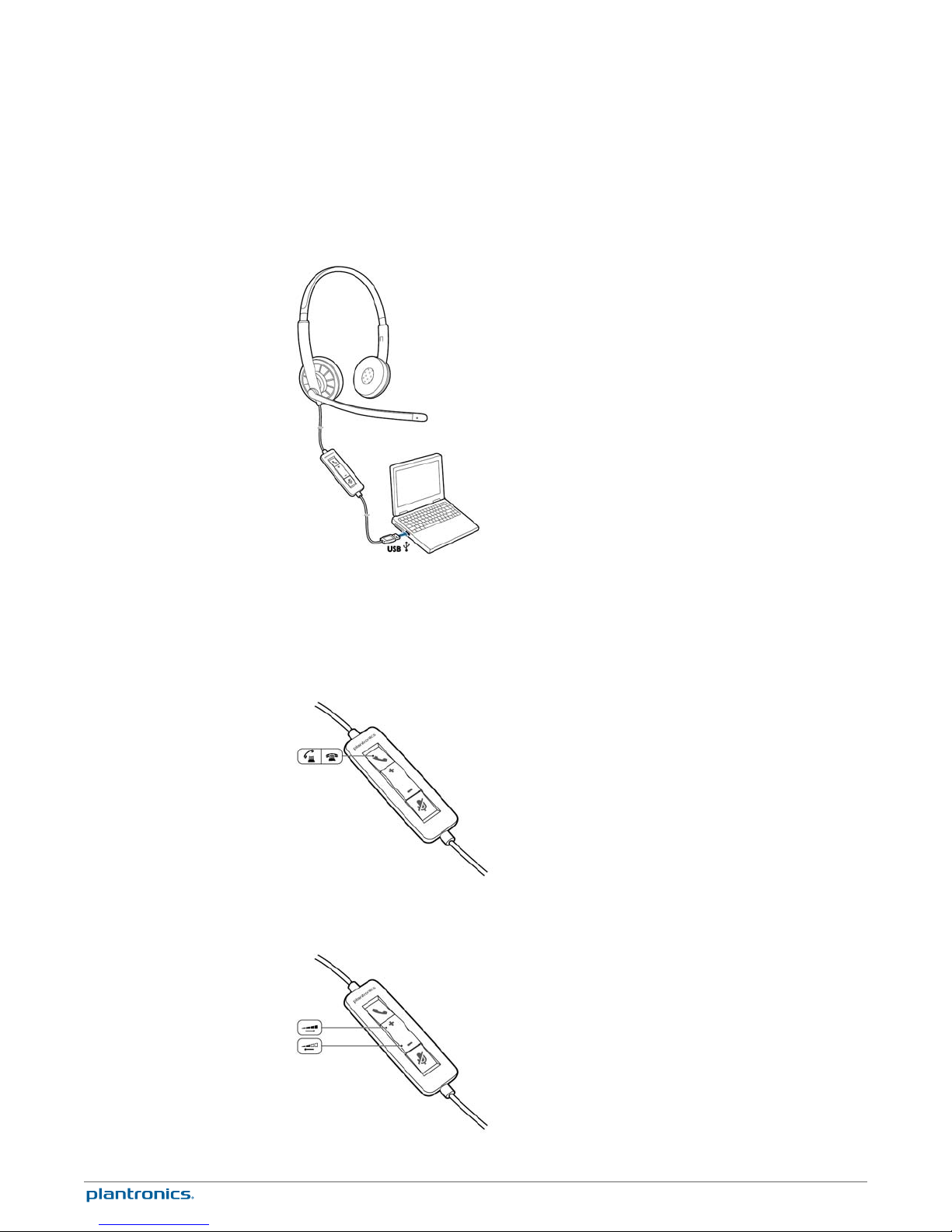
The USB headset is automatically powered on when it is plugged into the USB port of the
computer.
Headset call control is a software feature and dependent on a compatible softphone. If you do
not install the software or do not have a compatible softphone, press the headset call button
first and then answer/end/place the call using the softphone application. Visit
plantronics.com/software for more information.
Incoming Calls Press the answer/end button on the headset inline control to answer or end a
1
call.
Out
going Calls Dial the phone number with your softphone application to make an outgoing
2
call.
Adjust Your Headset
Vol
ume
7
Page 8
Listening Volume
Press the volume up button ( ) on the headset inline control to increase listening volume.
1
Press the volume down button ( ) on the headset inline control to decrease listening volume.
2
Speaking Volume
To adjust the headset speaking volume, use the audio settings in your computer's sound control
panel/preferences.
For Windows XP systems
• Go to Control Panel > Sounds and Audio Devices > Audio tab.
For Windows Vista and Windows 7 systems
• Go to Control Panel > Sound > Recording tab.
For Mac OS X
• Choose Apple menu > System Preferences > Sound > Input tab.
Mute a Call
During a call, press the mute button on the headset inline control to mute the microphone.
1
When mute is on, the mute LED is solid red (you will still be able to hear the caller).
To turn mute off, press the mute button again.
2
8
Page 9

Troubleshooting
Headset
I cannot hear caller.
Callers cannot hear me.
Listening volume is too low. Press the volume up button on the
headset.
The USB headset is not set as the default audio device. Use the
audio settings in your sound control panel/preferences to select
your headset as the default audio device.
For Windows XP systems
• Go to Control Panel > Sounds and Audio Devices > Audio tab.
• Select your headset as the "Sound playback" default device.
For Windows Vista and Windows 7 systems
• Go to Control Panel > Sound > Output tab.
• Highlight the headset, select the Set Default > Default
Communications Device from the drop-down list and click OK.
For Mac OS X
• Choose Apple menu > System Preferences > Sound > Output tab.
• Select your headset in the "Select a device for sound output"
window.
Headset is muted. Press the mute button to unmute the
microphone.
Headset microphone boom aligned incorrectly. Align the headset
boom with your mouth.
The USB headset is not set as the default Voice device. Use the
audio settings in your sound control panel/preferences to
change the input device.
For Windows XP systems
• Go to Control Panel > Sounds and Audio Devices > Audio tab.
• Select your headset as the "Sound recording" default device.
For Windows Vista and Windows 7 systems
• Go to Control Panel > Sound > Recording tab.
• Highlight the headset, select the Set Default button and click OK.
For Mac OS X
• Choose Apple menu > System Preferences > Sound > Input tab.
• Select your headset in the "Select a device for sound input"
window
The sound in the headset is
distorted.
I can hear an echo in the headset.
The other headset I was using to
listen to music does not work any
more.
Lower the listen volume on your softphone until the distortion
disappears.
Adjust volume on headset.
The USB headset will set itself as the default audio device in
Windows. Use the audio settings in your sound control panel/
preferences to change the audio device.
For Windows XP systems
• Go to Control Panel > Sounds and Audio Devices > Audio tab.
• Under “Sound Playback”, change the default setting from your
headset to your device choice.
9
Page 10

For Windows Vista and Windows 7 systems
• Go to Control Panel > Sound > Recording tab.
• Highlight your device choice, select the Set Default button and
click OK.
For Mac OS X
• Choose Apple menu > System Preferences and click Sound.
• Click Output, and then select “Internal Speakers” or your device
choice.
My headset stops responding to
button presses.
When a PC goes into standby or hibernation, the USB headset no
longer is powered on. Be sure your PC is in an active state.
10
Page 11

NEED MORE HELP?
plantronics.com/support
Plantronics, Inc. Plantronics BV
345 Encinal Street
Santa Cruz, CA 95060
United States
©
2011 Plantronics, Inc. All rights reserved. Plantronics, the logo design, and Blackwire are trademarks or registered trademarks of Plantronics, Inc. All
other trademarks are the property of their respective owners. Apple, iTunes and Mac are trademarks of Apple Inc., registered in the U.S. and other
countries. Microsoft, Vista, Windows and XP are trademarks of Microsoft Corporation in the US and other countries. Pentium is a trademark of Intel
Corporation in the U.S. and/or other countries. Skype is a trade mark of Skype Limited and is used with the permission of Skype Limited.
87395-06 (11.11)
South Point Building C
Scorpius 140
2132 LR Hoofddorp
Netherlands
 Loading...