

Page 1
Quick Guide
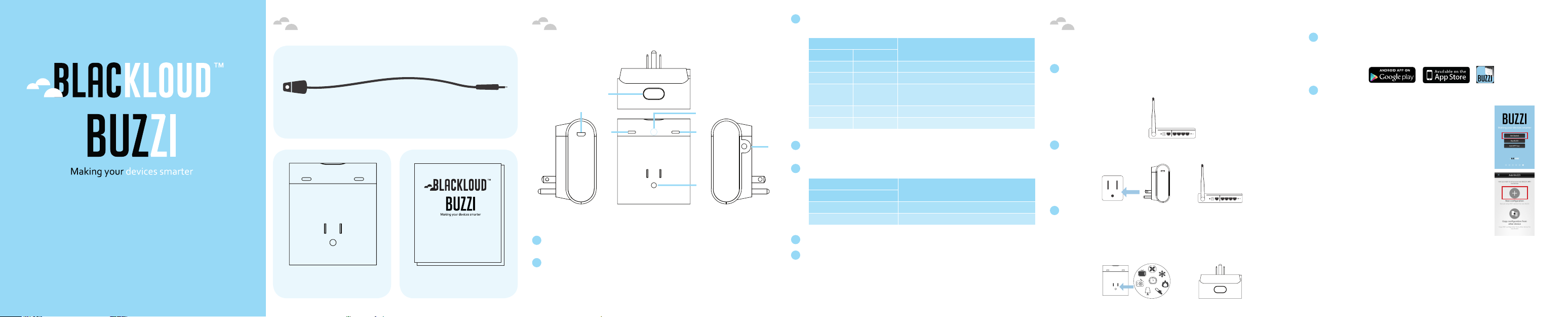
3 Wi-Fi/Status LED: Displays device and wireless connection statuses as
Package Contents Your BUZZI Getting Started
1
IR (Infrared) Cable
2
3
4
5
6
described below:
LED Color and Status
Blue Amber
Blinking Off System rebooting
Blinking Blinking Wi-Fi router setup mode
Off Blinking
Off Off Connected to the Wi-Fi router
Off Fast Blinking Resetting to the factory default settings
4 IR (infrared) LED: Controls appliances that feature an IR remote control
sensor (LED not visible).
5 Standby LED: Displays current power standby status.
Connecting to the specified Wi-Fi router in
client mode
Definition
Setting Up Hardware
1 Prepare a router.
Have an internet-enabled Wi-Fi router available. This router will be the
wireless communication bridge between your mobile device and your BUZZI.
2 Plug your BUZZI to a power outlet.
Plug your BUZZI to a power outlet within the coverage area of your Wi-Fi router.
Setting Up Wi-Fi Connection
1 Install the BUZZI app.
On your mobile device, download and install the BUZZI app from either the
Google Play Store or the iOS App Store.
2 Wirelessly connect both your BUZZI and your mobile device to the same
Wi-Fi router.
a) Make sure that Wi-Fi is enabled on your
mobile device, then launch the BUZZI
app. Navigate through the app tour by
swiping left. At the end of the app tour,
select Get Started.
Quick Guide
Quick Guide
Quick Guide
BUZZI Smart Plug Quick Guide
7
1 Power / Reset Button: Click this button to turn the power outlet on/off. Press
and hold for at least 10 seconds to reset.
2 MicroUSB Port: For USB power supply or data transmission.
Quick Guide - 2 Quick Guide - 3 Quick Guide - 4 Quick Guide - 5 Quick Guide - 6
LED Color and Status
Blue
On Standby mode (power off)
Off Power delivery mode (power on)
6 IR (infrared) Cable Port: Connects to the IR cable.
7 Controlled Power Outlet: For plugging in the appliance that you want to control.
Definition
3 Plug your appliance to your BUZZI’s power outlet.
Plug your appliance to your BUZZI’s power outlet*. You can press the power/
reset button to turn your device on or off without further setup. To control
your device wirelessly via the BUZZI app, follow the steps in the next sections.
*Your BUZZI works with any appliance whose power is directly controlled via a physical
power switch.
b) Select New Configuration.
Page 2
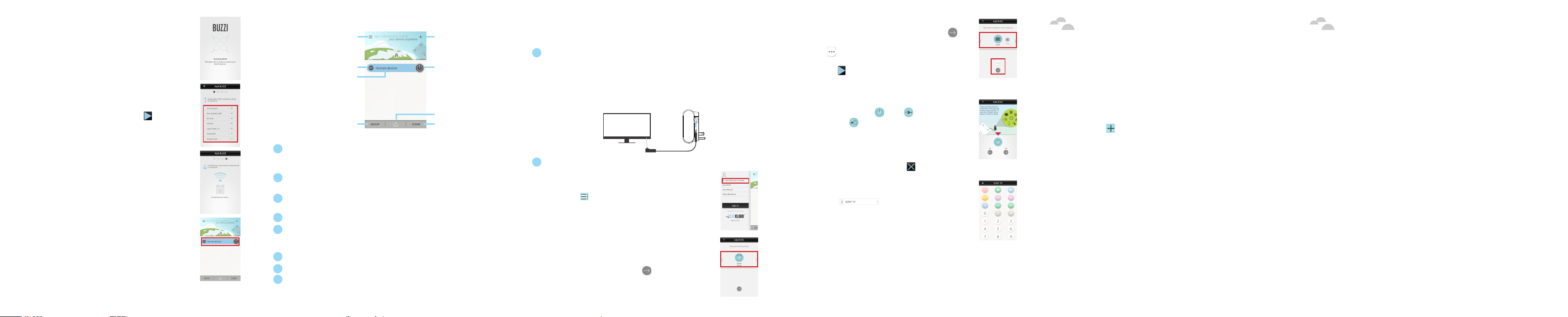
c) The app will automatically discover your
BUZZI.
NOTE: If you are using an iPad or an iPhone, you
may need to first connect to your BUZZI manually
via Wi-Fi.
d) Select your Wi-Fi router.
Enter a password if needed. Tap to
continue.
e) The app will connect both your BUZZI and
your mobile device to the router that you
have selected.
f) When the control tab of your BUZZI device
appears in the BUZZI app main interface,
your BUZZI is now wirelessly connected.
Using and Configuring Your BUZZI
1
2
3
4
Most of your BUZZI’s control features can be accessed in the main interface.
1 Options button: Tap to access various BUZZI options, such as IR remote
controller setup, purchase another BUZZI*, the link to the user manual, and
BLACKLOUD account management*.
2 Power status: Shows current power status of the associated BUZZI device –
OFF or ON.
3 Device name and device edit button: Displays the current device name. Tap
for device settings and advanced features for your BUZZI*.
4 Group edit button: Tap to edit and use group power control features for your BUZZI*.
5 Add BUZZI button: Tap if you need to setup Wi-Fi connection for another BUZZI.
The app will direct you to start from Step 2b (Select New Configuration) of this quick
guide’s Setting Up Wi-Fi Connection section.
6 Power button: Tap to turn your device on or off.
7 Home button: Tap to return to the main interface.
8 Scene edit button: Tap to edit and use power scene control features for your BUZZI*.
*Please refer to the user manual for more details.
5
6
7
8
Quick Guide - 8Quick Guide - 7 Quick Guide - 9 Quick Guide - 10 Quick Guide - 11 Quick Guide - 12
Setting Up the IR Controller
Your BUZZI can also function as an IR remote controller for your IR-controlled appliance.
1 Set up the IR connection.
Your BUZZI features an internal IR LED (see Your BUZZI) which allows you to
control appliances that feature an IR remote control sensor. To ensure a more
consistent control you can also use the IR cable. To use the IR cable, connect
the IR cable to the IR port of your BUZZI and aim the IR LED at the IR sensor
of your appliance.
2 Set up the IR remote controller in the BUZZI app.
a) Tap and select Add IR Remote
Controller.
b) Select the BUZZI device that you want to use
as the IR transmitter. Tap to continue.
c) Slide the appliance icon to select the
manufacturer of your appliance, then tap
. If the manufacturer cannot be found, tap
to bring forth the complete manufacturer
list. Select a manufacturer from the list, then
tap to continue.
d) After you have selected your appliance’s
manufacturer, the app will guide you to
test the remote-controller’s functionality.
Press the power , mute , or inputchange button and see if your appliance
properly follows the command. If the test is
successful, tap Yes to continue to the next
test. If the test has failed, tap No to go back
to the previous test or change the IR control
code. To abort the test, tap .
e) After successfully completing all three
tests shown above, a new remote control
tab will appear. Tap the
remote control tab to bring forth the
remote control panel. You can then control
your appliance anywhere within the
coverage area of your router.
Troubleshooting For More Information
Q: The BUZZI app cannot find my BUZZI during Wi-Fi setup.
A: Please make sure that Wi-Fi is enabled on your mobile device. If your BUZZI
is already connected to a router, please reset your BUZZI to the initialization
mode by pressing the power/reset button for at least 10 seconds.
Q: The BUZZI app’s main interface does not display the control tab of my BUZZI.
A: Wi-Fi connection to your BUZZI is not yet set. Please tap the Wi-Fi
setup button in the main interface and start from Step 2c (select new
configuration) of this quick guide’s Setting Up Wi-Fi Connection section.
Q: I get the error message “Could not add IR Remote Controller due to no
available BUZZI devices” after I select Add IR Remote Controller.
A: The BUZZI app may be busy re-detecting your BUZZI device. Please wait for a
few seconds and try again.
Q: What appliances can be controlled by my BUZZI?
A: Your BUZZI works with appliances whose power is directly controlled
via a physical power switch (e.g. fans, lights, heaters, etc.). Certain
appliances with a digital interface (e.g. TVs, DVD players, smart fans,
etc.) may not be directly controlled by your BUZZI, as they enter standby
mode when power is supplied.
For more information regarding the use of your BUZZI smart plug, please check the
user manual available on the company website: www.blackloud.com
The Bluetooth® word mark and logos are registered trademarks owned by
Bluetooth SIG, Inc. and any use of such marks by BLACKLOUD, Inc. is under license.
Other trademarks and trade names are those of their respective owners.
Android is a trademark of Google Inc.
IOS is a trademark or registered trademark of Cisco in the U.S. and other countries
and is used under license.
BLACKLOUD Inc.
42 Corporate Park #250
Irvine, CA 92606 USA
888-783-0378
[email protected]
www.blackloud.com
Page 3

X
!
X
!
X
X
!
X
!
!
Safety Document
Safety Document
Safety Document
Safety Document
Safety Categories
Prohibited actions
Situations that need mandatory action
Situations that need attention
!
Safety Information
To ensure safety of the product and its users, please follow the safety
instructions below:
Do not attempt to disassemble, modify or repair this product by
yourself, as this may cause a fire, electric shock or product damage
and void product warranty.
The product is for indoor use only. Do not use the product outdoors.
Avoid using the product in hot or humid locations.
If the product becomes wet during operation, do not touch the
product without unplugging it. Contact an experienced electrical
technician for help.
Safety Document - 2 Safety Document -
Avoid disconnecting a cable from the product with excessive force.
!
Handle the product with care. Accidental damage will void
!
product warranty.
Keep the product out of reach of children. The product contains small
parts that can be dangerous to children under 3 years old.
To avoid product overheating, do not place the product on paper,
cloth, or other flammable materials.
If you smell something burning inside the product or see smoke
coming from the product, unplug the product immediately and
contact your dealer for help.
There are no user-serviceable parts inside the product. If you
experience problems with the product, please contact us or your
dealer for assistance.
Federal Communication Commission
Interference Statement
This equipment has been tested and found to comply with the limits for a Class
B digital device, pursuant to Part 15 of the FCC Rules. These limits are designed
to provide reasonable protection against harmful interference in a residential
installation. This equipment generates, uses and can radiate radio frequency
energy and, if not installed and used in accordance with the instructions, may cause
harmful interference to radio communications. However, there is no guarantee
that interference will not occur in a particular installation. If this equipment
does cause harmful interference to radio or television reception, which can be
determined by turning the equipment off and on, the user is encouraged to try to
correct the interference by one of the following measures:
- Reorient or relocate the receiving antenna.
- Increase the separation between the equipment and receiver.
- Connect the equipment into an outlet on a circuit different from that to which
the receiver is connected.
- Consult the dealer or an experienced radio/TV technician for help.
FCC Caution: Any changes or modifications not expressly approved by the
party responsible for compliance could void the user’s authority to operate
this equipment.
This device complies with Part 15 of the FCC Rules. Operation is subject to the
following two conditions: (1) This device may not cause harmful interference, and
(2) this device must accept any interference received, including interference that
may cause undesired operation.
This device and its antenna(s) must not be co-located or operating in conjuncation
with any other antenna or transmitter.
IMPORTANT NOTE:
FCC Radiation Exposure Statement:
This equipment complies with FCC radiation exposure limits set forth for an
uncontrolled environment. This equipment should be installed and operated with
minimum distance of 20cm between the radiator and your body.
The Country Code selection feature is disabled for products marketed in the US/
CANADA.
3
Safety Document -
4
 Loading...