

Page 1

1
THE SERVSWITCH™ FAMILY
Welcome to the ServSwitch
TM
Family!
Thank you for purchasing a BLACK BOX®ServSwitch™Brand KVM switch! We
appreciate your business, and we think you’ll appreciate the many ways that your
new ServSwitch keyboard/video/mouse switch will save you money, time, and
effort.
That’s because our ServSwitch family is all about breaking away from the
traditional, expensive model of computer management. You know, the one-sizefits-all-even-if-it-doesn’t model that says, “One computer gets one user station, no
more, no less.” Why not a single user station (monitor, keyboard, and mouse) for
multiple computers—even computers of different platforms? Why not a pair of
user stations, each of which can control multiple computers? Why not multiple
user stations for the same computer?
With our ServSwitch products, there’s no reason why not. We carry a broad line
of robust solutions for all these applications. Do you have just two PCs, and need
an economical alternative to keeping two monitors, keyboards, and mice on your
desk? Or do you need to share dozens of computers, including a mix of PC, Mac
®
,
and Sun Microsystems
®
types, among multiple users with different access levels?
Does your switch have to sit solidly on a worktable and use regular everyday cables?
Or does it have to be mounted in an equipment rack and use convenient many-toone cables? No matter how large or small your setup is, no matter how simple or
how complex, we’re confident we have a ServSwitch system that’s just right for you.
The ServSwitch
™
family from Black Box—the one-stop answer for all your KVM-
switching needs!
*
This manual will tell you all about your new ServShare™ unit, including how to
install, operate, and troubleshoot it. For an introduction to the ServShare, see
Chapter 2. The ServShare product codes covered in this manual are:
KV752A
KV752AE
KV754A
KV754AE
Page 2

2
SERVSHARE™
TRADEMARKS USED IN THIS MANUAL
BLACK BOX and the logo are registered trademarks, and ServSwitch and
ServShare are trademarks, of Black Box Corporation.
Mac is a registered trademark of Apple Computer, Inc.
IBM, PC/AT, PS/2, RS/6000, and ThinkPad are registered trademarks, and
PC/XT is a trademark, of International Business Machines Corporation.
Microsoft and Windows are registered trademarks and/or trademarks of Microsoft
Corporation in the United States and/or other countries.
Sun and Sun Microsystems are registered trademarks of Sun Microsystems, Inc. in
the United States and other countries.
Any other trademarks mentioned in this manual are acknowledged to be the property of the
trademark owners.
Page 3

3
FCC/IC STATEMENTS
FEDERAL COMMUNICATIONS COMMISSION
AND
INDUSTRY CANADA
RADIO-FREQUENCY INTERFERENCE STATEMENTS
This equipment generates, uses, and can radiate radio frequency energy and if not
installed and used properly, that is, in strict accordance with the manufacturer’s
instructions, may cause interference to radio communication. It has been tested
and found to comply with the limits for a Class A computing device in accordance
with the specifications in Subpart J of Part 15 of FCC rules, which are designed to
provide reasonable protection against such interference when the equipment is
operated in a commercial environment. Operation of this equipment in a
residential area is likely to cause interference, in which case the user at his own
expense will be required to take whatever measures may be necessary to correct the
interference.
Changes or modifications not expressly approved by the party responsible for
compliance could void the user’s authority to operate the equipment.
This digital apparatus does not exceed the Class A limits for radio noise emission from digital
apparatus set out in the Radio Interference Regulation of Industry Canada.
Le présent appareil numérique n’émet pas de bruits radioélectriques dépassant les limites
applicables aux appareils numériques de la classe A prescrites dans le Règlement sur le
brouillage radioélectrique publié par Industrie Canada.
Page 4

4
SERVSHARE™
NORMAS OFICIALES MEXICANAS (NOM)
ELECTRICAL SAFETY STATEMENT
INSTRUCCIONES DE SEGURIDAD
1. Todas las instrucciones de seguridad y operación deberán ser leídas antes de
que el aparato eléctrico sea operado.
2. Las instrucciones de seguridad y operación deberán ser guardadas para
referencia futura.
3. Todas las advertencias en el aparato eléctrico y en sus instrucciones de
operación deben ser respetadas.
4. Todas las instrucciones de operación y uso deben ser seguidas.
5. El aparato eléctrico no deberá ser usado cerca del agua—por ejemplo, cerca
de la tina de baño, lavabo, sótano mojado o cerca de una alberca, etc..
6. El aparato eléctrico debe ser usado únicamente con carritos o pedestales que
sean recomendados por el fabricante.
7. El aparato eléctrico debe ser montado a la pared o al techo sólo como sea
recomendado por el fabricante.
8. Servicio—El usuario no debe intentar dar servicio al equipo eléctrico más allá
a lo descrito en las instrucciones de operación. Todo otro servicio deberá ser
referido a personal de servicio calificado.
9. El aparato eléctrico debe ser situado de tal manera que su posición no
interfiera su uso. La colocación del aparato eléctrico sobre una cama, sofá,
alfombra o superficie similar puede bloquea la ventilación, no se debe colocar
en libreros o gabinetes que impidan el flujo de aire por los orificios de
ventilación.
10. El equipo eléctrico deber ser situado fuera del alcance de fuentes de calor
como radiadores, registros de calor, estufas u otros aparatos (incluyendo
amplificadores) que producen calor.
11. El aparato eléctrico deberá ser connectado a una fuente de poder sólo del
tipo descrito en el instructivo de operación, o como se indique en el aparato.
Page 5

5
NOM STATEMENT
12. Precaución debe ser tomada de tal manera que la tierra fisica y la polarización
del equipo no sea eliminada.
13. Los cables de la fuente de poder deben ser guiados de tal manera que no
sean pisados ni pellizcados por objetos colocados sobre o contra ellos,
poniendo particular atención a los contactos y receptáculos donde salen del
aparato.
14. El equipo eléctrico debe ser limpiado únicamente de acuerdo a las
recomendaciones del fabricante.
15. En caso de existir, una antena externa deberá ser localizada lejos de las lineas
de energia.
16. El cable de corriente deberá ser desconectado del cuando el equipo no sea
usado por un largo periodo de tiempo.
17. Cuidado debe ser tomado de tal manera que objectos liquidos no sean
derramados sobre la cubierta u orificios de ventilación.
18. Servicio por personal calificado deberá ser provisto cuando:
A: El cable de poder o el contacto ha sido dañado; u
B: Objectos han caído o líquido ha sido derramado dentro del aparato; o
C: El aparato ha sido expuesto a la lluvia; o
D: El aparato parece no operar normalmente o muestra un cambio en su
desempeño; o
E: El aparato ha sido tirado o su cubierta ha sido dañada.
Page 6

6
SERVSHARE™
Contents
Chapter Page
1. Specifications ............................................................................................. 8
2. Introduction ............................................................................................. 10
2.1 The Complete Package ..................................................................... 10
2.2 Operating Features ........................................................................... 10
2.3 The Front Panel ................................................................................ 12
2.4 The Rear Panel .................................................................................. 14
2.5 Cable Requirements ......................................................................... 15
3. Installation ................................................................................................ 16
3.1 Quick Setup Guide ........................................................................... 16
3.2 Installation Procedure ...................................................................... 17
3.2.1 Rackmounting (Optional) ..................................................... 17
3.2.2 Connecting the CPU ............................................................... 17
3.2.3 Connecting the Keyboards, Monitors, and Mice .................. 18
3.2.4 Powering Up the System ......................................................... 19
4. Operation ................................................................................................. 20
4.1 Guidelines for using the ServShare with Your Equipment ............. 20
4.1.1 CPU .......................................................................................... 20
4.1.2 Mice and Keyboards ................................................................ 20
4.1.3 Monitors .................................................................................. 21
4.2 Setting the Configuration DIP Switch ............................................. 24
4.3 Keyboard-Command Summary ........................................................ 24
4.4 The Commands in Detail ................................................................. 27
4.4.1 Keep Settings ......................................................................... 27
4.4.2 Set Keyboard Timeout (From Station 1 Only) ................... 27
4.4.3 Set Keyboard Mode ............................................................... 27
4.4.4 Set Keyboard Typematic ....................................................... 29
4.4.5 Set Mouse Translation (From Station 1 Only) .................... 31
4.4.6 Set Video-Blanking Delay ...................................................... 31
4.4.7 Enable, Disable, or Freeze Other User Stations .................. 32
4.4.8 Reset ....................................................................................... 32
4.4.9 Send Null Byte (Only If CPU Is Using PS/2 Mouse Port) .. 33
4.4.10 Identify ROM ........................................................................ 33
Page 7

7
TABLE OF CONTENTS
Chapter Page
5. Troubleshooting ...................................................................................... 34
5.1 Common Problems ........................................................................... 34
5.1.1 CPU Doesn’t Boot ................................................................. 34
5.1.2 Can’t Enter Keyboard Commands ....................................... 35
5.1.3 Typed Characters Wrong or Missing ................................... 35
5.1.4 Mouse Driver Doesn’t Load ................................................. 36
5.1.5 Can’t Access Mouse Functions ............................................. 36
5.1.6 PS/2 Mouse Gets Out of Sync .............................................. 36
5.1.7 Mouse Doesn’t Move Pointer/Cursor ................................. 37
5.1.8 Display is Blank or Fuzzy ...................................................... 37
5.1.9 Video Not Synchronized or Wrong Color ........................... 38
5.1.10 Can’t Access High-Resolution Mode ................................... 38
5.1.11 CPU Locks Up When Windows 3.x Loaded ........................ 38
5.1.12 ServShare Doesn’t Work with Docking Station ................... 38
5.1.13
ServShare Doesn’t Work with Dongle-Protected Software
.. 38
5.1.14 Status LED Flashes, ServShare Doesn’t Work at All ........... 38
5.2 Calling Black Box .............................................................................. 39
5.3 Shipping and Packaging ................................................................... 39
Appendix A: NVRAM Factory Defaults ......................................................... 40
Appendix B: Cable Product Codes ................................................................ 41
Appendix C: Rackmounting the ServShare .................................................. 43
C.1 Mounting 2-Port (KV752) Units ....................................................... 43
C.2 Mounting 4-Port (KV754) Units ....................................................... 43
Page 8

8
SERVSHARE™
1. Specifications
Compliance — FCC Part 15 Subpart J Class A, IC Class/classe A
Standards — With original Serv cabling: VGA (color or monochrome/
page white) video;
With original Serv cabling (minimal) or coaxial cabling
(recommended): SVGA video;
With coaxial cabling: XGA (color or monochrome) video
Interfaces — All CPU and KVM ports:
Proprietary composite of IBM PS/2 or PC/AT
keyboard, PS/2 or RS-232 mouse, and VGA/SVGA/
XGA video
RS-232 port: Proprietary variant of EIA/TIA RS-232-D
using RJ-12 (“6-wire RJ-11”) connectors, DTE;
Resolution — With original Serv cabling: Up to 1024 x 768
noninterlaced;
With coaxial cabling: Up to 1280 x 1024 noninterlaced
Maximum
Distance — Depending on the CPU, monitor, and video resolution
(see Section 4.1.3):
40 ft. (12.2 m) of total original Serv cable from any
keyboard, monitor, and mouse to the CPU; or
20 ft. (6.1 m) of coaxial cable—possibly as much as
100 ft. (30.5 m), depending on the CPU—from any
ServShare to any device attached to it
User Controls — Keyboard commands;
Front-mounted 8-position DIP switch;
Rear-mounted power (ON/OFF) pushbutton
Indicators — All front-mounted LEDs:
(1) Power;
(1) Remote Video;
KV752A, KV752AE: (2) Status (active station);
KV754A, KV754AE: (4) Status (active station)
Page 9

9
CHAPTER 1: Specifications
Connectors — Front-mounted;
(1) DB25 female for CPU;
KV752A, KV752AE: (2) DB25 female for keyboard,
video, and mouse;
KV754A, KV754AE: (4) DB25 female for keyboard,
video, and mouse;
Rear-mounted;
(1) RJ-12 female for RS-232;
(1) 5-pin DIN for power
Power — KV752A, KV754A:
From wallmount power supply PS018:
Optimal input: 120 VAC, 60 Hz, 100 mA;
Output: 16.5 VAC CT, 1.45 amps;
Consumption: Up to 23.9 VA (23.9 watts);
KV752AE, KV754AE:
From desktop power supply PS018E:
Optimal input: 230 VAC, 50 Hz, 60 mA;
Output: 16.5 VAC CT, 1.45 amps;
Consumption: Up to 23.9 VA (23.9 watts)
Maximum
Altitude— 10,000 ft. (3048 m)
Temperature
Tolerance— 32 to 131˚F (0 to 55˚C)
Humidity
Tolerance— 5 to 80% noncondensing
Enclosure — Steel
Size — KV752A, KV752AE:
2.1"H x 8.9"W x 4.9"D (5.3 x 22.5 x 12.5 cm);
KV754A, KV754AE:
5.3"H x 13.1"W x 4.9" D (13.5 x 33.3 x 12.5 cm)
Weight — KV752A, KV752AE: 3 lb. (1.4 kg);
KV754A, KV754AE: 7 lb. (3.2 kg)
Page 10

10
SERVSHARE™
2. Introduction
Thank you for choosing a ServShare™. Your new ServShare will simplify your job
by helping you organize your multiple-user, single-CPU application. Because the
ServShare lets you use two to four keyboards, monitors, and mice to access a single
IBM
®
PC compatible computer, your users can share your important PC data and
applications.
This chapter describes everything that comes with the ServShare, its external and
operating features, and the cabling you’ll need for it.
2.1 The Complete Package
Your ServShare package includes the ServShare unit, its power supply, and this
manual. If anything arrived damaged, contact Black Box.
2.2 Operating Features
Some of the useful features of your ServShare:
• You can share access to a single IBM PC compatible CPU with two, three, or
four user stations (keyboards, monitors, and mice).
• Fully automatic CPU sharing on a first-come, first-served basis.
• Can display video to all user stations simultaneously.
• Handles access contention with a user-adjustable keyboard timeout.
• Independently user-adjustable video-blanking timeout and keyboard-typematic
rate and delay for each station.
• You can use “enable,” “disable,” and “freeze” commands to enable/disable
keyboard, mouse, and video functions at the other user stations for temporary
privacy or uninterruptibility.
• You can use DIP switches to enable/disable keyboard commands from any
user station.
• Front-panel status LEDs flash every second to show on-line status or to show
when activity has been detected on a station’s keyboard or mouse.
• Supports SVGA and color or monochrome XGA or VGA video at resolutions
up to 1280 x 1024 noninterlaced (although all video types except VGA require
coaxial or special cables).
Page 11

11
CHAPTER 2: Introduction
• Depending on the CPU, can drive keyboard, video, and mouse signals across as
much as 100 ft. (30.5 m) of coaxial Serv cable.
• Supports all modes of PS/2
®
and PC/AT®compatible keyboards.
• Instant keyboard-LED synchronization.
• Mouse can be any 2-button PS/2 or RS-232 serial type by Microsoft
®
or
Logitech™. (The ServShare can translate PS/2 mouse data to serial or serial
mouse data to PS/2.)
• Automatically re-enables PS/2 mouse when the mouse is disconnected and
then reconnected.
• A rackmount kit is also available.
Page 12
12
SERVSHARE™
2.3 The Front Panel
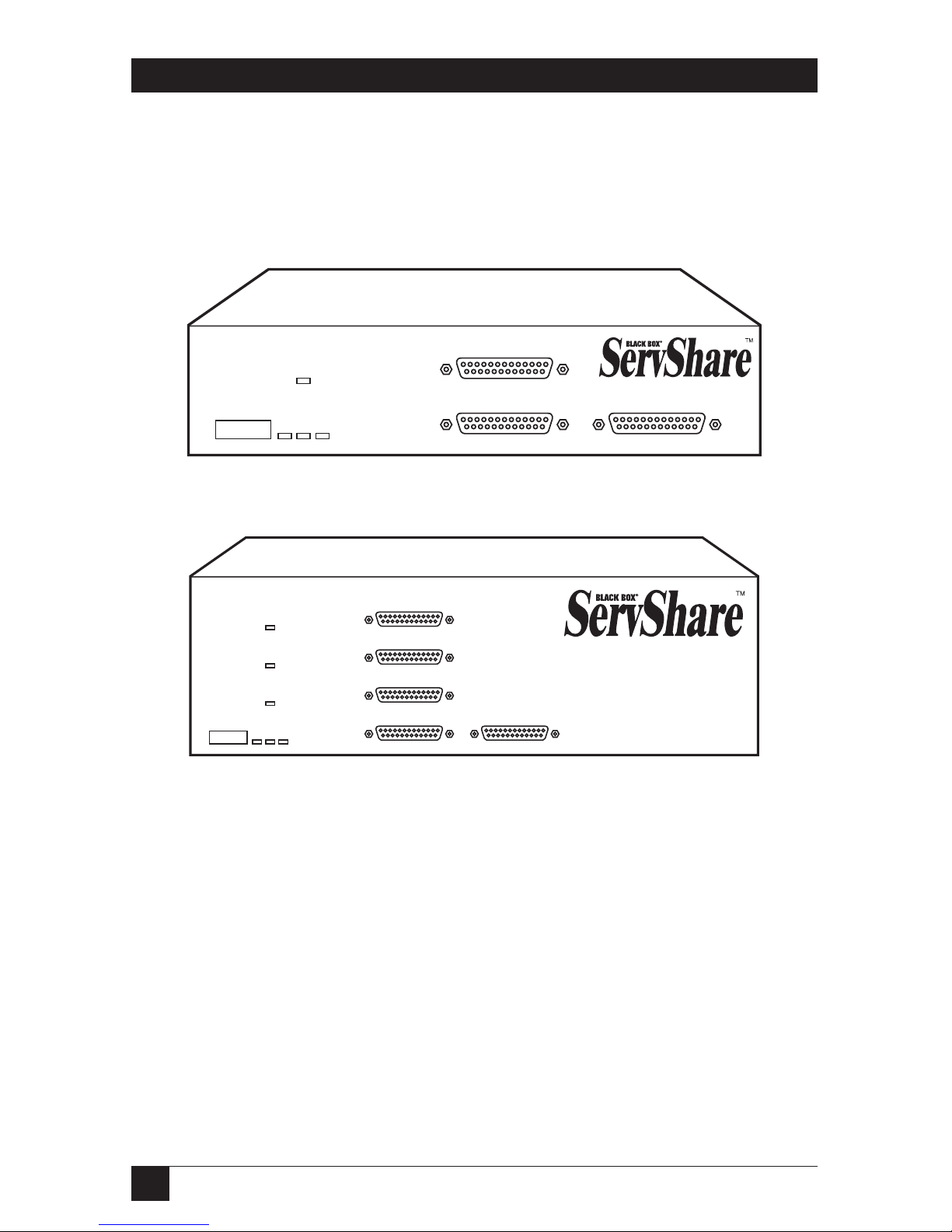
The ServShare’s front panel features a DIP switch, four to six LED indicators, and
three to five DB25 female connectors. To familiarize yourself with these
components, refer to Figures 2-1 and 2-2 and the descriptions that follow.
Figure 2-1. The front panel of a 2-port ServShare (KV752 model).
Figure 2-2. The front panel of a 4-port ServShare (KV754 model).
Panel Label Description
Configuration Configuration DIP Switch: Set the positions of this switch UP to
enable or DOWN to disable keyboard-command input from
user stations. Switch position 8 (far right) controls station 1
and position 7 (2nd from right) controls station 2; on KV754
models, position 6 (3rd from right) controls station 3 and
position 5 (4th from right) controls station 4.
Power Power LED: Lights to indicate that unit is powered ON.
CPUStation 1
Station 2
Configuration
Power
Station 1
Status
Multiple
Station
Video
Station 2
Status
Station 3
Station 3
Status
Station 4
Station 4
Status
CPUStation 1
Station 2
Configuration
Power
Station 1
Status
Multiple
Station
Video
Station 2
Status
Page 13

13
CHAPTER 2: Introduction
Panel Label Description
Station 1, 2, 3, 4 Station Status LEDs: Should flash once a second to show that
Status the ServShare’s user-station daughterboards are
communicating with each other. Also flashes whenever data is
detected from the corresponding user station’s keyboard or
mouse.
Multiple Station Multiple Shared Video (MSV) LED: Lights when the ServShare
Video is sending video to the user stations other than station 1
(station 2 on KV752 models or stations 2, 3, and 4 on KV754
models).
Station 1, 2, 3, 4 Station MKM (Monitor/Keyboard/Mouse) Ports: You will run
MKM Adapter Cables from these DB25 female connectors to
your user stations (keyboards, monitors, and mice).
CPU CPU Port: You will run CPU Adapter Cables from this DB25
female connector to the CPU your users are sharing.
Page 14

14
SERVSHARE™
2.4 The Rear Panel
The ServShare’s rear panel contains its RS-232 port and its power switch and
connector; refer to Figures 2-3 and 2-4 and the descriptions that follow.
Figure 2-3. The rear panel of a 2-port ServShare (KV752 model).
Figure 2-4. The rear panel of a 4-port ServShare (KV754 model).
Panel Label Description
RS-232 RS-232 Port: Proprietarily pinned RJ-12 female connector used
only for factory diagnostics.
ON/OFF Power Switch: Pressing this pushbutton turns the ServShare
ON and OFF.
POWER Power Inlet: You will attach the output cord of the ServShare’s
17 VAC CT power supply to this 5-pin DIN female connector.
ON/OFF
RS232
POWER
17VAC CT
ON/OFF
RS232
POWER
17VAC CT
Page 15

15
CHAPTER 2: Introduction
2.5 Cable Requirements
Many switches of this type have what seems like ten million connectors on their
rear panels: one for each monitor cable, one for each keyboard cable, and a third
for each mouse cable. The potential for tangling or mismatching cables is high.
By contrast, you can connect the ServShare to your user-station equipment with
one “MKM (Monitor/Keyboard/Mouse) Adapter Cable” for each station. You’ll
plug your monitor, keyboard, and mouse cables into this Adapter Cable instead of
into the ServShare itself.
You can connect the ServShare to your CPU with a “CPU Adapter Cable” that
reaches its video-output, keyboard, and mouse ports.
The exact variety or varieties of these cables that you’ll need will depend on the
equipment you are connecting for your application. Refer to Appendix B for the
available types of these cables and the corresponding product codes. Also refer to
Chapter 1 or the Caution notice on page 17 for information about maximum
cabling distances.
NOTES
SVGA (over longer distances) and XGA video place special demands on
cabling that the regular MKM Adapter Cables and CPU Adapter Cables
typically cannot meet. For these applications, you should use coaxial
cables that can carry video signals not only farther but also at
higher
resolutions. See Appendix B and the Caution notice on page 17.
Page 16

16
SERVSHARE™
3. Installation
3.1 Quick Setup Guide
Figure 3-1 shows how to connect a CPU and a keyboard, monitor, and mouse to
the ServShare. Cable connectors will vary depending on the types of equipment
you are installing (see Appendix B). Note that you also need to attach the unit’s
power supply (its output cord will plug into the POWER inlet on the rear panel).
Figure 3-1. Connecting equipment to a ServShare (4-port unit shown).
CPUStation 1
Station 2
Station 3
Station 4
Monitor/
Keyboard/
Mouse
Adapter
Cable
CPU
Adapter
Cable
Page 17

17
CHAPTER 3: Installation
3.2 Installation Procedure
This section provides complete instructions for the hardware setup of a single
ServShare. For an illustrated example of the elements of a basic setup, see
Figure 3-1 on the previous page.
3.2.1 R
ACKMOUNTING (OPTIONAL)
If you want to mount the ServShare in a 19" rack, you will need a “classic chassis”
ServSwitch Rackmounting Kit. For the 2-port (KV752 model) ServShare, you’ll
need a “mini” kit (our product code SW727); for the 4-port (KV754 model)
ServShare, you’ll need a “full-size” kit (our product code SW728). Once you have
the Kit, see Appendix C for instructions. If you want to mount the ServShare in a
23" or 24" rack, call Black Box Technical Support for a special quote on an
appropriate kit.
3.2.2 C
ONNECTING THE
CPU
A CPU Adapter Cable runs from the ServShare to the keyboard port, mouse port,
and video-output port of the CPU you want to directly attach to it. Different types
of this cable fit the connectors on different computers (see Appendix B). This
cable also comes in the different lengths supported by different applications (see
Section 4.1.3).
CAUTION!
Avoid routing cable near fluorescent lights, air-conditioning
compressors, or machines that may create electrical noise. Total length
of original Serv cable from the keyboards, monitors, and mice to the
CPU should not exceed 40 ft. (12.2 m). For typical equipment and
video
resolutions, length of coaxial cable should not exceed 20 ft. (6.1 m)
from
a ServShare to any attached device (keyboard, monitor, mouse, or CPU).
However, we do provide coaxial cable in lengths up to 100 ft. (30.5 m),
because some CPUs can drive and receive keyboard and mouse signals
at greater distances than others. To go even farther, you might want to
use Station Extenders (see Appendix B).
1. After you verify that the ServShare is turned off and unplugged, plug the
DB25 male connector of the CPU Adapter Cable into the CPU port on the
ServShare’s rear panel.
2. Plug the CPU Adapter Cable’s video-, keyboard-, and mouse-port connectors
into the corresponding ports on the CPU. The CPU should be OFF when you
do this; the ServShare will automatically adjust to the CPU’s keyboard mode
when you power up the CPU. Avoid plugging CPUs into the ServShare if they
are already ON; if you accidentally do so, see
Section 4.4.3 to make sure the
ServShare
is set for the proper keyboard mode.)
Page 18

18
SERVSHARE™
CAUTION!
Do not attach a docking station for a ThinkPad®or other portable
computer, no matter what type or make, to the ServShare. At the time of
this writing, it does not support docking
stations; your Serv system
might not function properly if any are attached.
Even if you connect your ThinkPad directly (rather than through a
docking station) to the keyboard, video, and mouse feeds from the
ServShare, it still won’t work, because the ServShare currently supports
only “stream mode” (continuous) mouse data but the ThinkPad has to see
“prompt mode” (burst-on-request) mouse data.
3.2.3 CONNECTING THE MONITORS, KEYBOARDS, AND MICE
Monitor/Keyboard/Mouse (MKM) Adapter Cables connect your monitors,
keyboards, and mice to the ServShare. Because various styles of electrical
connectors are used by different classes of equipment, we supply this cable in
various styles to match (see Appendix B). This cable also comes in the different
lengths supported by different applications (see Section 4.1.3, Appendix B, and the
Caution notice on the previous page).
CAUTION!
Make very sure that the monitors, keyboards, and mice you plan to use
can meet the demands of your application—see Section 4.1. Also, note
that the ServShare doesn’t support dongles.
1. After you verify that the ServShare is turned OFF, plug the DB25 male
connector of the first MKM Adapter Cable into the port labeled Station 1 on
the ServShare’s rear panel. (Be aware that user station 1 is the “primary” or
“administrator” station; it is the only user station from which the ServShare
will accept keyboard-timeout and mouse-translation commands. Refer to
Sections 4.4.2 and 4.4.5.)
2. Plug the cables from Station 1’s
monitor, keyboard, and mouse into the
corresponding connectors on the other
ends of the MKM Adapter Cable
.
3. Repeat steps 1 and 2 for your remaining user station(s).
Page 19

19
CHAPTER 3: Installation
3.2.4 P
OWERINGUP THESYSTEM
Plug in and turn ON the ServShare, then power up the connected CPU. The
ServShare emulates all keyboard and mouse functions for automatic boot-up,
although you might have to issue the Mode command Mn (see Section 4.4.3) to get
proper keyboard communication.
Once everything is up and running, give the system a quick test. You should be
able to see the video image from the shared CPU on all of the user-station
monitors. You should initially be able to type and move the mouse at any user
station, but once you begin typing at any station, all other stations should be locked
out. Once you finish typing and the factory-default keyboard timeout of two
seconds expires (see Section 4.4.2), a user at another station should be able to
access the CPU again.
If everything seems to work OK, your ServShare should now be ready for
operation using its default settings. To take full advantage of the ServShare’s
features, refer to Chapter 4, which gives detailed information about each of the
ServShare commands, describing each command’s function and keystroke
sequence. For your convenience, this information is summarized in Section 4.3.
Page 20

20
SERVSHARE™
4. Operation
The first part of this chapter, Section 4.1, gives you some guidelines that you
should follow to make sure your ServShare works properly with your equipment.
Section 4.2 tells you how to set the ServShare’s configuration DIP switch.
Section 4.3 summarizes the ServShare’s keyboard commands, and Section 4.3
describes these commands in detail.
NOTES
To start any ServShare keyboard command, you must press and release
the right Control Key ([CTRL]). Pressing and releasing [CTRL] cues the
ServShare to expect command characters from that keyboard. You then
have two seconds in which to start entering a valid command. If no
command is begun within two seconds or if an invalid command is
entered, the ServShare aborts the command.
When entering commands that contain numbers or math symbols, use
only the numeral keys located at the top of your alphanumeric keyboard.
Numbers and symbols entered from the numeric keypad to the right will
not be recognized as valid.
4.1 Guidelines for Using the ServShare with Your Equipment
4.1.1 CPU
Use only an IBM PC/AT or PS/2 or 100% compatible machine. The ServShare
does not support IBM PC/XT™ or compatible machines. It also does not support
machines that output CGA or EGA video.
4.1.2 M
ICE ANDKEYBOARDS
When you power up your ServShare system, make sure that your CPU, mice, and
keyboards are properly cabled to the ServShare. Unless it’s absolutely necessary,
don’t disconnect and reconnect a mouse or keyboard from a ServShare while the
ServShare is ON; if you have to do this, issue the Reset command ([CTRL] R—see
Section 4.4.8) after you reconnect the mouse or keyboard.
The mouse must be a 2-button PS/2 or RS-232 type mouse by Microsoft or
Logitech™.
Use only the generic Microsoft mouse driver MOUSE.COM, version 4.0 at least
and preferably version 9.01 or higher. If you’re running Windows
®
, this driver must
be loaded in Windows as well as in the base operating system. Do not, on the
shared CPU, run any programs or TSRs, or enter any DOS commands, that change
the settings of the mouse port after the driver has been loaded.
Page 21

21
CHAPTER 4: Operation
The ServShare is designed to support IBM PC compatible 101-key keyboards and
IBM PC keyboard-scan modes 1, 2, and 3, and it’s designed to work with a CPU and
keyboards that use 5-pin DIN or 6-pin mini-DIN keyboard connectors. The
ServShare might not work properly with keyboards that have proprietary keys or
connectors or use proprietary keyboard-scan modes.
Because the ServShare currently only supports “stream mode” (continuous)
mouse data but the IBM ThinkPad has to handle mouse data in “prompt mode”
(burst-on-request), don’t try to attach any ThinkPad computers to the ServShare,
either directly or through docking stations.
Although the ServShare resists minor transient surges that can be caused by
rapidly cycling power, certain keyboards are sensitive to such transients. Because
your shared keyboards get their power through the ServShare, wait at least three
seconds after turning off the ServShare before turning it on again, or the
keyboards might not reset correctly.
4.1.3 M
ONITORS
NOTE
At resolutions up to 800 x 600, the video quality for most ServShare
applications will be excellent. At higher resolutions, however, you might
see a little fuzziness on your monitor no matter how close to ideal your
ServShare system is.
The ServShare is designed to support standard VGA video, including VGA
monochrome and VGA “page white.” It does not support PCs that use CGA, EGA,
or proprietary versions of VGA that depart from the original specifications. Consult
your PC’s manual, and if that doesn’t tell you whether or not the PC uses standard
VGA, consult with the PC’s or the video card’s manufacturer.
The ServShare is also designed to support SVGA, although we recommend
coaxial cabling for this, especially for higher resolutions. With coaxial cables, the
ServShare will also support XGA.
(continued on next page)
Page 22

22
SERVSHARE™
The ServShare will support SVGA (Super VGA) video, but with original Serv cables
the video quality will decrease markedly at higher resolutions and distances.
Table 4-1 illustrates this. The distances in the table are total cable lengths
measured from the CPU to the monitor.
Table 4-1. Video Quality vs. Distance for Original Serv Cables
Resolution
Distance
5' (1.5 m) 10' (3 m) 15' (4.6 m) 20' (6.1 m)
25' (7.6 m)
640 x 480 333 3 3
800 x 600 noninterlaced 333 2 2
1024 x 768 interlaced 332 2 2
1024 x 768 noninterlaced 322 2 2
1280 x 1024 interlaced 211 1 1
1280 x 1024 noninterlaced 211 1 1
Quality 3 = Near perfect; screen defects are not conspicuous
Quality 2 = Good to very good; images are clear; there are small reflections around
text lettering depending on the color; screen defects are sometimes
conspicuous
Quality 1 = Fair to poor as distance increases; images run from slightly fuzzy to
badly smeared; text runs from fuzzy but readable to completely
washed out
Page 23

23
CHAPTER 4: Operation
By contrast, coaxial cables (required for XGA applications, and recommended for
most other applications) do much better at maintaining video quality, as shown in
Table 4-2. (For the meaning of quality numbers 3, 2, and 1, see the bottom of
page 22.) As before, the distances in the table are total cable lengths measured
from the CPU to the monitor.
Table 4-2. Video Quality vs. Distance for Coaxial Cables
Resolution
Distance 10 ft. 20 ft. 30 ft. 50 ft. 75 ft. 100 ft. 150 ft. 200 ft.
(3 m) (6.1 m) (9.1 m) (15.2 m) (22.9 m) (30.5 m) (45.7 m) (61 m)
640 x 480 33 3 3 3 3 2 2
800 x 600 noninterl. 33 3 3 3 3 2 2
1024 x 768 interlaced 33 3 3 3 3 2 2
1024 x 768 noninterl. 33 3 3 2 2 2 1
1280 x 1024 interlaced 32 2 2 2 1 1 1
1280 x 1024 noninterl. 32 2 1 1 1 1 1
CAUTION!
Some CPUs can’t drive or receive keyboard and mouse signals across
longer runs of coaxial cable. Consult with the manufacturers of your
CPU before installing this cable in lengths greater than 20 ft. (6.1 m).
For CPU-to-monitor distances over 200 feet (61 m), Station Extenders might be
required. Call Black Box Technical Support to discuss this option.
Page 24

24
SERVSHARE™
4.2 Setting the Configuration DIP Switch
In some situations, you might want to keep users at one or more of the user
stations from sending keyboard commands to the ServShare. If this is true for you,
you can disable command recognition for any station by setting the ServShare’s
configuration DIP switch. Switch position 8 (the rightmost position) controls
whether the ServShare responds to commands from station 1; position 7 (2nd from
right) controls response for station 2; and on 4-port models, position 6 (3rd from
right) controls response for station 3 and position 5 (4th from right) controls
response for station 4. Set a switch position UP to enable command recognition for
that station or DOWN to disable command recognition.
The unused switch positions are reserved for future capabilities. Don’t move
them.
4.3 Keyboard-Command Summary
Table 4-3 on the next two pages summarizes the commands that can be sent to the
ServShare. To enter any command at a user station’s shared keyboard, first press
and release the right Control Key, represented by “[CTRL].” (This cues the
ServShare to look for commands from that keyboard.) Then enter the command
followed by any arguments you wish to specify (the port number, for example).
Letter commands are not case-sensitive; they are all shown in uppercase for
clarity only. In fact, you must not use the Shift key when you enter these
commands, although it’s OK if Caps Lock is on.
When you enter numeric commands or arguments, use only the numbered keys
at the top of your alphanumeric keyboard. Numbers entered from the numeric
keypad to the right will not be recognized as valid commands.
All of these commands have a two-second timeout between characters. This
means that if you begin entering a command, but you stop for more than two
seconds at any time before you type the final character, the command is aborted
and the ServShare returns to normal operation. This keeps the ServShare from
getting stuck waiting for you to finish the command.
The [CTRL] character is always passed through to the CPU. The command
characters and operands, however, are absorbed by the ServShare and are not sent
to the CPU.
Many of these commands have factory-default values (see Appendix A) that can
be reloaded if your ServShare becomes badly misconfigured; see Section 6.1.
Page 25

25
CHAPTER 4: Operation
Table 4-3. The ServShare’s Keyboard Commands
Resets and enables the keyboard and mouse.
Issue this command to correct your keyboard or
mouse if one of them malfunctions or gets stuck.
[CTRL] R
Reset
Disable the keyboard and mouse at all other
stations, but continue to display video.
[CTRL] F
Freeze Other
Stations
Disable the keyboard, mouse, and monitor at all
other stations.
[CTRL] D
Disable Other
Stations
Enable the keyboard, mouse, and monitor at all
other stations.
[CTRL] E
Enable Other
Stations
Sets the time of inactivity, in seconds, after which
the ServShare will blank the screen of your
station’s monitor. (The monitor is reactivated
when you move your mouse or press a key on
your keyboard.)
[CTRL] Vxxx
[ENTER] (xxx = delay in
seconds)
Set VideoBlanking Delay
From Station 1 only: Q1 turns on PS/2 to RS-232
mouse translation for all user stations. Q2 turns
on RS-232 to PS/2 translation for all stations. Q0
turns off mouse translation for all stations (mouse
type is autodetected).
[CTRL] Qx [ENTER]
(x = 0, 1, or 2)
Set Mouse
Translation
Sets the keyboard typematic (automatic keyrepeat) function for your user station. This
command works only if the CPU is designed to
use a standard keyboard and has CMOS that
allows users to program the typematic function.
[CTRL] Axxx
[ENTER] (xxx = a
decimal value from 0 to
127)
Set Keyboard
Typematic
Tells the ServShare the keyboard mode (1, 2, or
3) of the CPU.
[CTRL] Mx [ENTER]
(x = 1, 2, or 3)
Set Keyboard
Mode
From Station 1 only: Determines how long a user
station’s keyboard must be inactive before another
station can begin accessing the CPU.
[CTRL] Hxxx
(xxx = a 1- to 3-digit time
in seconds from 0 to 254;
255 disables the timeout)
Set Keyboard
Timeout
Enter this command after you enter any of the
following five commands (it saves new settings to
nonvolatile memory):
[CTRL] K
Keep Settings
DescriptionKeystroke Sequence
Command
Page 26

26
SERVSHARE™
Table 4-3. The ServShare’s Keyboard Commands (continued)
Causes the ServShare to report the version of
ROM it is using. Issue this command if you are
asked to do so by a technical-support person.
[CTRL] I
Identify ROM
Causes the ServShare to send a null byte to the
CPU’s PS/2 mouse port. Issue this command to
correct the current CPU if it gets “out of sync” with
the PS/2 mouse (see Section 4.3.5).
[CTRL] N
Send Null Byte
DescriptionKeystroke Sequence
Command
Page 27

27
CHAPTER 4: Operation
4.4 The Commands in Detail
4.4.1 K
EEPSETTINGS
The Keep Settings command saves the current state of the ServShare’s keyboardselectable settings to nonvolatile memory (NVRAM), where they become the new
default (loaded at power-up) settings. To enter the command from your keyboard,
press and release the right Control key, then type [K]. The five keyboard-selectable
settings are described in the next five sections.
4.4.2 SETK
EYBOARDTIMEOUT(FROMSTATION
1 O
NLY
)
The ServShare resolves contention for the CPU using a timeout system: At any
given time, one user station has sole access to the CPU until there is no activity on
that station’s keyboard for a certain timeout period. Use the Set Keyboard Timeout
command (which can be issued from user station 1 only) to set this timeout period
to any number of seconds from 0 to 254 (the factory-default value is 2). Entering a
value of 255 completely disables the timeout; station 1 will retain access indefinitely
until the value is changed. To issue the Set Keyboard Timeout command from
station 1, press and release the right Control key, type [H] followed by the new
timeout value (0 to 254 seconds or 255 to disable the timeout), and press
[ENTER].
4.4.3 SETK
EYBOARDMODE
Keyboard “modes” are electrical signaling protocols that determine how a powered
CPU and keyboard interact. A CPU and keyboard must use the same mode in
order to work with each other. Of the three standard keyboard modes currently in
use, mode number 2 is the one used by the vast majority of CPUs. It is also the
default state of all 101-key and PS/2 keyboards. Mode 1 is used primarily by certain
PS/2 CPUs. Mode 3 is used by RS/6000
®
CPUs, some other UNIX®based
computers, and certain specialized servers.
The ServShare supports all three of these modes: As it receives signals from any
of the user-station keyboards, it sends them to the CPU by emulating a keyboard of
the appropriate mode for that CPU; as it receives signals for one of the keyboards
from the CPU, it sends them to that keyboard by emulating a CPU of the
appropriate mode.
Most CPUs that use keyboard mode 1 or 3 send a “mode command” to the
keyboard at power-up, to put the keyboard in the proper mode. If your CPU is a
mode 1 or mode 3 type, the ServShare can use these commands to automatically
detect the CPU’s keyboard mode when you turn on the CPU after it has been
cabled to the ServShare. However, the ServShare doesn’t automatically save this
Page 28

28
SERVSHARE™
value; unless you send it a Keep Settings command, it will forget the mode it has
detected when it is turned off or loses power, then default to the most recently
saved setting when it’s powered up again. (For this reason, if you’re using a mode 1
or mode 3 CPU, you will probably want to change the ServShare’s default keyboard
mode at installation time.)
The ServShare can’t detect the CPU’s keyboard mode if the CPU doesn’t send
“mode commands” (most CPUs that use mode 2 fall into this category) or if the
CPU is already ON when you connect it to the ServShare (it shouldn’t be). In these
situations, the ServShare tries to use the keyboard-mode setting stored in its
nonvolatile memory. The factory default is mode 2. Send the Set Keyboard Mode
command to change the keyboard mode if:
• the CPU uses mode 1 or 3,
• it uses mode 2, but the ServShare’s default keyboard-mode setting was changed
previously, or
• you don’t know which mode the CPU uses or the port is set for, but the
keyboard’s behavior makes you suspect that the port’s setting is wrong.
To set the ServShare’s keyboard mode, press and release the right Control key,
type [M], and press the numeral key of the mode number ([1], [2], or [3]). After
you enter this command, enter the Keep Settings command to save the mode
setting in NVRAM, so that the new setting becomes the default value (preserved
during power-down and reloaded at power-up).
Page 29

29
CHAPTER 4: Operation
4.4.4 SETK
EYBOARDTYPEMATIC
Most keyboards have an internal seven-bit “typematic” setting, which governs the
way the keyboard responds when you hold a key down to force it to repeat. The five
“low” bits of this setting represent the rate at which the key repeats; the two “high”
bits represent the delay after you begin holding down the key before it begins to
repeat. Sometimes a keyboard’s typematic setting isn’t suitable for a given operator
or for a given application. To change the typematic setting of your station’s
keyboard, issue the Set Keyboard Typematic command: Press and release the right
Control key, type [A] followed by the desired “typematic value,” and press
[ENTER]. The “typematic value” is the decimal equivalent of the binary seven-bit
typematic setting: While the typematic setting = delay bits + rate bits, the typematic
value = decimal delay value + decimal rate value (see Table 4-4 below and Table 4-5
on the next page). For example, to set your shared keyboard to register a key
16 times per second after the key has been held down for half a second (typematic
value = 7 + 32 = 39), type [CTRL] [A] [3] [9] [ENTER]. Enter the Keep Settings
command after you enter this command.
Table 4-4. Typematic Delay
Decimal Binary Delay Before Key Repeats
Value Bit Values
0 00[xxxxx] 1/4 second (250 ms)
32 01[xxxxx] 1/2 second (500 ms)
64 10[xxxxx] 3/4 second (750 ms)
96 11[xxxxx] 1 second (1000 ms)
Page 30

30
SERVSHARE™
Table 4-5. Typematic Rate
Decimal Binary Repeat Rate in
Value Bit Values Keys per Second
0[xx]00000 30
1[xx]00001 26.7
2[xx]00010 24
3[xx]00011 21.8
4[xx]00100 20
5[xx]00101 18.5
6[xx]00110 17.1
7[xx]00111 16
8[xx]01000 15
9[xx]01001 13.3
10 [xx]01010 12
11 [xx]01011 10.9
12 [xx]01100 10
13 [xx]01101 9.2
14 [xx]01110 8.6
15 [xx]01111 8
16 [xx]10000 7.5
17 [xx]10001 6.7
18 [xx]10010 6
19 [xx]10011 5.5
20 [xx]10100 5
21 [xx]10101 4.6
22 [xx]10110 4.3
23 [xx]10111 4
24 [xx]11000 3.7
25 [xx]11001 3.3
26 [xx]11010 3
27 [xx]11011 2.7
28 [xx]11100 2.5
29 [xx]11101 2.3
30 [xx]11110 2.1
31 [xx]11111 2
Page 31

31
CHAPTER 4: Operation
4.4.5 SETM
OUSETRANSLATION(FROMSTATION
1 O
NLY
)
If the mice at all of your user stations are the same type (PS/2 or RS-232 serial) as
the mouse port of your CPU, you can control the CPU from any station without
having to reconfigure the system at all. But if some of your mice are not the same
type as the CPU’s mouse port, you might need to turn mouse translation on. (This
can only be done from user station 1).
If your CPU is connected to the ServShare through a serial mouse port, but one
or more of your stations have PS/2 mice, turn on PS/2 to RS-232 translation: At
station 1, press and release the right Control key, type [Q][1], and press [ENTER].
If instead your CPU’s mouse port is PS/2 type but there are serial mice at any of
your stations, turn on RS-232 to PS/2 translation: At station 1, press and release
the right Control key, type [Q][2], and press [ENTER].
To turn off mouse translation, press and release the right Control key at station
1, type [Q][0], and press [ENTER]. (This is the default setting for mouse
translation.)
After you change the mouse-translation setting, enter the Keep Settings
command.
4.4.6 S
ET
V
IDEO-BLANKINGDELAY
This feature can reduce the wear on your monitor screen and provides security for
your system by blanking the screen when there has been no activity at your user
station’s keyboard for a specified length of time. To set the video-blanking delay,
press and release the right Control key, type [V] followed by the interval time in
seconds (1 to 999, or 0 to disable video blanking at your station), and press
[ENTER]. Issue the Keep Settings command after you enter this command.
To reactivate the screen when it’s been blanked, press any key on the keyboard
or move the mouse. The default setting of this option is 0 (video blanking
disabled).
Page 32

32
SERVSHARE™
4.4.7 E
NABLE
, D
ISABLE, ORFREEZEOTHERUSERSTATIONS
During normal operation, the on-screen activities of the active user are visible at all
user stations, and if the active user stops using the keyboard for the duration of the
keyboard-timeout period (see Section 4.4.2), the CPU can be claimed by another
user. So if active users need to remain uninterrupted for a time, they can send the
Freeze Other Stations command (press and release the right Control Key, then
type [F]). This will deactivate the keyboards and mice at the other stations,
although the CPU’s video will remain visible. If the active users also need privacy,
they can send the Disable Other Stations command (press and release the right
Control Key, then type [D]), which will blank the other stations’ monitors as well
as deactivating their keyboards and mice.
When active users are finished with their sensitive activity, they can fully reenable the other stations by sending the Enable Other Stations command (press
and release the right Control Key, then type [E]).
4.4.8 R
ESET
This command, along with the commands described in the next two sections, can
come in handy when certain problems arise. It will reboot your station’s keyboard
and mouse without your having to power down the ServShare, and will also reenable PS/2 mouse communication if the CPU has previously disabled it. (With
current PCs and operating systems, this command shouldn’t be necessary, but
older CPUs running DOS or Windows might need it from time to time—and
strange things happen even with newer machines.) Issue this command if (a) your
shared keyboard gets stuck or begins behaving oddly, (b) you need to send mouse
data to the CPU, but it hasn’t enabled the mouse (this can happen if you boot up
the CPU while the ServShare is off or disconnected), or (c) while using a PS/2 type
mouse, you unplug it, plug it back in, then have problems. To issue the Reset
command, press and release the right Control Key, then type [R].
If you’re using a PS/2 type mouse with a DOS or Windows 3.x CPU, don’t issue
this command if the CPU doesn’t have a mouse driver loaded—many such CPUs
will crash if you send them unexpected mouse data. (CPUs running UNIX or
Windows 95/98/2000/NT don’t have this problem.) If your shared CPU is like
this, and you have chronic problems when you try to run applications that don’t
use the mouse but don’t disable the mouse either, take these precautions:
• If you never actually use the mouse with the CPU (as would probably be the
case if, for example, the CPU were a Novell
®
NetWare®file server), either don’t
plug the mouse strand of the CPU Adapter Cable into the CPU’s mouse port,
or don’t load a mouse driver at all. If you do use the mouse, are running
Windows 3.x, and sometimes exit to DOS, make sure you load a DOS mouse
driver before running WIndows.
Page 33

33
CHAPTER 4: Operation
• If you’ve loaded a DOS mouse driver and are going to use an application such
as NetWare that disables the PS/2 mouse, first REM out any statements in your
startup files (AUTOEXEC.BAT, etc.) that load the mouse driver, then reboot
the computer to remove the mouse driver from memory. (Having the mouse
driver unload itself doesn’t do the job.)
4.4.9 S
ENDNULLBYTE(ONLYIF
CPU ISU
SING
PS/2 M
OUSEPORT
)
PS/2 type mice send control data to CPUs in three-byte increments. Sometimes,
because of electronic transients, unusual power-up effects, or plugging and
unplugging of cables from live equipment, the CPU in a ServShare system can lose
one or two bytes of this control information and get “out of sync” with the shared
mouse. In this situation, the mouse might seem to refuse to move the pointer or
cursor, open windows for no reason, or exhibit other strange behavior. To get the
CPU back in sync, send this command to tell the ServShare to send a “null byte” to
the CPU’s PS/2 mouse port (this has no other effect than getting the CPU “caught
up”). To issue the Send Null Byte command, press and release the right Control
Key, then type [N]. (If the mouse still isn’t right after you issue this command, the
CPU must have been two bytes out of sync. Issuing the command again should do
the trick.)
The CPU will be thrown out of sync if it has a PS/2 mouse port and it’s in sync
when you issue this command. Issue this command two more times to get it back in
sync again. This command has no effect if your CPUs is attached to the ServShare
through its RS-232 mouse port.
If you have version 9.01 or higher of the Microsoft mouse driver, the CPU should
never get out of sync. Contact Microsoft if you would like to upgrade your
Microsoft mouse driver.
4.4.10 I
DENTIFY
ROM
Unfortunately, as with all complex equipment, problems might arise with your
ServShare that require the assistance of technical-support personnel. One of the
things technicians might want to know when they attempt to diagnose and correct
your problem is the revision level of your ServShare’s ROM. This command causes
the ServShare to send the three-character “x.x” ROM level to the currently selected
CPU as ASCII keyboard data; these characters will be echoed back to the shared
monitor if you are at some type of prompt. (You must be at some kind of prompt or
screen capable of displaying typed-in keyboard characters, or you will not see the
ServShare’s response.) To issue the Identify ROM command, press and release the
right Control key, then type [I].
Page 34

34
SERVSHARE™
5. Troubleshooting
The first section of this chapter, Section 5.1, discusses some of the problems that
can arise in a ServShare system and suggests possible causes and solutions.
Sections 5.2 and 5.3 discuss what’s involved in calling Black Box and shipping your
ServShare.
CAUTION!
We strongly recommend that you avoid opening the ServShare’s cover.
If for some reason you need to do this, be very careful to replace each
screw in the same hole you took it from, because there are three
different lengths of screws involved.
5.1 Common Problems
5.1.1 THECPU C
ONNECTED TOYOURSERVSHAREDOESN’TBOOT, ANDYOUGET A
K
EYBOARD ORMOUSEERROR
A. First make sure that the CPU is in fact connected to the ServShare and that the
ServShare is receiving power.
B. If the ServShare is ON, make sure its keyboard and mouse settings are correct.
C. If the configuration is OK, check your cables. Tighten any loose connections. If
the keyboard and mouse strands of the CPU Adapter Cable have been reversed,
plug them into the proper ports.
D. If you don’t find a cable error, try swapping in different keyboards and/or mice
one at a time. If the problem goes away when you substitute a device, the old one
might have gone bad.
E. If swapping input devices doesn’t solve the problem, begin swapping your cables
one at a time. If the problem goes away when you substitute a cable, the old cable
is probably defective.
F. If swapping cables doesn’t solve the problem, try plugging a known-good
keyboard and mouse directly into the CPU. If the CPU boots, the ServShare might
be defective; call Black Box.
Page 35

35
CHAPTER 5: Troubleshooting
G. If the CPU still doesn’t boot, the CPU’s keyboard or mouse port (or other
components) might be defective. (If the CPU’s Power LED doesn’t light, the fuse
on the CPU’s motherboard might be blown.) If you still have them, plug that
CPU’s original monitor, keyboard and mouse into it and try again. If the CPU does
not boot with its original equipment, something in the CPU is defective; call the
CPU’s manufacturer. If the CPU does boot, there is some kind of unusual mismatch
between that CPU and the shared monitor, keyboard, or mouse; call Black Box
Technical Support.
5.1.2 YOUCAN’TE
NTERKEYBOARDCOMMANDS
A. If you are not currently the active user: Is your monitor’s video blank, or does
someone else appear to be using the CPU? If so, the active user might have frozen
or disabled the other stations (see Section 4.4.7). Ask them to re-enable the other
stations and give you CPU control.
B. If you are the active user: Can you do anything from the keyboard? If not, the
keyboard cabling has probably come loose somewhere. Reconnect it, then test the
connection by typing in characters; this should cause your station’s Status LED to
blink more rapidly than normal.
C. The ServShare might have lost power for less than three seconds. (This can
cause the keyboard to lock up.) Disconnect the keyboard and plug it back in.
D. The keyboard mode that the currently selected CPU port is set for doesn’t
match the mode that the CPU on that port expects. Issue the Set Keyboard Mode
command to change the port’s mode (see Section 4.4.3). Sometimes this situation
can confuse the CPU or keyboard so badly that it is necessary to reboot the CPU or
to reset the keyboard by unplugging it and plugging it back in.
E. For PS/2 type equipment, if the keyboard and mouse strands of the CPU cable
have been reversed, plug them into the proper ports.
F. You might be using the keyboard incorrectly. Make sure to use the right Control
key to start port-switching commands. Make sure to use the numeric keys at the top
of the keyboard rather than the numeric keypad when you type in port numbers.
Make sure to release the Control key before you start typing in a port number.
Make sure you don’t wait too long before you enter a port number. Make sure you
don’t accidentally hit keys such as Shift or Alt.
5.1.3 C
HARACTERSTHATYOUTYPECOMEUPWRONG ORMISSING
The keyboard mode that the currently selected CPU port is set for doesn’t match
the mode that the CPU on that port expects. See item D under Section 5.1.2.
Page 36

36
SERVSHARE™
5.1.4 Y
OURMOUSEDRIVERDOESN’TLOAD
A. What type of mouse are you using? If it’s an RS-232 serial mouse, see steps B and
D. If it’s a PS/2 mouse, see steps C and D. If it’s a Microsoft BallPoint mouse, see
step D. At the time of this writing, the ServShare does not support other types of
mice.
B. RS-232 serial mouse: Make sure that you’re using the right COM port, and that
the mouse driver is looking for the correct port.
C. PS/2 mouse: To recognize the mouse, the CPU must be directly connected to it,
or indirectly connected to it through the ServShare, at boot-up time. Make sure
that all cables are properly seated and that the ServShare is receiving power, then
reboot the CPU.
D. Your mouse driver might be old or incompatible with your mouse. Try the latest
version of the Microsoft mouse driver.
5.1.5 YOUCAN’TA
CCESSALL THEFUNCTIONS OFYOURMOUSE
A. What type of mouse is it? If it is any other type than those listed as being
supported in item A under Section 5.1.4, chances are that the ServShare doesn’t
support it.
B. If your mouse is a Microsoft BallPoint, you need the latest version of the
Microsoft mouse driver.
C. If your mouse is a Logitech mouse, the ServShare supports the two-button
models but not the three-button models.
5.1.6 Y
OUR
PS/2 M
OUSEGETSOUT OFSYNC
First try sending the Reset command (see Section 4.4.8). If that doesn’t work,
cabling might have been disturbed during mouse movement. Issue the Send Null
Byte command (see Section 4.4.9) once or twice to get the mouse back in sync. You
need the latest version of the Microsoft mouse driver to stop this from happening.
Page 37

37
CHAPTER 5: Troubleshooting
5.1.7 Y
OURMOUSEDOESN’TMOVE THEPOINTER/CURSOR
A. If you are not currently the active user: Is your monitor’s video blank, or does
someone else appear to be using the CPU? If so, the active user might have frozen
or disabled the other stations (see Section 4.4.7). Ask them to re-enable the other
stations and give you CPU control.
B. If you are the active user: Can you do anything with the mouse? If not, the mouse
cabling has probably come loose somewhere. Reconnect it, then test the
connection by moving the mouse; this should cause your station’s Status LED to
blink more rapidly than normal.
C. What type of mouse is it? If it is any other type than those listed as being
supported in item A under Section 5.1.4, chances are that the ServShare doesn’t
support it.
D. The mouse might not be configured properly.
E. If your mouse is a PS/2 type, it might not have been connected to the ServShare
when the ServShare was powered up. It might also have been disconnected and
reconnected after the ServShare was powered up.
F. If your CPU is PS/2 compatible, the keyboard and mouse strands of the CPU
cable might have been reversed; plug them into the proper ports.
G. Your mouse must be connected to a the ServShare when the CPU is booted and
when mouse applications are run. Try exiting and re-entering your application; if
this doesn’t work, issue the Reset command (see Section 4.4.8).
5.1.8 Y
OURMONITORDISPLAYISBLANK ORFUZZY
A. If you are not currently the active user: The active user might have disabled the other
stations (see Section 4.4.7). Ask them to re-enable the other stations and give you
CPU control.
B. If you are the active user: Check the settings of your monitor, especially the
sharpness control.
C. If you can’t solve the problem by changing the monitor settings, you might have
run cable too far; maximum distance of original Serv cable from any CPU to the
ServShare is 20 ft. (6.1 m)—or less, if you are using SVGA video. You might need to
upgrade from original Serv cables to coaxial cables that carry the video signal
better. See Section 4.1.3 and Appendix B.
Page 38

38
SERVSHARE™
5.1.9 Y
OURVIDEOISNOTSYNCHRONIZED ORIS THEWRONGCOLOR
A. Check the settings of your monitor, especially the sync or color controls.
B. Your monitor might not be capable of synching to the selected video resolution
or frequency (refresh rate). Try a lower resolution or frequency or a more
powerful monitor.
C. If the video problem is not centered on the monitor itself, check the monitor
cable and the video strand of the CPU Adapter Cable. Tighten any loose connections.
D.
If no cable connectors are loose, begin swapping your cables one at a time. If
the
problem goes away when you substitute a cable, the old cable is probably
defective.
5.1.10 Y
OURVIDEOIS
OK INLOW-R
ESOLUTIONMODE
, BUTYOUCAN’TGETI
NTOHIGH
-
R
ESOLUTIONMODE
A. If you’re using XGA, you must use coaxial cables (see Section 4.1.3 and
Appendix B).
B. Check your video driver. It might not be set up correctly for your desired
resolution.
5.1.11 THECPU L
OCKSUPWHENYOUSTARTWINDOWS3.X
The usual cause of this problem is that the CPU is set to load a Logitech or other
type of mouse driver when Windows starts up. Set the CPU to load the generic
Microsoft mouse driver instead.
5.1.12 THES
ERVSHAREDOESN’TWORKWITHYOURDOCKINGSTATION
The ServShare does not support docking stations for portable computers.
5.1.13 THES
ERVSHAREDOESN’TWORKWITHYOURDONGLE-PROTECTEDSOFTWARE
The ServShare does not support dongles (the devices required to be inserted into
the keyboard line by some software for copy protection).
5.1.14 THES
TATUS
LED F
LASHESSTEADILYTHREETIMES ASECOND AND THESERVSHARE
D
OESNOTFUNCTION ATALL
The ServShare has a defective component and has failed its self-test. Call Black Box
Technical Support to arrange to have the unit repaired or replaced.
Page 39

39
CHAPTER 5: Troubleshooting
5.2 Calling Black Box
If you determine that your ServShare is malfunctioning, do not attempt to alter or
repair the unit. It contains no user-serviceable parts (and see the Caution notice on
page 34). Call Black Box Technical Support at 724-746-5500.
Before you do, make a record of the history of the problem. We will be able to
provide more efficient and accurate assistance if you have a complete description,
including:
• the nature and duration of the problem;
• when the problem occurs;
• the components involved in the problem;
• any particular application that, when used, appears to create the problem or
make it worse; and
• the results of any testing you’ve already done.
5.3 Shipping and Packaging
If you need to transport or ship your ServShare:
• Package it carefully. We recommend that you use the original container.
• If you are shipping the ServShare for repair, make sure you include its power
supply and the CPU and MKM Adapter Cables you’re using with it. If you are
returning the ServShare, make sure you include its manual as well. Before you
ship, contact Black Box to get a Return Authorization (RA) number.
Page 40

40
SERVSHARE™
Appendix A: NVRAM Factory Defaults
The table below shows, for the ServShare’s saveable options, the default values
stored in nonvolatile memory (NVRAM) when the ServShare is shipped from the
factory. It also shows what commands or actions can change these settings for the
ServShare’s current operating period, as well as what commands or actions can
save changed settings to NVRAM, so that they become the new defaults.
Option Factory-Default To Change To Save
Setting Changes
Caps/Scroll/ Num Lock ON (fixed) Press the corresponding button Can’t be saved
Num Lock on your keyboard
Keyboard 2 seconds At user station 1, type
Timeout [CTRL] Hxxx [ENTER] [CTRL] K
(xxx = 0 to 254 seconds, or
255 to disable the timeout)
Keyboard Mode Mode 2 Type [CTRL] Mx (x = 1, 2, or 3) [CTRL] K
Keyboard 43 (delay of 1/2 second, Type [CTRL] Axxx [ENTER] [CTRL] K
Typematic rate of 10.9 characters (xxx = 0 to 127; see
per second) Section 4.3.12)
Mouse 0 (OFF) At user station 1, type
Translation [CTRL] Q1 [ENTER] to turn ON [CTRL] K
PS/2 to RS-232;
[CTRL] Q2 [ENTER] to turn ON
RS-232 to PS/2; or
[CTRL] Q0 [ENTER] to turn OFF
Video-Blanking 0 (video blanking disabled) Type [CTRL] Vxxx [ENTER] [CTRL] K
Delay (xxx = 1 to 999 seconds, or
Page 41

41
APPENDIX B: Cable Product Codes
Appendix B: Cable Product Codes
The table below and on the next page lists the product codes for all the types of
cables we currently offer for use with the ServShare. The four digits that follow the
dash in each product code indicate how long each cable is in feet (one foot =
30.5 cm).
For most of these cables, xxx’s are shown in place of the last three digits of the
product code because the cables come in several stock lengths. For original
(standard) CPU and MKM adapter cables, these last three digits can be “001”
(MKM cables only), “005,” “010,” or “020” for 1-foot (0.3-m), 5-foot (1.5-m), 10-foot
(3-m) or 20-foot (6.1-m) cables respectively. For coaxial cables, these last three
digits can be “005,” “010,” “020,” “050,” “075,” or “100” for 5-foot (1.5-m), 10-foot
(3-m), 20-foot (6.1-m), 50-foot (15.2-m), 75-foot (22.9-m), or 100-foot (30.5-m)
cables respectively.
The table also lists the product codes for the Station Extenders and their cables.
Depending on your equipment and the video resolution
you’re using, you might be
able to use the Extenders to connect the ServShare to monitor/keyboard/mouse
stations or CPUs as much as 200 ft. (61 m) away.
If your monitor/keyboard/mouse-sharing system has cabling requirements that
can’t be met by what you see here, call Black Box for a possible quote on custom
cables or adapters.
Standard Monitor/Keyboard/Mouse Adapter Cables:
Monitor Type Keyboard Type Mouse Type Product Code
(Connector on Cable) (Connector on Cable) (Connector on Cable)
VGA (HD15 female) IBM PC/AT (5-pin DIN female) Serial RS-232 (DB9 male) EHN052-0xxx
VGA (HD15 female) IBM PS/2 (6-pin mini-DIN female) PS/2 (6-pin mini-DIN female) EHN054-0xxx
Coaxial Monitor/Keyboard/Mouse Adapter Cables:
Monitor Type Keyboard Type Mouse Type Product Code
(Connector on Cable) (Connector on Cable) (Connector on Cable)
VGA (HD15 female) IBM PC/AT (5-pin DIN female) Serial RS-232 (DB9 male) EHN270-0xxx
VGA (HD15 female) IBM PS/2 (6-pin mini-DIN female) PS/2 (6-pin mini-DIN female) EHN273-0xxx
Page 42

42
SERVSHARE™
Standard CPU Adapter Cables:
Video Type Keyboard Type Mouse Type Product Code
(Connector on Cable) (Connector on Cable) (Connector on Cable)
VGA (HD15 male) IBM PC/AT (5-pin DIN male) Serial RS-232 (DB9 female) EHN048-0xxx
VGA (HD15 male) IBM PS/2 (6-pin mini-DIN male) PS/2 (6-pin mini-DIN male) EHN051-0xxx
Coaxial CPU Adapter Cable:
Video Type Keyboard Type Mouse Type Product Code
(Connector on Cable) (Connector on Cable) (Connector on Cable)
VGA (HD15 male) IBM PS/2 (6-pin mini-DIN male)* PS/2 (6-pin mini-DIN male)* EHN282-0xxx
*This cable comes with a PC/AT keyboard adapter and a serial mouse adapter.
Station Extenders:
CPU to ServShare (RS-232 Mouse): AC254A
ServShare to Station (RS-232 Mouse): AC255A
CPU to ServShare (PS/2 Style Mouse): AC257A
ServShare to Station (PS/2 Style Mouse): AC258A
Station-Extender Cables: EHN250-0zzz, where “zzz” = 050, 100, 150, or 200 for
50, 100, 150, or 200 feet (15.2, 30.5, 45.7, or 61 m) respectively
Page 43

43
APPENDIX C: Rackmounting the ServShare
Appendix C: Rackmounting the
ServShare
To mount a ServShare in a 19" equipment rack, you’ll need a “classic chassis”
ServSwitch Rackmount Kit. Use the “mini size” Kit (our product code SW727) for
the 2-port ServShare (KV752 models); use the “full-size” Kit (our product code
SW728) for the 4-port ServShare (KV754 models). (If you need a Kit like one of
these for a 23" or 24" rack, call Black Box Technical Support for a special quote.)
C.1 Mounting 2-Port (KV752) Units
Each of the SW727 Kits consists of one rackmounting shelf and four screws. To use
one to mount a 2-port ServShare, take the following steps, referring to Figure C-1
on the next page. (A different Serv type switch is shown in Figure C-1, but the
procedure is the same.)
1. Remove the adhesive-backed rubber feet from the bottom of the ServShare.
2. Place the ServShare on the rackmount shelf.
3. The ServShare and the shelf are pre-drilled for mounting. Using the
outermost pair of holes on either end of the shelf, screw the four selfthreading screws included with the Kit through the bottom of the shelf and
into the bottom of the ServShare.
4. Mount the entire assembly in your rack using your own screws, bolts, or cage
nuts (not included).
C.2 Mounting 4-Port (KV754) Units
Each of the SW728 Kits consists of two rackmounting “ears” and four screws. To
use one to mount a 4-port ServShare, take the following steps, referring to Figure
C-2 on the next page. (Again, a different Serv type switch is shown in Figure C-2,
but the procedure is the same.)
1. Unscrew the two flat-head screws on each side of the ServShare.
2. Place the kit’s rackmount ears against each side of the ServShare, lining up
the pre-drilled holes on the ears with the holes on the box where you just
removed the screws.
3. Screw the screws back into the ServShare, securing the ears to its sides.
4. Mount the entire assembly in your rack using your own screws, bolts, or cage
nuts (not included).
Page 44

44
SERVSHARE™
Figure C-1. Mounting a 2-Port ServShare with the SW727 Kit.
Figure C-2. Mounting a 4-Port ServShare with the SW728 Kit.
Page 45

NOTES
Page 46

NOTES
 Loading...