

Page 1

USER MANUAL
KV6222A, K V6224A
DISPLAYPORT
KVM DESKTOP
SWITCHES
24/7 TECHNICAL SUPPORT AT 1.877.877.2269 OR VISIT BLACKBOX.COM
DISPLAYPORT 1.2
DISPLAYPORT 1.2
DESKTOP KVM
DESKTOP KVM
1
PC
HUB
HUB
1
PC
2
2
3
4
Page 2

NEED HELP?
LEAV E TH E TEC H TO US
LIVE 24/7
TABLE OF CONTENTS
TECHNICAL
SUPPORT
1. 8 7 7. 8 7 7. 2 2 69
1. SPECIFICATIONS ........................................................................................................................................................................... 3
2. OVERVIE W ...................................................................................................................................................................................... 5
2.1 Introduction ...............................................................................................................................................................................................5
2.2 What’s Included ........................................................................................................................................................................................5
2.3 Hardware Description ..............................................................................................................................................................................5
2.3.1 KV6222A .............................................................................................................................................................................................................. 5
2.3.2 KV6224A .............................................................................................................................................................................................................. 7
3. INSTALLATION .............................................................................................................................................................................. 9
3.1 Connection Diagram ................................................................................................................................................................................9
3.2 Installation Steps ...................................................................................................................................................................................10
4. OPERATION .................................................................................................................................................................................. 11
4.1 Front-Panel Pushbuttons ....................................................................................................................................................................... 11
4.2 Keyboard Hotkeys .................................................................................................................................................................................. 11
5. COMMANDS QUICK REFERENCE GUIDE................................................................................................................................... 12
APPENDIX A. REGULATORY INFORMATION ................................................................................................................................ 14
A.1 FCC Statement ....................................................................................................................................................................................... 14
A.2 CE Statement ......................................................................................................................................................................................... 14
A.3 RoHS ....................................................................................................................................................................................................... 14
A.4 NOM Statement ..................................................................................................................................................................................... 15
APPENDIX B. DISCLAIMER/TRADEMARKS ................................................................................................................................. 16
B.1 Disclaimer ............................................................................................................................................................................................... 16
B.2 Trademarks Used in this Manual ............................................................................................................ ..............................................16
2
1. 87 7. 8 7 7. 2 26 9 BL ACK BOX .COM
Page 3

NEED HELP?
LEAV E TH E TEC H TO US
LIVE 24/7
CHAPTER 1: SPECIFICATIONS
TABLE 1-1. SPECIFICATIONS
SPECIFICATION DESCRIPTION
Physical
KV6222A:
User Interface:
(2) DisplayPort,
(2) USB Type A female for HID devices,
(1) USB Type B female for USB 2.0 hub,
(2) 3.5-mm Audio / Mic jack;
Computer Interface:
(4) DisplayPort,
(2) USB Type B female,
(4) 3.5-mm Audio / Mic jack;
Other:
Connectors
Users x Computers
User Interface
LED Interface LEDs built into each button to show selection/USB
Operating System Support All Windows, MAC, Sun, Linux/Unix (Windows NT is not supported because of USB limitations)
User Interface Direct
Rackmount Kits N/A
Dimensions
Weight
Operation
PC Selection Hotkeys, Pushbuttons
Hotkey Support Scroll Lock, Scroll Lock, Port Number
DDC Support True EDID/DDC support
Power
Power Supply
(1) 2.1-mm barrel plug for power;
KV6224A:
User Interface:
(2) DisplayPort,
(2) USB Type A female for HID devices,
(1) USB Type B female for USB 2.0 hub,
(2) 3.5-mm Audio / Mic jack;
Computer Interface:
(8) DisplayPort,
(4) USB Type B female,
(8) 3.5-mm Audio / Mic jack;
Other:
(1) 2.1-mm barrel plug for power;
KV6222A: 1 x 2;
KV6224A: 1 x 4
KV6222A: (2) Computer buttons;
KV6224A: (4) Computer buttons
KV6222A: 2.6"H x 6.4"W x 3.95"D (6.6 x 16.3 x 10.1 cm);
KV6224A: 2.6"H x 10"W x 3.95"D (6.6 x 25.4 x 10.1 cm)
KV6222A: 1.98 lb. (0.9 kg);
KV6224A: 2.46 lb. (1.1 kg)
Input: 100 to 240 VAC, 50/60 Hz, 0.8 A;
Output: 9 V, 2 A
TECHNICAL
SUPPORT
1. 8 7 7. 8 7 7. 2 2 69
1. 87 7. 8 7 7. 2 26 9 BL ACK BOX .COM
3
Page 4

CHAPTER 1: SPECIFICATIONS
TABLE 1-1 (CONTINUED). SPECIFICATIONS
SPECIFICATION DESCRIPTION
Environmental
Storage Temperature -4 to +140° F (-20 to +60° C)
Operating Humidity 0 to 90% relative humidity, noncondensing
Compliance
FCC Part 15, Class A
TUV Yes
CE Yes
UL Number E202402
CSA N/A
RoHS Yes
WEEE Yes
NEED HELP?
LEAV E TH E TEC H TO US
LIVE 24/7
TECHNICAL
SUPPORT
1. 8 7 7. 8 7 7. 2 2 69
4
1. 87 7. 8 7 7. 2 26 9 BL ACK BOX .COM
Page 5
NEED HELP?
LEAV E TH E TEC H TO US
LIVE 24/7
CHAPTER 1: HEADLINE
CHAPTER 2: OVERVIEW
2.1 INTRODUCTION
The KV6222A or KV6224A is a 2- or 4-port dual monitors DisplayPort USB KVM switch designed for sharing two or four flat panel
displays between two or four multimedia computers. You can fully control two or four dual-head PCs using only one keyboard, mouse,
and dual displays. True Transparent USB emulation technology enables the switch to work with all types of advanced keyboards and
mice. DisplayPort version 1.2 technology provides sufficient bandwidth needed for 4K ultra-high definition displays.
2.2 WHAT’S INCLUDED
Your package should include the following items. If anything is missing or damaged, contact Black Box Technical Support
at 877-877-2269 or info@blackbox.com
KV6222A:
(1) 2-Port DisplayPort Dual-Head KVM Desktop Switch
(1) universal power supply with country-specific adapter clips
(1) Quick Installation Guide
TECHNICAL
SUPPORT
1. 8 7 7. 8 7 7. 2 2 69
KV6224A:
(1) 4-Port DisplayPort Dual-Head KVM Desktop Switch
(1) universal power supply with country-specific adapter clips
(1) Quick Installation Guide
2.3 HARDWARE DESCRIPTION
2.3.1 KV6222A
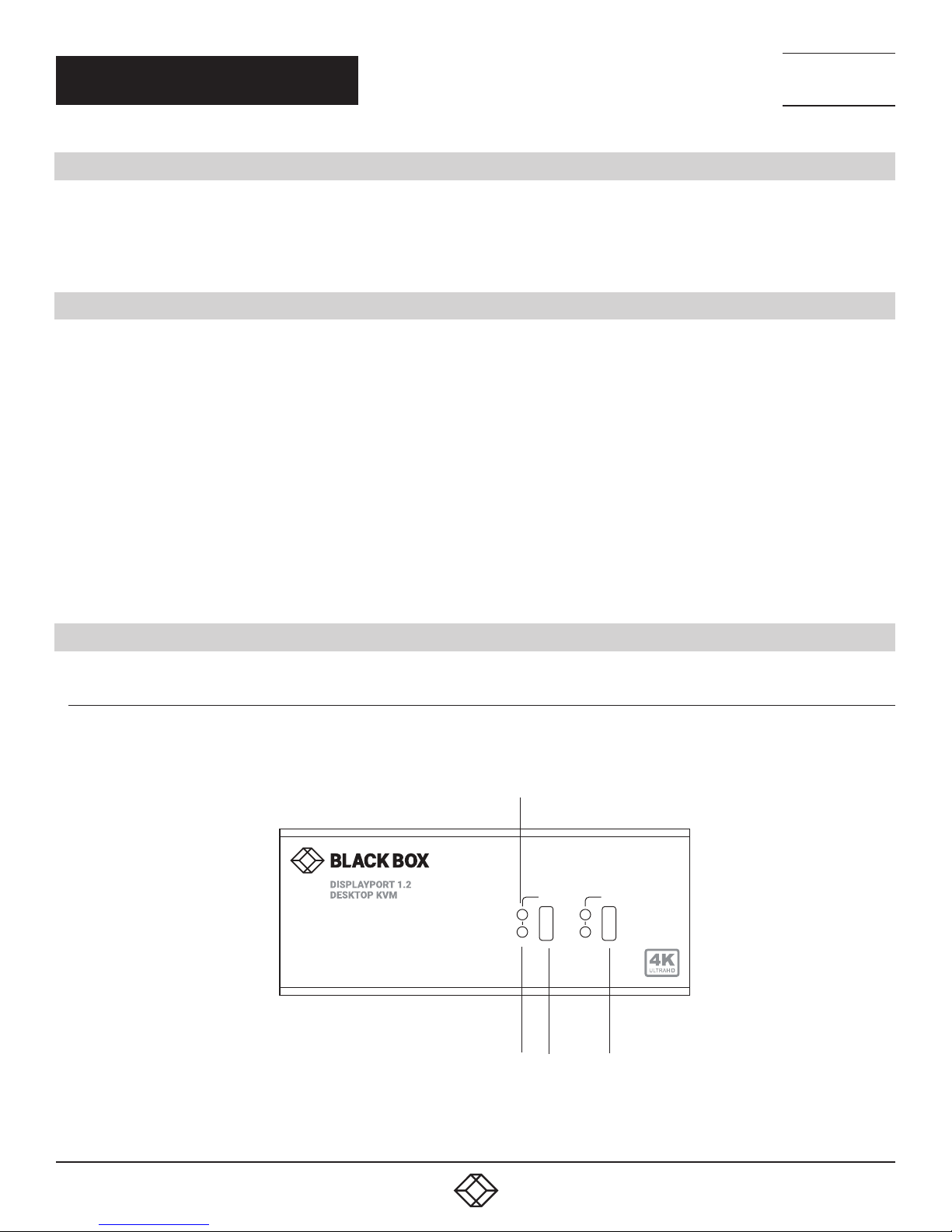
Figures 2-1 and 2-2 show the front and back panels of the 2-port switch. Table 2-1 describes its components.
2
1 2
PC
HUB
1 3 4
FIGURE 2-1. FRONT PANEL OF THE KV6222A
1. 87 7. 8 7 7. 2 26 9 BL ACK BOX .COM
5
Page 6

CHAPTER 1: HEADLINE
CHAPTER 2: OVERVIEW
5 6 12 16
NEED HELP?
LEAV E TH E TEC H TO US
LIVE 24/7
TECHNICAL
SUPPORT
1. 8 7 7. 8 7 7. 2 2 69
B
HUB
A
DC 9V
7 8 9 10 11 13 14 15 17 18 19
B
A
FIGURE 2-2. BACK PANEL OF THE K V6222A
TABLE 2-1. KV6222A COMPONENTS
NUMBER IN FIGURE
2-1 OR 2-2
1 Selected hub indicator Lights to indicate selected hub
2 Selected PC/server indicator Lights to indicate selected PC/server
3, 4 Port select buttons Selects the port you want to switch
5 (2) USB Type A connectors Links to USB hubs
6 (2) DisplayPort connectors Link to consoles B and A
7 Power connector Links to 5-VDC power supply
8 USB Type A connector Links to keyboard
9 USB Type A connector Links to mouse
10 Audio jack Links to console speakers
11 Audio jack Links to console microphone
12 (2) DisplayPort connectors Links to PC2 DisplayPort B and A
13 USB Type B connector Links to PC2
14 Audio jack Links to PC2 speaker
15 Audio jack Links to PC2 microphone
16 (2) DisplayPort connectors Links to PC1 DisplayPor t B and A
17 USB Type B connector Links to PC1
18 Audio jack Links to PC1 speaker
19 Audio jack Links to PC1 microphone
COMPONENT DESCRIPTION
6
1. 87 7. 8 7 7. 2 26 9 BL ACK BOX .COM
Page 7

CHAPTER 1: HEADLINE
CHAPTER 2: OVERVIEW
2.3.2 K V6224 A
Figures 2-3 and 2-4 show the front and back panels of the 4-port switch. Table 2-2 describes its components.
3 3 3 3
NEED HELP?
LEAV E TH E TEC H TO US
LIVE 24/7
TECHNICAL
SUPPORT
1. 8 7 7. 8 7 7. 2 2 69
3
4
HUB
1
PC
2
1 2 1 2 1 2 1 2
FIGURE 2-3. FRONT PANEL OF THE KV6224A
4 5 11 15 19 23
B
HUB
A
DC 9V
B
A
B
A
6 7 8 9 10 12 13 14 16 17 18 20 21 22 24 25 26
FIGURE 2-4. BACK PANEL OF THE KV6224A
1. 87 7. 8 7 7. 2 26 9 BL ACK BOX .COM
7
Page 8

CHAPTER 1: HEADLINE
CHAPTER 2: OVERVIEW
TABLE 2-2. KV6224A COMPONENTS
NEED HELP?
LEAV E TH E TEC H TO US
LIVE 24/7
TECHNICAL
SUPPORT
1. 8 7 7. 8 7 7. 2 2 69
NUMBER IN FIGURE
2-3 OR 2-4
1 Selected hub indicators Lights to indicate selected hub
2 Port select buttons Selects the port you want to switch
3 Selected PC/server indicator Lights to indicate selected PC/server
4 (2) USB Type A connectors Link to USB hubs
5 (2) DisplayPort connectors Links to consoles B and A
6 Power connector Links to 5-VDC power supply
7 USB Type A connector Links to keyboard
8 USB Type A connector Links to mouse
9 Audio jack Links to console speakers
10 Audio jack Links to console microphone
11 (2) DisplayPort connectors Links to PC4 DisplayPort B and A
12 USB Type B connector Links to PC4
13 Audio jack Links to PC4 speaker
14 Audio jack Links to PC4 microphone
15 (2) DisplayPort connectors Links to PC3 DisplayPort B and A
16 USB Type B connector Links to PC3
17 Audio jack Links to PC3 speaker
18 Audio jack Links to PC3 microphone
19 (2) DisplayPort connectors Links to PC2 DisplayPort B and A
20 USB Type B connector Links to PC2
21 Audio jack Links to PC2 speaker
22 Audio jack Links to PC2 microphone
23 (2) DisplayPort connectors Links to PC1 DisplayPor t B and A
24 USB Type B connector Links to PC1
25 Audio jack Links to PC1 speaker
26 Audio jack Links to PC1 microphone
COMPONENT DESCRIPTION
8
1. 87 7. 8 7 7. 2 26 9 BL ACK BOX .COM
Page 9

NEED HELP?
LEAV E TH E TEC H TO US
LIVE 24/7
CHAPTER 1: HEADLINE
CH APT ER 3: INS TALL ATION
3.1 CONNECTION DIAGRAM
The diagram illustrated here is an example of KV6224A, the actual application may vary. All illustrated computer, accessories and
monitors are not included in the package, it is for reference only.
TECHNICAL
SUPPORT
1. 8 7 7. 8 7 7. 2 2 69
HUB
DC 9V
B
A
B
A
B
A
FIGURE 3-1. TYPICAL CONNECTIONS
1. 87 7. 8 7 7. 2 26 9 BL ACK BOX .COM
9
Page 10

NEED HELP?
LEAV E TH E TEC H TO US
LIVE 24/7
CHAPTER 1: HEADLINE
CH APT ER 3: INS TALL ATION
3.2 INSTALLATION STEPS
1. Power up your KVM Switch by connecting the external power adapter to it.
2. Connect the shared USB keyboard, mouse, two DisplayPort monitors, speaker/headphone and microphone to corresponding ports on
the console section of the KVM Switch.
NOTE: The lower two USB ports are for keyboard and mouse.
TECHNICAL
SUPPORT
1. 8 7 7. 8 7 7. 2 2 69
HUB
DC 9V
Keyboard
B
Mouse
B B
A
A
FIGURE 3-2. KEYBOARD AND MOUSE CONNECTIONS
3. Connect each KVM PC port to computers, using two DisplayPort cables (male to male), one USB cable (type A to type B) and one audio
and microphone combo cable (male to male).
4. Connect your USB devices via a USB hub to the USB hub port (on the left).
10
1. 87 7. 8 7 7. 2 26 9 BL ACK BOX .COM
Page 11

NEED HELP?
LEAV E TH E TEC H TO US
LIVE 24/7
CHAPTER 1: HEADLINE
CHAPTER 4: OPERATION
You can control the KVM switch via either front-panel pushbuttons or keyboard hotkeys.
4.1 FRONT-PANEL PUSHBUTTONS
Front-panel buttons allow you to directly control the KVM switching operation. Simply press the button to toggle to the selected
PC port (together with hub port control and/or audio/mic port, if binding is enabled). By default, PC port switching, hub port control
and audio/ mic port switching are bound together, unless you specify the audio to be fixed to a specific port.
4.2 KEYBOARD HOTKEYS
A keyboard hotkey sequence consists of at least three specific keystrokes: See the Quick Reference Guide in Chapter 5.
Hotkey sequence = [ScrLk]* + [ScrLk] * + Command key(s)
* User-definable = SCROLL LOCK, CAPS, ESC, F12 or NUM LOCK
TECHNICAL
SUPPORT
1. 8 7 7. 8 7 7. 2 2 69
Hotkey preceding sequence configuration: For users who want to use a preceding sequence other than two consecutive Scroll
Locks, there is also one convenient way to configure it.
1. Press ScrollLock + ScrollLock + H, then two beeps will signal readiness for new preceding sequence selection [or Press and hold
down the last front-panel button (Button 2 or Button 4) until you hear two beeps, then release the button.]
2. Select and press the key you would like to use as your preceding sequence (SCROLL LOCK, CAPS, ESC, F12 or NUM LOCK keys
are available for selection) and you’ll hear a beep for selection confirmation. Now you can use the new preceding sequence to
execute your hotkey commands.
NOTE: Each keystroke within a hotkey sequence should be pressed within 2 seconds. Otherwise, the hotkey sequence will not be
validated.
1. 87 7. 8 7 7. 2 26 9 BL ACK BOX .COM
11
Page 12

CHAPTER 1: HEADLINE
CHAPTER 5: COMMANDS QUICK REFERENCE GUIDE
TABLE 5-1. SWITCHING COMMANDS
COMMAND HOTKEYS FRONT-PANEL BUTTON DESCRIPTION
Select PC Port
2
Select Hub Port Control
ScrLk + ScrLk + (x)
x = 1–2/ 1–4 for PC port number
ScrLk + ScrLk + (Fx)
2
Fx = F1–F2/ F1–F4 (Fx is a function key)
x = 1–2/ 1–4 for hub port number
Press the corresponding button to
select the active PC port.
Press the button to toggle the specific
PC+USB hub port control. (It works
only if PC port/ hub port control
binding is enabled.)
ScrLk + ScrLk + (Fy)
Select Audio & Mic Control
3
N/A
Fy = F5–F6/ F5–F8 (Fy is a function key)
y = 5–6/ 5–8 for audio & mic port
number
Bind PC and Hub Port
Control Switching
2
Unbind PC and Hub Port
Control Switching
2
Bind PC and Audio & Mic
Switching
3
Unbind PC and Audio & Mic
Switching
Previous PC port
Next PC port
3
2
2
ScrLk + ScrLk + Z N/A
ScrLk + ScrLk + X N/A
ScrLk + ScrLk + Q N/A
ScrLk + ScrLk + W N/A
ScrLk + ScrLk + arrow up N /A
ScrLk + ScrLk + arrow down N/A
Previous PC port ScrLk + ScrLk + (Backspace) N/A
Beep Sound On/Off ScrLk + ScrLk + B N /A
Select the active PC port (Jointly
select PC port / hub port control /
audio mic, if binding is enabled)
Select the PC port that control all
USB hub ports (Jointly select PC &
hub port control, if PC/ hub port
control binding is enabled)
Select the active audio & mic port
(Jointly select PC & audio & mic port,
if binding is enabled)
Enable the binding of PC port and hub
port control switching.
(Once this feature is enabled, any PC
and/or hub port control switching is
bound together) (factory default)
Disable the binding of PC port and
hub port control switching
Enable the binding of PC port and
audio & mic switching.
(Once this feature is enabled, any PC
and/or audio & mic switching is
bound together) (factory default)
Disable the binding of PC port and
audio & mic switching
Select the previous connected PC port
(Jointly select PC/ hub por t control,
if binding is enabled)
Select the next connected PC port
(Jointly select PC/ hub por t control,
if binding is enabled)
Toggle between the previous port and
current port
Toggle on/off the beep sound while
autoscanning
NEED HELP?
LEAV E TH E TEC H TO US
LIVE 24/7
TECHNICAL
SUPPORT
1. 8 7 7. 8 7 7. 2 2 69
NOTES:
1. The USB keyboard hotkeys allows you a faster and broader control for your KVM switching operation in addition to the front-panel
button. If you have configured a hotkey preceding sequence other than two consecutive scroll locks, here you should change your
hotkey sequence accordingly. (For preceding sequence key configuration, refer to the Switching Commands table.)
2. When the binding of PC & USB hub port control switching is enabled by the hotkey sequence: ScrLk + ScrLk + Z, any PC and hub
port control switching are bound together. To remove this binding, use the hotkey sequence: ScrLk + ScrLk + X.
3. When the binding of PC and audio & mic switching is enabled by the hotkey sequence: ScrLk + ScrLk + Q, any PC and audio & mic
switching are bound together. To remove this binding, use the hotkey sequence: ScrLk + ScrLk + W.
12
1. 87 7. 8 7 7. 2 26 9 BL ACK BOX .COM
Page 13

NEED HELP?
LEAV E TH E TEC H TO US
LIVE 24/7
CHAPTER 1: HEADLINE
CHAPTER 5: COMMANDS QUICK REFERENCE GUIDE
TABLE 5-1 (CONTINUED). SWITCHING COMMANDS
COMMAND HOTKEYS FRONT-PANEL BUTTON DESCRIPTION
Define Hotkey Preceding
Sequence
Autoscan ScrLk + ScrLk + S N/A
Autoscan with
Programmable Delay Time
Stop Autoscan Press any button N/A N/A
ScrLk + ScrLk + H + (y)
y = SCROLL LOCK, CAPS, ESC, F12 or
NUM LOCK
ScrLk + ScrLk + S + (z)
z = 0–9
1 10” ; 2 20” ; 3 30” ; 4 40” ; 5 50” ; 6 60” ;
7 70” ; 8 80” ; 9 90” ; 0 100”
NOTES:
1. The USB keyboard hotkeys allows you a faster and broader control for your KVM switching operation in addition to the front-panel
button. If you have configured a hotkey preceding sequence other than two consecutive scroll locks, here you should change your
hotkey sequence accordingly. (For preceding sequence key configuration, refer to the Switching Commands table.)
2. When the binding of PC & USB hub port control switching is enabled by the hotkey sequence: ScrLk + ScrLk + Z, any PC and hub
port control switching are bound together. To remove this binding, use the hotkey sequence: ScrLk + ScrLk + X.
3. When the binding of PC and audio & mic switching is enabled by the hotkey sequence: ScrLk + ScrLk + Q, any PC and audio & mic
switching are bound together. To remove this binding, use the hotkey sequence: ScrLk + ScrLk + W.
Press and hold down last button
(Button 2 / Button 4) till two beeps,
release the button, then press (y) key
N/A
Select the hotkey preceding
sequence among 5 alternative keys.
Autoscan through every connected
port for quick screen browsing
of each port (scan delay = 5 sec.).
Autoscan with a user-defined delay
time within a range of 10–100
seconds
TECHNICAL
SUPPORT
1. 8 7 7. 8 7 7. 2 2 69
1. 87 7. 8 7 7. 2 26 9 BL ACK BOX .COM
13
Page 14

NEED HELP?
LEAV E TH E TEC H TO US
LIVE 24/7
CHAPTER 1: HEADLINE
APPENDIX A: REGULATORY INFORMATION
A.1 FCC STATEMENT
This equipment has been tested and found to comply with the regulations for a Class B digital device, pursuant to Part 15 of
the FCC Rules. These limits are designed to provide reasonable protection against harmful interference when the equipment
is operated in a commercial environment. This equipment generates, uses, and can radiate radio frequency energy and, if not
installed and used in accordance with this Quick Installation Guide, may cause harmful interference to radio communications.
Operation of this equipment in a residential area is likely to cause harmful interference in which case, the user will be required to
correct the interference at his/her own expense.
A.2 CE STATEMENT
This is a Class B product in a domestic environment, this product may cause radio interference, in which case the user may be
required to take adequate measures.
A.3 ROH S
This product is RoHS compliant.
TECHNICAL
SUPPORT
1. 8 7 7. 8 7 7. 2 2 69
14
1. 87 7. 8 7 7. 2 26 9 BL ACK BOX .COM
Page 15

NEED HELP?
LEAV E TH E TEC H TO US
LIVE 24/7
CHAPTER 1: HEADLINE
APPENDIX A: REGULATORY INFORMATION
A.4 NOM STATEMENT
1. Todas las instrucciones de seguridad y operación deberán ser leídas antes de que el aparato eléctrico sea operado.
2. Las instrucciones de seguridad y operación deberán ser guardadas para referencia futura.
3. Todas las advertencias en el aparato eléctrico y en sus instrucciones de operación deben ser respetadas.
4. Todas las instrucciones de operación y uso deben ser seguidas.
5. El aparato eléctrico no deberá ser usado cerca del agua—por ejemplo, cerca de la tina de baño, lavabo, sótano mojado o cerca de
una alberca, etc.
6. El aparato eléctrico debe ser usado únicamente con carritos o pedestales que sean recomendados por el fabricante.
7. El aparato eléctrico debe ser montado a la pared o al techo sólo como sea recomendado por el fabricante.
8. Servicio—El usuario no debe intentar dar servicio al equipo eléctrico más allá a lo descrito en las instrucciones de operación.
Todo otro servicio deberá ser referido a personal de servicio calificado.
9. El aparato eléctrico debe ser situado de tal manera que su posición no interfiera su uso. La colocación del aparato eléctrico
sobre una cama, sofá, alfombra o superficie similar puede bloquea la ventilación, no se debe colocar en libreros o gabinetes que
impidan el flujo de aire por los orificios de ventilación.
10. El equipo eléctrico deber ser situado fuera del alcance de fuentes de calor como radiadores, registros de calor, estufas u otros
aparatos (incluyendo amplificadores) que producen calor.
11. El aparato eléctrico deberá ser connectado a una fuente de poder sólo del tipo descrito en el instructivo de operación, o como
se indique en el aparato.
12. Precaución debe ser tomada de tal manera que la tierra fisica y la polarización del equipo no sea eliminada.
13. Los cables de la fuente de poder deben ser guiados de tal manera que no sean pisados ni pellizcados por objetos colocados
sobre o contra ellos, poniendo particular atención a los contactos y receptáculos donde salen del aparato.
14. El equipo eléctrico debe ser limpiado únicamente de acuerdo a las recomendaciones del fabricante.
15. En caso de existir, una antena externa deberá ser localizada lejos de las lineas de energia.
16. El cable de corriente deberá ser desconectado del cuando el equipo no sea usado por un largo periodo de tiempo.
17. Cuidado debe ser tomado de tal manera que objectos liquidos no sean derramados sobre la cubierta u orificios de ventilación.
18. Servicio por personal calificado deberá ser provisto cuando:
A: El cable de poder o el contacto ha sido dañado; u
B: Objectos han caído o líquido ha sido derramado dentro del aparato;o
C: El aparato ha sido expuesto a la lluvia; o
D: El aparato parece no operar normalmente o muestra un cambio en su desempeño; o
E: El aparato ha sido tirado o su cubierta ha sido dañada.
TECHNICAL
SUPPORT
1. 8 7 7. 8 7 7. 2 2 69
1. 87 7. 8 7 7. 2 26 9 BL ACK BOX .COM
15
Page 16

NEED HELP?
LEAV E TH E TEC H TO US
LIVE 24/7
CHAPTER 1: HEADLINE
APPENDIX B: DISCLAIMER/TRADEMARKS
TECHNICAL
SUPPORT
1. 8 7 7. 8 7 7. 2 2 69
B.1 DISCLAIMER
Black Box Corporation shall not be liable for damages of any kind, including, but not limited to, punitive, consequential or cost of cover
damages, resulting from any errors in the product information or specifications set forth in this document and Black Box Corporation
may revise this document at any time without notice.
B.2 TRADEMARKS USED IN THIS MANUAL
Black Box and the Black Box logo type and mark are registered trademarks of Black Box Corporation.
Any other trademarks mentioned in this manual are acknowledged to be the property of the trademark owners.
16
1. 87 7. 8 7 7. 2 26 9 BL ACK BOX .COM
Page 17

NOTES
__________________________________________________________________________________________________
__________________________________________________________________________________________________
__________________________________________________________________________________________________
__________________________________________________________________________________________________
__________________________________________________________________________________________________
__________________________________________________________________________________________________
NEED HELP?
LEAV E TH E TEC H TO US
LIVE 24/7
TECHNICAL
SUPPORT
1. 8 7 7. 8 7 7. 2 2 69
__________________________________________________________________________________________________
_
_________________________________________________________________________________________________
__________________________________________________________________________________________________
__________________________________________________________________________________________________\
__________________________________________________________________________________________________
__________________________________________________________________________________________________
__________________________________________________________________________________________________
__________________________________________________________________________________________________
_________________________________________________________________________________________________
__________________________________________________________________________________________________
__________________________________________________________________________________________________
__________________________________________________________________________________________________
1. 87 7. 8 7 7. 2 26 9 BL ACK BOX .COM
17
Page 18

NOTES
__________________________________________________________________________________________________
__________________________________________________________________________________________________
__________________________________________________________________________________________________
__________________________________________________________________________________________________
__________________________________________________________________________________________________
__________________________________________________________________________________________________
NEED HELP?
LEAV E TH E TEC H TO US
LIVE 24/7
TECHNICAL
SUPPORT
1. 8 7 7. 8 7 7. 2 2 69
__________________________________________________________________________________________________
_
_________________________________________________________________________________________________
__________________________________________________________________________________________________
__________________________________________________________________________________________________\
__________________________________________________________________________________________________
__________________________________________________________________________________________________
__________________________________________________________________________________________________
__________________________________________________________________________________________________
_________________________________________________________________________________________________
__________________________________________________________________________________________________
__________________________________________________________________________________________________
18
1. 87 7. 8 7 7. 2 26 9 BL ACK BOX .COM
Page 19

NOTES
__________________________________________________________________________________________________
__________________________________________________________________________________________________
__________________________________________________________________________________________________
__________________________________________________________________________________________________
__________________________________________________________________________________________________
__________________________________________________________________________________________________
NEED HELP?
LEAV E TH E TEC H TO US
LIVE 24/7
TECHNICAL
SUPPORT
1. 8 7 7. 8 7 7. 2 2 69
__________________________________________________________________________________________________
_
_________________________________________________________________________________________________
__________________________________________________________________________________________________
__________________________________________________________________________________________________\
__________________________________________________________________________________________________
__________________________________________________________________________________________________
__________________________________________________________________________________________________
__________________________________________________________________________________________________
_________________________________________________________________________________________________
__________________________________________________________________________________________________
__________________________________________________________________________________________________
1. 87 7. 8 7 7. 2 26 9 BL ACK BOX .COM
19
Page 20

NEED HELP?
LEAVE THE TECH TO US
LIVE 24/7
TECHNICAL
SUPPORT
1.87 7.8 77.2 26 9
© COPYRIGHT 2017 BLACK BOX CORPORATION. ALL RIGHTS RESERVED.
 Loading...