

Page 1

Page 2

1
THE SERVSWITCH™ FAMILY
Welcome to the ServSwitch
TM
Family!
Thank you for purchasing a BLACK BOX®ServSwitch™Brand KVM switch! We
appreciate your business, and we think you’ll appreciate the many ways that your
new ServSwitch keyboard/video/mouse switch will save you money, time, and
effort.
That’s because our ServSwitch family is all about breaking away from the
traditional, expensive model of computer management. You know, the one-sizefits-all-even-if-it-doesn’t model that says, “One computer gets one user station, no
more, no less.” Why not a single user station (monitor, keyboard, and mouse) for
multiple computers—even computers of different platforms? Why not a pair of
user stations, each of which can control multiple computers? Why not multiple
user stations for the same computer?
With our ServSwitch products, there’s no reason why not. We carry a broad line
of robust solutions for all these applications. Do you have just two PCs, and need
an economical alternative to keeping two monitors, keyboards, and mice on your
desk? Or do you need to share dozens of computers, including a mix of IBM
®
PC,
RS/6000
®
, Apple®Macintosh®, Sun Microsystems®, and SGI®compatibles among
multiple users with different access levels? Does your switch have to sit solidly on a
worktable and use regular everyday cables? Or does it have to be mounted in an
equipment rack and use convenient many-to-one cables? No matter how large or
small your setup is, no matter how simple or how complex, we’re confident we
have a ServSwitch system that’s just right for you.
The ServSwitch
™
family from Black Box—the one-stop answer for all your KVM-
switching needs!
*
This manual will tell you all about your new ServSwitch™ Affinity, including how
to install, operate, and troubleshoot it. For an introduction to the ServSwitch
Affinity, see Chapter 2. The ServSwitch Affinity product codes covered in this
manual are:
KV130A KV131A-R2 KV132A-R2 KV134A-R2 KV138A
KV139A KV130DA KV138DA KV139DA
This manual also includes information about the Affinity’s Port Cards,
Terminator Card, Expansion Cards, and Rackmount Kits, but these come with
their own installation guides. Their product codes are:
KV1300C KV1301C-R2 KV1304C KV1305C KV1306C
RMK19A RMK19A139 RMK23A RMK23A139 RMK24A RMK24A139
Page 3

2
SERVSWITCH™ AFFINITY
TRADEMARKS USED IN THIS MANUAL
BLACK BOX and the logo are registered trademarks, and ServSwitch and
ServSwitch Affinity are trademarks, of Black Box Corporation.
Apple, Mac, and Macintosh are registered trademarks of Apple Computer, Inc.
IBM, PC/AT, PS/2, RS/6000, and ThinkPad are registered trademarks, and
PC/XT is a trademark, of International Business Machines Corporation.
Microsoft, HyperTerminal, IntelliMouse, Windows, and Windows NT are registered
trademarks or trademarks of Microsoft Corporation in the United States and/or
other countries.
Sun and Sun Microsystems are registered trademarks of Sun Microsystems, Inc. in
the United States and other countries.
Any other trademarks mentioned in this manual are acknowledged to be the property of the
trademark owners.
Page 4

3
FCC/IC STATEMENTS
FEDERAL COMMUNICATIONS COMMISSION AND INDUSTRY CANADA
RADIO-FREQUENCY INTERFERENCE STATEMENTS
This equipment generates, uses, and can radiate radio-frequency energy and if not
installed and used properly, that is, in strict accordance with the manufacturer’s
instructions, may cause interference to radio communication. It has been tested
and found to comply with the limits for a Class A computing device in accordance
with the specifications in Subpart B of Part 15 of FCC rules, which are designed to
provide reasonable protection against such interference when the equipment is
operated in a commercial environment. Operation of this equipment in a
residential area is likely to cause interference, in which case the user at his own
expense will be required to take whatever measures may be necessary to correct the
interference.
Changes or modifications not expressly approved by the party responsible for
compliance could void the user’s authority to operate the equipment.
This digital apparatus does not exceed the Class A limits for radio noise emission from digital
apparatus set out in the Radio Interference Regulation of Industry Canada.
Le présent appareil numérique n’émet pas de bruits radioélectriques dépassant les limites
applicables aux appareils numériques de la classe A prescrites dans le Règlement sur le
brouillage radioélectrique publié par Industrie Canada.
Page 5
4
SERVSWITCH™ AFFINITY
EUROPEAN UNION DECLARATION OF CONFORMITY
This equipment complies with the requirements of the European EMC Directive
89/336/EEC with respect to EN55022 (Class B), EN50082-1/EN60555-2, and the
Low Voltage Directive.
Page 6

5
NOM STATEMENT
NORMAS OFICIALES MEXICANAS (NOM)
ELECTRICAL SAFETY STATEMENT
INSTRUCCIONES DE SEGURIDAD
1. Todas las instrucciones de seguridad y operación deberán ser leídas antes de
que el aparato eléctrico sea operado.
2. Las instrucciones de seguridad y operación deberán ser guardadas para
referencia futura.
3. Todas las advertencias en el aparato eléctrico y en sus instrucciones de
operación deben ser respetadas.
4. Todas las instrucciones de operación y uso deben ser seguidas.
5. El aparato eléctrico no deberá ser usado cerca del agua—por ejemplo, cerca
de la tina de baño, lavabo, sótano mojado o cerca de una alberca, etc.
6. El aparato eléctrico debe ser usado únicamente con carritos o pedestales que
sean recomendados por el fabricante.
7. El aparato eléctrico debe ser montado a la pared o al techo sólo como sea
recomendado por el fabricante.
8. Servicio—El usuario no debe intentar dar servicio al equipo eléctrico más allá
a lo descrito en las instrucciones de operación. Todo otro servicio deberá ser
referido a personal de servicio calificado.
9. El aparato eléctrico debe ser situado de tal manera que su posición no
interfiera su uso. La colocación del aparato eléctrico sobre una cama, sofá,
alfombra o superficie similar puede bloquea la ventilación, no se debe colocar
en libreros o gabinetes que impidan el flujo de aire por los orificios de
ventilación.
10. El equipo eléctrico deber ser situado fuera del alcance de fuentes de calor
como radiadores, registros de calor, estufas u otros aparatos (incluyendo
amplificadores) que producen calor.
11. El aparato eléctrico deberá ser connectado a una fuente de poder sólo del
tipo descrito en el instructivo de operación, o como se indique en el aparato.
Page 7

6
SERVSWITCH™ AFFINITY
12. Precaución debe ser tomada de tal manera que la tierra fisica y la polarización
del equipo no sea eliminada.
13. Los cables de la fuente de poder deben ser guiados de tal manera que no
sean pisados ni pellizcados por objetos colocados sobre o contra ellos,
poniendo particular atención a los contactos y receptáculos donde salen del
aparato.
14. El equipo eléctrico debe ser limpiado únicamente de acuerdo a las
recomendaciones del fabricante.
15. En caso de existir, una antena externa deberá ser localizada lejos de las lineas
de energia.
16. El cable de corriente deberá ser desconectado del cuando el equipo no sea
usado por un largo periodo de tiempo.
17. Cuidado debe ser tomado de tal manera que objectos liquidos no sean
derramados sobre la cubierta u orificios de ventilación.
18. Servicio por personal calificado deberá ser provisto cuando:
A: El cable de poder o el contacto ha sido dañado; u
B: Objectos han caído o líquido ha sido derramado dentro del aparato; o
C: El aparato ha sido expuesto a la lluvia; o
D: El aparato parece no operar normalmente o muestra un cambio en su
desempeño; o
E: El aparato ha sido tirado o su cubierta ha sido dañada.
Page 8

7
TABLE OF CONTENTS
Contents
Chapter Page
1. Specifications ........................................................................................... 11
2. Introduction ............................................................................................. 15
2.1 The Complete Package ..................................................................... 15
2.2 Features ............................................................................................. 16
2.3 The Rear Panel Illustrated ............................................................... 19
2.4 Cable Requirements ......................................................................... 22
2.5 Equipment Requirements ................................................................ 22
3. Installation and Preconfiguration ............................................................ 23
3.1 Quick Setup Guide ........................................................................... 23
3.2
Guidelines for Using the ServSwitch Affinity with Your Equipment
.. 24
3.2.1 CPUs ....................................................................................... 24
3.2.2 Mouse and Keyboard ............................................................ 24
3.2.3 Monitor .................................................................................. 27
3.3 Installation Procedure ...................................................................... 30
3.3.1 Placement .............................................................................. 30
3.3.2 Setting and Installing Cards ................................................. 31
3.3.3 Rackmounting (Optional) .................................................... 31
3.3.4 Connecting the Monitors, Keyboards, and Mice ................ 31
3.3.5 Connecting CPUs .................................................................. 32
3.3.6 Connecting Devices’ Serial Ports (Optional) ...................... 33
3.3.7 Connecting Other Affinity Units (Optional) ...................... 34
3.3.8 Powering Up the Affinity Units ............................................ 34
3.3.9
Changing the Keyboard Setting of Windows NT 4.0 CPUs
... 35
3.3.10 Switching and Accessing the Display from the Keyboard ... 35
3.4 Daisychaining ServSwitch Affinity Units .......................................... 36
3.4.1 Expansion Cabling ................................................................ 36
3.4.2 Bus and User-Port (KVM) Numbering ................................ 37
3.4.2.A In 4-User Models ...................................................... 37
3.4.2.B In 8-User and 16-User Models ................................ 37
3.4.3 Topologies ............................................................................. 40
3.4.3.A Regular Bus .............................................................. 40
3.4.3.B Split Bus .................................................................... 43
3.4.3.C Ring .......................................................................... 45
3.4.4 Mixed Chains ......................................................................... 47
Page 9

8
SERVSWITCH™ AFFINITY
Contents (continued)
Chapter Page
3. Installation and Preconfiguration (continued)
3.5 The Power-Up Procedure ................................................................. 48
3.5.1 The Power-Up Diagnostic Screen: Standard Messages ....... 49
3.5.2 Kernel-Halt Error Messages .................................................. 51
3.5.3 Kernel Serial-Port Messages .................................................. 54
3.6 Initial Configuration ......................................................................... 55
3.6.1 Initially Configuring a Single Unit ....................................... 55
3.6.2 Initially Configuring Multiple Daisychained Units ............. 56
4. Full Configuration ................................................................................... 58
4.1 Using the Menu ................................................................................ 59
4.1.1 Navigating the Configuration Pages .................................... 59
4.1.2 Choosing Names ................................................................... 59
4.1.3 Saving Configuration Changes ............................................. 59
4.2 Configuring the System .................................................................... 61
4.2.1 System Settings ...................................................................... 61
4.2.2 Keyboard Settings .................................................................. 62
4.2.3 Appearance ............................................................................ 63
4.3 Configuring Computers ................................................................... 65
4.4 Configuring User Stations ................................................................ 69
4.5 Configuring User Definitions ........................................................... 71
4.6 Configuring User Profiles ................................................................. 72
4.7 Configuring Groups .......................................................................... 75
4.8 The Status Page ................................................................................. 77
5. On-Screen Functions, Same-Slot Users, and Connection Modes ......... 79
5.1 Logging In ......................................................................................... 79
5.2 Connection-Status Messages ............................................................. 80
5.2.1 “Connection Successful” ....................................................... 80
5.2.2 “Connection Failed” .............................................................. 80
5.2.3 Disconnect Status .................................................................. 82
5.3 User Stations Attached to Same-Numbered Slots/Buses ............... 84
5.4 Connection Modes ............................................................................ 86
5.4.1 View Mode ............................................................................. 86
5.4.2 Share Mode ........................................................................... 86
5.4.3 Control Mode ........................................................................ 86
5.4.4 Private Mode .......................................................................... 87
5.4.5 Connection-Mode Behavior ................................................. 87
Page 10

9
TABLE OF CONTENTS
Chapter Page
6. Keyboard Commands .............................................................................. 88
6.1 Command Summary ....................................................................... 88
6.2 Display Configuration Menu: [Ctrl] [F12] .................................... 90
6.3 Display CPU List: [Ctrl] [Esc] ........................................................ 90
6.4 Select Computer: [Ctrl] xxxx [Enter] ............................................ 91
6.5 Switch to the Next Port in Sequence: [Ctrl] [+] ........................... 91
6.6 Switch to the Previous Port in Sequence: [Ctrl] [–] ..................... 91
6.7 Switch to the Prior Port: [Ctrl] [←] or [Ctrl] [Backspace] ......... 91
6.8 Display User-Station Status: [Ctrl] D ............................................. 92
6.9 Log Out: [Ctrl] L ............................................................................ 92
6.10 Disconnect: [Ctrl] Q ....................................................................... 92
6.11 Reset Keyboard and Mouse: [Ctrl] R ............................................. 92
6.12 Reset/Enable Mouse in Windows NT and UNIX: [Ctrl] O ......... 93
6.13 Send Null Byte to PS/2 Type Mouse: [Ctrl] N .............................. 93
6.14 Identify Firmware Revision: [Ctrl] I ............................................... 94
6.15 Start Scan: [Ctrl] S .......................................................................... 94
6.16 End Scan: [Ctrl] X .......................................................................... 95
6.17 Pass This Command Through: [Ctrl] X or [Ctrl] [Tab] .............. 95
7. Using the Dedicated Serial Ports ............................................................ 96
7.1 Basic Setup: Establishing a Serial Connection ................................ 96
7.2 The Serial Options Menu ................................................................. 97
7.2.1 Option 1. Change Starting Computer ................................. 98
7.2.2 Option 2. Change Serial Port Baud Rate (Data Rate) ........ 98
7.2.3 Option 3. Receive New Kernel or Main Program
(Upgrade Firmware) .......................................................... 99
7.2.4 Options 4 and 5. Send Main Program/Send Kernel
(Distribute Upgraded Firmware) .................................... 101
7.2.5 Option 6. Reset to Factory Defaults ................................... 102
7.2.6 Option 7. Save Changes ...................................................... 102
7.2.7 Option 8. Exit and Restart Unit ......................................... 103
8. Using the CPU Ports as Serial Ports ...................................................... 104
9. Troubleshooting .................................................................................... 106
9.1 Common Problems ......................................................................... 106
9.2 Replacing a Power Supply in a Dual-Powered Affinity ................. 112
9.3 Calling Black Box ............................................................................ 112
9.4 Shipping and Packaging ................................................................ 112
Page 11

10
SERVSWITCH™ AFFINITY
Contents (continued)
Appendix Page
Appendix A: NVRAM Factory Defaults ....................................................... 113
Appendix B: Cable Product Codes .............................................................. 115
Appendix C: Pinout of the Dedicated Serial Ports ..................................... 118
Appendix D: The LK461 Keyboard ............................................................. 119
Appendix E: Installing Cards in the ServSwitch Affinity ............................ 120
E.1 Adding a Port Card ......................................................................... 120
E.2 Installing or Swapping In a Terminator Card
(4-User Chassis Only) .................................................................. 121
E.3 Setting the RING/BUS Jumper on an Expansion Card ............... 122
E.4 Setting the JP1 and JP2 (User-Number) Jumpers on
8-Port Expansion Cards ............................................................... 123
E.4.1 Setting JP1 and JP2 on a Card That Will Be Installed
in an 8-User Affinity ......................................................... 123
E.4.2 Setting JP1 and JP2 on a Pair of Cards That Will Be
Installed in a 16-User Affinity ......................................... 123
E.5 Installing or Swapping In an Expansion Card .............................. 125
Appendix F: Upgrading a Non-R2 Affinity with -R2 Serial Features ......... 126
Appendix G: Rackmounting the Affinity .................................................... 129
Page 12

11
CHAPTER 1: Specifications
1. Specifications
Hardware
Required: Monitor that supports your computers’ highest video
standard; in multiplatform applications, should be a
multisync model capable of forming video from either
composite sync or separate horizontal and vertical sync
signals (see Section 3.2.3)
Compliance: CE, FCC Part 15 Subpart B Class A, IC Class/classe A
Standards: With original Serv cabling: VGA (color or monochrome/
page white) video;
With original Serv cabling (minimal) or coaxial cabling
(recommended): SVGA and (with KV99MA adapter)
Mac video;
With coaxial cabling: XGA (color or monochrome), Sun,
RS/6000, or SGI video
Interfaces: On CPU and user ports of Port Cards and IN 1 and
OUT 1 ports on primary Expansion Cards:
Proprietary composite of:
• IBM PS/2, PC/AT, or Sun compatible keyboard;
• PS/2, RS-232, or Sun compatible mouse; and
• Video (standards listed above);
With the KV99MCON adapter, also supports ADB
(Mac compatible) keyboard and mouse ports;
The CPU ports can also carry serial data to and from
serial devices;
The IN 1 and OUT 1 ports also carry system-control
information;
On Expansion Cards’ other IN and OUT ports:
Proprietary video composite (standards listed above);
On serial ports of Port Cards: EIA/TIA RS-232
proprietarily pinned on RJ-12 (“6-wire RJ-11”)
connectors, DTE
Resolution: Up to 1280 x 1024, but refer to Section 3.2.3
Protocol: RS-232: Asynchronous
Data Format: RS-232: 8 data bits, 1 stop bit, no parity (fixed)
Page 13

12
SERVSWITCH™ AFFINITY
Data Rate: RS-232: User-selectable:
On serial ports: 9600 or 57,600 bps;
On CPU ports: 50, 110, 300, 600, 1200, 2400, 4800, or
9600 bps
Flow Control: RS-232 on CPU ports: Transparent to software flow
control; doesn’t support hardware flow control
Maximum
Distance: 20 ft. (6.1 m) of CPU or User Cable—possibly as much as
100 ft. (30.5 m) of coaxial CPU or User Cable,
depending on CPUs, monitor, and video resolution
(see Section 3.2.3)—from any Affinity Port Card to any
device attached to it except serial devices;
100 ft. (30.5 m) of Expansion Cable between any two
Affinity units or from an Affinity to a Matrix
ServSwitch;
50 ft. (15.2 m) of serial cable from the RS-232 port of any
Affinity Port Card to a computer’s serial port;
100 ft. (30.5 m) of serial cable from the CPU port of any
Affinity Port Card to a device’s serial port
User Controls: For system: Keyboard commands and on-screen menus;
On Affinity chassis: Rear-mounted ON/OFF rocker
switch(es):
KV130DA, KV138DA, KV139DA: (2);
All other models: (1);
On all Expansion Cards (KV1305C and KV1306C):
Board-mounted BUS/RING jumper;
On 8-User Expansion Cards (KV1306C):
(2) Board-mounted jumpers for user-port numbering
Indicators: All models: ON/OFF switch(es) are dark when
ServSwitch Affinity is OFF, backlit when Affinity is ON;
KV130DA, KV138DA, KV139DA:
(3) Front-mounted power-supply status LEDs:
(1) for supply 1 (the upper transformer), lit while
supply is outputting power;
(1) for supply 2 (the lower transformer), lit while
supply is outputting power;
(1) for the Affinity chassis (marked “SYSTEM”), lit
while either supply is outputting power unless
internal diodes have failed;
Page 14

13
CHAPTER 1: Specifications
Connectors: All rear-mounted;
On Affinity chassis: Rear-mounted IEC 320 male power
inlet(s):
KV130DA, KV138DA, KV139DA: (2);
All other models: (1);
On all Affinity Port Cards (KV1300C and KV1301C-R2):
(4) DB25 female for CPU connections,
(1) RJ-12 (“6-wire RJ-11”) female for serial management;
On 1 x 4 Port Cards (KV1301C-R2):
(1) DB25 female for user connections;
On 4-User Expansion Cards (KV1305C):
(2) DB15 female: (1) for input to Port Cards in slots 1
and 2, (1) for input to Port Cards in slots 3 and 4;
(2) DB15 male: (1) for output from Port Cards in
slots 1 and 2, (1) for output from Port Cards in
slots 3 and 4;
On 8-User Expansion Cards (KV1306C):
(4) HD15 female:
(1) for input to Port Cards in slots 1 and 2 if their
user ports are set as KVM 1 and KVM 2;
(1) for input to Port Cards in slots 1 and 2 if their
user ports are set as KVM 5 and KVM 6;
(1) for input to Port Cards in slots 3 and 4 if their
user ports are set as KVM 3 and KVM 4;
(1) for input to Port Cards in slots 3 and 4 if their
user ports are set as KVM 7 and KVM 8;
(4) HD15 male:
(1) for output from Port Cards in slots 1 and 2 if
their user ports are set as KVM 1 and KVM 2;
(1) for output from Port Cards in slots 1 and 2 if
their user ports are set as KVM 5 and KVM 6;
(1) for output from Port Cards in slots 3 and 4 if
their user ports are set as KVM 3 and KVM 4;
(1) for output from Port Cards in slots 3 and 4 if
their user ports are set as KVM 7 and KVM 8
Maximum
Altitude: 10,000 ft. (3048 m)
Temperature
Tolerance: 32 to 113˚F (0 to 45˚C)
Page 15

14
SERVSWITCH™ AFFINITY
Humidity
Tolerance: 5 to 80% noncondensing
Enclosure: Steel
Fuses: KV130DA, KV138DA, KV139DA: Autoresetting switch
fuses that cut in when power surges exceed the
maximum ratings of the chassis
Power: Input: 90 to 264 VAC, 47 to 63 Hz, 700 mA from AC
outlet(s) through included power cord(s) and inlet(s)
into internal transformer(s):
KV130DA, KV138DA, KV139DA: Dual transformers
with separate AC inlets, electrically isolated from one
another;
All other models: Single transformer;
Consumption: Up to 40 VA (40 watts)
Size: KV139A, KV139DA:
7"H (4U) x 16.7"W x 7"D (17.8 x 42.4 x 17.8 cm);
All other Affinity chassis:
5.25"H (3U) x 16.7"W x 7"D (13.3 x 42.4 x 17.8 cm);
Port Cards and Expansion Cards:
0.9"H x 13.9"W x 4.8"D (2.3 x 35.3 x 12.2 cm);
Terminator Card (4-User models only):
0.4"H x 2.1"W x 0.8"D (1 x 5.3 x 2 cm)
Weight: KV130A KV130DA, KV138A, KV138DA: 10.5 lb. (4.8
KV131A-R2, KV134A-R2: 14 lb. (6.4 kg);
KV132A-R2: 12 lb. (5.4 kg);
KV139A, KV139DA: 11 lb. (5 kg);
KV1300C, KV1301C-R2, KV1306C: 0.9 lb. (0.4 kg);
KV1304C: 0.2 lb. (0.1 kg);
KV1305C: 0.4 lb. (0.2 kg)
Page 16

15
CHAPTER 2: Introduction
2. Introduction
Thank you for choosing a ServSwitch™ Affinity. Designed with your needs in
mind, your new Affinity will simplify your job by helping you organize your
multiple-computer application. With your Affinity you can use one or more
keyboards, monitors, and mice to access a number of IBM
®
PC compatible, Sun
Microsystems
®
compatible, and other UNIX®based computers, so you can
significantly reduce your equipment overhead and end keyboard and monitor
clutter. With the right adapters, you can also attach Apple
®
Macintosh®computers.
This chapter describes everything that comes with the Affinity, the external and
operating features of the Affinity, and the cabling you’ll need for the Affinity.
2.1 The Complete Package
The main component of your ServSwitch Affinity package is the Affinity chassis. At
the time of this writing, nine models are available (empty slots and top slots with
Terminator Cards will be covered with blanking plates):
• The ServSwitch Affinity Expansion Chassis (product code KV130A) shouldn’t
have any cards preinstalled. (You must install either an Expansion Card or a
Terminator Card in this model in order for it to work.) The Dual-Powered
ServSwitch Affinity Expansion Chassis (KV130DA) is virtually identical, but like
the other Dual-Powered models it has two internal power supplies instead of
just one. These power supplies are hot-swappable and each one can take over
the load of the entire Affinity chassis if the other power supply fails. This
makes the Dual-Powered models ideal for mission-critical situations in which it
is vital to be able to access all computers at all times.
• The 1 User x 16 CPUs ServSwitch Affinity (KV131A-R2) should have one 1 x 4
Port Card, three 0 x 4 Port Cards, and an Expansion Card preinstalled.
• The 2 Users x 8 CPUs ServSwitch Affinity (KV132A-R2) should have two 1 x 4
Port Cards and a Terminator Card preinstalled.
• The 4 Users x 16 CPUs ServSwitch Affinity (KV134A-R2) should have four 1 x 4
Port Cards and a Terminator Card preinstalled.
• The 8-User ServSwitch Affinity (KV138A) and Dual-Powered 8-User ServSwitch
Affinity (KV138DA) shouldn’t have any cards preinstalled. (You must install an
Expansion Card in these models in order for them to work.)
Page 17

16
SERVSWITCH™ AFFINITY
• The 16-User ServSwitch Affinity (product code KV139A) and Dual-Powered
16-User ServSwitch Affinity (KV139DA) shouldn’t have any cards preinstalled
either. (You must install two Expansion Cards in these models in order for
them to work.)
(The first five of these chassis are considered “4-User” models, because a cascaded
Affinity system made up of these chassis can support as many as four independent
users. The 8-User and 16-User ServSwitch Affinity have their names because a
cascaded Affinity system made up of 8-User chassis can support as many as eight
independent users, and a cascaded Affinity system made up of 16-User chassis can
support as many as sixteen independent users.)
The Affinity also comes with one (regular models) or two (Dual models) power
cords, a modular cable and adapter for connecting Port Cards’ RS-232 ports to a
remote PC, and this manual. (Other cables are ordered separately—see
Appendix B for a list of cables and their product codes.) If you didn’t receive
everything, or if anything arrived damaged, contact Black Box.
2.2 Features
With the ServSwitch Affinity, you have easy, virtually trouble-free, secure, and
complete access to up to 1024 computers from as many as 4, 8, or 16 keyboard/
video/mouse stations. Here are some of the major features of the Affinity:
Upgradability:
• Plug-in expansion boards make ServSwitch Affinity systems easy to expand and
maintain.
• Free lifetime firmware upgrades using flash-memory technology provide a path
to improvements and new features.
Compatibility:
• PC, Sun
®
, IBM RS/6000®, HP®, DEC™ (Compaq®), SGI®, and other hardware
all coexist on ServSwitch Affinity. With adapters, Mac
®
computers do too.
• Full emulation of keyboard and mouse functions and video resolutions of up
to 1280 x 1024 ensure trouble-free access to most software applications and
hardware platforms.
Reliability:
• The Dual-Powered models can continue operating even if one of their powersupply transformers fails. They also have automatic internal protection
switches that cut out when a surge hits and then back in again within minutes.
Page 18

17
CHAPTER 2: Introduction
Security:
• Four connect modes provide flexibility in tailoring ServSwitch Affinity to your
environment’s security policies:
Connect Mode
Your Access Other Users’ Access
View View only Full
Share Full Full
Control Full View only
Private Full None
• User names and passwords protect access to computers with sensitive systems
and information.
• Group definitions allow users to access only those computers that their group
can access.
Serial management:
• VT100, VT101, VT102, and VT202 terminal emulation.
• Control RS-232 serial DTE or DCE terminal-interfaced devices.
• Easy to use—serial access and switching works the same way as KVM switching
always has.
• Has an eight-page scroll buffer.
Flexibility:
• Full-featured command set includes a scan command to automatically switch
through a subset of computers over the course of an adjustable time interval.
• You can use keyboard commands, on-screen menus, or RS-232 devices to
switch computers to your keyboard/video/mouse station.
• All models’ power supplies are autoswitching; they can be connected to either
110-VAC or 220-VAC outlets.
Page 19

18
SERVSWITCH™ AFFINITY
On-screen display technology:
• The ServSwitch Affinity can mix its own video output with that of the attached
computers so that its menus “pop up” on top of application screens.
• Easy-to-use menus guide you through configuration.
• Connection-status information can be displayed in any of a large number of
color combinations. You can set it to disappear either after an adjustable time
interval elapses or on demand.
• Choose a computer from a list of computer names and connect instantly.
• Can display any of four screen-saver patterns if no keyboard or mouse activity
has occurred within an adjustable time period.
• Selectable color schemes for menus and windows include many opaque and
translucent colors.
Page 20
19
CHAPTER 2: Introduction
2.3 The Rear Panel Illustrated
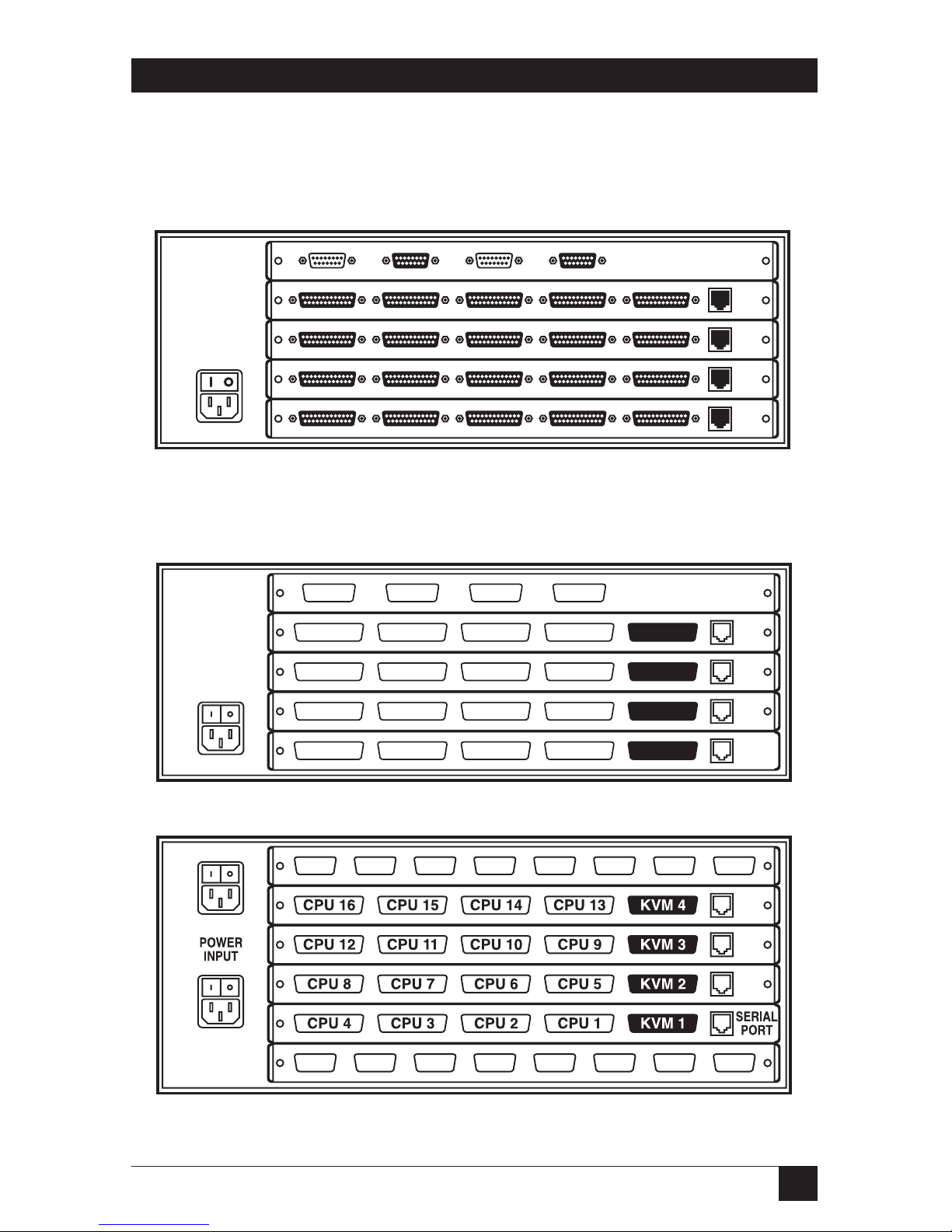
All cable connections are made at the Affinity’s rear panel, as illustrated in
Figures 2-1 through 2-3 and described on the following pages.
Figure 2-1. The rear panel of a fully populated regular ServSwitch Affinity
Expansion Chassis (four 1 x 4 Port Cards installed).
Figure 2-2. The same rear panel, slot and port numbering shown.
Figure 2-3. A fully populated Dual-Powered 16-User rear panel, numbering
shown. (8-User units have the top expansion slot, but not the bottom one.)
OUT 1 IN 1 OUT 2 IN 2 OUT 3 IN 3 OUT 4 IN 4
OUT 1 IN 1 OUT 2 IN 2 OUT 3 IN 3 OUT 4 IN 4
5
4
3
2
1
6
SLOTS
4
3
2
1
SERIAL
PORT
CPU 1CPU 2CPU 3CPU 4 KVM 1
CPU 13CPU 14CPU 15CPU 16 KVM 4
CPU 9CPU 10CPU 11CPU 12 KVM 3
CPU 5CPU 6CPU 7CPU 8 KVM 2
POWER
INPUT
POWER INPUT
90-264 VAC 47-63Hz 40 Watts
IN 1OUT 1IN 2OUT 2
5
4
3
2
1SLOTS
4
3
2
1
Page 21

20
SERVSWITCH™ AFFINITY
Designation Connector Description
On Port Cards: If you connect a more distant
computer or terminal to this RS-232 serial port,
you’ll be able to send switching commands to the
Affinity from a secondary location. You would also
connect a computer to this port to upgrade the
Affinity’s firmware. Refer to Chapter 7.
RJ-12 F
SERIAL
PORT N
[N = a number
from 1 to 4
depending on
how many Port
Cards you have
installed]
On 1 x 4 Port Cards: Connect the shared monitors,
keyboards, and mice to this port with User Cables
(“MKM Adapter Cables”). At the Affinity end,
these cables have a DB25 male connector; at the
other ends, they have appropriate connectors to
plug into your monitor, keyboard, and mouse
cables
. See Section 2.4.
DB25 FKVM N
[N = a number
from 1 to 4
depending on
how many Port
Cards you have
installed]
On Port Cards: Connect the sharing computers to
these ports with CPU Cables (“CPU Adapter
Cables”). At the ServSwitch Affinity end, these
cables have a DB25 male connector; at the other
ends, they have appropriate connectors to plug
into your CPUs’ video, keyboard, and mouse
ports. These cables take the signals that would
normally pass between the CPUs’ ports and the
monitor, keyboard, and mouse, and carry them
between the CPUs’ ports and the Affinity instead.
You must have one CPU Cable for each CPU you
plan to connect. See Section 2.4.
NOTE
Any unoccupied Port-Card slot will be
shipped from the factory covered by a
blank plate, as will the top slot (even if
there’s a Terminator Card installed in
it—the Terminator Cards are very small).
DB25 FCPU N
[N = a number
from 1 to either
4, 8, 12, or 16,
depending on
how many Port
Cards you have
installed]
Page 22

21
CHAPTER 2: Introduction
Designation Connector Description
Connect the ServSwitch Affinity’s power-supply
cord(s) here. KV130DA, KV138DA, and KV139DA
models will have two power inlets; all other models
will have one. Each inlet is connected to a
separate, electrically isolated, autosensing internal
transformer that can handle either 110-VAC or
230-VAC input.
Single or
dual
IEC 320 M
POWER
INPUT
On Expansion Cards: Ports carrying keyboard/
mouse/video data output from the Port Cards
installed in the local Affinity, as well as systemcontrol information, to other ServSwitch Affinity
units. Ports OUT 1 and OUT 2 (on the bottom card
only in a 16-User chassis) carry all of the keyboard
and mouse data from all of the Port Cards, plus all
of the system-control data. The odd-numbered
ports (OUT 1 and OUT 3) carry video signals
from the cards in slots 1 and 2 (the lower slots) of
this Affinity. The even-numbered ports (OUT 2
and OUT 4) carry signals from the cards in slots 3
and 4 (the
upper slots). Run your expansion cables
from these
ports to the IN ports on other Affinity
units.
4-Port cards:
DB15 F
8-Port cards:
HD15 F
OUT N
[N = a number
from 1 to either
2 (on 4-Port
Expansion Cards)
or 4 (on 8-Port
Expansion
Cards)]
On Expansion Cards: Ports carrying keyboard/
mouse/video data input from other ServSwitch
Affinity units to the Port Cards installed in the
local Affinity, as well as system-control information.
Ports IN 1 and IN 2 (on the bottom card only in a
16-User chassis) carry all of the keyboard and
mouse data for all of the Port Cards, plus all of the
system-control data. The odd-numbered ports
(IN 1 and IN 3) carry video signals for the cards in
slots 1 and 2 (the lower slots) of this Affinity. The
even-numbered ports (IN 2 and IN 4) carry signals
for the cards in slots 3 and 4 (the
upper slots). Run
your expansion cables from these
ports to the OUT
ports on other Affinity units.
4-Port cards:
DB15 F
8-Port cards:
HD15 F
IN N
[N = a number
from 1 to either
2 (on 4-Port
Expansion Cards)
or 4 (on 8-Port
Expansion
Cards)]
Page 23

22
SERVSWITCH™ AFFINITY
2.4 Cable Requirements
Many switches of this type have what seems like hundreds of connectors on their
rear panels: one for each CPU’s video cable, one for each keyboard cable, and a
third for each mouse cable. The potential for tangling or mismatching cables is
high.
By contrast, you can connect the ServSwitch Affinity to your CPUs with one CPU
Cable (also called a “CPU Adapter Cable”) for each CPU. This single cable reaches
the CPU’s video-output, keyboard, and mouse ports.
To connect other ServSwitch Affinity units, you need two or more ServSwitch
Affinity Expansion Cables for each chassis-to-chassis connection. (Each chassis also
needs to have an Expansion Card installed in it.)
Finally, you can connect the ServSwitch Affinity to the shared monitors,
keyboards, and mice with one User Cable (also called an “MKM Adapter Cable”)
for each keyboard/monitor/mouse user station.
The exact variety or varieties of these cables that you’ll need will depend on the
equipment you are connecting for your application. Refer to Appendix B for the
available types of these cables and the corresponding product codes. Also refer to
Chapter 1 or the Caution notice in Section 3.3.1 for information about maximum
cabling distances.
NOTES
SVGA (over longer distances) and XGA video place special demands on
cabling that the regular CPU Cables and User Cables typically cannot
meet. For these applications, you should use coaxial cables that can
carry video signals not only farther but also at
higher resolutions. See
Appendix B and the Caution notice in Section 3.3.1. You’ll also need a “Mac
Adapter for ServSwitch” (KV99MA) for each Mac CPU outputting high-res
(greater than 640 x 480) video.
2.5 Equipment Requirements
If the CPUs you will be controlling through your ServSwitch Affinity are not all of
the same type—especially if the CPUs represent completely different hardware
platforms (IBM, Sun, etc.)—you will have to be careful to choose a common
monitor, keyboard, and mouse combination that adequately supports all of the
CPUs. For full details, see Section 3.2.
Page 24
23
CHAPTER 3: Installation and Preconfiguration
3. Installation and Preconfiguration
3.1 Quick Setup Guide
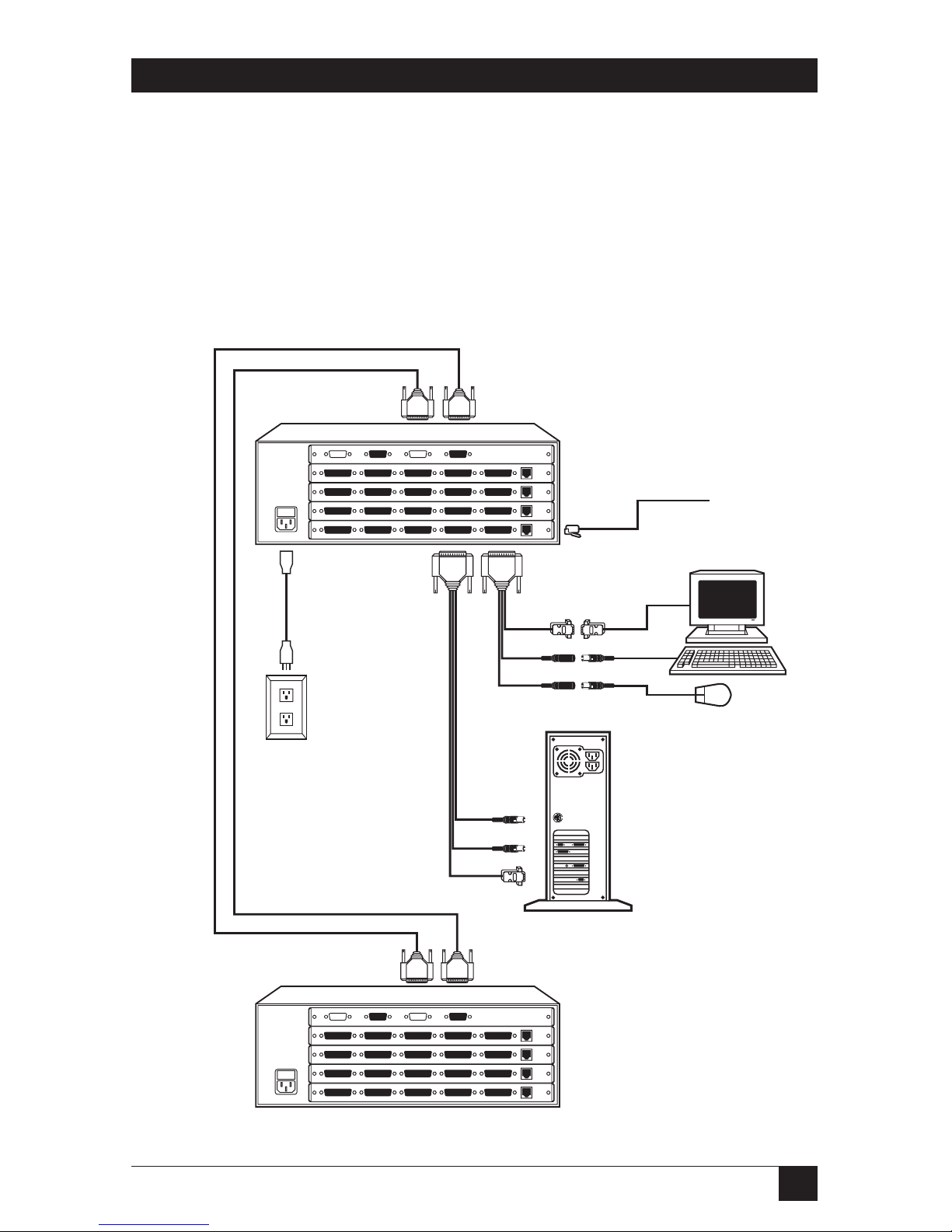
Figure 3-1 shows a basic example of connecting a ServSwitch Affinity to a CPU, a user
station (monitor, keyboard, and mouse), another Affinity, and AC power. IBM PC
equipment is shown, but the principles will be similar for all equipment types.
Connectors will vary depending on the types of equipment you are installing.
Figure 3-1. Basic system setup.
Power
cord
CPU Cable
Expansion Cables
Another regular
4-user ServSwitch
Affinity model
Fully loaded regular
ServSwitch Affinity
Expansion Chassis
(KV130A)
Mouse
Video card
Keyboard
Mouse
Keyboard
Monitor
6-wire
modular
cable to
remote PC
User Cable
Page 25

24
SERVSWITCH™ AFFINITY
3.2 Guidelines for Using the ServSwitch Affinity with Your Equipment
3.2.1 CPU
S
If you will be attaching IBM PC type computers, use only IBM PC/AT or PS/2 or
100% compatible machines, or recent SGI™ machines. The ServSwitch Affinity
does not support IBM PC/XT™ or compatible machines. It does not support
machines that output CGA or EGA video. (Because the basic hardware design used
by Apple and Sun has remained largely backward-compatible, the Affinity supports
most Sun machines and—with adapters—Apple machines.)
3.2.2 M
OUSE AND
K
EYBOARD
When you power up your ServSwitch Affinity system, make sure that your CPUs,
mice, and keyboards are properly cabled to the system. When you boot up your
CPUs, the Affinity units to which they are connected should already be ON. (You
should be able to freely disconnect and reconnect a mouse or keyboard from a
ServSwitch Affinity while the Affinity is ON, but if you experience problems when
you do this, issue the Reset command [CTRL] R—see Section 6.11.)
Though the Affinity can convert any supported keyboard or mouse protocol to
any other, this is not enough to overcome all of the vast differences between input
devices. If all of your CPUs are of the same type, we recommend that you use the
corresponding type of keyboard and mouse. (However, the Affinity doesn’t
support Apple keyboards or mice, even though you can use adapters to attach Mac
CPUs.) If your CPUs are of different types, certain limitations tend to favor the use
of certain keyboard and mouse types:
Standard PC keyboards have 101 or 102 keys. PC keyboards designed specifically
for Windows 95/98/2000 have 104 or 105 keys. At this time there is no way for a
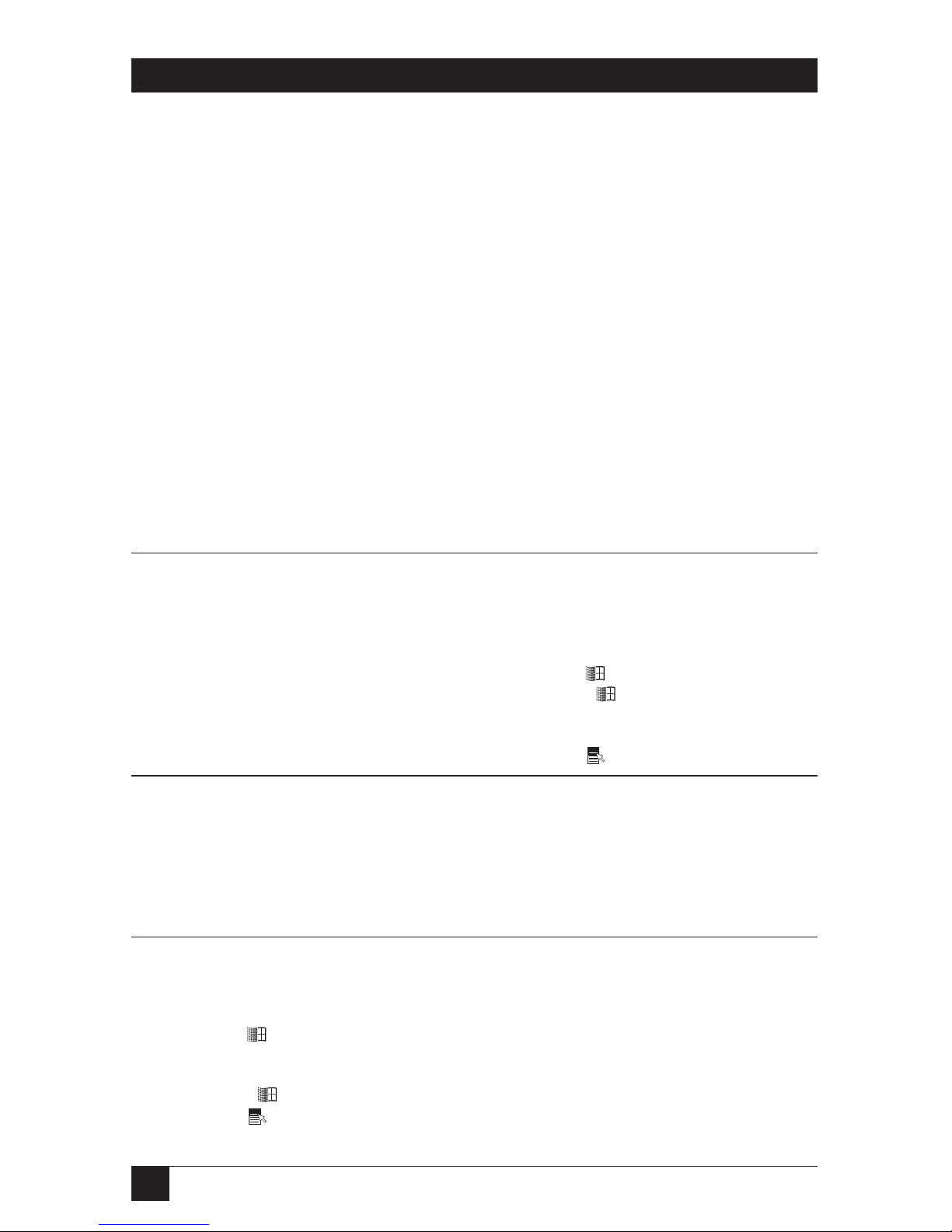
101-/102-key keyboard to emulate the functions of the Windows Start ( ) and
Windows Application ( ) keys on a 104-/105-key keyboard. Standard Apple
keyboards have 105 keys. And Type 5 Sun keyboards have 118 keys as well as
keyclick and beep features. We have mapped several of the Apple and Sun keys to
the PC keyboards (see Table 3-1 at the end of this section), but many of the Sun
keys simply cannot be mapped to IBM keyboards.
For these reasons, we recommend that you use Sun Type 5 (not Type 6)
keyboards and Sun mice for mixed-platform applications that include Sun CPUs.
Use IBM keyboards and mice if you have no Sun CPUs attached to your Affinity
system; in particular, use Windows keyboards if any of your applications require the
Windows keys, and use three-button mice if any of your applications require the
center mouse button.
Page 26

25
CHAPTER 3: Installation and Preconfiguration
Other concerns:
• The ServSwitch Affinity emulates several types of mice for the attached
computers, but the actual mice used at your user stations must be the same
type as the stations’ keyboards: Sun or USB mice with Sun keyboards or PS/2
or USB mice (not RS-232 mice) with PC type keyboards. For more details, see
Section 4.3.
• Because the Affinity currently only supports “stream mode” (continuous)
mouse data, but older IBM ThinkPad models have to handle mouse data in
“prompt mode” (burst-on-request), don’t try to attach any older ThinkPad
computers to the Affinity, either directly or through docking stations. Some
newer models should work with the Affinity, but there’s no good way to tell
other than by trial and error. (You can’t damage your equipment by trying—if
you have the wrong kind of ThinkPad, it just won’t work.)
• If you’re using a PC mouse as the common mouse, make sure that the IBM PC
CPUs use only the generic Microsoft
®
mouse driver MOUSE.COM, version 4.0 at
least and preferably version 9.01 or higher. If you’re running Windows
®
3.x,
this driver must be loaded in Windows as well as in the base operating system.
Do not, on any of your switched IBM PC CPUs, run any programs or TSRs, or
enter any DOS commands, that change the settings of the mouse port after the
driver has been loaded.
• When you first switch between CPUs, especially CPUs of different platforms,
you might notice wide variations in mouse sensitivity (how far or fast the
mouse moves) from CPU to CPU. This is normal. The IBM, Apple, and Sun
platforms all have ways to adjust the sensitivity of the mouse. (This is usually
handled through some kind of software “control panel,” but the specifics vary
depending on the operating system and—in IBM applications—on the mouse
driver.) To optimize mouse movement, adjust the sensitivity on each CPU
according to your individual preference.
• Although the ServSwitch Affinity resists minor transient surges that can be
caused by rapidly cycling power, certain keyboards are sensitive to such
transients. Because your shared keyboard’s power is provided by the Affinity,
wait at least three seconds after powering down the Affinity before powering it
up again, or the keyboard might not reset correctly.
• The ServSwitch Affinity is designed to support IBM PC compatible 101-, 102-,
104-, or 105-key keyboards and IBM PC keyboard-scan modes 1, 2, and 3; it’s
also designed to work with PC-type CPUs/keyboards that use 5-pin DIN or
6-pin mini-DIN keyboard connectors. The Affinity will try to pass through
keyboard codes that it doesn’t recognize without altering them, which allows it
Page 27
26
SERVSWITCH™ AFFINITY
to support the DEC LK461 keyboard (see Appendix D for the key mappings),
Japanese 106- and 109-key keyboards, and certain other keyboards that use
special or proprietary keys. However, we cannot guarantee that the Affinity will
be able to fully support—or even work at all with—any PC-type keyboard that
uses nonstandard keys, connectors, or keyboard-scan modes.
• If you are using a Sun keyboard, it must be a Type 5 or Type 5c model, not
Type 6 (the Affinity isn’t yet fully Type 6 compatible). If the keyboard is
designed for a keyboard language other than “US” (standard North American
English), you’ll need to select the language under “Keyboard settings” in the
“Configure System” page of the configuration menu (see Section 4.2.2).
Table 3-1. Keyboard mapping by the ServSwitch Affinity.
Generally, the ServSwitch Affinity interprets keys by their positions on the keyboard, so any
keys that occupy more or less the same positions and perform more or less the same functions
across platforms will map one-to-one. However, certain keys available on certain keyboards do
not correspond well or are not available on other types of keyboards, so the Affinity maps the
more important of these as shown below. (The Affinity does not support Apple keyboards, but
with the proper adapter it will emulate an Apple keyboard to an attached Mac CPU.)
On the Sun Emulates the Emulates the Emulates the
keyboard, the PC 101/102-key PC 104/105-key Apple keyboard’s
___ key: keyboard’s ___ key: keyboard’s ___ key: ___ key:
Control Left Ctrl Left Ctrl Left Control
Alt Left Alt Left Alt Left Option (alt)
Left Command (◆) N/A Left Win Start ( ) Left Command ()
Right Command (◆) N/A Right Win Start ( ) Right Command ()
Compose Right Ctrl Right Ctrl Right Control
Alt Graph Right Alt or Alt Graph Right Alt or Alt Graph Right Option (alt)
Power ( |) N/A Windows App ( ) Power ( )
On the IBM PC 101/ (Maps to same Emulates the (Not recommended)
102-key keyboard, key on PC 104/ Apple keyboard’s Emulates the Sun
the ___ key: 105-key keyboard.
)
___ key: keyboard’s ___ key:
Left Ctrl Left Control Left Control
Left Alt Left Command () Left Command (◆)
Right Alt or Alt Graph Right Option (alt) Alt Graph
Right Ctrl Power ( ) Power ( |)
On the IBM PC 104/ (Natively supports Emulates the (Not recommended)
105-key keyboard, PC 101/102-key Apple keyboard’s Emulates the Sun
the ___ key: keyboard functions.) ___ key: keyboard’s ___ key:
Left Ctrl Left Control Left Control
Left Win Start ( ) Left Command () Left Command (◆)
Left Alt Left Option (alt) Alt
Right Alt or Alt Graph Right Option (alt) Alt Graph
Right Win Start ( ) Right Command () Right Command (◆)
Windows App ( ) Power ( ) Power ( |)
Right Ctrl Right Control Compose
Page 28

27
CHAPTER 3: Installation and Preconfiguration
3.2.3 M
ONITOR
If all of your CPUs are of the same type, we recommend that you use the
corresponding type of monitor. If your CPUs are of different types, the monitor
must be a multisync model, able to sync to every CPU’s video-output frequencies,
and compatible with all of the CPUs’ video cards.
While PC-type CPUs and VGA monitors normally use two separate leads to
send/receive sync signals (one lead for horizontal sync and one for vertical sync,
referred to as “H/V”), Mac and Sun CPUs/monitors normally send/receive a
composite sync signal on a single lead. (So do some otherwise PC-compatible
CPUs, including many SGI models.) If you attach both H/V and composite-sync
CPUs to your system, either your monitor must be capable of accepting both H/V
and composite-sync input, or you’ll have to use a sync converter and special cables
to convert H/V to composite sync or vice versa (call Black Box Technical Support
for a special quote).
For maximum compatibility, we recommend a 17" or larger, high-quality
multisync monitor capable of (a) displaying a maximum resolution of not less than
1280 x 1024 at a maximum refresh rate of not less than 75 Hz, and (b) accepting
both relevant types of sync input (H/V and composite). Such monitors are
available from many manufacturers. (However, since these monitors usually have
an HD15 video-input connector, you will need a special User Cable to use them
with Sun keyboards and mice; this cable is product code EHN059 [original] or
EHN225 [coax].) The higher the resolution you use, the less distance you can run;
see Tables 3-2 and 3-3 on the following pages.
Other concerns specific to IBM PCs:
•
The ServSwitch Affinity is designed to support standard VGA video, including
VGA
monochrome (“page white”). It does not support PCs that use CGA,
EGA, or proprietary versions of VGA that depart from the original
specifications. Consult your PC’s manual, and if that doesn’t tell you whether
or not the PC uses standard VGA, consult with the PC’s or the video card’s
manufacturer.
• The Affinity is also designed to support SVGA, although it doesn’t handle
higher resolutions or longer distances very well without coaxial cabling (see
the next two pages). With coaxial cables, it will also support XGA, RS/6000,
and SGI video (RS/6000 and SGI require cables with 13W3 connectors—see
Appendix B).
If you have Mac CPUs attached, you’ll need a Mac Adapter for ServSwitch
(product code KV99MA) for each CPU that outputs video in a format other than
VGA (640 x 480).
Page 29
28
SERVSWITCH™ AFFINITY
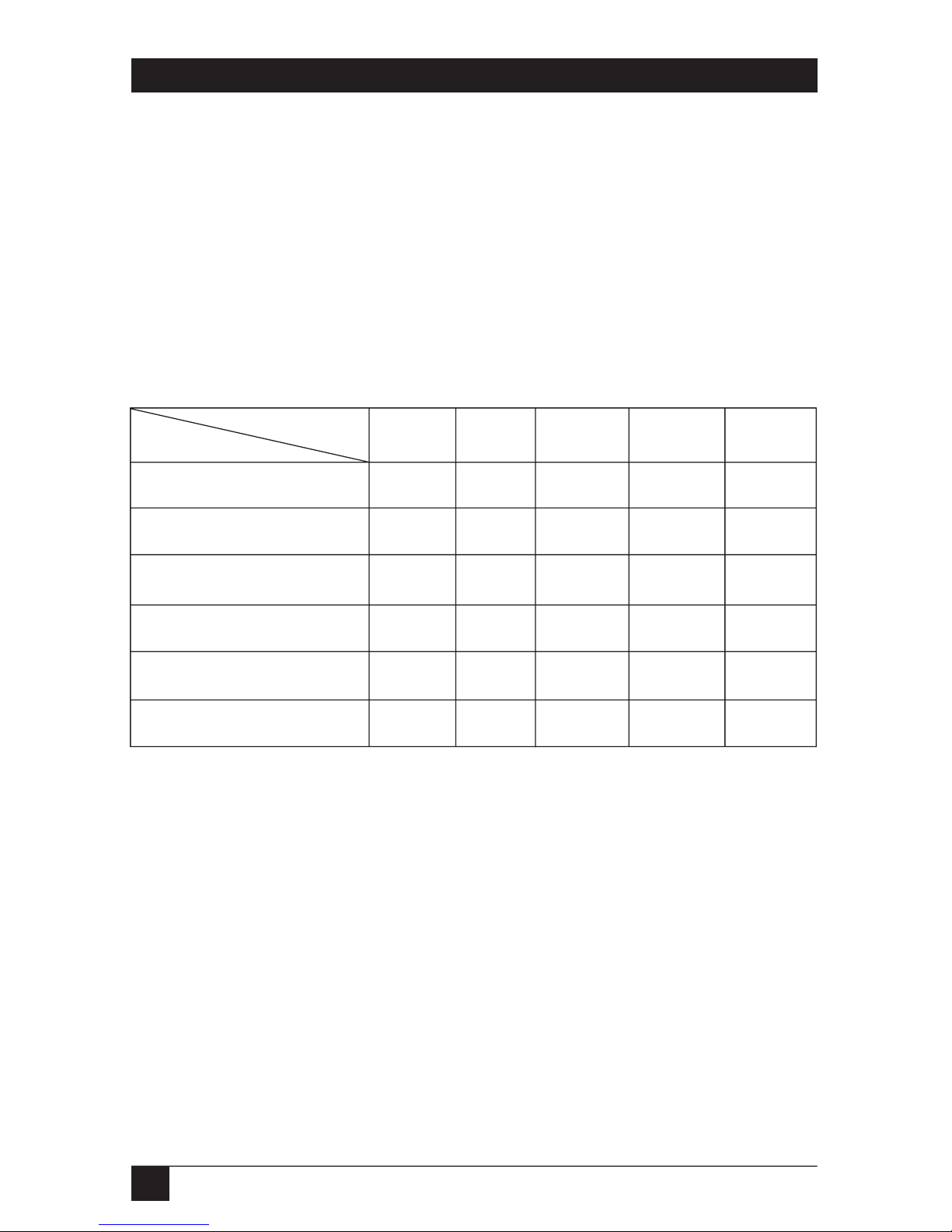
The ServSwitch Affinity will support SVGA (Super VGA) video, but with original
Serv cables the video quality will decrease markedly at higher resolutions and
distances. Table 3-2 illustrates this. The distances in the table are total lengths of
CPU Cable and User Cable (but not Expansion Cable) measured from the CPU to
the monitor. The table assumes that one ServSwitch Affinity is between the CPU
and monitor; in a daisychained application with multiple Affinity units between the
CPU and monitor, video quality will always be lower.
This table also applies to Mac video in Affinity systems in which the Mac version
of the original Serv type CPU Cable (product code EHN215) has been installed.
Table 3-2. Video quality vs. distance for original Serv cables.
Resolution
Distance
5' (1.5 m) 10' (3 m) 15' (4.6 m) 20' (6.1 m)
25' (7.6 m)
640 x 480 333 3 3
800 x 600 333 2 2
1024 x 768 interlaced 332 2 2
1024 x 768 noninterlaced 322 2 2
1280 x 1024 interlaced 211 1 1
1280 x 1024 noninterlaced 211 1 1
Quality 3 = Near perfect; screen defects are not conspicuous
Quality 2 = Good to very good; images are clear; there are small reflections around
text lettering depending on the color; screen defects are sometimes
conspicuous
Quality 1 = Fair to poor as distance increases; images run from slightly fuzzy to
badly smeared; text runs from fuzzy but readable to completely
washed out
Page 30
29
CHAPTER 3: Installation and Preconfiguration
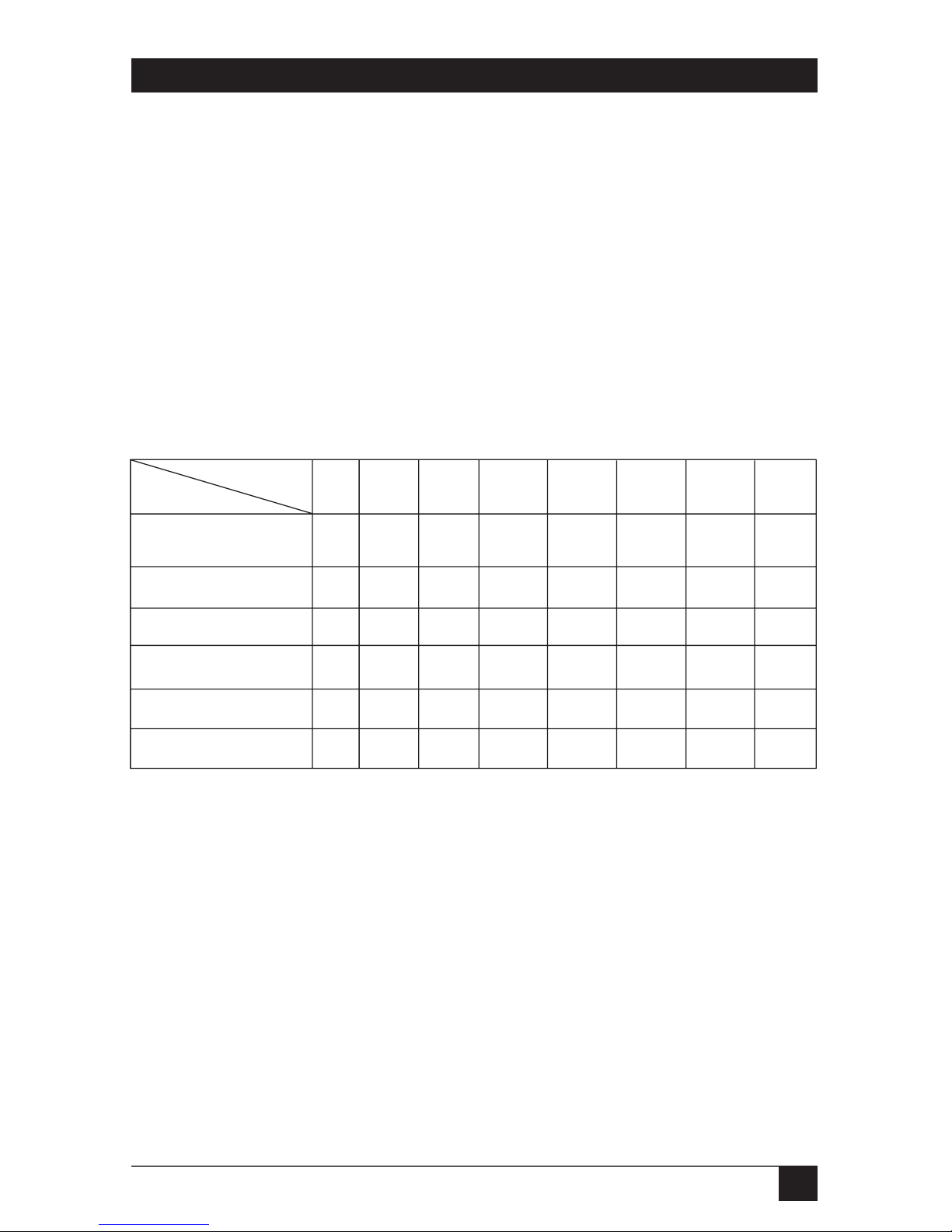
By contrast, coaxial cables (standard for Sun applications, required for XGA
applications, and recommended for most other applications) do much better at
maintaining video quality, as shown in Table 3-3. (For the meaning of quality
numbers 3, 2, and 1, see the bottom of the previous page.) As before, the distances
in the table are total adapter-cable lengths (not including Expansion Cable)
measured from the CPU to the monitor. Also as before, the table assumes a single
Affinity is between the CPU and monitor; if there are other chained Affinity units
as well, video quality will always be lower. (Where “interlaced” or “noninterlaced”
isn’t specified, noninterlaced video is implied.)
In some applications, if you use short runs of good cable, the Affinity might be
able to carry resolutions as high as 1600 x 1280, but we can’t guarantee this.
Table 3-3. Video quality vs. distance for coaxial cables.
Resolution
Distance 10 ft. 20 ft. 30 ft. 50 ft. 75 ft. 100 ft. 150 ft. 200 ft.
(3 m) (6.1 m) (9.1 m) (15.2 m) (22.9 m) (30.5 m) (45.7 m) (61 m)
640 x 480 33 3 3 3 3 2 2
800 x 600 33 3 3 3 3 2 2
1024 x 768 interlaced 33 3 3 3 3 2 2
1024 x 768 noninterl. 33 3 3 2 2 2 1
1280 x 1024 interlaced 32 2 2 2 1 1 1
1280 x 1024 noninterl. 32 2 1 1 1 1 1
CAUTION!
Some CPUs can’t drive or receive keyboard and mouse signals across
longer runs of coaxial cable. Consult with the manufacturers of your
CPUs before installing this cable in lengths greater than 20 ft. (6.1 m).
If all of your CPUs are IBM PC compatible, and you want to drive signals across
CPU-to-Affinity or Affinity-to-monitor distances over 100 feet (30.5 m), you might
require Station Extenders or CAT5 KVM Extenders (see Appendix B). Please call
Black Box Technical Support to discuss your application.
Page 31

30
SERVSWITCH™ AFFINITY
3.3 Installation Procedure
This section provides complete instructions for the hardware setup of a single
ServSwitch Affinity. (For instructions on installing a daisychained Affinity system,
see Sections 3.3.6 and 3.4.) For an illustrated example of the elements of a basic
setup, see Figure 3-1.
For the procedure you should use to power up the system, see Section 3.5. For
the initial configuration procedure, see Section 3.6.
NOTE
Initially configuring a ServSwitch Affinity will require you either to
attach a monitor, keyboard, and mouse to one of its KVM ports or to
attach a complete computer system to one of its serial ports. If this
attachment will be difficult to make after a particular Affinity has been
physically installed in a given location, you should configure that unit
before you install it; see Section 3.6.
3.3.1 PLACEMENT
The ServSwitch Affinity is best located as close as possible to the CPUs that are
attached to it. This way you can use shorter CPU Cables, so your installation is
neater and less expensive. You should also place the Affinity as close as possible to
the AC outlet you want to plug it into.
CAUTION!
Avoid routing cable near fluorescent lights, air-conditioning
compressors, or machines that may create electrical noise. Total length
of original Serv type CPU or User Cable (not including Expansion Cable)
from the keyboard, monitor, and mouse to any given CPU should not
exceed 40 ft. (12.2 m). For typical equipment and
video resolutions,
length of coaxial
CPU or User C
able (again, not including expansion
cable) should not exceed 20 ft. (6.1 m)
from a ServSwitch Affinity to any
attached device (keyboard, monitor, mouse, CPU, or other KVM switch).
However, we do provide coaxial cable in lengths up to 100 ft. (30.5 m),
because some CPUs can drive and receive keyboard and mouse signals
at greater distances than others. To go even farther, you might want to
use Station Extenders or CAT5 KVM Extenders (see Appendix B).
Page 32

31
CHAPTER 3: Installation and Preconfiguration
3.3.2 SETTING AND
INSTALLING CARDS
You can install Port Cards in any vacant Port-Card slot in the ServSwitch Affinity at
any time. You can also install an Expansion Card (or, on 4-User models, swap in an
Expansion Card for a Terminator Card)in order to prepare the Affinity to be
daisychained. (You must install Expansion Cards in 8- and 16-User models—they won’t
work otherwise.) Depending on the topology of your daisychained system—and, in
8- and 16-User systems, on the numbering of your user ports—you might need to
set the Expansion Card’s jumpers before you do this. For directions, see Appendix E.
3.3.3 RACKMOUNTING
(OPTIONAL)
If you want to mount the Affinity in a rack, you will need a ServSwitch Affinity
Rackmounting Kit. The product code for a 19", 23", or 24" kit is RMK19A139,
RMK23A139, or RMK24A139 respectively if your Affinity is a KV139 model, or
RMK19A, RMK23A, or RMK24A respectively if your Affinity is any other model. See
Appendix G for more information.
3.3.4 C
ONNECTING THE MONITORS, KEYBOARDS, AND MICE
User Cables (also called Monitor/Keyboard/Mouse [“MKM”] Adapter Cables) run
from each user’s monitor, keyboard, and mouse to the ServSwitch Affinity. Because
various styles of electrical connectors are used by different classes of equipment, we
supply this cable in various styles to match (see Appendix B). This cable also comes
in the different lengths supported by different applications (see Section 3.2.3,
Appendix B, and the Caution notice in Section 3.3.1.).
CAUTION!
Make very sure that the monitor, keyboard, and mouse you plan to use
can meet the demands of your application—see Section 3.2. Also, note
that the ServSwitch Affinity doesn’t support most keyboard-line dongles.
1. After you verify that the Affinity is turned OFF, plug the DB25 male connector
of the first User Cable into the one of the KVM ports on the Affinity’s rear
panel (preferably the lowest-numbered one—refer to Figures 2-2 and 2-3 in
Section 2.3). Use the other (consecutively higher-numbered) KVM ports for
the rest of the User Cables.
2. If your common equipment is IBM compatible, plug the cables from your
shared
monitor, keyboard, and mouse into the corresponding connectors on
the other
ends of the User Cable. If your common equipment is Sun compatible,
plug the mouse cable into the keyboard, and plug the monitor and keyboard
cables into the corresponding connectors on the other ends of the User Cable.
Page 33

32
SERVSWITCH™ AFFINITY
3.3.5 C
ONNECTING
CPU
S
CPU Cables run from the ServSwitch Affinity to the keyboard port, mouse port (if
this is separate), and video-output port of each CPU you want to directly attach to
it. Different types of this cable fit the connectors on different computers (see
Appendix B). This cable also comes in the different lengths supported by different
applications (see Section 3.2.3).
1. Make sure that the Affinity is turned off and unplugged.
2. For Mac CPUs: Plug a ServSwitch Micro Mac Converter (KV99MCON) into
each of the CPU ports on the Affinity’s rear panel that you’ll be connecting to
a Mac CPU.
3. Take the CPU Cable you’ll be running to the first CPU and plug its DB25
male connector into one of the CPU ports on the Affinity’s rear panel
(preferably the lowest-numbered one—refer to Figures 2-2 and 2-3 in
Section 2.3), or into the Mac Converter attached to the port if the cable is
going to a Mac. Use the other (consecutively higher-numbered) CPU ports
for the rest of the CPU Cables.
4. For Mac CPUs that don’t output VGA-compatible video: As described on its
installation sheet, set a Mac Video Adapter for ServSwitch (KV99MA) to
emulate the proper monitor for each of your Mac CPUs, then attach the
adapter to the Mac CPU’s video port. (Keep in mind that unless all of your
CPUs are Mac type, you’ll need multisync monitors at your user stations.)
5. If all of the CPUs you will be attaching to your Affinity system are Sun models, and
none of the monitors you want to use support 640 x 480 resolution: Take the CPU
Cable attached to the Affinity’s lowest-numbered CPU port. Plug the video
strand of this cable into the video port of a powered and operating Sun CPU
that is outputting video in a resolution that at least one of your user-station
monitors supports. (You can also unplug this CPU’s keyboard and mouse and
attach the keyboard/mouse strand of the CPU Cable instead, but be aware
that this will cause the CPU to suspend normal operation and go into a
locked-up “panic mode.” To recover the CPU from this mode when you’re
ready to power the system, turn the Affinity system ON, select that CPU, and
type in the proper character sequence—usually “OK” [Enter].)
This step is necessary in order for the Affinity’s on-screen display to be
properly synchronized when the Affinity is powered up, so that it will then be
possible to configure all of your CPU ports for Sun keyboard and mouse. If
you skip this step, it will cause a series of hardware and firmware
incompatibilities that will prevent your Affinity system from working. To avoid
this complication altogether, we strongly recommend that you use multisync
monitors rather than monitors that don’t support 640 x 480 resolution.
Page 34

33
CHAPTER 3: Installation and Preconfiguration
6. Plug each (remaining) CPU Cable’s video-, keyboard-, and (on IBM type
cables) mouse-port connectors into the corresponding ports on each CPU (or
into the video adapter on a non-VGA Mac). For various reasons, the CPU
should be OFF when you do this. (The Affinity also needs to be configured
before you turn ON the CPUs; see Section 3.6.) Avoid
plugging CPUs into the
Affinity if they are already ON; if you accidentally do so with an IBM type CPU,
see Section 4.3 to make sure the Affinity is set for the proper keyboard mode.
CAUTION!
Do not attach docking stations for older models of the ThinkPad®or
other portable computers to the ServSwitch Affinity. The Affinity
currently supports only “stream mode” (continuous) mouse data, but
older ThinkPad models have to see “prompt mode” (burst-on-request)
mouse data. Some newer docking stations and some newer ThinkPad
models might work with the Affinity, but determining whether a particular
unit will do so will probably require trial and error.
3.3.6 C
ONNECTINGDEVICES
’ S
ERIALPORTS(OPTIONAL
)
If you want to, you can connect the RS-232 port of a device such as a router, a hub,
or a PC, UNIX
®
, or Sun®computer to your ServSwitch Affinity. You can then
manage the device from any user station attached to your Affinity system, as
described in Chapter 8. To make this kind of serial connection, run a special serial
cable (see below) from one of the CPU ports on the Affinity to the serial port on
the device.
We offer four types of cables for connecting devices’ RS-232 serial ports to the
ServSwitch Affinity. (Note that, even though the Affinity’s CPU ports are DB25
male connectors, they are not pinned the same way as the serial ports on a PC,
printer, or modem even when they function as serial ports.) The cables are:
Product code Device-end connector Device type
EHN290 DB9 female PC or compatible DTE
EHN291 DB25 female PC, terminal, or compatible DTE
EHN292 DB9 male Modem or compatible DCE
EHN293 DB25 male Modem or compatible DCE
If you need some other type of cable or adapter to reach some other type of
serial port or device—for example, the serial ports on some Cisco routers or the
8-pin DIN serial ports on legacy Sun computers—call Black Box Tech Support. We
might be able to give you a quote.
Once you’ve run your cable and configured that CPU port as a serial port with
the desired data rate (see Section 4.3), you can access the attached device as you
would during any terminal-emulation session.
Page 35

34
SERVSWITCH™ AFFINITY
3.3.7 C
ONNECTING
O
THERAFFINITYUNITS(OPTIONAL
)
To connect one or more other ServSwitch Affinity units together, all of the chassis
must have Expansion Cards installed. You’ll need to run ServSwitch Affinity
Expansion Cables (see Appendix B for product codes) between the Expansion
Cards, always from the IN ports of one card to the OUT ports of other cards (never
IN to IN or OUT to OUT). Where your users are will determine how you lay out
your daisychained system, connect your cabling, and—on 8-User models—number
your user ports; see Section 3.4 for more detailed information. (Just remember
that IN and OUT refer to video-signal flow, so for a user station to display a CPU’s
video, Expansion Cables must lead from OUT on the CPU’s Affinity to IN on the
user’s Affinity.) W
e recommend that you configure and check each Affinity
in the
chain either before or as you install it, rather than installing everything and then
working on the entire chain; see Section 3.6. Before installing an advanced
configuration, please call Black Box and discuss your application with a technician.
3.3.8 P
OWERINGUP THEAFFINITYUNITS
1. Making sure that the connected CPUs are OFF (powered down)—except for
at least one CPU in an all Sun installation where the monitor doesn’t support
640 x 480 (see step 5 in Section 3.3.5)—take the power cord(s) of a ServSwitch
Affinity in your system and plug each cord’s IEC 320 female outlet end into a
rear-mounted IEC 320 male power inlet on the Affinity. Then plug the other
end of the cord(s) into a working outlet. If your CPUs are on uninterruptible
power supplies (UPSes), the Affinity units should be on UPSes as well.
2. Move the ON/OFF rocker switch on the back of the Affinity from the OFF
(“O”) position to the ON (“|”) position to power up the unit. (In the
aforementioned all Sun installation, make sure that the operating Sun CPU is
selected; it should be, by default, if it’s connected to the Affinity’s lowestnumbered CPU port.) The Affinity should briefly display a diagnostic screen
(at the resolution of the video output of any selected CPU, or at 640 x 480 if
no CPU is selected) on all attached monitors. For a description of this screen,
the possible diagnostic messages you could see, and the procedure for
powering up your CPUs, see Section 3.5.
If the unit is operating properly, after the diagnostic screen fades away you
can do initial configuration for that Affinity as described in Section 3.6.
Dual-Powered Affinity models: After the Affinity powers up, check the LEDs on its
front panel. All three should be lit. If not, make sure both cords are securely
attached and that the AC outlets they’re plugged into are working. If one of the
power supplies has in fact failed, see Section 9.2 for how to proceed.
Page 36

35
CHAPTER 3: Installation and Preconfiguration
3.3.9 C
HANGING THE
K
EYBOARDSETTING OFWINDOWS
NT 4.0 CPU
S
If any CPUs attached to your ServSwitch Affinity are running Microsoft
Windows NT
®
4.0, you must change the keyboard setting in their Control Panel
from the default, “Microsoft Enhanced Keyboard,” to “Standard 101/102 or
Microsoft Natural Keyboard.” Your Affinity system will not work with these CPUs
unless their keyboard settings are changed. To do this, take these steps:
1.
Click on the icon for “My Computer” (or whatever you’ve named the computer).
2. Click on “Control Panels.”
3. Click on “Keyboard.”
4. Click on the “General” tab.
5. In the Keyboard Type field, scroll from the “Enhanced” setting to “Standard.”
For more information, consult your Windows NT manual.
3.3.10 S
WITCHING ANDACCESSING THEDISPLAY FROM THEKEYBOARD
If your ServSwitch Affinity system has been properly preconfigured (see Section 3.6),
it is now ready for operation using its default settings.
To take full advantage of the Affinity’s features, refer to Chapter 6, which gives
detailed information about each of the Affinity commands, describing each
command’s function and keystroke sequence. For your convenience, this info is
summarized in Section 6.1.
To begin switching immediately, however, just press and release your keyboard’s
left Control
Key ([Ctrl]), then—within the next two seconds—type in your desired
port number
with the regular number keys (not the numeric keypad) and press
[Enter]. Or, to review the Affinity system’s configuration settings, press and release
left [Ctrl] followed within two seconds by the [F12] key; this will bring up the
Affinity’s on-screen display (see Chapter 4).
Page 37

36
SERVSWITCH™ AFFINITY
3.4 Daisychaining ServSwitch Affinity Units
Chaining multiple ServSwitch Affinity units together adds capacity for more
computers and, optionally, more user stations. When you plan a daisychained
system, keep in mind that Affinity units attach to each other:
• From output to input.
• In a bus, split bus, or ring topology (see Section 3.4.3).
• With between one and four (4-User models), eight (8-User model), or sixteen
(16-User model) cables.
Each Affinity must have its “starting computer” configuration parameter set
correctly before you attach it to other units. See Section 3.6 for how to do this.
3.4.1 E
XPANSIONCABLING
You’ll use Expansion Cables to interconnect ServSwitch Affinity units. These cables,
all exactly alike except
for their connectors and lengths, carry computer and KVM
signals from one unit’s Expansion Card output ports to another unit’s input ports.
Each Expansion Card must be installed in the top slot (slot 5) of a 4- or 8-User
Affinity chassis, or the top and bottom slots (slots 5 and 6) of a 16-User chassis.
On 4-Port Expansion Cards (those for 4-User Affinity models), the input and
output ports are DB15 connectors numbered from right to left with the numerals 1
and 2, as shown in Figure 3-2. The Expansion Cables for these cards (product
codes KV140010 etc.) have DB15 connectors.
On 8-Port Expansion Cards (those for 8-User and 16-User Affinity models), the
input and output ports are HD15 connectors numbered from left to right with the
numerals 1 through 4, as shown in Figure 3-3. The Expansion Cables for these
cards (product codes KV180010 etc.) have HD15 connectors.
The maximum distance that Expansion Cable can be run between any two Affinity
units is 100 ft. (30.5 m). See Appendix B for cable and Extender product codes.
Figure 3-2. The 4-Port Expansion Card and its input and output ports.
Figure 3-3. The 8-Port Expansion Card and its input and output ports.
OUT 2 IN 2 IN 1
OUT 1
OUT 2
IN 2
OUT 1
IN 1
OUT 4
IN 4
OUT 3
IN 3
Page 38

37
CHAPTER 3: Installation and Preconfiguration
3.4.2 B
US AND
U
SER-PORT
(KVM) N
UMBERING
3.4.2.A In 4-User Models
In 4-User ServSwitch Affinity models, the numbering of the user ports, users, buses,
and keyboard/video/mouse (KVM) user stations is fixed, and in a normal
daisychain with only 4-User units, each of these numbers will always be equal to the
others. KVM 1 and KVM 2 are Users 1 and 2 on buses 1 and 2, attached to the Port
Cards in slots 1 and 2 respectively; KVM 3 and KVM 4 are Users 3 and 4 on buses 3
and 4, attached to the Port Cards in slots 3 and 4 respectively. (Refer to Figures 2-2
and 2-3 in Section 2.3 to see where these slots are.) This numbering can be thrown
out of equivalence in an abnormally cabled mixed daisychain; see Section 3.4.4.
On the 4-Port Expansion Card, input port IN 1 and output port OUT 1 carry all
of the keyboard, mouse, and system-control signals, as well as the video signals for
KVM 1 and KVM 2. Input port IN 2 and output port OUT 2 carry the video signals
for KVM 3 and KVM 4. Note that even if you have no users attached to the Port
Cards in slots 1 and 2, you still need to run expansion cables to IN 1 and/or OUT 1,
because all of the system’s control information is expressed on those ports and the
daisychain won’t work if that information isn’t passed between the Affinity units.
3.4.2.B In 8-User and 16-User Models
In the 8-User and 16-User ServSwitch Affinity models, the numbering of the buses,
user ports, and KVM user stations is user-selectable: 8-Port Expansion Cards can be
set so that their chassis’ buses and KVM ports are numbered 1 through 4 or 5
through 8 (or, when you use two cards together in a 16-User chassis, 9 through 12
or 13 through16). Each KVM number will be equal to the user and bus numbers;
for example, KVM 1 and 2 are Users 1 and 2 on buses 1 and 2. On the Expansion
Card in an 8-User chassis, or on the bottom Expansion Card in a 16-User chassis:
• Input port IN 1 and output port OUT 1 carry all of the keyboard, mouse, and
system-control signals, so you must run expansion cable to at least one of these
ports in order for your daisychained system to work. IN 1 and OUT 1 also carry
the video signals for KVM 1 and KVM 2 (attached to the Port Cards in slots 1
and 2 respectively if the Expansion Card is set for KVM 1 through 4).
• Input port IN 2 and output port OUT 2 carry video signals for KVM 3 and
KVM 4 (attached to the Port Cards in slots 3 and 4 respectively if the
Expansion Card is set for KVM 1 through 4).
• Input port IN 3 and output port OUT 3 carry video signals for KVM 5 and
KVM 6 (attached to the Port Cards in slots 1 and 2 respectively if the
Expansion Card is set for KVM 5 through 8).
• Input port IN 4 and output port OUT 4 carry video signals for KVM 7 and
KVM 8 (Users 7 and 8, the Port Cards in slots 3 and 4 respectively if the
Expansion Card is set for KVM 5 through 8).
Page 39

38
SERVSWITCH™ AFFINITY
On the top Expansion Card in a 16-User Affinity:
• Input port IN 1 and output port OUT 1 carry video signals for KVM 9 and
KVM 10 (Users 9 and 10, attached to the Port Cards in slots 1 and 2
respectively if the Expansion Card is set for KVM 9 through 12).
• Input port IN 2 and output port OUT 2 carry video signals for KVM 11 and
KVM 12 (Users 11 and 12, the Port Cards in slots 3 and 4 respectively if the
Expansion Card is set for KVM 9 through 12.
• Input port IN 3 and output port OUT 3 carry video signals for KVM 13 and
KVM 14 (Users 13 and 14, attached to the Port Cards in slots 1 and 2
respectively if the Expansion Card is set for KVM 13 through 16).
• Input port IN 4 and output port OUT 4 carry video signals for KVM 15 and
KVM 16 (Users 15 and 16, the Port Cards in slots 3 and 4 respectively if the
Expansion Card is set for KVM 13 through 16).
To set the numbering on the 8-Port Expansion Card, use the two jumpers labeled
JP1 and JP2, as shown in Figure 3-4.
If you’ll be placing the card in an 8-User chassis, follow the directions printed on the
board for the “lower” card, even though there’s only one card and it goes into the
top of the chassis:
• For any given card, set JP1 and JP2 both to the DOWN position if you want the
Affinity system to recognize any user on Slot (Port Card) 1 as “KVM 1,” any
user on Slot (Port Card) 2 as “KVM 2,” and so on. (This is the default setting.)
• For any given card, set JP1 and JP2 both to the UP position if you want the
Affinity system to recognize any user on Slot (Port Card) 1 as “KVM 5,” any
user on Slot (Port Card) 2 as “KVM 6,” and so on.
We recommend that, unless the placement of your user equipment demands
otherwise, you set the user ports to KVM 1 through 4 on the first chassis,
KVM 5 through 8 on the second chassis, KVM 1 through 4 again on the third
chassis, KVM 5 through 8 again on the fourth chassis, and so on.
Figure 3-4. The jumpers on the 8-Port Expansion Card.
UP
DOWN
JUMPER ON - BUS
JUMPER OFF - RING
JP2
UP
DOWN
JP1
KVM 1-4 KVM 5-8 KVM 9-12 KVM 13-16
JP1 & JP2
JUMPER
SETTINGS
UPPER CARD
LOWER CARD
Page 40

39
CHAPTER 3: Installation and Preconfiguration
If you’ll be placing the card in a 16-User chassis, follow the directions printed on the
board:
•
To assign the users on the chassis’ Slots 1 through 4 to “KVM 1” through “KVM 4”
respectively, set jumper blocks JP1 and JP2 on the “lower card” (the one
installed in the bottom slot) to the DOWN position and remove the jumpers
from JP1 and JP2 on the “upper card” (the one installed in the top slot).
• To assign the users on Slots 1 through 4 to “KVM 5” through “KVM 8,” set JP1
and JP2 on the lower card to UP and remove the jumpers from JP1 and JP2 on
the upper card.
• To assign the users on Slots 1 through 4 to “KVM 9” through “KVM 12,”
remove the jumpers from JP1 and JP2 on the lower card and set JP1 and JP2
on the upper card to DOWN.
• To assign the users on Slots 1 through 4 to “KVM 13” through “KVM 16,”
remove the jumpers from JP1 and JP2 on the lower card and set JP1 and JP2
on the upper card to UP.
We recommend that, unless the placement of your user equipment demands
otherwise, you set the user ports to KVM 1 through 4 on the first chassis,
KVM 5 through 8 on the second chassis, KVM 9 through 12 on the third chassis,
KVM 13 through 16 on the fourth chassis, and then begin repeating starting with
KVM 1 through 4. The lower Expansion Card will carry the buses and video paths
for users KVM 1 through KVM 8, while the upper Expansion Card will carry the
buses and video paths for users KVM 9 through KVM 16.
NOTE
As long as there are fewer than the maximum number of users in your
system (four, eight, or sixteen depending on your chassis type), they
can (potentially) all operate independently of each other. You still need
to remember not to attach users to two same-numbered ports, however.
If you have two chassis whose user ports are set as KVM 5 through 8,
for example, don’t attach users to the second user port from the bottom
on both chassis unless you have to; the Affinity considers both of those
ports to be “KVM 6.” (If you have more than the maximum number of
users in your system, two or more users must use the same-numbered
port/video path, and the guidelines described for such situations in
Section 5.3 will apply.)
Page 41

40
SERVSWITCH™ AFFINITY
3.4.3 T
OPOLOGIES
NOTE
A standard Affinity system can support up to four, eight, or sixteen
independent users, but each of their user ports/KVM user stations has
to be numbered differently: either attached to a Port Card in a differentnumbered slot, or in chassis whose Expansion Cards are set for
different numbering. See Section 3.4.2. If you have users on samenumbered ports/stations (both on KVM 1, for instance), the users will
share a video bus. Refer to Section 5.3.
The illustrations in this section show the three main topologies (patterns) in which
you can interconnect ServSwitch Affinity units: regular bus, split bus, and ring.
(The arrows in the illustrations indicate video-signal directions from output to
input.) Which of these topologies you use will depend on where your users are, as
explained in the following paragraphs.
NOTE
It is theoretically possible to create branching topologies with the 8- and
16-User ServSwitch Affinity models, but we recommend that you avoid
trying to do so. If you feel that such a topology is necessary for your
application, please call Black Box Technical Support to discuss it.
3.4.3.A Regular Bus
With daisychained 4-User models, use a regular bus arrangement (like the one
shown in Figure 3-5 on the next page) if all of your users are on an Affinity at the
end of the chain. In this topology, the outputs of all Affinity units except the first
unit attach to the input ports of the previous unit in the chain. (The first unit is the
end of the video-signal path.) This means that video is flowing in the same chassisto-chassis direction through all expansion ports.
The regular bus topology is also useful in a daisychain of 4-User models if your
users are on different Affinity units but you want to restrict users’ access to certain
CPUs. For example, if users were on Unit 2 in Figure 3-5, they would only be able
to switch to CPUs on Units 2 and 3; they would not be able to switch to CPUs on
Unit 1.
With 8-User or 16-User models daisychained in a regular bus (as shown in
Figure 3-6 on the next page and Figure 3-7 on the page that follows), as many as
four of your users can have access to all CPUs, and the rest of your users will have
access to some subset of the CPUs. In Figure 3-6, the four users on Unit 1 can
access all CPUs, and the four users on Unit 2 can access all CPUs except those on
the first chassis. In Figure 3-7, with sixteen users attached four apiece to Units 1
through 4, the four users on Unit 1 would have access to all CPUs, the users on
Unit 2 would have access to all CPUs but those on Unit 1, the users on Unit 3
would have access to all CPUs but those on Units 1 and 2, and so on.
Page 42

41
CHAPTER 3: Installation and Preconfiguration
Figure 3-5. 4-User models in a regular bus topology.
Figure 3-6. 8-User models in a regular bus topology.
Unit 3:
CPUs 33 to 48
Unit 3:
CPUs 33 to 48;
Expansion Card
set to KVM 1–4
User “KVM 4” (Slot 4)
User “KVM 3” (Slot 3)
User “KVM 2” (Slot 2)
User “KVM 1” (Slot 1)
Unit 2:
CPUs 17 to 32
Unit 2:
CPUs 17 to 32;
Expansion Card
set to KVM 5–8
Unit 1:
CPUs 1 to 16
Unit 1:
CPUs 1 to 16;
Expansion Card
set to KVM 1–4
Users “KVM 1”
through “KVM 4” (on
Slots 1 through 4)
can access all CPUs
Users “KVM 5”
through “KVM 8” (on
Slots 1 through 4)
can access CPUs on
Units 2 and 3
Page 43

42
SERVSWITCH™ AFFINITY
Figure 3-7. 16-User models in a regular bus topology.
Unit 5:
CPUs 65 to 80;
Expansion Card
set to KVM 1–4
Unit 2:
CPUs 17 to 32;
Expansion Card
set to KVM 5–8
Unit 3:
CPUs 33 to 48;
Expansion Card
set to KVM 9–12
Unit 4:
CPUs 49 to 64;
Expansion Card
set to KVM 13–16
Unit 1:
CPUs 1 to 16;
Expansion Card
set to KVM 1–4
Users “KVM 1”
through “KVM 4” (on
Slots 1 through 4)
can access all CPUs
Users “KVM 5”
through “KVM 8” (on
Slots 1 through 4)
can access CPUs on
Units 2 through 5
Users “KVM 9”
through “KVM 12”
(on Slots 1 through 4)
can access CPUs on
Units 3 through 5
Users “KVM 13”
through “KVM 16”
(on Slots 1 through 4)
can access CPUs on
Units 4 and 5
Page 44

43
CHAPTER 3: Installation and Preconfiguration
3.4.3.B Split Bus
With daisychained 4-User models, you can use a split bus arrangement if you have
two users on one ServSwitch Affinity and one or two users on another. Because
each Expansion Cable carries signals for two user stations, one set of cables can
carry a video bus in one direction (toward one pair of users) while the other set of
cables carries a video bus in another direction (toward the other pair).
Figure 3-8 shows a “traditional” split bus with the pairs of users at opposite
physical ends of the daisychain. Figure 3-9 shows a split bus cabled to place a
“logical end” of the daisychain on unit 2.
Figure 3-8. 4-User models in a standard split-bus topology.
Figure 3-9. 4-User models in a carefully cabled custom split-bus topology.
Unit 3:
CPUs 33 to 48
User “KVM 4” (Slot 4)
User “KVM 3” (Slot 3)
User “KVM 2” (Slot 2)
User “KVM 1” (Slot 1)
Unit 2:
CPUs 17 to 32
Unit 1:
CPUs 1 to 16
Unit 3:
CPUs 33 to 48
User “KVM 4” (Slot 4)
User “KVM 3” (Slot 3)
User “KVM 2” (Slot 2)
User “KVM 1” (Slot 1)
Unit 2:
CPUs 17 to 32
Unit 1:
CPUs 1 to 16
Page 45

44
SERVSWITCH™ AFFINITY
With daisychained 8-User models, if all of your users are connected to just two
chassis, a split bus is one way for all of the users to access all of your CPUs. In this
case, two cables carry video buses toward one set of as many as four users, and two
cables carry video buses toward the other set. (Be careful how you set user-port
numbering in this topology.) Figures 3-10 and 3-11 show the 8-User versions of the
standard and custom split bus. We don’t recommend 16-User split-bus topologies.
Figure 3-10. 8-User models in a standard split-bus topology.
Figure 3-11. 8-User models in a carefully cabled custom split-bus topology.
Unit 3:
CPUs 33 to 48;
Expansion Card
set to KVM 5–8
Unit 2:
CPUs 17 to 32;
Expansion Card
set to KVM 1–4
Unit 1:
CPUs 1 to 16;
Expansion Card
set to KVM 1–4
Users “KVM 1”
through “KVM 4” (on
Slots 1 through 4)
Users “KVM 5”
through “KVM 8” (on
Slots 1 through 4)
All users can access
all CPUs
Unit 3:
CPUs 33 to 48;
Expansion Card
set to KVM 1–4
Unit 2:
CPUs 17 to 32;
Expansion Card
set to KVM 5–8
Unit 1:
CPUs 1 to 16;
Expansion Card
set to KVM 1–4
Users “KVM 1”
through “KVM 4” (on
Slots 1 through 4)
Users “KVM 5”
through “KVM 8” (on
Slots 1 through 4)
All users can access
all CPUs
Page 46

45
CHAPTER 3: Installation and Preconfiguration
3.4.3.C Ring
With daisychained 4-User models, use a ring arrangement if you have user stations
attached to three or four ServSwitch Affinity units and you want all of your users to
have access (or at least potential access) to all CPUs. Because it interlinks the first
and last Affinity units instead of making them the endpoints—which allows any
user to reach any CPU—a typical ring configuration requires one more pair of
Expansion Cables than the bus topologies do.
To use this topology, you’ll need to remove the RING/BUS jumper on two of
your Expansion Cards; see Section E.3 of Appendix E.
Figure 3-12 shows a 4-User system arranged in a ring.
Figure 3-12. 4-User models in a ring topology.
With daisychained 8-User and 16-User models, use the ring topology if your users
are dispersed among several Affinity units and you want them all to have access to
all of your CPUs. (Be very careful how you set user-port numbering in this
topology.) As with the 4-User models, you’ll need to remove the RING/BUS
jumper on two of your Expansion Cards; see Section E.3 of Appendix E.
Figures 3-13 and 3-14 on the next page show an 8-User ring and a 16-User ring.
Unit 3:
CPUs 33 to 48
User “KVM 4” (Slot 4)
User “KVM 3” (Slot 3)
User “KVM 2” (Slot 2)
User “KVM 1” (Slot 1)
Unit 2:
CPUs 17 to 32
Unit 1:
CPUs 1 to 16
All users can access all CPUs
Page 47

46
SERVSWITCH™ AFFINITY
Figure 3-13. 8-User models in a ring topology.
Figure 3-14. 16-User models in a ring topology.
All users can access all CPUs
Unit 3:
CPUs 33 to 48;
Expansion Card
set to KVM 5–8
Unit 2:
CPUs 17 to 32;
Expansion Card
set to KVM 5–8
Unit 1:
CPUs 1 to 16;
Expansion Card
set to KVM 1–4
Users “KVM 1”
through “KVM 4” (on
Slots 1 through 4)
Users “KVM 7” and
“KVM 8” (on Slots 3
and 4)
Users “KVM 5” and
“KVM 6” (on Slots 1
and 2)
All users can access all CPUs
Unit 3:
CPUs 33 to 48;
Expansion Card
set to KVM 9–12
Unit 2:
CPUs 17 to 32;
Expansion Card
set to KVM 5–8
Unit 1:
CPUs 1 to 16;
Expansion Card
set to KVM 1–4
Users “KVM 1”
through “KVM 4” (on
Slots 1 through 4)
Users “KVM 5”
through “KVM 8” (on
Slots 1 through 4)
Users “KVM 9”
through “KVM 12” (on
Slots 1 through 4)
Users “KVM 15” and
“KVM 16” (on Slots 3
and 4)
Users “KVM 13” and
“KVM 14” (on Slots 1
and 2)
Unit 5:
CPUs 65 to 80;
Expansion Card
set to KVM 13–16
Unit 4:
CPUs 49 to 64;
Expansion Card
set to KVM 13–16
Page 48

47
CHAPTER 3: Installation and Preconfiguration
3.4.4 M
IXED
C
HAINS
You can, if you’re very careful, connect 4-User, 8-User, and 16-User ServSwitch
Affinity units together in the same daisychain. In fact, you can even connect twouser Matrix ServSwitches (product codes SW74xA-R3 and SW76xA-R3) to an
Affinity daisychain. In this situation, any buses running
through Matrix
ServSwitches or 4-User or 8-User Affinity units should still be numbered 1 and 2,
1 through 4, or 1 through 8
respectively. Only system users numbered KVM 1 and 2,
KVM 1 through 4, or KVM 1 through 8 respectively
(wherever in the chain they
are) will be able to access CPUs attached to those units.
NOTE
It is possible to “renumber” the user ports above KVM 1 and KVM 2 on a
4- or 8-User Affinity chassis by connecting them to higher-numbered
ports on a model with more user ports. For example, you can cause
KVM 3 and 4 on a 4-User Affinity to behave as if they were KVM 7 and 8
by running expansion cable between the 4-User chassis’ IN 2 port and
an 8-User chassis’ OUT 4 port. However, this can become a nightmare to
troubleshoot and support, and we very strongly recommend that you
practice consistent, straightforward cabling and port numbering.
Here are three things to be careful of:
• Because the Matrix ServSwitches and 4-User Affinity models have different
types of connectors on their Expansion Modules and Expansion Cards than
the 8- and 16-User models have on their Expansion Cards, you’ll need special
cabling to interconnect them. Call Black Box Technical Support for details.
• When you connect a Matrix ServSwitch to an Affinity, connect the Matrix
ServSwitch’s IN and OUT ports to the Affinity’s OUT 1 and IN 1 ports
respectively.
• You’ll have to use multisync monitors and PC to Sun keyboard mapping (refer
to Table 3-1 at the end of Section 3.2.2) to access Sun computers at user
stations attached to PC-only Matrix ServSwitches (product code SW74xA-R3).
• As mentioned earlier, the numbering of the IN and OUT ports is reversed on
the 8-Port Expansion Cards as opposed to the 4-Port Cards, so be careful
where you attach your cables.
•
If you set up a mixed chain in a ring topology, you might need to cable separate
rings for KVM 1 and 2, KVM 3 and 4, KVM 5 through 8, and KVM 9 through 16.
But you’ll only need to set the BUS/RING jumper to RING for KVM 1 and
KVM 2; this will cause the whole chain to operate as a ring on all buses.
Call Black Box Technical Support before installing such a mixed daisychain.
Page 49

48
SERVSWITCH™ AFFINITY
3.5 The Power-Up Procedure
About three seconds after you plug in and turn on a ServSwitch Affinity as
described in Section 3.3.8, a diagnostics screen running a self-test will appear on
user-station monitors and serial devices attached to the unit. (In an all Sun
installation with a monitor that doesn’t support 640 x 480 resolution, the video
port of a powered and operating Sun CPU needs to be connected to the Affinity’s
lowest-numbered CPU port in order for the Affinity to display this screen
properly—see Section 3.3.5.) This screen and its standard messages are discussed
in Section 3.5.1. Error messages that might appear instead are discussed in
Section 3.5.2, and the special set of information that appears on serial connections
is discussed in Section 3.5.3. After a few more seconds, the screen disappears and
either a login box or a connection-status box appears.
(Dual-Powered ServSwitch Affinity models: When you try to power up the Affinity,
examine the three POWER MONITOR LEDs on its front panel. All three should
be lit. If any of them are dark, make sure that the chassis’ power cords are correctly
attached at both ends and that the outlets they’re plugged into are working. If both
cords are securely plugged in and both outlets are OK, the Affinity might have
suffered an internal failure; see the paragraph about “Your Dual-Powered Affinity
is plugged in but its front-panel LEDs are not all lit” at the end of Section 9.1. If
you find that one of the power supplies has failed, see Section 9.2 for how to
proceed.)
If your system is an Affinity daisychain, power up each unit separately, waiting
approximately 15 seconds for diagnostics to complete. You will also want to initially
configure each unit separately as described in Section 3.6.
If any mouse that’s not attached to the Affinity at power-up is plugged in later,
the Affinity will not be able to autodetect its type and will, by default, try to interact
with it using the PS/2 mouse protocol. Likewise, the Affinity will default to PC
mode 2 if you attach a keyboard after power-up. This protocol will not work with
Sun keyboards and there’s no way to change the default setting, so if you need to
attach a Sun keyboard after power-up, you’ll have to turn off the Affinity, plug in
the keyboard, and turn the Affinity back ON.
Once you’ve plugged in and turned ON all of the Affinity units in your system,
and have also initially configured them, power up the remaining CPUs connected
to the system one by one, giving each one time to boot completely before turning
ON the next one. When the CPUs are powered up after the ServSwitch Affinity, the
Affinity emulates all keyboard and mouse functions for automatic boot-up. (You
might want to issue a Keep Settings command after initial bootup, so that the
Affinity saves the mode settings it has autodetected to nonvolatile memory.)
Page 50

3.5.1 T
HE
P
OWER-UPDIAGNOSTICSCREEN
: S
TANDARDMESSAGES
The diagnostic screen that appears when you turn ON the ServSwitch Affinity is
shown in Figure 3-15; standard messages you might see on it are shown in Table 3-4
on the next page.
Figure 3-15. The diagnostic screen.
Welcome to ServSwitch Affinity
Power on diagnostics
Kernel version KX22
Overlay version O31R
Kernel program Good
Static RAM Good
Configuration Good
Board number 2
Communication ID 6
Communication Good
Local ports 8
Program version MX22
Main program Good
PC keyboard detected
PS2 mouse detected
49
CHAPTER 3: Installation and Preconfiguration
Page 51

50
SERVSWITCH™ AFFINITY
Table 3-4. The standard diagnostic-screen messages.
Diagnostic Messages Description
Kernel Version Indicates version ID of the kernel program being run by
the Port Card in the Affinity’s lowest-numbered occupied
slot (all of the Port Cards should be running the same
version). A new kernel may be downloaded into the
Affinity through one of its serial ports; see Section 7.2.3.
Overlay Version Indicates version ID of the firmware of the on-screen
display board.
Kernel Program
Reports results of checksum calculation of kernel program
memory. Any result other than GOOD terminates the
diagnostic sequence, indicating a hardware failure.
Static RAM Reports results of static memory test. Any result other
than GOOD terminates the diagnostic sequence,
indicating a hardware failure.
Configuration Reports results of checksum calculation of configuration
memory. Any result other than GOOD terminates the
diagnostic sequence, indicating a hardware failure.
Board Number Indicates the slot number (“1” through “4”) of the user
port or serial port through which the diagnostics are being
reported. Refer to Figures 2-2 and 2-3 in Section 2.3.
Communication ID Indicates the Port Card number (“1” through “256”) of
the KVM port or serial port through which the
diagnostics are being reported.
Communication Reports result of a communications test among all the
cards in the system.
Local Ports Reports number of CPU ports detected in this unit.
Program Version Indicates revision ID of the main program being run by
the Port Card in the Affinity’s lowest-numbered occupied
slot (all of the Port Cards should be running the same
version). A new main program may be downloaded into
the Affinity through one of its serial ports; see
Section 7.2.3.
Main Program Reports results of checksum calculation of main
program memory. Any result other than GOOD
terminates the diagnostic sequence, indicating a
hardware failure.
Page 52

51
CHAPTER 3: Installation and Preconfiguration
Table 3-4 (continued). The standard diagnostic-screen messages.
Diagnostic Messages Description
Keyboard Detected If the diagnostics are being reported through a KVM
port, displays the keyboard type/mode detected at that
port’s user station.
Mouse Detected
If the diagnostics are being reported through a KVM port,
displays the mouse type detected at that port’s user station.
3.5.2 K
ERNEL-HALTERRORMESSAGES
The following messages may appear in the on-screen display (or, in the case of the
Kernel Error message, instead of the on-screen display) during the Affinity’s powerup sequence. The meaning of “Main Program,” “Static RAM,” “Configuration,” and
“Communication” is spelled out in the table on the previous page; the other parts of
these messages are discussed on the following pages. Before calling Tech Support,
try cycling power to the unit and see if the message goes away.
Kernel Error
Kernel is bad, load new kernel through serial port
Main Program Error
Main program BAD Address = nnnn
Unit must be serviced
SRAM Error
Static RAM BAD Address = nnnn
Unit halted
Refer to operation manual or call technical support
Configuration Checksum Error
First time: Configuration BAD Address = nnnn
Resetting unit to factory defaults
Second time: Configuration BAD Address = nnnn
Unit halted
Refer to operation manual or call technical support
Communication Initialization Error
Communication BAD
Error reason
Unit halted
Refer to operation manual or call technical support
Page 53

52
SERVSWITCH™ AFFINITY
Here is what the parts of these messages mean:
Kernel is bad, load new kernel through serial port
The ServSwitch Affinity sends this message at bootup instead of the power-up
diagnostic screen when it detects that its own kernel is corrupt. The unit will wait to
receive a replacement kernel file through the bottom Port Card’s serial port using
the serial parameters 9600, N, 8, 1. Connect the serial cable supplied with the
Affinity as described in Section 7.1 and start your terminal emulator. Transfer the
file using an ASCII file-transfer protocol. This procedure, and the accompanying
messages that will appear on your terminal-emulator screen, are described in
Section 7.2.3. If the file loads successfully, cycle power to the Affinity; if the
problem recurs, call Black Box Tech Support.
BAD Address = nnnn
The kernel loader writes this message when kernel memory is corrupted,
indicating a hardware failure. The corrupted memory address is represented by the
variable “nnnn.”
Unit must be serviced
The error is unrecoverable. Call Black Box Tech Support and arrange to have the
unit repaired; see Sections 9.3 and 9.4.
Resetting to factory defaults
The kernel writes this message at power-up when a memory error is detected
during a read from configuration memory. This also indicates a hardware failure,
but the system may continue to initialize successfully. The configuration from
another unit should be saved to this unit as soon as possible.
Unit halted
Refer to operation manual or call technical support
The error is major and has forced the kernel to stop processing. The unit will have
to be serviced. Call Black Box Tech Support as directed in Sections 9.3 and 9.4.
Page 54

53
CHAPTER 3: Installation and Preconfiguration
Error reason
When a communication error occurs, one of these “reason” messages will be
displayed:
Receive/network problem
The Expansion Cables in your system might be loose, misconnected, broken,
or defective. First make sure that all of your Expansion Cables are firmly seated
in the Expansion Card connectors, and that the cables are connected from
card to card in one of the ways shown in Section 3.4.2. If you can’t resolve the
problem, call Black Box Tech Support.
Duplicate id
Two or more Affinity units in your system have been set to the same “starting
computer” number. Either set the starting computer number of all of the units
in your system differently (see Section 3.6), or remove the units with the
duplicate number from your system.
Reset failed or
Microsequencer operation failed or
Id set to 0 (broadcast) or
Memory test failed or
Insertion failed or
Unknown error
Indicates faulty communication hardware. Try cycling power to the Affinity
to
see if this message goes away. If it doesn’t, the Expansion Card will have to be
replaced; call Black Box Tech Support as described in Sections 9.3 and 9.4.
Page 55

54
SERVSWITCH™ AFFINITY
3.5.3 K
ERNEL
S
ERIAL-PORTMESSAGES
The ServSwitch Affinity’s kernel writes this message to the serial port at power-up:
Hit space bar within 5 seconds to get serial options menu
If the unit receives a [Space] character at the serial port during the next 5 seconds,
the standard ServSwitch Affinity initialization terminates after writing the Local
ports diagnostic message (see Section 3.5.1), and a serial options menu appears
as described in Section 7.2.
During a firmware upgrade after a kernel error has occurred, any of the
following messages may appear at the serial port:
• Waiting for file
• Receive successful
• Checksum error
• Record error
• Data error
• Receive failed
• Address =
• Try again ? Y/N
• Error in programming flash
• Please try again
Page 56

55
CHAPTER 3: Installation and Preconfiguration
3.6 Initial Configuration
Once you plug in and turn on a ServSwitch Affinity and it passes the power-up
diagnostic tests, you’ll need to set an important initial configuration parameter for
it. You’ll be able to fully configure all of the units in your system later from a single
user station, but it’s very important for your system operation that each Affinity at
least have “starting computer” set properly before you do anything else with it.
How you’ll do this will depend on whether your Affinity system consists of a single
unit (see Section 3.6.1) or a daisychain of multiple units (see Section 3.6.2). (To
change this setting for an Expansion Chassis with no KVM ports, you’ll need to go
through one of its serial ports; see Chapter 7.)
In an all Sun installation with a monitor that doesn’t support 640 x 480 resolution,
when you power up the first of your Affinity units with user stations attached to it,
you must use the Affinity’s “Configure Computer” page in the Affinity’s menu
system to change the keyboard settings for all of the CPU ports you’ll be using to
“Sun.” Save this configuration and copy it to your other Affinity units later—after
all of your Affinity units are powered up, but before your CPUs are powered up.
Refer to the start of Chapter 4 and to Sections 4.1 and 4.3.
3.6.1 I
NITIALLYCONFIGURING A
S
INGLEUNIT
Take these steps:
1. Bring up the on-screen display:
a. Make sure that a keyboard, monitor, and mouse are attached to one of the
Affinity’s KVM ports through a User Cable, as described in Section 3.3.4.
The monitor must be able to support either 640 x 480 resolution or the
resolution of any powered CPU attached to the Affinity’s lowest-numbered
CPU port. (If you don’t have such a monitor, use a serial connection
instead; see Chapter 7.)
b. If you haven’t already done so, power up the unit and wait for the
diagnostics screen (see Section 3.5) to fade away.
c. Press and release the left [Ctrl] key, then within two seconds press and
release the [F12] key. The on-screen menu should appear. Using the upand down-arrow keys, highlight the “Configure System” field and press
[Enter].
2. Verify the “Starting computer number.” This is the system-sequence number
that has to be assigned to the first CPU port on each ServSwitch Affinity. It
should be “1” for a single unit—and in fact that’s what the default setting
should be on all new units—but if your unit’s set to something different,
change it this way: Highlight the “Starting computer number” field using the
up- and down-arrow keys; press [Enter], type “1,” and press [Enter] again.
Page 57

SERVSWITCH™ AFFINITY
3. Save the configuration: Press the [Esc] key to return to the main menu, then
press the [Esc] key again. Highlight “YES” in the pop-up selection box and
press [Enter] to save the configuration.
3.6.2 I
NITIALLYCONFIGURINGMULTIPLEDAISYCHAINEDUNITS
For each Affinity, take these steps:
1. Bring up the on-screen display:
a. Make sure that a keyboard, monitor, and mouse are attached to one of the
Affinity’s KVM ports through a User Cable, as described in Section 3.3.4.
The monitor must be able to support 640 x 480 resolution. (If you don’t
have such a monitor, use a serial connection instead; see Chapter 7.)
b. If you haven’t already done so, power up the unit and wait for the
diagnostics screen (see Section 3.5) to fade away.
c. Press and release the left [Ctrl] key, then within two seconds press and
release the [F12] key. The on-screen menu should appear. Using the upand down-arrow keys, highlight the “Configure System” field and press
[Enter].
2. Verify the “Starting computer number,” the system-sequence number that has
to be assigned to the first CPU port on each ServSwitch Affinity. This setting
must be unique for each Affinity in a daisychain. The starting computer
number for the first Affinity should always be “1.” The starting number for the
second Affinity should be “total CPU ports on the first Affinity plus one,” so if
the first Affinity has eight CPU ports (on two Port Cards), the starting number
for the second Affinity should be “9,” etc. And the starting computer number
for the third Affinity should be “total CPU ports on the first and second
Affinity units plus one,” and so on. See Table 3-5 on the next page for the
starting computer numbers for a sample system (as well as the “maximum
computer” number for the whole system—see Section 4.2.1).
To change the starting computer number, highlight the “Starting computer
number” field using the up- and down-arrow keys, press [Enter], type “1,” and
press [Enter] again.
3. Save the configuration: Press the [Esc] key to return to the main menu, then
press the [Esc] key again. Highlight “YES” in the pop-up selection box and
press [Enter] to save the configuration.
56
Page 58

CHAPTER 3: Installation and Preconfiguration
Table 3-5. “Starting computer” numbers and “maximum computer” in a
sample four-unit daisychain.
ServSwitch Affinity Installed CPU Ports Starting
Unit Number Port Cards Computer
14161
22817
3 3 12 25
41437
Maximum computer (sum) = 40
57
Page 59

58
SERVSWITCH™ AFFINITY
4. Full Configuration
Once your ServSwitch Affinity system is up and running, you can configure the
system from any attached user station (monitor, keyboard, and mouse). To do so,
press and release the left [Ctrl] key, then press the [F12] key to access the
configuration-menu screen shown in Figure 4-1. (After your initial access, if you’ve
set a configuration password, a text box prompts for it.) The configuration menu
displays on top of the currently connected computer’s screen if you are switched to
a computer with active video. If no computer is supplying video, the background is
black. If the display is not synchronized, switch to a computer with active video,
and change the on-screen display-resolution setting using the “Configure KVM”
page (see Section 4.4).
Figure 4-1. The configuration menu.
ServSwitch Affinity version MX22 Copyright 1990-2002
Configure password box numbers, keyboard settings, appearance
Main menu
Configure
System
Computer
KVM
User
Profile
Group
Status
Save
Exit
Use arrow keys to highlight
selection and press enter
or press escape to exit
System
Page 60

59
CHAPTER 4: Full Configuration
4.1 Using the Menu
4.1.1 N
AVIGATING THECONFIGURATIONPAGES
A help line at the bottom of each screen explains what each selection does. From
the configuration main page, use arrow keys to highlight the desired configuration
menu, and press the [Enter] key. New text or numeric values may be entered in an
input box, or a list of possible choices will appear. Enter the appropriate
information and press [Enter] key. Return to the previous page or abort an input
box by pressing the [Esc] key.
4.1.2 C
HOOSING
N
AMES
You assign text strings to passwords, computers, KVM stations, users, profiles, and
groups. These strings and names are case-sensitive and may have embedded special
characters. Choose names wisely. For example, including terminating space
characters may confuse other users.
4.1.3 S
AVINGCONFIGURATIONCHANGES
Saving to flash memory ensures that configuration changes will be active after the
next power up—not only in this unit, but also in all attached units. Choose the
Save option on the main menu, press [Enter] or exit the main menu after you’ve
changed at least one parameter, and a text box will ask if you want to save changes
(see Figure 4-2 on the next page):
• Choose “no” for temporary or incorrect changes. The new settings become
active in this unit and all attached units, but old settings become active the
next time a unit is restarted.
• Choose “yes” to save changes to the flash memory of all powered-on ServSwitch
Affinity units in the system. The number of boards (Port Cards) in all of the
ServSwitch Affinity units in your system is calculated and displayed in a
message that reads,
Boards to update - n
Before responding “yes,” make sure that the number of boards in the message
above (“n”) agrees with the number of Port Cards in the system minus one. If
the number does not agree, then reply “no,” turn on any inactive units, and
choose the Save option of the main menu again.
Page 61

60
SERVSWITCH™ AFFINITY
Figure 4-2. Saving configuration changes.
ServSwitch Affinity version MX22 Copyright 1990-2002
Configure password box numbers, keyboard settings, appearan
ce
Main menu
boards to update=3
Saving to flash
Configure
System
Computer
KVM
User
Profile
Group
Status
Save
Exit
Use arrow keys to highlight
selection and press enter
or press escape to exit
System
Page 62

61
CHAPTER 4: Full Configuration
4.2 Configuring the System
The “Configure System” page provides settings that affect the ServSwitch Affinity
attached to the KVM station from where changes are initiated. Changes take effect
when you exit the main menu or choose the Save option. Unsaved changes are lost
if the unit is powered down.
Figure 4-3. “Configure System” page.
4.2.1 S
YSTEMSETTINGS
Configure password
Prevents unauthorized access to the configuration main menu. Passwords are casesensitive and may be up to 8 ASCII characters long. When typed, the password is
not displayed in the password field. Saving the configuration permanently stores
the password in flash memory for this unit. Factory default is no password.
Don’t lose or forget your configuration password, or you will have to reset the
ServSwitch Affinity to its factory defaults and all configuration information will be
lost.
Configure System
Password to configure box
System settings
Keyboard settings
Appearance
Configure password ********
Starting computer number 0
Maximum computer 64
PC keyboard rate (chars/sec) 20
PC keyboard delay Fast
Sun keyboard language US
Menu color scheme Night sky
Screen saver Weaving
Screen saver time (seconds) 1200
Background color Cyan
Text color Black
Position X= 25 Y= 45
Fadeout (seconds) 5
Configure password ********
Page 63

62
SERVSWITCH™ AFFINITY
Starting computer number
Use this field to define the “system-reference number” of the first CPU port on this
Affinity; that is, the unique number that the Affinity system will use to differentiate
that port (and, by numbering upward from there, the other CPU ports on the
unit) from the otherwise identical CPU ports on all other units in the system. For a
standalone Affinity, the starting computer number should always be 1 (which is the
factory-default value); for daisychained units, the starting computer number
should be one greater than the highest-numbered CPU port on the “previous
unit”—but see step 2 in Section 3.6.2 for more detailed instructions for calculating
this number, and Table 3-5 in Section 3.6.2 for the starting computer numbers in a
sample daisychained system.
Keep in mind that changing a chassis’ starting computer number will not only
cause all of the CPUs on that chassis to be renumbered, it will also cause the KVM
stations to be renumbered as well. See Sections 4.3 and 4.4.
Maximum computer
Use this field to define the total number of computers that could potentially be
attached to the system. This number does not reflect the actual number of
computers connected to the system at any given time. Rather, it represents the
total number of CPU ports in the system, which will be equal to four times the
number of Port Cards (not including Terminator Cards or Expansion Cards)
installed in the system. See Table 3-5 in Section 3.6.2 for the maximum computer
value of a sample system. Factory default is 64.
4.2.2 K
EYBOARDSETTINGS
The following parameters apply to all keyboards attached to a ServSwitch Affinity.
PC keyboard rate
Adjusts the action of the PC keyboard when you hold down a key to repeat a
character. The rate is the speed, in characters per second, at which repeated
characters are sent to the selected computer. Use the numeric keys to enter a new
value from zero to 31 keys per second. Entering a rate of zero is the same as
entering a rate of one. Factory default is 20 characters per second.
PC keyboard delay
Adjusts the delay of a PC keyboard after a key is pressed before it begins to send
characters repeatedly to a computer. In other words, this delay is the time it takes
for a key to repeat when being held down. The options are “Slow,” “Medium,”
“Fast,” and “Fastest.” Factory default is Fast.
Page 64

63
CHAPTER 4: Full Configuration
Sun keyboard language
Determines response to a Sun computer’s query for language type used. Factory
default is “US” (standard North American keyboard language). Other available
values are “US-UNIX,” “Français” (French), “Dansk” (Danish), “Deutsch”
(German), “Italiano” (Italian), “Nederlands” (Netherlands Dutch), “Norsk”
(Norwegian), “Portugues” (Portuguese), “Español” (Spanish), “Svenska/Suomea”
(Swedish/Finnish), “Franco-Suisse” (Swiss French), “Schw-Deutsch” (Swiss
German), “UK,” “Hankuko” (Korean), “Tai-oan” (Taiwanese), “Nihongo”
(Japanese), and “Canadienne” (French Canadian).
4.2.3 A
PPEARANCE
The following parameters apply to all user stations (monitor, keyboard, and mouse
sets) attached to a ServSwitch Affinity.
Menu color scheme
Sets the colors of the configuration menus. There are four choices:
• Night sky – cyan, magenta, white, and blue
• Tuxedo – black, red, and white
• Aquarium – yellow, magenta, blue, cyan, and white
• Forest – green, black, cyan, and blue
Factory default is “Night sky.”
Screen saver
Reduces monitor burn-in and provides security. The ServSwitch Affinity’s screensaver function automatically activates when there has been no keyboard or mouse
activity for a user-adjustable period or after a forced connection. When any key is
pressed or the mouse is moved, normal video is reactivated, and a connection
status message is also displayed unless the on-screen display was active.
This parameter sets which video pattern the Affinity displays when the screen
saver is active. The options are:
• Black screen
• Fireflies
• Weaving
• Bounce
A black screen turns off the computer’s video entirely. Factory default is
“Weaving.”
Page 65

64
SERVSWITCH™ AFFINITY
Screen saver time
Determines the period in seconds of keyboard and mouse inactivity before the
Affinity activates the screen saver. Value may be from 0 to 9999 seconds. Entering 0
disables the screen saver. Factory default is 1200 seconds (20 minutes).
Background color, text color
Use these fields to set the background colors and text colors, respectively, of the
connection-status and computer-select screens, as well as the serial terminal screen
(see Chapter 8). The “solid” colors available are black, red, green, yellow, blue,
magenta, cyan, and white; these are opaque and cause the window to hide part of
the video coming from the CPUs. The “transparent” colors available are clear, red,
green, yellow, blue, magenta, cyan, and white; these are translucent, so the video
coming from the CPUs is tinted but can be seen through the window. (In fact, the
“clear” setting makes the background or text completely transparent; don’t set
both to clear, or the window will become totally invisible, and you will probably
have to reset the Affinity to its factory defaults to get the window to reappear.)
Factory defaults are solid cyan for the background color and black for the text
color.
Position
Sets and maintains the position of the connection-status box, which can be
anywhere on-screen, even at different video resolutions. Use arrow keys to move
the position box, and press [Enter] when the desired position is reached. The
position setting wraps at the edges of the screen. Horizontal (X) and vertical (Y)
positions are updated in the position field. Range of horizontal movement is 0 to
64. Range of vertical movement is 0 to 99. Factory default is X=25 and Y=45.
Fadeout
Sets the time that the connection-status box is displayed before it disappears. If you
set this parameter to 0, the connection-status box will not be displayed at all. If you
set it to 255, the connection-status box will always be displayed. Some monitors will
not display the connection-status box if the fadeout time is less than the time it
takes to synchronize to a new video signal. If you aren’t seeing the connectionstatus box when you switch CPUs, try setting the fadeout to a longer time. Factory
default is 5 seconds.
Page 66

65
CHAPTER 4: Full Configuration
4.3 Configuring Computers
The “Configure Computer” page assigns names to computers or serial devices and
defines keyboard and mouse types or serial data rates.
Figure 4-4. The “Configure Computer” page.
Here are the computer-configuration parameters:
[Computer Number]
The numbers in this unlabeled field represent the CPU port in the ServSwitch
Affinity system assigned to each attached computer or serial device. This value isn’t
changeable through this menu; the Affinity system will automatically calculate it
based on the chassis’ starting computer number and the number of the physical
CPU port that the computer or serial device is attached to. The system recalculates
this number when equipment is moved to different ports, Port Cards are moved to
different slots, or the chassis’ starting computer number is changed.
Computer Name
Use this field to assign names up to 16 characters long to the attached computers
or serial devices. These names appear on the computer select list and in the
connection status box. All ASCII characters are valid in the name field. A diamond
character next to the name identifies the computer you currently have selected.
Factory-default names are “Computer 1” through “Computer 16” (with several
spaces embedded between the word “Computer” and the number).
Configure Computer
Name of computer up to 16 characters
Computer Name Keyboard Mouse
1♦Computer 1 PC2 PS2
2 Computer 2 PC2 PS2
3 Computer 3 PC2 PS2
4 Computer 4 PC2 PS2
5 Computer 5 PC2 PS2
6 Computer 6 PC2 PS2
7 Computer 7 PC2 PS2
8 Computer 8 PC2 PS2
9 Computer 9 PC2 PS2
10 Computer 10 PC2 PS2
11 Computer 11 PC2 PS2
12 Computer 12 PC2 PS2
13 Computer 13 PC2 PS2
14 Computer 14 PC2 PS2
15 Computer 15 PC2 PS2
16 Computer 16 PC2 PS2
Computer 1 PC2 PS2
Page 67

66
SERVSWITCH™ AFFINITY
Keyboard
Use this field to assign one of the following keyboard modes or serial data rates:
• PC1: PC mode 1. Appropriate for most IBM compatible PCs that do not use
mode 2 or USB; in particular, several PS/2 models.
• PC2: PC mode 2. Appropriate for the vast majority of older IBM compatible
PCs.
NOTE
Most PCs are PC2, so you probably don’t need to change the setting.
Some IBM PCs can be either PC1 or PC2; for these PCs, there are two
ways to find out the correct mode:
If the computer you’re configuring is currently ON: If you can’t get
proper keyboard communication with the computer using the current
setting, try the other.
If the computer you’re configuring is currently OFF: Boot the
computer and type in a few keystrokes; the correct mode will be
autodetected, and if you still have the “Configure Computer” page
displayed, the correct setting will automatically appear in this field.
• PC3: PC mode 3. Appropriate for most non-USB UNIX workstations and
servers, including IBM RS/6000, SGI, HP 700 or 9000 series, Compaq
®
Alpha®,
etc.
• USB-PC: Appropriate for IBM compatible PCs with USB keyboards. (If you
choose this keyboard setting, the mouse field goes blank and can’t be
selected.)
NOTE
For an Apple computer with a legacy ADB keyboard and mouse, choose
PC3. For an Apple computer with a USB keyboard and mouse, choose
PC3 or USB-PC—either setting will work.
• USB-Sun: Appropriate for Sun computers with USB keyboards. (If you choose
this keyboard setting, the mouse field goes blank and can’t be selected.)
• Sun: Appropriate for Sun computers with legacy (8-pin mini-DIN) keyboards.
(If you choose this keyboard mode, you also force the Sun mouse type.)
• Serial 9600,N,8,1, etc.: If you’ve attached a serial device rather than a CPU to
the Affinity, select the serial setting that matches the best data rate that both
the Affinity and the device support: 9600, 4800, 2400, 1200, 600, 300, 110, or
50 bps. (Data format is fixed at 8 data bits, no parity, and 1 stop bit.) In the
example shown in Figure 4-5 on the next page, the “Computer 1” port has
already been set to be a 9600-bps serial port, and the “Computer 2” port is
about to be.
If you choose one of the serial settings in the keyboard field, the mouse field
goes blank and can’t be selected.
Page 68

67
CHAPTER 4: Full Configuration
Figure 4-5. Making serial selections at the “Configure Computer” page.
Configure Computer
Use page up and page down keys to configure more computers
Type of computer, for PCs this is the computer’s keyboard mode
Computer Name Keyboard Mouse
1 Computer 1 Serial 9600,N,8,1
2
♦
Computer 2 PC2 PS2
3 Computer 3 PC2 PS2
4 Computer 4 PC2 PS2
5 Computer 5 PC2 PS2
6 Computer 6 PC2 PS2
7 Computer 7 PC2 PS2
8 Computer 8 PC2 PS2
9 Computer 9 PC2 PS2
10 Computer 10 PC2 PS2
11 Computer 11 PC2 PS2
12 Computer 12 PC2 PS2
13 Computer 13 PC2 PS2
14 Computer 14 PC2 PS2
15 Computer 15 PC2 PS2
16 Computer 16 PC2 PS2
PC2
PC1
PC2
PC3
USB-PC
USB-Sun
Sun
Serial 9600,N,8,1
Serial 4800,N,8,1
Serial 2400,N,8,1
Serial 1200,N,8,1
Serial 600,N,8,1
Serial 300,N,8,1
Serial 110,N,8,1
Serial 50,N,8,1
Serial 9600,N,8,1
Page 69

68
SERVSWITCH™ AFFINITY
Mouse
Use this field to assign one of the following PC mouse types (the Sun mouse is
forced when you select the Sun keyboard and is not available when you choose a
PC keyboard mode):
• PS/2
• PS/2 wheel
• Serial, two-button
• Serial, three-button
A PS/2 mouse has a 6-pin mini-DIN connector with either 2 or 3 buttons. A PS/2
wheel mouse incorporates a small wheel to perform special functions. Choosing a
PS/2 mouse resets the computer’s PS/2 mouse port and enables data to be sent
from it. Factory default is regular PS2 mouse.
Unlike PS/2 mice, which require dedicated motherboard interfaces, serial mice
have DB9 or DB25 female connectors and attach to a computer’s COM port. If you
have a serial mouse, select the serial mouse type that reflects the number of
buttons on your mouse.
Page 70

69
CHAPTER 4: Full Configuration
4.4 Configuring User Stations
Using the “Configure KVM” page, you can assign names to your keyboard/video/
mouse user stations, choose stations’ default resolutions and refresh rates, choose
startup computers, and enable or disable login procedures. If a login is not
required, you can also assign “user profiles” to given stations (see Section 4.6).
Figure 4-6. The “Configure KVM” page.
Here are the station-configuration parameters:
ID
The “ID” field contains the unique “communication ID” number assigned to the
user station in the ServSwitch Affinity system. This value isn’t changeable through
this menu; the Affinity system will automatically calculate it based on the chassis’
starting computer number and the number of the chassis slot that the station’s
user port’s Port Card is installed in. The system recalculates this number when Port
Cards are moved to different slots or the chassis’ starting computer number is
changed.
Bus
The “Bus” field contains the station’s “video bus” number KVM n (the video path
that the station is assigned to). In Affinity systems with 4-User units only, this number
can’t be changed. It will always be either “1,” “2,” “3,” or “4” (KVM 1, 2, 3, or 4)
depending on which slot in the Affinity chassis the station’s Port Card is installed in.
Configure KVM
Name of keyboard-video-mouse station (KVM), up to 16 character
s
ID Bus KVM Name Resolution Start Profile
1 1 KVM Station 1 640x480@60 0 User 1
2 2 KVM Station 2 640x480@60 0 User 2
3 3 KVM Station 3 640x480@60 0 User 3
4 4 KVM Station 4 640x480@60 0 User 4
KVM Station 1
Page 71

70
SERVSWITCH™ AFFINITY
In Affinity systems that include 8- or 16-User units, a station’s bus will also
depend on the settings of the port-numbering jumpers JP1 and JP2 on the 8-Port
Expansion Card(s) installed in the station’s chassis (see Section 3.4.2). The buses
in a chassis will be numbered either KVM “1” through “4,” “5” through “8,” “9”
through “12,” or “13” through “16.” The system automatically updates the bus
numbers when the settings of JP1 and JP2 are changed.
KVM Name
Use this field to assign a name up to 16 characters long to any user (KVM) station
on the ServSwitch Affinity. Factory defaults are “KVM Station 1” through “KVM
Station 16” (sometimes with spaces embedded between the word “Station” and the
number).
Resolution
Use this field to select the resolution and refresh rate of the on-screen menu when
no computer video is shown. Factory default is 640 x 480 pixels at 60 Hz. Other
available options are 640 x 480 at 67, 72, or 75 Hz; 832 x 634 at 75 Hz; and 1152 x
900 at 66 or 76 Hz.
Start
Use this field to assign a default computer that will be selected by the station at
startup or login. If you set this field to zero (which is the factory default for all
stations), no default connection will be made; the display will be blank until the
user manually selects a computer. Do not assign the same computer, or more than
one computer attached to the same Port Card, to be the startup computer for
different stations; doing so might cause contention-related errors at startup.
Profile
When you place the cursor on this field, a separate menu appears that displays a
list of usernames (like those in Figure 4-7 on the next page) with the word “Login”
at the bottom.
If you select “Login,” users at this station will have to log in in order to access
attached computers.
If you select one of the usernames, logins will be disabled and anyone will be able
to access the system from this station; the username’s user profile (see Section 4.6)
will determine the type of computer access that users at this station will have. The
default username for each station is the name appearing in the same-numbered
row in the “Configure User” page (see Section 4.5); that is, station 1 is assigned the
username in the first row in the “Configure User” page (“User 1” initially), station 2
is assigned the username in the second row in the “Configure User” page (“User 2”
initially), and so on. If you go into the “Configure User” page and change any
username assigned to a station—whether it’s one of the defaults that’s still in
effect, or a different name you’ve manually assigned that’s listed in some other
row—the username appearing in this User field will be automatically updated, but
only after you save the configuration and exit and re-enter the configuration menu.
Page 72

71
CHAPTER 4: Full Configuration
4.5 Configuring User Definitions
You can use the “Configure User” page to assign a username, password, and profile
for each user.
Figure 4-7. The “Configure User” page.
Here are the user-configuration parameters:
User name
Use this field to define a name for each user that will be associated with that user’s
access rights and characteristics. At any user station that has logins enabled (see
Section 4.3), users must enter their usernames and passwords to log into the
Affinity system. Usernames may be up to 8 characters long. Duplicate names may
be used; however, all persons with the same username will have the same access
rights. Factory defaults are “User 1” through “User16.”
Password
Use this field to assign a password to each user. At any user station that has logins
enabled (see Section 4.3), users must enter their usernames and passwords to log
into the Affinity system. Passwords can be up to 8 characters long and are casesensitive. Passwords are not shown when you type them in the password field.
Factory default is no password.
Configure User
User login name, up to 8 characters
User name Password Profile
User 1 ******** Profil 1
User 2 ******** Profil 2
User 3 ******** Profil 3
User 4 ******** Profil 4
User 5 ******** Profil 5
User 6 ******** Profil 6
User 7 ******** Profil 7
User 8 ******** Profil 8
User 9 ******** Profil 9
User10 ******** Profil10
User11 ******** Profil11
User12 ******** Profil12
User13 ******** Profil13
User14 ******** Profil14
User15 ******** Profil15
User16 ******** Profil16
User 1
Page 73

72
SERVSWITCH™ AFFINITY
Profile
Use this field to assign users to “user profiles,” which are definitions of how users
can access the Affinity system. Profiles are configured on the “Configure Profile”
page (see Section 4.6).
The factory-default profile for each user is the profile appearing in the samenumbered row in the “Configure Profile” page; that is, the first user is assigned the
profile in the first row in the “Configure Profile” page (“Profil 1” initially), the
second user is assigned the profile in the second row in the “Configure Profile”
page (“Profil 2” initially), and so on. If you go into the “Configure Profile” page
and change the name of any profile assigned to a user—whether it’s one of the
defaults that’s still in effect, or a different profile you’ve manually assigned that’s
listed in some other row—the profile name appearing in this Profile field will be
automatically updated, but only after you save the configuration and exit and reenter the configuration menu.
4.6 Configuring User Profiles
You can use the “Configure Profile” page to assign security procedures, access
levels, and CPU-connection type to users.
Figure 4-8. The “Configure Profile” page.
Configure Profile
Profile name, up to 8 characters
Name Access Connect Share Scan Logout
Profil 1 Group 1 Share 2 5 240
Profil 2 Group 1 Share 2 5 240
Profil 3 Group 1 Share 2 5 240
Profil 4 Group 1 Share 2 5 240
Profil 5 Group 1 Share 2 5 240
Profil 6 Group 1 Share 2 5 240
Profil 7 Group 1 Share 2 5 240
Profil 8 Group 1 Share 2 5 240
Profil 9 Group 1 Share 2 5 240
Profil10 Group10 Share 2 5 240
Profil11 Group10 Share 2 5 240
Profil12 Group10 Share 2 5 240
Profil13 Group10 Share 2 5 240
Profil14 Group10 Share 2 5 240
Profil15 Group10 Share 2 5 240
Profil16 Group10 Share 2 5 240
Profil 1
Page 74

73
CHAPTER 4: Full Configuration
Here are the profile-configuration parameters:
Name
Use this field to assign a name up to 8 characters long to each user profile. This
can be, for example, a descriptive term such as “Staff” or the name of a person or
an area of business. Factory-default names are “Profil 1” through “Profil16.”
Access
Use this field to assign each user profile to a group. Users whose profile is in a
certain group can access only those computers that also belong to that group.
The factory-default group for each profile is the group appearing in the samenumbered row in the “Configure Group” page (see Section 4.7); that is, the first
profile is assigned the group in the first row in the “Configure Group” page
(“Profil 1” initially), the second profile is assigned the group in the second row in
the “Configure Group” page (“Profil 2” initially), and so on. If you go into the
“Configure Group” page and change the name of any group assigned to a
profile—whether it’s one of the defaults that’s still in effect, or a different group
you’ve manually assigned that’s listed in some other row—the group name
appearing in this Access field will be automatically updated, but only after you save
the configuration and exit and re-enter the configuration menu.
Connect
Use this field to select the “connection mode” in which users with a given user
profile will communicate with selected CPUs (see Section 5.4 for more
information):
• View - If a profile is set to this mode, users with that profile can’t take keyboard
or mouse control of any computers. (They can still see computers’ video.)
• Share - The factory-default setting. If a profile is set to this mode, users with
that profile can take keyboard and mouse control of computers on a firstcome, first-served basis. Computer availability is based on the Share-mode
timeout (see the Share heading on the next page).
• Control - If a profile is set to this mode, users with that profile can take exclusive
keyboard and mouse control of computers. While someone is accessing a
computer in this mode, users at other stations can’t take control of that
computer, but they can still view its video.
• Private - If a profile is set to this mode, users with that profile can take exclusive
keyboard and mouse control, and have exclusive view, of a computer. While
someone is accessing a computer in this mode, users at other stations have no
keyboard, mouse, or video access to that computer at all.
Page 75

74
SERVSWITCH™ AFFINITY
Share
Use this field to set the “Share-mode timeout,” in seconds, for each user profile. If
the connection mode for a given profile is “Share” (see the Connect heading on the
previous page), this timeout determines how long users with that profile have to
leave their keyboard and mice idle before another user can take keyboard and
mouse control of the computer they were using. Factory default is 2 seconds;
available settings are 0 seconds (instant timeout) to 9999 seconds (roughly two and
three-quarter hours). This setting is irrelevant if the profile is set to connect in a
mode other than Share.
Scan
Use this field to set the scan rate in seconds for each profile. When a user is
scanning the CPUs (see Section 6.15), the scan rate is the length of time that the
Affinity shows each computer’s video on the user’s screen before changing to the
next computer in sequence. Be careful: It is possible to set the scan rate low
enough that a slower-synchronizing monitor may not display any video at all. If this
occurs (typically at settings below 4 seconds), raise the scan rate accordingly.
Factory default is 5 seconds; available settings are 0 seconds (no scan delay at all,
not recommended) to 9999 seconds (roughly two and three-quarter hours).
Logout
Use this field to set the automatic logout timeout for each profile. When logins are
enabled (see Section 4.4), this setting determines how long a user with this profile
can leave their keyboard and mouse inactive before being logged out of the system.
(Users at user stations where logins are disabled can remain connected to their
selected computers indefinitely, regardless of this setting.) Factory default is
240 minutes (4 hours) of inactivity; available settings are 1 minute to 9999 minutes
(roughly a week). You can also set this timeout to zero, which will disable
automatic logouts; if logins are enabled but automatic logouts are not, users
remain logged in until they manually log out with the [Ctrl]-L command—see
Section 6.9.
Page 76

75
CHAPTER 4: Full Configuration
4.7 Configuring Groups
You can use the “Configure Group” page to assign computers to specific groups.
Users that belong to a certain group can access computers that belong to the same
group.
Figure 4-9. The “Configure Group” page.
Here are the group-configuration parameters:
Computer
Displays the names of the attached computers (as defined on the “Configure
Computer” page—see Section 4.3). This field may not be changed.
Group n (where n = 1 through 16)
Use these fields to assign computers to various groups; only users that belong to a
group in which the computer is also a member may access that computer. (This
allows you to specify which users are allowed to access which computers.) To add a
computer to a group or remove a computer from a group, use the arrow keys to
move the highlight to the field where the computer’s row and the group’s column
intersect. A “+” (plus sign) in this field indicates that the computer is a member of
the group. A blank space in this field indicates the computer is not a member of
the group. Press the space bar to toggle between the two states. Factory defaults are
memberships in all groups for all computers.
Configure Group
+ means computer belongs to group PAGE UP/DOWN-more computers
SPACE BAR-adds/removes computer from group ENTER-renames group
Computer Group 2
1♦Computer 1 + + + + + + + + + + + + + + + +
2 Computer 2 + + + + + + + + + + + + + + + +
3 Computer 3 + + + + + + + + + + + + + + + +
4 Computer 4 + + + + + + + + + + + + + + + +
5 Computer 5 + + + + + + + + + + + + + + + +
6 Computer 6 + + + + + + + + + + + + + + + +
7 Computer 7 + + + + + + + + + + + + + + + +
8 Computer 8 + + + + + + + + + + + + + + + +
9 Computer 9 + + + + + + + + + + + + + + + +
10 Computer 10 + + + + + + + + + + + + + + + +
11 Computer 11 + + + + + + + + + + + + + + + +
12 Computer 12 + + + + + + + + + + + + + + + +
13 Computer 13 + + + + + + + + + + + + + + + +
14 Computer 14 + + + + + + + + + + + + + + + +
15 Computer 15 + + + + + + + + + + + + + + + +
16 Computer 16 + + + + + + + + + + + + + + + +
+
Page 77

76
SERVSWITCH™ AFFINITY
Group Name
Group names are displayed above the group-membership indicators (plus signs).
To change a group’s name, use arrow keys to move the highlight to the group’s
column and press [Enter]. A box will appear beside the page; type a new name in
this box and press [Enter] again. The new name will be displayed on this page and
(after you save the configuration) on any other page where the group name
appears. Factory-default names are “Group 1” through “Group16.”
Page 78

77
CHAPTER 4: Full Configuration
4.8 The Status Page
This page displays status information for each ServSwitch Affinity Port Card in the
system. This information is an invaluable tool when expansion or reconfiguration
is necessary.
Figure 4-10. The Status page.
These are the status-information fields:
Computers
Indicates the numbers of the CPU ports on a given Port Card.
Power
Green squares indicate that a given CPU attached to the card is powered up. The
computers are, from left to right, those attached to ports CPU1, CPU2, CPU3, and
CPU4.
Slot
Displays the number of the slot that the card is installed in.
Ver
Displays last three characters of the version ID of the main program in the card’s
firmware.
Status
Name of keyboard-video-mouse station (KVM), up to 16 characters
Computers Power Slot Ver KVM CPU User Status
1-4 1 16H PC 14 Nancy View mode
5-8 2 16H PC 26 David Share mode
9-12 3 16H PC 14 Sharon View mode
12-16 4 16H Sun 1 Bob Share mode
17-20 No response
21-24 No response
25-28 No response
29-32 No response
33-36 No response
37-40 No response
41-44 No response
45-48 No response
49-52 No response
53-56 No response
57-60 No response
61-64 No response
Page 79

78
SERVSWITCH™ AFFINITY
The last four fields apply only if this card has a user (KVM) station attached to it:
KVM
This field indicates the type of mouse and keyboard detected for that station.
CPU
This field displays the number of the CPU (if any) currently selected by that
station.
User
This field displays the name of the user that’s accessing the system from that
station.
Status
This field displays the last line (the connection mode or the failure or disconnect
reason) of the most recent connection-status message (see Section 5.2) received at
that station.
Page 80

79
CHAPTER 5: On-Screen Functions, Same-Slot Users, and Connection Modes
5. On-Screen Functions,
Same-Slot
Users, and Connection Modes
This chapter discusses various operating functions of the ServSwitch Affinity that
involve the on-screen display. It also discusses the restrictions involved when there
are more than the maximum number (four, eight, or sixteen) of independent
users in the system (so that more than one user occupies the same slot number), as
well as the four “connection modes” that determine the level of control users have
over CPUs they select.
5.1 Logging In
The ServSwitch Affinity system can be configured to require users at any user
(KVM) station to type in a username and password in order to log into the system.
If you’ve set the system to do this, the login box shown in Figure 5-1 appears
whenever a unit is powered on, a user logs off, or when the automatic-logout
(keyboard/mouse inactivity) timeout expires (see Section 4.6).
Figure 5-1. The login box.
To log in, users must type in their user ID (username) and press [Enter]. If no
user ID has been defined for a given user (see Section 4.4), any user ID they enter
is simply deleted and ignored. If the user ID is correct, they must then type in their
password and press [Enter]. A user may log in with the same user ID at more than
one KVM station.
Login Control Room 2
User ID
Password
Login Control Room 2
Page 81

80
SERVSWITCH™ AFFINITY
5.2 Connection-Status Messages
A connection-status message provides information about a connection between a
KVM station and a selected computer. There are three types of these messages:
• “Connection successful” message
• “Connection failed” message
• Disconnect-status message
The user-station (KVM) name, computer name, and username are displayed in
each type of message.
5.2.1 “C
ONNECTIONSUCCESSFUL
”
A “connection successful” message provides, in addition to the KVM name,
computer name, and username, the mode of the connection: View, Share, Control,
or Private (see Sections 4.6 and 5.4).
Figure 5-2. “Connection successful” message.
5.2.2 “C
ONNECTIONFAILED
”
When a connection to a selected computer fails, one of the reasons listed in
Table 5-1 (on the next page) is included in the connection-status message.
Figure 5-3. “Connection failed” message.
Status Control Room 5
Connection failed
to Mail Server
on Richard
Not in access group
Status MIS Console
Connection successful
to NT Server
on Admin
share mode
Status MIS Console
Status Control Room 5
Page 82

81
CHAPTER 5: On-Screen Functions, Same-Slot Users, and Connection Modes
Table 5-1. Reasons for connection failure.
Reason Description Possible Remedies
Cycle power to all involved
Affinity units. (This error
message should never appear. If
you see it—even if the problem
goes away—please call Tech
Support and report it.)
Internal error occurred
during connection or
disconnection.
Unknown
reason
Request a valid computer (one
with a number less than 1024).
You entered a computer
number greater than 1024.
Unknown
computer
Wait until a user disconnects
from that CPU.
The maximum number of
user stations (four, eight,
or sixteen) are already
connected to the CPU.
Queue is
full
Connect to a computer with a
lower number than the maximum
or reconfigure the system with a
higher maximum.
You entered a computer
number greater than the
“maximum computer”
parameter.
Out of range
Connect to another computer,
assign your user profile to a
different group, or add the
computer you’re trying to select
to your profile’s group.
The computer you’re trying
to select does not belong
to your profile’s group.
Not in
access group
Cycle power to the Affinity that
the computer you’re trying to
select is attached to.
Communications error
during connection attempt.
No response
Wait for the private user to
disconnect and retry the
connection request.
Another user is connected
to that computer in private
mode.
Computer is
private
Change invalid starting-computer
number, fix incorrect expansioncable placement, or power up
other Affinity.
Unable to communicate
with the Affinity that the
computer you’re trying to
select is attached to.
Can’t find
computer
Page 83

82
SERVSWITCH™ AFFINITY
5.2.3 D
ISCONNECT
S
TATUS
You may be disconnected from a selected computer in the middle of an activity,
depending on how your system is configured. For instance, when a private-mode
user connects to a computer, users connected to the same computer receive
disconnect-status messages labeled “Private mode cancel.” Table 5-2 (on the next
page) lists the reasons for disconnection that can appear in these messages.
Figure 5-4. Disconnect-status message.
Status App Station 1
Disconnected
from Payroll
on Sharon
Timed out
Status App Station 1
Page 84

83
CHAPTER 5: On-Screen Functions, Same-Slot Users, and Connection Modes
Table 5-2. Reasons for disconnection.
Reason Description Possible Remedies
Cycle power to all involved
Affinity units.
Internal error occurred
during disconnection.
Unknown
reason
Cycle power to all involved
Affinity units.
Internal error occurred
during disconnection.
Unknown
computer
Wait for the other user to finish
what they’re doing or select the
computer in private mode.
Another user station with
the KVM number as yours
(both “KVM 1,” for
example) is using your
video path, forcing the
Affinity to disconnect in
order to avoid carrying
multiple video signals on
the same path.
Video path
cancel
Use a keyboard command to
reselect the computer.
Keyboard and mouse have
not been used for the
duration of the logout
timeout.
Timed out
Wait for the private user to
disconnect and retry the
connection request.
A private-mode user has
connected to the computer
you had selected.
Private mode
cancel
Cycle power to the Affinity that
the computer to which you were
connected is attached to.
Communications error
during disconnection.
No response
(This is normal.)
Response to a logout
([Ctrl][L]) or disconnect
([Ctrl][Q]) command.
User request
Page 85

84
SERVSWITCH™ AFFINITY
5.3 User Stations Attached to Same-Numbered Slots/Buses
When there are no more than four users in a 4-User ServSwitch Affinity system,
eight users in an 8-User system, or sixteen users in a 16-User system, all of these
users have completely independent global access. That is, each of them can reach any
computer in the system, and their actions have no effect on each other, unless one
tries to select the same CPU that the other is using (see Section 5.4). This is true as
long as the user stations are all numbered differently—for instance, if only one
user is KVM 1, only one other user is KVM 2, and so on, even if the user stations
are attached to different Affinity units.
In a daisychained system with multiple Affinity units, it is possible to attach
additional user stations to the system, so that larger numbers of users can share
access. This can obviously be very useful when more than just four, eight, or sixteen
people need to access your CPUs, or if your CPUs need to be accessible from many
locations. What you must keep in mind when you do this, however, is that all of the
users that share the same KVM-numbered slot or bus (all of those on KVM 1, all of
those on KVM 2, etc.) have to use the same video path that’s carried from unit to
unit over the Expansion Cables that connect them.
What this means is that as long as users with the same KVM number remain local
users—that is, as long as they only select CPUs that are directly attached to their
local Affinity—they can continue to operate independently of one another. But
when any of these users makes a global connection to a CPU on some other unit in
the system, they must make exclusive use of the Affinity system’s KVM bus for their
user-port number (KVM 1, KVM 2, etc.). All other user stations with the same
number receive a “video path cancel” message and are disconnected from any CPU
they currently have selected. None of these users can select any CPUs until the
global user relinquishes control of the CPU he or she just selected.
This being the case, we recommend that in any Affinity system with more than
the normal maximum number of users, you reserve one or two KVM numbers for
global users: Connect one and only one user to any of the ports with that number,
and he or she will always be able to access any computer in your system. Let the
other port numbers be for multiple local users who will normally work with the
computers attached to their own Affinity only, not making global connections to
computers on other units unless it’s absolutely necessary.
Page 86

85
CHAPTER 5: On-Screen Functions, Same-Slot Users, and Connection Modes
If your application requires that more than the normal maximum number of
users be able to independently access any computer in the system at all times, you
might want to consider adding ServShare switches to your Affinity system
(although the additional investment in hardware would not be trivial). These
switches are designed to allow multiple users to share a single computer, so if you
attach one of these to each computer in your system as shown in Figure 5-5, users
can contend for access to the computers through the ServShares instead of across
the bus.
While it is true that this kind of installation can be used to create large switching
matrices with many users, administering and maintaining such a hardware
configuration can be very challenging. Before installing an advanced configuration
like this, please call Black Box and discuss your application with a technician.
Figure 5-5. A 16-user-by-8-computer Affinity/ServShare system.
*Linked units can all be configured from the same station, but port numbering and selection are not as simple.
CPUs
Optional*
2-Port
ServShares
8-User
ServSwitch
Affinity 2
8-User
ServSwitch
Affinity 1
User
stations
Page 87

86
SERVSWITCH™ AFFINITY
5.4 Connection Modes
The ServSwitch Affinity has four “connection modes” that can be assigned to user
profiles in order to give users with varying security clearances the corresponding
level of access to the computers in the system. These connection modes, discussed
in the following four subsections, are:
• View mode
• Share mode
• Control mode
• Private mode
Be aware that there can never be more than the normal maximum number of
users—four in “all 4-User model” systems, eight in systems that include only 4- and
8-User chassis, sixteen in systems that include 16-User chassis—connected to the
same CPU at the same time, no matter what connection mode any of the users are
in.
5.4.1 V
IEWMODE
A user connected to a computer in view mode sees that computer’s video, but has
no keyboard and mouse access. This mode allows a non-interactive broadcast of a
computer’s display to multiple monitors.
5.4.2 S
HAREMODE
A user connected to a computer in share mode not only can see that computer’s
video, but also has keyboard and mouse access. Multiple share-mode users may use
different keyboards and mice to access the same computer; however, only one user
has keyboard and mouse control at any given time. When a user’s keyboard or
mouse hasn’t been active for the duration of the share-mode timeout (see
Section 4.6), another user may assume keyboard and mouse control of the shared
computer.
5.4.3 C
ONTROLMODE
A user connected to a computer in control mode takes complete control of that
computer. Other users connected to the same computer (either before or after the
control-mode user connects) may view the control user’s screen, but can’t take keyboard and mouse control of that computer until the control-mode user disconnects.
Page 88

87
CHAPTER 5: On-Screen Functions, Same-Slot Users, and Connection Modes
5.4.4 P
RIVATE
M
ODE
A private-mode user connects to a computer knowing that, while they are
connected to that computer, no other user may access that computer in any way,
even to view the computer’s screen. Non-private users already connected to a
computer are immediately disconnected when a private user connects. Attempts to
connect any user, including another private-mode user, will fail until the privatemode user with the existing connection disconnects.
5.4.5 C
ONNECTION
-M
ODEBEHAVIOR
Connection modes determine the behavior of more than one user station
connecting to the same computer, as shown in Table 5-3.
Table 5-3. Connection dynamics between users.
Connection Connection Mode of
Mode of Requesting User
Current User
VIEW SHARE CONTROL PRIVATE
VIEW View only OK OK Disconnects
all others
SHARE View only Requester: Share- Disconnects
View only mode users: all others
until View only
current user until
times out requester
disconnects
CONTROL View only Requester: Requester: Disconnects
View only View only all others
until until
control user control user
disconnects disconnects
PRIVATE Not allowed Not allowed Not allowed Not allowed
As mentioned earlier, no matter what the connection modes of the users are, no
more than the normal maximum number of users (four, eight, or sixteen) can
access the same computer at the same time.
Page 89

88
SERVSWITCH™ AFFINITY
6. Keyboard Commands
This chapter covers the keyboard commands that can be sent to the ServSwitch
Affinity: Section 6.1 explains how to enter commands and lists all of the available
commands
. Sections 6.2 through 6.17 describe the commands more fully.
6.1 Command Summary
To enter any command at the shared keyboard, first press and release the left
Control key, represented by “[Ctrl].” (This cues the Affinity to look for commands
from that keyboard.) Then press the command-character key(s). (
Letter
commands are not case-sensitive; they are all shown in uppercase for clarity only.
Do not use the [Shift], [Caps Lock], or [Alt] keys while you type in commands.)
Important: Use the keypad plus and minus keys ([+] and [–]) for the [Ctrl][+]
“switch to next port” and the [Ctrl][–] “switch to previous port” commands (see
Sections 6.5 and 6.6). For other commands composed of numbers or math
symbols, however, don’t use the keypad keys; use only the number and symbol keys
at the top of your alphanumeric keyboard instead.
All of the Affinity commands have a two-second timeout between characters.
This means that if you begin entering a command, but you stop for more than two
seconds at any time before you type the final character, the command is aborted
and the Affinity returns to normal operation. This keeps the Affinity from getting
stuck waiting for you to finish the command.
The [Ctrl] character is always passed through to the CPU. The command
characters, however, are absorbed by the Affinity and are not sent to the CPU.
Table 6-1. The ServSwitch Affinity’s keyboard commands.
Switches to the previous CPU port in sequence in
your group.
[Ctrl] [–]
Switch to the
Previous Port
Switches to the next CPU port in sequence in
your group.
[Ctrl] [+]
Switch to the
Next Port
Connects your user (KVM) station to the
computer with the CPU number you specify.
[Ctrl] xxxx [Enter]
(xxxx = a CPU number
from 1 to 1024)
Select
Computer
Causes a list of CPU ports to be displayed.
[Ctrl] [Esc]
Display CPUs
Causes the configuration menu to be displayed.
[Ctrl] [F12]
Display Menu
DescriptionKeystroke Sequence
Command
Page 90

89
CHAPTER 6: Keyboard Commands
Table 6-1 (continued). The ServSwitch Affinity’s keyboard commands.
Bypasses the Affinity, passing the command
through to an attached KVM switch.
[Ctrl] X or
[Ctrl] [Tab]
Pass Through
Command
Turns Scan mode OFF; the user station is given
access—as much as the user’s profile allows—to
the CPU port being scanned at the time the
command is entered.
Note: Scan can also be stopped by entering a
Select Computer command.
[Ctrl] X
End Scan
Turns Scan mode ON, causing the Affinity to start
scanning sequentially from the current CPU port
through the remaining ports in your group and
then begin again at the lowest-numbered port.
[Ctrl] S
Start Scan
Causes the Affinity to report the version of ROM it
is using. Issue this command if you are asked to
do so by a technical-support person.
[Ctrl] I
Identify
Firmware
Revision
Causes the Affinity to send a null byte to the
CPU’s PS/2 mouse port. Issue this command to
correct the current CPU if it gets “out of sync” with
the PS/2 mouse.
[Ctrl] N
Send Null Byte
Resets the PS/2 mouse port of the currently
selected computer running Windows NT or UNIX.
Also switches the NT mouse driver from “nonwheel” mode to “wheel” mode.
[Ctrl] O
Reset Mouse
(Windows NT
and UNIX)
Resets and enables the keyboard and mouse;
also enables the PS/2 mouse port of the currently
selected computer, if it has one. Issue this
command to correct your keyboard or mouse if
one of them malfunctions or gets stuck.
[Ctrl] R
Reset
Keyboard and
Mouse
Disconnects user from (that is, deselects)
currently selected computer.
[Ctrl] Q
Disconnect
Logs user out if their user station has logins enabled.
[Ctrl] L
Log Out
Causes the most recent status message about
your user station to be redisplayed, or removes
the message if it’s currently on screen.
[Ctrl] D
Toggle StationStatus Display
Switches back to the CPU port you were
connected to before you selected the current one.
[Ctrl] [←] or
[Ctrl] [Backspace]
Switch to the
Prior Port
DescriptionKeystroke Sequence
Command
Page 91

90
SERVSWITCH™ AFFINITY
6.2 Display Configuration Menu: [Ctrl] [F12]
This command (press and release left [Ctrl], then press and release function key
[F12]) causes the ServSwitch Affinity to display its main configuration menu on
screen. For more information about this menu and all of the configuration
functions accessible through it, see Chapter 4.
6.3 Display CPU List: [Ctrl] [Esc]
This command (press and release left [Ctrl], then press and release the escape key
[Esc]) causes the Affinity to display, as shown below, a list of all CPU ports attached
to the system—at least all of the ones whose CPU numbers are less than the
system’s current “Maximum computer” setting (see Section 4.2.1). (In order to fill
the display, even CPU ports with numbers higher than the maximum computer
will sometimes be displayed.) A diamond will appear next to the number of the
computer you currently have selected. To select a different computer, highlight its
name and press [Enter]. Press the [PageUp] and [PageDn] keys to scroll through
the list. If you want to remove this list from the screen without selecting a
computer, press [Esc].
If you select a computer from the list, and the selection goes through, you will
see a “Connection successful” message (see Section 5.2.1), and you will have as
much access to that computer as your user profile’s connection-mode setting
allows (see Sections 4.6 and 5.4). If your selection fails, you will see a “Connection
failed” message stating the reason why (see Section 5.2.2).
Figure 6-1. The CPU list.
Computer select menu
1 Mail Server
2 NT Server 1
3 NT Server 2
4
♦
NT Server 3
5 Inventory
6 Inventory 2
7 Sales domain
8 Computer 8
9 Computer 9
10 Computer 10
11 Computer 11
12 Computer 12
13 Computer 13
14 Computer 14
15 Computer 15
16 Computer 16
Mail Server
Computer select menu
Page 92

91
CHAPTER 6: Keyboard Commands
6.4 Select Computer: [Ctrl] xxxx [Enter]
You can use this command (press and release left [Ctrl], then press and release
each of the numeric digits of the port number, then press and release [Enter]) as a
shortcut for directly selecting computers instead of doing so through the CPU list.
In this command, xxxx stands for the number of the CPU port that the computer is
attached to, up to a maximum of 1024. So, for example, if you wanted to select the
“3Flr Bkup Server”, CPU #27, you would press and release the left [Ctrl] key, then
press and release [2], then press and release [7], and finally press and release [Enter].
If your computer selection goes through, you will see a “Connection successful”
message (see Section 5.2.1), and you will have as much access to that computer as
your user profile’s connection-mode setting allows (see Sections 4.6 and 5.4). If
your selection fails, you will see a “Connection failed” message stating the reason
why (see Section 5.2.2).
6.5 Switch to the Next Port in Sequence: [Ctrl] [+]
You can use this command (press and release left [Ctrl], then press and release the
keypad plus [+] key at the right-hand end of your keyboard) to disconnect from
your currently selected computer and connect to the next-higher-numbered CPU
port that belongs to your user profile’s group. If the currently selected computer is
the highest-numbered computer in the group, the lowest-numbered computer in
the group is selected. If the currently selected computer is the only computer in
the group, this command has no effect other than briefly blanking the screen.
6.6 Switch to the Previous Port in Sequence: [Ctrl] [–]
You can use this command
(press and release left [Ctrl], then press and release the
keypad minus [–] key at the right-hand end of your keyboard) to disconnect from
your currently selected computer and connect to the next-lower-numbered CPU
port that belongs to your user profile’s group. If the currently selected computer is
the lowest-numbered computer in the group, the highest-numbered computer in
the group is selected. If the currently selected computer is the only computer in
the group, this command has no effect other than briefly blanking the screen.
6.7 Switch to the Prior Port: [Ctrl] [←] or [Ctrl] [Backspace]
You can use this command (press and release left [Ctrl], then press and release the
[←] key or—depending on how your keyboard is labeled—the [Backspace] key) to
disconnect from your currently selected computer and reconnect to the computer
you were formerly connected to. This command is useful for toggling back and
forth between two computers. (If your currently selected computer is the only one
you’ve been connected to since logging in, this command has no effect.)
Page 93

92
SERVSWITCH™ AFFINITY
6.8 Display User-Station Status: [Ctrl] D
This command (press and release left [Ctrl], then press and release the letter [D]
key) causes the ServSwitch Affinity to display the most recent connection-status or
disconnection-status message (see Section 5.2) sent to your user station. (If such a
status message is currently on the screen, entering this command causes the
message to disappear.)
6.9 Log Out: [Ctrl] L
If your user station has logins enabled (see Section 4.4), you can log out of an
Affinity session with this command (press and release left [Ctrl], then press and
release the letter [L] key). A login box (see Section 5.1) will then appear.
6.10 Disconnect: [Ctrl] Q
You can use this command (press and release left [Ctrl], then press and release the
letter [Q] key) to deselect (disconnect from) your currently selected computer,
allowing other users a chance to access that computer. You will receive a
disconnect message saying “User request” (see Section 5.2.3), and your video will
go blank until you select another computer.
6.11 Reset Keyboard and Mouse: [Ctrl] R
This command can come in handy when certain problems arise. You can use it to
reboot your keyboard and mouse without your having to power down the
ServSwitch Affinity, as well as to re-enable PS/2 mouse communication if the
currently selected CPU has previously disabled it. (With current PCs and operating
systems, this command shouldn’t be necessary, but older CPUs running DOS or
Windows might need it from time to time. Also, if the problem is strictly mouserelated and is occurring with one or more computers running Windows NT or
UNIX, use the [Ctrl] O command instead—see Section 6.12.)
Issue this command if (a) your shared keyboard gets stuck or begins behaving
oddly, (b) you need to send mouse data to the CPU, but it hasn’t enabled the
mouse (this can happen if you boot up the CPU while the Affinity is off or
disconnected), or (c) while using a PS/2 type mouse, you unplug it, plug it back
in, then have problems. To issue the Reset command, press and release left [Ctrl],
then press and release the letter [R] key.
If you’re using a PS/2 type mouse with a DOS or Windows 3.x CPU, don’t issue
this command if the CPU doesn’t have a mouse driver loaded—many such CPUs
will crash if you send them unexpected mouse data. (CPUs running UNIX or more
recent versions of Windows don’t have this problem.) If your selected CPU is like
this, and you have chronic problems when you try to run applications that don’t
Page 94

93
CHAPTER 6: Keyboard Commands
use the mouse but don’t disable the mouse either, take these precautions:
• If you never actually use the mouse with the CPU (as would probably be the
case if, for example, the CPU were a Novell
®
NetWare®file server), either don’t
plug the mouse strand of the CPU Cable into the CPU’s mouse port, or don’t
load a mouse driver at all. If you do use the mouse, are running Windows 3.x,
and sometimes exit to DOS, make sure you load a DOS mouse driver before
running Windows.
• If you’ve loaded a DOS mouse driver and are going to use an application such
as NetWare that disables the PS/2 mouse, first REM out any statements in your
startup files (AUTOEXEC.BAT, etc.) that load the mouse driver, then reboot
the computer to remove the mouse driver from memory. (Having the mouse
driver unload itself doesn’t do the job.)
6.12 Reset/Enable Mouse in Windows NT and UNIX: [Ctrl] O
This is the best command for recovering a non-working mouse if the selected CPU
is running Windows NT or any variant of UNIX. When you press and release left
[Ctrl], then press and release the letter [O] key, the Affinity sends “reset codes” to
the PS/2 mouse port of the currently selected CPU. This will cause the CPU to
reinitialize its Windows NT or UNIX mouse driver, which will reset or re-enable the
mouse.
If the selected CPU has gotten into a state in which it doesn’t recognize the
“wheel” on a Microsoft IntelliMouse or other supported wheel-type PS/2 mouse,
you can also use this command to force the CPU’s mouse driver from non-wheel to
wheel mode.
6.13 Send Null Byte to PS/2 Type Mouse: [Ctrl] N
PS/2 type mice send control data to CPUs in three- or four-byte increments.
Sometimes, because of electronic transients, unusual power-up effects, or plugging
and unplugging of cables from live equipment, the currently selected CPU in a
ServSwitch Affinity system can lose one or two bytes of this control information and
get “out of sync” with the shared mouse. In this situation, the mouse might seem to
refuse to move the pointer or cursor, open windows for no reason, or exhibit other
strange behavior. To get the CPU back in sync, send this command (press and
release left [Ctrl], then press and release the letter [N] key) to tell the Affinity to
send a “null byte” to the CPU’s PS/2 mouse port. This has no other effect than
getting the CPU “caught up.”
If the mouse still isn’t right after you issue this command, the CPU must have
been two or three bytes out of sync. Issuing the command up to two more times
should do the trick.
Page 95

94
SERVSWITCH™ AFFINITY
The CPU will be thrown out of sync if it uses a PS/2 mouse and it’s in sync when
you issue this command. Issue this command up to three more times to get it back
in sync again. This command has no effect on serial mice, or on CPUs that are not
attached to your ServSwitch Affinity system through a PS/2 mouse port.
If you have version 9.01 or higher of the Microsoft mouse driver, the CPU should
never get out of sync. Contact Microsoft if you would like to upgrade your
Microsoft mouse driver.
6.14 Identify Firmware Revision: [Ctrl] I
Unfortunately, as with all complex equipment, problems might arise with your
ServSwitch Affinity that require the assistance of technical-support personnel. One
of the things technicians might want to know when they attempt to diagnose and
correct your problem is the revision level of your Affinity’s main-program firmware.
This command causes the Affinity to send the four-character “MXxx” or (in older
units) five-character “MXPxx” main-program level to the currently selected CPU as
ASCII keyboard data; these characters will be echoed back to the shared monitor if
you are at some type of prompt. (You must be at some kind of prompt or screen
capable of displaying typed-in keyboard characters, or you will not see the Affinity’s
response.) To issue this command, press and release left [Ctrl], then press and
release the letter [I] key.
6.15 Start Scan: [Ctrl] S
You can use this command (press and release left [Ctrl], then press and release the
letter [S] key) to start scanning through the video being displayed by all of the
computers in your group, one computer at a time. You can set the length of time
that the Affinity pauses at each computer independently for each user profile (see
Section 4.6). Any keystrokes and mouse input you enter during a scan are directed
to the computer you are currently viewing, if no one else is using it and if you have
higher than “view mode” rights to that computer (see Sections 4.6 and 5.4).
However, be aware that this data input does not reset the scan-rate timer, so when
the pause time expires you will be switched to the next computer, even if you’re
not finished typing. For this reason, we recommend that you stop the scan
temporarily if you need to input data to a certain computer.
NOTE
If the maximum number of other people (four, eight, or sixteen) are
already connected to a computer in your group when you start your
scan, you will see a “Connection failed” message saying “Queue is full”
every time the Affinity attempts to scan that computer’s port. This
behavior is normal.
Page 96

95
CHAPTER 6: Keyboard Commands
6.16 End Scan: [Ctrl] X
You can use this command (press and release left [Ctrl], then press and release the
letter [X] key) to stop a scan in progress. You will be connected to the computer
whose video you were viewing when the scan ended; you will have the level of
access to that computer that your user profile’s connection mode allows (see
Sections 4.6 and 5.4). Alternatively, you can end a scan by entering a Select
Computer command (see Section 6.4).
You can also use [Ctrl] X to pass a keyboard command through to an attached
ServSwitch family KVM switch. See Section 6.17.
6.17 Pass This Command Through: [Ctrl] X or [Ctrl] [Tab]
Although doing so sometimes causes port-numbering difficulties, it is possible to
connect certain other types of ServSwitch family KVM switches to the ServSwitch
Affinity’s CPU ports or user ports. Some of these other switches use a set of
keyboard commands that are very similar to the Affinity’s, but the switch that’s
closer to the user will normally absorb commands sent to it without passing them
through. For example, if you select a ServSwitch Ultra attached to CPU port 12 on
a ServSwitch Affinity, and you want to switch to CPU port 3 on the Ultra, you can’t
just type in left-[Ctrl] 3 [Enter], because the Affinity will switch to its CPU 3 port.
This is where the Affinity’s pass-through command—shared by most of the
compatible ServSwitch family KVM switches—comes in. Using the same example,
you can select CPU port 3 on the ServSwitch Ultra by typing in [Ctrl] X 3 [Enter]
or [Ctrl] [Tab] 3 [Enter] within the space of two seconds. Here’s how it works: The
Affinity receives the [Ctrl] character and passes it through to the attached switch,
which will wait for two seconds to receive a valid command character (and, in the
meantime, passes the [Ctrl] character through to the next device in line). The
Affinity then receives the X or [Tab] character, recognizes it as a valid command
character that completes a (nonfunctional) command, and absorbs it. The Affinity
regards the number 3 and the [Enter] character that follow as data characters and
passes them through. The ServSwitch Ultra, however, sees the 3 and [Enter] as
completing the [Ctrl] 3 [Enter] port-selection command, absorbs those characters,
and switches to its CPU 3.
In general, the format of this command is a single left-[Ctrl] character, as many
X’s or [Tab] characters as there are layers of switches to “skip,” and the character(s)
that would normally follow [Ctrl] to form a complete command. More examples:
[Ctrl] X S causes one KVM switch attached to another to start scanning; [Ctrl] X X
stops that scan; [Ctrl] [Tab] + causes an attached KVM switch to switch to its next
CPU port; and [Ctrl] X X [F12] brings up the menu of an attached KVM switch’s
attached KVM switch.
Page 97

96
SERVSWITCH™ AFFINITY
7. Using the Dedicated Serial Ports
Each Port Card installed in the ServSwitch Affinity is equipped with an RS-232
serial port that you can use to:
• Configure the Affinity;
• Flash-upgrade firmware, and send kernel and system upgrades to the entire
system; or
• Restore factory defaults.
7.1 Basic Setup: Establishing a Serial Connection
In order to access a ServSwitch Affinity serial port, you’ll need these things:
• A straight-through-pinned, flat-satin or twisted-pair serial cable with modular
RJ-11 (4-pin) or RJ-12 (6-pin) connectors. (One of these is included with your
Affinity.)
• An appropriate adapter. For IBM and Sun type PCs and most terminals, either
DB25 female to RJ-12 female (product code FA044) or DB9 female to RJ-12
female (product code FA043), depending on your computer/terminal. (An
equivalent to the FA043 is included with your Affinity.)
• A dedicated (not attached to the ServSwitch Affinity system) computer or
terminal. You must use a computer if you will be upgrading the Affinity’s
firmware.
• If you are using a computer, you will also need a communications program
such as Windows HyperTerminal™.
To connect the adapter and cable, take these steps:
1. Connect the adapter to the serial port on your terminal or to one of the COM
ports on your computer. (If you are using a computer, the computer must not
be connected to the Affinity in any other way; do not run CPU Cable between
it and the Affinity.)
2. Plug one end of the cable into the RJ-12 female connector on the adapter,
and the other end into the serial port on the ServSwitch Affinity. If you are
changing the system’s “starting computer” or “maximum computer” settings,
you must use the serial port of the Port Card installed in the lowest-numbered
occupied slot in the Affinity (see Sections 2.3 and 7.2.1).
Page 98

97
CHAPTER 7: Using the Dedicated Serial Ports
CAUTION!
Serial cabling in excess of 50 feet (15.2 m) should be routed with
caution. The maximum cable length depends upon the construction of
the cable and its routing. For extended runs, shielded cable should be
used. Avoid routing near fluorescent lights, air-conditioning
compressors, or machines that may create electrical noise. If you
experience a lot of data errors, use shorter cables. The Affinity’s lowest
data rate is 9600 bps; it cannot be lowered any further to alleviate this
problem.
7.2 The Serial Options Menu
Once you have connected the dedicated terminal or computer running a terminal
emulator to one of the ServSwitch Affinity’s serial ports, make sure the data rate of
the terminal or emulator is set to match that of the Affinity’s port. (If you’re not
sure how to do this for your emulator, refer to its manual or online help for
instructions. If you’re not sure whether the serial port on the Affinity is set to
operate at 9600 bps or 57,600 bps, try 9600 bps first. That is the factory-default rate,
and should be the rate that all of the serial ports on new ServSwitch Affinity Port
Cards start out using.) Then turn on or cycle power to the Affinity. This message
should appear on your screen:
Hit the spacebar within 5 seconds to get serial options menu.
If garbage characters appear instead, your terminal or emulator is set to the wrong
data rate; switch to the other one and cycle power to the Affinity again. When the
message appears as it should, press the spacebar. The serial options menu will
appear after the Affinity finishes displaying its power-up diagnostic messages. This
menu enables you to manipulate certain configuration settings and (if you’re using
a computer rather than a terminal) to perform flash upgrades. The subsections on
the following pages detail the serial menu options:
1. Change starting cpu number..........1
2. Change the serial port baud rate....[current rate,
either "9600" or "57,600"]
3. Receive new main program or kernel from serial port
(this card only)
4. Send this unit’s main program to other units
5. Send this unit’s Kernel to other units
6. Reset Configuration data to factory defaults (this card
only)
7. Save changes made in 1 and 2 (this card only)
8. Exit (restart the unit)
Enter choice →
Page 99

98
SERVSWITCH™ AFFINITY
7.2.1 O
PTION
1. C
HANGESTARTINGCOMPUTER
This option can only be changed if your computer or terminal is attached to the
serial port of the bottommost Port Card in the Affinity chassis (the card installed in
the lowest occupied slot; see Section 2.3 for slot numbering). For instance, if you
are using a computer attached to the serial port of the Port Card in slot 3, this
operation will work if there are no other Port Cards in slots 1 and 2. But if there’s a
card in slot 1 or 2 or both, you’ll have to disconnect your serial cable and attach it
to the lowest-numbered card (the card in slot 1 if there is one, the card in slot 2
otherwise) in order for this to work.
The serial options menu displays the currently configured starting CPU number
in option 1. To change option 1 (starting CPU), press 1; you’ll see this prompt:
Enter the starting cpu number →
Type the new number and press [Enter]. The serial options menu will be displayed
again. Use option 7 to permanently save this change to the flash memory of the
attached Port Card (see Section 7.2.6), then cycle power to the Affinity to
distribute the change to all of the other Port Cards in the unit.
7.2.2 O
PTION
2. C
HANGESERIALPORTBAUDRATE(DATARATE
)
Change the setting of this option to change the baud rate (data rate) that the
ServSwitch Affinity uses on its serial ports. Before you select it, this option will show
the current speed of the attached Port Card’s serial port as either “9600” or
“57,600” (bps). You will change this rate just by pressing 2 to select this option, so
be careful about doing that. After you do select this option, these messages will
appear (still at the old data rate):
Baud rate changed to 9600 [or 57,600]
Set baud rate of your terminal to 9600 [or 57,600] and
press return
If you’re using a terminal or a better communication program, you will be able to
change your terminal’s or communication program’s data rate to match that of the
Affinity’s Port Card. (Refer to the comm program’s manual or online help for
instructions on doing this.) If you’re using Windows HyperTerminal, however,
you’ll need to temporarily disconnect from the Affinity, change the data rate, then
reconnect:
1. Select “Disconnect” from the “Call” pulldown menu.
2. Select “Properties” from the “File” pulldown menu.
3. Select “Configure” and change the data rate in the field labeled “Baud rate.”
4. Press “OK” to save your new PC data rate.
5. Select “Connect” from the “Call” pulldown menu.
Page 100

99
CHAPTER 7: Using the Dedicated Serial Ports
Once you’ve changed the data rate on your end, press [Enter]. The serial
options menu will be displayed again, at the new Port Card data rate. Use option 7
to permanently save this change to the Port Card’s flash memory (see
Section 7.2.6)
7.2.3 O
PTION
3. R
ECEIVENEWKERNEL ORMAINPROGRAM(UPGRADEFIRMWARE
)
NOTE
You must be using a computer rather than a terminal to perform this
function.
Occasionally we might release upgrades to the ServSwitch Affinity’s firmware:
either its kernel (the “operating system,” so to speak) or its main program, or both.
If we do, you will be able to get the upgrade from us and download the new
firmware to your Affinity unit(s). To check which versions of the kernel and main
program your Affinity is using, look at “Kernel version” and “Program version” on
the diagnostics screen displayed when you power up the Affinity (see
Section 3.5.1). You should be able to get the most recent available versions of these
on our Web site at www.blackbox.com; if you can’t find them, or if you have
questions about them, contact Black Box Tech Support.
To download a flash-upgrade file from the computer to the Port Card you’re
communicating with on the ServSwitch Affinity, press 3 at the serial options menu.
This message will appear:
Waiting for file.........................
Send your file using a simple ASCII text-file protocol. While the file is being sent,
the card sends ASCII period characters back to the computer, as shown above, to
indicate copy progress. Once the file has been sent, you should see the message:
Receive successful
Downloaded kernel code [or] Downloaded main code
The new program will now be downloaded from the Port Card’s receive memory
into flash memory, and the flash will be reprogrammed. You should see these
messages:
Flash programming.........................
Flash programming successful
Serial options menu
 Loading...