

Page 1
CUSTOMER
SUPPORT
INFORMATION
Order toll-free in the U.S.: Call 877-877-BBOX (outside U.S. call 724-746-5500)
FREE technical support, 24 hours a day, 7 days a week: Call 724-746-5500 or fax 724-746-0746
Mail address: Black Box Corporation, 1000 Park Drive, Lawrence, PA 15055-1018
Web site: www.blackbox.com • E-mail: info@blackbox.com
ServReach™ KVMultiport
DECEMBER 2007
KVIP1016A
KV1120A
KV1121A
Page 2

Page 3

FCC INFORMATION
1
FEDERAL COMMUNICATIONS COMMISSION
AND
CANADIAN DEPARTMENT OF COMMUNICATIONS
RADIO FREQUENCY INTERFERENCE STATEMENTS
This equipment generates, uses, and can radiate radio frequency energy and if not installed
and used properly, that is, in strict accordance with the manufacturer’s instructions, may
cause interference to radio communication. It has been tested and found to comply with the
limits for a Class A computing device in accordance with the specifications in Subpart B of
Part 15 of FCC rules, which are designed to provide reasonable protection against such
interference when the equipment is operated in a commercial environment. Operation of this
equipment in a residential area is likely to cause interference, in which case the user at his
own expense will be required to take whatever measures may be necessary to correct the
interference.
Changes or modifications not expressly approved by the party responsible for compliance
could void the user’s authority to operate the equipment.
This digital apparatus does not exceed the Class A limits for radio noise emission from
digital apparatus set out in the Radio Interference Regulation of the Canadian Department of
Communications.
Le présent appareil numérique n’émet pas de bruits radioélectriques dépassant les limites
applicables aux appareils numériques de la classe A prescrites dans le Règlement sur le
brouillage radioélectrique publié par le ministère des Communications du Canada.
Trademarks
All trademarks and registered trademarks are the property of their respective owners.
Page 4

ServReach™ KVMultiport
2
2
Normas Oficiales Mexicanas (NOM)
Electrical Safety Statement
INSTRUCCIONES DE SEGURIDAD
1. Todas las instrucciones de seguridad y operación deberán ser leídas antes de que el aparato
eléctrico sea operado.
2. Las instrucciones de seguridad y operación deberán ser guardadas para referencia futura.
3. Todas las advertencias en el aparato eléctrico y en sus instrucciones de operación deben ser
respetadas.
4. Todas las instrucciones de operación y uso deben ser seguidas.
5. El aparato eléctrico no deberá ser usado cerca del agua—por ejemplo, cerca de la tina de baño,
lavabo, sótano mojado o cerca de una alberca, etc.
6. El aparato eléctrico debe ser usado únicamente con carritos o pedestales que sean recomendados
por el fabricante.
7. El aparato eléctrico debe ser montado a la pared o al techo sólo como sea recomendado por el
fabricante.
8. Servicio—El usuario no debe intentar dar servicio al equipo eléctrico más allá a lo descrito en
las instrucciones de operación. Todo otro servicio deberá ser referido a personal de servicio
calificado.
9. El aparato eléctrico debe ser situado de tal manera que su posición no interfiera su uso. La
colocación del aparato eléctrico sobre una cama, sofá, alfombra o superficie similar puede
bloquea la ventilación, no se debe colocar en libreros o gabinetes que impidan el flujo de aire
por los orificios de ventilación.
10. El equipo eléctrico deber ser situado fuera del alcance de fuentes de calor como radiadores,
registros de calor, estufas u otros aparatos (incluyendo amplificadores) que producen calor.
11. El aparato eléctrico deberá ser connectado a una fuente de poder sólo del tipo descrito en el
instructivo de operación, o como se indique en el aparato.
Page 5

NOM STATEMENT
3
12. Precaución debe ser tomada de tal manera que la tierra fisica y la polarización del equipo no sea
eliminada.
13. Los cables de la fuente de poder deben ser guiados de tal manera que no sean pisados ni
pellizcados por objetos colocados sobre o contra ellos, poniendo particular atención a los
contactos y receptáculos donde salen del aparato.
14. El equipo eléctrico debe ser limpiado únicamente de acuerdo a las recomendaciones del
fabricante.
15. En caso de existir, una antena externa deberá ser localizada lejos de las lineas de energia.
16. El cable de corriente deberá ser desconectado del cuando el equipo no sea usado por un largo
periodo de tiempo.
17. Cuidado debe ser tomado de tal manera que objectos liquidos no sean derramados sobre la
cubierta u orificios de ventilación.
18. Servicio por personal calificado deberá ser provisto cuando:
A: El cable de poder o el contacto ha sido dañado; u
B: Objectos han caído o líquido ha sido derramado dentro del aparato; o
C: El aparato ha sido expuesto a la lluvia; o
D: El aparato parece no operar normalmente o muestra un cambio en su desempeño; o
E: El aparato ha sido tirado o su cubierta ha sido dañada.
Page 6

ServReach™ KVMultiport
4
4
Page 7

CONTENTS
5
Contents
Chapter ..........................................................................................................................page
Section I.............................................................................. 9
1. Introduction .........................................................................................................9
1.1 Key features ............................................................................................................. 9
1.2 Compatibility.......................................................................................................... 10
1.3 Terminology........................................................................................................... 10
2. Package includes ..............................................................................................10
2.1 Server Access Modules .......................................................................................... 10
3. The KVMultiport unit.........................................................................................11
3.1.1 LED and button table ............................................................................................ 11
3.1.2 Connector table ..................................................................................................... 11
4. Installation .........................................................................................................12
4.1 Pre-installation guidelines ...................................................................................... 12
4.2 Avoiding general rack mounting problems............................................................ 12
4.3 Rack mounting the KVMultiport ........................................................................... 12
4.4 Client computer operating system.......................................................................... 13
5. Connecting the system.....................................................................................14
5.1 The SAMs .............................................................................................................. 14
5.1.1 Connecting a SAM PS/2 ....................................................................................... 14
5.1.2 Connecting a SAM USB ....................................................................................... 15
5.2 Connecting to the network ..................................................................................... 16
5.3 Connecting the CAT5 cables.................................................................................. 16
5.4 Connecting a KVM console ................................................................................... 16
5.5 Connecting the power supply................................................................................. 16
6. Initial settings - Default IP address..................................................................17
6.1 Static IP addresses for a number of units ............................................................... 17
7. Logging into the Web interface........................................................................17
Page 8

ServReach™ KVMultiport
6
6
7.1 SSL Certificate notes.............................................................................................. 18
8. System configuration........................................................................................19
8.1 Network > Configuration ....................................................................................... 19
8.1.1 LAN ...................................................................................................................... 19
8.1.2 ServReach KVManager ........................................................................................ 19
8.2 Network > SNMP settings ..................................................................................... 20
8.3 Administration > User Settings.............................................................................. 20
8.3.1 Adding a user ........................................................................................................ 21
8.3.2 Editing a user ........................................................................................................ 22
8.3.3 Deleting a user ...................................................................................................... 22
8.3.4 Blocking a user...................................................................................................... 22
8.4 Administration > User Targets............................................................................... 22
8.5 Administration > Switch Configuration................................................................. 23
8.6 Security > Settings ................................................................................................. 24
8.7 Security > SSL Certificate...................................................................................... 25
8.8 Maintenance > Firmware Upgrade......................................................................... 25
8.9 Restore Factory Settings......................................................................................... 26
8.10 Saving changes and logging out............................................................................. 26
9. Operation ...........................................................................................................27
9.1 Starting a remote session........................................................................................ 27
9.2 Taking over a busy remote session ........................................................................ 28
9.3 The Toolbar............................................................................................................ 28
9.4 Switching to a different server ............................................................................... 29
9.5 Changing the performance settings ........................................................................ 29
9.6 Adjusting the Video settings .................................................................................. 30
9.6.1 Refresh .................................................................................................................. 30
9.6.2 Manual Video Adjust ............................................................................................ 30
9.6.3 Auto Video Adjust ................................................................................................ 31
9.7 Power cycle ............................................................................................................ 31
9.8 Keyboard key sequences ........................................................................................ 32
9.9 Synchronizing mouse pointers ............................................................................... 33
9.9.1 Aligning the mice pointers.................................................................................... 34
Page 9

CONTENTS
7
9.9.2 Calibrating mice pointers ...................................................................................... 34
9.9.3 Manual mice synchronization ............................................................................... 34
9.10 Black Box icon menu features ............................................................................... 36
9.11 Full screen mode .................................................................................................... 37
9.12 Disconnecting the remote session .......................................................................... 37
10. Troubleshooting - Safe mode...........................................................................37
10.1 Entering Safe mode ................................................................................................ 38
10.2 Restoring factory defaults ...................................................................................... 39
10.3 Restoring the device firmware ............................................................................... 40
Section II............................................................................ 41
11. Switching between computers.........................................................................41
11.1 The keyboard hotkeys ............................................................................................ 41
12. The OSD .............................................................................................................41
12.1 Navigating the OSD ............................................................................................... 42
12.2 Selecting a computer .............................................................................................. 42
12.3 The OSD settings - F2............................................................................................ 43
12.3.1 The General settings............................................................................................ 43
12.4 F7 Defaults............................................................................................................. 46
12.5 The Ports settings ................................................................................................... 46
12.5.1 Editing the computer name ................................................................................. 46
12.5.2 Keyboard (KB).................................................................................................... 46
12.6 The Time settings................................................................................................... 47
12.6.1 Scan (SCN) - Label (LBL) - Time out (T/O)...................................................... 47
12.7 Users....................................................................................................................... 48
12.8 Security .................................................................................................................. 49
12.9 The OSD HELP window – F1 ............................................................................... 49
12.10 Scanning computers – F4 ................................................................................... 50
12.11 Tuning – F5........................................................................................................ 50
12.12 Moving the label – F6 ........................................................................................ 50
13. Technical specifications...................................................................................52
Page 10

ServReach™ KVMultiport
8
8
14. Video resolution and refresh rates ..................................................................53
15. Troubleshooting................................................................................................54
15.1 Calling Black Box .................................................................................................. 54
15.2 Shipping and Packaging......................................................................................... 54
16. Black Box Technical Support...........................................................................55
© 2007 Copyright Black Box. All rights reserved.
Page 11

1. Introduction
9
Section I
This section explains how to configure and operate the ServReach™ KVMultiport system
remotely over IP.
Section II on page 41, explains how to operate the ServReach™ KVMultiport switching
system locally through the On Screen Display (OSD).
1. Introduction
The ServReach™ KVMultiport (KVMultiport) extends your KVM (keyboard, video, and
mouse) from any computer or server over TCP/IP via LAN, WAN or Internet connection.
Now you can control, monitor and manage up to 16 remote servers from wherever you are,
inside or outside the organization. The KVMultiport is a cost-effective hardware solution, for
secure remote KVM access & control of 16 computers/servers from the BIOS level independent of the OS. One local analog or one remote digital IP user can access and control
16 multi-platforms (PS/2 and USB) servers at a time.
The KVMultiport is based on Black Box’s innovative SAM technology in which each
computer/ server is directly connected to the switch via a SAM using only standard CAT5
cable at a distance of up to 10m/33ft in a star configuration. No external power is needed at
the remote SAM.
1.1 Key features
BIOS level control to any server’s brand and model, regardless of the server condition
and network connectivity, covering the entire spectrum of crash scenarios.
Compatible with all major operating systems. Supports many hardware and software
configurations for the remote client and the target server computers, as well as the KVM
switch in use.
Web-based control - Browser Control to a target server, from any location via secured
standard IP connection.
Multi-user view mode - Allows simultaneous users to view remote sessions. Remote
control can be intuitively handed between users with appropriate permissions.
Security - Supports the highest security standards for encryption (128 bit SSL and HTTPS)
and authentication for remote user and advanced OSD management with multi-layer security
for local user.
ServReach™ KVManager - Can be controlled by the Black Box’s ServReach™
KVManager system for centralized over-IP management of distributed data center locations.
Page 12
ServReach™ KVMultiport
10
10
1.2 Compatibility
The KVMultiport is compatible with:
• PS/2 and USB computers/servers
• VGA, SVGA, or XGA monitors
• Windows, Linux, UNIX and other major operating systems
1.3 Terminology
Below are some terms and their meanings used in this guide.
Term Meaning
Target server
The computers/servers that are accessed remotely via the
KVMultiport.
Client computer
The PC running a remote KVMultiport session
Remote session
The process of remotely accessing and controlling Target
Servers connected to KVMultiport from a user workstation
2. Package includes
The KVMultiport package consists of:
• 1 KVMultiport (KVIP1016A)
• Rack mounting set (5AC20350)
• 1 RS232 Download cable (5CB40419)
• 1 RS232 Cross cable (5CB00566)
• 1 Power cord USA 110V (5CB60304)
• 1 Power cord Europe 220V (5CB60022)
2.1 Server Access Modules
Each computer/ server is directly connected to the KVMultiport via the appropriate Server
Access Module (SAM) – PS/2 (KV1120A) or USB (KV1121A).
Each SAM comes with a Rack mount.
Page 13
3. The KVMultiport unit
11
3. The KVMultiport unit
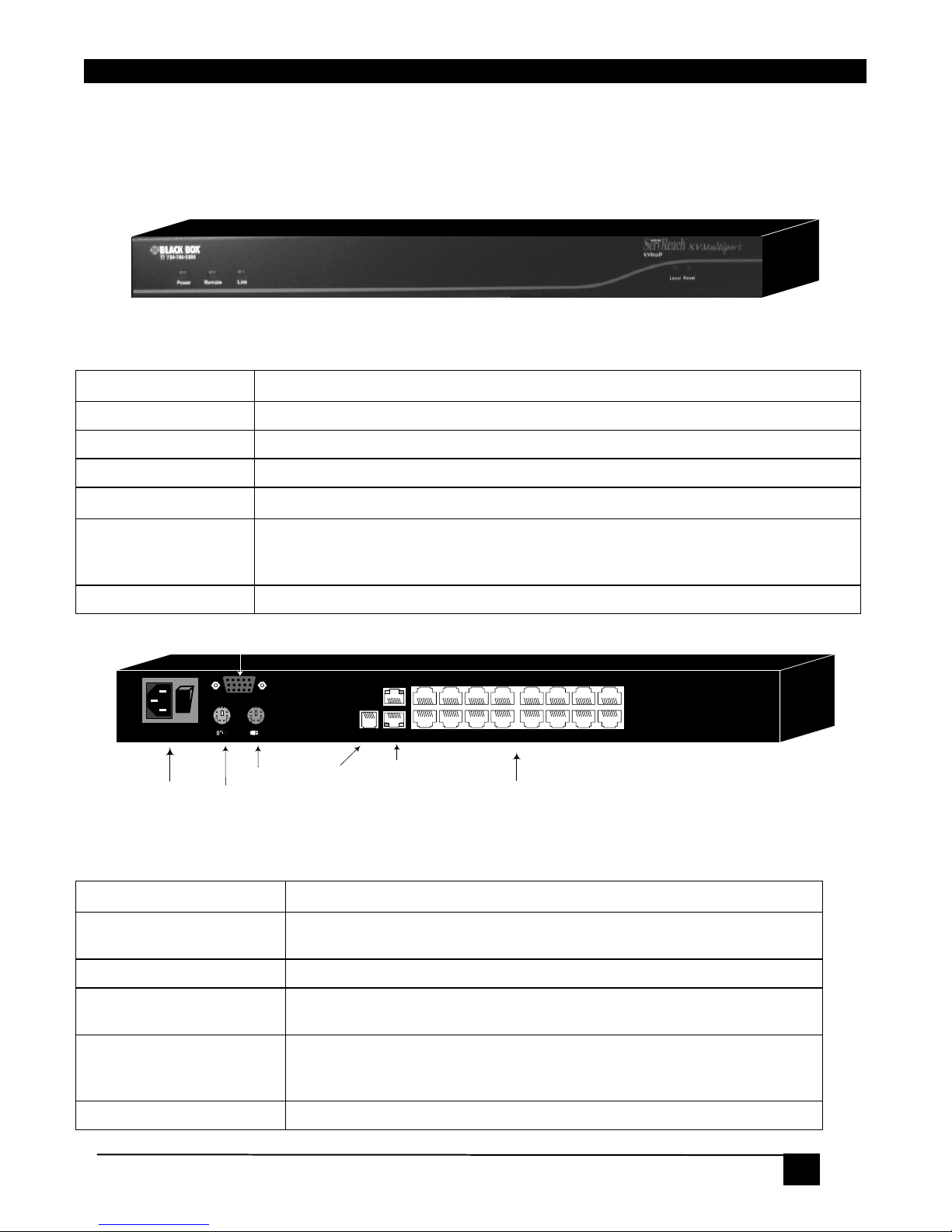
Figure 1 illustrates the front panel of the KVMultiport.
Figure 1 KVMultiport ports – side 1
3.1.1 LED and button table
LED Function
Power
Power Indicator
Remote
Illuminates when remote session is active
Link
Unit is connected to the system
Button Function
Local
When pressed, KVMultiport disconnects the Client computer’s link to the Target
Server and the local mouse and keyboard become operational. The Remote
LED turns off.
Reset
Press and hold for more than 7 seconds to reset the KVMultiport unit
Power
connector
POWER
100-240 VAC 50/60 Hz
Server ports
I
0
12345678
10 11 12 13 14 15 169
Keyboard
Mouse
Monitor
CONSOLE
LAN (Ethernet)
connector
FLASH
LAN
SERIAL
Flash
(download)
connector
Figure 2 KVMultiport ports – side 2
3.1.2 Connector table
Connector Function
Console KVM
(Optional) Connect a keyboard, video and mouse to operate the
KVMultiport locally
Serial
This port is for future Serial functionality
Flash
To update firmware of the analogue part of the KVMultiport system OSD, Switch and SAMs.
LAN
Connect to 10/100 Mbit Ethernet. Yellow Led illuminates when
connected to LAN. Green LED illuminates when a remote session is in
progress
Server ports
Connect to servers via SAMs
Page 14

ServReach™ KVMultiport
12
12
4. Installation
4.1 Pre-installation guidelines
• Place cables away from fluorescent lights, air conditioners, and machines that are likely
to generate electrical noise
• Place the KVMultiport on a flat, clean and dry surface
• The KVMultiport is not intended for connection to exposed outdoor lines
• Ensure that the maximum distance between each computer and the KVMultiport, does
not exceed 10m/33ft
4.2 Avoiding general rack mounting problems
Elevated operating ambient temperature
The operating ambient temperature of the rack environment may be greater than the room
ambient when installing into a closed or multi-unit rack assembly. So install the equipment in
an environment compatible with the maximum rated ambient temperature.
Reduced airflow
Install the equipment in a rack in such a way that the amount of airflow required for safe
operation is not compromised. Leave a gap of at least 5cm/2” each side of the KVMultiport.
Mechanical loading
Mount the equipment in the rack in such a way that a hazardous condition is not achieved
due to uneven mechanical loading.
Circuit overloading
When connecting the equipment to the supply circuit, consider the effect that overloading of
circuits might have on over-current protection and supply wiring.
Reliable earthing of rack-mounted equipment should be maintained. Give attention to supply
connections other than direct connections to the branch circuit (e.g. use of power strips).
4.3 Rack mounting the KVMultiport
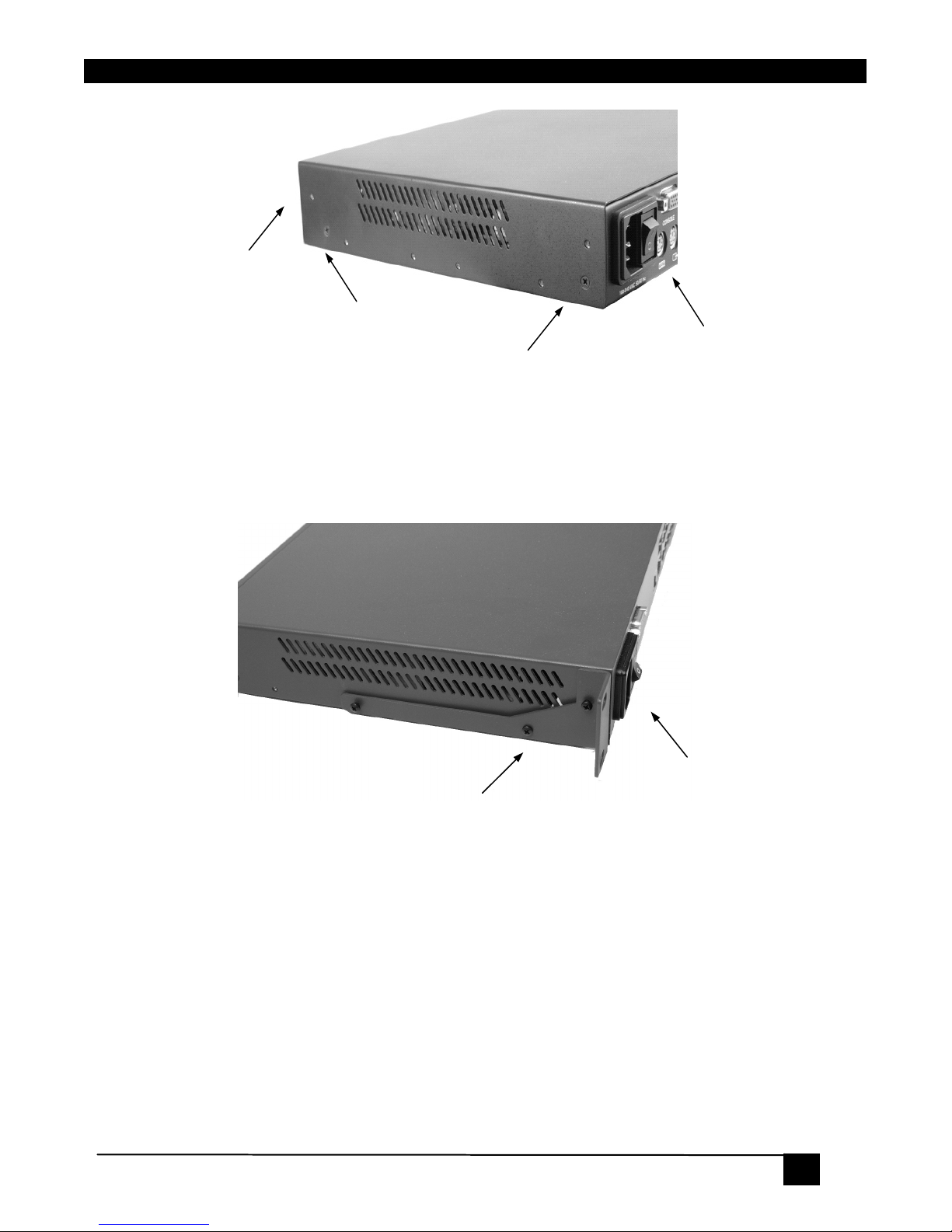
Rack mount the KVMultiport using the supplied Rack-mount kit. The brackets can be placed
in 2 possible positions, see Figure 3.
Page 15
4. Installation
13
Position here for
front facing
Position here
for rear facing
Rear of unit
Front of unit
Figure 3
Place the brackets towards the front of the unit so that the unit can be mounted front facing,
or place the brackets towards the rear of the unit so that the unit can be mounted rear facing.
Figure 4 illustrates the bracket connected for rear facing. Screw the bracket to the
KVMultiport using the screws provided.
Bracket connected for rear
facing rack mounting
Rear of unit
Figure 4
4.4 Client computer operating system
Windows 2000 or higher, with Internet Explorer 6.0 or later version. 128 bit encryption
support is required.
Page 16
ServReach™ KVMultiport
14
14
5. Connecting the system
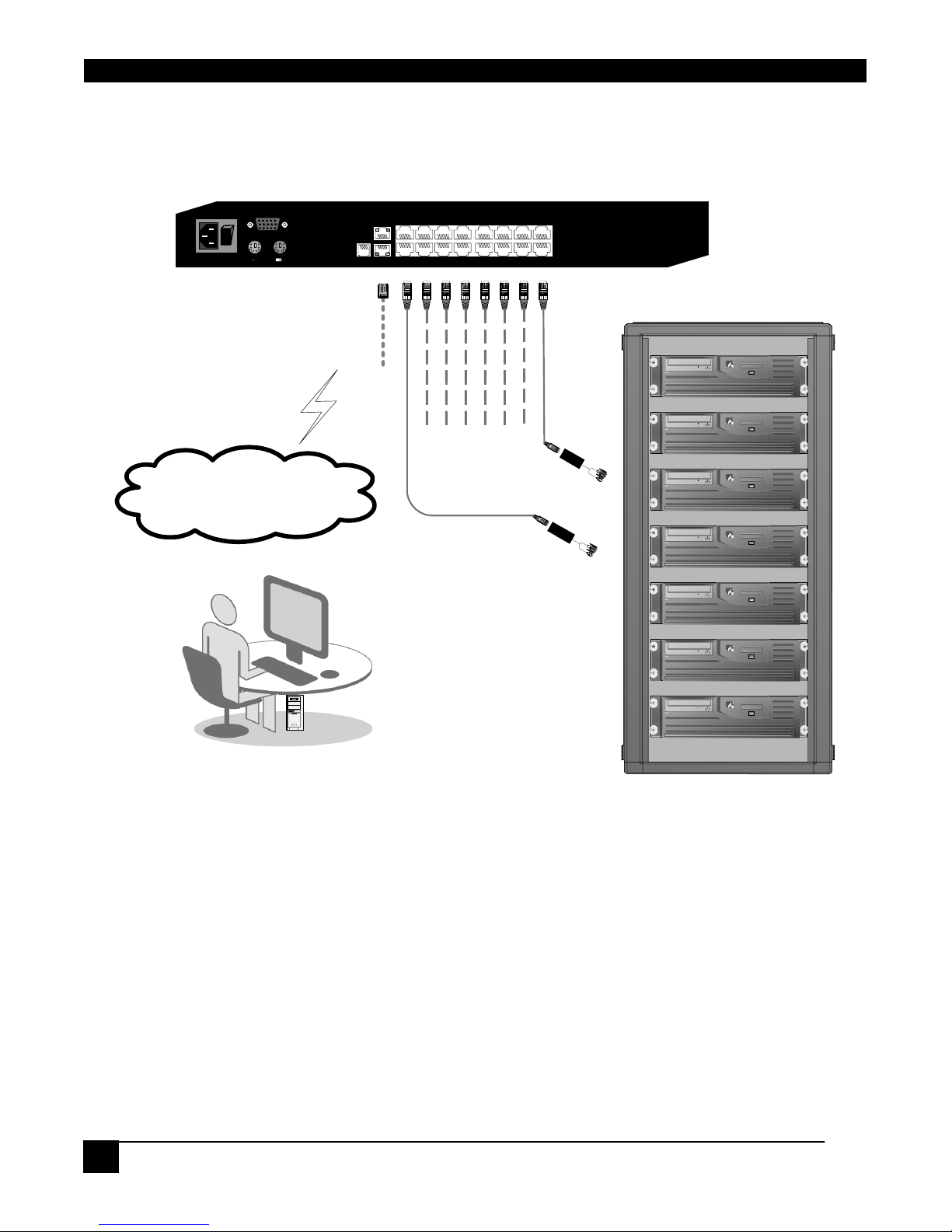
Figure 5 illustrates the KVMultiport system overview.
POWER
100-240 VAC 50/60 Hz
I
0
12345678
10 11 12 13 14 15 169
CONSOLE
FLASH
LAN
SERIAL
User over IP
Internet / VPN / LAN
To servers
hp workstation b2600
hp workstation b2600
hp workstation b2600
hp workstation b2600
hp workstation b2600
hp workstation b2600
hp workstation b2600
To LAN port
SAMs
Figure 5 KVMultiport system overview
5.1 The SAMs
Each computer/ server is directly connected to the KVMultiport via the appropriate SAM
using CAT5 cables in a star configuration. No external power is needed at the remote SAMs.
The SAMs draw their power from the computer’s keyboard port (SAM PS/2) or from the
USB port (SAM USB).
5.1.1 Connecting a SAM PS/2
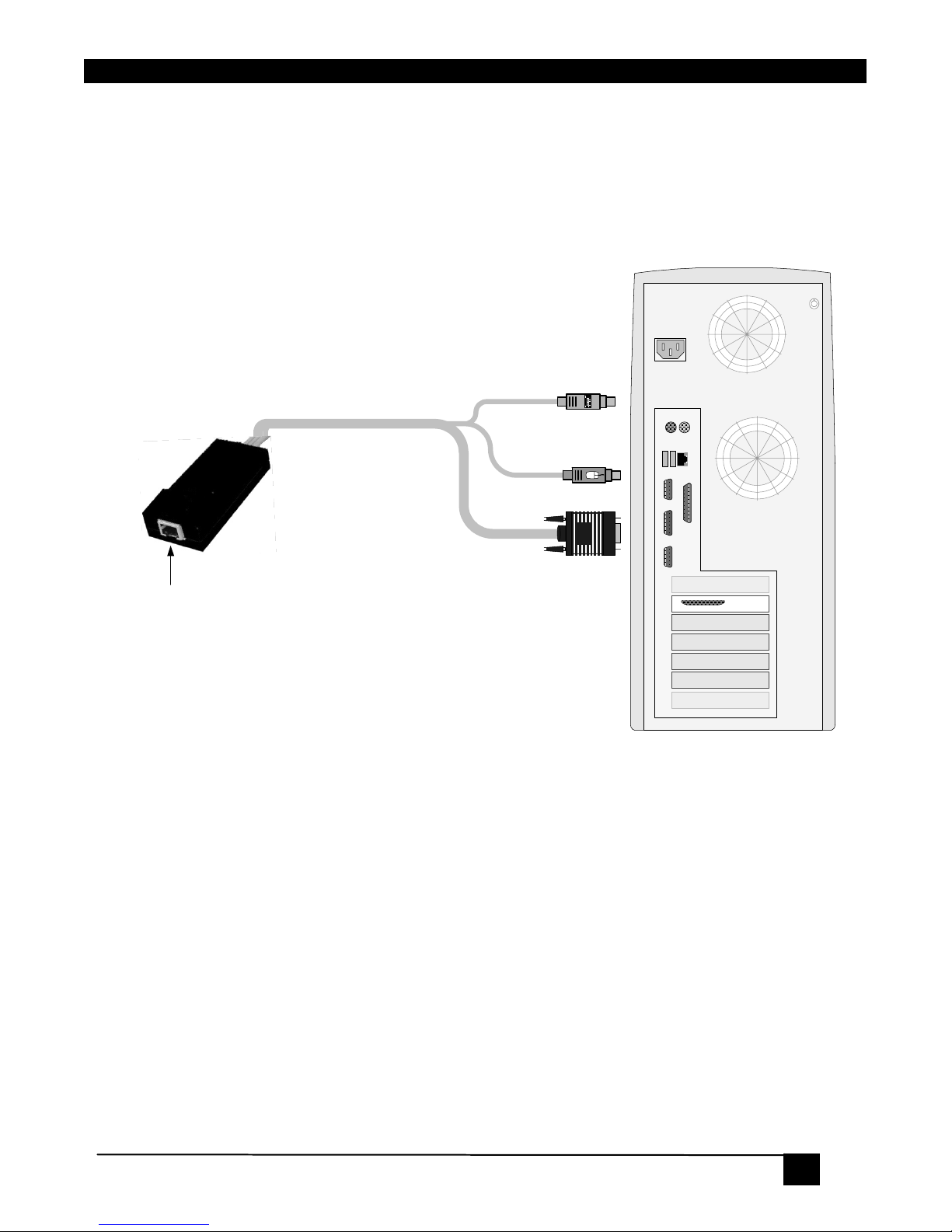
The connections for SAM PS/2 are illustrated in Figure 6.
You can connect the SAM PS/2 to a powered on computer, but it must be in the following
order:
1. Connect the Mouse connector to the computer’s Mouse port.
Page 17
5. Connecting the system
15
2. Connect the Keyboard connector to the computer’s Keyboard port.
3. Connect the Screen connector to the computer’s Video port.
Failure to connect in the above order while the server is running, may lead to the mouse
malfunctioning until the server is rebooted.
To Keyboard port
CAT5 cable to KVMultiport
Server port
To Mouse port
To Video port
Keybd
Mouse
100T
VideoSerial A
Parallel
PCI 33Mx32b
PCI 33Mx32b
PCI 33Mx32b
PCI 33Mx32b
Serial B
NetServer tc2100
SCSI
SAM
PS/2
Figure 6 SAM PS/2 connections
5.1.2 Connecting a SAM USB
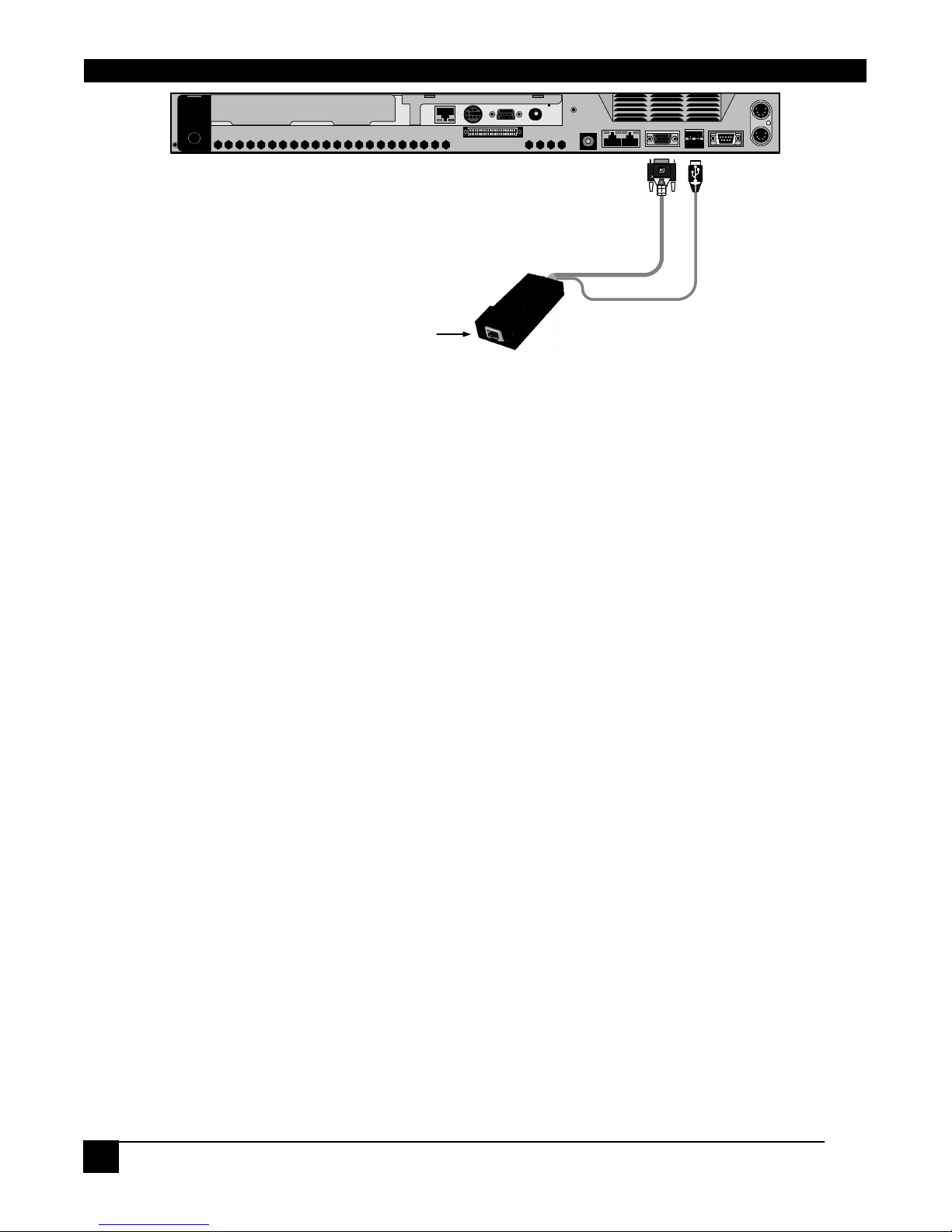
The SAM USB supports Windows 98 SE and later, MAC and SGI, and all modern Linux
distributions. The connections for SAM USB are illustrated in Figure 7.
To connect the SAM USB:
1. Connect the Screen connector to the computer’s Video port.
2. Connect the USB connector to the computer’s USB port.
Page 18
ServReach™ KVMultiport
16
16
To USB Port
To Video port
CAT5 cable to KVMultiport
Server port
SAM USB
Figure 7 SAM USB
5.2 Connecting to the network
Connect the network cable to the LAN port of the KVMultiport. This must be done before
powering on the KVMultiport.
5.3 Connecting the CAT5 cables
1. Connect one connector to the SAMs RJ45 port.
2. Connect the other connector to one of the KVMultiport’s Computer ports.
3. Follow the above 2 steps for each computer.
5.4 Connecting a KVM console
To operate the system locally, connect a KVM console to the KVMultiport:
1. Connect the monitor’s connector to the KVMultiport’s Monitor port.
2. Connect the keyboard’s connector to the KVMultiport’s Keyboard port.
3. Connect the mouse’s connector to the KVMultiport’s Mouse port.
5.5 Connecting the power supply
1. Using the Power cord provided, connect the KVMultiport to a socket outlet with
grounding connection. Only use the power cord supplied with the unit.
2. Switch on the servers/computers.
Page 19

6. Initial settings - Default IP address
17
6. Initial settings - Default IP address
The following sections provide instructions for setting the IP address for the KVMultiport
unit.
By default, KVMultiport boots with an automatically assigned IP address from a DHCP
(Dynamic Host Configuration Protocol) server on the network. The DHCP server provides a
valid IP address, gateway address and subnet mask.
To identify the IP address, the KVMultiport MAC address appears on the underside of the
KVMultiport box. The device number (D.N.) can also be found there.
If no DHCP server is found on the network, KVMultiport boots with the static IP
address:192.168.0.155.
Note! If a DHCP server later becomes available, the unit picks up the IP settings from DHCP
server. To keep the static IP address, disable DHCP – explained in section 8.1.1 on page 19.
6.1 Static IP addresses for a number of units
Where you want to connect more than 1 KVMultiport to the same network and there is no
DHCP server, or you want to use static IP addresses, do the following:
Connect the KVMultiport units one at a time and change the static IP address of each unit
before connecting the next unit.
7. Logging into the Web interface
Complete the initial setup via the Web configuration interface:
1. Open your Web browser (Internet Explorer version 6.0 or higher).
2. Type the KVMultiport system IP address - https://IP address/config - and press Enter.
The login page appears, see Figure 8.
Page 20

ServReach™ KVMultiport
18
18
Figure 8 Login page
3. Type the default Administrator user name - admin - and password - access - (both lower
case).
4. Press Enter. The Web interface opens at the Network Configuration page. See Figure 9.
Figure 9 KVMultiport Web interface
5. Bookmark the page for easy reference.
7.1 SSL Certificate notes
When first connecting to KVMultiport’s https configuration page, 2 browser security
warnings appear. Click Yes to proceed.
The first warning disappears upon first KVMultiport client installation, when the root
certificate is installed.
Page 21

8. System configuration
19
8. System configuration
8.1 Network > Configuration
Consult your Network Administrator for the network settings.
Device name - Type a name for the KVMultiport. Default device name consists of the letter
‘D’ followed by the 6-digit device number (D.N.) found on the silver label on the underside
of the KVMultiport box.
First TCP Port - Choose 3 consecutive ports, and type in the first port number of the series.
The default port – 900 – is suitable for the majority of installations.
Note
Firewall or router security access list must enable inbound communication through the selected TCP ports
for the KVMultiport’s IP address.
For Client computer access from a secured LAN, the selected ports should be open for outbound
communication.
8.1.1 LAN
Under LAN in Figure 9, is the following:
Enable DHCP – When a DHCP server is active on the same network to which KVMultiport
is connected, DHCP provides automatic IP assignment.
When DHCP is disabled – (Recommended) – You can assign a fixed IP address to the
KVMultiport.
Consult your Network Administrator regarding the use of the DHCP. Note! Where you have
access to the server – your configured (or default) KVMultiport device name will appear on
the DHCP server’s interface, making it easy to locate.
When DHCP is disabled, enter the IP Address, Subnet Mask, and Default Gateway for
LAN, as given by your Network Administrator.
8.1.2 ServReach KVManager
KVManager is a centralized IP based system for secure control of servers and network
devices, power and user administration in the data center environment. KVManager
combines Out-Of-Band, KVM via IP access with modern IT standards and requirements. It is
the most comprehensive remote server maintenance solution available in the market today.
Enable KVManager - Check this option to allow KVMultiport unit to be remotely managed
by Black Box’s KVManager system.
Page 22

ServReach™ KVMultiport
20
20
Manager Auto Discovery – when checked, KVManager automatically detects the
KVMultiport, if it resides on the same network segment.
Manager IP – If KVMultiport resides on a different segment, type the static IP address of
the KVManager. (We advise typing the static IP address of the KVManager even if the
KVMultiport resides on the same network segment as the KVManager).
8.2 Network > SNMP settings
From the menu click SNMP settings. The following appears.
Figure 10 SNMP settings
From this page you can activate or deactivate SNMP logging.
Enable traps - Check to enable SNMP traps of KVMultiport events and operation.
Community – type the SNMP community
SNMP Manager IP - Enter the SNMP Server IP address
8.3 Administration > User Settings
From the menu click User Settings, Figure 11 appears.
Figure 11 User Settings
Page 23

8. System configuration
21
On this page an Administrator creates and edits users.
There are 3 levels of user access:
• Administrator
• User
• View only
Administrator
An Administrator has unrestricted access to all windows and settings and can “take over” any
active session (explained in section 9.2 on page 28). An Administrator can change the name
and password and Target server permissions of all users.
User
A User can access/control Target Servers, but cannot use the advanced mouse settings.
A User has no access to the Web configuration interface.
View only
View only can view the screen of the currently accessed Target Server without keyboard and
mouse control. A “view only” indicator appears on the viewer’s local mouse pointer.
8.3.1 Adding a user
To add a user:
1.Click
and type a name and a password. The password must be at least 6
characters – letters or numbers, and must not include the user name, even if other characters
are added.
Note!
The following “special” characters: &, <, >, ”, {, } cannot be used for either the user name or password.
Depending on the security level chosen the user name and password parameters are different. See
section 8.6 on page 24.
2. Select the permission type from the Permission box.
3. Click
, the user appears in the list of users.
Page 24

ServReach™ KVMultiport
22
22
8.3.2 Editing a user
To edit a user:
1. Select the user from the list.
2. Click
. You can now change all the parameters – user name, permission and
password.
3. Click
, the changes are saved.
8.3.3 Deleting a user
To delete a user:
1. Select the user from the list.
2. Click
.
3. Click
, the changes are saved.
8.3.4 Blocking a user
An alternative to deleting a user is blocking a user. This means that the user’s name and
password is stored, but the user is unable to access the system. Check Block to block a user.
Uncheck Block to allow the user access.
8.4 Administration > User Targets
By default access is denied to all servers for all user types including Administrators. You
must define the access rights of each user separately.
To do so:
1. From the menu click User Targets. The User Targets Configuration window appears, see
Figure 12.
Figure 12 User Targets Configuration
Page 25

8. System configuration
23
2. Select a user from the User drop-down menu.
3. Check the Target servers the user can access (according to his access permissions). To
select all Target servers, press Select All.
4. Click Apply, the selection is saved.
5. Repeat the above steps for each user.
8.5 Administration > Switch Configuration
Give the servers connected to the KVMultiport unique names, so that users accessing the
system can identify the servers easily.
To do so:
1. From the menu click Switch Configuration. The Switch Configuration window appears,
see Figure 13.
Figure 13 Switch Configuration
2. In the Server Name section change the name of the connected servers by selecting the
server name and typing a new name. Click
to save changes.
Install switch definition file
In the event that Black Box’s Technical Support updates the Switch Definition file, the file
will be available in the Tech Support section of our website - www.blackbox.com.
1. Load the file onto the Client computer.
2. Locate and install the Switch Definition file. The switch definition file is replaced.
Page 26

ServReach™ KVMultiport
24
24
8.6 Security > Settings
Configure the security features, such as Account Blocking, Password Policy and Idle
Timeout, as explained below.
From
the Security section click Settings, the Security Settings appear, see Figure 14.
Figure 14 Security Settings
The Security Settings fields:
Account Blocking – decide on the number of attempts to login with a wrong username or
password after which there is a time lock or a total block.
Password Policy – You have the option of a standard or high security level of password.
The table below shows the parameters of the 2 options.
Standard security policy High security policy
6 characters or more 8 characters or more must include at least 1 digit
and 1 upper case letter and 1 “special” character
as follows !@#$%^*()_-+=[]’:;?/
Must not include the user name Must not include the user name
Check the box to enable the high security password policy. Unchecked, the standard security
policy applies.
Idle Timeout – Select the Timeout inactivity period after which the user is disconnected
from the system. Choose No Timeout to disable Timeout.
Page 27

8. System configuration
25
8.7 Security > SSL Certificate
You can install an SSL certificate.
To do so:
From the menu, select SSL Certificate, the install SSL Certificate page appears, see Figure
15.
Figure 15 Install SSL Certificate page
Certificate File - Browse to locate the cer file.
Private File - Browse to locate the private key file.
Key Password - Type the “private key” password.
8.8 Maintenance > Firmware Upgrade
Upgrade the KVMultiport firmware to take advantage of new features. Download the
firmware from the Support section of Black Box’s website –www.Black Box.com. Save the
firmware file on the Client computer.
From the menu select Firmware Upgrade. The Firmware Upgrade window appears showing
the current firmware version see Figure 16.
Figure 16 Firmware Upgrade
1. Locate and upload the firmware file.
Page 28

ServReach™ KVMultiport
26
26
2. Verify the current and uploaded version of the firmware.
3. Click Start Upgrade. The upgrade starts. On completion, click Reboot. The unit reboots.
After about 30 seconds the Login page appears.
Note!
Depending on the type of firmware upgrade, the following settings may be erased: User settings, server
names, mouse and video adjustments. For more information refer to the firmware release notes. The
network settings remain intact.
8.9 Restore Factory Settings
You can restore the KVMultiport unit to the factory settings. This restores the original
KVMultiport parameters, resetting all the information added by the administrators, including:
Network settings*, Servers, Switches, Users, Passwords etc.
* You have the option to preserve Network settings – explained below.
Warning!
Once reset the data cannot be retrieved.
To restore factory settings:
1. From the menu select Restore Factory Settings. Restore Factory Settings appears see
Figure 17.
Figure 17 Restore factory settings
2. Check the box if you want to preserve Network settings.
3. Click
.
8.10 Saving changes and logging out
To save any configuration changes and restart the KVMultiport click .
To exit the Configuration menu and close the session, click
.
Only one Administrator can log into the Configuration area at a time. An idle timeout of 30
minutes terminates the session.
Page 29

9. Operation
27
9. Operation
9.1 Starting a remote session
At a Client computer open Internet Explorer (6.0 and above) and type the KVMultiport’s IP
address. https://IP address. (Note! Only SSL connections are allowed, therefore type HTTPS
before the IP address or the name of the KVMultiport). The Login page appears. Type your
username and password and press Enter. By default, the user name is: admin and the
password is access, (both lower case).
On first connection install the Black Box certificate and ActiveX control. You must login as
an Administrator to your computer to install the ActiveX control. Once the ActiveX control
is installed, all types of users can login.
On connecting, the screen of the lowest numbered Target Server that the user has permission
to access appears. Figure 18 illustrates the remote session window.
Toolbar
(minimized)
Server name
Black Box icon
Remote
screen
border
Confirmation
label
Figure 18 Remote console window
On the remote console you have the following:
Server Confirmation label – This confirms the identity of the current server accessed and
disappears by default after 30 seconds, (this period can be adjusted in the OSD – explained
in Section II of the guide). It appears again when switching to a different server. The
Page 30

ServReach™ KVMultiport
28
28
currently accessed server identity can be checked any time by looking at the Server name on
the Internet Explorer title bar.
Toolbar icon – This is the minimized toolbar from which you switch and configure the
system.
Black Box icon – Hold the mouse over the icon to view information about current server,
connection time and video mode.
9.2 Taking over a busy remote session
While only one user can have control, many users can be connected simultaneously. When
connecting to a busy Target Server an Administrator has the option to take over the Target
Server. A User only has this option when the current session is run by another User, but not
by an Administrator. The following message appears
Figure 19 Busy remote session options
Choose to Take Over or View Only or Cancel.
When watching a screen in View Only mode you can Double click inside the Remote screen
border – see Figure 18 – to take over the remote control. The current user sees a message
stating that control has been taken over.
9.3 The Toolbar
To maximize the Toolbar:
The Toolbar can be dragged and dropped to anywhere on the screen, by clicking and
dragging the logo
.
To hide the Toolbar, either:
Double-click the KVMGate System tray Icon
.
Or
Press F9.
To display the Toolbar repeat the above action. See also page 37.
Page 31

9. Operation
29
To minimize the Toolbar:
Click the arrow
. Click again to maximize the Toolbar.
9.4 Switching to a different server
To connect to a different server:
1. From the Toolbar, click
, or right-click . A list of available servers appears.
The currently connected server is highlighted in bold.
2. Click the desired server name. The screen of the selected server appears.
9.5 Changing the performance settings
You can alter the bandwidth settings from the Toolbar.
To alter the settings:
From the Toolbar, click
. The Settings.. Dialog box appears, see Figure 20.
Figure 20 Settings.. Dialog box
Bandwidth
Choose from the following options
Adaptive – automatically adapts to the best compression and colors according to the network
conditions. (Not recommended because network parameters may change frequently
impacting on user experience).
Low - Select Low for high compression and 16 colors.
Page 32

ServReach™ KVMultiport
30
30
Medium - Select medium for medium compression and 256 colors. Medium is
recommended when using a standard internet connection.
High - For optimal performance when working on a LAN, select High. This gives a low
compression and high colors (16bit).
Custom – You cam choose your own compression and color levels.
Click OK. The screen of the last accessed Target Server appears.
9.6 Adjusting the Video settings
To change the video settings:
From the Toolbar, click
. You have the following options:
• Refresh
• Manual Video Adjust
• Auto Video Adjust
Each option is explained below.
9.6.1 Refresh
Select Refresh or press Ctrl+R to refresh the Video image. Refresh may be needed when
changing the display attributes of a Target Server.
9.6.2 Manual Video Adjust
Use the manual video adjustment for fine-tuning the Target Server video settings after auto
adjustment or for adapting to a noisy environment or a non-standard VGA signal or when in
full-screen DOS/CLI mode.
To adjust the video manually:
Click Manual Video Adjust. The manual controls appear, see Figure 21. Also a red frame
appears around the screen. This represents the screen area according to the Server's screen
resolution. Perform the adjustments inside and relative to this frame.
Page 33

9. Operation
31
Figure 21 Manual Video Adjustments controls
Brightness / Contrast - use the scales to adjust the brightness and contrast of the displayed
image. Move the sliders to change the displayed image. Click in the area of the sliders for
fine-tuning.
For the following controls choose the appropriate measurement.
Horizontal Offset - defines the starting position of each line on the displayed image.
Vertical Offset - defines the vertical starting position of the displayed image.
Phase - defines the point at which each pixel is sampled.
Scale – defines the scale resolution of the session image.
Select Filter - defines the filter of the input video from the server. A higher filter reduces the
noise level but makes the image heavier.
Noise Level - represents the Video "noise" when a static screen is displayed.
9.6.3 Auto Video Adjust
To adjust the video automatically:
Click Auto Video Adjust. The process takes a few seconds. If the process runs for more
than 3 times, there is an abnormal noise level. Check the video cable and verify that no
dynamic video application is running on the Target Server’s desktop.
Perform the procedure where necessary for each Target Server or new screen resolution.
9.7 Power cycle
This button . is for future Serial power management options.
Page 34

ServReach™ KVMultiport
32
32
9.8 Keyboard key sequences
Click . A list of defined keyboard sequences appears. When clicked, these transmit
directly to the Target Server, and will not affect the Client computer.
For example, select Ctrl-Alt-Del to send this three key sequence to the Target Server to
initiate its Shutdown/Login process.
To add a keyboard sequence:
Click Add/Remove. The Special Key Manager box appears see Figure 22.
Figure 22 Special Key Manager box
To add a predefined sequence:
1. Click Add Predefined. A list of sequences appears.
2. Select the desired sequence and click OK. The sequence appears in the Special Key
Manager box.
3. Click OK. The sequence appears in the Keyboard Key sequence list.
To record a key sequence:
1. From the Special Key Manager box press Record New. The Add Special Key Dialog box
appears, see Figure 23.
Page 35

9. Operation
33
Figure 23 Add Special Key Dialog box
2. Give the key sequence a name in the Label field.
3. Click Start Recording.
4. Press the desired keys. The key sequence appears in the area provided.
5. Click Stop Recording.
6. Click OK.
To edit a key sequence:
1. From the Special Key Manager Dialog box select the desired key.
2. Click Edit.
3. Click Start Recording
4. Press the desired keys. The keys appear in the area provided.
5. Click Stop Recording.
6. Click OK.
9.9 Synchronizing mouse pointers
When working at the Client computer, two mouse pointers appear: The Client computer’s is
on top of the Target Server’s. The mouse pointers should be synchronized. The following
explains what to do if they are not synchronized.
Warning
Before synchronizing mouse pointers adjust the video of the Target Server,
(explained above) otherwise mouse synchronization may not work.
Page 36

ServReach™ KVMultiport
34
34
9.9.1 Aligning the mice pointers
When accessing the Target Server, the mice may appear at a distance to each other.
To align the mouse pointers:
From the Toolbar click
/ Align or press Ctrl+M simultaneously. The mice align.
9.9.2 Calibrating mice pointers
A Target Server may have a different mouse pointer speed to the Client computer.
Calibrating automatically discovers the mouse speed of the Target Server and aligns the two
pointers.
To perform the calibration when the Target Server Operating system is, Windows NT4, 2000
or 98:
From the Toolbar click
/ Calibrate. KVMultiport saves this alignment so calibration is
only needed once per Target Server.
If the Video Noise Level is above zero, calibration may not work. Go to Video Adjustment
and try to eliminate the noise by pressing Auto video adjust and/or adjusting the bars in
Manual video adjust, then perform the mouse calibration.
Note!
If the mouse settings on the Target Server were ever changed, you must synchronize mouse pointers
manually, as explained below.
9.9.3 Manual mice synchronization
If the mouse settings on the Target Server were ever changed, or when the Operating system
on the Target Server is, Windows XP / 2003 Server / Vista, Linux, Novell, SCO UNIX or
SUN Solaris you must synchronize the mouse pointers manually.
To manually synchronize mouse pointers:
1. From the Toolbar click
/ Manual Settings. The Mouse Settings Dialog box appears
see Figure 24.
Page 37

9. Operation
35
Figure 24 Mouse Settings Dialog box
2. Select the Target Server’s Operating System and click OK. Instructions and sliders
appear.
3. Follow the instructions and set any relevant sliders to the same values as set in the Target
Server’s Mouse Properties window.
2 manual mice synchronization examples!
For Windows XP, 2003 Server, Vista and Longhorn Server
. Go to the Mouse settings on
the Target Server and uncheck Enhance pointer precision.
For Windows NT4, 98, ME, 2000. If Mouse Properties were ever changed for the Target
Server – even if they have been returned to their original state - uncheck default -
.
Click OK. The mouse pointers should be synchronized.
9.9.3.1 USB
The USB option in Mouse Settings box is available for SAM USB, for unsupported
operating systems and SUN Solaris. Use this option if you are sure of the custom
acceleration algorithm you are using, or have been informed so by customer support.
9.9.3.2 Advanced – Mouse Emulation
In the Advanced Mouse settings, you can set the type of mouse connected to KVMultiport’s
local console.
Click
the Mouse Emulation Dialog box appears, see Figure 25.
Page 38

ServReach™ KVMultiport
36
36
Figure 25 Mouse Emulation Dialog box
Select the mouse connected to the Local Console port on the KVMultiport, e.g. if the local
mouse is a 2 button mouse, select Standard Mouse.
Switch Acceleration - This setting should NOT be changed.
Max Rate - this defines the maximum mouse report rate. For Sun Solaris the default value is
20 in order to support older Sun versions.
9.10 Black Box icon menu features
Right-click the Black Box icon , a menu appears. From this menu you can access the
connected devices. You also have the following features:
Disconnect – You can disconnect the session by clicking Disconnect.
About - Click About to verify the Client, Firmware, KME (Keyboard/Mouse Emulation
firmware) and Switch file versions installed on your KVMultiport.
Local Settings – Click Local settings, the Client Configuration Dialog box appears, see
Figure 26
Figure 26 Client Configuration Dialog box
Pointer type – From the Drop-down menu you can change the Client computer mouse
pointer to appear as a dot or to not appear at all.
Page 39

10. Troubleshooting - Safe mode
37
Hide Toolbar – Check this option to hide the Toolbar from the next reconnection onwards.
To toggle the Toolbar on and off, press F9 or double-click the System tray icon
. See
above page 28.
Full Screen Mode - Check this option to make the remote session screen appear in full
screen mode from the next reconnection onwards. To toggle the full screen mode on and off,
press F11. (Also see section below).
Configuration – This only appears in the menu when an Administrator is logged in. Click
Configuration to access the Web configuration interface.
9.11 Full screen mode
Work on the Target Server as if you are working on a local computer, with full screen mode.
To work in full screen mode:
1. Ensure that the Client computer has the same screen resolution as the Target Server.
2. Press F11. The Internet Explorer window disappears, leaving the Internet Explorer menu
bar at the top.
3. Right click the Internet Explorer menu bar and check Auto-Hide. The Internet Explorer
menu bar disappears. You are in full screen mode.
To exit full screen mode:
Press F11. Or place the mouse at the top of the window to display the Internet Explorer
toolbar and click the Restore button.
Note! Full screen mode can also be activated from the Toolbar menu, see page 37.
9.12 Disconnecting the remote session
To disconnect the session, on the Toolbar, click . The Login page appears. You can relogin, or close the browser window to disconnect the session.
10. Troubleshooting - Safe mode
From the Safe mode you can:
Restore factory defaults - When you cannot access the system e.g. you have forgotten the
Username or Password, restore factory defaults from the Safe mode. (Section 8.9 on page 26
explained how to restore factory settings from the Web interface).
Restore the device firmware – If during a firmware update there is a power failure and you
can no longer access the system you can restore the device firmware from the Safe mode.
Page 40

ServReach™ KVMultiport
38
38
10.1 Entering Safe mode
To enter Safe mode:
1. Press and hold down the Local button for 3-4 seconds and at the same time power up the
KVMultiport. The device boots up in Safe mode.
2. Wait until the unit finishes booting (1-2 minutes).
3. You need to know the IP address of the KVMultiport. The IP address depends on
whether there is a DHCP server on the network. If there is, the DHCP server assigns an
IP address to the KVMultiport. If there is no DHCP server, the unit boots with the static
IP address 192.168.2.155.
Open Internet Explorer and type the following into the Address box: http://IP
address/config. (Do not start the address with https). The Login page appears, see Figure
27.
Figure 27 Login page
4. Type username: admin , password: SAFEmode. (Case sensitive). (This username and
password works only in Safe mode). A menu appears, see Figure 28.
Page 41

10. Troubleshooting - Safe mode
39
Figure 28 Safe mode menu
10.2 Restoring factory defaults
To restore factory defaults:
1. From the menu choose Restore Factory Settings. A warning appears see Figure 29.
Figure 29 Warning
2. Click . A further warning appears, see below.
Figure 30 Warning
3. Click OK, the factory defaults are restored. When the process finishes Figure 31 appears.
Figure 31 Reboot
4. Click Reboot to restart the unit.
Page 42

ServReach™ KVMultiport
40
40
10.3 Restoring the device firmware
Contact Black Box Technical Support info@black box.com, to receive the Upgrade firmware
required to restore the device firmware. Save the Upgrade firmware on the hard disk of a
computer connected to the network.
To restore the device firmware:
1. From the Safe mode menu choose Firmware Upgrade.
2. Locate the Upgrade firmware and click Install, then click Start Upgrade. The firmware
upgrades. When the process finishes Figure 32 appears.
Figure 32 Reboot
3. Click Reboot to restart the unit.
Page 43

11. Switching between computers
41
Section II
Section II explains how to operate the KVMultiport Switching system locally.
11. Switching between computers
Switch between the connected computers by either:
• Keyboard hotkeys
• The OSD (On Screen Display)
11.1 The keyboard hotkeys
To switch to the next computer forwards press Shift then, +. Release Shift, before pressing
+.
To switch to the next computer backwards press Shift then, -. Release Shift, before pressing
-.
Note! With a US English keyboard you can use the + key of the alphanumeric section or of
the numeric keypad. With a Non-US English keyboard only use the + key of the numeric
keypad.
12. The OSD
To display the OSD:
1. Ensure there is no remote user connected. To disconnect the remote user press the Local
button on the KVMultiport.
2. Press Shift twice. The OSD Main window appears. See Figure 33. Lines with blue text
show active computers. Lines with black text show inactive computers. The Type
column indicates a computer “C” is connected to the port.
Page 44

ServReach™ KVMultiport
42
42
Port number
appears here
Instruction
keys
C=Computer
Figure 33 OSD Main window
12.1 Navigating the OSD
To navigate up and down use the Up and Down arrow keys.
To jump from one column to the next (when relevant) use the Tab key.
To exit the OSD or return to a previous window within the OSD press Esc.
12.2 Selecting a computer
To select a computer:
1. Navigate to the desired computer line.
Or, type the port number of the desired computer.
2. Press Enter. The selected computer is accessed. A Confirmation label appears showing
which computer is accessed.
Note!
When the OSD is displayed you cannot select computers using the keyboard hotkeys.
Page 45

12. The OSD
43
12.3 The OSD settings - F2
Press F2. The OSD Settings window appears see Figure 34.
Figure 34 Settings window
Note! When the OSD is password protected (explained below) only the Administrator has
access to the F2 settings window.
12.3.1 The General settings
With the red line on the word GENERAL, press Enter. The General settings window
appears see Figure 35.
Figure 35 General Settings window
Page 46

ServReach™ KVMultiport
44
44
From this window you can do the following:
12.3.1.1 Security
The OSD comes with an advanced password security system that contains 3 different
security levels. Each security level has different access rights to the system.
These levels are as follows:
12.3.1.2 Administrator (Status A)
The Administrator can:
• Set and modify all Passwords and security profiles
• Fully access any computer
• Use all OSD functions
12.3.1.3 Supervisor (Status S)
The Supervisor can:
• Fully access any computer
• Access the following OSD functions only –F4 Scan, F5 Tune and F6 Moving the
Confirmation label.
12.3.1.4 User (Status U)
There are 6 different Users in the KVMultiport system. Each User has a Profile set by the
Administrator that defines the access level to different computers. There are 3 different
access levels - explained on page 48.
12.3.1.5 Activating password protection
By default OSD access is not password protected. Only the Administrator can passwordprotect the OSD or disable password protection.
To do so:
1. In the General settings window navigate to the Security line.
2. Press the Space bar to toggle between Security On and Off. The password box appears.
3. Type the Administrator’s password (default is “admin”).
4. Press Enter. The new security status is set.
Page 47

12. The OSD
45
12.3.1.6 Changing the OSD hotkey
By pressing Shift, Shift the OSD appears. You can replace Shift, Shift with any of the
following:
• Ctrl, Ctrl
• Ctrl, F11
• Print Screen
To change the hotkey:
1. Navigate to the Hotkey line.
2. Press the Space bar to toggle between options. To display the OSD in future press the
new hotkey.
12.3.1.7 Autoskip
With the Autoskip feature, the arrow keys only access the active computer lines on the OSD.
When Autoskip is Off, The arrow keys access both active and inactive computer lines.
To change the Autoskip setting:
1. Navigate to the Autoskip line.
2. Toggle between the options using the Space bar.
12.3.1.8 Serial port
This option is disabled in KVMultiport. Leave this option on its default setting ON.
12.3.1.9 Changing the Keyboard language
The keyboard is preset to US English; this can be changed to French (FR) or German (DE),
as follows:
1. Navigate to the Keyboard language line.
2. Toggle between the options using the Space bar.
12.3.1.10 Editing the Switch name
You can substitute up to 18 characters in the line. A space constitutes a character. When
there is more than one switch in the system give each Switch’s OSD a different name.
Page 48

ServReach™ KVMultiport
46
46
12.4 F7 Defaults
Press F7 to return the OSD to the factory default settings. Note! All changes made will be
erased.
12.5 The Ports settings
In the Settings window navigate to the Ports line and press Enter. The Ports settings window
appears see Figure 36.
Figure 36 Ports Settings window
12.5.1 Editing the computer name
In this window you can edit the computer names with up to 15 characters. (To avoid
confusion the names given in the OSD should match the names given in the web
configuration).
To erase a character:
Select it and press the Space bar. Blank spaces remain in place of the erased character.
To erase an entire line:
Place the cursor at the beginning of the line. Keep the Space bar depressed until the line is
erased.
12.5.2 Keyboard (KB)
The KVMultiport operates with Windows, Linux, HP UX, Alpha UNIX SGI, DOS, Novell,
MAC-USB or Open VMS.
By default the keyboard mode is set to PS for Intel based computers.
For the other systems set the KB column as follows:
Page 49

12. The OSD
47
• U1 for HP UX
• U2 for Alpha UNIX, SGI, Open VMS
• U3 for IBM AIX
To change the setting:
1. On the desired line, press Tab to jump to the KB column.
2. Toggle between the options using the Space bar.
12.6 The Time settings
In the Settings window navigate to the Time line and press Enter. The Time settings window
appears see Figure 37.
Figure 37 Time settings window
12.6.1 Scan (SCN) - Label (LBL) - Time out (T/O)
SCN - In the SCN column, change the scan period.
LBL - In the LBL column, change the display period of the Confirmation label showing
which computer is currently accessed.
T/O - When password protection is activated you can automatically disable the Management
keyboard, mouse and screen after a preset time of non-use. Set this Timeout period in the
T/O column.
To set the above periods:
1. On the desired line press Tab to jump to the desired column.
Page 50

ServReach™ KVMultiport
48
48
2. Place the cursor over one of the 3 digits and type a new number. Enter a leading zero
where necessary. For example, type 040 for 40 seconds.
Typing 999 in the LBL column displays the label continuously. Typing 000 – the label
will not appear.
Typing 999 in the T/O column disables the Timeout function. Typing 000 – the Timeout
function works immediately.
Typing 999 in the SCN column displays the screen for 999 seconds. Typing 000 – the
computer screen is skipped.
12.7 Users
In the Settings window navigate to the Users line and press Enter. (Note! Users is only
enabled if the security status is set to On, see page 44). The Users settings window appears
see Figure 38.
Figure 38 Users settings window
There are 3 different access levels. These are:
• Y – Full access to a particular computer.
• V –Viewing access only, to a particular computer (No keyboard/mouse
functionality)
• N – No access to a particular computer – A TIMEOUT label appears if access is
attempted
To give each user the desired access level:
1. Navigate to the desired computer line and User column.
2. Toggle between the options using the Space bar.
Page 51

12. The OSD
49
12.8 Security
In the Settings window navigate to the Security line and press Enter. (Note! Security is only
enabled if the security status is set to On, see page 44). The Security settings window appears
see Figure 39.
Figure 39 Security settings window
The ‘T’ column on the right hand side stands for Type of access permission.
There can only be 1 Administrator password, 1 Supervisor password, and 6 User passwords.
To change a user name or password:
1. Navigate to the desired line and column.
2. Type a new user name / password. User authentication is done solely via the password
there is no security significance to the names.
By default the User Profile settings are full access.
12.9 The OSD HELP window – F1
To access the HELP window press F1. The HELP window appears see Figure 40.
Figure 40 HELP window
Page 52

ServReach™ KVMultiport
50
50
Please note!
All the functions set out in the Help window are performed from the Main window. The Help window is
merely a reminder of the hotkeys and their functions.
12.10 Scanning computers – F4
Where necessary adjust the scan time in the Time Settings window, see above.
To activate scanning:
1. Press Shift twice to open the OSD.
2. Press F4. Your screen displays each active computer sequentially, with the Scan label
appearing in the top left corner.
To deactivate scanning:
Press F4.
12.11 Tuning – F5
You can tune the image of any computer screen from the Select Computer window.
To adjust the screen image:
1. Navigate to the computer you wish to adjust.
2. Press F5. The screen image of the selected computer appears, together with the Image
Tuning label.
3. Adjust the image by using the Right and Left Arrow keys.
4. When the image is satisfactory, press Esc.
Note!
Picture quality is relative to distance. The further away a remote computer is from the KVMultiport, the
lower the image quality, and the more tuning needed. So place the higher resolution computers closer to
the Switch.
12.12 Moving the label – F6
Position the Confirmation label anywhere on the screen.
To position the label from the Main window:
1. Navigate to the desired computer using the Up and Down arrow keys.
Page 53

12. The OSD
51
2. Press F6. The selected screen image and Identification label will appear.
3. Use the arrow keys to move the label to the desired position.
4. Press Esc to save and exit.
Page 54

ServReach™ KVMultiport
52
52
13. Technical specifications
Operating systems
Target Server
Windows, Linux, UNIX and other major operating systems
Client Computer
Windows 2000 or higher with IE 6.0 or higher and ActiveX
Resolution
Target Server
Up to 1600 x 1200 @ 85Hz
Client Computer
Recommended - resolution should be higher than on
Target Server
Video and mouse synchronization
Both auto and manual modes
Security
128-bit SSL encryption
Connections
Ethernet – RJ45 – 10/100 Mbit/sec autosensing
Serial – RJ45
Local KVM connection – Screen HDD15,
Keyboard./Mouse – MiniDIN6
Flash – RJ11
Server – RJ45
Weight
2.54Kg / 5.6lbs
Dimensions (H x D x W)
44x 220 x 431 mm / 1.6 x 8.66 x 17"
Power input
100 – 240 VAC, 0.8 A, 50 / 60 Hz.
Operating temperature
0°C to 40°C / 32° to 104°F
Storage temperature
-40°C to 70°C / -40°F to 158°F
Humidity
80% non condensing relative humidity
Page 55

14. Video resolution and refresh rates
53
14. Video resolution and refresh rates
Hz →
56 60 65 66 70 72 73 75 76 85 86
640x480 x x x x x x
720x400 x x
800x600 x x x x x x
1024x768 x x x x x x x
1152x864 x
1152x900 x x
1280x720 x
1280x768 x x
1280x960 x x
1280x1024 x x x x x
1600x1200 x x x x x
Page 56

ServReach™ KVMultiport
54
54
15. Troubleshooting
15.1 Calling Black Box
If you determine that your ServReach KVMultiport is malfunctioning, do not attempt to alter
or repair it. It is not user-serviceable. Contact Black Box Technical Support at 724-746-
5500.
Before you do, make a record of the history of the problem. We will be able to provide more
efficient and accurate assistance if you have a complete description, including:
• The nature and duration of the problem;
• When the problem occurs;
• The components involved in the problem;
• Any particular application that, when used, appears to create the problem or make it
worse; and
• The results of any testing you’ve already done.
15.2 Shipping and Packaging
If you need to transport or ship your ServReach KVMultiport:
• Package it carefully. We recommend that you use the original container.
• If you are returning the unit, include everything you received with it. Before you ship a
unit back to Black Box for repair or return, contact us to get a Return Authorization (RA)
number.
Page 57

16. Black Box Technical Support
55
16. Black Box Technical Support
Country Web Site/E-Mail Phone Fax
US www.blackbox.com
(724) 746-5500 (724) 746-0746
info@blackbox.com
Austria www.black-box.at
+43 1 256 98 56 +43 1 256 98 56
support@black-box.at
Belgium www.blackbox.be
+32 2 725 85 50 +32 2 725 92 12
support.nederlands@blackbox.be
support.french@blackbox.be
support.english@blackbox.be
Denmark www.blackbox.dk
+45 56 63 30 10 +45 56 65 08 05
blackbox@blackbox.dk
Finland www.blackbox.fi
+358 201 888 800 +358 201 888 808
tuki@blackbox.fi
France www.blackbox.fr
+33 820 07 09 11 +33 820 05 07 09
tech@blackbox.fr
Germany www.black-box.de
+49 811 5541 110 +49 811 5541 499
techsupp@black-box.de
Ireland www.blackbox.co.uk
+353 1 662 2466 +353 1 662 2477
techhelp@blackbox.co.uk
Italy www.blackbox.it
+39 02 27 404 700 +39 02 27 400 219
supporto.tecnico@blackbox.it
Netherlands www.blackbox.nl
+31 30 241 7799 +31 30 241 4746
techsupport@blackbox.nl
Norway www.blackboxnorge.no
+47 55 300 710 +47 55 300 701
support@blackboxnorge.no
Spain www.blackbox.es
+34 916590732 +34 916239784
tecnico@blackbox.es
Sweden www.blackboxab.se
+46 8 44 55 890 +46 08 38 04 30
support@blackboxab.se
Switzerland www.black-box.ch
+41 55 451 70 71 +41 55 451 70 75
support@black-box.ch
UK
www.blackbox.co.uk +44 118 965 6000 +44 118 965 6001
techhelp@blackbox.co.uk
Page 58

SERVSWITCH PANTHER
56
56
Page 59

© Copyright 2007. Black Box Corporation. All rights reserved.
1000 Park Drive Lawrence, PA 15055-1018 724-746-5500 Fax 724-746-0746
 Loading...