

Page 1
Bring serial access to your
KVM switching applications.
Bring serial access to your
KVM switching applications.
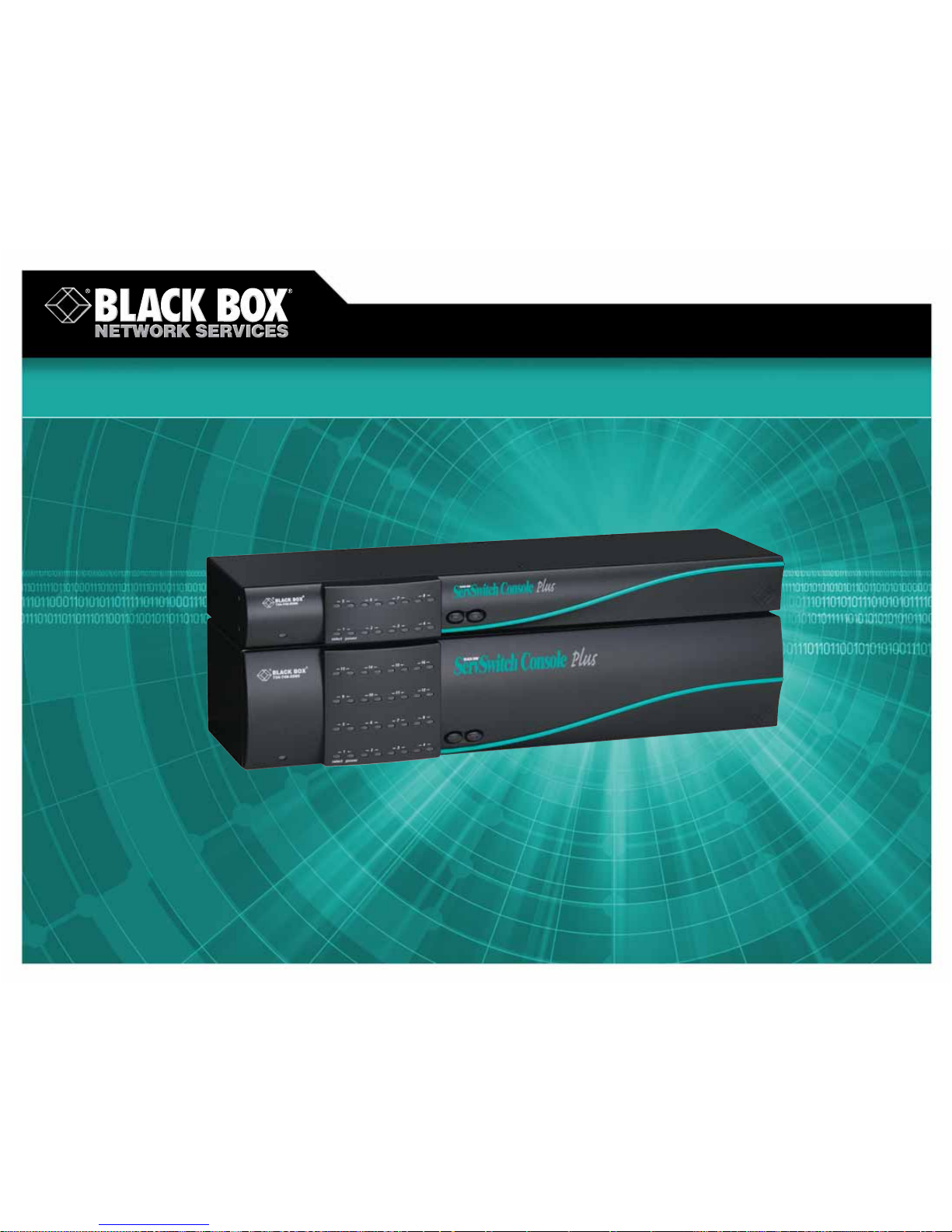
ServSwitch Console Plus
© 2007. All rights reserved. Black Box Corporation.
FREE 24-hour Tech Support: 724-746-5500
blackbox.com
Page 2
2 of 5
10/1/2007
#10573
724-746-5500 blackbox.com
FEA TURES
• Access and switch between CPUs or
serial devices from a single KVM station.
• Connects up to 1000 servers or CPUs to
a console user station.
• Switch via keyboard commands, menu
list, or commands through serial port.
• Video resolution up to 1600 x 1280.
• Supports async serial devices.
• Control access by grouping users
by profiles.
• Modular design for expandability. Use
Expansion Card to extend to other units.
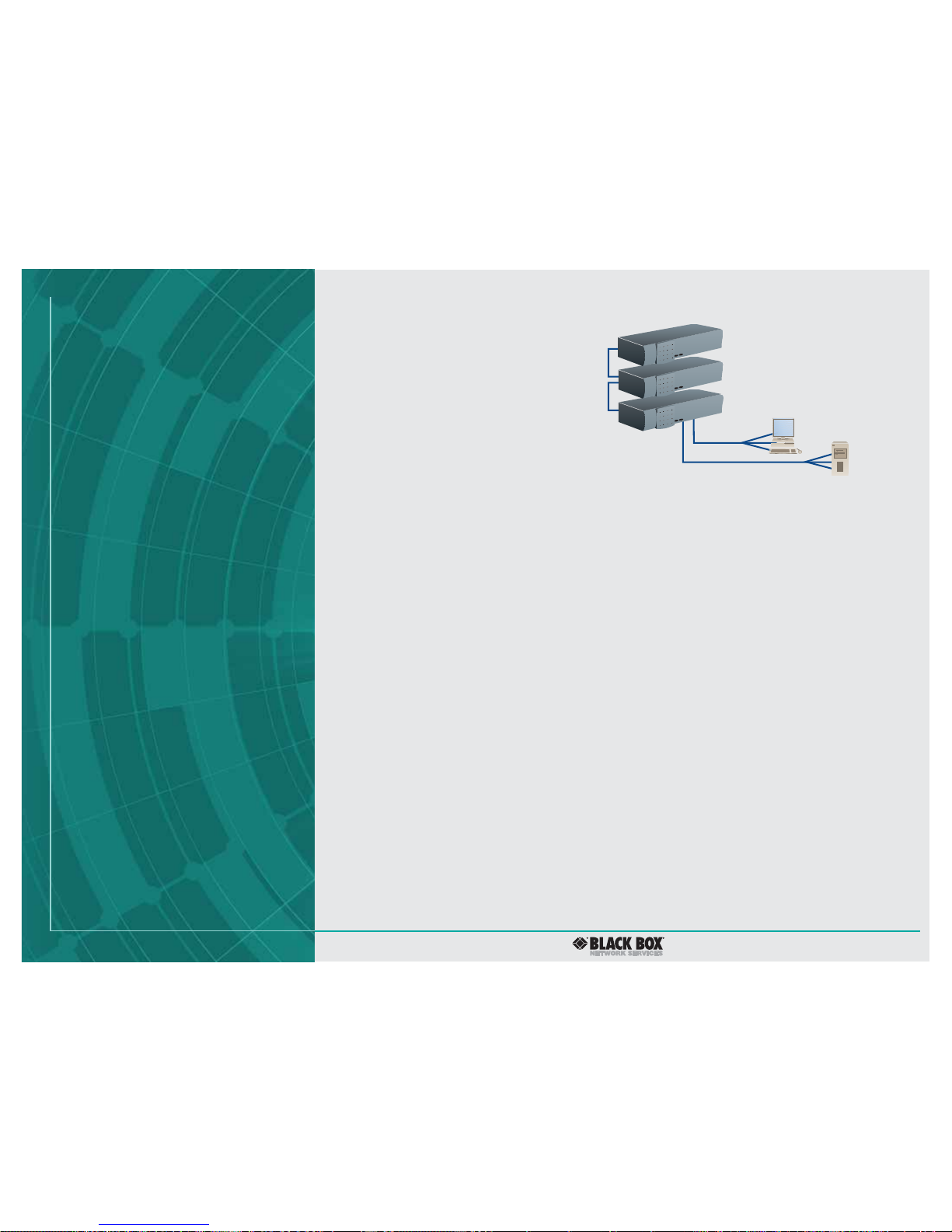
Three ServSwitch Console Plus Chassis in a Bus T opology
OVERVIEW
Do you want to access multiple serial devices (such as PCs
and servers) via a single keyboard, monitor, and mouse
(KVM)? The ServSwitch Console Plus lets you switch among
servers, CPUs, routers, hubs, UNIX devices, and other serial
devices. It’s unique because it allows you to not only switch
between CPUs and servers, but also serial devices.
The advanced distributed design of a single ServSwitch
Console Plus enables access to multiple (4, 8, or 16, depending
on the model you order) asynchronous serial devices from the
same console interface. Or, if you daisychain ServSwitch units,
you can connect up to 1000 servers, CPUs, or other serial devices.
The switch effectively acts as a dumb terminal with an
eight-page scroll buffer to enable easy monitoring of your
serial equipment. You don’ t need to jump between user
stations to access both servers and serial devices.
Multiplatform capability .
The ServSwitch Console Plus works with PC, Mac®, Sun®,
UNIX
®
, Linux®, and USB systems. Mix platforms in a single
installation and switch between them all.
From a central KVM station, connect either 4, 8, or 16
servers or CPUs (depending on the model you order). Once
connected, use the attached computers and all the functions
and applications with it from a single KVM station that serves
as a central access point for your system.
The interface is so powerful that it‘s actually a color
VT220
™
terminal. When you connect to a serial device, you see
a 24 x 80 full-screen display with two status lines. Linux serial
ports also display directory lists in color.
By incorporating KVM switching to your network, you save
on hardware costs and space as well as make your application
more efficient.
And, because it’s modular in design, you can add an
expansion card, link it to additional switches, and increase
the number of connections to computers.
Daisychain for more CPU access.
For even more port density, connect multiple units with
our specially designed cables to create a seamless KVM matrix
switch. In fact, the Console Plus can be expanded to as many
as 1000 CPUs or servers!
To expand the Console Plus in a bus configuration, you’ll
need to install an Expansion Card in each chassis. The card‘s
connectors provide the means of sending system, keyboard,
video, and mouse data from one unit’s Expansion Card output
to another unit‘s Expansion Card input. This enables the first
KVM station to switch to a computer that‘s connected on
another chassis.
Cabling is easy , too!
The ServSwitch Console Plus offers cable distances of up to
100 feet (30.5 m) without any additional extension products.
You’ll need a CPU cable for each computer connected to the
Console Plus; a KVM (user) cable for the KVM station; and if
you want to daisychain multiple units in a bus topology,
expansion cables.
With the Console Plus, you get an RJ-12 serial cable for
flash upgrades and an RJ-to-DB9 adapter. You’ll have to order
the CPU, KVM, and expansion cables separately. The DTE and
DCE serial cables you’ll need are listed on page 4.
Serial port flexibility .
Connect the rear RS-232 port on the ServSwitch Console
Plus to the COM port on your computer using the included
serial cable. Through this connection, you can switch a KVM
station to a CPU port, configure an expansion switch, upgrade
the system firmware, or restore the Console Plus to its factory
settings.
To access the serial port’s parameters, all you need is a
communications program such as Windows
®
HyperTerminal.
This interface enables you to start a serial communication
This bus configuration is typically used when the user is
connected to the KVM ports on chassis #1. In this configuration, the video path goes from the last unit in the bus to
the first unit (OUT to IN ports). This way, ifyou’re attached
to the first unit, you can access all computers on all units.
NOTE: All units in the bus must have an Expansion
Card installed.
ServSwitch Console Plus (KV103A) #3 CPUs (33 of 48)
ServSwitch Console Plus (KV103A) #2 CPUs (17 of 32)
ServSwitch Console Plus (KV103A) #1 CPUs (1 of 16)
KVM cable
CPU cable
CPU
KVM
station
Page 3

3 of 5
10/1/2007
#10573
session and change the serial port’s baud rate (between
either 9600 bps or 57.6 kbps).
Any CPU port on the ServSwitch Console Plus can be
configured as a serial port, too. This way, you can connect a
KVM station to a serial device (such as the serial port on a
UNIX or Sun computer) or any device with a serial port. To do
this, simply connect the device to the DB25 CPU port on the
Console Plus with a serial cable. Switching to that port gives
you access to the attached serial device. And baud speeds can
be controlled on the serial-configured CPU port just as they
can on the Console Plus’ dedicated RS-232 serial port.
Easy to switch and configure.
All switching and CPU/server access can be done using the
Console Plus’ advanced On Screen Display (OSD). This
graphical representation, which can be accessed with a simple
keystroke and overlays your existing monitor image, enables
you to select connected computers without having to push a
button on the Console Plus.
Just make your choices by selecting from the OSD’s pop-up
menus. User-friendly help lines are shown for each item.
Connect to computers by name, and view the connection
status or observe the system status in real-time with the status
screen displays. The status screen also shows all connections
between multiple Console Plus units.
The OSD also links you to a host of configuration options.
Establish CPU names, assign addresses, set security features,
and customize the appearance of the interface with style and
ease. You can even change the language of the interface’s text
(for English, French, German, Italian, Portuguese, or Spanish).
Keep access to authorized users.
For security on the Console Plus, either auto assign settings
to a KVM station or require users to log in with a user ID and
password. Depending on the amount of security you require,
you can configure different levels of access for different users.
For instance, set the Console Plus to allow only authorized
personnel to access computers or servers that contain sensitive
information or restricted applications.
You can also assign certain computers to a unique group
and define them by profiles. For each profile, you can assign
specific modes of access. By default, all users who connect to
the Console Plus operate in Share Mode, in which keyboard
and mouse control of a computer is granted on a first-come,
first-served basis.
But there are also View, Control, and Private Modes, too. In
View Mode, users can switch computers but have no keyboard
or mouse control. In Control Mode, specified users can take
exclusive control of keyboard and mouse functions while
other users are restricted to view-only capabilities. Private
Mode is the the same as Control Mode except other users
can’t view the video or access the computer .
724-746-5500 blackbox.com
The ServSwitch Console Plus fully emulates keyboards and
mice and can be used with a PS/2
®
keyboard and mouse or a
Sun keyboard and mouse. For your KVM station, we
recommend using a multisync monitor that supports
resolutions up to 1280 x 1024 @ 75 Hz or better.
The Console Plus’s scan function sets the time the monitor
video is displayed before switching to the video of the next
computer in the sequence.
The Console Plus also supports hotkey switching, in which
a simple command sequence on the keyboard gives you quick
CPU access.
Upgrade the firmware via flash memory so it maintains
compatibility with the latest devices and features.
TECH SPECS
Video Sync — HV sync, Composite, sync-on-green
Approvals — UL
®
, cUL, TUV, CE, GE
Chassis Construction — Electro galvanized steel with black powder
coating
Controls — Lighted On/Off switch
Video Bandwidth — KV101A–KV102A: 250 MHz;
KV103A: 100 MHz
Connectors — All: User port: (1) DB25 F;
Expansion port (optional): (1) DB15 M, (1) DB15 F;
RS-232 serial port: (1) RJ-12 (6-wire);
Power: (1) IEC 320;
KV101A: CPU ports: (4) DB25 female;
KV102A: CPU ports: (8) DB25 female;
KV103A: CPU ports: (16) DB25 female
Indicators — All: (1) Chassis Power;
KV101A: (4) CPU Select, (4) CPU Power;
KV102A: (8) CPU Select, (8) CPU Power:
KV103A: (16) CPU Select, (16) CPU Power
Temperatur e Tolerance —32 to 113ºF (0 to 45ºC)
Humidity Tolerance —5 to 80%, noncondensing
Power — 90–240 VAC, 47–60 Hz, autoswitching
Size — KV101A–KV102A: 1.75"H (1U) x 16.7"W x 4.9"D
(4.4 x 42.4 x 12.4 cm);
KV103A: 3.5"H (2U) x 16.7"W x 4.9"D (8.9 x 42.4 x 12.4 cm)
Weight — KV101A–KV102A: 4 lb. (1.8 kg);
KV103A: 8 lb. (3.6 kg)
✦ ServSwitch Console Plus
✦ RJ-12 flash cable
✦ RJ-to-DB9 adapter
✦ Power cord
✦ Users’ manual
WHA T‘S INCLUDED
Page 4

4 of 5
10/1/2007
#10573
724-746-5500 blackbox.com
Item Code
ServSwitch
™
Console Plus
4-Port KV101A
8-Port KV102A
16-Port KV103A
T o daisychain your system, or der…
Expansion Module SW740C-R3-B
T o connect multiple chassis, or der…
Expansion Cable
10-ft. (3-m) KV140010
35-ft. (10.7-m) KV140035
100-ft. (30.5-m) KV140100
For your serial connections, order…
ServSwitch Console Plus Serial Cables, DTE
DB25 Male/DB9 Female
5-ft. (1.5-m) EHN290-0005
10-ft. (3-m) EHN290-0010
20-ft. (6.1-m) EHN290-0020
35-ft. (10.7-m) EHN290-0035
50-ft. (15.2-m) EHN290-0050
DB25 Male/DB25 Female
5-ft. (1.5-m) EHN291-0005
10-ft. (3-m) EHN291-0010
20-ft. (6.1-m) EHN291-0020
35-ft. (10.7-m) EHN291-0035
50-ft. (15.2-m) EHN291-0050
ServSwitch Console Plus Serial Cables, DCE
DB25 Male/DB9 Male
5-ft. (1.5-m) EHN292-0005
10-ft. (3-m) EHN292-0010
20-ft. (6.1-m) EHN292-0020
35-ft. (10.7-m) EHN292-0035
50-ft. (15.2-m) EHN292-0050
DB25 Male/DB25 Male
5-ft. (1.5-m) EHN293-0005
10-ft. (3-m) EHN293-0010
20-ft. (6.1-m) EHN293-0020
35-ft. (10.7-m) EHN293-0035
50-ft. (15.2-m) EHN293-0050
For CPU or server connections, you’ll need…
CPU/Server to ServSwitch Cables (CPU Cables) for PC
PS/2, Standard
5-ft. (1.5-m) EHN151-0005
10-ft. (3-m) EHN151-0010
20-ft. (6.1-m) EHN151-0020
CPU/Server to ServSwitch Cables (CPU Cables) for PC
PS/2, Coax
2-ft. (0.6-m) EHN382-0002
5-ft. (1.5-m) EHN382-0005
10-ft. (3-m) EHN382-0010
20-ft. (6.1-m) EHN382-0020
35-ft. (10.7-m) EHN382-0035
50-ft. (15.2-m) EHN382-0050
75-ft. (22.9-m) EHN282-0075
100-ft. (30.5-m) EHN282-0100
20-ft. (6.1-m) EHNUSB-0020
Item Code
AT
®
, Standard
5-ft. (1.5-m) EHN048-0005
10-ft. (3-m) EHN048-0010
USB, Coax
5-ft. (1.5-m) EHN485-0005
10-ft. (3-m) EHN485-0010
20-ft. (6.1-m) EHN485-0020
35-ft. (10.7-m) EHN485-0035
50-ft. (15.2-m) EHN485-0050
75-ft. (22.9-m) EHN485-0075
100-ft. (30.5-m) EHN485-0100
Sun, Coax
13W3
5-ft. (1.5-m) EHN206-0005
10-ft. (3-m) EHN206-0010
20-ft. (6.1-m) EHN206-0020
35-ft. (10.7-m) EHN206-0035
50-ft. (15.2-m) EHN206-0050
75-ft. (22.9-m) EHN206-0075
100-ft. (30.5-m) EHN206-0100
VGA
5-ft. (1.5-m) EHN515-0005
10-ft. (3-m) EHN515-0010
20-ft. (6.1-m) EHN515-0020
Mac
Standard (DB15)
5-ft. (1.5-m) EHN215-0005
10-ft. (3-m) EHN215-0010
Coax
10-ft. (3-m) EHN208-0010
20-ft. (6.1-m) EHN208-0020
NOTE: Other lengths are available.
For KVM connections, order…
ServSwitch to Keyboard/Monitor/Mouse Cables
(User Cables) for PC
PS/2, Standard
1-ft. (0.3-m) EHN154-0001
5-ft. (1.5-m) EHN154-0005
10-ft. (3-m) EHN154-0010
20-ft. (6.1-m) EHN154-0020
PS/2, Coax
2-ft. (0.6-m) EHN383-0002
5-ft. (1.5-m) EHN383-0005
10-ft. (3-m) EHN383-0010
20-ft. (6.1-m) EHN283-0020
35-ft. (10.7-m) EHN383-0035
50-ft. (15.2-m) EHN383-0050
75-ft. (22.9-m) EHN283-0075
100-ft. (30.5-m) EHN383-0100
AT, Standard
1-ft. (0.3-m) EHN052-0001
5-ft. (1.5-m) EHN052-0005
AT, Coax
10-ft. (3-m) EHN270-0010
20-ft. (6.1-m) EHN270-0020
KV102A: front and rear views
KV140010
Page 5

5 of 5
10/1/2007
#10573
724-746-5500 blackbox.com
EHN201
EHNUSB
Item Code
For KVM connections, order…
ServSwitch to Keyboard/Monitor/Mouse Cables
(User Cables) for PC
Sun, Coax, 13W3
1-ft. (0.3-m) EHN201-0001
5-ft. (1.5-m) EHN201-0005
VGA
5-ft. (1.5-m) EHN225-0005
10-ft. (3-m) EHN225-0010
Mac, Standard
1-ft. (0.3-m) EHN210-0001
5-ft. (1.5-m) EHN210-0005
Mac, Coax
10-ft. (3-m) EHN203-0010
20-ft. (6.1-m) EHN203-0020
USB to PS/2 Converter KVUSB
USB to PS/2 Flashable User Cable
1-ft. (0.3-m) EHNUSB-0001
5-ft. (1.5-m) EHNUSB-0005
10-ft. (3-m) EHNUSB-0010
20-ft. (6.1-m) EHNUSB-0020
35-ft. (10.7-m) EHNUSB-0035
50-ft. (15.2-m) EHNUSB-0050
75-ft. (22.9-m) EHNUSB-0075
100-ft. (30.5-m) EHNUSB-0100
Recognize any of these situations?
• You wait more than 30 minutes to get through
to a vendor’s tech support.
• The so-called “tech” can’t help you or gives you
the wrong answer.
• You don’t have a purchase order number and the
tech refuses to help you.
• It’s 9 p. m. and you need help, but your vendor’s
tech support line is closed.
According to a survey by Data Communications
magazine, 90% of network managers surveyed say
that getting the technical support they need is extremely
important when choosing a vendor. But even though
network managers pay anywhere from 10 to 20% of their
overall purchase price for a basic service and support
contract, the technical support and service they receive
falls far short of their expectations—and certainly isn’t
worth what they paid.
At Black Box, we guarantee the best value and the
best support. You can even consult our Technical Support
Experts before you buy if you need help selecting just
the right component for your application.
Don’t waste time and money—call Black Box today.
Why Buy From Black Box?
Exceptional Value. Exceptional
Tech Support. Period.
 Loading...