

Page 1
STEP X - Name of Step
24/7 TECHNICA L SUPPORT AT 877.877.2269 OR V ISIT BLACKBOX.COM
ICU504A
U S B 3.1
EXTENDER
QUICK START GUIDE
Page 2
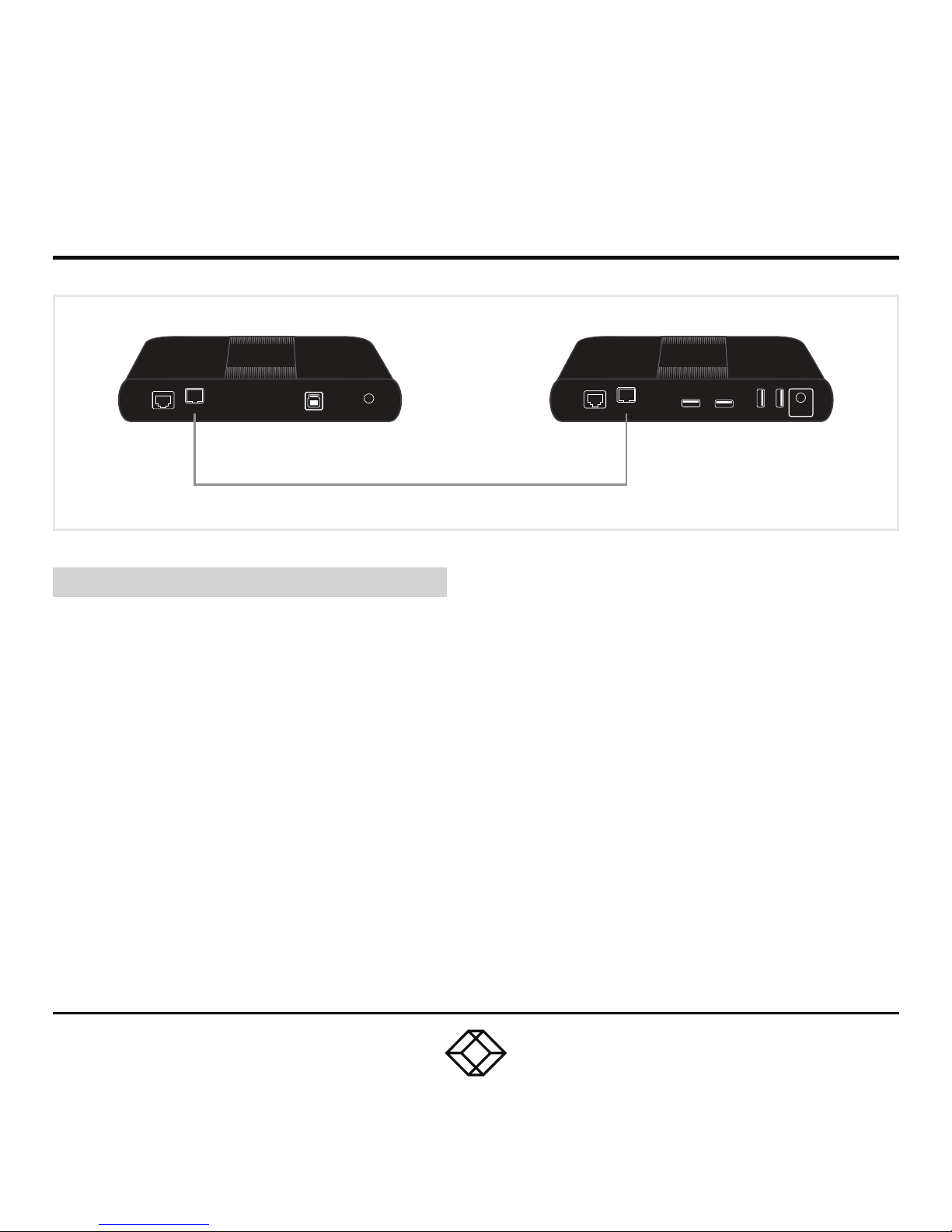
STEP 1 - Connect Local to Remote via CAT6a/7 cable
CO NNE CT LOCAL TO R EMOTE
Place the units where desired, and connect
the CAT6a/7 cable to the Link ports on the
Local and Remote Extenders.
Local Extender (back view) Remote Extender (back view)
(CAT 6a/7 Cable not included)
24V 1AUSBLAN
Link
24V 2.71AUSB USB USB USBLAN
Link
Maximum 328 ft. (100 m) CAT 6a/7 Cable
Page 3
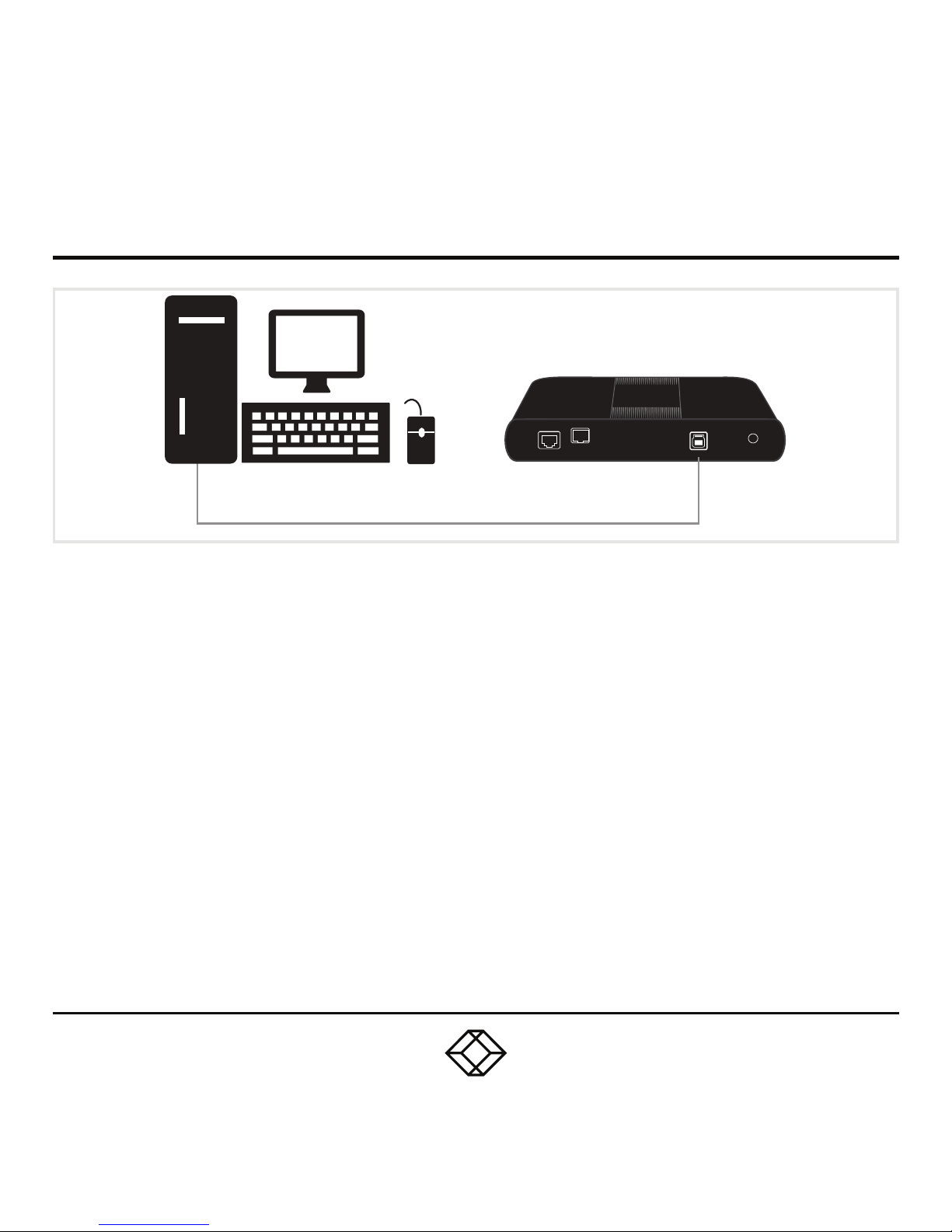
STEP 2 - Connect the Local Extender to your computer
Connect the Local Extender to the
computer's USB 3 port using the included
USB cable.
Local Extender (back view)
24V 1AUSBLAN
Link
PC
Page 4
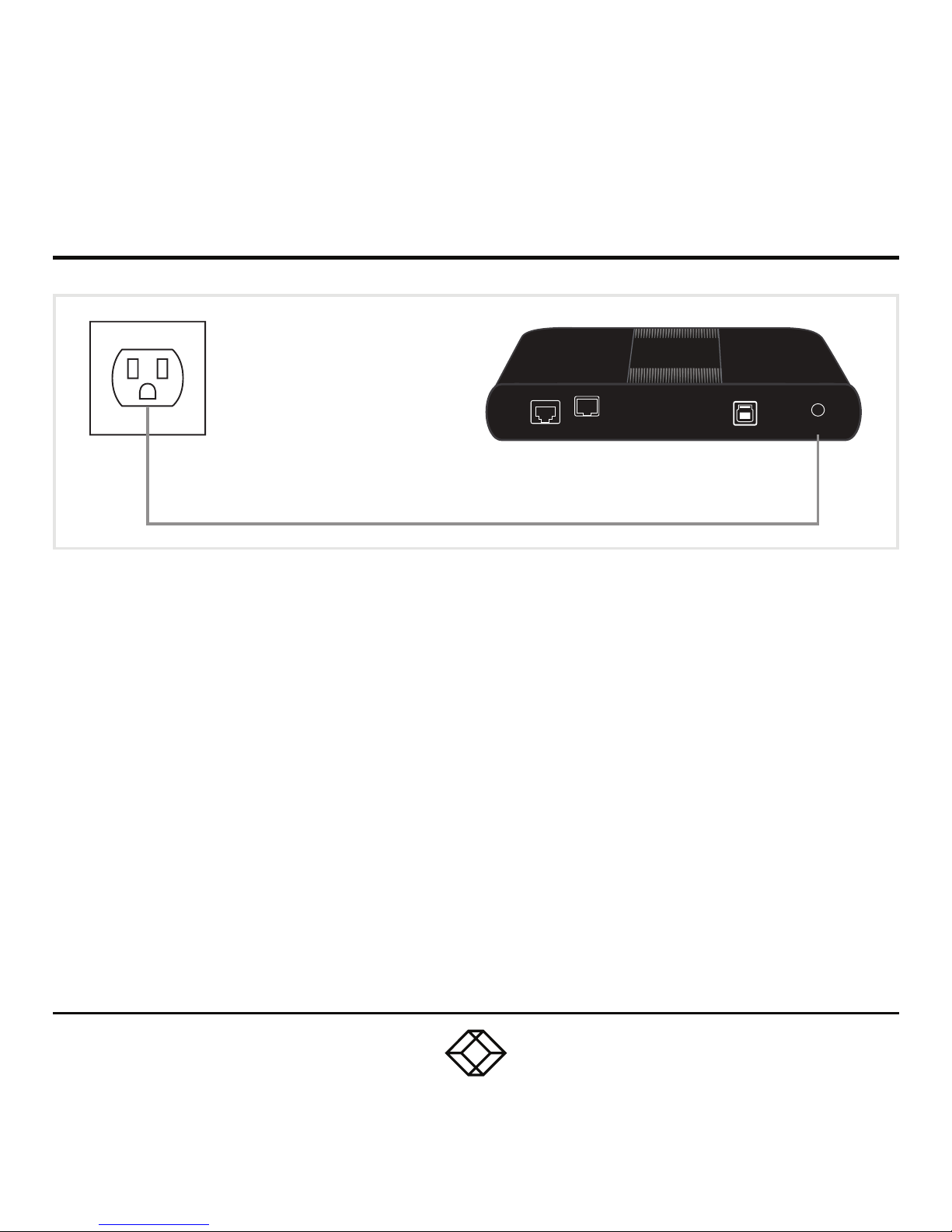
STEP 3 - Power the Local Extender
Power the Local Extender with the included
24-V, 1-A AC adapter and tighten the
locking ring.
Local Extender (back view)
24V 1AUSBLAN
Link
Page 5
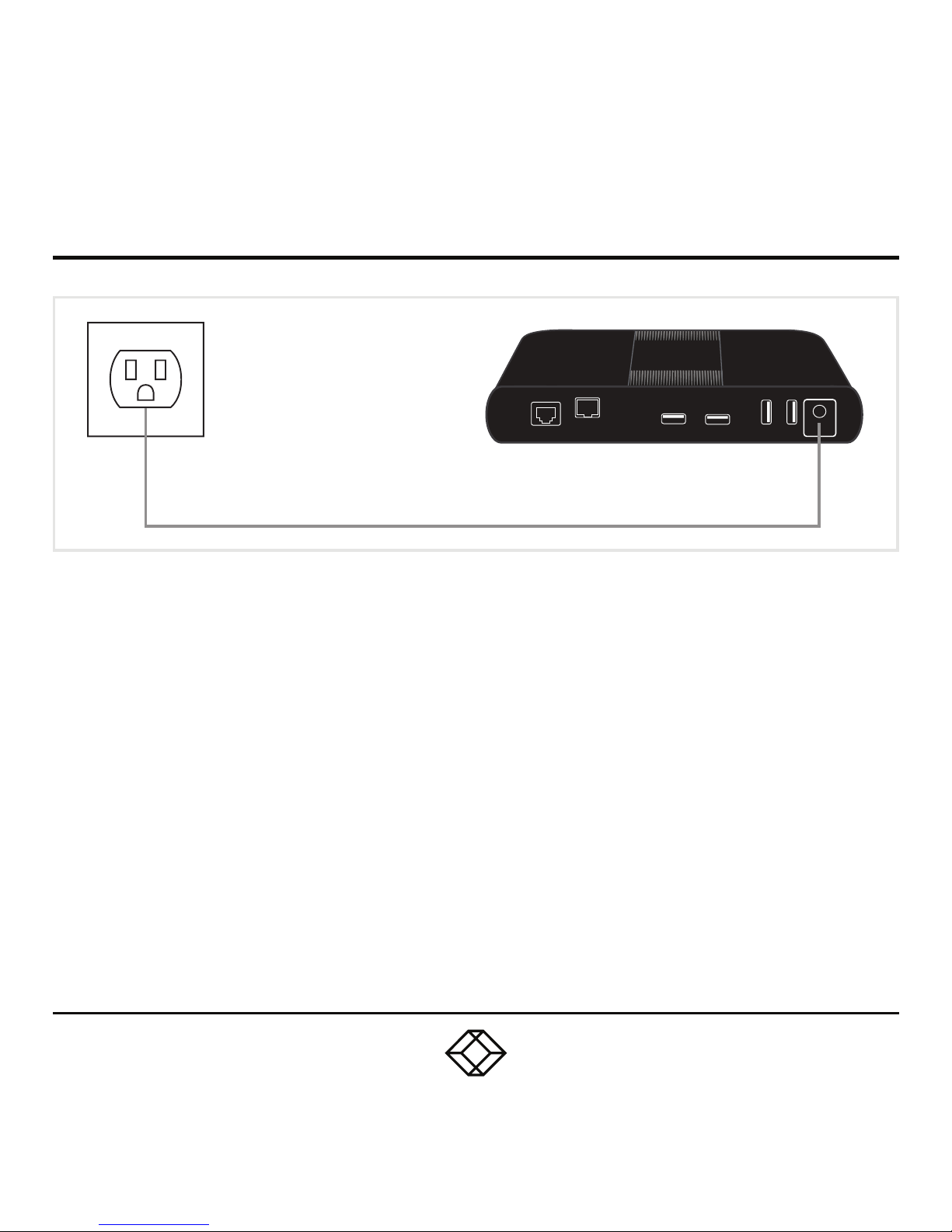
STEP 4 - Power the Remote Extender
Power the Remote Extender with the
included 24-V, 2.71-A AC adapter and
tighten the locking ring.
Remote Extender (back view)
24V 2.71AUSBUSB USB USBLAN
Link
Page 6
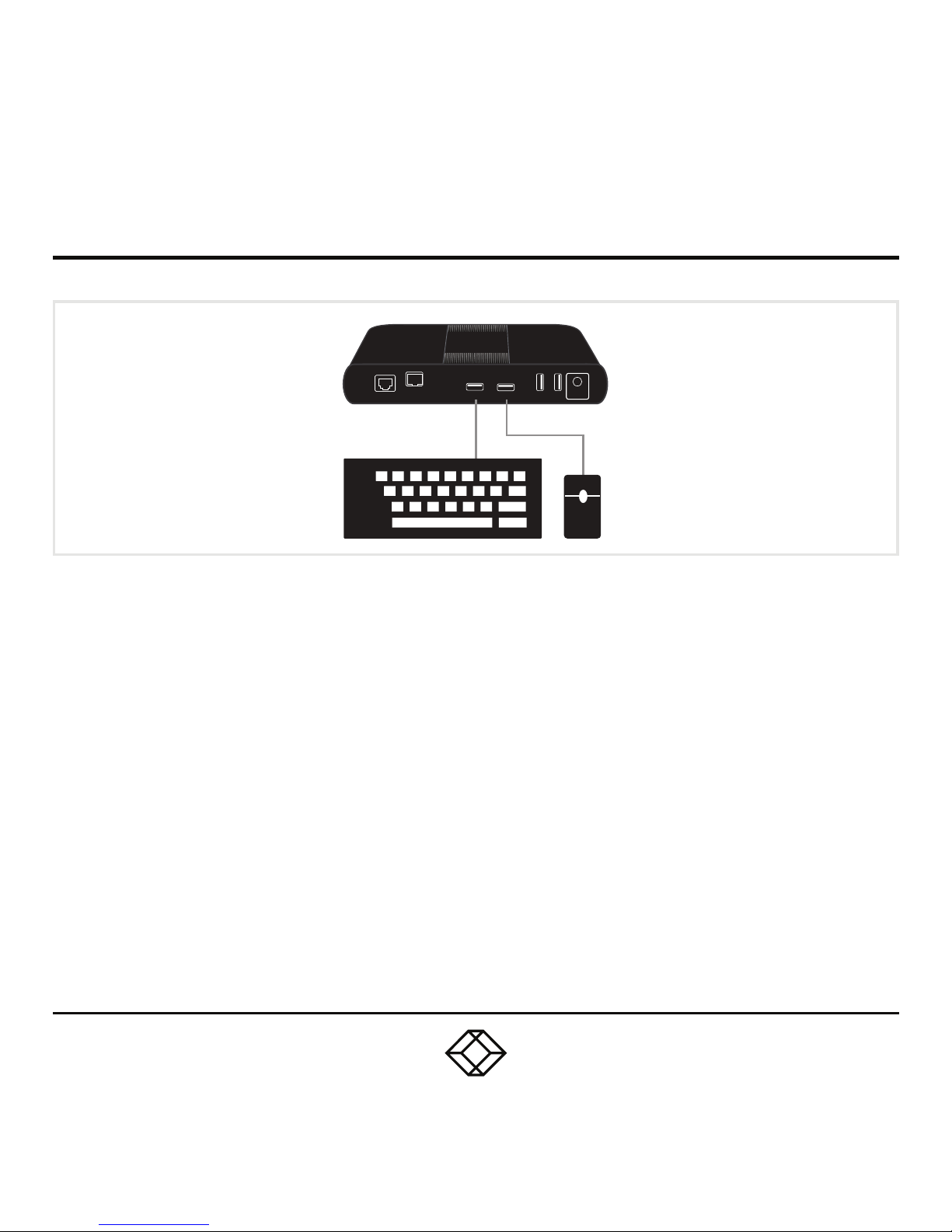
STEP 5 - Attach the USB device(s) to the Remote Extender
Remote Extender (back view)
24V 2.71AUSBUSB USB USBLAN
Link
Page 7
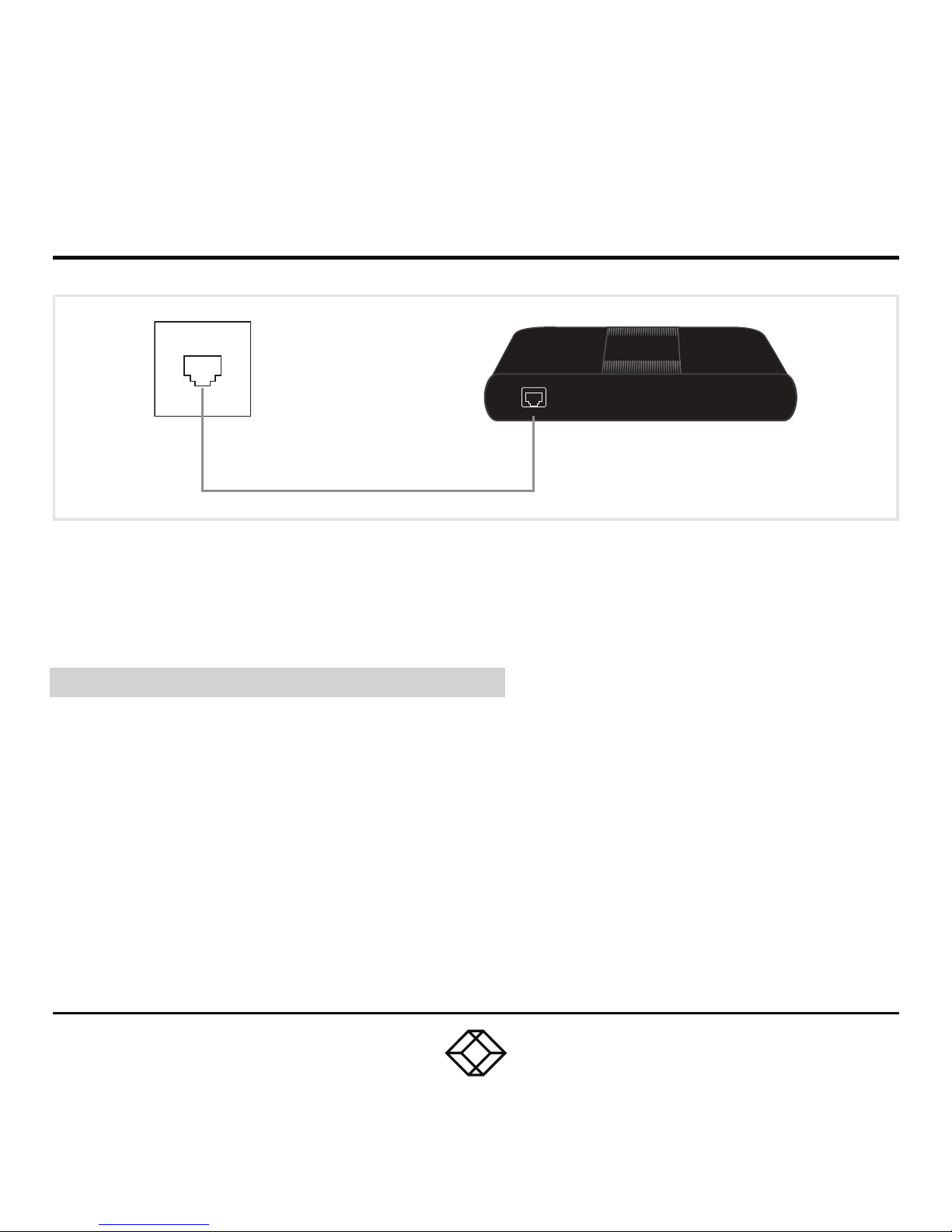
STEP 6 - Optional: Connect to a LAN network or device
OPTIONAL: DOWNLOAD USER MANUAL
For product specifications and regulatory information,
refer to the User Manual. You can download this
document from our web site.
1. Go to www.blackbox.com
2. Enter the part number (ICU504A) in the search box.
3. Click on the product in the “Product Results” page.
4. Click on the “Support” tab on the product page,
and select the document you wish to download.
If you have any trouble accessing the Black Box
site to download the manual, you can contact
our Technical Support at 877-877-2269
or [email protected]
Local/Remote Extender LAN Port
LAN
Optional: Connect Local and Remote Extender
LAN ports to a network or device as necessary.
Page 8

STEP X - Name of Step
COPYRIGHT 2018. BLACK BOX CORPORATION. ALL RIGHTS RESERVED.
ICU504A_QSG_REV1.PDF
 Loading...