

Page 1

SETUP GUIDE
SAMSUNG SOC INSTRUCTIONS FOR ICOMPEL CONTENT COMMANDER
SAMSUNG
SOC FOR
ICOMPEL
CONTENT
COMMANDER
24/7 TECHNICAL SUPPORT AT 1.877.877.2269 OR VISIT BLACKBOX.CO M
Page 2

NEED HELP?
LEAV E TH E TEC H TO US
LIVE 24/7
TABLE OF CONTENTS
TECHNICAL
SUPPORT
1. 8 7 7. 8 7 7. 2 2 6 9
1. INS TA L L AT I ON .............................................................................................................................................................................. 3
1.1 S e t u p ............................................................................................................ .............................................................................................. 3
1.2 Downloading Content ..............................................................................................................................................................................3
1.3 Creating Configurations...........................................................................................................................................................................4
1.4 Editing or Deleting Configurations .......................................................................................................................................................... 5
1.5 Installing Configurations .........................................................................................................................................................................6
1.6 Time Zone .................................................................................................................................................................................................7
2. PORTRAIT MODE .......................................................................................................................................................................... 8
2.1 Configuration Based ................................................................................................................................................................................ 8
2.2 Display Based ...........................................................................................................................................................................................9
3. GAPLESS PLAYBACK .................................................................................................................................................................. 10
3.1 Configuration .......................................................................................................................................................................................... 10
4. FULL SCREEN VIDEO................................................................................................................................................................... 11
4.1 Custom Position and Size ......................................................................................................................................................................11
5. RECOMMENDED SOFTWARE VERSION .................................................................................................................................... 12
6. FACTORY RESET ......................................................................................................................................................................... 13
7. SUPPORTED FORMATS ............................................................................................................................................................... 14
7.1 Video and Audio ...................................................................................................................................................................................... 14
8. K N OWN LIMITATIO N S ................................................................................................................................................................ 15
8.1 Samsung Limitations .............................................................................................................................................................................15
8.1.1 V i d e o Deco d e r ................................................................................................................................................................................................... 15
8.1.2 Audio Decoder ................................................................................................................................................................................................... 15
9. ZONE LIMITS FOR BEST PERFORMANCE ................................................................................................................................. 16
APPENDIX. DISCLAIMER/TRADEMARKS ..................................................................................................................................... 17
A.1 Disclaimer ............................................................................................................................................................................................... 17
A.2 Trademarks ............................................................................................................................................................................................17
2
1. 8 7 7. 8 7 7. 2 2 6 9 BL ACK BOX .COM
Page 3

NEED HELP?
LEAV E TH E TEC H TO US
LIVE 24/7
CH A PTER 1: I NS TA LL ATI O N
TECHNICAL
SUPPORT
1. 8 7 7. 8 7 7. 2 2 6 9
Plug in the screen and power on.
A keyboard can be plugged into the screen to assist with setup.
For out of the box setups, please follow Steps 1-8 to take you through the on-screen wizard.
Otherwise, go to Step 9.
1.1 S E T U P
1. Using the remote, select your preferred menu language and press Next.
2. Select the orientation for on-screen menus and content and press Next. Content orientation can be adjusted from the ICC at any time.
3. Set Auto Power Off to Off as otherwise the screen may unexpectedly turn off.
4. Connect the player to your preferred network. SoC players support both wired and wireless connectivity. Once connected, press Next.
5. Set the date and time and press Next.
6. Play via URL Launcher and when prompted enter the URL of your ICC in the format:
http://icc*****.domain/soc
or
http://<IPaddress>/soc
NOTE: Make sure you append ‘/soc’ to the end of the URL.
7. Once entered, press Next.
8. Now press OK. You should now be presented with the Samsung Signage menu. If this does not appear, then press the Home button on
the remote.
9. To direct the SoC player to a different ICC, select Change URL and input the URL of your ICC following the format specified in Step 6.
10. Once the URL is correct, select URL Launcher.
11. The SoC player will now download the SoC app and you will be presented with an install code page.
12. Enter a configuration install code and press done (“enter” on a keyboard).
The install code can be found by navigating to the Manage Players page of the ICC and selecting the Settings
Here you will be able to manage multiple configurations. Each configuration on this page will have its own unique install code.
icon in the left panel.
1.2 DOWNLOADING CONTENT
1. Type in the install code using the Samsung remote or a keyboard.
2. The factory shipped install code is DEFAULT0 (this is the default configuration).
3. Press Enter on the keyboard or OK on the remote.
4. You should see the Player Installation Progress screen.
5. Once the player has installed it will automatically reboot.
6. If the channel has been published the player will download content and switch to playback mode.
NOTE: If the channel has not been published, it will show you the channel ID and wait for it to be published in the ICC.
1. 8 7 7. 8 7 7. 2 2 6 9 BL ACK BOX .COM
3
Page 4
CH A PTER 1: I NS TA LL ATI O N
1.3 CREATING CONFIGURATIONS
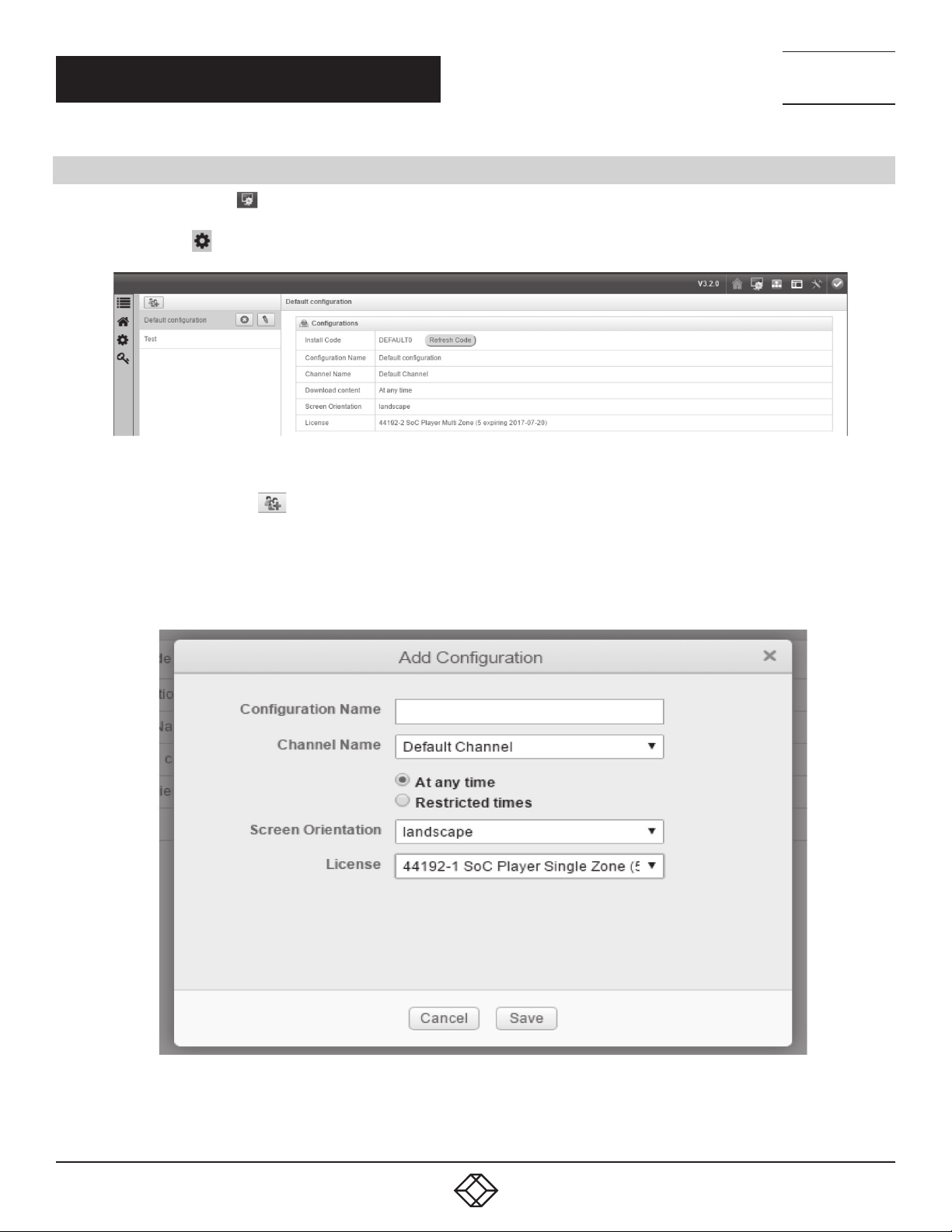
1. Click the Manage Players
Players.
2. Click the Settings
icon in the top right hand corner of the ICC. You can also reach this page by navigating Home > Manage
icon on the left-hand side.
FIGURE 1.
NEED HELP?
LEAV E TH E TEC H TO US
LIVE 24/7
TECHNICAL
SUPPORT
1. 8 7 7. 8 7 7. 2 2 6 9
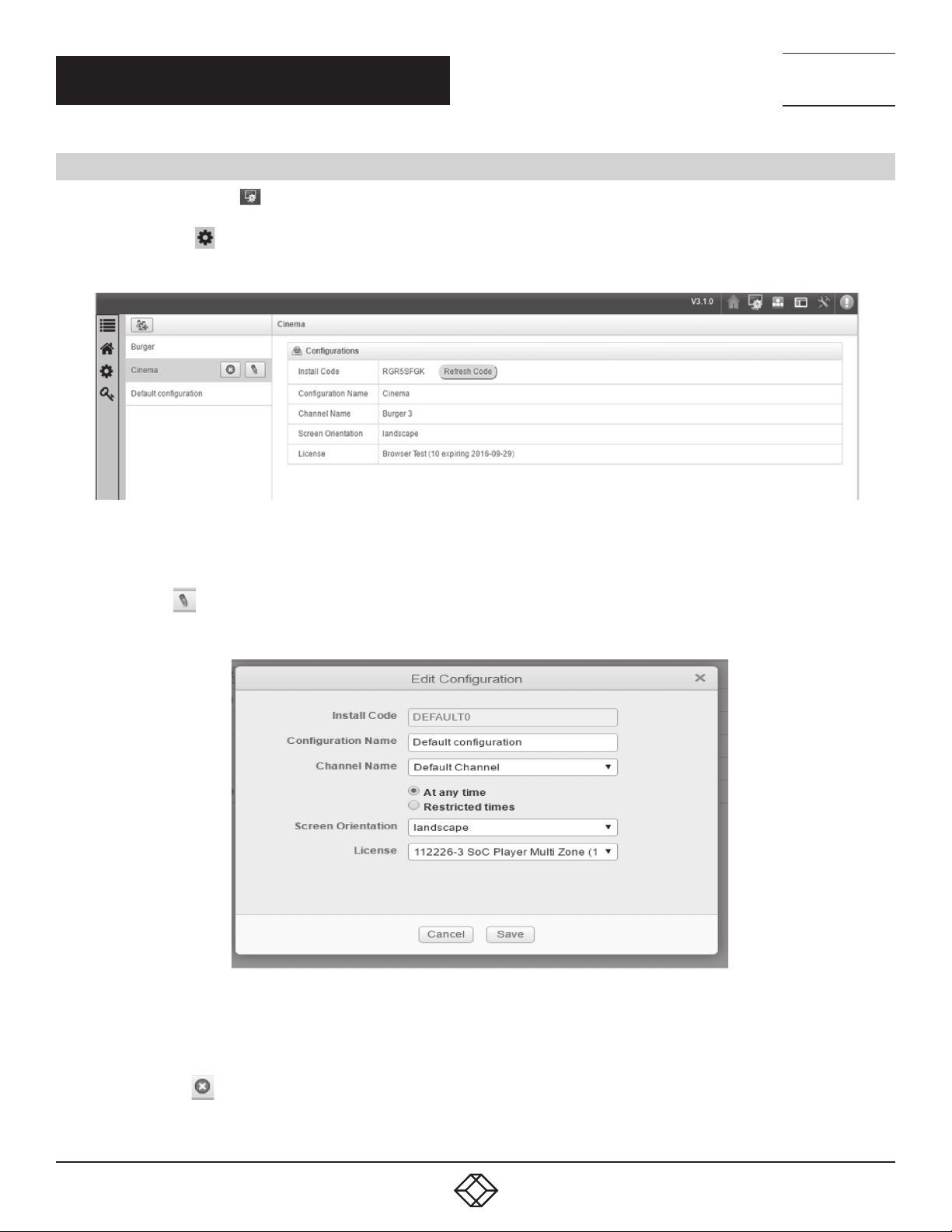
3. Click the Add Configuration
4. Type the name of the configuration and from the drop-down menus select the appropriate channel, screen orientation and
license you want your configuration associated with. If you wish to restrict the channel download to specific times then click
Restricted Times and enter the appropriate values.
This feature allows you to add and edit configurations. Therefore, you can install screens with pre-set orientations and channels.
button.
FIGURE 2.
4
1. 8 7 7. 8 7 7. 2 2 6 9 BL ACK BOX .COM
Page 5
CH A PTER 1: I NS TA LL ATI O N
1.4 EDITING OR DELETING CONFIGURATIONS
1. Click the Manage Players
Players.
2. Click the Settings
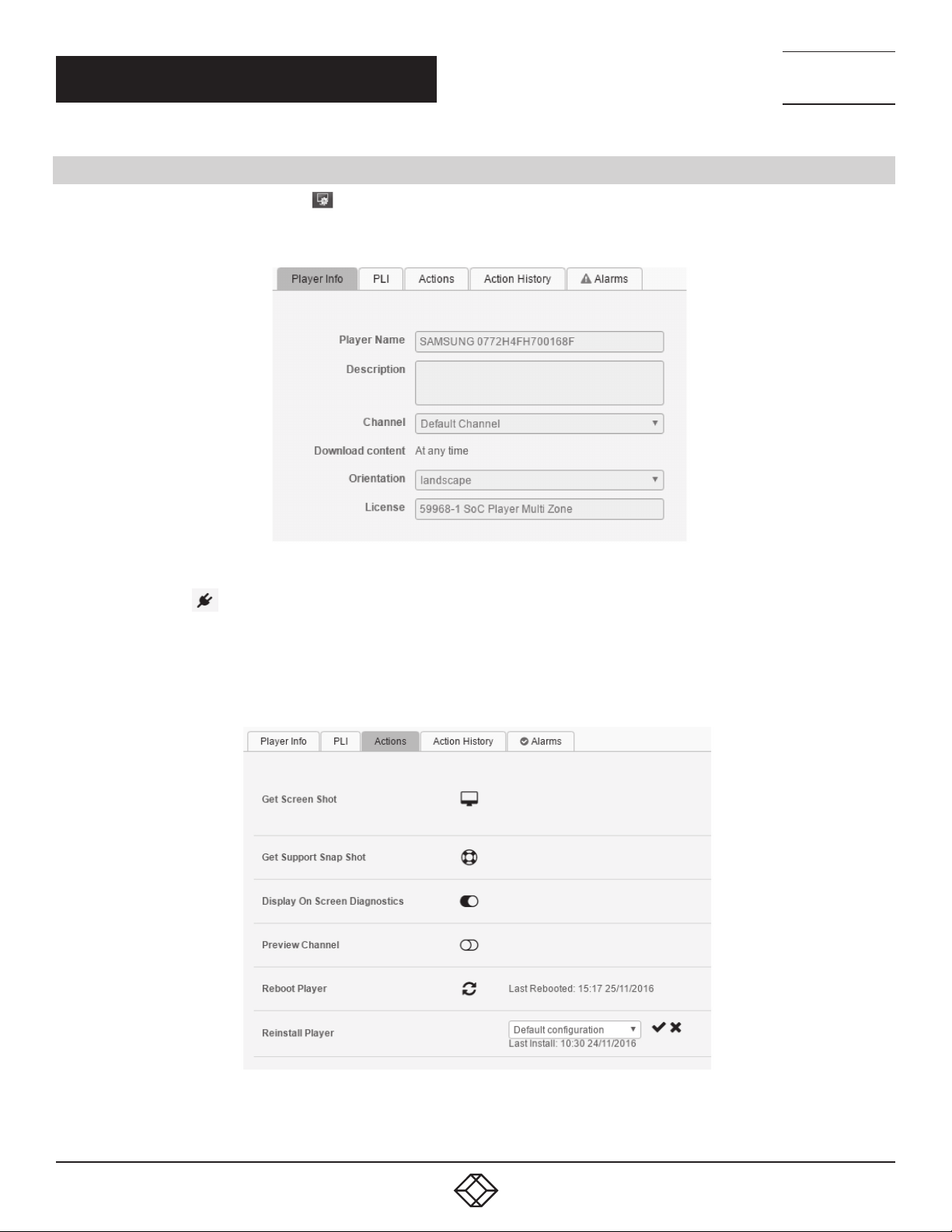
3. Hover over a configuration in the list. It will turn blue and two icons will appear to the right.
icon in the top right hand corner of the ICC. You can also reach this page by navigating Home > Manage
icon on the left-hand side.
NEED HELP?
LEAV E TH E TEC H TO US
LIVE 24/7
TECHNICAL
SUPPORT
1. 8 7 7. 8 7 7. 2 2 6 9
FIGURE 3.
4. To edit:
4a. Click the Edit
4b. You can rename the configuration, select a different channel or change the screen orientation or associated license.
icon and a pop-up will appear showing you the Installation code.
5. To delete:
5a. Click the Delete
5b. This will open a pop up asking if you are sure. Select Yes.
icon.
1. 8 7 7. 8 7 7. 2 2 6 9 BL ACK BOX .COM
FIGURE 4.
5
Page 6
CH A PTER 1: I NS TA LL ATI O N
1.5 INSTALLING CONFIGURATIONS
1. On your ICC, click the Manage Players
2. Select the player from the list.
3. Click the Actions tab.
icon or navigate Home > Manage Players.
NEED HELP?
LEAV E TH E TEC H TO US
LIVE 24/7
TECHNICAL
SUPPORT
1. 8 7 7. 8 7 7. 2 2 6 9
FIGURE 5.
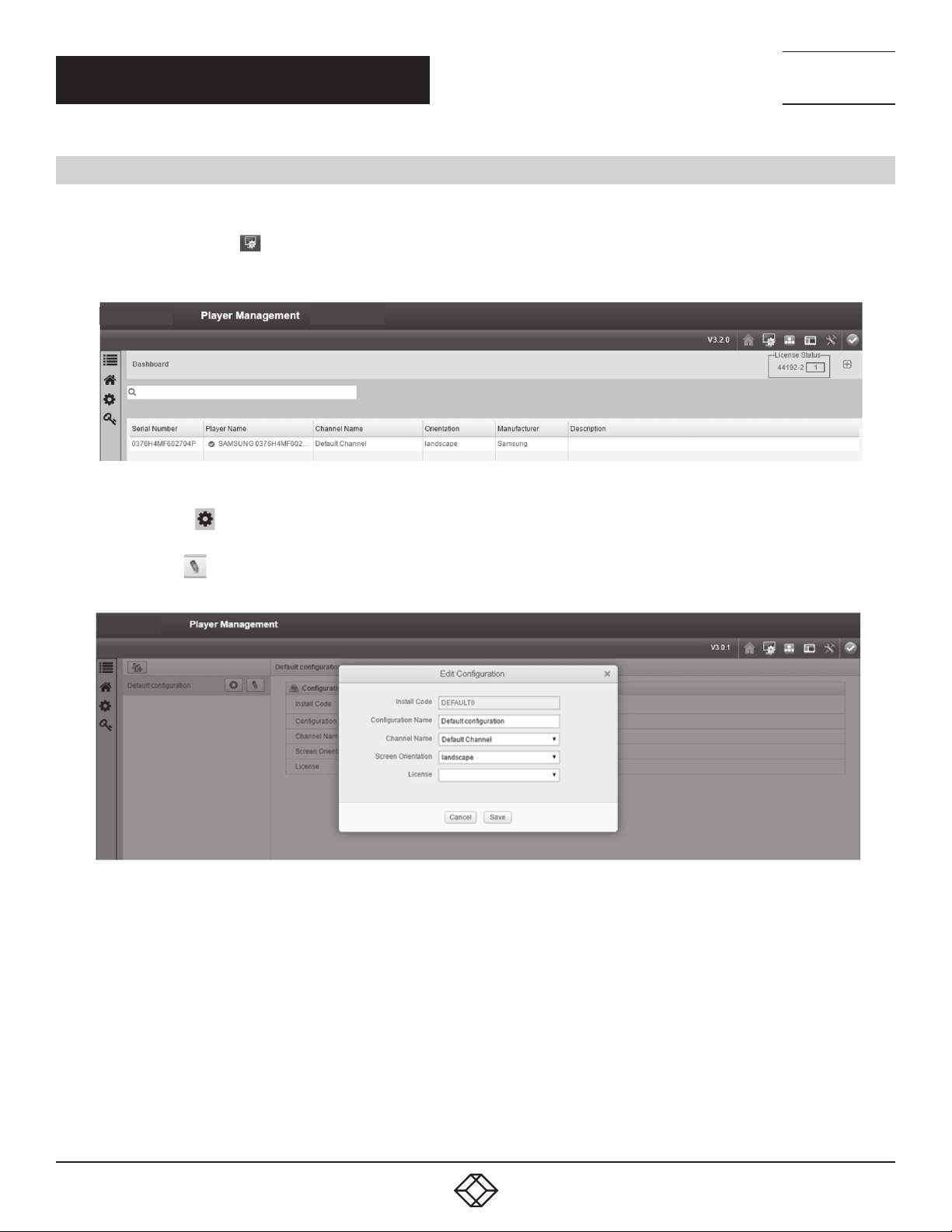
4. Click on the Plug
5. Select the preferred configuration from the drop-down menu.
NOTE: During initial setup, when a SoC player displays the install code page, you can use the reinstall feature on the ICC to install
the player. This allows for a remote install rather than typing an install code into each player.
6. Click the tick button and the new configuration will install.
icon.
FIGURE 6.
6
1. 8 7 7. 8 7 7. 2 2 6 9 BL ACK BOX .COM
Page 7

CH A PTER 1: I NS TA LL ATI O N
1.6 TIME ZONE
1. Press the Menu button on the remote.
2. Scroll down to System.
3. Select Time.
4. Click Clock Set.
5. Press Menu to return to the main menu.
NEED HELP?
LEAV E TH E TEC H TO US
LIVE 24/7
TECHNICAL
SUPPORT
1. 8 7 7. 8 7 7. 2 2 6 9
1. 8 7 7. 8 7 7. 2 2 6 9 BL ACK BOX .COM
7
Page 8
NEED HELP?
LEAV E TH E TEC H TO US
LIVE 24/7
CHAPTER 2: PORTRAIT MODE
2.1 CONFIGURATION BASED
Black Box recommends pre-rotating content before adding it to the ICC. If this is not possible, then orientation can be set through display
and configuration.
1. Click the Manage Players
Home > Manage Players.
icon in the top right hand corner of the ICC. You can also reach this page by navigating
FIGURE 7.
TECHNICAL
SUPPORT
1. 8 7 7. 8 7 7. 2 2 6 9
2. Click the Settings
3. Select your configuration from the list.
4. Click on the Edit
5. Select Save.
NOTE: The display orientation takes precedence over the configuration orientation.
icon on the left-hand side.
button and change the orientation of the screen through the drop-down menu in the pop-up box.
FIGURE 8.
8
1. 8 7 7. 8 7 7. 2 2 6 9 BL ACK BOX .COM
Page 9
CHAPTER 2: PORTRAIT MODE
2.2 DISPL AY BASED
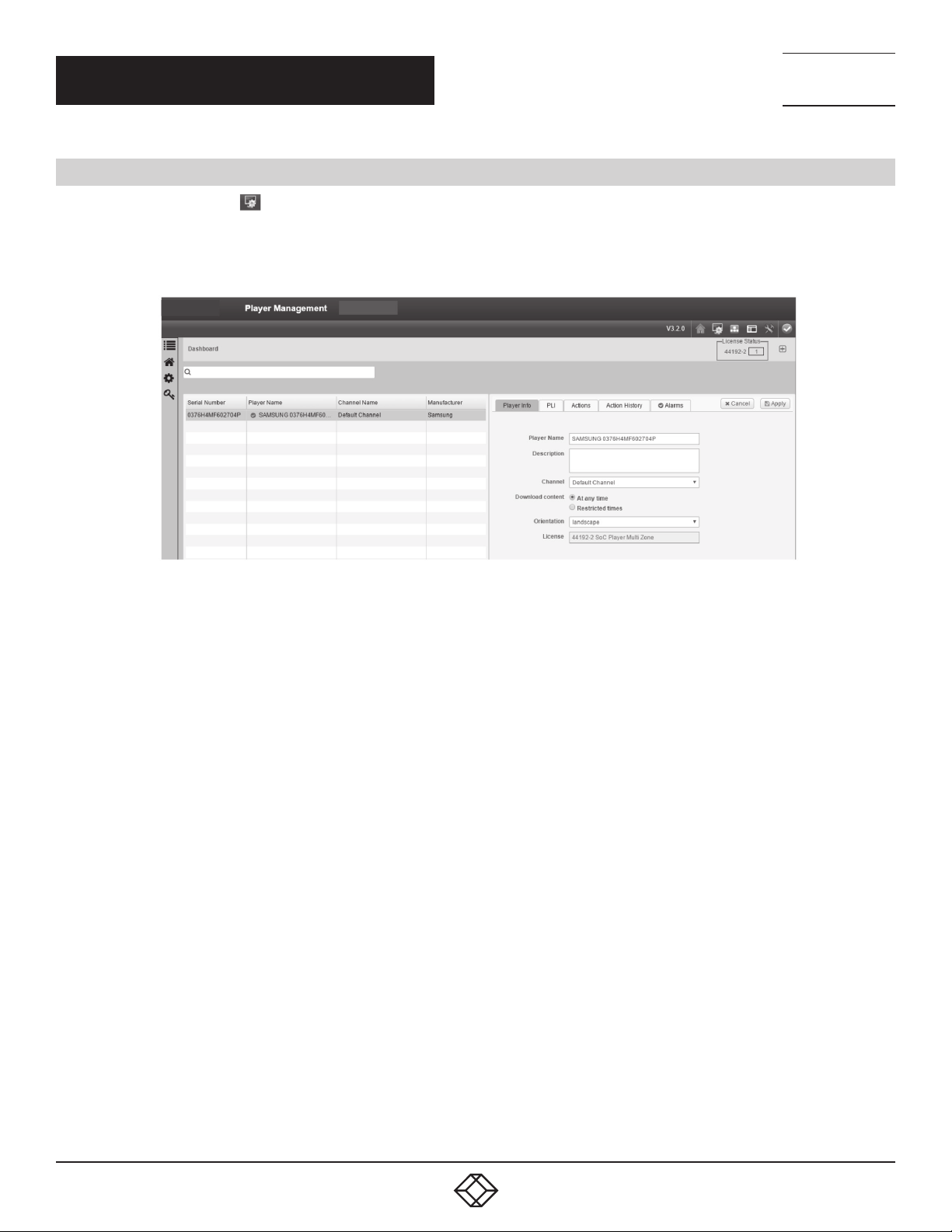
1. Click the Manage Players
Home > Manage Players.
2. Select your player from the list.
3. Click on the Edit button on the right hand side.
icon in the top right hand corner of the ICC. You can also reach this page by navigating
NEED HELP?
LEAV E TH E TEC H TO US
LIVE 24/7
TECHNICAL
SUPPORT
1. 8 7 7. 8 7 7. 2 2 6 9
FIGURE 9.
4. The player information will become editable.
5. Select the orientation from the drop-down menu.
6. Click Apply.
NOTE: The display orientation takes precedence over the configuration orientation.
1. 8 7 7. 8 7 7. 2 2 6 9 BL ACK BOX .COM
9
Page 10

NEED HELP?
LEAV E TH E TEC H TO US
LIVE 24/7
CHAPTER 3: GAPLESS PLAYBACK
3.1 CONFIGURATION
Gapless playback is constrained on Samsung players and content must meet the following specifications to play in gapless mode.
The playlist must consist of all videos. Adding any other playlist item will cause it to not run gapless. Therefore, all images must be
converted to videos.
Each video must play until finished.
All videos must have:
- The same aspect ratio.
- The same video encoding.
- The same audio encoding.
- Mp4 format.
NOTE: Folders with videos are supported subject to these constraints.
TECHNICAL
SUPPORT
1. 8 7 7. 8 7 7. 2 2 6 9
10
1. 8 7 7. 8 7 7. 2 2 6 9 BL ACK BOX .COM
Page 11
NEED HELP?
LEAV E TH E TEC H TO US
LIVE 24/7
CHAPTER 4: FULL SCREEN VIDEO
TECHNICAL
SUPPORT
1. 8 7 7. 8 7 7. 2 2 6 9
Full screen video is most easily accomplished by creating a layout with a single full screen video zone. However, you can also use custom
position and size following the steps below. This is useful for when your layout is multi-zoned and you want a single item playing full
screen and for each other item playing only in that zone.
4.1 CUSTOM POSITION AND SIZE
1. Select the item you wish to go full screen.
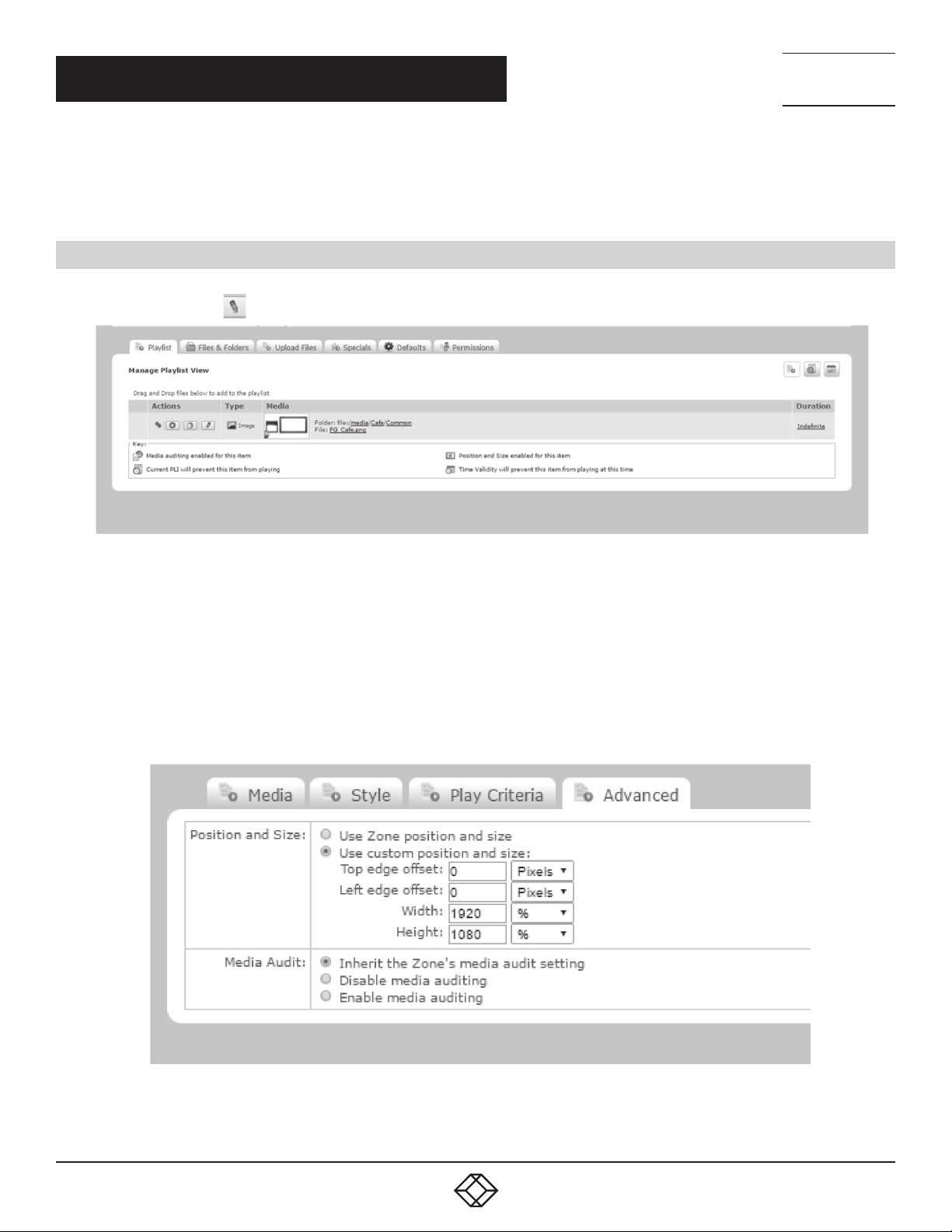
2. Click on the item’s Edit
button.
3. Click on the Advanced tab.
4. Select Use custom position and size.
5. Set the left and top margins to 0 pixels.
6. Set the height to 100%.
7. Set the width to 100%.
FIGURE 10.
FIGURE 11.
1. 8 7 7. 8 7 7. 2 2 6 9 BL ACK BOX .COM
11
Page 12

NEED HELP?
LEAV E TH E TEC H TO US
LIVE 24/7
CHAPTER 5: RECOMMENDED SOFTWARE VERSION
1. Press the Menu button on the remote.
2. Scroll down to Support.
3. Navigate to Software Update.
4. The current version will be displayed on the right hand side.
5. Firmware updates can be found at blackbox.com, by calling Technical Support at 877-877-2269, or by emailing [email protected].
TECHNICAL
SUPPORT
1. 8 7 7. 8 7 7. 2 2 6 9
12
1. 8 7 7. 8 7 7. 2 2 6 9 BL ACK BOX .COM
Page 13

CHAPTER 6: FACTORY RESET
1. Press Home on the remote.
2. Select Change URL and change it to $DEL.
3. Press Done and launch URL.
4. Now press Home again and change your URL back to your ICC URL.
5. Relaunch player.
NEED HELP?
LEAV E TH E TEC H TO US
LIVE 24/7
TECHNICAL
SUPPORT
1. 8 7 7. 8 7 7. 2 2 6 9
1. 8 7 7. 8 7 7. 2 2 6 9 BL ACK BOX .COM
13
Page 14

CHAPTER 7: SUPPORTED FORMATS
This section lists all the streaming products and media file formats supported on Samsung SSSP2.
7.1 VIDEO AND AUDIO
TABLE 7-1. SUPPORTED VIDEO AND AUDIO FORMATS
NEED HELP?
LEAV E TH E TEC H TO US
LIVE 24/7
TECHNICAL
SUPPORT
1. 8 7 7. 8 7 7. 2 2 6 9
FILE
EXTENSION
*.avi
*.mkv
*.asf
*.wmw
*.mp4
*.mov
*.3gp
*.vro
*.mpg
*.mpeg
*.ts
*.tp
*.trp
*.flv
*.vob
*.svi
*.m2ts
*.mts
*.divx
CONTAINER VIDEO CODEC RESOLUTION FRAME RATE (FPS) BIT R ATE (MBPS) AUDIO CODEC
Motion JPEG
H.264
BP/MP/ HP
AVI
MKV
ASF
MP4
3GP
MOV
FLV
VRO
VOB
PS
TS
SVA F
Divx 3.11/4/5/6
MPEG4 SP/ASP
Window Media
Video v9 (VC1)
MVC
MPEG2
MPEG1
Microsoft MPEG-4
v1, v2, v3
H 263 Sorrenson
Window Media
Video v7 (WMV1),
v8 (WMV2)
1920 X 10 80
128 0 X 7 20
FHD: MA X 30
HD: MAX 60
MAX 30
30
AC3
LPCM
ADPCM (IMA, MS)
AAC
HE-AAC
WMA
DD+
MPEG (MP3)
DTS (Core, LBR)
G.711 (ALaw, μ-Law)
14
VP6
*.webm WEBM VP8 1920 X 10 80 6 –30 20 Vorbis
*rmvb RMVB
RV8/9/10
(RV30/4 0)
1920 x 1080
1. 8 7 7. 8 7 7. 2 2 6 9 BL ACK BOX .COM
6–30
20
RealAudio 6
Page 15

NEED HELP?
LEAV E TH E TEC H TO US
LIVE 24/7
CH A PTER 8: KN OW N LI MI TATI ON S
NTB level gapless playback - this is a known limitation with Samsung players. The gapless playback will not be to the same level
as the NTB and requires the configuration detailed in this document to be met. If the player cannot play one of the videos then the
player will fall back to playing the videos non-gapless.
NOTE: SSSP2 Samsung players cannot support gapless playback in portrait configurations. Gapless playback will only work in
landscape.
Movies/images - use media of a similar size to the zone as otherwise scaling may cause loss of quality.
GIFs - avoid using multiple animated GIFs as these can cause playback issues.
TECHNICAL
SUPPORT
1. 8 7 7. 8 7 7. 2 2 6 9
8.1 SAMSUNG LIMITATIONS
Some codes may not be playable if there are errors in contents.
Media is not able to be played if the file is corrupted or information in the container is wrong.
Content that has higher bitrate/frame rate than specifications may have stalling of video or audio during playback.
Seek ( jump) function is not supported if the index table is corrupted.
Network streaming contents may not be played smoothly depending on network status.
Some USB/digital camera devices may not be compatible with the player.
RMVB is supported only in China, Hong Kong target device.
HEVC codec is supported only in MKV/MP4/TS container.
8.1.1 VIDEO DECODER
H.264 FHD: supports to level 4.1 (FMO/ASO.RS are not supported).
VC1 AP L4 is not supported.
Except WMV v7, v8, MSMPEG4 v3, MVC, VP6:
Below 1280 x 720: 60 frame max.
Above 1280 x 720: 30 frame max.
GMC 2 or higher are not supported.
SVAF top/bottom, side by side, left/right view sequence type (2 ES) are supported.
Only BD MVC Spec is supported.
8.1.2 AUDIO DECODER
WMA: supports to 10 Pro 5.1 channel.
WMA lossless audio: not supported. Supported to M2 profile.
China, Hong Kong target device doesn’t support RealAudio 10 lossless.
QCELP, AMR, NB/WB are not supported.
Vorbis: supports to 5.1 ch.
DD+: supported to 5.1 ch.
DTS LBR codec is supported only in MKV/MP4/TS container.
1. 8 7 7. 8 7 7. 2 2 6 9 BL ACK BOX .COM
15
Page 16

CHAPTER 9: ZONE LIMITS FOR BEST PERFORMANCE
TABLE 9-1. ZONE LIMITS FOR BEST PERFORMANCE
CONTENT LIMIT
Movies* 1
HTML 1
HTML Clock 1
Scrolling Text 2
Static Text Unlimited
Images Unlimited
* Including HDMI input
NEED HELP?
LEAV E TH E TEC H TO US
LIVE 24/7
TECHNICAL
SUPPORT
1. 8 7 7. 8 7 7. 2 2 6 9
16
1. 8 7 7. 8 7 7. 2 2 6 9 BL ACK BOX .COM
Page 17

NEED HELP?
LEAV E TH E TEC H TO US
LIVE 24/7
APPENDIX: DISCLAIMER/TRADEMARKS
TECHNICAL
SUPPORT
1. 8 7 7. 8 7 7. 2 2 6 9
A.1 DISCLAIMER
Black Box Corporation shall not be liable for damages of any kind, including, but not limited to, punitive, consequential or cost of cover
damages, resulting from any errors in the product information or specifications set forth in this document and Black Box Corporation
may revise this document at any time without notice.
A.2 TRADEMARKS USED IN THIS MANUAL
Black Box and the Black Box logo type and mark are registered trademarks of Black Box Corporation.
Any other trademarks mentioned in this manual are acknowledged to be the property of the trademark owners.
1. 8 7 7. 8 7 7. 2 2 6 9 BL ACK BOX .COM
17
Page 18

NOTES
__________________________________________________________________________________________________
__________________________________________________________________________________________________
__________________________________________________________________________________________________
__________________________________________________________________________________________________
__________________________________________________________________________________________________
__________________________________________________________________________________________________
NEED HELP?
LEAV E TH E TEC H TO US
LIVE 24/7
TECHNICAL
SUPPORT
1. 8 7 7. 8 7 7. 2 2 6 9
__________________________________________________________________________________________________
_
_________________________________________________________________________________________________
__________________________________________________________________________________________________
__________________________________________________________________________________________________\
__________________________________________________________________________________________________
__________________________________________________________________________________________________
__________________________________________________________________________________________________
__________________________________________________________________________________________________
_________________________________________________________________________________________________
18
__________________________________________________________________________________________________
__________________________________________________________________________________________________
_______
1. 8 7 7. 8 7 7. 2 2 6 9 BL ACK BOX .COM
Page 19

NOTES
__________________________________________________________________________________________________
__________________________________________________________________________________________________
__________________________________________________________________________________________________
__________________________________________________________________________________________________
__________________________________________________________________________________________________
__________________________________________________________________________________________________
NEED HELP?
LEAV E TH E TEC H TO US
LIVE 24/7
TECHNICAL
SUPPORT
1. 8 7 7. 8 7 7. 2 2 6 9
__________________________________________________________________________________________________
_
_________________________________________________________________________________________________
__________________________________________________________________________________________________
__________________________________________________________________________________________________\
__________________________________________________________________________________________________
__________________________________________________________________________________________________
__________________________________________________________________________________________________
__________________________________________________________________________________________________
_________________________________________________________________________________________________
__________________________________________________________________________________________________
__________________________________________________________________________________________________
_______
1. 8 7 7. 8 7 7. 2 2 6 9 BL ACK BOX .COM
19
Page 20

NEED HELP?
LEAVE THE TECH TO US
LIVE 24/7
TECHNICAL
SUPPORT
1.87 7.87 7. 2 2 69
© COPYRIGHT 2019. BLACK BOX CORPORATION. ALL RIGHTS RESERVED.
SAMSUNG-SOC-FOR-ICC.PDF
 Loading...