

Page 1
SETUP GUIDE
ICC
®
iCOMPEL
ICC LG
WEBOS 3
24/7 TECHNICAL SUPPORT AT 1.877.877.2269 OR VISIT BLACKBOX.COM
Player Info
Get Screen Shot
PLI
Actions
Actions History
Alarms
iCOMPEL
™
Get Support Snap Shot
Display On Screen
Diagnostics
Preview Channel
Reboot Player
Update Player Software
Update Firmware
Reinstall Player
Last Rebooted: 03:21
PM 08/30/2019
Last Updated: 03:14
PM 08/30/2019
Default configuration
X
Last Install: 03:07 PM 08/30/2019
Last Install: 03:07 PM 08/30/2019
Page 2

NEED HELP?
LEAV E TH E TEC H TO US
LIVE 24/7
TABLE OF CONTENTS
TECHNICAL
SUPPORT
1. 8 7 7. 8 7 7. 2 2 6 9
1. INS TA L L AT I O N .............................................................................................................................................................................. 3
1.1 S e t u p .......................................................................................................................................................................................................... 3
1.2 Installing Configurations .........................................................................................................................................................................4
1.3 Creating Configurations...........................................................................................................................................................................5
1.4 Editing or Deleting Configurations .......................................................................................................................................................... 6
2. SUPPORTED FORMATS ................................................................................................................................................................ 8
2.1 Audio ..........................................................................................................................................................................................................8
2.2 Image ........................................................................................................................................................................................................8
2.3 Flash ..........................................................................................................................................................................................................8
2.4 Video .........................................................................................................................................................................................................9
3. K N OWN LIMITATI O N S ................................................................................................................................................................ 10
4. DISCLAIMER/TRADEMARKS ..................................................................................................................................................... 11
4.1 Disclaimer ...............................................................................................................................................................................................11
4.2 Trademarks Used in this Manual .......................................................................................................................................................... 11
2
1. 87 7. 8 7 7. 2 26 9 BL ACK BOX .COM
Page 3

NEED HELP?
LEAV E TH E TEC H TO US
LIVE 24/7
CH APT ER 1: I NSTA LL ATI ON
TECHNICAL
SUPPORT
1. 8 7 7. 8 7 7. 2 2 6 9
Plug in the screen and power on.
You can also plug a keyboard into the screen to help with setup.
1.1 S E T U P
1. Using the remote, select your Language, Continent, Country and, if applicable, Time Zone.
2. Press OK.
3. Set the Rotation to the appropriate orientation you wish to display.
4. Select a Network setting, either Wired if you are using an Ethernet cable or Wi-Fi. If the latter, enter the relevant network
password.
5. For the On/Off Timer, Black Box recommends that you set this to Always On as otherwise players may unexpectedly turn off
despite instructions from the managing ICC.
6. You will now be taken to a screen with no signal. Hold the Settings button on the remote until a gray box appears in the top right
of the screen.
7. Enter 8080 and press OK on the remote.
8. A server menu will now appear. Change Application Launch Mode to Remote and Fully Qualified Domain Name to On.
9. Now enter your ICC URL into the URL text box using the following format:
https://ICC*****.domain.com/soc
or
http://<IPaddress>/soc
NOTE: Ensure that you append ‘/soc’ to the end of the URL.
10. Now press the Back button in the top right of that menu and reboot the player.
11. The player will now connect to the ICC and install the Install Code page. This may take a few minutes and the player may reboot.
NOTE: This can alternatively be done remotely. See installing configurations.
1. 87 7. 8 7 7. 2 26 9 BL ACK BOX .COM
3
Page 4
CH APT ER 1: I NSTA LL ATI ON
1.2 INSTALLING CONFIGURATIONS
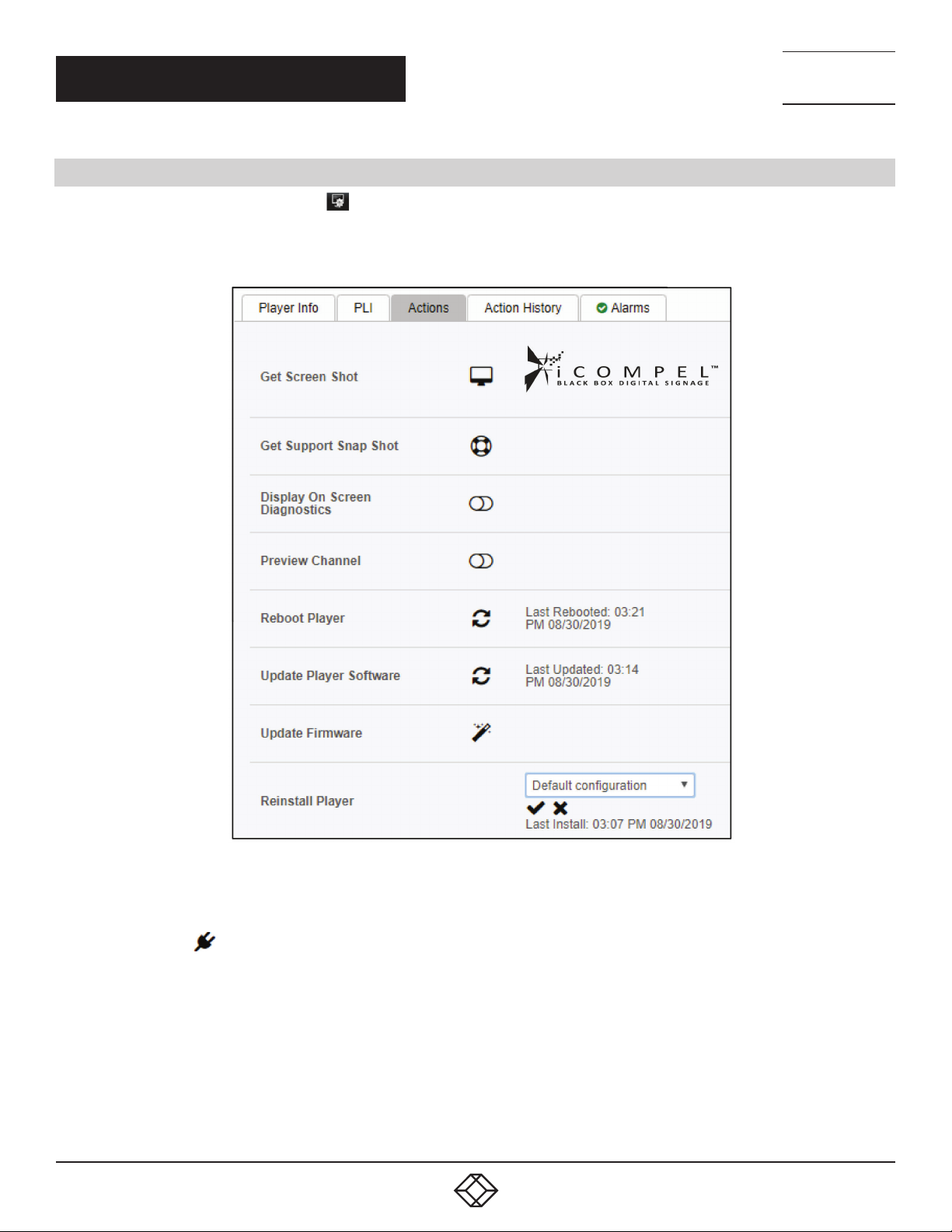
1. On your ICC, click the Manage Players
2. Select the player from the list.
3. Click the Actions tab.
icon or navigate to Home > Manage Players.
NEED HELP?
LEAV E TH E TEC H TO US
LIVE 24/7
TECHNICAL
SUPPORT
1. 8 7 7. 8 7 7. 2 2 6 9
FIGURE 1-1. ACTIONS TAB
4. Click on the plug
5. Select the preferred configuration from the drop-down menu.
NOTE: During initial setup, when an SoC player displays the install code page, you can use the reinstall feature on the ICC to install
the player. This allows for a remote install rather than typing an install code into each player.
6. Click the tick button and the new configuration will install.
4
icon.
1. 87 7. 8 7 7. 2 26 9 BL ACK BOX .COM
Page 5
CH APT ER 1: I NSTA LL ATI ON
1.3 CREATING CONFIGURATIONS
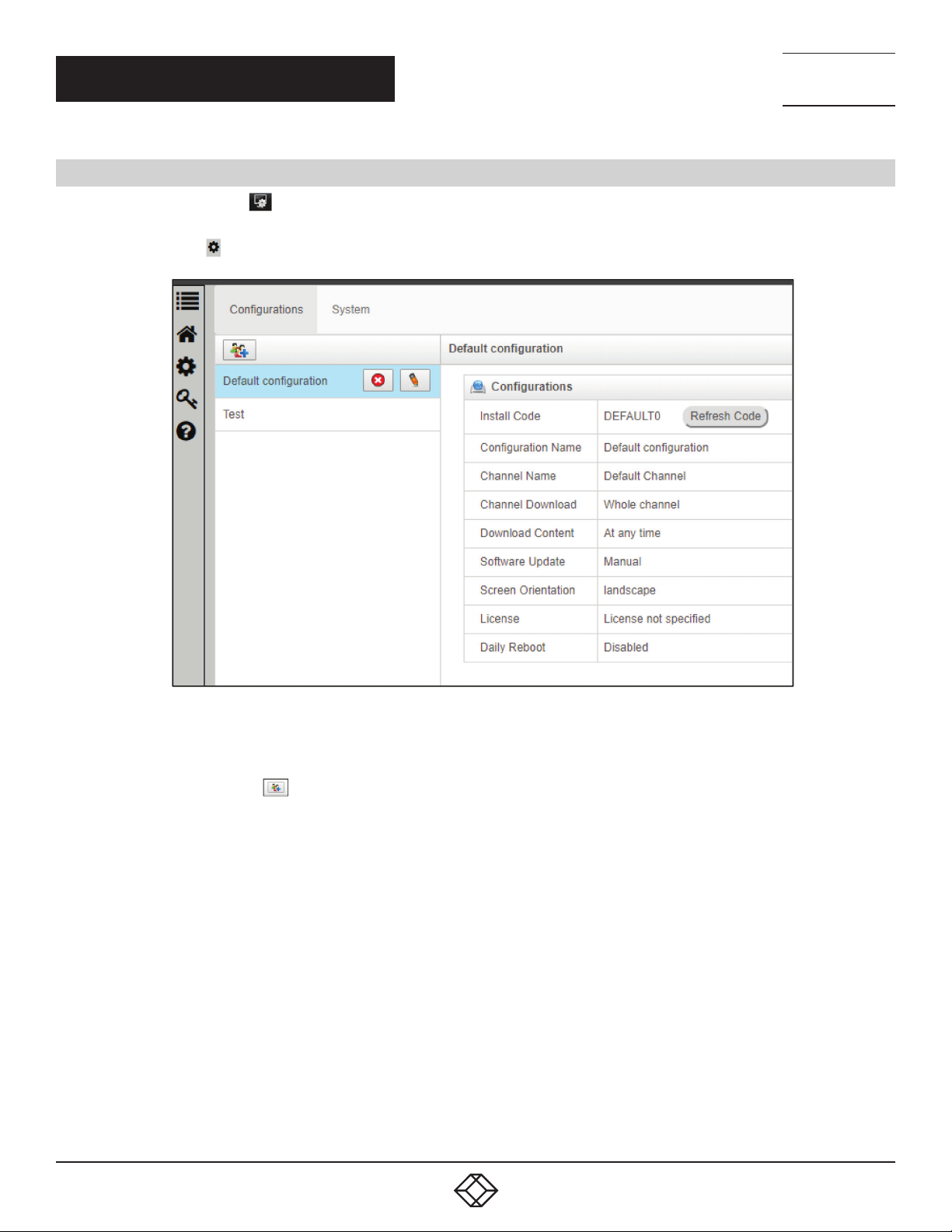
1. Click the Manage Players
Manage Players.
2. Click the Settings
icon on the left-hand side.
icon in the top right-hand corner of the ICC. You can also reach this page by navigating to Home >
NEED HELP?
LEAV E TH E TEC H TO US
LIVE 24/7
TECHNICAL
SUPPORT
1. 8 7 7. 8 7 7. 2 2 6 9
FIGURE 1-2. CONFIGURATION MENU
3. Click the Add Configuration
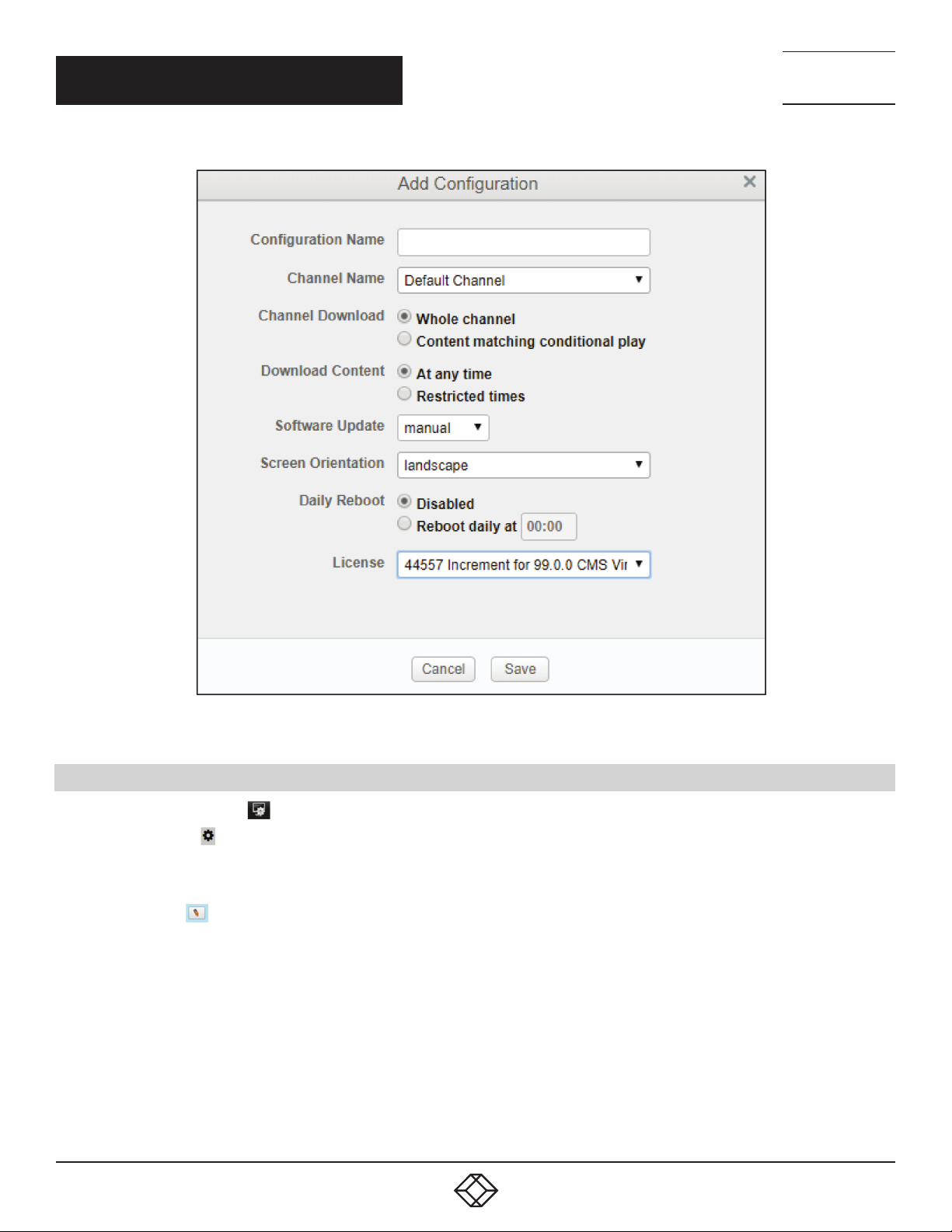
4. Type the name of the configuration and from the drop-down menus, select the appropriate channel, screen orientation and
license you want your configuration associated with. If you wish to restrict the channel download to specific times, click
Restricted Times and enter the appropriate values.
This feature allows you to add and edit configurations. Therefore, you can install screens with pre-set orientations and channels.
button.
1. 87 7. 8 7 7. 2 26 9 BL ACK BOX .COM
5
Page 6
CH APT ER 1: I NSTA LL ATI ON
NEED HELP?
LEAV E TH E TEC H TO US
LIVE 24/7
TECHNICAL
SUPPORT
1. 8 7 7. 8 7 7. 2 2 6 9
FIGURE 1-3. ADD CONFIGURATION SCREEN
1.4. EDITING OR DELETING CONFIGURATIONS
1. Click the Manage Players
2. Click the Settings
3. Select a configuration in the list. It will highlight blue and two icons will appear to the right.
4. To edit:
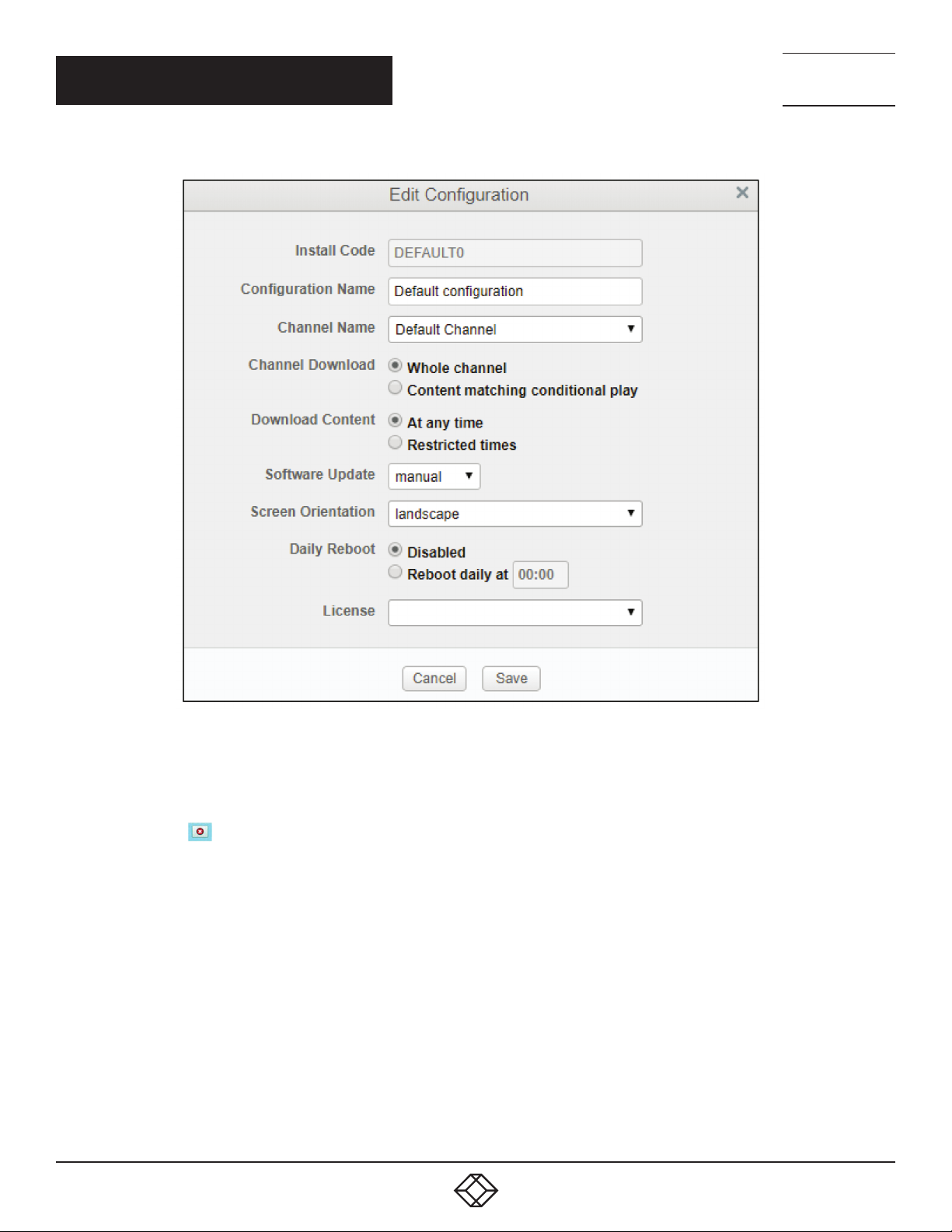
a. Click the Edit
b. You can rename the configuration, select a different channel, set channel download options, change the screen orientation or
associated license and other options.
icon on the left-hand side.
icon and a pop up will appear showing you the installation code.
icon in the top right-hand corner of the ICC or navigate to Home > Manage Players.
6
1. 87 7. 8 7 7. 2 26 9 BL ACK BOX .COM
Page 7
CH APT ER 1: I NSTA LL ATI ON
NEED HELP?
LEAV E TH E TEC H TO US
LIVE 24/7
TECHNICAL
SUPPORT
1. 8 7 7. 8 7 7. 2 2 6 9
FIGURE 1-4. EDIT CONFIGURATION SCREEN
5. To delete:
a. Click the Delete
b. This will open a pop up asking if you are sure. Select Yes.
icon.
1. 87 7. 8 7 7. 2 26 9 BL ACK BOX .COM
7
Page 8
CHAPTER 2: SUPPORTED FORMATS
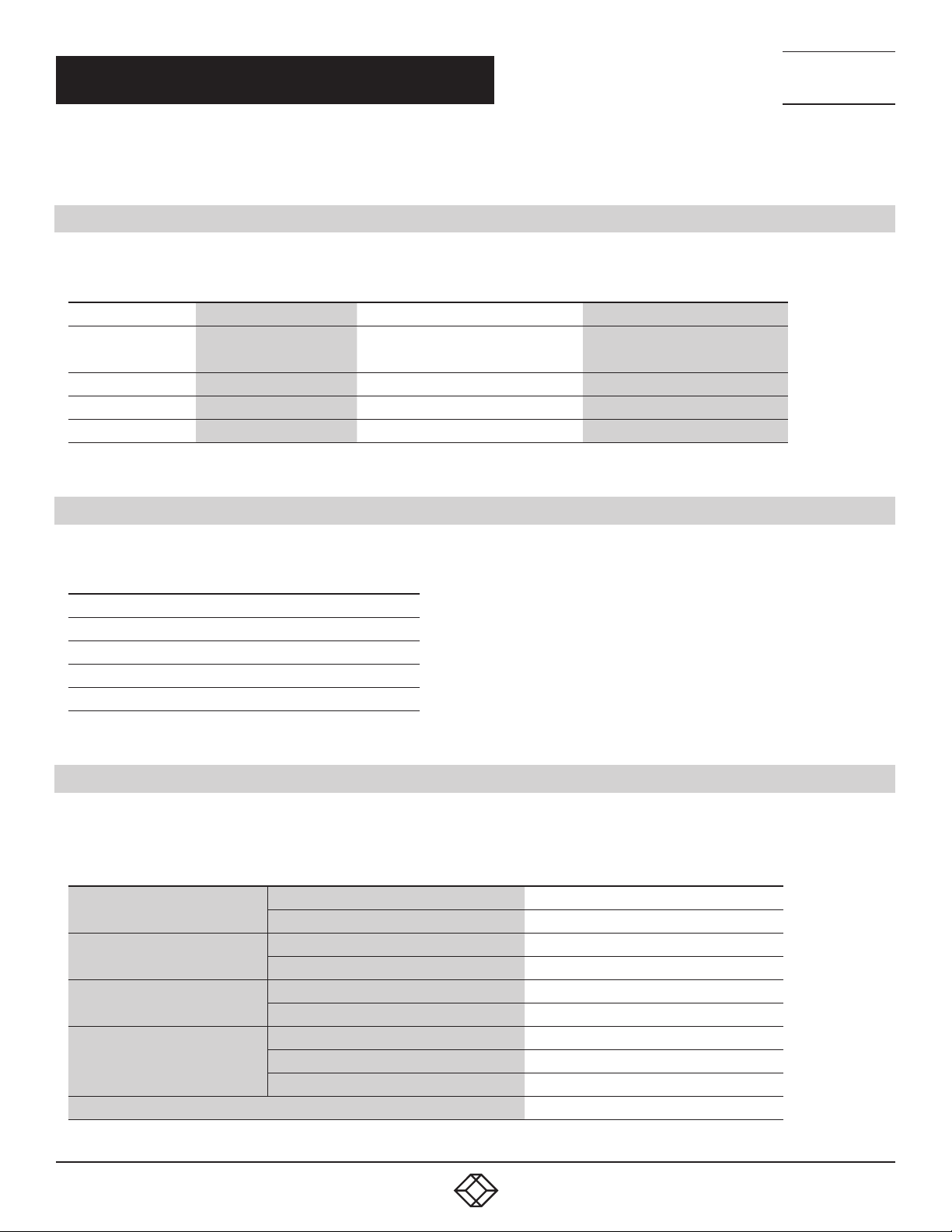
This section lists all the streaming protocols and media file formats supported on WebOS Signage 3.0.
2 .1 AU D I O
TABLE 2-1. SUPPORTED AUDIO FORMATS
FILE EXTENSION MEDIA CONTAINER CODE NOTES
.mp3 MP3 MPEG-1, MPEG-2, Layer 2, Layer 3
.wav WAV PCM —
.ogg OGG Vorbis —
.wma WMA WMA —
• Bit rate: 32 – 320 Kbps
• Sample frequency: 16 – 48 KHz
NEED HELP?
LEAV E TH E TEC H TO US
LIVE 24/7
TECHNICAL
SUPPORT
1. 8 7 7. 8 7 7. 2 2 6 9
2.2 IMAGE
TABLE 2-2. SUPPORTED IMAGE FORMATS
IMAGE FILE EXTENSION FILE FORMAT
.jpeg, .jpg, .jpe JPEG
.png PNG
.bmp BMP
.wma WMA
2.3 FL ASH
NOTE: On WebOS Signage, FLV and F4V files are playable only by using the <video> element.
TABLE 2-3. SUPPORTED FLASH FORMATS
FLASH PLAYER
GRAPHIC
SOUND
FLASH VIDEO
STREAMING PROTOCOL HTTP(s), RTMP/RTMP-e
Version Flash Player v11.1
Action Script Actionscript v2.0, Actionscript v3.0
Resolution 1920 x 1020 (FHD)
Runtime-Load Image Type PNG, JPEG
Format AAC, MP3
Sample Rate 16 kHz, 32 kHz, 44.1 kHz
HW Codec H.264 (with A AC audio only)
Recommended Video Resolution Up to FHD (1080p)
Recommended Audio Sample Rate 44.1 kHz
8
1. 87 7. 8 7 7. 2 26 9 BL ACK BOX .COM
Page 9

CHAPTER 2: SUPPORTED FORMATS
2.4 V IDEO
NOTE: The maximum supported video resolution is Full High Definition (FHD 1920 x 1080).
TABLE 2-3. SUPPORTED FLASH FORMATS
FILE EXTENSION CODEC
.ast, .wmv
.dlvx, .avi
.mp4, .m4v, .mov
.3gp, .3g2
.mkv
.ts, .trp, .tp, .mts
.mpg, .mpeg, .dat
.vob
.webm
Video VC-1 advanced profile (W VMA excluded), VC-1 simple and main profiles
Audio WMA Standard (WMA v1/WMA speech excluded), WMA 9 professional
Video
Audio
Video H.264/AVC, MPEG-4
Audio AAC, MPEG-1 Layer III (MP3)
Video H.264/AVC, MPEG
Audio AC, AMP-NB, AMR-WB
Video MPEG-2, MPEG-4, H.264/AVC, VP8
Audio Dolby Digital, PCM, DTS, MPEG-1 Layer I, II, MPEG-1 Layer III (MP3), Vorbis, A AC
Video H.264/AVC, MPEG-2
Audio MPEG-1 Layer I, II, MPEG-1 Layer III
Video MPEG-1, MPEG-2
Audio MPEG01, Layer I, II, MPEG-1 Layer III (MP3)
Video MPEG-1, MPEG-2
Audio Dolby Digital, MPEG-1, Layer I, II, DCE-LPCM
Video VP8, VP9
Audio Vorbis, Opus
DivX3.11, DivX4, DivX5, DivX6, XVID (except 3 warp-point GMC), H.264/AVC, Motion JPEG,
MPEG-4
MPEG-1, Layer I, II, MPEG-1 Layer III (MP3), Dolby Digital, Dolby Digital Plus, LPCM, ADPCM,
DTS
NEED HELP?
LEAV E TH E TEC H TO US
LIVE 24/7
TECHNICAL
SUPPORT
1. 8 7 7. 8 7 7. 2 2 6 9
1. 87 7. 8 7 7. 2 26 9 BL ACK BOX .COM
9
Page 10

NEED HELP?
LEAV E TH E TEC H TO US
LIVE 24/7
CH APT ER 3: K NOW N L IMI TATI ONS
NTB level gapless playback: this is a known limitation with LG WebOS players. The gapless playback will not be to the same level as
the NTB and requires the configuration detailed in this document to be met. If the player cannot play one of the videos, then the player
will fall back to playing the videos non-gapless.
Movies/images: Use media of a similar size to the zone, because otherwise scaling may cause loss of quality.
GIFs: avoid using multiple animated GIFs as these can cause playback issues.
Video opacity: is not supported.
SoC players do not yet support the Show part of Movie option for the Movie Size property.
Letterbox mode is the only supported rendering mode for videos within gapless playback.
LG cannot play audio and video soundtracks at the same time. Users must set volume to 0 on other items as appropriate.
External storage: Kingston Datatraveler USBs are not recommended for use with external storage, because this may lead to
connectivity issues.
TECHNICAL
SUPPORT
1. 8 7 7. 8 7 7. 2 2 6 9
10
1. 87 7. 8 7 7. 2 26 9 BL ACK BOX .COM
Page 11

NEED HELP?
LEAV E TH E TEC H TO US
LIVE 24/7
CHAPTER 4: DISCLAIMER/TRADEMARKS
TECHNICAL
SUPPORT
1. 8 7 7. 8 7 7. 2 2 6 9
4.1 DISCLAIMER
Black Box Corporation shall not be liable for damages of any kind, including, but not limited to, punitive, consequential or cost of cover
damages, resulting from any errors in the product information or specifications set forth in this document and Black Box Corporation
may revise this document at any time without notice.
4.2 TRADEMARKS USE D IN THIS MANUAL
Black Box and the Black Box logo type and mark are registered trademarks of Black Box Corporation.
Any other trademarks mentioned in this manual are acknowledged to be the property of the trademark owners.
1. 87 7. 8 7 7. 2 26 9 BL ACK BOX .COM
11
Page 12

NEED HELP?
LEAVE THE TECH TO US
LIVE 24/7
TECHNICAL
SUPPORT
1.87 7.8 7 7.2 269
© COPYRIGHT 2019. BLACK BOX CORPORATION. ALL RIGHTS RESERVED.
ICC-LGWEBOS3_SETUP_REV1.PDF
 Loading...