

Page 1
1-1 Introduction.
Thank you for your purchase of USB2BT. You can connect your favorite USB HID device such
as keyboard, mouse or gamepad to smartphone or PC with USB2BT, USB HUB and Bluetooth
dongle (version 2.1 or later). Before using USB2BT, please read this user’s manual carefully,
and keep this manual at hand.
1-2 Package contents.
- USB2BT unit
- User’s manual
- Hole positioning sticker
- USB HUB (not attached to the kit version).
2-1 Product specification.
Supported operating
system
(Bluetooth is necessary)
Android 4.0 and later
iOS(except for iphone3G, first/second generation iPod touch)
Windows 7 and later / MAC OSX/ PS4
Connector
USB TypeA connecter (USB1.1 full speed)
Wireless format
Bluetooth2.1EDR and later, HID profile
Wireless specification
dependent on Bluetooth Dongle
Pairing system
SecureSimplePairing, always waiting for pairing.
Power
5V (supplied via USB miniB connector)
Page 2
Working temperature
0 - 40℃(No condensation)
Country of origin
Made in Japan
Size
W74×D28×H10mm(not include a pointed projection)
Weight
14g
Package contents
body/hole positioning sticker/manual/USB Hub(outside goods)
2-2 Necessary equipment
To use this product, you will need USB HID device and the following devices:
- USB-Bluetooth Dongle (version 2.1 or later).
- USB HUB.
- USB Power Adapter.
2-3 Compatibility list for USB HID devices
Operating system
keyboard
mouse
game pad
notes
Android4.0 or later
OK
OK
w/limitation
iOS
OK
NG
NG
except iphone3G, first, second
generation ipod touch
Windows7 or later
OK
OK
w/limitation
MAC OSX
OK
OK
NG
PS4
OK
w/limitation
NG
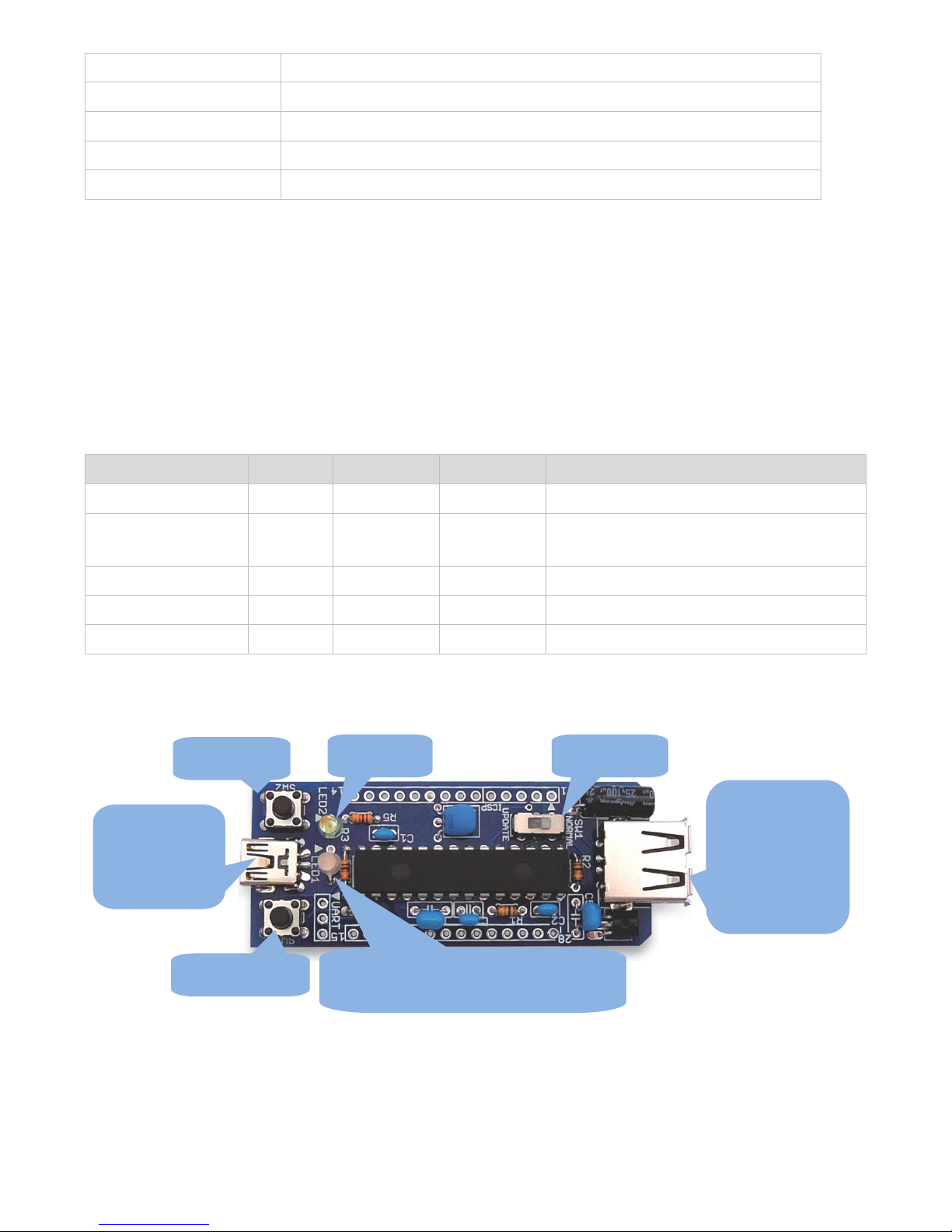
3-1 The name of each component.
3-2 Preparation of peripheral equipment
Slide the Mode Switch (UPDATE / NORMAL) to NORMAL side.
Reset Button
Power LED
Mode Switch
USB mini-B
for power supply,
firmware update
Function Button
Status LED
Red-Error, Blue-connecting, OFF- idle
USB A
for Bluetooth
dongle, USB hub,
USB HID device
Page 3
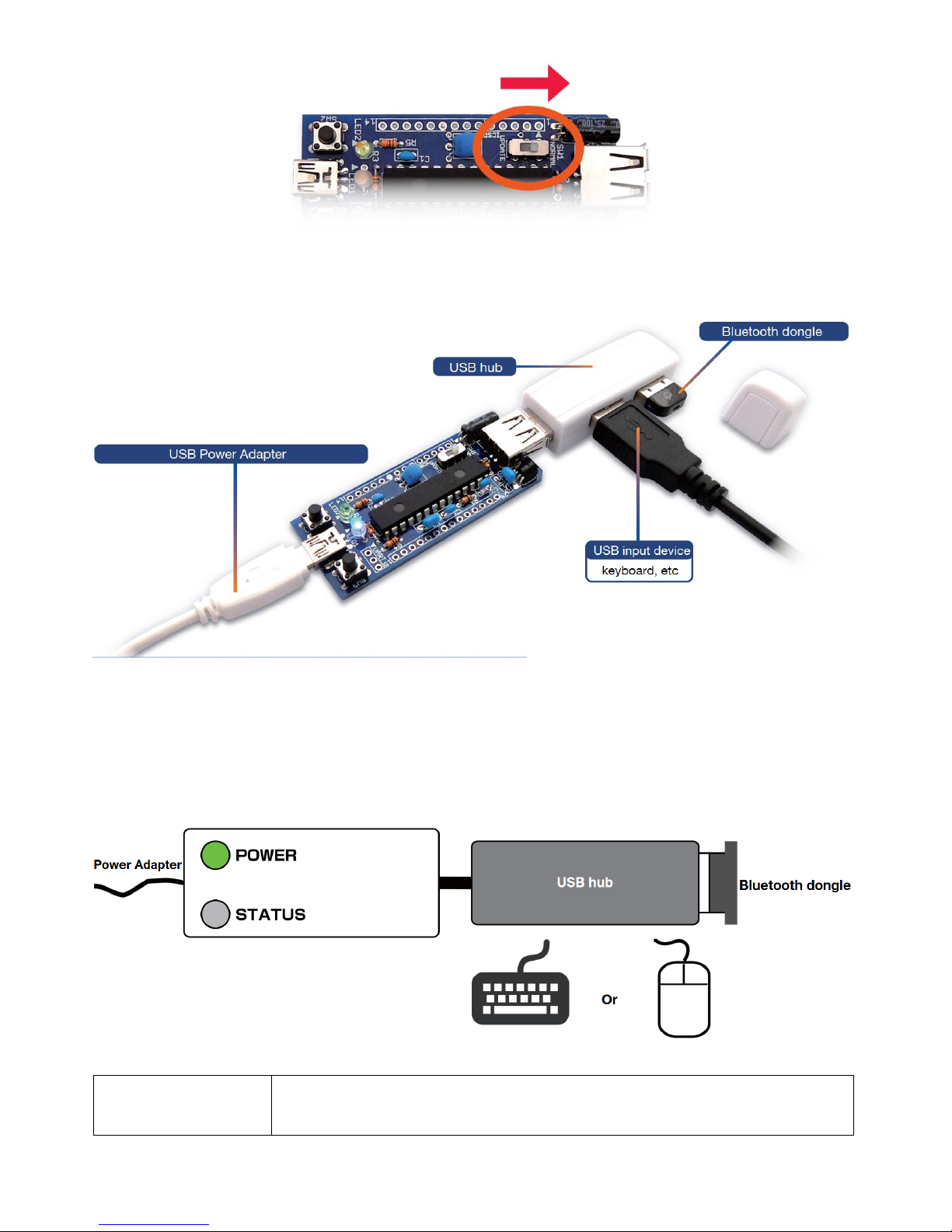
Prepare the USB HID device, Bluetooth Dongle, USB HUB, USB AC Adaptor, and USB MiniB
Cable, then connect them as following picture
4-1 Check the connection.
Please check that the POWER LED is ON and STATUS LED is OFF in following state. When
POWER LED does not turns on, check the connection of USB Adaptor and USB MiniB
Cable.
When STATUS LED
lights in red.
Check the connections of USB HID, Bluetooth Dongle, USB HUB. Check
that your Bluetooth Dongle are supported.
Page 4
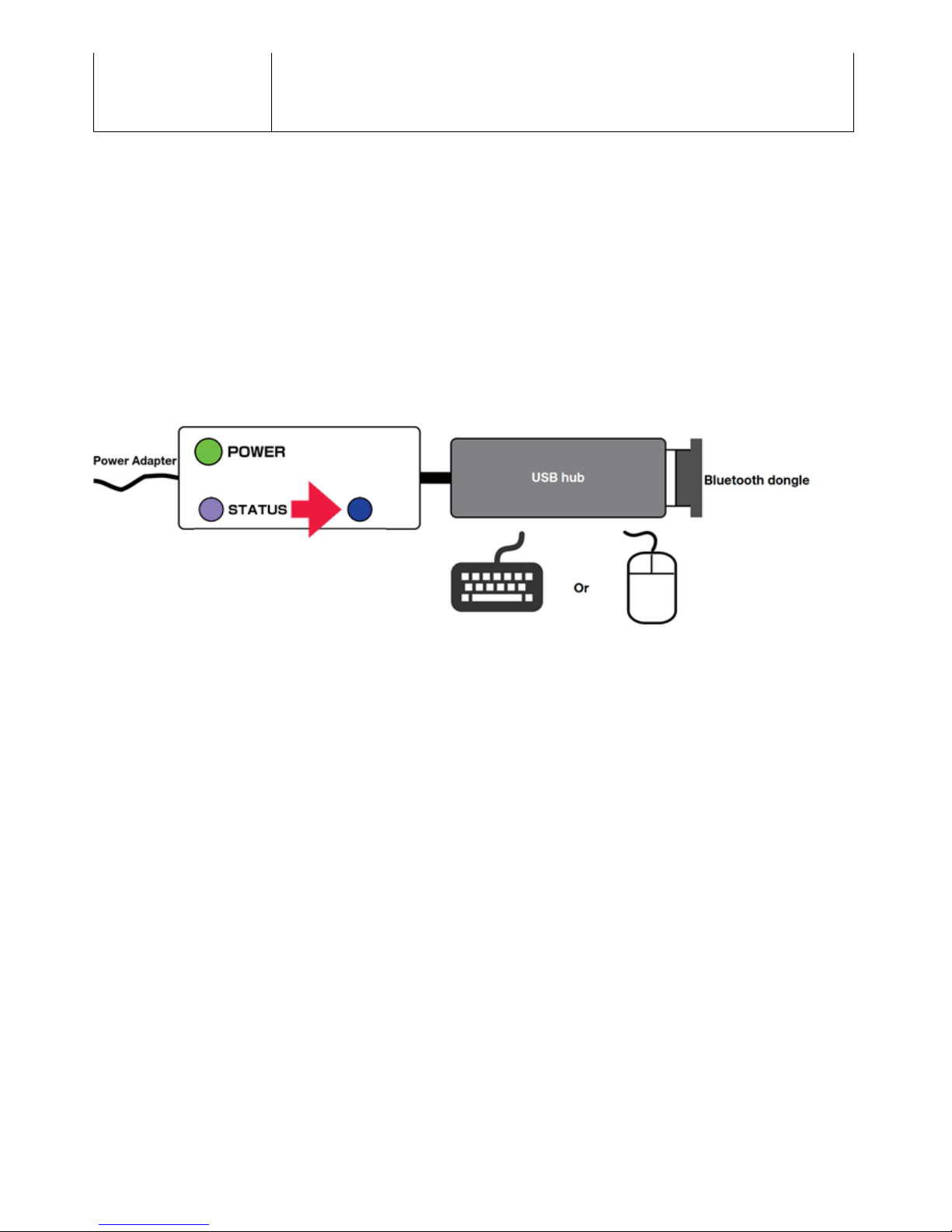
When STATUS LED
repeats blinking in
red and blue
Check that the MODE switch is in the NORMAL position, and press the
RESET switch
4-2 Pairing with target systems (Device registration).
Turn ON the Bluetooth function in setting menu of Bluetooth on smartphone/PC, and pair
with “USB2BT:xxxxxxxx”. USB2BT does not have pairing button. Do not operate button of
USB2BT when pairing.
About a risk in the use of this product
Because this product is always waiting for pairing, there are risks of such USB2BT would be
connected from the other device, such as smartphone. So when you enter the password via
keyboard, check that USB2BT succeeded in recognize the target system and whether it is
possible to input operation correctly.
If STATUS LED lights in blue after lights in purple, it is success of the pairing. On
Windows-PC, it takes about 1 minute to turn blue, because it takes time to install the device
driver. After paring, please check that the target system can be operate with USB HID device.
If you cannot operate, please confirm the compatibility list again. When you replace the USB
HID device or reconnect after connecting this product to another target system, please delete
the pairing configuration on the smartphone/PC, then pairing again.
5-1 About storage case in using.
You can use the refreshing FRISK package as a case of this product. For more information on
processing, please refer to our web page : http://bit-trade-one.co.jp
 Loading...