

Page 1
2D Barcode Reader
User Guide
V1.6CC
FD-011WU
Page 2

Table of Contents
1 Getting Started ......................................................................................................................................... 1
1.1 Factory Defaults .......................................................................................................................... 1
2 Communication Interfaces ......................................................................................................................2
2.1 TTL-232 Interface ........................................................................................................................ 2
2.2 Baud Rate ................................................................................................................................... 3
2.3 Data Bit & Parity Check& Stop Bit................................................................................................4
2.4 USB HID-KB .................................................................................................................................4
2.5 USB Country Keyboard Types ......................................................................................................4
2.6 Convert Case .............................................................................................................................. 5
2.7 USB COM Port Emulation ............................................................................................................ 5
3 General Configuration ............................................................................................................................. 6
3.1 Trigger Mode .............................................................................................................................. 6
3.2 Presentation Mode ..................................................................................................................... 6
3.3 Cell Phone Mode ........................................................................................................................ 7
3.4 Inverse color ............................................................................................................................... 8
3.5 Illumination for Trigger Mode ..................................................................................................... 8
3.6 Illumination for Presentation Mode ............................................................................................ 8
3.7 Beeper - Good Read ................................................................................................................... 10
3.8 Beeper Tone - Good Read .......................................................................................................... 10
3.9 Beeper Duration - Good Read .................................................................................................... 10
3.10 Beeper Number - Good Read ..................................................................................................... 10
3.11 Barcode Scanning Delay ............................................................................................................. 11
4 Data Formatting ..................................................................................................................................... 12
4.1 General Configuration ................................................................................................................ 12
4.2 Add Prefix .................................................................................................................................. 13
4.3 Add Suffix .................................................................................................................................. 14
4.4 Clear All Prefix and Suffix ........................................................................................................... 14
5 Symbologies ............................................................................................................................................ 15
5.1 General Settings......................................................................................................................... 15
Page 3

5.2
1D Symbologies ......................................................................................................................... 16
5.2.1
Code 128 ................................................................................................................................... 16
5.2.2
EAN-8 ........................................................................................................................................ 17
5.2.3
EAN-13 ...................................................................................................................................... 19
5.2.4
UPC-E ......................................................................................................................................... 21
5.2.5
UPC-A ........................................................................................................................................ 24
5.2.6
Interleaved 2 of 5 ....................................................................................................................... 26
5.2.7
Matrix 2 of 5 .............................................................................................................................. 27
5.2.8
Industrial 2 of 5 .......................................................................................................................... 28
5.2.9
Code 39 ..................................................................................................................................... 29
5.2.10
Coda bar .................................................................................................................................... 31
5.2.11
Code 93 ..................................................................................................................................... 33
5.2.12
GS1-128 ..................................................................................................................................... 34
5.2.13
MSI ............................................................................................................................................ 35
5.3
2D Symbologies ......................................................................................................................... 37
5.3.1
PDF 417 ..................................................................................................................................... 37
5.3.2
Micro PDF 417 ........................................................................................................................... 38
5.3.3
QR Code..................................................................................................................................... 39
5.3.4
Data Matrix ................................................................................................................................ 40
5.3.5
Maxi code .................................................................................................................................. 41
5.3.6
Aztec ......................................................................................................................................... 42
5.3.7
Hanxin ....................................................................................................................................... 43
5.4
Postal Symbologies .................................................................................................................... 44
5.4.1
China Postal Code ...................................................................................................................... 44
5.4.2
Telepen...................................................................................................................................... 45
6 Appendix ................................................................................................................................................. 46
6.1
Appendix 1: ASCII Table ........................... .................................................................................. 46
6.2
Appendix 2: Digit Barcodes ........................ ................................................................................ 50
Page 4

1
1 Getting Started
1.1 Factory Defaults
Scanning the following barcode can restore the FD-011WU to the factory
defaults. Note: Use this feature with discretion.
Restore All Factory Defaults
Page 5

2
2 Communication Interfaces
The 2D BARCODER READER provides a TTL-232 interface and a USB interface to communicate with the
host device. The host device can receive scanned data and send commands to control the engine or to
access/alter the configuration information of the engine via the TTL-232 or USB interface.
2.1 TTL-232 Interface
Before using Serial Communication interface, scanner must be configured as 232 interface
.
232 Interface
Serial communication interface is usually used when connecting the engine to a host device (like PC, POS).
However, to ensure smooth communication and accuracy of data, you need to set communication
parameters (including baud rate, parity check, data bit and stop bit) to match the host device.
The serial communication interface provided by the engine is based on TTL-level signals. TTL-232 can be
used for most application architectures. For those requiring RS-232, an external conversion circuit is needed.
The conversion circuit is available only to some models.
Default serial communication parameters are listed below. Make sure all parameters match the host
requirements.
Parameter Factory Default
Serial Communication Standard TTL-232
Baud Rate 115200
Parity Check None
Data Bits 8
Stop Bits 1
Hardware Flow Control None
Page 6

3
2.2 Baud Rate
Baud rate is the number of bits of data transmitted per second. Set the baud rate to match the Host
requirements.
2400 4800
9600 19200
38400 57600
115200 (default)
Page 7
4
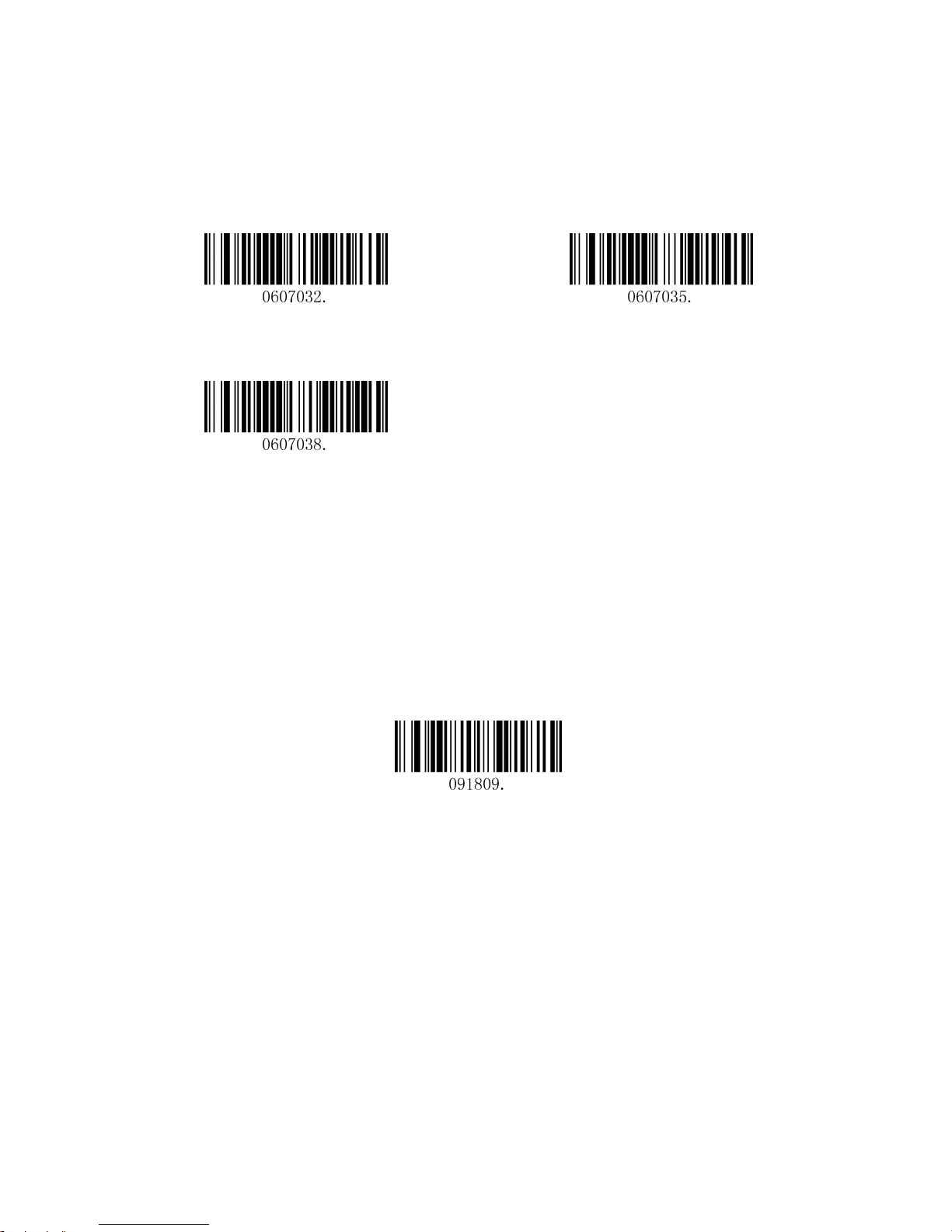
2.3 Data Bit & Parity Check& Stop Bit
None Parity /8 Data Bits/1 Stop Bit(default) Even Parity /8 Data Bits/1 Stop Bit
Odd Parity /8 Data Bits/1 Stop Bit
2.4 USB HID-KB
When you connect the engine to the Host via a USB connection, you can enable the USB HID-KB
feature by scanning the barcode below. Then scanner transmission will be simulated as USB keyboard input.
The Host receives keystrokes on the virtual keyboard. It works on a Plug and Play basis and no
driver is
required.
USB HID-KB
2.5 USB Country Keyboard Types
Keyboard layouts vary from country to country. The default setting is U.S. keyboard, and only U.S. keyboard
is supported now.
Page 8

5
2.6 Convert Case
Scan the appropriate barcode below to convert barcode data to your desired case.
No Case Conversion (default)
Convert All to Upper Case Convert All to Lower Case
Example: When the Convert All to Lower Case feature is enabled, barcode data “AbC” is transmitted as
“abc”.
2.7 USB COM Port Emulation
If you connect the engine to the Host via a USB connection, the USB COM Port Emulation feature allows
the Host to receive data in the way as a serial port does. A driver is required for this feature.
USB COM Port Emulation
Page 9
6
3 General Configuration
3.1 Trigger Mode
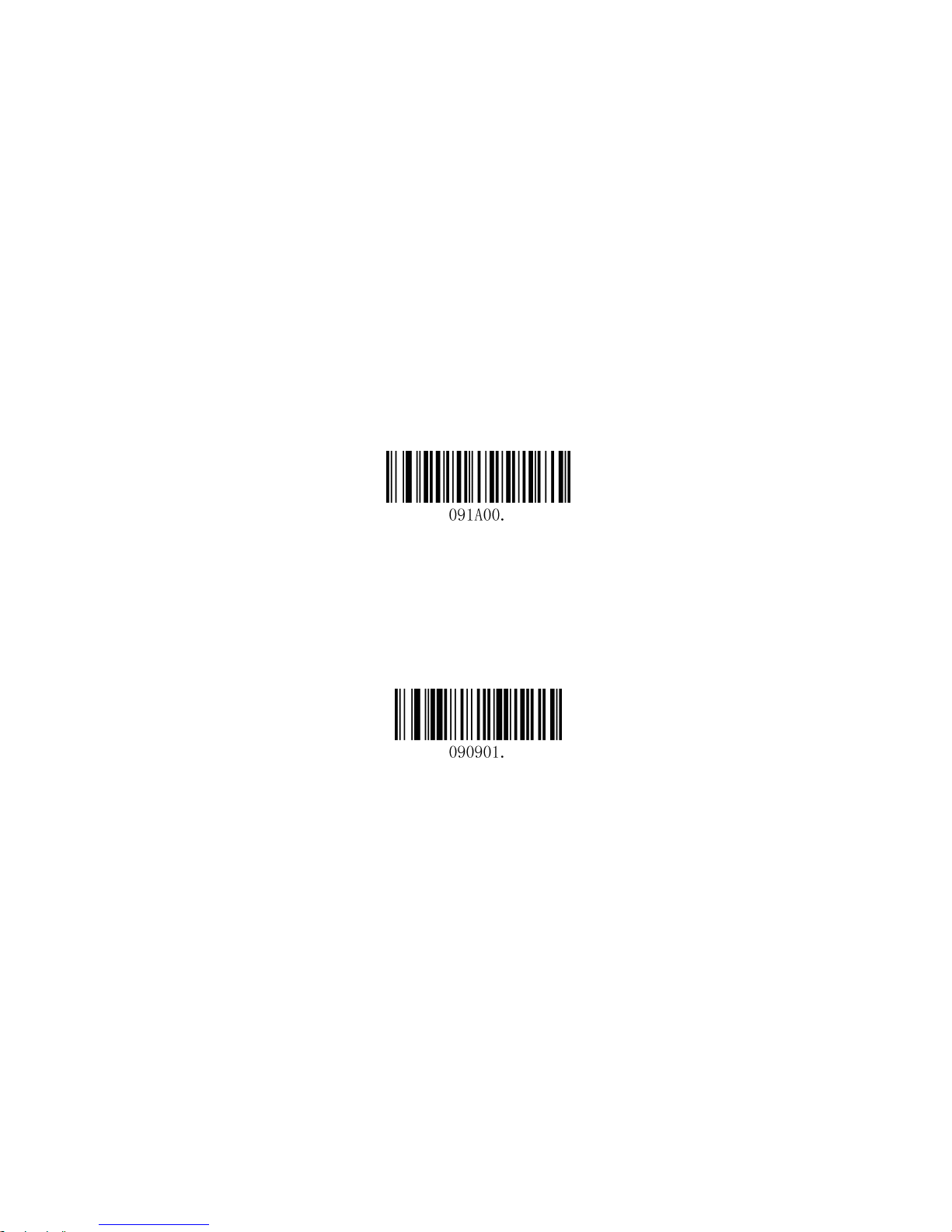
If the Trigger Mode is enabled, you could activate the scanner by providing an external hardware trigger, or
using a serial trigger command. When in manual trigger mode, the scanner scans until a barcode is read, or
until the hardware trigger is released. When in serial mode, the scanner scans until a barcode has been
read or until the deactivate command is sent.
Trigger Mode(default)
3.2 Presentation Mode
This set the scanner to work in Presentation mode.
Presentation Mode
Page 10

7
3.3 Cell Phone Mode
If the Cell Phone Mode is enabled, the engine activates a special capturing image and illumination session.
If you want to enable Cell Phone reading in Trigger Mode, please scan below barcode:
Trigger Mode with Cell Phone reading
If you want to enable Cell Phone reading in Presentation Mode, please scan below barcode:
Presentation Mode with Cell Phone reading
Page 11
8
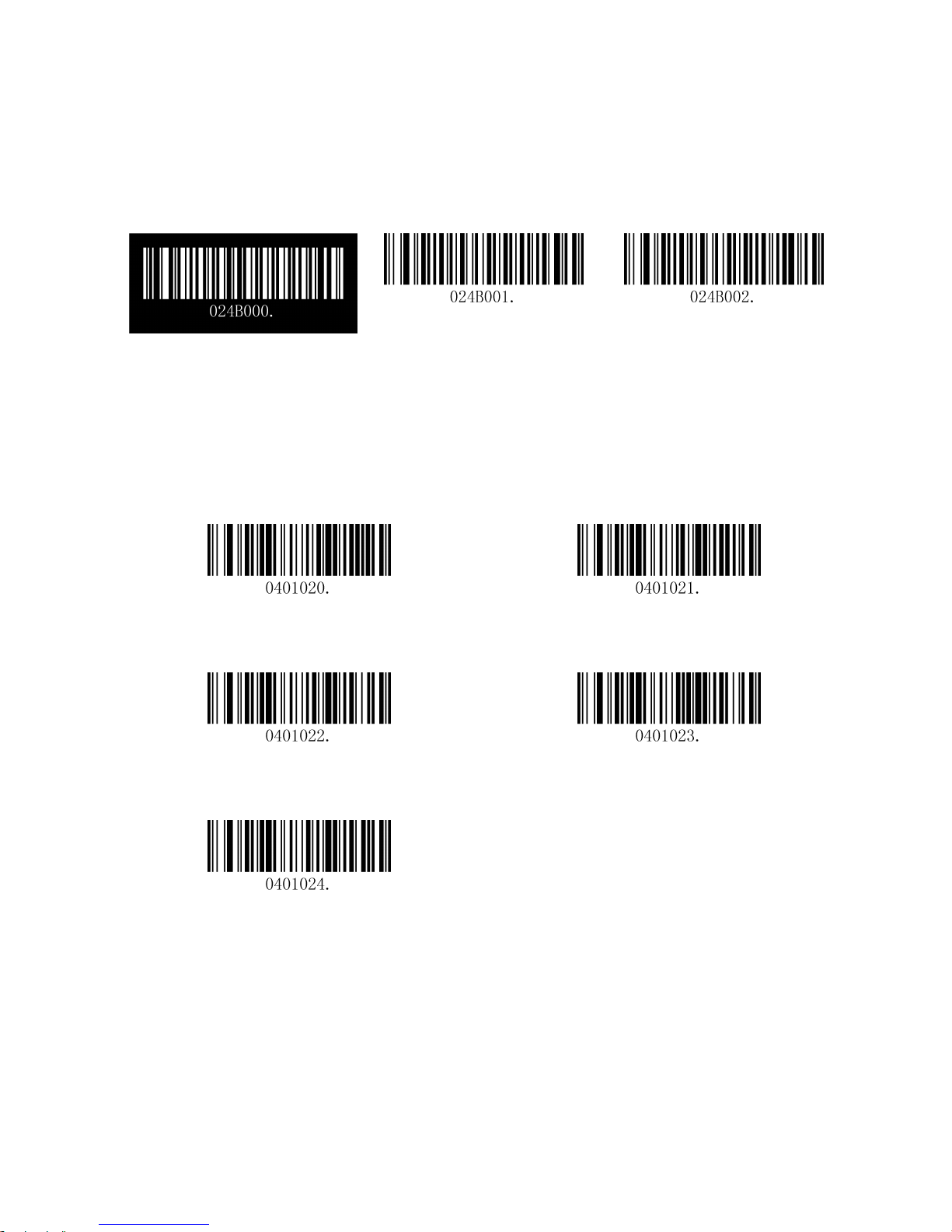
3.4 Inverse color
Off(default) Only Inverse On Inverse and Normal Both On
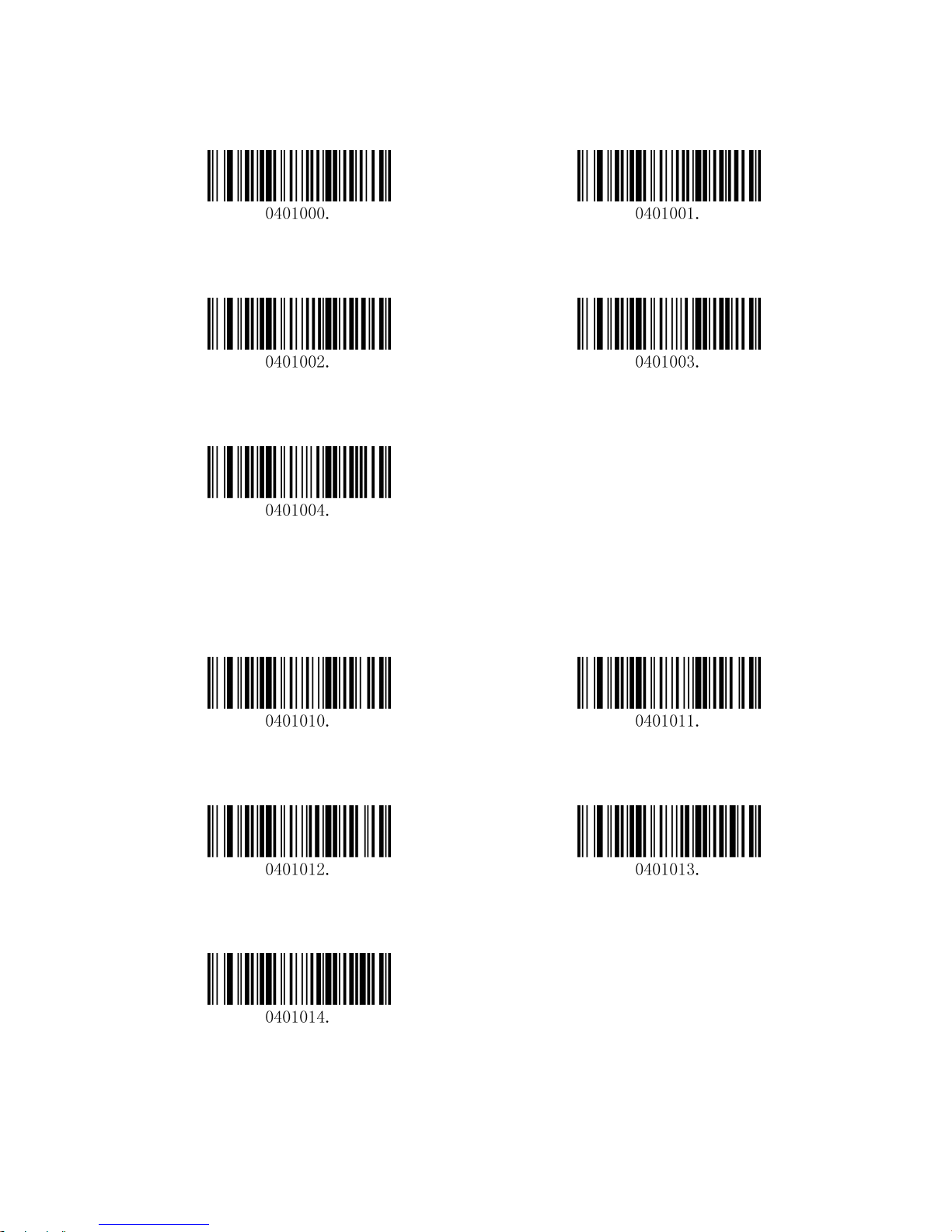
3.5 Illumination for Trigger Mode
Illumination setting for Trigger Mode
High Level Illumination(default) Mid Level Illumination 1
Mid Level Illumination 2 Low Level Illumination
Illumination OFF
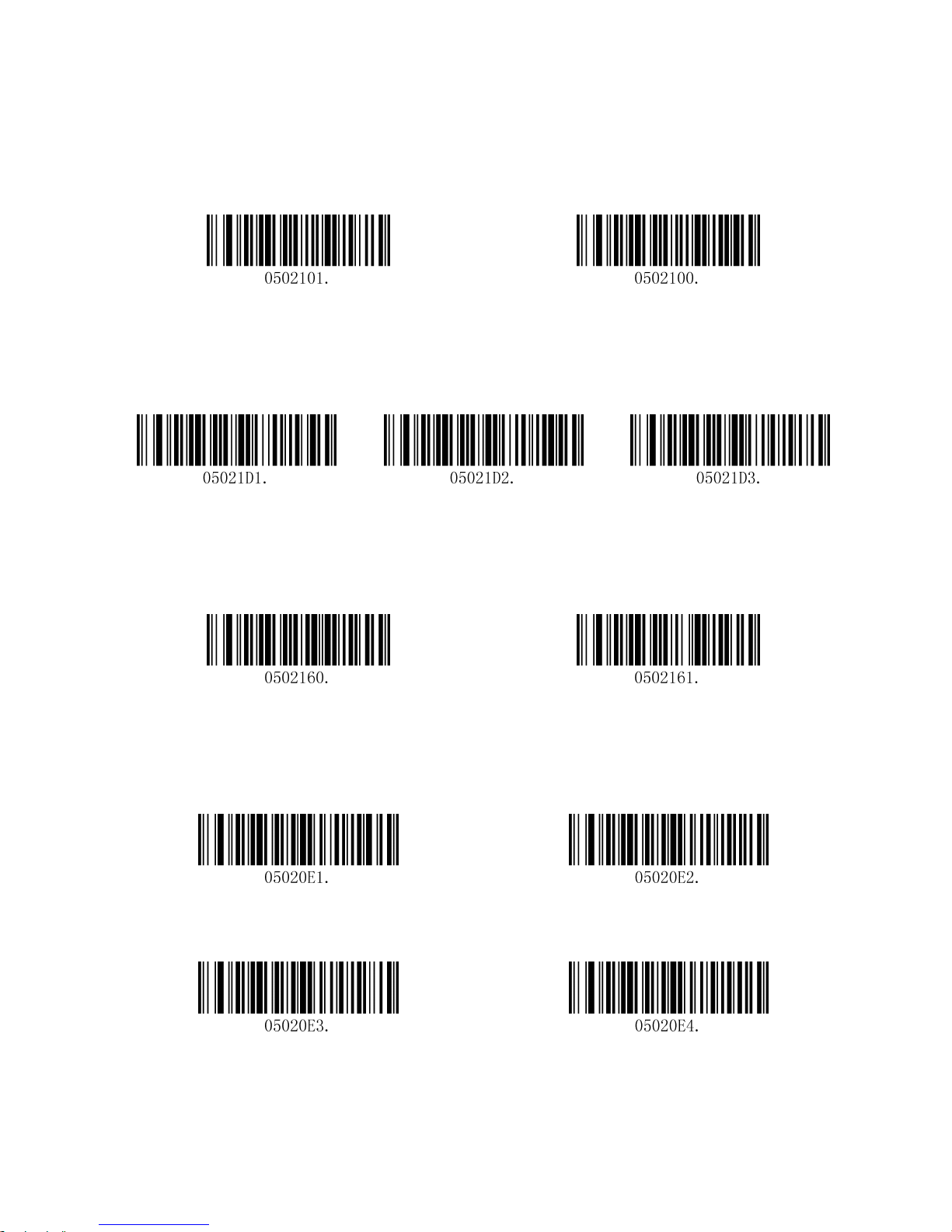
3.6 Illumination for Presentation Mode
Illumination setting when in Scanning
Page 12
9
High Level Illumination(default) Mid Level Illumination 1
Mid Level Illumination 2 Low Level Illumination
Illumination OFF
Illumination setting when in Idle
High Level Illumination Mid Level Illumination 1
Mid Level Illumination 2 Low Level Illumination(default)
Illumination OFF
Page 13
10
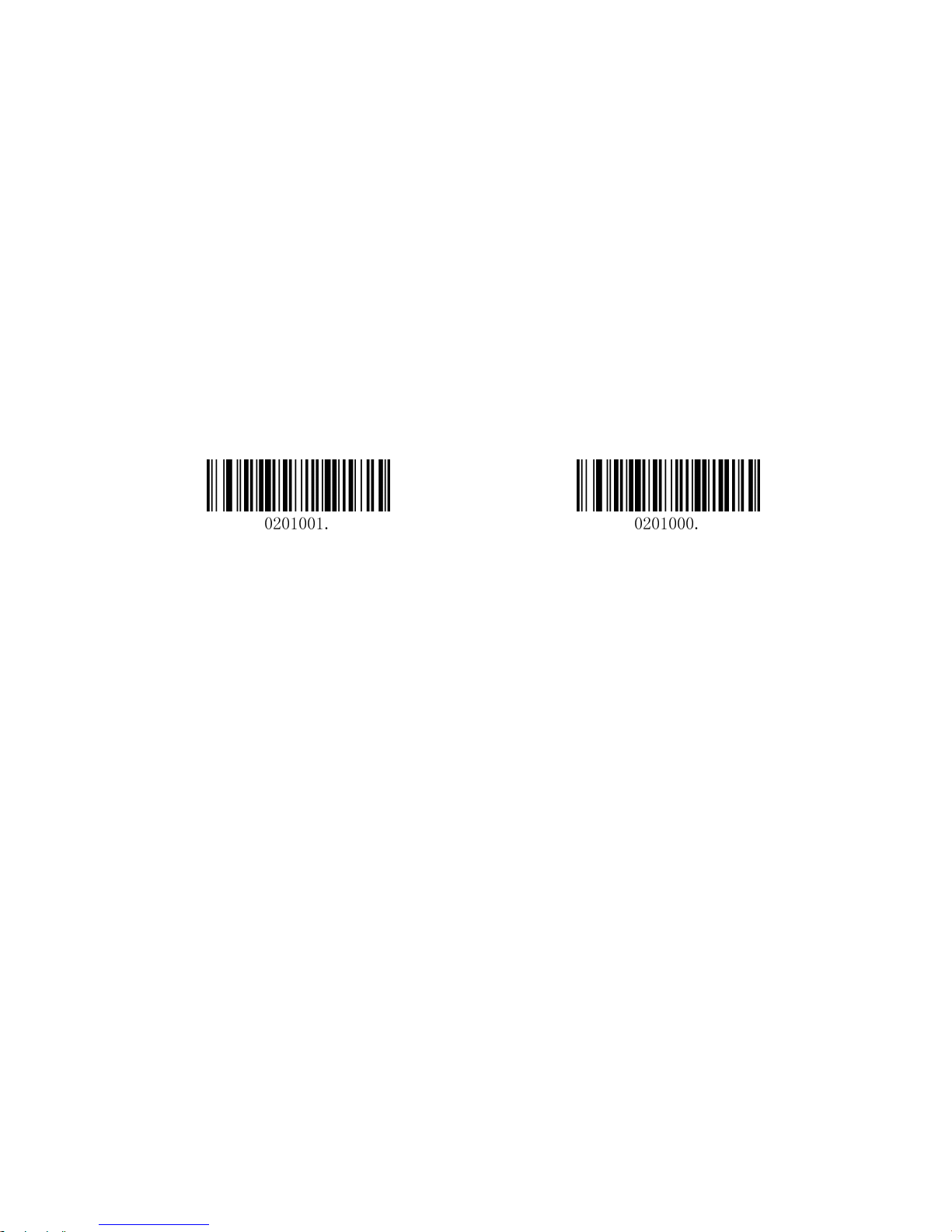
3.7 Beeper - Good Read
On (default) Off
3.8 Beeper Tone - Good Read
Low Middle High (default)
3.9 Beeper Duration - Good Read
Normal (default) Short
3.10 Beeper Number - Good Read
1 (default) 2
3 4
Page 14

11
5 6
3.11 Barcode Scanning Delay
No Delay (default) Delay 500MS
Delay 2000ms
Page 15
12
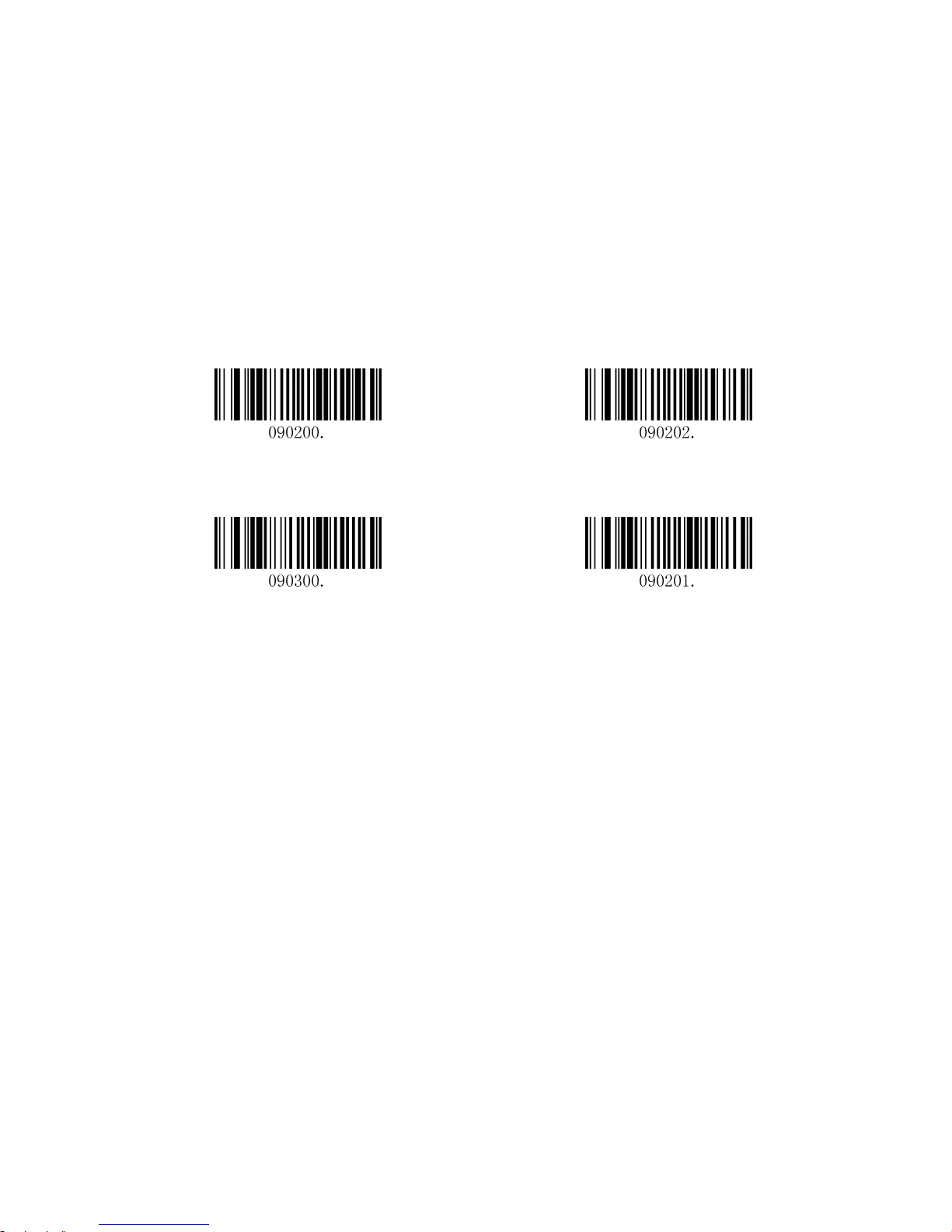
4 Data Formatting
4.1 General Configuration
Add CR Add LF
Add CRLF Add TAB
Page 16
13
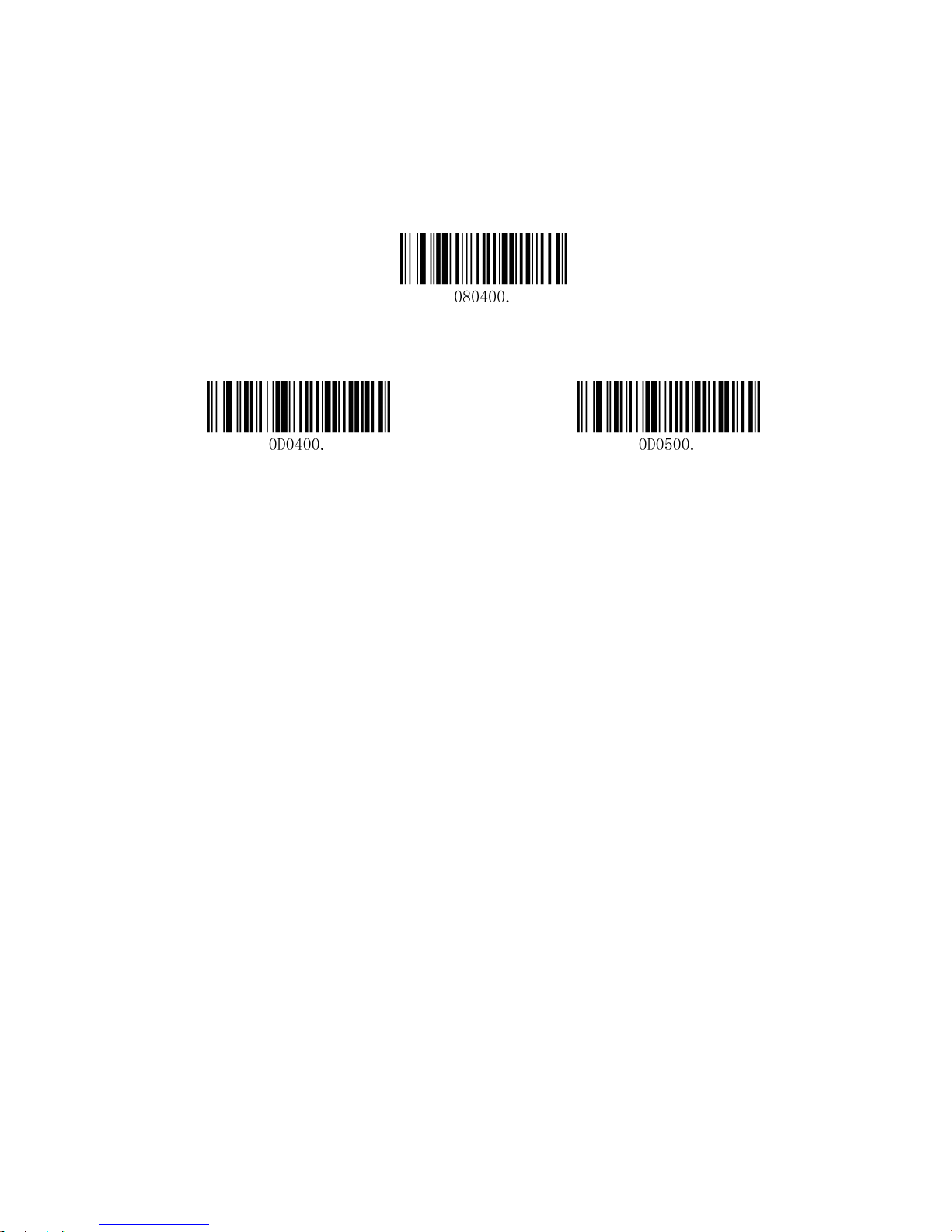
4.2 Add Prefix
Set Custom Prefix
Save Not Save
To set a customer prefix, scan the “Set Custom Prefix” barcode and the numeric barcodes which representing
the hexadecimal values of a desired prefix, and then scan the “Save” barcode. Refer to Appendix 2: ASCII
Table for hexadecimal values of characters.
Example: Set the custom Prefix to “ODE”
1. Check the hex values of “ODE” in the ASCII Table. (“ODE”: 4F, 44, 45)
2. Scan the Set Custom Prefix barcode.
3. Scan the numeric barcodes”9”,”9”, “4”, “F”, “4”, “4”, “4” and “5”in Appendix 5 .
4. Scan the Save barcode.
Page 17

14
4.3 Add Suffix
Set Custom Suffix
Save Not Save
To set a customer suffix, scan the “Set Custom Suffix” barcode and the numeric barcodes which representing
the hexadecimal values of a desired suffix, and then scan the “Save” barcode. Refer to Appendix 4: ASCII
Table for hexadecimal values of characters.
Example: Set the custom Suffix to “ODE”
1. Check the hex values of “ODE” in the ASCII Table. (“ODE”: 4F, 44, 45)
2. Scan the Set Custom Suffix barcode.
3. Scan the numeric barcodes”9”,”9”, “4”, “F”, “4”, “4”, “4” and “5”in Appendix 5 .
4. Scan the Save barcode.
4.4 Clear All Prefix and Suffix
Clear all prefix and suffix (default)
Page 18
15
5 Symbologies
5.1 General Settings
Enable/Disable All Symbologies
If the Disable All Symbologies feature is enabled, the engine will not be able to read any nonprogramming barcodes except the programming barcodes.
Enable All Symbologies Disable All Symbologies
Page 19

16
5.2 1D Symbologies
5.2.1 Code 128
Restore Factory Defaults
Restore the Factory Defaults of Code 128 (default)
Enable/Disable Code 128
Enable Code 128 (default) Disable Code 128
Message Length
Message length can be set to the maximum value or minimum value. The value between the maximum and
the minimum is valid.
The maximum value and minimum value can be set using “Programming Command”. Please check the
programming command guide for the detail.
Code 128 max length command: 020A03. The parameter of this command can be set from min to 90.
Code 128 min length command: 020A02. The parameter of this command can be set from 0 to max.
Example: Set the Barcode Message length of the minimum value is 10; the maximum value is 25.
Programming command:
Max: 020A0325.
Min: 020A0210.
Page 20
17
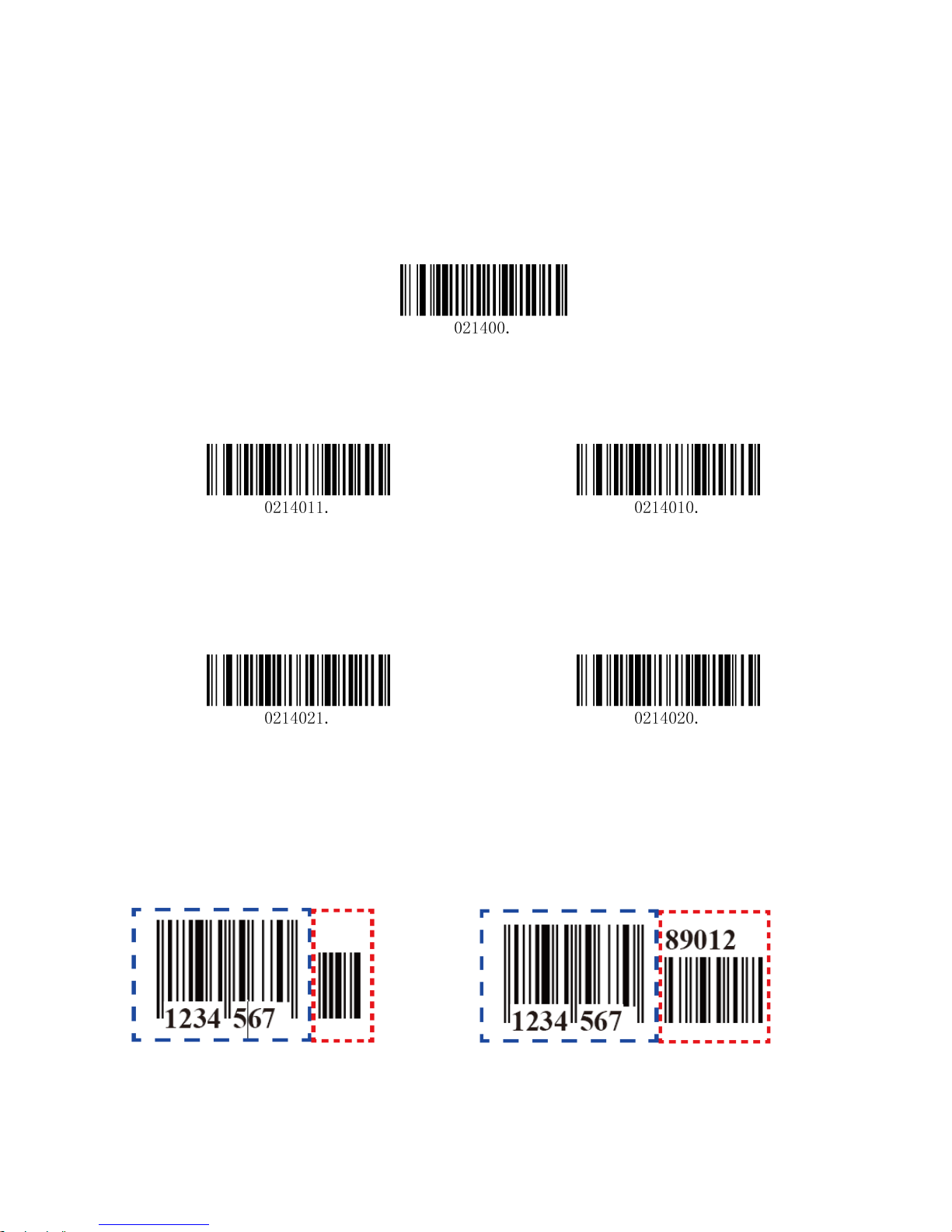
5.2.2 EAN-8
Restore Factory Defaults
Restore the Factory Defaults of EAN-8 (default)
Enable/Disable EAN-8
Enable EAN-8 (default) Disable EAN-8
Transmit Check Digit
EAN-8 is 8 digits in length with the last one as its check digit used to verify the accuracy of the data.
Transmit EAN-8 Check Digit (default) Do Not Transmit EAN-8 Check Digit
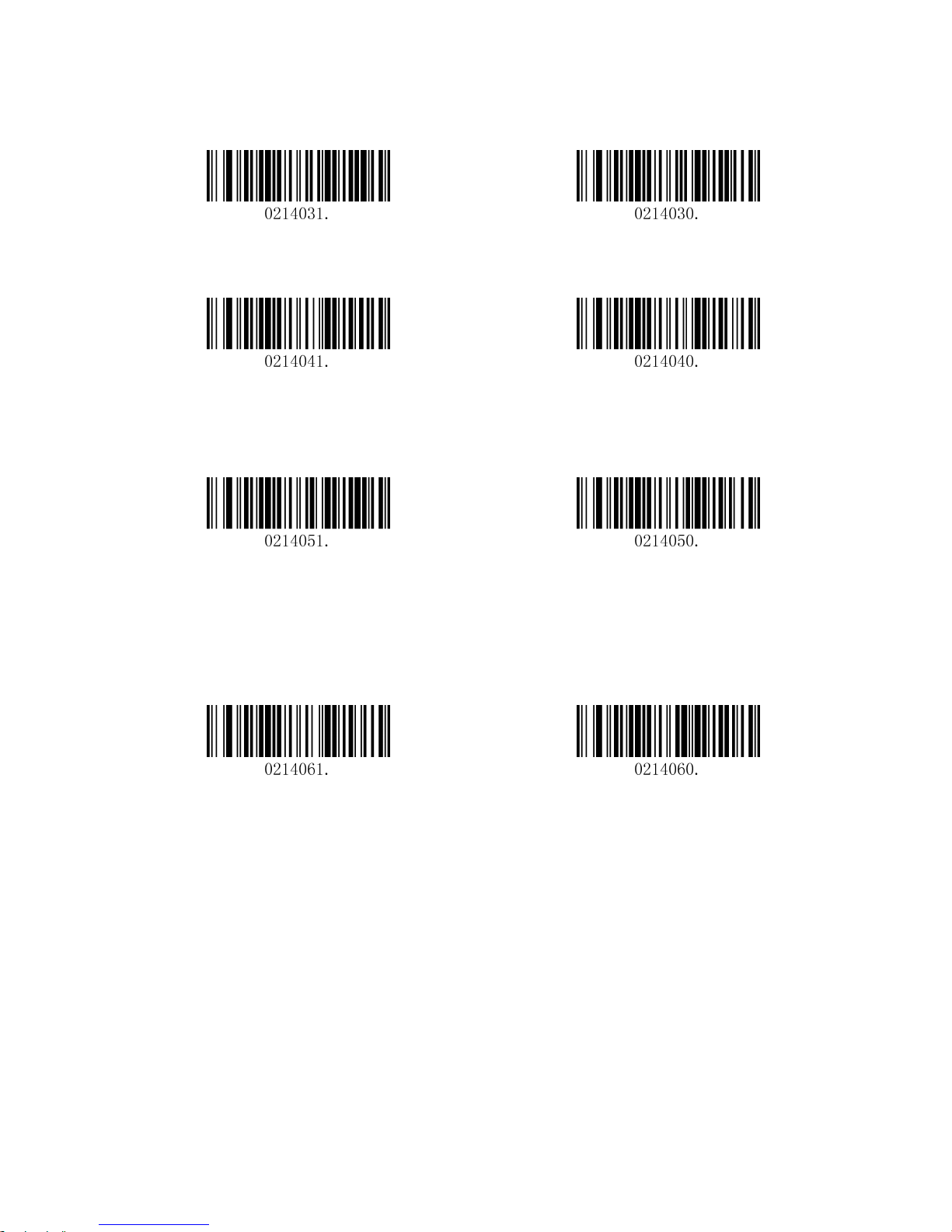
Add-On Code
An EAN-8 barcode can be augmented with a two-digit or five-digit add-on code on code to form a new one.
In the examples below, the part surrounded by blue dotted line is an EAN-8 barcode while the part circled
by red dotted line is add-on code.
Page 21
18
Enable 2-Digit Add-On Code Disable 2-Digit Add-On Code (default)
Enable 5-Digit Add-On Code Disable 5-Digit Add-On Code (default)
Add-On Code Required
EAN-8 Add-On Code Required EAN-8 Add-On Code Not Required (default)
ENA/JAN-8 Addenda Separator
When this feature is enabled, there is a space between barcode and addenda. When this feature is
disabled, there is no space.
Enable EAN/JAN-8 Addenda Separator (default) Disable EAN/JAN-8 Addenda Separator
Page 22
19
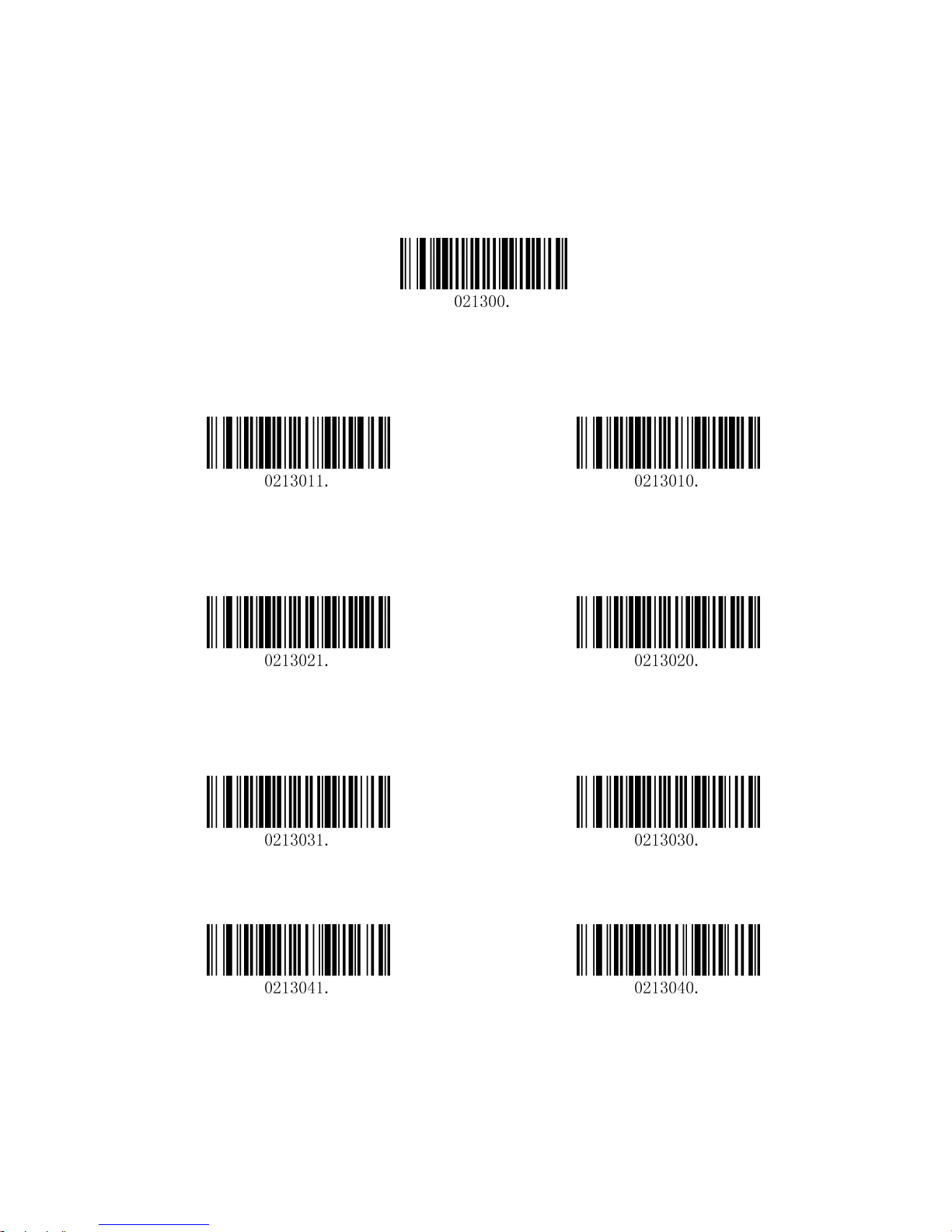
5.2.3 EAN-13
Restore Factory Defaults
Restore the Factory Defaults of EAN-13 (default)
Enable/Disable EAN-13
Enable EAN-13 (default) Disable EAN-13
Transmit Check Digit
Transmit EAN-13 Check Digit (default) Do Not Transmit EAN-13 Check Digit
Add-On Code
Enable 2-Digit Add-On Code Disable 2-Digit Add-On Code (default)
Enable 5-Digit Add-On Code Disable 5-Digit Add-On Code (default)
Add-On Code Required
Page 23

20
EAN-13 Add-On Code Required EAN-13 Add-On Code Not Required (default)
ENA/JAN-13 Addenda Separator
When this feature is enabled, there is a space between barcode and addenda. When this feature is
disabled, there is no space.
Enable ENA/JAN-13 Addenda Separator (default) Disable ENA/JAN-13 Addenda Separator
ISBN Translate
When enable this feature and is scanned, ENA13 Book land symbols are translated into their equivalent ISBN
number format.
Enable ISBN Translate Disable ISBN Translate (default)
Page 24
21
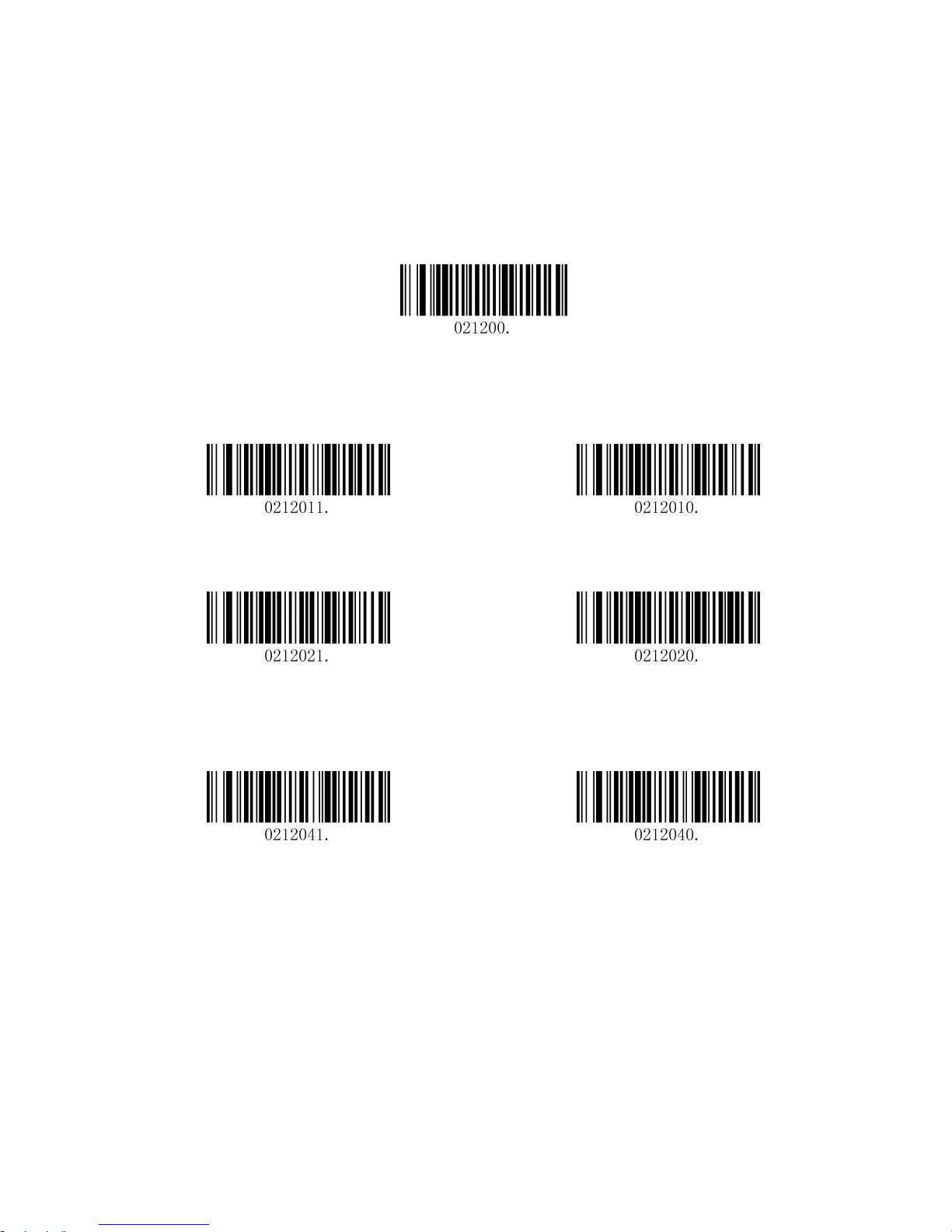
5.2.4 UPC-E
Restore Factory Defaults
Restore the Factory Defaults of UPC-E (default)
Enable/Disable UPC-E0/E1
Enable UPC-E0 (default) Disable UPC-E0
Enable UPC-E1(default) Disable UPC-E1
UPCE0 Check Digit
Enable UPC-E0 Check Digit (default) Disable UPC-E0 Check Digit
Page 25
22
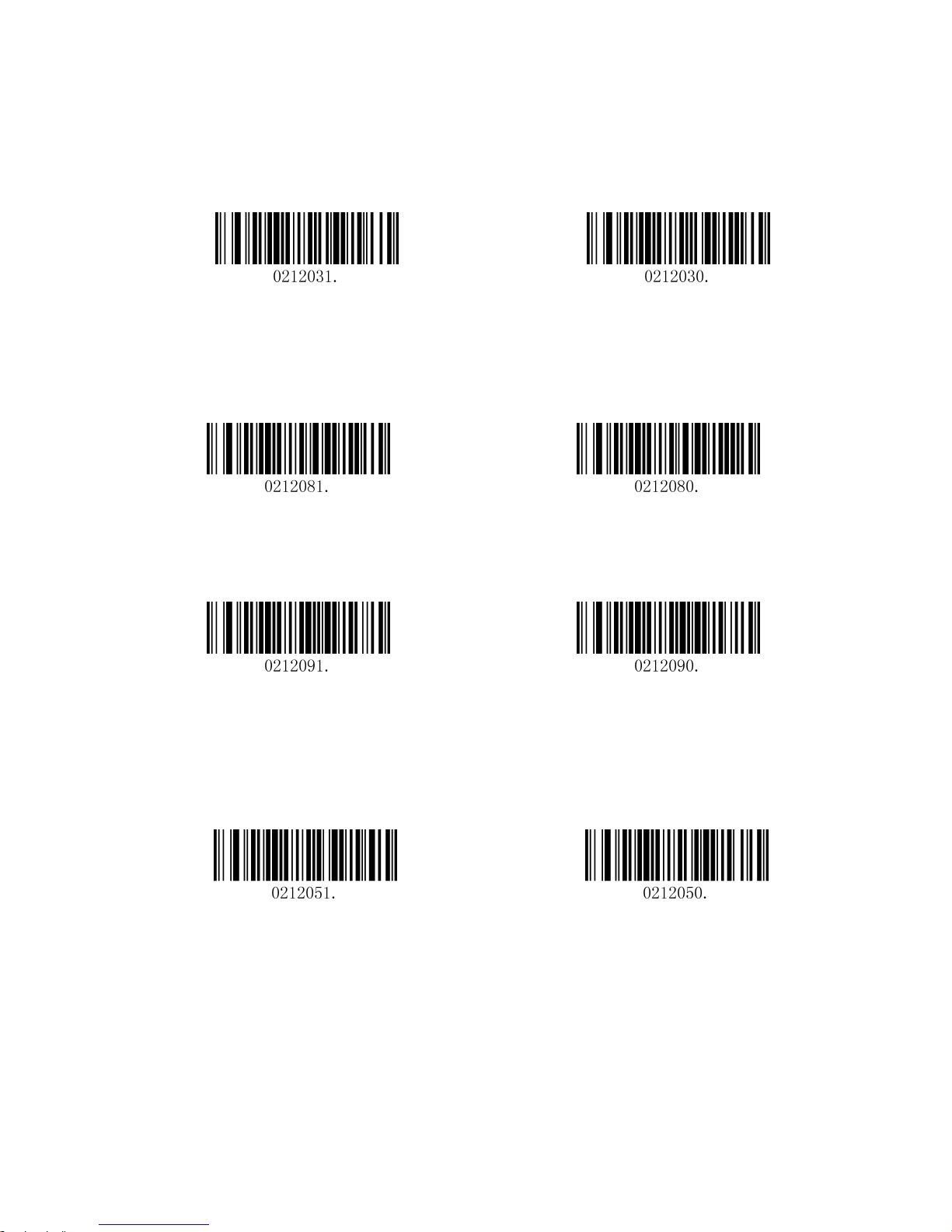
UPCE0 Expand
UPCE0 expand expands the UPCE code to the 12 digits, UPC-A format.
Enable UPC-E0 Expand Disable UPC-E0 Expand (default)
UPCE0 Addenda Required
When required is scanned, the scanner will only read UPC-E barcodes that have addenda.
Enable UPC-E0 Required Disable UPC-E0 Required (default)
UPCE0 Addenda Separator
Enable UPC-E0 Separator (default) Disable UPC-E0 Separator
UPCE0 Number System
The number system digit of UPC symbol is normally transmitted at the beginning of the scanned data, but
the unit can be programmed so it will be not transmitted.
Enable UPC-E0 Number System (default) Disable UPC-E0 Number System
Page 26
23
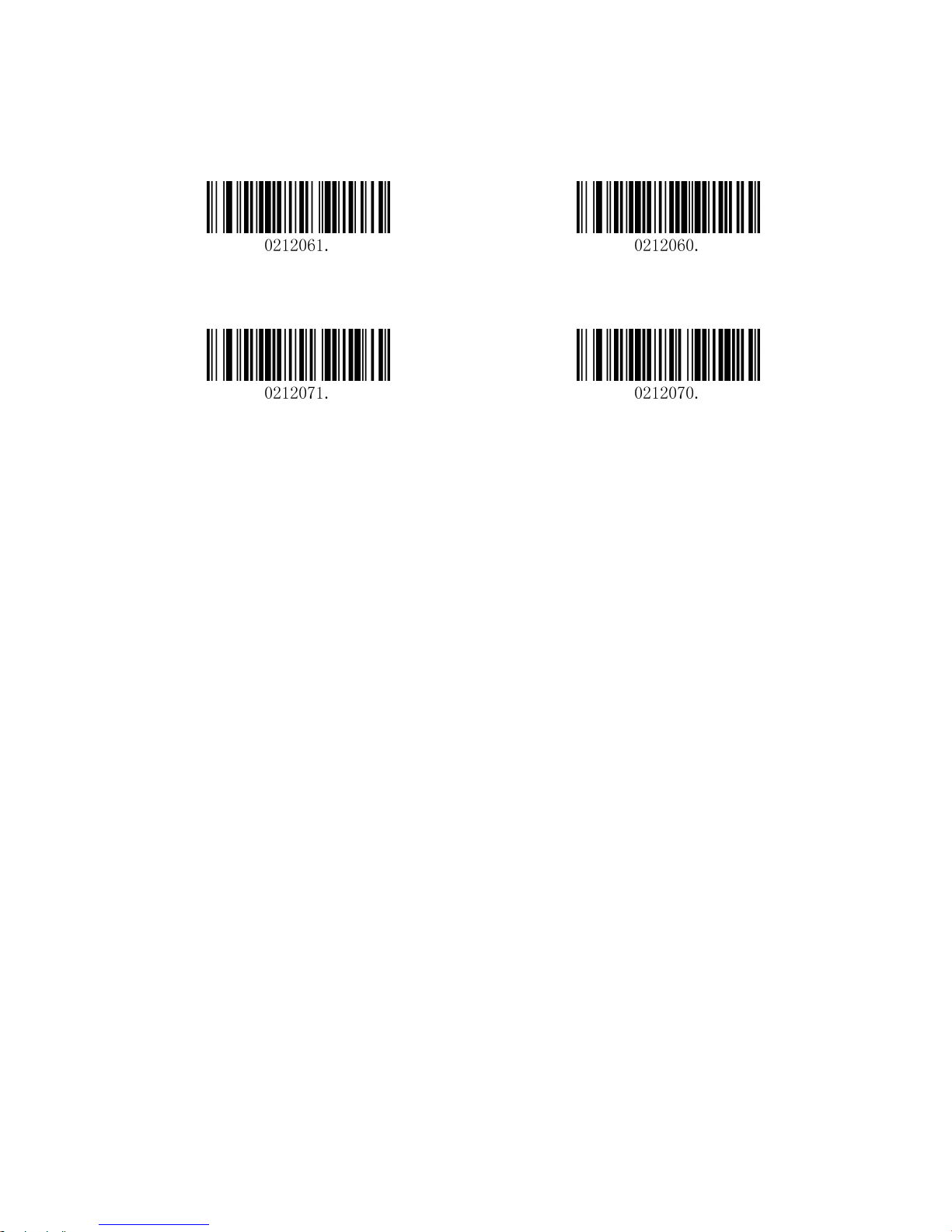
UPCE0 Addenda
Enable 2 Digit Addenda Disable 2 Digit Addenda (default)
Enable 5 Digit Addenda Disable 5 Digit Addenda (default)
Page 27
24
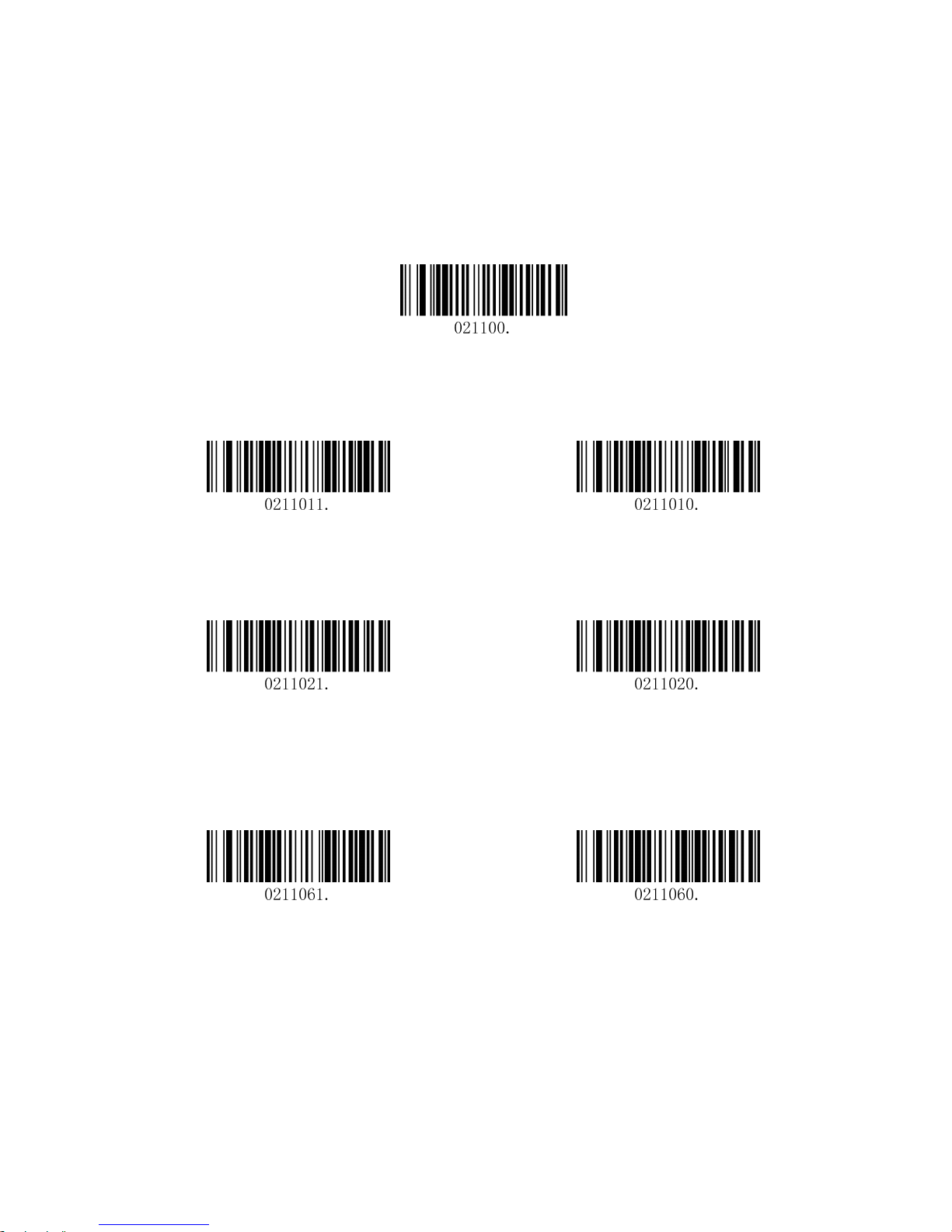
5.2.5 UPC-A
Restore Factory Defaults
Restore the Factory Defaults of UPC-A (default)
Enable/Disable UPC-A
Enable UPC-A (default) Disable UPC-A
UPC-A Check Digit
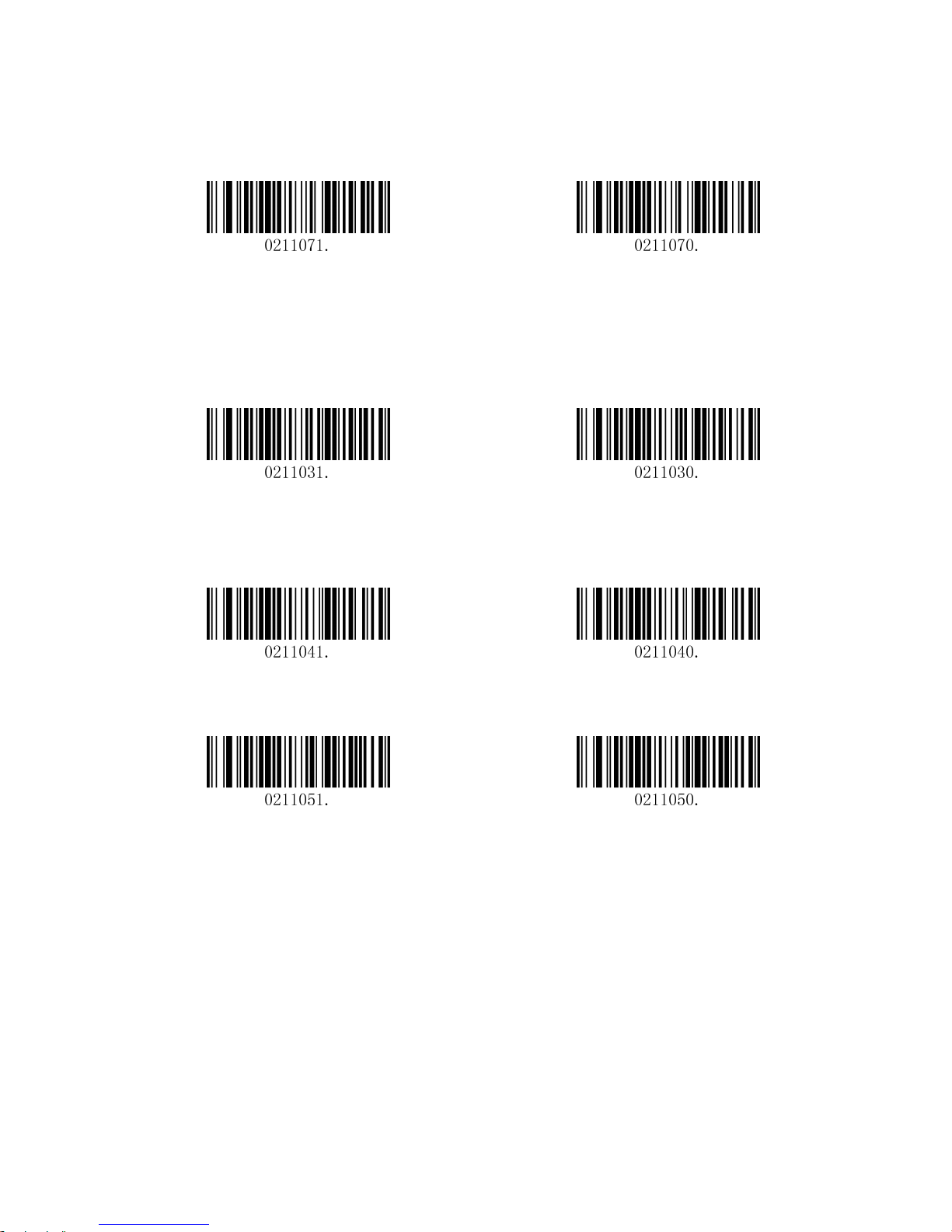
Enable UPC-A Check Digit (default) Disable UPC-A Check Digit
UPC-A Addenda Required
When required is scanned, the scanner will only read UPC-E barcodes that have addenda.
Enable UPC-A Required Disable UPC-A Required (default)
Page 28
25
UPC-A Addenda Separator
Enable UPC-A Separator (default) Disable UPC-A Separator
UPC-A: Number System
The number system digit of UPC symbol is normally transmitted at the beginning of the scanned data, but
the unit can be programmed so it will be not transmitted.
Enable UPC-A Number System (default) Disable UPC-A Number System
UPC-A: Addenda
Enable 2 Digit Addenda Disable 2 Digit Addenda (default)
Enable 5 Digit Addenda Disable 5 Digit (default)
Page 29
26
5.2.6 Interleaved 2 of 5
Restore Factory Defaults
Restore the Factory Defaults of Interleaved 2 of 5 (default)
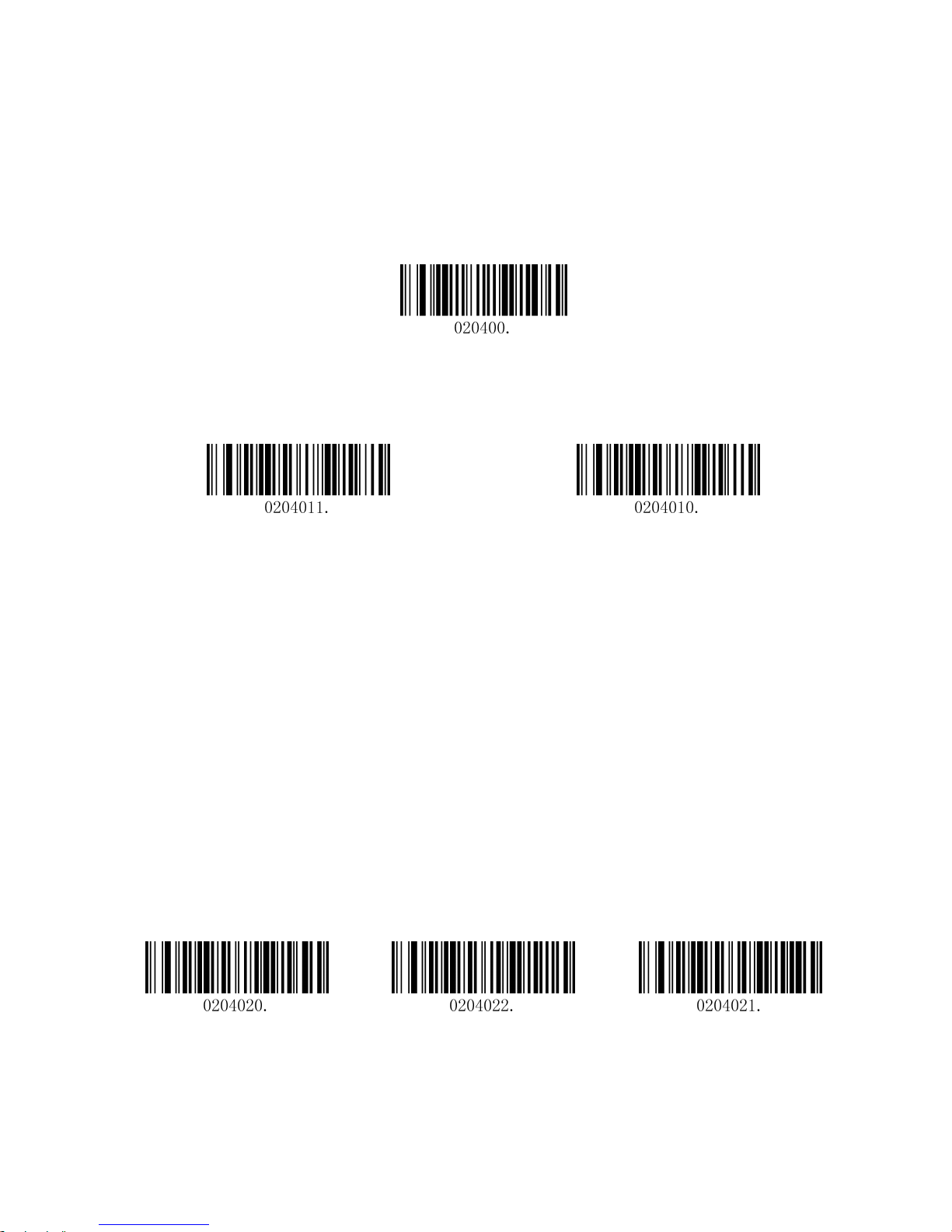
Enable/Disable Interleaved 2 of 5
Enable Interleaved 2 of 5 (default) Disable Interleaved 2 of 5
Message Length
Message length can be set to the maximum value, minimum value. The data between the maximum and the
minimum is valid.
The maximum value and minimum value can be set using Programming Command. Please check the
programming command guide for the detail.
Interleaved 2 of 5 max length command: 020404. The parameter of this command can be set from min to 80.
Interleaved 2 of 5 min length command: 020403. The parameter of this command can be set from 2 to max.
Example: Set the Barcode Message length of the minimum value is 10; the maximum value is 25.
Programming command
Max: 02040425.
Min: 02040310.
Interleaved 2 of 5 Check Digit
No check Char (default) Validate and Transmit Validate not Transmit
Page 30
27
5.2.7 Matrix 2 of 5
Restore Factory Defaults
Restore the Factory Defaults of Matrix 2 of 5 (default)
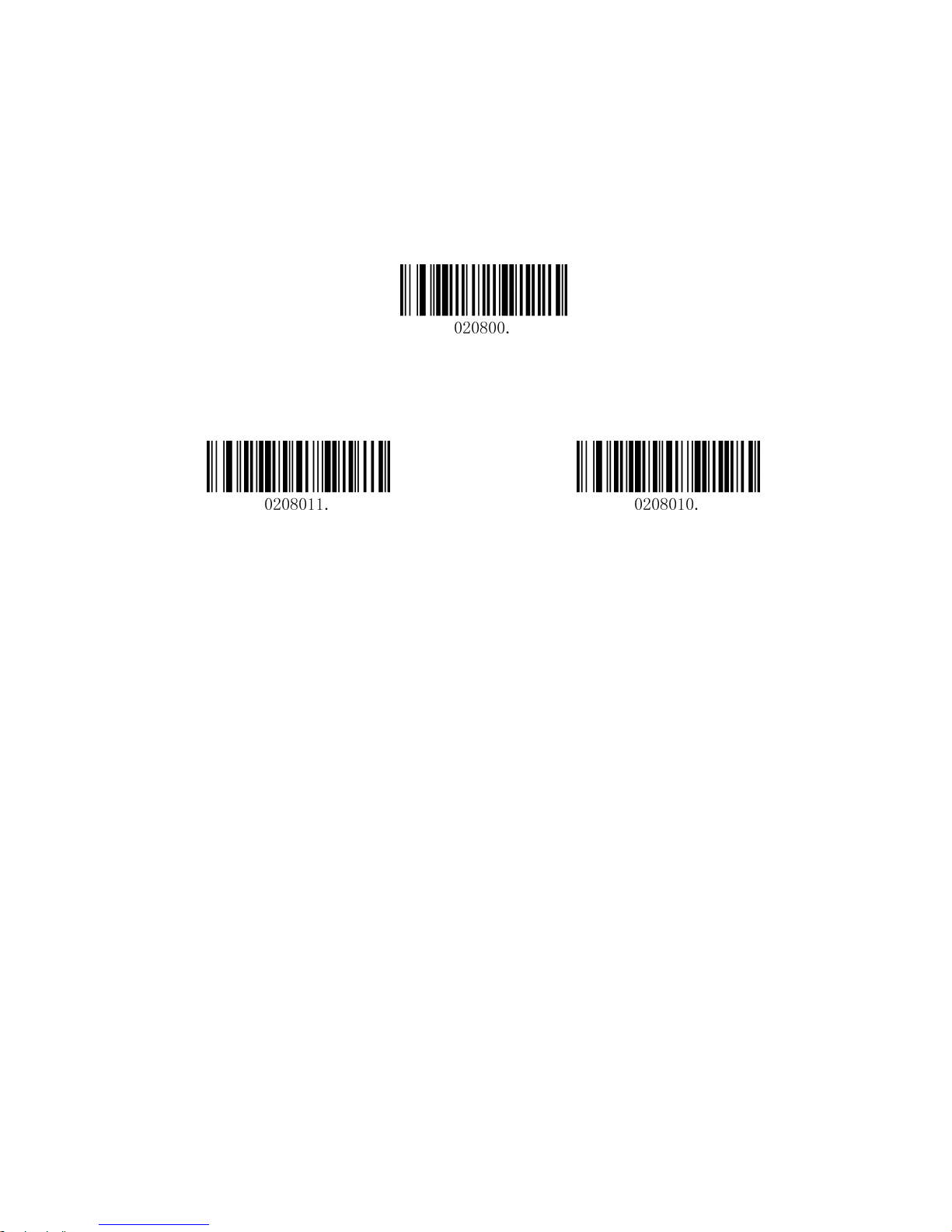
Enable/Disable Matrix 2 of 5
Enable Matrix 2 of 5 Disable Matrix 2 of 5 (default)
Message Length
Message length can be set to the maximum value, minimum value. The value is valid between the maximum
and the minimum.
The maximum value and minimum value can be set using Programming command. Please check the
programming command guide for the detail.
Matrix 2 of 5 max length command: 020803. The parameter of this command can be set from min to 80.
Matrix 2 of 5 min length command: 020802. The parameter of this command can be set from 1 to max.
Example: Set the Barcode Message length of the minimum value is 10; the maximum value is 25.
Programming command
Max: 02080325.
Min: 02080210.
Page 31
28
5.2.8 Industrial 2 of 5
Restore Factory Defaults
Restore the Factory Defaults of Industrial 2 of 5 (default)
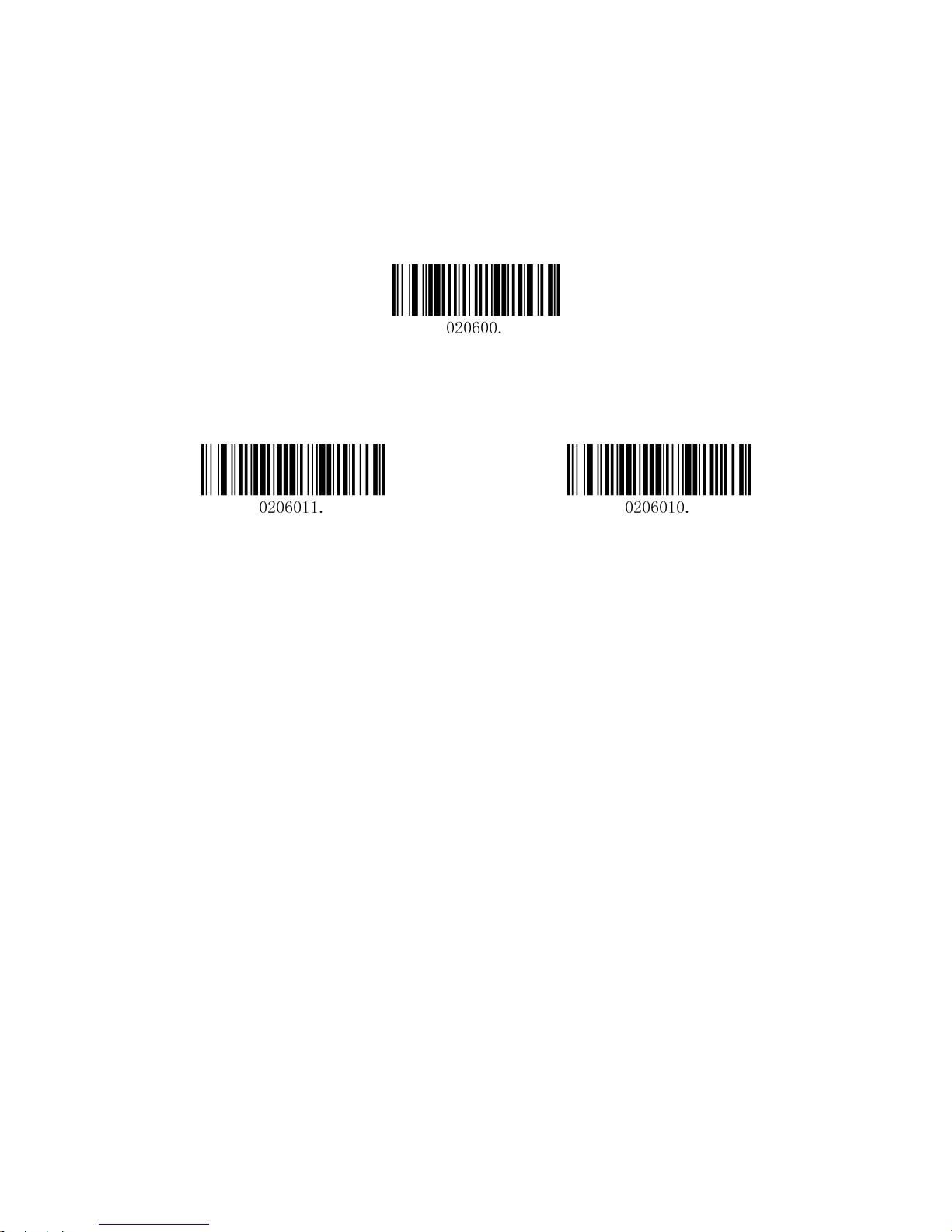
Enable/Disable Industrial 2 of 5
Enable Industrial 2 of 5 Disable Industrial 2 of 5 (default)
Message Length
Message length can be set to the maximum value, minimum value. The value is valid between the maximum
and the minimum.
The maximum value and minimum value can be set using Programming command. Please check the
programming command guide for the detail.
Industrial 2 of 5 max length command: 020603. The parameter of this command can be set from min to 48.
Industrial 2 of 5 min length command: 020602. The parameter of this command can be set from 1 to max.
Example: Set the Barcode Message length of the minimum value is 10; the maximum value is 25.
Programming command
Max: 02060325.
Min: 02060210.
Page 32

29
5.2.9 Code 39
Restore Factory Defaults
Restore the Factory Defaults of Code 39 (default)
Enable/Disable Code 39
Enable Code 39 (default) Disable Code 39
Transmit Start/Stop Character
Transmit Start/Stop Character Do not Transmit Start/Stop Character (default)
Code 39 Check Character
No Check Char (default) Validate and Transmit Validate no Transmit
Code 39 Full ASCII
Enable Code 39 Full ASCII Disable Code 39 Full ASCII (default)
Page 33

30
Message Length
Message length can be set to the maximum value, minimum value. The value is valid between the maximum
and the minimum.
The maximum value and minimum value can be set using Programming command. Please check the
programming command guide for the detail.
Code 39 max length command: 020308. The parameter of this command can be set from min to 48.
Code 39 min length command: 020307. The parameter of this command can be set from 0 to max.
Example: Set the Barcode Message length of the minimum value is 10; the maximum value is 25.
Programming command
Max: 02030825.
Min: 02030710.
Page 34

31
5.2.10 Coda bar
Restore Factory Defaults
Restore the Factory Defaults of Coda bar (default)
Enable/Disable Codabar
Enable Coda bar (default) Disable Coda bar
Message Length
Message length can be set to the maximum value, minimum value. The data between the maximum and the
minimum is valid.
The maximum value and minimum value can be set using Programming command. Please check the
programming command guide for the detail.
Coda bar max length command: 020206. The parameter of this command can be set from min to 60.
Coda bar min length command: 020205. The parameter of this command can be set from 2 to max.
Example: Set the Barcode Message length of the minimum value is 10; the maximum value is 25.
Programming command
Max: 02020625.
Min: 02020510.
Page 35
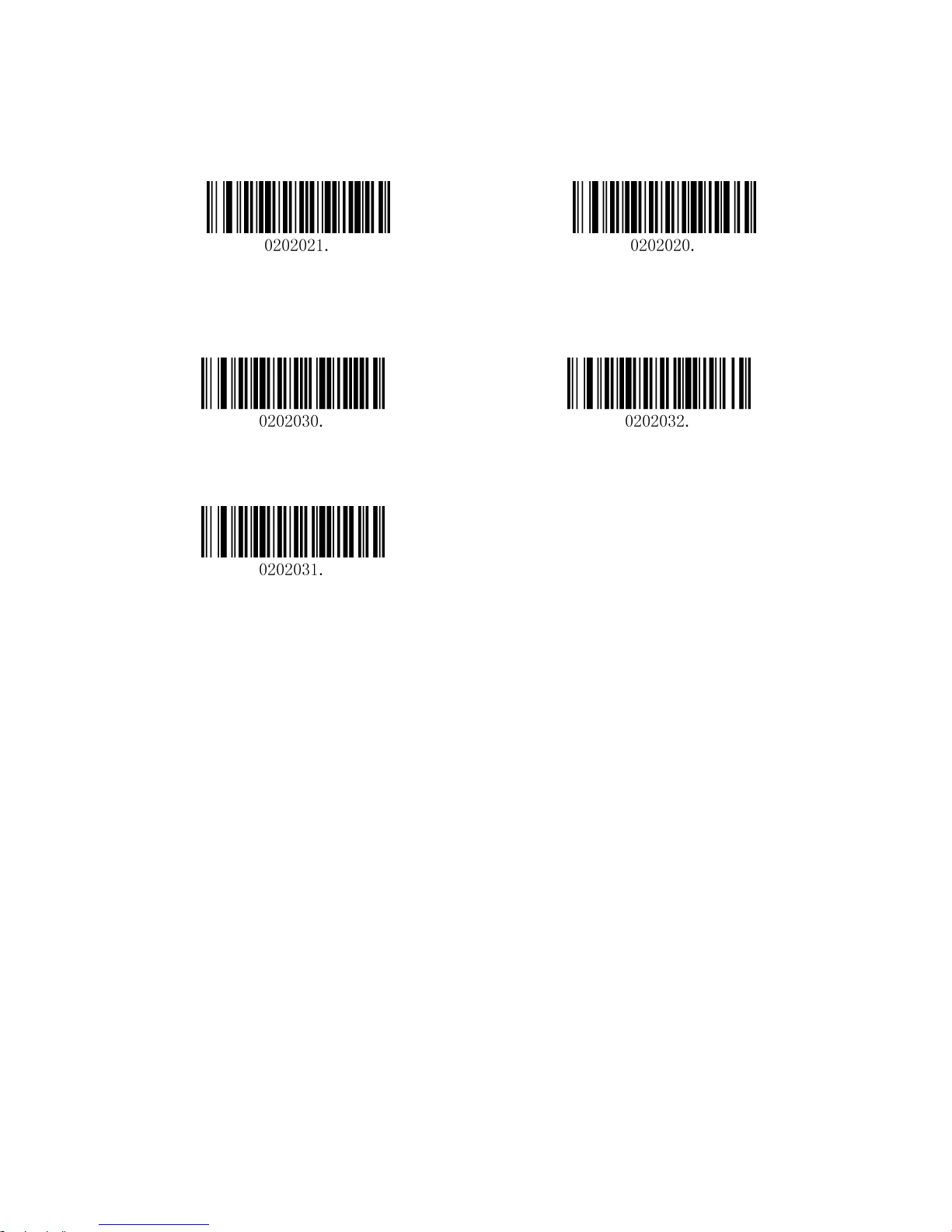
32
Transmit Start/Stop Character
Transmit Start/Stop Character Do not Transmit Start/Stop Character (default)
Coda bar Check Character
No Check Char (default) Validate and Transmit
Validate no Transmit
Page 36
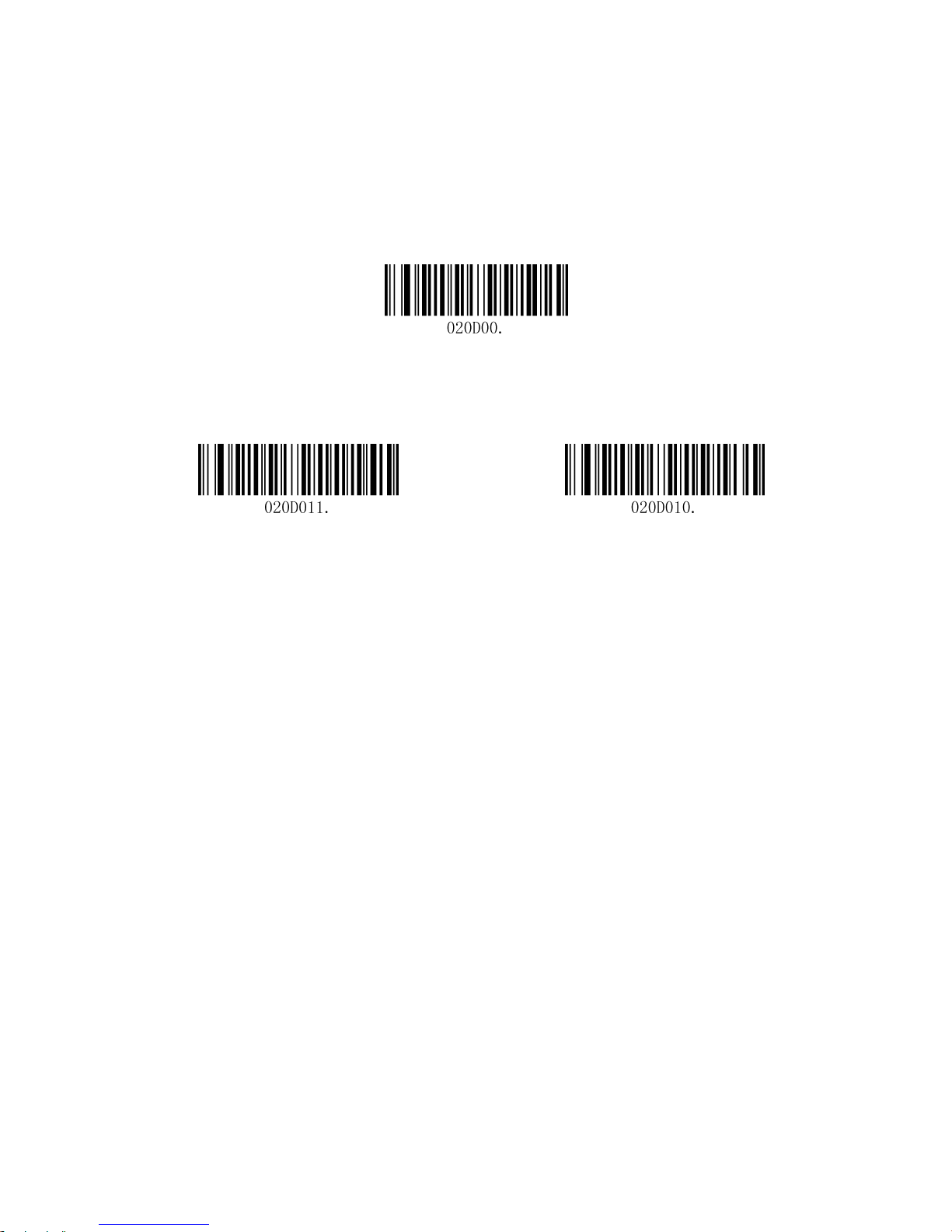
33
5.2.11 Code 93
Restore Factory Defaults
Restore the Factory Defaults of Code 93 (default)
Enable/Disable Code 93
Enable Code 93 Disable Code 93 (default)
Message Length
Message length can be set to the maximum value, minimum value. The data between the maximum and the
minimum is valid.
The maximum value and minimum value can be set using Programming command. Please check the
programming command guide for the detail.
Code 93 max length command: 020D03. The parameter of this command can be set from min to 80.
Code 93 min length command: 020D02. The parameter of this command can be set from 0 to max.
Example: Set the Barcode Message length of the minimum value is 10; the maximum value is 25.
Programming command
Max: 020D0325.
Min: 020D0210.
Page 37

34
5.2.12 GS1-128
Restore Factory Defaults
Restore the Factory Defaults of GS1-128 (default)
Enable/Disable GS1-128
Enable GS1-128 (default) Disable GS1-128
Message Length
Message length can be set to the maximum value, minimum value. The data between the maximum and the
minimum is valid.
The maximum value and minimum value can be set using Programming command. Please check the
programming command guide for the detail.
GS1-128 max length command: 020B03. The parameter of this command can be set from min to 80.
GS1-128 min length command: 020B02. The parameter of this command can be set from 0 to max.
Example: Set the Barcode Message length of the minimum value is 10; the maximum value is 25.
Programming command
Max: 020B0325.
Min: 020B0210.
Page 38
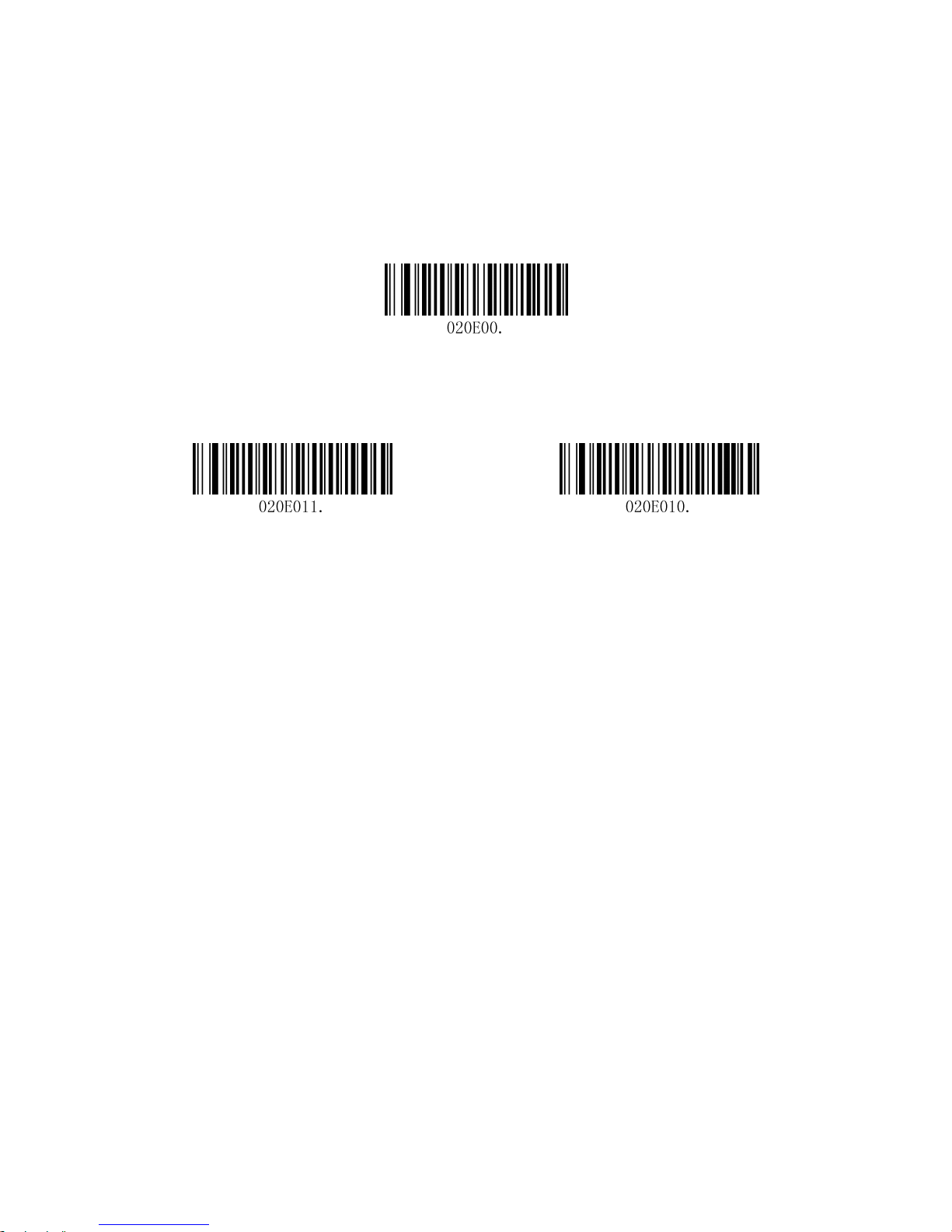
35
5.2.13 MSI
Restore Factory Defaults
Restore the Factory Defaults of MSI (default)
Enable/Disable MSI
Enable MSI Disable MSI (default)
Message Length
Message length can be set to the maximum value, minimum value. The data is valid between the maximum
and the minimum.
The maximum value and minimum value can be set using Programming command. Please check the
programming command guide for the detail.
MSI max length command: 020E04. The parameter of this command can be set from min to 48.
MSI min length command: 020E03. The parameter of this command can be set from 4 to max.
Example: Set the Barcode Message length of the minimum value is 10; the maximum value is 25.
Programming command
Max: 020E0425.
Min: 020E0310.
Page 39

36
MSI Check Character
Validate Type 10, No Transmit (Default)
Validate Type 10, Transmit Validate 2 Type 10 Characters, No Transmit
Validate 2 Type 10 Characters, Transmit
Validate Type 11 Then Type 10 Character,
No Transmit
Validate Type 11 Then Type 10 Characters,
Transmit
Disable MSI Check Characters
Page 40
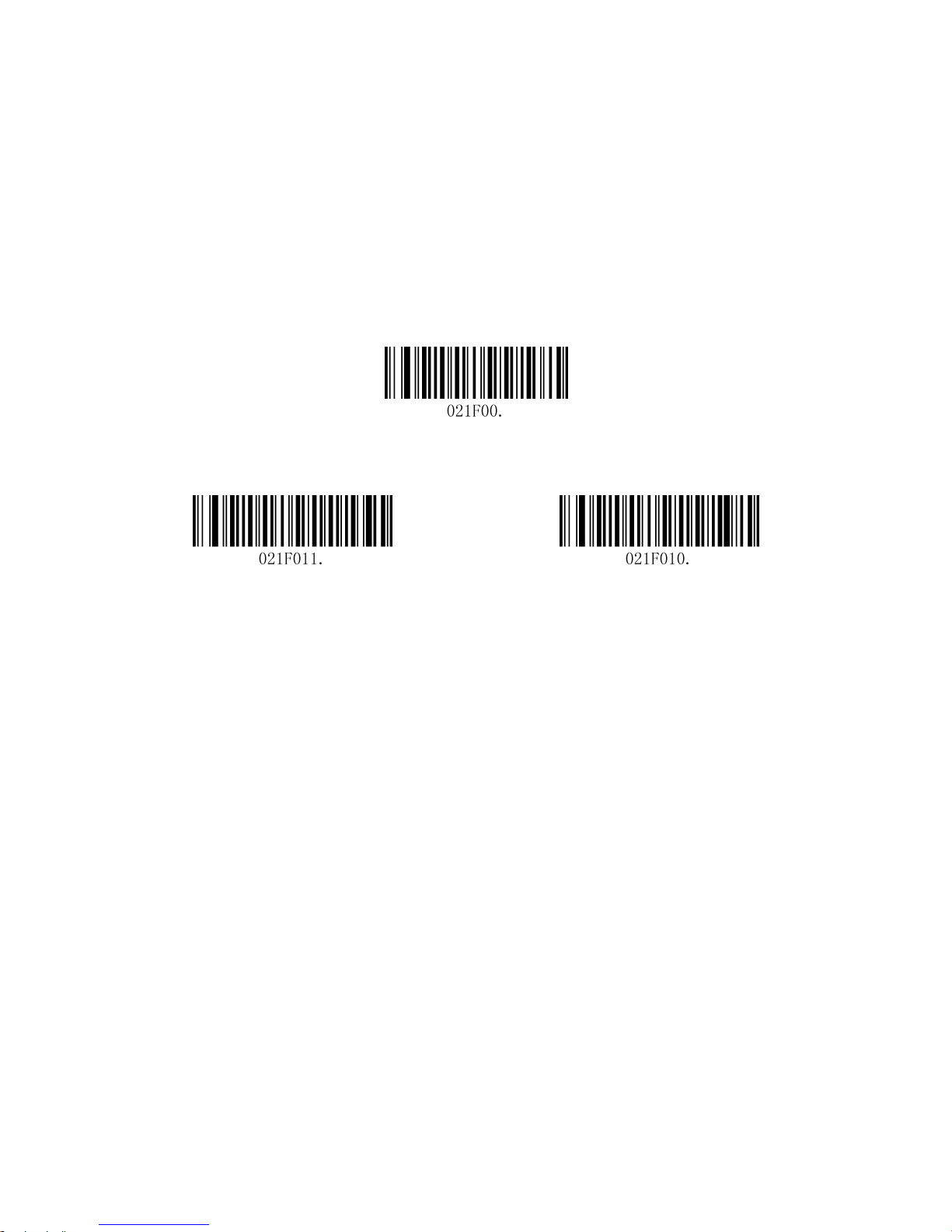
37
5.3 2D Symbologies
5.3.1 PDF 417
Restore Factory Defaults
Restore the Factory Defaults of PDF 417 (default)
Enable/Disable PDF 417
Enable PDF 417 (default) Disable PDF 417
Message Length
Message length can be set to the maximum value, minimum value. The data is valid between the maximum
and the minimum.
The maximum value and minimum value can be set using Programming command. Please check the
programming command guide for the detail.
PDF417 max length command: 021F06. The parameter of this command can be set from min to 2750.
PDF417 min length command: 021F05. The parameter of this command can be set from 1 to max.
Example: Set the Barcode Message length of the minimum value is 10; the maximum value is 25.
Programming command
Max: 021F0625.
Min: 021F0510.
Page 41
38
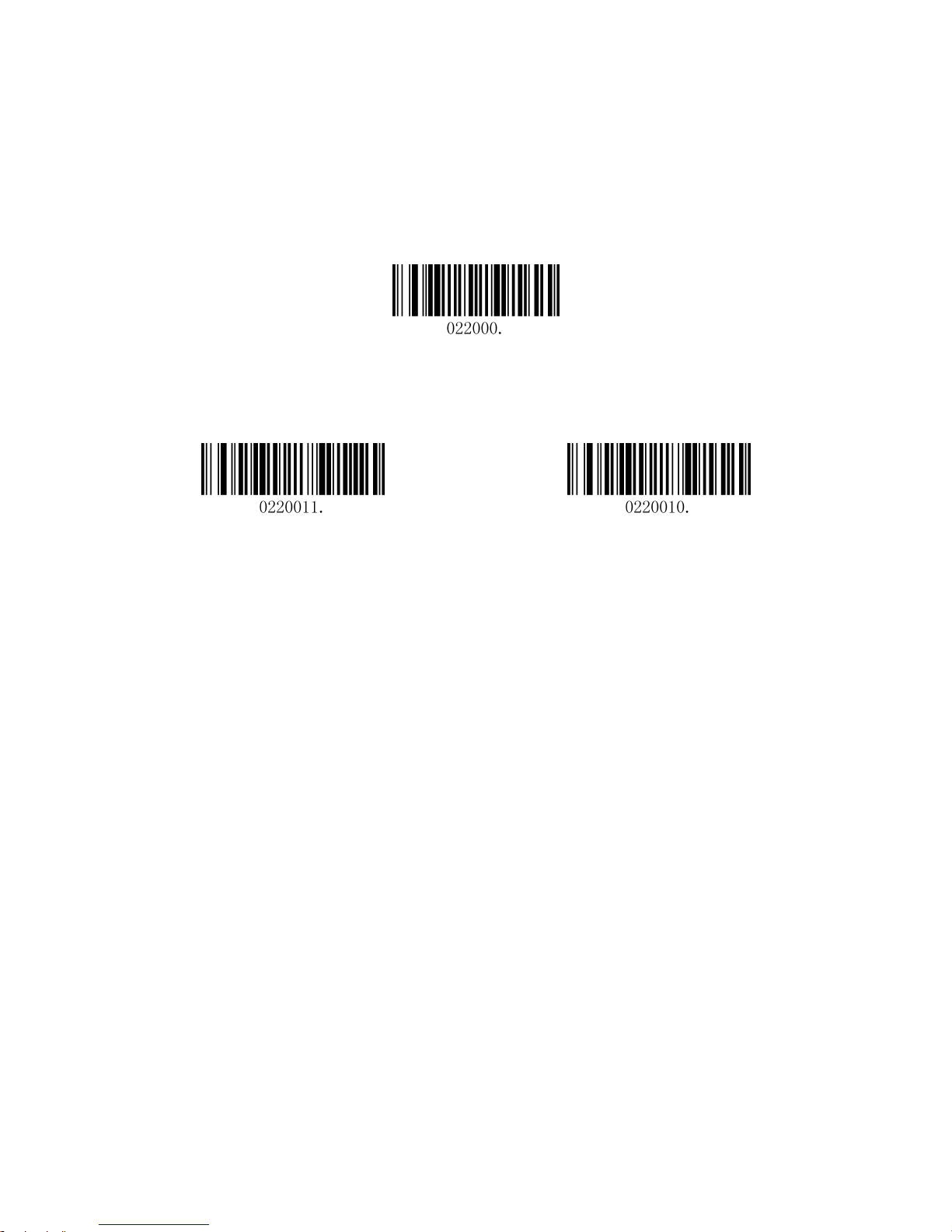
5.3.2 Micro PDF 417
Restore Factory Defaults
Restore the Factory Defaults of Micro PDF 417 (default)
Enable/Disable Micro PDF 417
Enable PDF 417 Disable PDF 417 (default)
Message Length
Message length can be set to the maximum value, minimum value. The data is valid between the maximum
and the minimum.
The maximum value and minimum value can be set using Programming command. Please check the
programming command guide for the detail.
PDF417 max length command: 022003. The parameter of this command can be set from min to 2750.
PDF417 min length command: 022002. The parameter of this command can be set from 1 to max.
Example: Set the Barcode Message length of the minimum value is 10; the maximum value is 25.
Programming command
Max: 02200325.
Min: 02200310.
Page 42
39
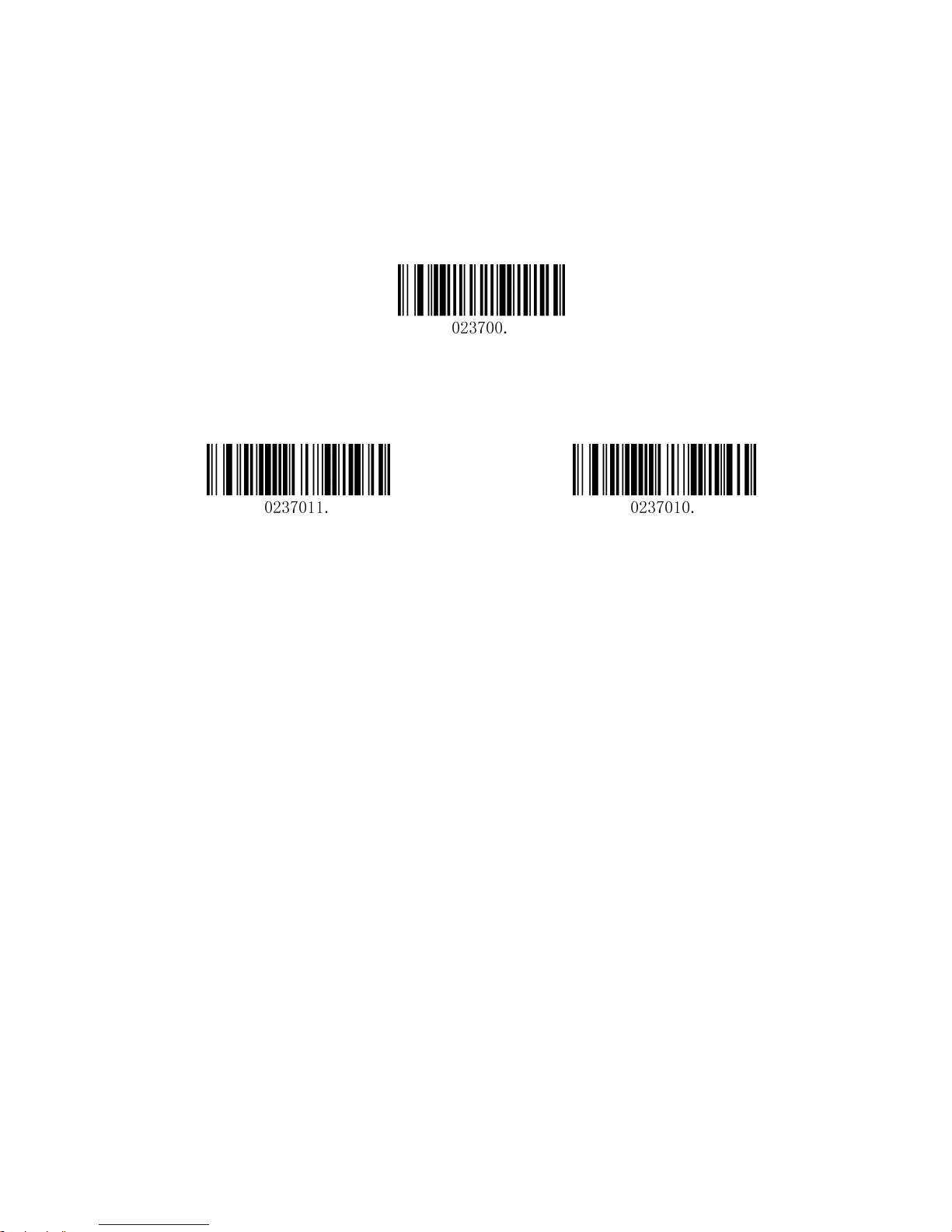
5.3.3 QR Code
Restore Factory Defaults
Restore the Factory Defaults of QR Code (default)
Enable/Disable QR Code
Enable QR Code (default) Disable QR Code
Message Length
Message length can be set to the maximum value, minimum value. The data is valid between the maximum
and the minimum is valid.
The maximum value and minimum value can be set using Programming command. Please check the
programming command guide for the detail.
QR max length command: 023703. The parameter of this command can be set from min to 7089.
QR min length command: 023702. The parameter of this command can be set from 1 to max.
Example: Set the Barcode Message length of the minimum value is 10; the maximum value is 25.
Programming command
Max: 02370325.
Min: 02370210.
Page 43

40
5.3.4 Data Matrix
Restore Factory Defaults
Restore the Factory Defaults of Data Matrix (default)
Enable/Disable Data Matrix
Enable Data Matrix (default) Disable Data Matrix
Message Length
Message length can be set to the maximum value, minimum value. The data is valid between the maximum
and the minimum.
The maximum value and minimum value can be set using Programming command. Please check the
programming command guide for the detail.
Data Matrix max length command: 023603. The parameter of this command can be set from min to 3116.
Data Matrix min length command: 023602. The parameter of this command can be set from 1 to max.
Example: Set the Barcode Message length of the minimum value is 10; the maximum value is 25.
Programming command
Max: 02360325.
Min: 02360210.
Page 44
41
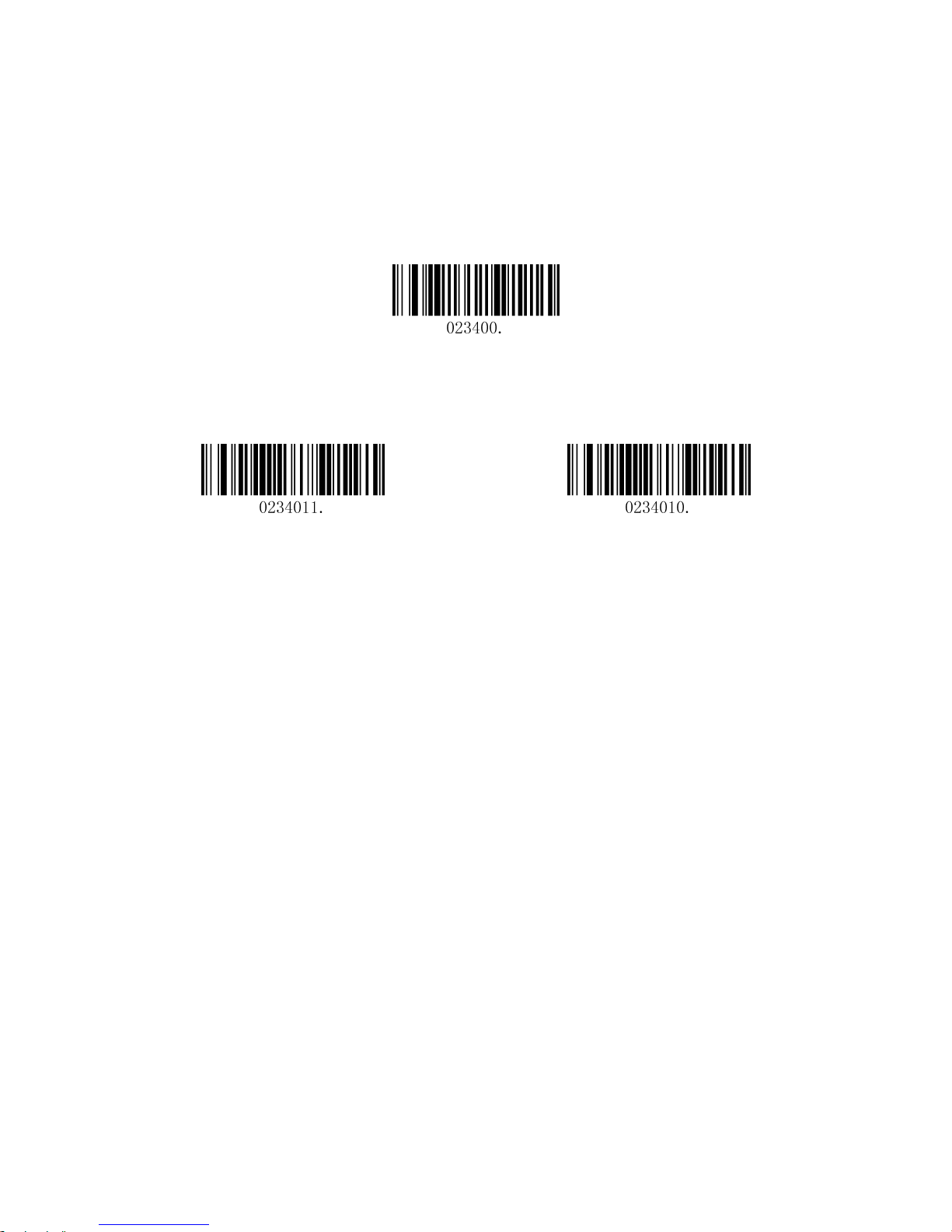
5.3.5 Maxi code
Restore Factory Defaults
Restore the Factory Defaults of Maxi code (default)
Enable/Disable Maxi code
Enable Maxi code Disable Maxi code (default)
Message Length
Message length can be set to the maximum value, minimum value. The data is valid between the maximum
and the minimum.
The maximum value and minimum value can be set using Programming command. Please check the
programming command guide for the detail.
Maxi Code max length command: 023403. The parameter of this command can be set from min to 150.
Maxi Code min length command: 023402. The parameter of this command can be set from 1 to max.
Example: Set the Barcode Message length of the minimum value is 10; the maximum value is 25.
Programming command
Max: 02340325.
Min: 02340210.
Page 45
42
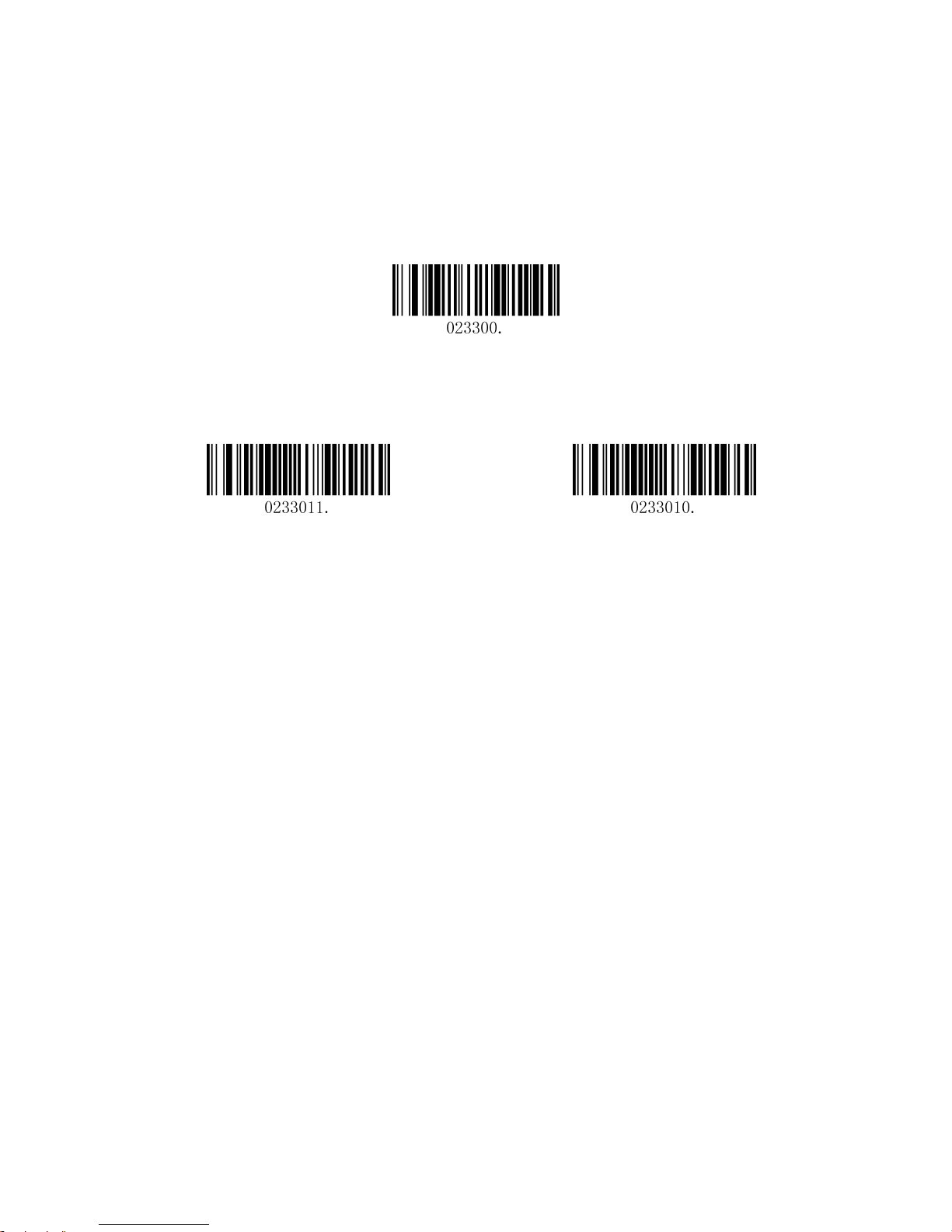
5.3.6 Aztec
Restore Factory Defaults
Restore the Factory Defaults of Aztec (default)
Enable/Disable Aztec
Enable Aztec Disable Aztec (default)
Message Length
Message length can be set to the maximum value, minimum value. The data is valid between the maximum
and the minimum.
The maximum value and minimum value can be set using Programming command. Please check the
programming command guide for the detail.
Aztec max length command: 023306. The parameter of this command can be set from min to 3832.
Aztec min length command: 023305. The parameter of this command can be set from 1 to max.
Example: Set the Barcode Message length of the minimum value is 10; the maximum value is 25.
Programming command
Max: 02330625.
Min: 02330510.
Page 46

43
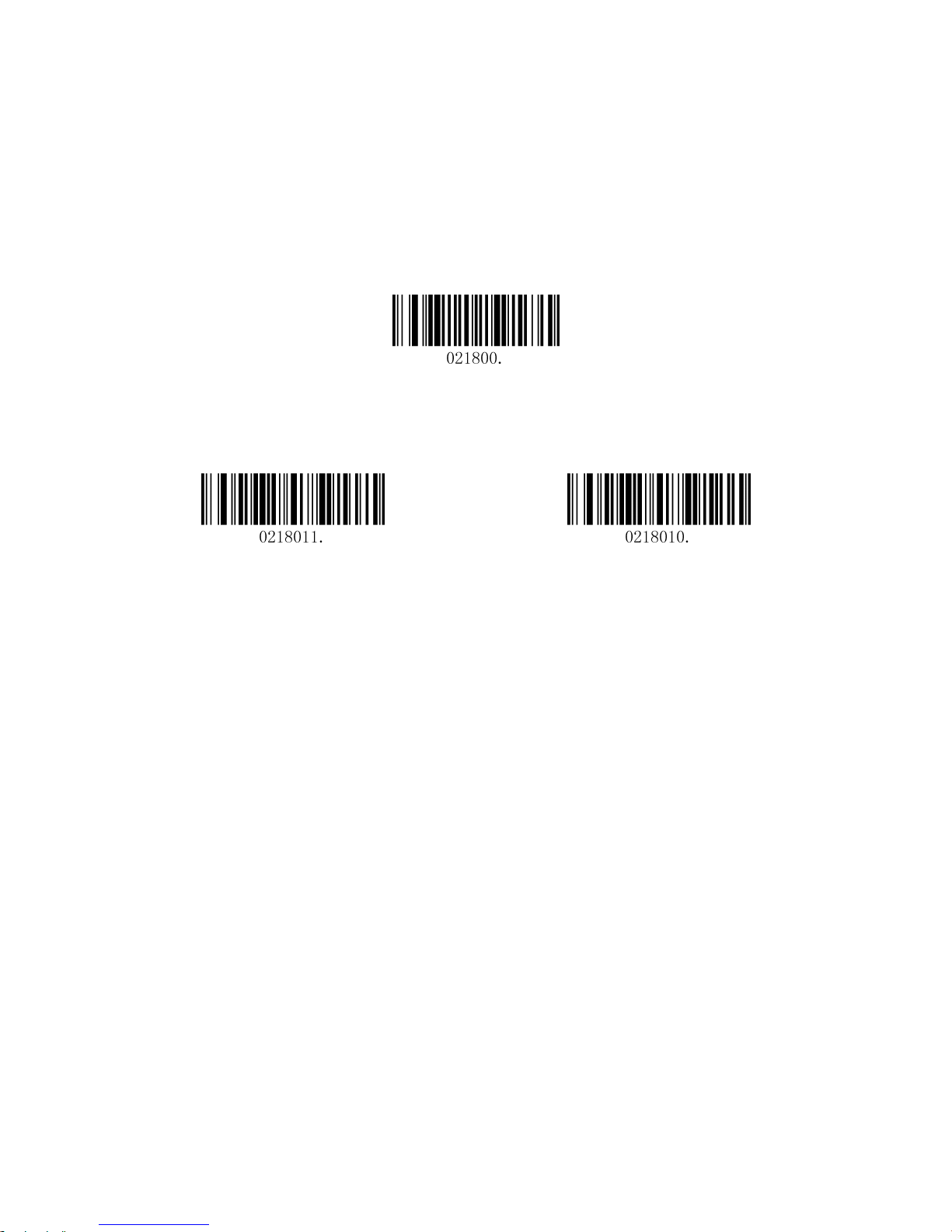
5.3.7 Hanxin
Restore Factory Defaults
Restore the Factory Defaults of Hanxin (default)
Enable/Disable Hanxin
Enable Hanxin Disable Hanxin (default)
Message Length
Message length can be set to the maximum value, minimum value. The data is valid between the maximum
and the minimum.
The maximum value and minimum value can be set using Programming command. Please check the
programming command guide for the detail.
Hanxin max length command: 023803. The parameter of this command can be set from min to 7833.
Hanxin min length command: 023802. The parameter of this command can be set from 1 to max.
Example: Set the Barcode Message length of the minimum value is 10; the maximum value is 25.
Programming command
Max: 02380325.
Min: 02380210
Page 47
44
5.4 Postal Symbologies
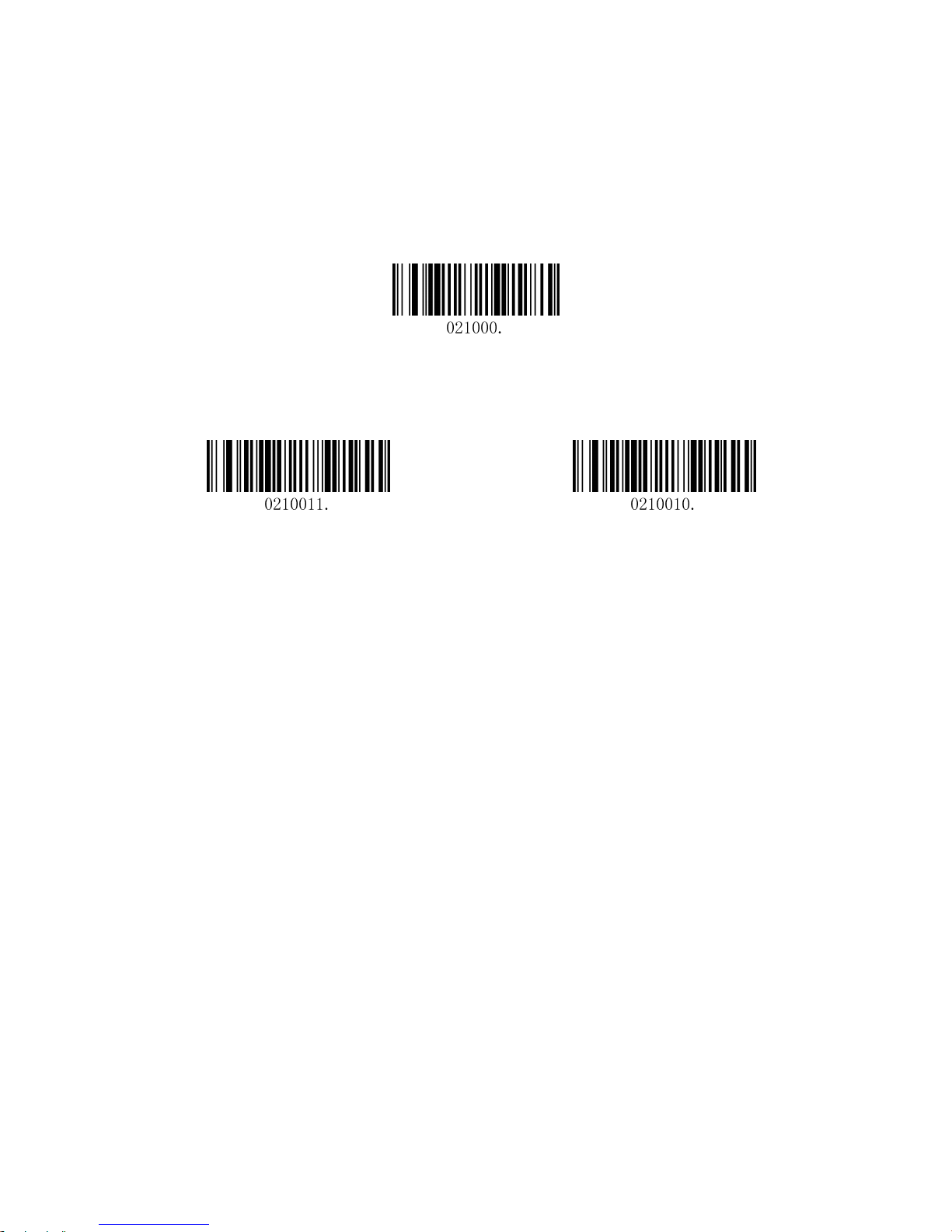
5.4.1 China Postal Code
Restore Factory Defaults
Restore the Factory Defaults of China Postal Code (default)
Enable/Disable China Postal Code
Enable China Postal Code Disable China Postal Code (default)
Page 48
45
5.4.2 Telepen
Restore Factory Defaults
Restore the Factory Defaults of Telepen (default)
Enable/Disable Telepen
Enable Telepen Disable Telepen (default)
Page 49

46
6 Appendix
6.1 Appendix 1: ASCII Table
Hex Dec Char
00 0 NUL (Null char.)
01 1 SOH (Start of Header)
02 2 STX (Start of Text)
03 3 ETX (End of Text)
04 4 EOT (End of Transmission)
05 5 ENQ (Enquiry)
06 6 ACK (Acknowledgment)
07 7 BEL (Bell)
08 8 BS (Backspace)
09 9 HT (Horizontal Tab)
0a 10 LF (Line Feed)
0b 11 VT (Vertical Tab)
0c 12 FF (Form Feed)
0d 13 CR (Carriage Return)
0e 14 SO (Shift Out)
0f 15 SI (Shift In)
10 16 DLE (Data Link Escape)
11 17 DC1 (XON) (Device Control 1)
12 18 DC2 (Device Control 2)
13 19 DC3 (XOFF) (Device Control 3)
14 20 DC4 (Device Control 4)
15 21 NAK (Negative Acknowledgment)
16 22 SYN (Synchronous Idle)
17 23 ETB (End of Trans. Block)
18 24 CAN (Cancel)
19 25 EM (End of Medium)
1a 26 SUB (Substitute)
1b 27 ESC (Escape)
1c 28 FS (File Separator)
1d 29 GS (Group Separator)
1e 30 RS (Request to Send)
1f 31 US (Unit Separator)
Page 50

47
Hex Dec Char
20 32 SP (Space)
21 33 ! (Exclamation Mark)
22 34 " (Double Quote)
23 35 # (Number Sign)
24 36 $ (Dollar Sign)
25 37 % (Percent)
26 38 & (Ampersand)
27 39 ` (Single Quote)
28 40 ( (Right / Closing Parenthesis)
29 41 ) (Right / Closing Parenthesis)
2a 42 * (Asterisk)
2b 43 + (Plus)
2c 44 , (Comma)
2d 45 - (Minus / Dash)
2e 46 . (Dot)
2f 47 / (Forward Slash)
30 48 0
31 49 1
32 50 2
33 51 3
34 52 4
35 53 5
36 54 6
37 55 7
38 56 8
39 57 9
3a 58 : (Colon)
3b 59 ; (Semi-colon)
3c 60 < (Less Than)
3d 61 = (Equal Sign)
3e 62 > (Greater Than)
3f 63 ? (Question Mark)
Page 51

48
Hex Dec Char
40 64 @ (AT Symbol)
41 65 A
42 66 B
43 67 C
44 68 D
45 69 E
46 70 F
47 71 G
48 72 H
49 73 I
4a 74 J
4b 75 K
4c 76 L
4d 77 M
4e 78 N
4f 79 O
50 80 P
51 81 Q
52 82 R
53 83 S
54 84 T
55 85 U
56 86 V
57 87 W
58 88 X
59 89 Y
5a 90 Z
5b 91 [ (Left / Opening Bracket)
5c 92 \ (Back Slash)
5d 93 ] (Right / Closing Bracket)
5e 94 ^ (Caret / Circumflex)
5f 95 _ (Underscore)
Page 52

49
Hex Dec Char
60 96 ' (Grave Accent)
61 97 a
62 98 b
63 99 c
64 100 d
65 101 e
66 102 f
67 103 g
68 104 h
69 105 i
6a 106 j
6b 107 k
6c 108 l
6d 109 m
6e 110 n
6f 111 o
70 112 p
71 113 q
72 114 r
73 115 s
74 116 t
75 117 u
76 118 v
77 119 w
78 120 x
79 121 y
7a 122 z
7b 123 { (Left/ Opening Brace)
7c 124 | (Vertical Bar)
7d 125 } (Right/Closing Brace)
7e 126 ~ (Tilde)
7f 127 DEL (Delete)
Page 53

50
6.2 Appendix 2: Digit Barcodes
0 1 2 3
4 5 6 7
8 9 A B
C D E F
 Loading...