

Page 1
BIODEX
Biodex Medical Systems, Inc.
20 Ramsey Road, Shirley, New York, 11967-4704, Tel: 800-224-6339 (Int’l 631-924-9000), Fax: 631-924-9241, Email: [email protected], www.biodex.com
ADDENDUM
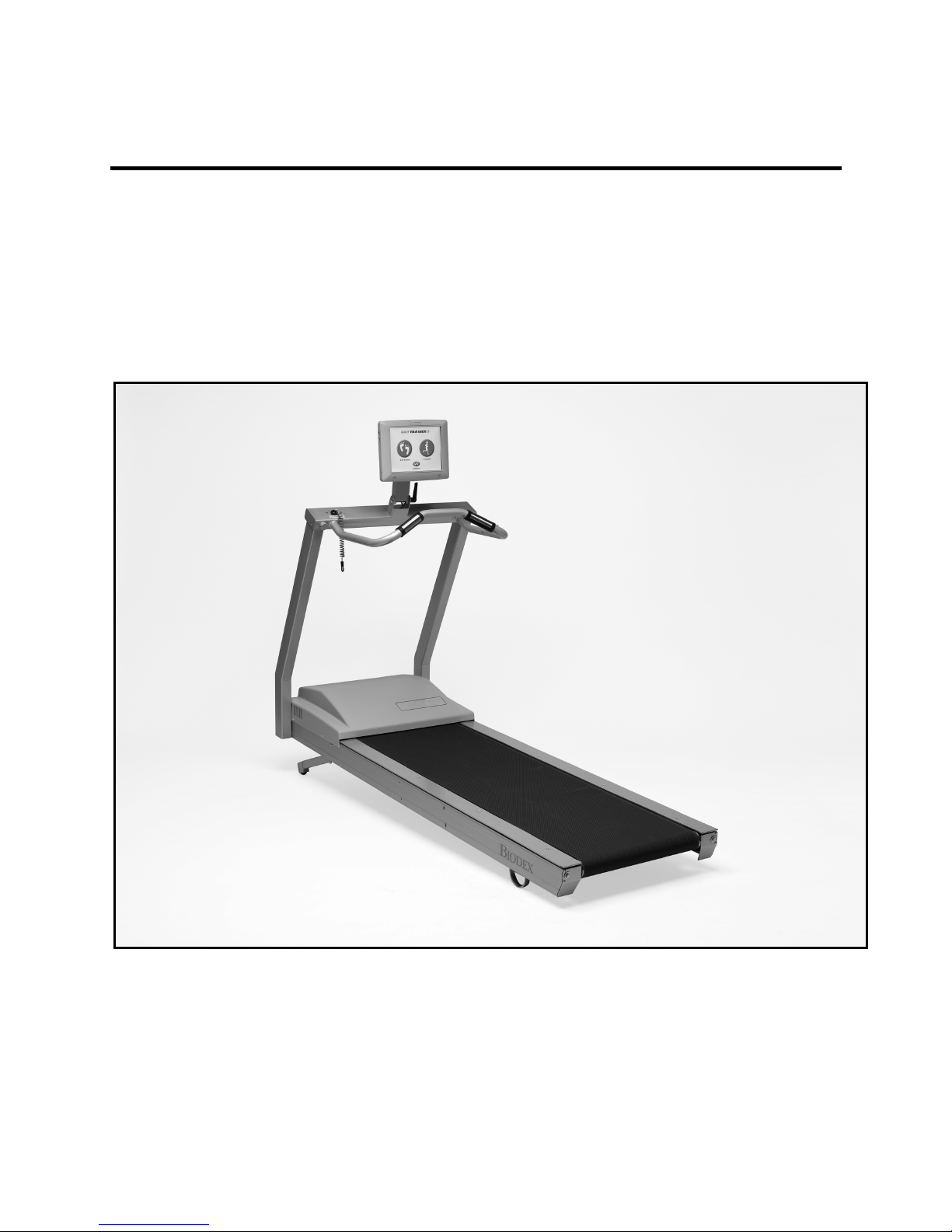
GAIT TRAINER
Version 2.01
SOFTWARE MANUAL – User’s Guide
950-400
950-402
950-406
FN: 14-075 3/14
Page 2

2 Biodex Medical Systems, Inc. © 2014
This manual contains operating procedures for the following Biodex products:
940-400 Gait Trainer 3™, 115 VAC 50/60
Includes Support Bar
950-402 Gait Trainer 3™, 115 VAC 50/60
Includes Extended Handrails
950-406 Gait Trainer 3™, 115 VAC 50/60
Includes Geriatric/Pediatric Handrails
Need Help?
Contact Biodex Software Support
1-800-224-6339 ext 2120, or
Page 3

GAIT TRAINER G-CODE ADDENDUM 3
Table of Contents
1 INTRODUCTION ......................................................................................................... 4
G-codes and Modifiers
2 ASSOCIATING G-CODE DATA ...................................................................................... 5
How to associate impairment percentage, modifier code, G-code category and
status to a patient record
3 EXERCISE DATA REPORT ........................................................................................... 10
How to view exercise data report and amend the impairment percentage
4 SAMPLE G-CODE CATEGORIES .................................................................................. 18
Page 4
4 Biodex Medical Systems, Inc. © 2014
1. Introduction
G-Codes and Modifiers
G-codes are a method of recording and tracking a patient’s functional limitation at the outset of
therapy, during the course of therapy, and at the time of discharge.
The codes are now required by Medicare for outpatient therapy services billed under Medicare
Part B in order to collect data on beneficiaries’ functional outcomes from therapy services
provided. Claims that do not include the required functional data will be returned for
re-submission.
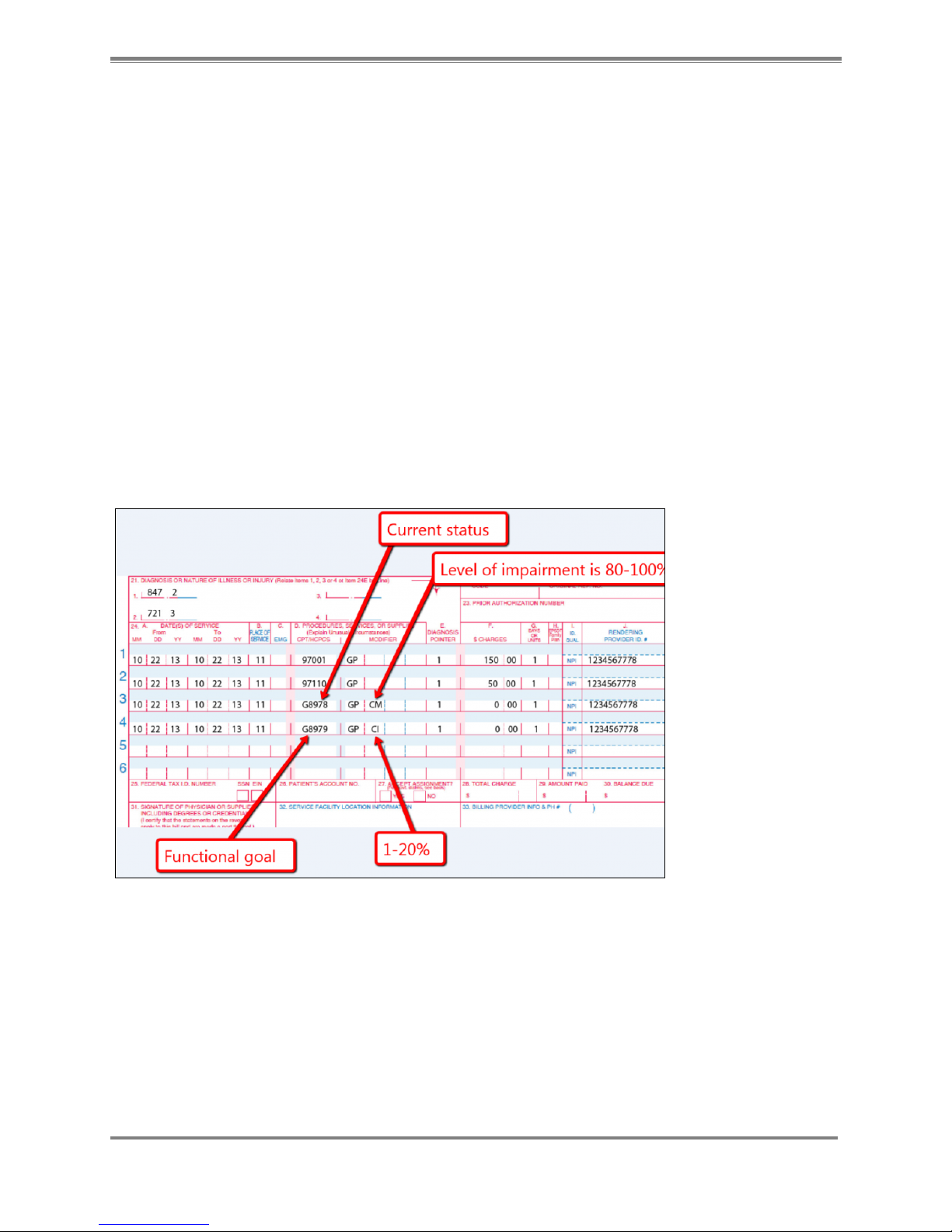
Functional tests will be used to report a functional limitation category (G-code) and a
percentage of impairment (Severity Code Modifier). Severity Code Modifiers are a series of
impairment level ranges made up of approximately 20 percentage points each.
The G-codes will be used by those who provide outpatient therapy services such as physical
therapists, occupational therapists, speech-language pathologists, physicians, physician
assistants, nurse practitioners, and clinical nurse specialists.
Figure 1.1. Sample Claim Form with G-code and Impairment Modifier
Page 5
GAIT TRAINER G-CODE ADDENDUM 5
2. Associating G-Code Data
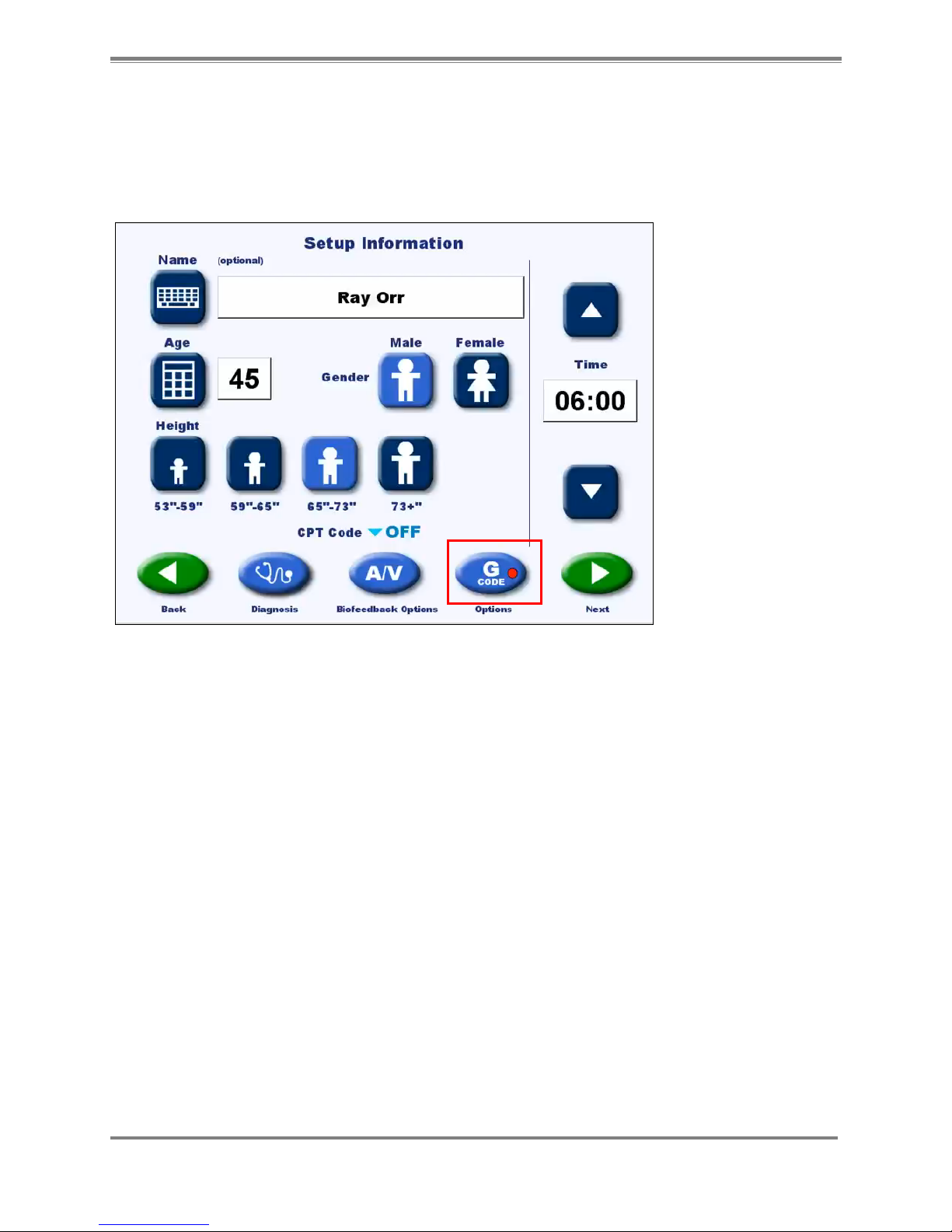
The G-code screen is accessed from the Setup Information screen in the Gait Trainer interface.
Select the <G-code> button to access this screen.
Figure 2.1. Setup Information screen in the Gait Trainer interface. Using the G-code button, a user can access the drop-down
menus needed for associating G-code data.
Page 6
6 Biodex Medical Systems, Inc. © 2014
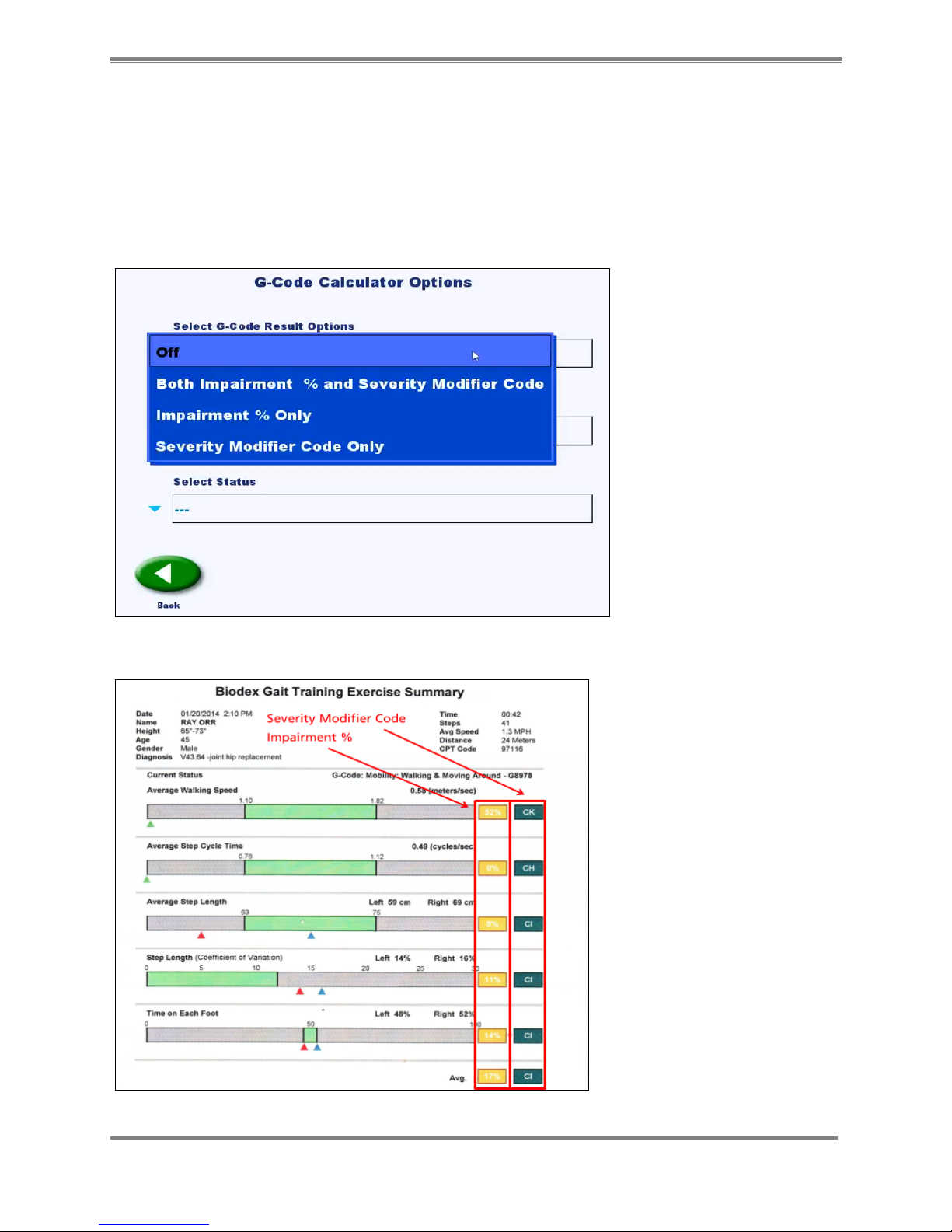
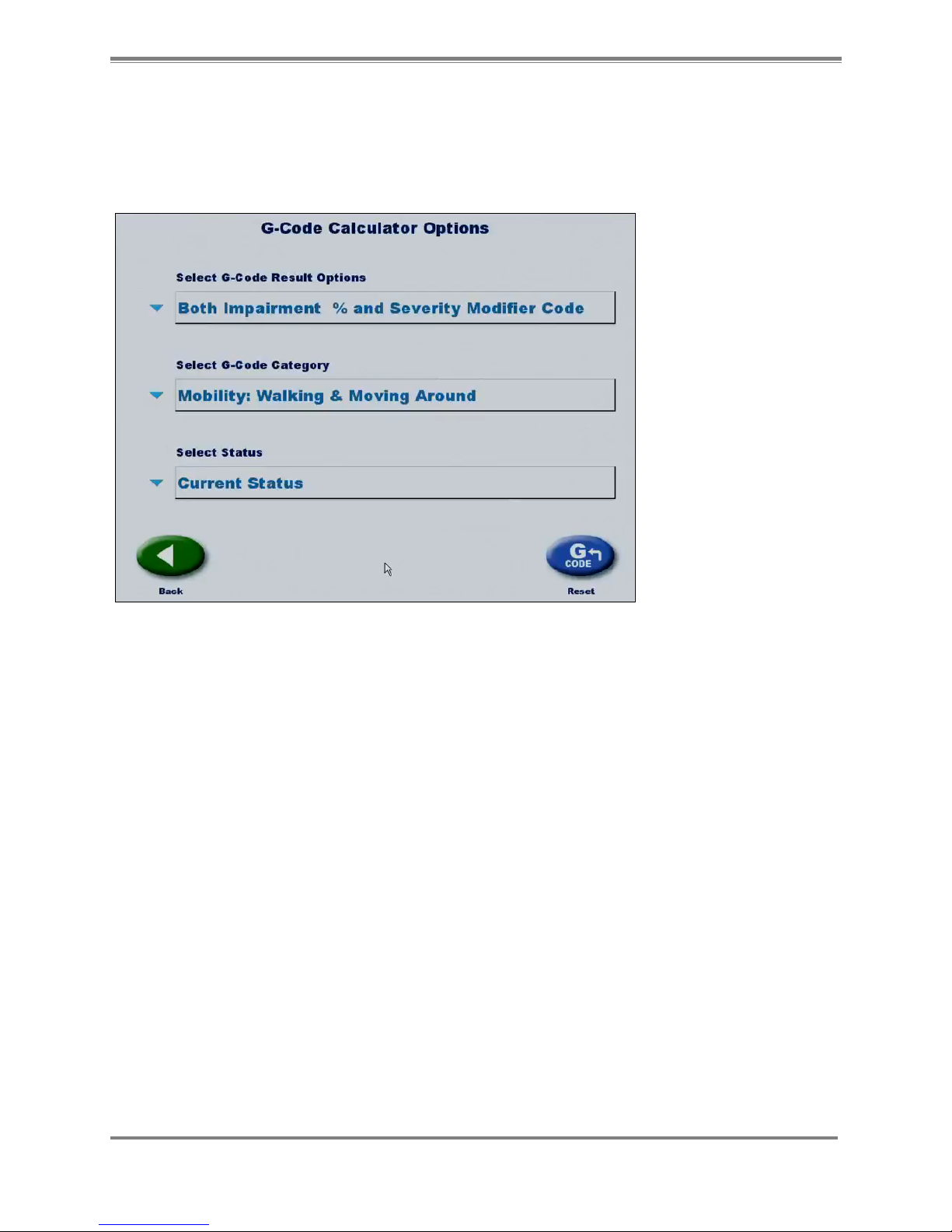
At this screen, you can associate G-code data with the patient by making selections in the dropdown menus.
The top drop-down menu allows you to select a G-code Result Option. This means that the
Exercise Summary Report will feature either the Impairment % or the Severity Modifier Code,
or both. Or, if the drop-down menu is set to Off, then the Exercise Summary Report will show
neither column and the G-code button on the Setup screen will have a red (as opposed to green)
dot on it.
Figure 2.2. G-code Calculator Options screen in the Gait Trainer interface. The first drop-down menu allows the user to
customize the G-code data that will appear on the Exercise Summary.
Figure 2.3. A sample of the Exercise Summary after ‘Both Impairment % and Severity Modifier Code’ has been selected.
Page 7
GAIT TRAINER G-CODE ADDENDUM 7
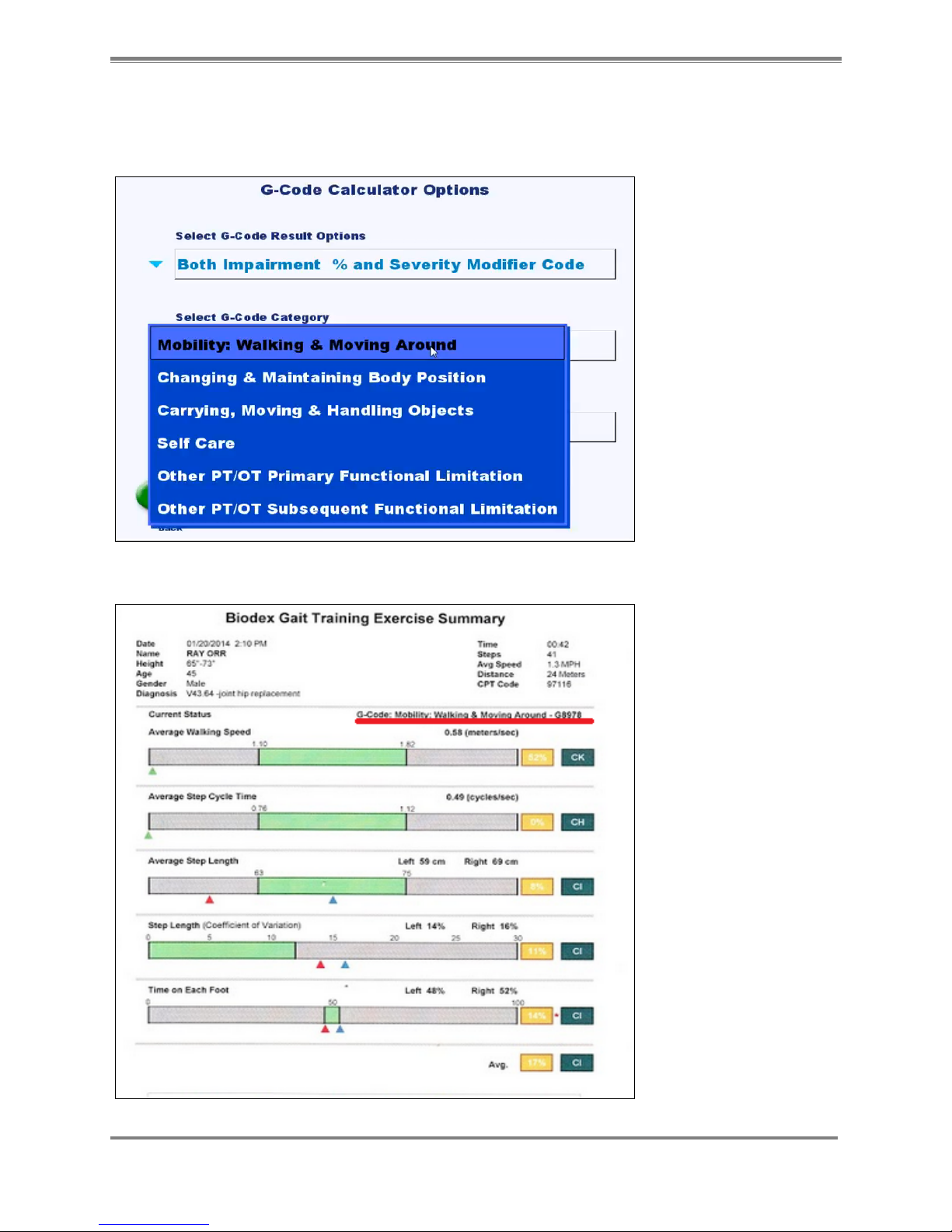
The G-code category drop-down menu features a list of commonly used rehabilitation
categories. The category most likely to be associated with the Gait Trainer is the Mobility:
Walking and Moving Around selection.
Figure 2.4. The second drop-down menu on the G-code Calculator Options screen in the Gait Trainer interface allows the user
to choose a G-code category.
Figure 2.5. A sample of the Exercise Summary showing the G-code category that has been selected.
Page 8
8 Biodex Medical Systems, Inc. © 2014
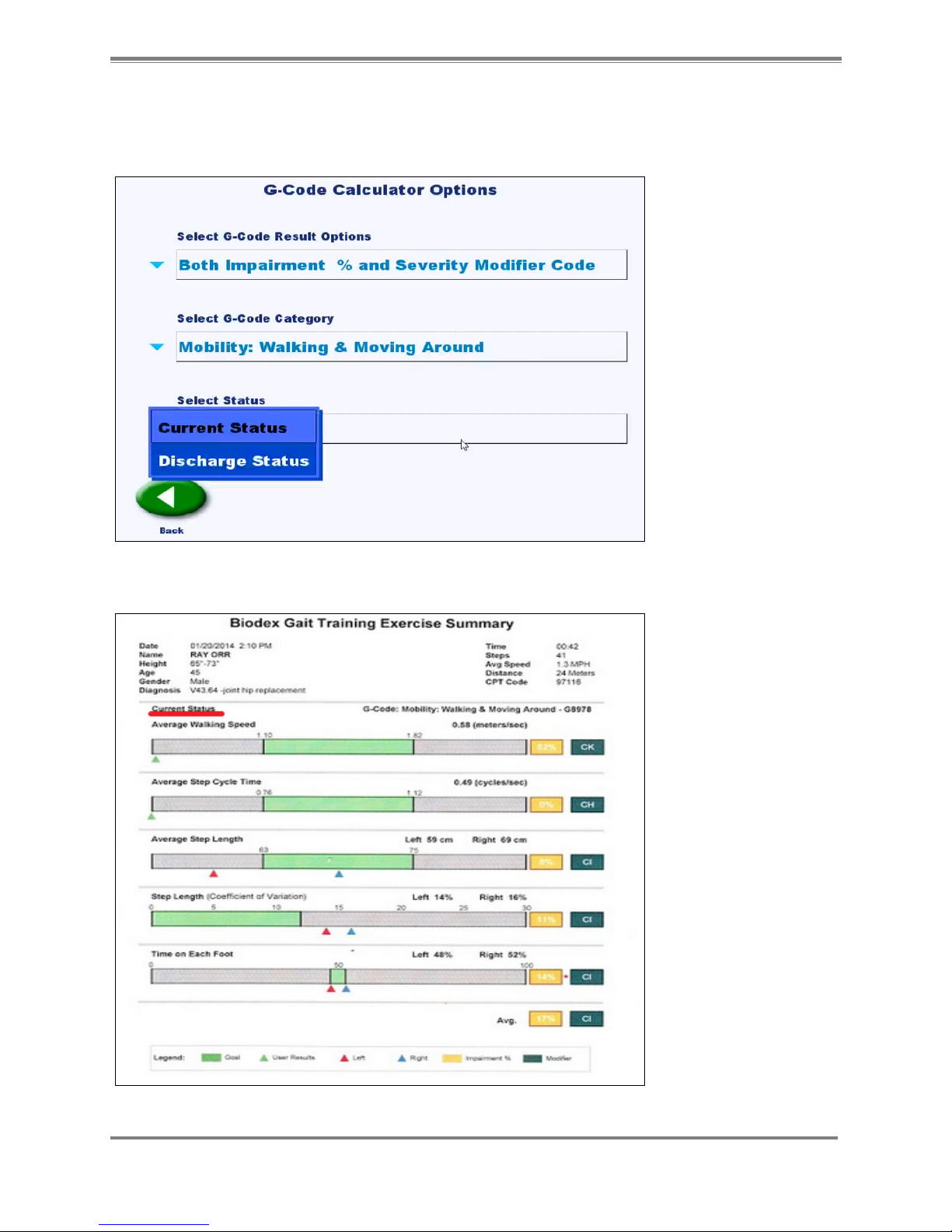
The Status drop-down menu relates to the patient’s treatment timeline. If this is the patient’s
first treatment, or one in a series of treatments, then the status should be set to Current
Status. If it is the last treatment, then the Discharge Status should be selected.
Figure 2.6. The third drop-down menu on the G-code Calculator Options screen in the Gait Trainer interface allows the user to
select the status of the beneficiary.
Figure 2.7. A sample of the Exercise Summary showing the status that has been selected.
Page 9
GAIT TRAINER G-CODE ADDENDUM 9
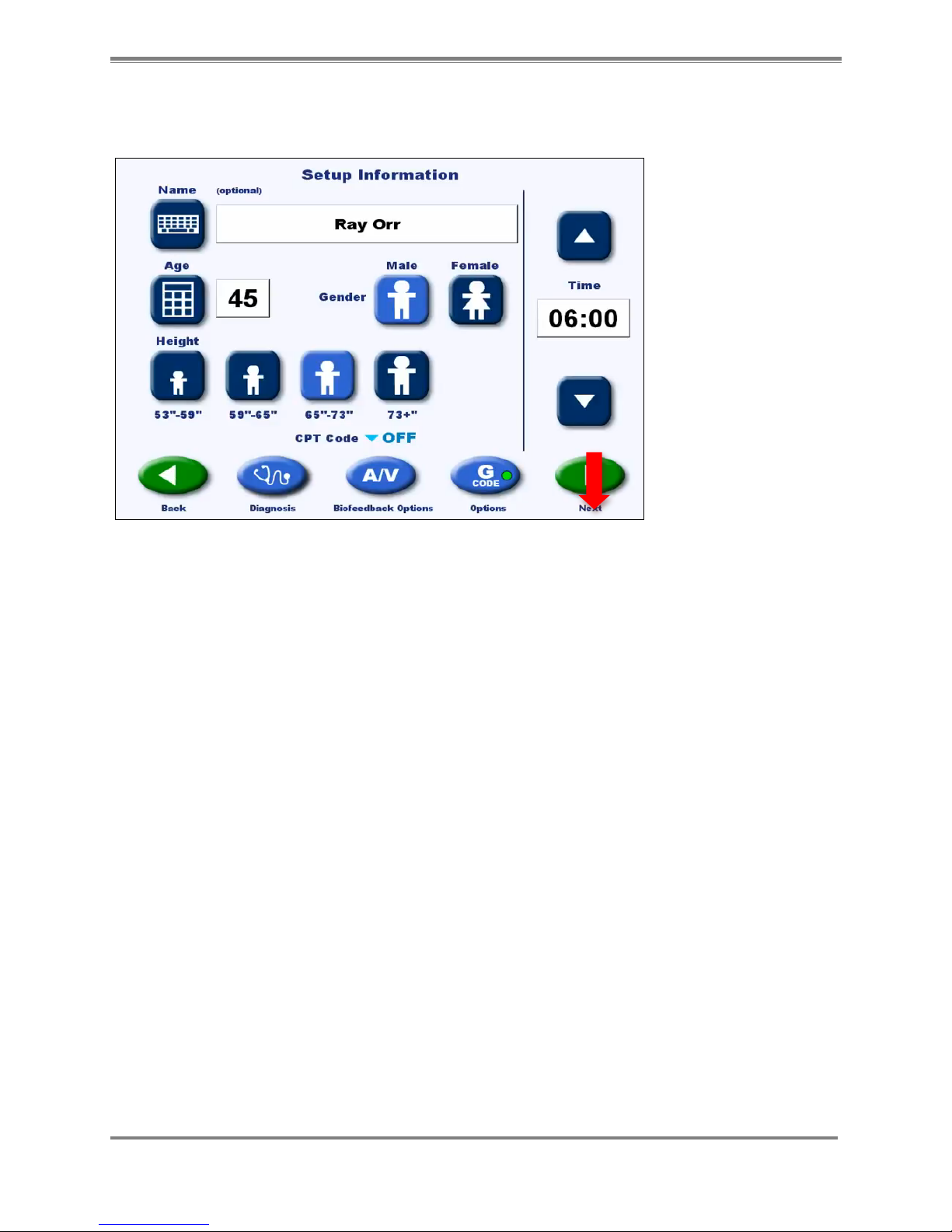
Select <Back> to return to the Setup Information screen. Note now how the dot on the G-code
button is green, as opposed to red.
Figure 2.8. The Setup Information screen after G-code data has been associated.
Page 10
10 Biodex Medical Systems, Inc. © 2014
3. Exercise Report Data
Exercise report data can be reviewed from the Exercise Results screen only after selecting
<End> to end the exercise session and then selecting <Results>.
The Exercise Results screen can also be accessed by selecting an individual record from the
Patient Management section in System Utilities.
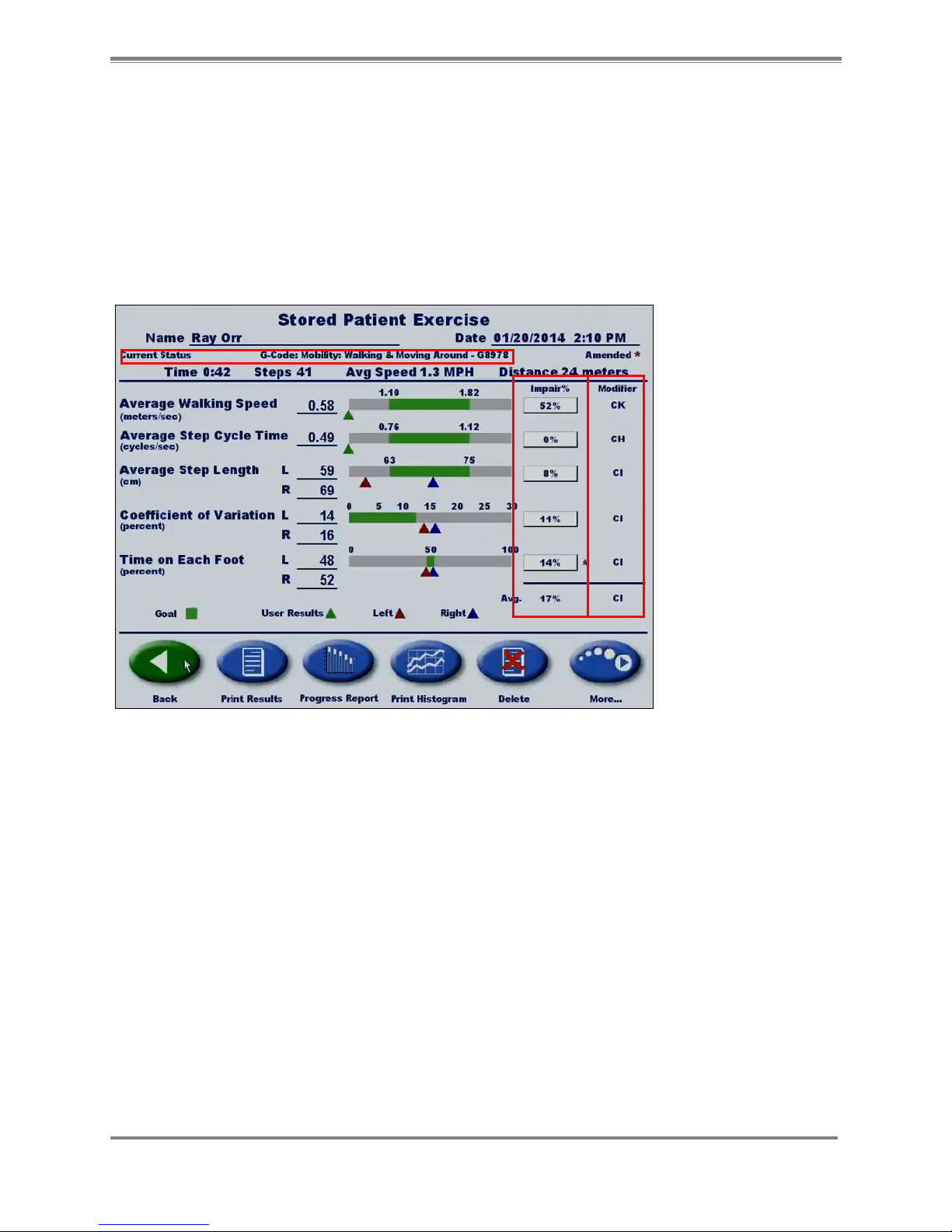
Figure 3.1. Sample Stored Patient Exercise screen.
Near the top of the screen, you can see the G-code category has been specified as Mobility:
Walking and Moving Around. The G8978 code is derived from making a “Current Status”
selection. Both of these selections are made in the Gait Training Mode Setup Information
screen.
The two columns at the right of the screen pertain to G-code data. The Impair Percentage
numbers refer to what degree the patient could be considered impaired, with 100% meaning
the patient is completely impaired and unable to do the associated task without help.
Page 11
GAIT TRAINER G-CODE ADDENDUM 11
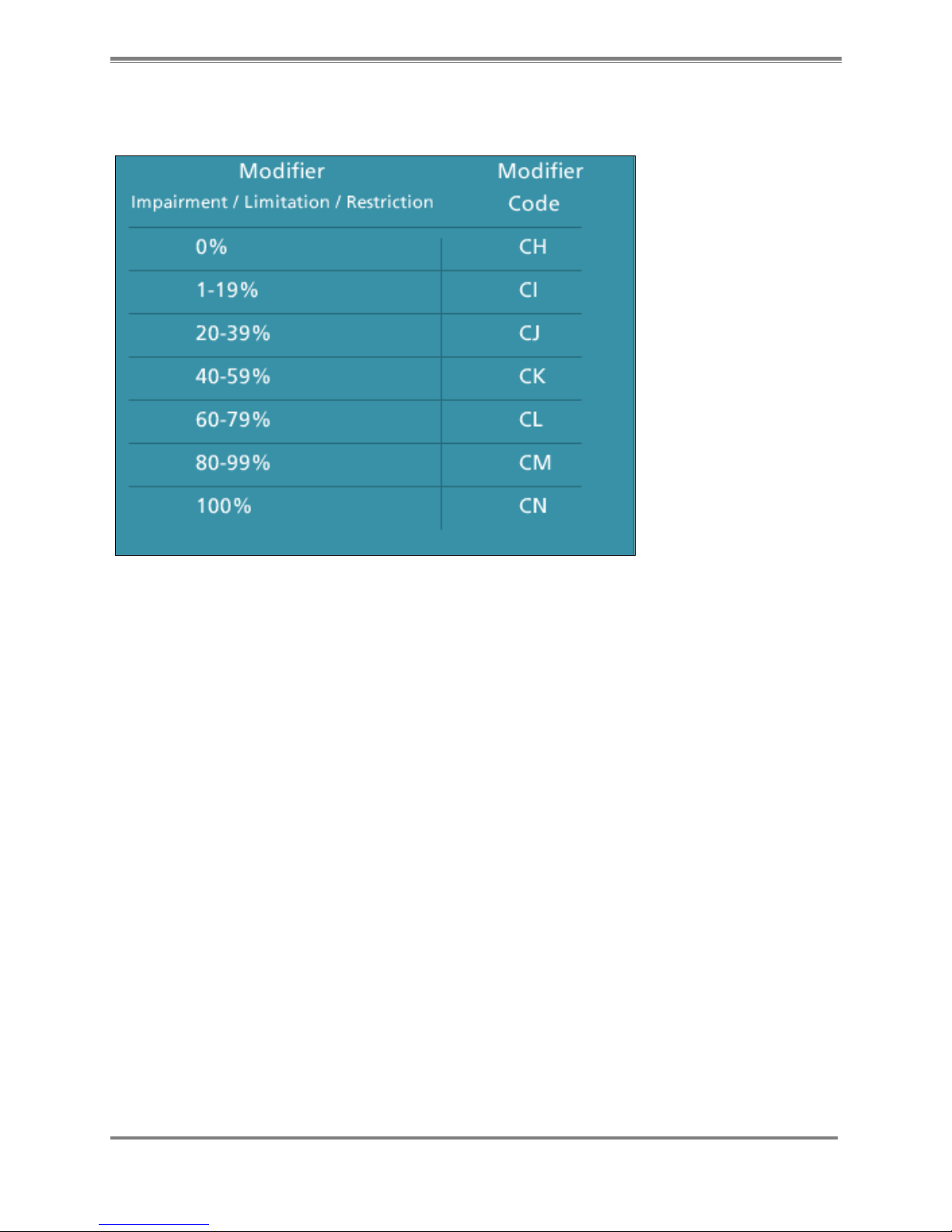
The Severity Code Modifiers are a series of impairment level ranges made up of about 20
percentage points each, where “CI”, for example, would represent a status of 1-19% impairment.
Figure 3.2. The scale of 7 modifiers is intended to denote the patient's degree of impairment/limitation/restriction.
Page 12
12 Biodex Medical Systems, Inc. © 2014
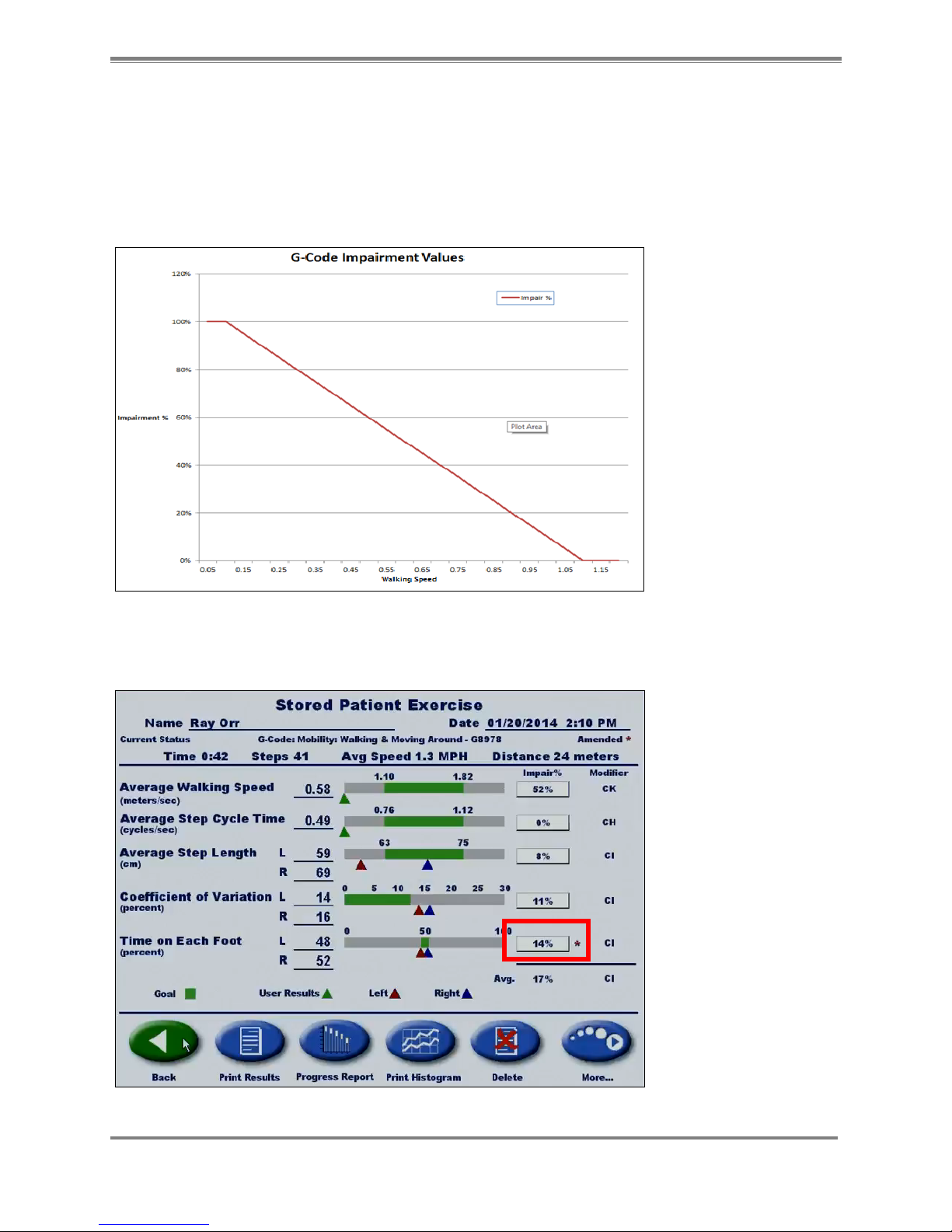
For further reference, review the chart below to see how the Gait Trainer software calculates
Impairment Percentage. In measuring a patient’s average walking speed, the software assigns
an Impairment Percentage “score” based on the patient’s average walking speed during a
particular session. If the patient cannot walk at an average speed 0.3 MPH or greater, he is
considered to be 100% impaired. If his average walking speed is 1.1 MPH or greater, he is
considered to be 0% impaired. (In this example, a “normal” range of 1.1 to 1.82 MPH is
calculated from the age, gender, and height data entered on the Setup Information screen.)
Figure 3.3. Sample graph showing how the Gait Trainer software calculates Impairment Percentage.
From the Stored Patient Exercise screen, the therapist may also choose to alter the Impairment
Percentage numbers manually. To do so, simply select the number you wish to change.
Figure 3.4. The Impairment Percentage numbers can be manually changed from this screen.
Page 13
GAIT TRAINER G-CODE ADDENDUM 13
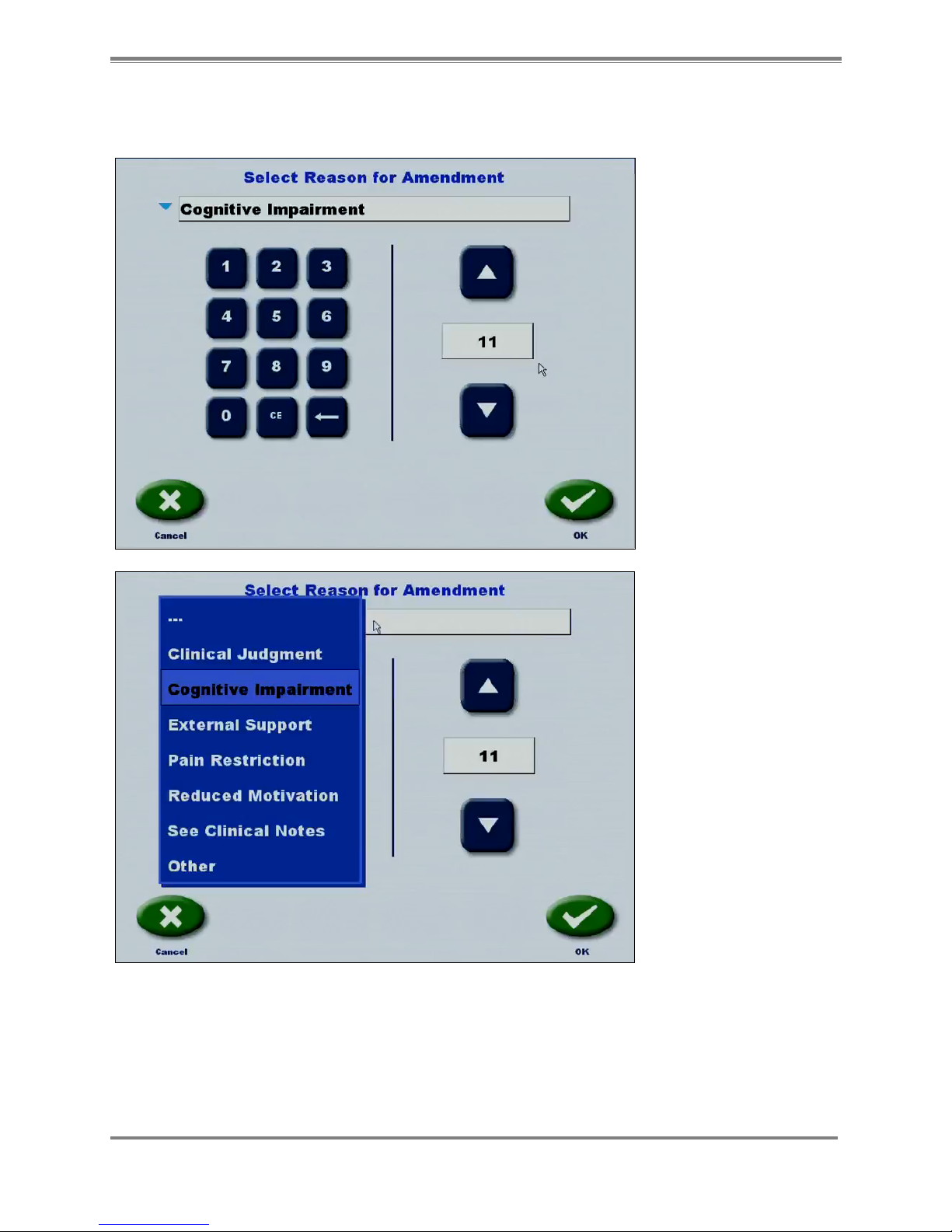
On the Select Reasons for Amendment screen, select a reason for the change in the drop-down
menu.
Figure 3.5. A drop-down menu allows the therapist to choose a reason for the amendment to the impairment percentage.
Page 14
14 Biodex Medical Systems, Inc. © 2014
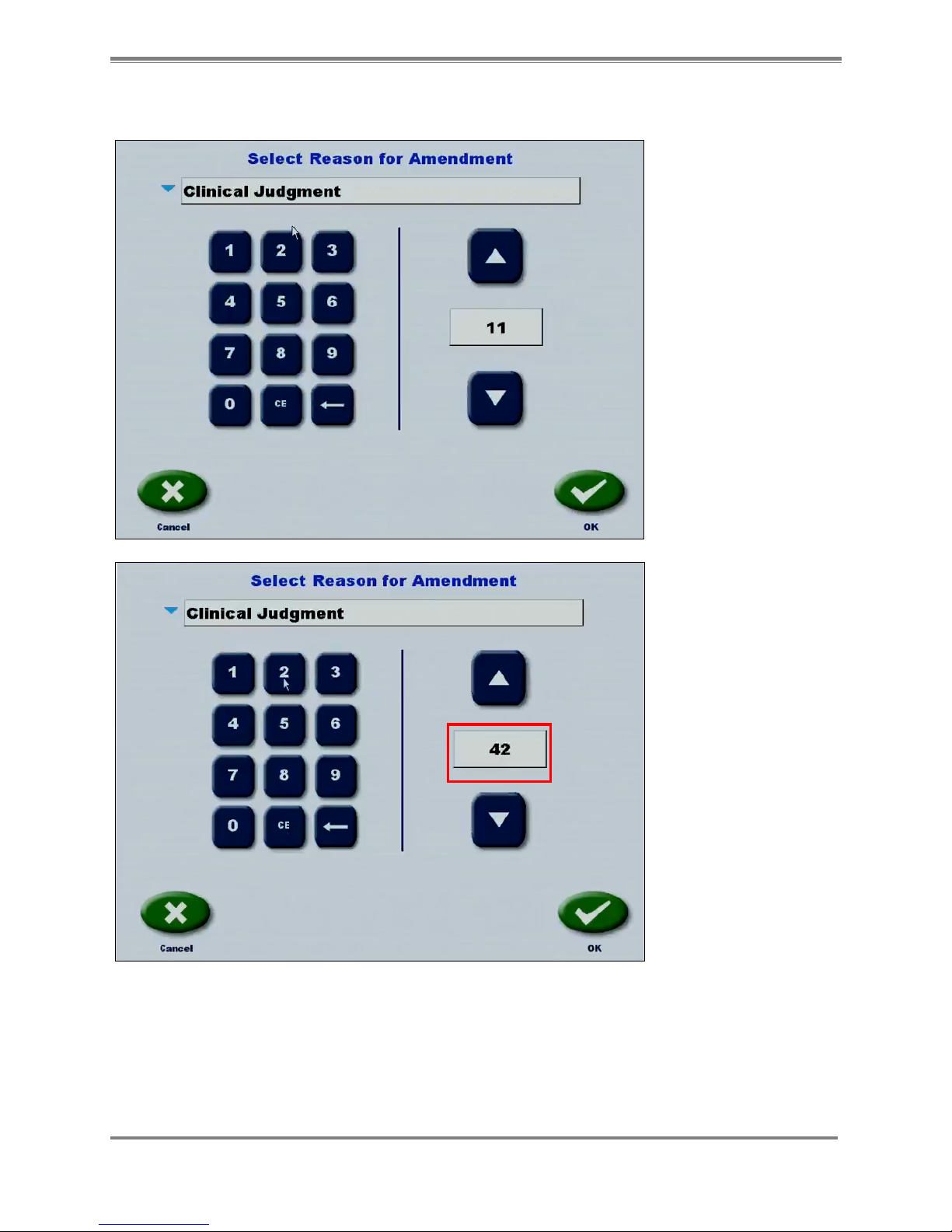
Then, enter an updated number with the keypad.
Figure 3.6. The impairment percentage can be changed with the key pad on the left of the screen.
Page 15
GAIT TRAINER G-CODE ADDENDUM 15
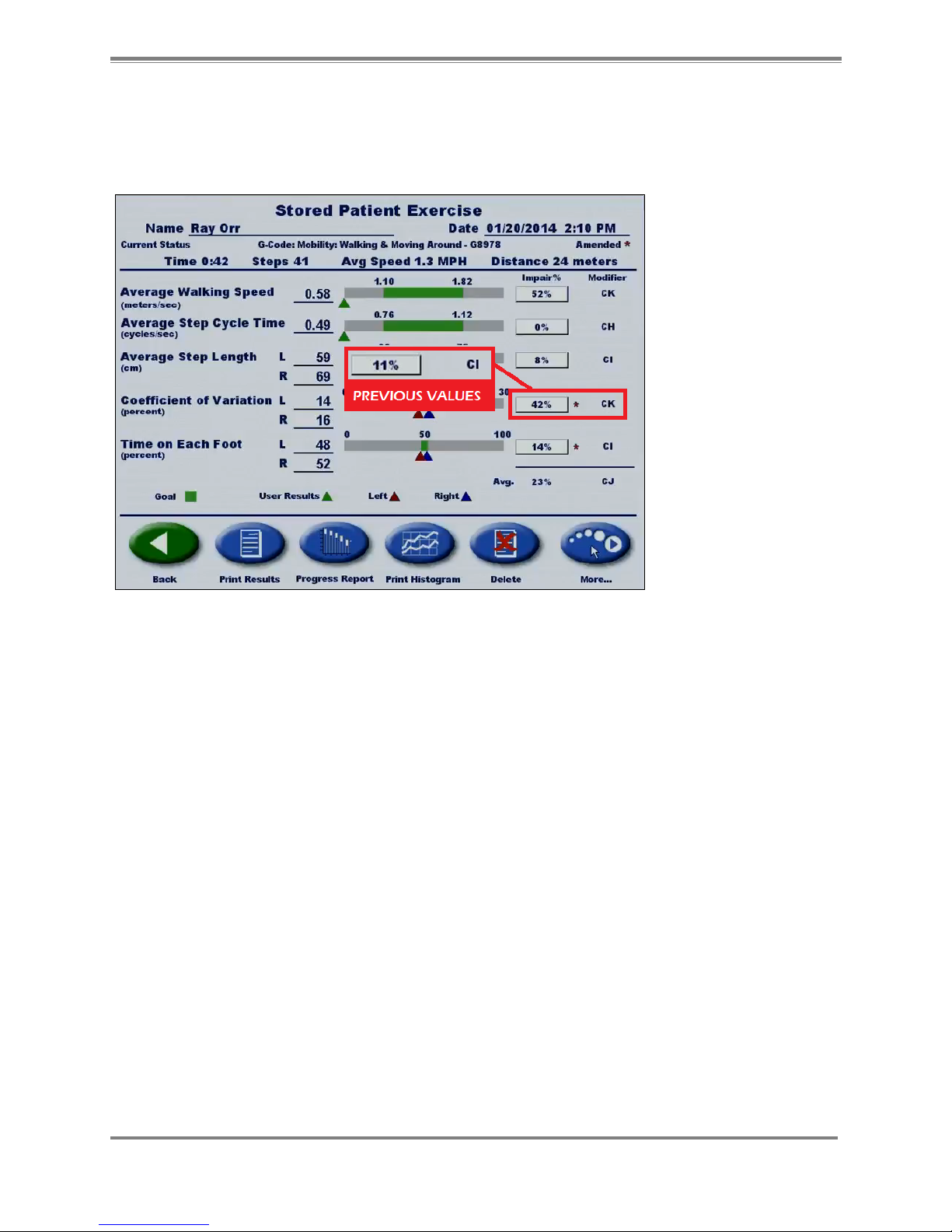
When you return to the Stored Patient Exercise screen you will note two things: First, a red
asterisk has appeared next to the changed number, marking it as being Amended. Also, since
the impairment level change was a significant one - from 11 to 42 - note that the Severity
Modifier Code has changed as well - from CI to CK.
Figure 3.7. The change in impairment percentage is now noted by an asterisk.
Page 16
16 Biodex Medical Systems, Inc. © 2014
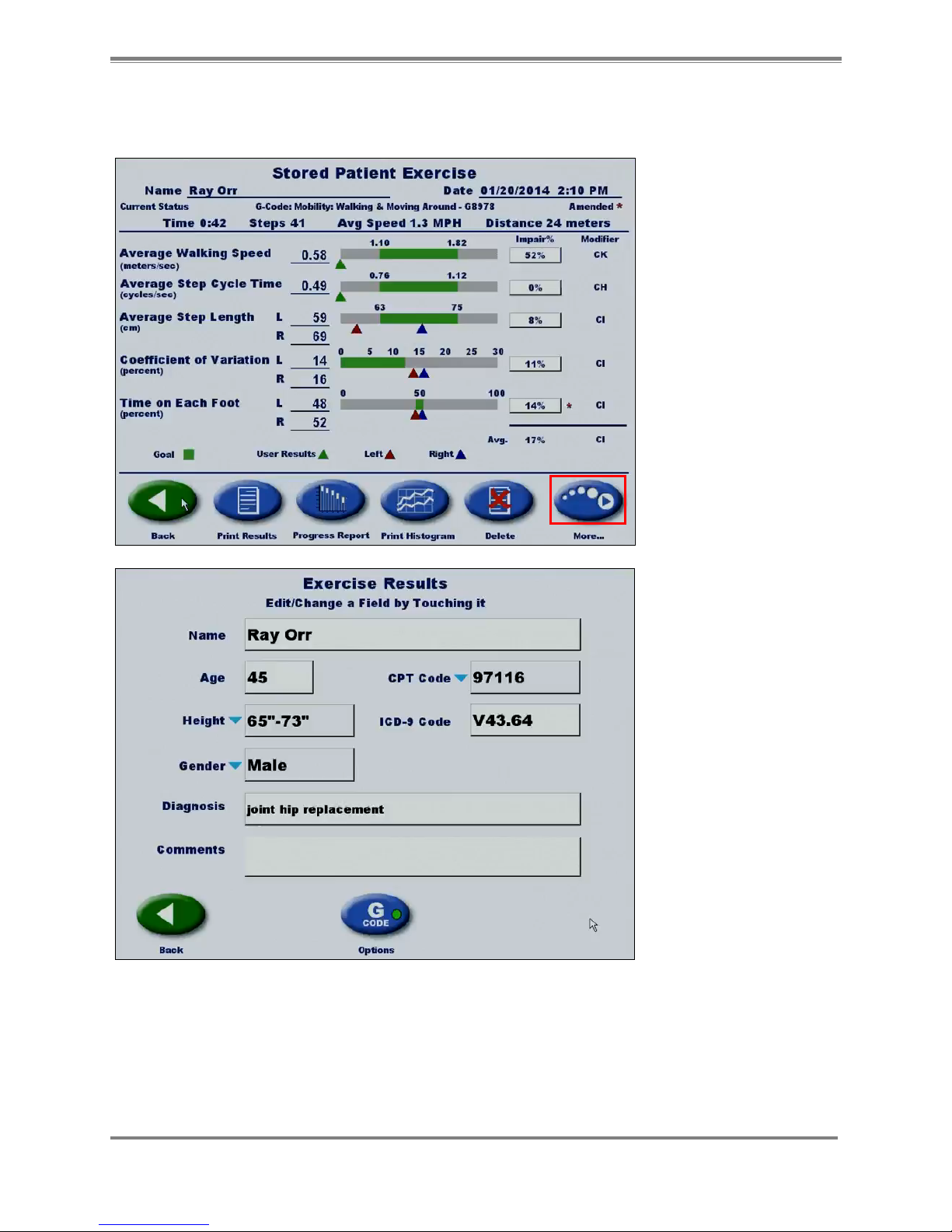
By selecting the <More> button you can edit the fields where information had been previously
entered in the Setup Information screen.
Figure 3.8. The data on the Setup Information screen can be edited by selecting the ‘More’ button on the Stored Patient Exercise
screen.
Page 17
GAIT TRAINER G-CODE ADDENDUM 17
You can also enter some additional notes in the Comments field.
And, by selecting the <G-code> Options button at the bottom of the screen, you can change the
G-code Result Options, Category, and Status. If, after making new selections you change your
mind, select the <G-code> reset button to change the selections back.
Figure 3.9. The G-code data can be edited by selecting the ‘G-code’ button on the Exercise Results screen.
Page 18

18 Biodex Medical Systems, Inc. © 2014
4. Sample G-Code Categories
For your reference, here are some other G-code categories and associated codes. All of these
selections are available on the Gait Trainer software.
Mobility: Walking & Moving Around
G8978 Mobility current status
G8979 Mobility goal status
G8980 Mobility D/C status
Changing & Maintaining Body Position
G8981 Body pos current status
G8982 Body pos goal status
G8983 Body pos D/C status
Carrying, Moving and Handling Objects
G8984 Carry current status
G8985 Carry goal status
G8986 Carry D/C status
Self-Care
G8987 Self-care current status
G8988 Self-care goal status
G8989 Self-care D/C status
Other PT/OT Primary (not covered in above category)
G8990 Other PT/OT current status
G8991 Other PT/OT goal status
G8992 Other PT/OT D/C status
Other PT/OT Subsequent (not covered in above category)
G8993 Sub PT/OT current status
G8994 Sub PT/OT goal status
G8995 Sub PT/OT D/C status
Page 19

GAIT TRAINER G-CODE ADDENDUM 19
Page 20

20 Biodex Medical Systems, Inc. © 2014
BIODEX
Biodex Medical Systems, Inc.
20 Ramsey Road, Shirley, New York, 11967-4704, Tel: 800-224-6339 (Int’l 631-924-9000), Fax: 631-924-9241, Email: [email protected], www.biodex.com
 Loading...