

Page 1
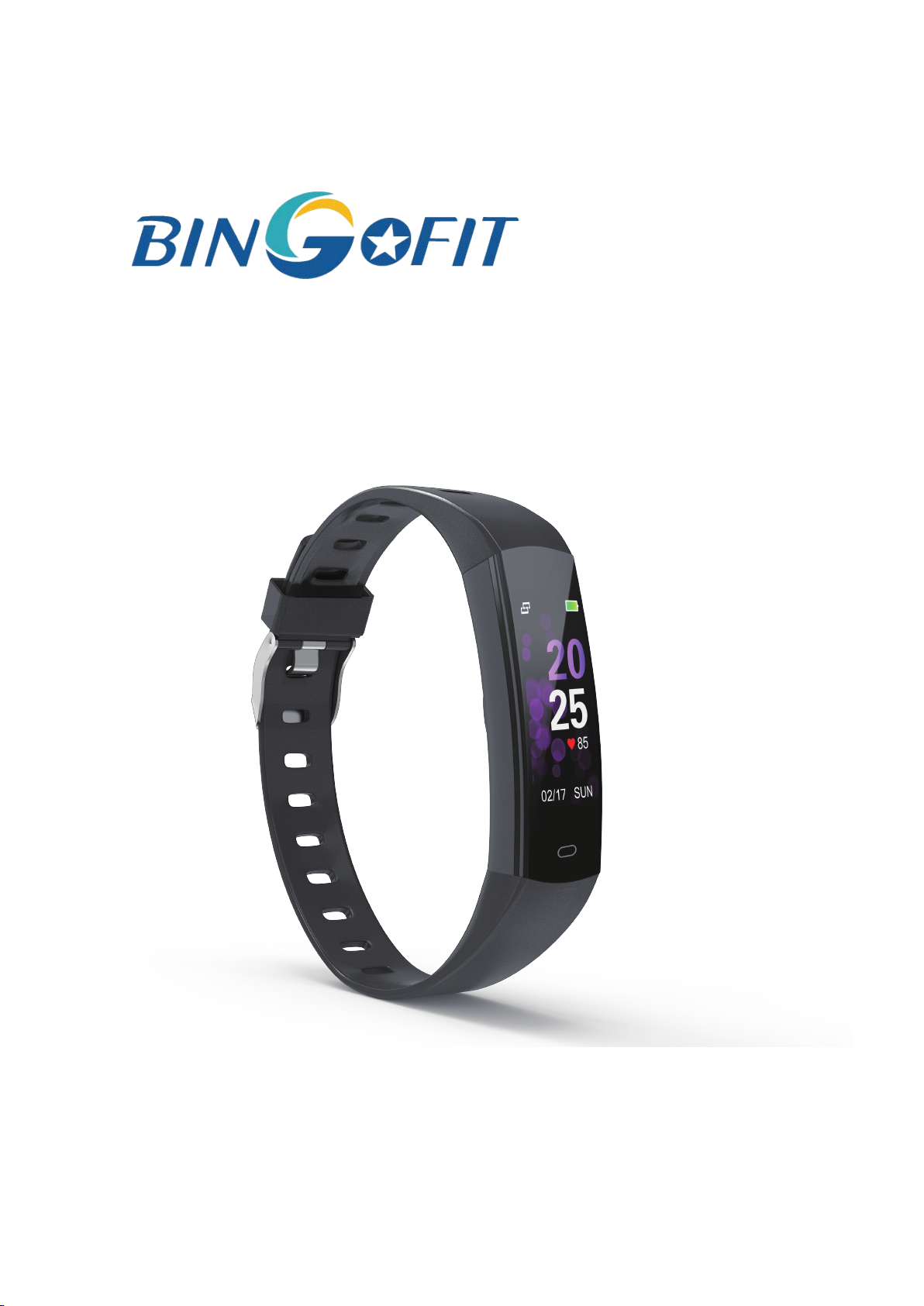
905HR
User Manual
Version 1.0
Page 2

Table of Contents
Get Started
What's in the box
Set up 905HR·
Compatibility with Mobile
Download the APP
Wear 905HR·
Remove the wristband
To remove the wristband
How to charge
Pair with Phone
······································································ 04
························································· 04
····································································· 05
··································································· 06
····························································· 09
···························································· 10
············································· 05
······················································· 05
·················································· 08
············································· 08
Disconnect from phone
Change watch faces
Basics Navigation
Find phone
Sedentary reminder
Set Alarm Clock
Notification
Set up notifications
·································································· 14
····································································· 16
······················································ 13
···························································· 14
······················································ 14
··························································· 15
····················································· 16
················································· 12
Page 3

See incoming notifications
············································ 17
Reject phone calls
Activity and Sleep
Track a daily activity goal
Choose a goal
Track your sleep
Set a sleep goal
Multi-sports Mode
See your heart rate
Dynamic Heart Rate Monitoring
························································ 18
···························································· 19
··············································· 19
······························································ 19
··························································· 20
···························································· 21
······················································· 22
······················································ 23
···································· 24
Restart and Erase
Troubleshooting
Other issues
Return policy and warranty
Safety Notices
································································· 27
································································· 29
·························································· 26
······························································ 27
············································ 28
Page 4
Get started
Welcome to BingoFit 905HR, an all-day companion that lasts 5+
days.
What's in the box
Your 905HR box includes
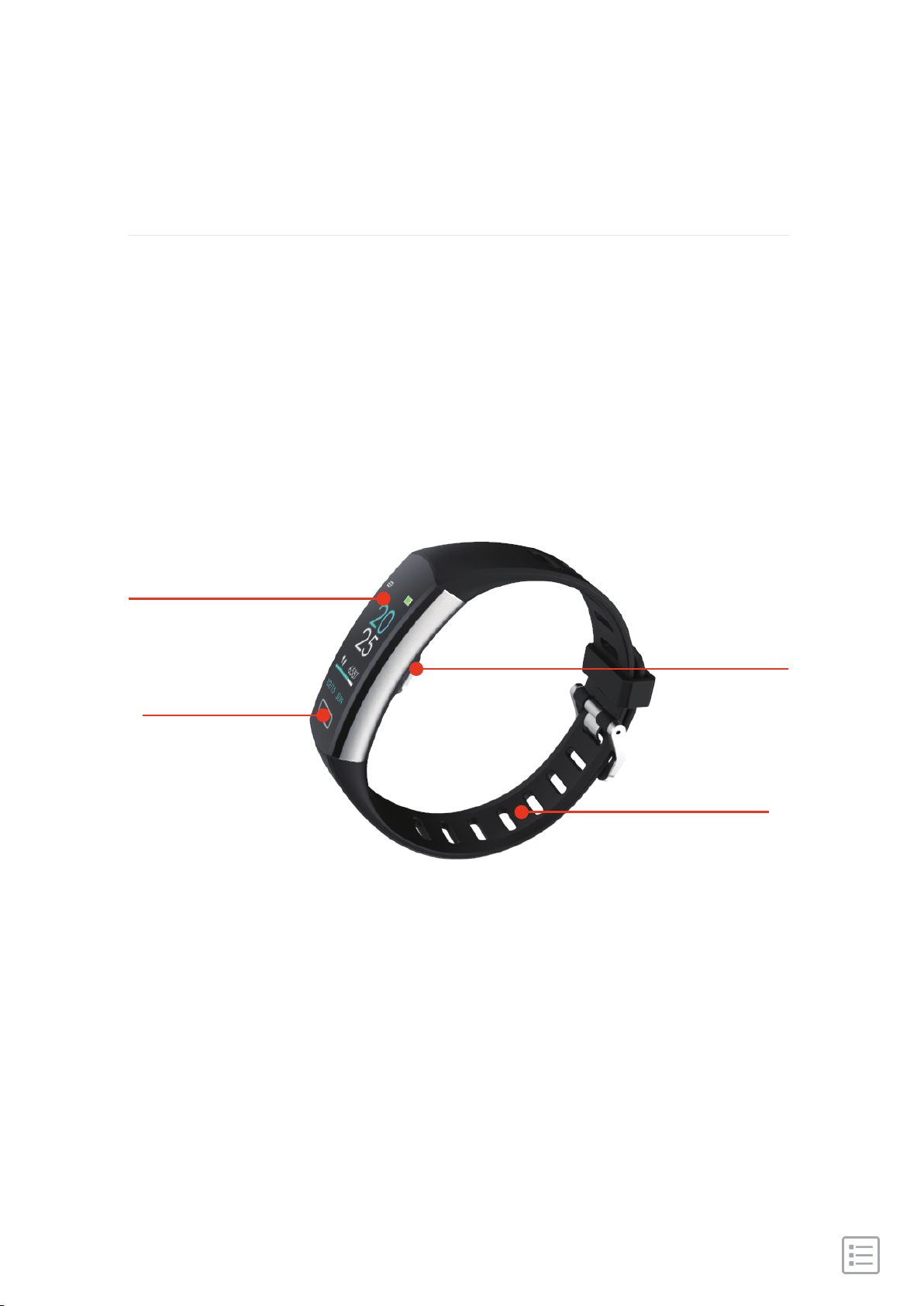
Color Display Screen
Heart Rate IC
Touch Key
TPU Straps
The detachable wristbands on 905HR come in a variety of
colors and materials, sold separately.
- 04 -
Page 5
Set up 905HR
Compatibility with Mobile
IOS 9.0 & above
NOT SUPPORT: Windows/Amazon Kindle/Amazon Fire/PC/
Tablet/Ipad.
Android 4.4 & above
Download the APP
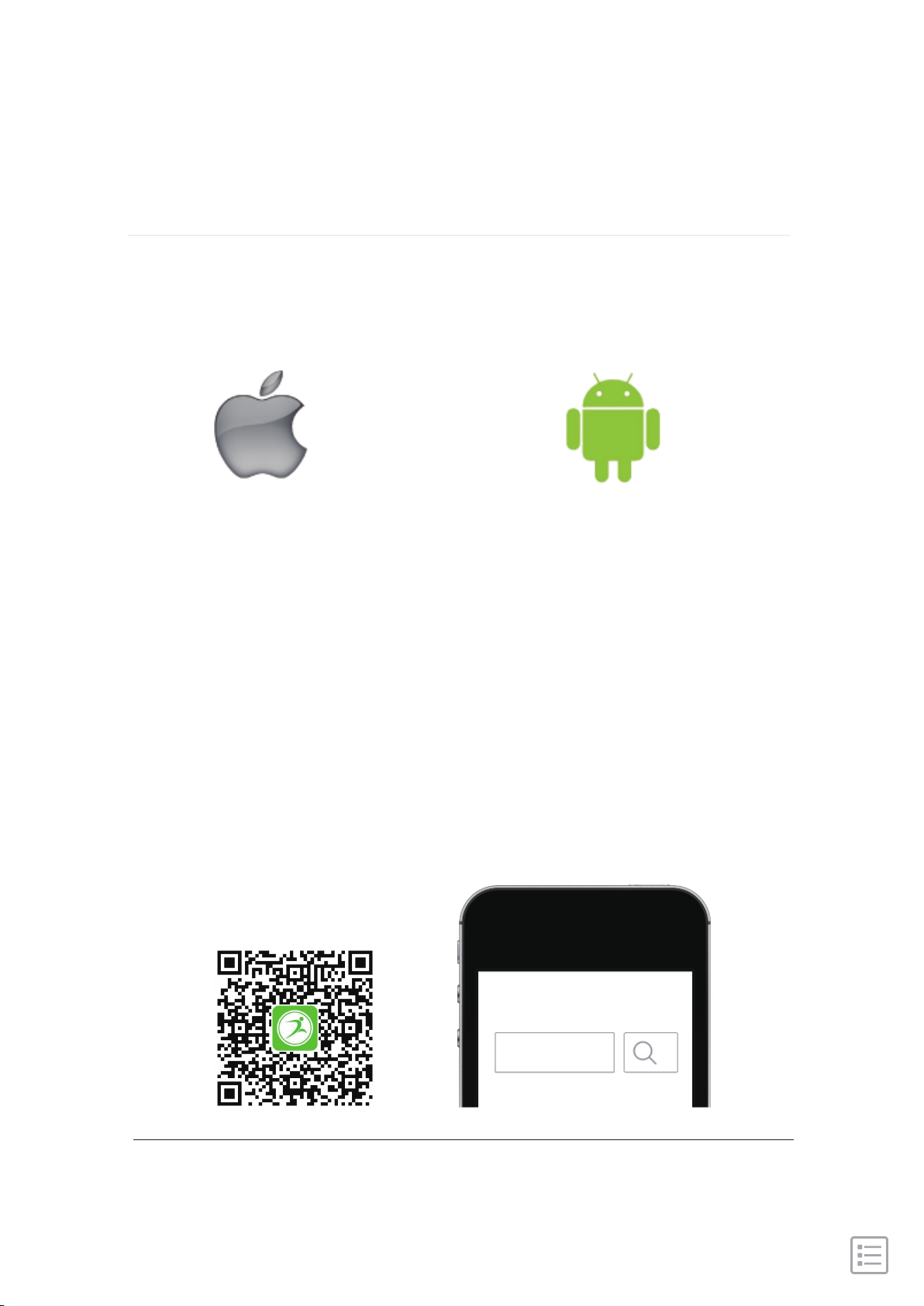
Search "CC Band" APP on the App store or Google Play store
or scan the QR code to download.
- 05 -
CC Band
Page 6
Wear 905HR
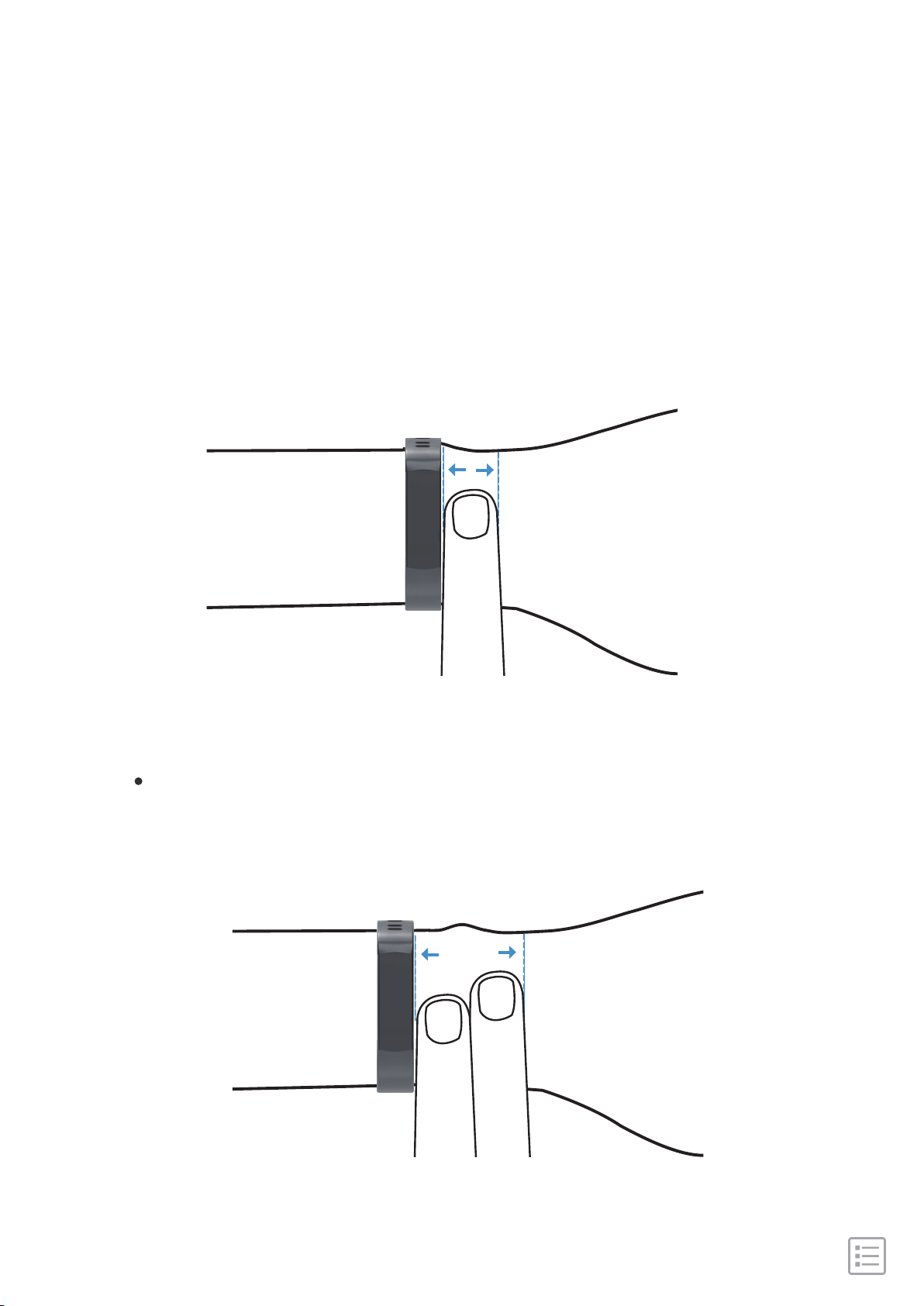
Placement for all-day wear vs exercise:
When you're not exercising, wear 905HR a finger's width
above your wrist bone.
For optimized heart-rate tracking while exercising:
· Try wearing 905HR higher on your wrist during exercise for
an improved fit and more accurate heart-rate reading.
- 06 -
Page 7

· Make sure the watch is in contact with your skin.
·
Don't wear your watch too tight, a tight wristband restricts
blood flow, potentially affecting the heart-rate signal. The
watch should be slightly tighter (snug but not constricting)
during exercise.
With high-intensity interval training or other activities where
your wrist is moving vigorously and non-rhythmically, the
movement may limit the sensor's ability to provide a heart-rate
reading. If your watch doesn't show a heart-rate reading, try
relaxing your wrist and staying still briefly.
- 07 -
Page 8
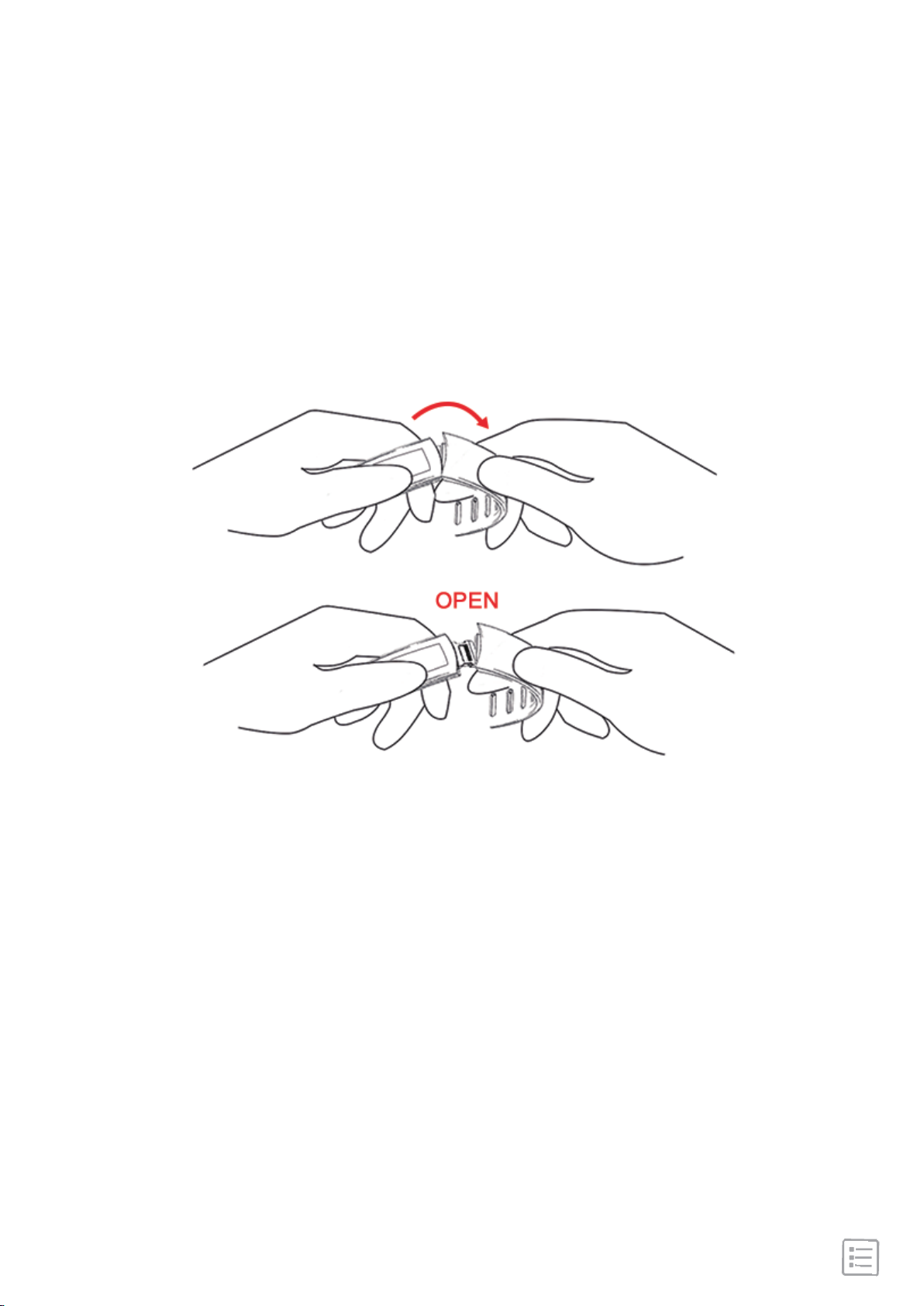
Remove the wristband
To remove the wristband:
Pull off the strap from left or right side, don't pull it off straight away.
Note:You need to press inwards after the strap installed, otherwise
the watch has a gap.
- 08 -
Page 9
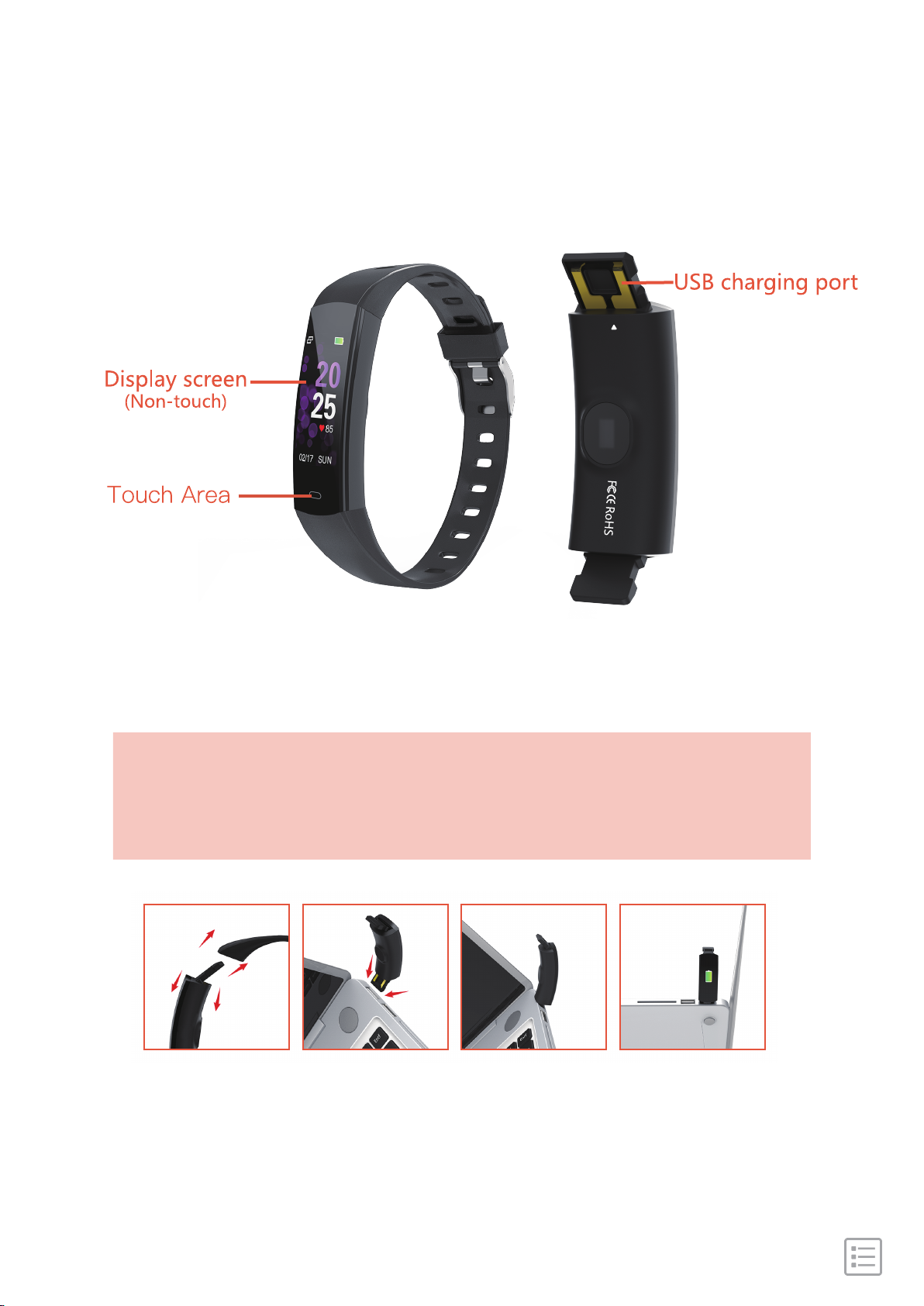
How to charge
USB
Remove the strap carefully, and plug the metal pin side into
any USB charging port, the watch turn on with charging status.
If no response, try it upside down.
- 09 -
Page 10
Pair with Phone
Before connecting, make sure your device is powered on and
your smartphone's Bluetooth is on.
Note: When you use it for the first time, please allow the app
all permissions to avoid some features being restricted.
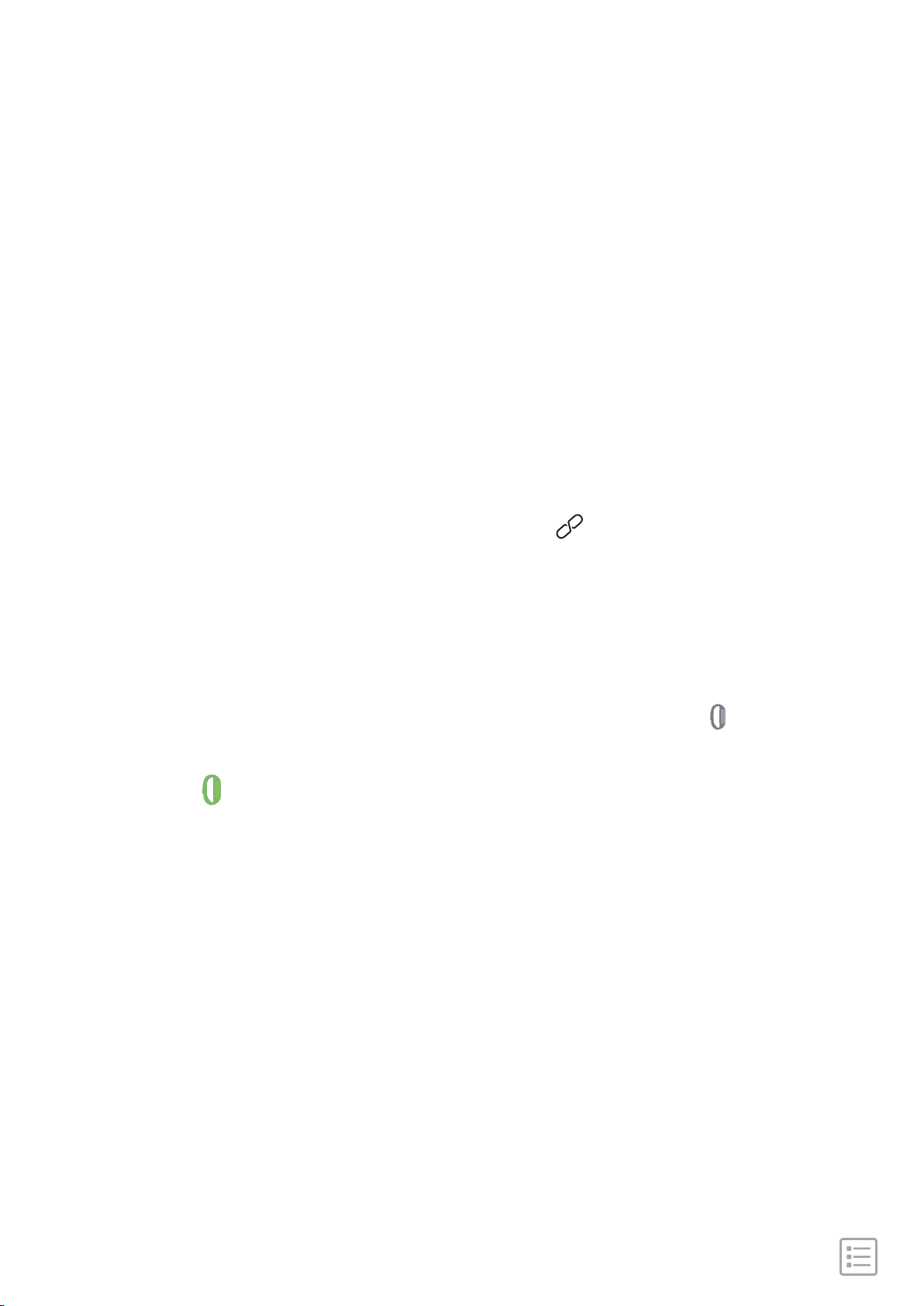
1. Connect the App with the device, go to the menu at the
bottom of the screen, and click the icon " " to enter the page
of "Device Connectivity Scanning".
2. There you will see the devices that are ready to connect,
once you have found your device, click on the icon that ap-
pears on the right side. If the bracelet icon here is grey( ),
please try again, the connection has failed. If the icon is
green( ),connection is OK.
3. It will need few seconds for App and bracelet to synchronize
data. If time synchronization failed, the data in device will
reset, if successful, the data will be saved.
Note: Device must connect with App. Please don't pair directly
by Bluetooth on the Phone.
- 10 -
Page 11
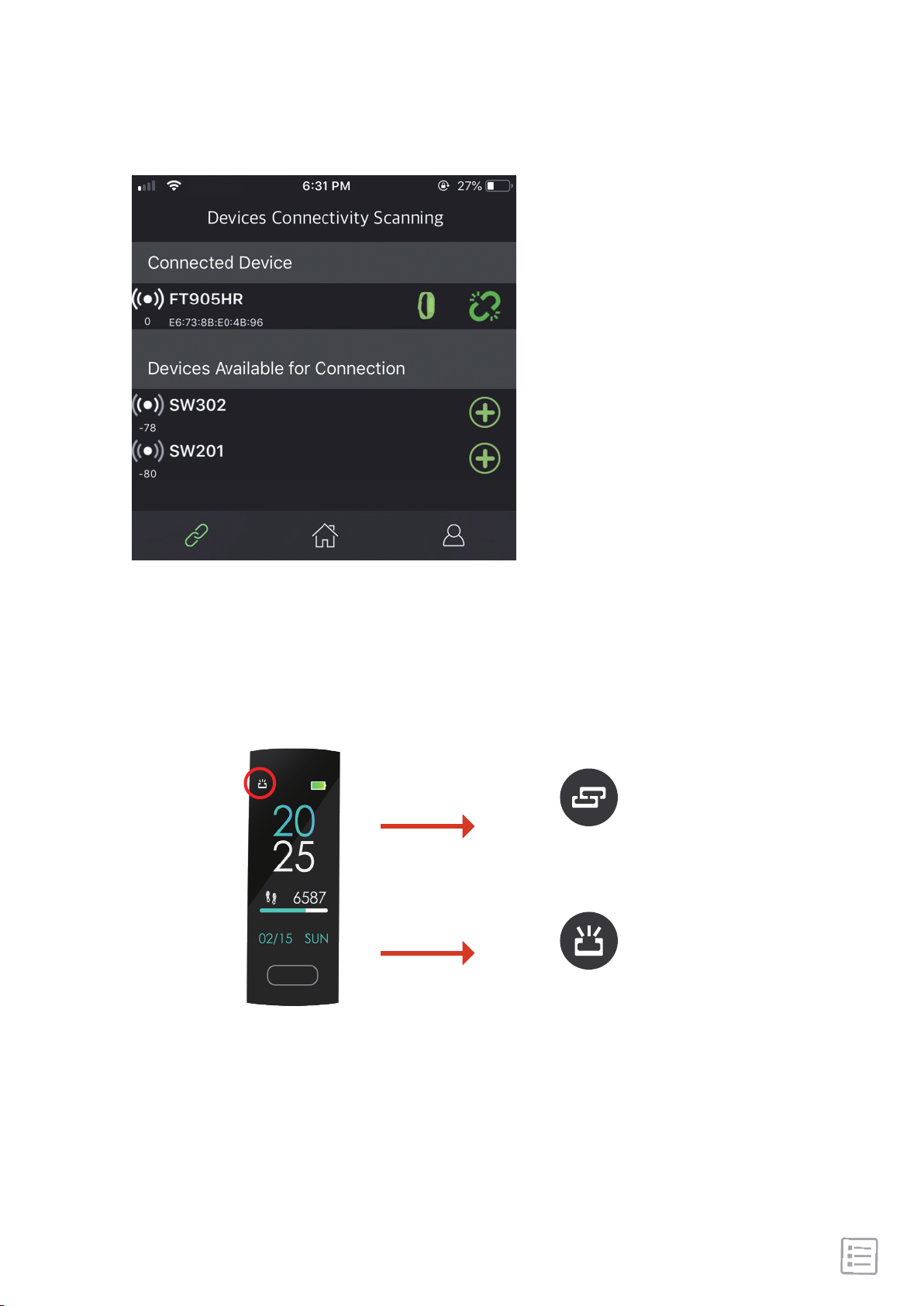
Once the device is connected to the mobile phone, the
connection icon changes from disconnected to connected (see
images).
Connected
Disconnected
After successful connection with App, set your personal data in
"Dashboard"->"User Profile", then sync the information to the
device, it will immediately start to monitor your daily activity.
- 11 -
Page 12
Disconnect from phone
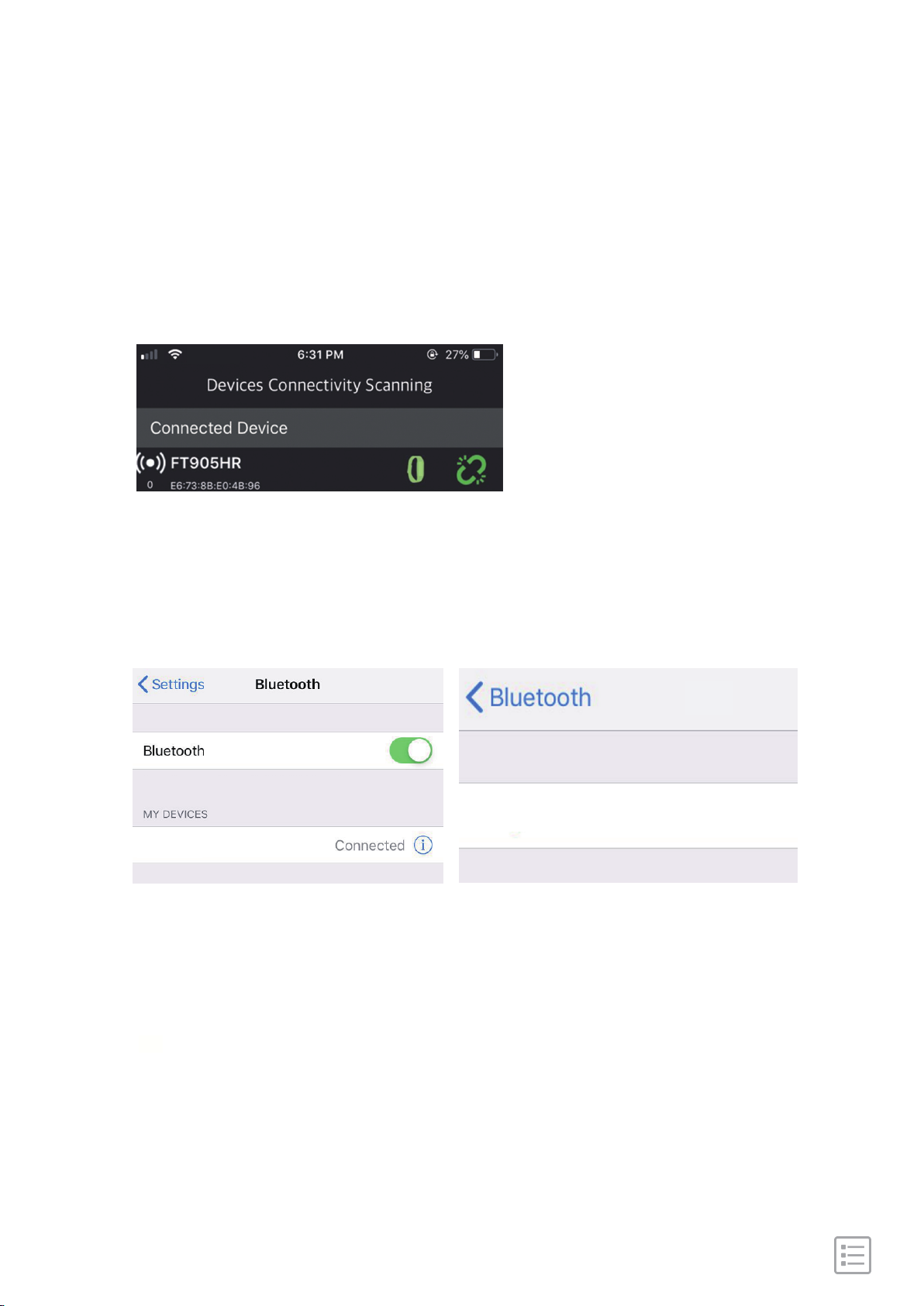
For Android, go to the page of "Device Connectivity Scanning"
and disconnect device by clicking the icon on the right.
For iOS, first go to connected device and disconnect device by
clicking the right icon and then go to iphone
Setting->Bluetooth->Forget this device.
Now discoverable as "iPhone".
FT905HR
FT905HR
Forget This Device
- 12 -
Page 13
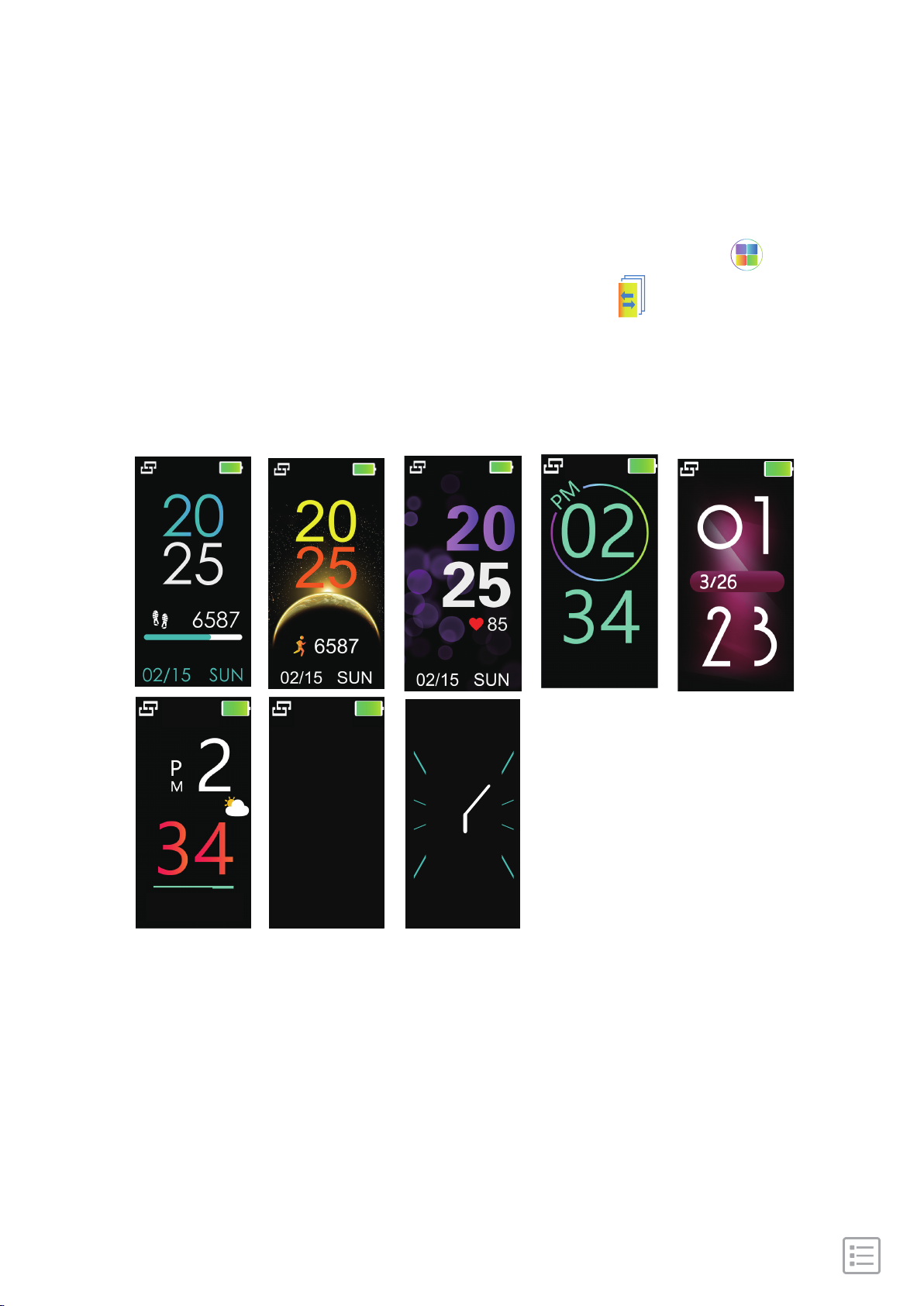
Change watch faces
[Press and hold the touch key for 2s in the main screen] " ".
[Click the touch key] Go to the next interface: " ".
[Press and hold the touch key for 2s] Select the watch dial you
like, then will go back automatically.
10/18
Sun
10/18
Fri
Sun
12
20
9 3
26
12
- 13 -
Page 14
Basics Navigation
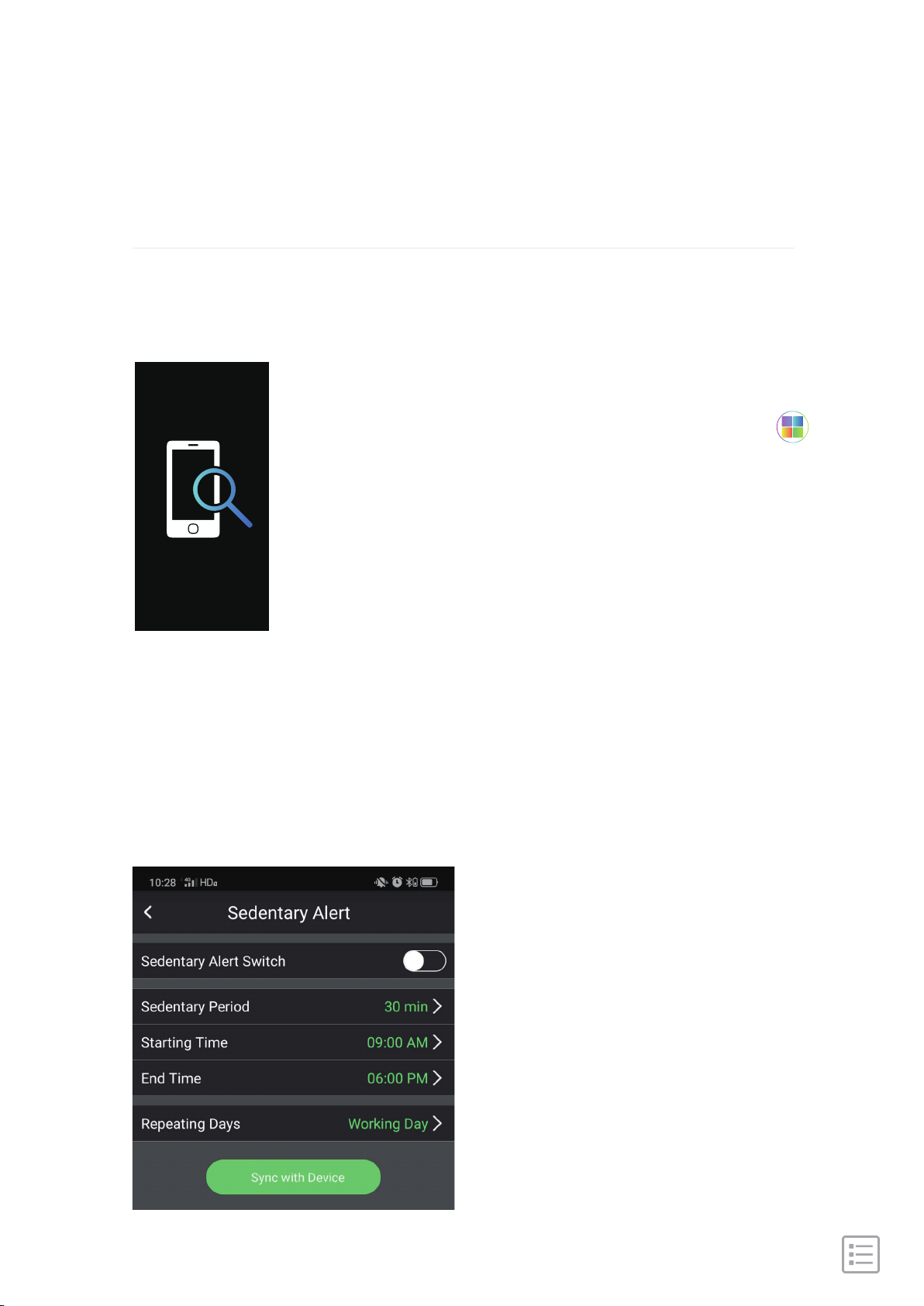
Find phone
[Click the touch key] Go to the next interface: " ".
[Press and hold the touch key for 2s] Enter and
start to find the connected phone as it alerts by
vibrating or exit it.
Sedentary reminder
Please turn on this function in app.
Steps: Settings →Sedentary Alert →Turn on Switch→Set start/ Stop
time/ Sedentary duration→Sync with Device.
- 14 -
Page 15
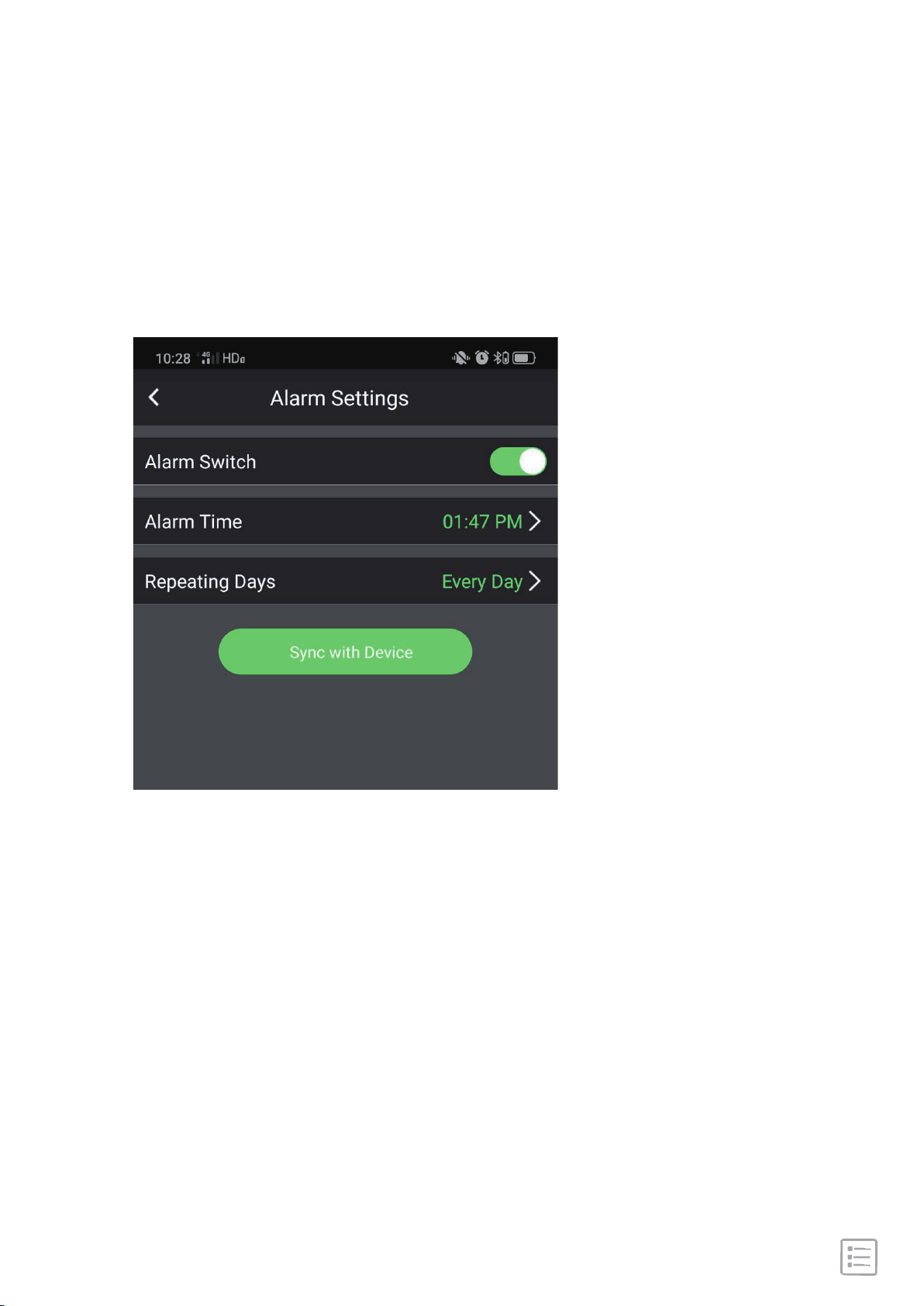
Set Alarm Clock
Steps: Settings →Alarm Settings →Turn on
Switch→Set Alarm time→Sync with Device.
- 15 -
Page 16
Notification
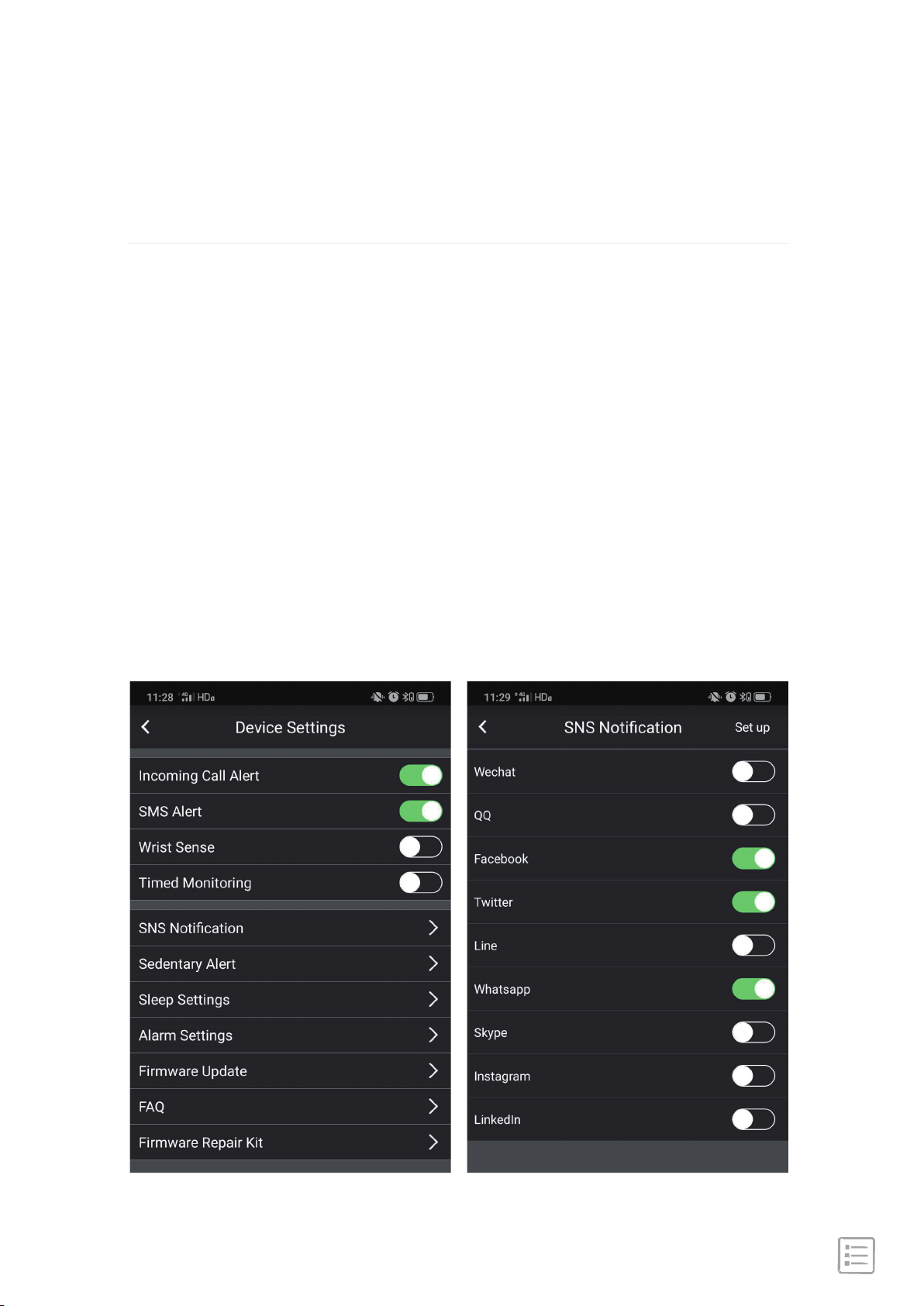
905HR can display call, text, calendar, and app notifications from
your phone to keep you informed. The phone and watch must
be connected with each other to receive notifications.
Set up notifications
Check that Bluetooth on your phone is on and that your phone
can receive notifications (often under Settings > Notifications).
Then set up notifications:
Settings →Switch Incoming Call Alert/SMS Alert/SNS Notification
→Turn on Switch
- 16 -
Page 17
See incoming notifications
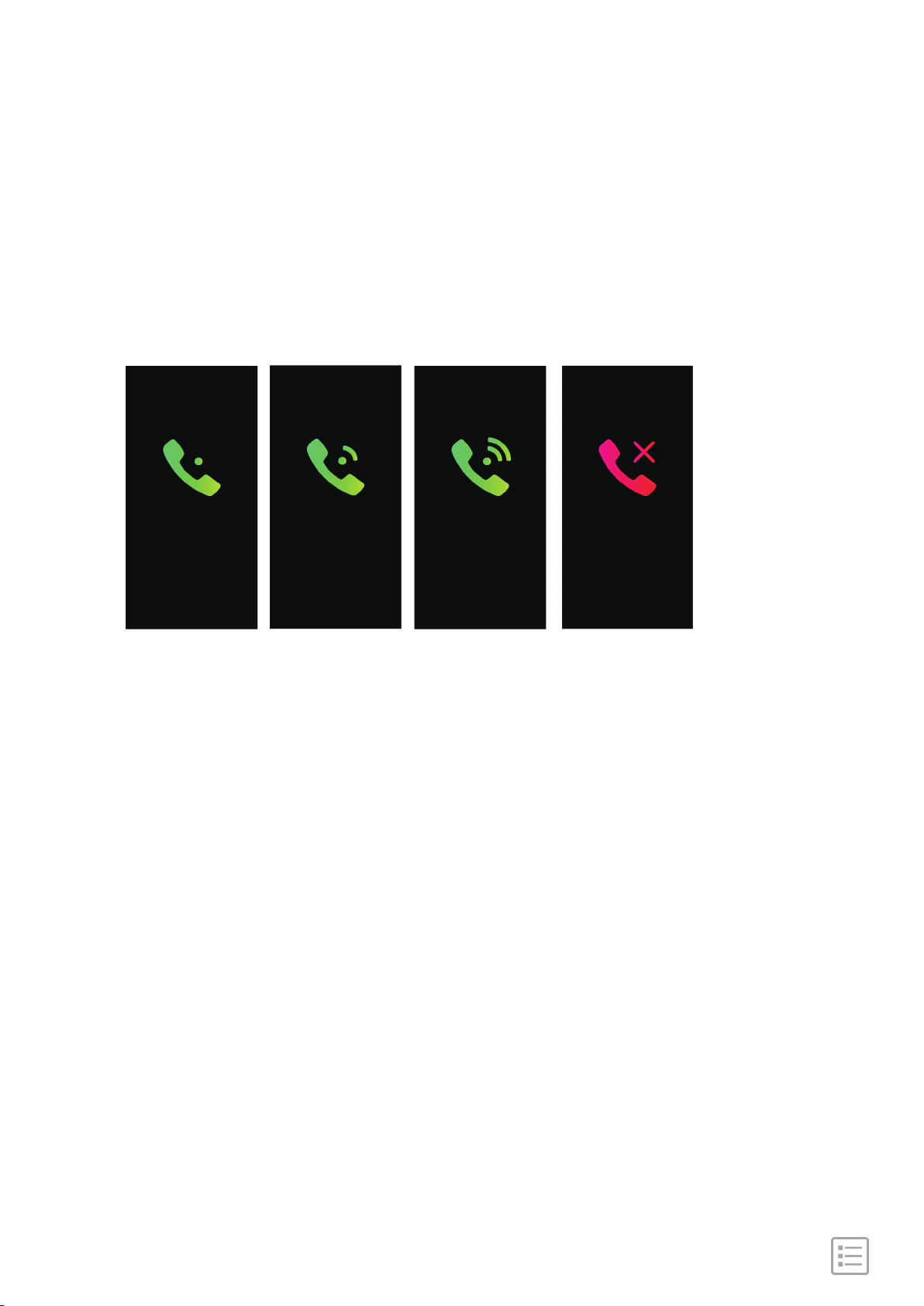
When your phone and 905HR are within range, a
notification causes the watch to vibrate.
Kelvin Kelvin Kelvin
- 17 -
Page 18
Reject phone calls
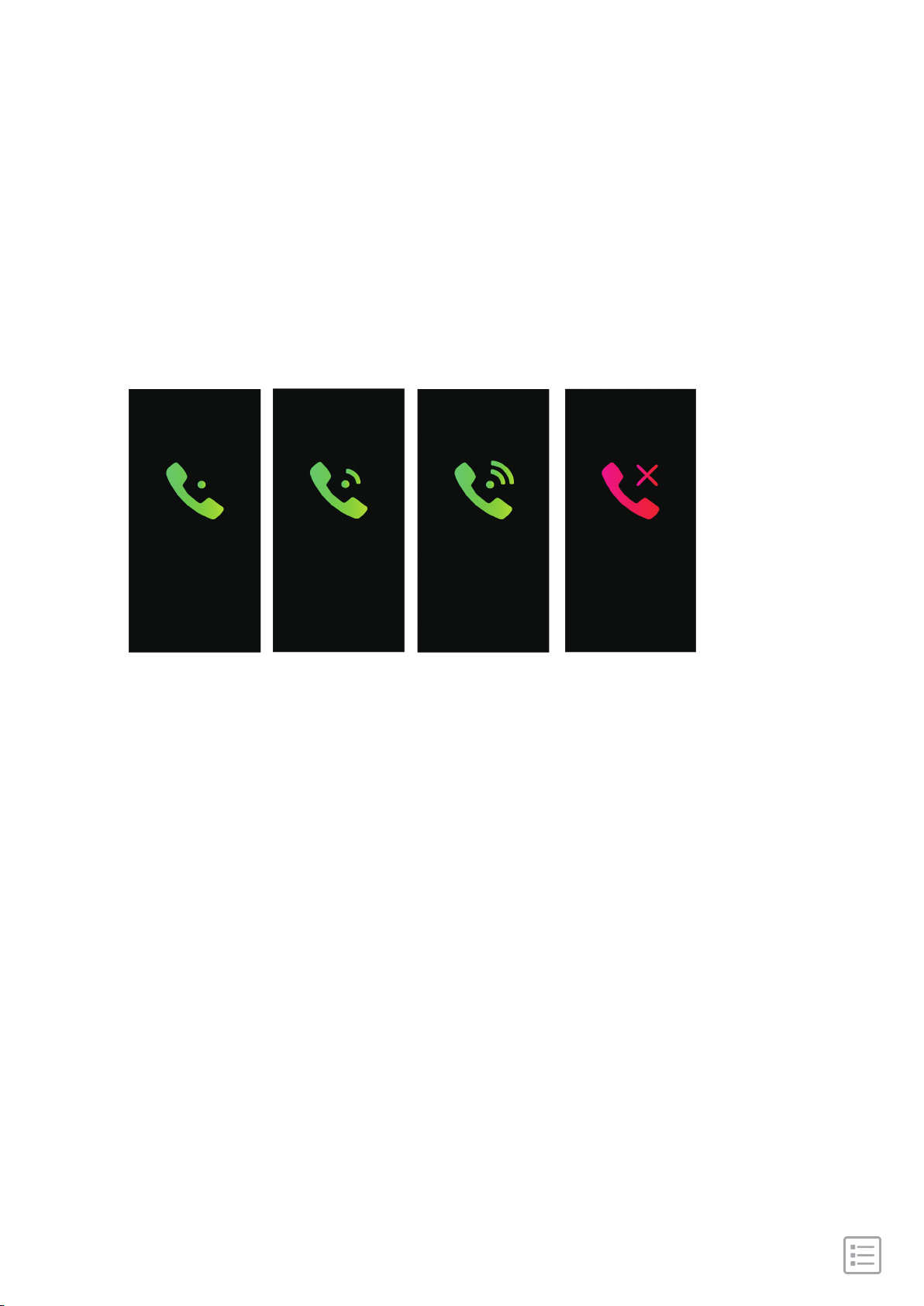
The caller's name appears if that person is in your contacts list;
otherwise you see a phone number.
Long press the touch key to hang up phone call.
Kelvin Kelvin Kelvin
- 18 -
Page 19
Activity and Sleep
Track a daily activity goal
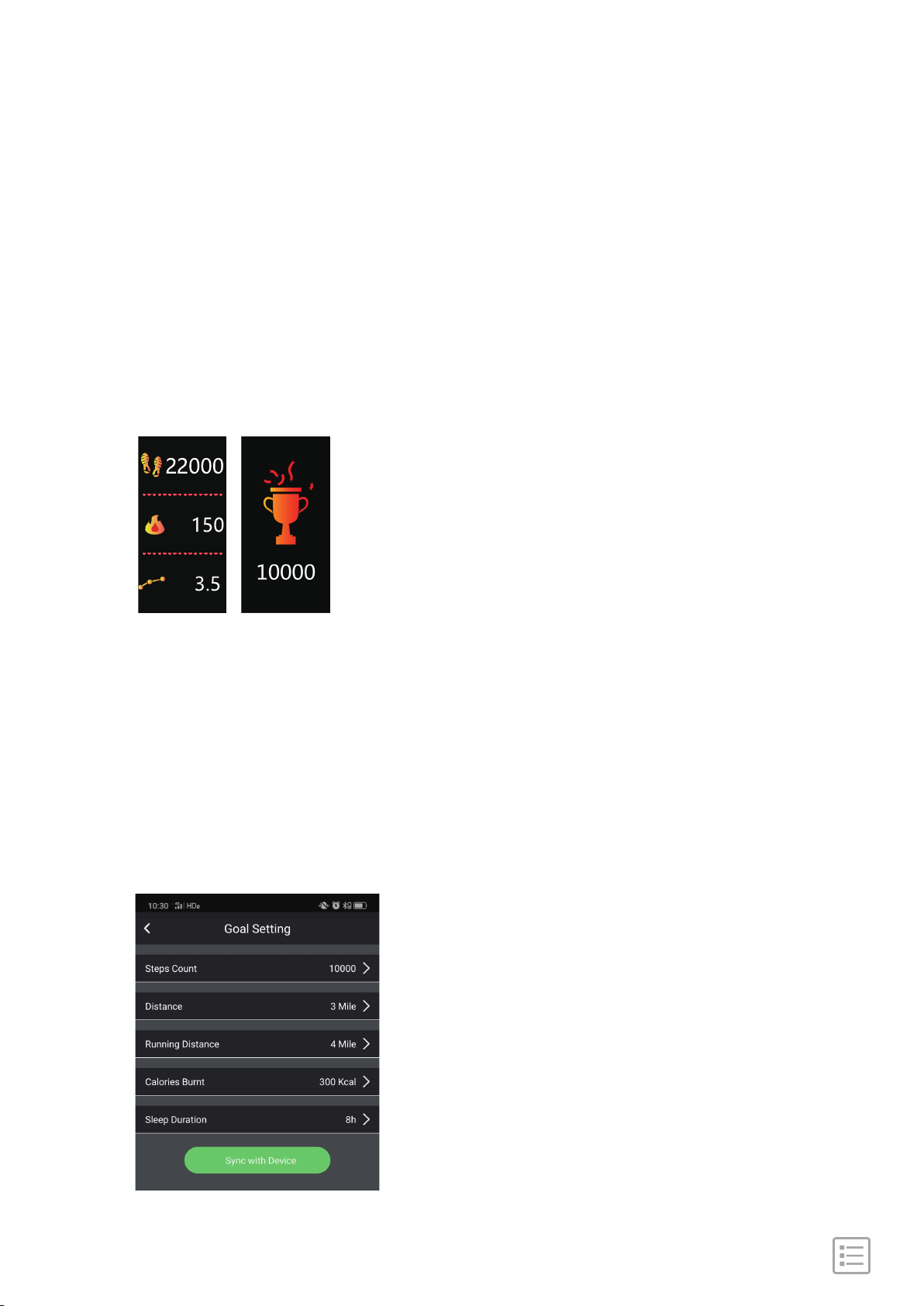
905HR tracks your progress toward a daily activity goal of
your choice. When you reach your goal, the watch vibrates
and shows a celebration.
Choose a goal
Set a goal to help you get started on your health and fitness
journey. To begin, your goal is 15,000 steps per day. Choose to
increase or decrease the number of steps, or to change your
goal to active minutes, distance traveled, or calories burned.
Then 'Sync with Device'.
- 19 -
Page 20
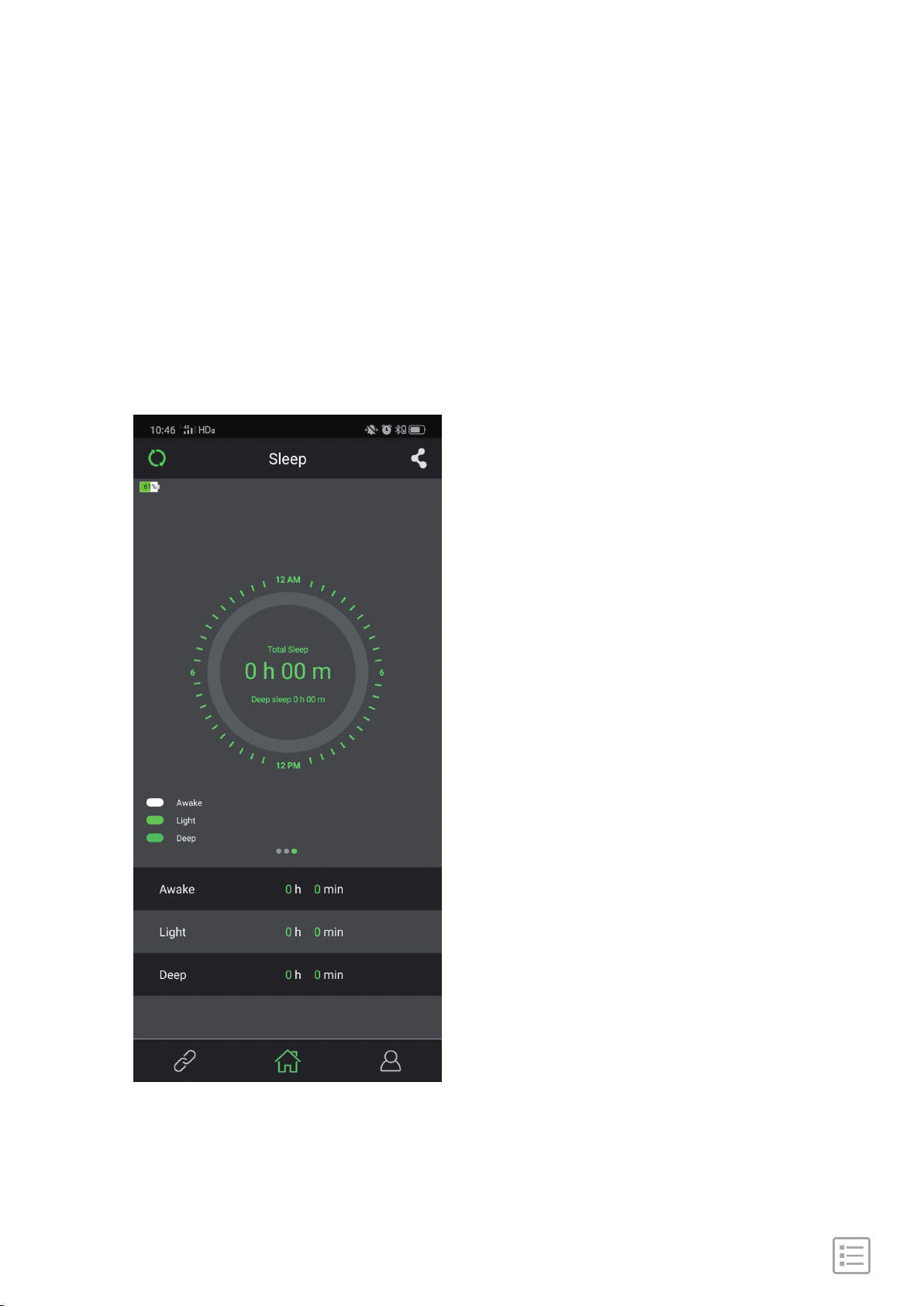
Track your sleep
Wear 905HR to bed to automatically track the time you slept
and sleep stages (time spent in wake-up times, light sleep,
and deep sleep). To see your sleep status, check the app when
you wake up.
- 20 -
Page 21

Set a sleep goal
To start, you have a sleep goal of 8 hours of sleep per night.
Customize this goal to meet your needs.
tips: 905HR only record sleep from 10:00 PM - 8:00 AM.
Learn about your sleep habits
905HR track several sleep metrics including when you go to
bed, how long you're asleep, and your time spent in each
stage. Check your sleep with 905HR and check the CC Band
app to understand how you sleep patterns compare to your
peers.
- 21 -
Page 22
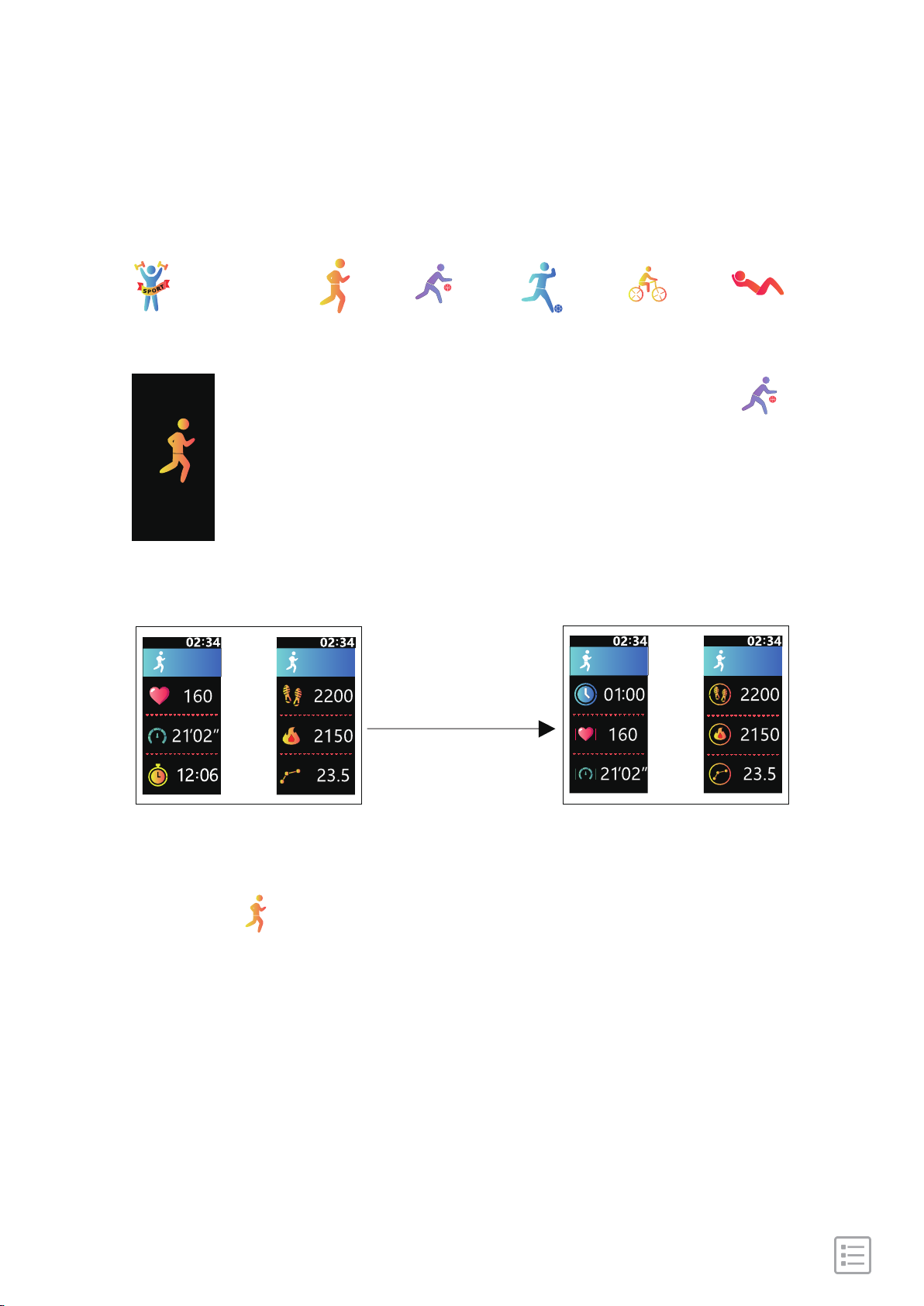
Multi-sports Mode
[Press and hold] [Click] [Click] [Click] [Click]
Sports Running Basketball Football Cycling Sit-up
[Click the touch key] Go to the next sport mode: " ".
[Press and hold the touch key for 2s] Go to the
recording interface and the device starts to record
your exercise status.
[Click]
[Press and hold]
Sports Data Display ModeSports Recording Mode
[Click]
[Press and hold the touch key for 2s again] Go back to the
interface: " " from "Sports Data Display Mode".
Remark: the operation steps are similar for other sports mode.
- 22 -
Page 23
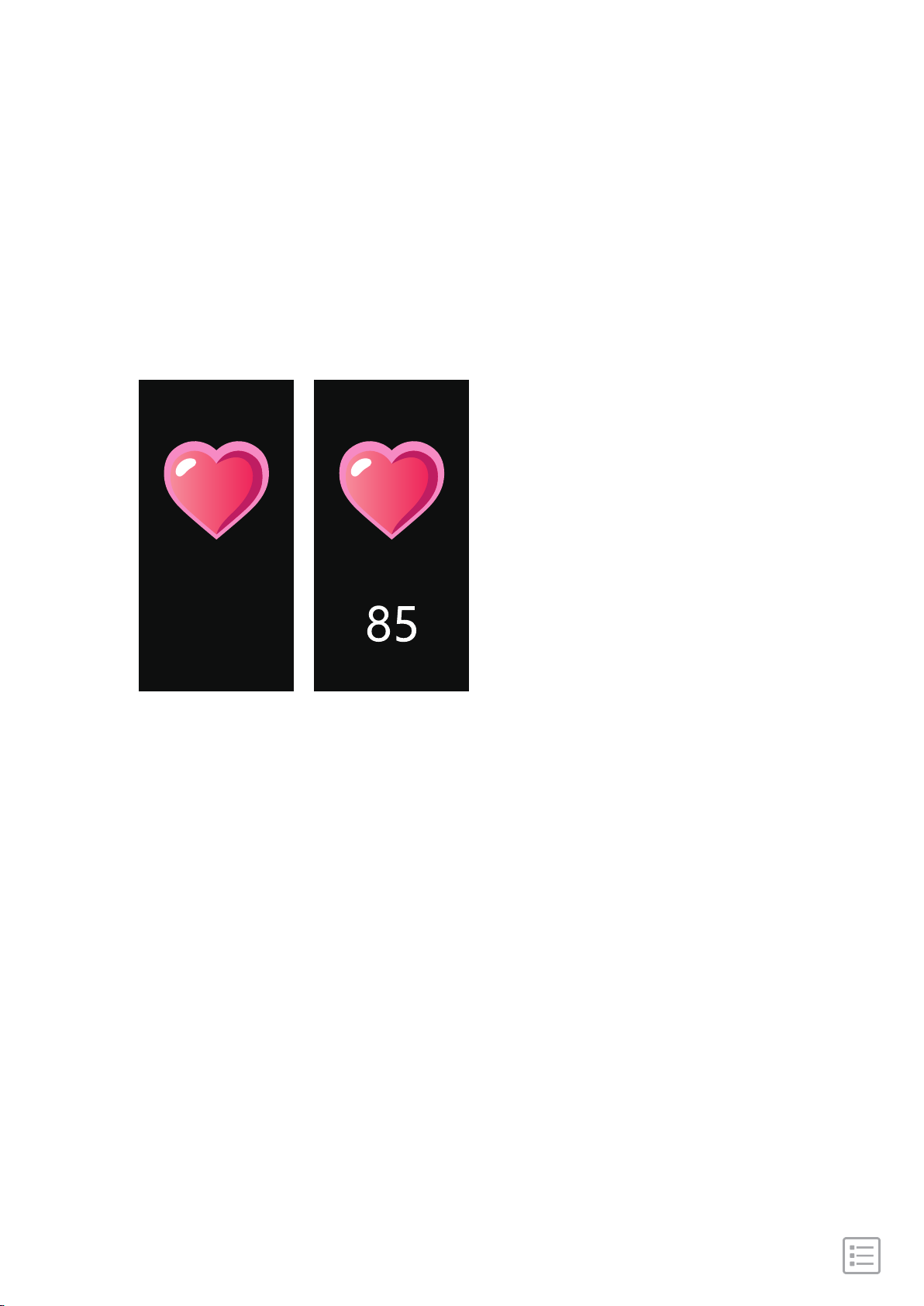
See your heart rate
905HR will measure the heart rate of the user in the heart
rate measurement interface. After measurement, the result
will be displayed.
0
- 23 -
Page 24
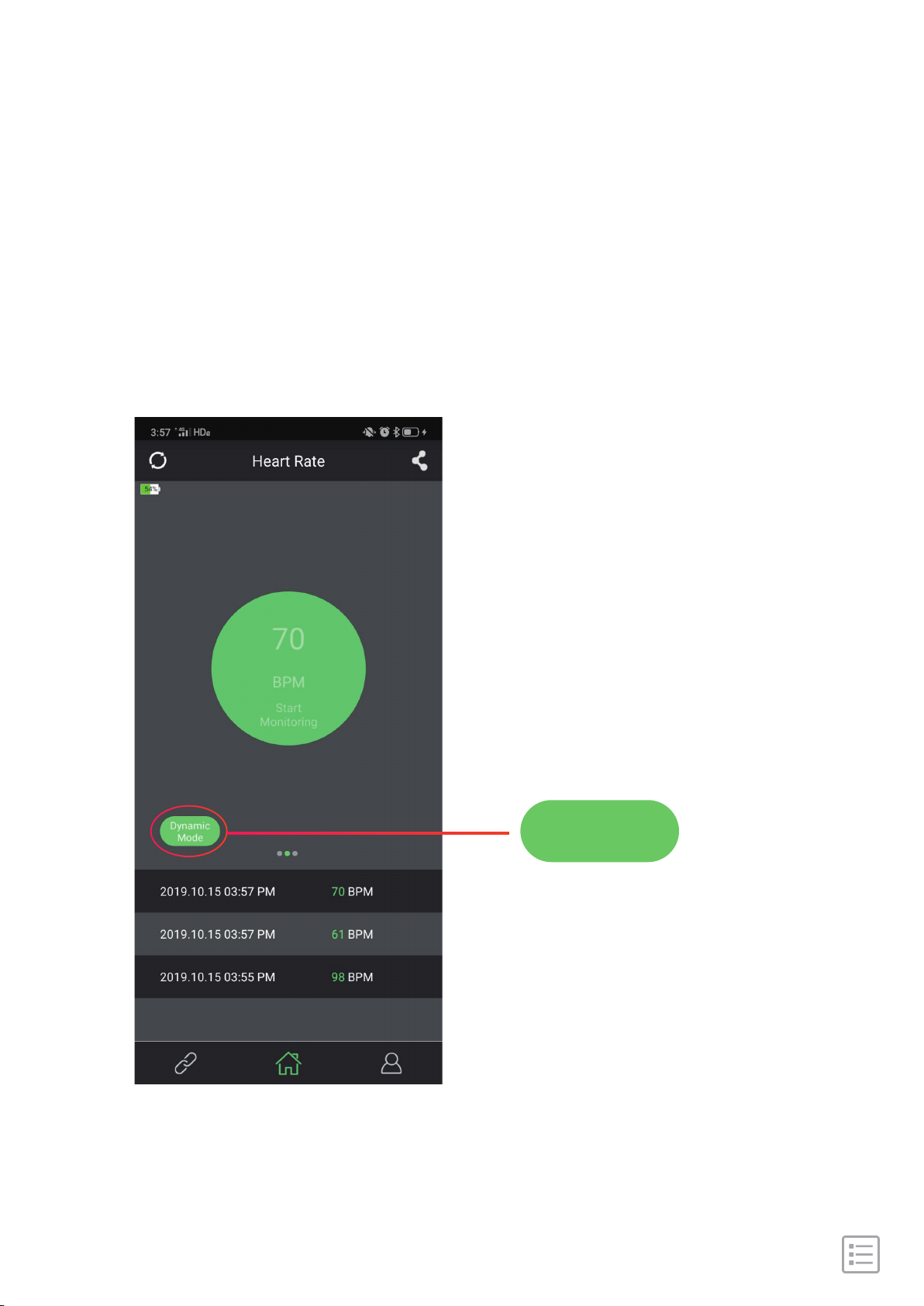
Dynamic Heart Rate Monitoring
To set Dynamic Heart Rate monitoring of ON/OFF operation
procedure:
Open CC Band App → Reach Heart Rate screen → Click Dy-
namic Mode to switch.
- 24 -
Dynamic
Mode
Page 25
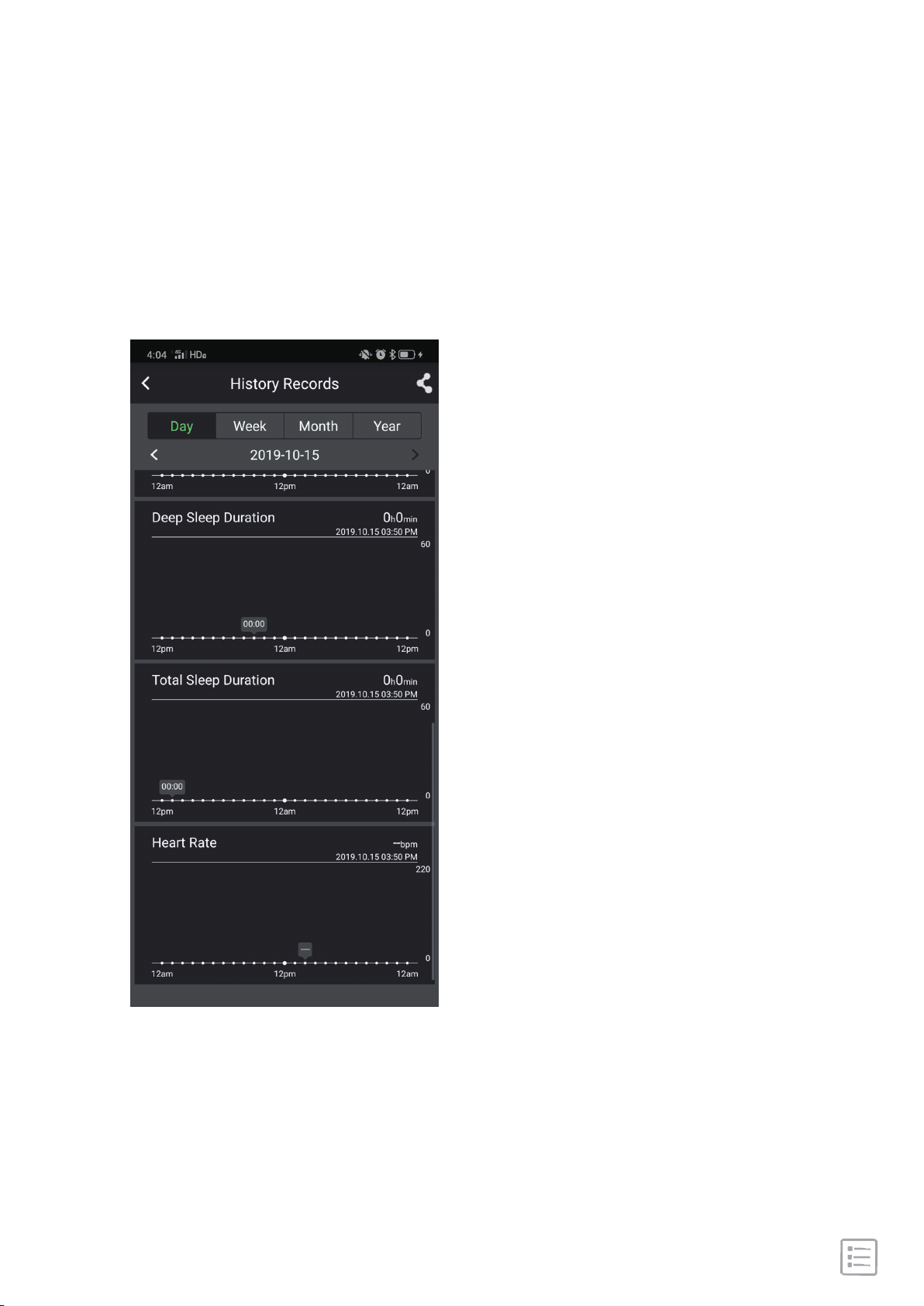
This functions can be turned on and off through APP setting.
When this function is on, watch will conduct automatic
monitoring on time(every 25 minutes)and record the data, it
will convey the data to the APP terminal.
- 25 -
Page 26
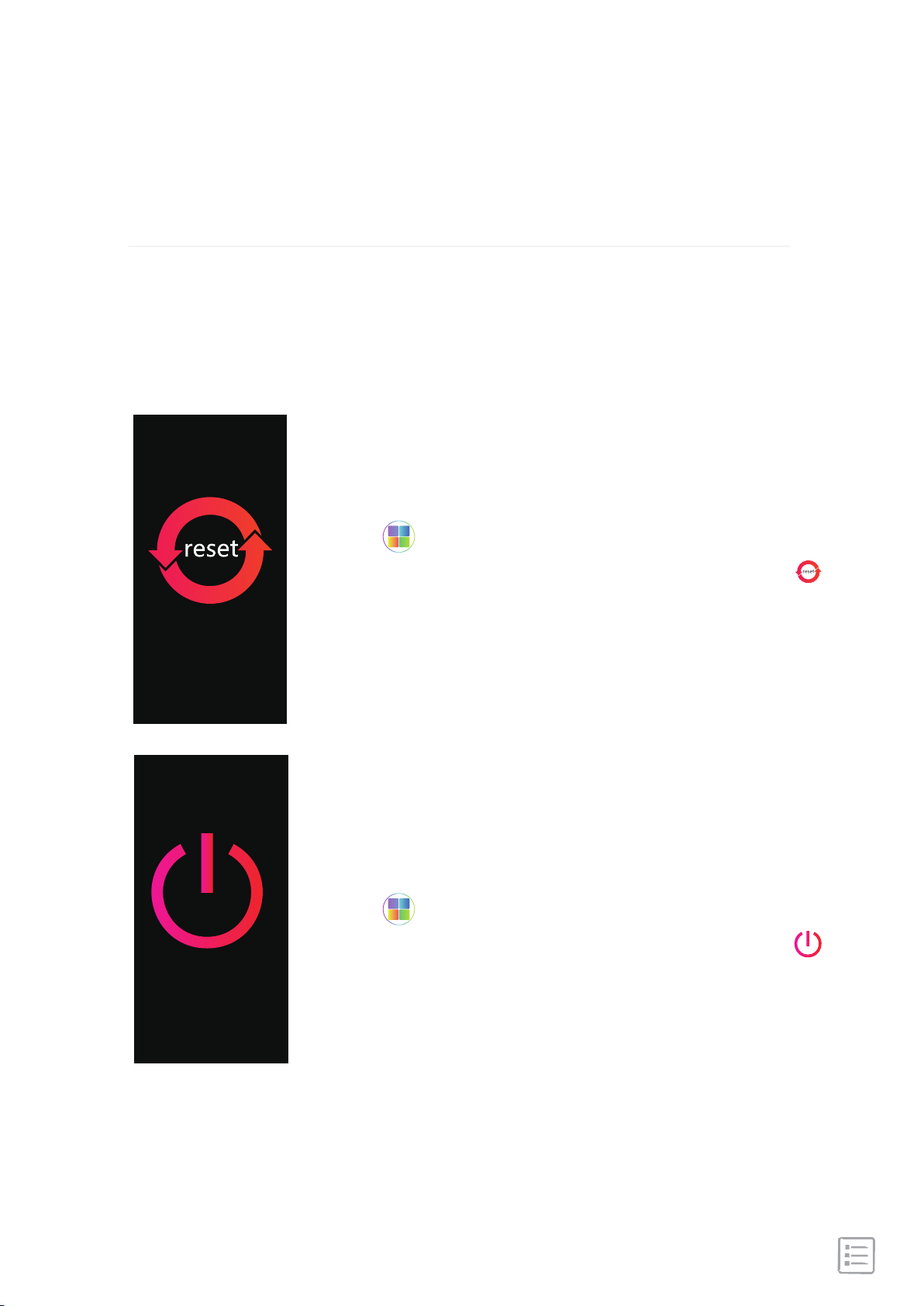
Restart and Erase
Some troubleshooting steps may require you to restart
your watch, while erasing it is useful if you want to give
905HR to another person.
Press the touch key for 2 seconds in this
screen" ",
[Click the touch key] Go to the next interface: " ".
[Press and hold the touch key for 2s] Start to
reset your device and erase device data.
Press the touch key for 2 seconds in this
screen" ",
[Click the touch key] Go back to the interface: " ".
[Press and hold the touch key for 2s] Turn OFF
the device.
- 26 -
Page 27

Troubleshooting
Heart-rate signal missing
905HR continuously tracks your heart rate while you're
exercising and throughout the day. If the heart-rate sensor on
your watch has difficulty detecting a signal, the green light on
the back of the watch will continue to flash continuously.
Next, please make sure you're wearing your watch correctly,
either by moving it higher or lower on your wrist or by
tightening or loosening the wristband. 905HR should be in
contact with your skin.
After holding your arm still and straight for a short time, you
should see your heart rate again.
- 27 -
Page 28

Other issues
If you experience any of the following issues, restart your device:
1. Won't sync;
2. Won't respond to button press;
3. Won't track steps or other data;
See "Restart 905HR" on how to restart your watch.
- 28 -
Page 29

Safety Notices
1.The wristband that comes with watch is made of flexible,
durable elastomer material similar to that used in many sports
watches.
2. Make sure the watch is not worn too tightly. The watch
should be worn loosely and can be moved up and down the
wrist.
3. Before putting the watch back on your wrist, make sure your
skin is dry.
4.This watch is IP67 water-resistant. So we do not recommend
you wear it for taking shower or swimming.
- 29 -
 Loading...