

Page 1
BG
Page 2

EN
Introduction
The Dongle MD01X sends the contents of the Smartphone
and/or Tablet screen to the TV, easily and comfortably.
Whether it is videos, movies or games, we can admire it on
a large screen and full color.
Does not use any cable connections with the Smartphone
or Tablet, only Wi-Fi connection if connected via DLNA. If
Airplay or Miracast if used, the connection is direct. The
latter includes a series of high-end device terminals, and
allows us to mirror the mobile screen on TV, projector, etc.
The Miracast system will allow the display of the contents
of the Smartphone on the TV if this system does not bring
this protocol. To do this, all you have to do is connect the
adapter to the HDMI port on your TV.
Thus you can display, on a large screen and from the couch,
the information you have on your Smartphone, tablet or
laptop, all through the Wi-Fi network. The contents are
shared in mirror mode, that is, so that what you see on the
TV screen is exactly the same as on your mobile or tablet.
The device supports DLNA, Airplay and Miracast can be
used with any device that supports protocols streaming
audio and video indicated. And thanks to its 1080p
resolution, it is perfect for the display of multimedia
content such as photographs or videos in Full HD
(depending on the size of your portable device).
Package Contents
· MD01X · USB Cable / Wi-Fi Antenna · Instruction manual
Page 3

EN
Minimum Requirements
Before using this device, please make sure it meets
these requirements:
Smartphone, tablet and pc, the hardware must be
compatible with 802.11b/g/n protocol wireless
network.
For PC, the operating system must be Windows 7 or
higher or Mac OS
The router must support Wi-Fi, 802.11b/g/n and
300Mbps for a better connection.
Please try to avoid areas with a lot of noise or
interruption of wireless signals. Micro USB Cable
HDMI port on your TV, monitor or projector
TV, monitor or projector must have a USB port to power
the device, otherwise acquire a 5V 800mAh adapter
with USB port to power the device.
Connection
Connect the MD01X in a free HDMI port on your TV,
monitor, projector, etc.
Connect the usb / Wi-Fi antenna cable to a USB port on
your TV
Glue the outside of the Wi-Fi antenna on the rear panel
of the TV.
Select the HDMI input on your TV, monitor or projector,
the screen will show a video and then go to the home
page.
Page 4
EN
First use
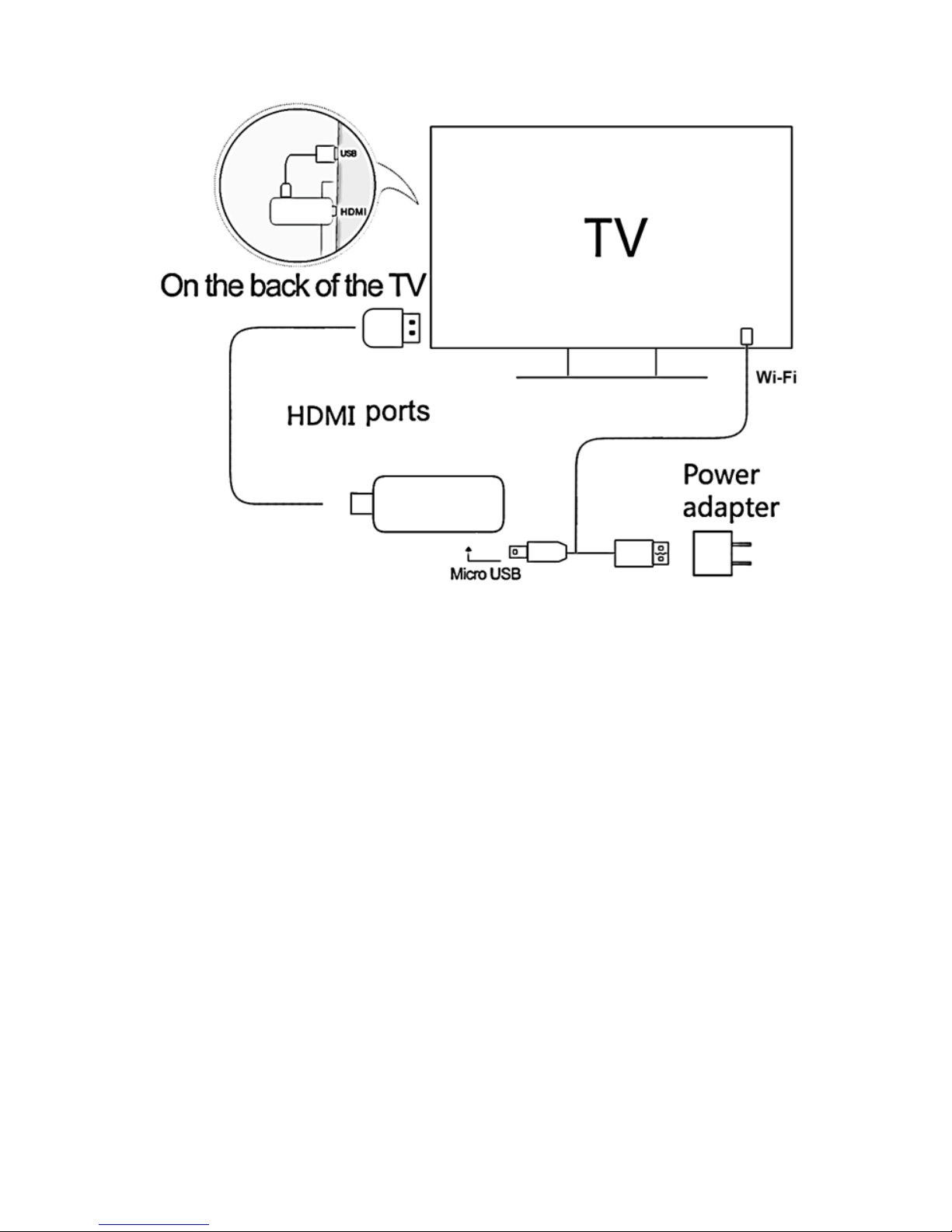
Once on, the rst screen displayed is:
1. MD01x SSID: MD01x-xxxxxxxx, Password: xxxxxxxx.
2. For users of Windows / Mac OS, you can download the
application from www.iezvu.com EZCast / download.
3. For users of Iphone / iPad, you can download the iOS app
by searching for “EZCast” in Apple App Store.
4. For Android users, you can get the app by searching
“EZCast” on Google Play Store.
5. For users of Windows Phone 8.1, you can get the app by
searching “EZCast” Windows Store.
Page 5
EN
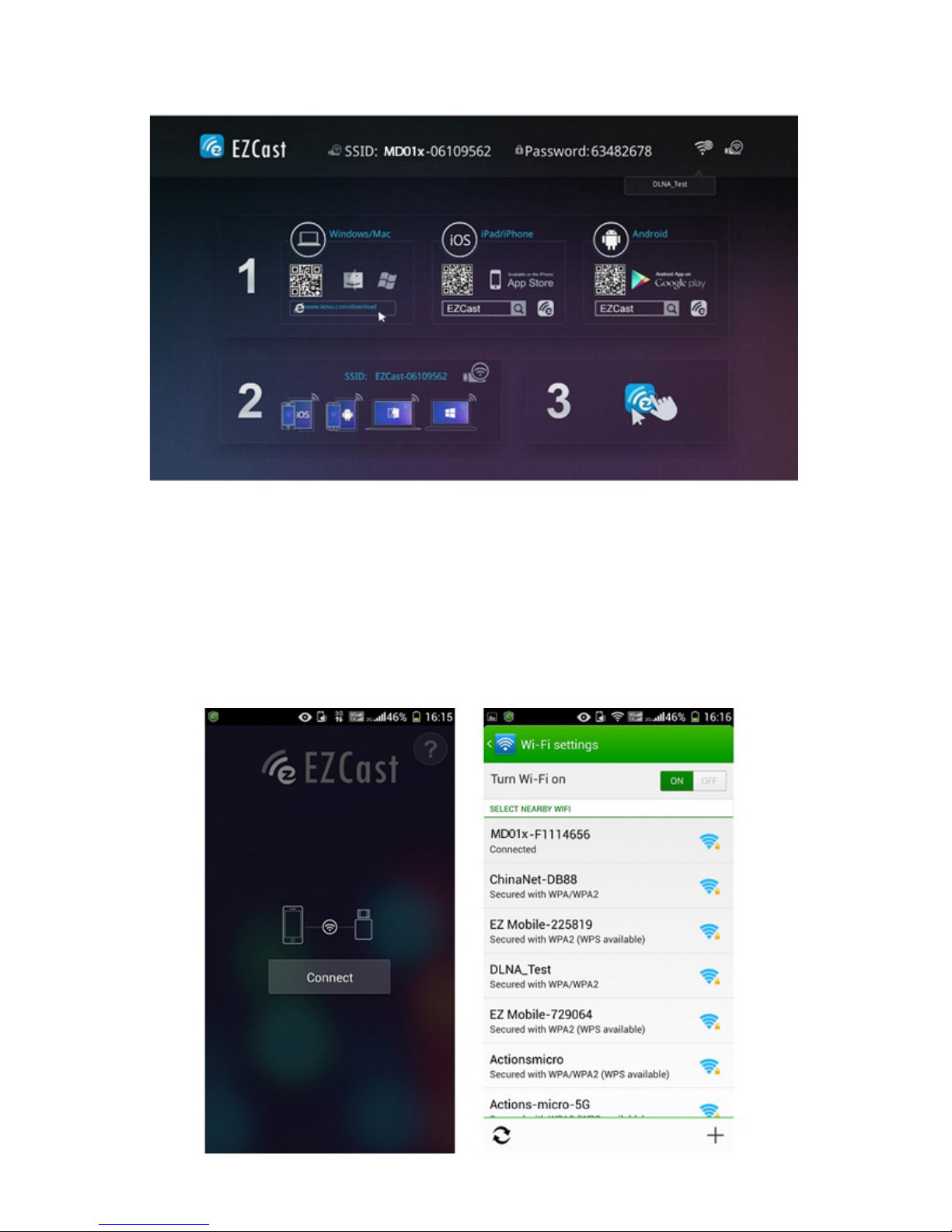
Once you open the EZCast application on your device go
to the Wi-Fi settings to search for your device’s Wi-Fi SSID
and select MD01X MD01x-xxxxxxxx for connection and
enter the password shown in the upper part of the user
interface of your TV Wi-Fi
Page 6
EN
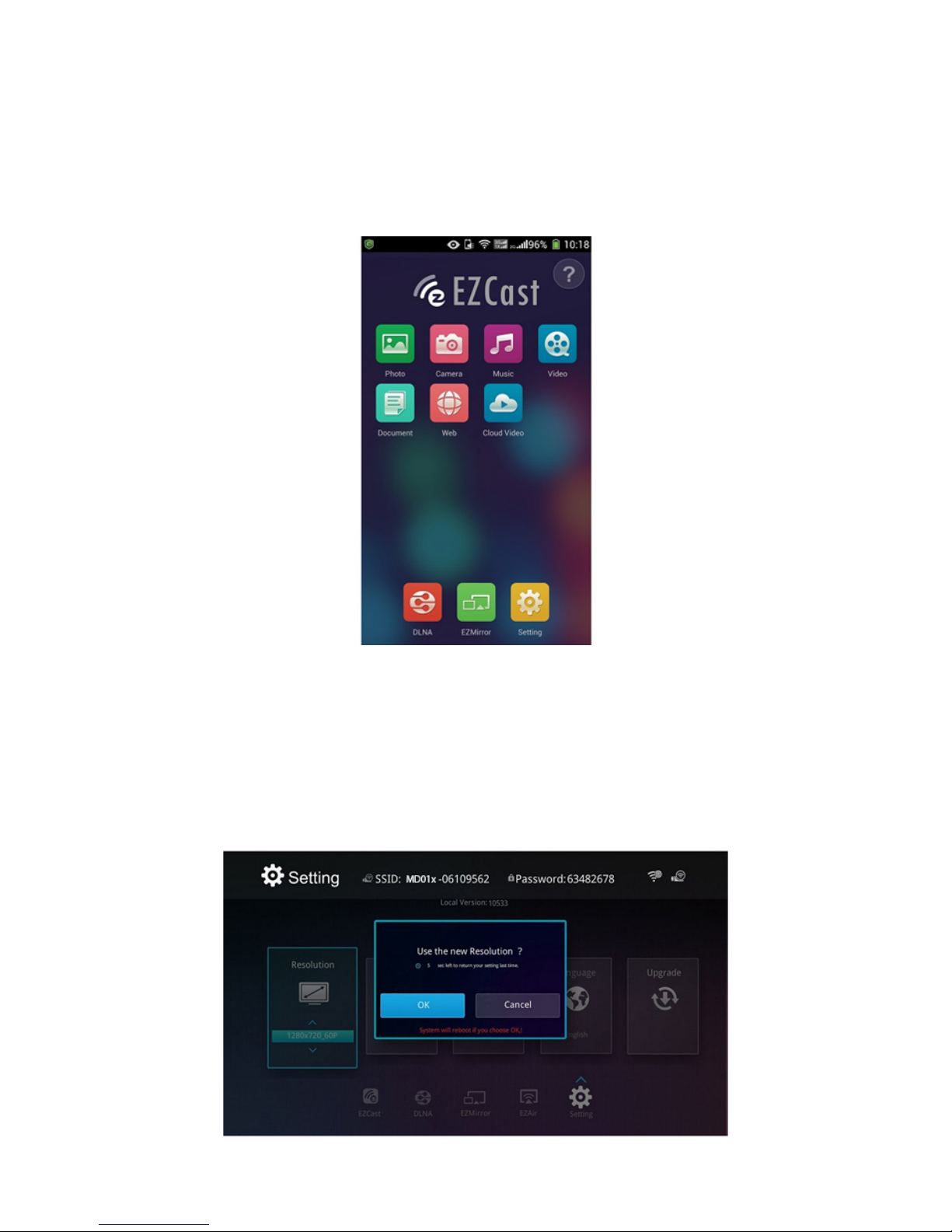
Once the connection is successful, the EZCast function
lights up and you can view six useful features that appear
on your device.
System Settings
Click “Settings” at the bottom of EZcast on your device,
you can set the display resolution to 1920x1080 24P and
1280x720 60P (default).
Page 7
EN
Note: The MD01X will restart to change the resolution.
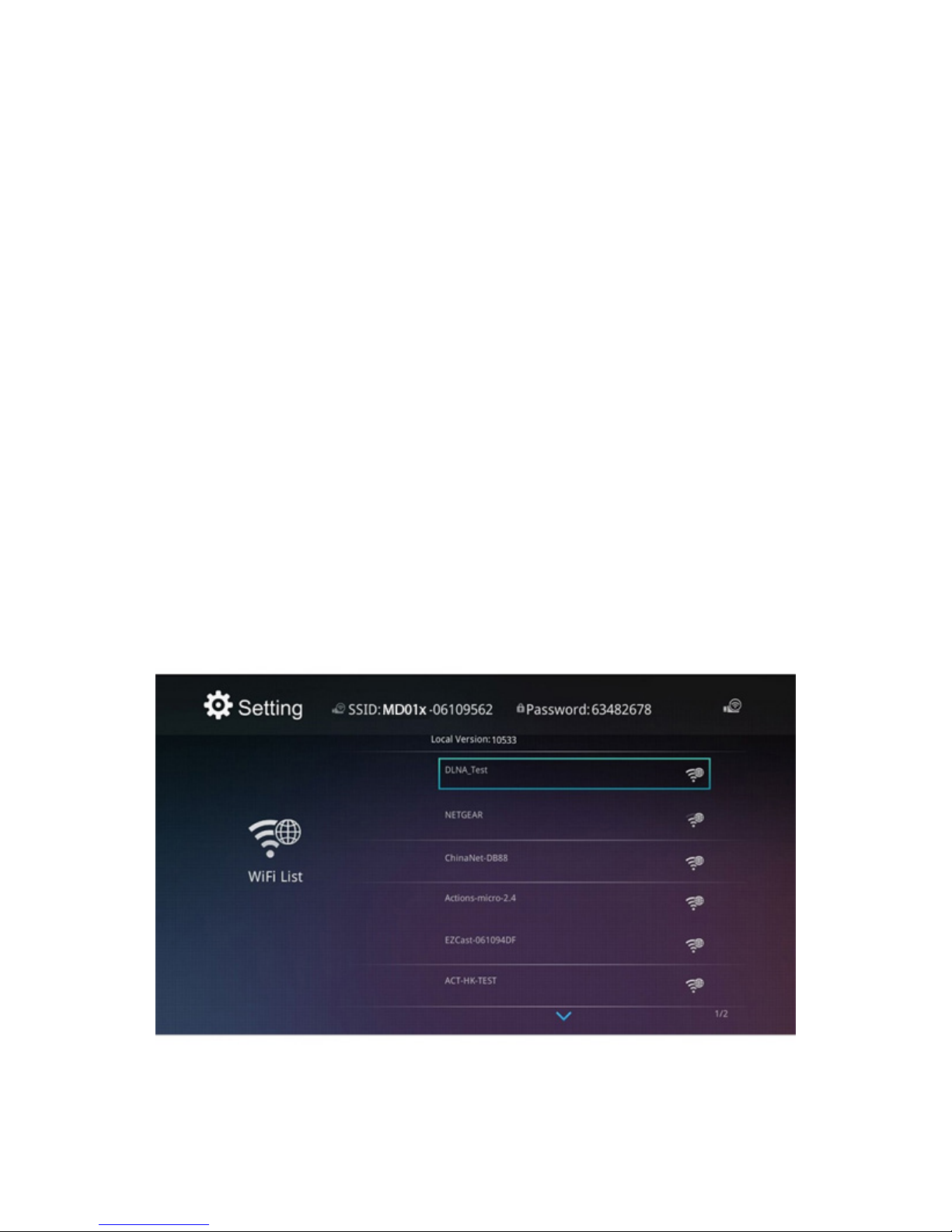
The MD01X provides the ability to connect your Android
device to access the Internet. You can scan the list of WiFi and select your Wi-Fi network for internet access. The
EZCast App launches the keyboard once the password
is requested.
Note: The keyboard automatically starts when the
password is required.
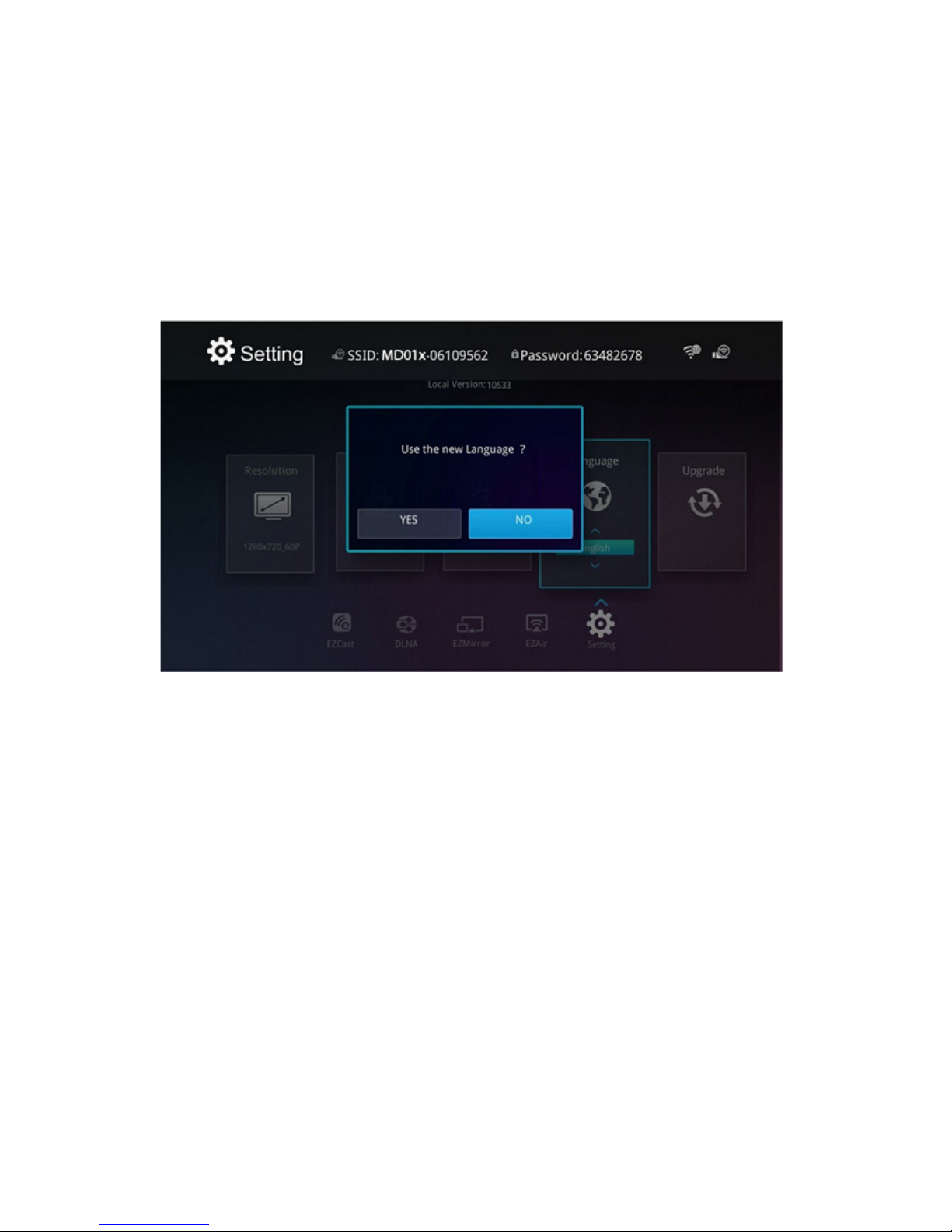
You can select your preferred language by setting
language.
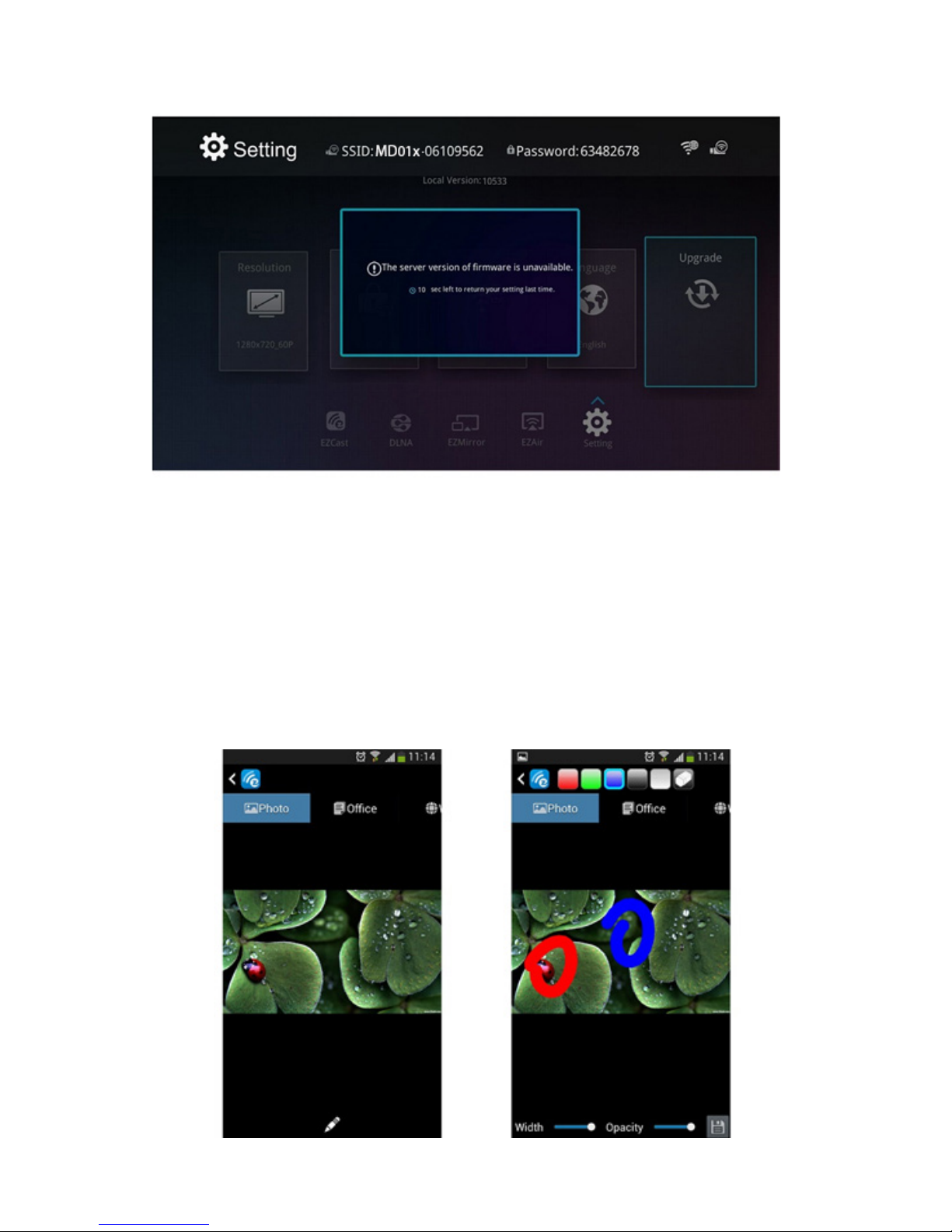
The MD01X supports the update OTA (On-The-Air). You
can update your MD01X to the latest version using the
“Update” option. MD01X will check the rmware version
and update if a newer version. Do not turn o the device
during the upgrade and make sure that the internet
connection is stable.
Page 8
EN
Note: The keyboard automatically starts when the
password is required.
You can select your preferred language by setting
language.
The MD01X supports the update OTA (On-The-Air). You
can update your MD01X to the latest version using the
“Update” option. MD01X will check the rmware version
and update if a newer version. Do not turn o the device
during the upgrade and make sure that the internet
connection is stable.
Page 9
EN
EZcast Aplication for Android, iOS, Mac, Windows,
Windows Phone 8.1
You can see 7 Useful features that appear on your device.
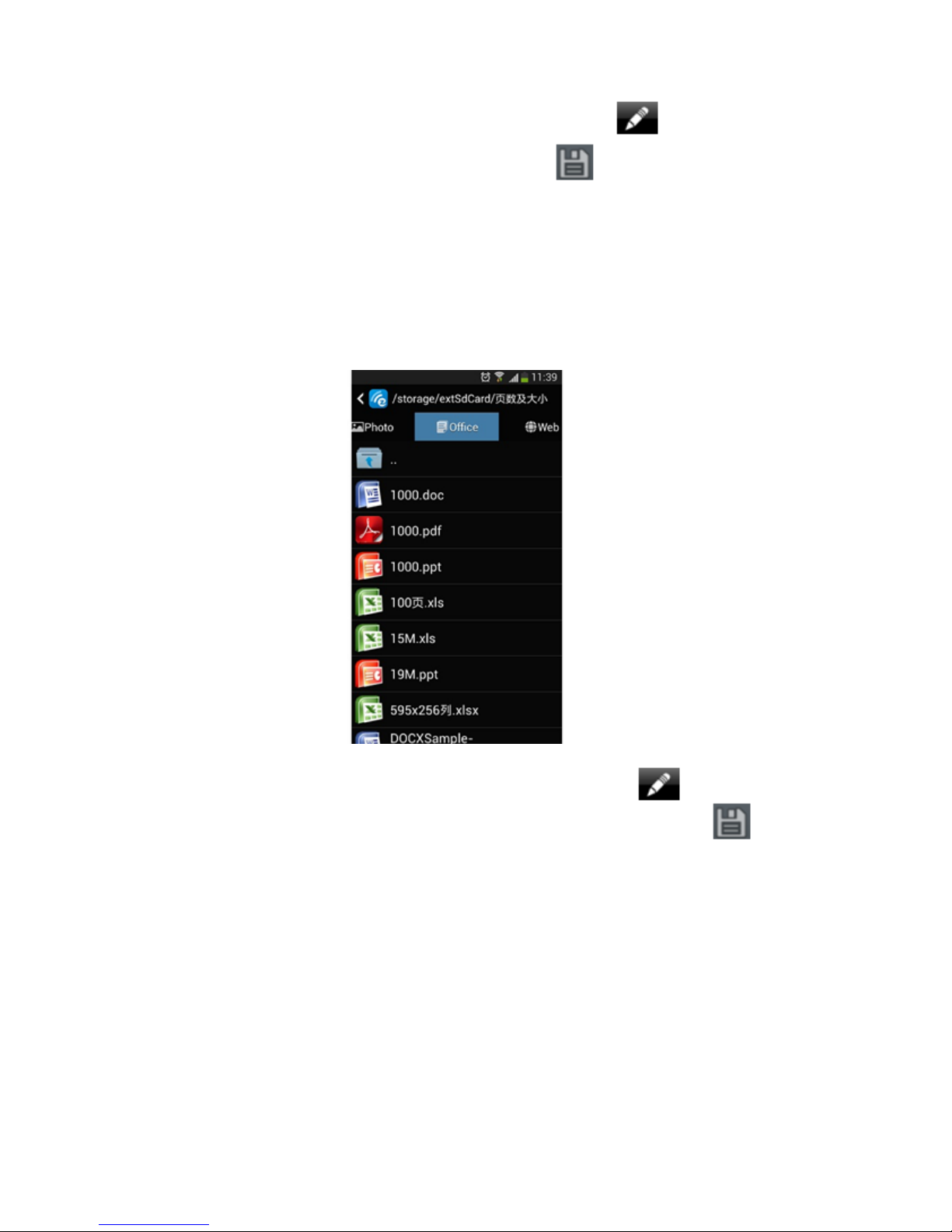
Photo
Allows you to view your photos from your device
wirelessly on your TV screen clicking on the thumbnails.
Page 10
EN
In addition, you can use the pencil icon to draw the
picture and use the save icon to save the result.
Documents
Allows you to submit documents from your device
wirelessly on your TV screen, MD01x supports PDF, DOC,
PPT documents and EXCEL
In addition, you can use the pencil icon to write
down or draw something and use the save icon
to save the result.
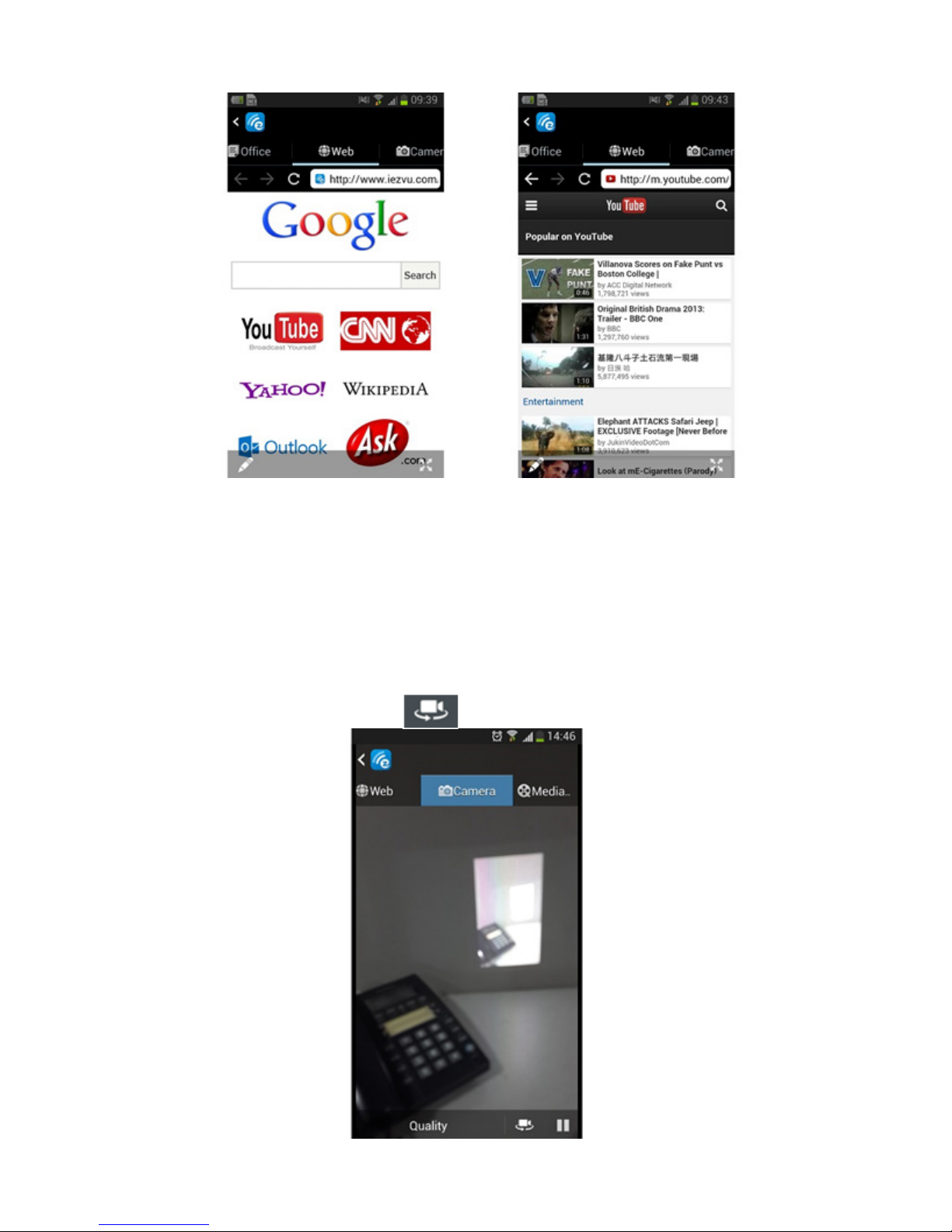
Browser
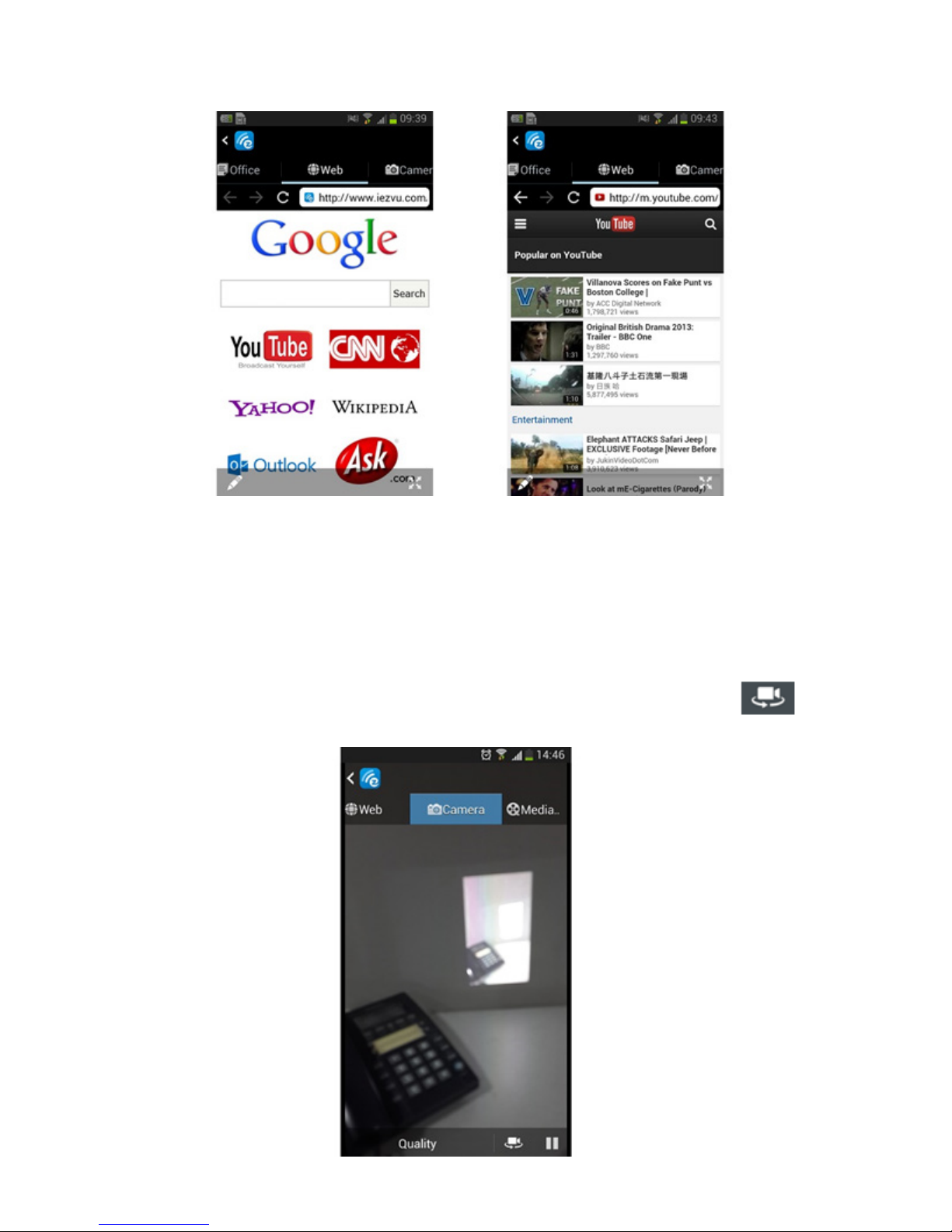
Allows you to browse the Internet directly and view it
wirelessly from the screen of your TV. You can also play
videos directly on the screen by clicking on the video.
Page 11
EN
Camera
Allows you to display the camera of your device
wirelessly on your TV screen and you can change the
“Quality” by clicking on “Quality” and allows you change
from frontal to rear camera by pressing on the
button .
Page 12
EN
Music / Video Streaming
Allows you to stream your own music and video from
your device wirelessly on your TV screen. You can select
music and video through the Media button.
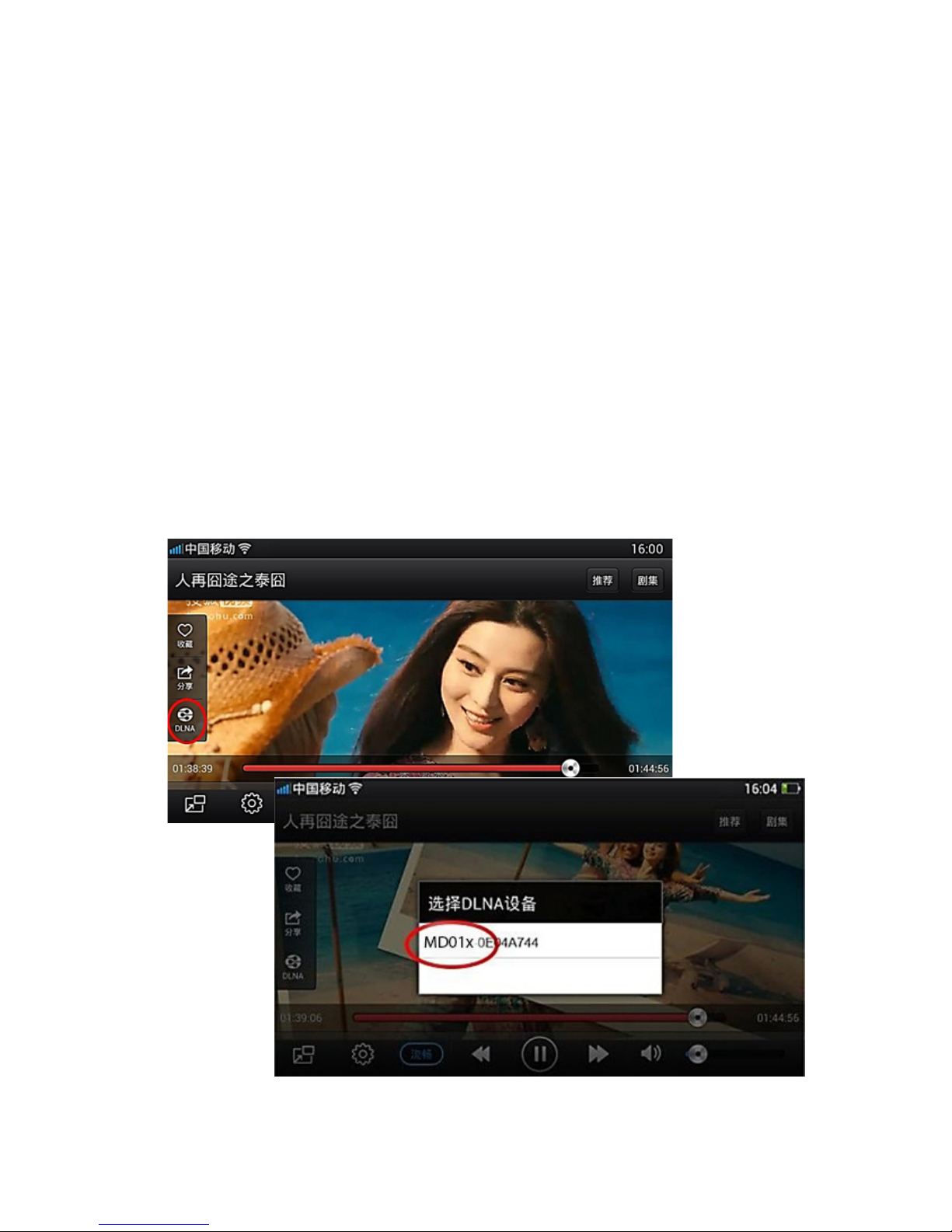
DLNA Mode /Android, iOS Devices
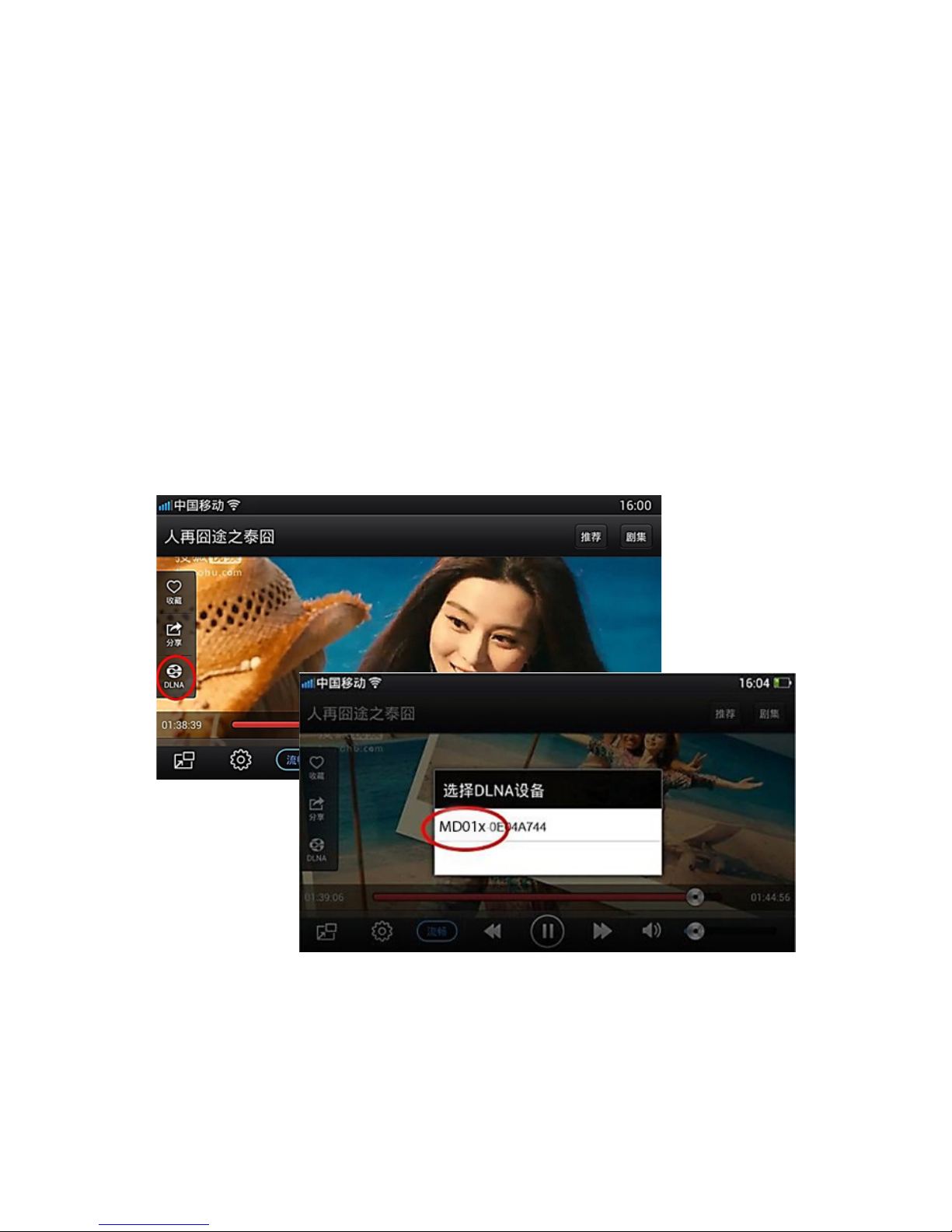
If your device supports DLNA, you can stream video
directly from your device to the TV. Select the video,
click the button on your DLNA player MD01x-XXXXXXXX
and choose to play the video:
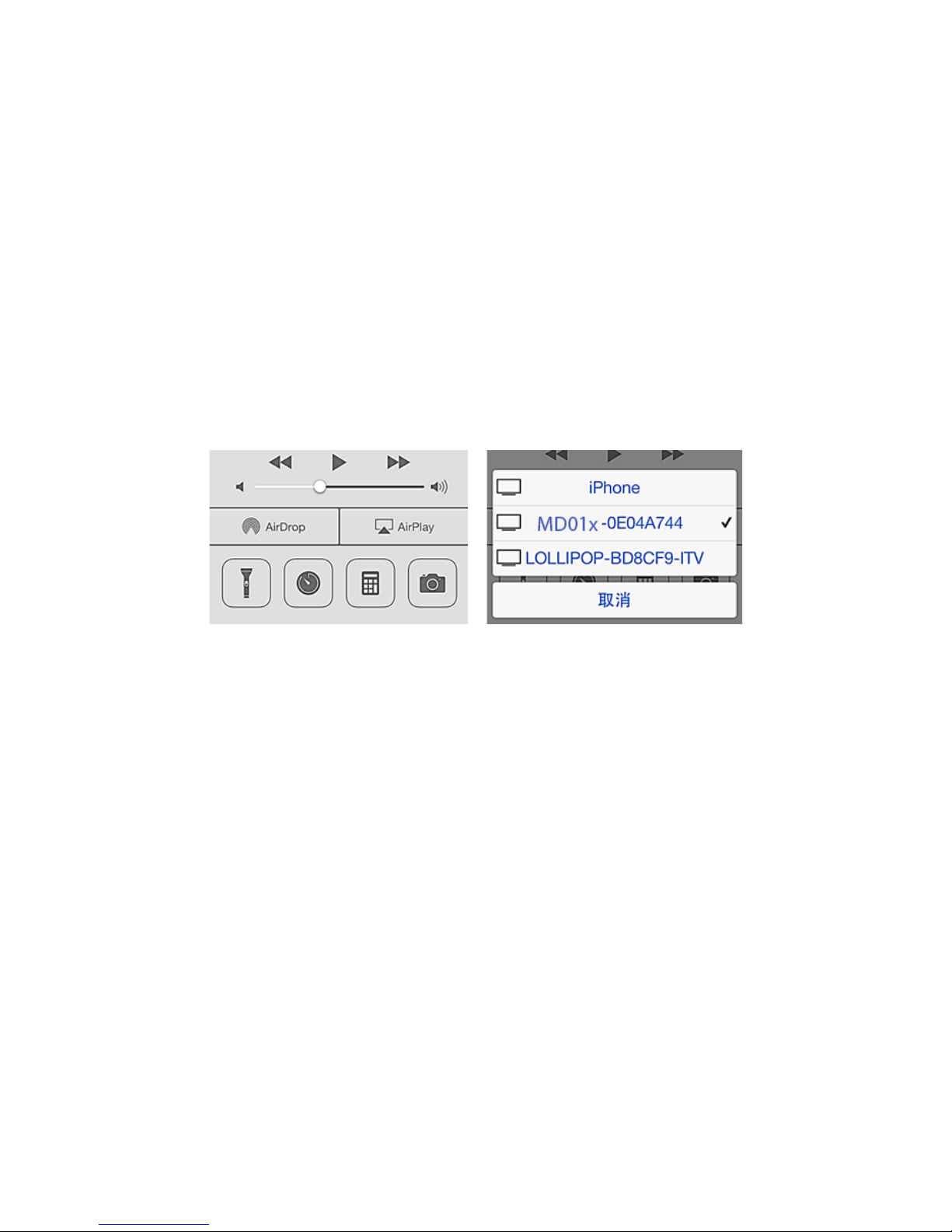
AirPlay Mode/ iOS Devices
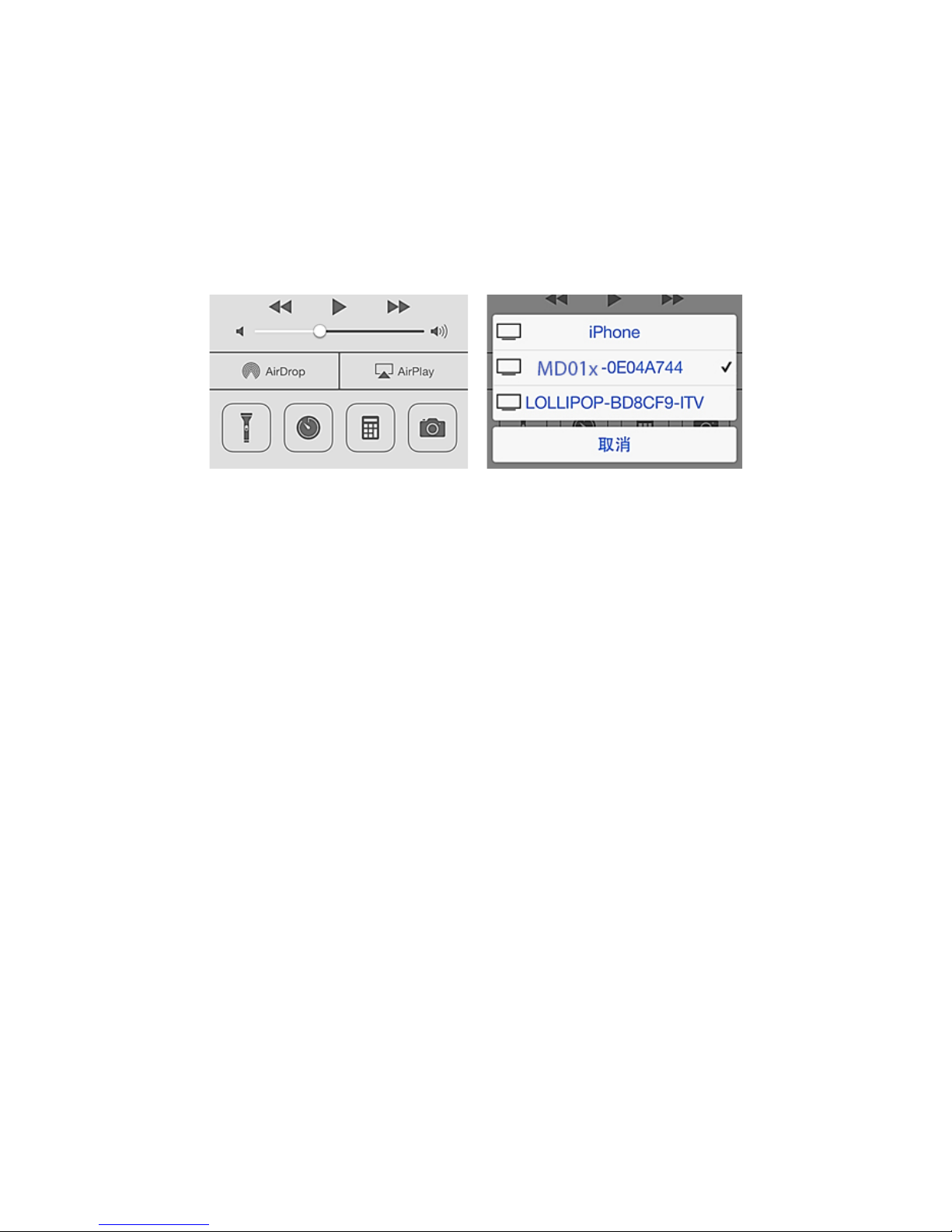
1. Connect your iOS device and MD01X to the same WiFi network.
2. Swipe up from the bottom of the screen of your
Page 13
EN
device to access the Control Center, select your
MD01x-XXXXXXXX. (You can use AirPlay through any
application and content that allow AirPlay. AirPlay will
remain on until you turn it o, so you can continue to
use it through various applications.)
3. Now when viewing the contents of Photo, Video,
Music, will be transmitted wirelessly to the TV screen.
If your device has AirPlay feature, you can fully view
the contents of your device wirelessly on your TV by
tapping the AirPlay button - Duplication - OK
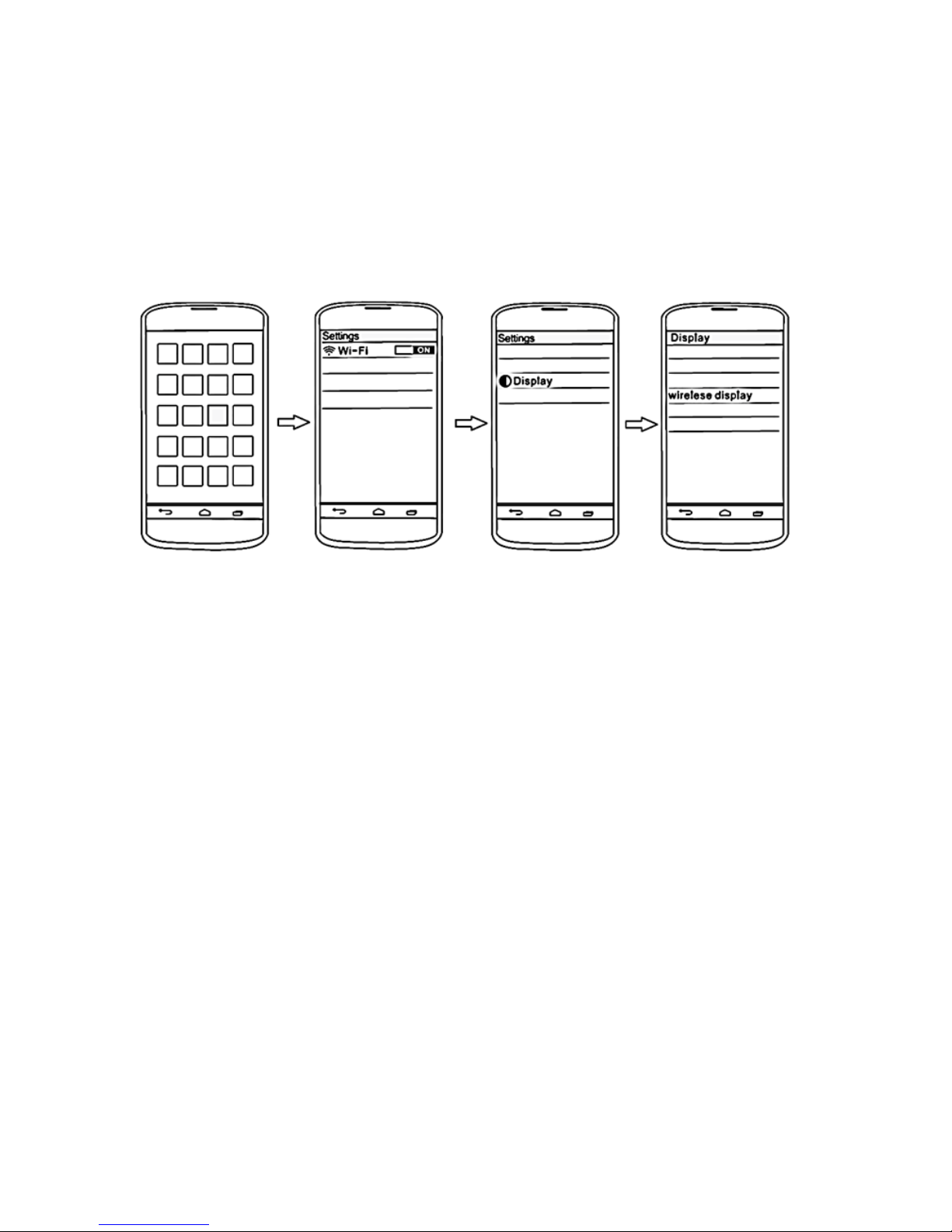
Miracast Mode
1. In this mode, the screen of smartphones, tablets can
be viewed wirelessly on the TV, monitor or projector in
real time.
2. Make sure your device has the Android version 4.2
or higher and has wireless display function or supports
Miracast protocol.
3. In the Ezcast application select “EZmirror” and click
on “ON”
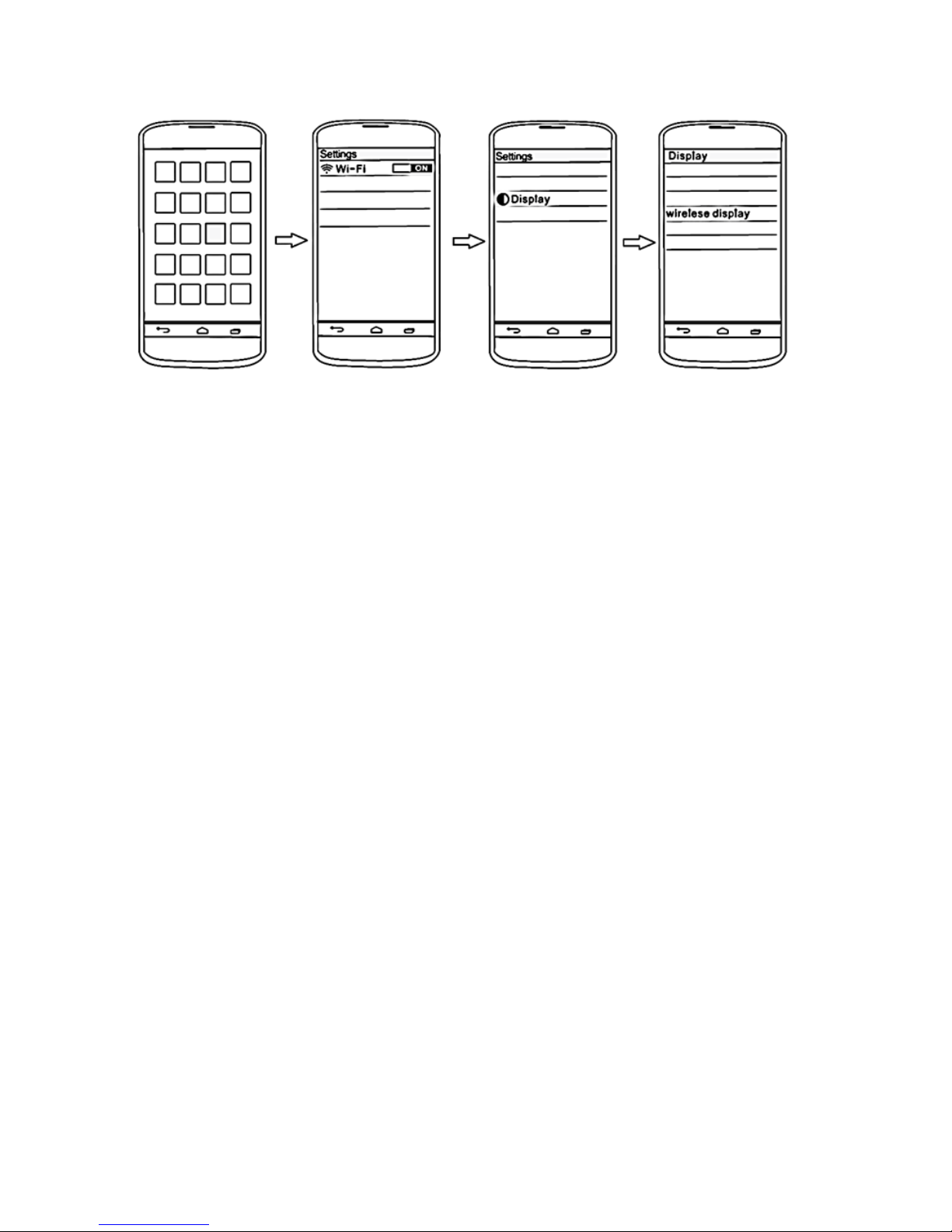
4. From Your Tablet or Smartphone go to Settings->
Screen - Wireless Screen” (On some devices called
“Wireless Display”).
Page 14
EN
5. It will show “MD01x-XXXXXXXX”, and then click connect,
your device can be seen wirelessly on your TV.
Technical Support
For more information on installing and conguring this
product go to our website www.billowtechnology.com or
write an email to [email protected]
Page 15

ES
Introducción
El Dongle MD01X permite enviar el contenido de la
pantalla del Smartphone y Tablet al televisor, de forma
sencilla y cómoda. Ya sea vídeos, películas o juegos,
podemos admirarlos en una pantalla de grandes
dimensiones y a todo color.
No utiliza ningún cable para las conexiones con el
Smartphone ó Tablet, solo la conexión Wi de casa si
se conecta por medio de DLNA y, si se utiliza Airplay o
Miracast, la conexión es directa. Esta última la incluyen de
serie en terminales de gama alta, y nos permite realizar un
espejo de la pantalla del móvil en la TV, proyector,etc. El
sistema Miracast le permitirá visualizar todo el contenido
del Smartphone en la televisión si esta no traía de serie
este protocolo. Para ello, lo único que tiene que hacer es
conectar el adaptador al puerto HDMI de tu TV.
De esta manera podrá visualizar, en pantalla grande y
desde el sofá, la información que tenga en su smartphone,
tableta o portátil. Y todo a través de la red WiFi. Los
contenidos se comparten en modo espejo, es decir, verá
en la pantalla de televisión exactamente lo mismo que en
su móvil o tableta.
El dispositivo soporta DLNA, Airplay y Miracast se puede
utilizar con cualquier dispositivo compatible con los
protocolos de transmisión de audio y vídeo que indicamos.
Además, gracias a su resolución de 1080p resulta perfecto
para visualizar contenido multimedia, como fotografías
o vídeos en alta denición Full HD (dependiendo de la
resolución de su dispositivo portátil).
Page 16
ES
Page 17

ES
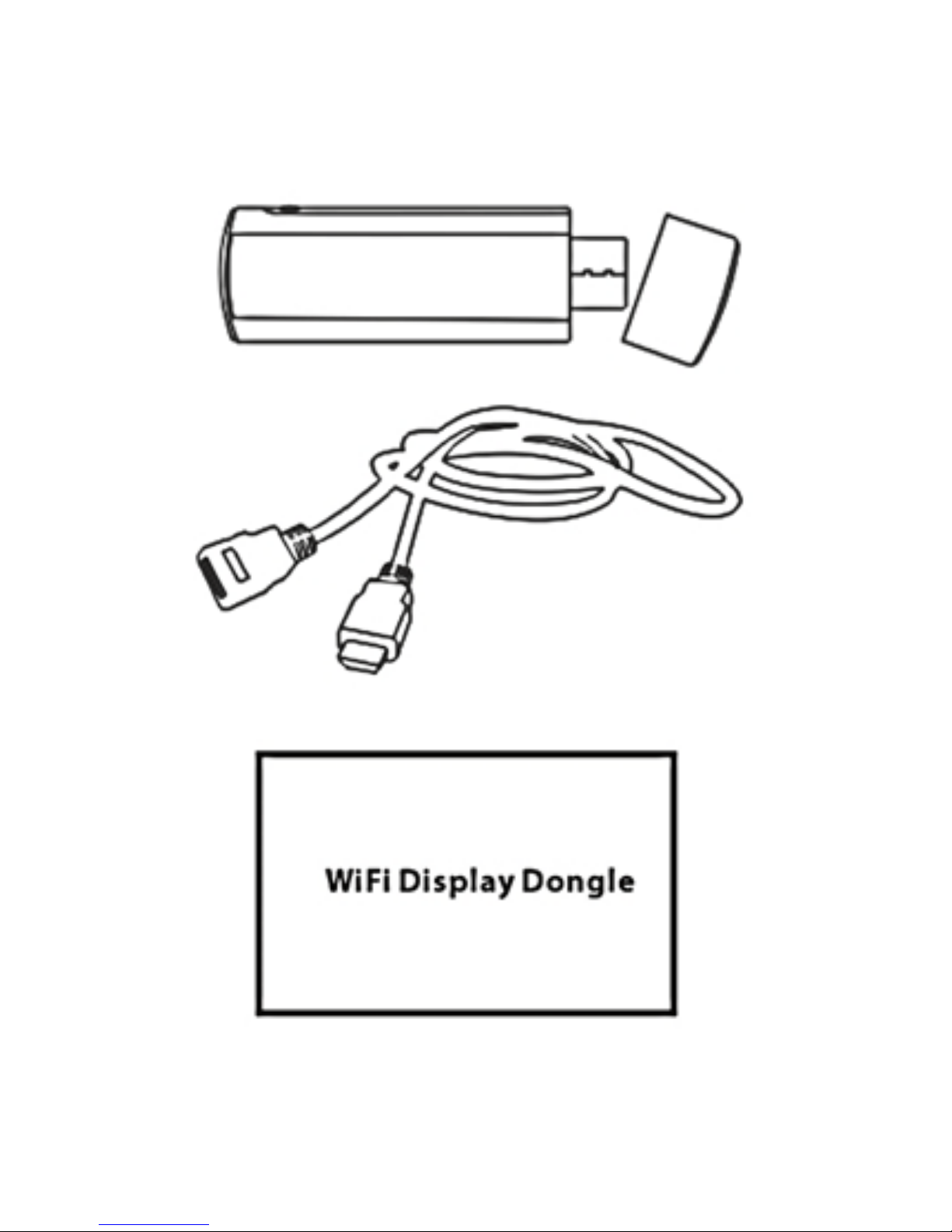
Contenido del packaging
· MD01X · Cable usb / antena Wi· Instruction manual
Requisitos minimos
Antes de usar este dispositivo, por favor asegúrese que
cumple estos requisitos:
Smartphone, tablet y pc, el hardware debe ser
compatible hábilmente con el protocolo 802.11b/g/n
de red inalámbrica.
Para pc, el sistema operativo debe ser Windows 7 o
superior o Mac OS
El router debe ser Wi-Fi, que soporte 802.11b/g/n y
300Mbps para una mejor conexión.
Por favor, trate de evitar áreas que tienen una
gran cantidad de ruido o interrupción de señales
inalámbricas. Cable USB Micro
Puerto HDMI en su Televisor, monitor o proyector
Televisor, monitor o proyector debe tener un puerto
USB para alimentar el dispositivo, de no ser así adquiera
un adaptador de 5V 800mAh con puerto USB para
alimentar el dispositivo.
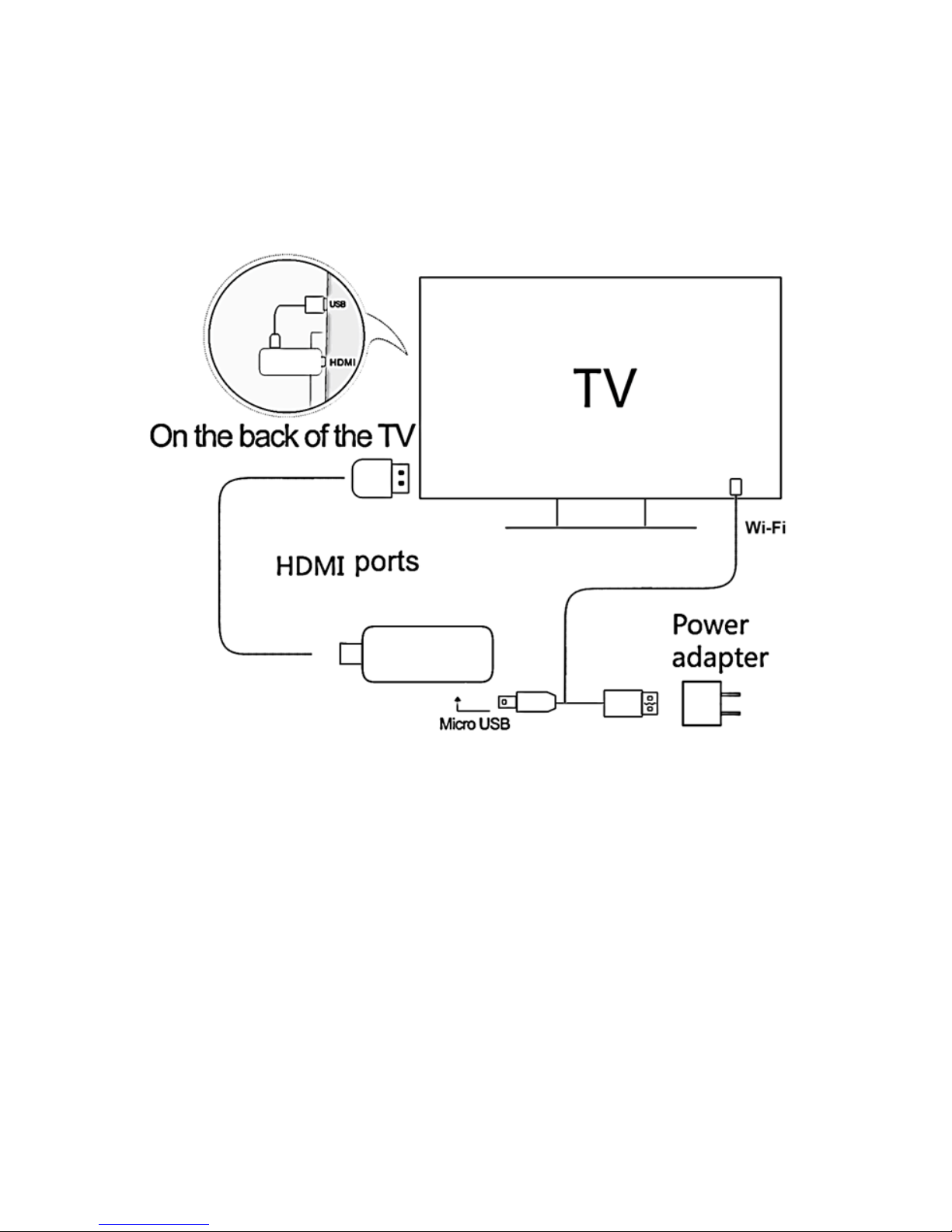
Conexion
Conecte el MD01X en un puerto HDMI libre del
televisor, monitor, proyector, etc
Conecte el cable usb / antena wi a un puerto usb de
su TV
Pegue el externo de la antena wi en la parte trasera del
Page 18
ES
panel del televisor.
Seleccione la entrada HDMI en su televisor, monitor o
proyector la pantalla mostrará un video y luego ingrese a
la página principal
Primeros usos
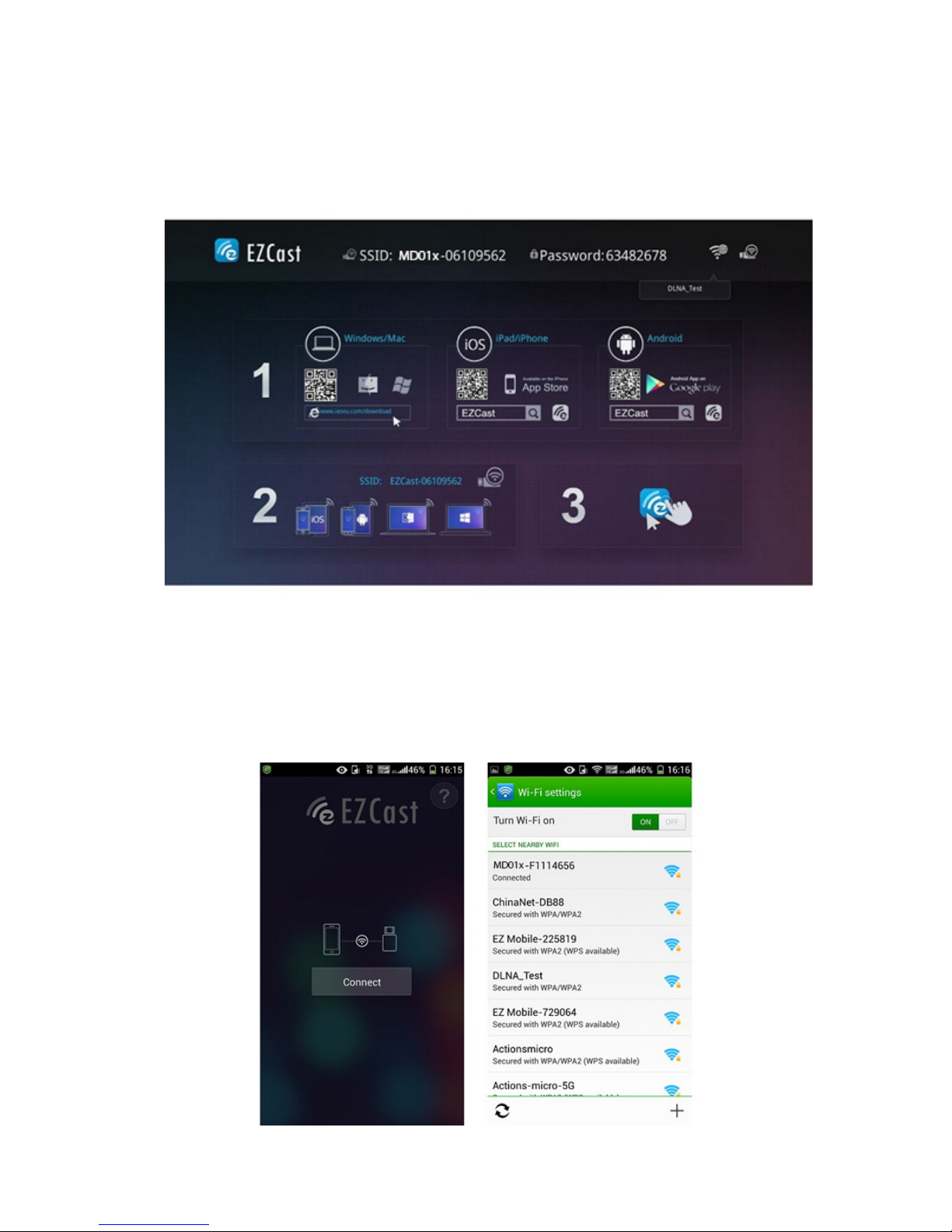
Una vez encendido, la primera pantalla que muestra es la
siguiente:
1. MD01x SSID: MD01x-xxxxxxxx, contraseña: xxxxxxxx.
2.Para los usuarios de Windows / Mac OS, puede descargar
la aplicacion EZCast desde www.iezvu.com /download.
3.Para los usuarios de iPhone / iPad, usted puede descargar
la iOS App mediante la búsqueda de “EZCast” en Apple App
Store.
4. Para los usuarios de Android, puede obtener la apk
mediante la búsqueda “EZCast” en Google Play Store.
Page 19
ES
5. Para los usuarios de Windows Phone 8.1, usted puede
conseguir la aplicación mediante la búsqueda “EZCast” en
Windows Store.
Una vez que abra la aplicación EZCast en su dispositivo
diríjase a los ajustes Wi-Fi de su dispositivo para buscar
el SSID Wi-Fi del MD01X y seleccione el MD01x-xxxxxxxx
para la conexión e introduzca la contraseña se muestra en
la zona superior de la interfaz de usuario de WiFi de su TV
Page 20
ES
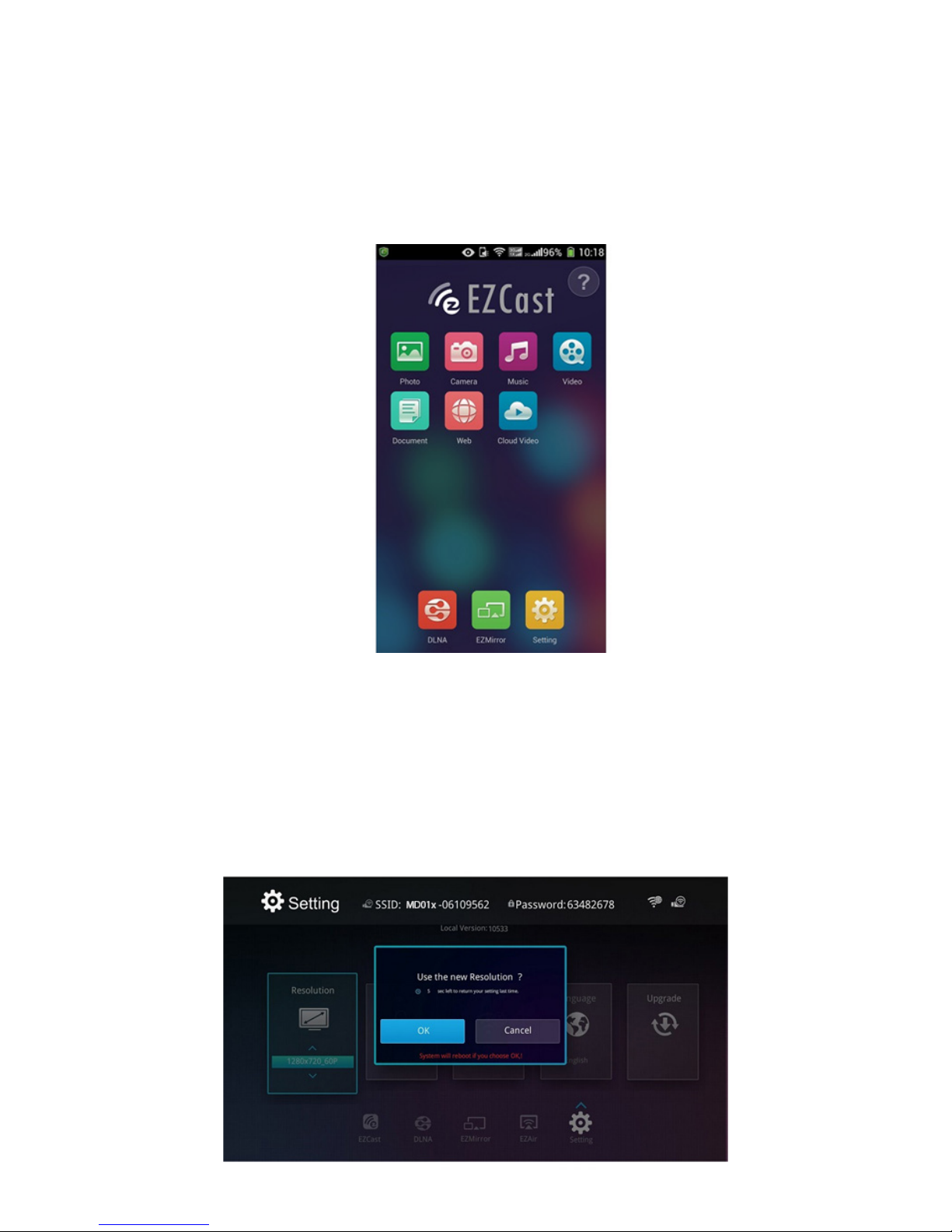
Una vez que la conexión se realiza correctamente,
la función EZCast se enciende y se puede ver seis
características útiles que aparecen en su dispositivo.
Ajustes del sistema
Haga clic en “Conguración” en la parte inferior de EZcast
en su dispositivo, puede congurar la resolución de
pantalla a 1920x1080 24P y 1280x720 60P (por defecto).
Page 21
ES
Nota: MD01X se reiniciará al cambiar la resolución.
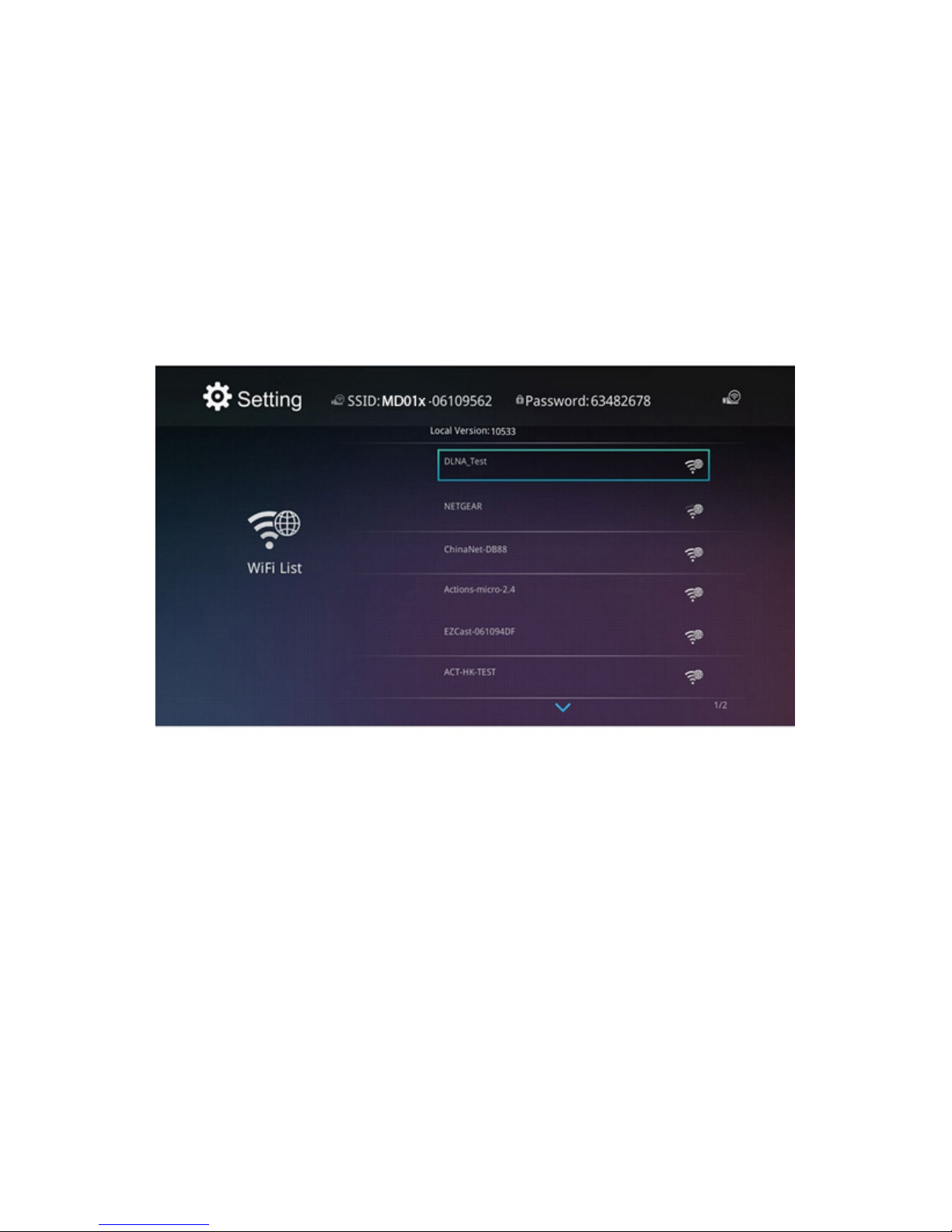
El MD01X ofrece la posibilidad de conectar su dispositivo
Android para acceder a Internet. Puede escanear la lista
de redes Wi-Fi y seleccione su red Wi-Fi para su conexión
a internet. EZCast App lanza teclado una vez que se
solicite la contraseña.
Page 22
ES
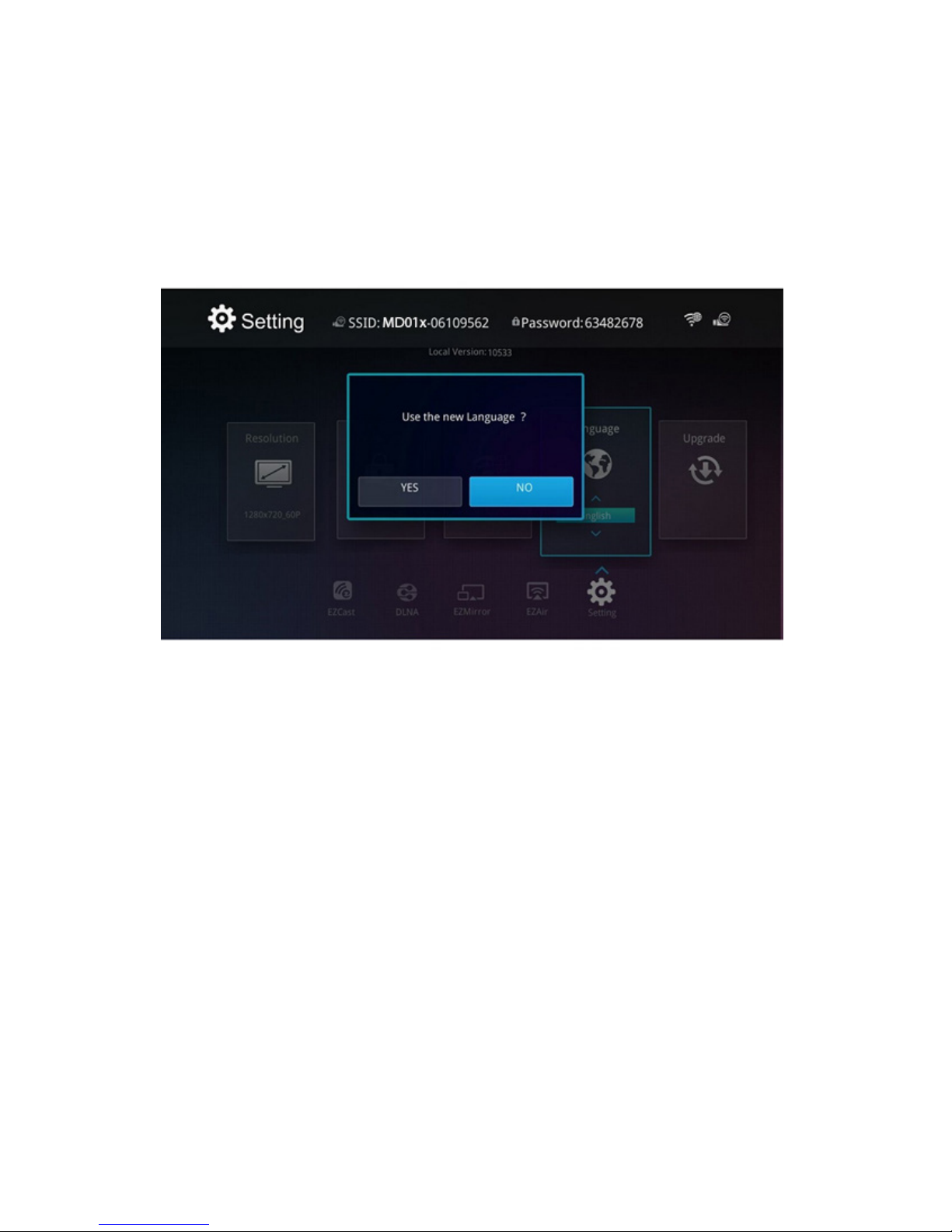
Nota: El teclado se inicia automáticamente cuando se
requiere la contraseña.
Puede seleccionar el idioma que preera mediante el
ajuste de idioma.
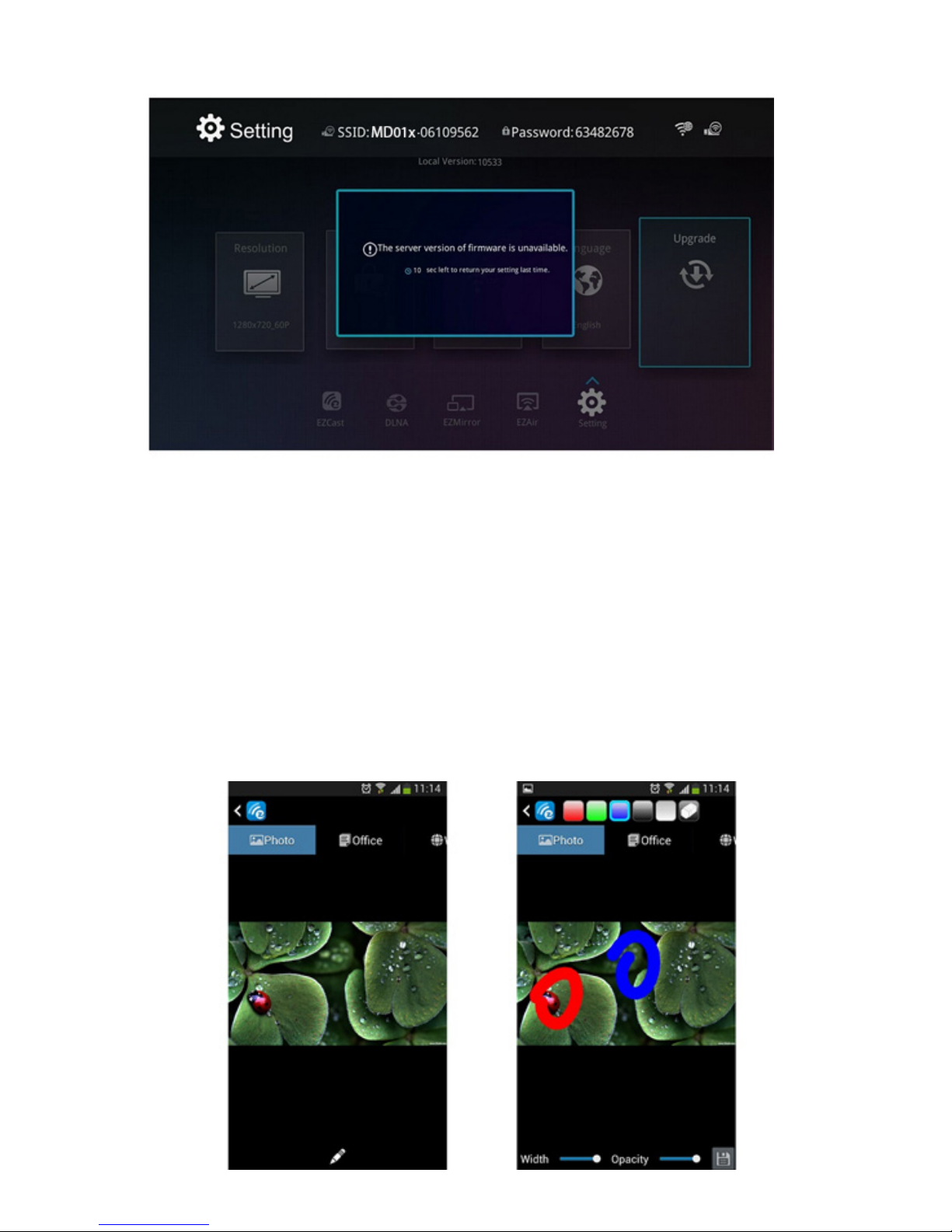
El MD01X soporta actualización OTA (On-The-Air). Puede
actualizar su MD01X a la última versión mediante la
opción “Actualización”. MD01X comprobará la versión
del rmware y se actualizará si existe una versión
más reciente. No apague el dispositivo durante la
actualización y asegúrese de que la conexión a internet
es estable.
Page 23
ES
EZcast mode Android, iOS, Mac, Windows, Windows
Phone 8.1
Puedes ver 7 características útiles que aparecen en su
dispositivo.
Foto
Le permite vers sus fotos de su dispositivo de forma
inalámbrica en la pantalla de su TV haciendo clic en las
miniaturas.
Page 24
ES
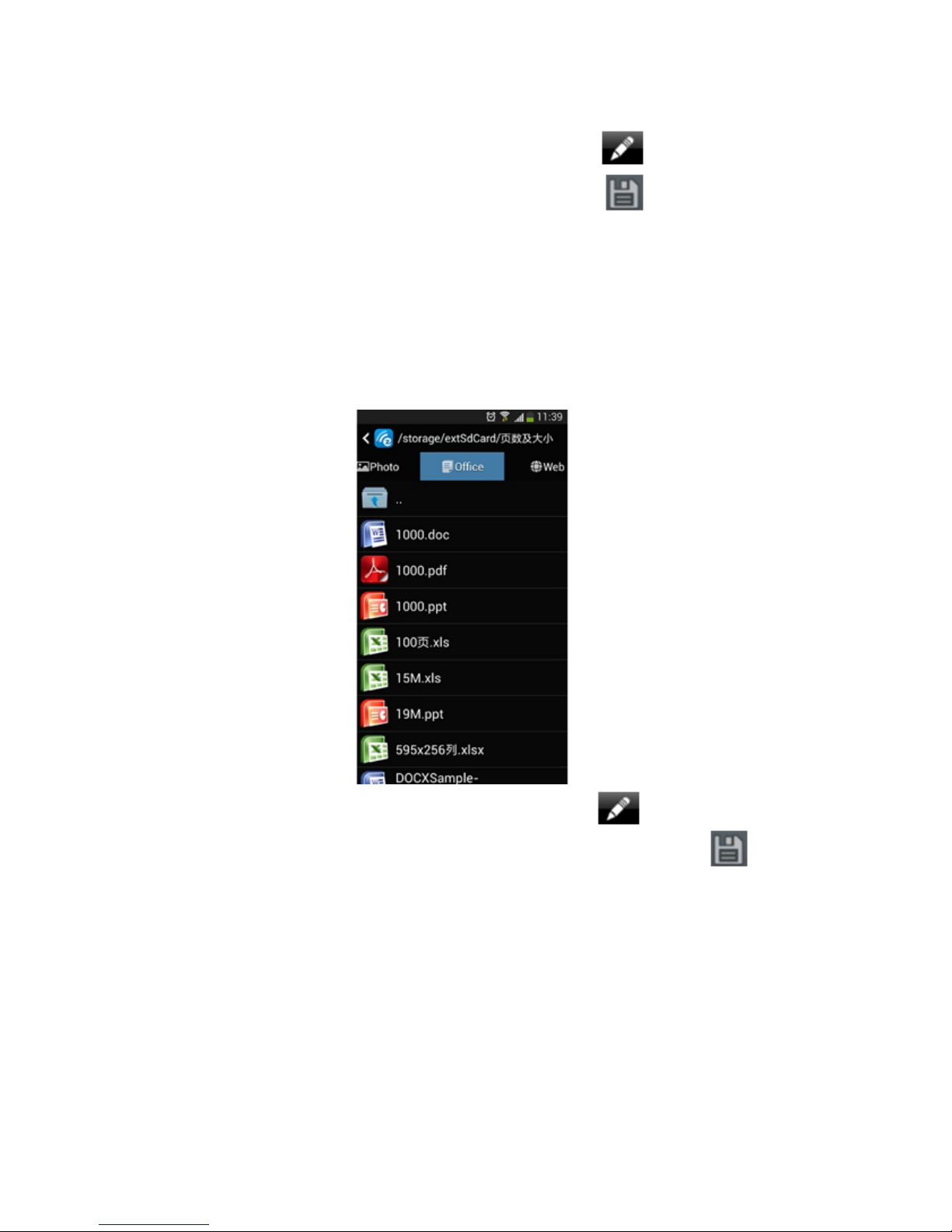
Además, puede utilizar el icono lápiz para dibujar
la foto y utilizar el icono de guardar para guardar
el resultado.
Documentos
Le permite presentar documentos de su dispositivo
de forma inalámbrica en la pantalla de su TV, EZCast
soporta documentos PDF, DOC, PPT, y EXCEL.
Además, puede utilizar el icono lápiz para anotar
o dibujar algo y utilizar el icono de guardar
para guardar el resultado.
Navegador
Le permite navegar por Internet directamente y verlo
de forma inalámbrica en la pantalla de su TV. También
puede reproducir vídeos en la pantalla directamente
haciendo clic en el video.
Page 25
ES
Cámara
Le permite visualizar la cámara de fotos de su dispositivo
de forma inalámbrica en la pantalla de su TV y puede
cambiar la “Calidad” haciendo clic en “Calidad” y le
permite intercambiar la cámara frontal y trasera
pulsando el botón .
Page 26
ES
Música / Video Streaming
Le permite transmitir su propia música y vídeo de su
dispositivo de forma inalámbrica en la pantalla de su TV.
Usted puede seleccionar la música y el vídeo a través de
su botón Media.
Modo DLNA /Dispositivos Android, iOS
Si su dispositivo es compatible con DLNA, puede
transmitir el vídeo directamente desde su dispositivo al
TV. Seleccione el vídeo, haga clic en el botón DLNA de
su reproductor y elija MD01x-XXXXXXXX para reproducir
el vídeo:
Page 27
ES
Modo AirPlay/ Dispositivos iOS
1. Conecte su dispositivo iOS y MD01X a la misma red
Wi-Fi.
2 Deslice el dedo hacia arriba desde la parte inferior
de la pantalla de su dispositivo para acceder a Centro
de Control, seleccione su MD01x-XXXXXXXX. (Usted
puede usar AirPlay a través de cualquier aplicación y
contenidos que permitan AirPlay. AirPlay permanecerá
encendida hasta que lo apague, para que puedas seguir
utilizándolo a través de diversas aplicaciones.)
3. Ahora cuando esté viendo el contenido de Fotos,
Videos, Música, serán transmitidas inalámbricamente a
la pantalla de su TV.
Si su dispositivo tiene función AirPlay, puede ver
completamente el contenido de su dispositivo
inalámbricamente en su TV pulsando sobre el botón
AirPlay – Duplicación - OK
Modo Miracast
1. En este modo, las pantallas de los Smartphone,
tablets pueden visualizarse inalámbricamente en el TV,
monitor o proyector en tiempo real.
2. Asegúrese de que sus dispositivos Android tiene
version 4,2 o superior y tiene la función pantalla
Page 28
ES
inalámbrica o es compatible con protocolo miracast
3. En la aplicación Ezcast seleccione “EZmirror” y haga clic
en “ON”
4. En su Tablet o Smartphone diríjase a Conguración->
Pantalla – Pantalla inalámbrica (En algunos dispositivos
llamado “Wireless Display”).
5. Le mostrará “MD01x-XXXXXXXX”, pulse en conectar y a
continuación, su dispositivo puede verse completamente
de forma inalámbricamente en su TV
Soporte Técnico
Por favor para más información sobre la instalación
y conguración de este producto diríjase a nuestra
web www.billowtechnology.com o escriba un correo
electrónico a [email protected]
Page 29

EC DECLARATION OF CONFORMITY
We declare under our sole responsibility that the product:
Brand name: BILLOW TECHNOLOGY
Model no: MD01X
Product description: Wifi Display Dongle
The measurements shown in this test report were made in accordance with the
procedures given in the:
- EMC DIRECTIVE: 2004/108/EC
- ROHS DIRECTIVE: 2011/65/EU
- RTTE DIRECTIVE: 1999/5/EC
To which this declaration is based on with full conformance to the following European
norms and standards:
- EPA3050B:1996, EN1122B:2001
- EPA3052:1996, EPA3060A:1996
- EPA7196A:1992, EPA3540C:1996
- EPA8270D:2007, IEC62321:2008
- EN 55022 : 2010
- EN 61000-3-2 :2006+A1:2009+A2:2009, EN 61000-3-3 :2008
- EN 55024 : 2010
- EN 61000-4-2 :2009, EN 61000-4-3 :2006+A1:2008+A2:2010,
- EN 61000-4-4 :2012, EN 61000-4-5 :2006,
- EN 61000-4-6 :2009, EN 61000-4-8 :2010, EN 61000-4-11 :2004
Signed Jul 31, 2014
_______________
Jose Luis Ruiz Gómez
Managing Director
BILLOW TECHNOLOGY
ADD: Polígono Industrial Guadalquivir
C/ Tecnología, 5 Postcode: 41120Gelves (Sevilla), Spain.
Website: www.approx.es
Page 30
Importado por / Imported by:
APPROX IBERIA S. L.
CIF: B-91202499
Soporte técnico / Technical support:
Page 31
 Loading...