

Page 1

BiPAC 8501
SHDSL.bis VPN Firewall Bridge/Router
Quick Start Guide
Page 2

Page 3
SHDSL.bis VPN Firewall Bridge/Router
1
For more detailed instructions on configuring and using th
e
Billion SHDSL.bis VPN Firewall Bridge/Router, please refer to
the on-line manual.
Package Contents
SHDSL.bis VPN Firewall Bridge/Router
CD-ROM containing the online manual
RJ-11 SHDSL/telephone Cable
Ethernet (CAT-5 LAN) Cable
Console (PS2-RS232) Cable
AC-DC power adapter (12VDC, 1A)
This Quick Start Guide
Do not use this router in high humidity or high temperatures.
Do not use the same power source for this router as othe
r
equipment.
Do not open or repair the case yourself. If this router is too hot,
turn off the power immediately and have it repaired at a qualified
service center.
Warning
Avoid using this product and all accessories outdoors.
Place this router on a stable surface.
Only use th
differ
e power adapter that comes with the package. Using a
ent voltage rating power adaptor may damage this router .
A
ttention
Page 4
Quick Start Guide
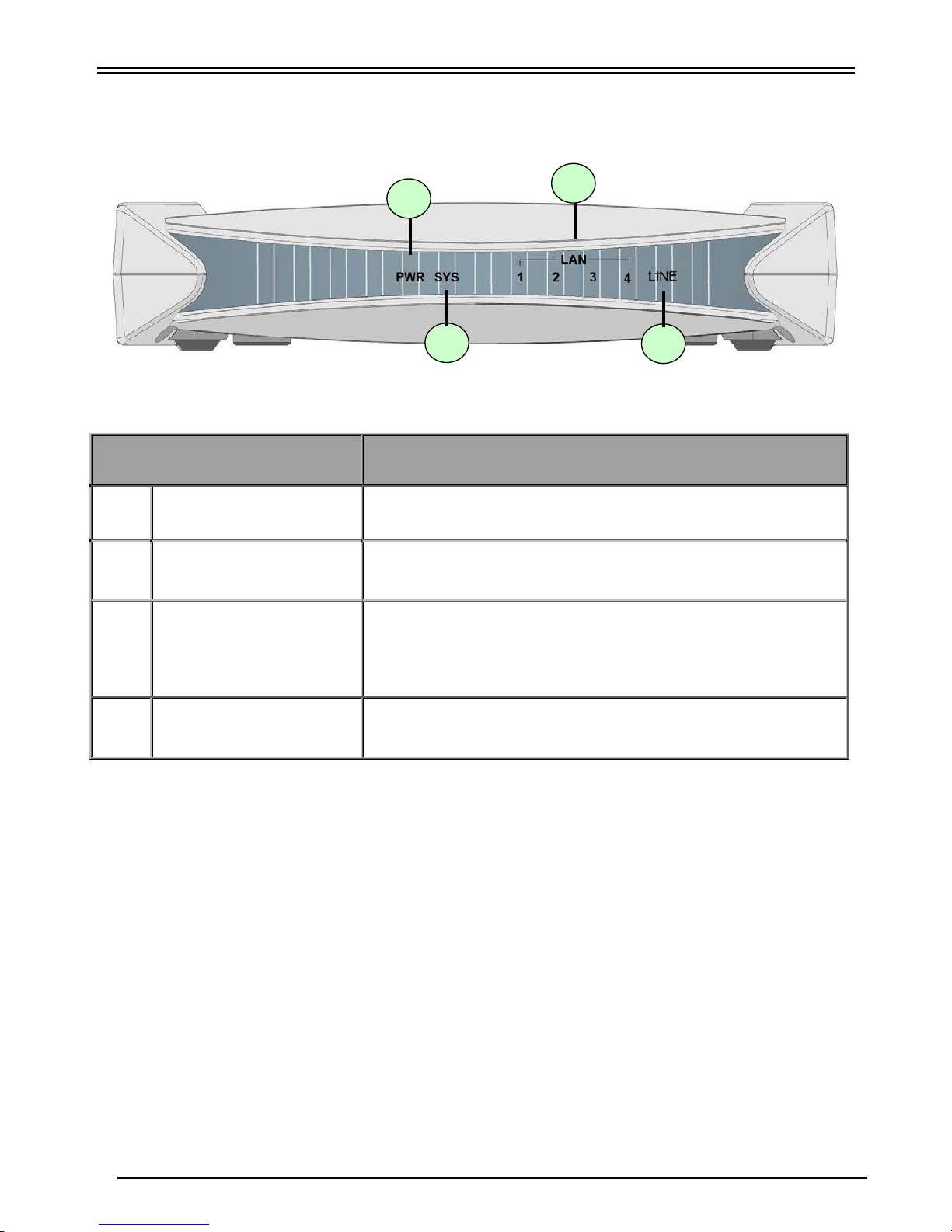
The Front LEDs
2
3
1
2
4
LED Meaning
1 PWR Lit when power is ON.
2 SYS Lit when the system is ready.
3
Lit when connected to an Ethernet device.
Green for 100Mbps; Orange for 10Mbps.
LAN Port
1X — 4X
(RJ-45 connector)
Blinking when data is Transmitted / Received.
4 LINE
Lit when successfully connected to SHDSL line and it is
synchronized.
Page 5
SHDSL.bis VPN Firewall Bridge/Router
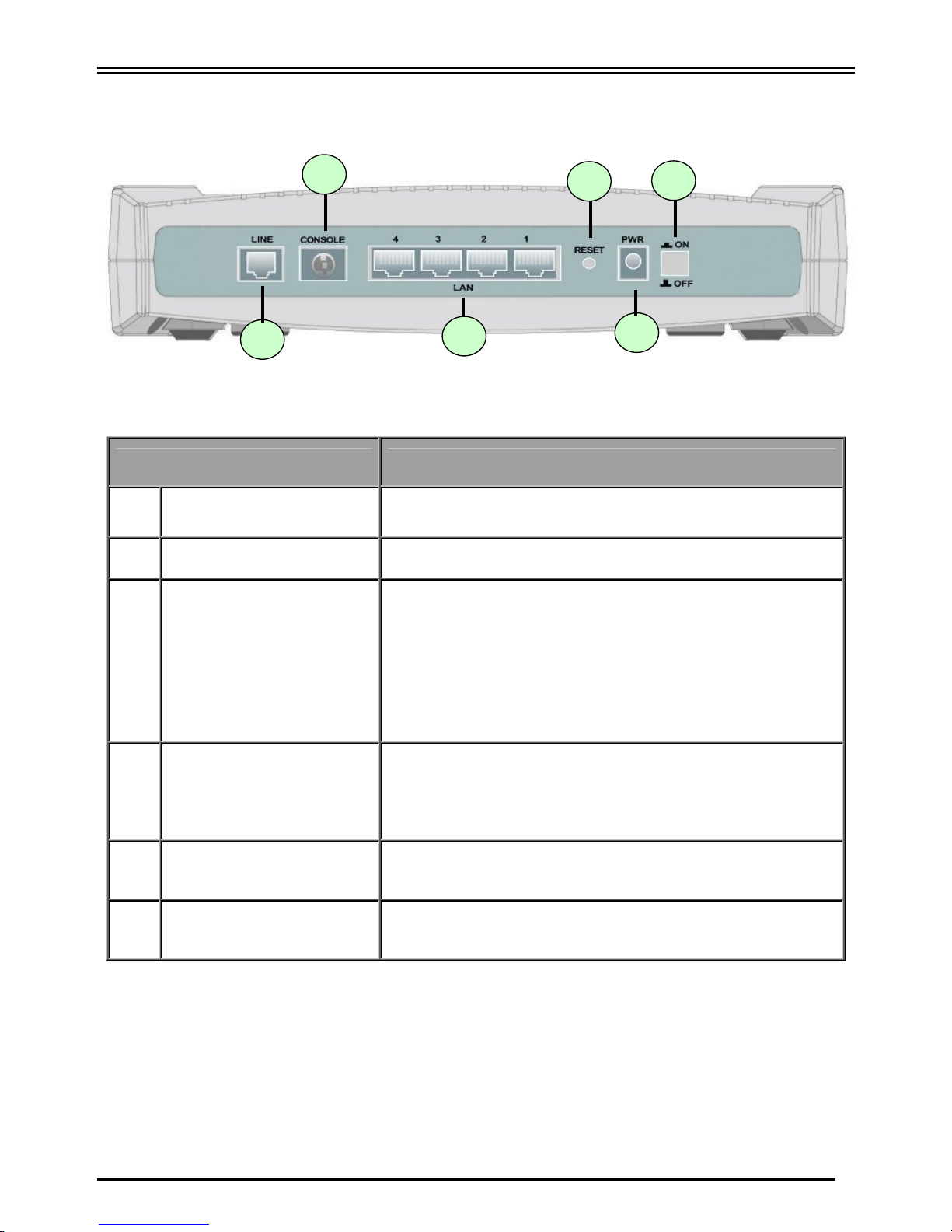
The Rear Ports
3
5
1
3
6
2
4
Port Meaning
1
Power Switch
Power ON/OFF switch
2
PWR
Connect the supplied power adapter to this jack.
3 RESET
After the device is powered on, press it to reset the
device or restore to factory default settings.
1-3 seconds: reset the device
6 seconds above, and power off, power on the device:
restore to factory default settings (this is used when you
can not login to the router, e.g. forgot the password)
4
LAN
1X — 4X
(RJ-45 connector)
Connect a UTP Ethernet cable (Cat-5 or Cat-5e) to one of
the four LAN ports when connecting to a PC or an
office/home network of 10Mbps or 100Mbps.
5
CONSOLE
Connect a PS2/RS-232 cable to this port when
connecting to a PC’s RS-232 port (9-pin serial port).
6
LINE
Connect the supplied RJ-11 (“telephone”) cable to this
port when connecting to the A SHDSL line.
Page 6
Quick Start Guide
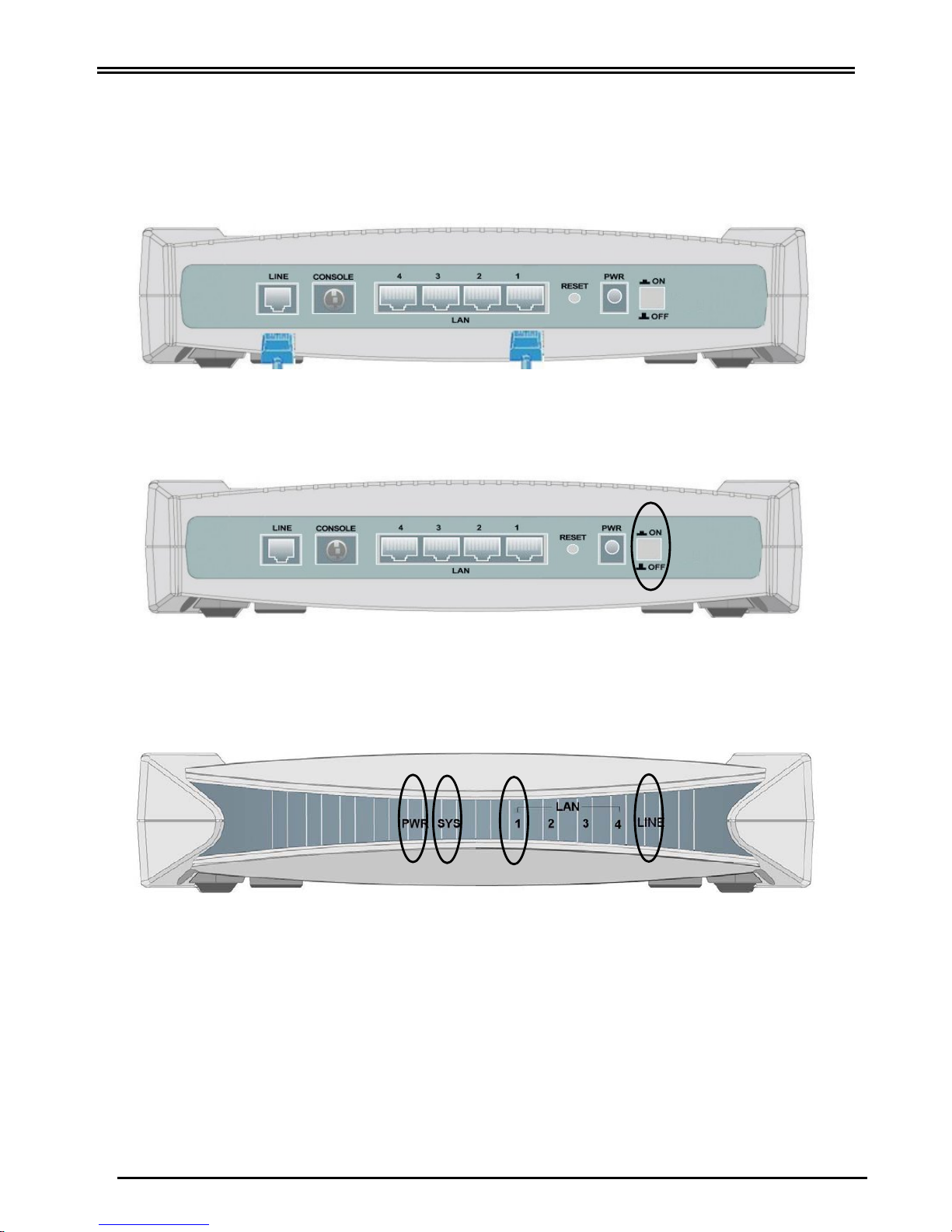
Connecting Your SHDSL Bridge/Router
1. Connect the Router to a LAN (Local Area Network) and the SHDSL LINE.
2. Power on the device.
4
3. Make sure the PWR and SYS LEDs are lit steadily and that the relevant LAN and LINE LED
are lit.
Page 7
SHDSL.bis VPN Firewall Bridge/Router
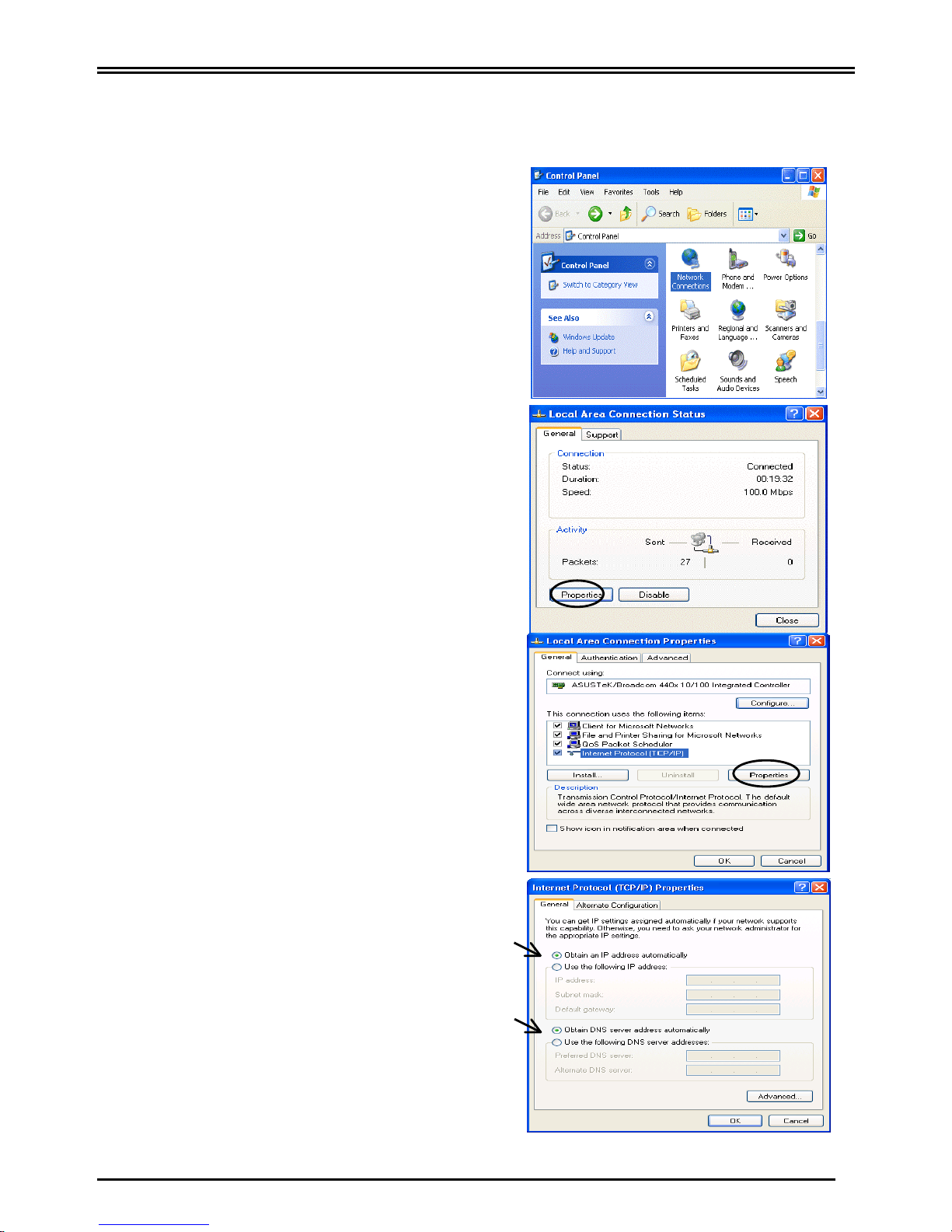
Configuring PC in Windows XP
1. Go to Start / Control Panel (in Classic
View). In the Control Panel, double-click on
Network Connections
2. Double-click Local Area Connection.
3. In the Local Area Connection Status
window, click Properties.
4. Select Internet Protocol (TCP/IP) and click
Properties.
5. Select the Obtain an IP address
automatically and the Obtain DNS server
address automatically radio buttons.
6. Click OK to finish the configuration.
5
Page 8
Quick Start Guide
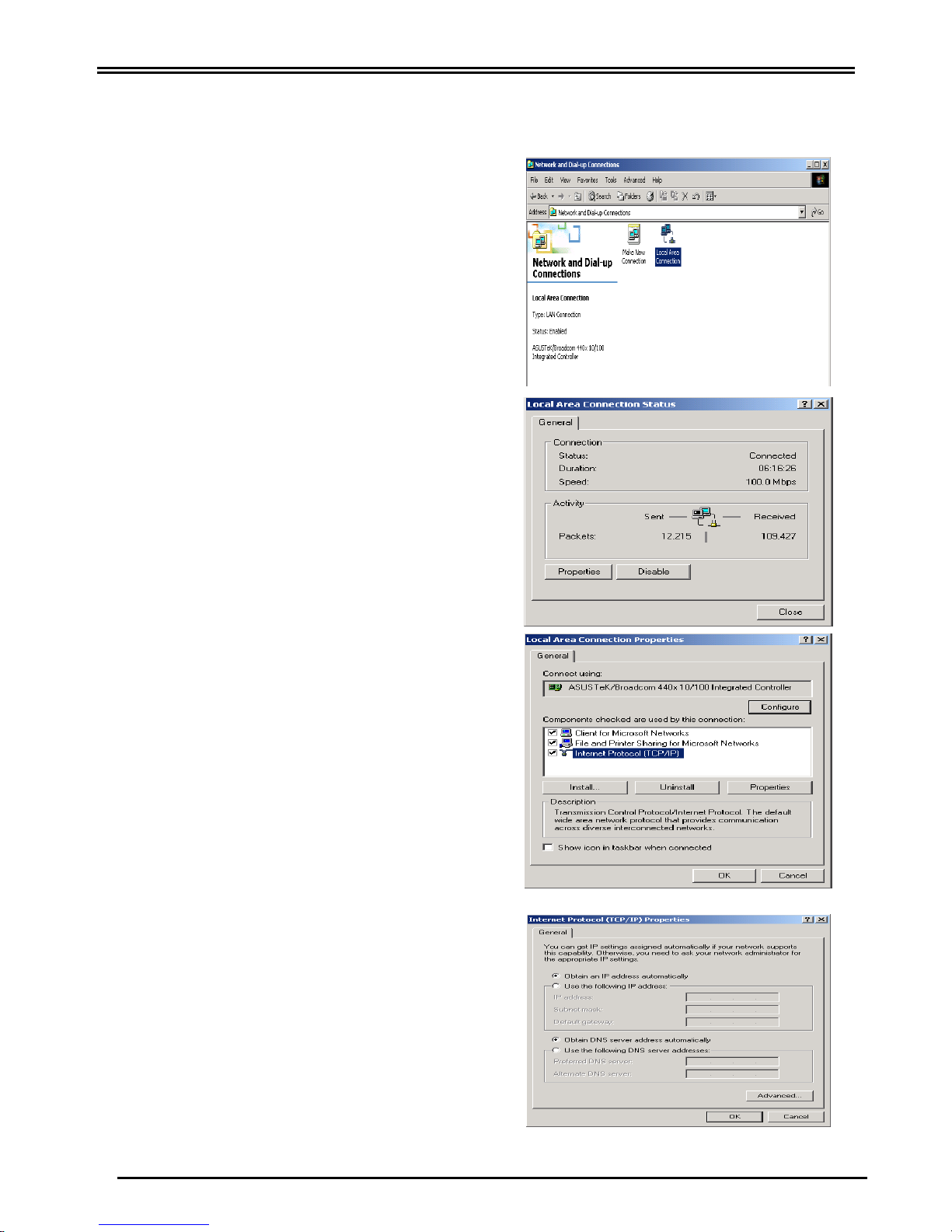
Configuring PC in Windows 2000
1. Go to Start / Settings / Control Panel. In the
Control Panel, double-click on Network and
Dial-up Connections.
2. Double-click Local Area Connection.
3. In the Local Area Connection Status
window click Properties.
4. Select Internet Protocol (TCP/IP) and click
Properties.
5. Select the Obtain an IP address
automatically and the Obtain DNS server
address automatically radio buttons.
6. Click OK to finish the configuration.
6
Page 9
SHDSL.bis VPN Firewall Bridge/Router
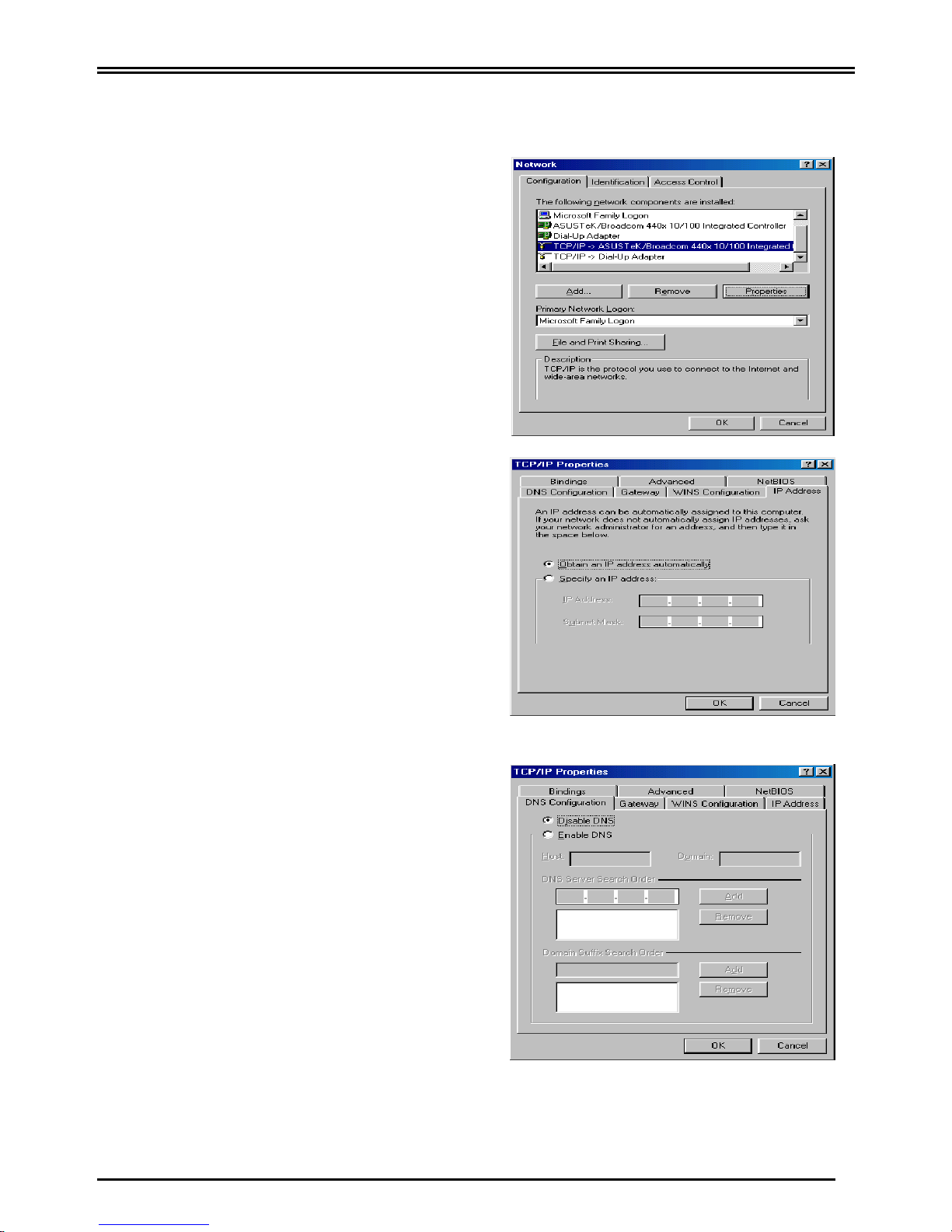
Configuring PC in Windows 98/Me
1. Go to Start / Settings / Control Panel. In
the Control Panel, double-click on Network
and choose the Configuration tab.
2. Select TCP/IP ->
NE2000 Compatible, or the name of your
Network Interface Card (NIC) in your PC.
3. Select the Obtain an IP address
automatically radio button.
4. Then select the DNS Configuration tab.
5. Select the Disable DNS radio button and
click OK to finish the configuration.
7
Page 10
Quick Start Guide
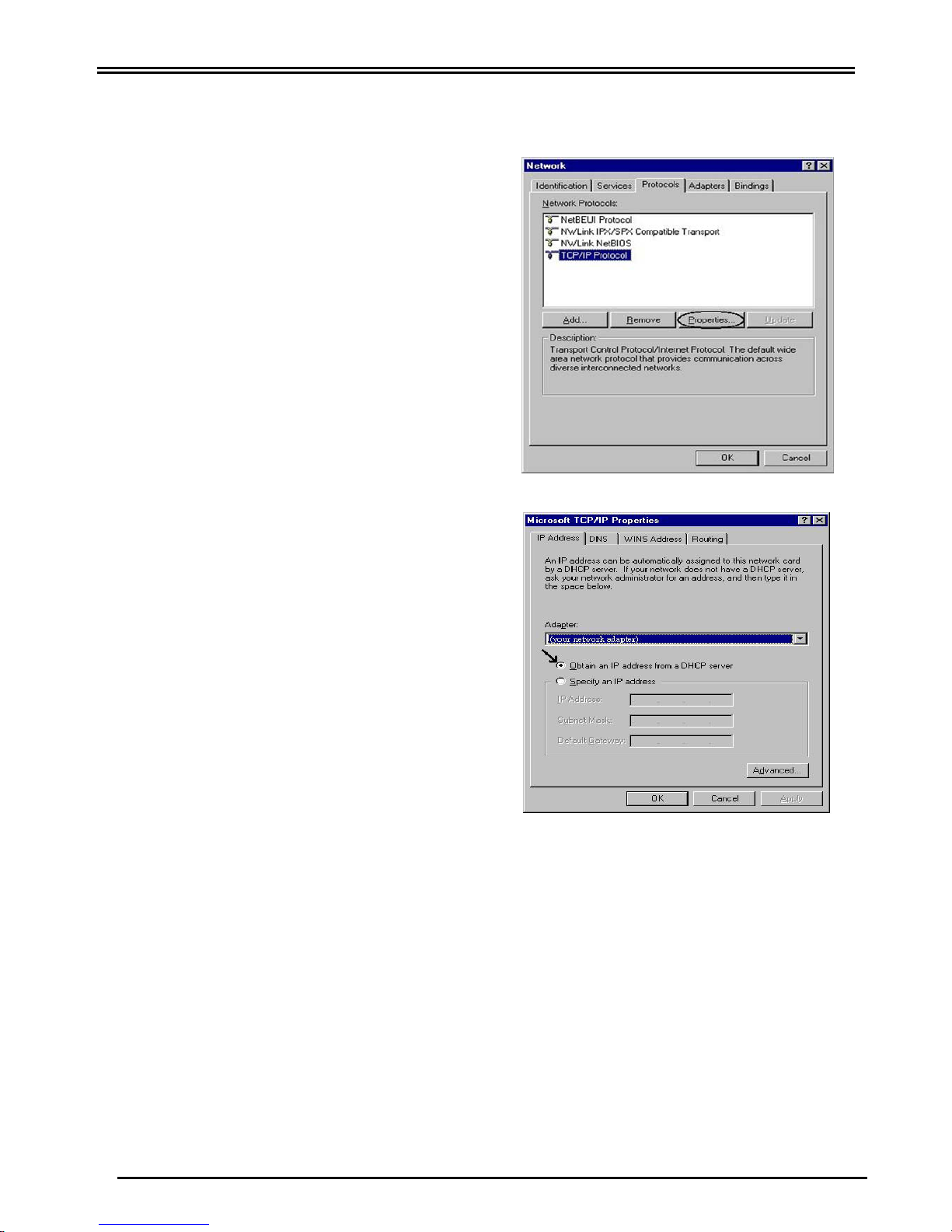
Configuring PC in Windows NT4.0
1. Go to Start / Settings / Control Panel. In the
Control Panel, double-click on Network and
choose the Protocols tab.
2. Select TCP/IP Protocol and click Properties.
3. Select the Obtain an IP address from a
DHCP server radio button and click OK.
8
Page 11
SHDSL.bis VPN Firewall Bridge/Router
Configuring Your SHDSL Bridge/Router
To configure this device, you must have IE 5.0 / Netscape 4.5 or
above installed
Verifying Your Local Network Connection with the Device
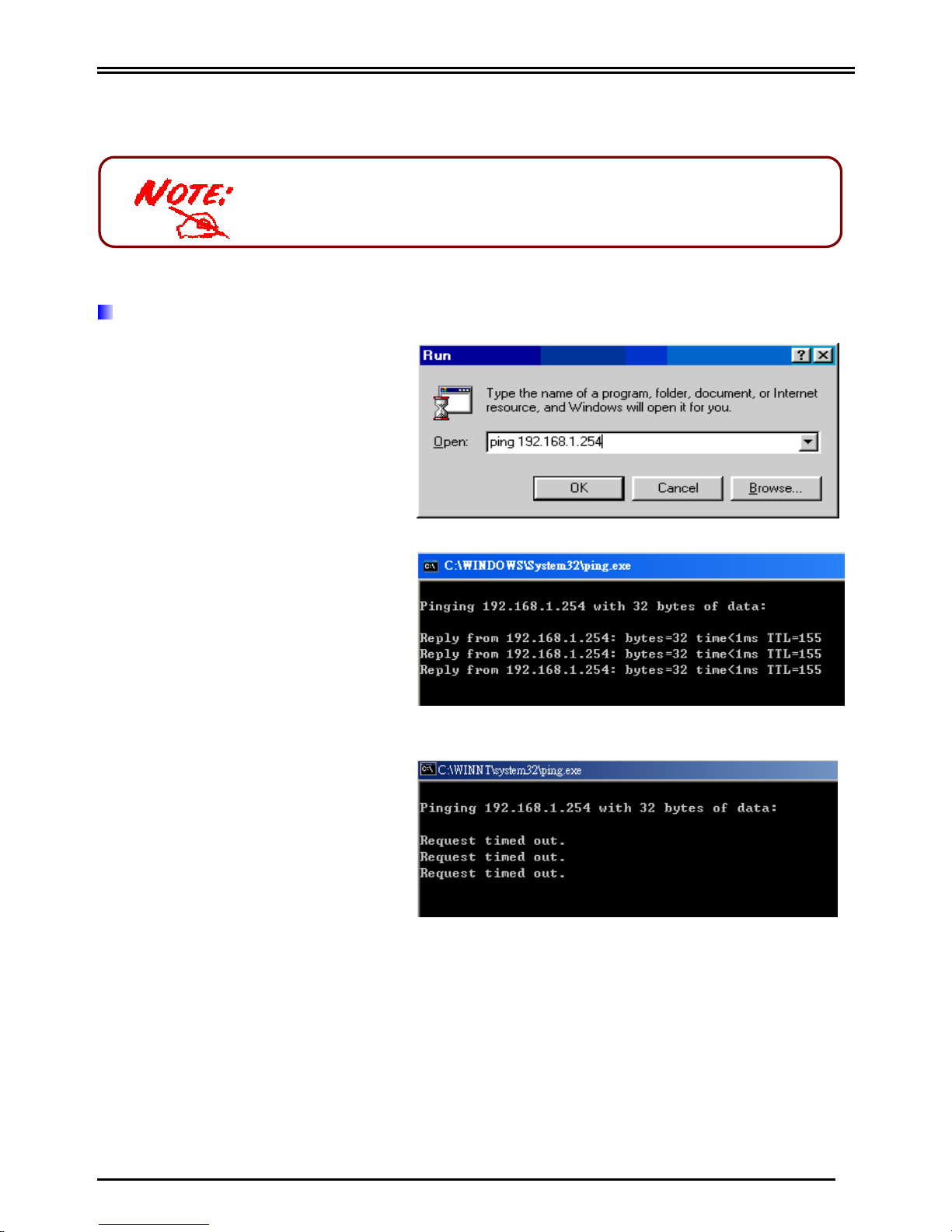
To see if this ADSL Router is
visible on the local network, go
to Start / Run. In the Run dialog
box, type “ping 192.168.1.254”
then press OK.
A command prompt window will
pop out. If your ping is
successful which means your
local network is able to reach to
the device, then the command
prompt window will close up
automatically.
Connection fails, when you see
“Request timed out” in the
command prompt window. You
may need to check your set up.
9
Page 12
Quick Start Guide
Connecting to the Router
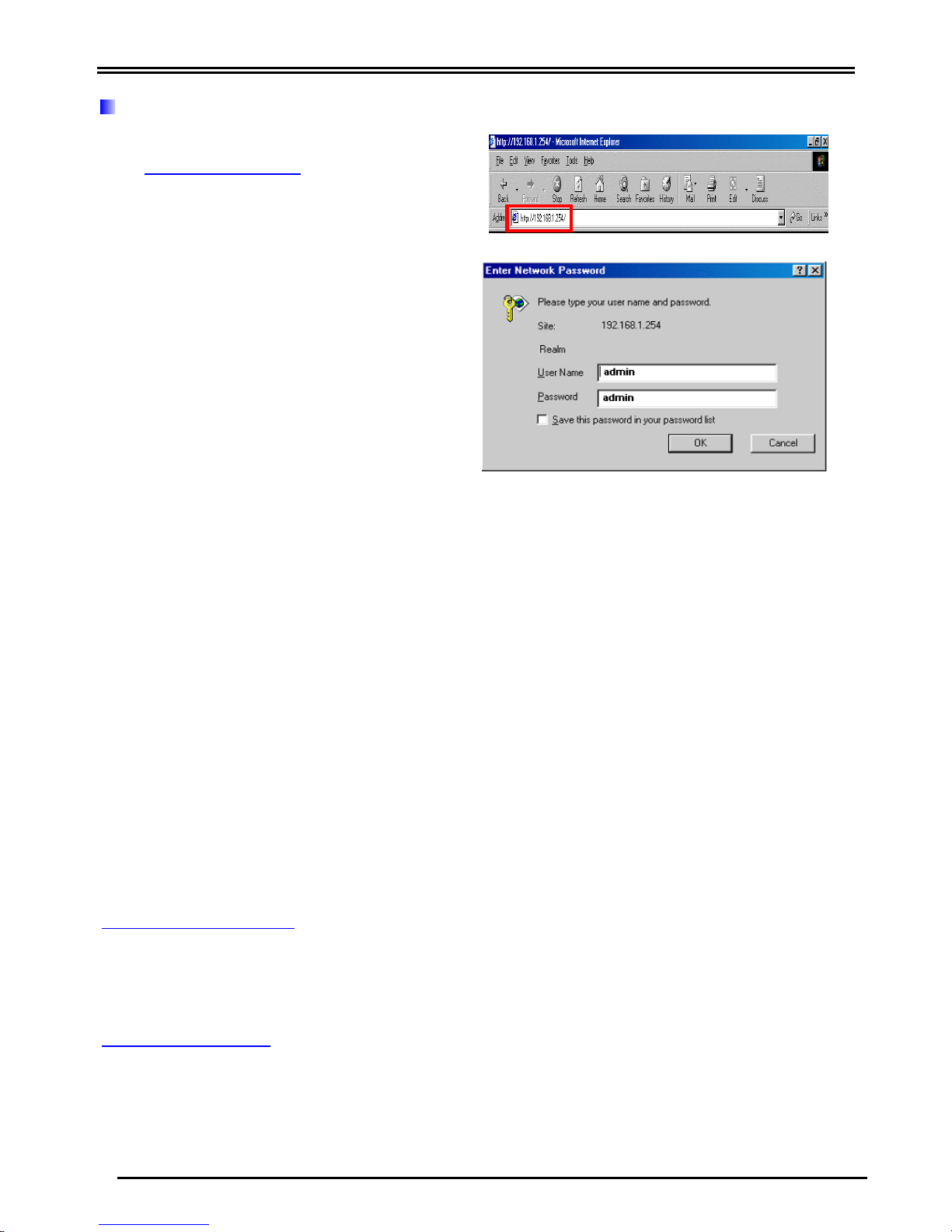
1. Open the web browser and type
http://192.168.1.254 in the browser’s
address box. This number is the default IP
address for this router. Press Enter.
2. A username and password window will
appear. The default username and
password are admin and admin. Press
OK to proceed.
Please see the relevant sections of on-line manual for detailed instructions
on how to configure your router.
Product Support and Contact Information
Most problems can be solved by referring to the Troubleshooting section in the User’s
Manual. If you cannot resolve the problem with the Troubleshooting chapter, please contact
the dealer where you purchased this product.
Contact Billion
AUSTRALIA
http://www.billion.com.au
© 2006 Billion Electric Co Ltd., PC Range P/L. All Rights Reserved.
WORLDWIDE
http://www.billion.com
Mac OS is a registered Trademark of Apple Computer, Inc.
Windows 98, Windows NT, Windows 2000, Windows Me and Windows XP are registered Trademarks of Microsoft
Corporation.
10
 Loading...