

Page 1
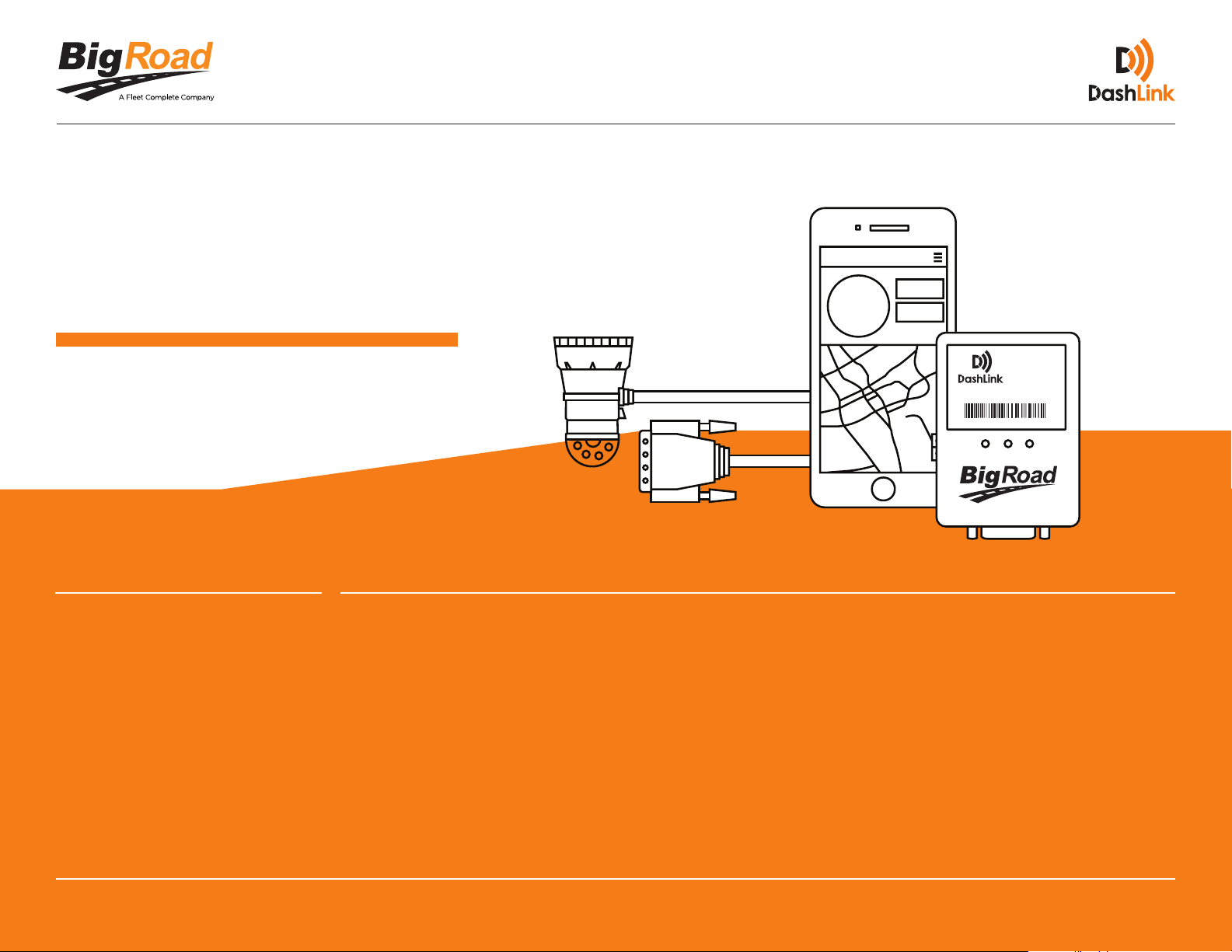
DASHLINK DL-200
Installation Guide
Electronic Logging Device (ELD)
CONTACT
P: 1.888.305.8777 Ext. 1
E: [email protected]
CONTENTS
Required Materials 01
Adding A New Truck 02
Installing Your DashLink 03
Link Your Vehicle To DashLink 06
What To Keep In Your Cab 09
Troubleshooting 10
DL-200
Resources 12
Page 2
DashLink DL-200 ― Installation Guide
01.
Required
Materials
What Do You Need to
Get Started?
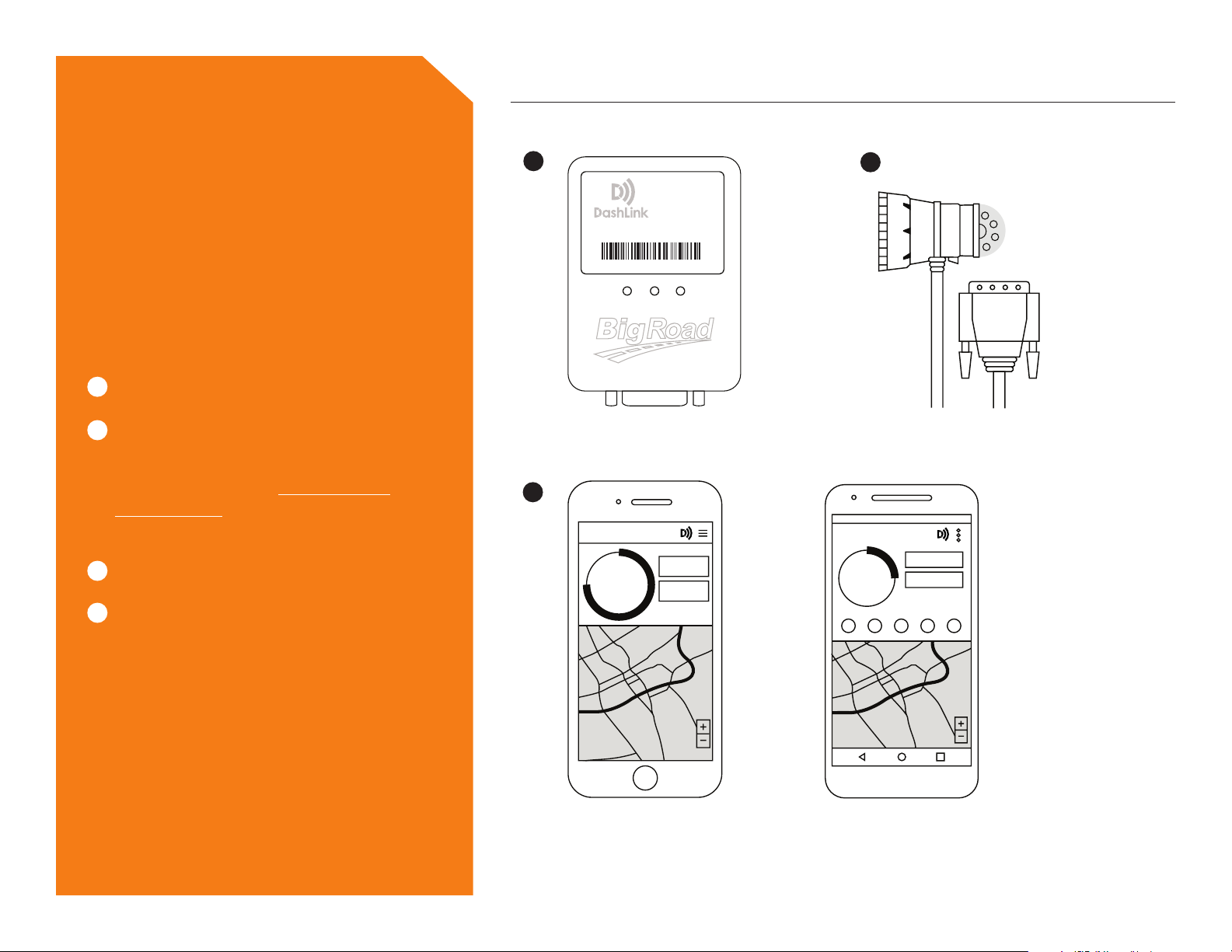
1
DASHLINK DL-200
2
ADAPTER CABLE
With correct pin conguration for
your vehicle. See the Ordering Your
DashLink ELD guide for assistance
selecting the correct cable.
3
COMPATIBLE MOBILE DEVICE
1
DL-200
Device ID: 2471-89A8-C114
3
2
4
CABLE TIES, TAPE, OR VELCRO
(OPTIONAL)
iPhone 9.3 or higher with
^
BigRoad Mobile App installed
Android 5.0 or higher with
^
BigRoad Mobile App installed
Page 3
02.
Adding A
New Truck
DashLink DL-200 ― Installation Guide
Trucks can only be added to a eet through the BigRoad Web App by
the Safety Manager. We no longer allow trucks to be added through the
BigRoad Mobile App.
1
2
LOGIN TO THE BIGROAD WEB APP AS A SAFETY MANAGER
CLICK ON THE FLEET TAB
Follow these steps to add a
new truck.
3
4
5
6
7
8
9
SELECT TRUCKS
SELECT ADD A TRUCK
ENTER THE TRUCK NUMBER
This can be a maximum of 10 characters and cannot contain
spaces or commas.
ENTER THE LICENSE PLATE NUMBER
ENTER THE VIN NUMBER
BigRoad will verify that the VIN number is the required 17
characters long.
SELECT THE TYPE OF TRUCK YOU WISH TO ADD:
ELECTRONIC LOG, AOBRD OR ELD
Once a truck has been added as ELD it cannot be switched to
Electronic Log or AOBRD.
SELECT PAIRING OPTION (VIN OR DEVICE ID)
If you select device ID, you must enter the DashLink number into
the box below.
10
CLICK ADD TRUCK
Page 4
DashLink DL-200 ― Installation Guide
03.
Installing Your
DashLink
Follow these steps to install
DashLink in your vehicle.
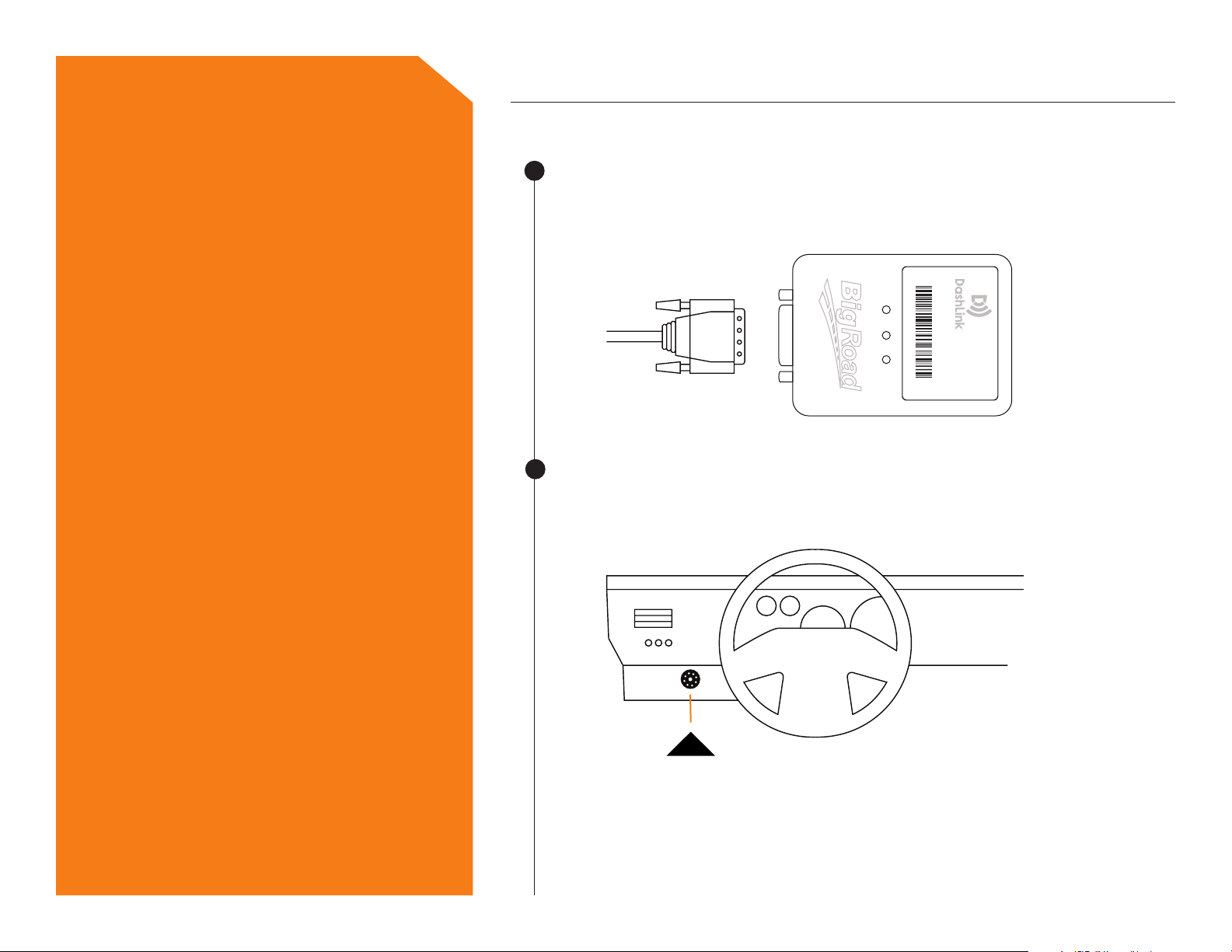
1
2
CONNECT THE ADAPTER CABLE TO THE DASHLINK DEVICE
Plug the connector on the adapter cable into the DashLink device.
Rotate the plastic screws on both sides of the adapter cable to tighten.
Device ID: 2471-89A8-C114
DL-200
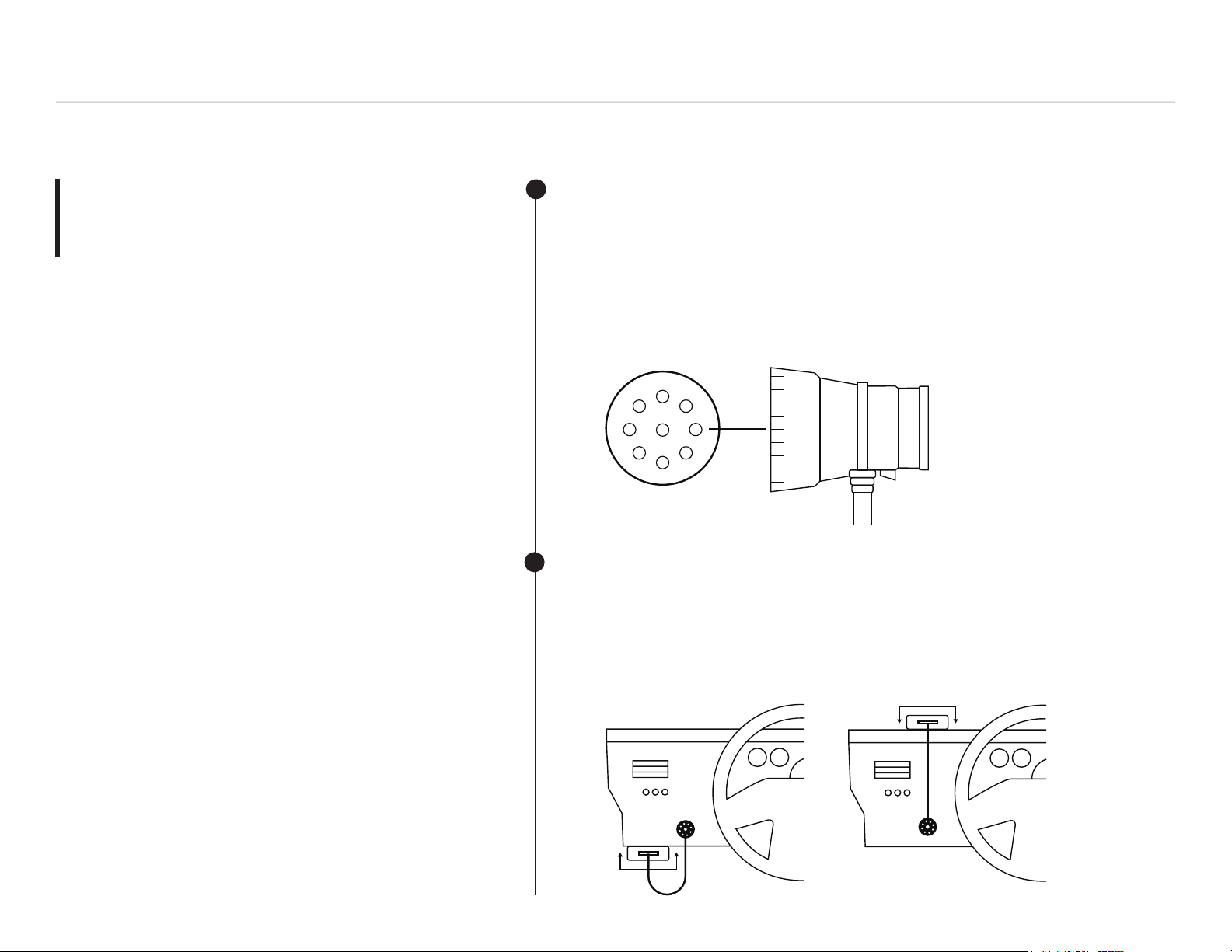
LOCATE THE DIAGNOSTIC PORT IN YOUR VEHICLE
Look in your cab under the dashboard to the left or right of the steering
column OR to the left of the driver’s seat.
Page 5
DashLink DL-200 ― Installation Guide
Installing Your
DashLink
3
4
CONNECT THE ADAPTER CABLE TO THE DIAGNOSTIC PORT
FOR 9-PIN OR 6-PIN CABLES
Rotate the collar to align the collar tabs with the matching slot on the
diagnostic port. Press rmly until the cable is fully connected. Rotate the
collar clockwise until it clicks.
FOR OBD STYLE CABLES
Insert the connector and ensure it is fully inserted.
ATTACH THE DASHLINK DEVICE TO YOUR VEHICLE
Mount your DashLink in a place where it won’t obstruct your view or ability
to drive safely. Avoid putting your DashLink within 2 inches of any metal
fairings to prevent interference with the GPS signal. If you do have to put it
near a metal fairing, make sure the sticker side faces away from it.
Page 6
DashLink DL-200 ― Installation Guide
Installing Your
DashLink
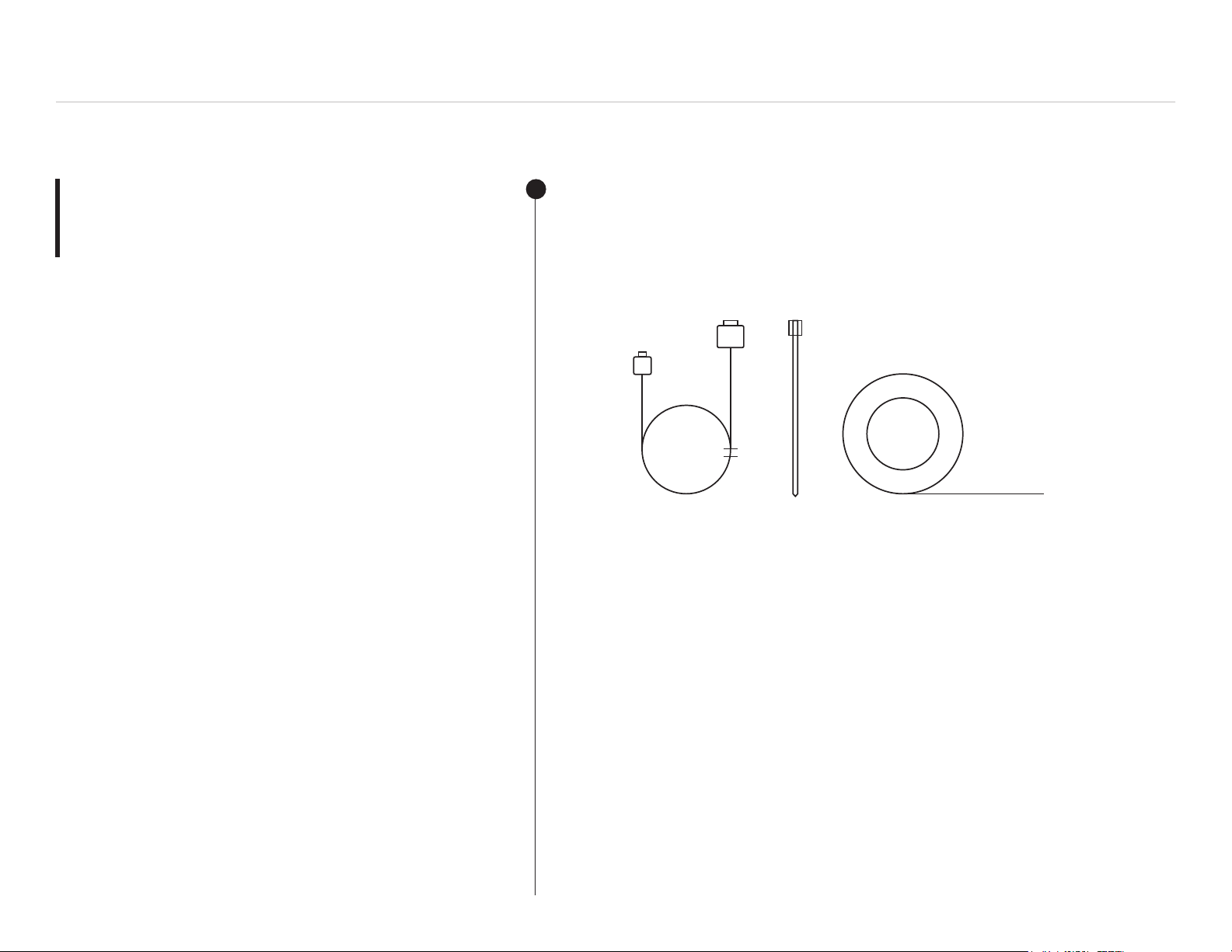
5
TIDY THE INSTALLATION
Tie up any loose or dangling cords using ties to make sure they don’t
interfere with anything while you’re driving.
Page 7
DashLink DL-200 ― Installation Guide
S
k
S
04.
Link Your Vehicle
To DashLink
Follow these steps to connect
your DashLink and mobile
device to your vehicle.
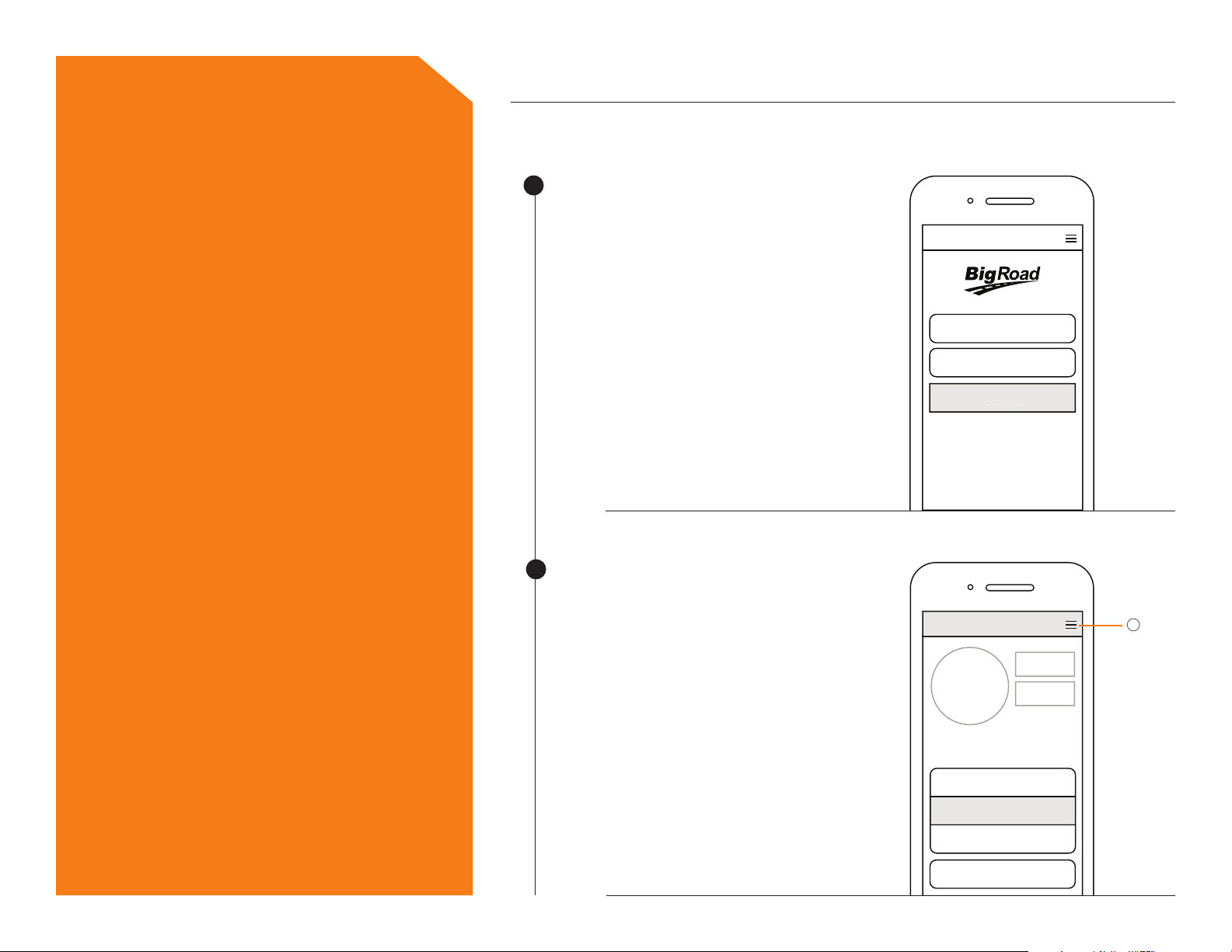
1
2
LAUNCH THE BIGROAD MOBILE
APP ON YOUR DEVICE
Click on the BigRoad Mobile App
icon to launch the app. Enter your
email and password to sign in.
MAKE SURE YOUR VEHICLE IS
SELECTED
Select the truck you want to
connect to DashLink.
Email
Password
Sign In
ign In
Forgot your password?
i
MENU
Note that DashLink equipped
vehicles will show a DashLink
Note: If your vehicle has not been added to
the BigRoad Mobile App, ask your carrier to
add your truck. They must do this through
Fleet tab in the BigRoad Web App.
icon beside them.
Settings
witch Truc
Switch Truck
Sign Out
Cancel
Page 8
DashLink DL-200 ― Installation Guide
Link Your Vehicle
To DashLink
3
4
ONCE A MATCHING VIN OR DEVICE ID IS FOUND, THE APP AND THE
HARDWARE WILL CONNECT
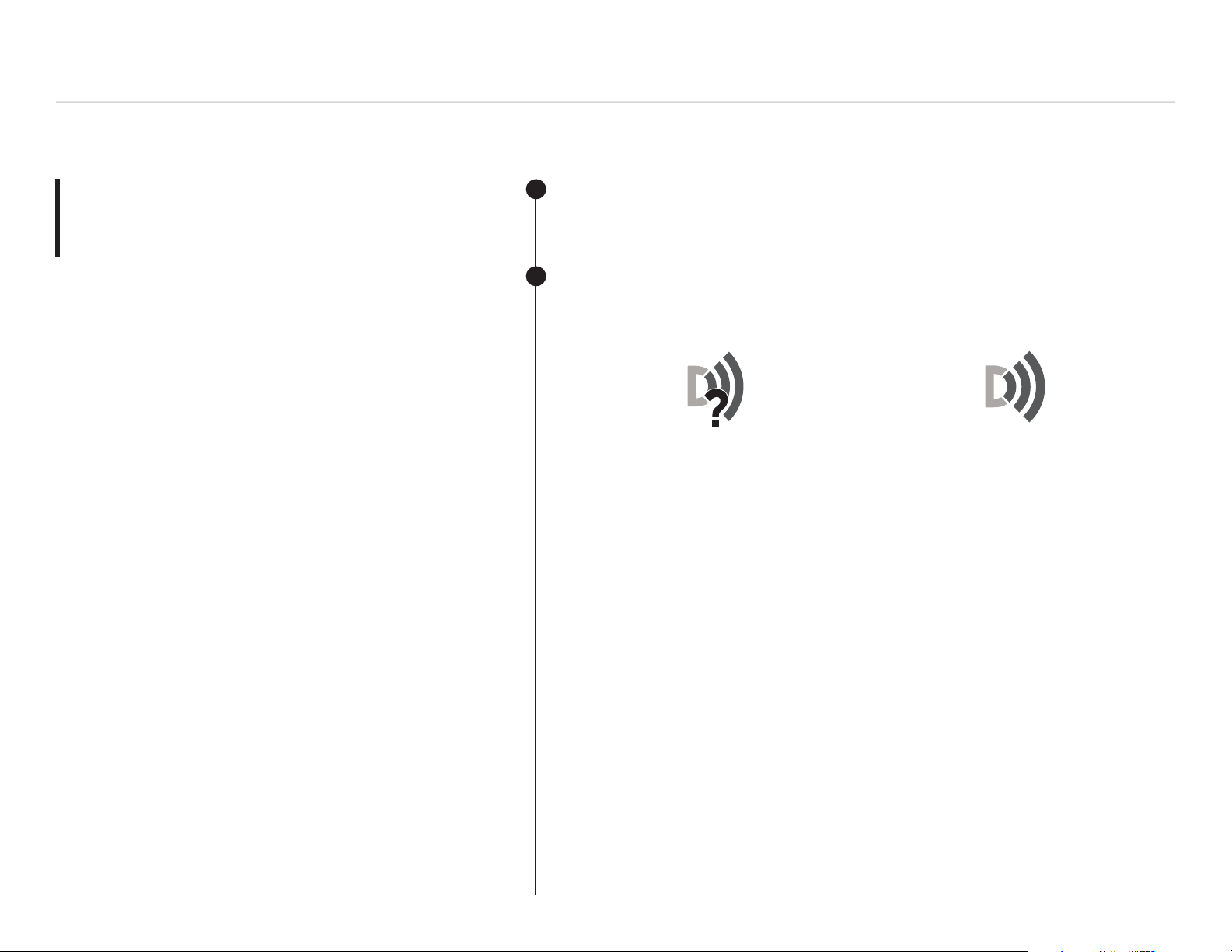
VERIFY THE DASHLINK CONNECTION IS CORRECTLY ESTABLISHED
(MAY TAKE UP TO 120 SECONDS IN SOME CASES)
Before a connection is established,
the DashLink icon will show a
question mark (?).
It will say: DashLink is connecting –
please wait
Once the connection is established,
the DashLink icon will change to the
Wi-Fi logo.
It will say: DashLink is successfully
connected
Page 9
DashLink DL-200 ― Installation Guide
Link Your Vehicle
To DashLink
5
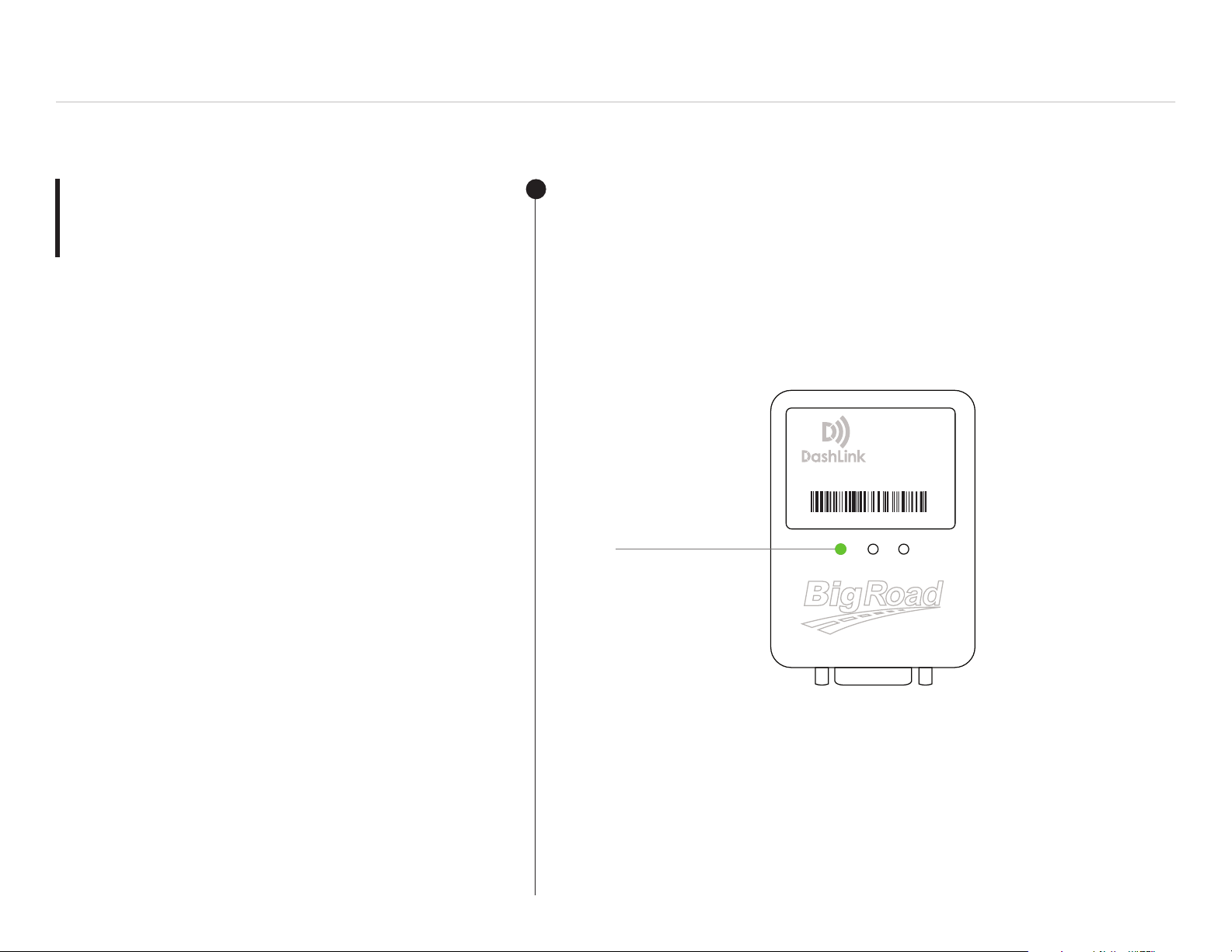
MAKE SURE THE GREEN GPS LED ON THE DASHLINK DEVICE IS SOLID,
NOT FLASHING
This indicates that the device has found a GPS signal. If the LED is
ashing, it means the GPS signal hasn’t been found yet.
NOTE: In some cases, it may take up to 2 minutes for the LED light to become solid
after it’s connected to the vehicle.
DL-200
Device ID: 2471-89A8-C114
>
Solid green light
Page 10
05.
What To Keep
In Your Cab
1 2
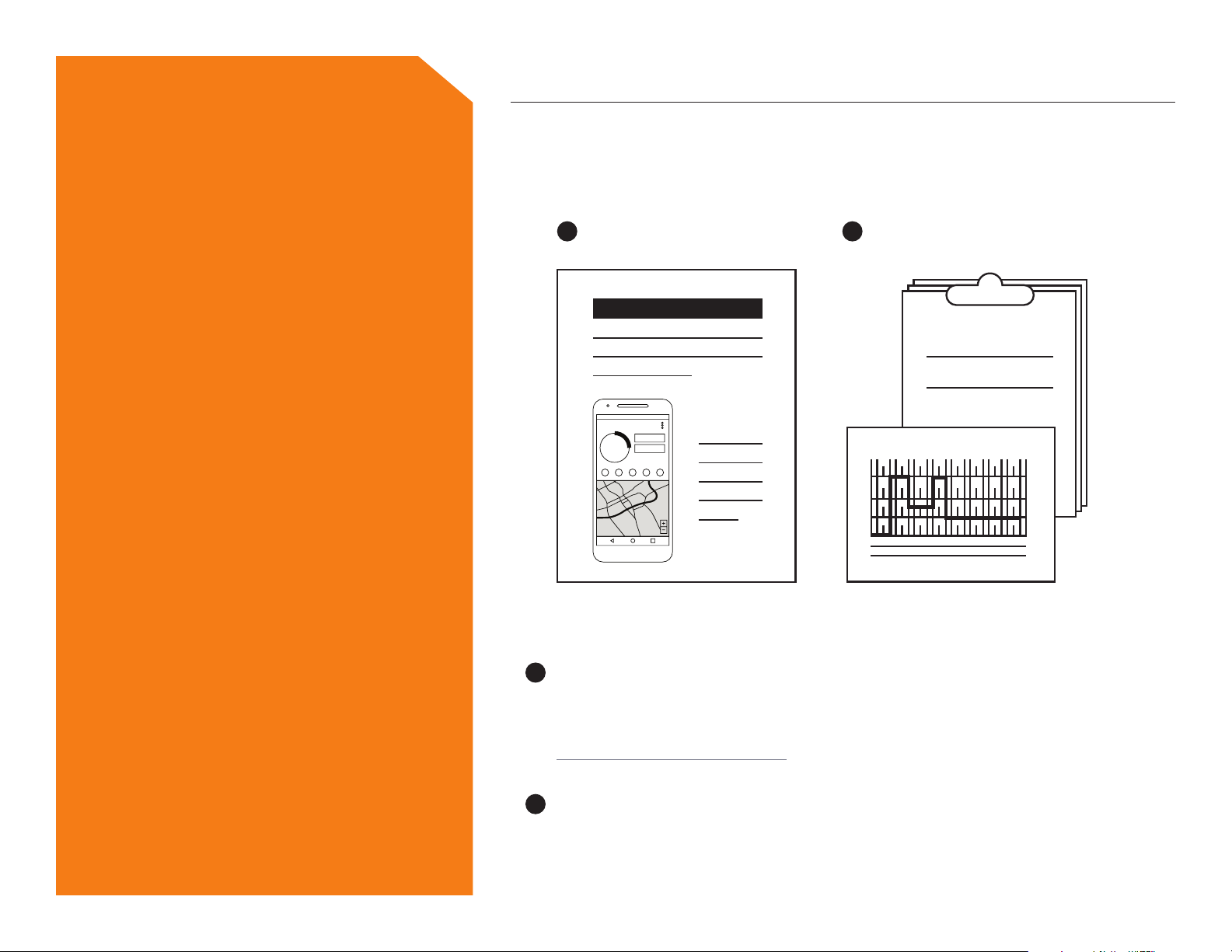
Driver Card
DashLink DL-200 ― Installation Guide
Paper Logbook
1
DASHLINK DRIVER CARD
If you’re pulled over for an inspection, you’ll be asked to provide this card.
If you’ve lost your laminated card or require an extra, visit
www.bigroad.com/driver-card and download the AOBRD Driver Card.
2
PAPER LOGBOOK
You are required to have a paper logbook with at least 14 days of blank
forms in your vehicle.
Page 11
DashLink DL-200 ― Installation Guide
06.
Troubleshooting
What if I have trouble installing the DashLink?
1
WHAT IF THE BIGROAD APP CAN’T FIND THE DASHLINK DEVICE?
1. Check to make sure that the vehicle is on.
2. The orange power LED is illuminated on the DashLink device.
3. The adapter cable is fully connected to the diagnostic port of
the vehicle. For 9-pin or 6-pin ports, make sure the collar of the
adapter cable is locked.
4. You are running the most recent version of the BigRoad Mobile
App on your device. Check the iTunes or Google Play Store for
any updates.
5. Bluetooth is enabled on your device. You should see a small
Bluetooth icon along the top of your screen. If that isn’t there,
check in Settings to ensure Bluetooth is on.
6. Your vehicle is properly congured in BigRoad. Have an admin or
dispatcher visit app.bigroad.com/trucks, click on the truck number,
and compare that VIN with the VIN of the vehicle. If the vehicle is
congured with a DashLink device ID, compare the ID in BigRoad to
the ID printed on the DashLink.
Page 12
DashLink DL-200 ― Installation Guide
Troubleshooting
2
3
4
5
WHAT IF THE DASHLINK GREEN GPS LED LIGHT IS FLASHING?
The built-in DashLink GPS can take up to 2 minutes to acquire a signal
when it’s rst connected to a vehicle. If the green GPS light is not ashing
after 2 minutes, the DashLink may be mounted too close to a metal fairing
or bulkhead, which is blocking the signal. To x this issue, try rotating the
DashLink so that the sticker is facing a different direction.
WHAT IF THE BIGROAD APP IS STUCK AT “READING DATA FROM
DASHLINK DEVICE”?
Some older Android devices have unreliable Bluetooth support.
Try rebooting the device, which should allow the DashLink connection
to succeed.
WHAT IF THE DASHLINK BECOMES UNAVAILABLE WHEN IT’S IN THE
VEHICLE?
Make sure that your mobile device is plugged into a charger while
using a DashLink. When your phone battery is low, Bluetooth may have
trouble connecting.
WHAT IF THE COLLAR OF THE DIAGNOSTIC PLUG IS HARD TO LOCK
(FOR 6-PIN AND 9-PIN CONNECTORS ONLY)?
Try using a athead screwdriver in the gaps of the collar to wiggle it into
place. It’s really important that the collar of the diagnostic plug is locked
to ensure that the device doesn’t become disconnected during operation.
Page 13
07.
Congratulations!
DashLink DL-200 ― Installation Guide
YOU’VE DONE IT
You’ve successfully installed your DashLink ELD
and are ready to hit the road!
If you have any questions, feel free to contact the
BigRoad Support Team. You can reach them at:
PHONE
1-888-305-8777 Ext. 1
EMAIL
SUPPORT HOURS
8:00 AM - 8:00 PM EST
 Loading...