

Page 1
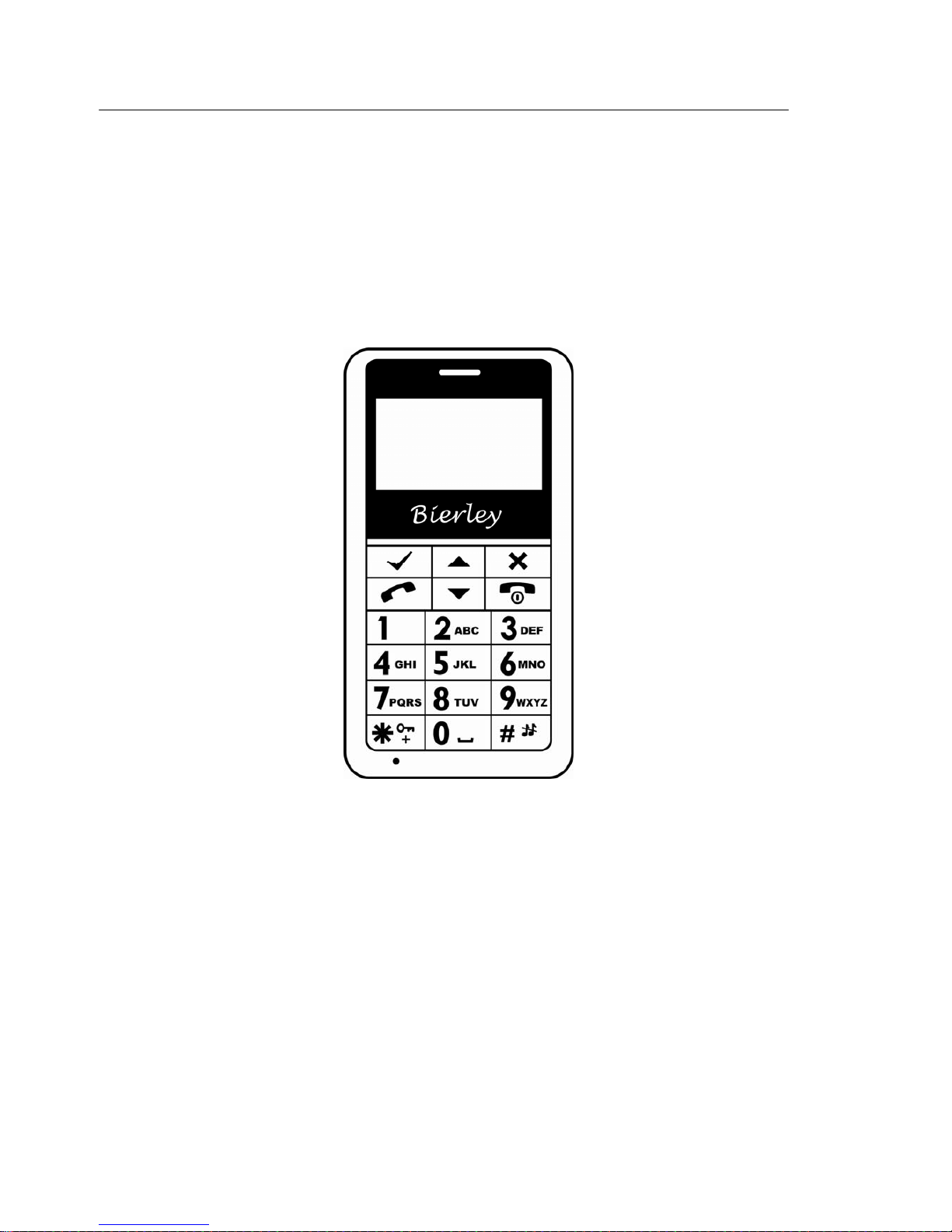
BierleyBM‐01manual
‐1‐
User Manual
Bierley
BM-01 Big Key GSM
Page 2

BierleyBM‐01manual
‐2‐
User Manual for BM-01
1 For your safety ................................................................................. 5
2 Specifications ................................................................................. 6
3 Phone layout and keypad ............................................................... 7
3.1 Layout ........................................................................................ 7
3.2 Keypad ..................................................................................... 8
4 Icons .............................................................................................. 9
5 Before use ....................................................................................... 10
5.1 Battery and SIM card ................................................................ 10
5.2 Charging .................................................................................... 11
6 Basic operation ................................................................................ 11
6.1 Turn your device On / Off .......................................................... 11
6.2 Making a call .............................................................................. 11
7 Menu tree ........................................................................................ 14
8 Phonebook ........................................................................................ 15
8.1 Browse ....................................................................................... 15
8.2 Create ......................................................................................... 15
8.3 Storage status ............................................................................. 15
8.4 Abbreviated dial – Speed dial ..................................................... 15
8.5 Enable FDN ................................................................................ 16
8.6 Copy ........................................................................................... 16
8.7 Delete all entries ......................................................................... 16
8.8 SDN phonebook ......................................................................... 16
9 Calls ................................................................................................. 16
9.1 Calls ........................................................................................... 16
9.2 Call duration ............................................................................... 16
10 Text message .................................................................................... 17
10.1 Read a message ...................................................................... 17
10.2 Write a message ...................................................................... 17
Page 3

BierleyBM‐01manual
‐3‐
10.3 Outbox ..................................................................................... 17
10.4 Draftbox .................................................................................... 17
10.5 Voice mail ................................................................................. 18
10.6 Message setup ......................................................................... 18
10.7 Delete all ................................................................................. 18
11 Alarm ................................................................................................ 18
12 Profiles .............................................................................................. 19
13 Calculator .......................................................................................... 19
14 FM radio ........................................................................................... 19
15 Settings ............................................................................................. 20
15.1 Phone ....................................................................................... 20
15.1.1 Display ............................................................................ 20
15.1.2 Clock ............................................................................... 20
15.1.3 Own number ................................................................... 20
15.1.4 Keylock ............................................................................ 20
15.1.5 Factory default ...........................................................…… 20
15.1.6 Torch / Flashlight setting ................................................. 21
15. 2 Emergency call setting ............................................................. 21
15. 3 Call ........................................................................................... 21
15. 4 Network .................................................................................... 21
15.4.1 Call waiting ........................................................................ 21
15.4.2 Call forwarding .................................................................. 21
15.4.3 Restrict calls ..................................................................... 22
15.4.4 Network select mode ....................................................... 22
15.4.5 SIM tools ........................................................................... 22
15. 5 Security …................................................................................. 22
16 Input method ..................................................................................... 23
17 Appendix ........................................................................................... 23
17.1 Battery safety ............................................................................ 23
17.2 Use, safety, cleaning and maintenance .................................... 24
17.3 Trouble shooting ...................................................................... 26
CE Declaration of Conformity ................................................................ 27
Page 4

BierleyBM‐01manual
‐4‐
E&OE
Due to possible revisions, updates or amendments a newer version
of this instruction manual may be available on our web site.
A simplified version is available on our web site only.
Large Print Manual available for download.
www.bierley.com
Page 5

BierleyBM‐01manual
‐5‐
1 For Your Safety
Please read these safety guidelines before using your mobile phone.
Vehicles
While driving, obey local laws and regulations with regard to mobile
phone use. Under very rare circumstances, using the mobile phone in
certain vehicles may negatively effect the vehicle’s electronic
equipment. If the vehicle in which you are traveling is equipped with
an airbag, do not place your phone on top of or within the contact area
of the airbag in order to avoid potential serious injury or death in the
event of airbag inflation.
Airlines
Turn off your mobile phone when advised by a member of the crew.
Chemicals
Turn off your mobile phone before entering areas with volatile fuels or
chemicals.
Hospitals
Turn off your mobile phone in hospitals, especially near electronic
medical instruments. Radio wave interference may cause a malfunction
of such electronic equipment.
Interference
Do not use your mobile phone near low signal or precision electronic
equipment. Radio wave interference may cause a malfunction of such
electronic equipment.
Repair
Do not attempt to open the main housing or perform any repairs to
your mobile phone. There are no user serviceable parts inside and the
phone should be sent to an authorized repair facility.
Battery and Accessories
In order to prevent damage to your mobile phone, only use a
genuine Bierley battery or charger. The use of other batteries or
Page 6

BierleyBM‐01manual
‐6‐
chargers could result in battery leakage, overheating, cracking, fire or
other malfunctions.
Use
Avoid subjecting your mobile phone to high temperatures (over 60°C)
such as in direct sunlight, high humidity or dusty environments. Do not
use alcohol, thinner, benzene or other solvents for cleaning. Only use a
soft, dry cloth or anti-static cloth to clean the mobile phone and
charger.
Disposal
Dispose of old batteries, charger and phone only in accordance with
local law.
2 Specifications
Function Description Remarks
Dimensions 4.2 x 2.2 x 0.6 inches
Display 1.8 inches FTN 128 x 64 pixels
Weight 70g Without battery
SIM Card 3V small card
*
Phonebook Capacity 100 in phone + SIM capacity
*
Frequency
GSM 900/1800 (UK EU model)
850/1900 (US model)
*
Vibrate, Backlight, Ring Tone Supported
Call Divert, Barring Supported
*
Call Waiting Supported
*
Alarm Supported
Phonebook Supported
*
Auto Redial Supported
*
Speed Dial 8 speed dial, keys 2 ~ 9
Standby Time 100-140 hours depending on
network
Talk Time 120-180 minutes depending on
network
Languages English
Voltage Rating 5V
Current Rating 700mAh
Charger Rating 100-240V, 50/60 Hz, 150 mAh
Maximum Charging Voltage 4.2V
Standard Li-ion Voltage 3.7V
Normal Li-ion Current 140mAh
Standard Li-ion Capacity 700mAh
Note: * indicates phone support, subject to network or SIM support.
Page 7
BierleyBM‐01manual
‐7‐
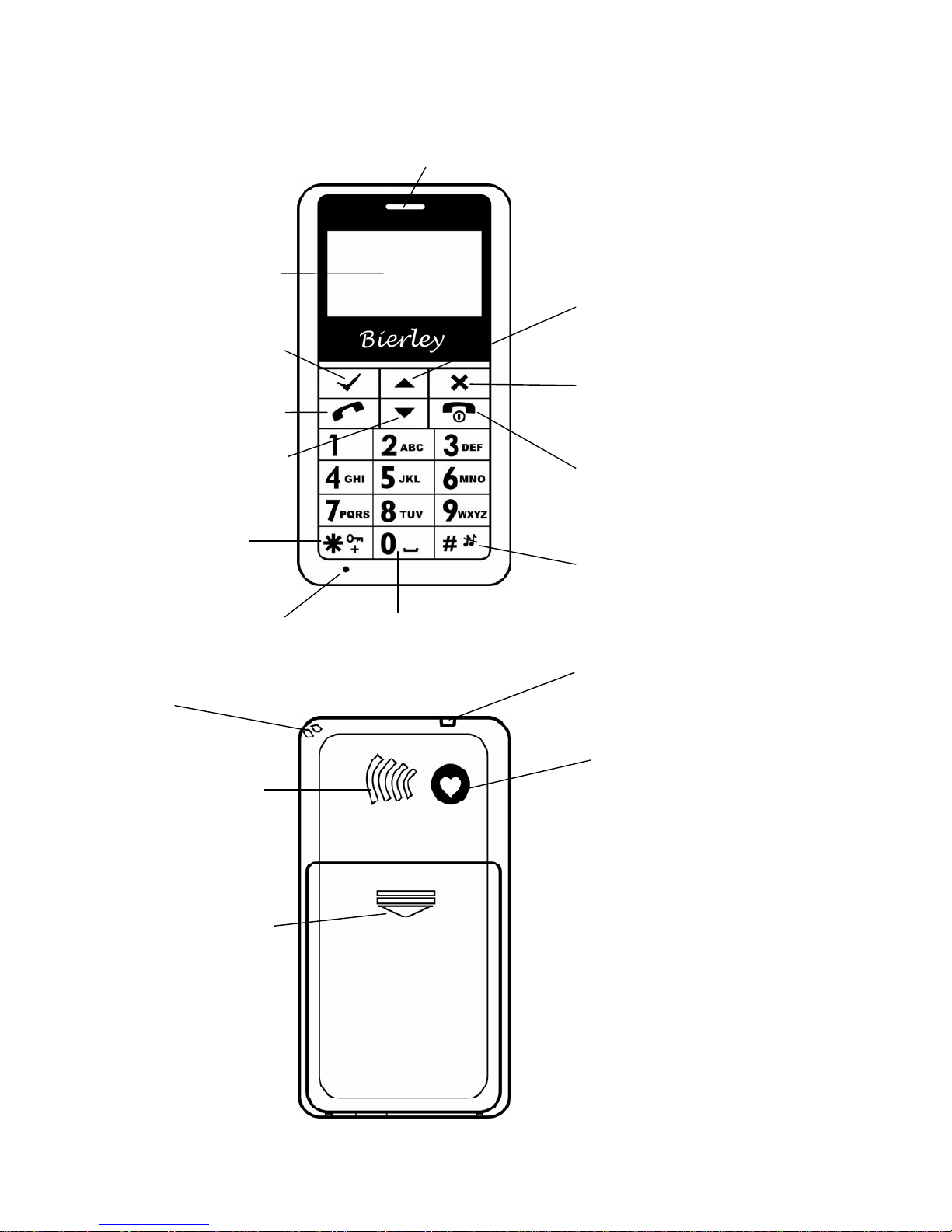
Receiver
Menu / Confirm
Torch (UK EU)
Flashlight (USA)
Key lock / * +
/
SMS text magnifier
Cancel / Return /
Phonebook
3 Phone Layout and Keypad
3.1 Layout
End call / Power on-off
Scroll up / Torch /
Flashlight on-off
LCD
Call
Mute / Ring / #
Microphone
FM radio / 0 / Space
Wrist strap / Knick-knacks
Emergency
Battery cover
Speaker
Scroll Down
Page 8

BierleyBM‐01manual
‐8‐
3.2 Keypad
Left / Right Soft Key:
- The Left / Right soft keys carry out the function indicated at the
bottom of the screen.
- In Standby Mode, press
to enter the main menu press *
to enter phonebook.
Call Key:
1) Initiate dial after entering a number manually or from the
phonebook.
2) Answer a call.
3) In standby mode, display call lists.
End Key:
1) End or reject a call.
2) Return to standby mode.
3) Press and hold for 3 seconds to turn the phone on / off.
Navigation Key and Function Key:
/ Key:
1) Move cursor up / down and select settings or options.
2) Turn the volume up / down for the FM Radio in FM Radio Menu or
ring tones in Profiles Menu.
3)
Turn the volume up / down when talking on the phone.
Emergency Key:
1) First pre-set your chosen emergency number, a relative for example.
2) When the Emergency Key is pressed the phone will call
automatically.
Number Keys:
1) 0~9 alphanumerical entry keys.
2) Press and hold “0” key to turn on FM Radio. Repeat to turn Radio
off. (Must have Hands Free activated in FM Radio Menu)
Page 9
BierleyBM‐01manual
‐9‐
3) and # multi function keys:
- e.g. Press two times for the international dial + symbol
- e.g. Press and hold
#
key to activate Mute/Vibrate Mode. Repeat
to activate ring mode
Note:
*
The “ ” appears as a Save Icon for saving contact info in the
Phonebook “Create” sub-menu.
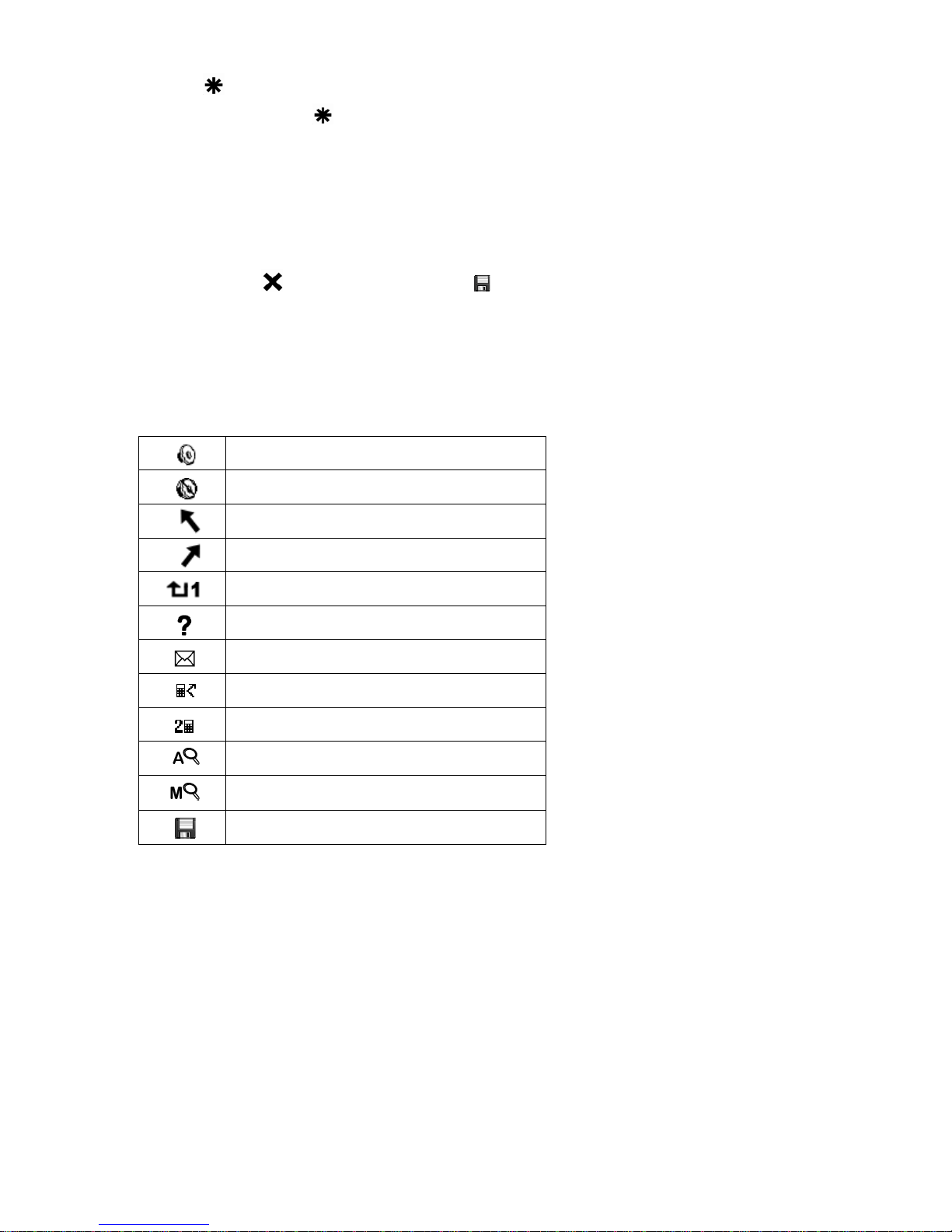
4 Icons
Speaker on
Speaker off
Dialed or Outgoing call list
Incoming call list
Missed call list
Recent missed call
Recent missed SMS
Call forward
Line 2
FM auto search
FM manual search
Save
Page 10
BierleyBM‐01manual
‐10‐
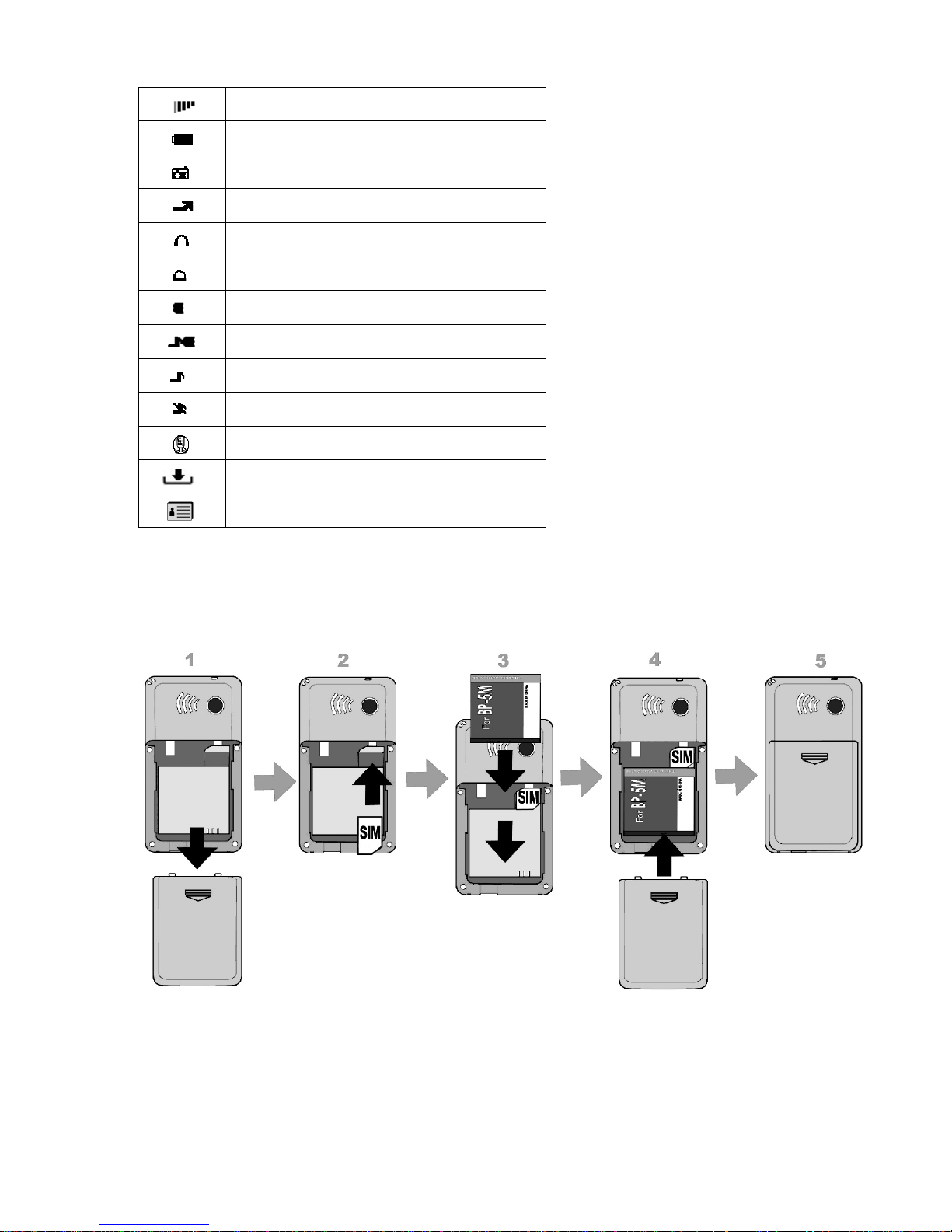
Signal strength
Battery level
FM radio
Roaming
Headset
Alarm clock is active
Vibration only mode
Vibrate and ring mode
Ring only mode
Ring off
Mute
Menu
Phonebook
5 Before Use
5.1 Battery and SIM Card
Insert SIM Card:
1) Ensure phone is switched off.
2)
Slide the battery cover off
and remove battery if present.
3) Insert SIM card, contacts facing down, fully into card slot. Replace
battery and cover.
Page 11

BierleyBM‐01manual
‐11‐
Insert Battery:
1) Slide the battery cover off.
2)
Insert the battery, contacts facing down, fully into the battery bay.
3)
Replace the battery cover.
5.2 Charging:
Always use the charge cradle and never attempt to connect the charge cord
directly to the handset. To setup the charge cradle ready for use.
1) First plug the charger into a working wall outlet (100v – 240v).
2) Connect the micro USB charger plug to the back of the charge cradle
then stand the mobile phone on the charge cradle and charging will
start automatically. The power supply and cradle should be left
connected. There is no need to switch them off or disconnect them at
any time.
Note
It is very important to not force the connector. If it doesn’t connect
smoothly and easily, something is wrong. Check orientation and angle
of insertion. The plug should be inserted square to the socket.
6 Basic Operation
6.1 Turn Your Device On / Off
Press and hold for about 3 seconds to turn the phone on / off.
If you
turn the phone o n without inserting a SIM card, the phone will
indicate “No SIM Card”.
After a SIM is inserted,
the phone will check automatically whether the
card can be used or not.
The display will then show the following indication if the SIM can be used:
Enter Password - If you have set Phone Lock. Default is 0000.
Enter PIN - If you have set SIM Lock. If you do not know the PIN,
contact your service provider.
6.2 Making a Call
When a network operator’s name appears on the display, you can dial a
number. The signal strength indicator on the top left corner will show the
signal strength. (Five bars being the strongest signal).
Page 12

BierleyBM‐01manual
‐12‐
Domestic Calls
Use the key pad to enter a telephone number, use the
key to delete any
errors, and then press Call . To cancel or end the call, press
International Calls
When making international calls you can press the key two times to enter
the international phone prefix “+”. Then enter the country code, area
code and phone number that you wish to reach. When making
international calls, you should omit the initial 0 of area codes.
Example: + country code area code telephone number Call
Key
Dialing From Call Records
All the calls you dial, receive or miss on your phone are saved in the call
records. Once the storage capacity is reached, the oldest records will
automatically be erased to make space for new records (30 Max).
On standby, press the Call Key
to see recent numbers, scroll to the
number you wish to call and press the call key again to dial.
Alternatively, scroll to the number that you want, then press the
key to
perform one of the following: Details, Call, Edit, Send message,
Delete, Save, or Show.
Calling From The Phonebook
Press to access the phonebook, then scroll to the contact that you wish to
call. Press the Call Key to complete the action
.
Emergency Calls
If you are located within a network area (you can see this by referring to the
signal strength indicator) you should be able to make emergency calls. If
your network operator does not provide roaming where you are,
Emergency only will appear on the screen. If you are located within a
network area, even if you do not have a SIM card, you will be able to
transmit emergency calls. However, you will need the operator’s support to
use this function and it will not work in all countries or on all networks.
Page 13

BierleyBM‐01manual
‐13‐
In Standby Mode:
Press and hold the Emergency Key for 3 seconds. The phone will count
down the delay time so that you can cancel the call if you wish to by
pressing the End Key . The phone will then dial out. If the number is
busy it will try again automatically and will switch to the next emergency
number if one has been preset.
All emergency calls are handled on speaker mode. To return to normal
mode, press
then “Speaker off”.
In Power Off Mode:
Press and hold the Emergency Key for 3 seconds. The phone will
automatically power on and count down the delay time so that you can
cancel the call if you wish to by pressing the End Key . The phone will
then dial out. If the number is busy it will try again automatically and will
switch to the next emergency number if one has been preset.
All emergency calls are handled on speaker mode. To return to normal
mode, press
then
“Speaker off”.
Receiving Calls
Y ou can answer a call by pressing the Call Key
or you can set the phone to
allow answering by pressing any key
*
except the End Key , the Right Soft
Key , or the Emergency Key.
* To set any key answer: press
,
to settings, press
, to call, press
, to any key answer press , press again to enable.
Changing Settings While Calling:
When there’s an incoming call, you can press the
key to cancel the
ringing or vibration and press up or down keys to set the volume after call
is answered.
Page 14

BierleyBM‐01manual
‐14‐
10. Text
7 Menu Tree
12.1 General
12.2 Meeting
12.3 Outdoor
12.4 Silent
12.5 My style
8. Phonebook
8.1 Browse
8.2 Create
8.3 Storage status
8.4 Abbreviated dial (Speed dial)
8.5 Enable FDN (Fixed Dialing Number-Pin Code)
8.6 Copy
8.7 Delete all entries
8.8 SDN Phonebook
9. Calls
9.1 Incoming call
9.2 Outgoing call
9.3 Missed call
9.4 Call duration
10.1 Read message
10.2 Write message
10.3 Outbox
10.4 Draftbox
10.5 Voice mail
10.6 Message setup
10.7 Delete all
10.5.1 Listen to voice mail messages
10.5.2 Voice mailbox number
10.6.1 Service Center
10.6.2 Storage media
10.6.3 Storage status
11. Alarm
11.1 Alarm1
11.2 Alarm2
11.3 Alarm3
On
Off
13. Calculator
12. Profiles
14. FM
14.1 OFF
14.2 Automatic search
14.3 Manual search
14.4 Adjust volume
14.5 HandsFree off
14.6 Save Channel
15. Settings
15.1 Phone
15.2 Emergency Call
15.3 Call
15.4 Network
15.5 Security
15.1.1 Display
15.1.2 Clock
15.1.3 Own number
15.1.4 Keylock
15.1.5 Factory Default
15.1.6 Flashlight setting
15.1.1.1 Back light
15.1.1.2 LCD contrast
15.1.1.3 Greeting message
15.1.1.4 Language
15.1.1.5 Date/Time display
15.2.1 Emergency Number List
15.2.2 Delay Setting
15.4.1 Call waiting
15.4.2 Call forwarding
15.4.3 Restrict calls
15.4.4 Network select mode
15.4.5 SIM Tools
15.3.1 CLIR
15.3.2 Auto redial
15.3.3 Any key answer
15.5.1 Power on PIN1
15.5.2 Change PIN2
15.5.3 Phone code
1 Set as default
2 Personalize
3 Reset
4 Title
Page 15

BierleyBM‐01manual
‐15‐
8 Phonebook
Note: The phone can store u p t o 100 entries. Your SIM card may be able
to store more. For quick access to the Phonebook,
press
For Phonebook Menu press
then press
again to enter the Phonebook.
Here you will see:
8.1 Browse Browse the phonebook.
8.2 Create Add a new entry to the Phonebook or SIM card.
8.3 S torage st atus Shows the storage status of both the phone and
SIM card.
8.4 Abbreviated dial Speed dial - Single key dial for pre-programmed
numbers stored on your phone.
There are two steps. First add a phone number to the contacts and then
allocate a speed dial number as follows:
To add contacts in the phone, turn on the phone and press the green
check. Go to the phonebook option by pressing the green check again.
Scroll down and enter the “create” section by pressing the green check.
Press the green check and enter the name. After entering the name, press
the green check again. After the name is complete, scroll down and press
the green check to enter the number. After completion, press the red cross
to exit.
To enter a speed dial number, from the home screen, press the green
check, and then press it again to enter the phone book. Scroll down and
enter the “abbreviated dial” section by pressing the green check. Select a
number from 2 to 8 (number 1 is voicemail.) Click the green check, click the
check again and scroll down to the number that you want to set, click the
green check one more time to set it. Once you are finished, press the red
cross to exit.
Finally, to call the speed dial number, for example if you set “Friend” to be
speed dial “2”, from the home screen press “2” and the green call button
and “Friend” will automatically be dialed. It means speed dials are always
only 2 clicks (select and call).
Page 16

BierleyBM‐01manual
‐16‐
Tip, if you are only setting one speed dial, consider using number “5”
because it is easier to identify the center of the keypad and it has a tactile
dot. A small tactile identifier is often especially helpful for persons with low
vision.
8.5 Enable FDN Fixed Dialing Number-Pin Code.
8.6 Copy Copy from SIM to phone or phone to SIM.
8.7 Delete all entries Delete all entries from SIM, phone or both.
8.8 SDN phonebook Dial pre-programmed numbers stored on your
SIM card.
9 Calls
9.1 Calls
The phone keeps lists of the numbers you recently received or dialed, even
if the calls did not connect. Ten of each Missed, Dialed and Received
calls are retained and sorted from newest to oldest. The oldest entries are
deleted as new ones are added. Each entry tells you the person’s number
(or name, if available), date and time. You can call, store, or delete the
numbers on these lists.
To make a call from a recent Calls list
Press
to enter the main menu, scroll to Calls and press again to enter
the Calls sub menu. Scroll to the menu that you want and press
again.
Scroll to the number that you wish to call and press the Call Key to dial.
Alternatively, scroll to the number that you want, then press the
key to
perform one of the following: Details, Call, Edit, Send message, Delete,
Save, Delete all or Show.
9.2 Call Duration
Call duration can be seen in option 4 of the Calls menu.
Page 17

BierleyBM‐01manual
‐17‐
10 Text Messages
You can send and receive SMS (short message service) text messages. If
there is a new SMS, the
i co n will appear at the top of the screen. If
the inbox is full, the icon will flash and you should delete some of your
messages to make space for new ones.
10.1 Read a message
Press
, scroll down to Text message, press ,press again and select
the message you wish to read. Press
to open the message and press
key
if you wish to magnify the text for easier reading. To Reply, Forward,
Edit, Dial back, Extract number, or Delete press
and choose the action
you wish to perform. To exit, press
Reply Text message back.
Forward Forward the current message.
Edit Edit the message.
Dial back Call the number.
Extract number Save Contact Info and add to Phonebook.
Delete Delete the message.
10.2 Write a message
Use the alphanumeric keypad (2~9) and the space bar (0) for creating a
text message. You can then send or save it. When sending, a copy can be
saved to the Outbox if desired.
10.3 Outbox
Access the Outbox to view messages that you saved in the SIM or phone.
You can press
/
Key to scroll through messages, press to read
the details, and then press Option to access the following:
Delete Delete the message.
Forward Forward the current message.
Edit Edit the message.
10.4 Draft box
The Draft box is used to save unfinished SMS which can be revised and
sent later. Press
to access the Draft box submenu and the phone will
Page 18

BierleyBM‐01manual
‐18‐
show any s tore d dr aft SMS. Scroll up or down to view a message and
press “
“or key to do the following:
Delete Delete the message.
Forward Forward the current message.
Edit Edit the message.
10.5 Voice Mail
You can listen to your voicemail messages by calling your network
voicemail phone number. Voicemail messages are stored on the network,
not on your phone. Contact your service provider for more details. Store
your voicemail number in your phone to make it faster and easier to use
voicemail. Your voicemail number is provided by your service provider.
10.6 Message Setup
Before using SMS, you must enter certain settings as provided by your
service provider:
Service Center Edit and save the SMS center number (this number can
be obtained from the network operator). Messages can
then be sent successfully.
Storage media Your preference of storing on the SIM or phone can be
selected.
Storage status Displays the memory status of t h e SIM card and phone.
10.7 Delete All
You can delete all or a n y o f the SMS i n the inbox, outbox and
draftbox.
11 Alarm
You can set up to three individual alarms and they will activate one time or
repeatedly as desired.
Note: If an alarm is set, it will activate even when the phone is
switched off. Keep this in mind when traveling on an aircraft and
disable alarms before your flight.
Page 19

BierleyBM‐01manual
‐19‐
12 Profiles
Your phone rings or vibrates to notify you of an incoming call, message or
other event. This ring or vibration is called an alert. Your phone has the
following user definable profiles:
General Available for general use.
Meeting Can be set for silent use, e.g. Vibration alert only.
Outdoor For outdoor activities where you may require a high
volume ringing alert.
Silent Alerts, key operation etc. may be set with no sound.
My style You can set your own profile including your name or an ID
of your choice.
13 Calculator
Your mobile phone provides a calculator with basic functions to facilitate
simple calculations. Use the keys from 0 to 9 to enter numbers, the # key
to enter a decimal point and
/
key or key to change the
mathematical operators +, –, x, ÷ then press
to confirm the action
followed by the next number. By pressing you can delete the last entry
or result. Press
to exit the calculator.
14 FM Radio
The integrated FM radio plays via the speaker on the back of the phone.
Press
key, enter the FM Radio sub-menu:
Turn OFF When the channel is displayed, Press
twice to turn
OFF.
Automatic search Scroll to Automatic search or press key 2, then
press
. The display will show “A”. Use the up or
down keys to jump to the next channel.
Manual search Scroll to Manual search or press key 3, then
press
. The display will show “M”. Use the up or
down keys to change frequency.
Adjust Volume Scroll to Adjust volume or press key 4, then
press
. Use the up or down keys to change the
volume, then press
.
HandsFree Choose Handsfree to activate shortcut to turn on
FM Radio utilizing “0” key. If Handsfree off is
Page 20

BierleyBM‐01manual
‐20‐
selected, the”0” key is not activated to turn on
FM Radio.
Save Channel Scroll to Save Channel or press key 6, then
press
. A location for the specific channel can be
set by allocating a key (1~9).
15 Settings
Here you can adjust various settings, including: Phone, Emergency Call
Setting, Calls, Network and Security.
15.1 Phone
15.1.1 Display
Backlight Choose: Always on, 15 seconds or 30 seconds
automatic off.
LCD contrast Adjust the screen contrast.
Greeting message Set and display your own greeting message.
Language Change the language used on your phone.
Date/Time display Enable or disable the time display on the main
screen.
15.1.2 Clock
Date & Time Settings Input the current time and date.
Date display format Set your preferred date format.
Date separator Set your preferred date separator format.
Time display format Set your preferred format of 12 or 24 hour clock.
15.1.3 Own number
Enter your own phone number here.
15.1.4 Keylock
The keylock prevents accidental activation of keys or accidental calling
when the phone is pressed, for example, in a pocket or bag. Options
include, Disable, 30 seconds, 60 seconds auto-lock. After setting the lock
feature, you will need to press
key and
key to unlock the key pad.
15.1.5 Factory Default
To return the phone to the original factory settings enter the password
0000, power off and then power on again.
Page 21

BierleyBM‐01manual
‐21‐
15.1.6 Flashlight setting
A torch or flashlight is featured on the top of phone. Do not look directly
into the light when it is switched on. Setting options include, 15 seconds
on, Always on, Always off. To turn the light on or off at any time, press
the
key
and hold for 3 seconds.
15. 2 Emergency Call Setting
Emergency Number First input your emergency number(s) in the main
phonebook then select one and allocate it to
emergency 1 via the Settings Emergency menu.
You may enter up to 3 individual numbers.
Delay Setting This option allows a 3, 5 or 8 second delay to help
avoid accidentally dialing emergency numbers.
During the delay period the call may be canceled.
If no action is taken the number will be automatically
dialed.
15. 3 Call
CLIR Calling Line Identification Restriction (Phone Number
Blocking)
Auto redial Select ON for auto redial of a busy number.
Any ke y answer Select to allow any key to be pressed to answer an
incoming call excluding the End Key , the Right
Soft key and Emergency Key.
Line Select Subject to your service provider’s support.
15. 4 Network
15.4.1 Call Waiting
If you subscribe to Call Waiting, an alert tone sounds while you are on a
call to indicate that you have received a second call.
Interrogate Query Status of this function
Activate Activate the mode
Deactivate Deactivate the mode
15.4.2 Call Forwarding
Page 22

BierleyBM‐01manual
‐22‐
Call Divert A network service which allows call diversion
handling, subject to your service provider’s support.
15.4.3 Restrict Calls
In the “Restrict calls” sub-menu, you can set various call barring
combinations for increased phone security subject to your service
provider’s support. In the event of someone else obtaining access to your
mobile phone, for example by stealing it, they would be unable to make
outgoing calls without a password, except for emergency numbers.
Contact your service provider for details.
All Outgoing Calls Interrogate all outgoing calls, Activate
or Deactivate.
All Int’l call Restrict dialing international numbers.
Int’l except to home Restrict dialing international numbers except
y o u r home number.
All incoming calls Restrict all the incoming calls.
Inc’ while roaming Restrict incoming calls while roaming.
15.4.4 Network Select Mode
Automatic Automatically select the service operator according
to SIM information.
Manual Select a network service manually.
15.4.5 SIM Tools
May be supported by your service provider.
15.5 Security
You can set s e c u r it y options for the phone a n d S I M c a r d .
Power on PIN1 A PIN1 code can protect your SIM card and prevent it
from being used.
On If the PIN1 code is set off, select on. Input the correct
PIN1 code and the function will be enabled. Next time
you power on the phone, you w il l need to input the
correct PIN1 code.
Off If the PIN1 code is set on, select off. Input the correct
PIN1 code and the feature will be deactivated.
Page 23

BierleyBM‐01manual
‐23‐
Change PIN1 If you want to change the PIN1 code, Select Change
PIN1, then input the current PIN1 code. The phone will
prompt for a new PIN1 code two times.
Note: If you input a wrong PIN1 code three times in
succession the SIM card will be locked. You will then
need a PUK code to unlock the SIM card. The PUK
code is normally provided with the SIM card. If you do
not have the PUK code, contact your service provider.
Change PIN2 Input the current PIN2 code and you can then set a new
PIN2 code.
Phone Code
Your phone may be locked for additional security. The
default phone lock code, which can be changed, is 0000.
16 Input method
Alphanumeric input and a large selection of characters is achieved by
directly pressing various keys either single or multiple times.
1~9 Numbers 1~9, A~Z, a~z, various other characters
0 Space or 0 (zero)
key Various symbols
# key Switch between upper case, lower case and numbers
key Cursor left and move up the page
key Cursor right and move down the page
End Key Cancel and return to main standby screen
17 Appendix
17.1 Battery Safety
- Do not disassemble or modify the battery, it may leak, overheat, crack or
catch fire.
-
Only dispose of batteries in accordance with local law.
- Do not subject the battery to extreme high temperature such as a fire, it
might explode.
- Do not subject the battery to high temperature such as direct sunlight, it
Page 24

BierleyBM‐01manual
‐24‐
may lead to premature deterioration, weakening of the battery case, leak
or fire.
- When installing the battery do not use excessive force, it could break the
battery case, cause a leak, overheat or catch fire.
- Do not allow any metal to contact or short circuit the battery, it may
overheat or catch fire.
- If any defect with the battery is seen or suspected, immediately
disconnect any charger and remove the battery to a safe location. Do not
allow the battery terminals to contact metal objects.
- Avoid getting the battery wet.
17.2 Use, Safety, Cleaning and Maintenance
- Keep the mobile phone in a safe or secure location and away from
children.
- Only use original Bierley branded or supplied accessories, chargers and
batteries. The use of other batteries or chargers could result in battery
leakage, overheating, cracking, fire or cause other malfunctions.
- Do not use your mobile phone near low signal or precision electronic
equipment such pacemakers and other electronic medical equipment,
smoke detectors, automatic doors and other automatic control
installations.
- This mobile phone is equipped with an auto power on function.
Please refer to the mobile phone’s clock setting to ensure that the
mobile phone will not automatically turn on during a flight onboard a
commercial airliner.
- Avoid impact or shock to your mobile phone. Especially, do not drop it
onto a hard surface.
- Avoid areas with volatile or flammable gases, fuels or chemicals.
- Avoid areas of very extra humidity, such as a steam sauna, and avoid
dusty environments.
Page 25

BierleyBM‐01manual
‐25‐
- Do not use your mobile phone in a bath, shower or while swimming.
Water ingress may cause a malfunction and will void any product
warranty.
- Do not disassemble or modify the mobile phone.
- Avoid impact, especially to the LCD screen.
- Above all, use common sense to avoid damage and risk of danger.
- To clean, use a soft, dry cloth. Do not use solvents, thinners or other
harsh chemicals.
Page 26

BierleyBM‐01manual
‐26‐
17.3 Trouble Shooting
If anything unusual occurs while using your mobile phone, please refer
to the following table.
Problem
Possible Cause Solution
Weak Signal
Weak service coverage by provide
r
or in a remote area
with low signal strength
Move to a location with a
stronger signal
Echo
Bad network relay
Hang up and try redial
Standby time
too short
Standby time can be
significantly reduced when
searching for a signal
Turn off the phone when in an
area with a weak signal
Battery not fully charged, old or
defective
Use a new or fully charged
battery
Won’t switch on
The battery is not charged
Use a new or fully charged
battery
SIM card error
SIM card is damaged Contact your service provider
SIM is installed incorrectly
Check and install correctly
Failure to
connect to the
network
Invalid SIM card Contact your service provider
Outside of GSM coverage area
Move to a location with
coverage
Weak signal
Move to a location with a
stronger signal
Cannot call
Call divert, barring function
enabled
Disable call divert, barring
function
Wrong PIN
Three consecutive attempts to
enter PIN using a wrong number
Contact your service provider
Cannot add to
phonebook
Phonebook memory is full
Delete some records
Cannot set
some functions
Not available from your service
provider under your current
agreement
Contact your current service
provider or check with other
service providers
Battery will not
charge
Battery or charger is damaged
Purchase a replacement
Charging in a very low or very high
temperature environment.
Charge in an environment
ideally between 10 and 55
degrees C.
Page 27

BierleyBM‐01manual
‐27‐
IMPORTANT NOTE:
CE Declaration of Conformity
The following equipment, BM-01 Big Key GSM phone, is herewith
confirmed to comply with the requirements set out in the Council Directive
on the Approximation of the Laws of the Member States relating to
Electromagnetic Compatibility:
(2004/108/EC), Low‐voltage Directive (2006/95/EC) and the Amendment
Directive (93/68/EEC).
The equipment was passed under the procedures given in European
Council Directive 99/5/EC and 2004/108/EC.
The tests were performed according to the following European standards:
EN 301 511 V9.0.2
EN 301 489-1 V1.8.1, EN 301 489-7 V1.3.1
EN 50360:2001, EN 62209-1:2006
EN60950‐1:2006+A11:2009
Changes or modifications to this unit could void the user's authority to
operate the equipment.
The equipment complies with CE RF radiation exposure (SAR) limits set
forth for an uncontrolled environment.
The device and its antenna must not be co‐located or operating in
conjunction with any other antenna or transmitter.
Manual Reference: BM-01 rev 1.9
 Loading...