

Page 1
USER GUIDE
wLightBox
CONTROL RGB LED LIGHTING FROM YOUR SMARTPHONE OR
TABLET
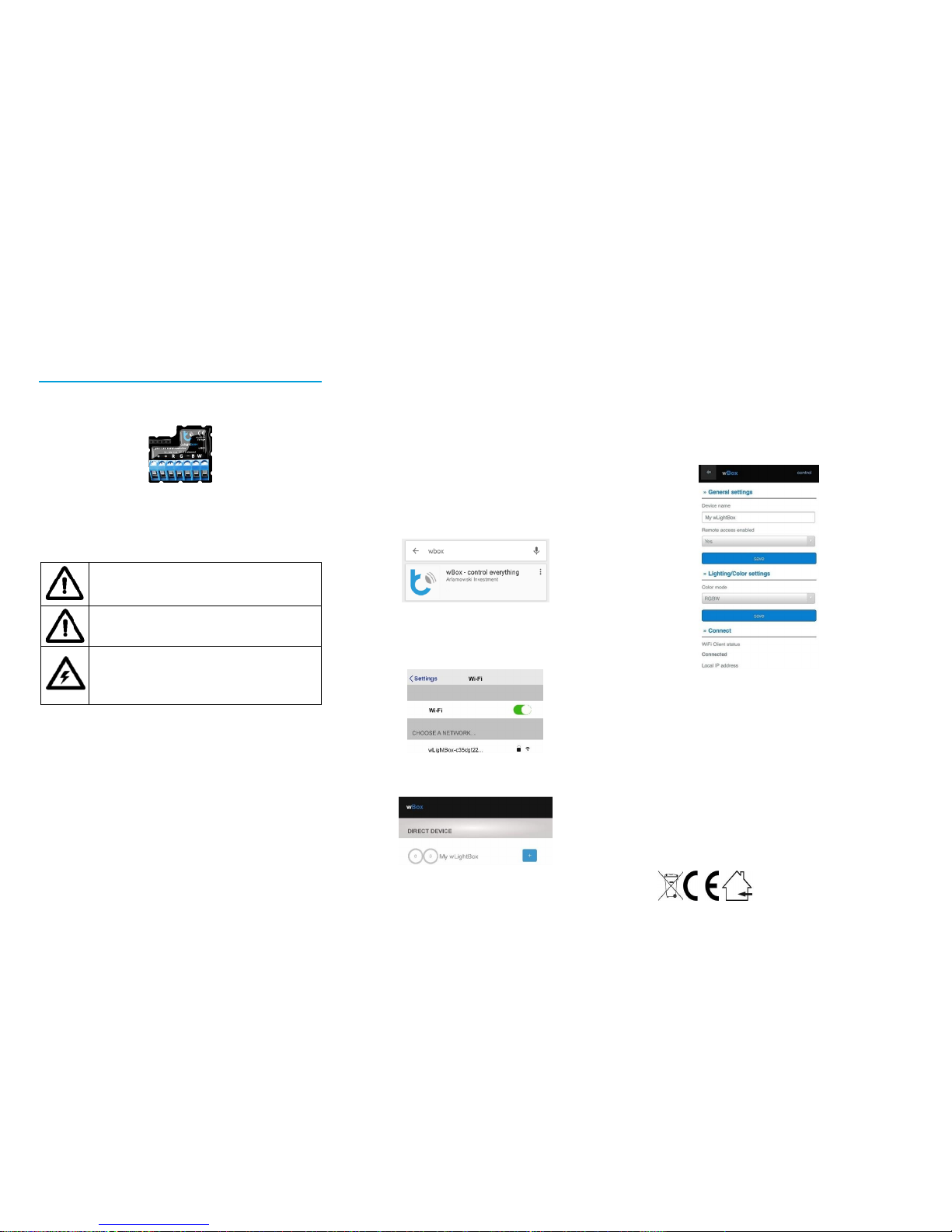
wLightBox is the world’s smallest wireless LED light which allows
you to control colourful (RGB + W) and mono-color LED lighting. It
is supported not only by smartphones and tablets, but also laptops,
personal computers and other modern devices.
Do not con nect the device to loads exceeding the recommended
values.
Connect only in ac cordance with the manual. Improper connections
may be dangerous.
DANGER! Even when the device is turned off, voltage may be present
at its terminals. Any works introducing changes into the configuration
of connections or the load must be always performed with
disconnected voltage (disable the fuse)
INSTALLATION
1. Device must be installed in a place protected from the inclement
conditions and the environment - for example in a flush-mounted box or
inside the controlled device housing. Remember that metal parts (cables,
housing parts) negatively may affect the device signal, and therefore, the
user comfort. Due to the voltage necessary for the device work, the
connector of the controller should be protected against accidental contacts
or short circuits, which could cause an electric shock or equipment damage.
2. Once familiar with the connection diagram, proceed to install the
controller. Paying attention to the description of the connectors, connect the
power wire. Connect the „+” wire (usually marked with a dotted line on a
black wire or a red wire) and the „-” (usually black) to the controller. Connect
the light source. In this case LED strip. Connect the „+” (cathode) to the
terminal „+”.
3. Connect the lighting to the controller depending of the type of LED strip
chosen. If you have a four channel LED strip (RGBW) choose the first diagram.
If you have a three channel LED strip (RGB) and a single colour LED strip
(white), choose the second diagram. If you have 4 LED strip with a single
colour LED strip, choose the third diagram.
FIRST USE
4. After making sure that the device is connected properly and near the
controller there are no metal objects that could accidentally cause shortcircuit, turn on the electricity.
5. Unlock your smartphone or tablet and download the free app wBox. If you
have a device with Android system, find the app in the Play Store. For iOS
system the application is in the App Store. For Windows Phone, the
application is in the Windows Store.
6. Using a mobile phone or tablet, connect it to the device WiFi network. To
do this, go to smartphone settings, WiFi networks configuration and find the
network called "wLightBox-xxxxxxxxxx" where xxxxxxxxxx is the device serial
number.
7. Open the wBox application. At the top of the screen will appear the device.
To add it to the list, click on the ikon "+" on the right side, next to the name.
8. Test the controller by choosing different colours on the colour selector on
the controller main screen in the application. If the LED lights changes colour
or brightness go to the next step.
DEVICE SETTINGS
9. After the first start of the controller, you can proceed to the further
configuration. Being connected to the WiFi network "wLightBox-xxxxxxxxxx"
in the application wBox control panel, select the device, open "Settings" at
the top-right corner of the screen. We recommend changing the device
name, user name and the password of WiFi network generated by the device.
Keep in mind that changing the network name or password, the device will
disconnect, and will require re-connect to the network in your phone or
tablet settings. To return to the control, click on „ wLightBox" at the top-left
corner of the screen.
10. You can add the controller to your home WiFi network to control it by
this network, or from any place in the World. To do this, turn on the
application wBox, go to the device settings, scroll down the screen, select the
network name from the list and click "Connect". If is required, enter the WiFi
network password. While connecting the device to the home network, the
phone may be disconnected from the device network. In that case, you have
to re-connect your phone or tablet to the controller network. From now, if
the mobile device will disconnect from your home network, the user still has
the ability to control the device, the only requirement is access to the
Internet on your phone or tablet - WiFi or mobile internet.
For more information visit our website www.blebox.eu or contact us by email
to [email protected]. Technical support [email protected].
Proudly made by:
Blebox sp. z o.o.
Kunickiego 63 Street,
54-616 Wrocław, Poland
www.blebox.eu
Page 2
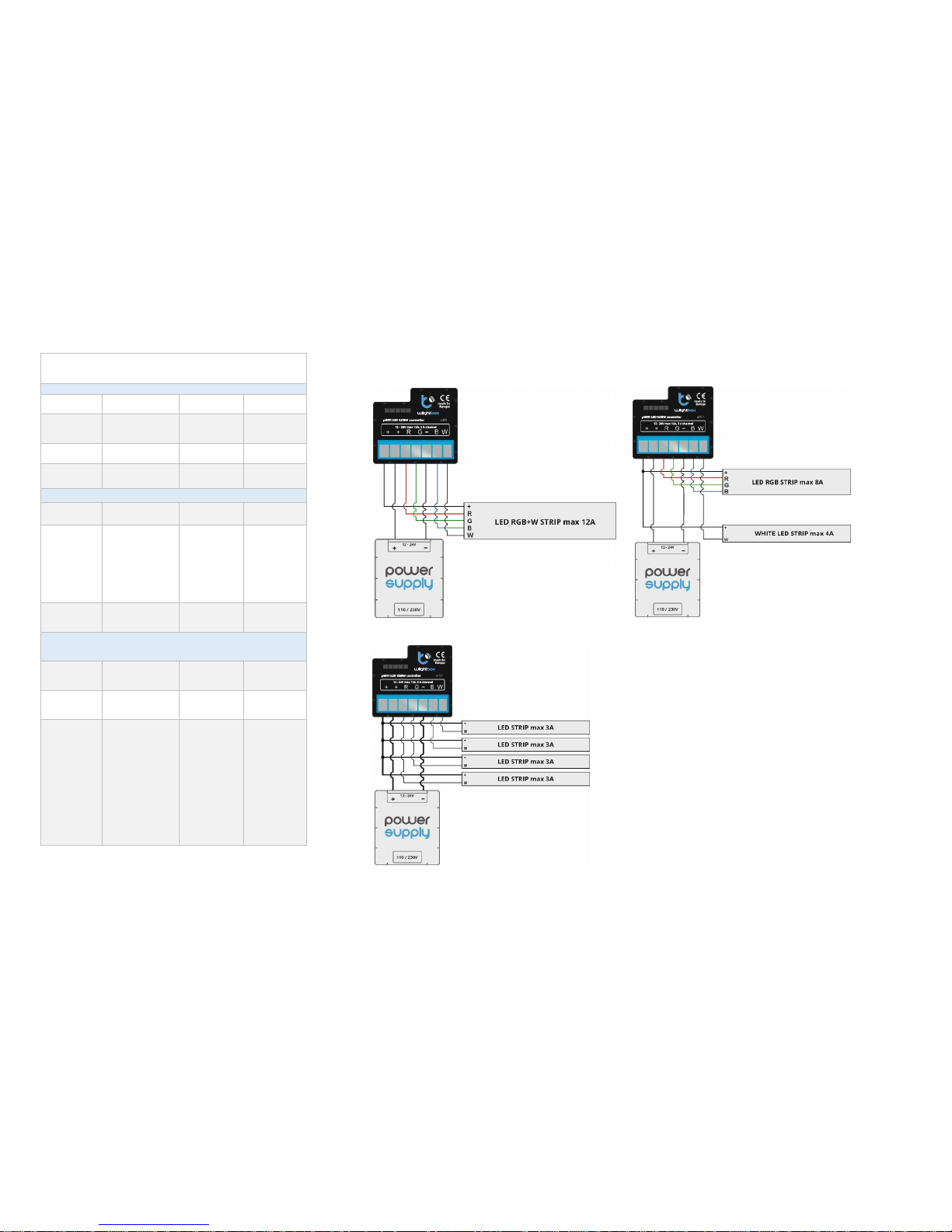
1) FOUR CHANNEL LED STRIP
3) 4 x SINGLE COLOUR LED STRIP
2) THREE CHANNEL LED STRIP + SINGLE COLOUR LED (W HITE)
TECHNICAL SPECIFICATIONS
wlightBox
Electrical parameters
Voltage
12 - 24V
Energy
consumption
< 1W
Max current
12A (3A /channel)
Max voltage
24V
Output
controls
4
Max load
288W
Output type
open drain, PWM,
low side control
Colour modes
RGB / RGBW /
MONO
Physical characteristics
Dimensions
39 x 35 x 20 mm
Protection level
IP20
Housing
made of
polyurethane
composition not
containing
halogens, selfextinguishing for
thermal class B (130
°C)
Mounting
in the flushmounted box,
on the lamp
housing,
directly
connected to
the LED strip,
e.g. furniture
Protection
inverted
polarization, ESD
Communication
Standard
μWiFi, compatible
with WiFi
Frequency
2.4 GHz
Transmission
bi-directional,
encrypted
API
open
Mode
direct connection
(as access point),
Wi-Fi connection
via a standard
router, connection
with access from
any location in the
world (requires
access to the
Internet)
Compatible
devices
Apple iPhone,
Apple iPad,
iPad Mini,
Android,
Windows
Phone,
computers and
mobile devices
operating a
fully HTML5,
Apple watch
support coming
soon.
 Loading...