

Page 1
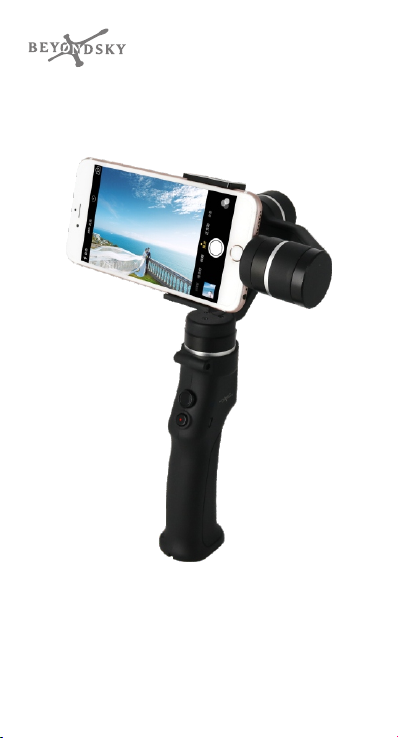
EYEMIND
User Manual
V1. 0201 8.2
Page 2

Page 3

READING TIPS
Warnings & Disclaimers
BEYONDSKY™ Eyemind is a smar tphone gimbal stabilizer with
concise appearance and affordable cost. It is designed to be
lightweight and portable, and helps users make movie-level artworks
by common smartphones.
Considering customers' benefits as priority, BEYONDSKY™ claims as
below:
1. Any illegal usage or improper placement of the product is
prohibited.
2. Any illegal test, improper assembling and disassembling of the
product is prohibited. BEYONDKSY™ is not responsible for any
direct or indirect body damage, property loss to users or non-users
caused by improper use of the product. The damaged or broken
products caused by improper use are not fully guaranteed by
BEYONDSKY™. Users who own the damaged/broken products can
send them back to BEYONDSKY™ factory for repairing and bear
the repairing fees and shipping cost.
3. Please purchase the product from BEYONDSKY™ authorized
retailers and distributors. Products acquired from unauthorized
vendors are not guaranteed by BEYONDSKY™.
4. Firmware upgrades may lead to functional errors, please carefully
refer to the user manual before upgrading.
5. BEYONDSKY™ reser ves whole rights of the final explanation for
Eyemind product and user manual.
Important Cautions
1. Ensure that battery level is plenty before using the Eyemind gimbal
stabilizer.
2. Please mount your smartphone on stabilizer and adjust the gimbal
to balanced position before powering on it. When finished using,
ensure that power is off before removing smartphone.
Legend
Important cautions and operation tips.
Cop yrigh t © 2018 Be yonds ky 1
Page 4

Download CAPTURE APP
Before using Eyemind, CAPTURE APP should be downloaded and
installed in advance.
* iOS users can find the application in App Store by searching “CAPTURE”.
* Android users can find the application in Google Play Store by searching “CAPTURE
MOVE” or scanning the D bar code below.
* The application requires phone operating system version above iOS 8.0 or Android
4.4.
iOS
And roid
2 Cop yrigh t © 2018 Be yonds ky
Page 5

CONTENTS
READING TIPS
Warnings & Disclaimers
Important Cautions
Legend
Download CAPTURE APP
INTRODUCTION
At a Glance
IN THE BOX
GETTING STARTED
Battery Specifications
Inserting the Battery
Charging
Mounting the Mobile Phone
USING THE EYEMIND
Controls and Operations
OPERATION MODES
Pan Following Mode
Following Mode
Locking Mode
Portrait Mode
CAPTURE APP
Connecting to the CAPTURE APP
GET TO KNOW CAPTURE APP
CAPTURE APP FUNCTIONS
Face Recognize/Tracking
Panoramas
Timelapse
Beautify Shot
Advanced Settings 12
CALIBRATING THE EYEMIND
Steps to Calibrate
SPECIFICATIONS
1
1
1
1
1
4
4
5
6
6
6
6
7
8
8
10
11
11
11
11
11
11
11
12
12
12
12
12
12
12
12
Cop yrigh t © 2018 Be yonds ky 3
Page 6
INTRODUCTION
Eyemind is powered by advanced FOC drive algorithm, integrated
with high-precision gyroscope and magnetic coded dual sensor,
giving you smooth and steady motion pictures made by smar tphone.
By connecting with smartphone through Bluetooth, Eyemind can
provide more interesting functions such as one-key to take and
beautify your selfie, active tracking, adjust focus in motion, timelapse
and panoramas shots.
Integrated gimbal with handheld stick design is obvious among
Eyemind's many remarkable features. The idea is to get impressive
user experience. Recording videos is as easy as taking pictures
operating with one hand, through one key you can enter portrait
mode, and more functions to be discovered within its lightweight
body.
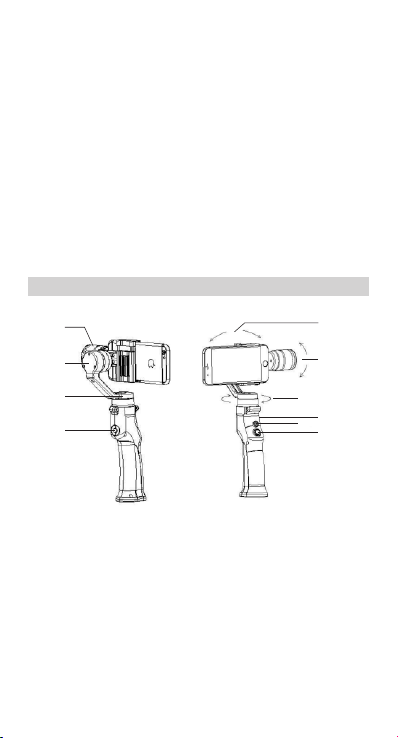
At a Glance
[1]
[2]
[3]
[4]
[1] Tilt Motor
[3] Pan Motor
[5] Roll Axis
[7] Pan Axis
[9] Joystick
4 Cop yrigh t © 2018 Be yonds ky
[7]
[9]
[2] Roll Motor
[4] Photo/Video Button
[6] Tilt Axis
[8] USB Port
[10] Power/Mode Button
(with built-in indicator)
[5]
[6]
[8]
[10 ]
Page 7
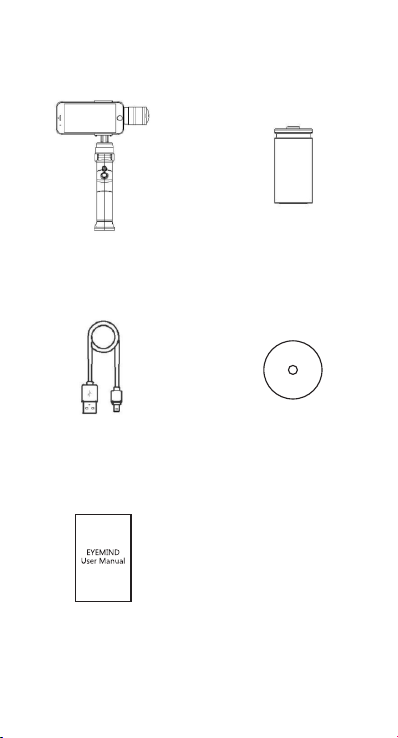
IN THE BOX
Gimbal Stabilizer 18650 2600mAh
Micro-USB Cable Counter-weight
User Manual
Chargable Li-ion Battery
Cop yrigh t © 2018 Be yonds ky 5
Page 8
GETTING STARTED
Battery Specifications
Model 18650 Chargeable Battery
Type Li-ion
Capacity 2600mAh
Voltage 3.7V
Charging Temperature 0 ~ 35℃
Operating Temperature -5℃~ 35℃
Cautions for using Li-ion battery:
1. Always keep the battery in a clean and dry place. DO NOT leave
the batter y near heat sources such as a furnace or heater. DO
NOT leave the batteries inside of a vehicle on hot days. The
ideal storage temperature is 22℃~28℃.
2. Keep the battery level between 30 to 50 percent of rated
capacity while in storage, and charge the battery at least in
every 6 months.
3. Use li-ion battery approved charger to charge the battery.
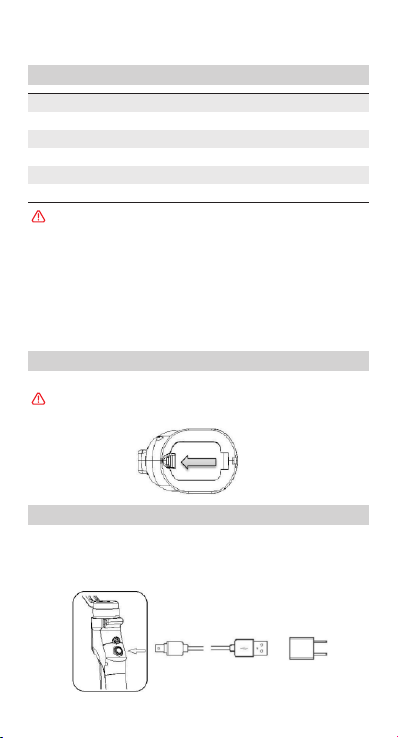
Inserting the Battery
Open the battery cover, insert the battery and lock the battery cover.
Mind the positions of battery positive and negative side. Positive
towards inside, negative towards outside.
Charging
Use standard Micro-USB cable to connect Eyemind with USB power
adaptor (adaptor does not come with Eyemind). During charging,
indicator at the back side of gimbal handheld blinks slowly, and stays
solid when charging finished. Charging time is about 2 hours.
6 Cop yrigh t © 2018 Be yonds ky
Page 9
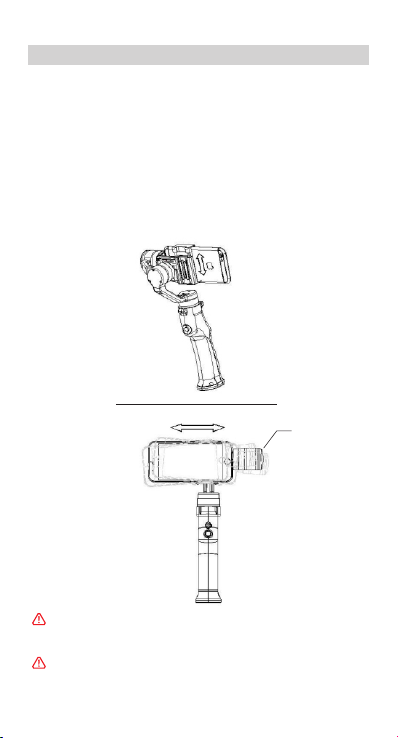
Mounting the Mobile Phone
1. Place in the mobile phone.
Place the mobile phone in the mobile phone holder while pulling
the sides of the holder outwards, then release the sides of the
holder so they hold phone in place. It is recommended that you
position the mobile phone close to the tilt motor.
2. Balance the mobile phone.
Keep gimbal handheld steady, mount on counter-weight or adjust
the position of the phone to balance the tilt axis. The tilt axis is
balanced if the mobile phone remains level when released.
Smartphone models less than 4.7 inch needs no counter-weight to
be balanced.
Reference Line
Ensure the mobile phone is properly installed in the holder and
the system is balanced before each use. Eyemind won't be
working properly detecting no phone mounted.
It is important to balance the mobile phone in order to achieve
optimal performance.
Cop yrigh t © 2018 Be yonds ky 7
Counterweight
Page 10
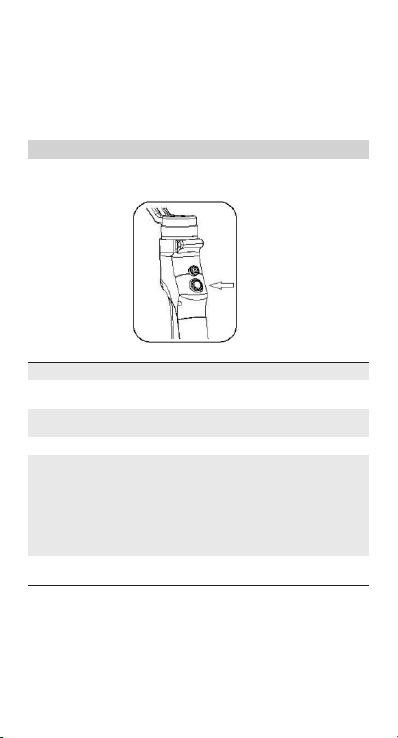
Using the Eyemind
BEYONDSKY™ Eyemind gimbal stabilizer is equipped with Joystick,
Photo/Video Button and Power/Mode Button.
Move the joystick, Eyemind follows your thumb motion to move at
the same time. Camera angle can be adjusted by hand as well.
Controls and Operations
[1] Power/Mode Button
Operations Mode Status
Power On/Default
Status
Single Click Lock Mode
Double Click Tilt/Pan Following Mode
Triple Click Portrait Mode
Hold the button
for 3 seconds
8 Cop yrigh t © 2018 Be yonds ky
Pan Following Mode
Power Off
Notes
——
Click again to cancel lock
mode
——
Tilt the gimbal 45 degrees to
the left, entering portrait
mode;
Triple click again and
tilt the gimbal 45 degrees to
the right, quitting portrait
mode.
——
Page 11
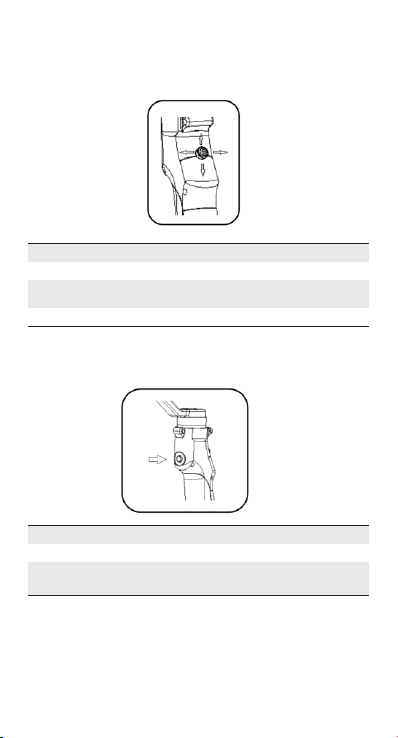
[2] Joystick
Move vertically to tilt the mobile phone. Move horizontally to pan the
mobile phone.
Mode Vertical Movement
Pan Following Mode Tilt Angle
Pan and Tilt Following
Mode
Lock Mode Tilt Angle
——
[3] Photo/Video Button
Click to take photos, hold to shoot videos.
Operations Functions
Click Take photos
Hold for 2 seconds Shoot Videos
Cop yrigh t © 2018 Be yonds ky 9
Horizontal Movement
Adjust Focus
Adjust Focus
Pan Angle
Notes
——
Again hold for 2 seconds
to end shooting video
Page 12
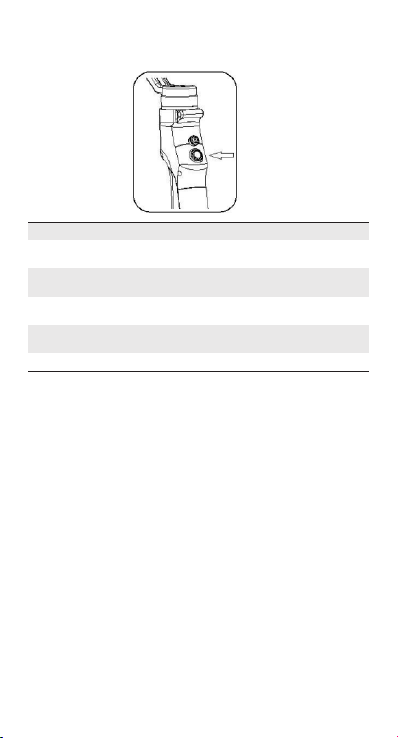
[4] Indicators
Operations Indicator Status
Power On/Default
Status
Click Solid
Double Click Double Blinks
Triple Click Triple Blinks
Hold for 3 seconds Light off Power On/Off
Single Blink
Notes
Pan Following Mode
Lock Mode/
Quit Lock Mode
Tilt/Pan Mode/
Quit Tilt/Pan Mode
Portrait Mode/
Quit Portrait Mode
OPERATION MODES
Pan Following Mode
The smartphone pans left/right following the movement of the
stabilizer while the tilt and roll axes are locked. Push the joystick
up/down allows manual control of the tilt axis.
Following Mode
The camera pans and tilts following the movement of the stabilizer.
Push the joystick left/right allows manual control of the roll axis.
Locking Mode
This mode locks movement of all three axes to keep the camera still
and stable. Push the joystick up/down and left/right allows manual
control of the tilt axis and pan axis.
Portrait Mode
Rotate the Eyemind 90 degrees to the left or right to go from
Following Mode to Portrait Mode. ActiveTrack is disabled when using
Portrait Mode.
10 Co pyrig ht © 2018 B eyond sky
Page 13
CAPTURE APP
Watch a live HD video feed on your mobile screen through the DJI GO
App. The app also allows you to use the ActiveTrack, Timelapse,
Beautify Shot, or configure camera and gimbal settings in just a few
taps.
Connecting to the CAPTURE APP
1. Enable Bluetooth and turn off portrait orientation lock on your
mobile phone to allow horizontal screen display.
2. Power on the Eyemind. Do not touch the gimbal and hold the
Eyemind still and upright while it is starting up.
3. Search the Eyemind through Bluetooth and connect.
4. Run CAPTURE APP and enter camera view. If the mobile phone is
successfully connected to the Eyemind. Camera view gives a realtime display of what the camera is capturing.
The gimbal will stop working if you answer a call.
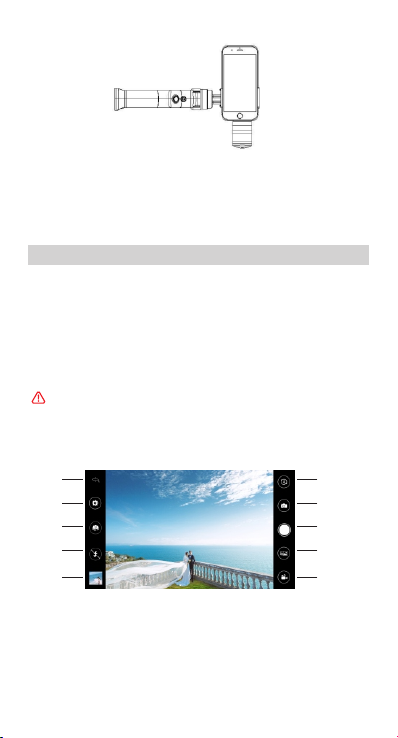
GET TO KNOW CAPTURE APP
Equipment > Camera
[1]
[2]
[3]
[4]
[5]
[1] Home
[3] Back/Front Camera
[5] Album
[7] Face Recognize/Tracking
[9] Panoramas
[2] Setup
[4] Flashlight
[6] Bluetooth On/Off
[8] Shutter Button
[10] Record Button
Cop yrigh t © 2018 Be yonds ky 11
[6]
[7]
[8]
[9]
[10 ]
Page 14

CAPTURE APP FUNCTIONS
Face Recognize/Tracking
Panoramas
Timelapse
Beautify Shot
Advanced Settings
CALIBRATING THE EYEMIND
Stabilizer requires calibrating under circumstances below.
1. When stabilizer is powered on, Tilt axis is not absolute vertical or
Pan axis is not absolute horizontal.
2. In Lock Mode, Pan angle shakes unexpectedly.
Steps to Calibrate
Power on the Eyemind, hold it still on a horizontal place, click the
power button for 5 times continuously, then wait for 10 seconds.
When you hear a Beep sound, it means calibration finished.
SPECIFICATIONS
Tilt: 120°
Controllable Angle Range
Controllable Speed
Following Deviation ± 0.03°
Battery Type/Capacity 18650 2600mAh
Battery Life Approx. 8 hours
Consumption 10W (5V/2A)
Charging Temperature 5℃ ~ 40℃
Operating Temperature 0℃ ~ 40℃
Product Dimension 32cm x 12.5cm x 4.3cm
Item Weight (Battery Included) 410g
Compatible Smartphone Size 4”~ 6”
Payload 100g ~ 260g
Pan: -35°~+35°
Roll: 320°
Tilt: 2°/s~65°/s
Roll: 2°/s~180°/s
12 Co pyrig ht © 2018 B eyond sky
Page 15

Page 16

Beyondsky Tech (Shenzhen) Co., Ltd.
Email: [email protected]
Address: Room 308, Building 2, Guangxingyuan Internet Industry Base A,
Baoyuan Road, Baoan, Shenzhen, China, 518100
 Loading...