

Page 1
www.bestservice.com
Page 2

Credits:
Concept, Recording, Editing, Programming:
Chris Hein
Interface-Design:
Scott Kane, Chris Hein
Additional Editing:
Ricarda Hein (Mrs. Melodyne)
Script-Programming :
Günter Hirscher
Produced for Best Service, Munich
-02-
Page 3

Contents
04 Introduction
05 The Interface
Basics-Page
General Controls
06 Basics
Meters
Edit-Tabs
06 Basics
Articulation select
Overview
Body & Room Convolutions
07 Articulation-Presets
Overview
08 Articulation-Presets
Articulations
Key-Switch Modes
Copy / Paste
Main controls
Speed-Detection
09 Articulation-Presets
Volume Control
Dynamic Modes
10 Articulation-Presets
Note-Head Designer
11 Articulation-Presets
Transient Designer
Attack Controls
Noise
Legato Mode
12 Legato Settings
Legato Details
13 Hot-Keys
Hot-Keys Overview
15 Articulation Overview
16 Settings
Fader Settings
Release FX
Synamic
17 Settings
Pitchbend
Ensemble
ADSR
Micro-Tuner
18 Vibrato
LFO-Vibrato
Auto-Vibrato
19 DSPEects
Overview
20 DSPEects
Reverb
Delay
Chorus
21 DSPEects
Phaser
Flanger
Compressor
22 DSPEects
Solid G Equalizer
Filter
23 Midi-CC list
27 The Producer
28 More from Chris Hein
30 The Family of Chris Hein - Horns
14 Hot-Keys
Key-Vibrato
Play Last Note
Empty
-03-
Page 4

Chris Hein - Strings Compact
Thank you for buying Chris Hein - Strings Compact
Chris Hein Strings Compact is a huge and extremely versatile String Library featuring 14 Solo Instruments and 14 Ensemble mixes.
Featuring the all instruments and the original samples from the legendary Chris Hein Solo Strings
and Ensemble Strings libraries, you get the full expressive range with up to 8 dynamic layers and
four dynamic modes.
14 Solo-Strings and 14 Ensemble Mixes.
VIOLINS - VIOLAS - CELLOS - CONTRABASSES
The Compact version is focused on nine of the most important articulations.
if you ever need more articulations, there’s a cost-eective upgrade path to the complete version.
The solo instruments are samples with great detail. Up to eight dynamic layers oer a extremly wide
dynamic range. The large variety of instruments lets you layer your solo strings to small ensembles.
The programming of each instrument is exactly the same for all instruments. So, just duplicate your
MIDI track, assign a dierent instrument to it and you have a layered ensemble.
The combination of 14 Solo Strings and 14 Ensemble mixes, lets you create almost any string
sound combination that you need. From a single Solo Violin, over chamber orchestra to a large
symphonic string sound.
This surgically detailed production process has resulted in a warm and rich symphonic string sound.
Two dierent section sizes have been created: „Full“ and „Small“ ensemble.
With 9 articulations and up to eight dynamic layers, the instruments in CH-Strings Compact are
sampled with extraordinary detail and programmed with great care.
The user-interface holds tons of features on several pages to shape the sound and to adjust the
playability to the way you want it.
However, if you don‘t feel like editing, just play and explore the pre-programmed Key-Switch presets.
Thanks to the clever programming and intuitive user interface, the new and innovative features like
„Note Head Designer“, „Key-Vibrato“ or the „Hot-Keys“ are very easy to use.
I hope you like Chris Hein - Strings Compact. Have fun!
Chris Hein
-04-
Page 5
Interface
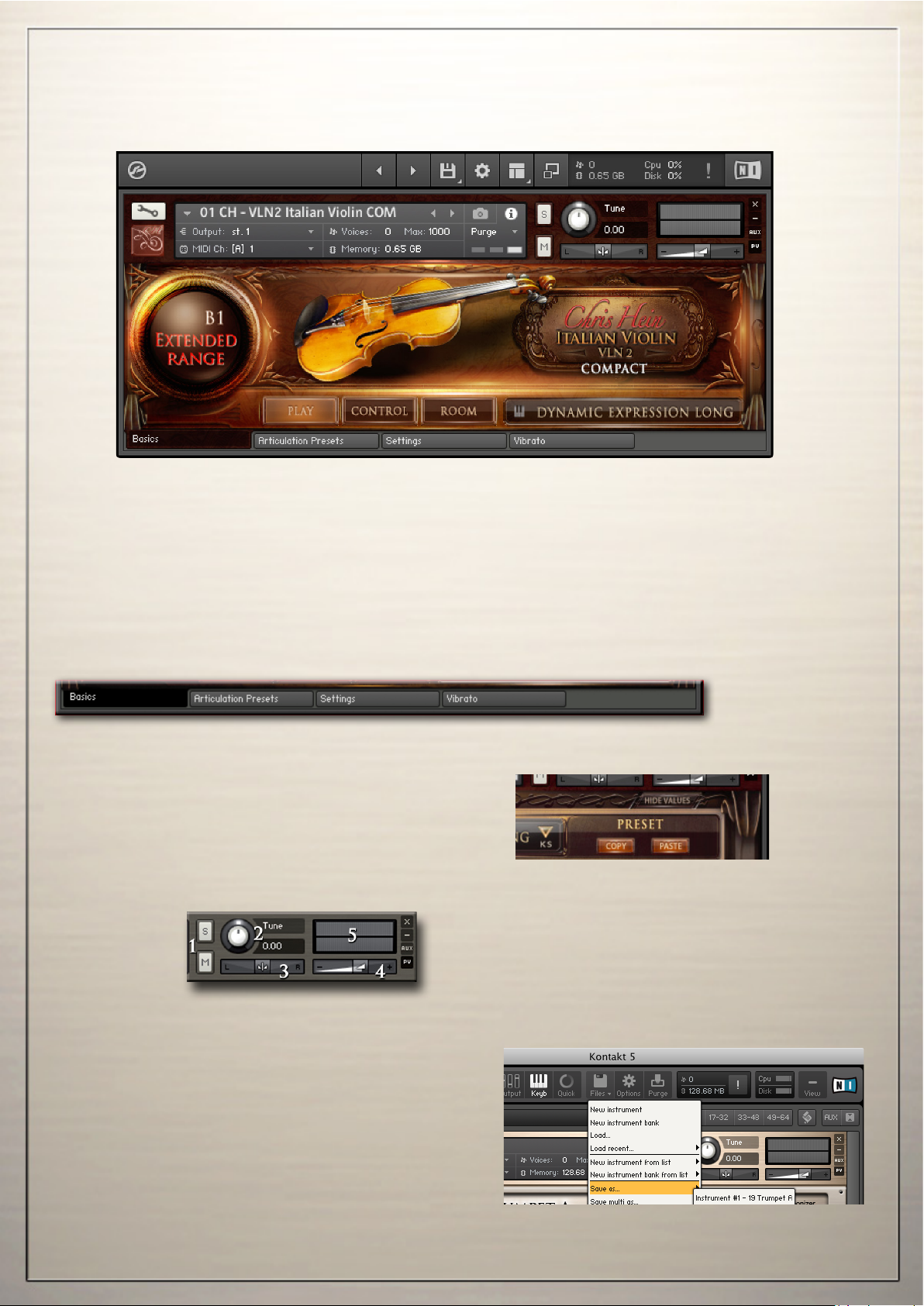
The Basics-Page General Controls
The Edit-Pages
The Basics-Page is good if you have multiple instruments loaded and don‘t need to edit.
This page has no edit features.
Start playing right away and use the Key-Switch keys ranging from A-1 to A#0 to enter
the pre-programmed Articulation-Presets and Hot-Keys.
The actual selected articulation is diplayed in white at the bottom right of the screen.
You can enter the 4 edit-pages by clicking one of the edit-tabs at the bottom of each page.
Show/Hide Values
You can show or hide the values of the functions
with the button on the top right of each page.
However, as soon as you touch a function, the value
is displayed even if „hide values“ is selected
General Controls
1 Solo/Mute 2 Tune - (CC09)
3 Panorama - (CC10) 4 Volume - (CC07)
5 Level indicator
Saving Changes
CH-Strings Compact has many features to
customize the instrument to t you demands.
To save the settings you have made,
use the Files menu from the Kontakt top-menu.
-05-
Page 6
Basics
Meters / Body & Room
Control
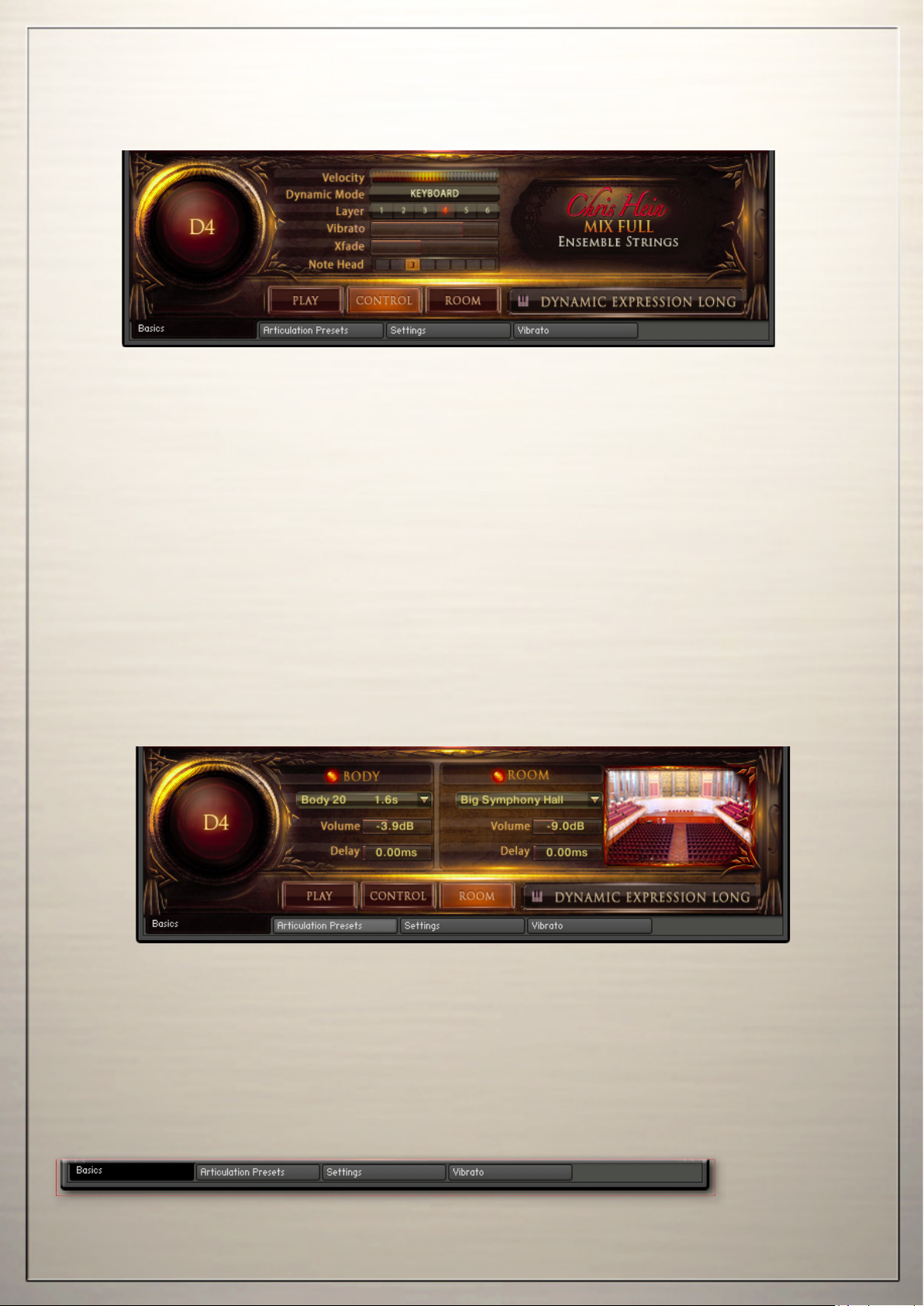
Click the „Control“ button to display some of the major controls.
Several meters indicate the status of the following functions:
Dynamic Mode - Shows the selected dynamic mode. Change it in the articulation preset page
Layer - Indicates the dynamic layer of the the last note played.
Velocity - Shows the velocity of the the last note played.
X-Fade - Shows the state of the X-Fade position. This graphic also works as a slider.
Vibrato - Adjust the vibrato intensitiy.
Vib. Speed - Adjust the vibrato speed.
Body and Room
CH-Strings Compact contains 40 fantastic, built-in convolution reverbs,
as well as 23 very short impulse responsed to design the body of the instrument.
The combination of two convolution reverbs lets you design the body and the room individually.
Controls for Body and Room
On/O- Switches the Convolution Reverb on and o.
Presets - Choose from 40 specially-designed Impulse Responses.
Volume - Adjusts the amount of the Convolution Reverb.
Delay - Sets the pre-delay time before the reverb starts.
Edit-Tabs
Four tabs at the bottom of the interface let you enter the edit modes.
-06-
Page 7
Articulation-Presets
Overview
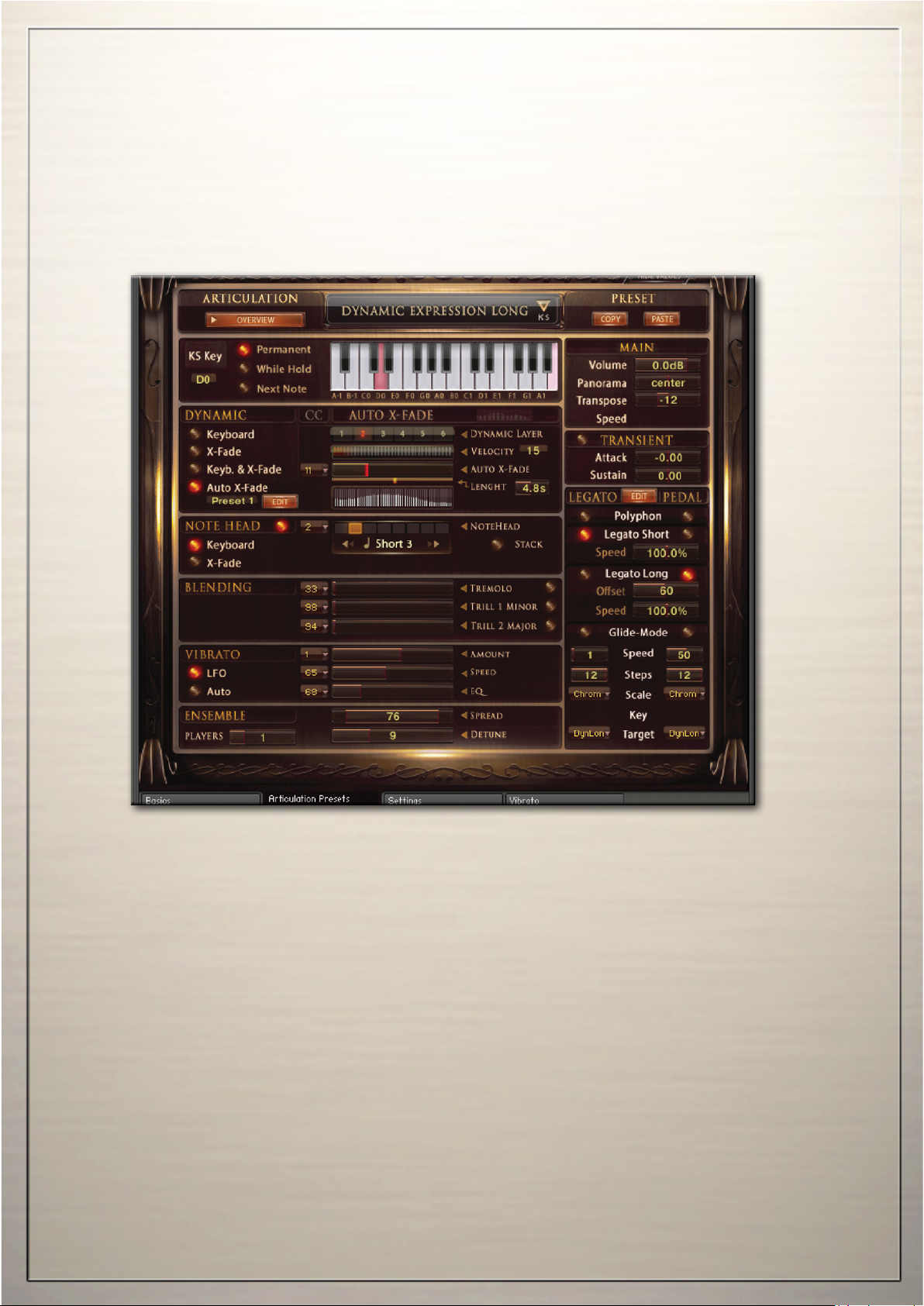
You will probably spend most of your time with Chris Hein - Strings Compact in the Articulation-Presets Page. Everything you see on this Articulation-Presets Page is stored on one single Key-Switch.
Each setting of the functions on this page can be dierent for each and every of the 14 key switch
keys. The only exceptions are the Blending and Ensemble controls, which are set for the whole instrument.
The key-switch concept allows you to customize the instruments in every detail to suit your needs.
Let’s say you want to play chords with the sustain articulation and then you want to play a solo line
using the legato-mode. All you have to do is copy the articulation-preset, paste it to another keyswitch preset and change the legato setting from polyphon to legato.
Now, switching from polyphon to legato playing is done by just pressing one key-switch.
The same process works for all other functions on this page. For example, you can assign dierent
articulations to dierent keys, enabling you to change articulations on the y. Or you can design a
bunch of dierent settings for only the sustains, enabling you to alter the behavior of the instrument.
It’s important to understand that all functions on this page are valid only for the selected key-switch.
If you want to make changes for other articulations, you will have to change every articulation you
plan to use. The only exception is the setting for„Blending“ and „Ensemble“ which applies for the
whole instrument. The key-switch presets are located in the lower area of your keyboard, from A -1
to A #1. Key-switches are displayed in green. Hot-keys are displayed in red.
There are several ways to select a key-switch preset:
- Hit the keys on your keyboard.
- Click the keys on the on screen keyboard in the interface.
- Use the fader „KS-Key“ or control it with an external hardware midi-controller (CC06 by default)
It s up to you to change articulations in your DAW via Midi CC or by using midi notes.
-07-
Page 8
Articulation-Presets
Articulations, KS-Mode, Copy/Paste, Main controls, Speed-Detection
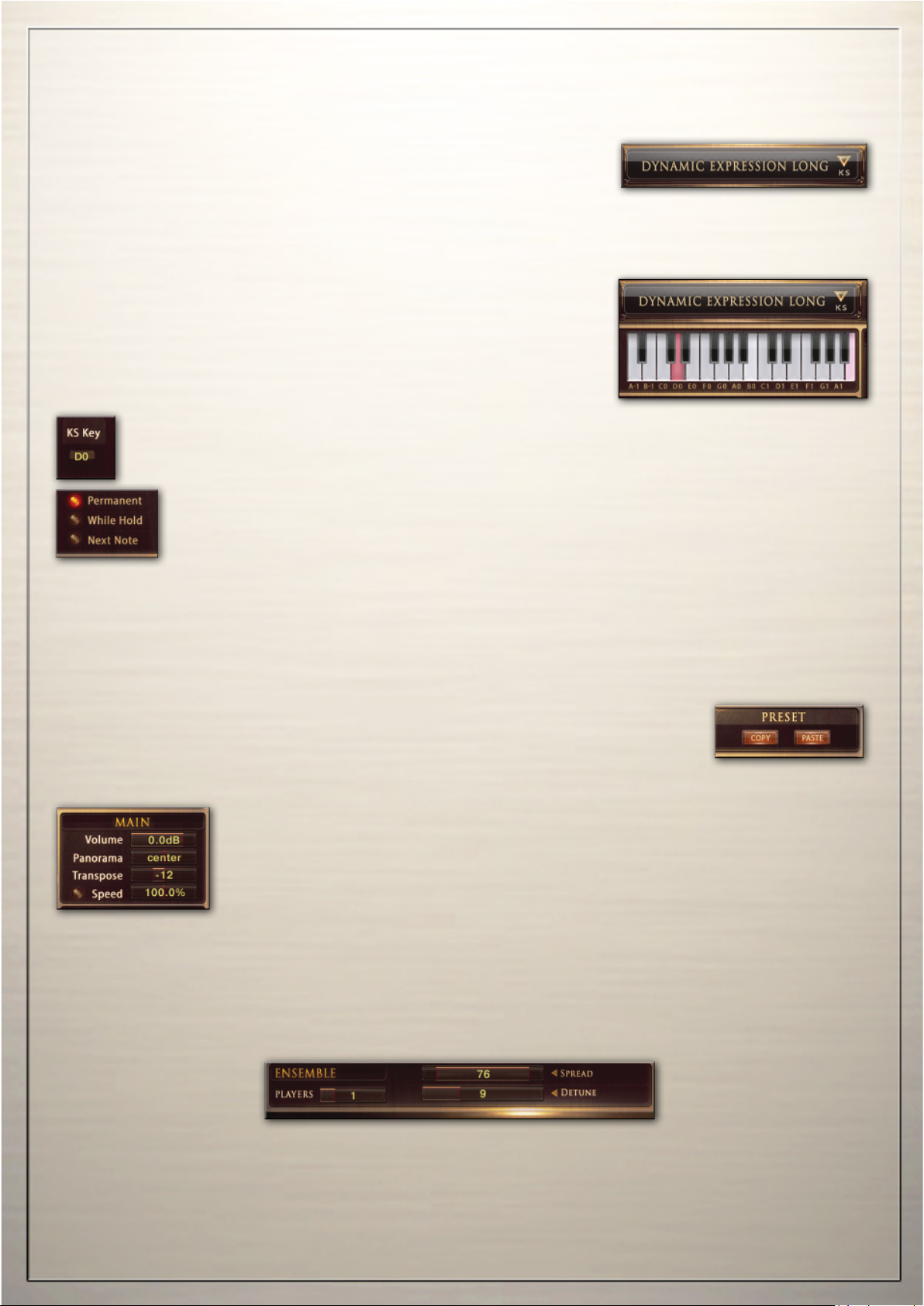
Let’s start to customize your key-switch presets. The rst step
is to assign the KS-preset as a key-switch or as a hot-key.
Key-Switches hold dierent articulations to be played on your keyboard.
Hot-Keys are special keys that don’t change the overall articulation, but can add aditional eects
like playing key-based vibrato, or work as repetition keys. Let’s call these guys KS and HK.
Articulations
Lets start building a key-switch preset.
Select an articulation from the drop down menu on top of the
keyboard graphics to be assigned to the selected KS-preset.
Click the “Overview” button to see and edit an overview of all
loaded articulation-presets and Hot-Keys.
KS-Key lets you change the key-switch presets via MIDI-CC. (CC 06 by default)
Right click to assign any CC and use a hardware fader to control the articulations.
Key-Switch Modes
There are three dierent key-switch options to choose from,
which determine exactly when and how the articulation change takes eect:
KS-Permanent: The articulation remains active until another key-switch is pressed.
KS-While Hold: The articulation changes only for as long as the key-switch is held
and reverts to the previous articulation as soon as the key-switch is released.
KS-Next Note: The articulation changes only for the note following after
the key-switch and then reverts to the previous articulation.
Copy - Paste
You can copy and paste a whole KS-Preset. This is useful if you want a variation of an existing preset on another key to instantly switch between them.
Main Controls
Volume sets the volume for each KS-preset individually. To adjust the global
volume, use the volume slider at the top right of the interface.
Pan lets you pan each KS-presets individually from left to right.
Transpose lets you transpose the preset (36 semitones maximum) up or down.
Speed sets the overall speed of the selected articulation.
Changing the speed of the samples is useful for articulations such as Dynamic Expression or Trill.
But changing the speed for the sustains can also yield some interesting eects. Click the little red
dot to activate the speed-change. Since variable speed needs a lot more RAM, you should activate
“time” only when you need it. The speed change is only available if the dynamic mode is set to
„Keyboard“
Ensemble:
You can setup a group
of String players here.
Ensemble is a global parameter which aects all articulation presets.
Players: Select 1-5 groups of players to play. Each step doubles the amount of players.
Spread: Sets the Stereo-Spread of the Ensemble Sound
Detune: De-tunes the Ensembles in cents.
-08-
Page 9
Articulation-Presets
Volume Control / Dynamic Modes
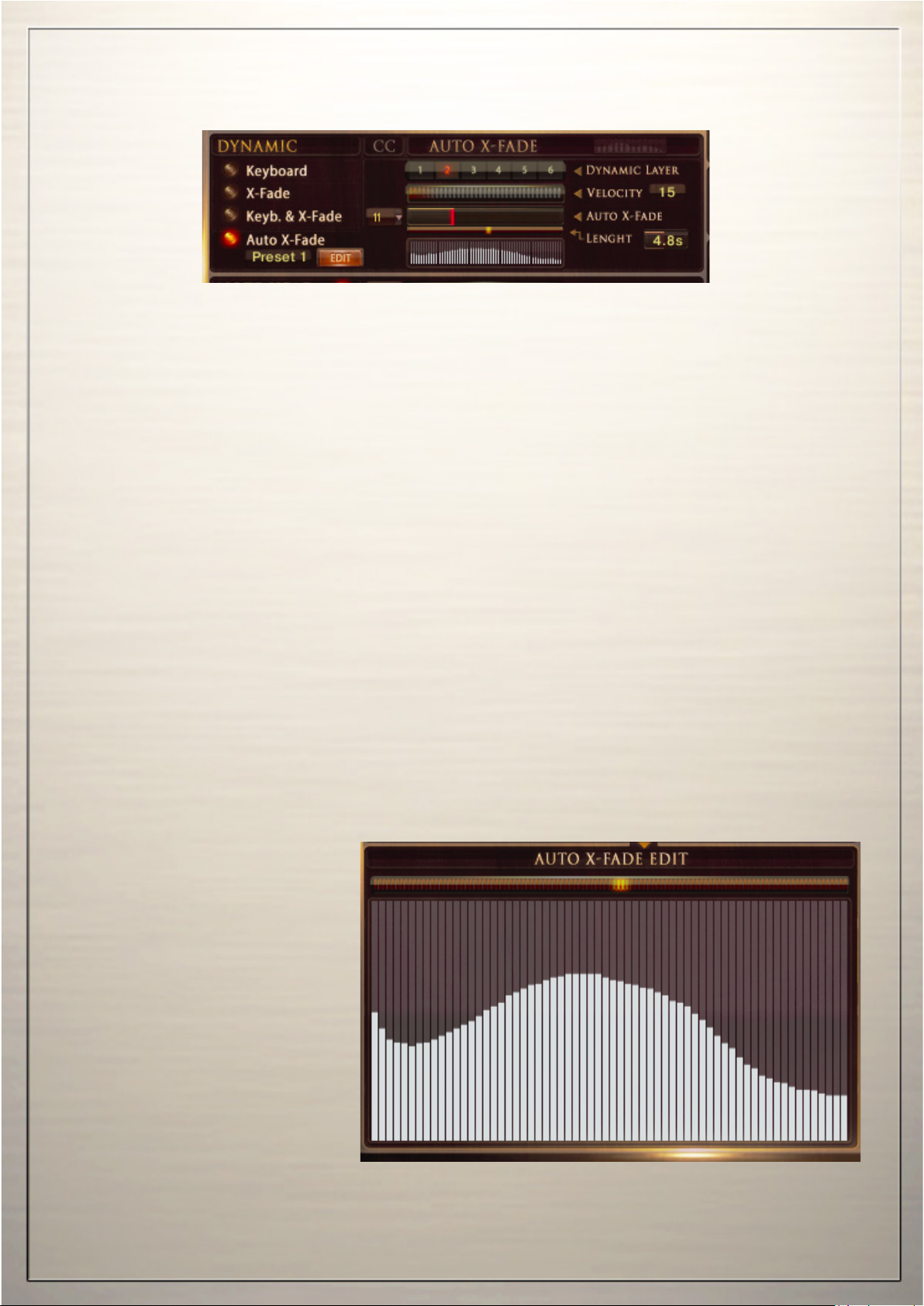
Dynamic: Usually the dynamic of an instrument is just controlled only by the velocity of your midi
keyboard. CH-Strings Compact oers dierent options to control the dynamic.The details on the
next page may sound a bit technical, but don’t hesitate to just experiment with the settings.
The buttons at the left side let you switch between the four dierent dynamic-modes.
Keyboard - The articulations in CH-Strings Compact have 3-8 dynamic layers. When set to „Keyboard“ these layers are available through the velocity of your midi keyboard. The actual played
dynamic layer and the midi velocity are displayed as numbers from 1-8.
X-Fade - When this is selected, the velocity is controlled via midi Control Change (CC11, Expression, by default). You can also use any other controller by changing the X-Fade CC.
Setting the controller to zero plays the lowest velocity layer, moving the controller up fades between
the velocity layers, while increasing the value crossfades between the velocity layers until the highest value of 127 is reached.
Key & X-Fade - This is a combination of Keyboard dynamic and X-Fade. Velocity is controlled
via keyboard velocity, but you can also use Expression (CC11) to crossfade between the velocity
layers. Key & XFade works in an intelligent way. Let’s say you play a note at velocity 100, then you
increase Expression (CC11), starting from zero. No change is audible until the controller reaches
value 100. From here, Expression takes control of the velocity and lets you change the dynamic
even after the note is pressed. Key & XFade is perfect for playing realistic crescendos and decrescendos.
Auto X-Fade - This performs an automatic volume curve relative to the played velocity.
When Auto X-Fade is selected,
the automatic volume curve starts
at the velocity played on the midikeyboard, performing a volume
change depending on the settings
in the table.
You can draw your own volume
curve in the table. To edit the curve
in more detail, click the „Edit“
button to enter a fairly big table.
The length of the Auto X-Fade
curve can be adjusted with the
„Lengths“ fader
-09-
Page 10
Articulation-Presets
Note-Head Designer
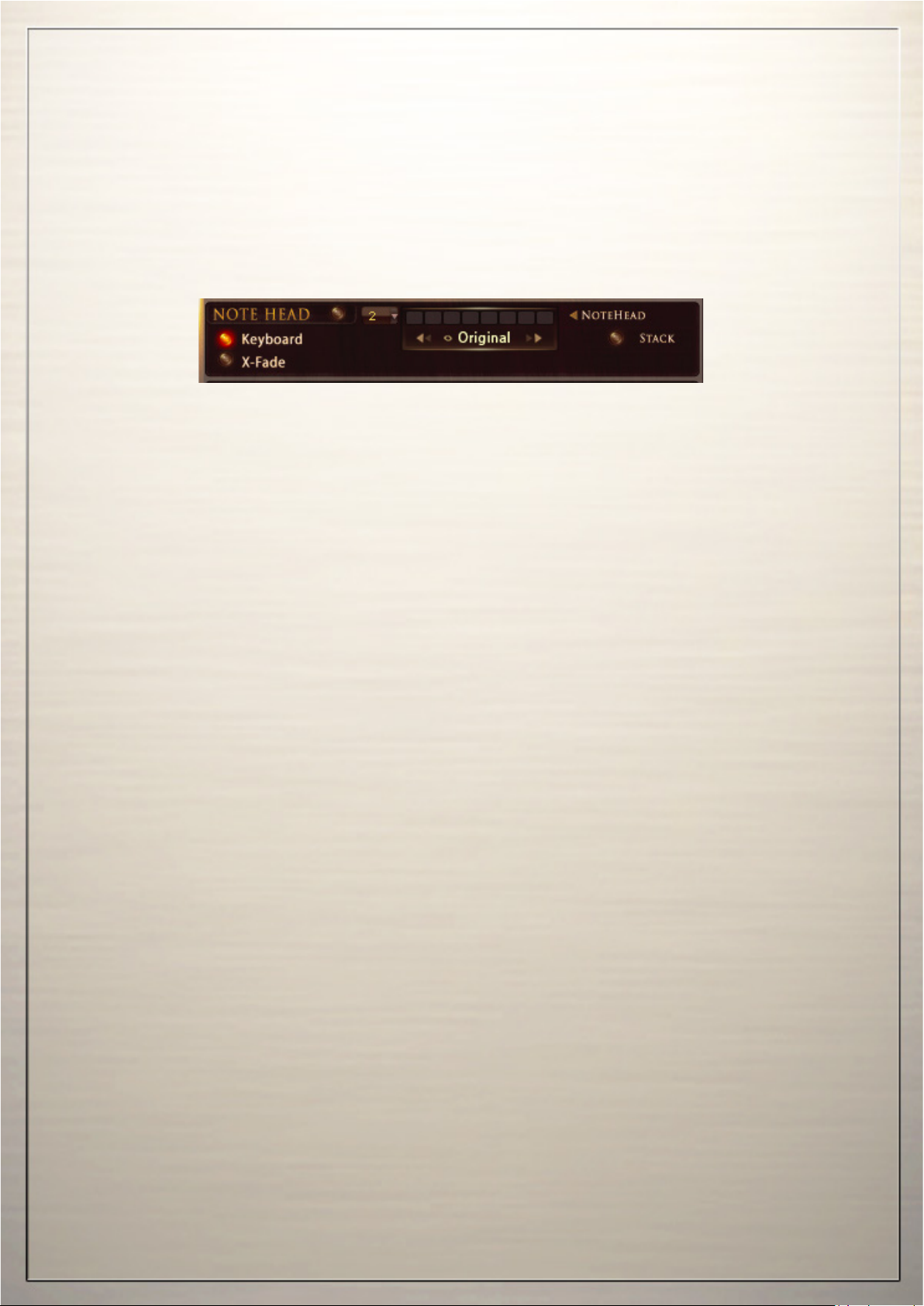
Note Head Designer:
This is a unique function which you probably haven‘t seen in any other virtual instrument before.
“Note Head“ lets you vary the attack and release shape of the sound in a fantastic new and exi-
bel way. Activate the Note-Head Designer with the switch on the left side.
Use a Midi-Controller (CC2 by default) to control the Note-Heads, or use the fader in the interface.
Setting the controller to zero playes the original articulation, as displayed on top of the interface.
Moving the controller up lets you switch through 4 dierent variations of the note-head.
These variations are short notes, recorded in 4 dierent length, each with 8 dynamic layers. Short1
has a length of more than a second, as you move up, the Note-Heads get shorter, until Spicc6,
which is an ectremly short Spiccato.
.
When playing lines like „Baa dap“, a sequence of short and long notes, you would usually use the
sustained articulation and just stop the note. However, it makes a huge dierence if the ending of
a short note is a real recording ending, or just a stopped sustained note.
“Stack“ oers a second function of the Note-Head is. When this is checked, the short notes are
layered wth the original articulation. Thanks to the phase-aligned samples, the blending is very
smooth.
-10-
Page 11
Articulation-Presets
Transient Designer, Legato, Portamento
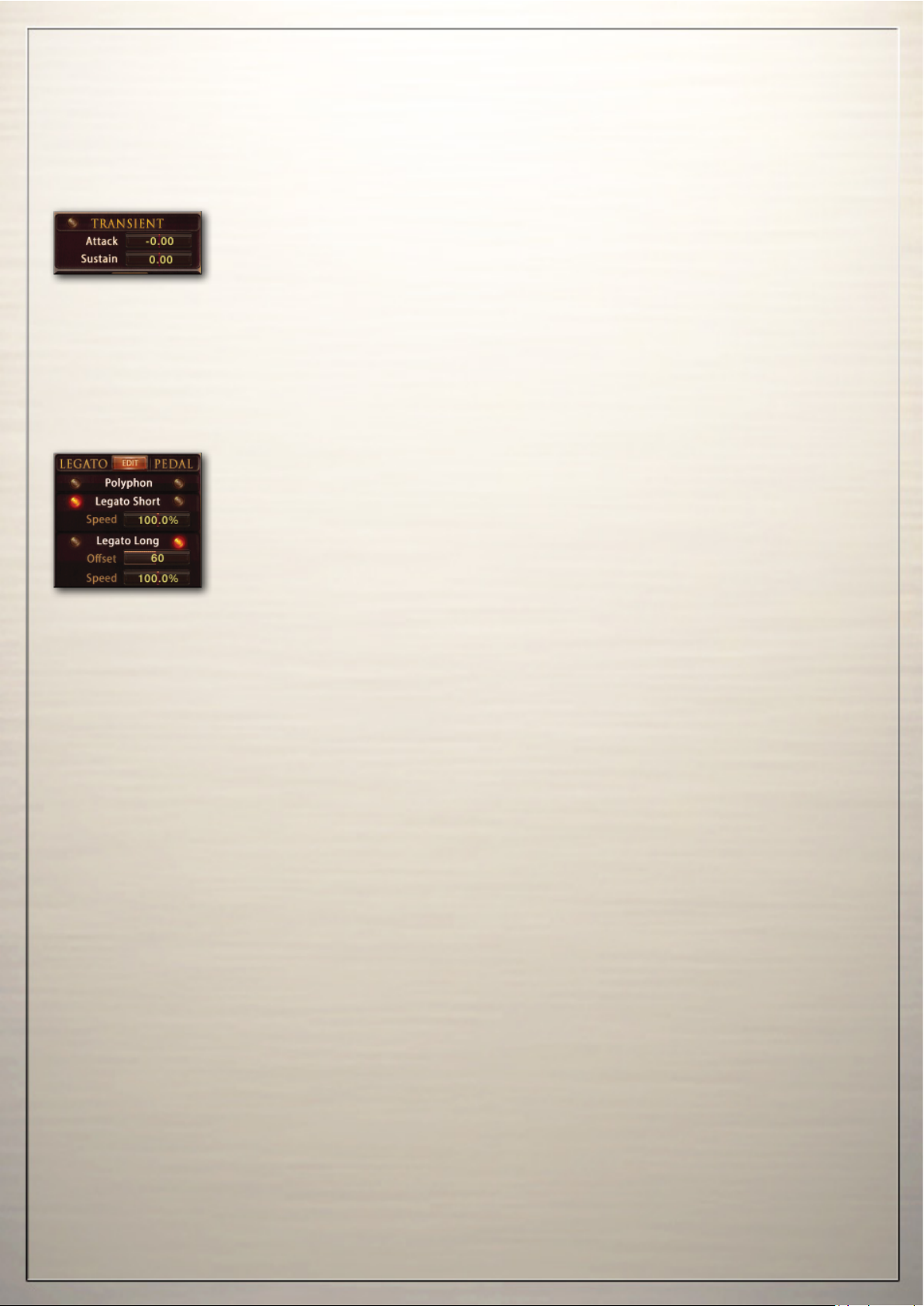
The Transient Designer is a compressor designed to control the attack and
sustain of a sound. Instead of following the amplitude of the sound like a traditional compressor, it follows the general envelope and is thus not as susceptible to changes of input gain.
Attack controls the scaling of the attack portion of the input signal’s volume envelope.
Increasing this parameter will add more punch and decreasing it will reduce sharp attacks.
Sustain controls the scaling of the sustain portion of the input signal’s volume envelope. Increasing
this parameter will add more body to the sound and decreasing it will reduce the sound’s tail.
Legato
Polyphon lets you play polphonic chords, no legato transition is audible.
Legato lets you play monophonic lines with a legato transition.
Speed controls the length of the legato transition.
Legato Long performes a smooth portamento with varialble speed.
Speed controls the length of the portamento transition.
Oset controls the starting point of the portamento transition.
CH-Strings Compact has a polyphonic legato.
Setting the instrument to Legato does not mean you can only play monophonic lines.
All notes played within a certain time range. are recognized as chords, even if if set to Legato.
The combination of „Speed“ and „Oset“ oers a wide range of portamento transition.
If oset is set to 0, you‘ll here a string player sliding from the source to the destination note. Moving
the Oset fader up, cuts the beginning of the portamento transition, This simulates a string player
moving his nger to the next string and perform the slide from there to the destination note.
With „Speed“ and „Oset“, any kind of portamento transition is possible.
From a full slide from one note to the other, to a very subtle grace note transition.
Pedal If you have a sustain pedal connected to your midi keyboard, the legato settings allow you
to change the function of the pedal.
If set to „Polyphon“ the pedal acts as a regular hold pedal If no pedal is connected, you can use CC
64 to switch between Polyphon, Legato, Legato Long or Glide-Mode.
-11
Page 12
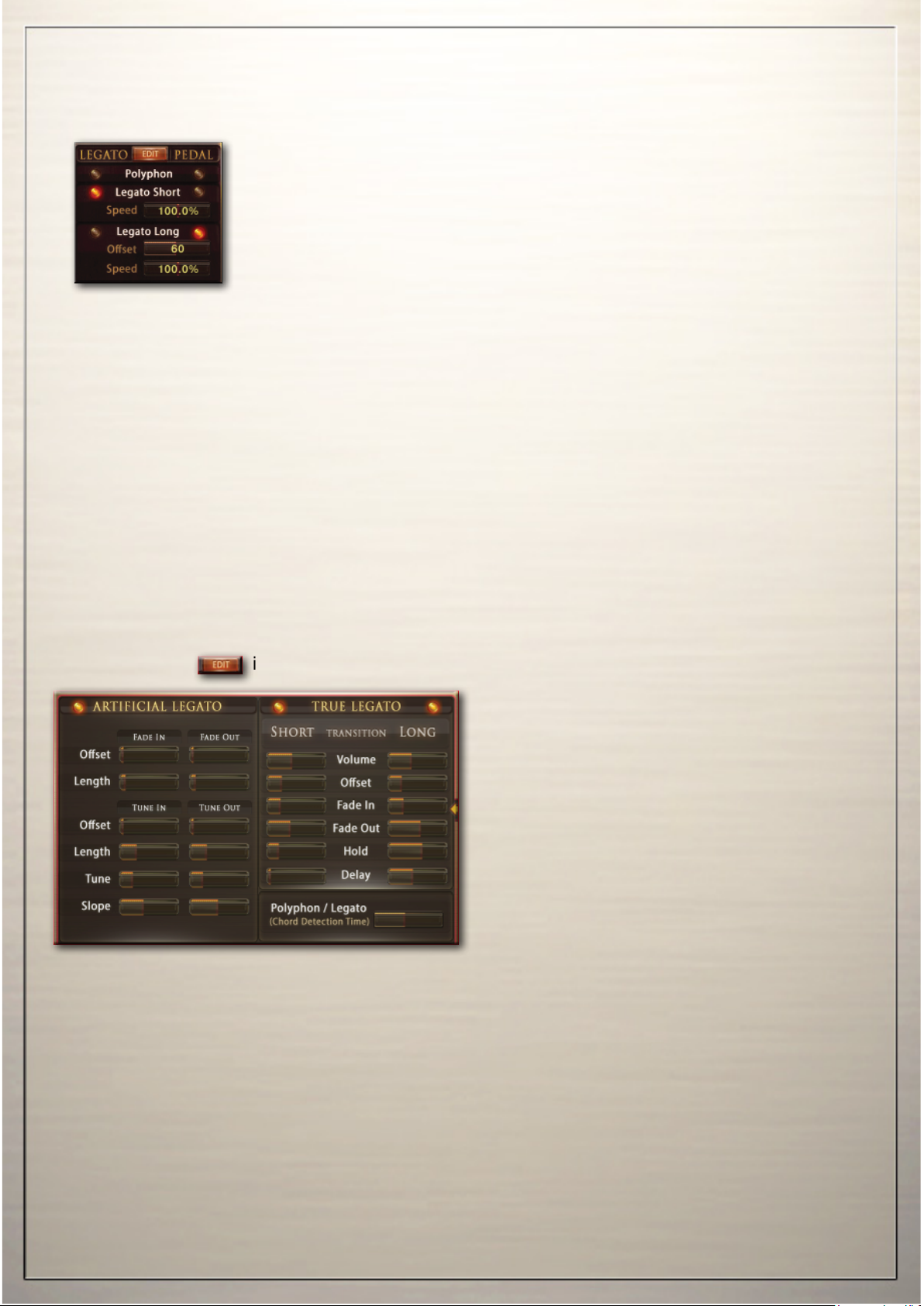
Legato Settings
Legato Mode, Legato Details
Legato Mode
When playing a note, holding it and playing another note, the Legato
performs a smooth transition between the two notes.
CH-Strings Compact uses an intelligent combination of two dierent real
recorded note-transitions and one articial legato engine which additio-
nally performes a smooth blending and pitch change.
We recorded note-transitions at 2 dierent speeds with 2 dynamic layers for each transition.
Every note transition from a halftone to an octave up and down has been recorded.
„Legato“ performs a natural note transition, while „Legato Long“ oers a long portamento.
By default the „Long Legato“ is assigned to the sustain pedal. So, simply pressing the sustain pe-
dal while playing ovelapping notes, performs smooth slide from on note to the other.
Speed lets you adjust the length of the portamento.
Oset lets you adjust the starting point of the portamento.
The combination of Speed and Oset oers a wide range of dierent portamento transitions.
A real string player often does not slide from one note to the other. When e.g. playing an octave, he
would place his nger on the next string, jumping to e.g. a fth and slides from there to the octace.
The Oset fader lets you simulate this behavior.
Also small interval grace-notes like a whole or halftones are possible.
You can edit the behavior of the Legato transition in detail in the Legato-Settings Page. by clicking
the „Edit“ button.
Activate legato playing in the Articulation Preset page.
Clicking the little icon brings you to the Legato Settings page to edit the details.
Legato Details
The settings for the True Legato Transitions
are perfectly set by default.
Actually there is no need to change something
here except the volume.
Be careful with the True-Legato edits.
changes may result in an urealistic behavior of
the legato transtion.
While Legato mode is activated, you still can play polyphonic.
All notes played within a certain time range are recognizes as a chord.
You can adjust the chord detection time in the Legato Edit page in ms.
There are separate controls for volume-fade in/out and for tune-fade in/out:
FadeOutOset(ms)Sets the time before the fade starts.
FadeOutLength(ms) Sets the length of the fade out.
TuneOutOset(ms)Sets the time before the detuning starts.
TuneOutLength(ms)Sets the length of the detuning.
Tune(c) Sets the amount of detuning in cents.
Slope Spreads the legato time. A higher value results in a shorter legato while playing small intervals like a semitone, and a longer legato when playing larger intervals, like an octave.
-12-
Page 13
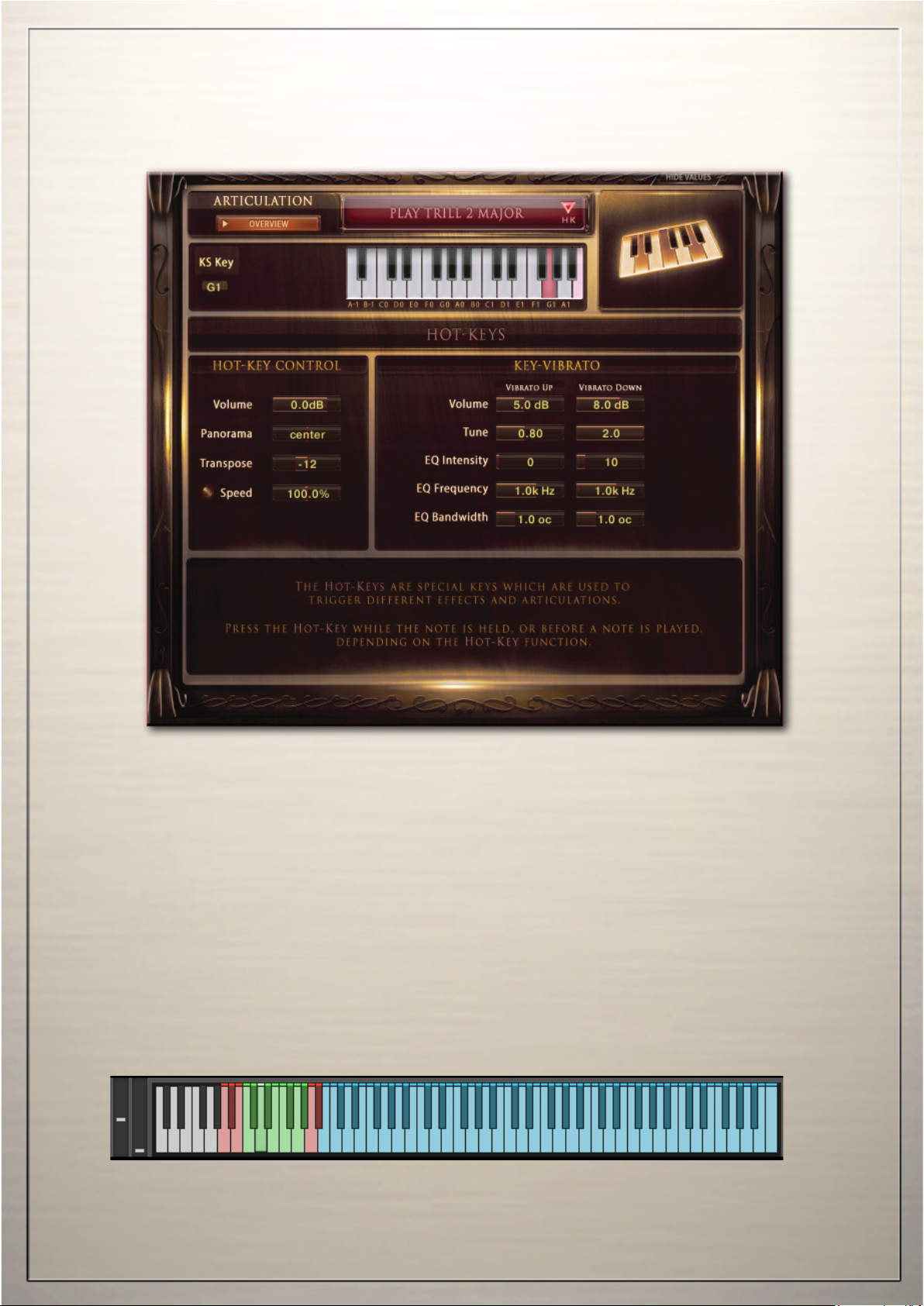
Articulation-Presets
Hot-Keys
The Hot-Keys are special keys which are used to trigger dierent eects and articulations.
Each of the 14 keys from A-1 to A#0 can be dened as a Key-Switch or as a Hot-Key Preset.
To assign a Hot-Key to a key on your midi keyboard, select one of the Hot-Key function from the
articulation drop down menu.
You can also set a Hot-Key to ‘Repeat Last Note’, which will literally retrigger the last note you
played. This is particularly useful for playing fast, legato repetitions which would otherwise not be
possible by simply re-playing the same note repeatedly.
In addition to repeating or retriggering the previous note played, hotkeys can also be used to modify the note currently playing. For example, a hotkey can be assigned to trigger a trill, which will
stop the note and play a realistic trill.
-13-
Page 14
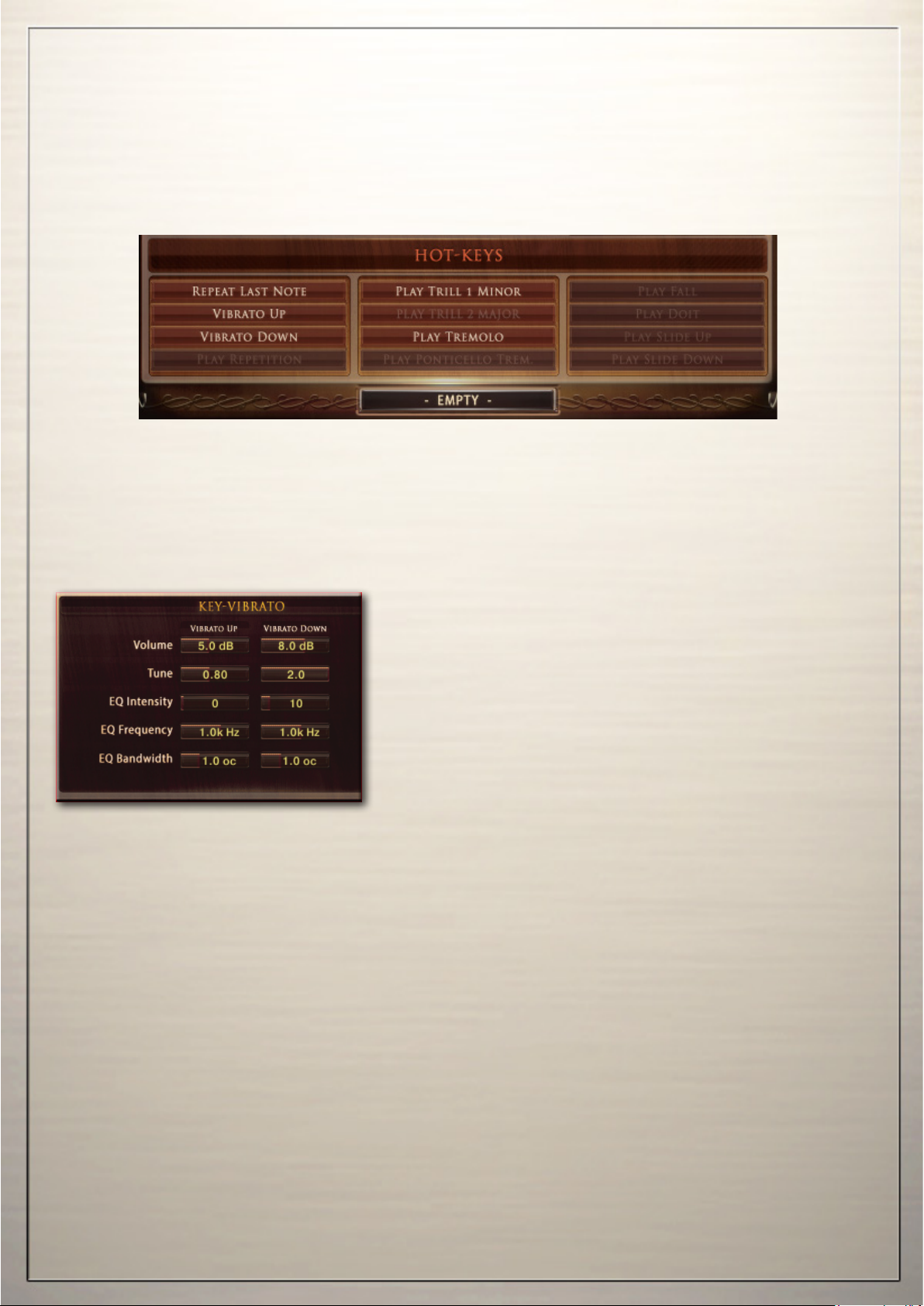
Articulation-Presets
Hot-Keys
The following functions are available through the Hot-Keys:
Repeat last note: This Hot-Key simply repeates the last note you have played.
This is great for fast repititions. No special controls are needed for this eect.
Key-Vibrato Up/Down: Rather than playing a static vibrato
with the modwheel, this enables you to perform the vibrato
manually on a key of your midi keyboard. You can choose
between Vibrato Up or Vibrato Down, which aects volume,
pitch and EQ of the note being heard.
A real vibrato, performed by a harmonica instrumentalist,
consists of a change in volume and pitch and a frequency
change.
You can edit all these parameters separately.
Play Trill: Pressing this Hot-Key while a note is being played, blends into the Trill articulation
Minor Trill plays a haltone, major trill triggers a whole tone.
Releasing the hot-Key while still holding the right hand note, switches back to the original articula-
tion. This is great to throw in some ornaments on the y.
Play Tremolo: Pressing this Hot-Key while holding a note activates the Tremolo articulation.
The speed can be adjusted.
-14-
Page 15
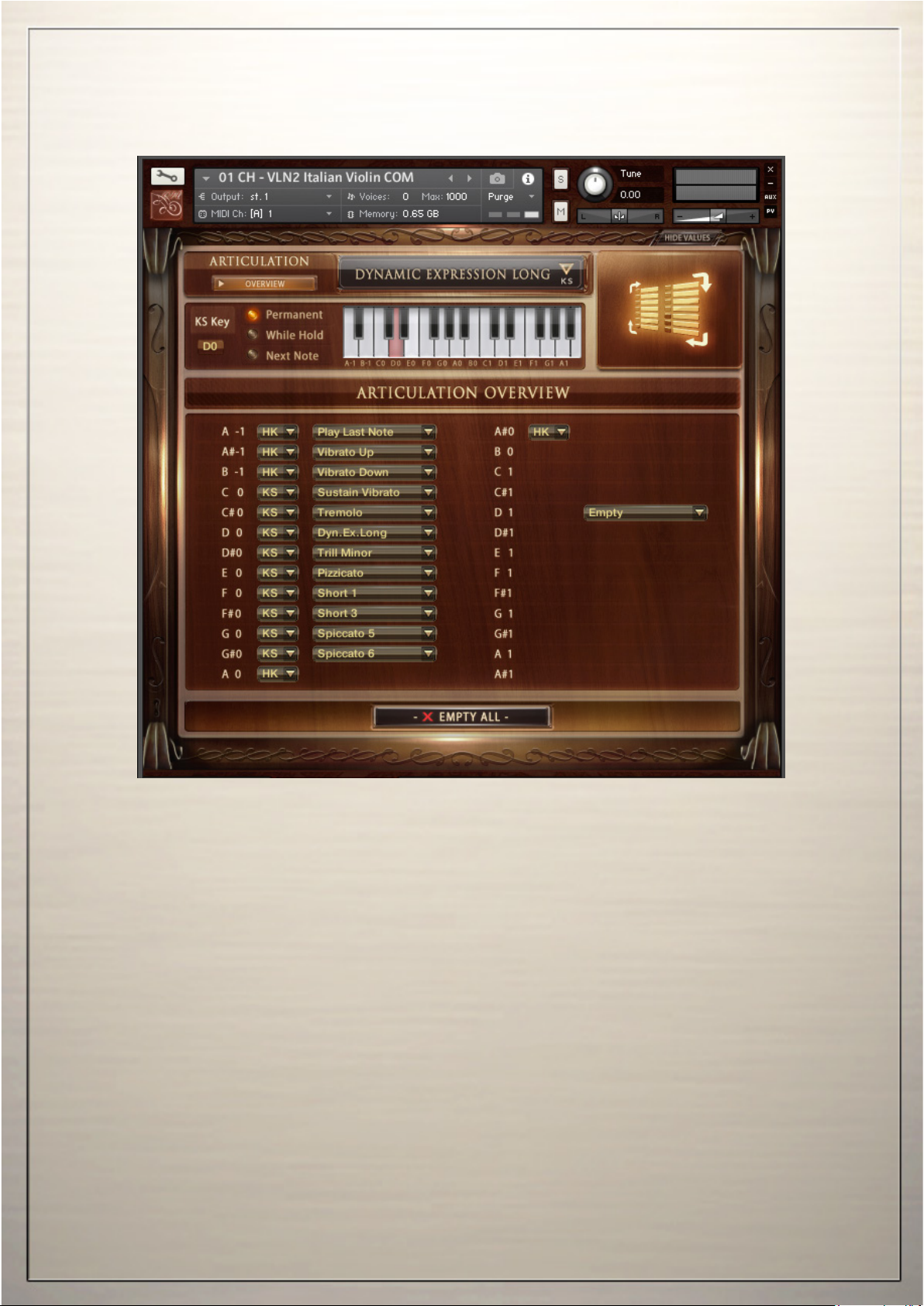
Articulation Overview
A list of all selected articulations and Hot-Keys is avalable through the Articulation Overview tab.
You can select from dierent articulations in the drop down menu and you can dene if the preset
should be a Key-Switch (KS) or a Hot-Key (HK).
However, dene the details of the selected articulation in the Articulation-Presets page.
The Articulation Overview page is also handy to unload articulations which you don’t need.
If you only need one or a few articulations, setting the unneeded preset to “Empty” saves a lot of
RAM.
All features in the instrument which require RAM have an on/o switch.
Switching features you don‘t need to o can save you a lot of worthy computer performance.
-15-
Page 16
Settings / DSP FX
Fader Setting, Release-EFX, Dynamic
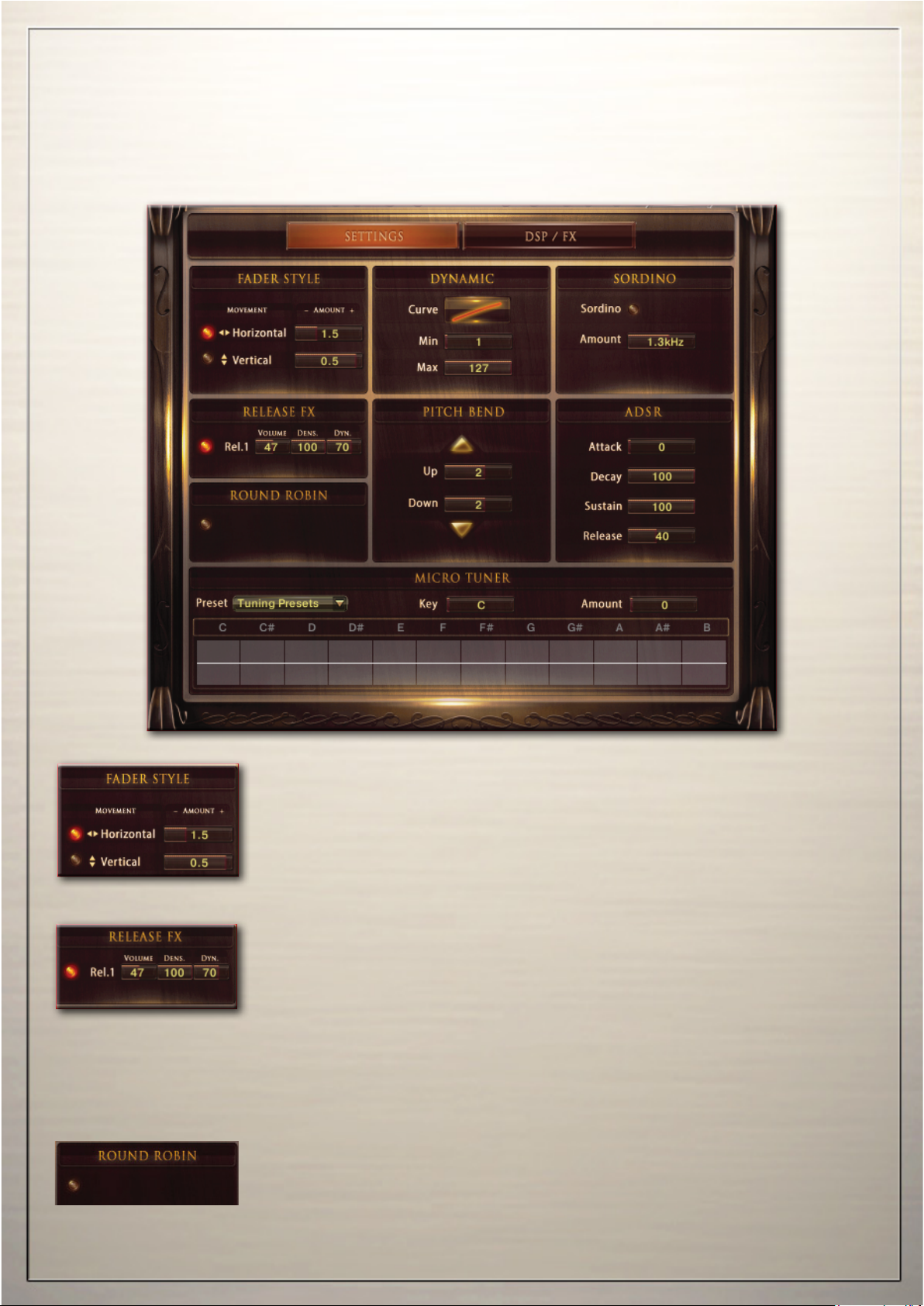
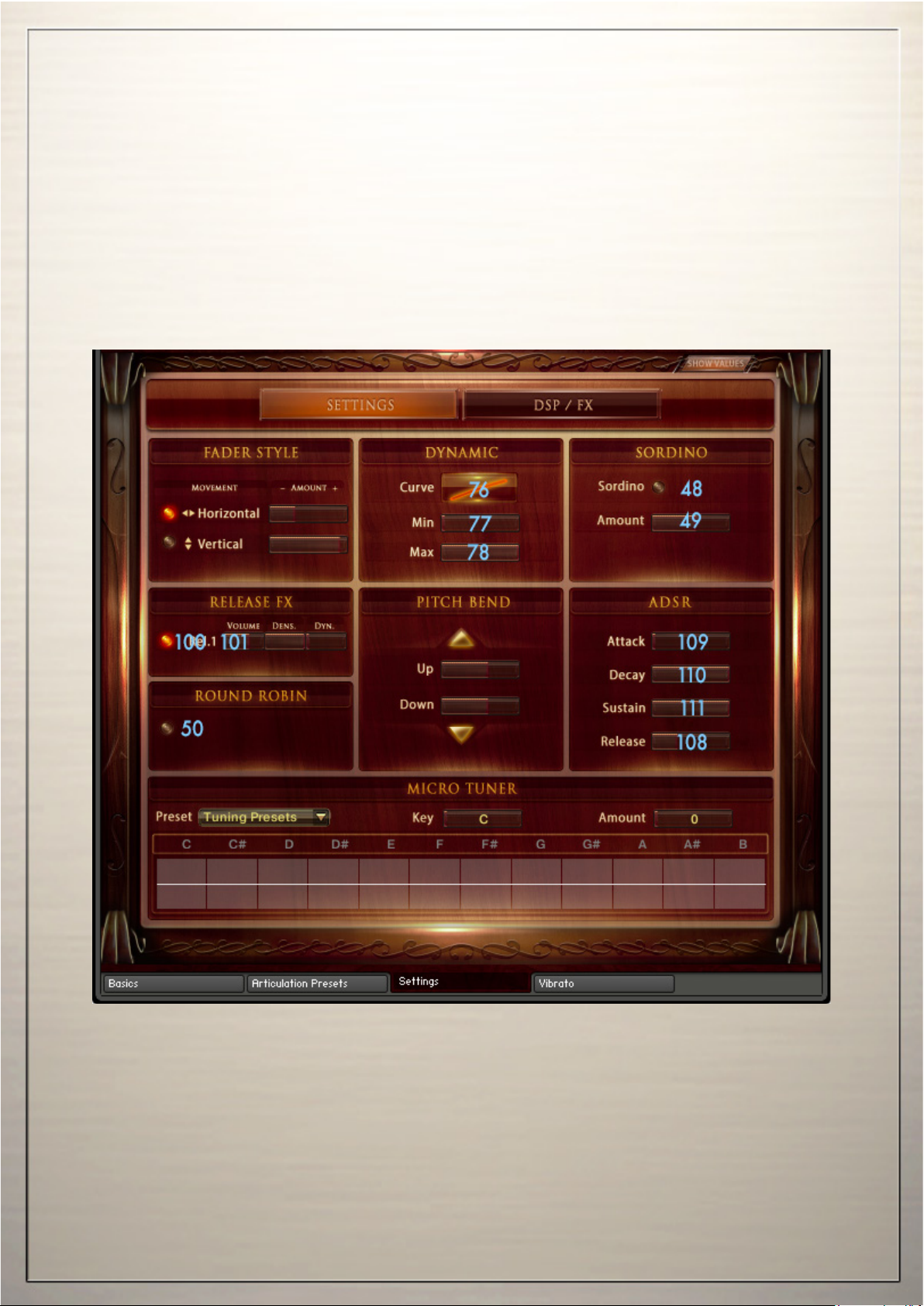
The functions on the Sound-EFX page work as global parameters for all articulation presets.
Use the buttons in the headline to switch between „Settings“ and „DSP-FX“.
Fader Setting:
Adjust the behavior of your mouse with these controls
Most faders in the instrument are horizontally, but if you prefer to
control them with a vertical movement of your mouse, you can switch
to „Vertical“. You can also adjust the length of the mouse movement.
Check which settings works best for you.
Release EFX:
The Release EFX work on the release of a note. Play a note, raise the
knob and release the note at any time to hear the selected eect.
Rel1 - Adds a natural release sound.
Volume - sets the volume of the release sample
Density - sets the amount of release-samples being played.
Setting density to 100% means all notes have a release sample.
Setting it to 50% means, every second note is played with a release
sample.
Round Robin:
Round robin alters the notes automatically.
-16-
Page 17
Sound EFX
Pitchbend, Ensemble, ADSR, Micro-Tuner
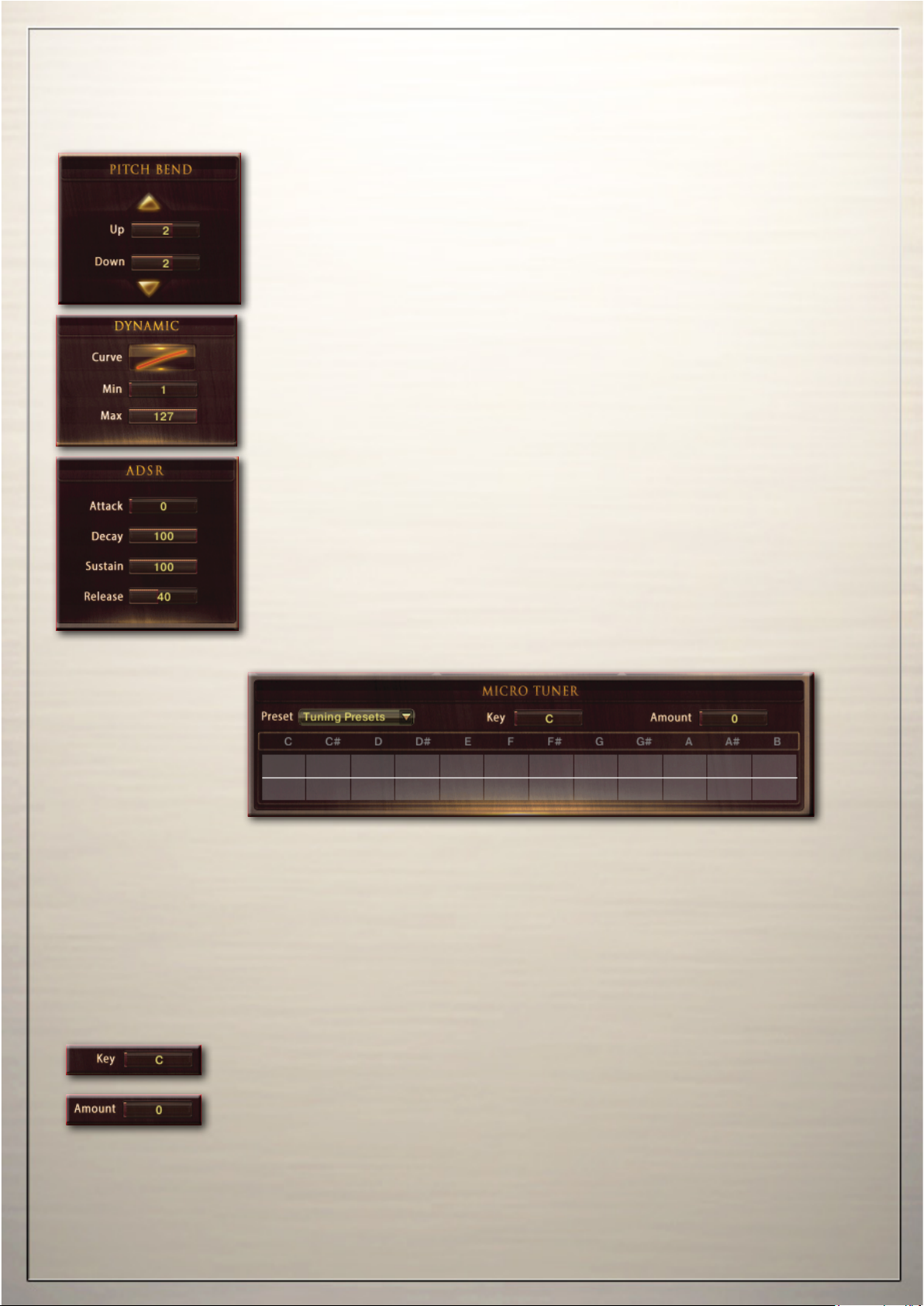
Pitchbend:
You can assign the Pitchbend range separately for Bend Up and Bend
Down from 1 to 12 semitones.
Dynamic:
Lets you control the Velocity Response of your midi keyboard.
Curve - Sets the curve for the Velocity Response.
Setting the curve to 0 results in a linear response.
Min - Sets the Minimum velocity.
ADSR:
Attack - Sets the Fade In time for the sound.
Decay - Sets the time until the Sustain level is reached.
Sustain - Sets the level maintained from the end of the Decay stage
to the start of the Release stage.
Release - Sets the Fade Out time after releasing the key.
Micro-Tuner:
All samples are perfectly tuned to the standard chromatic scale with A at 440Hz. However, real
players usually don’t play perfectly in tune. You can edit the tuning in precise detail using the MicroTuner. You can create your own tuning scales by shifting the tuning of each note up or down, or you
can use one of the pre-programmed tuning scales based on some of the most famous historical
scales.
Tuning Presets:
12 Micro-Tuning preset scales are available. You can build your own tuning scales or use the preprogrammed scales and edit them in order to create your own scales. In addition to the Micro-
Tuning scales, you can ne tune each instrument in its channel strip in the Mixer Page.
Key:
Sets the root key of the scale.
Amount:
Scales the overall amount of detuning.
Other Tuning Methods:
A Master tuning knob for all instruments is available in the header of the virtual instrument on the
Play-Page. Hold down the shift key (of your computer keyboard) while turning the on-screen knob
for ne-tuning.
-17-
Page 18
Vibrato
LFO-Vibrato / Auto-Vibrato
Two types of Vibrato are available.
Choose between manual LFO-Vibrato, and Auto-Vibrato.
The vibrato type can be set individually for each articulation preset.
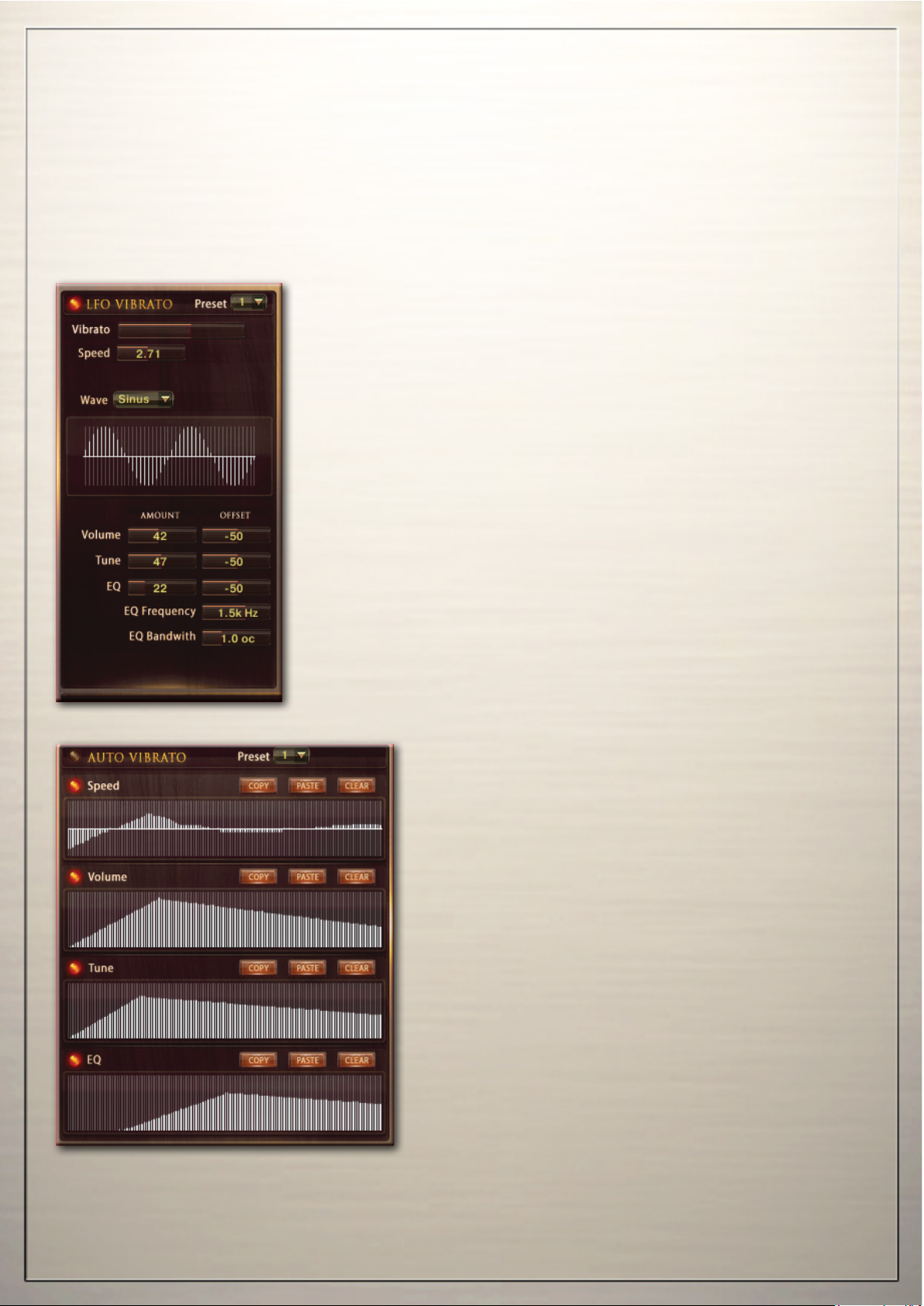
Vibrato:
These are the controls for the intelligent LFO-based Vibrato
available through CC01 (Modwheel).
You can Change the CC from 1 to any other CC.
The following controls are available for LFO-Vibrato:
Vibrato - Sets the amount of vibrato.
CC - Sets the midi controller to control the vibrato.
(CC1 - Modwheel by default)
Speed - Sets the speed of the volume and pitch change.
Volume - Sets the volume of the vibrato.
Tune - Sets the degree of pitch change.
Setting tune to 0 performs a tremolo.
EQ - Activates a lter to simulate a realistic hand-damping.
Works best in combination with Volume and Tune.
EQ Frequency - Sets the frequency for the lter.
EQ Bandwidth - Sets the bandwidth of the lter frequency.
Wave - choose from dierent waveforms to set the vibrato curve.
Auto - Vibrato:
performes an automatic vibrato curve.
Instead of using the Modwheel, you can draw dierent
curves to set the development of the vibrato over time.
The following controls are available for Auto-Vibrato:
Preset - Choose from dierent pre-programmed curves
Speed - Sets the speed over time.
Volume - Sets the volume curve over time.
Tune - Sets the amount of detuning over time.
EQ - Sets the amount of ltering over time.
Copy - Copy the curve to paste it into another table
Paste - inserts a copied curve
Clear - Resets the curve to a clear table
Vibrato can also be controlled via the innovative Hot-Key Vibrato (See page 13/14)
-18-
Page 19
DSP Effects
.
-19-
Page 20
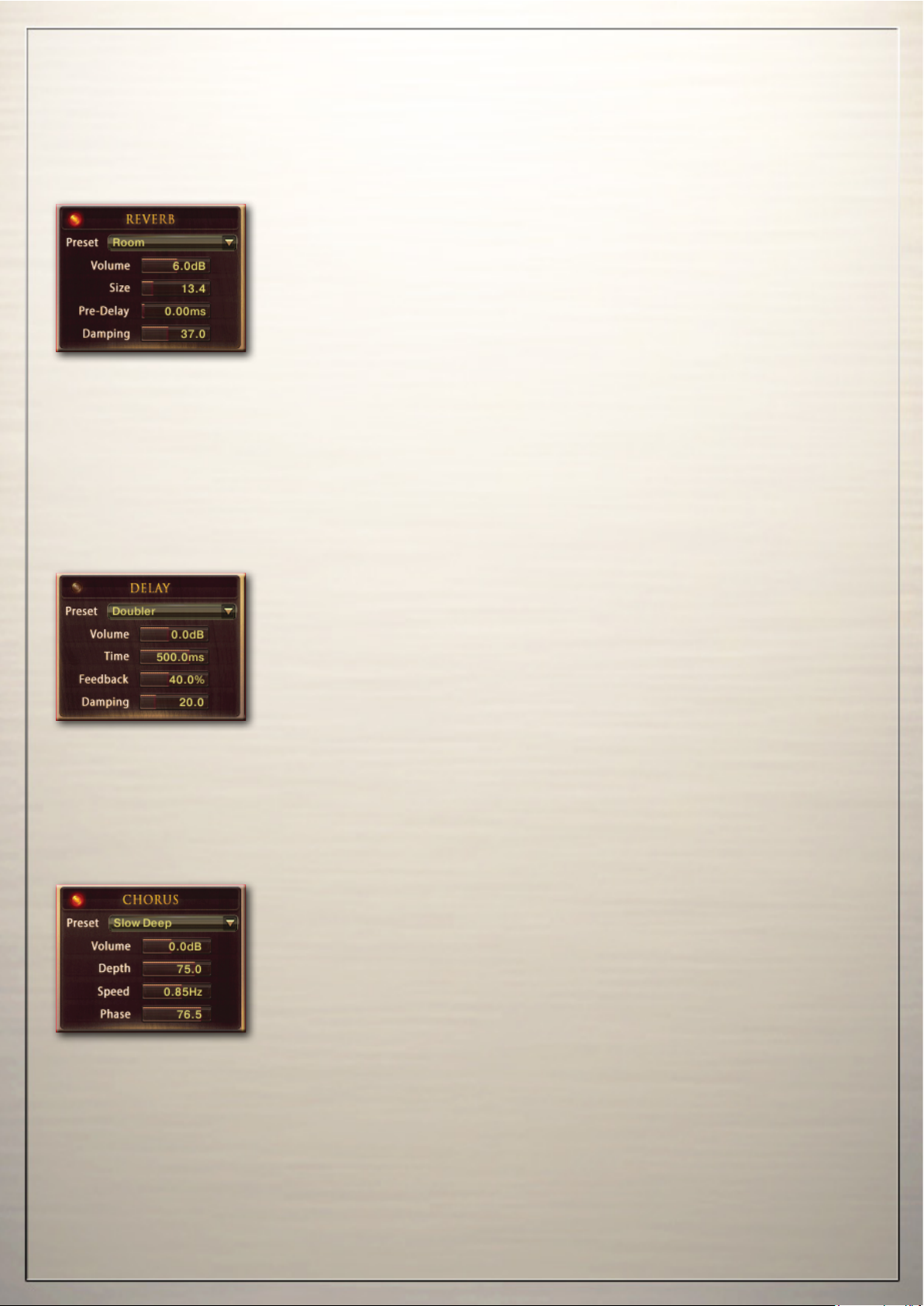
DSP Effects
Reverb, Delay, Chorus
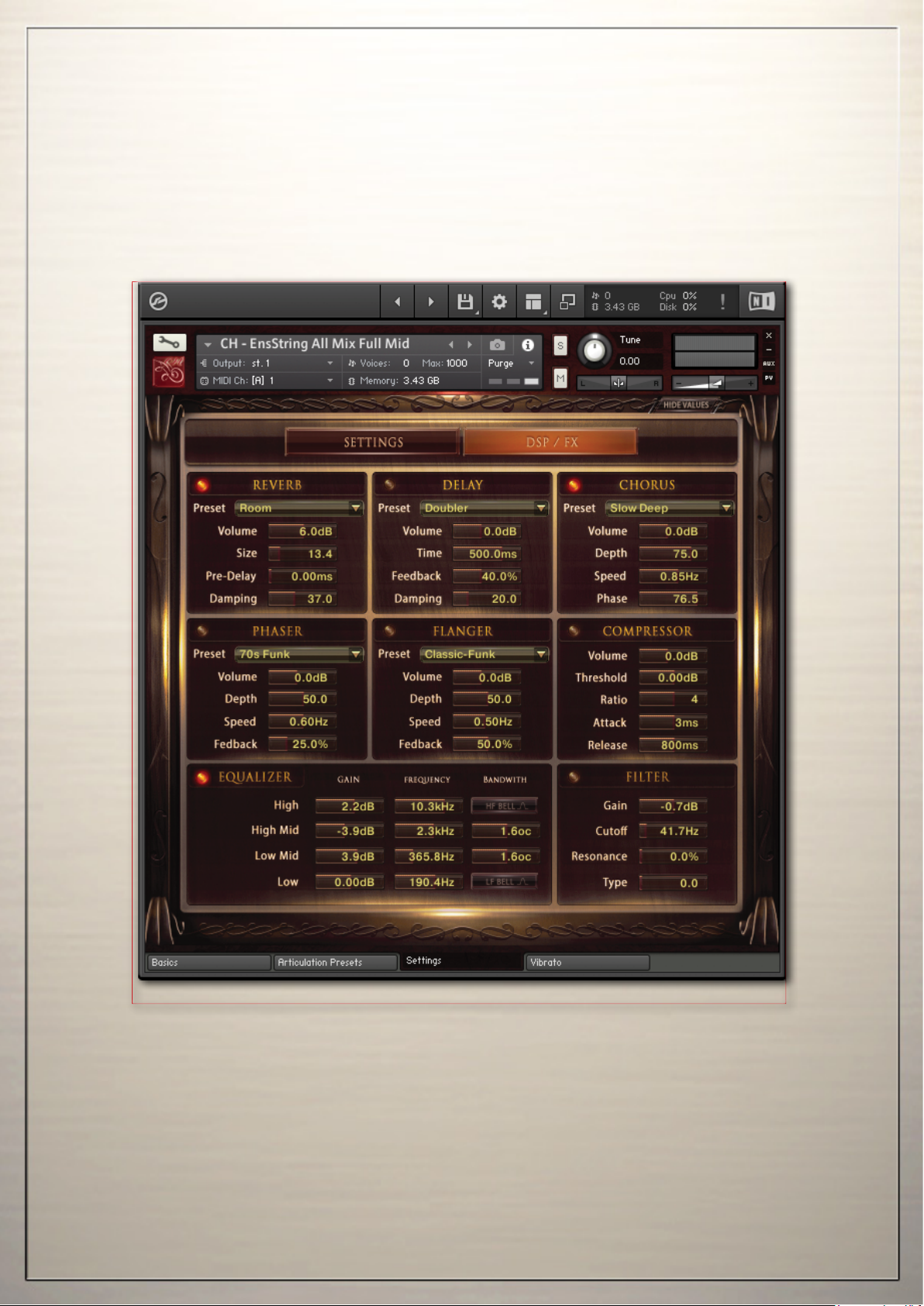
Reverb
Preset: Dierent pre-programmed eects.
Volume: Level of the reverb eect.
Pre-Delay: Introduces a short delay between the direct signal and the
reverb trail build-up. This corresponds to the natural reverberation behavior of large rooms, where a short time elapses before the rst reection of a sound wave returns from a wall.
Size: Adjusts the size of the simulated room. This aects the duration
of the reverb trail.
Damping: Sets the amount of simulated absorption that takes place in
rooms due to furnishings, people, or acoustic treatments aecting the
reection behavior.
Delay
Preset: Dierent pre-programmed eects.
Volume: Level of the delay eect.
Time: The delay time in milliseconds. To synchronize the time to your
host or Master Editor tempo, click on the Speed parameter’s unit display and choose a note length value from the drop-down list.
Feedback: Controls the amount of the output signal that’s being fed
back into the input of the delay line, thereby creating a series of echoes
that gradually fade into silence.
Damping: Attenuates high frequencies in the delayed signal. Turning
this control clockwise will increase the damping eect. If you have set
a feedback level, the signal will gradually lose more high frequency
content with each repetition.
Chorus
Preset - Dierent pre-programmed eects.
Volume - Level of the chorus eect.
Depth: Adjusts the range of modulated detuning. Higher values give a
more pronounced chorusing eect.
Speed: Adjusts the LFO speed. To synchronize the speed to your host
or Master Editor tempo, click on the Speed parameter’s unit display
and choose a note length value from the drop-down list.
Phase: Imparts an LFO phase dierence between the left and the right
stereo channel. This can considerably increase the width of the output
signal’s stereo base.
-20-
Page 21
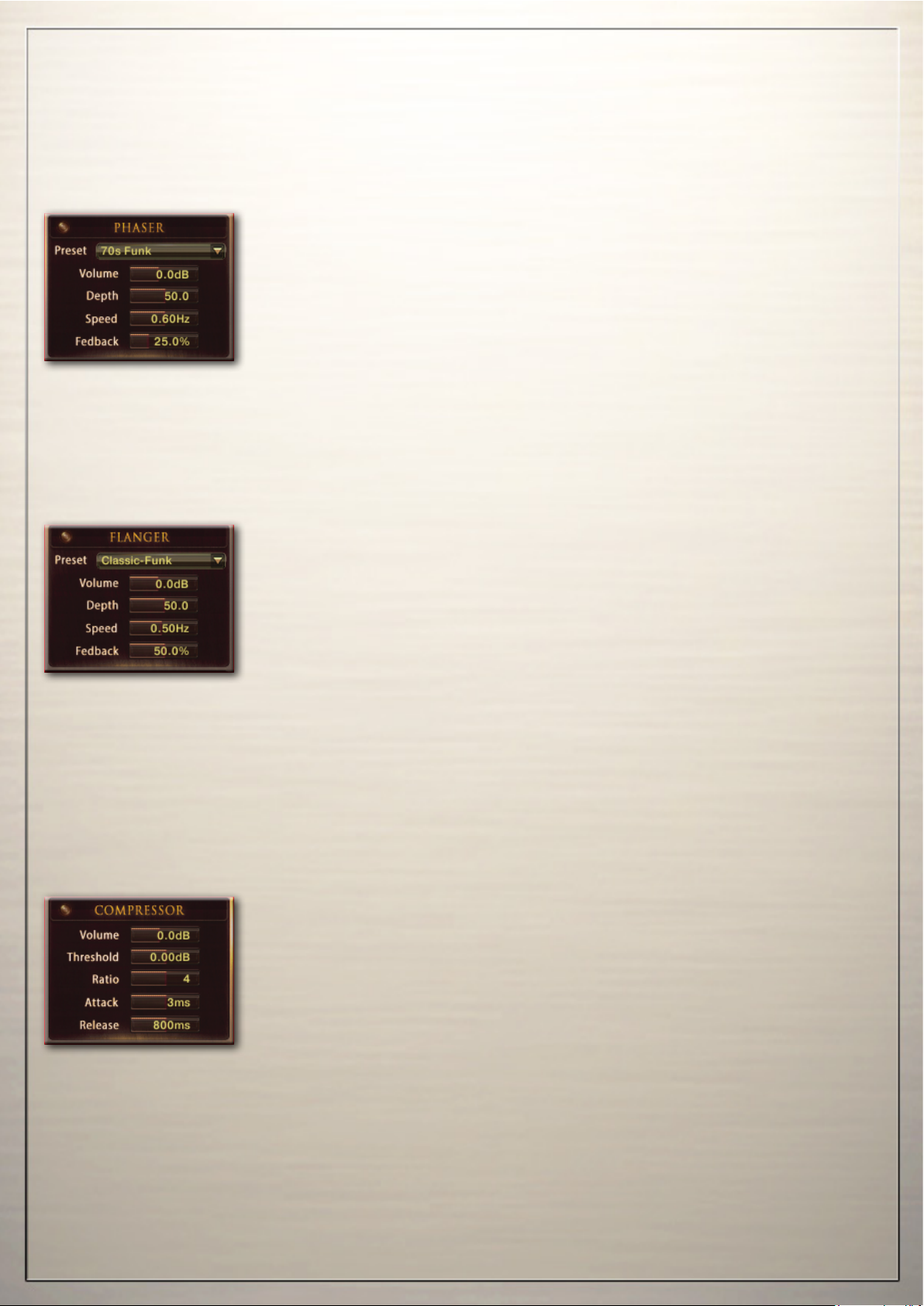
DSP Effects
Phaser, Flanger, Compressor
Phaser
Preset: Dierent pre-programmed eects.
Volume: Level of the phaser eect.
Depth: The amount of LFO modulation. Higher values cause the pha-
ser eect to sweep over a wider frequency range.
Speed: The LFO modulation speed. To synchronize the speed to your
host or Master Editor tempo, click on the Speed control’s unit display
and choose a note length value from the drop-down list.
Feedback: This control adjusts the emphasis of the peaks and not-
ches that the comb lter eect imparts on the signal.
Flanger
Preset: Dierent pre-programmed eects.
Volume: Level of the anger eect
Depth: The amount of LFO modulation. Higher values cause the an-
ging eect to sweep over a wider range.
Speed: The LFO speed. To synchronize the speed to your host or Master Editor tempo, click on the Speed parameter’s unit display and
choose a note length value from the drop-down list.
Feedback: Feeds a certain amount of the delayed signal back into the
module’s input, thereby creating a more pronounced eect.
Compressor
Preset - Dierent pre-programmed eects.
Volume - Gain of the compressed signal.
Threshold - Sets a level threshold above which the Compressor starts
working. Only levels that rise above this threshold will be reduced by
the compression; signals that stay below it will be left unprocessed.
Attack - Adjusts the time the Compressor will take to reach the full
Ratio value after an input signal exceeds the Threshold level.
Ratio - Controls the amount of compression, expressed as a ratio of
“input level change” against “output level change”. A Ratio of 1:1 means that no compression will be happening. For example, a setting of
4 represents the ratio 4:1, which means for every 4 decibel increase
of amplitude above the threshold, the output will increase by only 1
decibel.
Release - Adjusts the time the compressor will take to fall back to noncompression after the input signal falls below the threshold.
-21-
Page 22
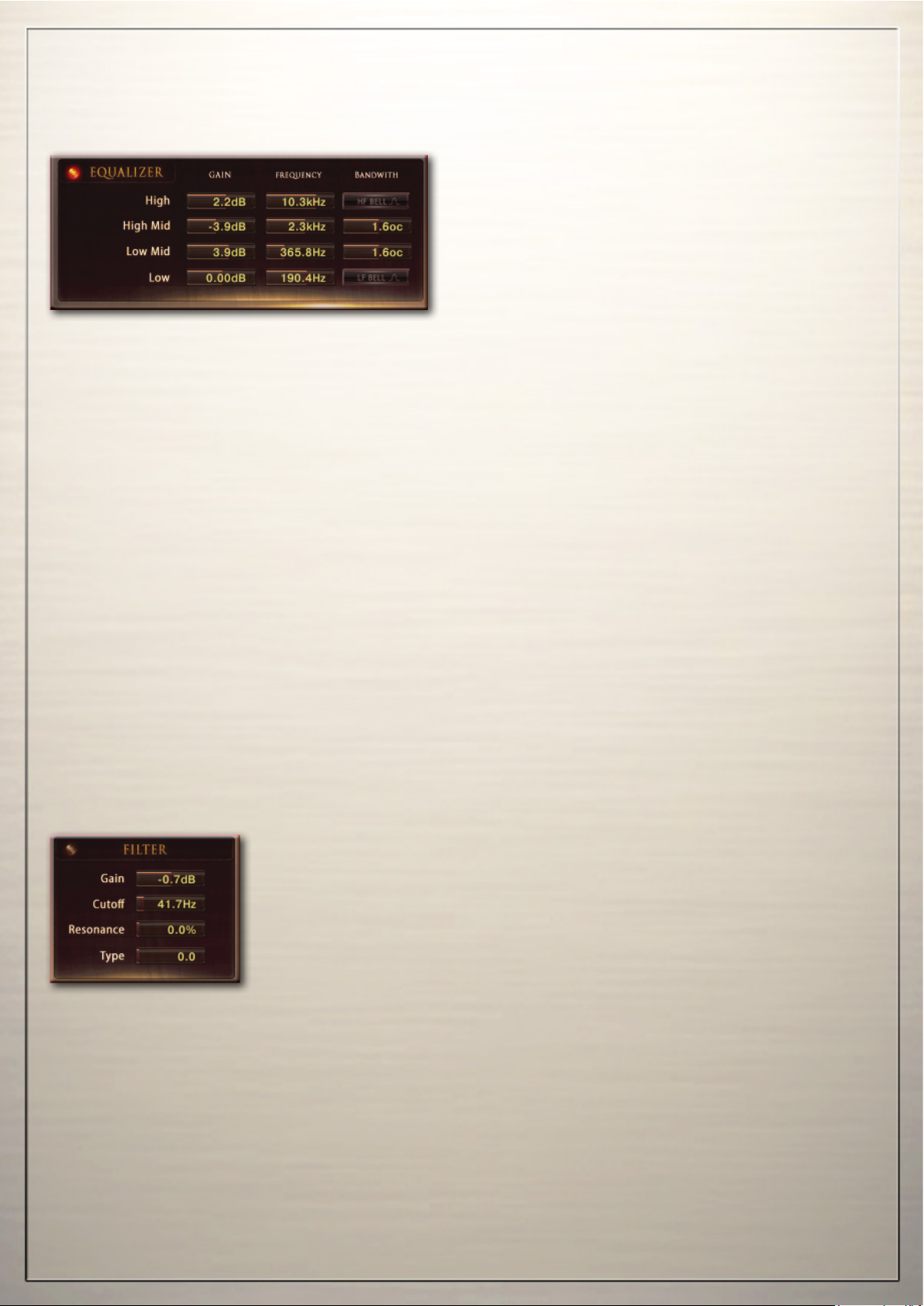
DSP-Effects
Solid G Equalizer, Filter
Solid G Equalizer
The Solid G-EQ is a 4-band parametric EQ
and oers the choice of bell or shelf style
control of the low and high frequency bands.
LF Gain: Adjusts the amount of boost or cut at the LF Frequency.
LF Freq: Adjusts the center frequency of the low frequency band at which the boost or cut will
occur.
LF Bell: Toggles the bell shape of the low frequency band. If turned o, the band becomes a shelf.
LMF Gain: Adjusts the amount of boost or cut at the LMF Frequency.
LMF Freq: Adjusts the center frequency of the low-mid frequency band at which the boost or cut
will occur.
LMF Q: Controls the Quality (or Q) of the low-mid frequency band. For most EQs, the higher the
quality, the narrower the frequency band, but with this EQ the control is reversed to match the hardware it emulates and becomes a bandwidth control.
HMF Gain: Adjusts the amount of boost or cut at the HMF Frequency.
HMF Freq: Adjusts the center frequency of the high-mid frequency band at which the boost or cut
will occur.
HMF Q: Controls the Quality (or Q) of the high-mid frequency band. For most EQs, the higher the
quality, the narrower the frequency band, but with this EQ the control is reversed to match the hardware it emulates and becomes a bandwidth control.
HF Gain: Adjusts the amount of boost or cut at the HF Frequency.
HF Freq: Adjusts the center frequency of the high frequency band at which the boost or cut will
occur.
HF Bell: Toggles the bell shape of the high frequency band. If turned o the band becomes a shelf.
Filter
A high class lter can be used to limit the frequency of the sound.
When a real player uses his hand to shape the sound, its actually the same
eect. The high frequencies are lowered in volume. To achieve this eects
you can use the Hand-Damping Hot-Key or use the lter.
The following controls are avalable:
Gain: Adjusts the volume of the lter eect.
Cuto: Sets the frequency.
Resonace: Sets the bandwidth of the lter eect.
Type: Choose from dierent colors of the lter.
-22-
Page 23

MIDI-CC
List of pre-programmed midi controller
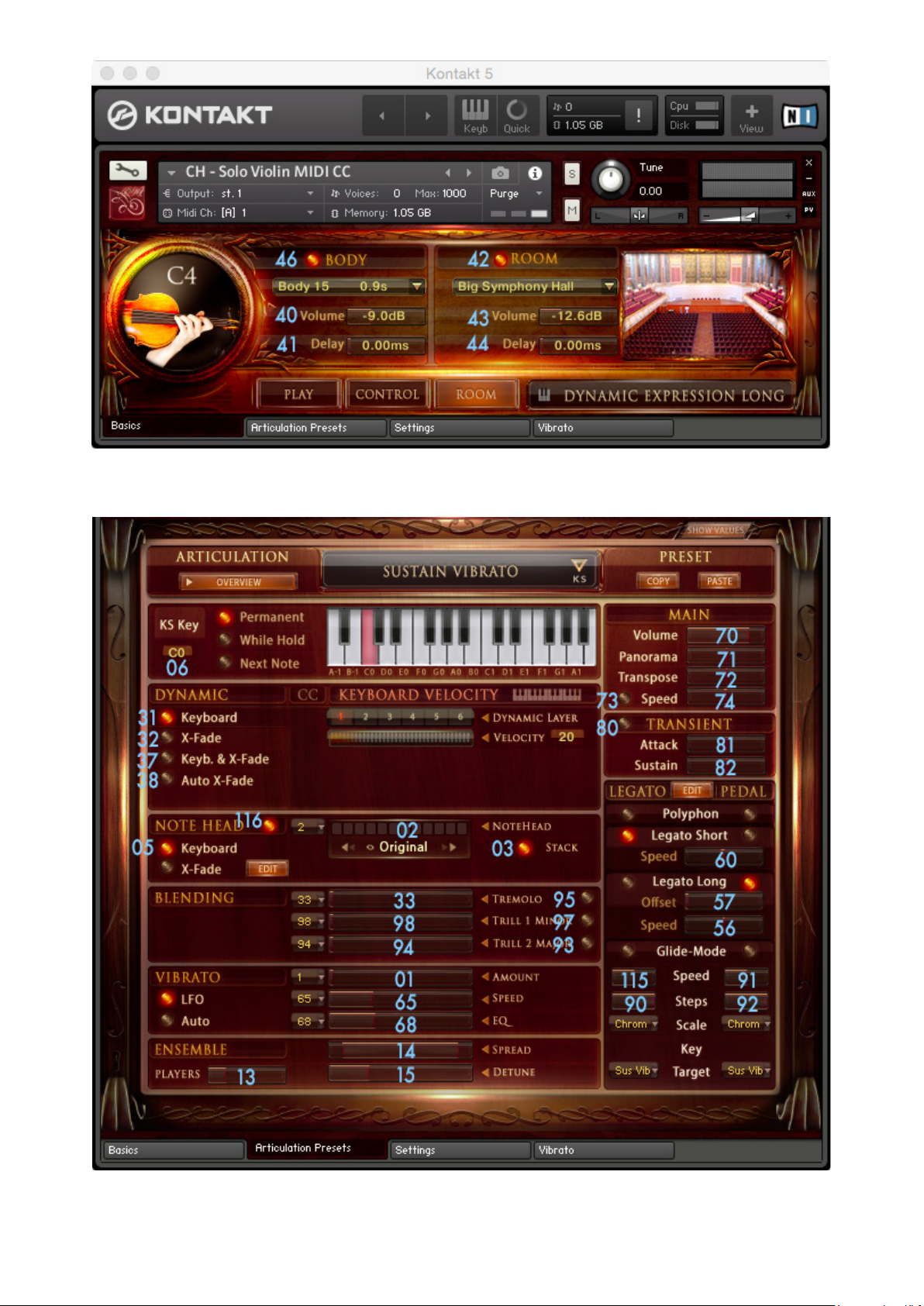
The instrument named „MIDI CC“
has pre-assigned MIDI CCs to completely remote control the instrument.
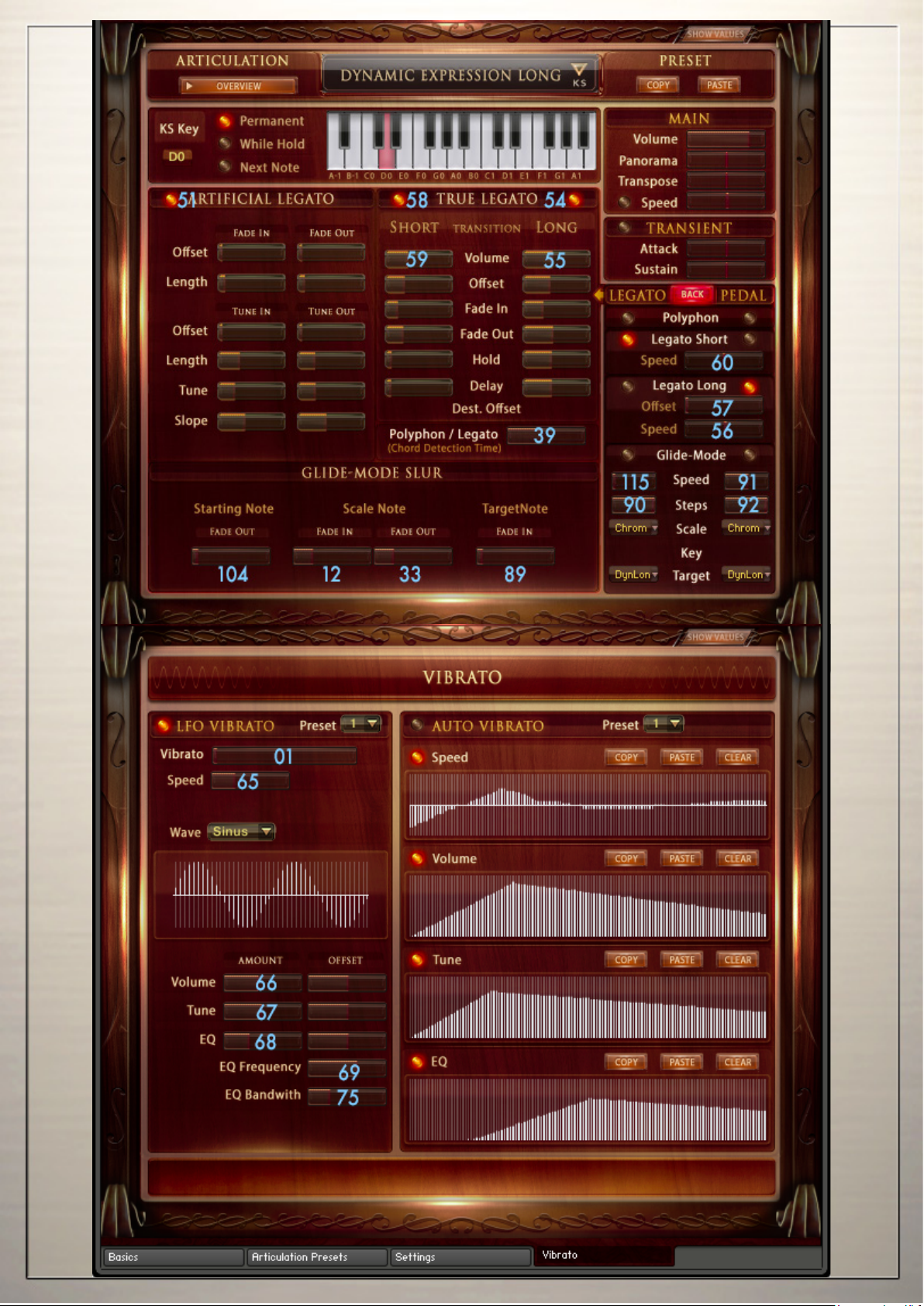
The following controls are used internally by the script and should NOT be used:
16,17,18,19,20,21,22,24,25,26,27,30,34,35,36,112,113,114,117,118, 120,121,122,123,124,125,126,127
General Controls
06 Key-Switch Select
07 Global Volume
10 Global Pan
09 Global Tune
70 ArticulationVolume
71 Articulation Pan
72 Articulation Transpose
73 Articulation Time On/O
74 Articulation Time
Live controls
02 Note Head Selector
116 Note Head On/O
03 Note Head Stack
05 Note Head Keyboard / X-Fade
80 Transient Designer On/O
81 Transient Designer Attack
82 Transient Designer Sustain
Dynamic Modes
11 X-Fade Amount
31 Dynamic Mode Keyboard
32 Dynamic Mode X-Fade
37 Dynamic Mode Key & X-Fade
38 Dynamic Mode Auto X-Fade
Articial-Legato:
51 Articial Legato On/O
Sound EFX
48 Sordino On/O
49 Sordino Frequency
50 Round Robin On/O
Blending
95 Tremolo On/O
96 Tremolo Volume
97 Trill 1 On/O
98 Trill 1 Volume
Release
100 Release1 On/O
101 Release1 Volume
ADSR
109 Attack
110 Decay
111 Sustain
108 Release
Dynamic
76 Curve
77 Minimum
78 Maximum
Ensemble
13 Ensemble Maker Voices
14 Ensemble Maker Spread
15 Ensemble Maker Detune
True-Legato Short:
58 True Legato Short On/O
59 True Legato Short Volume
60 True Legato Short Speed
True-Legato Long:
54 True Legato Long On/O
55 True Legato Long Volume
56 True Legato Long Speed
57 True Legato Long Oset
39 Polyphon / Legato Chord Detection Time
LFO Vibrato
01 Vibrato Amount
65 Vibrato Speed
66 Vibrato Volume
67 Vibrato Tune
68 Vibrato EQ Volume
69 Vibrato EQ Frequency
75 Vibrato EQ Bandw.
Convolution Reverb
46 Body On/O
40 Body Volume
41 Body Delay
42 Room On/O
43 Room Volume
44 Room Delay
-23-
Page 24
-24-
Page 25
-25-
Page 26
-26-
Page 27
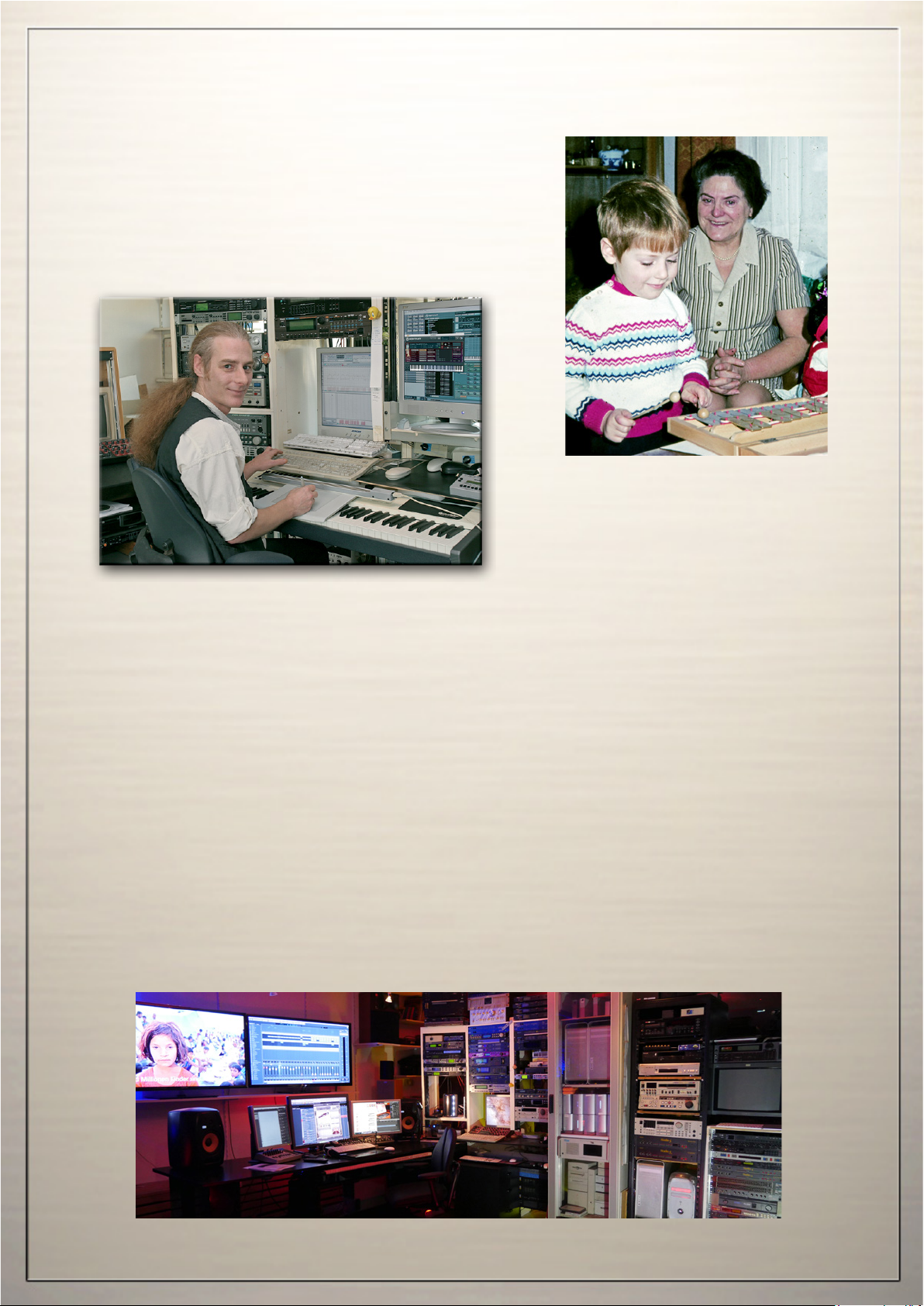
Chris Hein
Recording / Programming
Chris Hein‘s musical career started at the age of 5
with the rst professional Glockenspiel, a present
from his Grandma. From that moment his way as a
musician was unstoppable. 4 years later he upgraded
to a real piano, later he learned guitar and bass.
Chris Hein has over 30 years of experience with sound samples. By 1986 he had already produced the legendary “Studio-Sample” series for Metra-Sound.
In1985hewasoneoftherstcomputerpioneers,tousetheCommodoreC-64forcomputer
music.HisworkforEmagic(theC-Labapplication)attheFrankfurtMusicExhibitionsetthe
courseforhissuccessfulworkasasound-arranger.WiththeSX-64,theworld’srstlaptop,
he traveled to various music studios in Europe.
From Atari to Mac, he eventually settled down with the foundation of “Hine-Studio” and created innumerable sounds for CD-Productions, Film & TV music, industrial shows and musicals. The focus of his work has always concentrated on the reproduction of real orchestras
withvirtualinstruments.Thecontractmusicals“AWorldforDeinhard”(1994)andthegreat
horse-musical productions “The Enchanted Forrest” (1996), “Goa” (2000) and “Sudakan”
(2010)consistexclusivelyofsamplesounds.Todayhisstudiocontainsanimpressivecollec-
tion of 22 samplers of various types.
In 1997 Chris Hein established the Film & Media production company:
“Wizard Media GmbH”.
-27-
Page 28
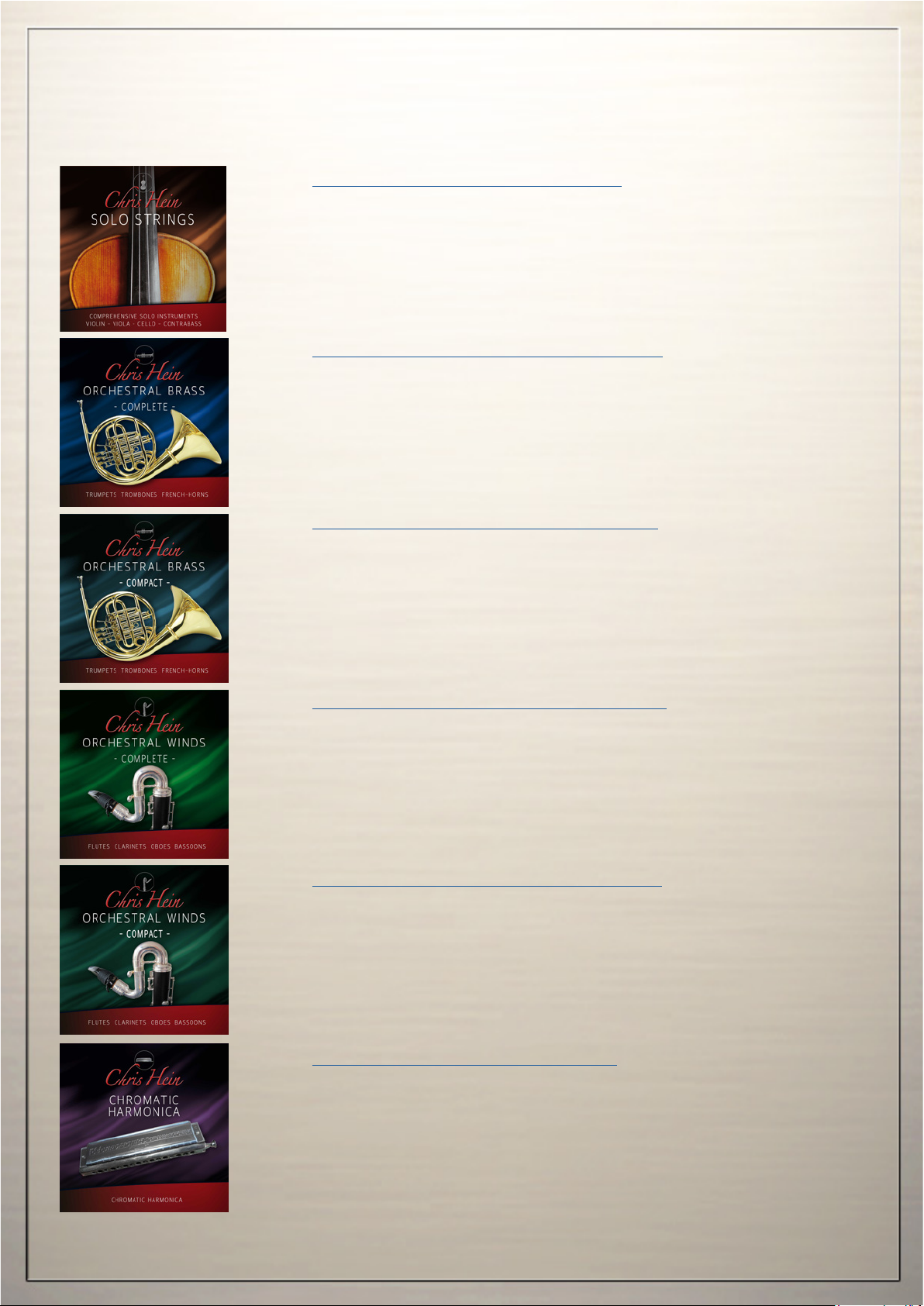
More from Chris Hein
Chris Hein - Solo Strings Complete
14 deep sampled Solo Strings instruments
4 x Violin, 3 x Viola, 4 x Cello, 3 x Contrabass
• 50.000 Samples • 37 Articulations • 32 GB content
•Up To 8 Dynamic Layers • Phase-Aligned samples
Chris Hein - Orchestral Brass Complete
9 deep sampled Orchestral Brass instruments
3 x Trumpets, 3 x Trombones, 3 x French-Horns
• 50.000 Samples • 14 Articulations • 12 GB content
•Up To 8 Dynamic Layers • Phase-Aligned samples
Chris Hein - Orchestral Brass Compact
The compact version features identical solo and
ensemble instruments from the full version of
Chris Hein Orchestral Brass.
Chris Hein - Orchestral Winds Complete
is a collection of 13 deeply samples orchestral Woodwinds.
With approx. 8.000 samples per instrument, 14 articulations, up
to 8 dynamic-layers and a highly customizable user interface, the
instruments in CH-Winds are denitely the most detailed sampled
orchestral Woodwinds on the planet.
Chris Hein - Orchestral Winds Compact
The light version of CH-Orchestral Winds Complete.
All 13 instruments with an easy to use, single page interface.
Updated, expabded and revised, the 5 most important articulations
feature true-legato, phase aligned samples and the full dynamic
range of up to 8 dynamic layers.
Chris Hein - Chromatic Harmonica
With almost 7.000 samples 14 articulations, up to 8 dynamic-layers
and a full range of 4 octaves, CH-Harmonica is denitely
the most detailed sampled Chromatic Harmonica on the planet.
The user-interface holds tons of features on several pages to shape the sound exactly the way you want it.To achieve the feeling of
a live performance, the user interface oers 4 „Dynamic Modes“,
„Key-Vibrato“, „Hot-Keys“ and a revolutionary new concept of ar-
ticulation presets.
Page 29
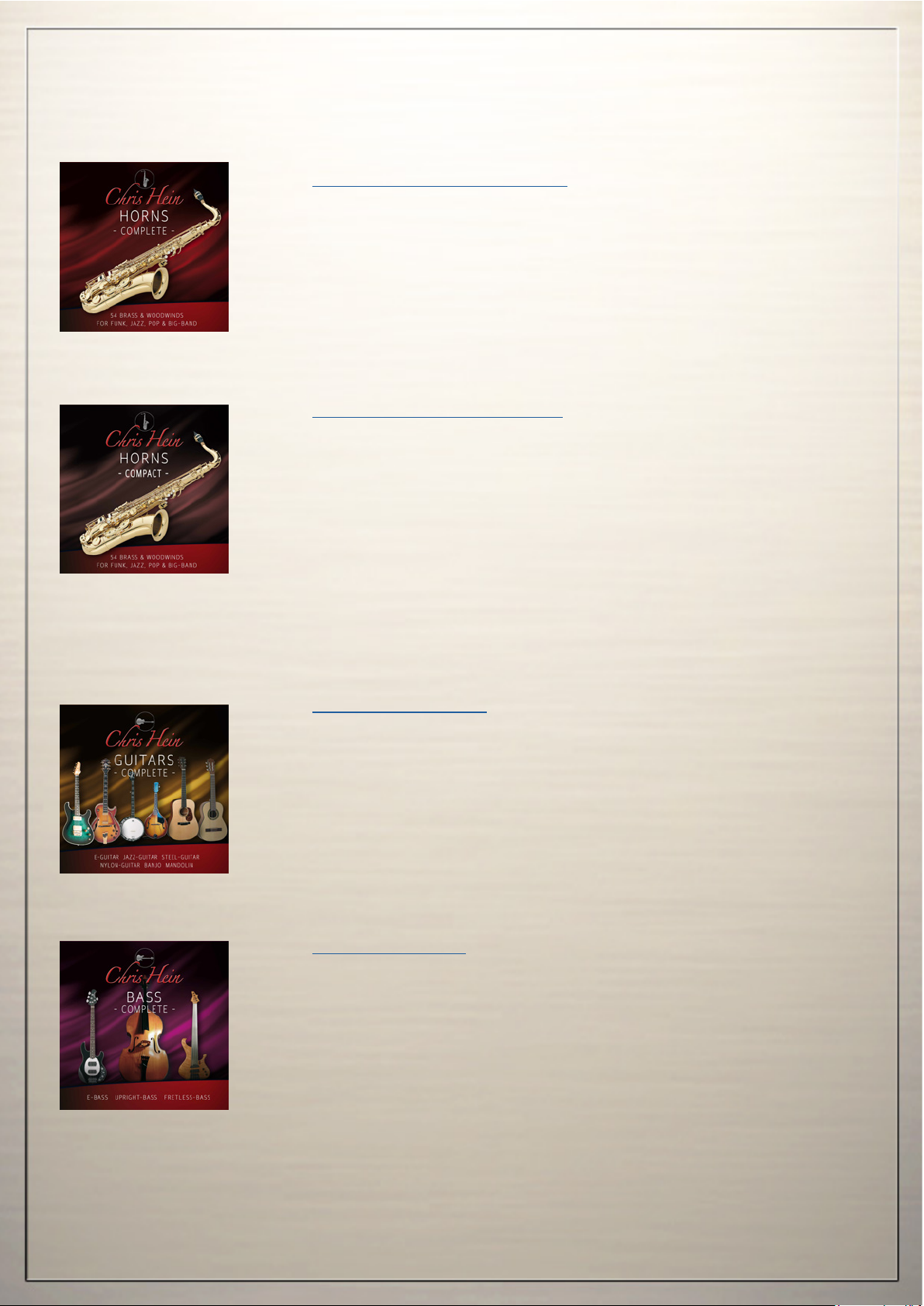
Chris Hein - Horns Complete
With 53 Solo-Instruments and 32 Section-instruments, with a total
of approx. 80.000 samples and 50 GB content, Chris Hein - Horns is
the worlds largest collection of Brass & Woodwind instruments, dedicated to Big-Band, Jazz, Pop & Funk, but also usable to spice up
your orchestral tracks. CHH Vol.1 - Vol.4 contain dierent groups of
instruments perfectly matching each other. All instruments follow
the same concept, so, if you know one, you know them all. Each
volume contains solo-instruments as well as section combinations.
Chris Hein - Horns Compact
is a powerful Brass & Woodwind library including 53 Solo-Instruments and six synth-brass instruments. Each of the Solo Instru-
ments has six velocities for the sustained notes and ve dierent
articulations available via Hot-Keys. No key-switching is required
to access dierent articulations and playing-techniques.
The main window shows an eight channel mixer which makes it
easy to combine the Solo Instruments to powerful sections.
Create your own combinations of instruments, play them all together or build your own live-setup with separate sections
in dierent keyboard zones.
All in one single instrument, for an incredible low price.
Chris Hein - Guitars
E-Guitar, Jazz-Guitar, Steel-String guitar, Nylon Guitar, Banjo &
Mandolin
Thousends of samples, many articulations and dynamics all in one
preset per instrument. With about 40.000 samples and 18 GB content, its the largest available guitar collection.
Thanks to Native Instruments genius script feature, Chris Hein Guitar is easy to control.
Chris Hein - Bass
E-Bass ngered, E-Bass Slapped, Fretless Bass, Upright-Steel
String, Upright Nylon-String, Upright Gut-String.
Thousands of samples, many articulations and dynamics all in one
preset per instrument. With about 20.000 samples and 12,7 GB
content, CHB is the largest available bass-library. Thanks to Native Instrument´s genius script feature, Chris Hein - Bass is easy to
control.
-27-
Page 30
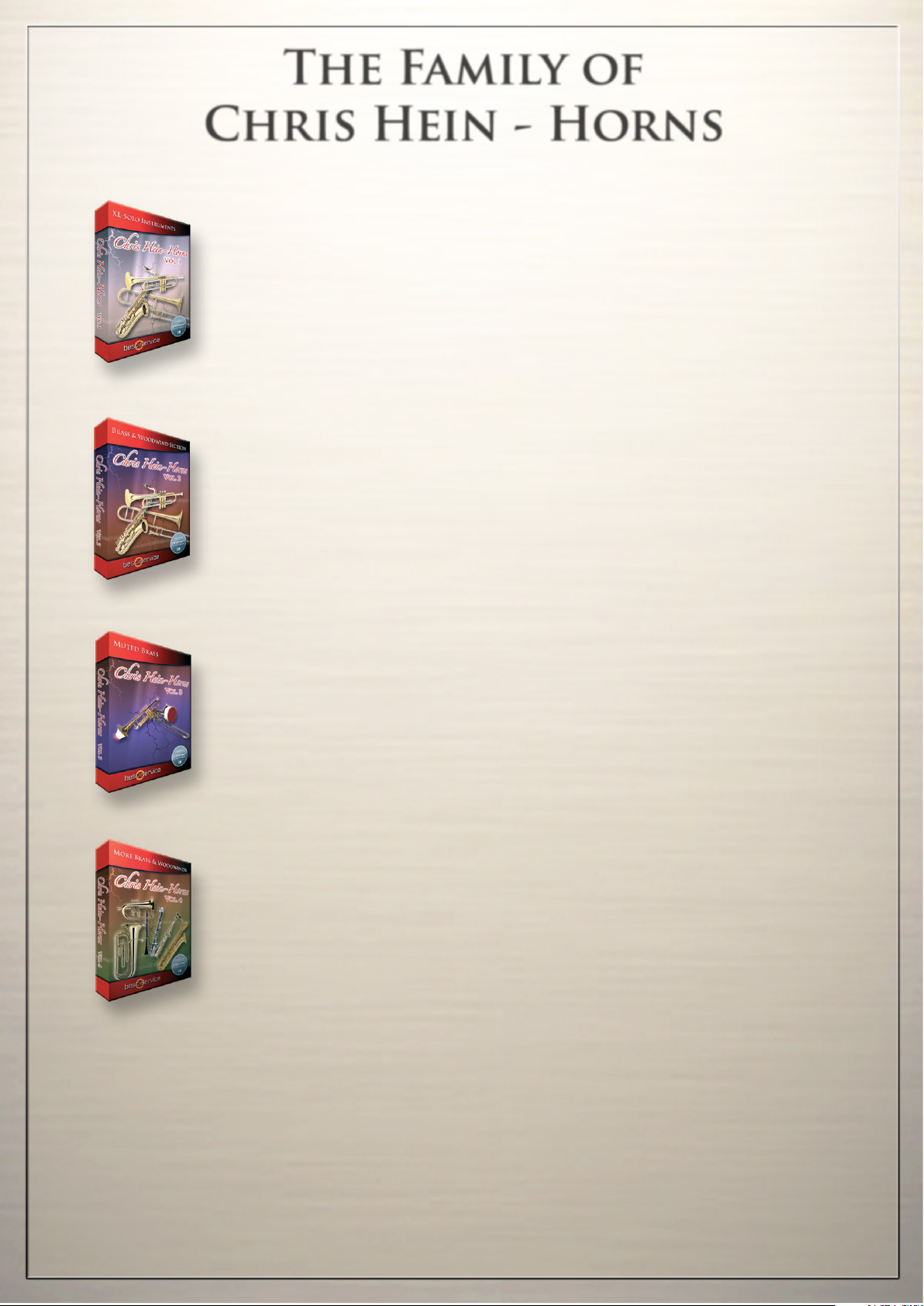
The Family of
Chris Hein - Horns
CHH Vol.1 - XL-Solo Instruments
4 very deeply sampled Solo-instruments with up to 44 articulations
and up to 20 velocities. Approximately 4,000 samples per instrument
Alto Sax Solo, Tenor Sax Solo, Trumpet Solo,
Trombone Solo, Trumpet Section
CHH Vol.2 - Brass & Woodwind
3 x Alto Sax, 2 x Tenor Sax, 2 x Baritone Sax, 4 x Trumpet,
4 x Trombone, 2 x Bass Trombone, 3 x Sax Section,
3 x Trumpet Section, 3 x Trombone Section
CHH Vol.3 - Muted Brass
8 x Muted Trumpet, 8 x Muted Trombone,
7 x Trumpet Section, 5 x Trombone Section
CHH Vol.4 - More Brass & Woodwinds
Soprano Sax, Bass Sax, Contra Bass Sax, Clarinets,
Bass Clarinet, Fluegelhorn, Euphonium, Tuba
All instruments are available as a complete bundle, single volumes or as individual
downloadable instruments. Check www.chrishein.net for details.
As owner of any CHH version, you are eligible to upgrade to CHH-Complete
for a special price. Send an email to [email protected] for more info
-30-
Page 31

www.bestservice.com
Manzingerweg 9 - 81241 Munich - Germany
Please Do Not Copy!
The Sounds and Samples of this product are licensed,
not sold to you for use in your music & media production only.
All copying, lending, duplicating, reselling or trading of this
product or its content, in any form, is strictly prohibited.
Please respect this agreement and do not copy.
Chris Hein - Strings Compact © 2019 Wizard Media, All rights reserved
 Loading...