

Page 1

I
Precautions................................................................................................1
1.Bassic Usage......................................................................................2
2.Device Design...................................................................................3
3.Using for the first time or resetting the device................................. 4
4.Main Menu…....................................................................................5
4.1Input Method............................................................................................6
4.2Portable Hard disk..................................................................................14
4.2.1Reading Files form Designated Paths......................................................14
STUDY
Features of STUDY..................................................................................18
Functions of STUDY..........................................................................19
1.Daily Chinese/Business Chinese.....................................................21
1.1Words......................................................................................................21
2.Pronunciation/Chinese Character....................................................22
3.Illustrated Vocabulary......................................................................23
4.Top 30 Sentences………….............................................................24
5.Writing Study…...............................................................................25
6.Exercise….......................................................................................25
DICT
Features of DICT......................................................................................28
Functions of DICT..............................................................................29
1.C-E,E-C Translation........................................................................29
2.Functions of Dictionary...................................................................31
2.1Dictionary Search...................................................................................31
2.1.1Record......................................................................................................31
2.1.2Classified search……..............................................................................32
2.1.3Toggling Languages.................................................................................32
2.2Explanation Notes on Dictionary............................................................32
2.2.1Font Size..................................................................................................33
2.2.2Pronunciation...........................................................................................33
2.2.3Read Along...............................................................................................33
2.2.4Repeat.......................................................................................................33
2.2.5Chinese Word by Word Pronunciation (with mouth movements)............34
2.3Chinese Character Stroke Order…….....................................................34
2.4Dictionary Search...................................................................................35
2.4.1Smart Input Search...................................................................................35
2.4.2Search for Unknown word (English only)...............................................35
2.4.3Second Search.........................................................................................36
2.4.4Multi Window search..............................................................................36
Page 2

II
3.Search Engine.................................................................................37
CONV
Features of CONV…................................................................................39
Functions of CONV............................................................................40
AP
Features of AP...........................................................................................41
Functions of AP...................................................................................42
1.Video................................................................................................43
2.Audio...............................................................................................44
3.Digital Recorder/ Games World......................................................45
4.Photos..............................................................................................46
5.File Management.............................................................................47
5.1Adding New Files...................................................................................47
5.2Rename...................................................................................................48
5.3Arrange...................................................................................................48
5.4Formating................................................................................................48
6.Other Functions...............................................................................49
SYS
Features of SYS........................................................................................50
Functions of SYS................................................................................51
1.PC Link............................................................................................51
2.Setting Other Functions...................................................................52
Maintenance.............................................................................................53
Page 3

1
Data Backup
Please backup your personal data in another storage device to prevent any
loss of information due to operating error. Such information loss will not
be covered in the warranty of the device.
Protection of Screen Display
* Use the stylus provided in this device for writing to prevent any
damage to the screen display. Avoid using pen, ballpoint pen, pencil or
other sharp object as a replacement of the stylus.
* Use a soft and dry clean cloth to clean the screen gently to prevent
scratches caused by dust particles. Avoid using volatile or flammable
fluid to clean the screen.
* Avoid dropping or exerting pressure on the device as the LCD screen is
made of glass material.
Memory Card
* This device includes Secure Digital Card functions. Turn off the device
before inserting the memory card to avoid damage or loss of
information in the device or memory card.
* Do not remove the battery or memory card while saving is in progress
to avoid malfunction.
Usage of Battery and Head Set
* Avoid placing the battery near fire to prevent any risk of explosion.
Place the battery correctly to avoid any risk of overheating or short
circuit.
* Adjust the volume appropriately. To prevent hearing loss, do not put
the volume at an exceedingly high level.
Non Water-resistant
This device is non water-resistant, strictly prevent spillage of any
liquid on the device. In case of accident, please remove the battery from
the device immediately and wipe the device dry. You may send the device
back to us for testing together with a description of the accident.
Note:
Page 4
2
If damage is caused by misuse ( self -repair, inappropriate storing,
cracks on LCD screen, fluid leakage of battery, error when inserting
memory card, or attacks by insects) and unpreventable acts of nature,
it will not be covered under the device warranty and will not be
entitled for any free service.
1. Basic Usage
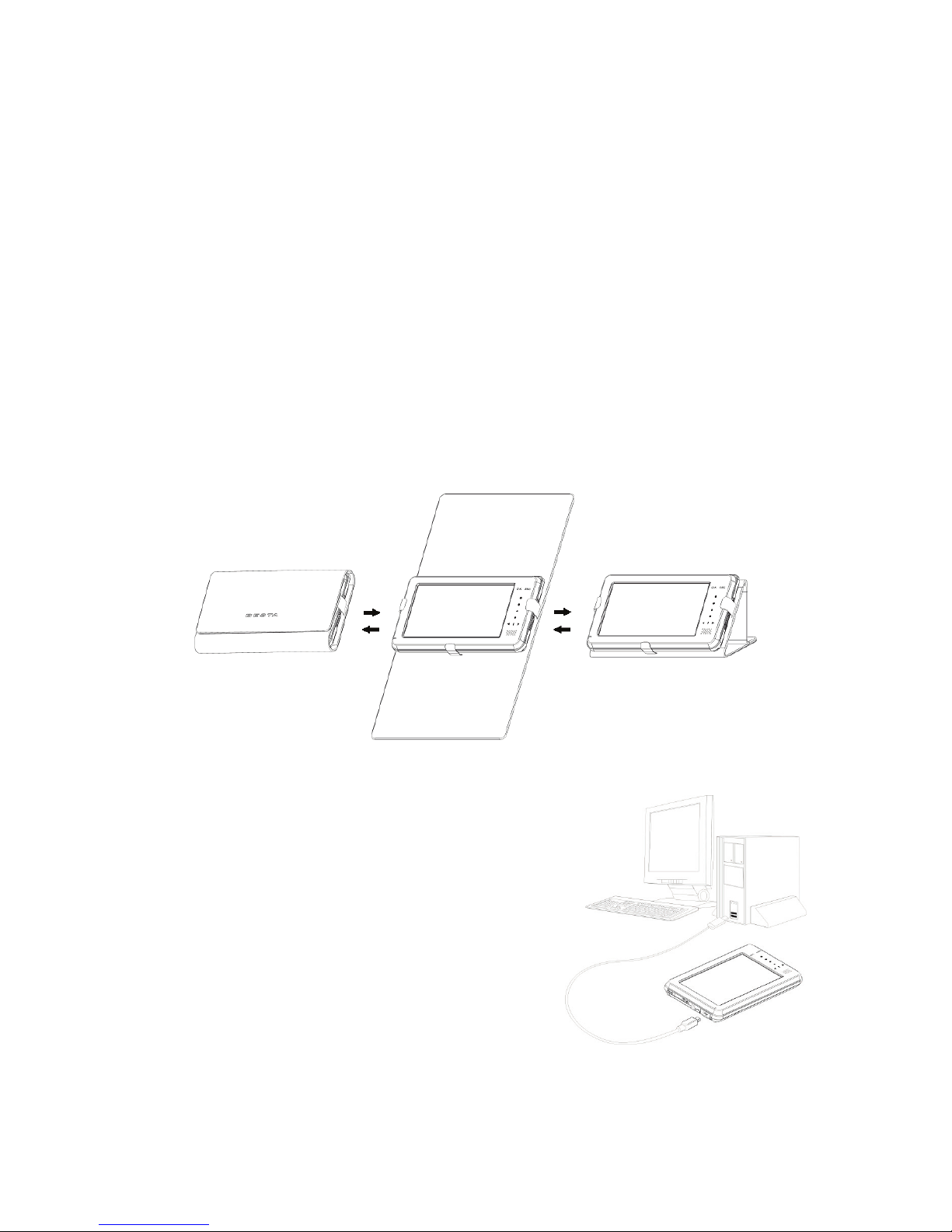
Leather Case:
The leather case can effectively protect the device from external
scratches. Please open the leather case gently and follow the steps shown
in the picture below when using the device.
Battery:
* Rechargeable Li-ion Battery :
3.7V/1050mAh
* Connect the device to a PC with the
standard USB cable given. Charging time
is about 4.5 hours.
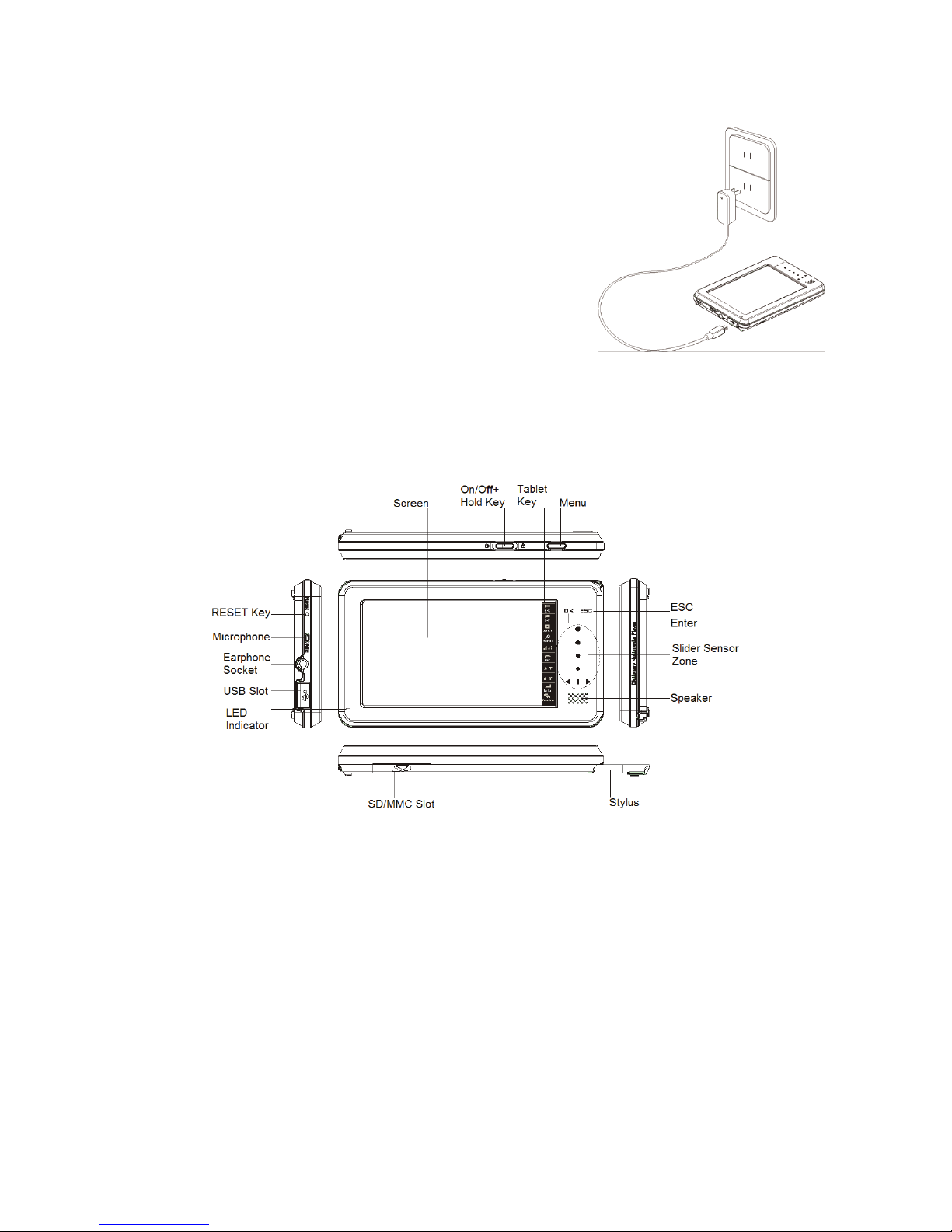
* Connect the device to AC adapter with the
standard USB cable given. Charging
time is about 3.5 hours.
Page 5
3
*When the screen display “Battery Low”,
please connect the standard USB cable to
a PC for charging. This is to ensure proper
functioning of the device.
The battery charging indicator will show the
status of the battery.
1. Red light indicates charging is in progress.
2. Green light indicates battery is full.
2. Device Design
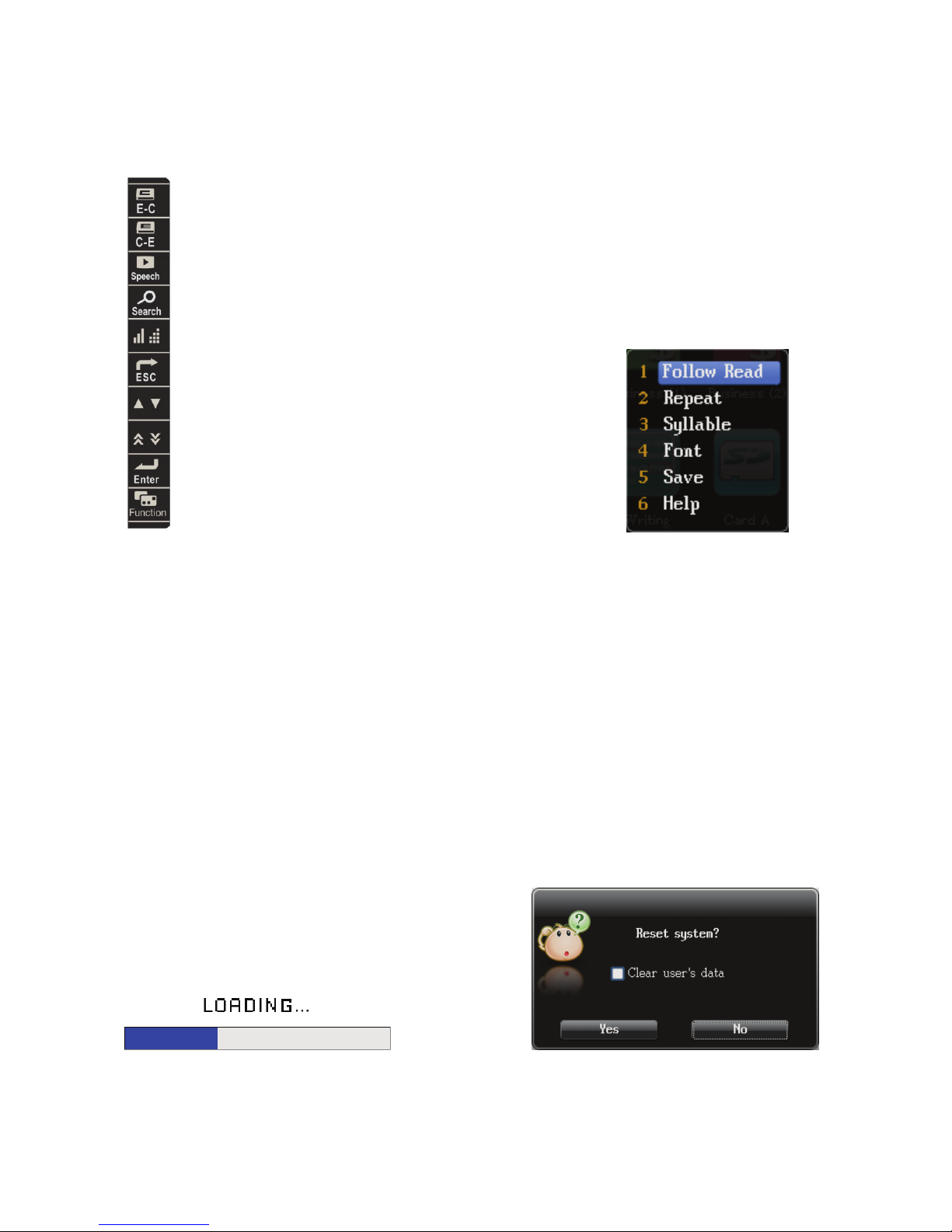
Top/Bottom/Left/Right/Front view of the device:
Note
:
This device uses a high transmittance touch screen, the screen is 4
inches.
The “Main Menu” button is set as a default shortcut key to the main
menu page, i.e, you may return to the main menu at all times.
“OK”and“Esc” buttons are touch-screen buttons. “Top, bottom,
left and right” buttons are touch-screen slide buttons.
Page 6
4
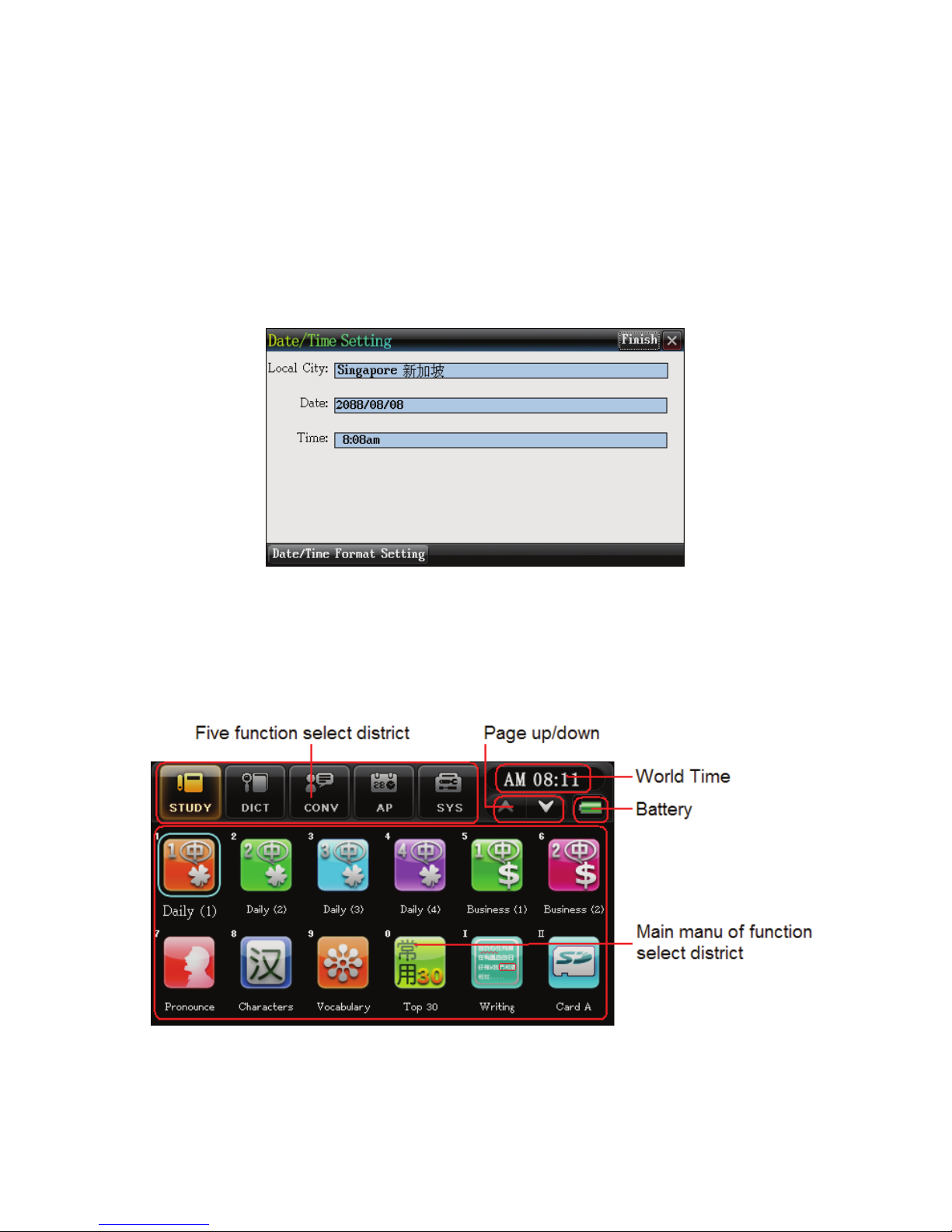
Control Panel:
: To enter English to Chinese sentence translation function
: To enter Chinese to English sentence translation function
: To enter voice pronunciation function
: To enter search engine function
: To adjust volume/speed and brightness
: To exit ( same function as “Esc”)
: Top Bottom buttons
: To enter previous page/ next page
: Enter (same function as “OK”)
: To select other functions
Note
:
You can select “function” and choose option 6 when help is needed for
product operation at any time.
3. Using for the first time or resetting the
device
Please set your product according to the following if you are using the
device for the first time or resetting the device:
Page 7
5
* If you select “No”, you will enter the loading page straight away.
* If you select “Yes”, system will reset to the default setting and
proceed on to the date/time setting page. If you are using for the
first time, please choose “Yes”.
* If “Clear user’s data” was selected, select “Yes” twice to delete
user's information and setting to set everything back to default.
After which, proceed on to date/time setting page.
4.Main Menu
Enter main menu:
Page 8

6
On the Main Menu page:
* Click on MENU button continuously to change the
language to English, Chinese, Japanese, Korean and other languages.
On the 5 Functions Select District:
* Click on “STUDY、DICT、CONV、AP、SYS” to select
study, dictionary, conversation, application, system respectively.
On the main menu of function select district:
* Select the function accordingly.
On the Control Panel page:
* Select “Menu” to return back to menu page.
* Select “Esc” to return back to previous page.
4.1Input Method
The product offers various inputting methods (handwriting input),
please go to “SYS—input setting” to select.
* Chinese to English input method: Zhi Neng Pinyin , Hanyu
Pinyin, Chinese Symbols Input, Chinese Handwriting Input,
Chinese Radical Input, Chinese Strokes Input, Internal Code
Input, Association Function, English, English handwriting input
and Soft keyboard input.
* Japanese input method: Romanji Input, Hiragana Input, Katakana
Input, Kanji Pronunciation Input, Kanji Radical Input, Kanji
Strokes Input and Japanese Handwriting Input.
* Korean Input method: Korean, Korean Kanji Radical Input,
Korean Kanji Strokes Input and Korean Handwriting Input:
Note:
Input of Thai, Spanish, French, German, Portuguese, Italian,
Russian, Vietnamese language is by soft keyboard only.
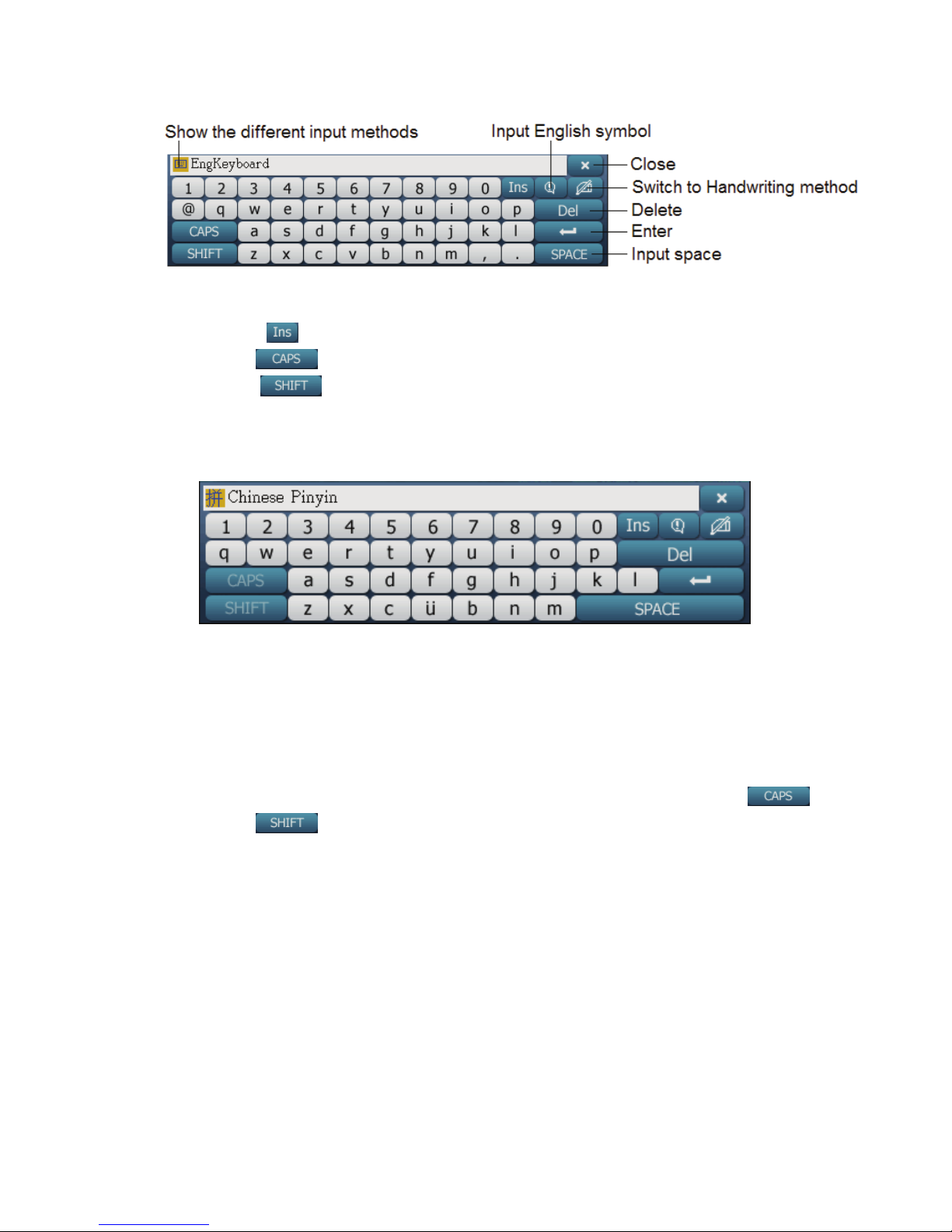
English Soft Keyboard
Page 9
7
a. To input to input numbers, alphabets and symbols, click on the
corresponding keys
b. Click “
” to insert alphabet in between.
c. Click “
” to toggle between upper case and lower case letters.
d. Click “
” to change into capital letter mode temporary.
Hanyu Pinyin Soft Keyboard
a. After entering the hanyu pinyin, click on the number to input the
tone of the word.
1—First tone 2—Second tone 3—Third tone
4—Fourth tone 5—Light tone
6—Second tone 7—Light tone
b. When using the hanyu pinyin input method, do not click “
”
and “
”.
Note:
Zhi Neng Pinyin input method is similar to the Hanyu Pinyin
input method but there is no need to enter the tone.
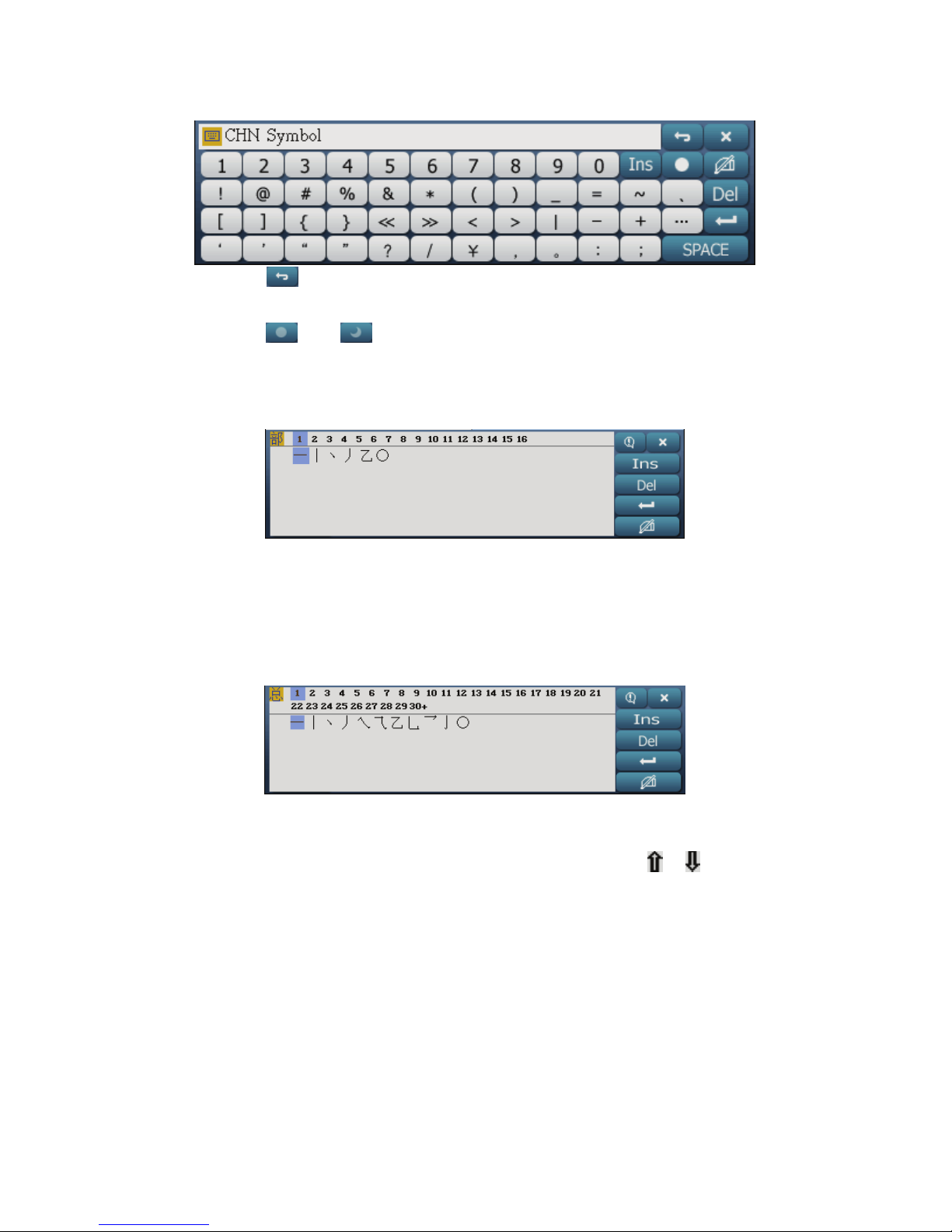
Chinese Symbol Input
Page 10
8
a. Select “ ” to return to the various Chinese Soft Keyboard Input
methods.
b. Select “
”/“ ” to toggle between Chinese punctuation and
English punctuation input.
Chinese Radical Input
a. Click on the number of strokes of the radical and the remaining
number of strokes in the character, as in checking a Chinese
dictionary.
Chinese Character Input Method
a. Select the total number of strokes that the character has, as in
checking a Chinese dictionary.
b. If the selection is on more than one page, select
/ to go to the
previous or next page.
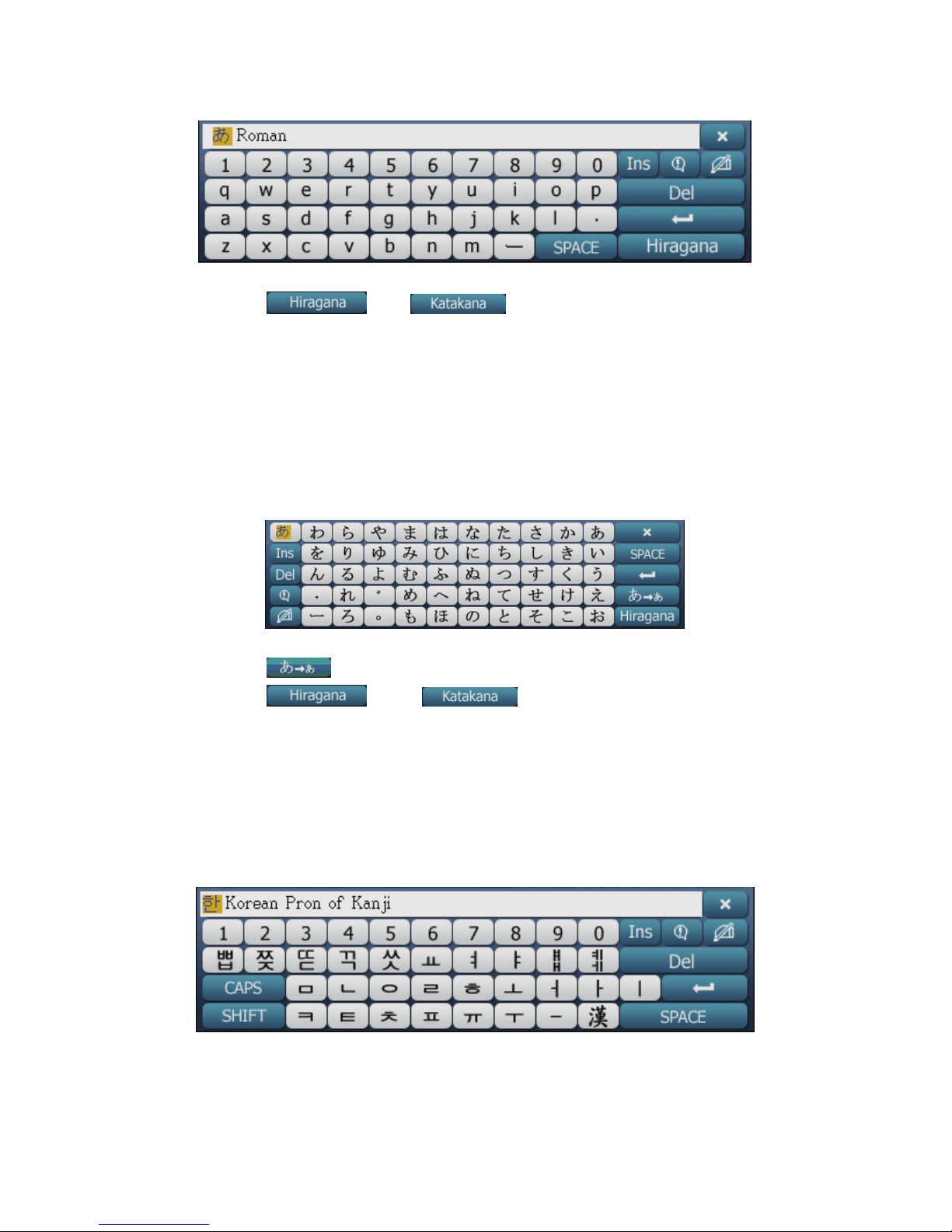
Romanji Input Method
Page 11
9
a. Click on the corresponding alphabets to enter the romanji.
b. Select “
”/“ ” to toggle between Hiragana
Input Method and Katakana Input method.
Note:
Please refer to the above Romanji Hiragana Input Method for the
Romanji Katakana Input
Hiragana Input Method
a. Click on the corresponding Hiragana.
b. Select “
” to change the Hiragana to a small Hiragana.
c. Select “
”/“ ” to toggle between Hiragana
Input Method and Katakana Input Method.
Note:
Please refer to the above Hiragana Input Method for Katakana
Inpu Method.
Kanji Korean Pronunciation Input Method
a. Click on the corresponding key to select the Korean pronunciation
of the Japanese Kanji.
Page 12
10
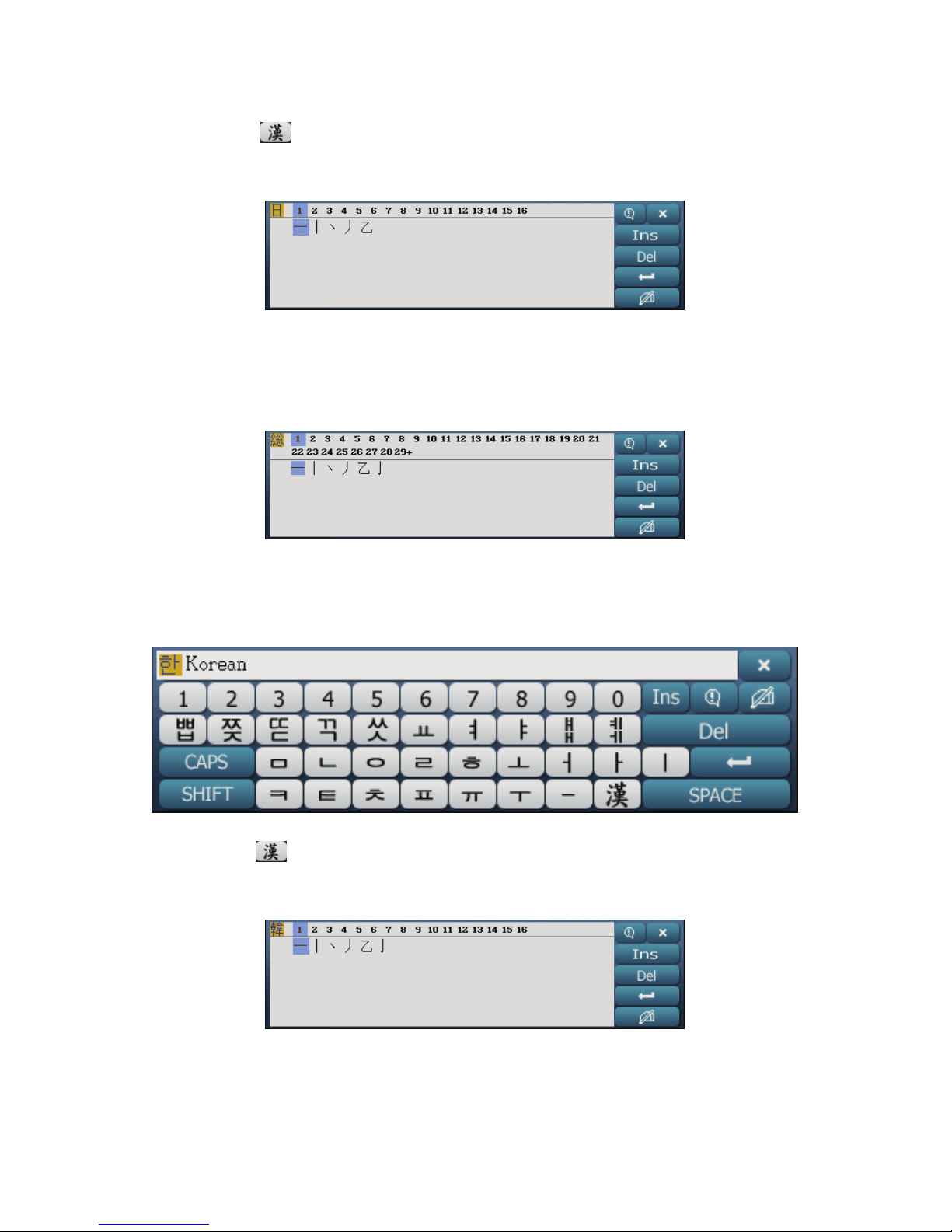
b. Click “
” to choose Japanese Kanji character.
Japanese Kanji Radical Input Method
a. Click on the number of strokes in the radical .
b. Click on the remaining number of strokes in the Kanji.
Japanese Kanji Strokes Input Method
a. Click on the number of strokes in the Kanji.
Korean Input
a. Click on the corresponding Korean alphabet to input Korean.
b. Click
” to convert into Kanji.
Korean Kanji Radical Input Method
a. Click on the corresponding number of strokes in the radical.
b. Click on the remaining number of strokes in the Kanji.
Page 13
11
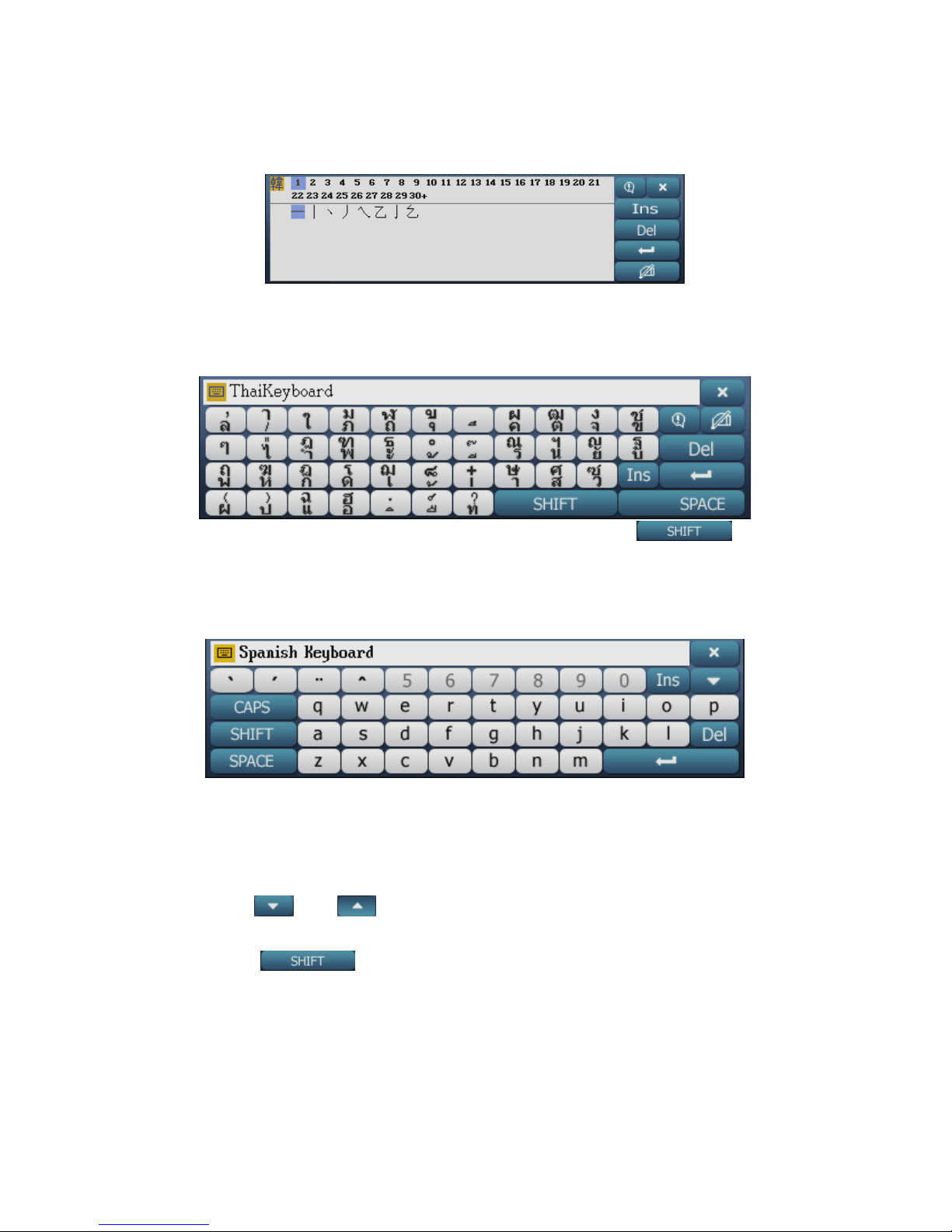
Korean Kanji Strokes Input Method
a. Click on the total number of strokes in the Korean Kanji.
Thai Soft keyboard Input
a. Click on the corresponding Thai symbol, click“ ” to input
more symbols.
Spanish / French / German / Portuguese / Italian Soft Keyboard
a. Click on the corresponding key to input alphabet (Note: click <
1~4> before clicking the alphabet to get special symbols in the
European languages. )
b. Click“
”/“ ”to input more alphabets on different pages.
c. Click “
” to input an upper case letter once.
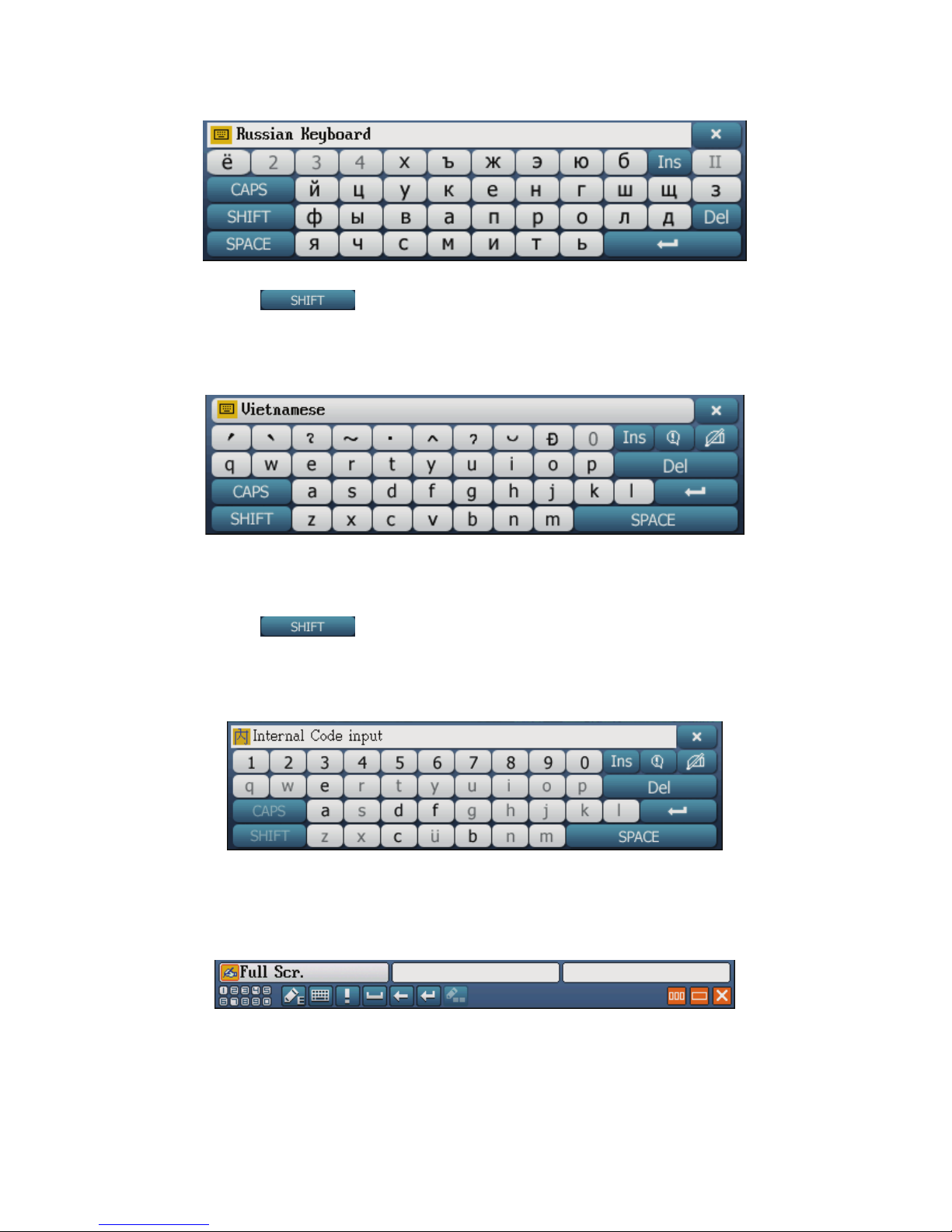
Russian Soft Keyboard
Page 14
12
a. Click on the corresponding key to input alphabet.
b. Click “
” to input an upper case letter once.
Vietnamese Soft Keyboard
a. Click on the corresponding key to input alphabet, then click on the
symbol line to input the corresponding tones or alphabet.
b. Click “
” to input an upper case letter once.
Internal Code Input
a. Click on the internal code to input the corresponding alphabet
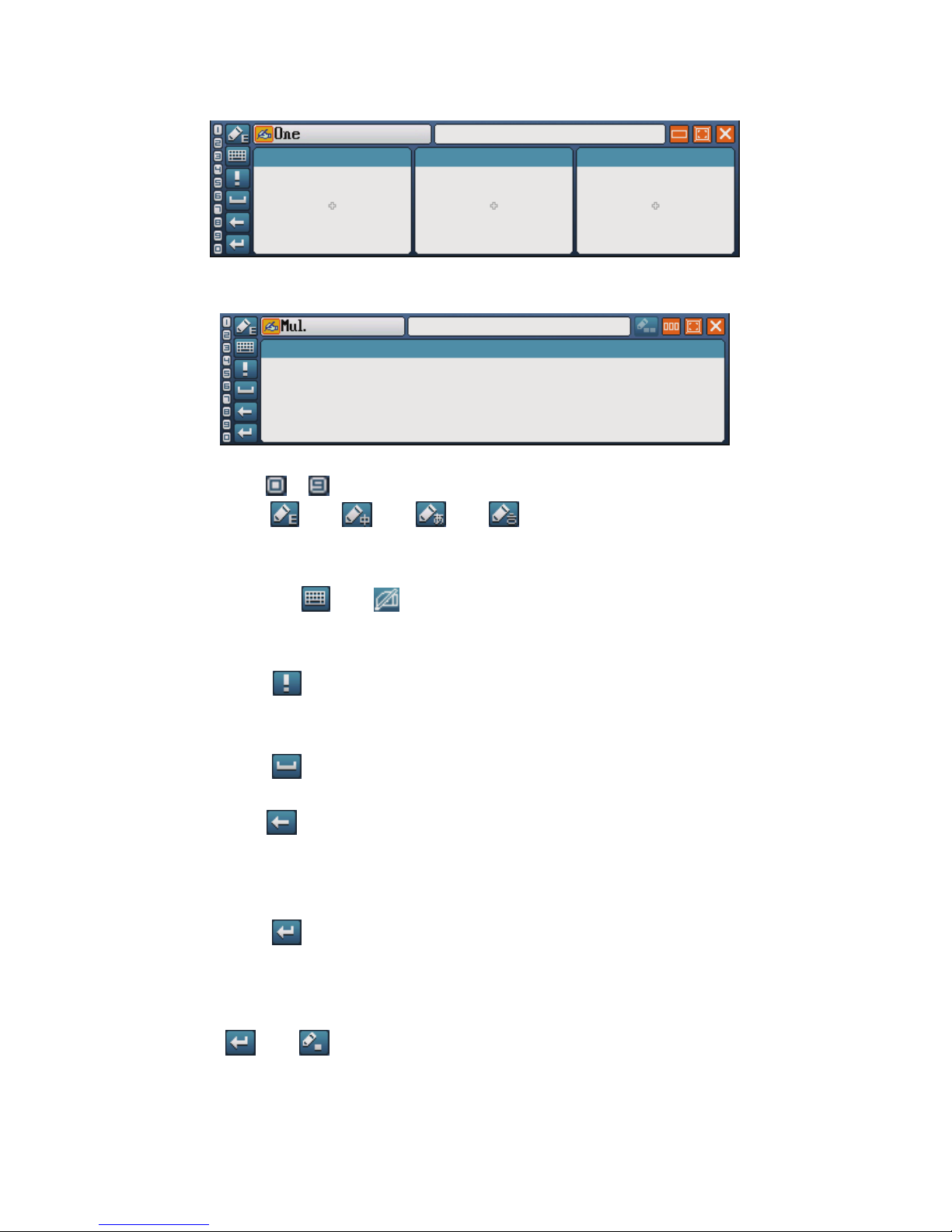
Handwriting Soft Keyboard
*Full Screen Writing
*Multiple Frames Single Character Writing
Page 15
13
*Single Frame Multiple Characters Writing
a. Click“ ~ ”to select and input numerals.
b. Click “
”/“ ”/“ ”/“ ” to toggle between English /
Chinese/ Japanese handwriting soft keyboard.
c. Click on “
”/“ ” to toggle between handwriting and ordinary
keyboard input methods.
d. Click “
” to toggle between Chinese/ English Symbol Soft
Keyboard Input Method.
e. Click “
” to input space.
f. Click“
”to delete the alphabet before the cursor, if the cursor is
at the beginning of a sentence, then the alphabet behind the cursor
will be deleted.
g. Click “
” to confirm input.
h. To enable identification of all writing as a Kanji when using full
screen or single frame multiple characters writing input, click
“ ”/“ ”. (This function is disabled when English
Handwriting Input Method is selected)
Page 16

14
• Note:
You can set the pen-lifting time in the “SYS—9. Handwriting
Setting”
Association Function
If the Kanji that you have input is stored as a commonly-used collation
with other kanji (eg, common words, idioms, names of places, etc), these
collations will then appear on the selection bar, otherwise none will appear.
4.2 Portable Hard disk
This device has the functions of a portable hard disk, by connecting it
with a computer, you can download data, delete, move, copy, create new
folders, etc.
*downloading and deleting data:
When downloading data, the device provides auto search reading and
reading according to the paths designated by the user. Thus when entering
this function from the main menu, please make sure that your files are
saved in the matching paths.
Auto search function Reading from the correct path
Video
Audio
Flash
Photographs
AP
Games
Text browsing: \MULTI\TEXT
Note:
Do not disconnect the USB cable during data transfers.
After the transfer of data, please disconnect the USB cable safely
to ensure the data remains correct.
4.2.1 Reading Files from Designated Paths
Eg, download text browsing files to the device.
Page 17
15
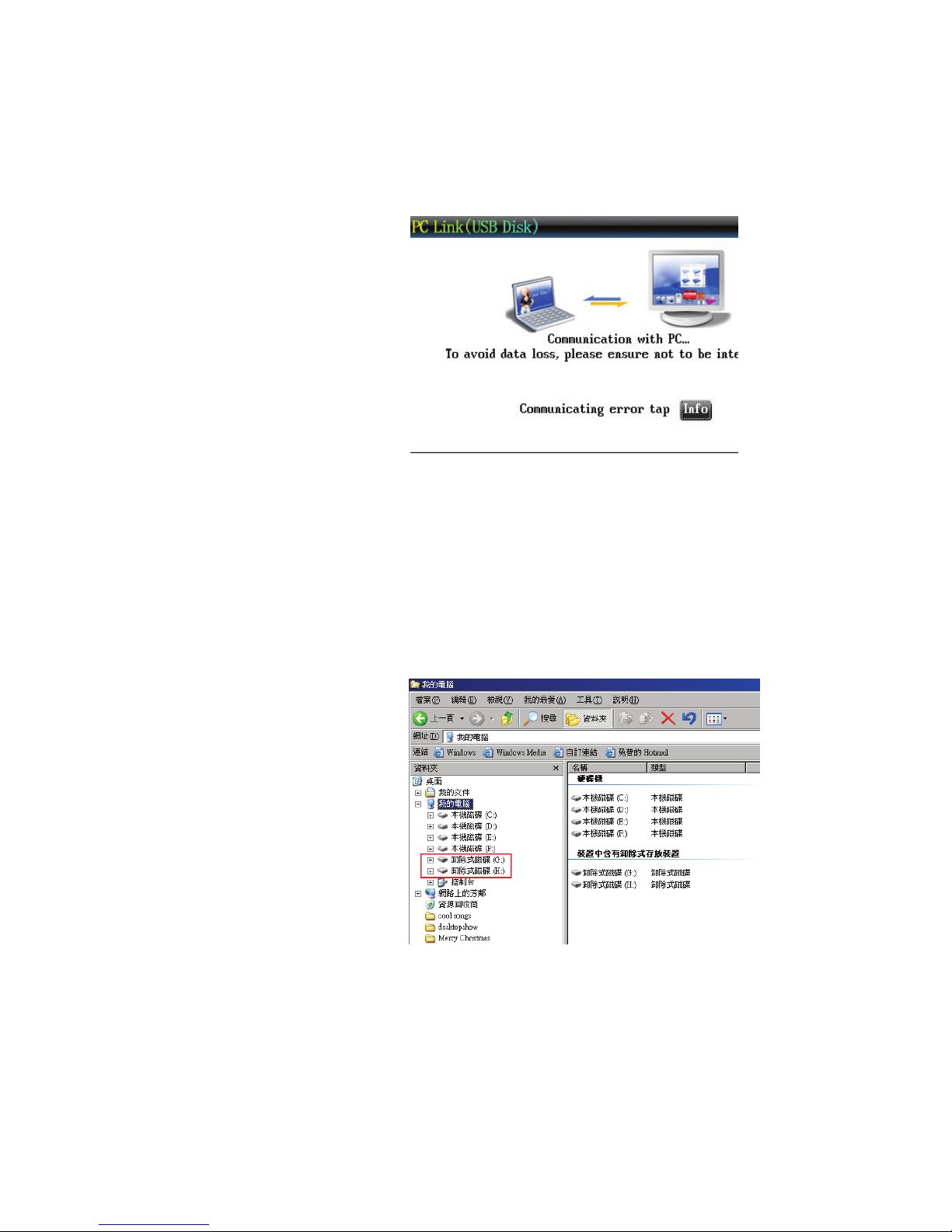
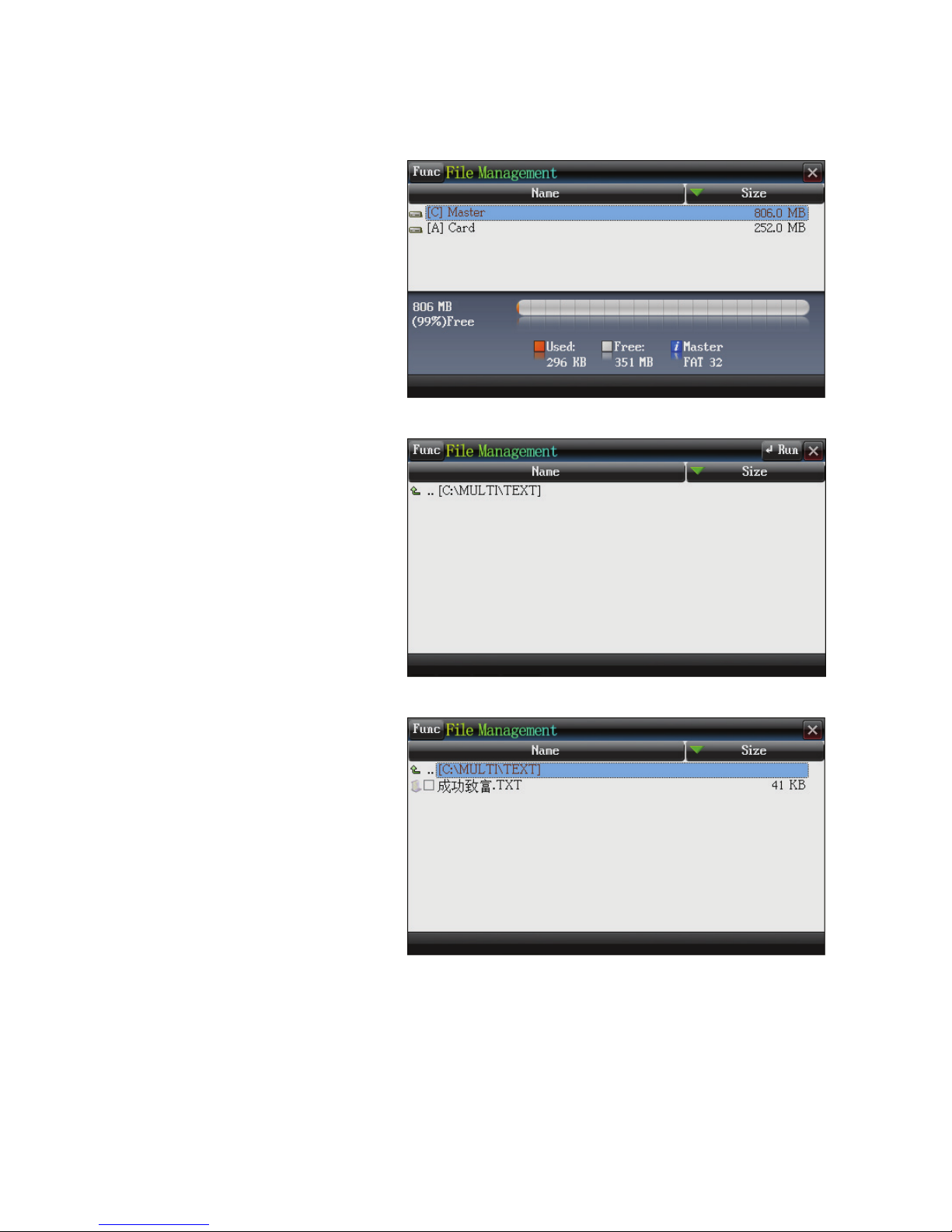
Step 1:
Before downloading, please connect both ends of the USB cable, and
enter “SYS—Connect to Computer” function.
Step 2:
Please insert the complimentary CD into the disk drive and copy
the data that you want to download.
Copy the data that you want to download into the newly added hard
disk (example, on the above picture at the PC, the removable disk (G)
represents the device and the removable disk (H) represents the card ),
please ensure there is enough memory disk in to the hard disk.
The PC
The device
Page 18
16
Step 3:
Enter “AP-File
Management”
Enter computer [C:\
MULTI\TEXT folder
Place the data to be
downloaded under this
folder.
Page 19
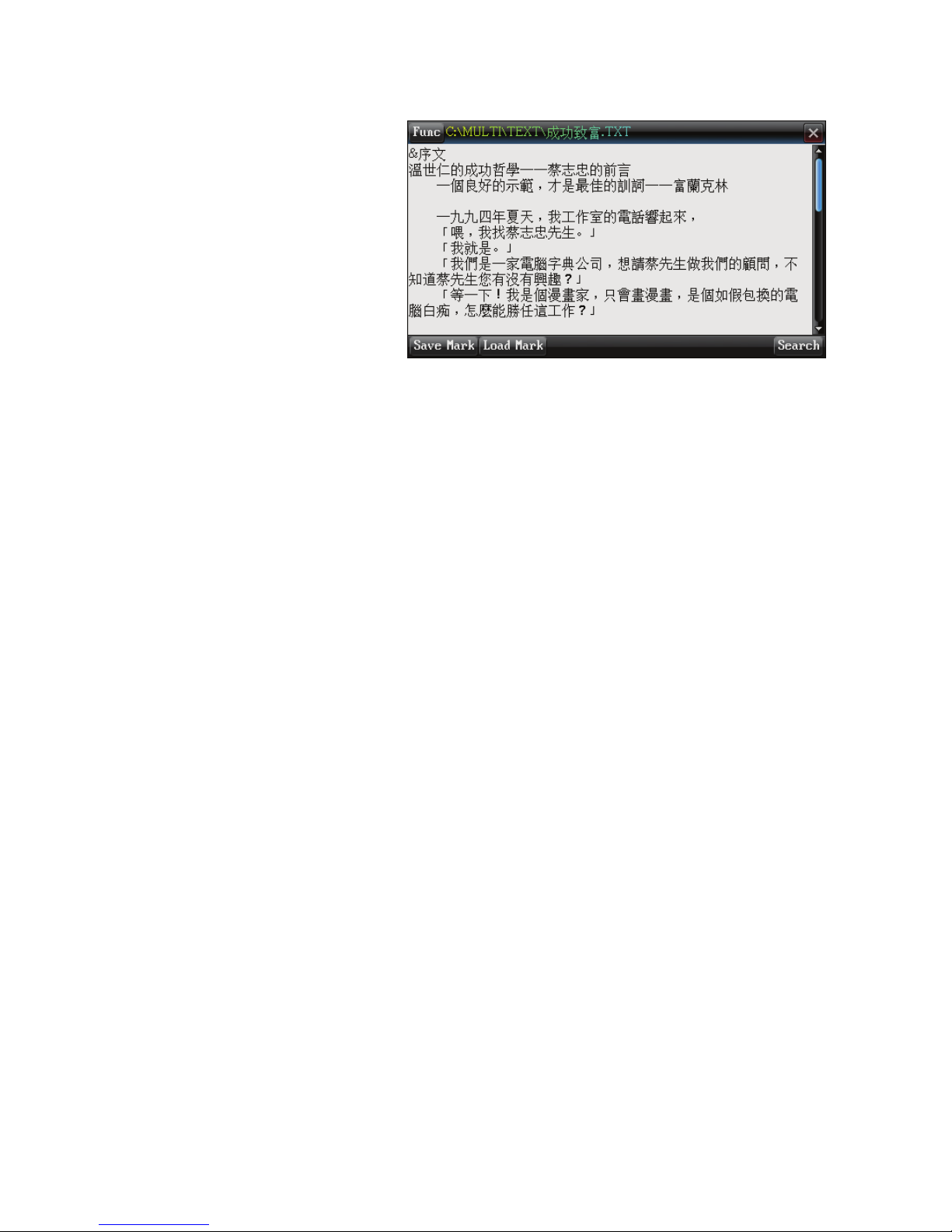
17
Enter into the text
browsing function to
read data
Page 20

18
Features of STUDY:
* Uses Flash to create an interesting and rich multimedia instruction,
explanations are clear and vivid.
* Words are pronounced with mouth movements shown on screen,
makes learning easy.
* Uses commonly-used sentences for learning, provides standard
pronunciation to enable mastery.
* Provides practices and tests to consolidate learning.
* Provides practical functions such as: sample sentences, writing
demonstration, tracing over characters, standard pronunciation etc,
* Provides detailed explanation of the strokes, structure and writing
of the Chinese character.
Daily Chinese(1)~(4), Business Chinese(1)~(2)
Provides information on Chinese Language masters, animated Flash
lessons.
Edited by renowned teachers, presented by pretty anchorwoman ,
perfect pronunciation, paragraph by paragraph video presentation.
Pronunciation
Detailed pronunciation methods taught by Chinese Language masters.
Words are pronounced with mouth movements shown on screen, makes
learning easy.
Practices and tests on listening and differentiating pronunciation to enable
mastery of standard pronunciation.
Chinese Character
Detailed teaching of Chinese characters by the Chinese Language masters.
A great number of Chinese words are compiled, makes it convenient to
learn more Chinese.
Practices and tests on choosing and forming characters enable effective use
of characters.
Illustrated Vocabulary
Provides a new way of explaining vocabulary, the graphics, pronunciation
and sounds allow for more detailed and accurate explanations
Page 21

19
Vocabulary practices and tests with graphics facilitate more efficient
memorizing of words.
Top 30 Sentences
Provides the standard pronunciation of 30 commonly used sentences with
pictorial illustration.
Writing Study
Uses Flash to teach composition writing and guides users through
composition writing.
Card
Provide SD/MMC/SDHC(Secure Digital Card/Multi Media Card/High
Capacity Secure Digital Card) card readers for expanding device’s
functions and data storage space.
May insert professional dictionary card or memory card to read data.
Useful Sentences
Provides pronunciation for whole sentences, read-along function can be
activated at the same time.
Provide Search option for the whole passage.
Exercise
Provides practices and tests on listening and grammar.
You may select the level of difficulty to suit your standard for tests on
sentence construction.
Functions of STUDY
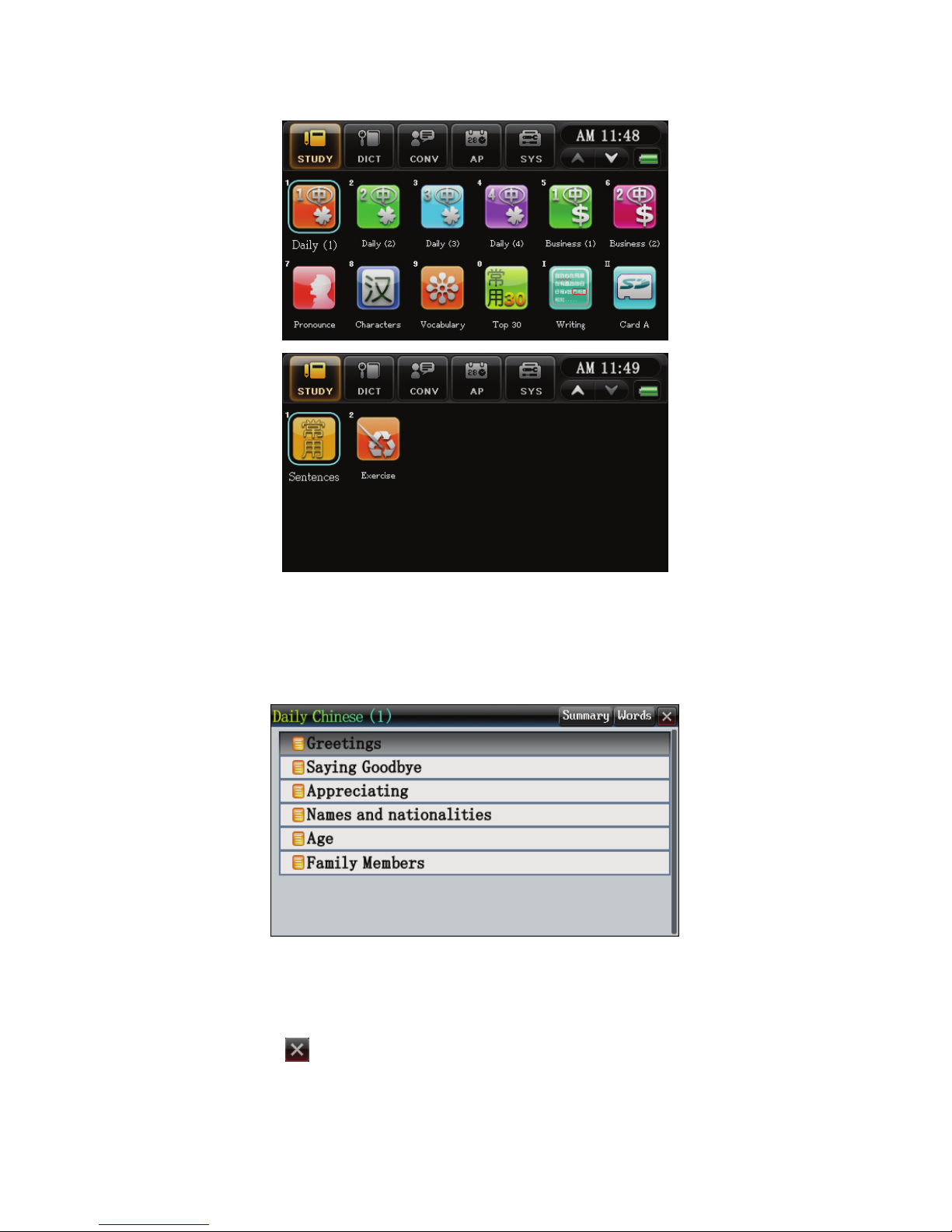
There are 2 pages under the ‘STUDY’ function:
Page 22
20
1.Daily Chinese /Business Chinese
Select the item to view the explanation in Flash.
* Select ‘Summary’ to summary of the words.
* Select ‘Words’ to check on the word’s pictorial explanation, pinyin,
English translation, pronunciation and to enter into the learning mode.
* Select “
”to close the window.
Page 23
21
* When more than 2 windows are activated, the roll axis will appear
on the screen.
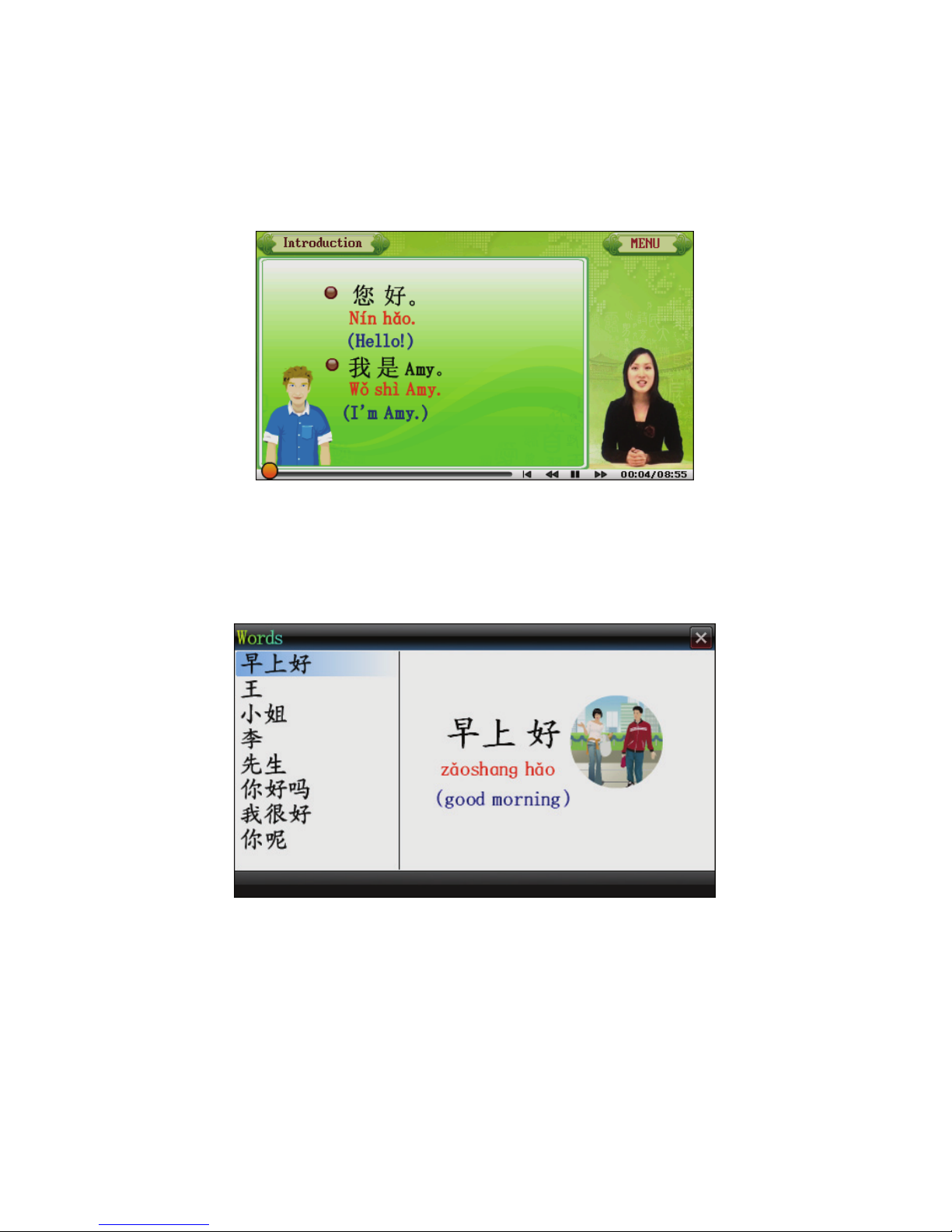
Flash On Play:
1.1Words
Use the arrows on the device to navigate the pinyin, English and
pictorial explanation for the vocabulary in the lesson. Select the word to
enter into learning mode.
Page 24
22
Note:
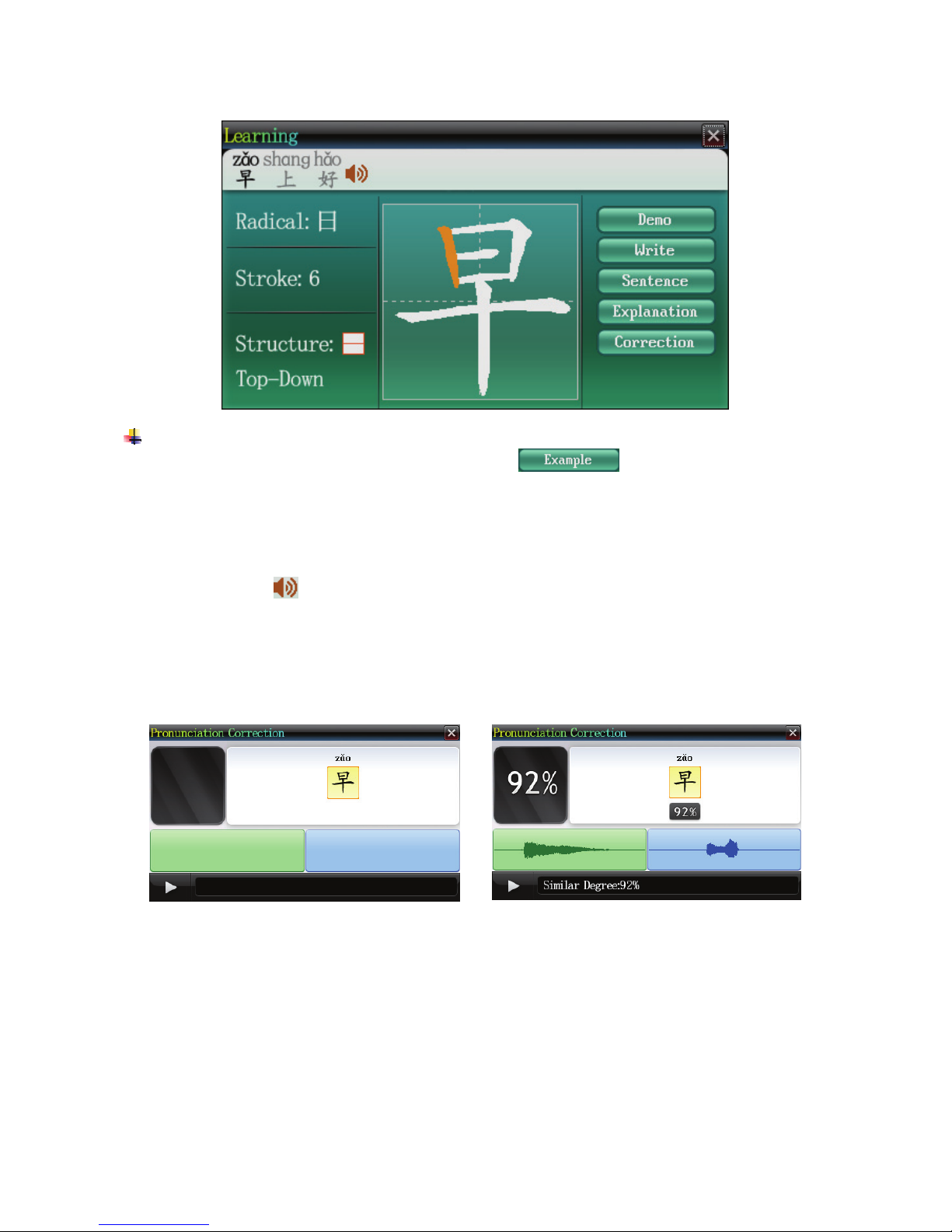
Learning mode has a newly-added
function, touch on it
to enter explanation function.
* Select any of the buttons shown on the right side of the screen for
other functions.
* Select“
”to listen to the pronunciation of the word. * If it
is a phrase, may select individual characters and execute the various
functions.
Pronunciation Correction
Function
Pronunciation Correction
Results
2. Pronunciation/Chinese Character
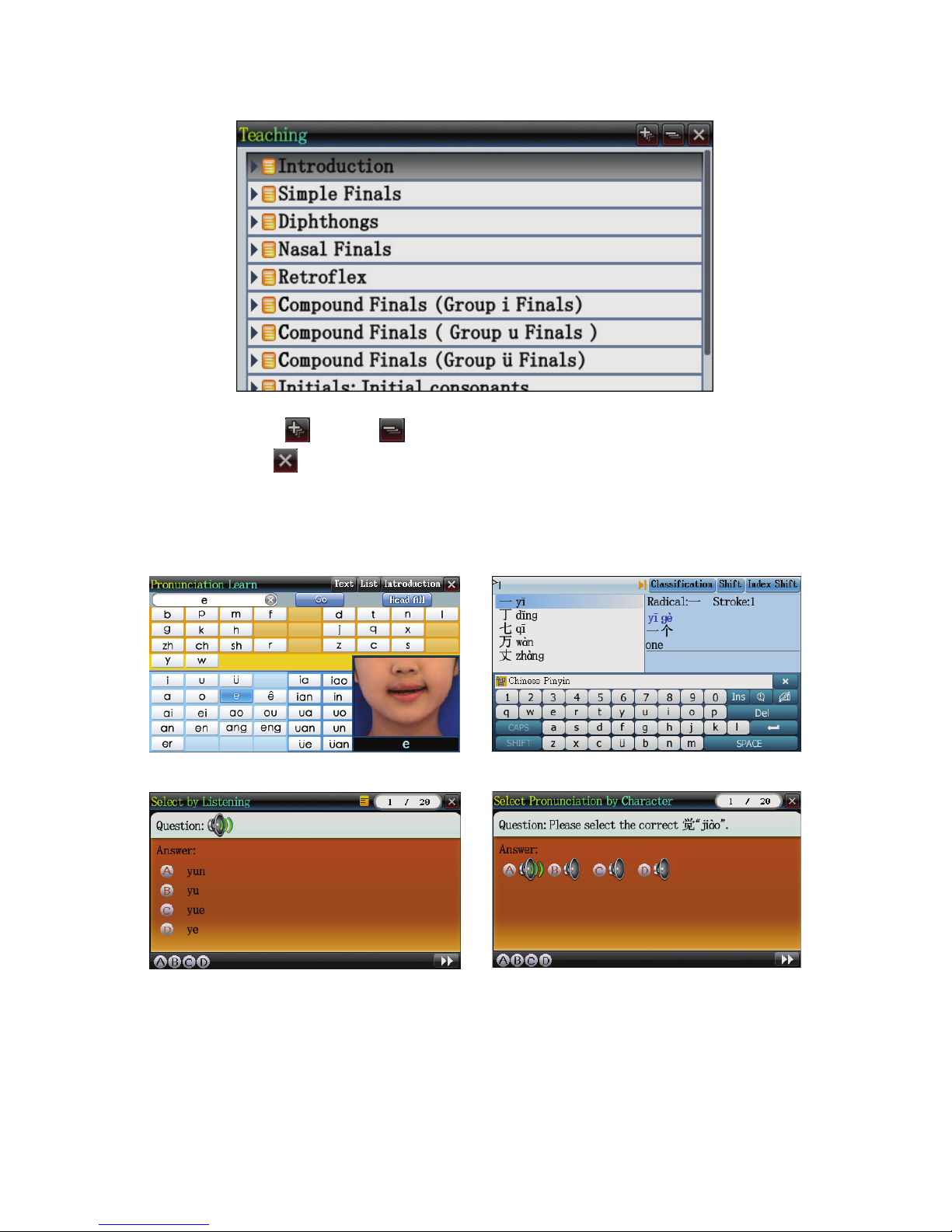
Pronunciation and character have 3 components, namely: teaching,
learning and assessment. The teaching component is carried out by
Chinese Language masters via Flash presentation.
Page 25
23
* Select “
”/“ ”to open or close the items.
* Select“
”to close the window.
* Touch on each item to enter into the contents.
Enter the pinyin to check on its
pronunciation and rules.
Learning Chinese Character
Pronunciation Test
Chinese Character Test
3. Illustrated Vocabulary
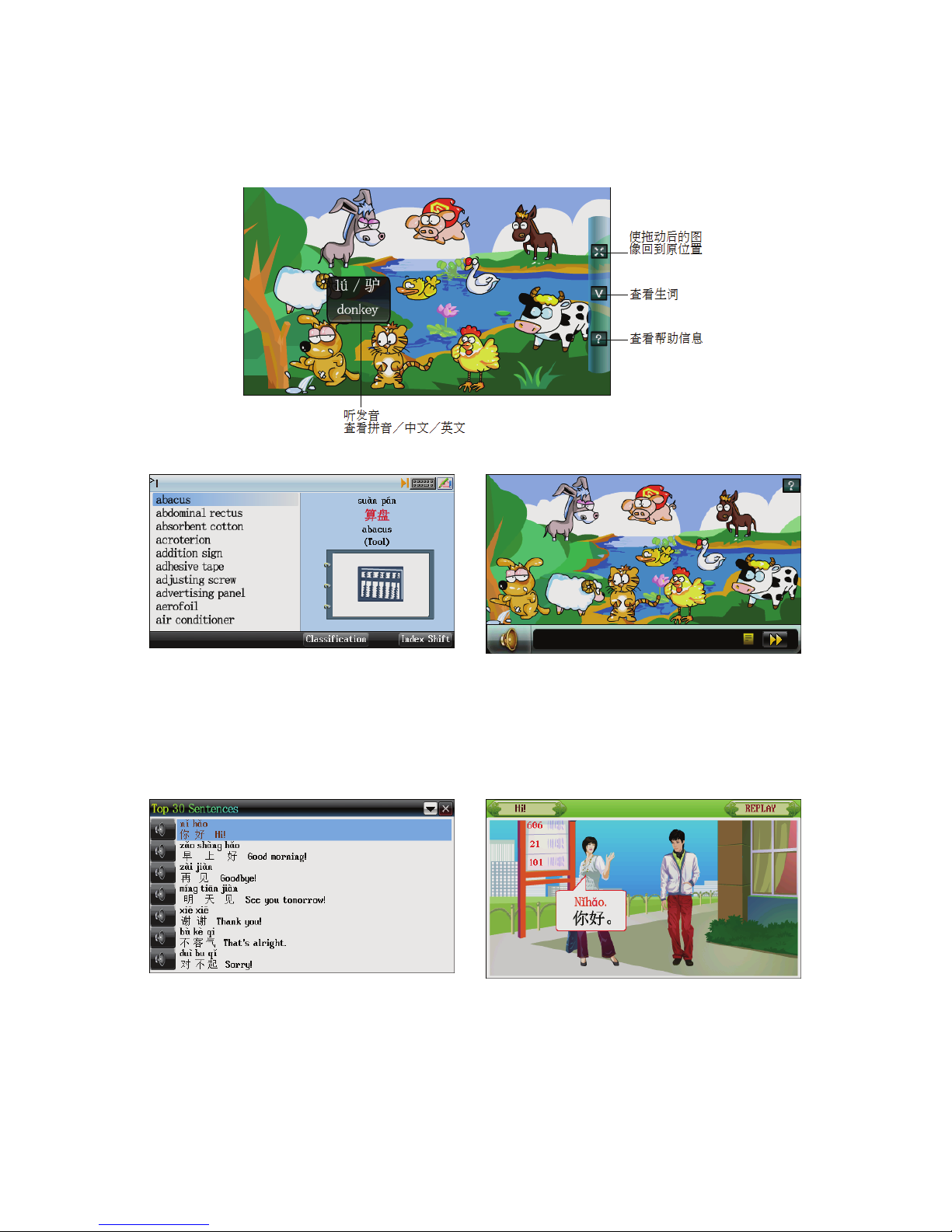
This function uses flash animation in explaining the vocabulary,
Page 26
24
through the use of images and animation; Chinese learning is made easier
and more interesting.
Vocabulary Learning Pictorial Test
4.Top 30 Sentences
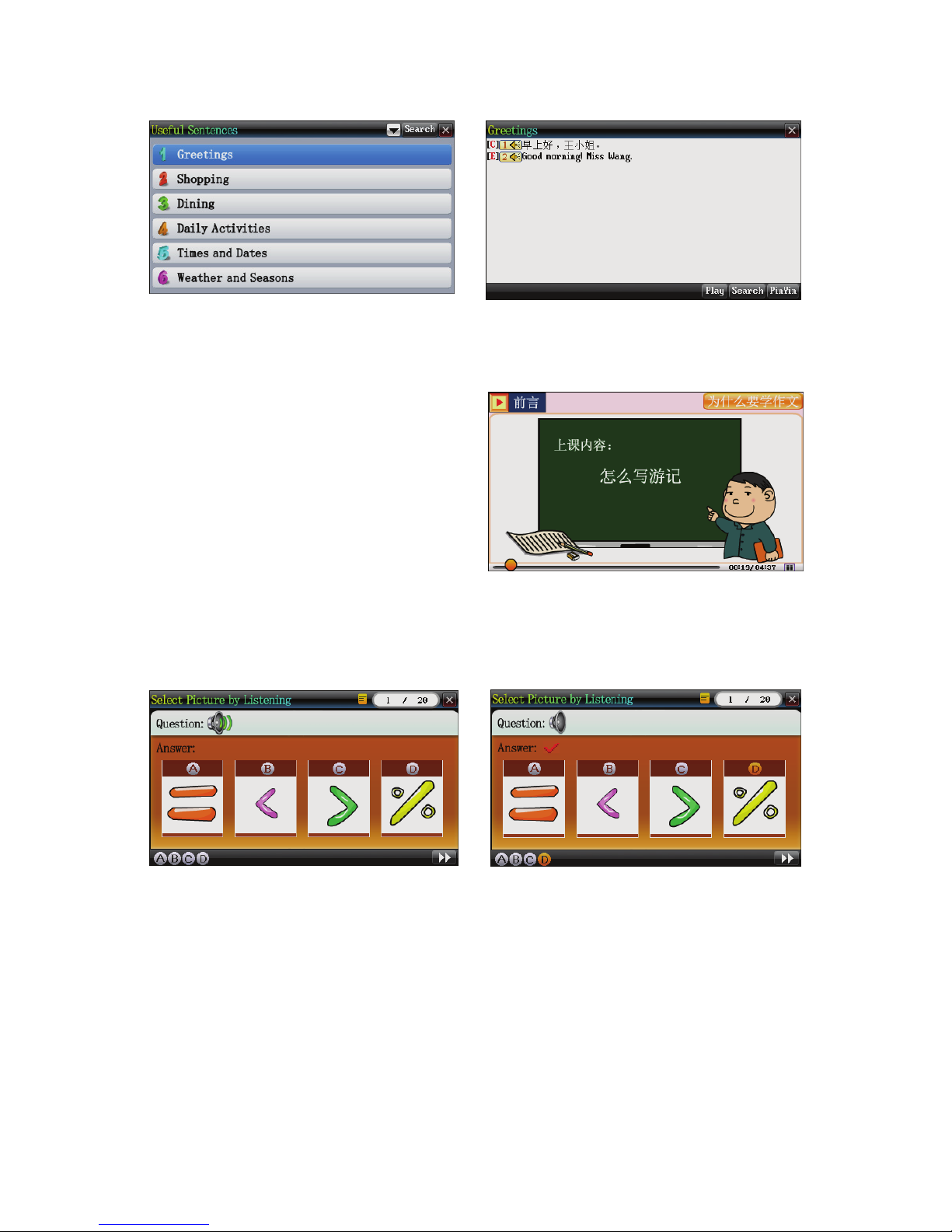
Pronunciation of 30 commonly
used phrases
Scenario
List of useful sentences
Content
Page 27
25
5. Writing Study
Composition writing
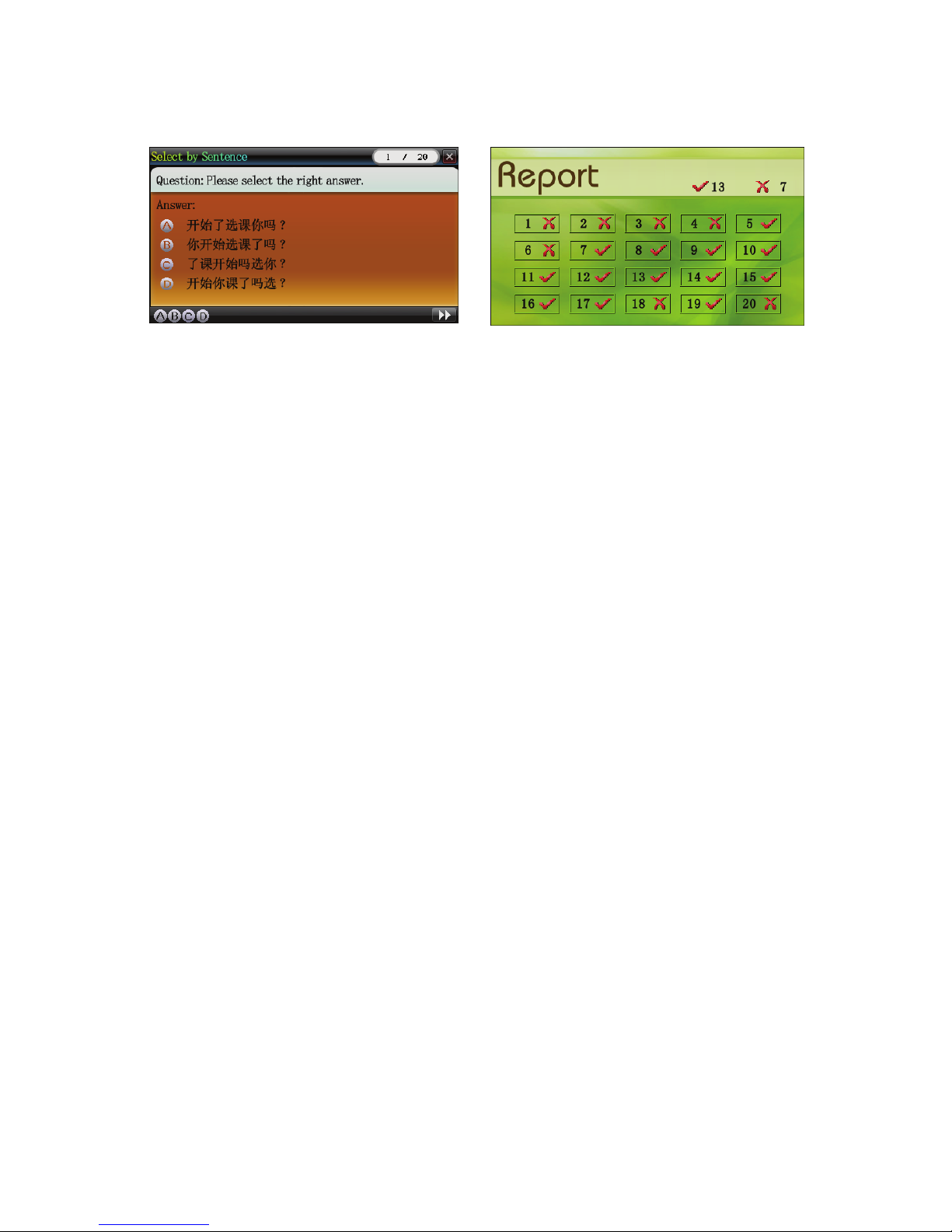
6. Exercise
Listen and select picture practice Result
Page 28
26
Grammar Test Score sheet
Page 29

27
Features of DICT:
* Provides Chinese to English/ English to Chinese full sentence
translation.
* Provides dictionary-style smart input method for easy search on
unknown words.
* Provides all words in the dictionary, sentence examples and search
function.
* Dictionary search page provides pronunciation, mouth movements
and explanation functions with bookmark features.
* The dictionary page provides English words with the phonetic
symbols, the vowels are highlighted in red.
* Provides explanation in Chinese and markings in pinyin.
* The Search function provides 2 types of typefaces; the explanation
function has 5 typefaces. The highlighted word can be enlarged or
minimized
* Can open up to 30 windows simultaneously, allows for checking
between different windows or with other dictionaries and memory cards.
* The reading of the words have repeat and read-along functions. The
speed of the voice can be adjusted to real-life speed.
* Can read both Chinese and English words, provides syllabus by
syllabus pronunciation of Chinese words.
* Provide English phonetic pronunciation.
* The explanatory page provides learning function for Chinese
characters. Part of the dictionary provides function for learning Chinese
strokes.
* Provides real voice recording for English sentence examples.
Chinese to English, English to Chinese Translation
Able to input Chinese or English content and check translation results.
Provides default list of phrases and allows for expansion in the list.
English-Chinese Dictionary
Besta English-Chinese Dictionary stores a large number of words.
Provides sentence examples, grammar, 8 differentiating features (word
Page 30

28
component, pronunciation, root-word, meaning, changes, synonym,
antonym, relation), word component and sentence construction
Provide KK/DJ phonetic systems and search function for sentence
examples.
Chinese-English Dictionary
Stores a large number of Chinese words with concise English
explanation.
Chinese Dictionary
Stores a large number of Chinese words, provides rich and detailed
explanation in Chinese and sentence examples.
Provides Chinese radical and encoding as reference.
Concise C/E Idioms Dictionary
Provides Chinese/English detailed explanations for idioms.
Idioms Dictionary
Provides entymology of the idiom, related information and search
function for synonym and antonyms.
Chinese Classifier
Provides a large number of Chinese classifier with explanations and
example.
Collocation
Words are classified; detailed English explanations are given for easy
checking.
A Collection of Dishes
Classified words for use in restaurants; detailed English explanations
are given for easy checking.
DIY Dictionary
Allows copying, editing and deleting of user’s DIY data to expand the
functions in the dictionary.
Search Engine
Provides multi language input, able to search by words, phrases,
sentences or all.
Page 31
29
Able to set search parameters as dictionary, information and
multimedia.
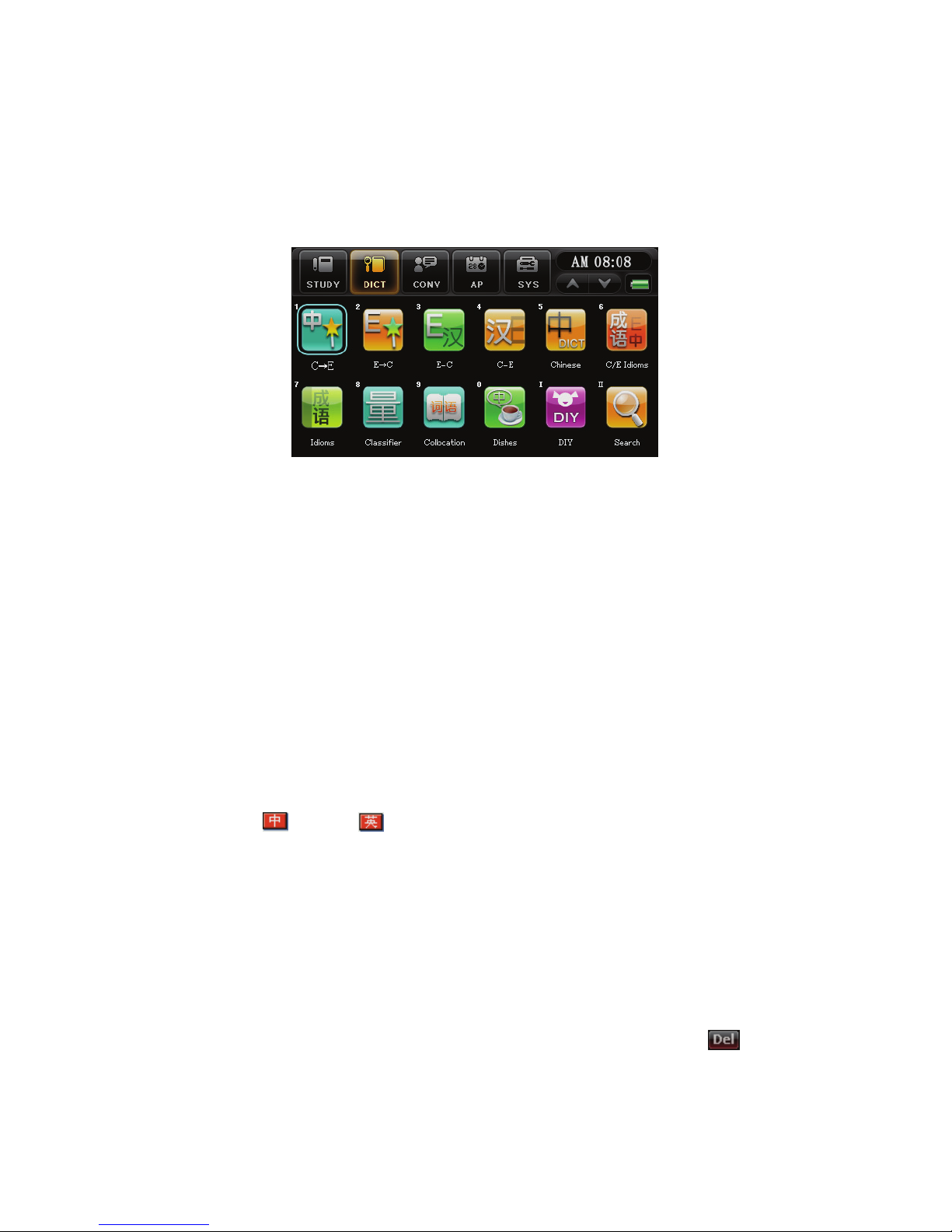
Functions of DICT
The DICT functions includes the following:
1.Chinese-English, English-Chinese
Translation
c Key in the content to be translated, touch [ENTER] for translation.
* The following contents explain when a complete translation
cannot be perform, this list is not exhaustive.
--Proper noun, example: name of a person or name of a place;
--Technical Expression, rare words
--Idioms, slang, proverbs and sentences with metaphoric
expressions.
-- Colloquial expressions and dialects.
d Tou ch “
”/“ ”or [Chinese to English/English to Chinese]
to interchange between English and Chinese input page.
The content in the input bar will be cleared when it is interchanging
between English-Chinese and Chinese-English translation.
e At the input and results page, touch on [Function—5 Save] on the
right panel of the device to save information, this function is not
available at the reference details page. To store information, select
[Function—5 Save] at the translation result.
f Touch [Record] to browse the saved translation, touch “
”to
delete the items one by one.
Page 32
30
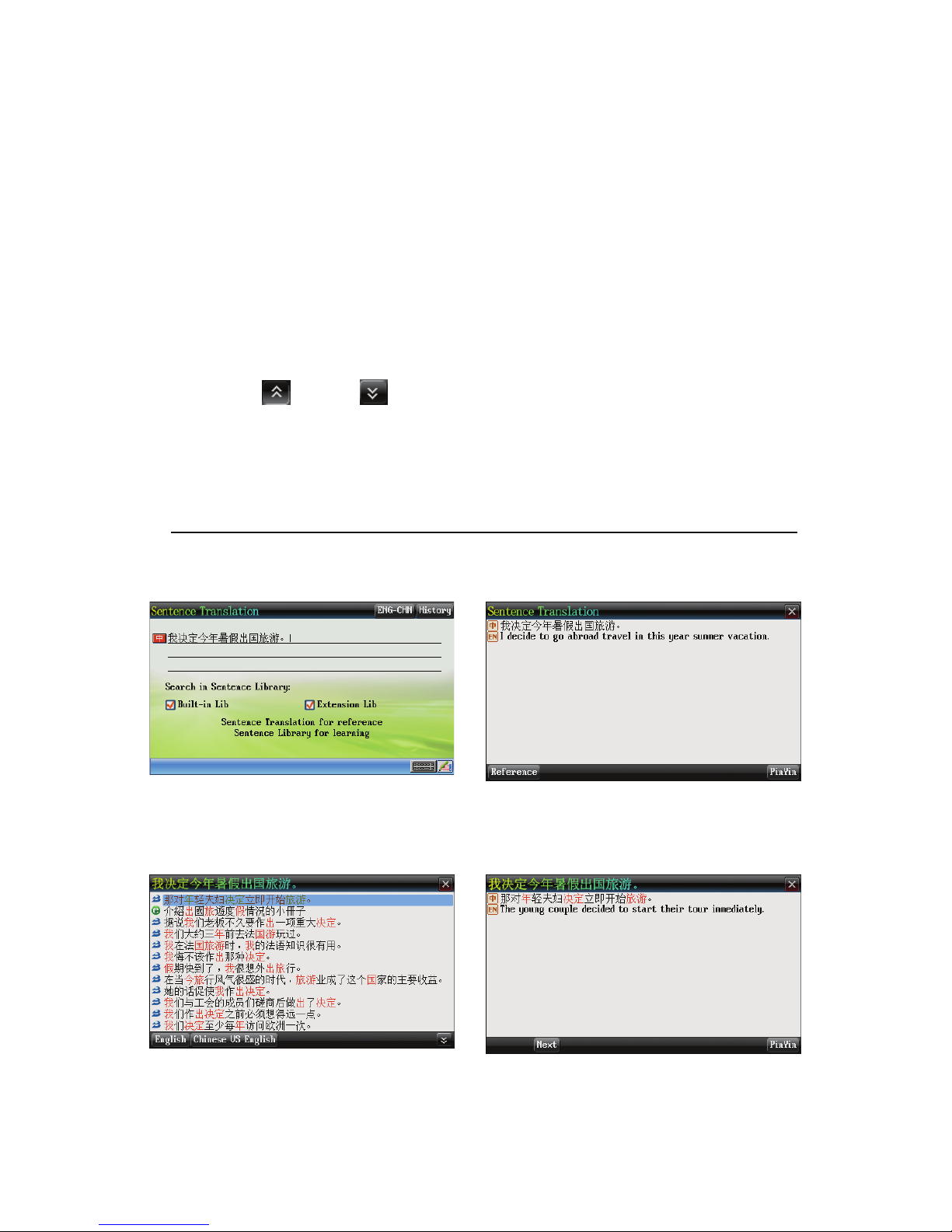
g After closing Soft keyboard, you may touch “Reference”to refer to
the supplementary word bank to check. (If continued reference is
selected, may touch “Reference”, to refer to the supplementary
word bank.)
“Reference”page:
* [Chinese/English]--‘Chinese/English’ – interchange between
sentence examples in Chinese/English.
* [Chinese-English--View Chinese-English sentence examples on
the list in the word bank.
h Touch “
”/“ ”to look through other sentence examples.
i At the translation results page, touch [Speech] to listen to the
pronunciation of the sentence; you may select any of the Chinese word to
enter into the learning mode.
Example : Chinese to English : “我決定今年暑假出國旅游。”
Input the content to be
translated
Translation result
Other examples shown in the
Reference page
Chinese Vs English
Page 33

31
2.Functions of Dictionary
The English-Chinese Dictionary, Chinese-English Dictionary,
Chinese Dictionary, Concise C/E Idioms Dictionary, Idioms Dictionary,
Chinese Classifier list, Word List have common functions, thus the
functions are summarized as follows.
2.1Dictionary Search
In dictionary mode, the page displays the input bar for checking
entries, page search, word input, checking explanations and the various
applications for dictionary functions. You have to provide the content and
search for explanation that match the content you keyed.
* Select “ ”/“ ” to switch between double and single window
screen display.
* Select input method icon to choose between Chinese or English soft
keyboard input methods.
* Touch [OK] on the device to view the explanation of the word on
display.
* Touch [ESC] to return back to previous page.
* When the soft keyboard is closed, touch “
”to open handwriting
soft keyboard.
* Touch [Function—4 Font] to interchange between 2 types of font type
display.
* Touch directional up/down key on the touch screen for next/previous
page, or slide up/down on the touch screen key.
* Select [Speech] key on the touch screen for pronunciation.
* All dictionaries provide search function.
* If results shows “Unknown word check, Second check”, please
refer to “2.4 check” for more details.
* After entering the word to be checked, touch [E-C]/[C-E] for
translation; or touch [Search] to enter into the search function.
2.1.1Record
Page 34

32
On the dictionary’s index page, touch [Record] to view recent search
records. Maximum records shown will be 200. Touch “
”to delete the
individual records.
2.1.2Classified search
When the dictionary that is being used has a classification function,
you may select the category in the word bank to conduct word search.
Touch the corresponding item with the stylus to enter the category.
Example: At the index page of Chinese Dictionary, touch ‘Function 1:
Search Categories’.
2.1.3 Toggling Languages
When Chinese/English entries are provided in the index, touch
[Chinese/English to choose the language of the index.
Example: On ‘A Collections of Dishes’ search page, touch
‘Chinese/English’
2.2 Explantion Notes on Dictionary
After inputting the word to be checked on the search page, enter into
the definition page to refer to the information.
* Touch on the previous/next page to view previous/next word.
* Provides Chinese Pronunciation with mouth movements.
* Provides repeat and read-along functions.
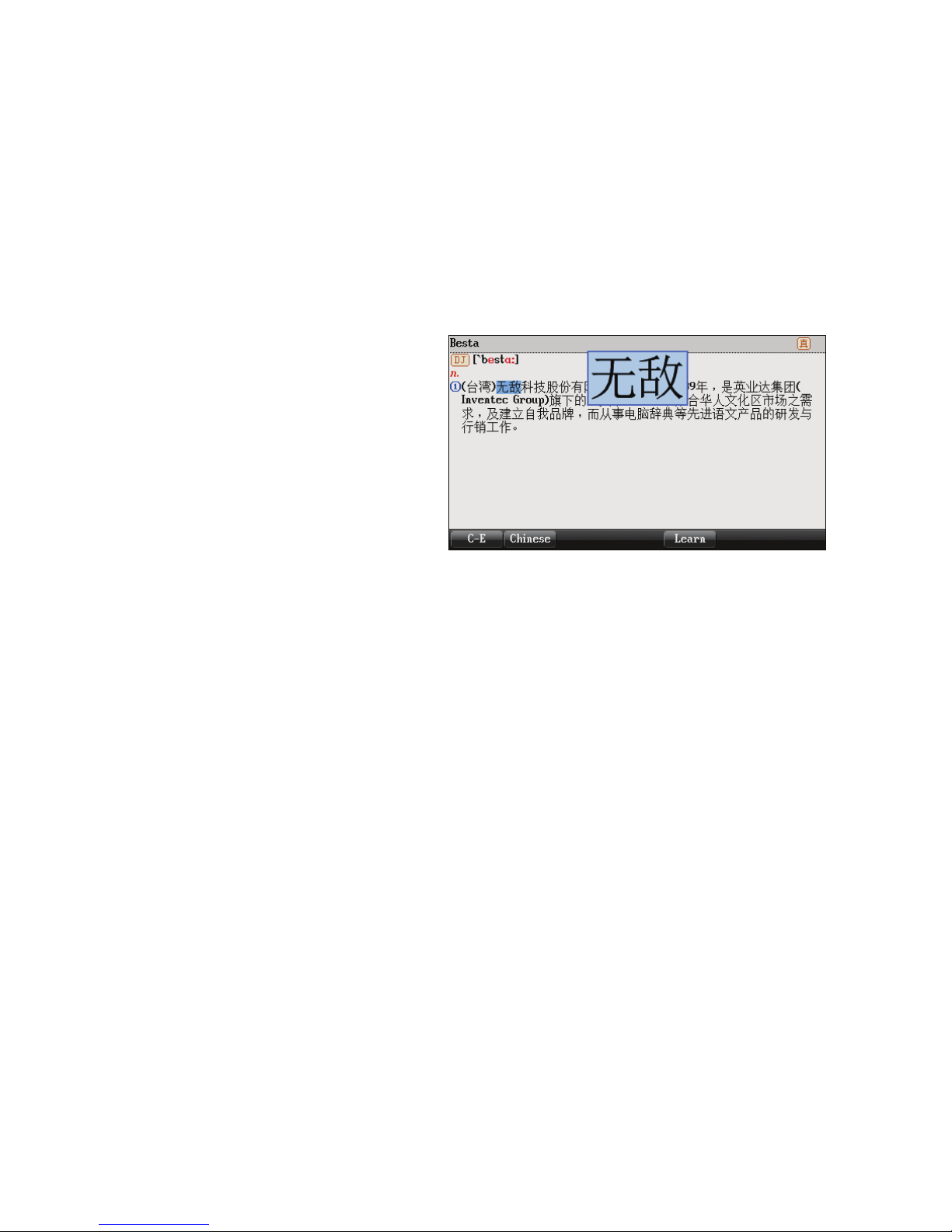
* Provides 5 different font sizes, can zoom in/out on the selected words.
* Can look up in device’s dictionaries for the explanations of
highlighted words, the maximum checks is 30 levels, can also enter
the learning mode, Chinese-English/English-Chinese translations and
search functions.
The following is provided by some of the dictionaries,
* Vowel are highlighted in red, the pronunciation of the syllabus in the
English words are given.
* Provides “
”/“ ” to choose the different phonetic
demonstrations.
* “
” is for real person demonstration.
Page 35
33
* Provides related expressions and reference for sentence examples.
* Provides stroke order function.
2.2.1Font Size
Touch [Function—4 Font Size] to select from 5 font sizes. You may
also highlight the word and select the top/down button to increase or
decrease the font size.
2.2.2Pronunciation
On the explanation page:
* Touch [Speech] for Chinese pronunciation with mouth movements.
(『English-Chinese Dictionary』for real person demonstration)
* When highlighting Chinese/English words, touch [Speech] for
Chinese pronunciation.
* Touch [Function—3 Syllabe] for syllabus pronunciation. (Provided by
English-Chinese Dictionary)
* Touch [ESC] on the device to stop the pronunciation.
2.2.3 Read Along
Provides read along function on the explanation page. Touch
[Function—1Follow Read] once to conduct read along exercise.
2.2.4 Repeat
Provides repeat function on the explanation page. Select
[Function—2 Repeat] once to repeat the word either in Chinese or English.
Page 36
34
(Number of repeat can be set at SYS—Sound Setting)
2.2.5 Chinese Word by Word Pronunciation (with
mouth movements)
The device supports word by word Chinese pronunciation with mouth
movements shown. User may set the pronunciation mode in『SYS—Sound
Setting』.
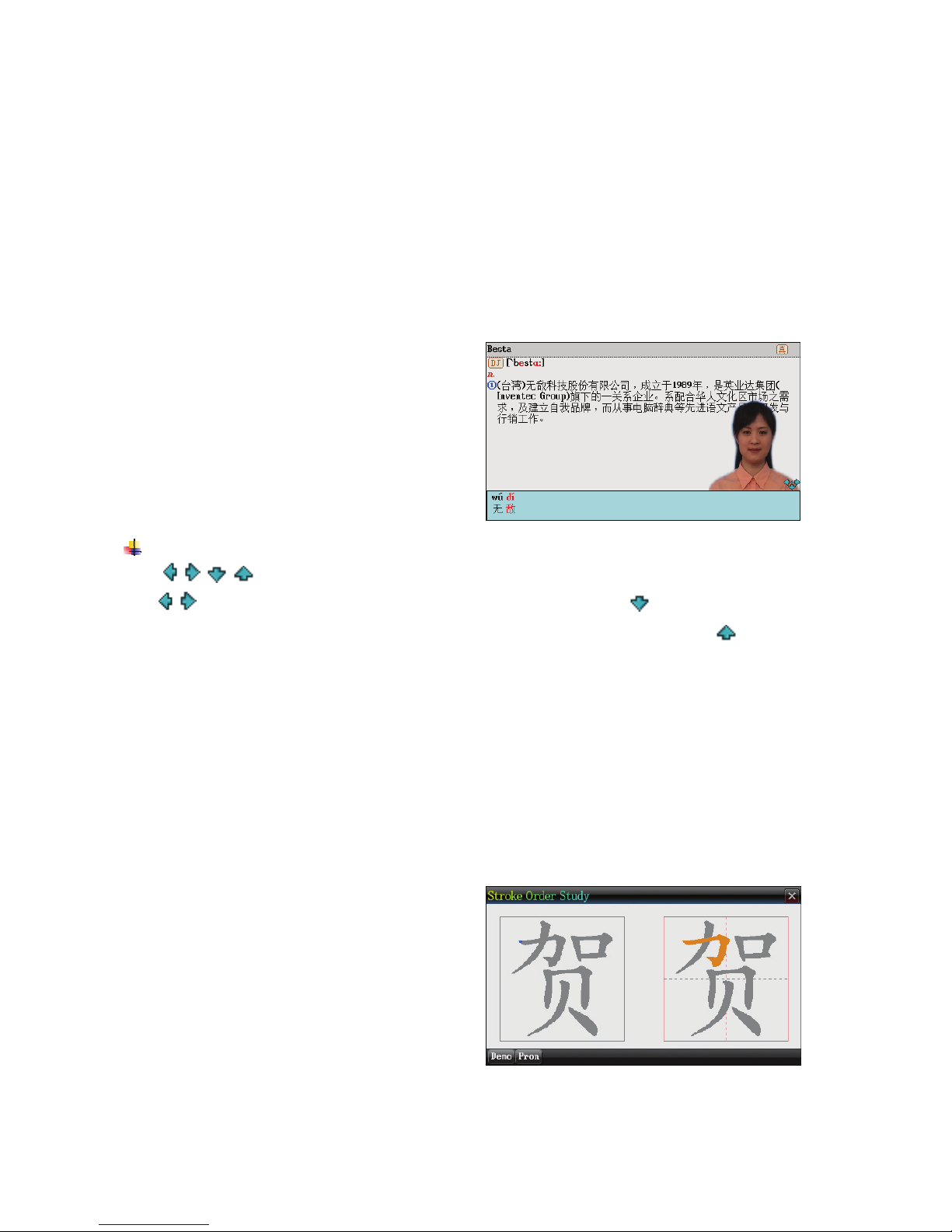
On the mouth movement page,
can use the stylus to move the
image.
Note:
/ / / key shows the position where the image may be moved;
/ key shows the position of the demonstrator
;
minimizes the
image to the bottom of the window and closes the subtitles
;
opens the
subtitle display.
2.3 Chinese Character Stroke Order
On the explanation page of Chinese Dictionary, Concise C/E Idioms
Dictionary and Idioms Dictionary, highlight the Chinese Character to
enable the stroke order study function. This function provides
demonstrations and practices of the Chinese characters. (The Chinese
Dictionary has a built-in Stroke Order Function).
Chinese Character Stroke Order
Demonstration
Page 37

35
2.4Dictionary Search
This device provides many ways of looking up words in the
dictionary. Using different ways will raise the efficiency of checking the
words and satisfy user’s needs.
Search Window: Explanation Window:
1. Smart Input Search 1.Multi Window Search
2. Unknown Word Search (English only) 2.Search for Other Information
3. Search Engine 3.Search Engine
4. Second Search
2.4.1Smart Input Search
You only need to input 1 or a few alphabets/Chinese character to
search for the full word/phrases.
There are 2 smart input search methods:
c When searching for words in English, input the first or first few
alphabets in word, move the cursor to the word that you want to
check, touch [ENTER] to confirm. When searching for Chinese
words or phrases, input the first or first few characters, move the
cursor to the word that you want to check, touch [ENTER] to
confirm.
d Double touch on the word to look up the explanation.
2.4.2Search for Unknown word (English only)
For words that you are unsure of the spelling, input the alphabets that
you are sure and replace the alphabets unknown with “?” or “*”.
4 steps to look up an unknown word:
c Input the alphabets in the places where you are sure of.
d Insert “?” or “*” on places where you are not sure what the letters
are.
e Touch [ENTER], the screen will show a list of words that satisfy
the search for you to select.
f Touch twice on the word to view the explanation.
Page 38

36
Note:
“?” represents one unknown alphabet, “*” represents a few
unknown alphabets.
2.4.3 Second Search
If the word that has been input for search is incorrect or not found in
the dictionaries, we provide 2 alternative searches and 1 recording method.
Spelling Check:
Provides a list of words that are similar in spelling and pronunciation.
The Nearest Word:
Displays the words that are the closest in order to the word that has been
input.
Add New Word:
Record and add the word that has been input into the DIY dictionary.
Steps to conduct search:
c Input words, touch [ENTER] to begin search.
d Touch on the relevant items to proceed checking.
* If touch “1 Spelling Check” , touch twice on the English word to
proceed with check.
* If touch “2 The Neareset Word”, enter directly onto the
explanation page of the closest word.
* If touch “3 Add New Word”, enter directly into DIY Dictionary.
Note:
For search in Chinese, the Second Search menu has only “2 The
Nearest Word” and “3 Add New Word” functions.
2.4.4 Multi Window search
Multi window search allows you to search for single character or
phrases which you are unsure of. The number of layers that you have
opened is displayed on the top right corner of the front window; the
maximum number of windows is 30.
Page 39

37
c At the explanation window, you can select Chinese or English as
your reference language.
* Using Stylus to select :
Use the Stylus and drag to select and highlight a word or
phrase, touch [ESC] on the device or touch on any blank space on
the screen to remove selection.
d From the left to right bottom of the screen, you will see the keys
of dictionaries where you can conduct counter checks. Touch [OK] on the
device to select the first dictionary.
*Touch [Learning]/[Stroke Order]to enter study or stroke order
function.
e Touch [ESC] on the device to go back to the previous page.
3. Search Engine
The search engine enables the user to get all results by conducting
only 1 search. It can classify information into many sets, realizes more
accurate positioning, and thereby raises the accuracy of the search. by
conducting the search once. It can classify the results accordingly with
accuracy.
c Enter the search engine page, input the keyword, and select
dictionary/information/multimedia as your search option:
Dictionary—Word/ Sentence Examples/Phrases/All
Information—Search*.txt file
Multimedia—Search for Video/Audio/Flash/Picture
Note:
c
When conducting search for word, phrases or for all, touch
[setting] to select dictionary for checking.
d
Touch [Search] or touch [OK] on the device to view search result.
Page 40
38
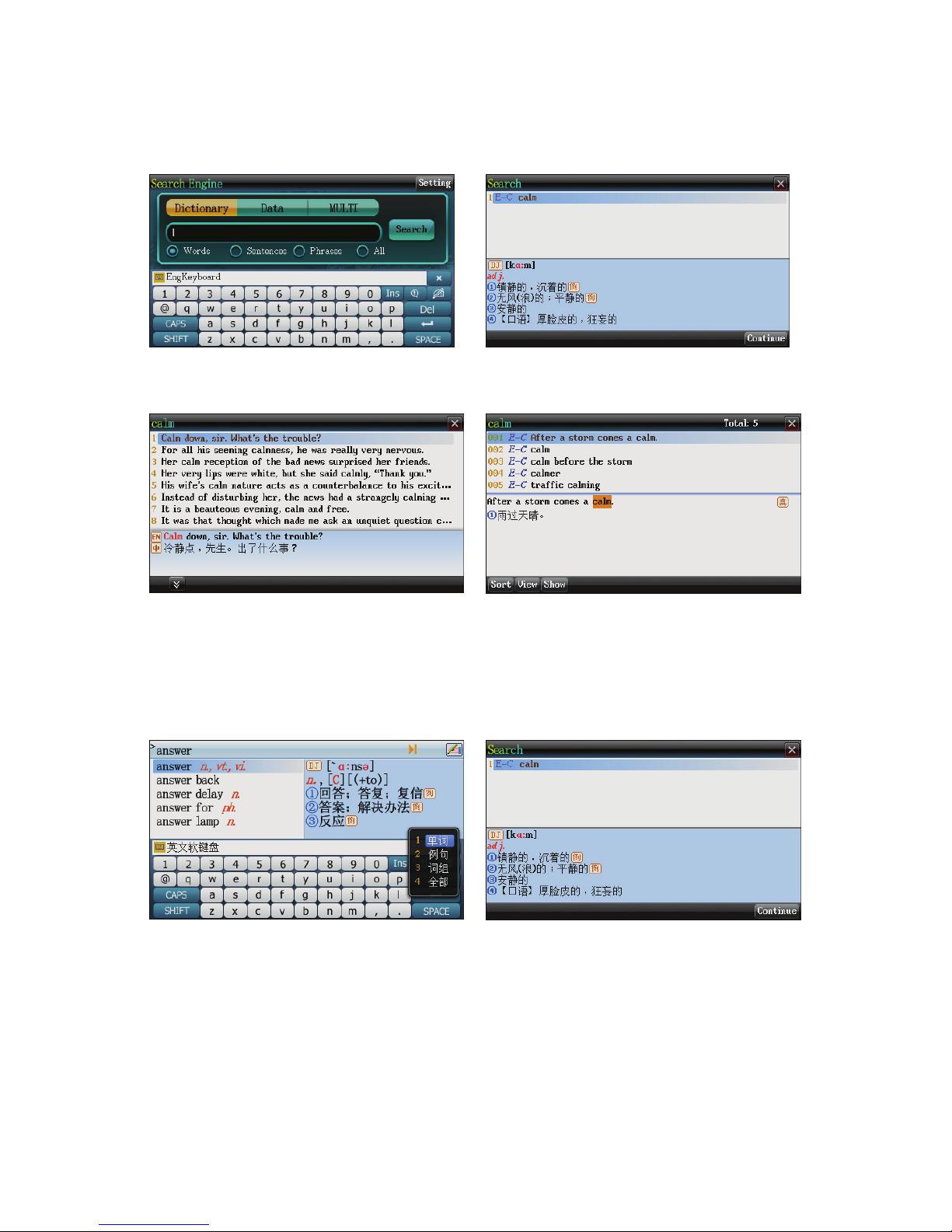
Search Engine page.
Display of words that contain the
input word.
Sentence examples that contain
the input word.
Phrases that contain the input
word.
Search can be conducted when in the dictionary window or
explanation window, touch [Search] on the touch screen to enter into the
dictionary search function.
Initiate the search function on
the search page.
Initiate the search function on the
explanation page.
Page 41
39
Features of CONV:
* Provides daily conversation, travel conversation, business
conversation, multi-language conversation and keyword search functions.
* Provides standard Chinese, English, Japanese, Korean real person
pronunciation and full text play functions.
Daily Conversation
Provides 12 topics of daily conversation content.
Travel Conversation
Provides 11 topics with 42 sub-topics of frequently used travel
conversation.
Trade Conversation
Provides 15 topics of frequently used business conversation.
Multi-language Conversation
Provides 10 topics with 46 sub-topics of frequently used Multi-nation
conversation.
Provides French, German, Spanish, Italian, Korean, Malay and more
with real person pronunciation.
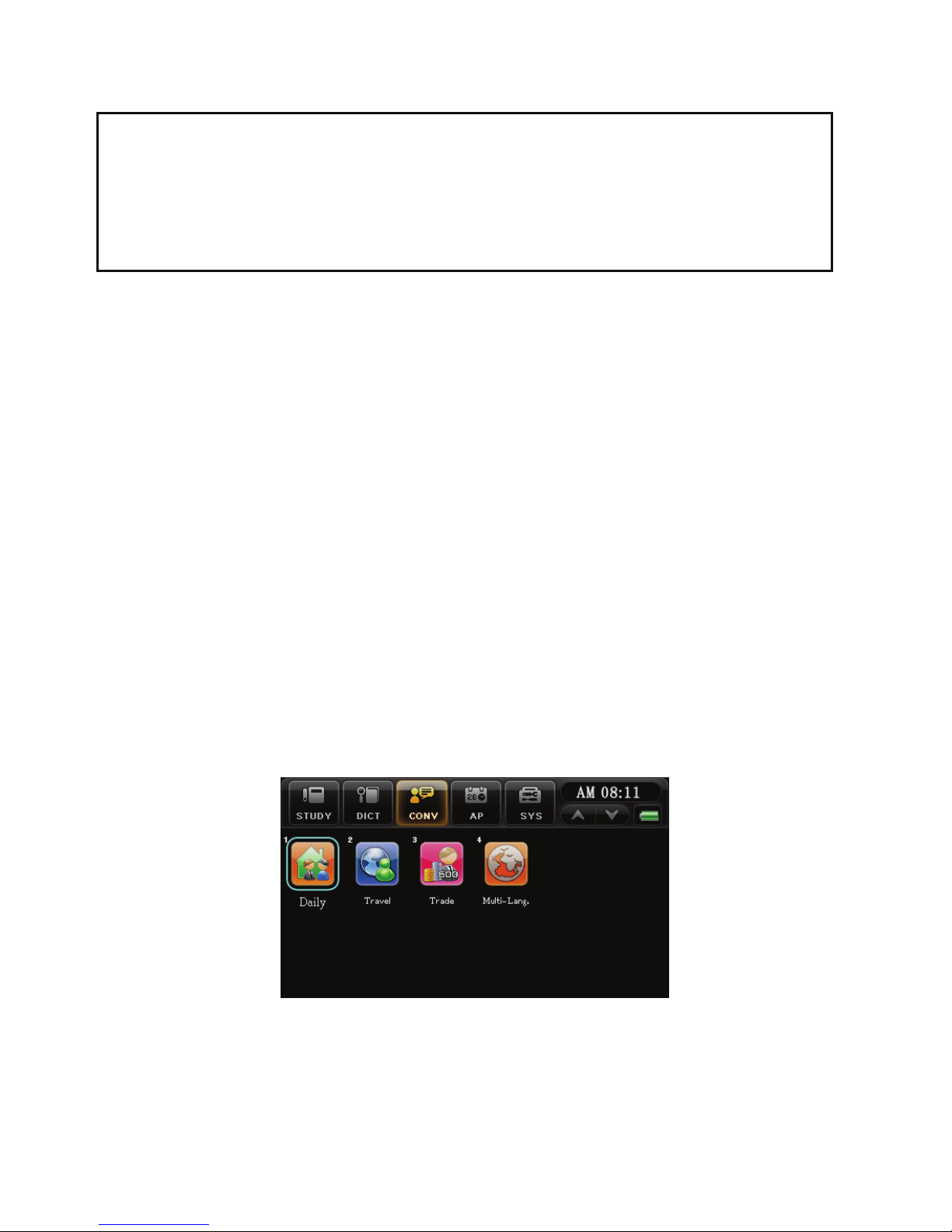
Functions of CONV
There are 4 sub menu under CONV:
Page 42
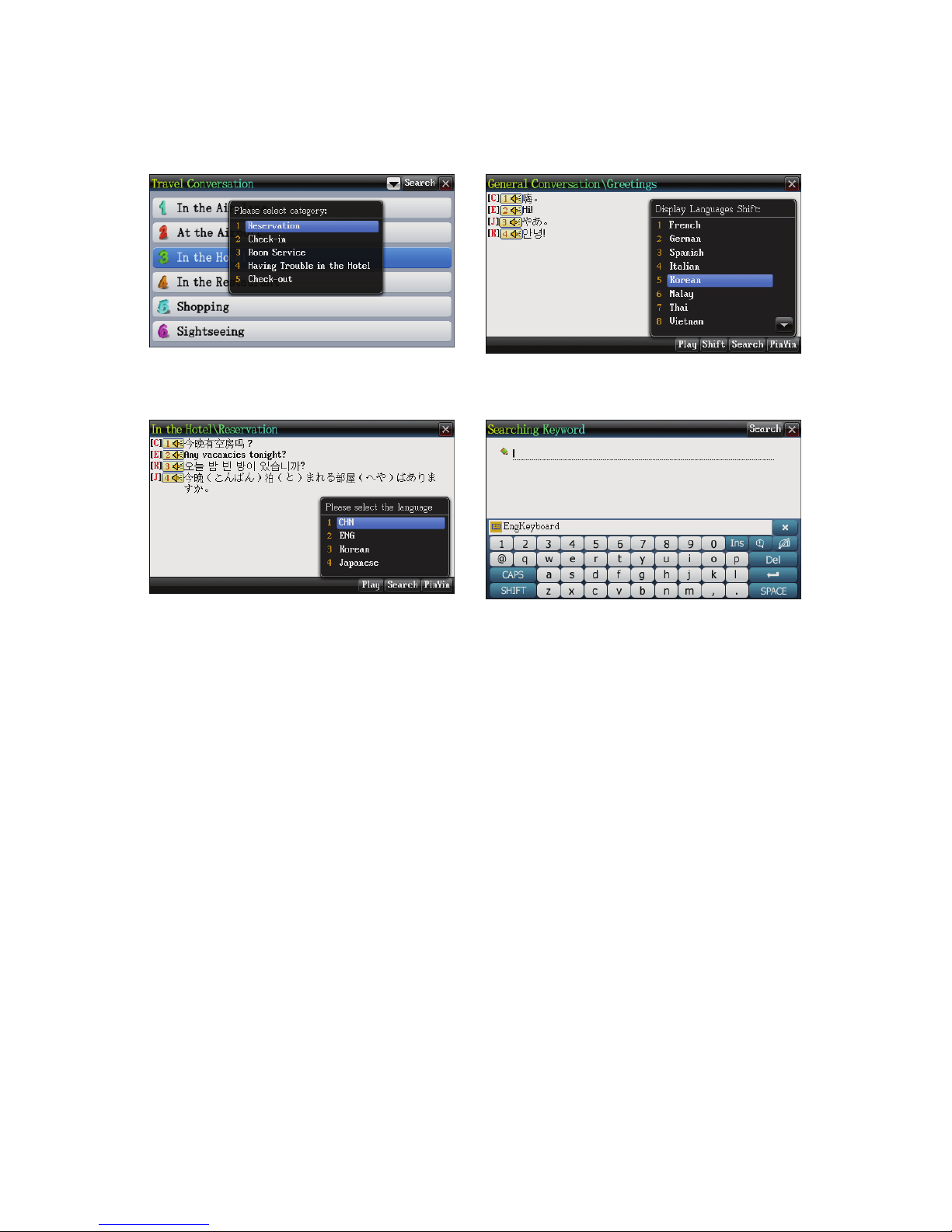
40
Conversation Menu
Conversation Topic-Toggle
Language
Conversation Content-Full Text
Play Function
Full Text Search
Page 43

41
Features of AP:
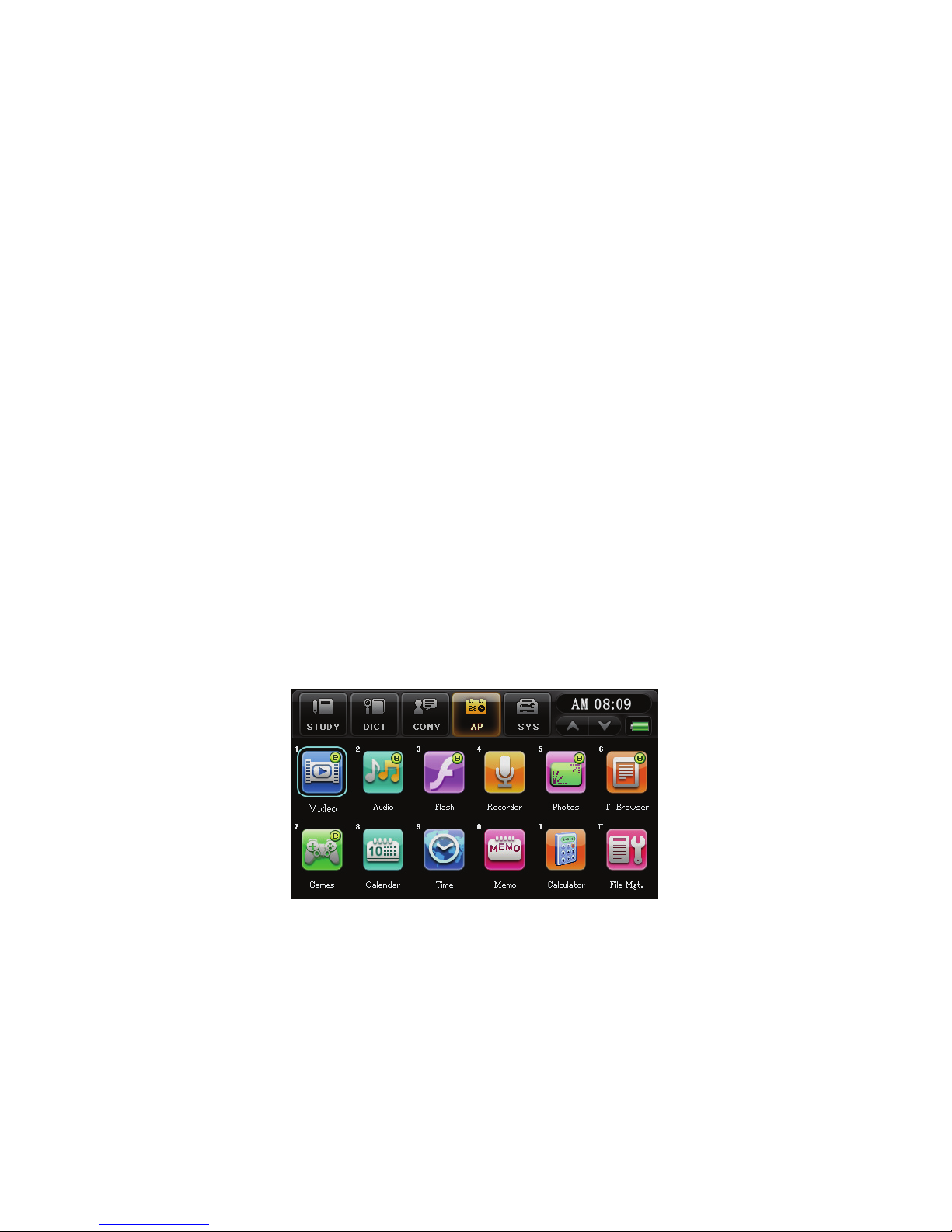
* Provides multimedia and entertainment functions, example video,
audio, Flash. More content is available for download from website.
* Provides clock, organizer and calculator functions.
Video
Supports various video file formats.
Supports read-along, repeat and search sub-title functions when video is
being played.
Audio
A MP3 player, supports text displaying and provides A-B record and play
functions.
The device can set the MP3 as ringtone, please place the downloaded file
in C:\MP3.
Flash
Supports “.swf”, “.bfh” and “.flv” flash files.
Digital Recorder
Records and plays audio files.
Photos
Supports “.bmp”,“.jpg” and “.png” formats. Provides frame
setting functions.
Can set view pictures as slideshow.
Text Browser
Supports “.txt” file. Provides different font sizes, font types, background
color and text reading functions.
GamesWorld
Games can be downloaded from our company website. Downloaded
content can be deleted.
Calendar
Provides Gregorian calendar starting from A.D Jan 1901 to Dec 2099,
horoscope, 6 months calendar, search function for Chinese horoscope,
six-month calendars, lunar calendars and the 24 solar terms.
Page 44
42
World Time
Provides time of three places, can adjust time, date and city.
Provides timer and stopwatch functions.
Memorandum
Functions as a memo pad, for easy record of any important notes and
matters.
Can add, copy, edit and delete data.
Can set definitions and edit categories.
Data can be password protected.
Calculator
12-digit calculator, provides memory functions.
File Management
Provides all the file management functions in the device.
Provides sorting, new folder, rename and delete function.
Provides formatting, file rename, transfer of data between memory card
and the device etc.
Function of AP
Functions of AP are as follow:
Page 45
43
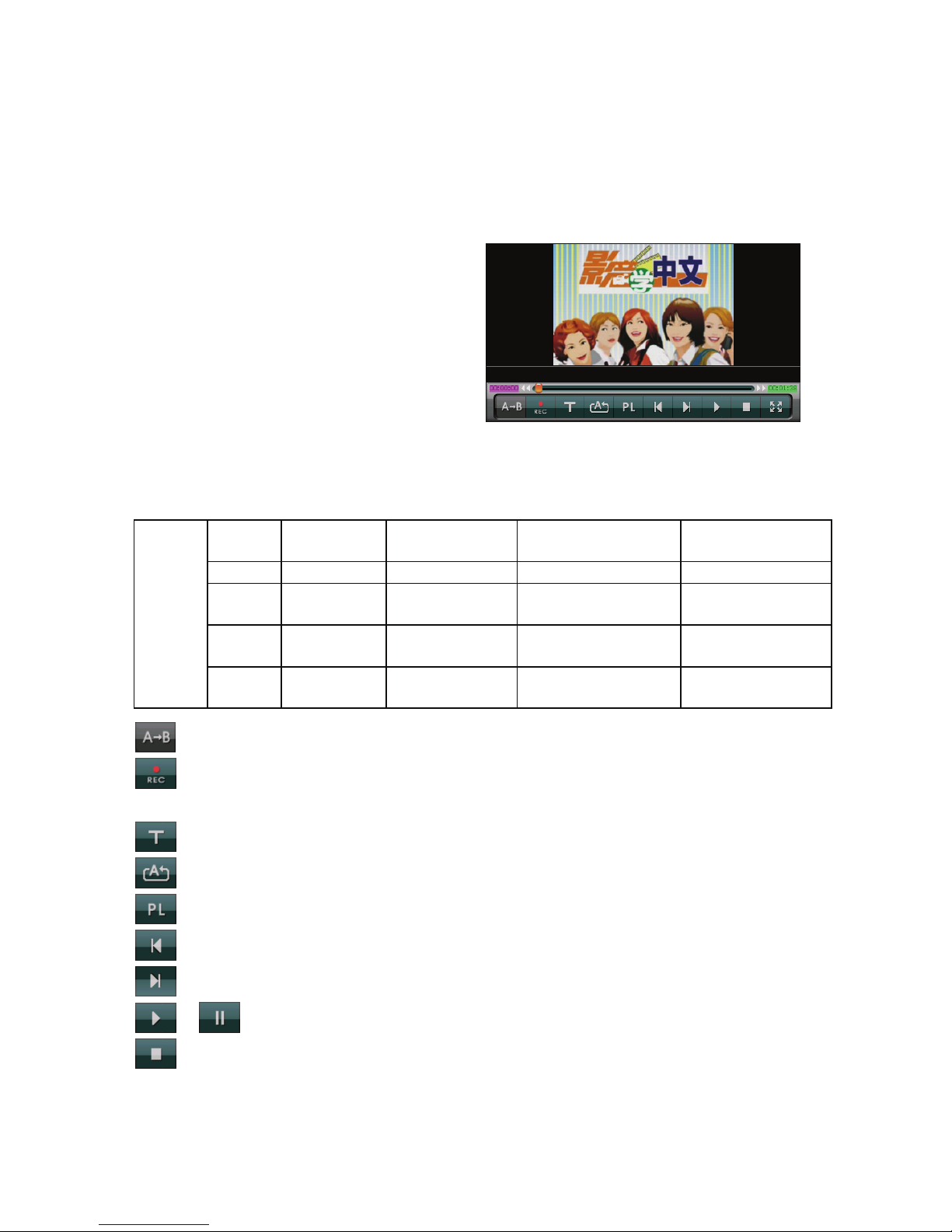
1.Video
Supports video files in “.wmv、.rm、.avi、.rmvb、.pav、.bav” formats.
Playback Display
Please refer to the following diagram for the details on the various file
formats supported by the device:
File
Type
(size) (bit rate) (frame rate) (audio)
wmv 480*272 300kbps Around 20fps 64~128kbps
rm 480*272 200~300kbps Around 20fps Recommend
64kbps
avi 480*272 500kbps Around 20fps Recommended
64kbps
Video
rmvb 480*272 200~300kbps Around 20fps Recommended
64kbps
:Repeat Key, repeats the current sentence.
: Read-a-long Button. Read-a-long with the video that is being
played. Touch [ESC] to cancel function.
:To toggle sub-title display.
:Play mode: single/repeat once/ play in sequence/ repeat all.
:Open Play List.
:Previous Video
:Next Video
/ :Play/Pause
:Stop video
Page 46
44
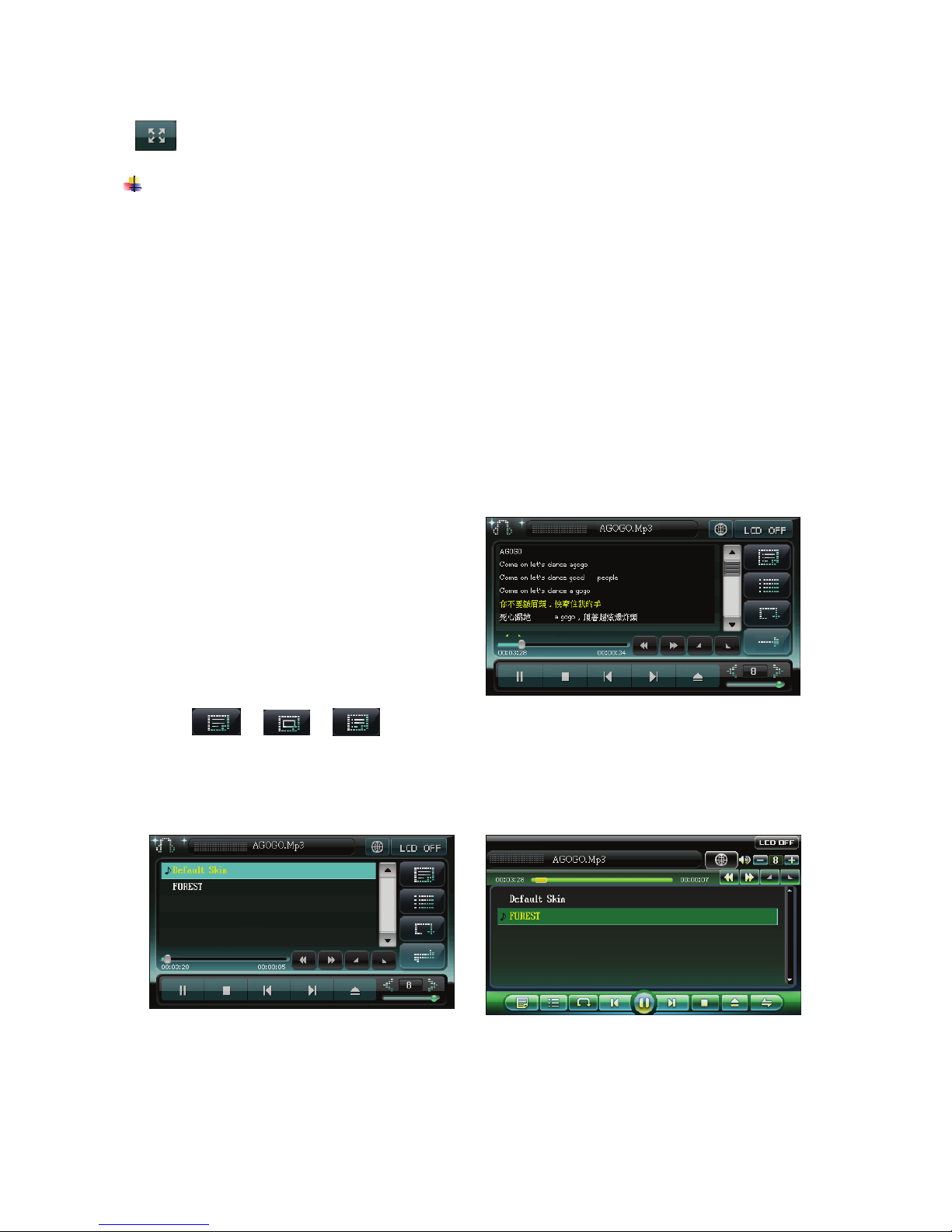
:Full screen
Note:
n
Please download the video file, then add the movie to the playlist,
the device will auto search for the audio files and add it to the playlist.
o
Touch the control panel ‘Function 6- Help’ key to refer to
explanations on the corresponding operating functions.’
2. Audio
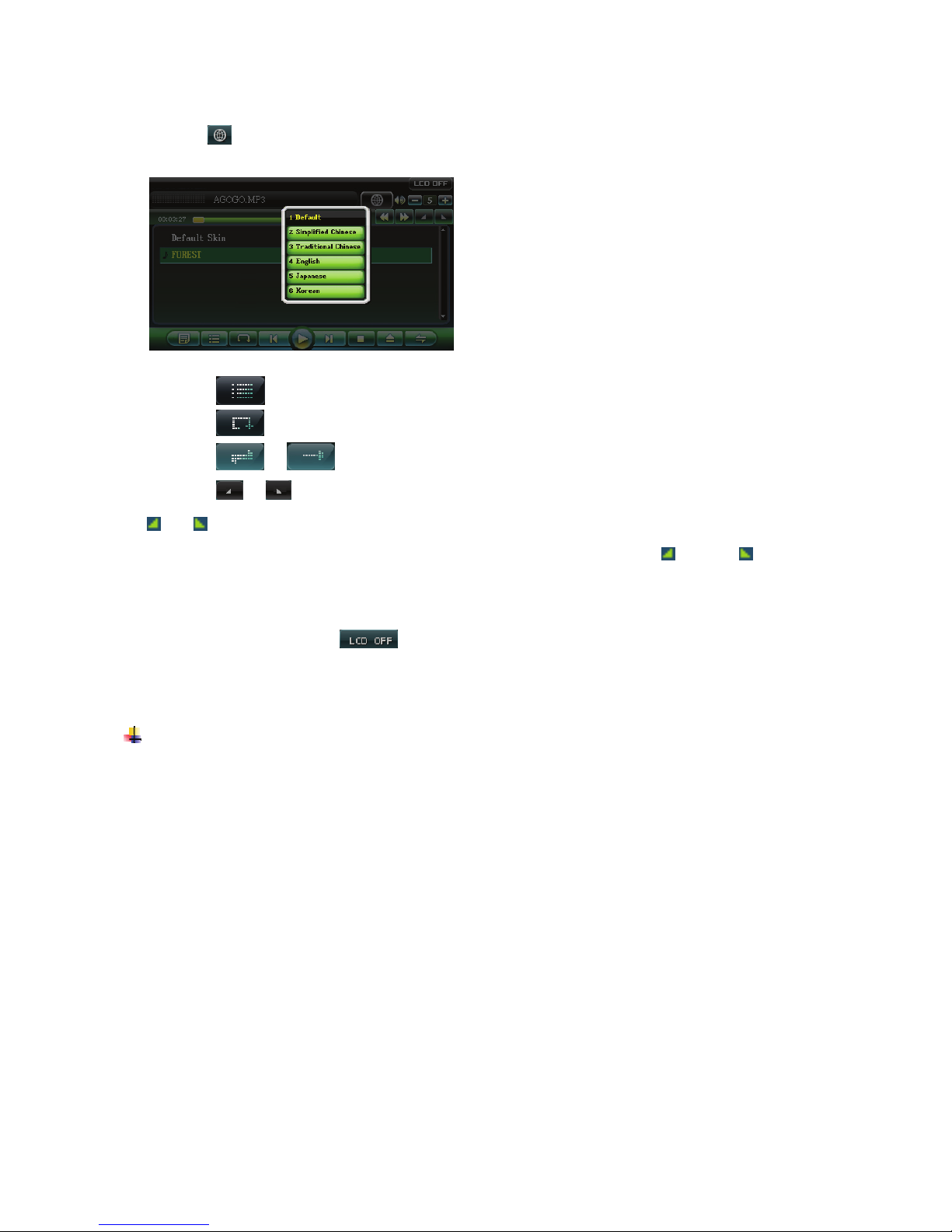
Support synchronization of lyrics with an audio file. Both “.lrc” and
“.mp3” file have to be named as the same name and placed in the same
folder for synchronization.
Screen Display for
synchronization of lyrics with
an audio file
Select / / , to toggle lyrics list/ skin list/ song list. When
touching, the user can select from two skins.
Default Skin FOREST Skin
Page 47
45
Touch ,to select the language
for lyrics display
* Touch to open play list.
* Touch
,to select order of songs to be played.
* Touch
/ ,to turn on/off repeat playback.
* Touch / ,to set the beginning/end of repeat playback, once set,
“
/ ” will appear.
* Once set, the device will play the content between “ ”to“ ”.
* During pause or at the end of the play, can use the stylus or the right
arrow key to check the lyrics.
* During play, press
or [G] key to close the MP3 window, press
[ON/OFF] to resume the window. Press [ESC] key to escape the MP3
window, the MP3 will continue to play at the background.
Note:
n
Press[SHIFT]and then press[SAVE] key to refer to the explanatory
notes on the corresponding function keys.
o
You have to put sub-files with“.lrc”and“.mp3”filenames in the
same folder in order to use synchronize the audio file with the lyrics.
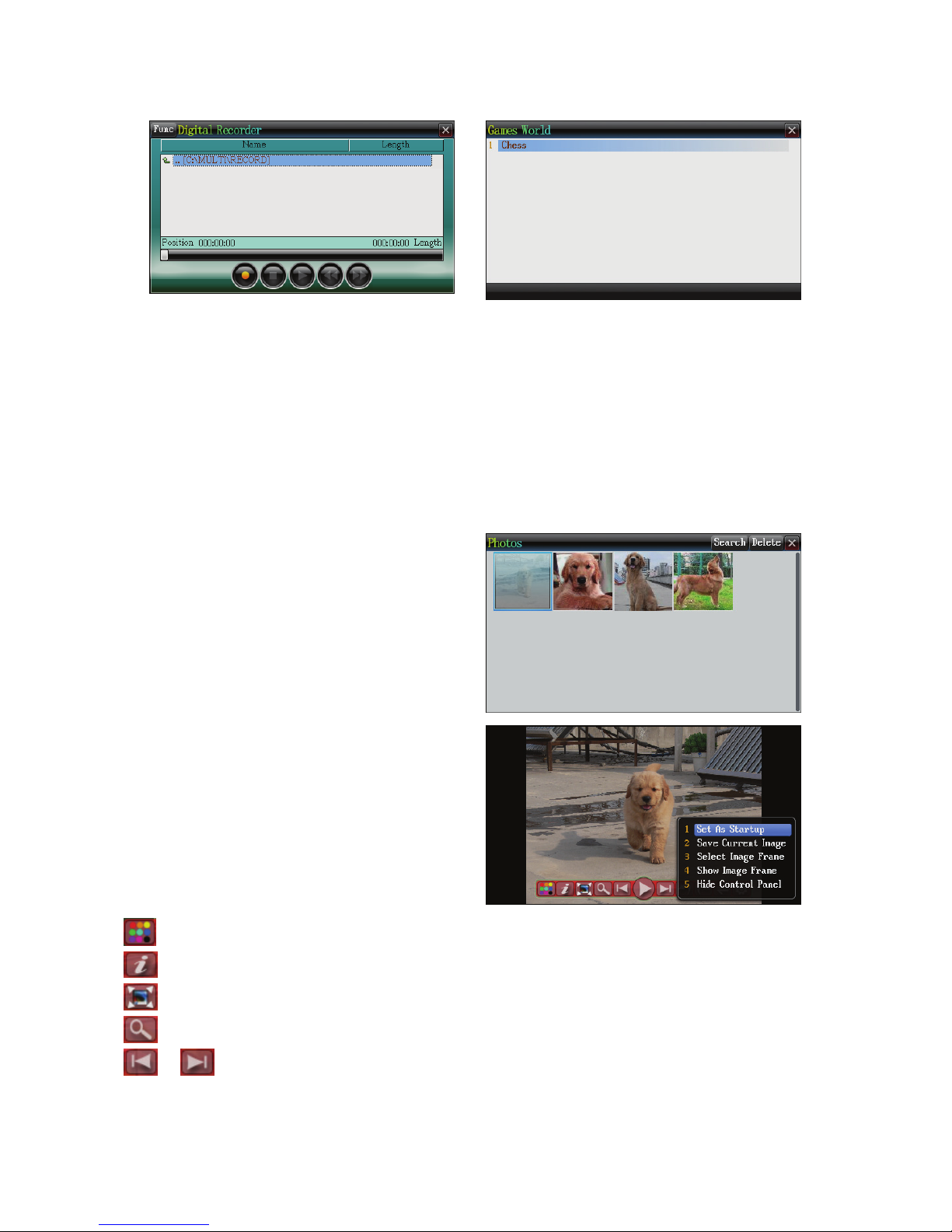
3. Digital Recorder/ Games World
Digital Voice Recordin
g
Games World
Page 48
46
4.Photos
*Touch on the photograph to view the photograph on full screen
display.
*Touch anywhere on the photograph to display the function selections
to select settings.
Image browsing screen, select
‘search’ to continue searching
for images.
Touch or press the arrow key to
enter full screen display, then
Touch anywhere on the image to
enter function selections.
:Change the color of the control panel.
:Check filename.
:Zoom the image to the largest or the most suitable size.
:Magnify/minimize the image by stages.
/ :View previous/ next image.
Page 49
47
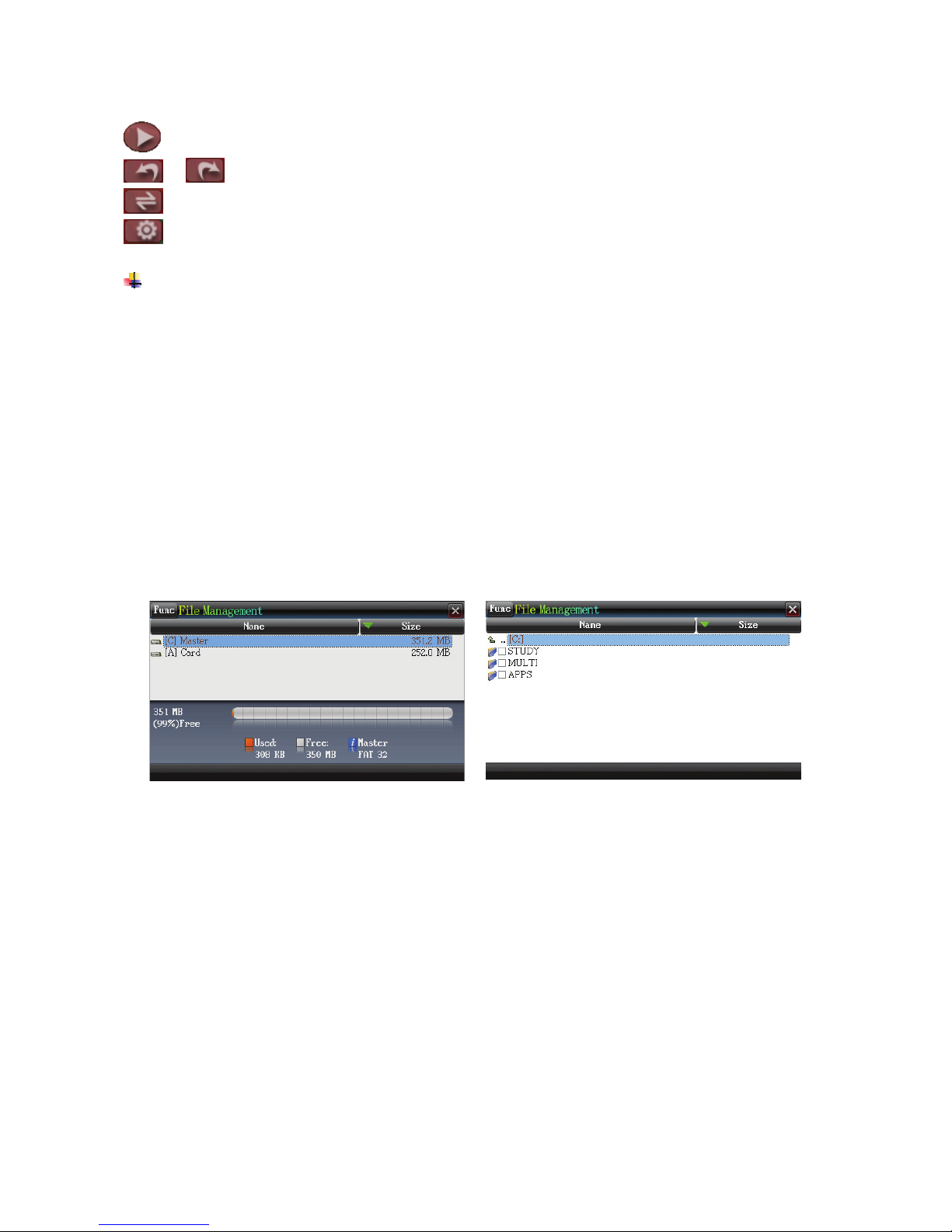
:Play as a slideshow.
/ :Turn image anti-clockwise/ clockwise.
: Flip image left and right.
: Settings for slideshow.
Note:
Touch ‘Function -6 Help’ on the control panel for explanatory notes on
corresponding functions.
5. File Management
Provides data exchange functions between the device and the memory card,
adding new files and editing filenames functions.
When entering File
Management, open the path on
the topmost level.
Touch ‘ENTER’ key, and enter
into the selected CD.
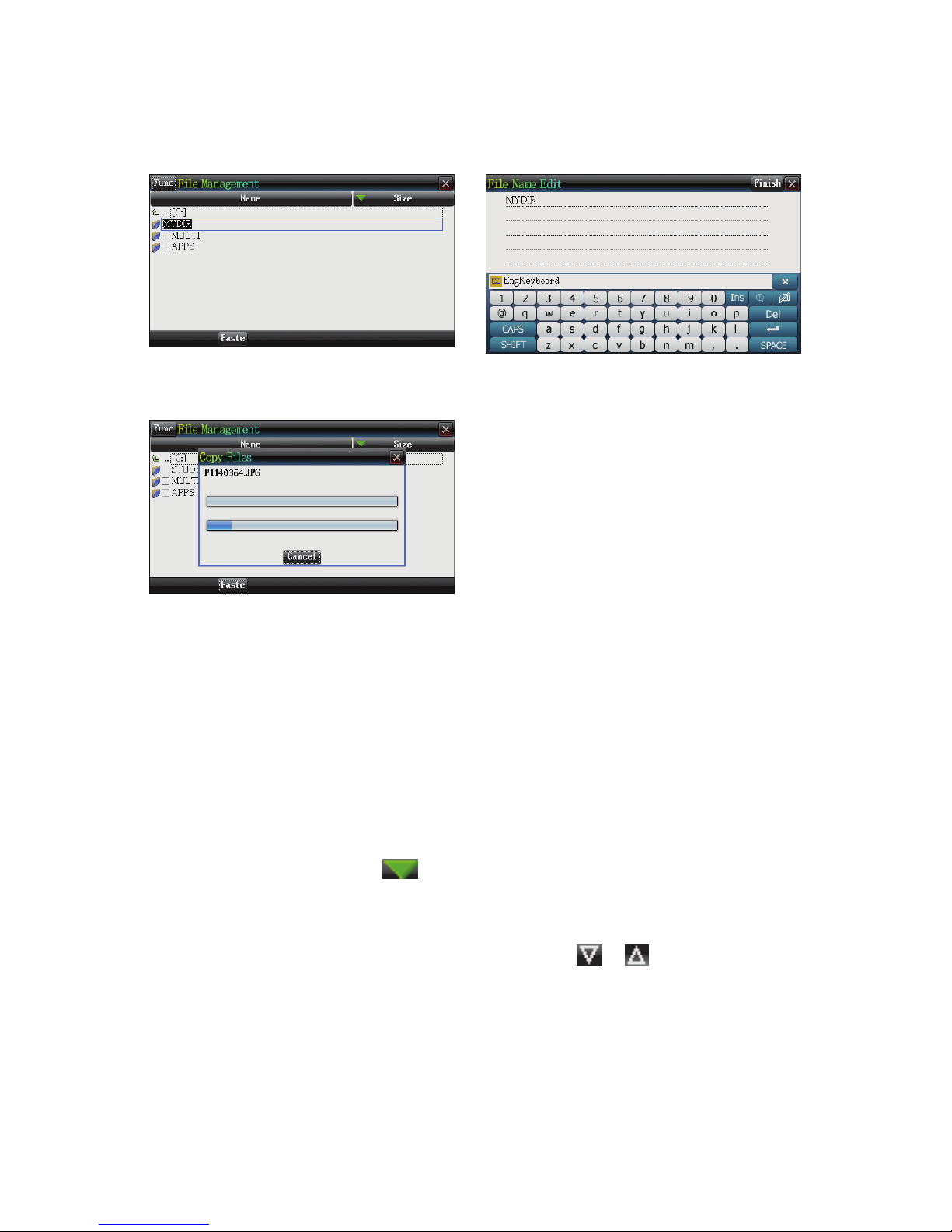
5.1Adding New Files
c Open the path where the new files are to be placed, Touch ‘Function’
key to select ‘2 New File’.
d The default name for a new file is ’MYDIR’, after inputting a new
name, press enter to confirm.
Page 50
48
New File
Touch on the filename to input
file name editing screen
Data exchange between the
device and the memory card
5.2Rename
c After selecting the file to be rename, Touch ‘function’, select
‘3-rename’.
d Touch twice on the file name to be renamed, enter into the File Name,
Edit screen and input the new name, press ‘ENTER’ to confirm.
5.3Arrange
* Use the stylus to tap“ ”,select arrange files according to size/
type/date.
* Use the stylus once/twice on the selections to choose arrange files
according to name, size, type or date and use “
/ ” to choose
order.
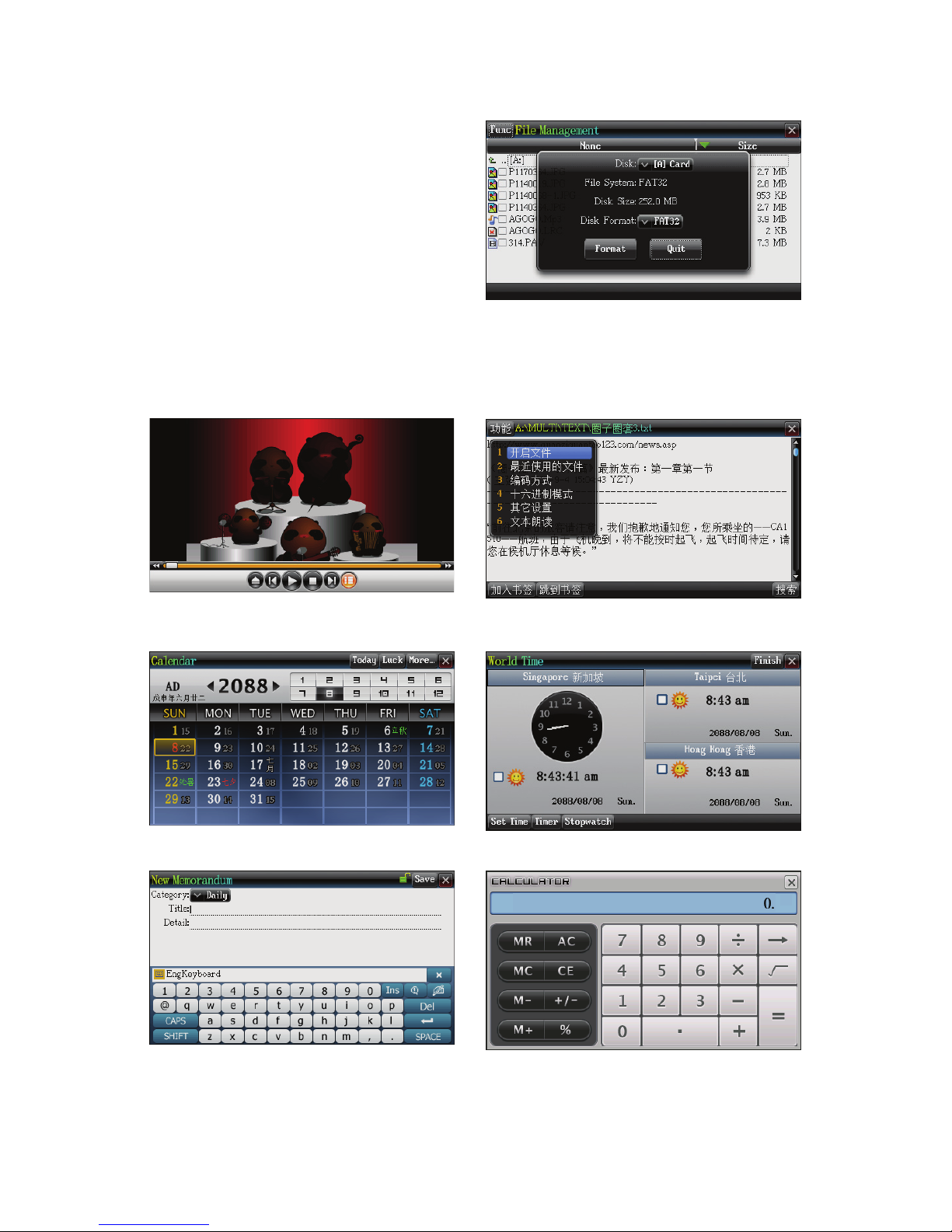
5.4Formating
Page 51
49
Disk Formating
6.Other Functions
Flash Text Browser
Calendar
Wor ld Time
New Memorandum
Calculator
Page 52

50
Features of SYS:
* Computer connection port function, enables effective data transfer
between the device and PC.
* Provides the settings for all the functions of the device, for ease of
operation of the device.
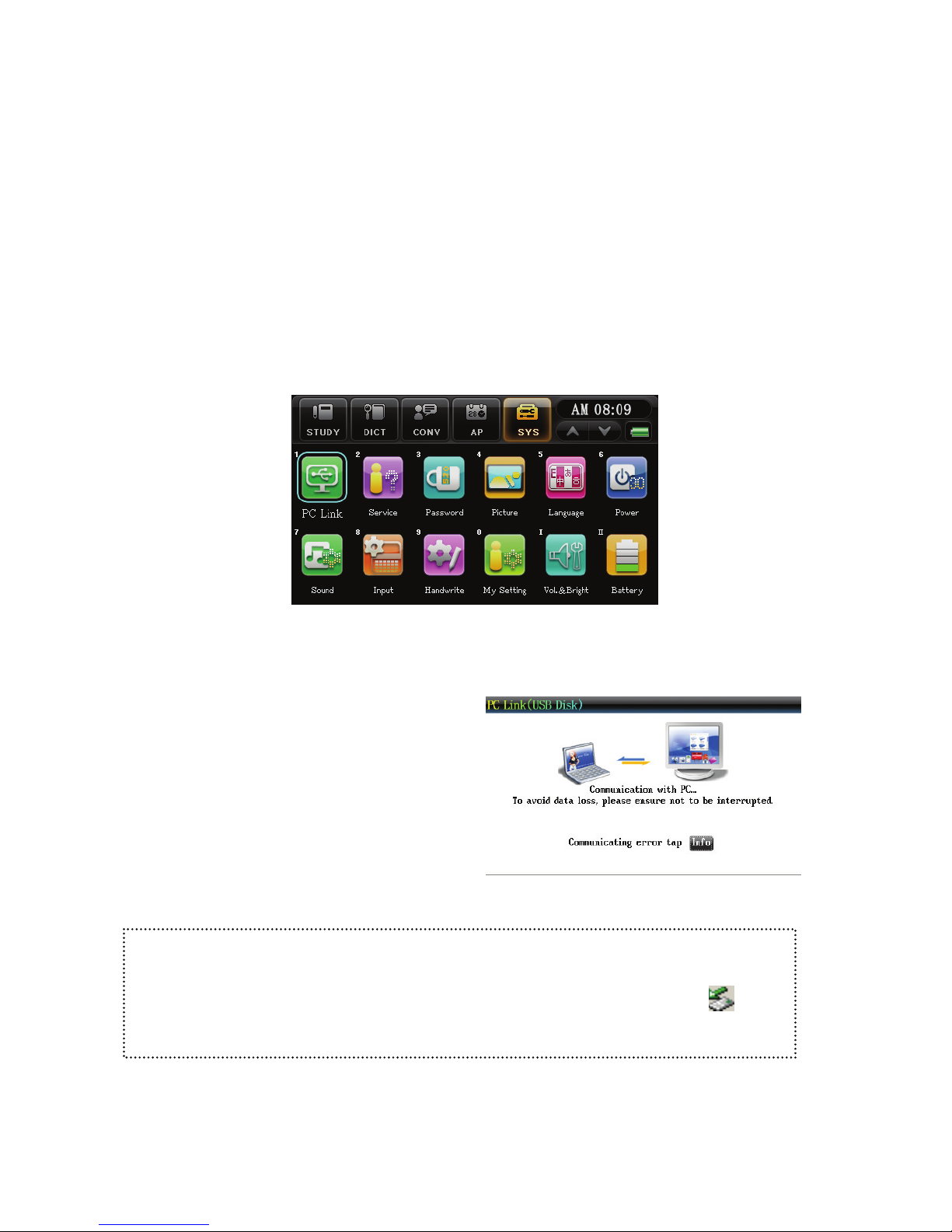
PC Link
Provides USB and PC link for data transfer function.
After Service
Provides ‘Customer service, Fax Service, Website Address, Operating
System, Product Serial Number, Information Search, System Upgrade and
Check on News on Version’
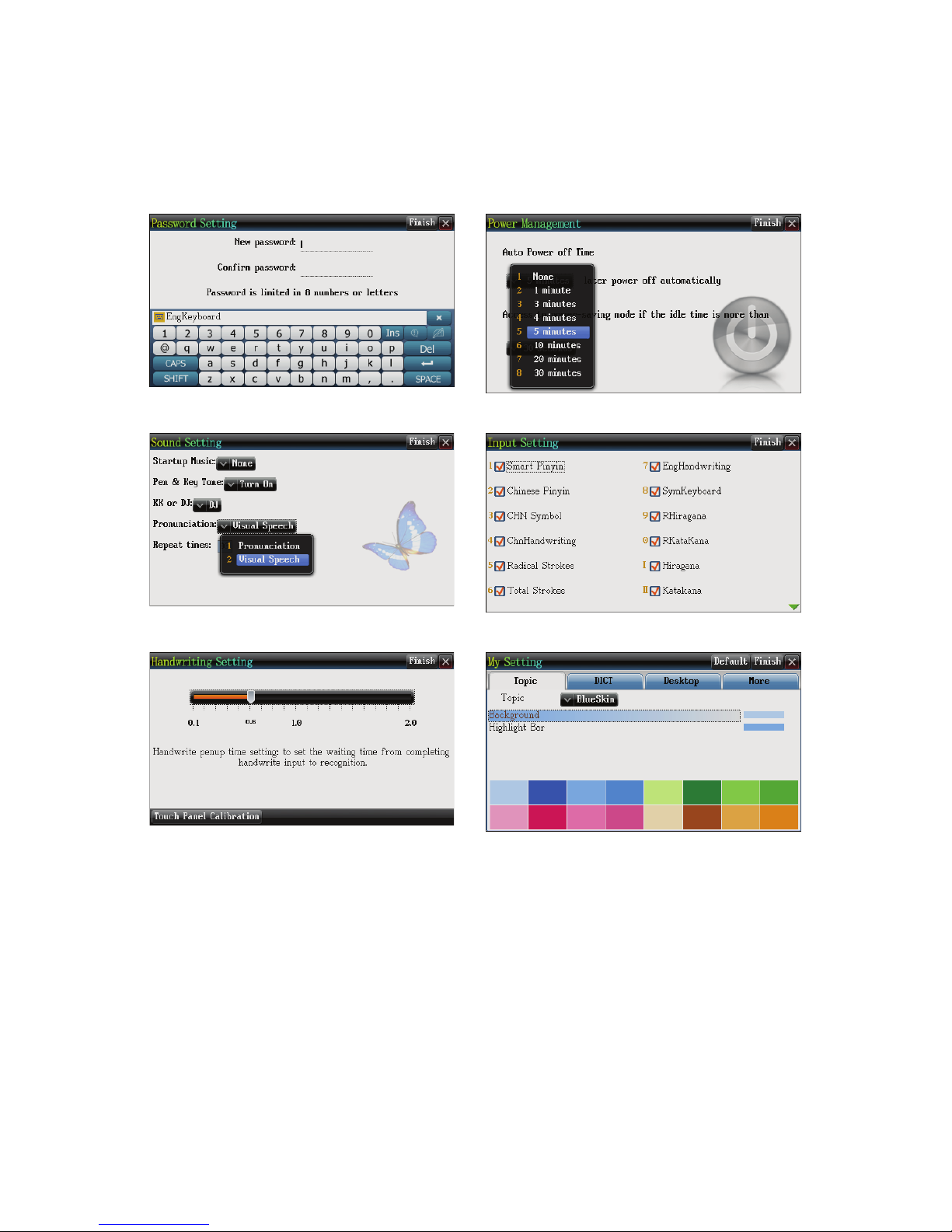
Password Setting
Able to set /delete password and lock the device.
Startup Picture
Can use the default images or user’s images as startup image.
Language Setting
Can set English, Chinese, Japanese and Korean.
Power Management
Can set power off time and auto power off time to save energy.
Sound Setting
Can set as word by word reading and select number of times to repeat.
Can set the sounds for startup, pen and key tone and KK/DJ
Input Setting
Can select the various input methods.
Handwriting Setting
Set the pen up time and waiting time from completing writing to
recognition of the word, if the touch panel is inaccurate, please calibrate
first.
My Setting
Set theme and wallpaper color according to preference.
Page 53
51
Set USB auto connect and other special controls
Volume/Brightness
Adjust volume/ reading speed and brightness and set silent mode.
Battery Power
Can check battery power anytime.
SYS Functions
SYS Category includes the following functions.
1.PC Link
After connecting the device to a
PC, operate from the PC to
transfer data. During
transmission and at the end of
transmission, messages will be
given to prompt the user.
When communicating with the PC:
!! Do not stop the connection and please avoid factors such as
unplugging the cable or insufficient power.
!!Before disconnecting the USB cable, please right-click at
on
the PC, click ‘safely remove hard ware’.
Page 54
52
2. Setting Other Functions
Password Setting Power Management
Sound Setting
Input Setting
Handwriting Setting
My Setting
Page 55

53
Maintenance
1. Keep the device dry. Avoid contact with water, moisture and any liquid
that contains minerals so as to prevent corrosion of electric circuit.
2. Avoid storing or using the machine in a dusty or dirty environment.
This can damage its detachable parts.
3. Do not place the device in a high temperature environment. High
temperature will reduce the shelf life device, damage the battery and cause
the plastic components to warp or melt.
4. Do not place the device in an environment that is too cold. Otherwise
when the temperature in the device increases, humidity will occur and
spoil the electric circuit board.
5. Do not attempt to disassemble the device. Mishandling will cause
damages to the machine.
6. Do not throw, hit or shake the machine. Mishandling will destroy the
LCD screen.
7. Do not use abrasive chemical product, cleansing agent or strong
detergent to clean the machine. Use a soft cloth that has been soaked in
warm soapy water to clean the machine gently.
8. Do not use color dye to wipe the machine. This may cause the
detachable parts to dismantle and might affect its normal operation.
9. Do not operate the device in an environment that is too cold
temperature (below 0 ゚ C) or too warm (above 40 ゚ C) environment
operation. Under these circumstances, the device might not be able to
operate and might transmit the incorrect signals. This might cause further
damages to the device. If the device has undergone such circumstances,
Page 56

54
please allow the machine to rest for 2 hours before operating again, to
avoid any moisture due to temperature change.
10. If there is problem in the rechargeable battery sets, please send to the
service center for repair. Do not attempt to disassemble or change the parts
yourself. The manufacturer will not be liable for any consequences.
 Loading...