

Page 1

Preface
Welcome
Accessories
Introduction of the Device
Layout
First Use & Preparation
Main Menu
USB disk
Basic operation
Touch-control Screen
Menu Operation
Data browsing
Data input
Pronunciation
Data Saving
Search
.................................................1
...............................................1
...................................................2
.....................................3
Power Source & Charger
SD Card
.............................................3
Power On/Off
...............................................4
.................................................4
.................................3
.........................................4
.......................................5
...........................................5
.............................................6
................................................6
Input by keyboard
Input by handwriting
Soft Keyboard
......................................6
....................................7
.........................................7
.............................................7
..............................................8
...................................................9
Index
Main functions
Maintenance
............................................10
.............................................11
Page 2
Preface
Welcome Accessories
Welcome
Thank you for buying our company‘s Computer Dictionary. This User's
Quick Guide will help you to operate the device correctly and easily,
please read carefully before using, thank you!
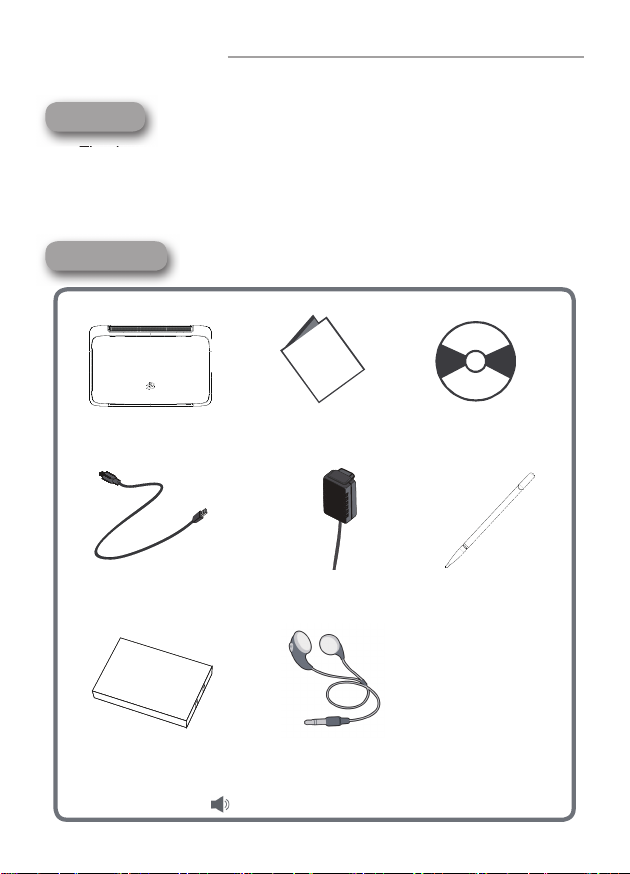
Accessories
Besta
Computer Dictionary
USB Cable Adaptor Stylus
Battery Earphone
User's Quick Guide
Note: Pictures on this page are only for reference.
1
CD Rom
Page 3
1.
Introduction of the Device
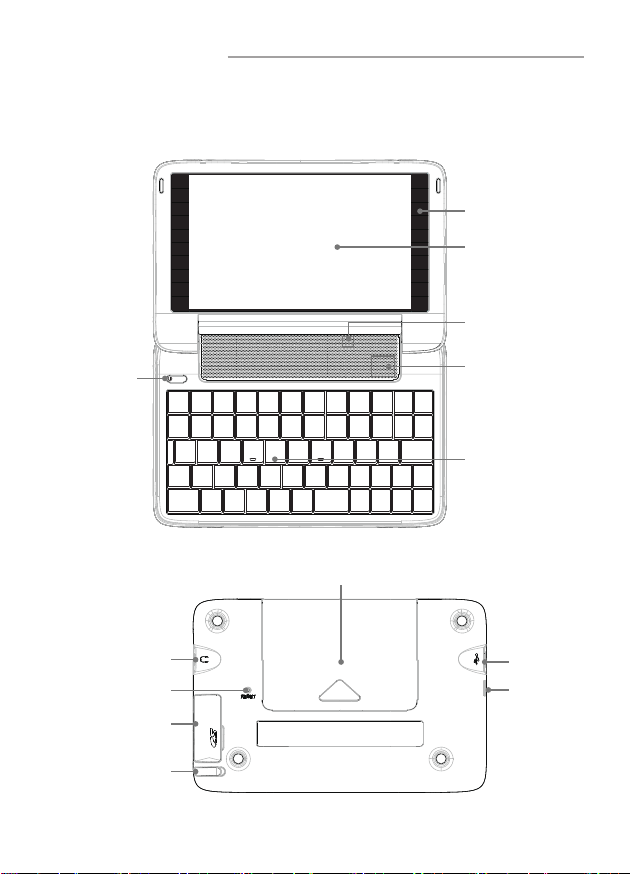
Layout
Layout
Touch panel
Screen
Microphone
NO/OFF key
Earphone Jack
RESET key
SD Slot
Speaker
Keyboard
Battery cover
USB Jack
LED
Stylus
2
Page 4
Introduction of the Device
First Use & Preparation
2.
First Use & Preparation
Power Source & Charger
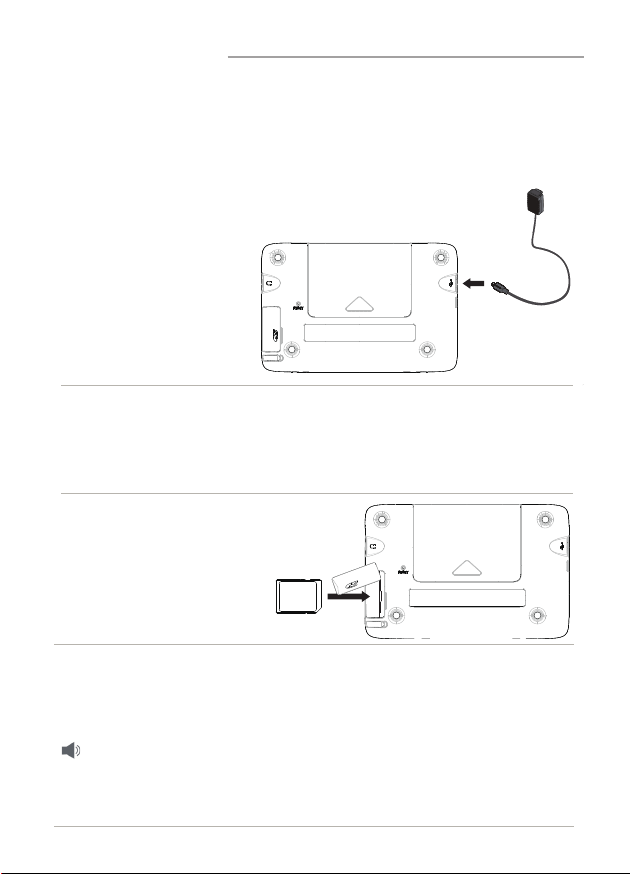
Rechargeable Li-batteries Inside: 1700mAh
Connect to socket
Power Source: DC 5V/1A (It is good for the device
to use the speci ed adaptor of the device)
a. Connect device with power source as shown.The full charge time is
about 6 hours.
b. LED:
Orange lights, battery charging; Green light, fully charged state
with battery; Yellow light, connect the power state without battery.
SD Card
Insert:
Gently push the card into the card jack until you hear a sound.
Remove:
Gently press the card until you hear a sound.
Note: For avoiding fl icking of the card, please gently press the
to avoid data loss or abnormal of the data . Please make
sure the power is off, before inserting and removing card.
card. When transfer or open fi les on Micro SD, in order
3
Page 5
Introduction of the Device
Main Menu USB
Power On/Off
Power On: Press on/off key to turn on the device. If you use
device for the rst time or RESET the device, you should set
your device.
Power Off: Press on/off key to turn off the device.
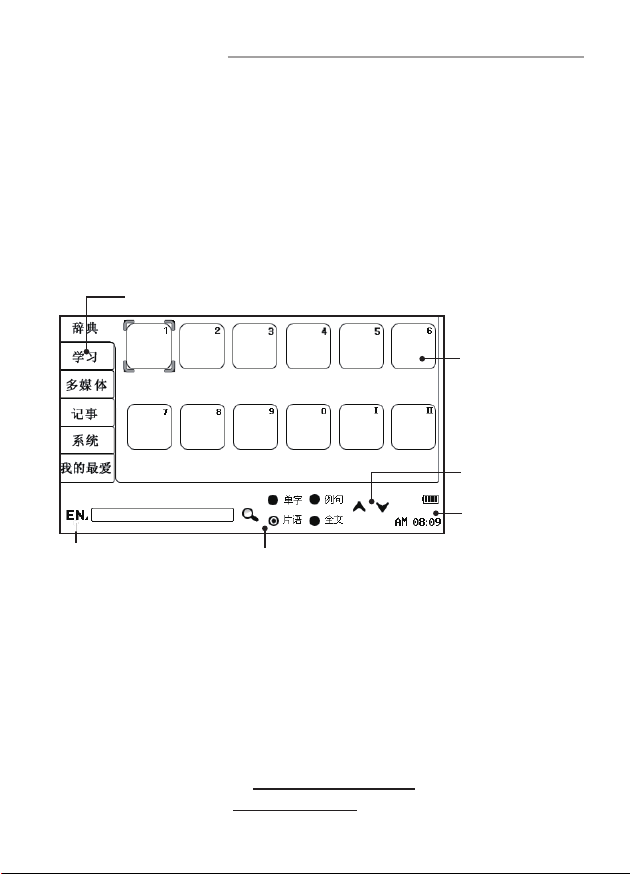
Main Menu
3.
Menu Category
Icon
Access to functions
Page up/ down
Time & power
Switch input methods
4.
USB disk
Connect the device and PC by USB cable. Please safely
remove the USB cable from PC before unlink, then escape from
“SYS--PC Link” in the device. Some downloaded documents can
not be searched automatically, you should put them under the
speci ed path.
Extension Dictionary: \STUDY\EXTRADIC
New Words Study: \APPS\RECITE
Search district
You can set up categories to search
4
disk
Page 6
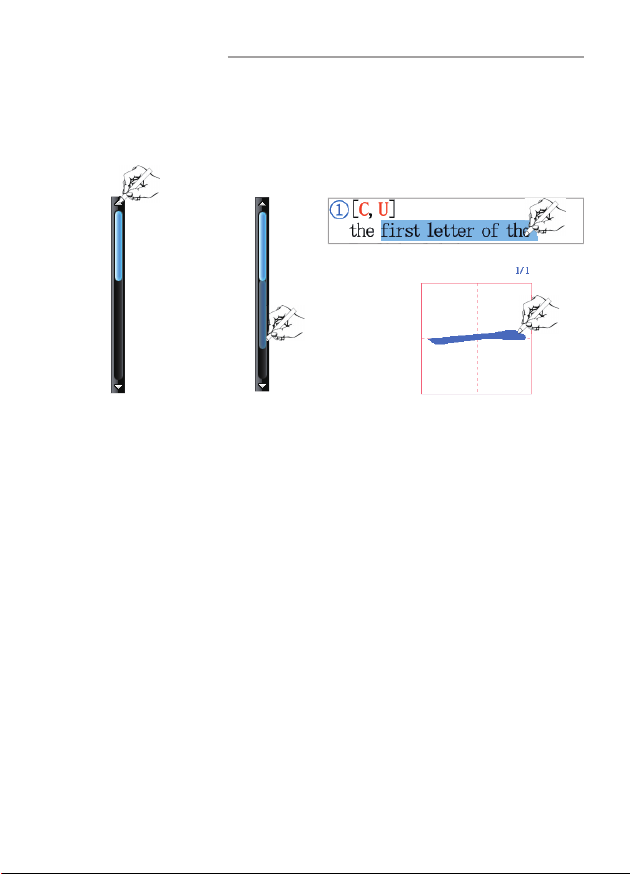
Basic operation
Touch-control Screen Menu Operation
1.
Touch-control Screen
It is good for the device to use the provided stylus.
Tap
Menu Operation
2.
˙
Menu browsing
Press page up/down key to view each option of the menu. Press up/ down
direction key to scroll through options line by line.
icon on the menu, you can tap the icon directly to view other menu.
˙
Select the Option
Tap on the screen directly or pressing the number/letter key to select
the options. You also can press direction keys to select, then press [Enter]
to enter the function item.
˙
Language Switching
Press [Shift] rst and then press [Menu] to switch languages in the main
menu.
main menu.
˙
operation screen.
the main menu.
Select "SYS--Menu & Language Setting" to switch languages in the
Cancel Operation
Press [Esc] to cancel the current operation or return to the previous
Dragging
In some operation screen, press [Menu] to return to
Marked
Strokes to
imitate
5
When there is a fl ip
Page 7
Basic operation
Data browsing Data input
3.
Data browsing
Press up/down key to view the data line by line. Press page up/
down key to view the data. When there is a scroll bar on the screen,
you can view the data by tapping the scroll bar.
Data input
4.
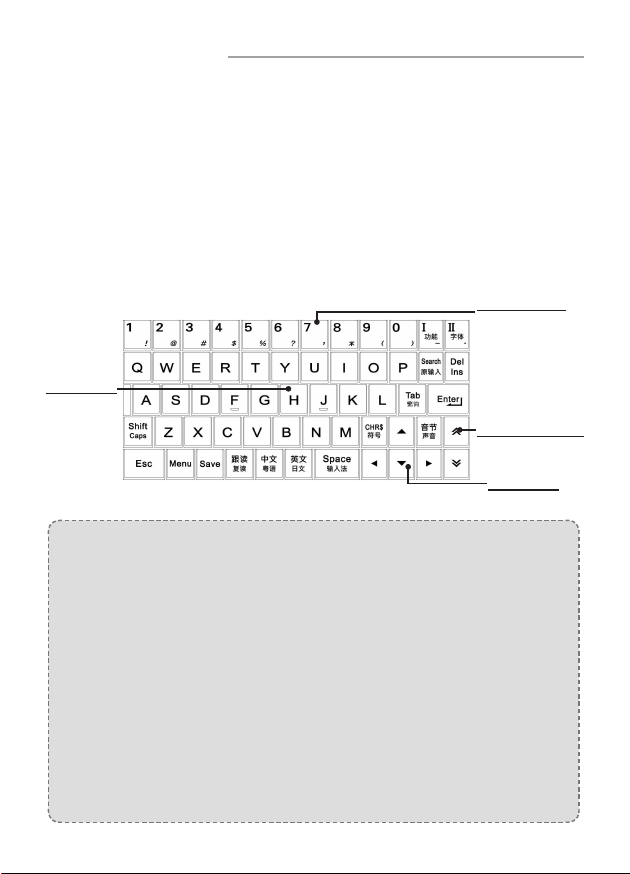
˙
Input by keyboard
Input data according to the keyboard.
Letter key
Input letter
and Pin Yin
Input data with other function keys.
『Shift』
『跟讀』
『中文』
『英文』
『Space』
『音節』
『Del』
『Search』
『Esc』
『Menu』
『Save』
『符號』
『Tab』
『Enter』
Capital letters
Read after device
Pronounce Mandarin
Pronounce English
Space
Pronounce
Delete string and letters
Search
Return to the previous operation
Switch menu categories; Go back to main menu
Save data and words
Symbol input method
Switch focus and switch traditional and simplied menu
Conrm the current action; Move to the next line
syllables
With [Shift] key
Combine with other keys
Repetition
Pronounce Cantonese
Pronounce Japanese
Switch input methods
Volume, speed and contrast and mute
Editing mode
Original input screen
6
Numeric key
Input number,
symbol
Page up/ down
Arrow key
Page 8
Basic operation
Pronunciation
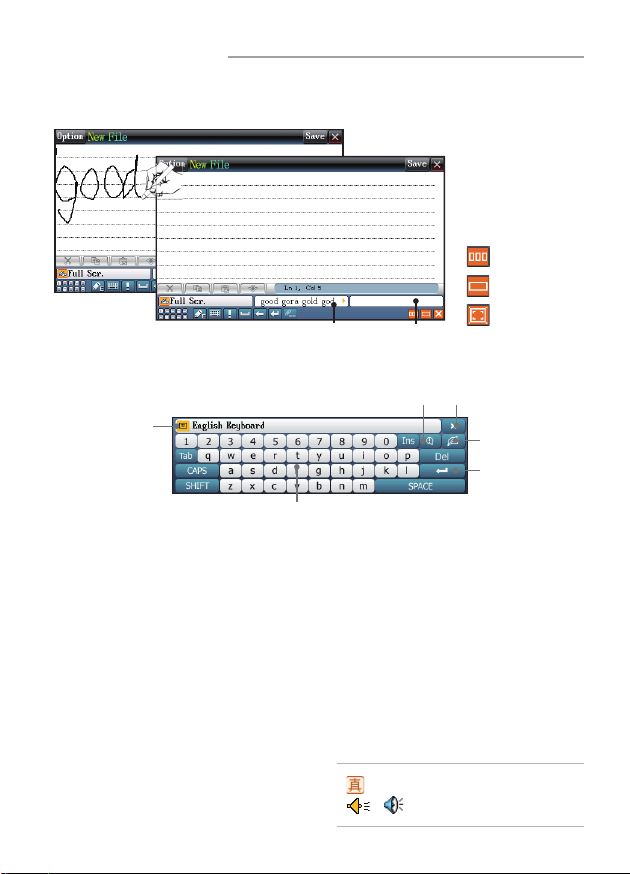
˙
Input by handwriting
: Multi box
: Single box
Standby
˙
Soft Keyboard
Symbol soft keyboard
Switch the
input method
Keyboard
5.
Pronunciation
˙
Pronunciation icons
Press [英文] to listen to English.
Press [中文] to listen to Mandarin.
Press [Shift] once and press [中文] to listen to Cantonese.
Press [Shift] once and press [英文] to listen to Japanese.
Press [音節] to listen to syllable pronunciation.
Press [Esc] to stop pronunciation.
˙
Pronunciation symbols
Tap pronunciation symbols
to listen pronunciation.
7
/
Association
Human pronunciation
Tap to pronounce
: Full screen
Close
Handwriting
Enter
Page 9

Basic operation
Data Saving
˙
Correction
Device provides Chinese/English pronunciation correction
function for words and phrases.
Steps:
a. Tap [Correct] to access to the correction function screen.
b. Tap to listen to the standard pronunciation of
device. The device will record the users' pronunciation.
d. Compare the recorded users' pronunciation with standard
pronunciation. Provides result of the comparison.
˙
Visual Speech
Provides visual speech in index and explanation screen, you
can set "Visual Speech" in "SYS--Sound Setting". You can
press left/ right arrow key to move image, press up/ down
arrow key to open/ close subtitle.
˙
Repetition and Read after the Device
Repetition and Read after the device are available in some
applications of dictionary, conversation and study. Press [跟讀]
to practice pronunciations. Press [Shift] once and press [跟讀]
to repeat the current headwords.
Data Saving
6.
For the words, sentences that are important or difficult to
master, press [Save] to save. And you can nd the saved data in
“New Words Study” and “Review and Test”.
Press [Save] in explanation screen to save words for “New
˙
Words Study” and “Review and Test”.
Press [Save] in conversation screen to save dialogues for
˙
“Review and Test”.
Press [Save] in translation screen to save result of translation
˙
for searching.
8
Page 10
Basic operation
7.
Search
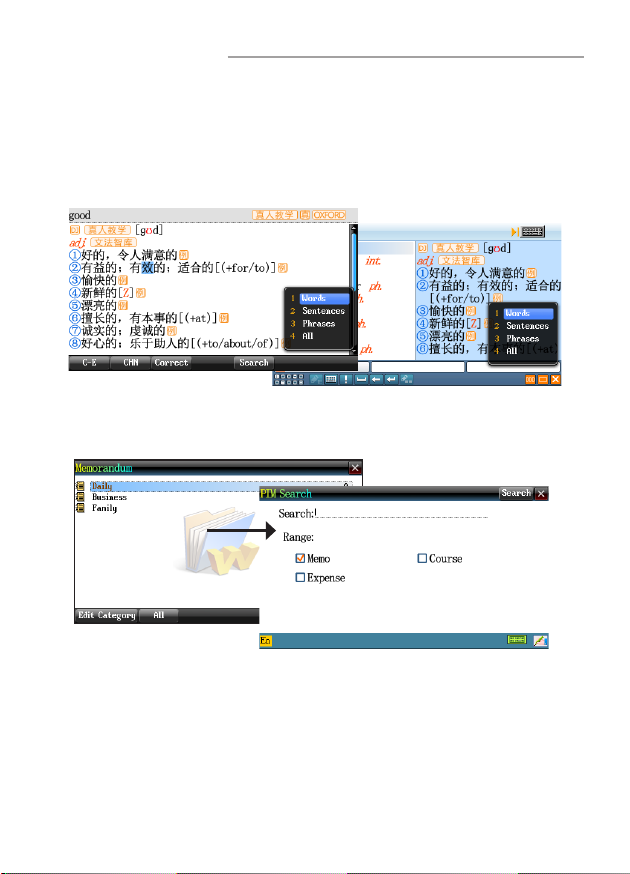
˙
DICT & STUDY & MULTI
Device provides words and data searching in DICT, STUDY and
MULTI modules.
˙
PIM
Press [Search] to enter the "PIM Search" screen.
Search
˙
Search Engine
Search Engine can search for the input data accurately and
efciently. Press [Search] to access to the screen of "Search
Engine", you can input multi-language to search, you also can
set the searching scale of words/sentences/phrases/all, when
you search in words/phrases/all, you can choose [Setting]
set the scale of dictionaries.
9
to
Page 11
Main functions
Advanced Learner’s Dictionary, etc., which provide more
categories of mass character for your query.
convenient platform for your communication and exchange.
information management easily.
Authoritative Dictionary
Provides a wide coverage of Dictionaries such as Oxford
Video tutorials
Provide vivid video tutorials to learn.
Multi-language Conversation
Provides multilingual daily conversation, builds up a new and
Pronunciation
Provide various forms of pronunciation exercises.
Multimedia Player
Provides MP3, Video, Flash and other media player tools.
PIM Function
Provides convenient notes function, make your personal
Faster File Transfer
Support USB 2.0 jack.
10
Page 12

Maintenance
1. Keep it dry. Precipitation, humidity and liquid that contains minerals
will corrode electronic circuits.
2. Do not use or store it in dusty, dirty areas as its detachable parts
may be damaged.
3. Do not store it in hot areas. High temperatures can shorten the
life of electronic devices, damage batteries, and melt certain
plastics.
4. Do not store it in cold areas. When the device warms up, moisture
can form inside it, which may damage electronic circuit boards.
5. Do not attempt to take the device apart. Improper handling may
damage the device.
6. Do not drop, knock or shake it. Improper handling may cause
damage to the liquid crystal panel.
7. Do not use harsh chemicals, cleaning solvents, or strong detergents
to clean the device.
8. Do not paint it. Paint can clog the device's detachable parts and
cause it to malfunction.
9. Do not operate the device below the temperature 0 or over 40
degrees. Excessive heat or cold will cause malfunction and incur
damage to the device. To avoid such from happening, please do
not use the device for two hours after it has been exposed to
excess heat or cold, because the humidity or moisture formed by
the temperature changing will cause damage to the device.
11
 Loading...