

Page 1
Welcome
Thank you for buying our company’s Computer Dictionary. Careless
operation can result in the harm to device itself. To avoid such problems, read
and adhere to the following security instructions to prevent unauthorized use
of your device.
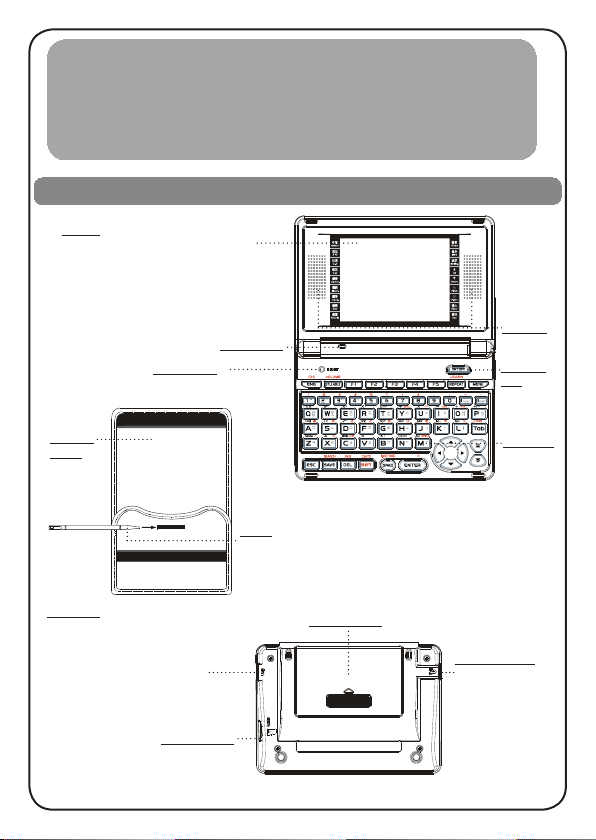
Layout
Screen
˙2.8 inch TFT screen
˙Do not drop, knock or shake screen do not
use harsh chemicals to clean the device
˙Please rub the screen lightly with dry,
clean and soft cloth
RESET Key
˙Reset device
Leather
Cover
USB Jack
˙Through USB cable, you can
move, duplicate or delete data
and add new file folder, etc.
˙Please safely remove the USB
cable from PC before unlink,
then escape from “F5--PC Link” in
the device.
˙Connect with the adaptor to charge
the device.
Micro SD Slot
Microphone
Stylus
˙Please use only the stylus that
comes with this product
Battery Cover
1
Speaker
ON/OFF
Key
Keyboard
Earphone Jack
˙The sound volume
of the earphone
should be not too
high so as not
to injure your
hearing.
Page 2
Introduction of the device
Screen
The touch panel possesses high penetrability you can input words, open the
functions by touching the screen.
Power Source and battery
The device provides Rechargeable lithium
battery adaptor and USB cable for chargeing.
Specication of adaptor and battery
Battery 3.7V/700mAh Adaptor 5V-500mA
Notes: Please charge the device with the adaptor and USB cable that
SD Card
comes with this product
You can extend the available memory with Micro SD/Micro SDHC card. Gently
push the card into the card jack until you hear a sound to insert the card, Gently
press the card until you hear a sound to remove card.
Notes: Make sure the power is off before inserting and removing card, or the data in the device or
the card will be lost.
Initialization or RESET
When you turn on the device for the rst time or RESET the device, you should set Date/Time, and
then device will access to the main menu.
Introduction of the functions
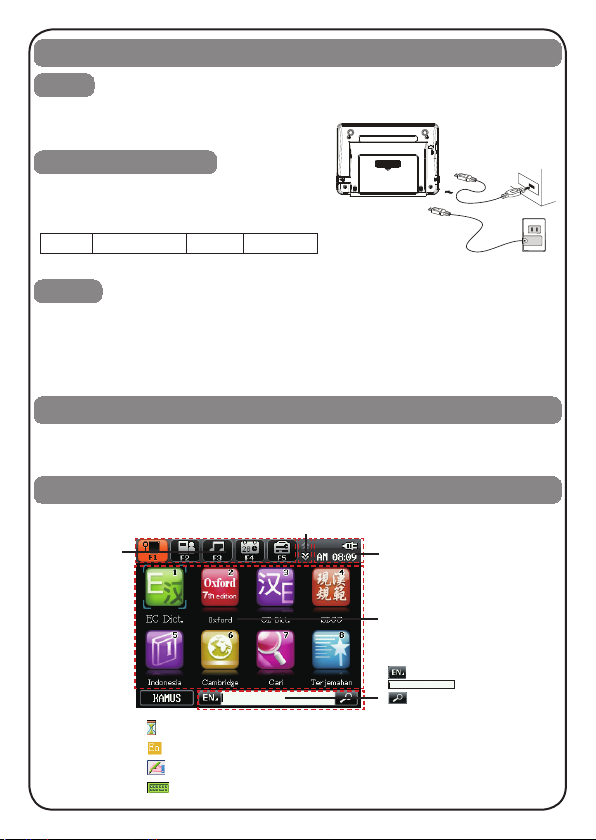
Main Menu
Function
select
district
Page up/down
Time and Battery district
Main menu of function
select district
Indicator
Search district
: Switch the input methods
˙
˙
˙
Data searching...
Corresponding input methods (can switch).
Tab to access handwriting recognition or on-screen keyboard.
Tab to access Soft Keyboard
2
: Tap to search
: Input district
Page 3
Input Methods
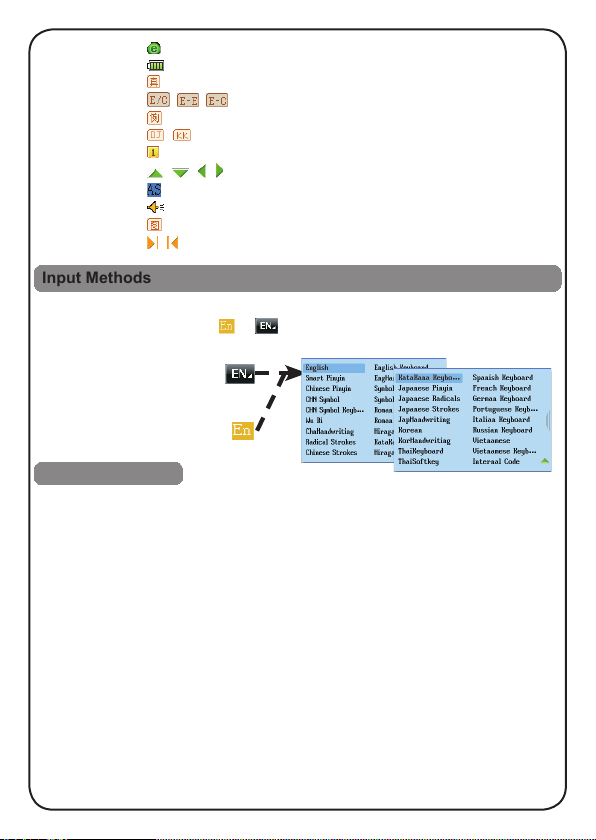
Download indicator
Status of power source
/ / Three kinds of explanation to be switched.
/
/ / /
/
Human pronunciation
Example sentences searching
DJ phonetic symbols/KK phonetic symbols
The number of the layer of Multi-layered Search
Page up/down/left/right
Association input method
Pronunciation
Picture searching
Switch single/double index screen
The device provides several input methods, including Chinese, English, etc.. You
can tap the indication symbol
Press [SHIFT] then press [SPACE] to display the input methods for select.
˙
or to switch the input methods.
Keyboard Recognition
Function key
『SYLLABLE/
VOLUME』
REPEAT/LEARN
『
『F1』~『F5』
『ENG/CHI』 ˙
『MENU』
『IFUNC』 ˙
『IIFONT』 ˙
『Tab』 ˙
『ESC』 ˙
『SAVE/SEARCH』 ˙
Pronounce syllable. Set volume, speed, contrast and mute with [SHIFT] key.
˙
Repeat function. Read after the device with [SHIFT] key.
˙
』
Select the corresponding main menu. Function keys, same as [F1]~[F5]
˙
on the screen.
Pronounce English. Pronounce Chinese with [SHIFT] key.
Switch function items in the main menu. Press to return to the main
˙
menu Directly.
Select item “I” in the main menu. Open “Function” menu. Input symbol “-”
with [SHIFT] key.
Switch font size on the index and explanation screen.input symbol
“.” / “。” with [SHIFT] key.
Switch focus on some screens. Switch single/double index screen.
Exit from the current function or return to the previous screen.
Save the messages. Save items on the explanation screen of
dictionaries for “Review and Test" and "Recite Word". Open the function
of search engine with [SHIFT] key.
3
Page 4
『DEL/INS』 ˙
『SHIFT/CAPS』 ˙
『SPACE/
I.METHOD』
『
』
『ENTER』 ˙
『
』
Delete the selected string or a letter. Switch the editing mode with
[SHIFT] key.
Combine with other keys. Temporarily lock the keyboard for inputting capital
letters. Press [SHIFT] twice to lock the keyboard for inputting capital letters.
Input a space. Confirm the first choice when inputting Chinese.Open
˙
input methods menu with [SHIFT] key.
Up direction key; move the cursor up or scroll a line up. Down direction
˙
key; move the cursor down or scroll a line down. Left direction key;
move the cursor left or page left. Right direction key; move the cursor
right or page right.
Confirm the current action. Move the cursor to the next line to input
data. Mathematical sign: equal to [=] to calculate result.
Page up; view the previous data. Page down; view the next data.
˙
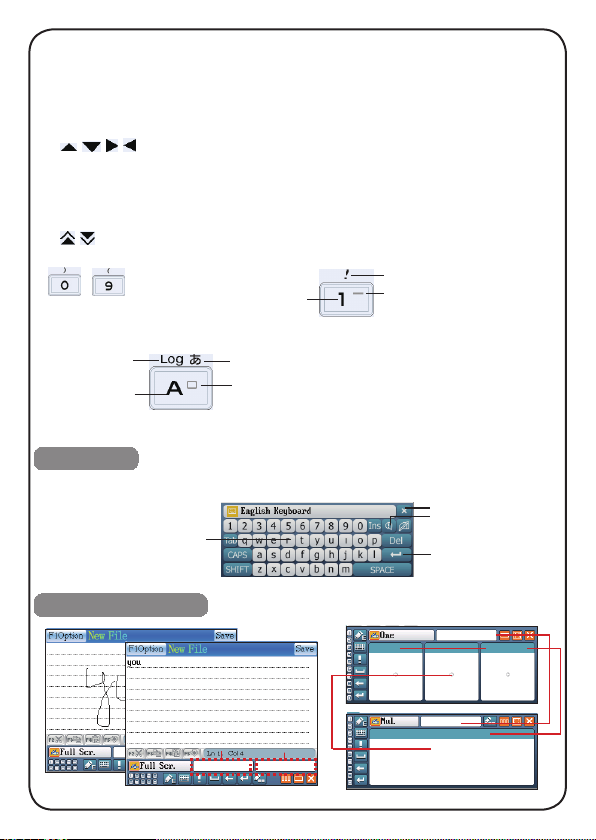
Numeric key
~
Number
Symbol
Tone of PinYin
Letter key
Numeral
symbol
English letter
Japanese
kana
Korean
PinYin
Notes:
˙Press “Q” key to input Korean PinYn “ㅂ”.
Press “Q” key with [SHIFT] key to input
Korean PinYn “ㅃ”.
˙Reference soft keyboard to input Thai and
Vietnamese.
Soft keyboard
Output corresponding symbols on the screen. Take soft keyboard to English for
example:
Character key,
matching with key
on keyboard
Close soft keyboard
Open symbol keyboard
Enter key
Handwriting recognition
Association
Standby
Handwriting
Standby
Association
4
Page 5
˙ Tap to access handwriting recognition.
˙ Tap / / / to switch to Chinese/English/Japanese/Korean input.
˙ Tap
˙ Tap
˙ Tap
˙Tap
˙Tap
to switch to corresponding soft keyboard.
to open the on-screen symbol keyboard.
stop handwriting and back to keyboard input.
/ / to switch the single/three window for handwriting.
/ to switch the single/multi character recognition.
Download operation
You can download study and multi-media data. Please operate as follows:
PC Link disc download
Please follow the steps below, download data into device via PC Service Home.
Insert CD-ROM into PC and install PC Service Home.
①
Connect the device and PC via USB cable. The device and PC will be linked
②
automatically.
Open PC Service Home; select "Media Download" to enter into the download
③
function; choose "Download Classication" and x the data desired; tap
"Download' in the toolbar; download the selected data to the default folder.
Enter "SYS-File Management " and nd the default folder.
④
Copy to device
Connect the device and PC via USB cable. The device and PC will be linked
automatically. Users are allowed to copy data to the device. Some data can be
available only if they are downloaded under dened paths as follows:
\STUDY\DICT Terminological Dictionaries
\STUDY\EXTRADIC Extension Dictionary
Enter "SYS-File Management", create new folder under root directory of the device or
①
the card.
Connect PC and device via USB cable. The device and PC will be linked
②
automatically.
Copy data directly from PC to the newly-created folder.
③
Press [ESC] to quit "SYS-PC Link", enter corresponding functions to read the
④
downloaded data.
Notes: ① Do not terminate the downloading; make sure power is enough. ② There will be a
message indicating the transmission status.③Several seconds after transmission, select
“remove hardware securely” when you press right key of mouse on the icon
the USB cable securely.
Fourteen Languages Dictionary
to remove
5
Page 6
Dictionary
Dictionary summary:
Press [Tab] to open/close preview window.
˙
Input words for search and press [ENTER]
˙
to enter the explanation screen.
Press Page Up/Down to view the words.
˙
Press arrow keys to select words.
˙
Press Page Up/Down wirh [SHIFT] key to
˙
see the first/last page of the index.
Provides several search methods to help users.
Smart Input Search
Just input the rst one or several letters/ characters, and move the cursor to
select the desired word.
Wildcard Search
To look up a(n) English/Chinese word that you are not sure of, input all the
letters or characters you know, and then replace the unknown ones with “?” or “*”.
Cross Search
When the current dictionary does not contain the word or character you want
to look up, the device will transfer to other dictionaries .
Secondary Search
If the word you input is not found, please check your spelling, or that this word is
not covered in this dictionary. The device will provide two kinds of searching methods
and one recording method:
Spelling Check -- displays the list of words similar in spelling.
The Nearest Word -- displays the nearest word in order.
Add New Word -- add the unfound word into DIY Dictionary.
Multi-layered search
Multi-layered search allows you to cross search the unfamiliar words or phrases.
The number of the layers will be displayed at the top right corner.
Example sentence search
Tap to search example sentence.
Animation and image search
Tap to preview images. Tap “Func-Ani” to view animation of the word.
Index screen Explanation screen
Press Page Up/Down key to view the
˙
previous/next Explanation.
Press [SHIFT] and Page Up/Down key to
˙
view the previous/next page of one word's
explanation.
Press [ESC] to back to the previous
˙
screen.
6
Page 7
Search Engine
Tap [SEARCH] to active search engine. Provides multi-language words search
service; permits to search in sca le of dictionar ies, data, and multi-media; when
searching in dictionaries (can be dened on your own), allows to search words in
scale of word/example sentence/phrase/all; allows to search Video/Audio/Fla sh/
Photo les and extended names of corresponding le formats.
Conversation study series
Conversation
Contains an abundance of conversations to improve your oral English.
Search
Display setting
and Play setting
Study series
Teaching
Allows to download data through PC Link from our website for study and practice
your English.
Animation Study
Helps to understand the meaning and usage of grammars and phrases through
animation.
Language Study
e.g., Take “Interactive English” for example:
7
Page 8
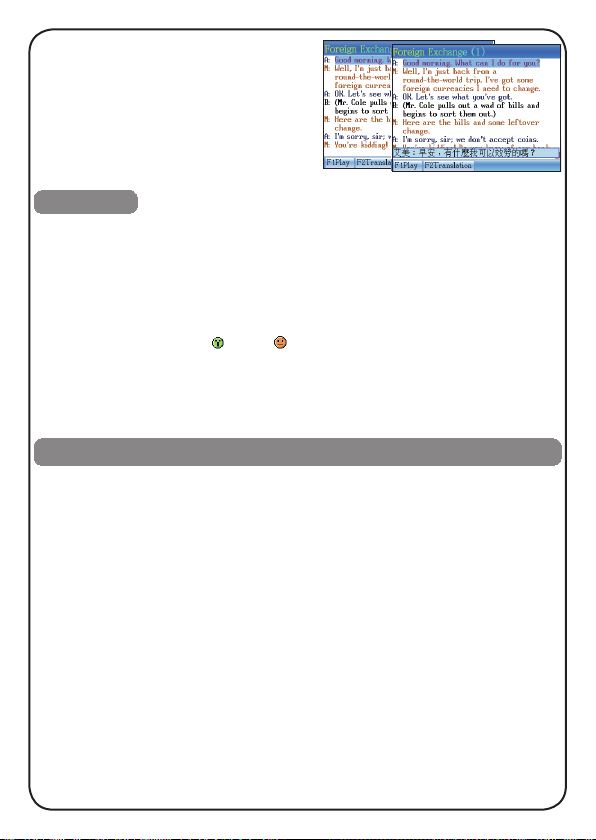
Offers practical dialogues and human
pronunciation. You can read after the
device or start a role play.
English Study
e.g., Take “Phonetic Symbol Demo” for example:
Phonetic Symbol Demo provides standard phonetic symbol pronunciation with
key point and example words.
Allows to switch among vowel, consonant and special phonetic symbols.
˙
Choose [Pron.] to listen to all the phonetic symbols continuously; tap the numeric
˙
keys to listen to syllable pronunciation for the current line.
Choose [Demo] to open “
˙
Choose [D.J./K.K.] to switch between K.K. and D.J. pronunciations.[ TO K.K.]/[
˙
TO D.J.]
˙
.
Press the Up/Down key, or press the Page Up/Down key to select phonetic
”/ close“ ” demo of phonetic symbols.
symbols, and then press [ENTER] to view details.
Multimedia and Assistant
Video: Supports lots of media le types. Provides function of read after the device
and cross search.
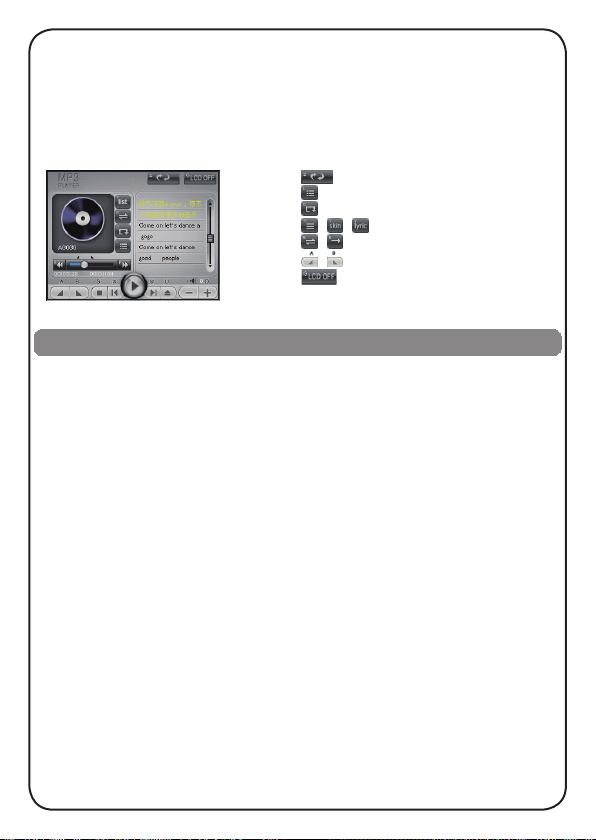
MP3: Provide A-B record node playing function. When putting .lrc les and .mp3
les with the same name into one folder, the device will simultaneously
convey the sound and words.
Adobe Flash: Supports .swf, .bfh, and .v les.
My Album: Supports displaying .bmp, .jpg, and .png les; provides picture and image
frame setting.
Digital Recorder: Allows to record and play the phonic data.
eBook: eBook browser, you can download data from website to device.
Games World: Access to games downloaded from our website. All games downloaded
can be deleted.
Text Editor: Allows to display and edit .txt les. The document can be created, found,
saved, or saved as another document. Font size and autosave time can
be set.
Memorandum: Allows to set categories and lock data.
World Time: Displays the local time as well as that of two other cities, and allows to
adjust time, date and cities. Provides timer and stopwatch.
Alarm Setting: Provides various alarms and allows to set alarm time, no alarm day, and
alarm interval.
Calendar: Provides calendar from January 1901 to December 2099, provides AD
and allows to display 6-months calendar and constellations.
8
Page 9
Class Schedule: Allows to check new contents of Class Schedule at any moment.
Paint Brush: Provides drawing tools to produce graphics. Allows to copy, modify, delete
a record or create a new one and to set drawing as as startup picture.
Calculator: Provides calculator, engineering calculator, multi-lines calculator, loan
calculator, scientic calculator, statistical calculator, basic equation,
formula calculator, and engineering drawing.
Conversion: Provides “Unit Conversion” and “Size Table”.
Switch the language of lyrics.
:
Open song list and select songs.
:
Fix the order of songs.
:
/ / : Skin list/lyric list/song list.
/ : Open/close repetitive playing state.
/ : Set the start /stop of the repetition.
: Turn off the MP3 LCD screen.
System
PC Link: Allows to receive data from PC via PC Link.
Memory Management: Allows to view the status of the main memory, optimize memory
management and delete data.
After Service: Provides BESTA information of Telephone, Fax, Website, OS Version, E-Mail,
Serial NO.etc. Allows to upgrade system and view the copyright
information.
Password Setting: Allows to set, change or clear password.
Startup Picture: Allows to set startup picture and background.
Menu & Language Setting: Allows to switch the menu displays among Chinese and English.
Power Management: Allows to set auto power off time.
File Management: Provides function of data management, new folders created, rename,
delete. Allows to format the disk, rename les, exchange data between
Extended Card and device.
Sound Setting: Allows to set startup music, turn on/off pen & key tone and select KK/DJ
display. Allows to set the pronunciation style and the repetition times.
Input Setting: Provides input methods setting.
Handwriting Setting: Provides handwrite penup setting and recognition setting.
My Setting: Allows to set colors for themes, dictionaries, and desktop. Automatically connects with
the USB; other special control.
Touch Panel Calibration: Allows to adjust touch panel calibration.
Sound & Contrast: Allows to set volume, speed of sound, mute and brightness of screen.
My Favorite: According user's favorite to set "My Favorite", you can use "My Favorite" easily
to get the functions which you need.
9
Page 10
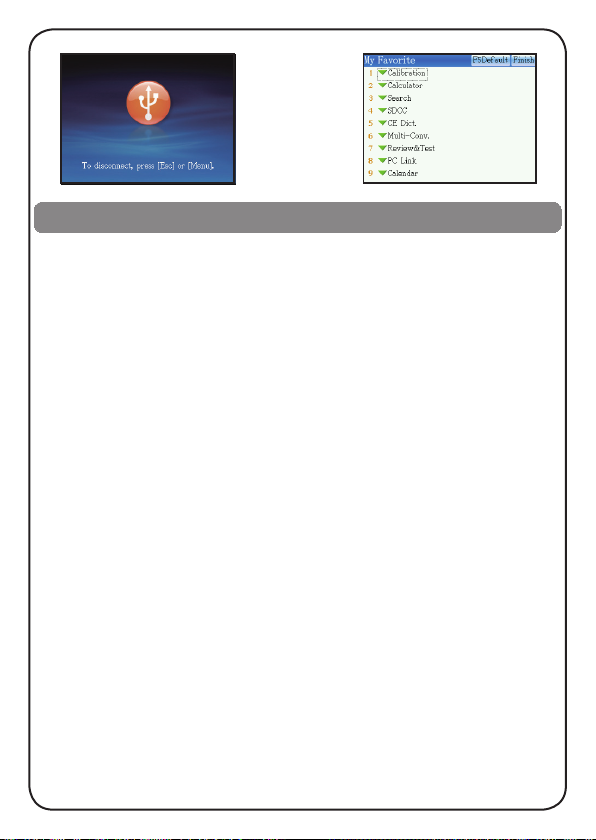
PC Link My Favorite
Appendix
Maintenance
1. Keep it dry. Precipitation, humidity and liquid that contain minerals will corrode
electronic circuits.
2. Do not use or store it in dusty, dirty areas as its detachable parts may be damaged.
3. Do not store it in hot areas. High temperatures can shorten the life of electronic
devices, damage batteries, and melt certain plastics.
4. Do not store it in cold areas. When the device warms up, moisture can form inside
it, which may damage electronic circuit boards.
5. Do not attempt to take the device apart. Improper handling may damage the
device.
6. Do not drop, knock or shake it. Improper handling may cause damage to the liquid
crystal panel.
7. Do not use harsh chemicals, cleaning solvents, or strong detergents to clean the
device.
8. Do not paint it. Paint can clog the device's detachable parts and cause it to
malfunction.
Do not operate the device below the temperature 0 or over 40 degrees. Excessive
heat or cold will cause malfunction and incur damage to the device. To avoid such
from happening, please do not use the device for two hours after it has been exposed
to excess heat or cold, because the humidity or moisture formed by the temperature
changing will cause damage to the device.
10
 Loading...