

Page 1
. . . . . . . . . . . . . . . . . . . . . . . . . . . . . . . . . . . . . . . . . . . . . . . . . . . . . . . . . . . . . . . . . . . . . . . . . . . . .
© beroNet GmbH - 2012
berofix
Quick-Installation-Guide
Page 2
. . . . . . . . . . . . . . . . . . . . . . . . . . . . . . . . . . . . . . . . . . . . . . . . . . . . . . . . . . . . . . . . . . . . . . . . . . . . .
© beroNet GmbH - 2012
.
.
.
.
.
.
.
.
.
.
.
.
.
.
.
.
.
.
.
.
.
.
.
.
.
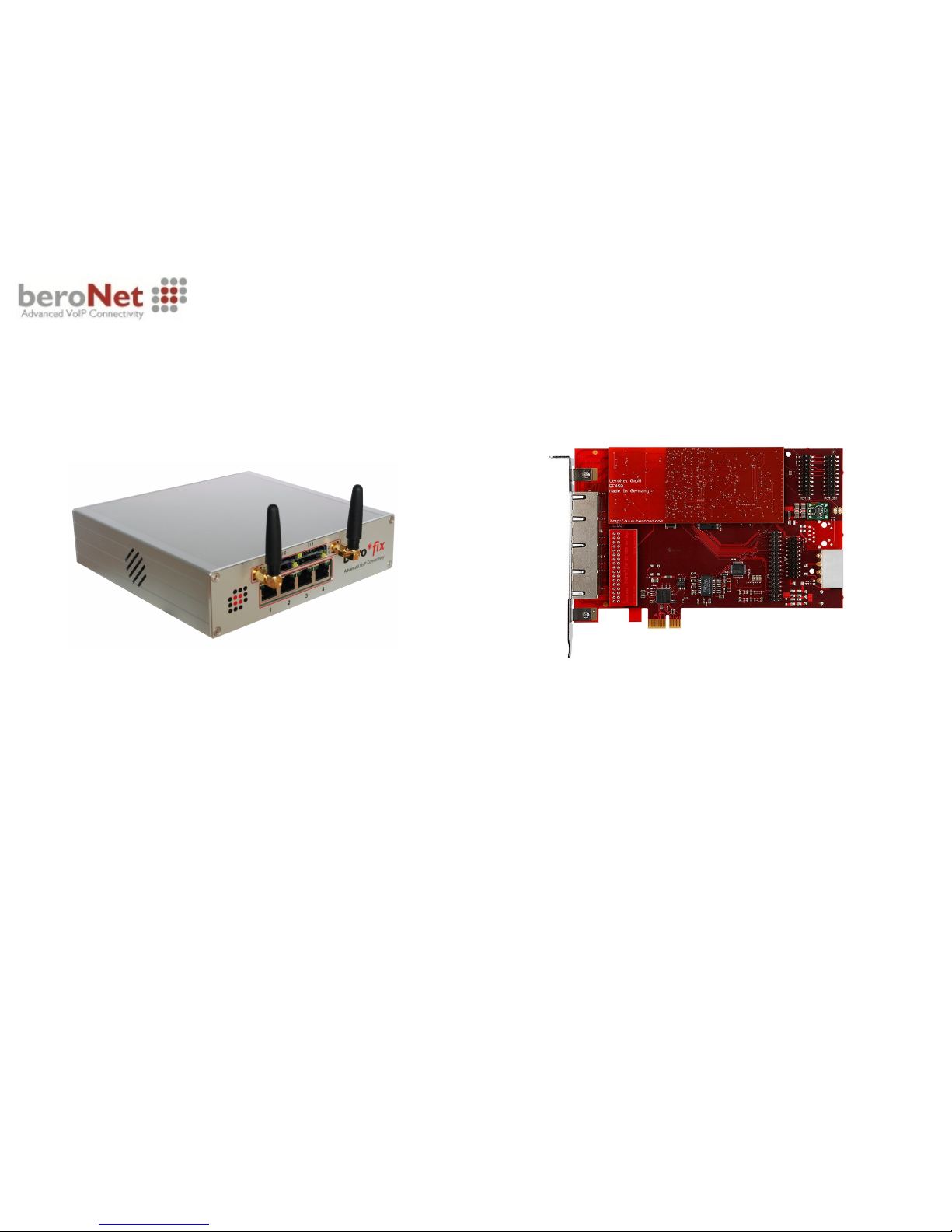
Place the berofix PCI / PCIe card in your
computer and power-up the machine. The
operating-system will detect the berofix card
as a new network card.
- Realtek 8139 (PCI Version)
- Realtek 8111 (PCIe Version)
You can identify your berofix device by the
MAC address. All berofix cards have MAC
addresses starting with D8:DF:0D or
00:50:C2.
Connect your berofix Gateway to your local
area network (LAN) or connect it directly to
your computer using a cross-over cable. After
that power-up the device.
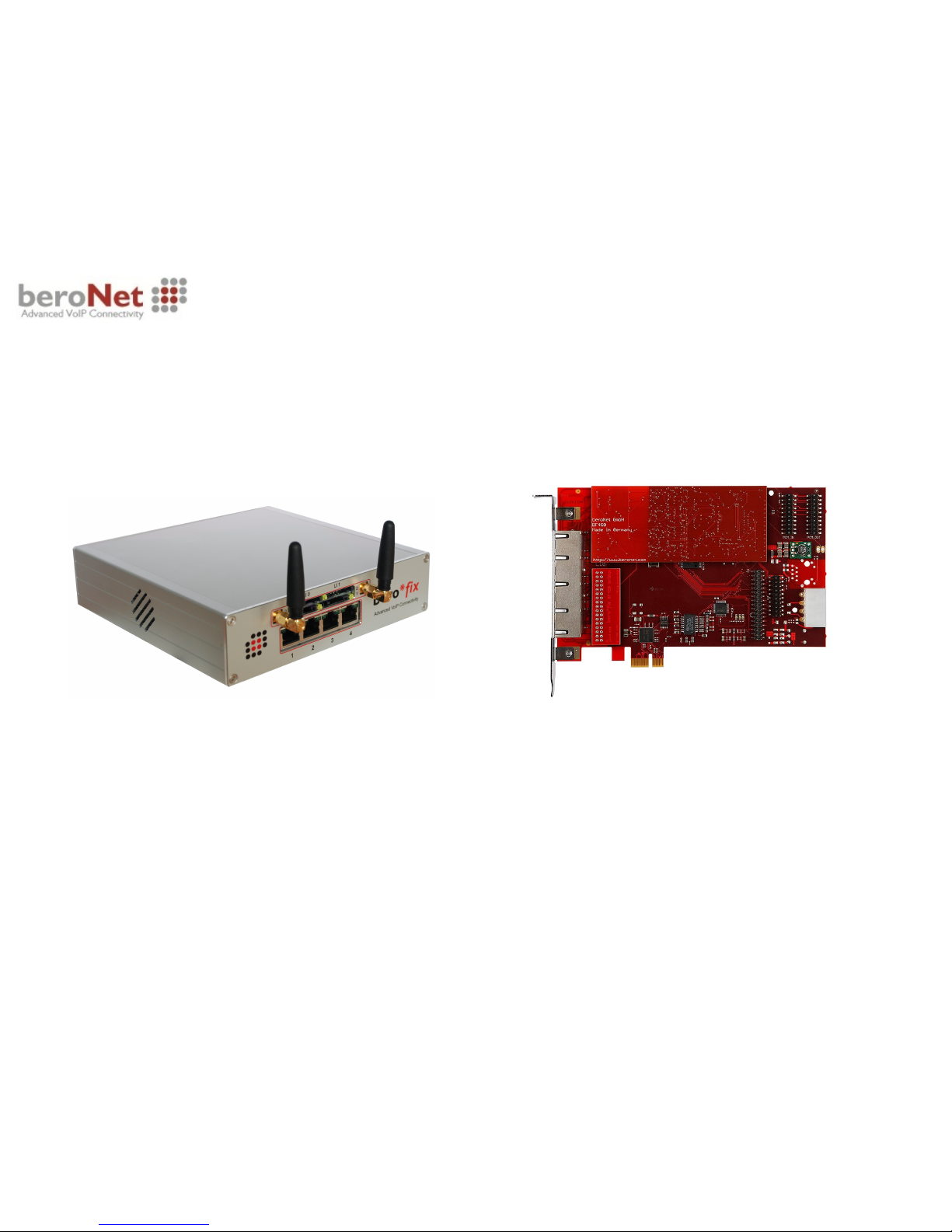
berofix PCI / PCIe cardberofix Gateway
1.Startup – 2.IP-Address – 3.WebGUI – 4.Firmware – 5.Ready
Page 3
. . . . . . . . . . . . . . . . . . . . . . . . . . . . . . . . . . . . . . . . . . . . . . . . . . . . . . . . . . . . . . . . . . . . . . . . . . . . .
© beroNet GmbH - 2012
.
.
.
.
.
.
.
.
.
.
.
.
.
.
.
.
.
.
.
.
.
.
.
.
.
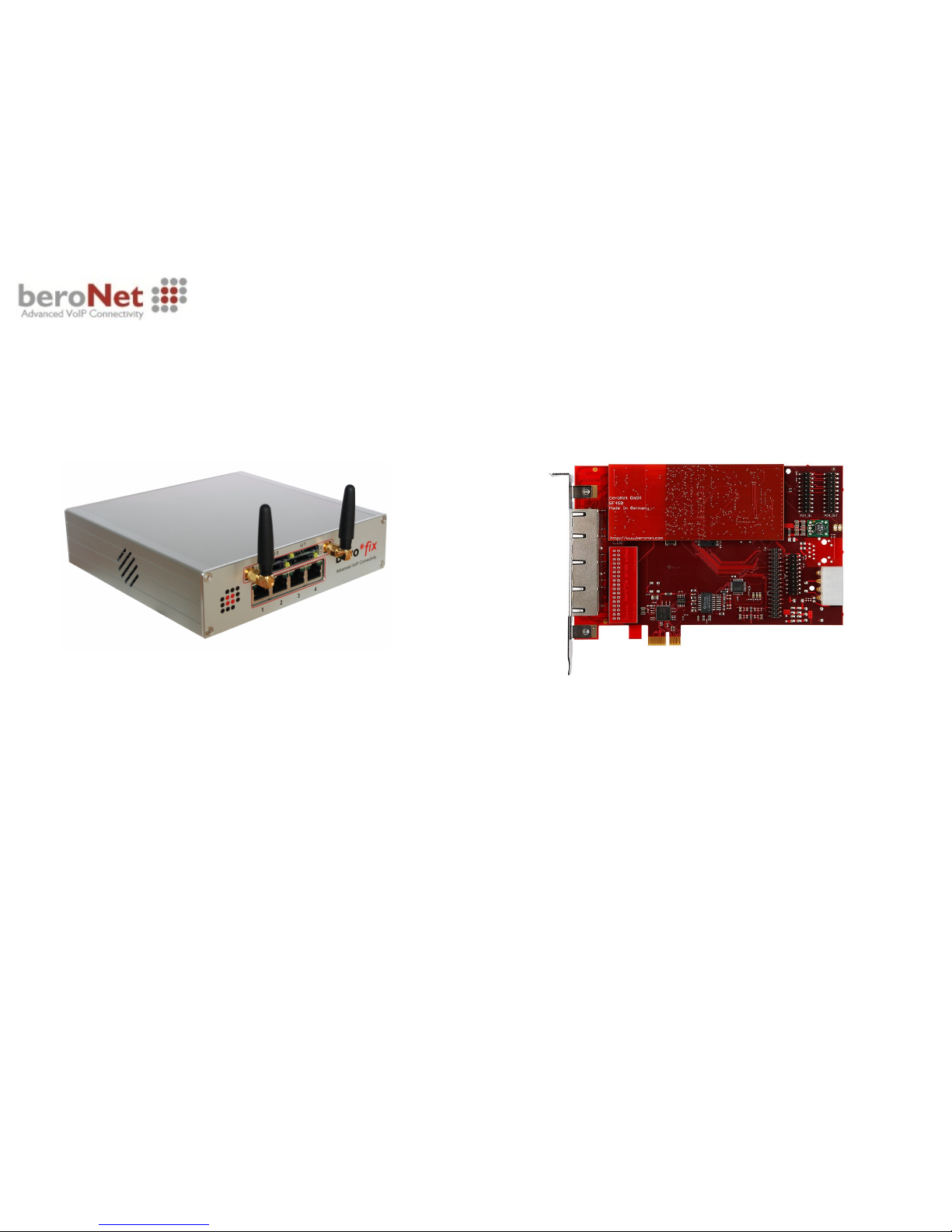
By factory default all berofix cards
have the following network settings
IP-Address:10.0.0.2 / 255.0.0.0
Change the IP-Address of the new detected
network adapter (berofix card) i.e. to 10.0.0.3
and the netmask to 255.0.0.0.
By factory default all berofix Gateways
have the following network settings
IP-Address:10.0.0.2 / 255.0.0.0
Change the local IP-Address of your
computer i.e. to 10.0.0.3 and the net-mask
to 255.0.0.0.
berofix Gateway berofix PCI / PCIe card
1.Startup – 2.IP-Address – 3.WebGUI – 4.Firmware – 5.Ready
Page 4
. . . . . . . . . . . . . . . . . . . . . . . . . . . . . . . . . . . . . . . . . . . . . . . . . . . . . . . . . . . . . . . . . . . . . . . . . . . . .
© beroNet GmbH - 2012
1.Startup – 2.IP-Address – 3.WebGUI – 4.Firmware – 5.Ready
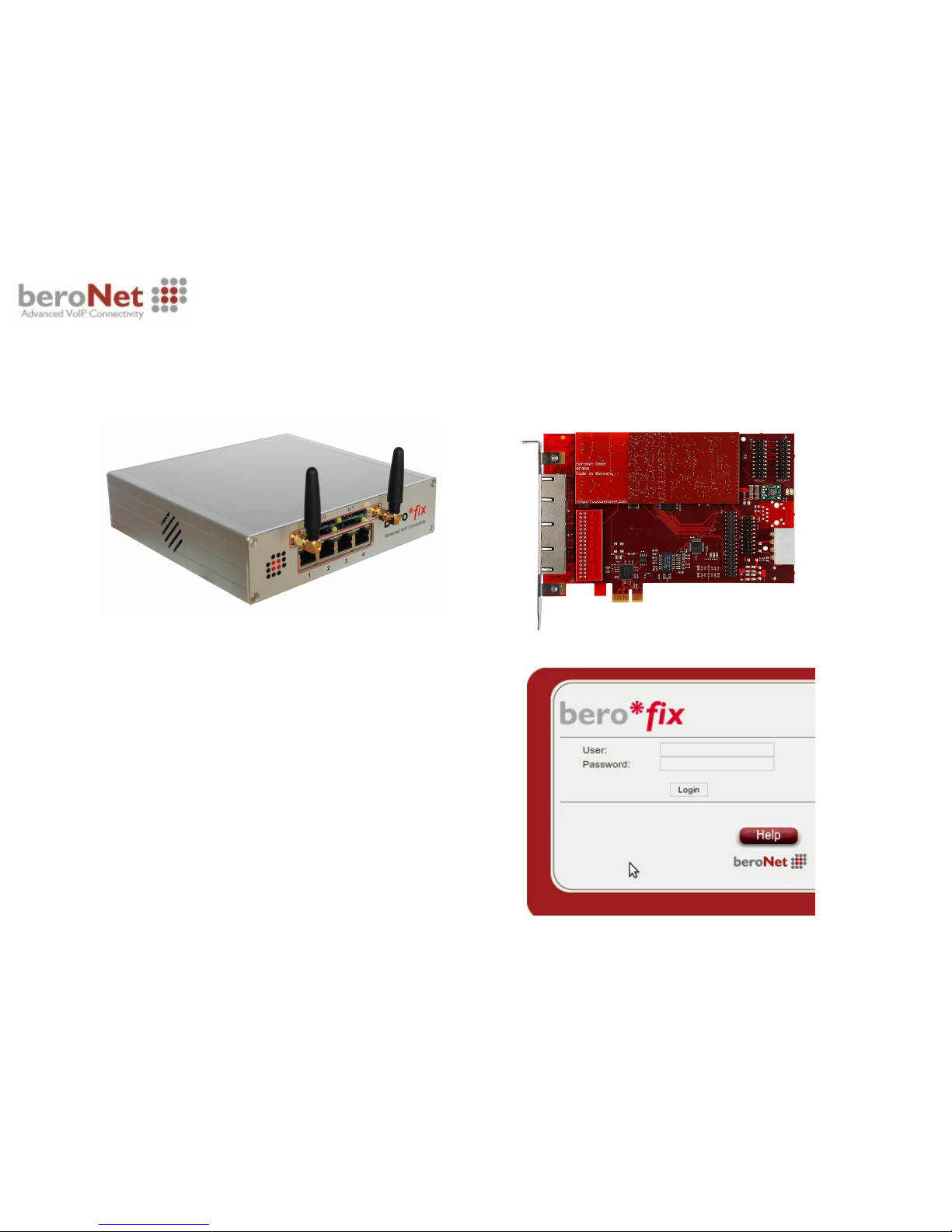
If you have setup the network successfully
you can reach the berofix Webinterface at
http://10.0.0.2
with the following default credentials
Username: admin
Password: admin
berofix Gateway / berofix PCI / PCIe card
Page 5
. . . . . . . . . . . . . . . . . . . . . . . . . . . . . . . . . . . . . . . . . . . . . . . . . . . . . . . . . . . . . . . . . . . . . . . . . . . . .
© beroNet GmbH - 2012
berofix Gateway / berofix PCI / PCIe card
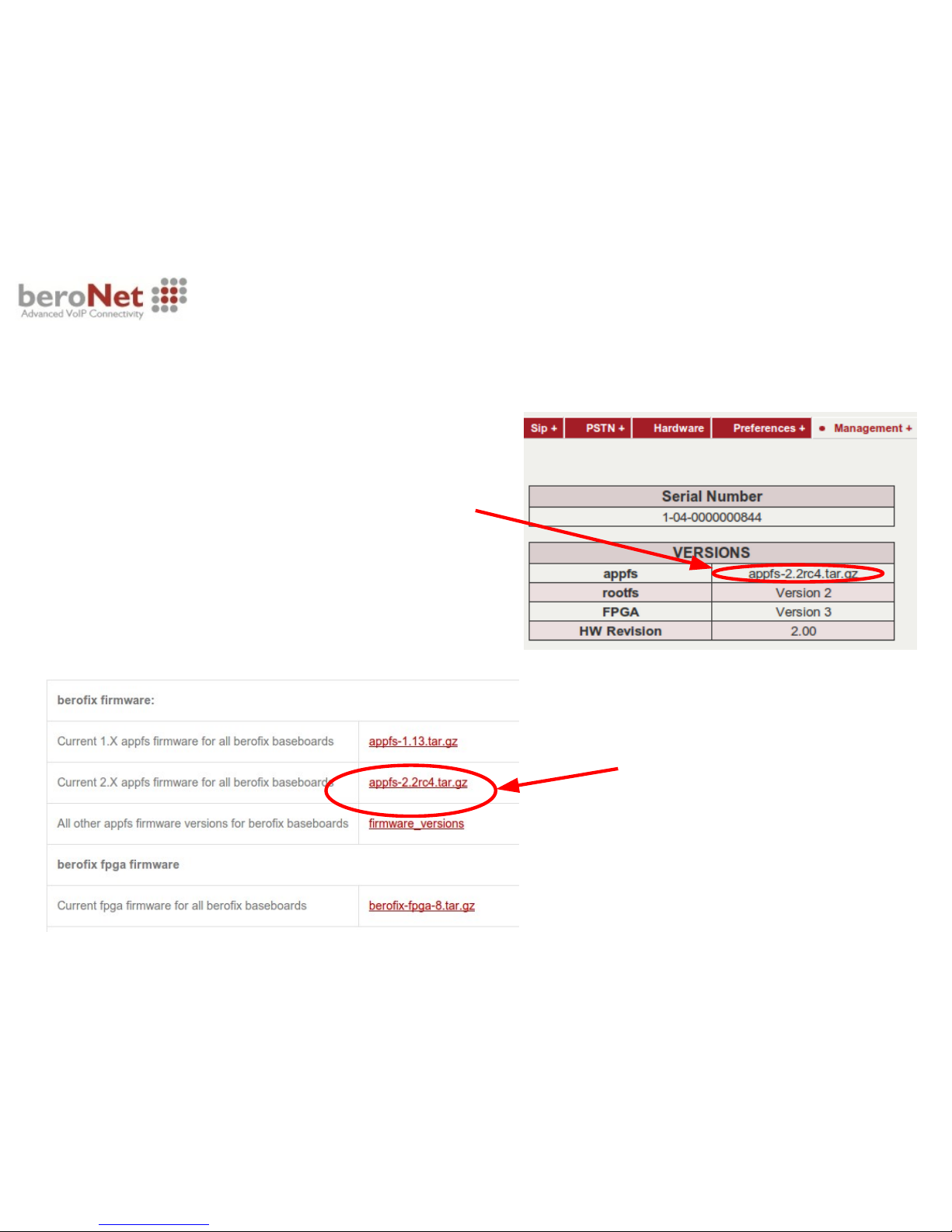
Before you start using your berofix device,
please verify that the latest firmware is installed
on your device. The information about the
currently installed firmware (appfs)
can be obtained over the WebGUI at the menu
point Management->Info
In case a newer firmware is available at
the Download section at
http://www.beroNet.com
we highly recommend to update to the
newest version. Once downloaded the
latest firmware you can use the WebGui
at the menu point Management->
Firmware Update to upgrade.
1.Startup – 2.IP-Address – 3.WebGUI – 4.Firmware – 5.Ready
Page 6

. . . . . . . . . . . . . . . . . . . . . . . . . . . . . . . . . . . . . . . . . . . . . . . . . . . . . . . . . . . . . . . . . . . . . . . . . . . . .
© beroNet GmbH - 2012
berofix Gateway / berofix PCI / PCIe card
After validating the firmware your
berofix device is ready to use.
Configure your device through the
easy to use WebGUI.User manual and
documentation can be found at:
http://wiki.beronet.com
beroNet offers extensive technical support
ressources to all our customers.
► Documentation Wiki
► Community Mailinglist
► beroNet Technical Support
For more information please have look at the
Support section at
http://www.beronet.com
1.Startup – 2.IP-Address – 3.WebGUI – 4.Firmware – 5.Ready
 Loading...