

Page 1

SPEAKER BIG MO
User Guide
Page 2
2
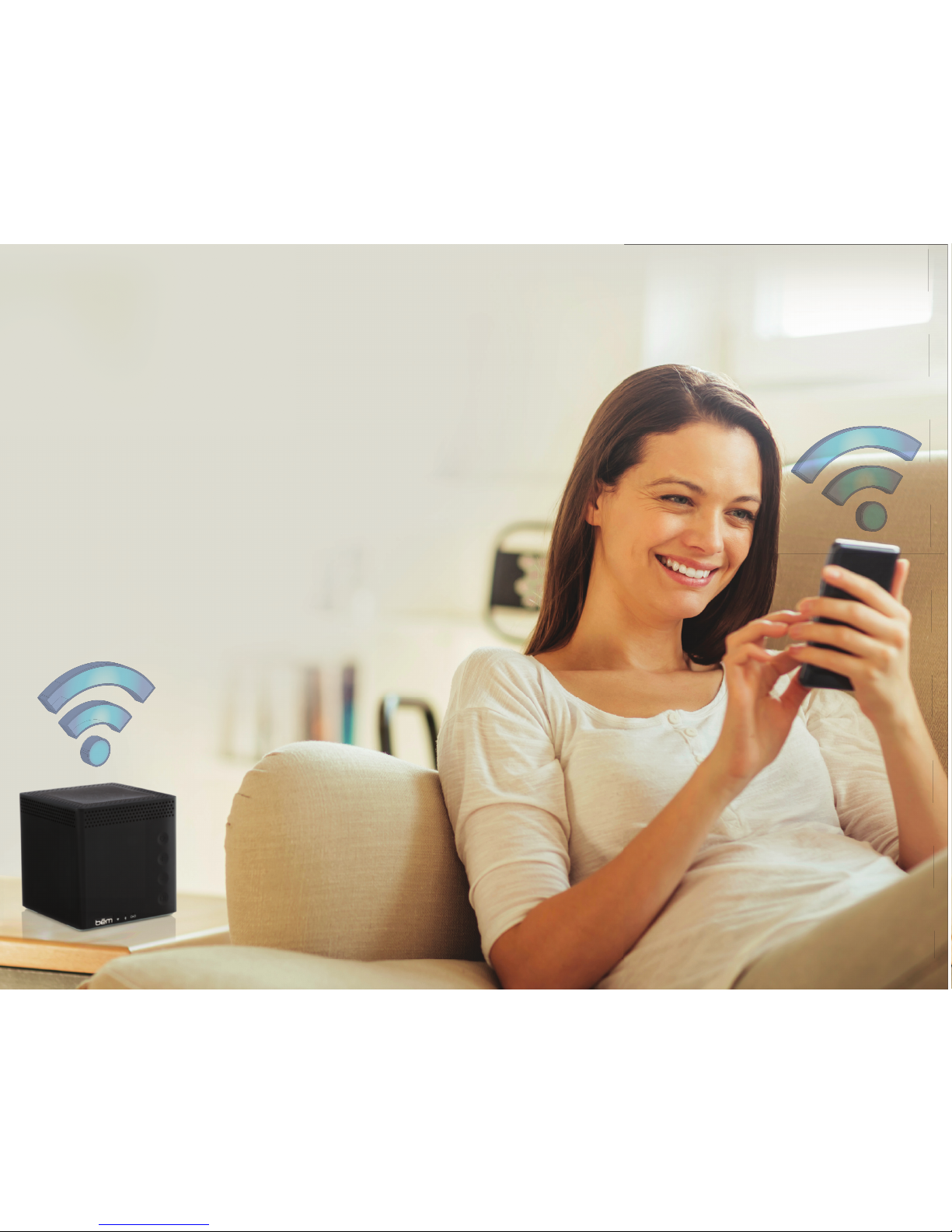
Perfect as a stand-alone
Bluetooth speaker,
Impressive as a Wi-Fi
Multi-Room Audio System
Page 3
3
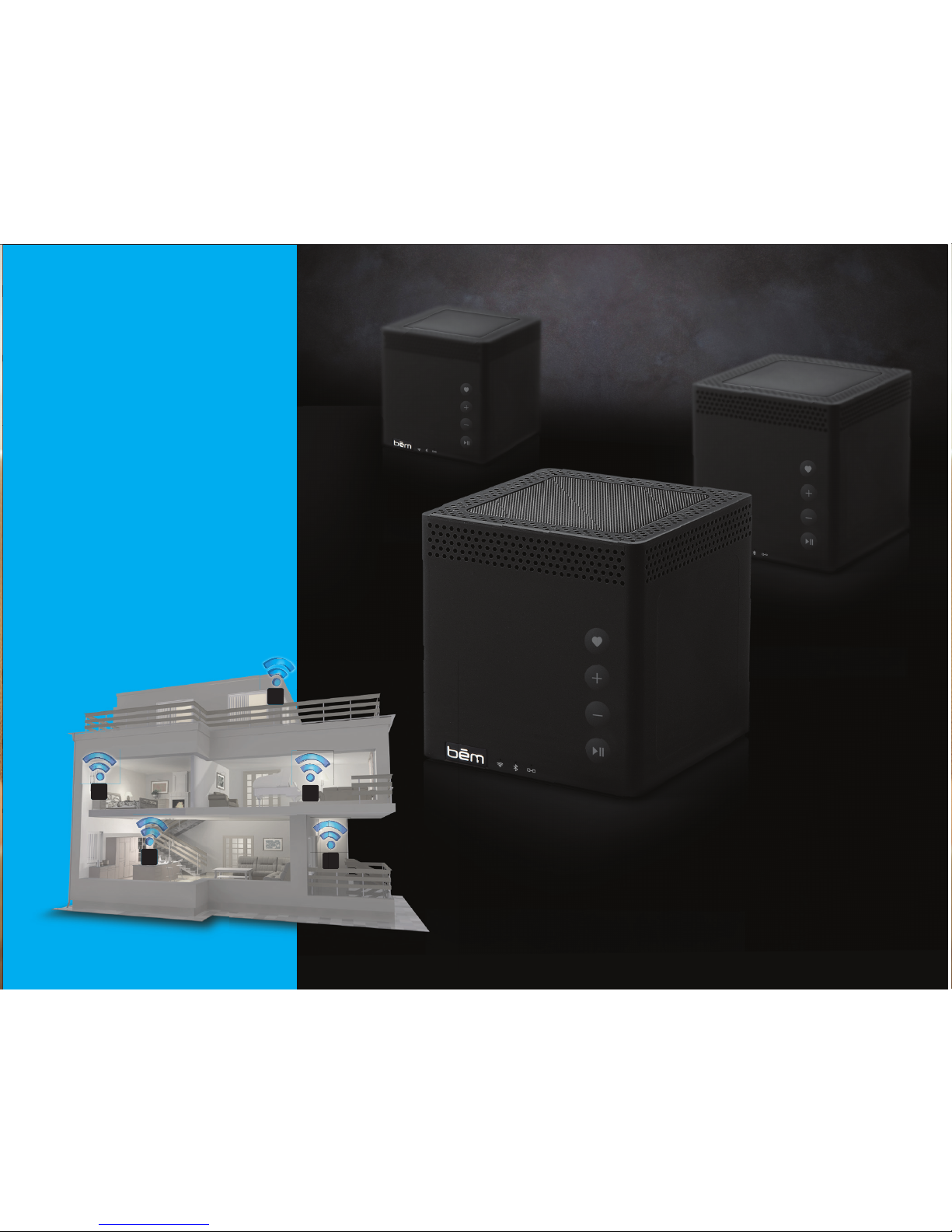
Connect multiple Big Mo
speakers and place them
all around your home!
Easily group speakers
with the push of a button
Use the Big Mo APP
to control all your Big
Mo speakers from one
location
Connect with Wi-Fi to
play High Denition
audio les
Add more speakers any
time!
Page 4

Product Overview
Product Interface
Charging
Connection Options:
Beginner
Intermediate
Advanced
Quick Multi-Speaker Connect
Big Mo Control Functionality
Maintenance
Warranty
5
6
7
8
10
12
17
20
22
25
Contents
Page 5

5
To make sure you get the best possible results from your new Big Mo Wireless Speaker, please
thoroughly read and carefully follow all instructions in this User Manual. Be sure to store this manual
in a convenient location for future reference.
Package Contents
Big Mo Speaker x 1
Sound Wedge x 1
AC Power Adapter x 1
AUX Cable x 1
User’s Manual x 1
Quick Start Guide x 1
Compatibility
Big Mo is compatible with virtually any Bluetooth/Wi-Fi enabled device. Downloading the Big Mo
app (required for certain advanced functions) gives you the opportunity to connect via the internet
for improved audio quality and range.
Meet Big Mo
Before learning how to use Big Mo, please take a moment to look it over and familiarize yourself
with its features.
Product Overview
Page 6
6
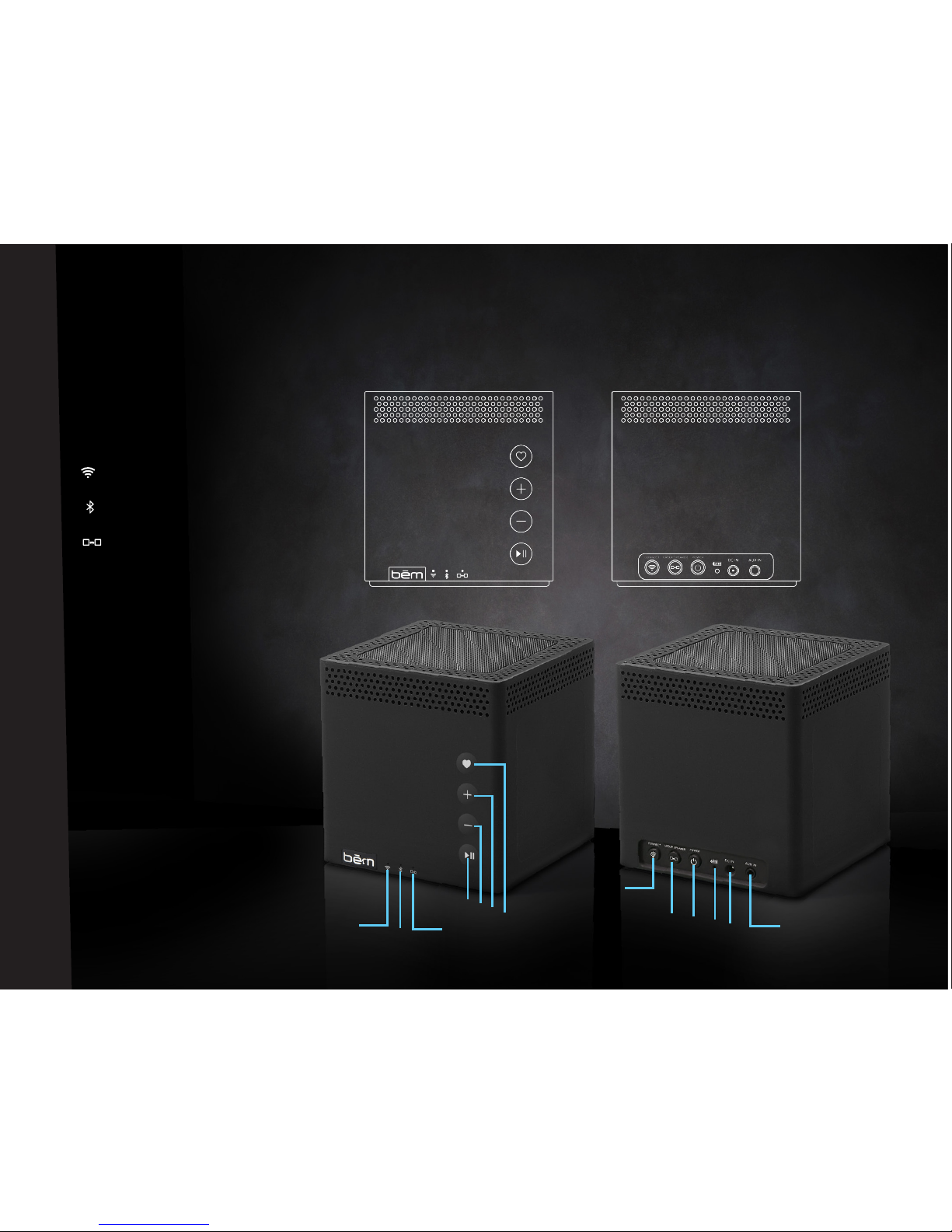
FRONT BACK
1. WiFi indicator light
2. Bluetooth indicator light
3. Group Speaker indicator light
4. Play/Pause control
5. Volume Down control
6. Volume Up control
7. Favorites control
8. Connect button
9. Group Speaker button
10. Power button
11. Charging indicator light
12. DC IN
13. Aux In port
1.
2.
3.
4.
5.
6.
7.
8.
9.
10.
11.
12.
13.
Product Interface
6
Page 7
7
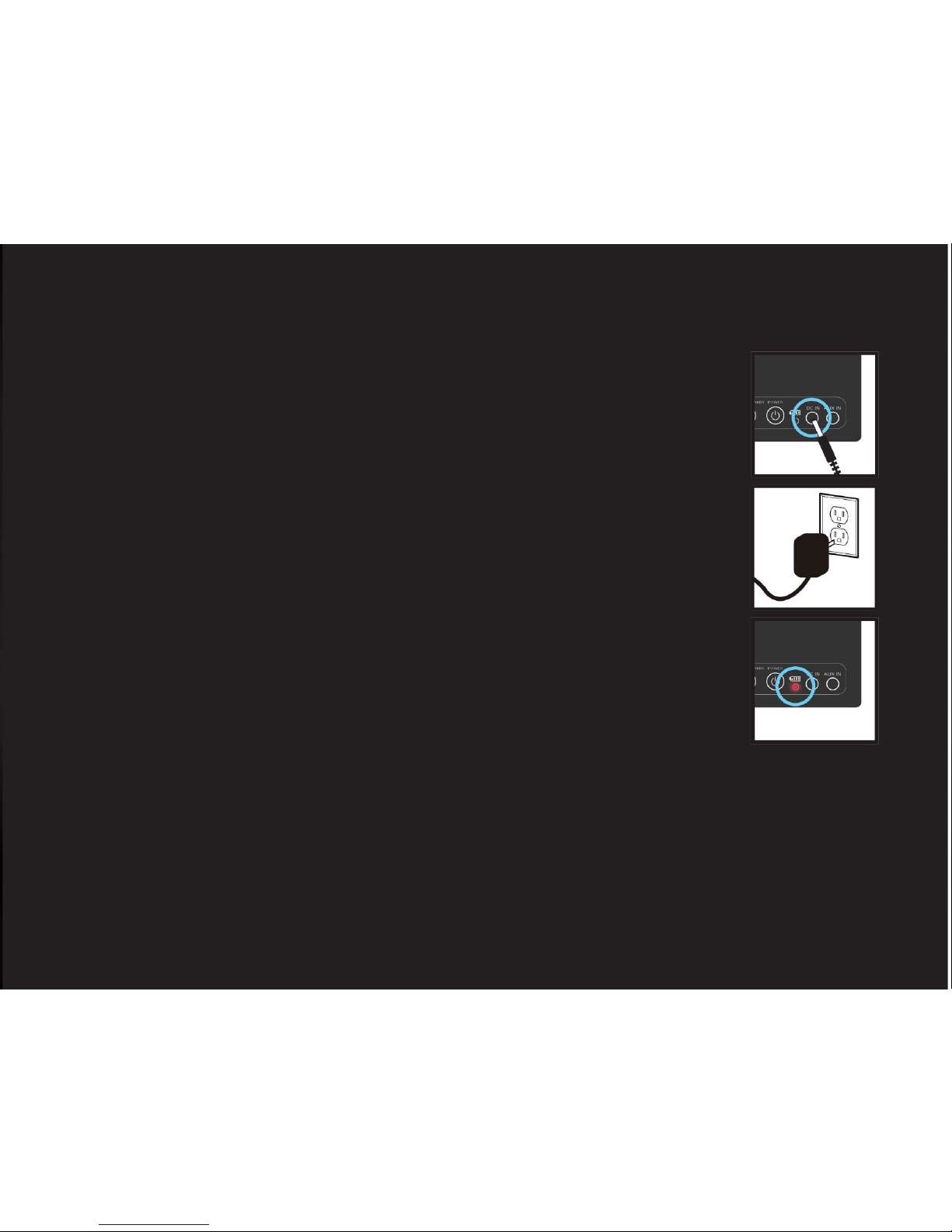
1. Remove the AC Power Adapter (included) from all packaging and insert
the one end into the DC IN port on the back of the Big Mo speaker. The Charging
Indicator (Battery) Light will turn solid red.
2. Insert the pronged end of the AC Power Adapter into a standard wall outlet.
3. When fully charged (average charge time is 5-6 hours) the Charging
Indicator Light will turn off. You’re now free to unplug the speaker and
use it wirelessly. You may also use Big Mo while it is plugged in.
NOTE: With a full charge, Big Mo should last 6+ hours via Wi-Fi connection (see pages 10-14) and 8+
hours via Bluetooth connection (see page 8). When the battery is low Big Mo will play a voice alert every
10 minutes until the battery dies to let you know that the speaker needs charging. If Big Mo loses all
battery life, simply recharge by following the above instructions.
Charging
1.
2.
3.
Page 8
8
Big Mo can connect to your device(s) in three different ways. You are also able to connect multiple
Big Mo speakers to one another for an enhanced experience. For the best results, please read the
following sections throughly. If you’re new to Bluetooth and/or Wi-Fi speakers, we recommend
starting with Beginner section and learning from there.
BEGINNER
Bluetooth Connection (Default Mode for Big Mo- Out of the box)
To establish a Bluetooth connection, follow the simple steps below.
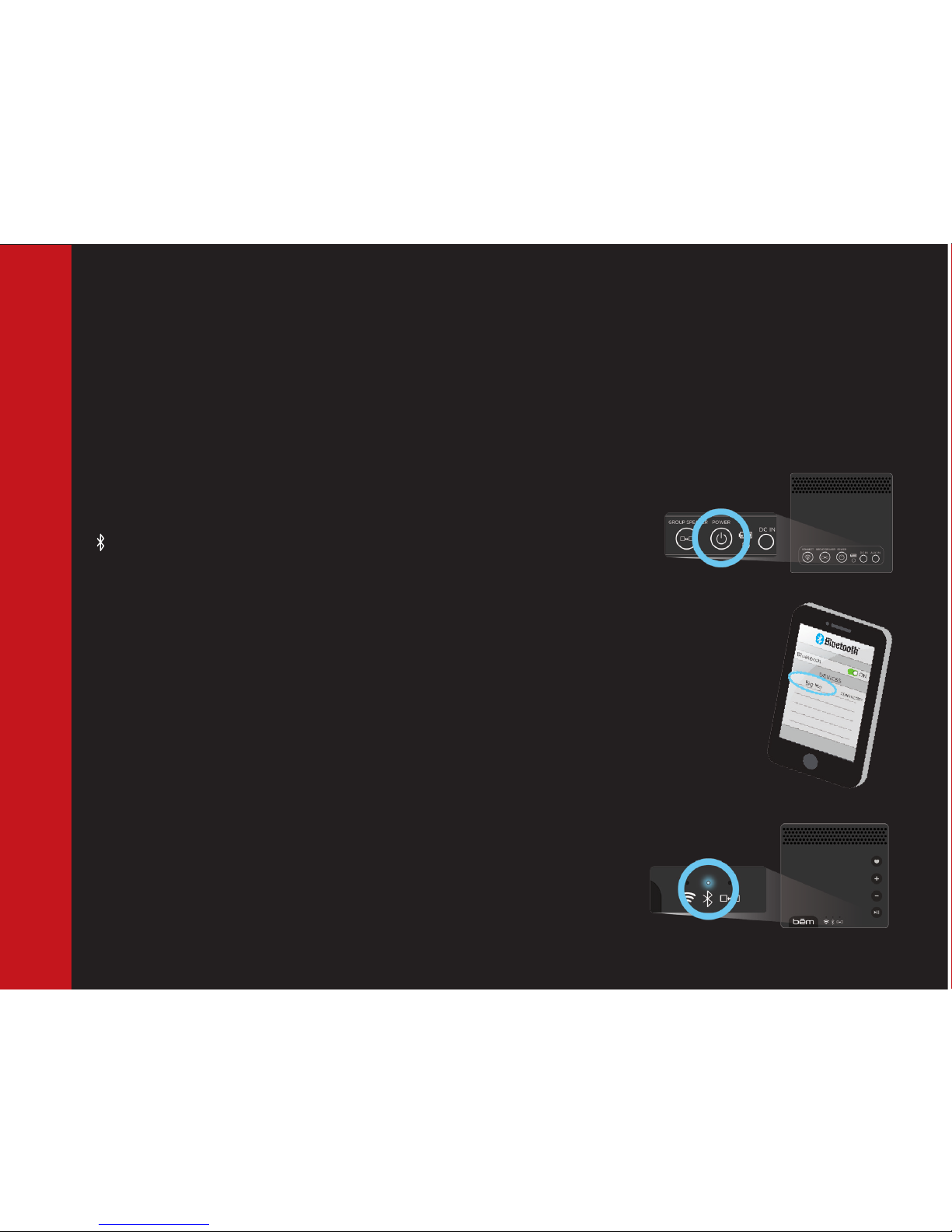
1. Press and hold the POWER button on the back of Big Mo. When the
speaker is powered on, you will hear a voice prompt saying “Bluetooth Mode” and the
Bluetooth indicator light will be lit on the front of the speaker.
2. Open the “Bluetooth Settings” on your device. Select “Big Mo”
from the list of device options. (Refer to your device’s User Guide for details).
3. When pairing is complete your device will read “Connected”, the Bluetooth
Indicator Light on Big Mo will turn solid blue to indicate a successful connection.
Now you can play music from your device.
Connection Options
BEGINNER SECTION
BLUETOOTH
1.
2.
3.
Note: To turn off Big Mo, hold the Power button in back until all front
indicator lights turn off. (This applies to all modes).
Page 9
9
Connection Options (cont.)
Wired Connection
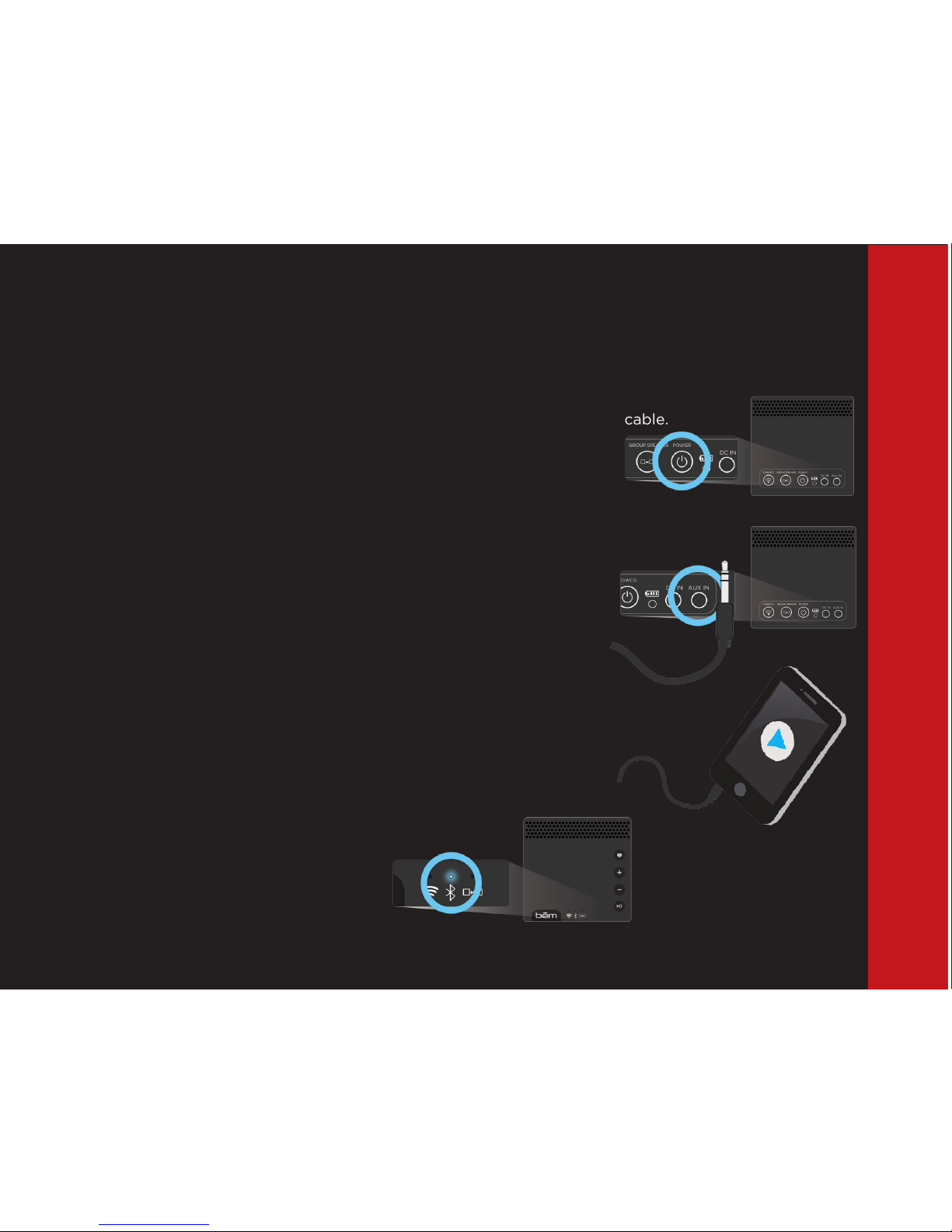
Big Mo can also connect directly to your device via the included AUX cable.
To establish an AUX connection, follow the simple steps below.
1. Press and hold the POWER button on the back of Big Mo.
(See step 1. on page 8)
2. Remove the AUX Cable from the packaging and insert one end
of the cable into the AUX IN port on the back of Big Mo. NOTE:
Both ends of the Aux cable are identical. You will hear a voice
prompt saying: “Line In”
3. Insert the remaining end of the cable into the AUX port on your
device (Refer to your device’s User Guide for details).
The Bluetooth Indicator Light changes to a slow ash to indicate a
connection to the AUX cable has been made. Now you can play
and control music from your device.
BEGINNER SECTION
BLUETOOTH
1.
2.
3.
Page 10
10
INTERMEDIATE
Point to Point Wi-Fi (Improved Sound and Range)
Big Mo can be operated as a Point to Point Wi-Fi speaker. This connection allows for wireless
performance, improved sound, and greater distance (range) between your device and Big Mo (when
compared to Bluetooth). To establish a point to point connection, follow the simple steps below:
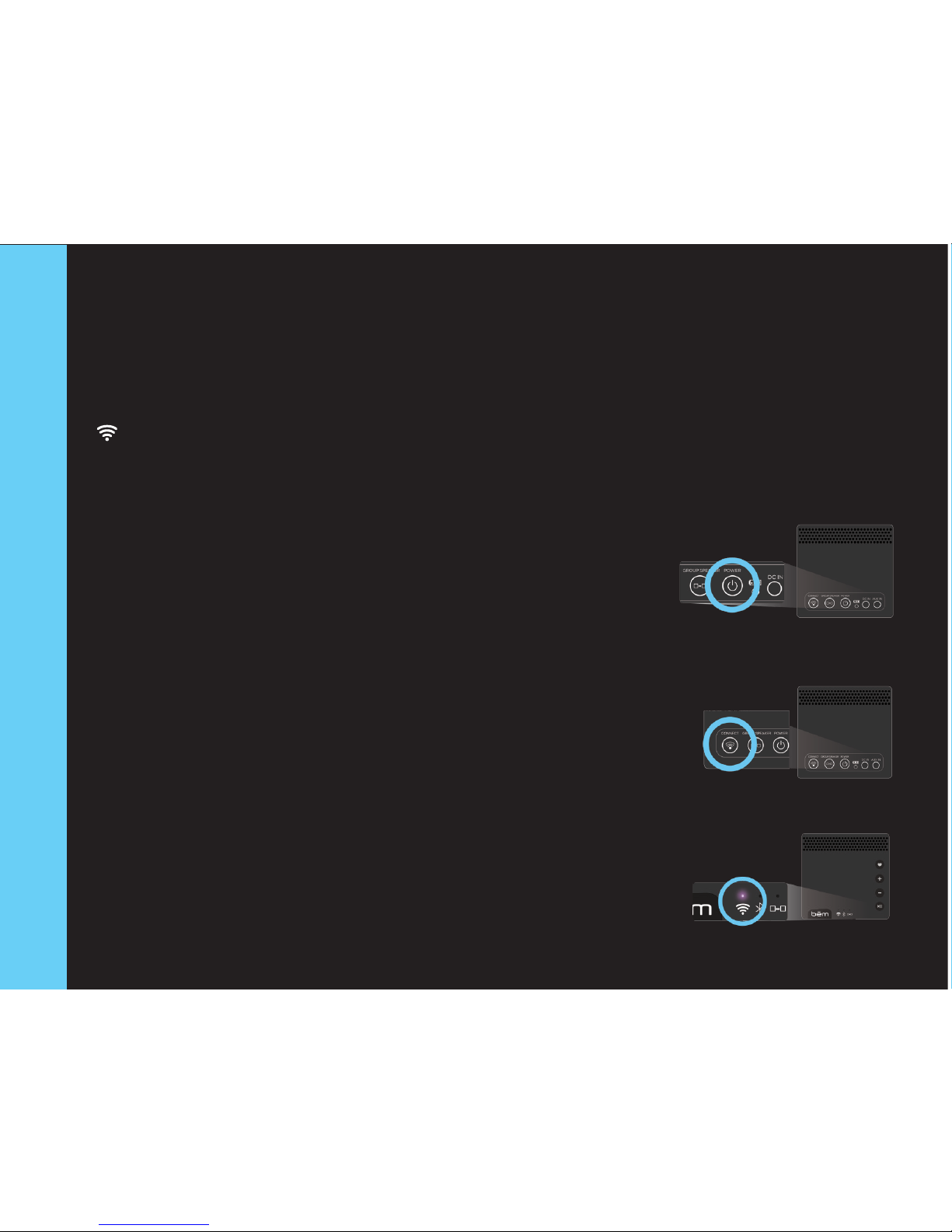
1. Power on Big Mo with BT default mode, audio voice prompt “Bluetooth
Mode”
2. Press “CONNECT” button on back of unit to transfer to wi mode, audio
voice prompt “Wi Mode”
3. WiFi light on front will slowly ash Purple
4. Audible sound (4 note chime) is made when Point to Point connection is
made (this can take up to 30 seconds).
5. Wi light will be solid Purple when connected to the Big Mo wi. Audio
voice prompt: “WiFi Connected”
Connection Options (cont.)
INTERMEDIATE SECTION
POINT TO POINT WIFI
2.
5.
1.
Page 11
11
INTERMEDIATE SECTION
POINT TO POINT WIFI
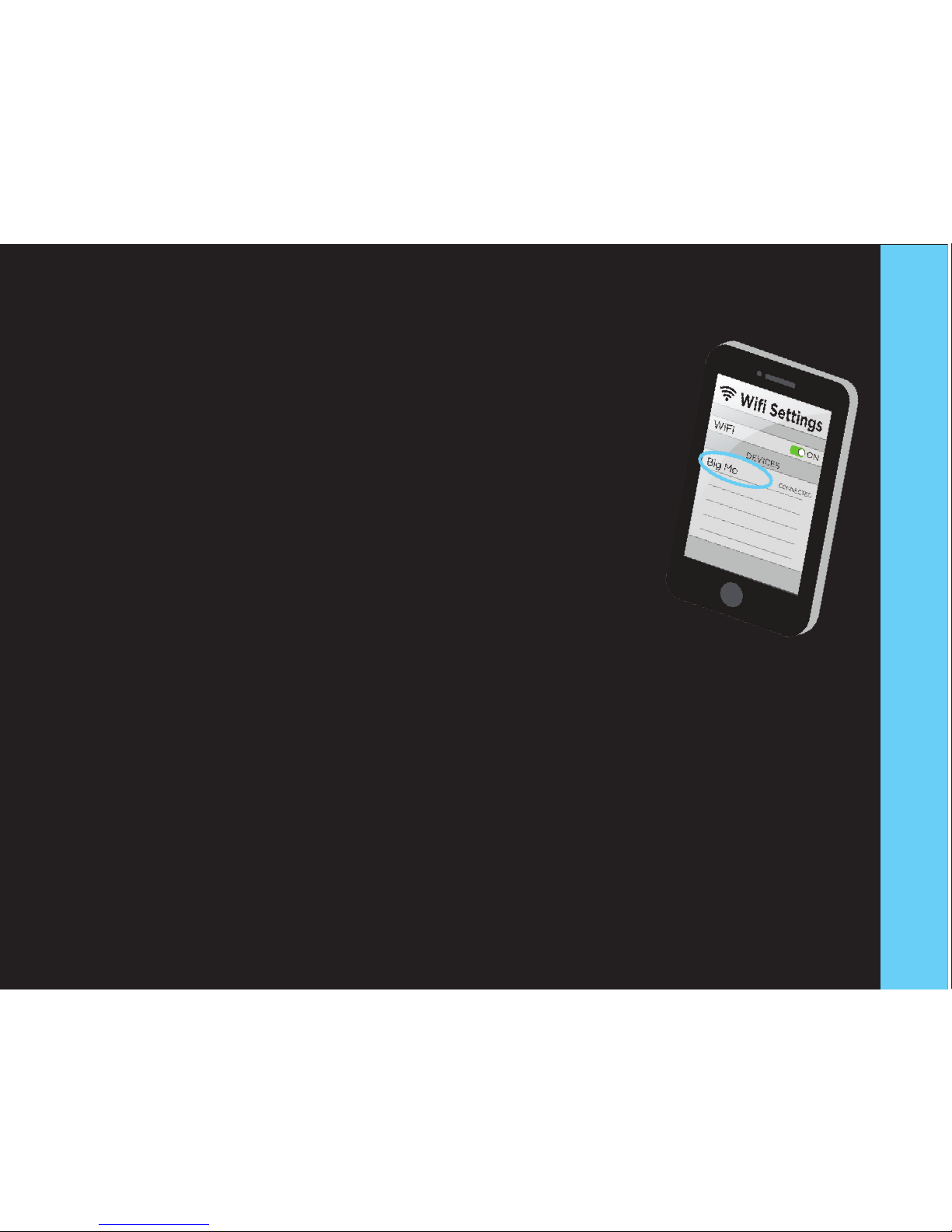
6) Open the “Wi-Fi Settings” on your device. Select “Big Mo” from the list of
connection options just as you would select your modem or router (refer to
your device’s user guide for details).
7) When Big Mo has paired via Wi-Fi, your device will show “connected”
Note: In Pt. to Pt. mode - iOS devices, audio can drop off if paused for more than
2-3 minutes, or for other reasons. If audio drop occurs while connected to a Big Mo
speaker, please go into your device (AirPlay, for example) and reconnect. Refer to
your device User Guide for details.
6. & 7.
Connection Options (cont.)
Page 12
12
ADVANCED SECTION
WIFI ROUTER WITH APP
ADVANCED
In WiFi Router mode, you will need to download the Big Mo app: in Google Play or the App Store and
download to your device as you normally would.
For Apple / iOS devices:
Visit the APP STORE on your device or online at http://itunes.apple.com/AppStore.
Once there, search for “bem wireless big mo” to nd & download the app.
For Android devices:
Visit GOOGLE PLAY on your device or online at http://play.google.com/apps.
Once there, search for “bem wireless big mo” to nd & download the app.
Wi-Fi Router Connection (Improved sound and range; Full app functionality; Multi-room capability)
The most-feature rich way to connect to Big Mo is via a wireless internet (Wi-Fi)
connection. Wi-Fi offers optimum sound quality, improved range, and full integration with
the Big Mo App* (Free for iOS and Android). To establish a Wi-Fi router connection with
the Big Mo App, follow the simple steps on the next page.
Connection Options (cont.)
Page 13
13
ADVANCED SECTION
WIFI ROUTER WITH APP
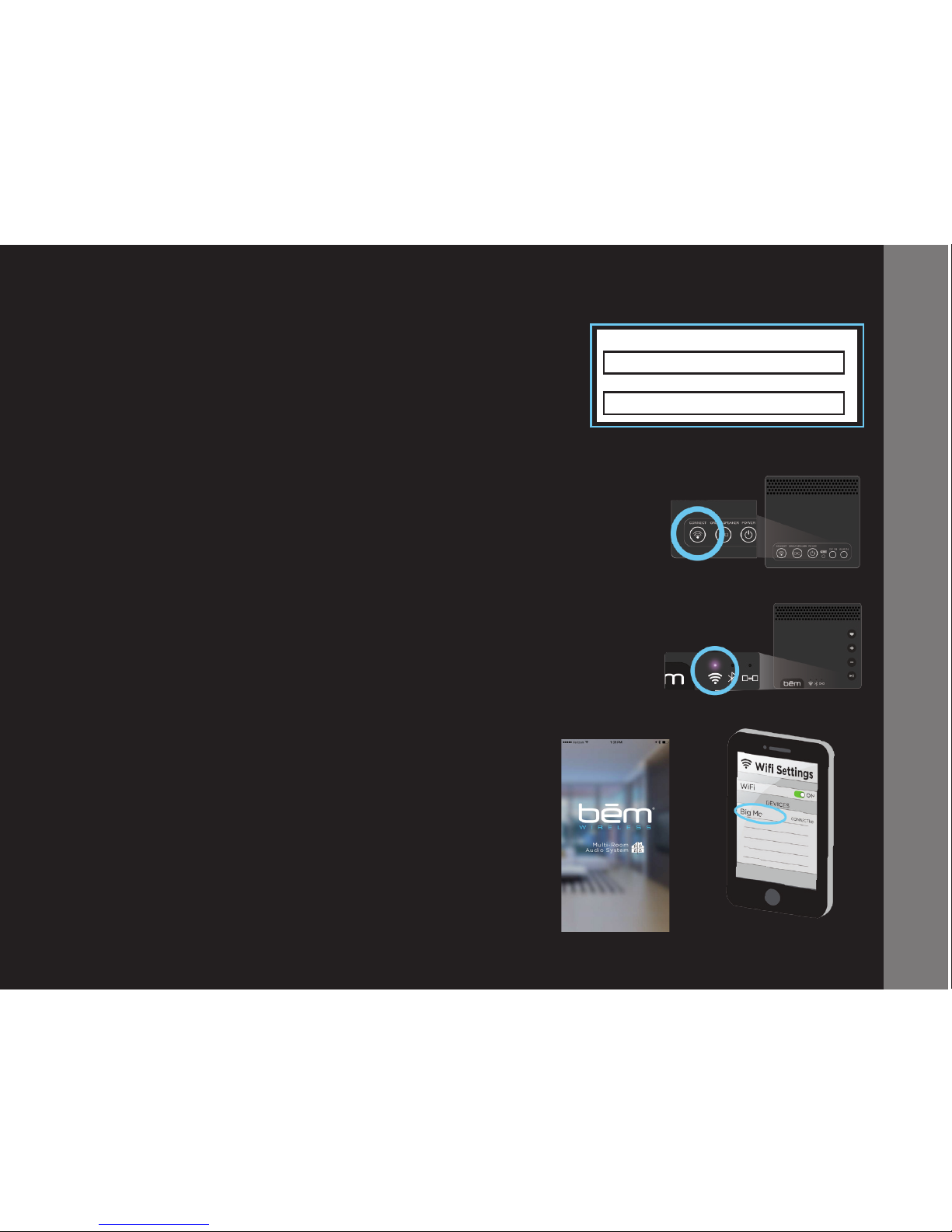
Step #2
Utilizing your home/ofce wireless internet connection, to your ROUTER
(must be 2.4Ghz):
1) Power on with BT default mode, audio voice prompt “Bluetooth
Mode”.
2) Press “CONNECT” button on back of speaker to transfer to WiFi
mode, audio voice prompt “Wi Mode”.
3) WiFi light on front will slowly ash Purple.
4) Go to “SETTINGS” on device, make sure “WiFi” settings are on and
connected to home/ofce WiFi ROUTER.
5) Open the Big Mo APP on device.
6) Short press the “CONNECT” button on speaker.
NETWORK NAME:
PASSWORD:
Step #1: Get the network name and password information for
your Wi-Fi network. (To the right we’ve included a space for
you to record the information for future reference).
2.
3.
5.
4.
Connection Options (cont.)
Page 14
14
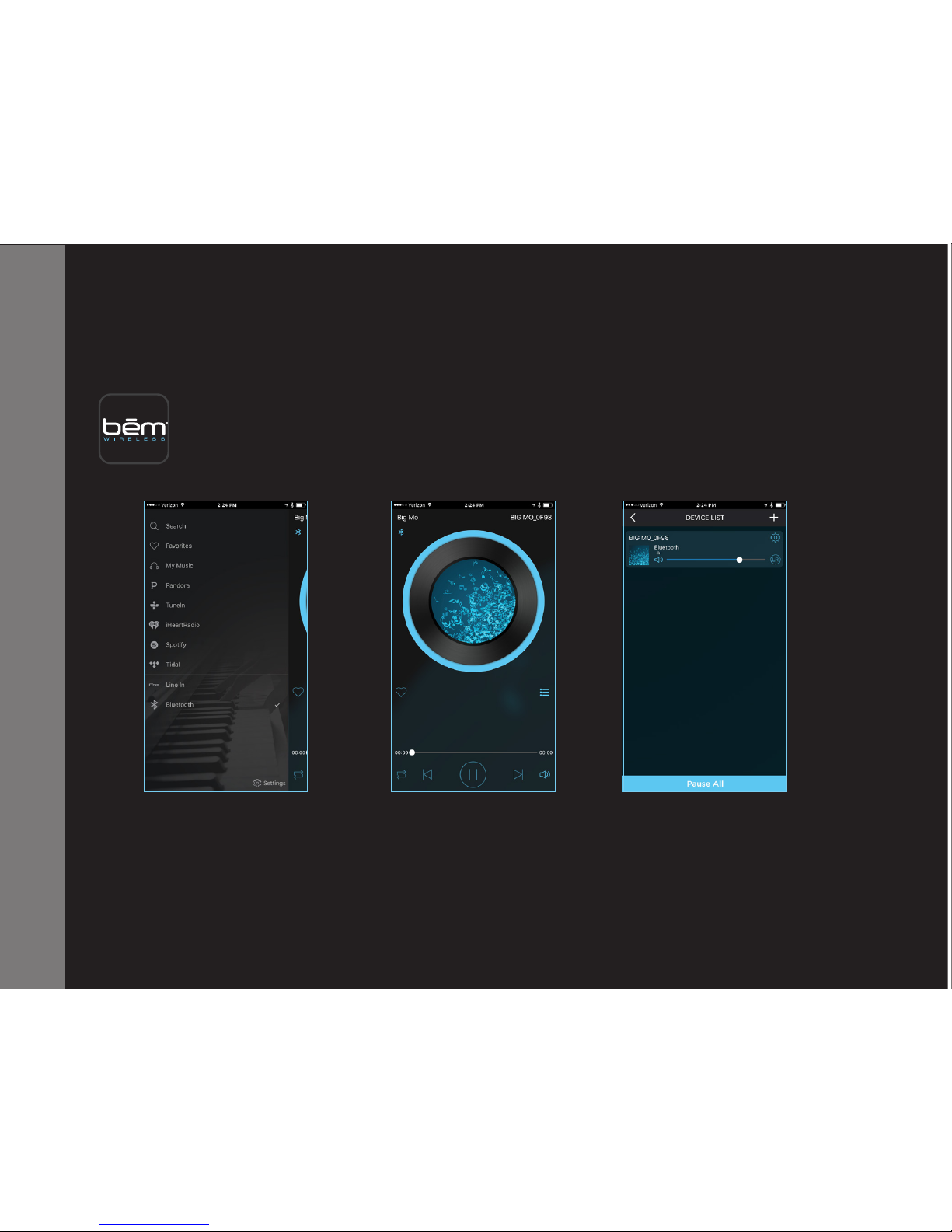
We provide a few details about the Big Mo app below. Please go into the app for further
details. To get the most out of Big Mo, we recommend downloading the free Big Mo app
from either Google Play or the App Store. This app works with all connection methods
and is required for a “Advanced” connection. To begin, please familiarize yourself with
the three main screens in the app (accessible after connecting your rst speaker):
Search, Playback, and Save
With both the app and Big Mo connected to the internet, you can easily search, playback, and archive
in the app. This means you can listen to songs you love and save favorites without ever leaving
the app.
Big Mo App Functionality
swipe left to right swipe middle swipe right to left
ADVANCED SECTION
BIG MO APP FUNCTIONALITY
Page 15
15
Favorites
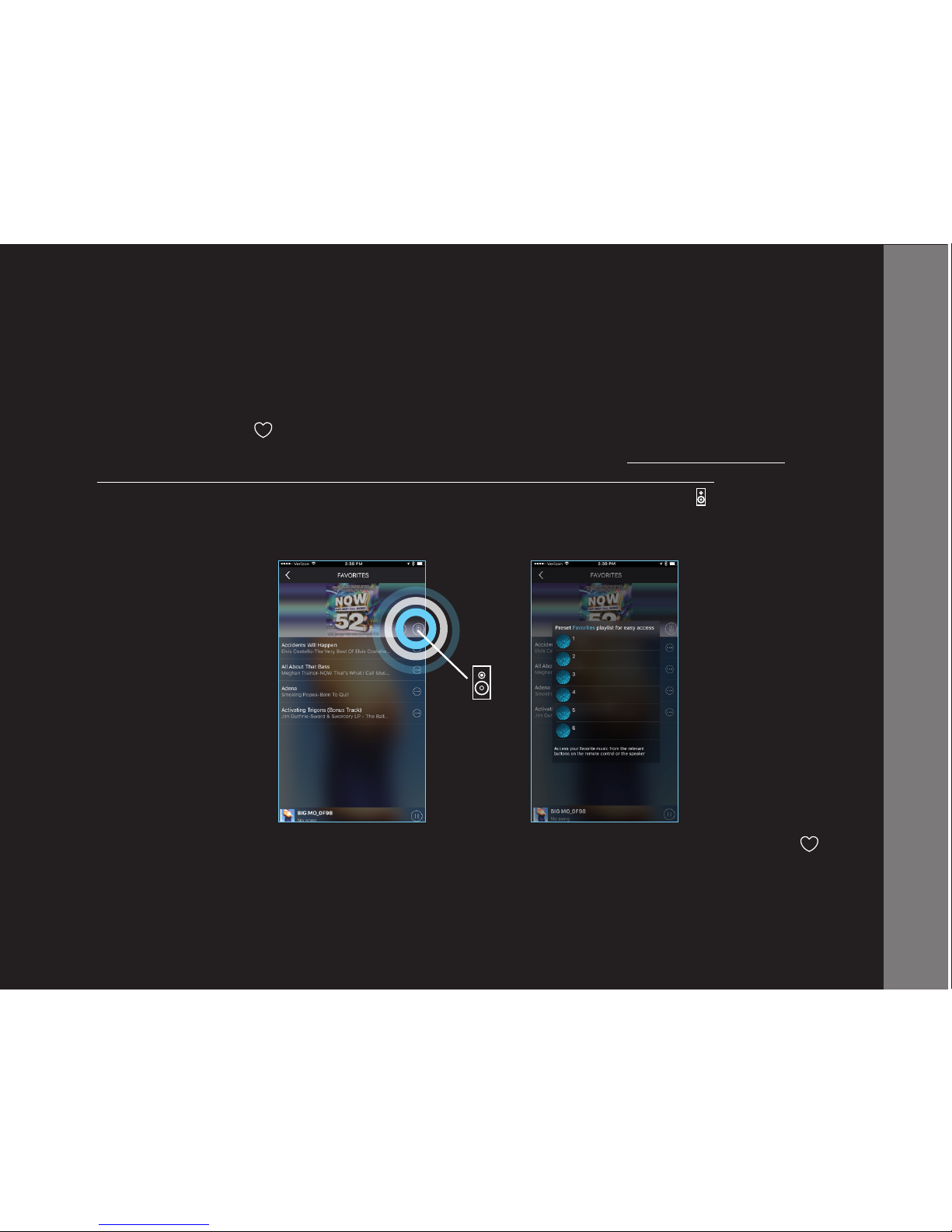
While listening to music with Big Mo you can easily favorite (save) songs right from the app. Simply
touch the heart icon in the app and that song will automatically save to your Favorites.
While in the Favorites section you can view your Favorites Playlist. Songs, playlists, and
streaming stations can be saved to 1 of 6 available slots in your Favorites Playlist.
To add content to your Favorites Playlist, simply touch the speaker icon while viewing
your favorite songs, playlists or streaming stations and your Favorites Playlist will appear, allowing
you to select one of the 6 slots to designate that content to.
Once content is added, you can then play this list at any time by touching the HEART button on
Big Mo. Press the HEART button multiple times to cycle through the 6 slots in your Favorites Playlist.
You will nd the speaker icon throughout the Big Mo app, allowing you to add all kinds of content
to your Favorites Playlist!
Big Mo App Functionality (cont)
ADVANCED SECTION
BIG MO APP FUNCTIONALITY
Page 16

16
Local Music
Access music and playlists stored on your connected device right in the Big Mo app via “My Music.”
Internet Radio
The Big Mo app works seamlessly with most major internet streaming/radio services, including:
Spotify
Pandora
Tunein
Tidal
iHeartRadio
Note: You can control which services appear in the Big Mo app menu by accessing “Settings.”
Manage and Synchronize Playlists
Music is personal. That’s why the Big Mo app allows you to build custom playlists and store them
for future listening. Whether that’s later in the day or next week, your playlist will be waiting for
you and Big Mo will be ready to make it sound great.
Big Mo App Functionality (cont)
ADVANCED SECTION
BIG MO APP FUNCTIONALITY
Page 17
17
What if you want to add additional Big Mo’s without a Wi-Fi router
connection (Advanced Mode)? Easy! Just follow the directions below...
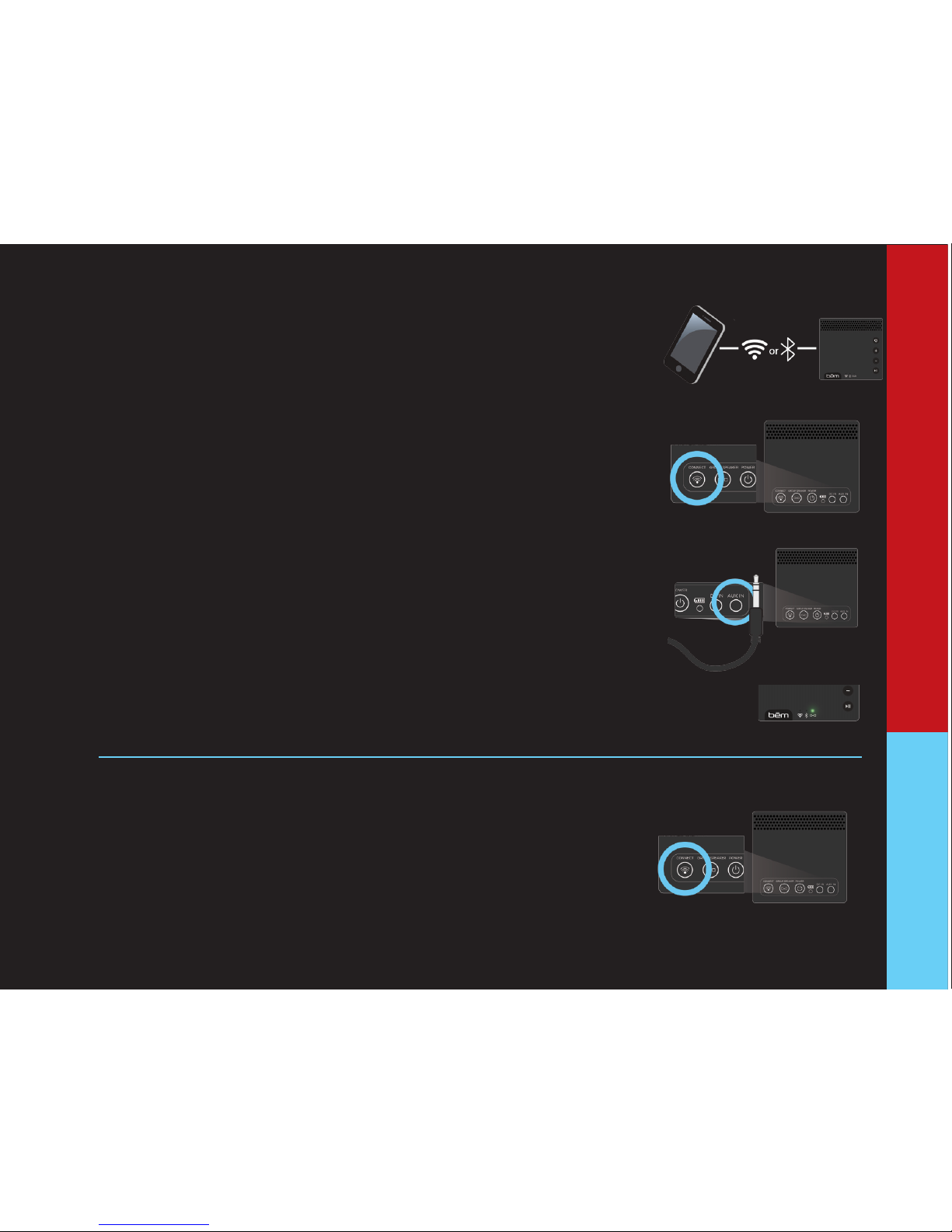
Beginner Mode: AUX IN - Group Speaker
AUX-IN Group Mode (If you have more than 1 Big Mo Speaker):
1) Power on the other speaker (speaker that does NOT have the AUX
cord plugged in).
2) Press the “Connect” button on the back of the other speaker to transfer
to Wi mode. A voice prompt will say: “Wi Mode”, Wi indicator LED will
slowly ash Purple
3) Play all speakers together by pressing “Group” button for 3 seconds on
the main speaker (the Big Mo speaker with the AUX cable inserted).
4) First, you will see a Red LED ash on the front of the speaker, then
Green LED will change to solid on for Group. When both Green lights are
solid, the speakers are grouped together. Audio voice prompt: “Multiple
Speakers Connected.”
Intermediate Mode: WiFi Point to Point - Group Speaker
1. Power on the “other speaker” - Not the main speaker that you are
already connected to via WiFi Point to Point. Reminder: Bluetooth is the
default mode.
2. Press Connect button to transfer to WiFi mode. Audio voice prompt:
“WiFi Mode”.
3. WiFi indicator light on front will slowly ash purple.
Quick Multi-Speaker Connect
2.
4.
BEGINNER MODE
INTERMEDIATE
MODE
2.
3.
Page 18
18
GROUP SPEAKERCONNECTP OWER
GROUP SPEAKERP OWER
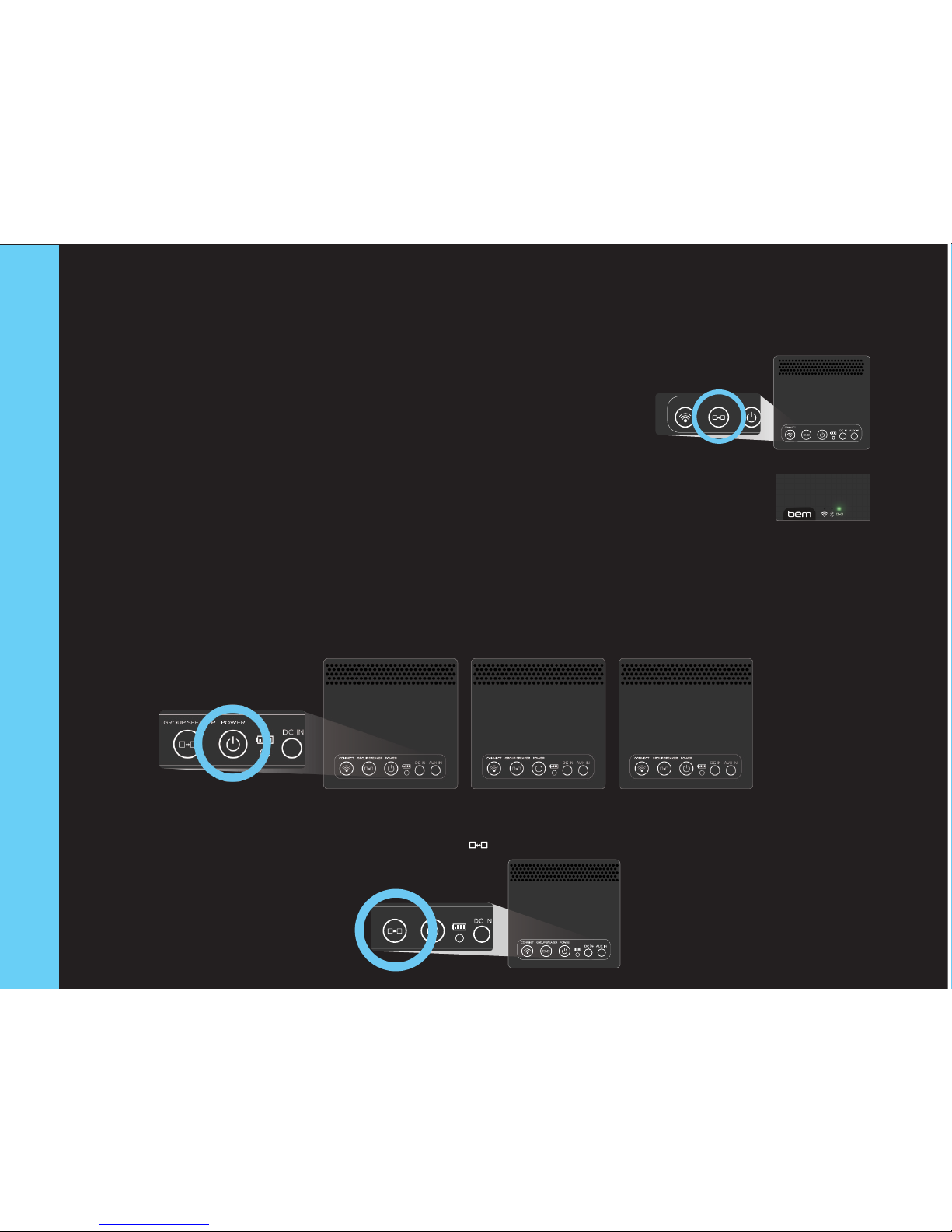
To add/connect more than 2 Big Mo’s:
1. Power on additional speakers (as many as you’d like to add)
2. Verify all speakers to be added are in the WiFi mode.
3. Press & hold (3 sec.) the “Group Speaker” button on the Big Mo you are currently directly connected to.
Quick Multi-Speaker Connect (cont.)
4. Press the Group Speaker button on the main speaker.
5. First, the Group indicator lights on the front will turn Red, then both
lights will turn solid Green when Group is successful.
GROUP SPEAKERCONNECT POWER
GROUP SPEAKERCONNECT POWER
4.
5.
INTERMEDIATE MODE
Page 19
19
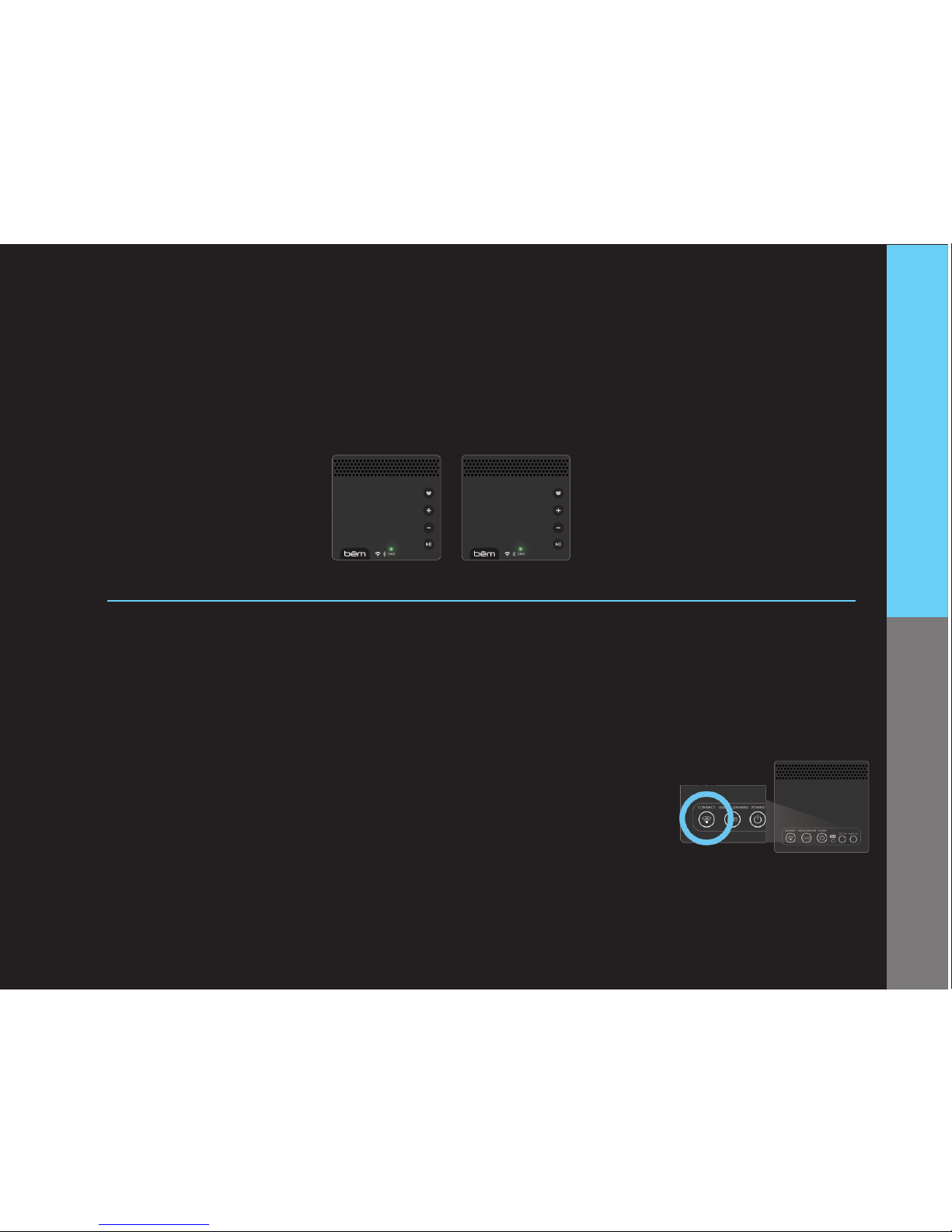
4. When all speakers are grouped together, you will hear an audio prompt and the Group Speaker
indicator lights (for all speakers) will be solid green. At this point, all Big Mo’s powered on will play
the same audio.
5. To ungroup speakers press the “Group Speaker” button two times.
Advanced Mode: WiFi with Router and App - Group Speaker
Once you’ve added a Speaker Big Mo to your network it’s very easy to add additional speakers with
the push of the CONNECT button. Follow the steps below to add more Speaker Big Mo’s.
1. Conrm that the rst connected Speaker Big Mo is powered on and connected to your Wi-Fi
network (if you can see the speaker in your device list on the Big Mo app, it’s connected!)
2. Power on the new Speaker Big Mo that you’d like to add to your network.
3. Wait about 30 seconds for it to initialize (You will hear a chime when
nalized).
4. Press the CONNECT button on the back of the new Speaker Big Mo.
5. Wait for the new Speaker Big Mo to nd the network and program
itself.
6. When nalized, you will nd the new Speaker Big Mo added to your device list on the Big Mo App.
Note, within the app you can only group six Big Mo’s at a time
*Remember for this advanced function both Big Mo App and 2.4GHz Wi-Fi router connection is needed.
4.
ADVANCED MODEINTERMEDIATE MODE
Quick Multi-Speaker Connect (cont.)
Page 20
20
Big Mo Control Functionality
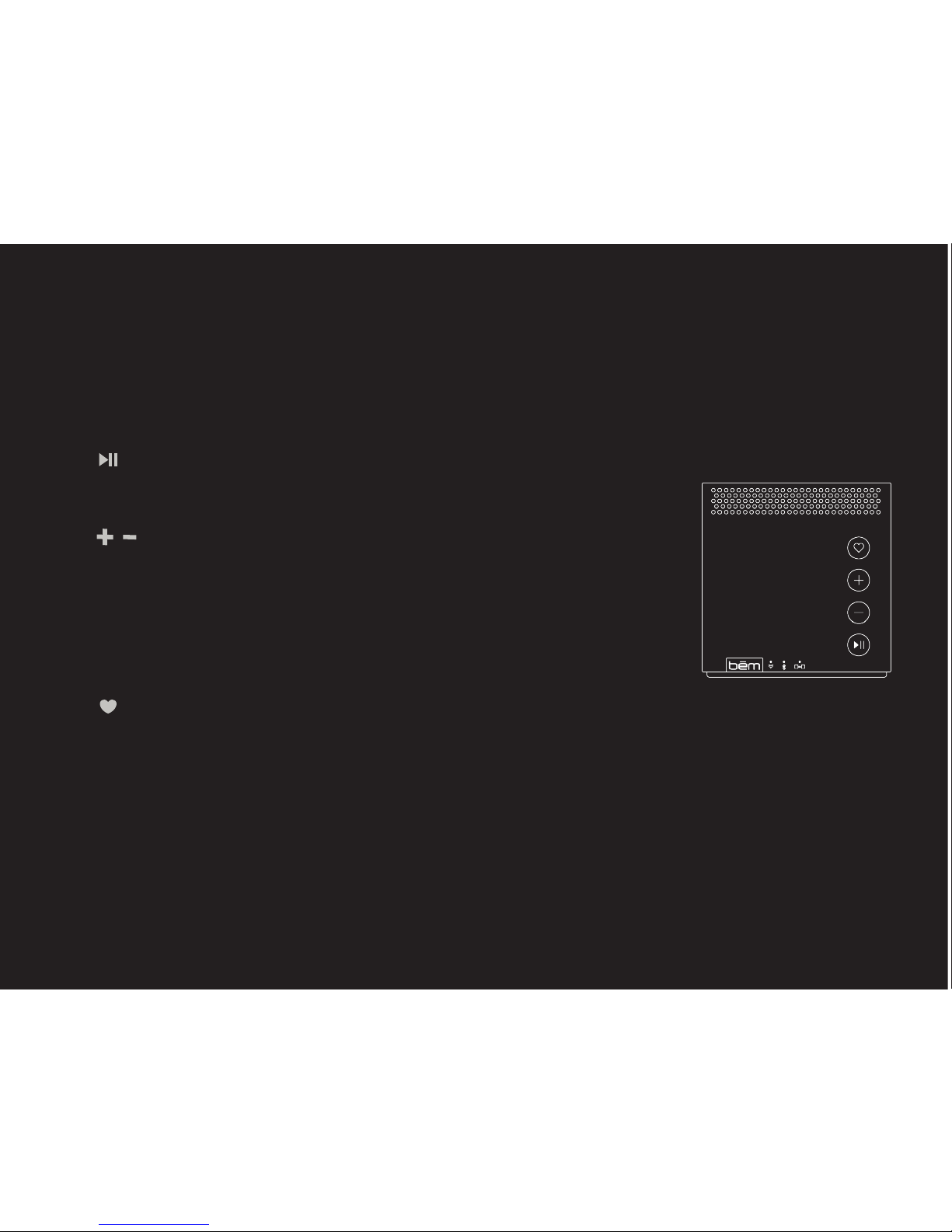
When you connect a device to Big Mo you can use your device to control all audio operations.
However, Big Mo itself also offers controls as detailed below:
Play/Pause
Press the PLAY/PAUSE button to play or pause your music.
Volume Up/Down
Touch the VOLUME UP (+) button to turn the volume up. Touch the
VOLUME DOWN (-) button to turn the volume down. When a speaker has
reached maximum volume, a tone will sound. When using multiple speakers,
the VOLUME UP and VOLUME DOWN buttons will only change the volume
on that individual speaker. NOTE: Changing the volume with the volume
controls on Big Mo will NOT affect the volume levels on your device.
Favorites (Advanced Mode)
If you save a list of favorite songs, playlists, stations, etc. with Big Mo (see “Favorites” under
“App Functionality” on page 20 for additional details on favoriting songs), you can touch the
FAVORITES button to begin playing your FAVORITES PLAYLIST without using your
connected device. NOTE: Big Mo must be connected to the Big Mo App
Page 21
21
Big Mo Control Functionality (cont.)
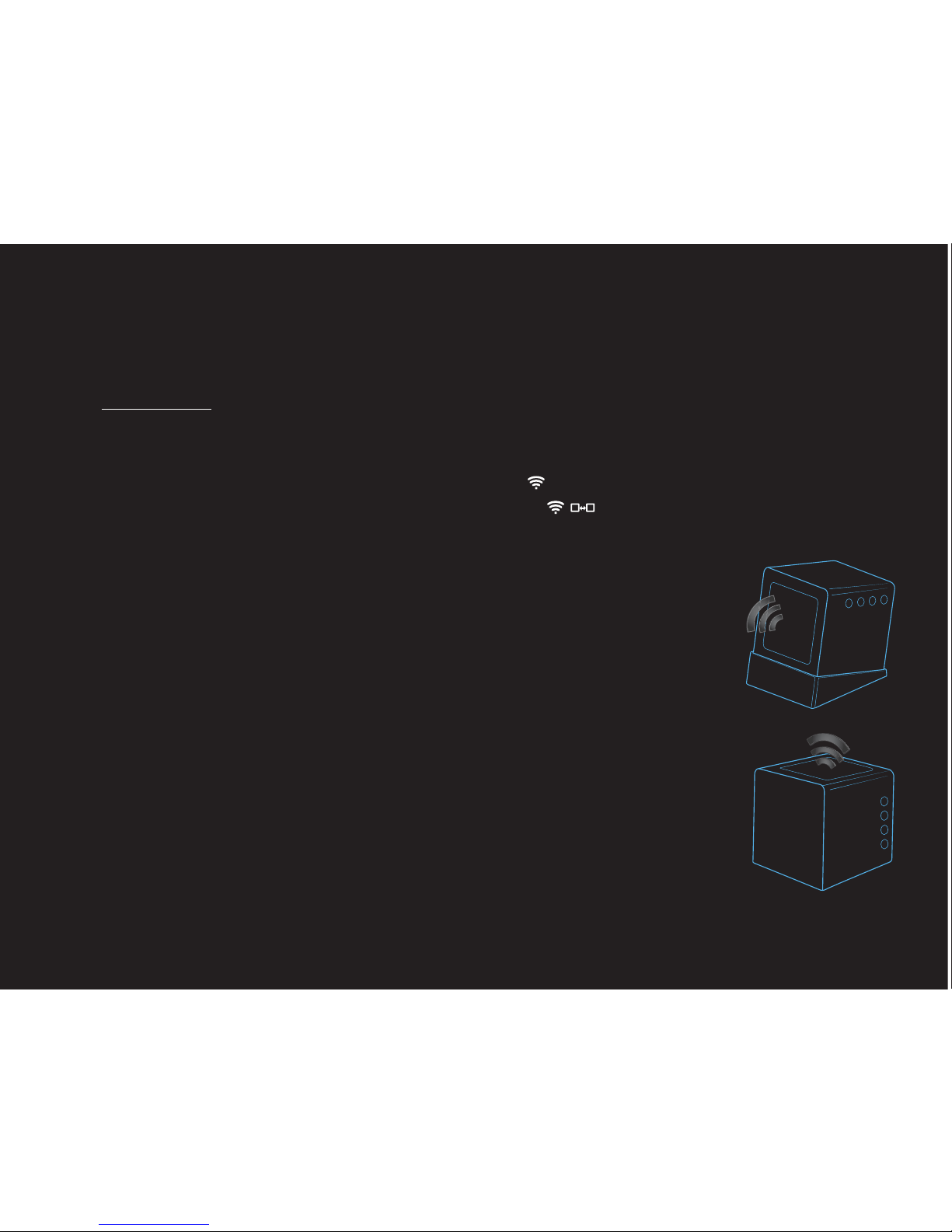
Sound Wedge
Factory Reset:
If you would like to factory reset your Big Mo speaker and erase all stored content including
favorites songs and network/Wi-Fi settings:
1. Ensure that your Big Mo speaker is in wi mode and is WiFi connected
2. Long press both the “Connect” & “Group Speaker” buttons for 5 seconds to
restore to factory settings.
3. You will hear a prompt: “Restore to Factory Settings” to conrm successful reset.
Your Big Mo speaker has been tuned for 360° sound performance.
Use the Sound Wedge (included) to change the audio direction of
Speaker Big Mo. Just place Speaker Big Mo on its side on the base and
point in the direction you’d like your sound to go.
(Make sure that you have it positioned on the Sound Wedge per the illustration: allowing full
access to control buttons on the front and back of the speak).
Big Mo without
Sound Wedge
Big Mo with
Sound Wedge
Page 22

22
To keep Big Mo working well and looking sharp, please follow the simple steps outlined below.
1. Power off the speaker.
2. Unplug the power adapter from the wall outlet and from the speaker.
3. Use a soft, dry, lint-free cloth to gently wipe away any dust or debris. Do NOT use
alcohol, benzene, thinners or other chemical detergents/cleaners as these can cause the
casing to warp or discolor. Avoid using any liquids to clean the speaker
For questions or comments, visit www.bemwireless.com
Storage
• Power off Big Mo if the speaker will not be used for an extended period of time.
• Avoid damp environments, high temperatures and direct sunlight.
Technical Specications
Note: All specications are subject to change without notice.
Maintenance
Product Name Speaker Big Mo
Model Number BE7000
Music Time 8 Hours
Bluetooth 4.0
Power Supply DC IN
Dimensions 4” x 4” x 4”
Battery Rechargeable 3.7V, 2000 mAh
Bluetooth Range 40 Feet
Wi-Fi Range 180 Feet
Charging Time 2-3 hours
Power Adapter 9V, 1A
Charging Current 700mA - 1000mA
Watts Hours 7.2 Watts hrs
Page 23
23
FCC Statement
1. This device complies with Part 15 of the FCC Rules.
Operation is subject to the following two conditions:
• This device may not cause harmful interference.
• This device must accept any interference received, including interference that may cause undesired
operation.
2. Changes or modications not expressly approved by the party responsible for compliance could void the
user’s authority to operate the equipment.
NOTE: This equipment has been tested and found to comply with the limits for a Class B digital device,
pursuant to Part 15 of the FCC Rules. These limits are designed to provide reasonable protection against
harmful interference in a residential installation.
This equipment generates uses and can radiate radio frequency energy and, if not installed and used in
accordance with the instructions, may cause harmful interference to radio communications. However, there
is no guarantee that interference will not occur in a particular installation. If this equipment does cause
harmful interference to radio or television reception, which can be determined by turning the equipment off
and on, the user is encouraged to try to correct the interference by one or more of the following measures:
• Reorient or relocate the receiving antenna.
• Increase the separation between the equipment and receiver.
• Connect the equipment into an outlet on a circuit different from that to which the receiver is connected.
• Consult the dealer or an experienced radio/TV technician for help
FCC Radiation Exposure Statement
This equipment complies with FCC radiation exposure limits set forth for an uncontrolled environment. This
equipment should be installed and operated with minimum distance 20cm between the radiator & your
body.
Page 24

24
Safety
This product has been specially designed based with full attention to safety; in order to encourage
accident-free operation, please follow the guidelines listed below:
• Always position the unit on a stable and level surface. Unstable surfaces can cause the unit to
topple and fall, resulting in possible damage or injury
• Do not drop, disassemble, hit, bend, puncture, burn or otherwise attempt to damage/modify the
unit
• Avoid using the unit near basins or sinks where it may come in contact with water
• Do not place any objects containing water – including, but not limited to, vases, glasses, and pots –
on top of the unit.
• Do not place candles on the unit
• Protect the unit from all heat-producing devices, including radiators, forced air vents, cooking
surfaces, and other heat-producing devices
• Regardless of the cause of damage, please consult a certied maintenance person to repair the unit
• If you want to clean the unit, please turn off the unit and unplug the power
cable from the outlet before beginning. Wipe down with a dry cloth
• Set the volume properly to prevent damage to the unit and to avoid personal injury
Correct Disposal of this product:
This marking indicates that this product should not be disposed of with other household
wastes. To prevent possible harm to the environment or human health from uncontrolled
waste disposal, recycle it responsibly to promote the sustainable reuse of material
resources. To return your used device, please use the return and collection systems
or contact the retailer where the product was purchased. Please dispose of consumer
electronic waste in the recommended manner for your specic location.
Page 25

25
WARNING:
• The battery (battery or batteries or battery pack) shall not be exposed to excessive heat sources
such as being placed in direct sunlight, positioned near a re source, or in other environments with
extreme elevated temperatures.
• No open ame sources, such as lighted candles, should be placed on or near the device.
• CAUTION: Danger of explosion if battery is incorrectly handled or replaced. Note: The Big Mo
internal battery is not intended to be replaced.
90 Day Limited Warranty
bem wireless warranties this product against defects in materials and/or workmanship under
normal use for a period of NINETY (90) DAYS from the date of purchase by the original purchaser
(“Warranty Period”). If a defect arises and a valid claim is received within the Warranty Period,
at its option bem wireless will either 1) Repair the defect at no charge, using new or refurbished
replacement parts or 2) Replace the product with a new product that is at least functionally
equivalent to the original product. A replacement product or part, including a user-installable part
installed in accordance with instructions provided by bem wireless, assumes the remaining warranty
of the original product. When a product or part is exchanged, any replacement item becomes your
property and the replaced item becomes bem wireless’s property.
Obtaining Service: To obtain warranty service, call bem wireless at 1-855-839-8616 or e-mail
[email protected]. Please be prepared to describe the product that needs service and
the nature of the problem. A purchase receipt will be required. All repairs and replacements must
be authorized in advance. Service options, parts availability and response times will vary. You are
responsible for delivery including the cost of delivery of the product or any parts to the authorized
service center for replacements, per our instructions.
Page 26

26
Limits and Exclusions: Coverage under this Limited Warranty is limited to the United States of
America, including the District of Columbia and the U.S. Territories of Guam, Puerto Rico and U.S.
Virgin Islands. This warranty gives you specic legal rights and you may also have other rights which
vary from state to state. This Limited Warranty applies only to products manufactured by or for bem
wireless that can be identied by the bem wireless trademark, trade name, or logo afxed to them or
its packaging. The Limited Warranty does not apply to any non-bem wireless products.
bem wireless
Algonquin, IL 60102 USA
www.bemwireless.com
©2016 bem wireless All Rights Reserved.
Made in China
Page 27

27
Page 28

be¯m wireless | Algonquin IL 60102
© 2016 be¯m wireless
 Loading...