

Page 1
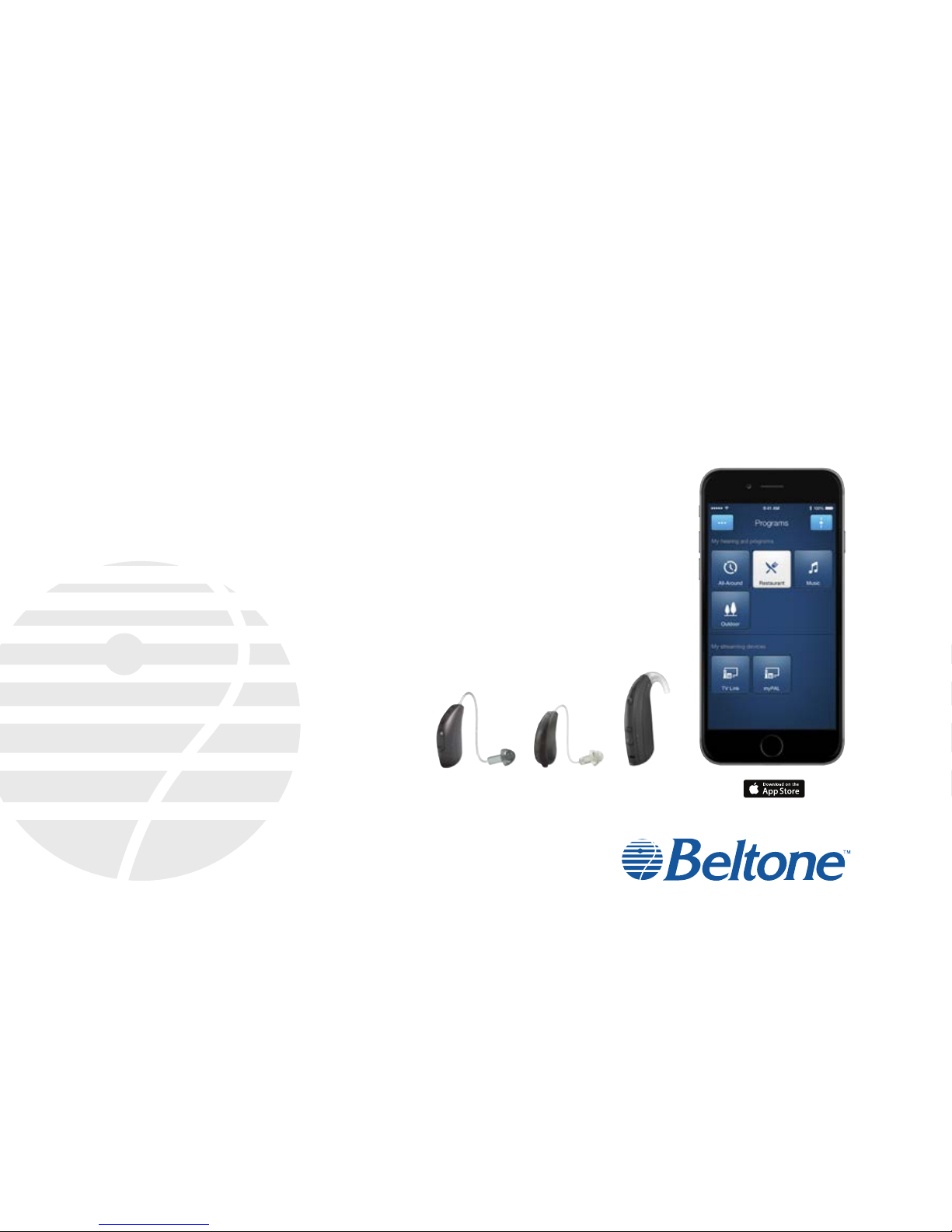
Quick guide to connectivity and
the Beltone HearPlus™ app for iOS
Page 2
2
Introduction to Beltone Made
for iPhone hearing aids
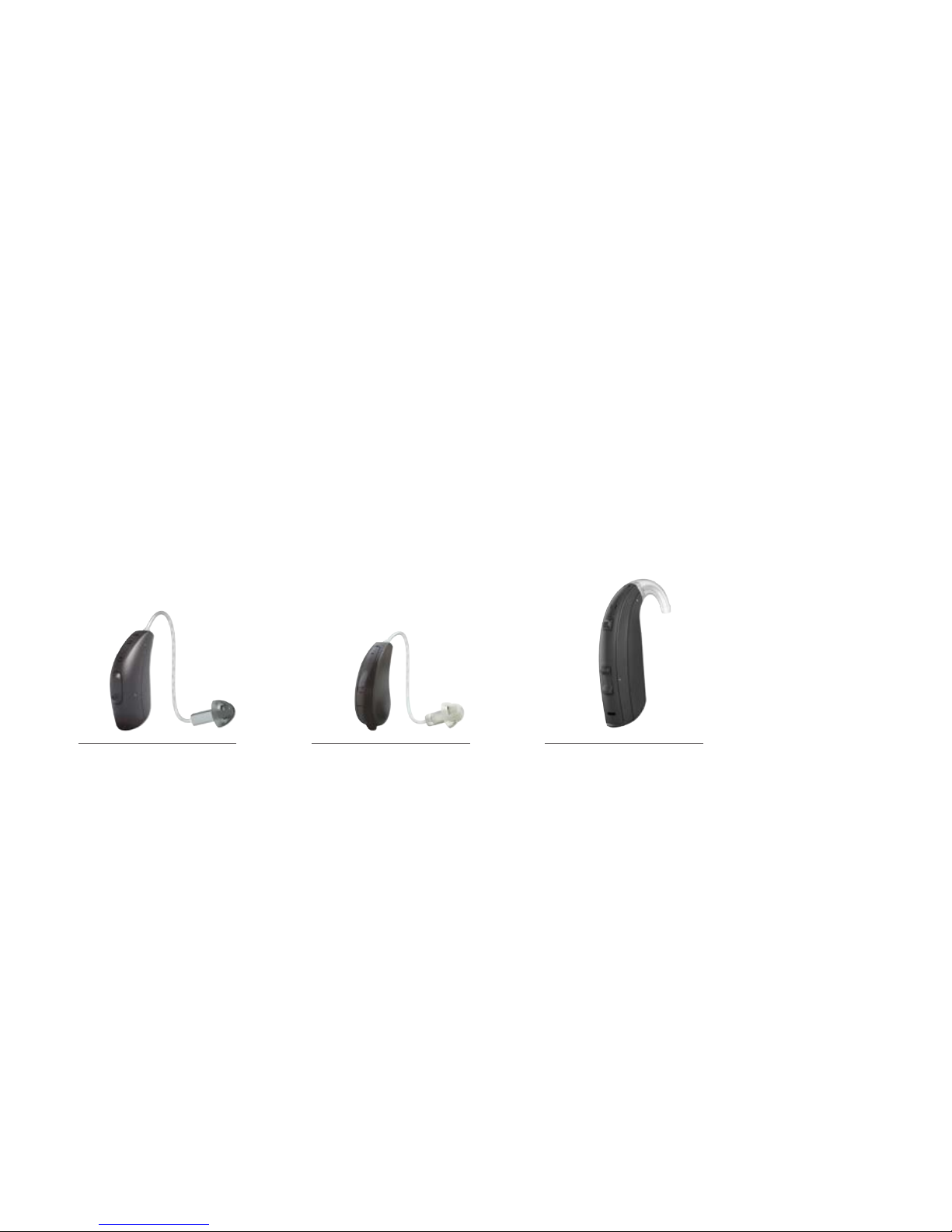
The hearing aid models shown below are Made for iPhone® and are
compatible with the Beltone HearPlus app. If you’re not sure, please ask
your hearing care professional.
Beltone Boost
™
Beltone Legend™ Beltone First
™
Page 3
3
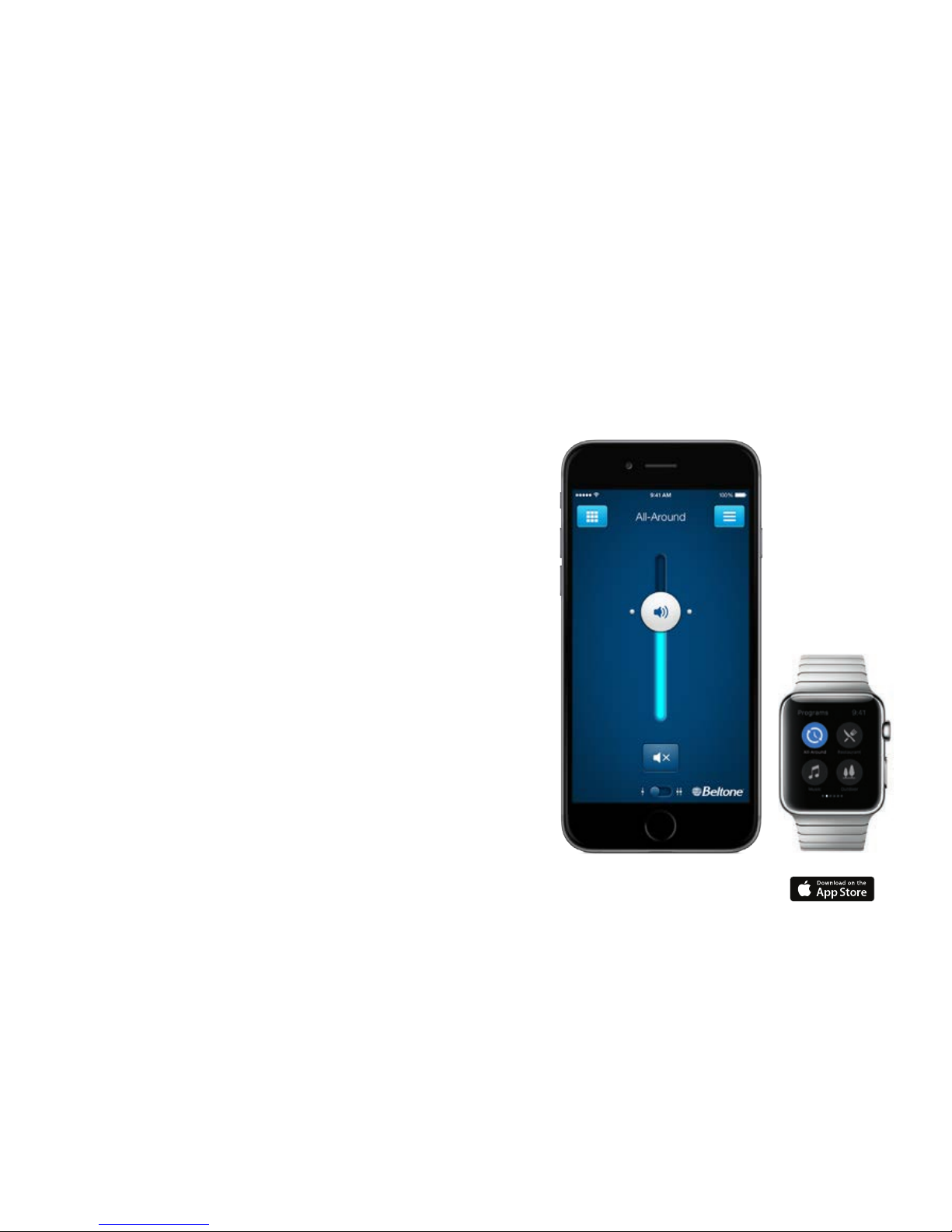
Apple devices that work with Beltone
Made for iPhone hearing aids
Select Beltone Made for iPhone hearing aids support Made for iPhone
(MFi) functionality with the following Apple devices.
iPhone 6
iPhone 6 Plus
iPhone 5s
iPhone 5c
iPhone 5
iPod touch
®
5th
generation
iPad
®
Air 2
iPad Air
iPad 4th generation
iPad mini 3
iPad mini 2
iPad mini with Retina display
iPad mini
Support and updates for iOS
Beltone Made for iPhone hearing aids require iOS 7.0 or later. Make
sure that iOS 7.0 or later is installed. For iPhone 6 and iPhone 6 Plus,
we recommend installing the latest version of iOS 8. For use with Apple
Watch
™
, the iPhone must be updated to minimum iOS 8.2.
Click here to learn more about the Beltone HearPlus app
Page 4
4
Pair with your iPhone,
iPad or iPod touch
How to pair your Beltone Made for iPhone hearing aids
to your iPhone, iPad or iPod touch
Check battery
Insert a fresh battery in your
Beltone Made for iPhone hearing
aid.
Keep the battery door open so the
hearing aid cannot power up.
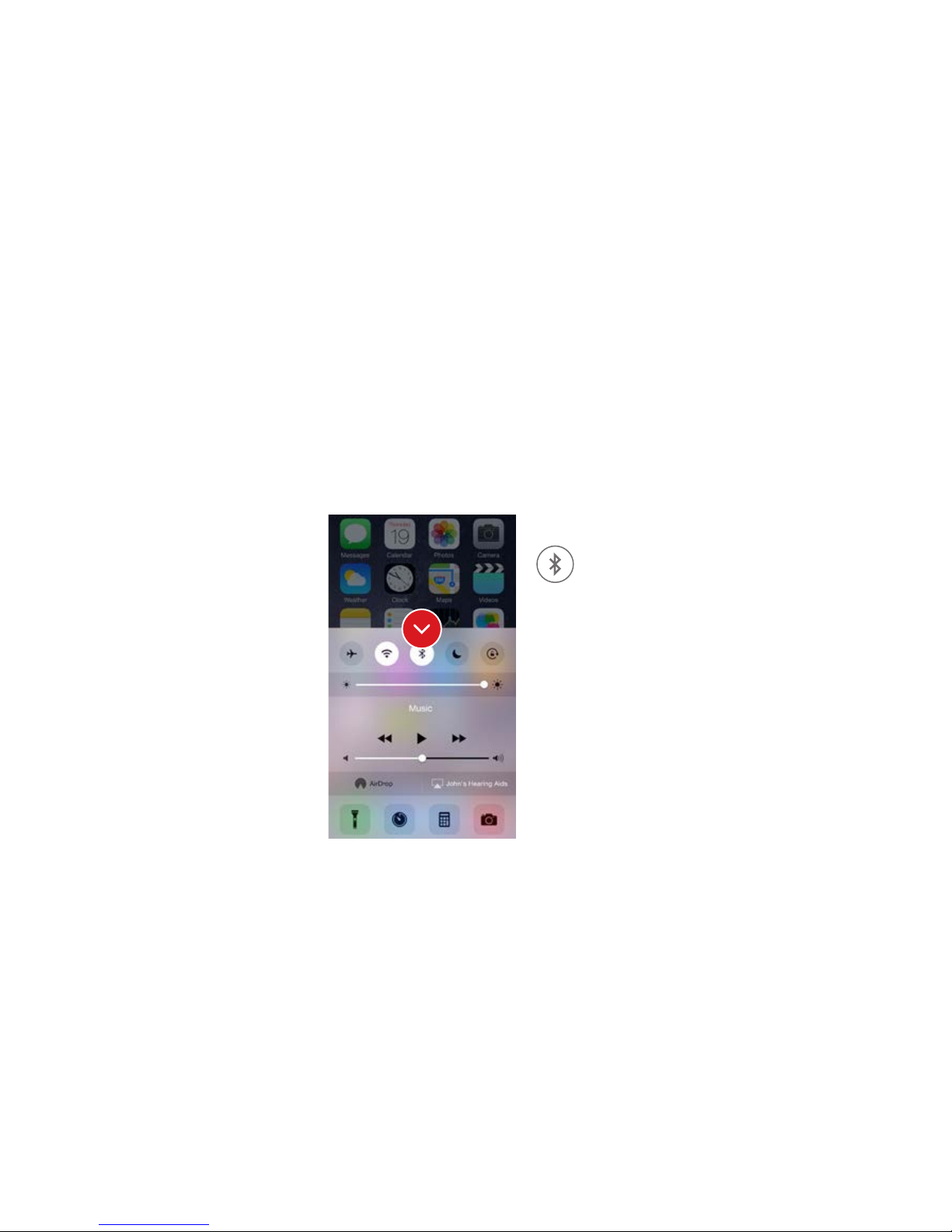
Turn on Bluetooth
Swipe upwards from the bottom of the screen to reveal
the Control Center.
Tap the Bluetooth icon.
Page 5
5
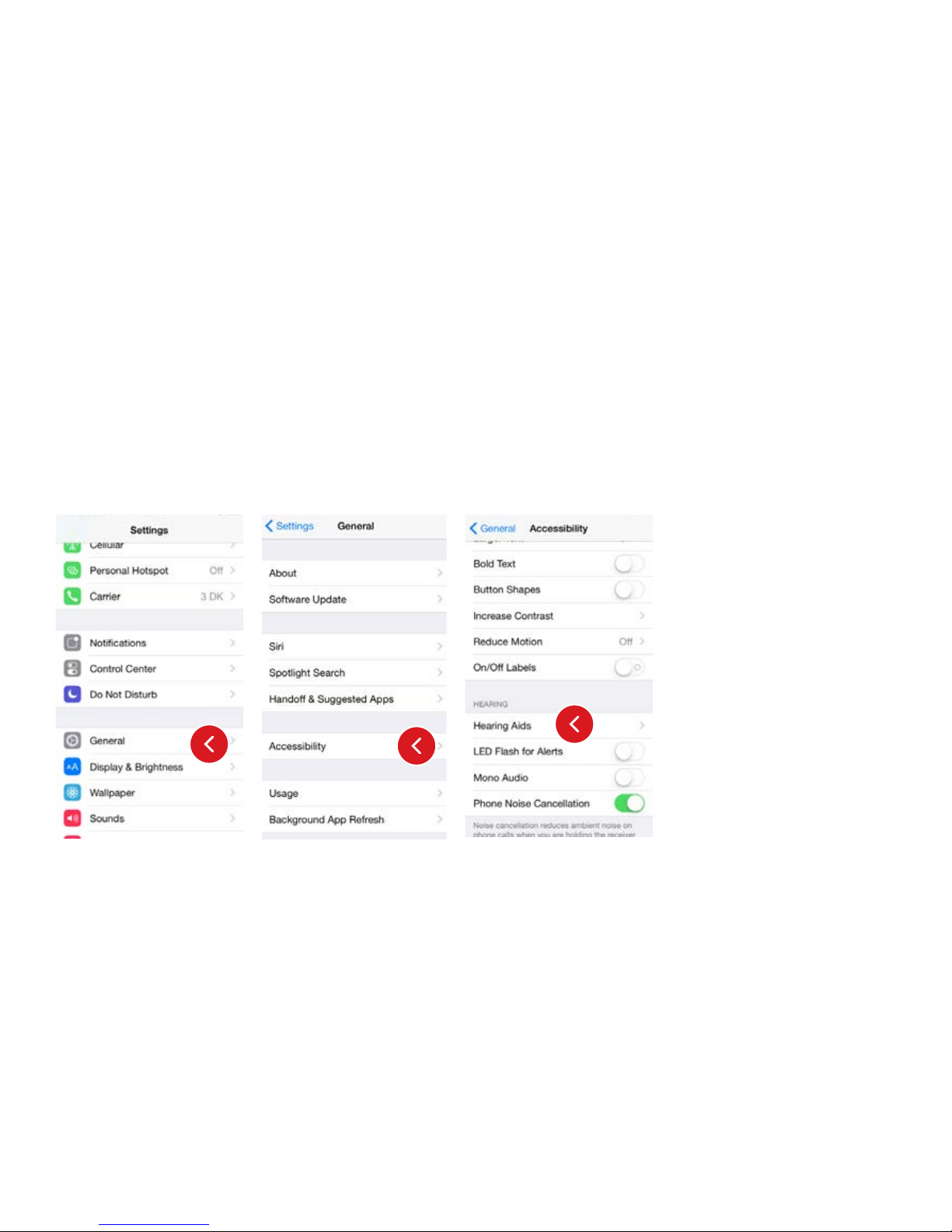
Detect hearing aids
Now that Bluetooth is activated,
go to Settings, tap General,
then Accessibility.
Close the battery door to power
up your hearing aid so your
iPhone, iPad, or iPod touch can
detect it and then tap Hearing
Aids.
Page 6
6
Make the connection
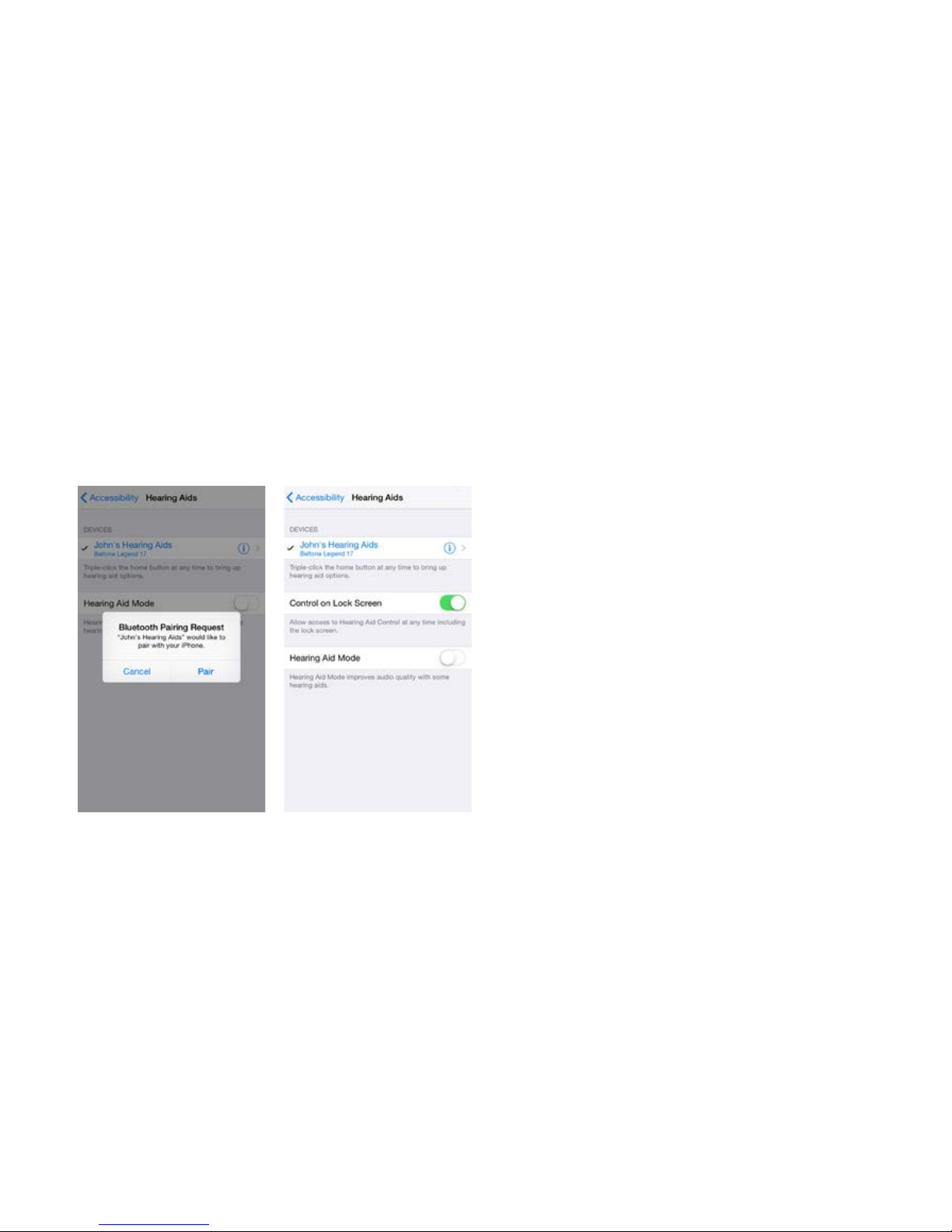
Tap on the name and model number of your hearing aid
when it appears on the screen.
When it’s connected, your hearing aid name will be shown
with a checkmark, and the color of the name will change
from black to blue.
Tap Pair in the dialogue box. When pairing to two hearing
aids, you will receive separate pairing requests.
The second request may take a few seconds to appear
after starting the first pairing.
Now that you are connected, you can check the status of
the connection on the Hearing Aid page.
Reconnecting your hearing aids to your iPhone, iPad or
iPod touch
When you turn off your hearing aids or Apple device, they
will no longer be connected. Follow the steps on page 4
and 5 to reconnect.
Page 7

7 7
Pairing to more than one Apple device
You can pair up to five different Apple devices to your
Beltone Made for iPhone hearing aids, but you can only
connect to one Apple device at a time.
To switch connection from one Apple device to another,
swipe up from the bottom of your Apple device’s screen
and turn Bluetooth off.
Now you can activate Bluetooth on the device you want
to connect to next.
Wait for authentication
When you tap on Pair in the dialogue box, your Beltone
Made for iPhone hearing aid and Apple device need time
to authenticate the pairing. Either put your hearing aid on
and wait for a series of 6 beeps followed by a ripple tone,
or wait at least 120 seconds for authentication to finish.
Please don’t stream audio until authentication is complete.
Page 8
8
Stream sound directly to your
Beltone Made for iPhone hearing aids
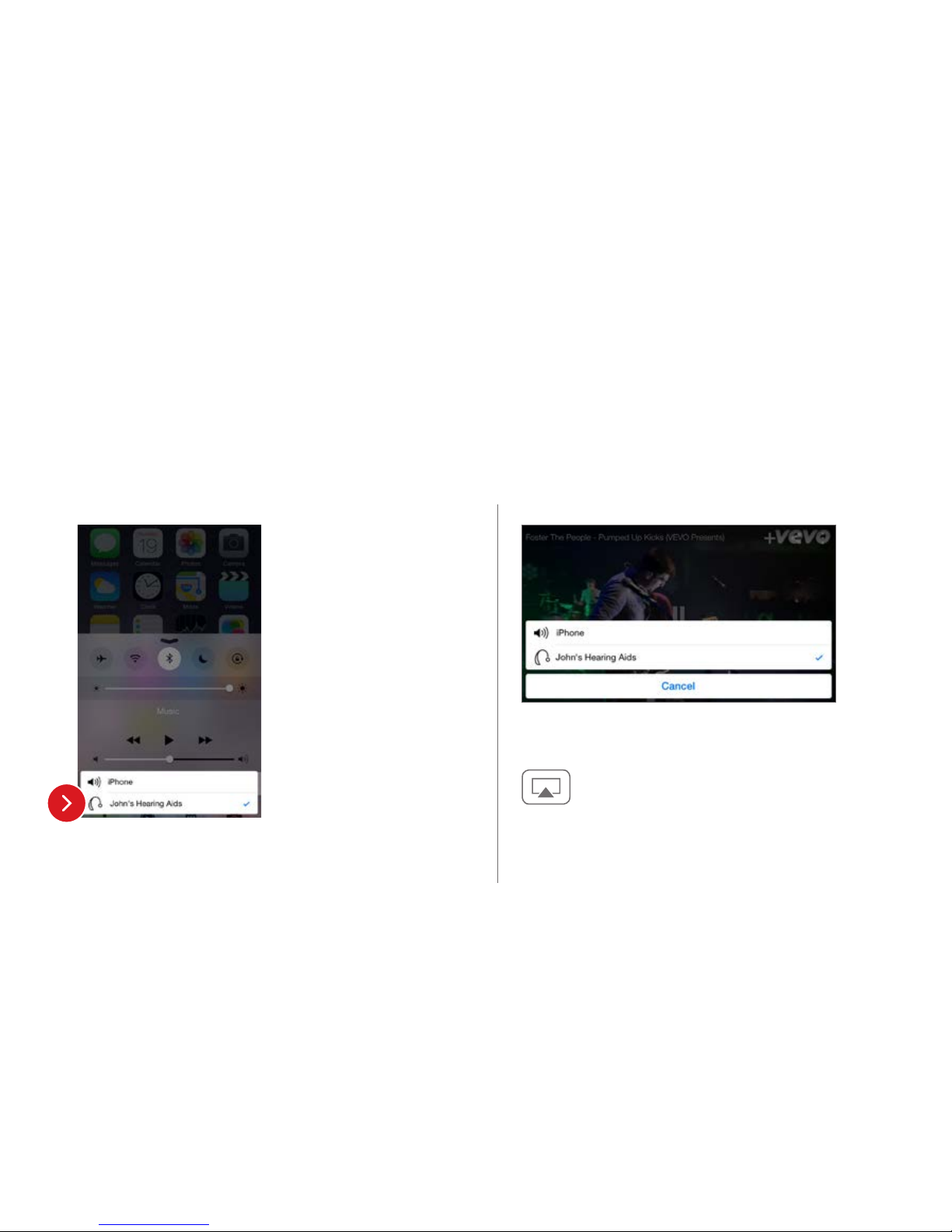
Access the Control Center
by swiping up from the
bottom of the screen. Select
the device for audio - in this
case your hearing aids.
To stop streaming to your
hearing aids and return to
normal phone operation,
select iPhone. You can also
stop streaming audio to your
hearing aids by tapping the
media player’s pause button.
You can also stream audio from other apps such as
YouTube
™
.
Open a media player app such as YouTube and
press the AirPlay
®
icon.
Select the hearing aids for streaming and press play.
Press pause to stop streaming the video. If you want to go
back to normal iPhone operation, click on the AirPlay icon
and tap on iPhone in the dialogue box.
How to stream audio from different apps
You can stream stereo audio, such as music, directly from
your Apple device to your hearing aids.
Control Center
Page 9
9
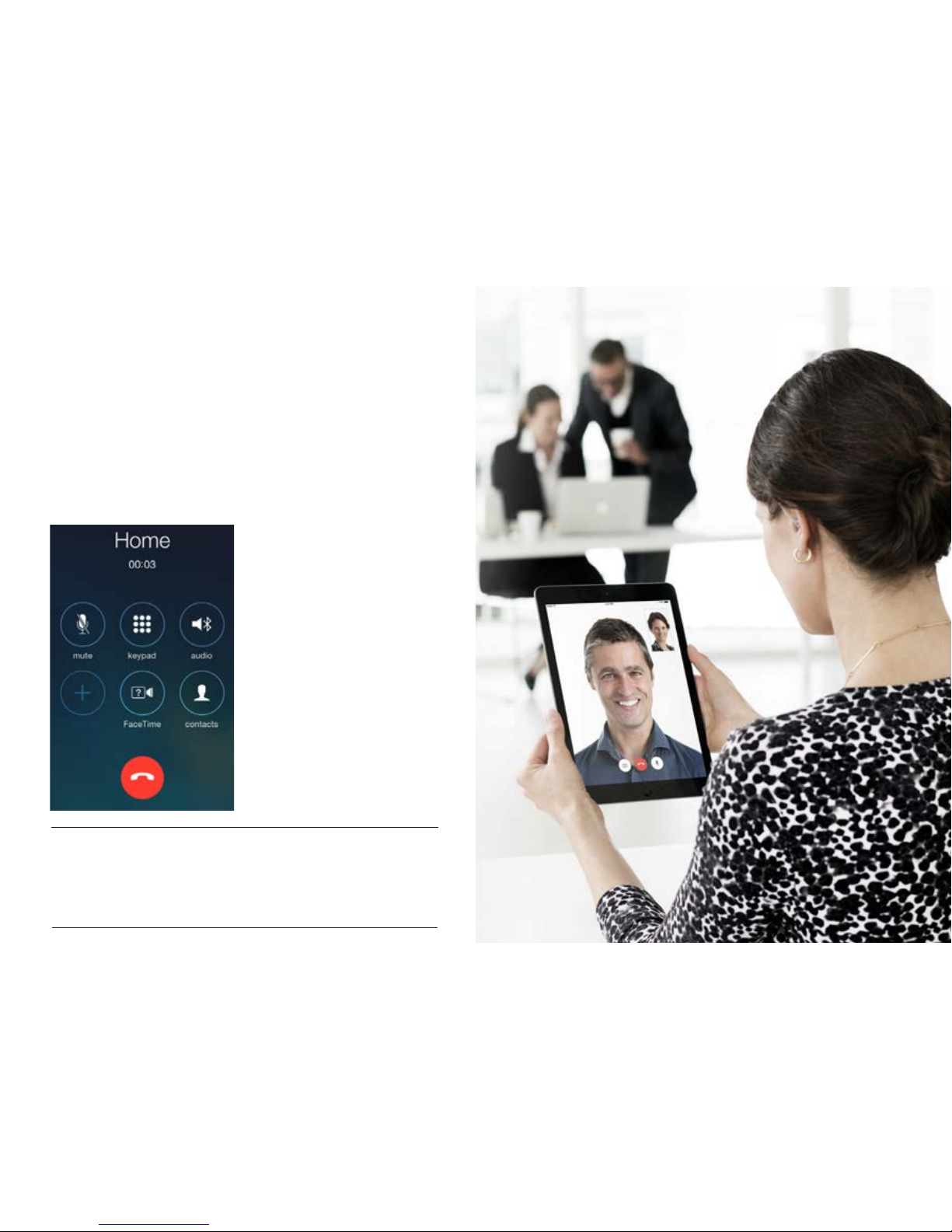
If a call comes in while you
are streaming audio from
your music player, answer
it and the system will
automatically turn down the
music and switch to your
phone conversation.
Once you end a call,
the system will continue
streaming music from where
you left off.
Phone and FaceTime
®
calls
9
TIP IF I ANSWER A CALL FROM APPLE WATCH, DO I GET
THE SOUND IN MY HEARING AIDS?
If you get a call on your Apple Watch, scroll down on the Digital Crown
and choose Answer on iPhone to get the sound in your hearing aids.
Use the microphone on the iPhone to pick up your own voice.
Page 10
10
Page 11

Personal control with the
Beltone HearPlus™ app
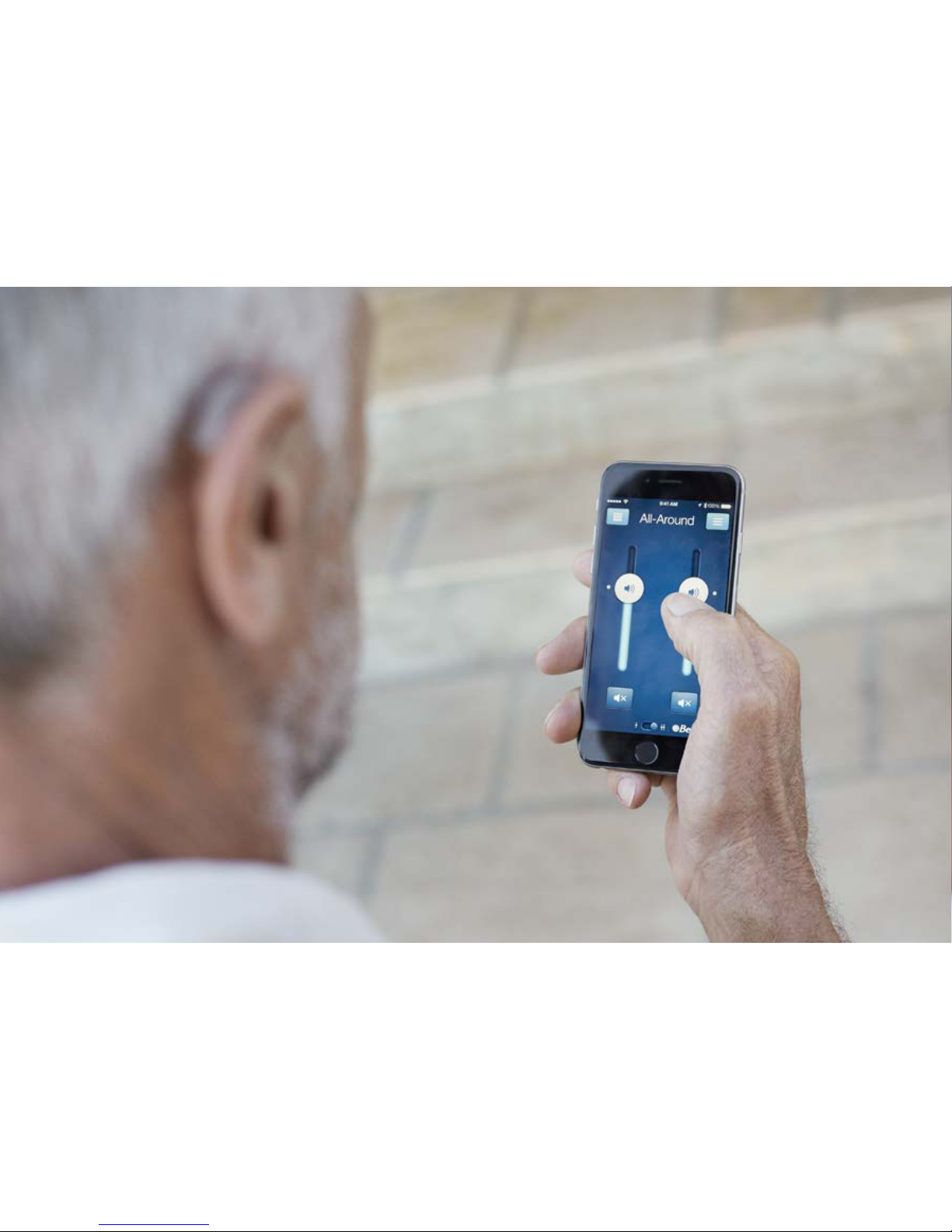
Download and install the Beltone app.
The Beltone HearPlus app can be
downloaded for free from the App Store
SM
by
following these steps:
1. Go to the App Store
2. Search for “Beltone HearPlus”
3. If you are on an iPad, change the search criteria in
the top left-hand corner to iPhone only
4. Tap on Get and then Install to start downloading
the app
5. Now you are almost ready to personalize your
hearing experience
Connect the Beltone HearPlus app to your hearing aid
The first time you tap the icon on the home screen to
open your Beltone HearPlus app, you’ll be taken through
the following steps:
1. When asked if you want to get started with the hearing
aid now or run in demo mode, choose Get started
2. You will be asked to familiarize yourself with the printed
user guide for the hearing aids and accept the terms of
use, tap Accept to continue
3. You will see a list of the hearing aids that work with the
Beltone HearPlus app, tap Ok to continue
4. If your hearing aids and mobile device are not paired, a
screen will open showing you how to pair
5. When asked to allow the app to access your location,
tap Allow
6. Now you’re ready to use your Beltone HearPlus app
Page 12
12
Beltone HearPlus app overview
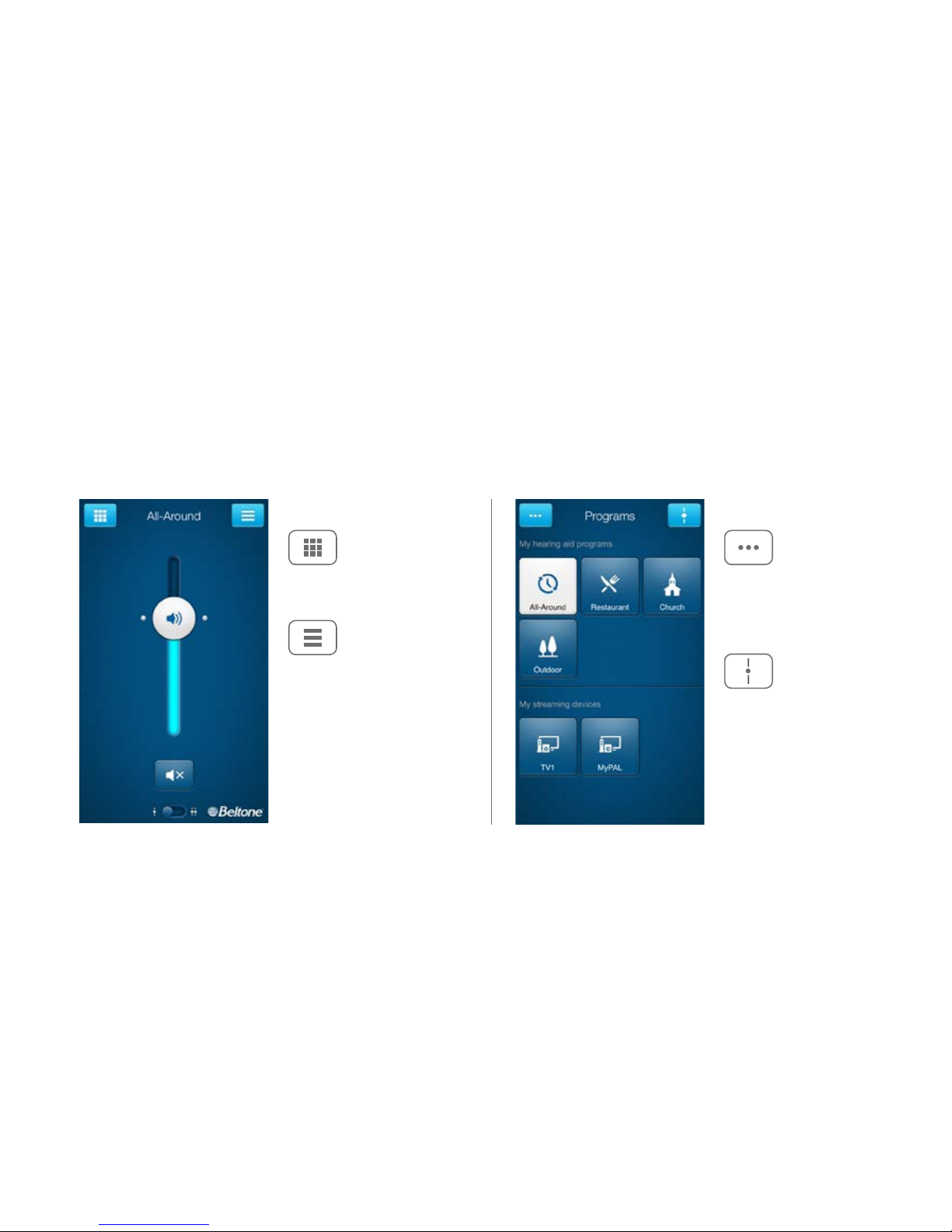
The app has two main screens: Volume control and Program selection. You can
simply slide from one screen to the other, or use the navigation buttons. There is
also a main menu screen which gives you access to additional app functions.
Tap this button to open
a window which gives
you access to advanced
functions.
Program selection
Tap this button when you are
on the Programs screen to
return to the Volume control
screen.
Volume control
Tap this button to go to
the main menu screen for
additional functions.
Tap this button to go to the
Programs screen.
Navigation between main screens
Page 13
13
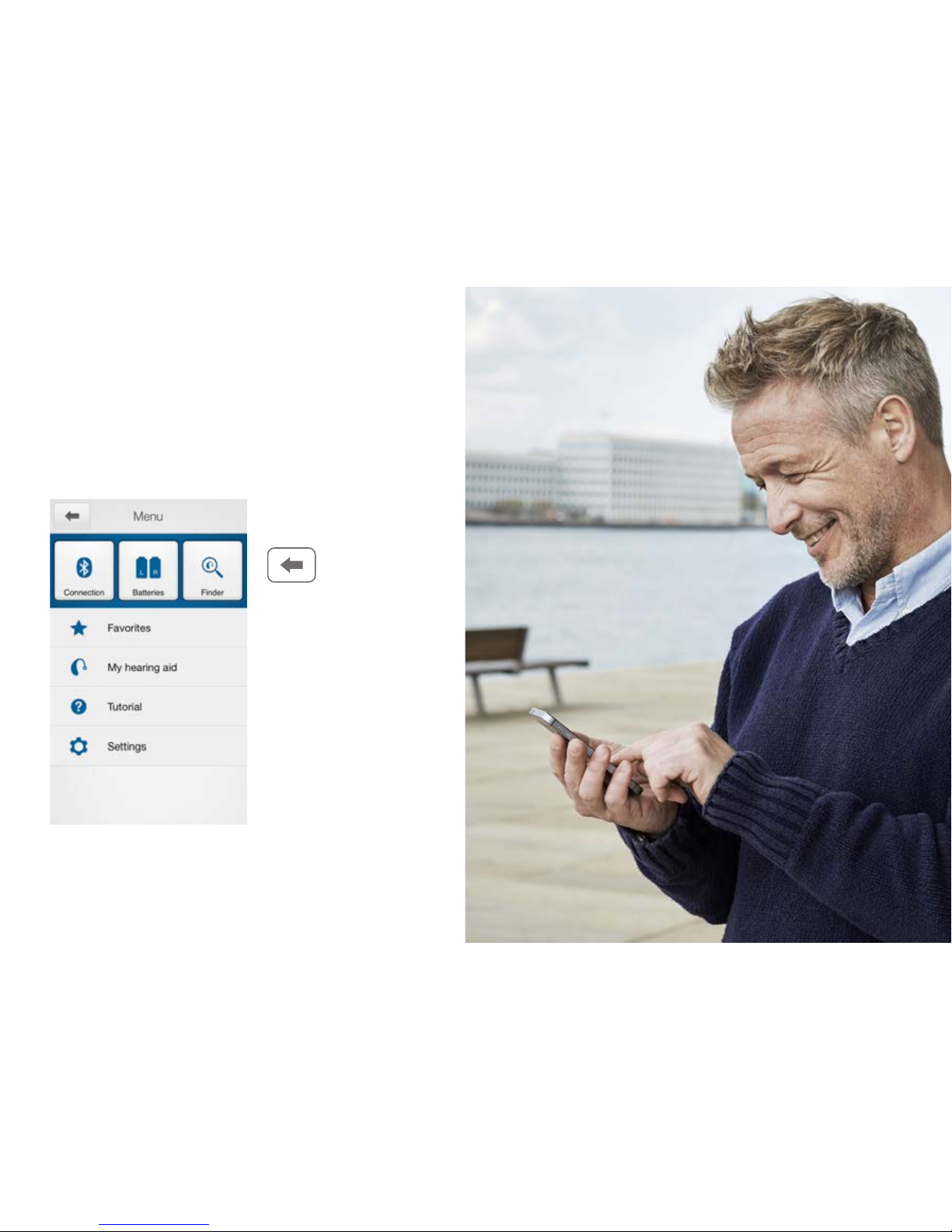
Main menu for extra
functions
Tap the back button to
return to the Volume
control screens.
Page 14
14
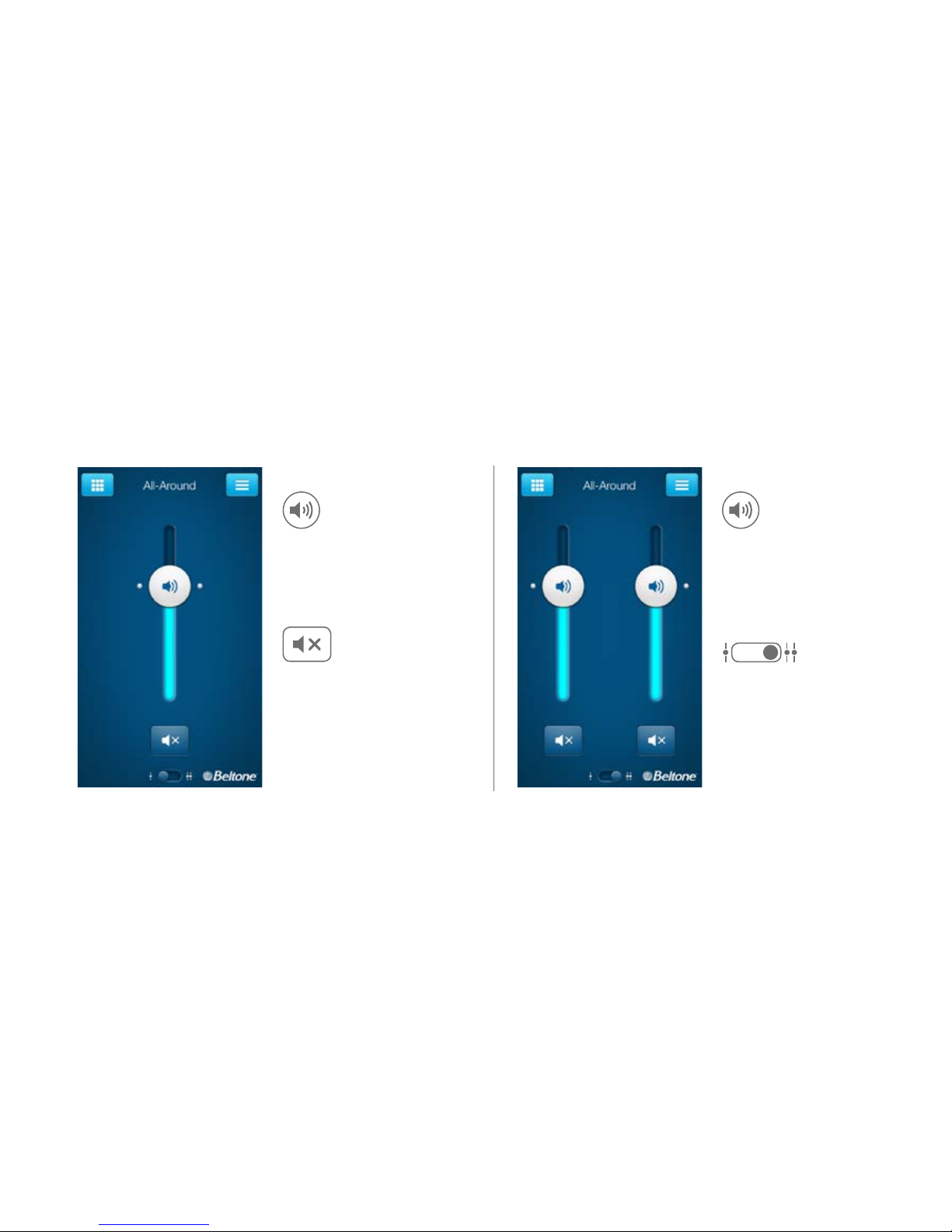
Combined volume control
Slide the volume slider up
to raise and down to lower
the volume of the hearing
aid.
Tap the mute button
beneath the volume slider
to mute the hearing aid,
and tap again to unmute.
Independent volume control
Use the pinch gesture to
switch between combined
and independent hearing
aid volume control.
Or tap the toggle button at
the bottom of the screen.
Hearing aid volume control
Page 15
15
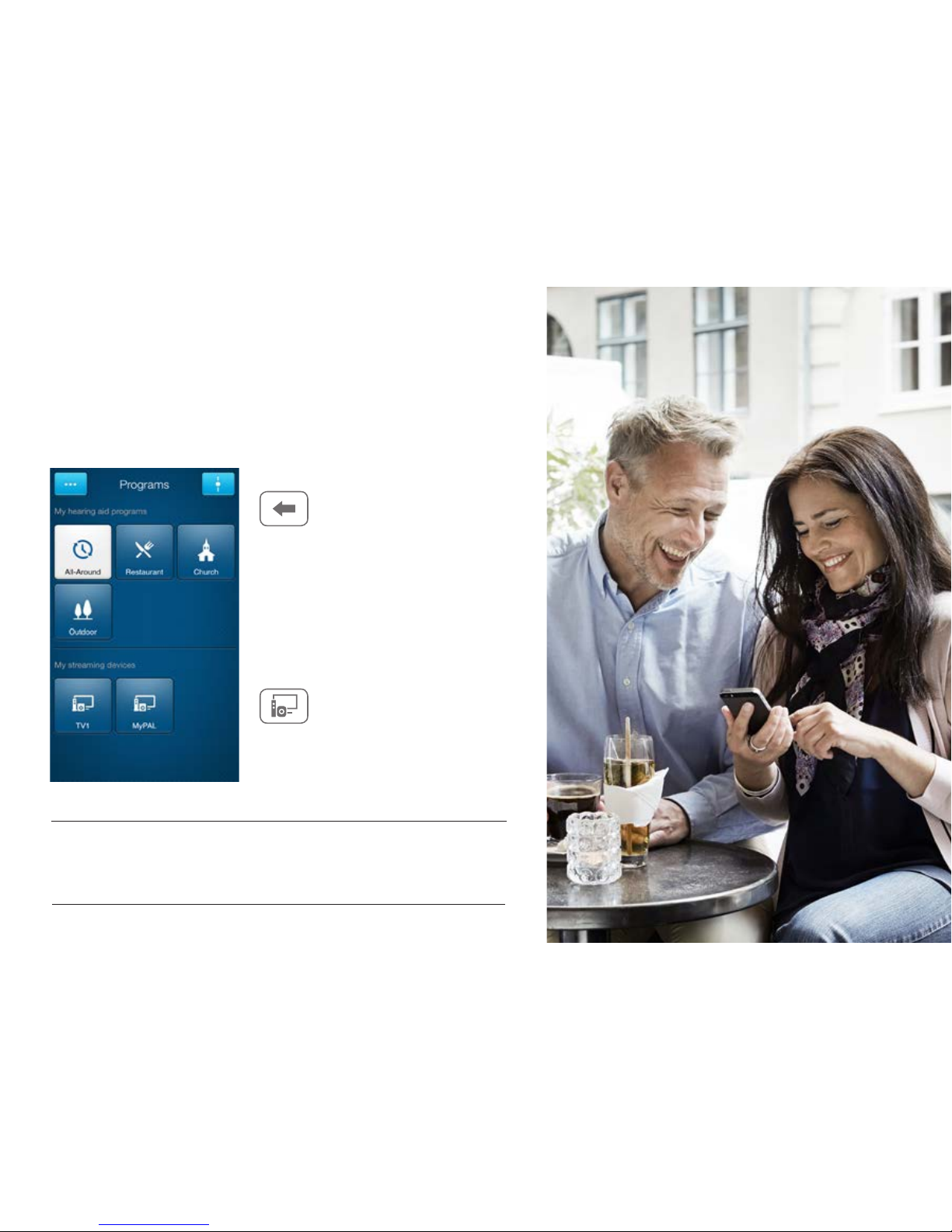
Change programs
Manual program change
Streaming device change
Tap the buttons to choose one of up
to four different hearing aid programs
that have been optimized for particular
hearing situations. Each program has
its own icon to help you choose.
Tap a streaming device button to activate
streaming from a Beltone Direct
™
device
such as a Beltone Direct T V Link 2.
TIP CAN I GO BACK TO MY FITTED PROGRAM SETTINGS?
If you have made adjustments to volume, bass/treble, Sound Enhancer and/
or Tinnitus Manager, restore your fitted program settings by re-tapping the
program button.
Page 16
16
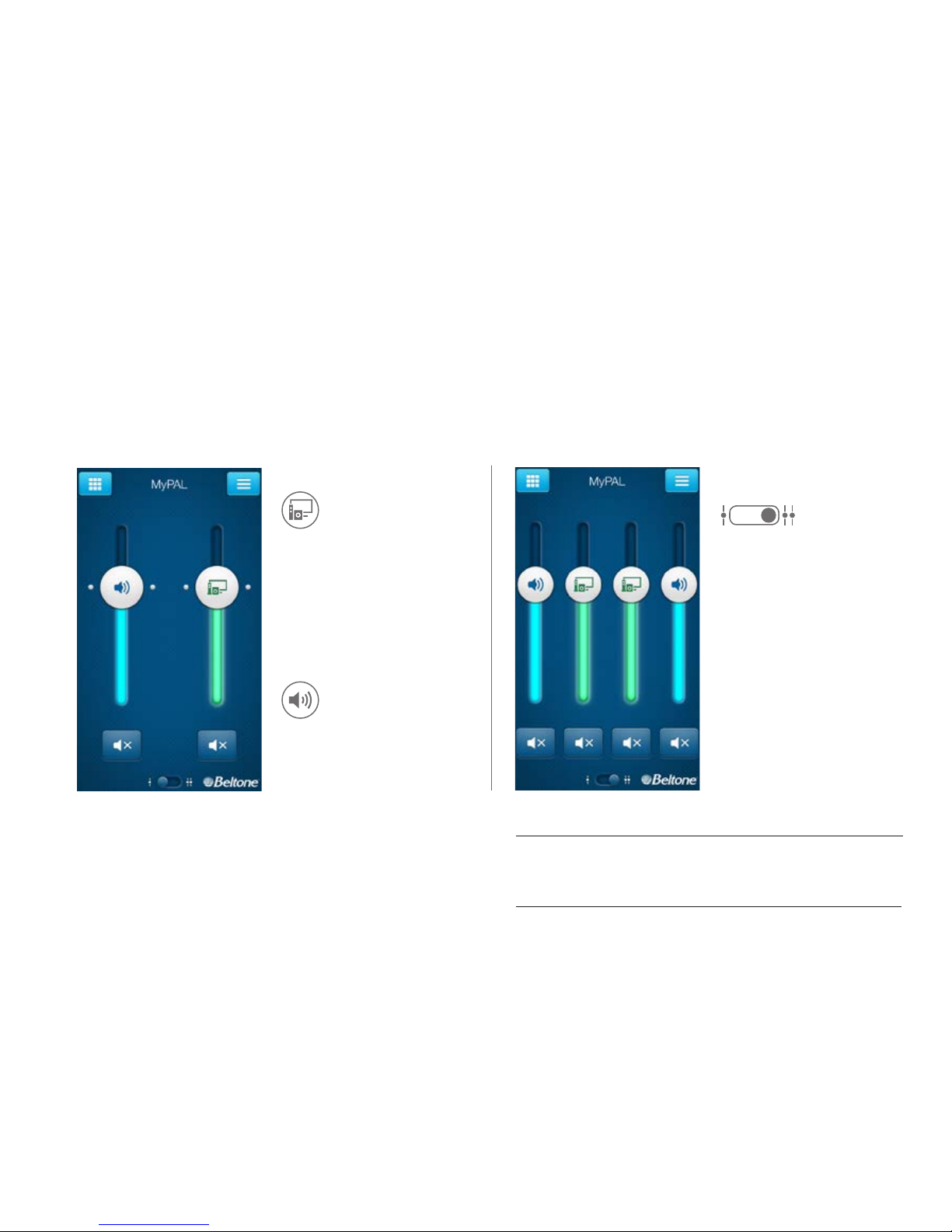
TIP CAN I MUTE MY DEVICES?
You can mute each device independently. Simply tap the mute
button beneath each volume slider.
Independent volume control
STREAMER VOLUME CONTROL
Streamer program volume
When a streamer program is
selected, you can adjust the
streaming volume separately
with the green volume slider.
You can still mute or adjust
the volume of the hearing aids
without affecting the volume of
the audio you are streaming.
Hearing aid volume
You can adjust the volume
of left and right hearing
aids independently.
Switch between dual and
independent volume control
with the pinch gesture or
tap the toggle button at the
bottom of the screen.
Page 17
17
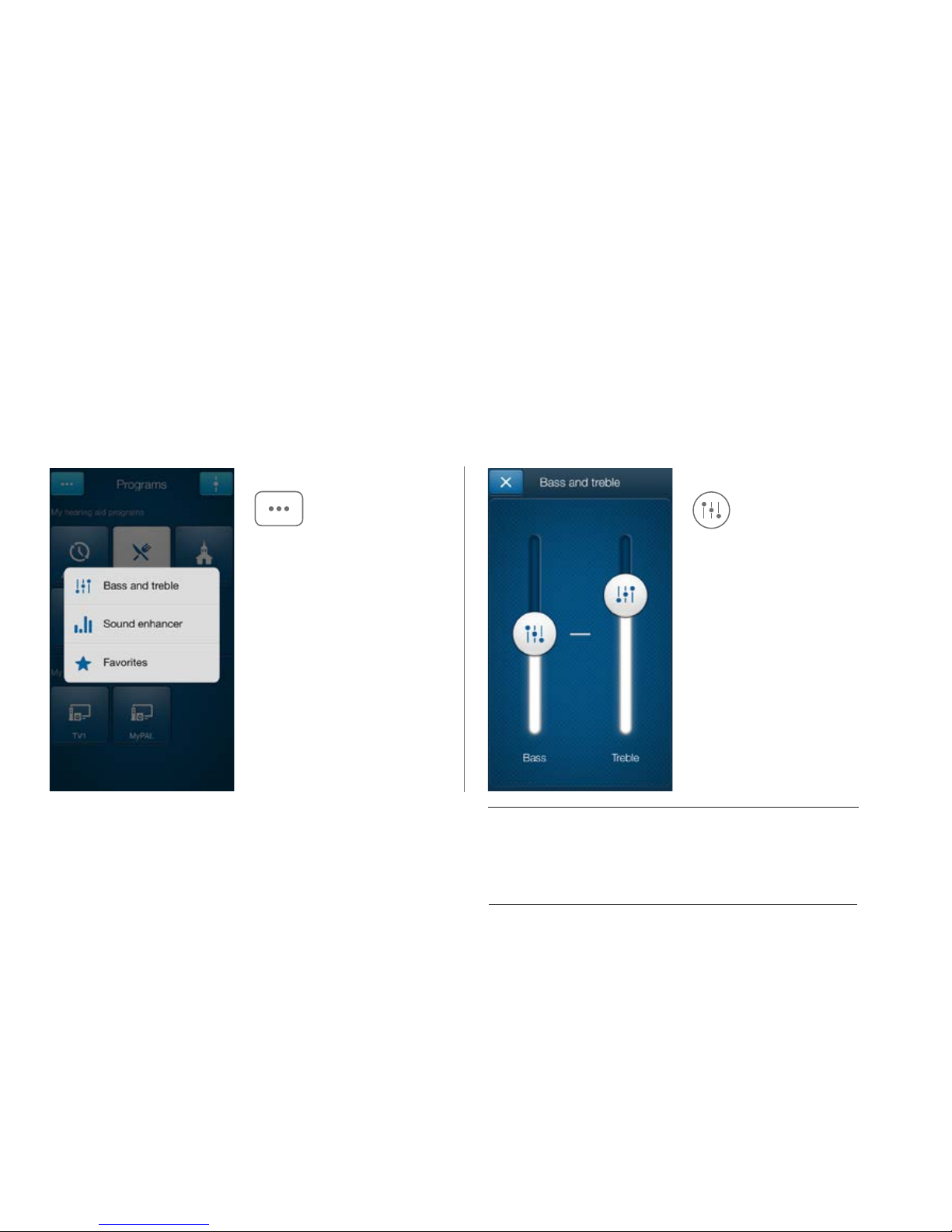
More options
ADJUST BASS AND TREBLE
Adjusting bass and treble
TIP CAN I SAVE MY SE TTINGS?
When you find bass and treble settings you like, you can
save them as Favorites. If you are wearing Beltone Legend
the adjustments will remain until you reboot your hearing aids
(opening and closing the battery doors).
This button at the top left
opens a pop-up menu
with options that give you
more advanced control and
personalization of your hearing
experience.
Increase or decrease bass
and treble from sounds by
moving the sliders up or
down. Adjustments are also
applied to streamed sound.
Page 18
18
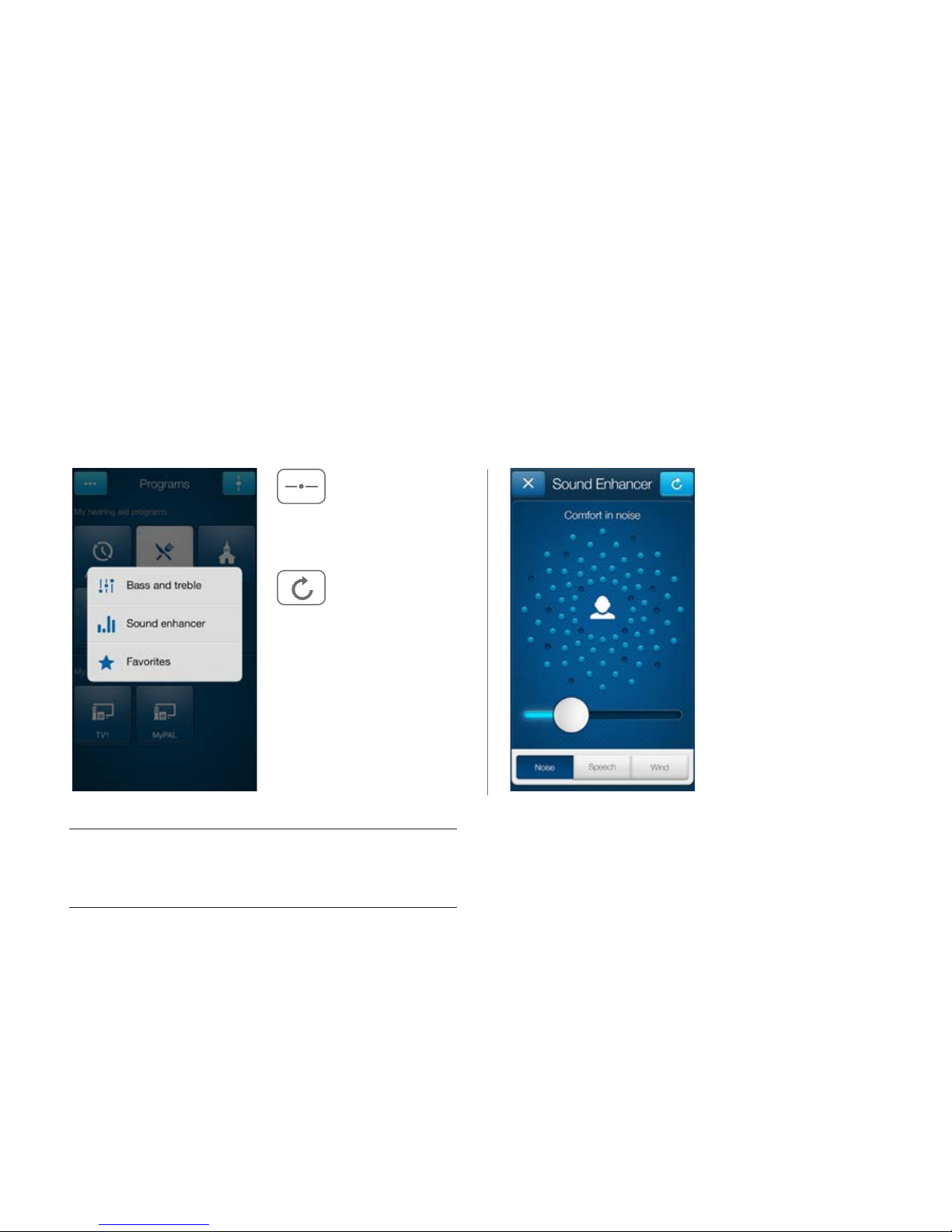
Comfort in Noise
Adjust the level of noise
reduction from full
awareness of surroundings
to focused hearing
comfort.
Sound Enhancer will appear in the more options pop-up menu if it is available for one or more of the programs set by
your hearing care professional.
All adjustments are made by
moving the slider or tapping
the graphic.
To return to the fitted
settings of the program after
adjustments, tap Undo.
The tabs you’ll see at the
bottom of your screen
represent the Sound
Enhancer features available
to you.
Sound Enhancer: Personalize your sound
TIP EXPLORE YOUR FAVORITE SETTINGS
Save your Sound Enhancer settings as Favorites and show
them to your hearing care professional at your next fitting.
Page 19
19
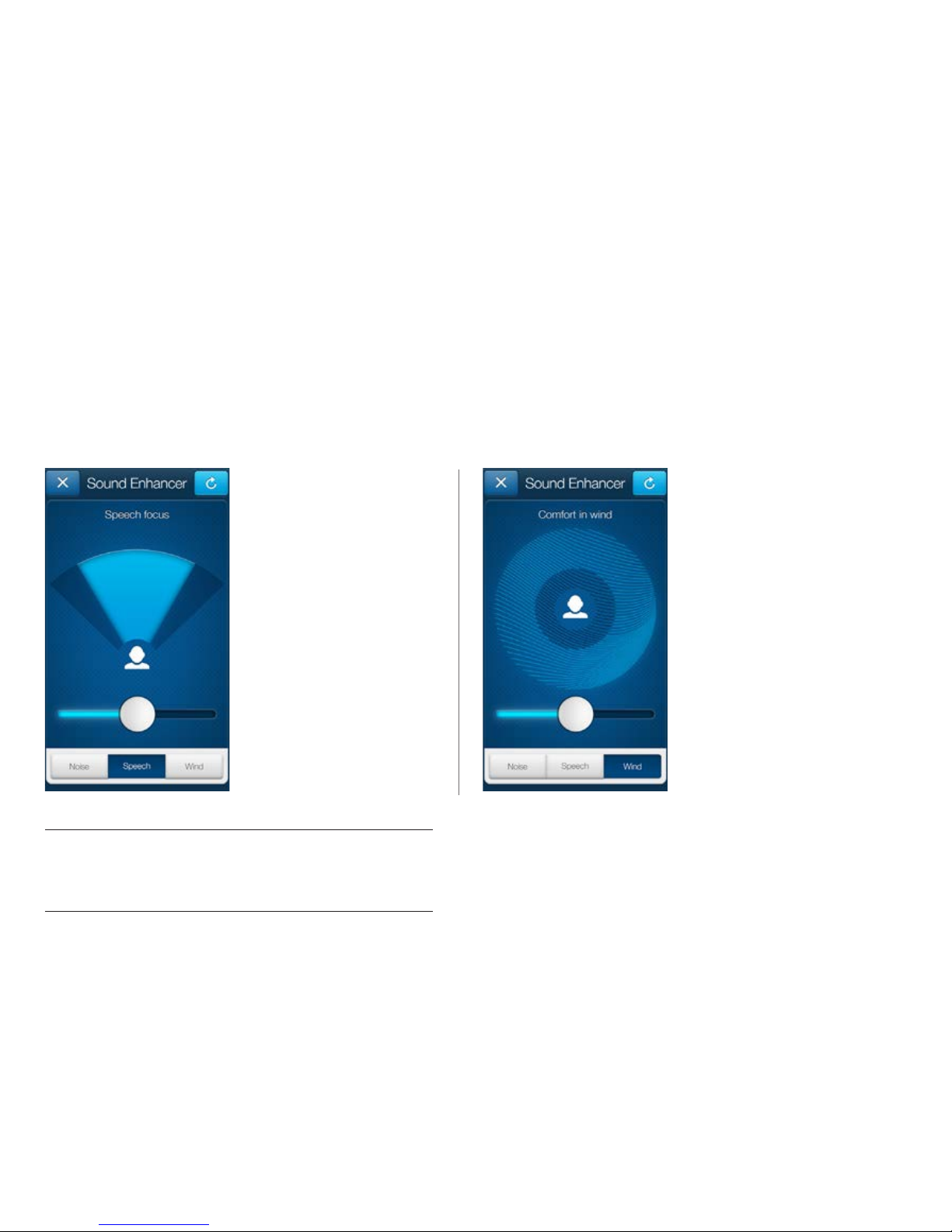
Speech Focus
Choose exactly what to
listen to by adjusting the
focus of the beam.
When the hearing aids
are set to automatic
focus, adjusting Speech
Focus will switch them to
manual setting. To return
to automatic use the Undo
button.
Comfort in Wind
Reduce wind noise for
maximum listening comfort
in windy situations.
TIP OPTIMIZE SPEECH FOCUS
When adjusting Speech Focus, also try the Comfort in
Noise for maximum effect.
Page 20
20
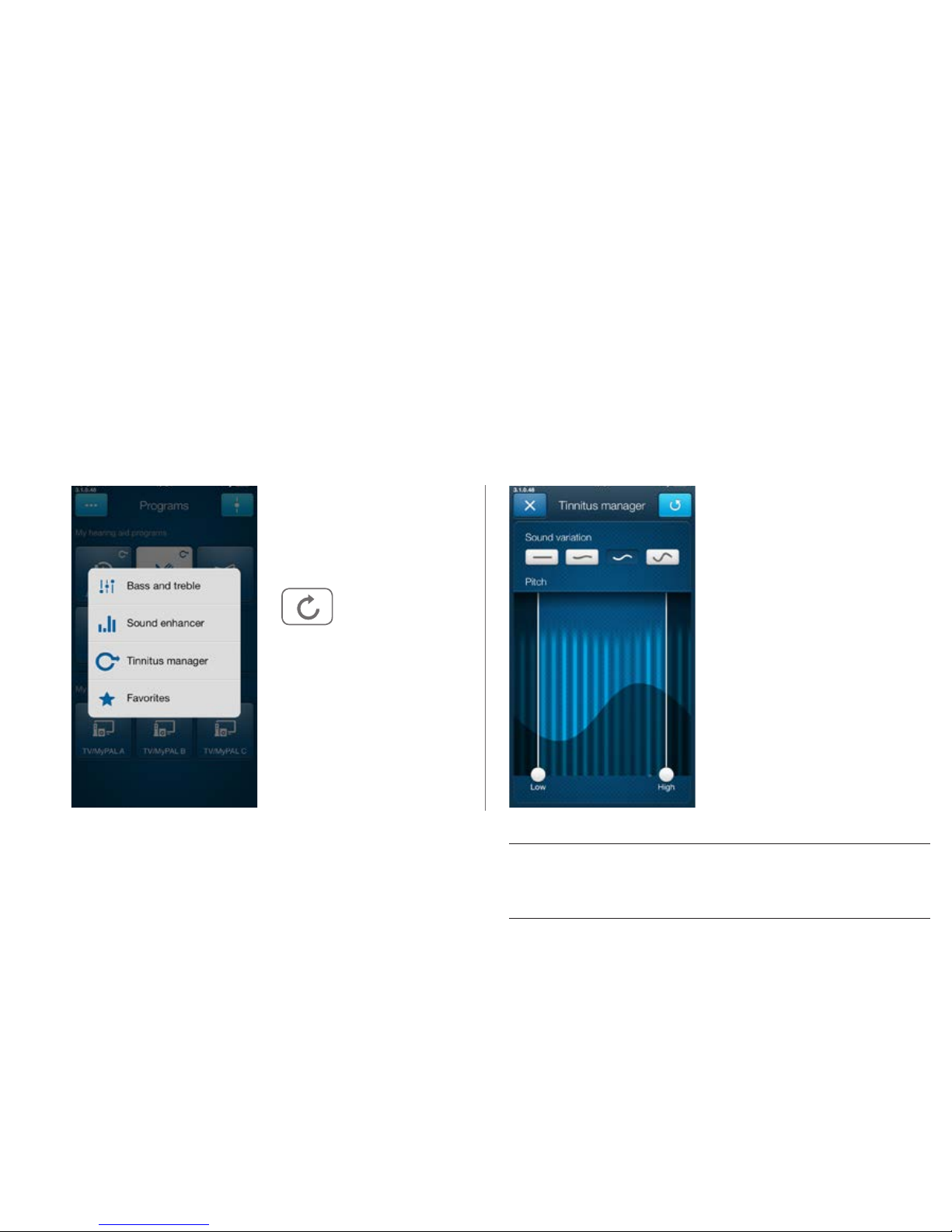
Tinnitus Manager
The Tinnitus Manager will be available for you in the app if the Tinnitus Breaker Pro (TBP) has been enabled in one or
more of your fitted programs. A small icon will appear on program buttons where you have the TBP fitted.
If you go to the More options menu from one of those programs, you will see the Tinnitus Manager available.
You will find the Tinnitus
Manager in the menu on
the program screen.
To return to the fitted
settings of the program
after adjustments, tap
Undo
Sound variation
Adjust the variation of the
white noise sound input by
tapping the buttons towards
the top.
Pitch
Adjust the frequency
shaping (Pitch) by moving
the two sliders left and right.
If you have a program fit with white noiseWhat you will have access to in the app
TIP EXPLORE YOUR FAVORITE SETTINGS
Save your Tinnitus Manager settings as Favorites and show
them to your hearing care professional at your next fitting.
Page 21
21
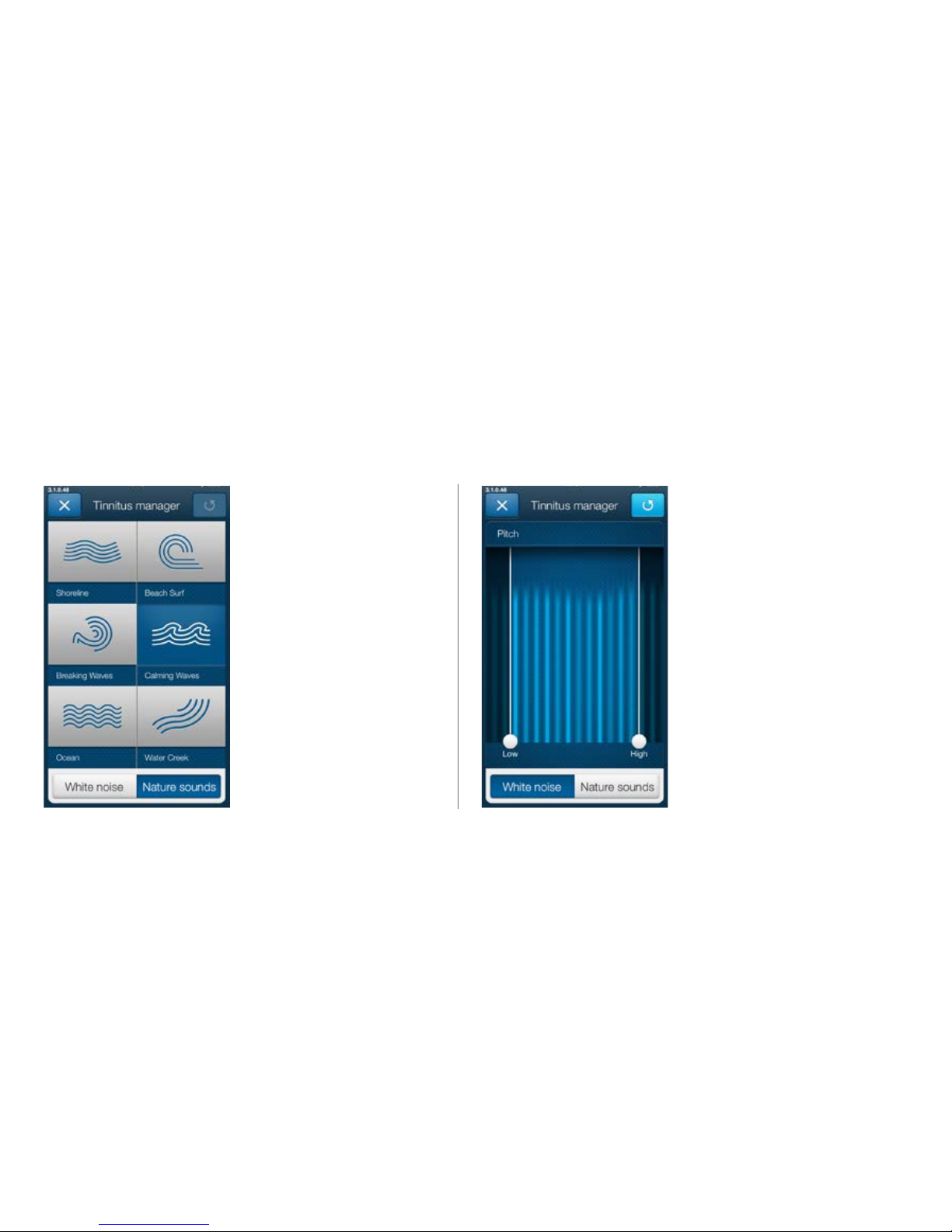
Nature Sounds
Choose between one
of the six new Nature
Sounds in the hearing
aid.
Activate white noise
You can also activate the white
noise sound input and adjust
the Pitch.
If you have a program fit with a Nature Sound
Page 22
22
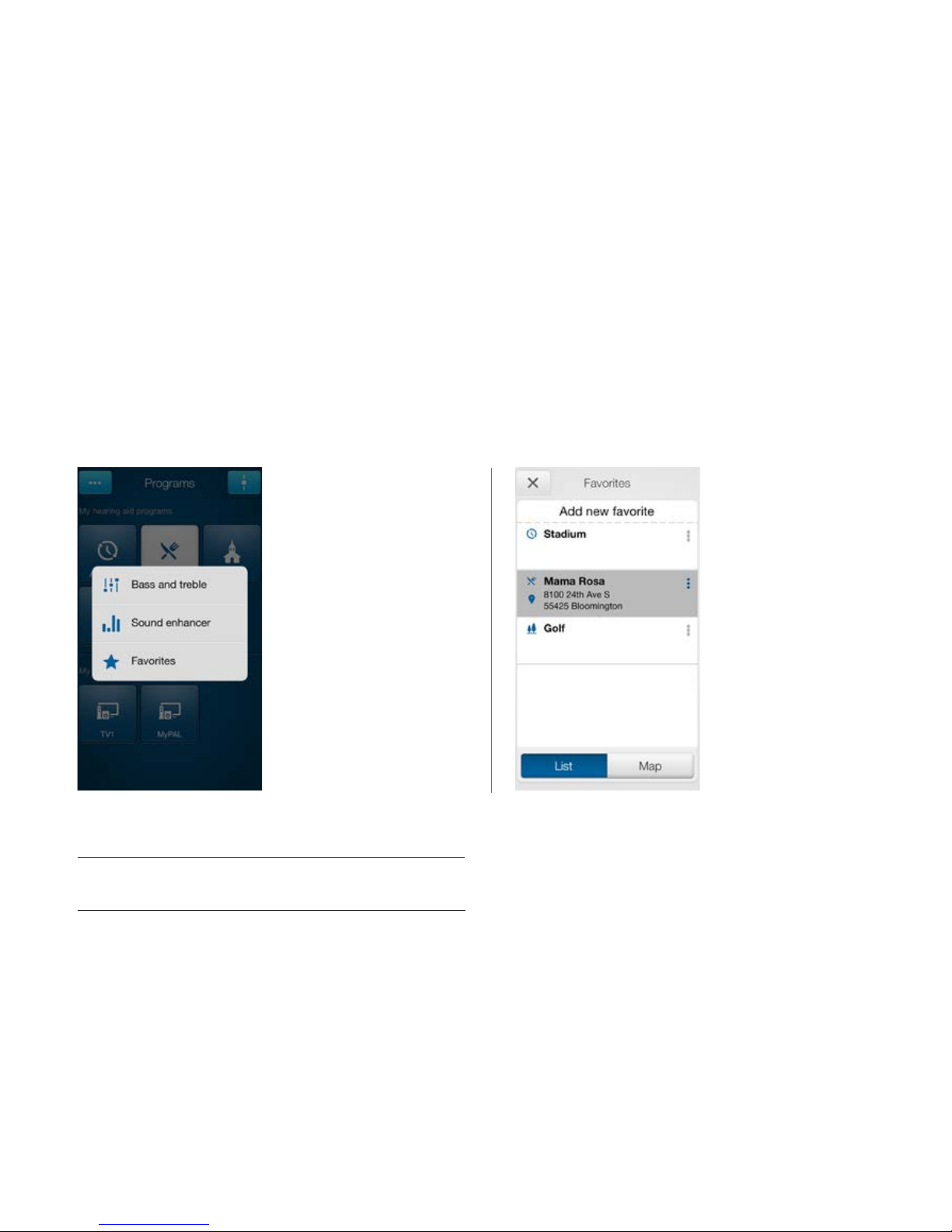
Overview of Favorites
In the Favorites list, you
can create a new Favorite
by pressing Add new
favorite, and activate an
existing Favorite by tapping
on its name. You can also
switch between list view
and map view.
Add a Favorite
You can save your
preferred volume, bass and
treble, Sound Enhancer
and Tinnitus Manager
settings as Favorites. You
can also choose to attach
a Favorite to a location
and have your hearing aids
change automatically when
you enter that location.
Favorites
TIP YOU CAN ALSO ACCESS THE FAVORITES LIST
FROM THE MAIN MENU.
Page 23
23
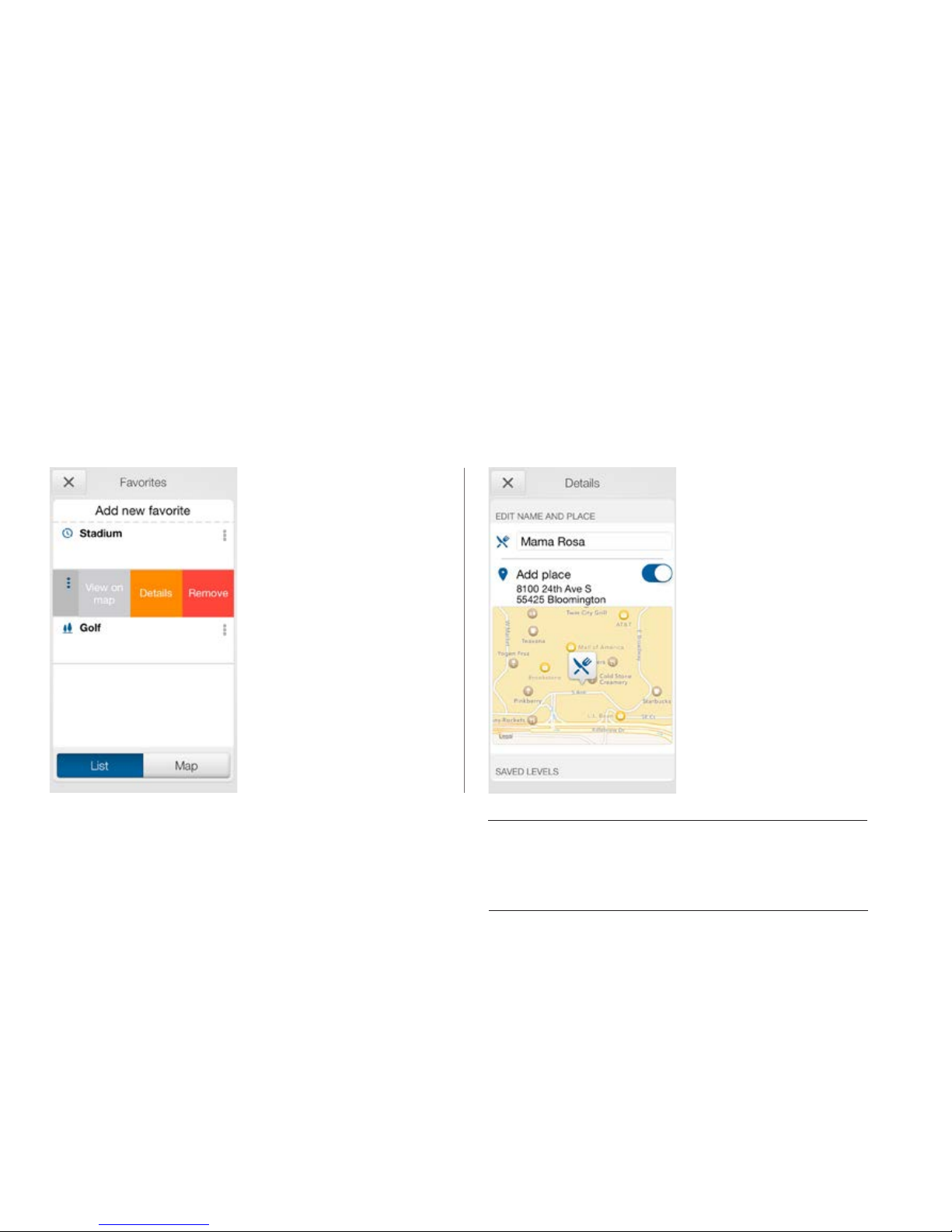
Additional Favorites options
By swiping left on a
Favorite you can choose
from the following options:
- View on map (if a location
has been added)
- Details
- Remove
Details of your Favorites
In the details view, you
can edit the name of the
Favorite and add/remove a
location. You can also view
the saved volume, bass/
treble preferences and
Sound Enhancer features.
TIP CAN I EDIT FAVORITES WITHOUT LOSING MY
SET TINGS?
If you select a Favorite and tweak settings such as the volume or
bass and treble, you can save your changes as a new Favorite.
Page 24

Finder: Search for misplaced hearing aids
Search nearby
If the app detects the
hearing aids nearby, it will
go into Nearby mode. As
you walk around, the light
blue bars will show you
if you are getting closer
or farther away from your
hearing aids. Hearing aids
must be on to use this
feature.
24
Page 25
25
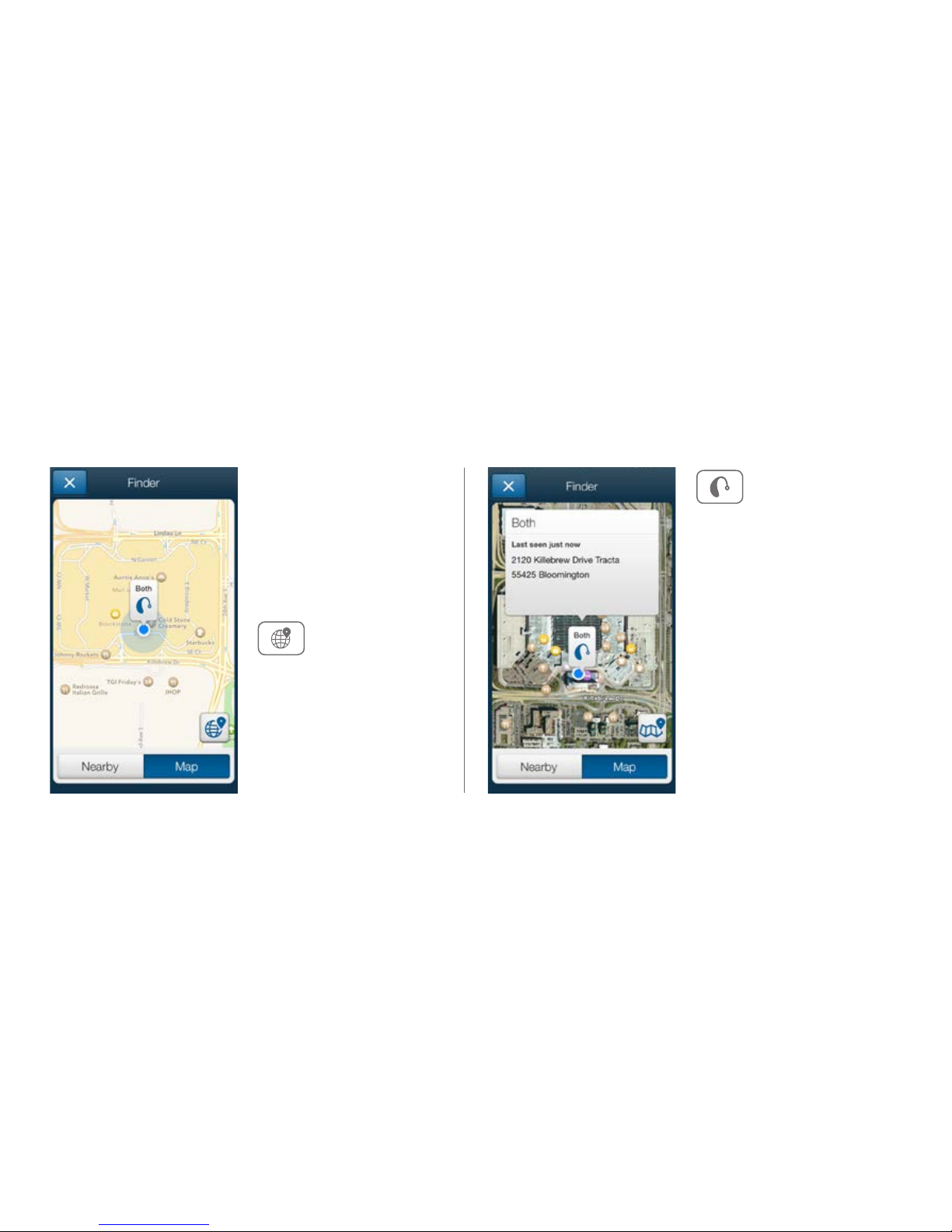
Finder
If the app does not detect
your hearing aids nearby,
it will switch to Map view
and display the place on the
map where they were last
connected to the app.
Satellite view
Tap this button to go to the
satellite view.
Last location
Tap this button on the map
or satellite view to bring
up a pop-up menu to see
the address and time your
hearing aids were last
detected.
Page 26
26
Additional app options
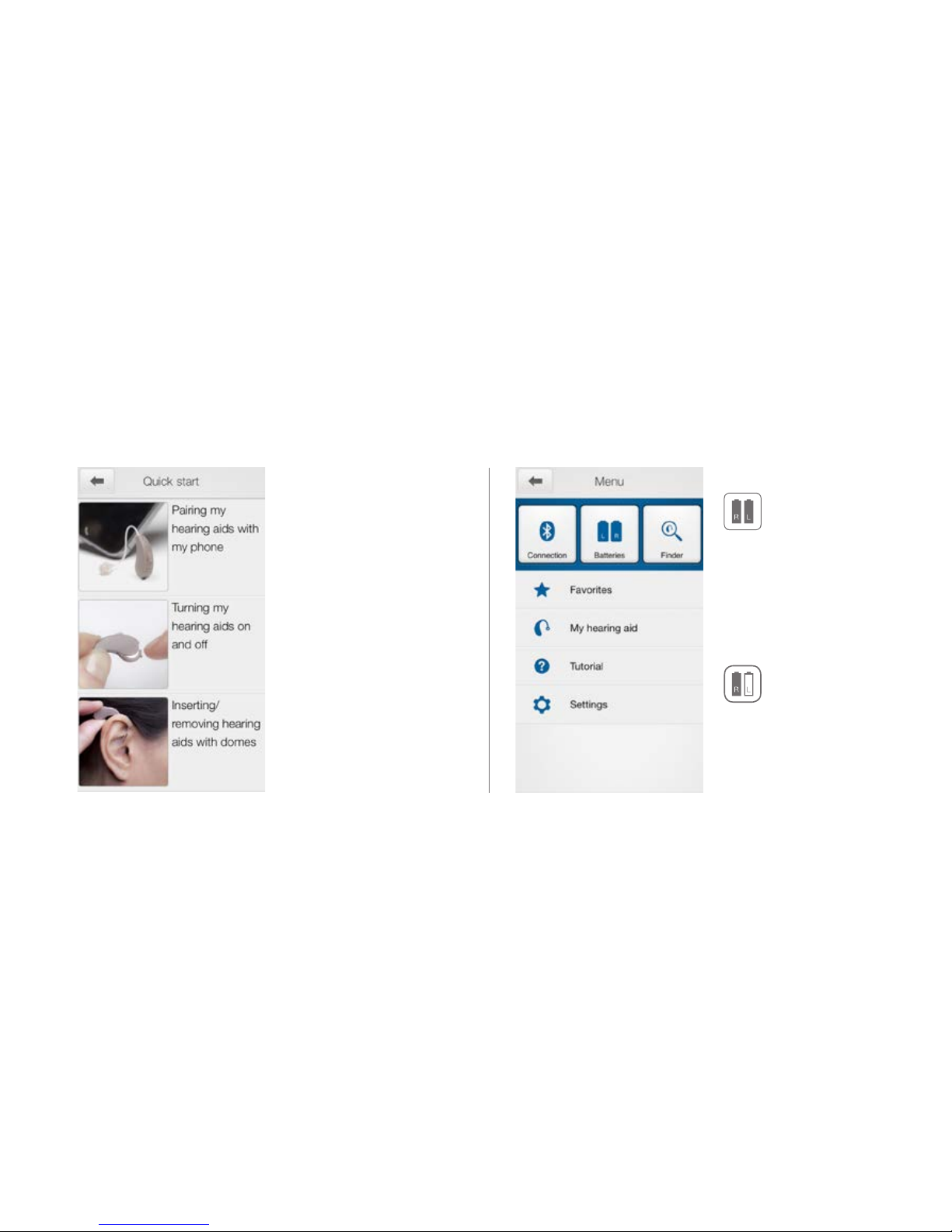
Information for you about your hearing aids
My hearing aid
This section will help
you get more out of your
Beltone Made for iPhone
hearing aids.
Battery status
The icon displays the battery
strength as full in the left
hearing aid and low in the
right one.
This shows the current
status of left and right
hearing aid batteries. The
icons display the batteries
as full or low.
Page 27
27
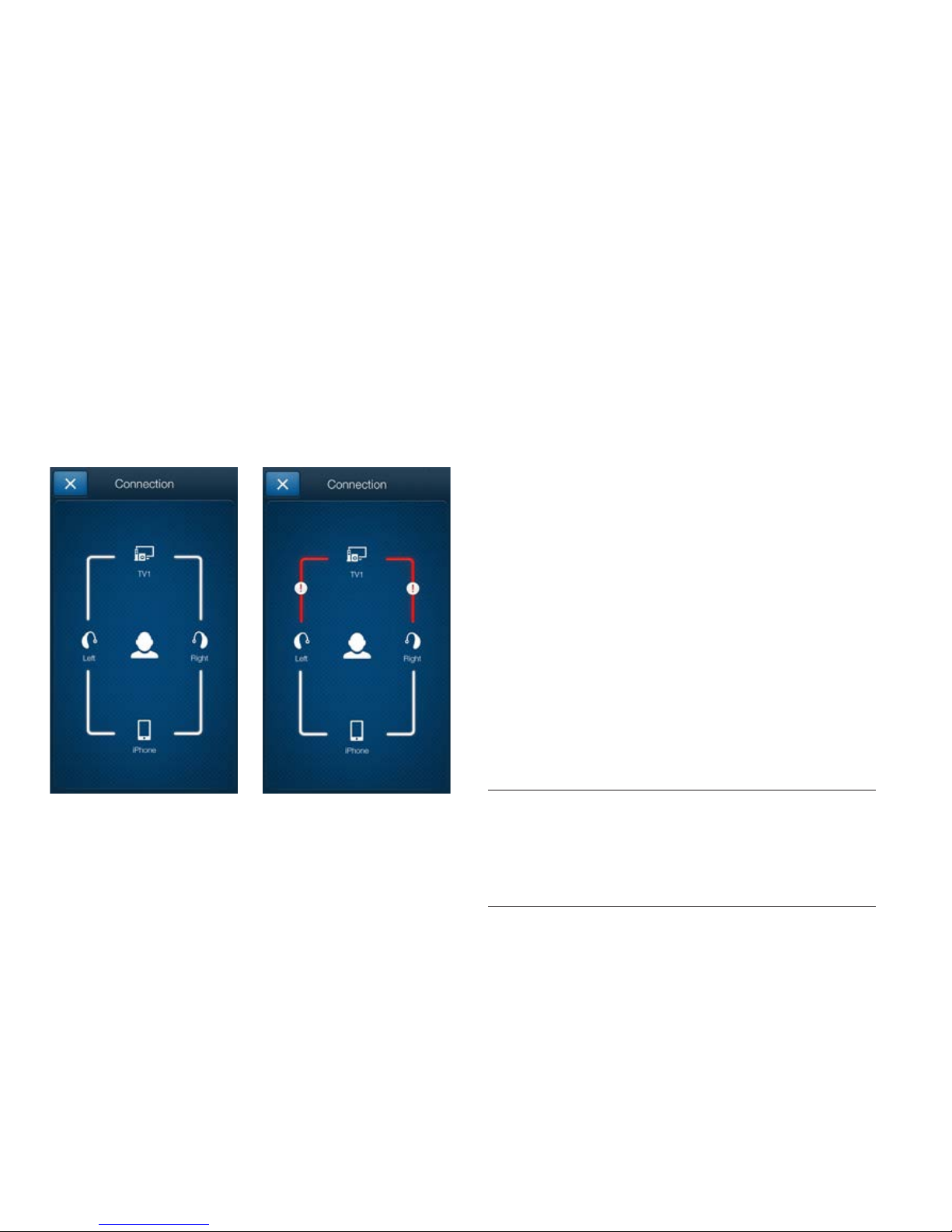
Check your connections
Shows the connection status between your hearing aids,
streamer device and Apple device.
The red line with an exclamation mark means the
connection is missing or broken.
Connection status
TIP WHAT IF I LOSE A CONNECTION?
When a connection is lost, press the exclamation mark to receive
guidance on how to re-establish the connection. It is a good idea to
check that your hearing aids are powered on, are within phone range
and have enough battery charge. You can also open and close the
battery door if connection is not re-established straight away.
Page 28
28
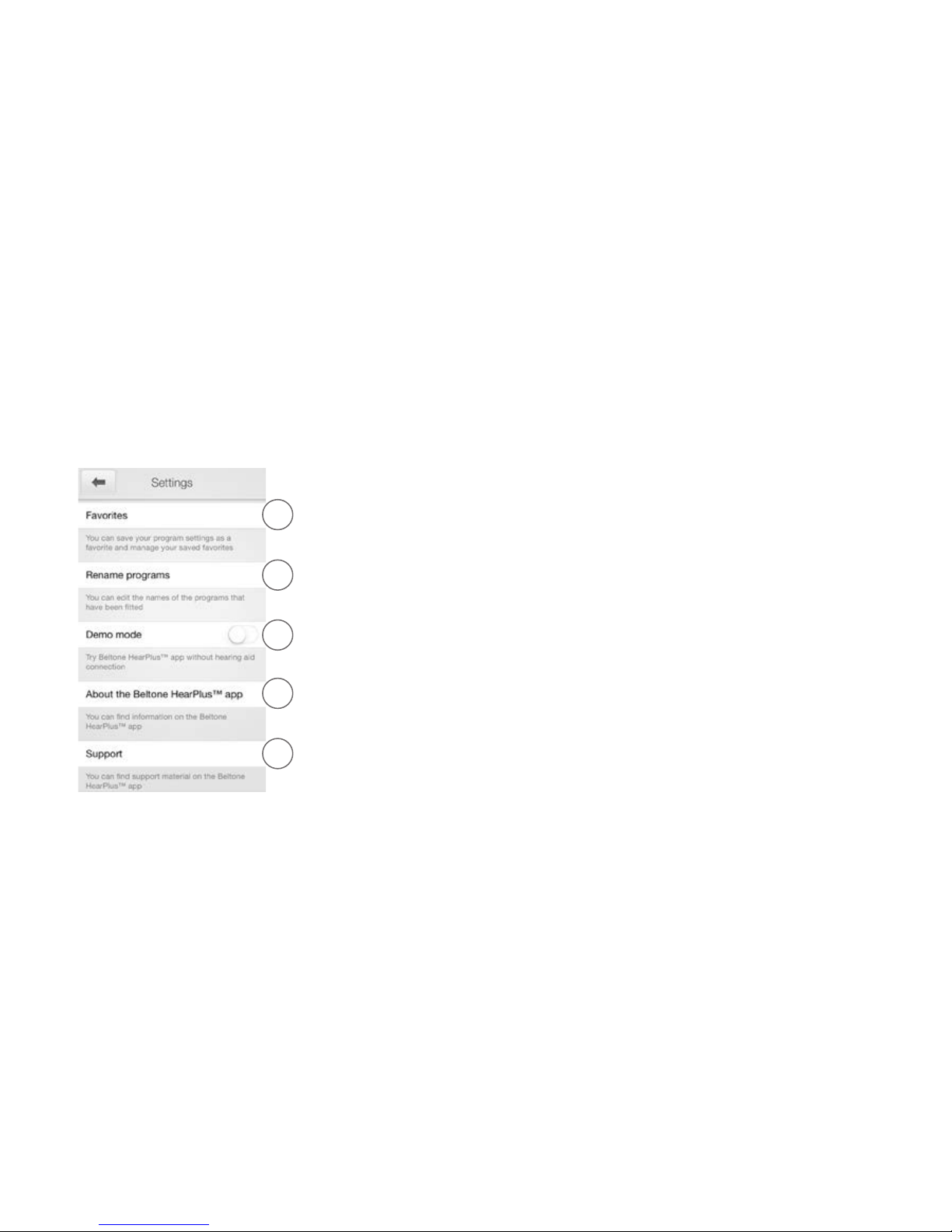
App settings
Settings
The app settings enable adjustments to specific
features of the Beltone HearPlus app.
1. Remove all Favorites at once
2. Rename programs
3. Demo mode
4. Background information about the Beltone
HearPlus app
5. Guide to support material
1
2
3
4
5
Page 29
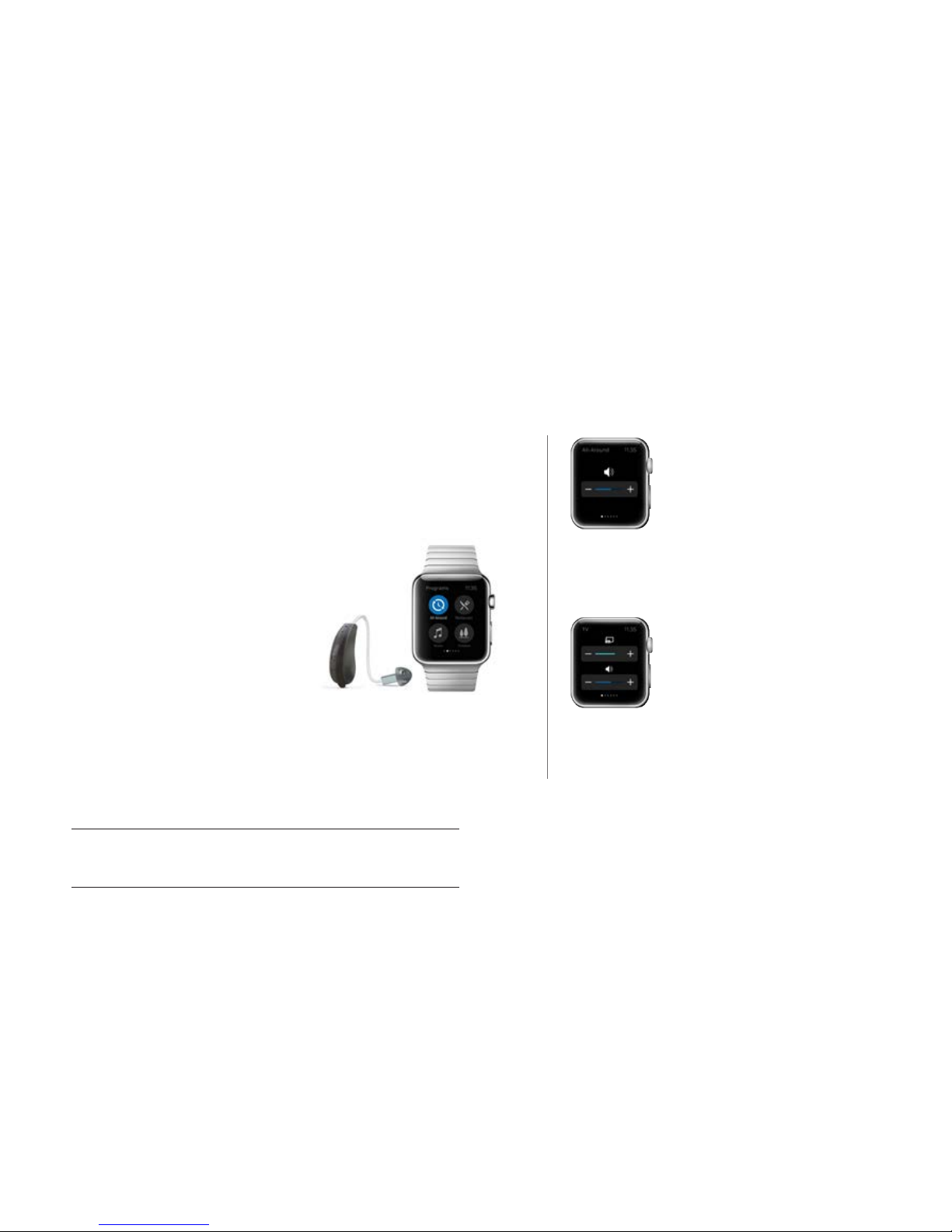
Beltone HearPlus™ app for Apple Watch
™
Control your hearing aid at all times.
What you need
The Beltone HearPlus app must be installed on your iPhone and
updated to minimum v. 3.0.1. Please see Apple compatibility
information on p. 3.
How to pair
Pair your Apple Watch to your
iPhone by following the instructions
found in the companion app for
Apple Watch on your iPhone.
How to get the app on Apple
Watch
You can use the companion app for Apple Watch on your iPhone to
turn on or off or to set preferences for your apps on Apple Watch,
including the Beltone HearPlus app.
VOLUME CONTROL
Hearing aid volume control
Tap the + or – icons to increase or
decrease the volume of the hearing
aid.
To mute the hearing aids, force touch
on the screen. To unmute, tap the +
or – icons.
Streamer volume control
When a streamer program is selected
you can adjust the streaming volume
separately with the orange volume
slider.
You can also mute the streaming
volume by Force Touch.
TIP HOW DO I MOVE BETWEEN SCREENS?
Simply slide sideways to move between screens.
How to get the Beltone HearPlus app on your Apple Watch
29
Page 30
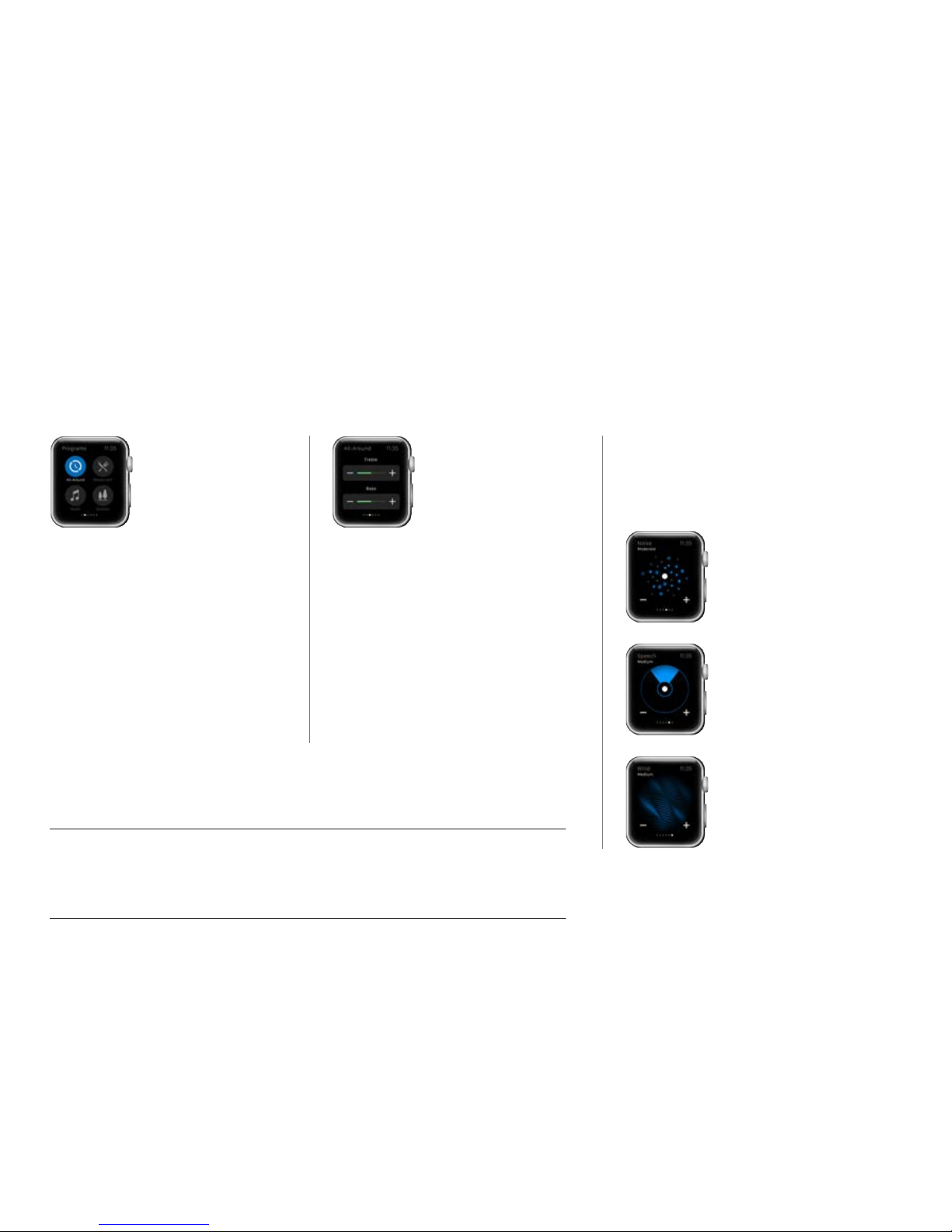
PROGRAMS AND FAVORITES BASS AND TREBLE SOUND ENHANCER
Choose a program or
a Favorite
Tap one of the
program icons to
choose a program.
Scroll down to choose
between hearing aid
programs, streamer
programs and your
own Favorites.
You can create new
Favorites in the
Beltone HearPlus app
on the iPhone.
Adjust bass and treble
Tap the + or – icons to
increase or decrease
bass and treble.
Adjust Sound Enhancer
Adjust all three features by tapping the +
and – icons. Use force touch to reset to
fitted settings.
Comfort in Noise
Adjust the level of comfort
in noise by turning noise
reduction up or down.
Speech Focus
Adjust speech focus by
setting beam width.
Comfort in Wind
Adjust comfort in wind
by turning wind noise
reduction up or down.
TIP CAN I USE APPLE WATCH GLANCES FOR THE BELTONE HEARPLUS APP?
You can use Glances to quickly view which program you’re in. Just swipe up on the Watch
face and then swipe sideways until you see the Beltone HearPlus app. It will tell you your
current program. Tap the screen to go directly to the app.
30
Page 31
31
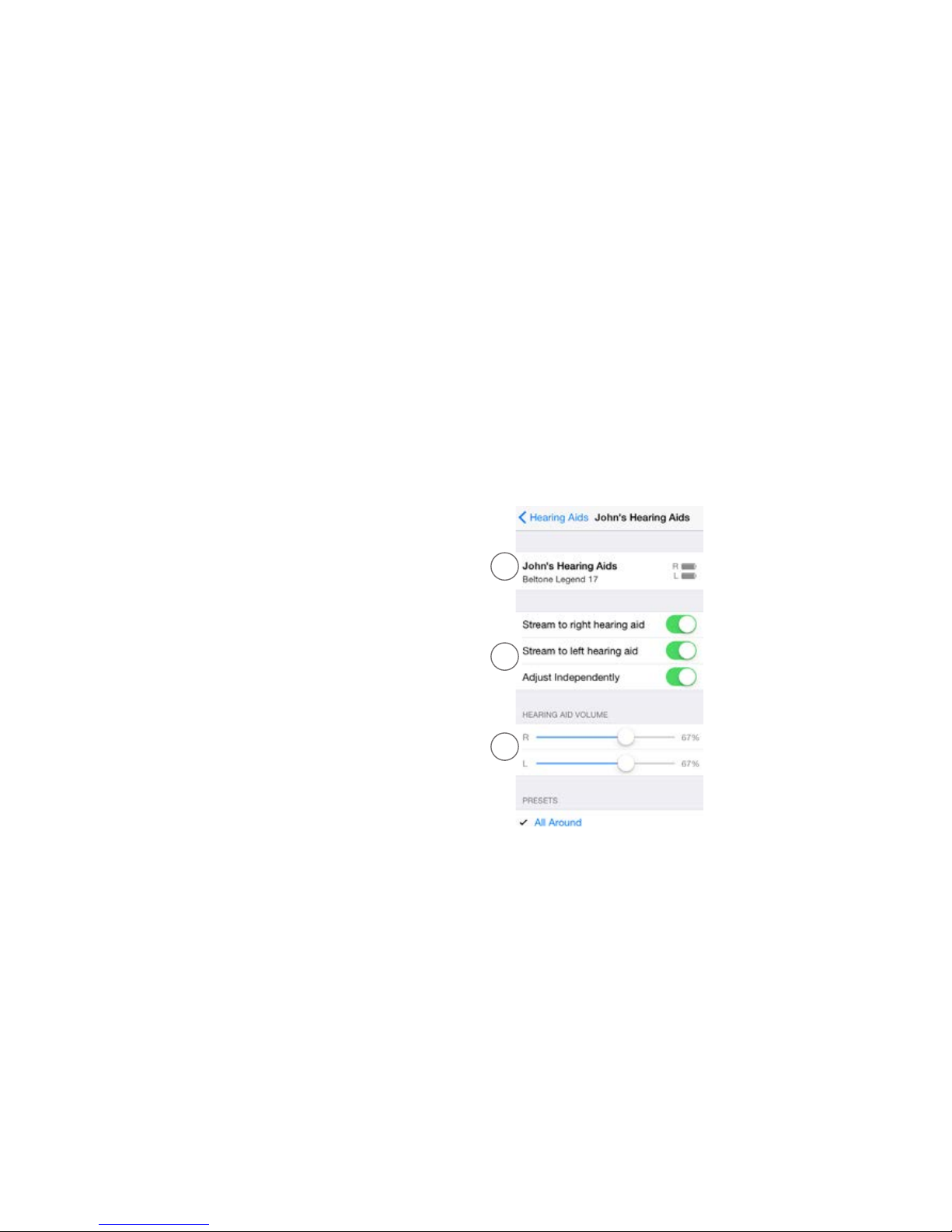
Control of your hearing aids built into
your iPhone, iPad, or iPod touch
How to access basic volume and program controls
Triple click on the Home button on your Apple device to access basic
volume and program controls.
1.
The name, model, and
battery status of your
hearing aids.
2.
Streaming and volume
settings for both hearing
aids or independently for
each hearing aid.
3.
Independent volume
control of each hearing
aid.
How to use Apple’s native app to control your Beltone
Made for iPhone hearing aids
You can also access a control center for your hearing
aids in Settings. Go to Settings, General, Accessibility,
and Hearing Aids then tap on the circled i to go to the
hearing-aid controls.
1
3
2
Page 32
32
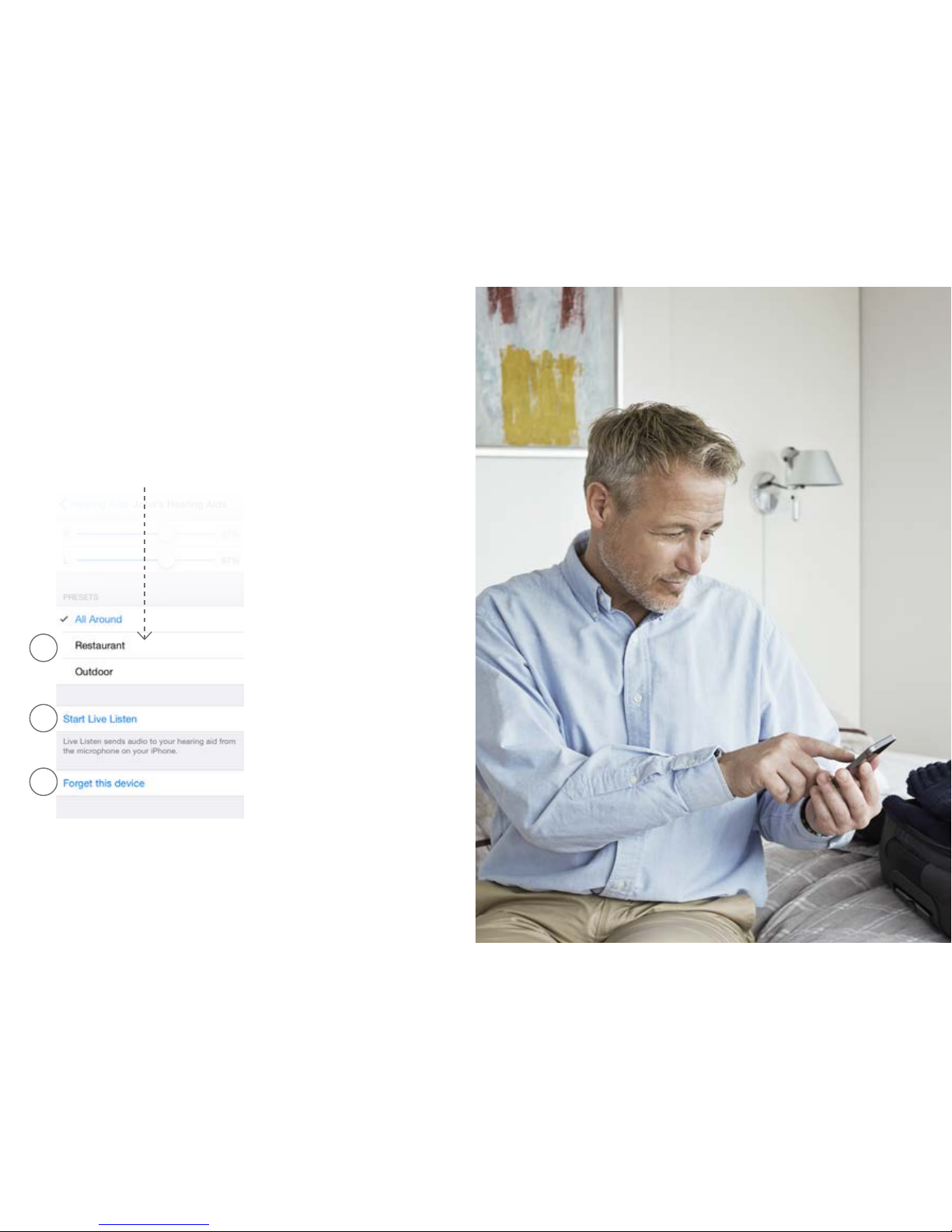
Scroll down the page to see
the following settings.
4.
View and change the
program
5.
Start and stop
Live Listen
™
to use your
iPhone, iPad or iPod
touch as a microphone
which sends sound
directly to your hearing
aids
6.
Tap this if you want to
forget this device and
remove the pairing.
4
5
6
32
Page 33

33
Page 34
34
34
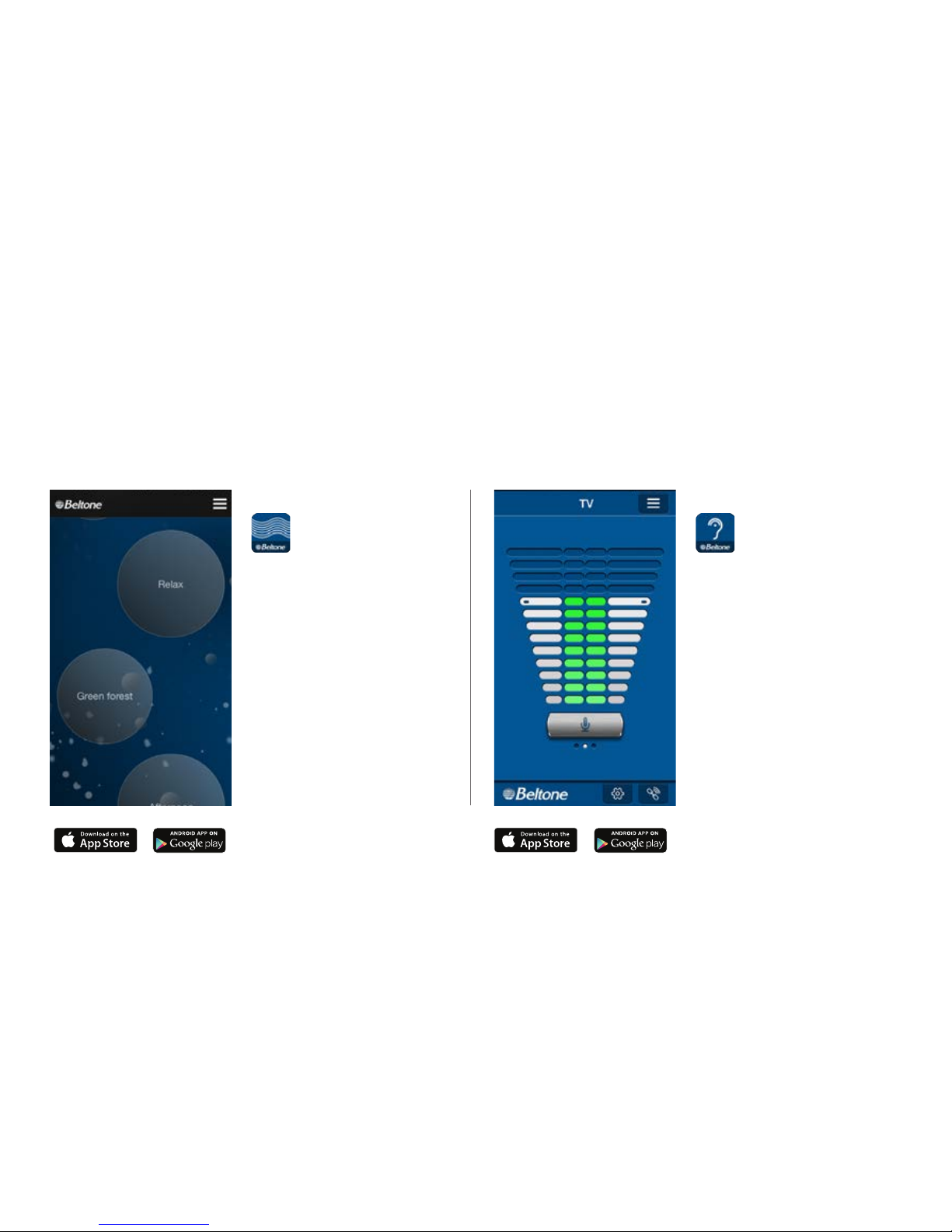
Try more apps
from Beltone
Beltone Tinnitus Calmer
™
If you suffer from tinnitus, you
might like to try the Beltone
Tinnitus Calmer app*.
It combines relaxing sounds
and exercises that aim to help
you find relief from tinnitus.
www.beltone.com
Tinnitus Calmer™ app
*Dependent on local availability.
Beltone SmartRemote
™
Don’t forget to download the
Beltone SmartRemote app*
if you are using wirelessenabled hearing aids with a
Beltone Direct Phone Link 2.
The app enables you to
change programs and adjust
volume.
www.beltone.com
SmartRemote™ app
*Dependent on local availability.
Page 35

Click here to learn more about the Beltone HearPlus app
The trademarks listed are owned and used by The GN Beltone Group
and its related affiliates. © 2015. Apple, the Apple logo, iPhone, iPad, iPod
touch, FaceTime, Live Listen and AirPlay are trademarks of Apple Inc.,
registered in the U.S. and other countries. Apple Watch is a trademark
of Apple Inc. App Store is a service mark of Apple Inc.
HearPlus app for iOS consumer
Beltone
8001 E. Bloomington Fwy.
Bloomington, MN 55420-1036
U.S.A.
(800) 621-1275
Beltone Canada
301 Supertest Road
Toronto, Ontario M3J 2M4
Canada
(416) 736-4444
www.beltone.com
 Loading...