

Page 1
Welcome to
belong.com.auBelong and the Belong logo are trade marks of Telstra Corporation Limited ABN 33 051 775 556
That’s it. You now Belong to a
community of users just like you.
For further information or help,
visit us at belong.com.au
@letsbelong
fb.com/letsbelong
Powered by Telstra
Page 2
Quick setup guide
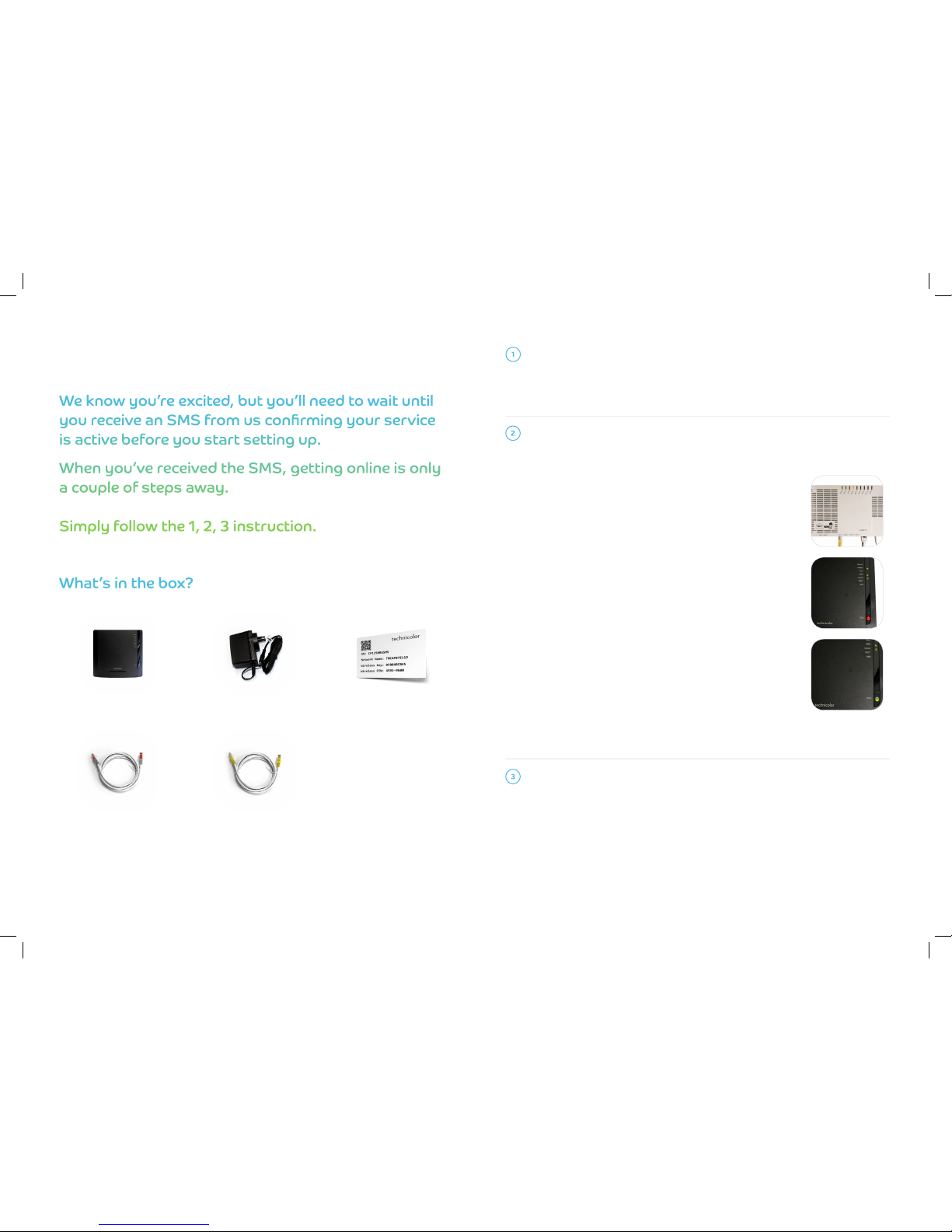
1. WI-FI MODEM 3. WI-FI INFO CARD2. BLACK POWER ADAPTOR
5. YELLOW ETHERNET CABLE4. RED ETHERNET CABLE
You are ready to start setting up your Belong modem if your NBN Connection box has been installed and
it’s displaying green power and optical lights.
• First, plug the black power adaptor (2) into a power point, and connect the
other end to the back of your Belong modem (1).
• Switch on both the power point and your Belong modem and check the
ECO light on the front of your Belong modem is red.
• Take the cable that is white with red ends (4) and plug it into the red
socket on the back of your Belong modem.
• Plug the other end into the first available UNI-D port on the left rear of
your NBN connection box (this is typically the first port on the left) and
wait for the ECO, WAN and Internet lights to turn green on the front of the
modem. The lights will blink initially and after a couple of minutes they will
go solid green. If the port is not available, use the next one.
See the images below.
If the Internet light is off, this means it is unable to establish a connection.
Please check you’ve received an SMS from us confirming your service is
active, and that you’ve used an available port on your NBN Connection box.
• If you’ve received it, check that all your cables are plugged in to the
correct ports.
• If you haven’t received the SMS, don’t worry – we’re working on getting
your service online.
• If you are still unable to connect and the ECO light is still red, please contact us via Live Chat on the
Belong website or call us on 1300 BELONG (1300 235 664).
GET PREPARED
Check you’ve got all of your items, then take items 1 to 5 out of the box. If you want to view the
self-installation steps at any time, check out the YouTube video titled ‘Belong Self-install Guide for
services on the NBN’ at help.belong.com.au
Connect via Wi-Fi using the Network Name and Wireless Key that are written on the back of your modem.
These details are also written on the sticker included in the box. You’ll use the same Network Name and
Wireless Key to connect your phone, tablets, laptops and all other Wi-Fi enabled devices.
If you want to connect your modem to a desktop using the Ethernet cable (5) (for maximum speed and
connection stability), connect the white cable with yellow ends into the yellow socket on the back if your
Belong modem, and plug the other end into your computer’s network port. The Ethernet light will turn
green when properly connected.
If you’ve plugged in everything and have any issues please contact us via Live Chat on the Belong website,
or call 1300 BELONG (1300 235 664).
PLUG IT IN
GET CONNECTED
 Loading...