

Page 1
Polycom® VVX® 310
Business Media Phone
Quick Start Guide
Phone Views
Your phone has four main Views: Home, Calls,
Active Call, and Lines view (the default). You
can access Home and Lines view at any time. If
your phone has one or more calls, you can also
access Calls or Active Call view.
For Home view from any menu, press
.
Press
to alternate between Home and Lines
view.
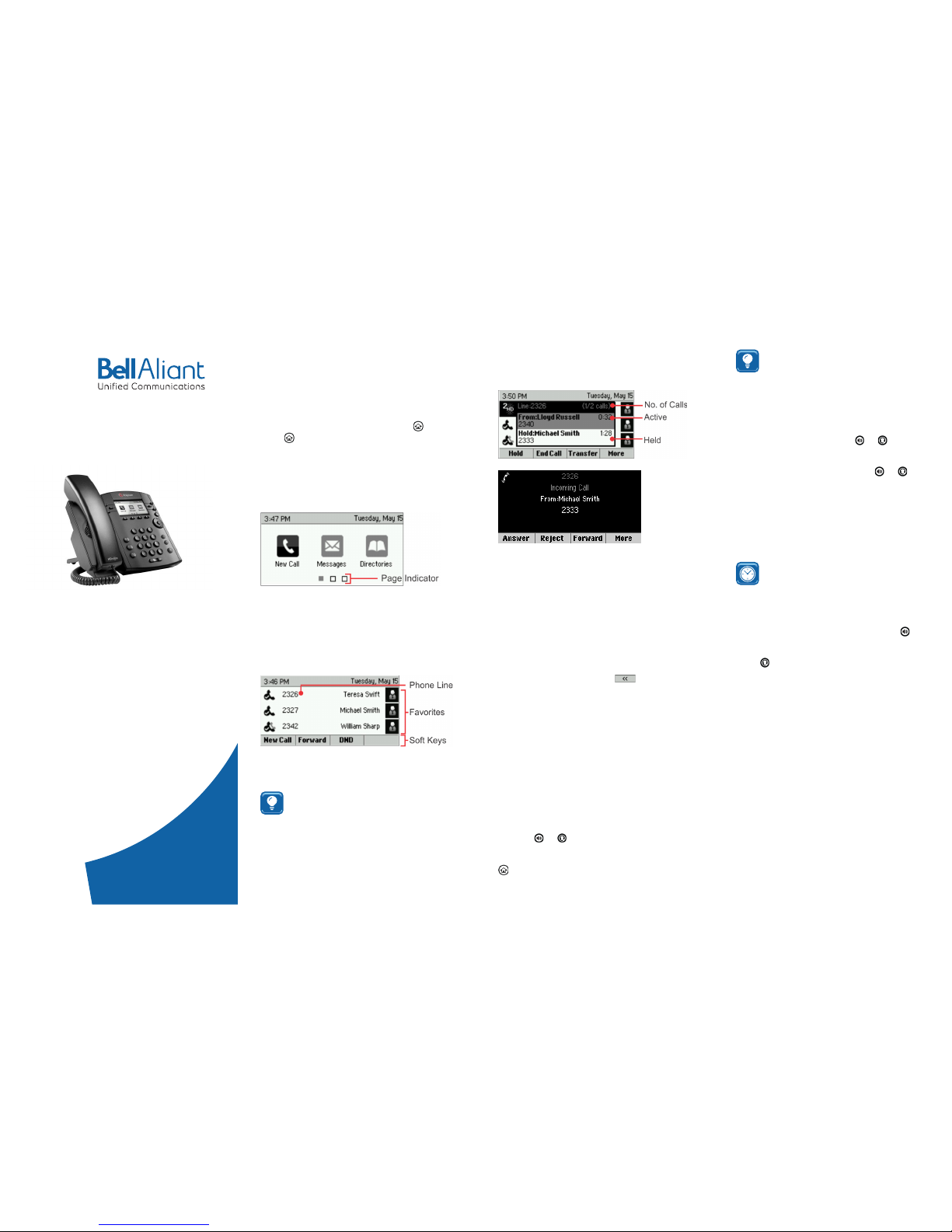
Home View
Home view displays icons you can select to
access phone functions.
You can use the right, left, up , and down arrow
keys to display more icons.
Lines View
Lines view displays phone Lines, Favorites, and
soft keys.
If your phone is idle, you can press the Line
key to access the Dialer.
Tip: Referring to Soft Keys
In this guide, soft keys are referred
to by their name only. For example, to
end an active call, press End Call.
Calls View
If your phone has one or more calls, you can
access Calls view.
Call color indicates status:
• Medium grey - Active call
• Dark grey - Incoming call
• White - Held call
Use the up and down arrow keys to select
a call (highlight it). The soft keys control the
highlighted call.
Entering Data
Use the dialpad keys to enter information. To
backspace, press Backspace .
To type with the dialpad keys, press a key
repeatedly to view the character options and
stop to select.
To type other characters, press Encoding or
Mode. When using the dialpad keys, use the 1, *,
0, and # keys.
About Calls
Only one call can be active at one time.
You can use the handset, speakerphone, or
headset for calls. During a call, you can change
modes by picking up the handset, or by
pressing
or .
If you navigate away from your call(s), press
to see Active Call or Calls view again.
Tip: Switching Between Lines and Calls
View
When in Calls view, switch to Lines
view by pressing More > Lines.
Switch back to Calls view by pressing
More > Calls.
Placing Calls
Pick up the handset, or press or . Enter the
phone number, and press Send.
Or enter the phone number rst, then press
Dial, pick up the handset, or press
or .
From Lines view: Press the phone Line key,
enter the phone number, and press Send.
From Home view: Select New Call using the left
and right arrow keys. Enter the phone number,
and press Send.
Timesaver: Placing Calls Quickly
Select a recent call or Favorite, or
select a contact’s phone number in the
Contact Directory.
Answering Calls
To answer with the speakerphone, press
or press Answer. To answer with the handset,
pick up the handset. To answer with a headset,
press
.
To answer a new call while on an active call,
press Answer. The current call will be held.
Call Grabber
This feature allows you to seamlessly grab
an active call between devices with access to
your UC line (Mobile Client, IP Telephone, PC
Phone).
While on an active call on another device
(Mobile Client, PC Phone)
• Dial *60 on your Polycom phone;
This will seamlessly grab the call from the
Mobile Client or PC Client
Version 1.0
Page 2

Ending Calls
To end an active call, replace the handset,
press
, or press . Or, press End Call.
To end a held call, navigate to Calls view and
highlight the held call. Press Resume, and press
End Call.
Holding Calls
From Calls view, press Hold or . Remember
to highlight the call rst.
To resume a held call, press Resume or
again.
Transferring Calls
From Calls view, press Transfer or , and call
the other party. When you hear the ringback
tone, or after you talk with the other party,
press Transfer or again. Press Blind to complete
a transfer without waiting for the ringback
tone.
Forwarding Calls
To enable call forwarding, press Forward from
Home or Lines view. Select the forwarding type
to enable, enter a forwarding number, and
press Enable.
To disable call forwarding, press Forward from
Home or Lines view, select the forwarding type
to disable, and press Disable.
To enable per-call forwarding: As your phone
rings, press Forward, enter the forwarding
number, and press Forward.
Placing Conference Calls
To set up a conference call:
• Call the rst person.
• From Lines or Calls view, press More and
then Confrnc. The active call is held.
• Using the Dialer, call the second person.
• When the second person answers, press
More and then Confrnc to join everyone in
a conference.
Timesaver: Placing Conference Calls
If you have an active and held call,
press Join to set up a conference.
Favorites
Favorites are contacts you call most often. Your
Favorites list displays all your Favorites.
• To view your Favorites list - From Home view,
press
and select Directories> Favorites
• To make a contact a Favorite - Navigate to
your Contact Directory and select the
contact. Press Info, press More, and select
Add to Favorites. Press Yes to conrm
• To dial a Favorite - Press the Favorite from
Home or Lines view, or from your Favorites list
Creating a Speed Dial
A Speed Dial provides quick access to a
Favorite using the line keys.
• Your phone will automatically assign a
smaller number of Favorites to line keys not
programmed
• Manage Speed Dials by assigning Favorite
index starting with 1 and up
• Monitor Presence status of Speed Dial by
updating contact information, using the up
and down arrow keys to locate Watch
Buddy; enable the eld and press Save
Buddy List
Buddy List are contacts you want to monitor
availability using Presence status
• To add a contact to Buddy List - Navigate
to your Contact Directory and select the
contact, press Info and then Edit, using the
up and down arrow keys to locate Watch
Buddy, enable the eld and Press Save
• To view your Buddy list - From Line view,
press More soft key then select Buddies
or from Home View, press and select
Directories> Buddy Status; your buddies
display an icon next to their name to
indicate their status
• To dial a Buddy – while in your Buddy List,
select the contact and press Dial.
TIP: Update your own status for others
to monitor if you are on the phone
or busy. From the Lines view select My
Status and update your status.
NOTE: To monitor Presence the contact number
within your company domain must have full
10-digits (no brackets) and contacts outside
your company domain must have full SIP
address (i.e. [email protected])
Viewing Recent Calls
From Lines view, do one of the following:
• Press
, select Directories, and select
Recent Calls to view your Recent Calls list
• Press the right arrow key to view the recent
Placed Calls
• Press the left arrow key to view the recent
Received Calls
• Press the down arrow key to view the recent
Missed Calls
• Press the up arrow key to view Favorites
From the Recent Calls list, press Sort to sort
and order calls, press Type to display only
certain calls, or select a call record to call the
person.
Contact Directory
To select a contact from the Contact Directory,
press
.
• To view your Directory - Select Directories
from Home view. Press Contact Directory on
the Directory screen
• To add a contact - Navigate to your Contact
Directory and press Add. Enter the contact’s
information, and press Save. To make a
contact a Favorite, enter a Favorite Index
number between 1-500. See Favorites for
more information.
• To update contact information - Navigate to
your Contact Directory and select the
contact. Press Info, press Edit, update the
contact’s information, and press Save
• To delete a contact - Navigate to your
Contact Directory and select the contact.
Press Info, press Delete, and press Yes to
conrm
• To search for a contact - Navigate to your
Contact Directory and press Search. Enter
search criteria and press Search
• To dial a contact from your Directory -
Navigate to your Contact Directory
and select the contact. From the contact’s
information screen, select the contact’s
phone number
Tip: What Does the Star Mean?
A star, , indicates a Favorite.
Listening to Voicemail
An envelope, , adjacent to a Line key,
indicates that you have voicemail. Select
Messages from Home view or press , and
select Message Center. Press Connect and
follow the prompts.
Muting the Microphone
During a call, press so other parties can’t
hear you.
To disable Mute, press
again.
This applies to calls using the handset, headset,
and speakerphone.
Using Do Not Disturb
To enable or disable ringing, press DND from
Home or Lines view. When Do Not Disturb
is enabled, the DND icon, , displays in the
status bar and beside the appropriate Line key.
Adjusting Volume
To change call volume, press during a
call. To change the ringer volume, press
when the phone is idle or ringing.
Updating Ringtones
To change the incoming call ringtone, select
Settings from Home view, and press Basic >
Ring Type. Select the ringtone you want.
To set a ringtone for a contact, navigate to
your Contact Directory and select the contact.
Press Edit, update the contact’s ring type, and
press Save.
 Loading...