

Page 1

P73941 F5U219
Belkin USB
2.0 Dual-Port
PCI Card
Page 2

Page 3

Welcome to Belkin USB 2.0!
Thank you for purchasing the Belkin USB 2.0
Dual-Port PCI Card (the PCI Card).
Now you can upgrade your computer to the latest
USB technology. You will be able to take advantage
of a host of new high-speed USB 2.0 products! Your
USB 2.0 products—including hard drives, scanners,
printers, video cameras, and more—will all work much
faster than ever before. Your current USB devices will
continue to work as they always have, and in some
cases even better with this PCI Card. Follow the
simple installation instructions in this manual to get
your PCI Card up and working—then enjoy the speed
and convenience of USB!
Introduction
1
Page 4

Features
2
• Three USB host controllers integrated into a single PCI
Card—one providing 480Mbps of USB bandwidth and
two providing 12Mbps of USB bandwidth
• 2 high-speed USB ports
• Simultaneous connection capability for low-, full-, and
high-speed devices
• Auto-detection of new devices as they are connected,
along with the speed of each device
• Backward-compatibility with USB 1.1 devices
• Full compliance with USB specifications
• Plug-and-Play technology
• Open Host Controller Interface- (OHCI-) compliant
(USB 1.1 Host Controller)
• EHCI-compliant (USB 2.0 Host Controller)
• PCI revision 2.1-compliant
• Current: 500mA per port
• USB revision 2.0-compliant
Specifications
Page 5

• Belkin USB 2.0 Dual-Port PCI Card
• User Manual
• Installation CD
• PC-compatible computer with available PCI slot
• Windows
®
98 SE, 2000, Me, or XP operating system
Package Contents
3
System Requirements
Page 6
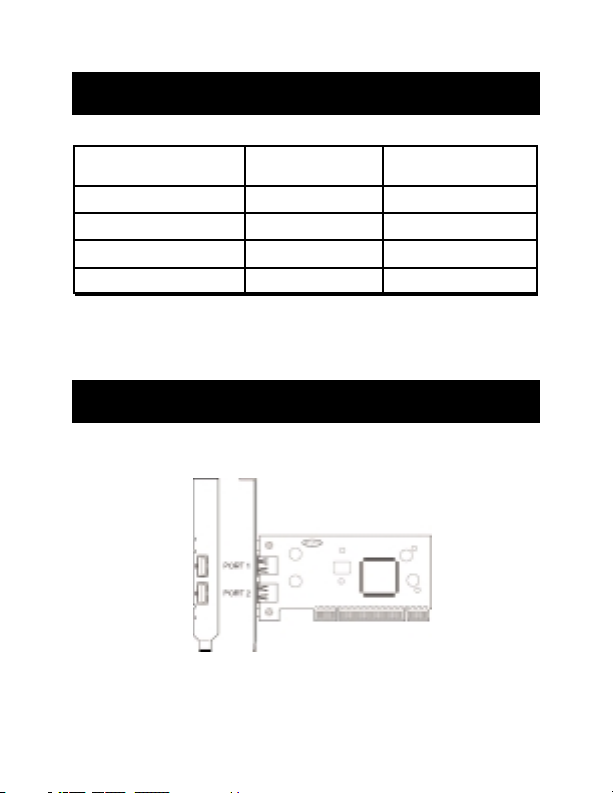
Operating System Compatibility
4
Figure 1
Operating System USB 1.x USB 2.0
Support Support
Windows 98 SE Yes Yes
Windows 2000 Yes Yes
Windows Me Yes Yes
Windows XP Yes Yes
USB 2.0 Dual-Port PCI Card Description
Page 7

Installation
5
Please refer to the section that corresponds to your
version of the Windows operating system (OS).
Installation Procedure for Windows 98 SE OS
This installation procedure will successfully install two
USB 1.1 host controllers and a single USB 2.0
enhanced host controller.
1. Ensure that your computer is powered down.
2. Locate an available PCI slot on your computer.
3. Insert the PCI Card into the slot. Apply enough
pressure to ensure that it is fully seated.
4. Insert the Belkin USB 2.0 driver installation CD into
your computer’s CD-ROM drive.
5. Turn on power and boot-up the computer.
6. The Windows OS will recognize the PCI Card as a
“NEC USB Open Host Controller” and the “Add
New Hardware Wizard” dialog box will open. Click
“Next”.
7. Select “Search for the best driver for your device”
and click “Next”.
8. Uncheck all the boxes and click “Next”.
Page 8

Installation (continued)
6
9. The Windows OS will find the drivers for “NEC USB
Open Host Controller”. Click “Next”.
10. The Windows OS may ask you for the Windows OS
installation CD. If prompted to, insert the CD
into the CD-ROM drive and follow the
subsequent instructions.
11. After the Windows OS installs the required drivers,
installation of the first host controller is complete.
Click “Finish”.
12. The “Add New Hardware” wizard will repeat the
installation process for the second OHCI host
controller.
13. Repeat steps 7-11.
14. After installation of the two OHCI host controllers,
the Windows OS will detect “PCI Universal Serial
Bus”. This is the USB 2.0 EHCI host controller.
15. The “Add New Hardware Wizard” dialog box will
open. Click “Next”.
16. Select “Search for the best driver for your device”
and click “Next”.
17. Check the “CD-ROM drive” box. Click “Next”.
18. The Windows OS will locate the driver for “Belkin
USB 2.0 Hi-Speed Host Controller”. Click “Next”.
Page 9

Installation (continued)
7
19. The Windows OS will now install the F5U219
enhanced host controller driver. Click “Finish”.
20. After installation of the USB host controllers, the
Windows OS will detect “USB Root Hub” and
automatically install the required driver support. This
will repeat for each of the two USB OHCI
host controllers.
Installation of the PCI Card is now complete.
Verifying Proper Installation (Windows 98/98 SE OS)
Check the “Windows Device Manager” to confirm that
your PCI Card has been properly installed.
1. Right-click on “My Computer” and select
“Properties”.
2. Select the “Device Manager” tab.
3. Click on the plus sign (+) next to “Universal Serial
Bus Controllers”.
The “Device Manager” list will now include two “NEC
USB Open Host Controller” entries, one “Belkin USB
2.0 Hi-Speed Host Controller” entry, and two additional
“USB Root Hub” entries.
Page 10

Installation (continued)
8
Installation Procedure for Windows 2000 OS
This installation procedure will successfully install two
USB OHCI host controllers and a single USB 2.0
enhanced host controller.
1. Locate an available PCI slot on your computer.
2. Insert the PCI Card into the slot. Apply pressure as
needed until it is fully seated.
3. Insert the Belkin USB 2.0 driver installation CD into
your computer’s CD-ROM drive.
4. After installing the PCI Card, turn on the computer.
5. After loading, the Windows 2000 OS will detect
“NEC PCI to USB Open Host Controller”. The
required driver support will be automatically
installed. No user input is required. This will repeat
one more time.
6. The Windows OS will detect “Universal Serial Bus
(USB) Controller”. This is the USB 2.0 EHCI host
controller. The “Found New Hardware Wizard”
window will appear. Select “Search for a suitable
driver for my device (recommended)” and
click “Next”.
Page 11

Installation (continued)
9
7. A new “Found New Hardware Wizard” window
will open. Check the “CD-ROM drive” box.
Click “Next”.
8. The Windows OS will find “Belkin USB 2.0
Hi-Speed Host Controller”. Click “Next”.
9. The Windows OS will now install the “Enhanced
Host Controller” driver. Click “Finish”.
10. Installation of the USB 2.0 Dual-Port PCI Card is
now complete.
Verifying Proper Installation (Windows 2000 OS)
After installation, check the Windows OS’s
Device Manager to confirm that the PCI Card has
been installed.
1. Right-click on “My Computer”.
2. Select “Properties”.
3. Select the “Hardware” tab and click on the
"Device Manager" button.
4. Click the plus sign (+) next to “Universal Serial
Bus Controllers”.
The “Device Manager” list will now include two “NEC
USB Open Host Controller” entries, one “Belkin USB
2.0 Hi-Speed Host Controller” entry, and two
additional “USB Root Hub” entries.
Page 12

Installation (continued)
10
Installation Procedure for Windows Me OS
This installation procedure will successfully install two
USB OHCI host controllers and a single USB 2.0
enhanced host controller.
1. Locate an available PCI slot on your computer.
2. Insert the PCI Card into the slot. Apply pressure as
needed until it is fully seated.
3. Insert the Belkin USB 2.0 driver installation CD into
your computer’s CD-ROM drive.
4. After installing the PCI Card, turn on your
computer.
5. After loading, the Windows OS will detect “NEC
USB Open Host Controller (E13+)”. The required
driver support will be automatically installed. No
user input is required.
6. The Windows OS will detect “PCI Universal Serial
Bus”. This is the USB 2.0 EHCI controller. The “Add
New Hardware Wizard” window will appear.
7. Select “Automatic search for a better driver
(recommended)”. Click “Next”.
Page 13

Installation (continued)
11
8. Check the “CD-ROM Drives” box. Click “Next”.
9. The Windows OS will locate the driver for “Belkin
USB 2.0 Hi-Speed USB Host Controller”. Click
“Next”.
10. The Windows OS will now install the “Belkin
USB 2.0 Hi-Speed USB Host Controller” driver.
Click “Finish”.
11. The Windows OS will detect “NEC USB Open
Host Controller (E13+)”. The required driver
support will be automatically installed. No user
input is required.
12. After installation of the USB host controllers, the
Windows OS will detect “USB Root Hub” and
automatically install the required driver support.
This will repeat one more time. Installation of the
PCI Card is now complete.
Verifying Proper Installation (Windows Me OS)
After installation, check the Windows OS’s
Device Manager to confirm that the PCI Card
has been installed.
1. Right-click on “My Computer” and select
“Properties”.
2. Select the “Device Manager” tab.
3. Click on the plus sign (+) next to “Universal Serial
Bus Controllers”.
Page 14

Installation (continued)
12
The “Device Manager” list will now include two “NEC
USB Open Host Controller (E13+)” entries, one
“Belkin USB 2.0 Hi-Speed Host Controller”entry, and
two additional “USB Root Hub” entries.
Installation Procedure for Windows XP OS
1. Locate an available PCI slot on your computer.
2. Insert the PCI Card into the slot. Apply pressure
as needed until it is fully seated.
3. Insert the Belkin USB 2.0 driver installation CD
into your computer’s CD-ROM drive.
4. After installing the PCI Card, turn on the
computer.
5. After loading, the Windows XP OS will detect
“NEC PCI to USB Open Host Controller”. The
required driver support will be automatically
installed. No user input is required. This will
repeat one more time.
6. The Windows XP OS will detect “NEC PCI to USB
Enhanced Host Controller”. A “New Hardware
Wizard” window will open. With the installation
CD in the drive, select “Next” to install the driver.
The Windows OS may display a message
indicating that the driver that you are installing
has not passed “Windows Logo testing”. Click
“Continue Anyway”.
Page 15

Installation (continued)
13
7. The Windows XP OS will detect “USB Root Hub”.
The required driver support will be automatically
installed. This will repeat two times.
Installation is now complete.
Verifying Proper Installation (Windows XP OS)
After installation, check the Windows XP OS’s Device
Manager to confirm that the PCI Card has been
installed.
1. Right-click on “My Computer”.
2. Select “Properties”.
3. Select the “Hardware” tab and click on the
“Device Manager” button.
4. Click the plus sign (+) next to “Universal Serial
Bus Controllers”.
The “Device Manager” list will now include two “NEC
USB Open Host Controller” entries, one “Belkin USB
2.0 Hi-Speed Host Controller” entry, and two
additional “USB Root Hub” entries.
Page 16

Information
FCC Statement
DECLARATION OF CONFORMITY WITH FCC RULES FOR
ELECTROMAGNETIC COMPATIBILITY
We, Belkin Components, of 501 West Walnut Street, Compton CA 90220,
declare under our sole responsibility that the product:
F5U219
to which this declaration relates:
Complies with Part 15 of the FCC Rules. Operation is subject to the following
two conditions: (1) this device may not cause harmful interference, and (2) this
device must accept any interference received, including interference that may
cause undesired operation.
CE Declaration of Conformity
We, Belkin Components, declare under our sole responsibility that the F5U219, to which this
declaration relates, is in conformity with Generic Emissions Standard EN50081-1 and with
Generic Immunity Standard EN50082-1 1992.
Belkin Components Limited Lifetime Product Warranty
Belkin Components warrants this product against defects in materials and workmanship for
its lifetime. If a defect is discovered, Belkin will, at its option, repair or replace the product at
no charge provided it is returned during the warranty period, with transportation charges
prepaid, to the authorized Belkin dealer from whom you purchased the product. Proof of
purchase may be required.
This warranty does not apply if the product has been damaged by accident, abuse, misuse,
or misapplication; if the product has been modified without the written permission of Belkin;
or if any Belkin serial number has been removed or defaced.
THE WARRANTY AND REMEDIES SET FORTH ABOVE ARE EXCLUSIVE IN LIEU OF ALL OTHERS,
WHETHER ORAL OR WRITTEN, EXPRESSED OR IMPLIED. BELKIN SPECIFICALLY DISCLAIMS
ANY AND ALL IMPLIED WARRANTIES, INCLUDING, WITHOUT LIMITATION, WARRANTIES OF
MERCHANTABILITY AND FITNESS FOR A PARTICULAR PURPOSE.
No Belkin dealer, agent, or employee is authorized to make any modification, extension, or
addition to this warranty.
BELKIN IS NOT RESPONSIBLE FOR SPECIAL, INCIDENTAL, OR CONSEQUENTIAL
DAMAGES RESULTING FROM ANY BREACH OF WARRANTY, OR UNDER ANY OTHER
LEGAL THEORY, INCLUDING BUT NOT LIMITED TO, LOST PROFITS, DOWNTIME,
GOODWILL, DAMAGE TO OR REPROGRAMMING, OR REPRODUCING ANY PROGRAM
OR DATA STORED IN OR USED WITH BELKIN PRODUCTS.
Some states do not allow the exclusion or limitation of incidental or consequential damages
or exclusions of implied warranties, so the above limitations of exclusions may not apply to
you. This warranty gives you specific legal rights, and you may also have other rights that
vary from state to state.
Page 17

© 2001 Belkin Components. All rights reserved. All trade names are registered
trademarks of respective manufacturers listed. P73941
Belkin Components B.V.
Starparc Building • Boeing Avenue 333
1119 PH Schiphol-Rijk • The Netherlands
Tel: +31 (0) 20 654 7300
Fax: +31 (0) 20 654 7349
Belkin Components, Ltd.
Unit 13 • Gatelodge Close • Round Spinney
Northampton • Northants
NN3 8RX • United Kingdom
Tel: +44 (0) 1604678300
Fax: +44 (0) 1604678330
Belkin Components
501 West Walnut Street
Compton • CA • 90220 • USA
Tel: 310.898.1100
Fax: 310.898.1111
Belkin Components, Ltd.
7 Bowen Cresent • West Gosford
NSW 2250 • Australia
Tel: +61 (2) 4372 8600
Fax: +61 (2) 4325 4277
 Loading...