

Page 1
Quick Installation Guide
Your step by step installation guide
Page 2
Modem-Router
computer
Quick Installation Guide
Setup Overview
Step Hardware Connections:
Use the instructions in
1
Step Automatic Configuration:
2
Step Connect other Computers:
3
(Optional)
this guide to connect your
Modem-Router.
Insert the CD into your
computer and follow the
on-screen instructions.
Please ensure you have your
broadband/VoIP username
and password available before
proceeding.
The CD can assist you in
connecting other computers
to your new network.
Step 1 - Hardware Connections
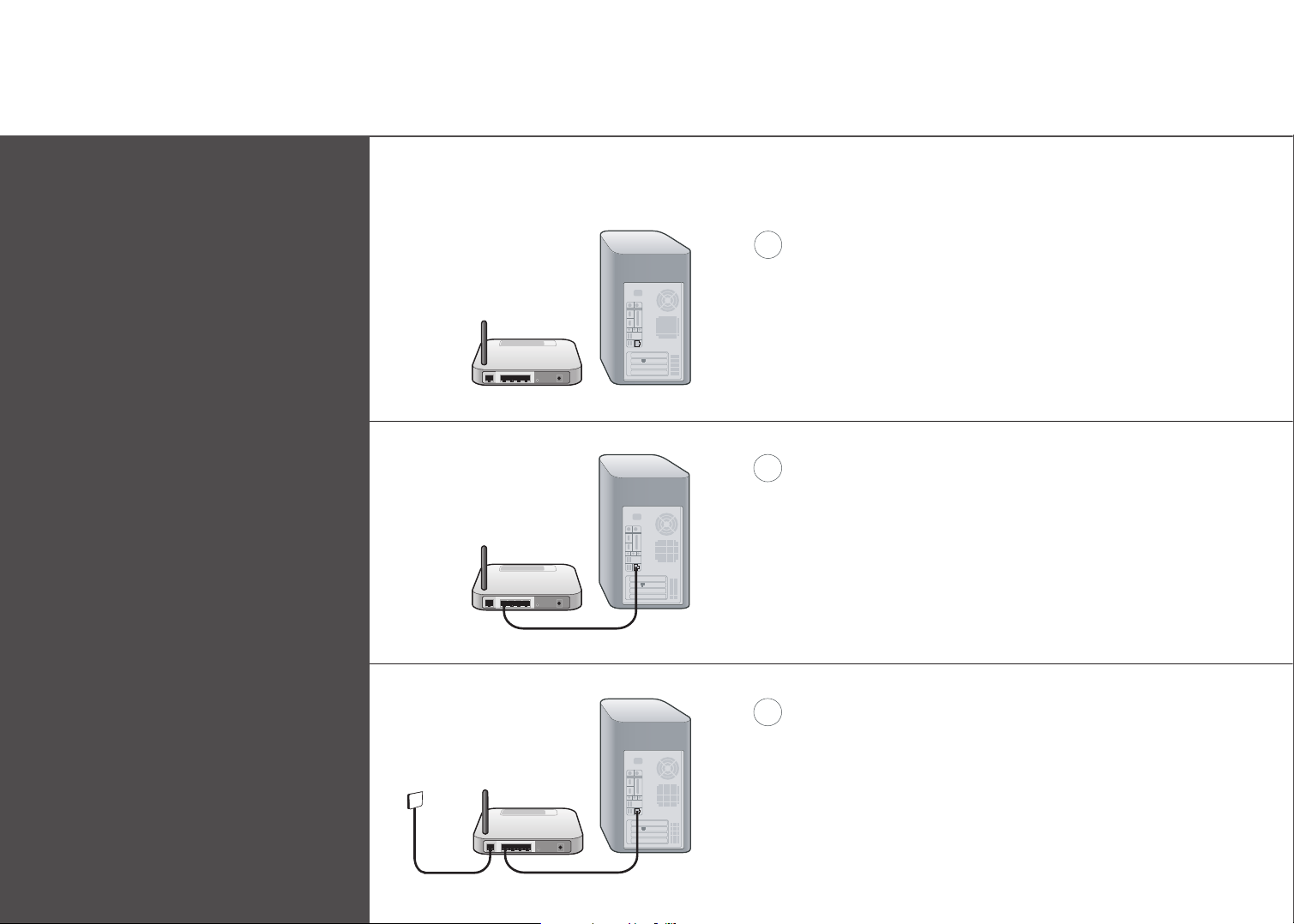
A
Place the Modem-Router next to the computer.
Raise the Modem-Router’s antenna.
B
Find your new networking cable (it came in the box with
your Modem-Router) and connect it to a yellow port on
the back of the Router (Labelled LAN1 to LAN4).
C
Find your new telephone cable (it came in the box with
your Modem-Router) and connect it to the grey port on
the back of the Modem-Router (Labelled ADSL line).
Connect the other end to your telephone socket
on the wall.
Page 3
Step 1 - Hardware Connections (continued)
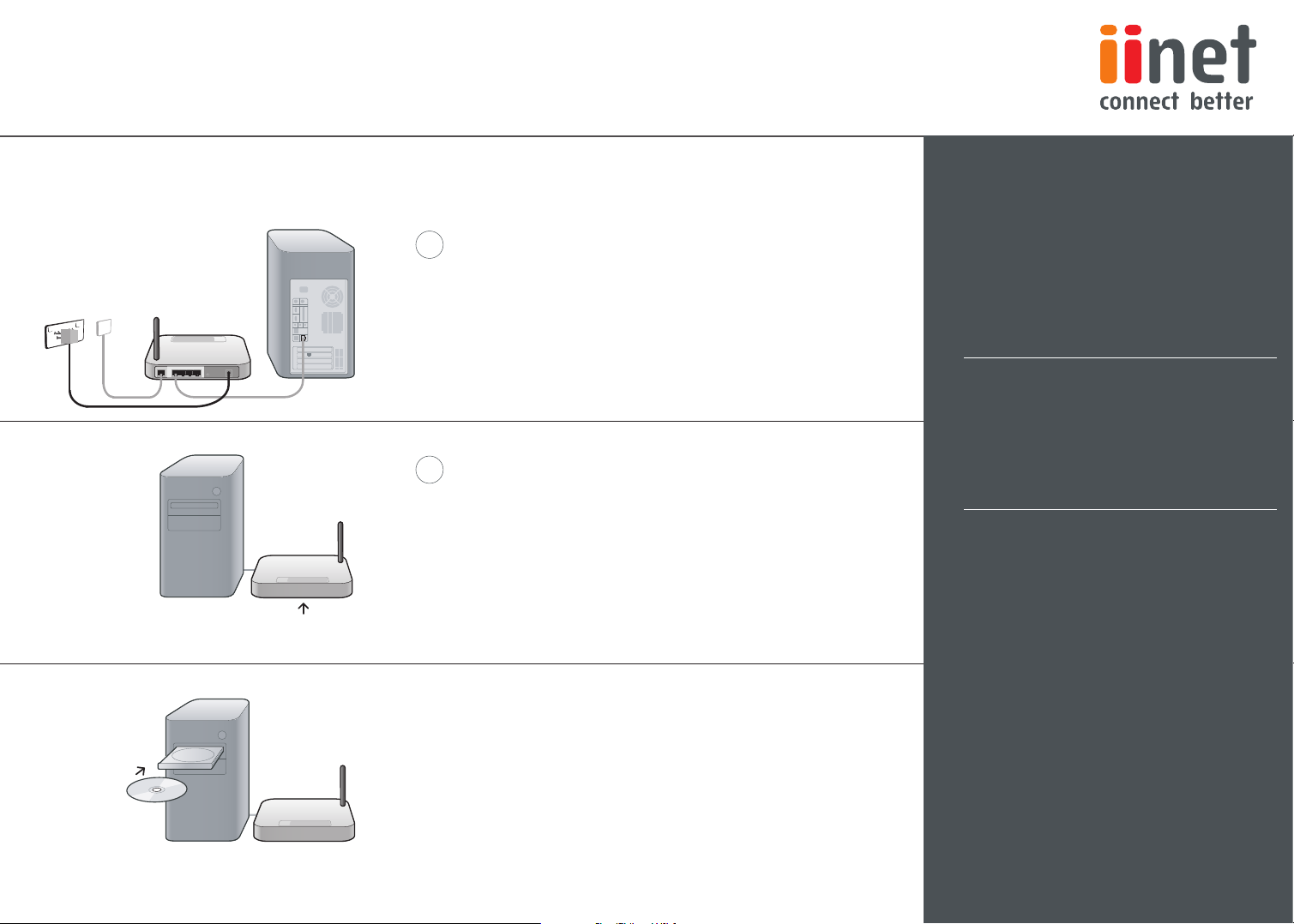
D
Plug the Modem-Router’s power supply into the black
port on the back (Labelled PWR).
Plug the other end into the wall outlet.
E
Wait 20 seconds for the Modem-Router to start up.
Support
Belkin and iiNet provides free technical support via phone and
the Web. However, we encourage you to attempt (or retry) Steps 1
and 2 before contacting Support. The Setup Assistant has built-in
intelligence to help diagnose and fix common problems. If you’re
still having trouble, contact Belkin Support.
If you’re still having trouble, please contact contact iiNet or
Belkin support for assistance.
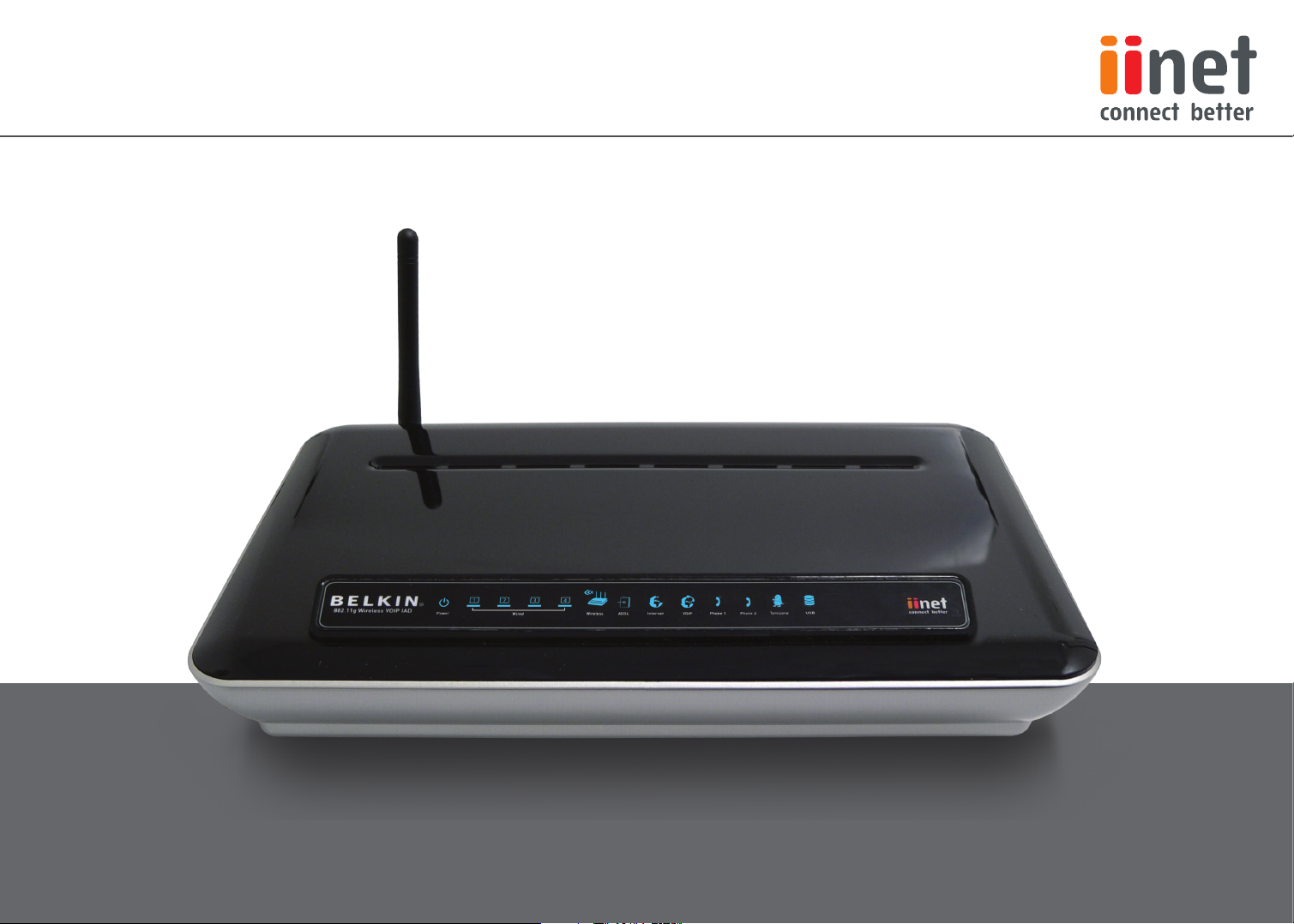
Look at the display on the front of the Router.
Make sure the “Power”, “Wired” and “Wireless”
icons are lit up in blue. If they are not, recheck
your connections.
Step 2 – Setup Assistant
Insert the CD into your computer.
The Setup Assistant will automatically appear on your
computer’s screen.
Follow the instructions there and you are finished!
Belkin http://www.belkin.com/anz
© 2008 Belkin International, Inc. All rights reserved. All trade names are registered
trademarks of respective manufacturers listed.
Click on Support Centre
1800 235 546
Available Monday–Friday 08:00–20:00
Sydney time zone, closed public holidays
F1PI242EGau
GD2201
Page 4
Hardware Connection Guide
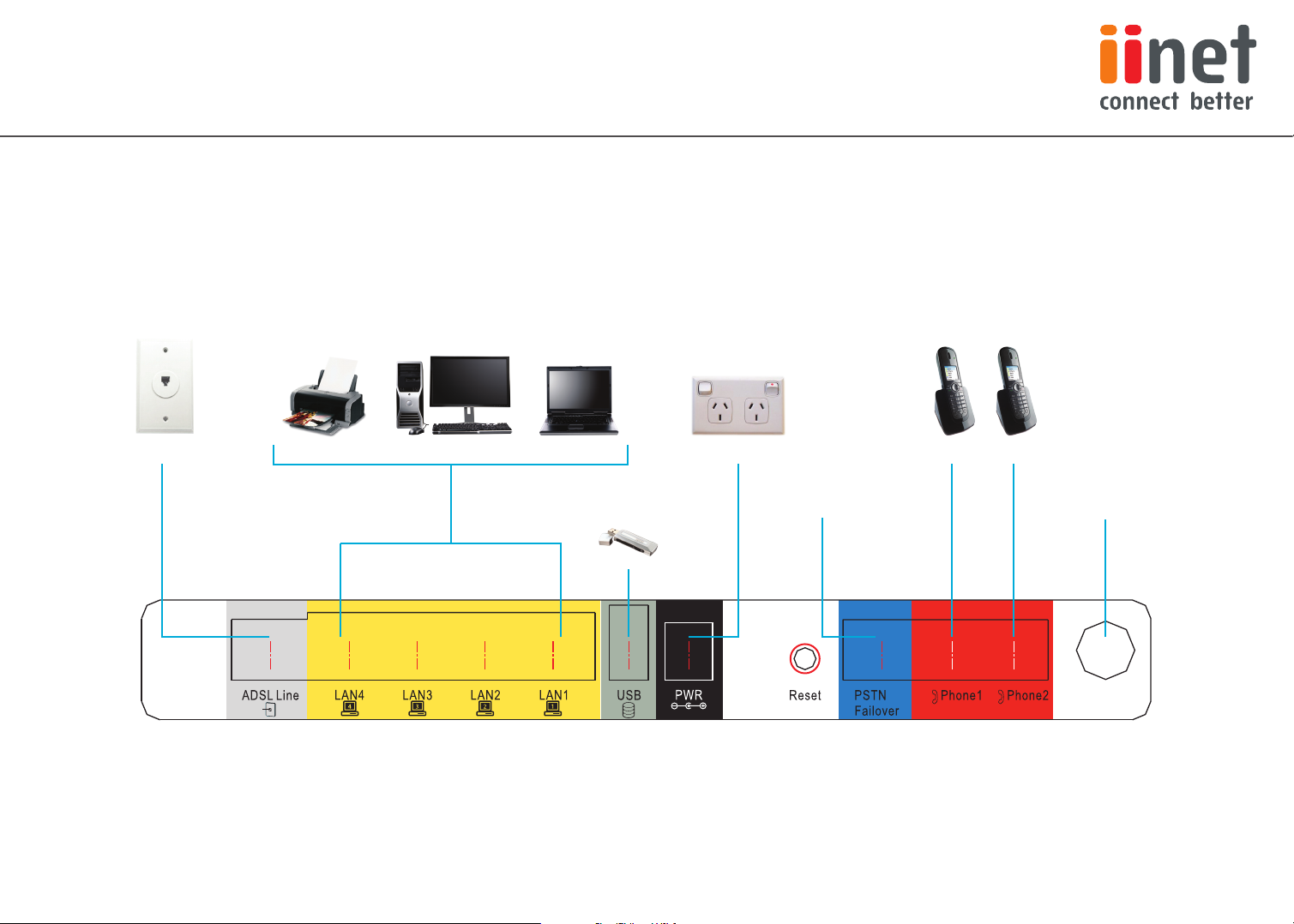
Connects to
ADSL Internet
Connects to Desktop PC’s, Laptops and
Printers with Ethernet Ports
Connects to USB
Data Storage
Connects to Power
13.2v /1200M A
Connects to PSTN
Land Line (VoIP failover)
Connects to Phones
connecting via VoIP/iiTalk
Wireless Version
Antenna - Connects
Wireless Devices
 Loading...