

Page 1
First
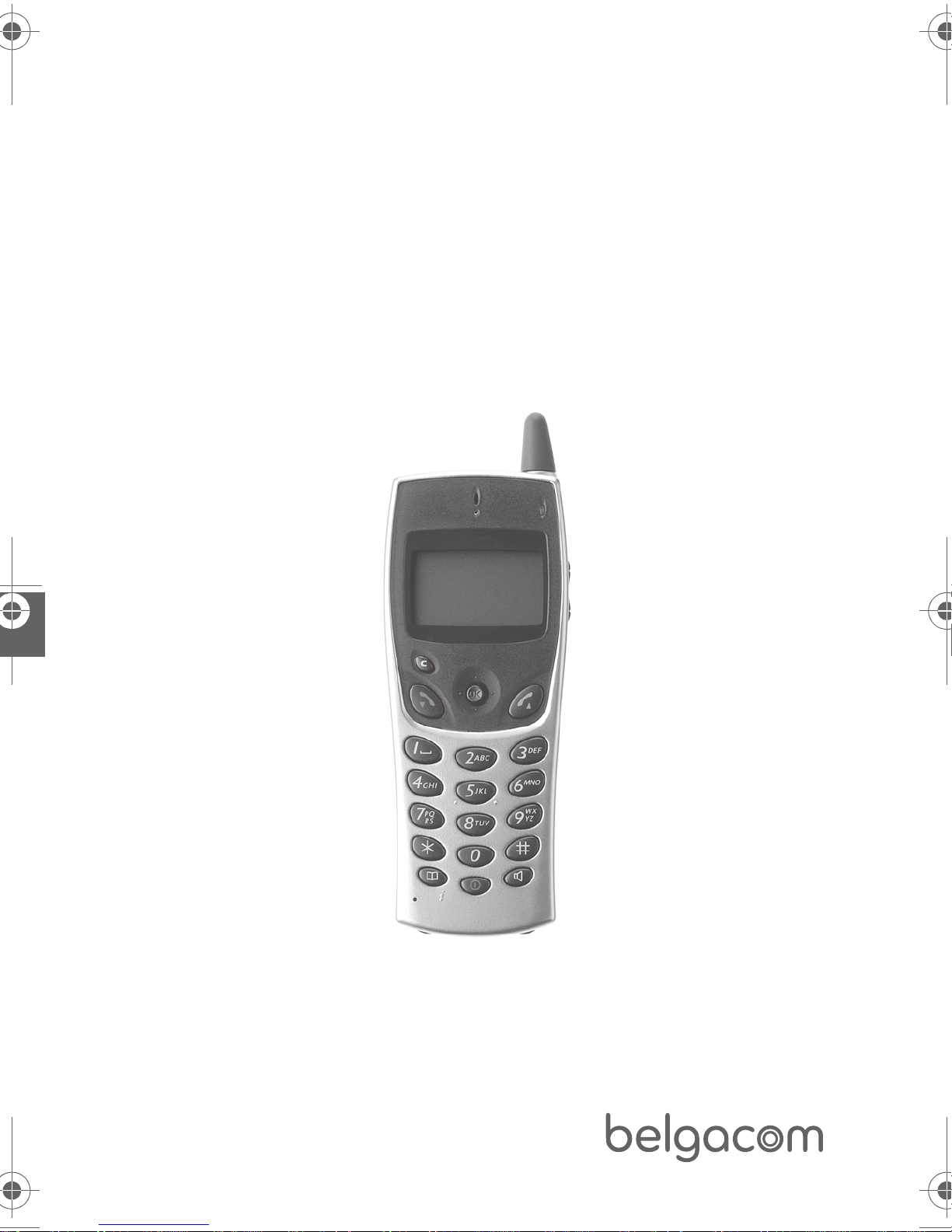
Belgacom DDS 100 / DDS 200
TM
Belgacom Forum
750
User manual
1
Page 2

Page 3

1
Thank you for choosing thisBelgacom DDS100 or DDS200 telephone: it is a
reliable telephone designed to make life easier for you.
To find out the essential functions of the DDS100 or DDS200, we suggest that you read
carefully the first chapters of this manual.
The availability of some of the functions described in this guide may depend on your
system version or configuration.
If you are in doubt, consult your system supervisor.
User manual
Page 4
2
Precautions for use . . . . . . . . . . . . . . . . . . . . . . . . . . . . . . . . . p. 5
Your telephone . . . . . . . . . . . . . . . . . . . . . . . . . . . . . . . . . . . . p. 7
Display and corresponding icons . . . . . . . . . . . . . . . . . . . . . . . p. 8
1.1 Status icons . . . . . . . . . . . . . . . . . . . . . . . . . . . . . . . . . . . . . . . . p. 8
1.2 MENU icons . . . . . . . . . . . . . . . . . . . . . . . . . . . . . . . . . . . . . . . . p. 9
1.3 Call icons . . . . . . . . . . . . . . . . . . . . . . . . . . . . . . . . . . . . . . . . . . p. 10
1.4 How to use this manual? . . . . . . . . . . . . . . . . . . . . . . . . . . . . . . p. 10
1.5 How to use your telephone . . . . . . . . . . . . . . . . . . . . . . . . . . . . p. 11
Getting started . . . . . . . . . . . . . . . . . . . . . . . . . . . . . . . . . . . . p.12
2.1 Installing the battery in the telephone . . . . . . . . . . . . . . . . . . . . p. 12
2.2 Charging your telephone battery . . . . . . . . . . . . . . . . . . . . . . . . p. 13
2.3 Switching on your telephone . . . . . . . . . . . . . . . . . . . . . . . . . . . p. 13
2.4 Accessing the MENU and navigating . . . . . . . . . . . . . . . . . . . . . . p. 14
Using your telephone . . . . . . . . . . . . . . . . . . . . . . . . . . . . . . . p. 15
3.1 Making a call . . . . . . . . . . . . . . . . . . . . . . . . . . . . . . . . . . . . . . . . p. 15
3.2 Answering a call . . . . . . . . . . . . . . . . . . . . . . . . . . . . . . . . . . . . . p. 16
3.3 Calling from your personal directory . . . . . . . . . . . . . . . . . . . . . p. 16
3.4 Calling your correspondent by name (phone book) . . . . . . . . . . p. 17
3.5 Calling back one of the last 6 numbers dialled (Redial) . . . . . . . p. 17
3.6 Making a call-back request . . . . . . . . . . . . . . . . . . . . . . . . . . . . . p. 17
3.7 Calling a correspondent on his loudspeaker . . . . . . . . . . . . . . . . p. 18
3.8 Leaving a voice message . . . . . . . . . . . . . . . . . . . . . . . . . . . . . . . p. 19
3.9 Leaving a text message . . . . . . . . . . . . . . . . . . . . . . . . . . . . . . . . p. 19
3.10 Overriding a forwarded call . . . . . . . . . . . . . . . . . . . . . . . . . . . . p. 20
3.11 Using hands-free mode . . . . . . . . . . . . . . . . . . . . . . . . . . . . . . . p. 20
3.12 Sending DTMF signals . . . . . . . . . . . . . . . . . . . . . . . . . . . . . . . . p. 21
3.13 Camp-on when a correspondent is busy . . . . . . . . . . . . . . . . . . p. 21
3.14 Intrusion into a conversation . . . . . . . . . . . . . . . . . . . . . . . . . . . p. 22
3.15 Calling a private external number . . . . . . . . . . . . . . . . . . . . . . . p. 22
3.16 Allocating your calls to customer account codes . . . . . . . . . . . . p. 23
3.17 Placing an external correspondent on hold (parking) . . . . . . . . . p. 23
3.18 Reporting malicious calls . . . . . . . . . . . . . . . . . . . . . . . . . . . . . . p. 24
Handling several calls . . . . . . . . . . . . . . . . . . . . . . . . . . . . . . . p.25
4.1 Calling a second correspondent (enquiry call) . . . . . . . . . . . . . . p. 25
4.2 Answering a second call during a conversation . . . . . . . . . . . . . p. 26
4.3 Switching between calls (broker call) . . . . . . . . . . . . . . . . . . . . . p. 27
4.4 Transferring a call . . . . . . . . . . . . . . . . . . . . . . . . . . . . . . . . . . . . p. 28
Contents
1.
2.
3.
4.
Page 5
4.5 Three-way conference with 2 internal and/or external
correspondents (3-way conference) . . . . . . . . . . . . . . . . . . . . . . p. 29
4.6 Camp-on busy control . . . . . . . . . . . . . . . . . . . . . . . . . . . . . . . . p. 30
4.7 Forwarding calls when you are busy . . . . . . . . . . . . . . . . . . . . . . p. 31
Customizing and adjusting your telephone . . . . . . . . . . . . . . p.32
5.1 Choosing the language . . . . . . . . . . . . . . . . . . . . . . . . . . . . . . . . p. 32
5.2 Programming your personal directory . . . . . . . . . . . . . . . . . . . . p. 32
5.3 Programming your own password . . . . . . . . . . . . . . . . . . . . . . . p. 34
5.4 Programming your associate number . . . . . . . . . . . . . . . . . . . . . p. 35
5.5 Programming your overflow number . . . . . . . . . . . . . . . . . . . . . p. 35
5.6 Customizing the ringer . . . . . . . . . . . . . . . . . . . . . . . . . . . . . . . . p. 36
5.7Activating the vibrator or ringer (DDS 200) . . . . . . . . . . . . . .p. 37
5.8 Using the loud-speaker . . . . . . . . . . . . . . . . . . . . . . . . . . . . . . . p. 37
5.9 Adjusting your telephone functions . . . . . . . . . . . . . . . . . . . . . . p. 38
5.10 Adjusting screen contrast . . . . . . . . . . . . . . . . . . . . . . . . . . . . . . p. 38
5.11 Identifying the telephone you use . . . . . . . . . . . . . . . . . . . . . . . . p. 39
5.12 Using the list of functions . . . . . . . . . . . . . . . . . . . . . . . . . . . . . . p. 39
5.13 Programming an appointment reminder . . . . . . . . . . . . . . . . . . . p. 42
5.14 Hiding your identity . . . . . . . . . . . . . . . . . . . . . . . . . . . . . . . . . . p. 43
5.15 Do not disturb function . . . . . . . . . . . . . . . . . . . . . . . . . . . . . . . p. 43
5.16 Finding out the cost of your external calls . . . . . . . . . . . . . . . . . p. 43
5.17 Locking your telephone . . . . . . . . . . . . . . . . . . . . . . . . . . . . . . . p. 44
While you are away - When you return . . . . . . . . . . . . . . . . . p.45
6.1 Forwarding calls . . . . . . . . . . . . . . . . . . . . . . . . . . . . . . . . . . . . . p. 45
6.2 Forwarding calls to another number (immediate forwarding) . . . p. 45
6.3 Other types of call forwarding . . . . . . . . . . . . . . . . . . . . . . . . . . p. 47
6.4 Remote forwarding of calls (immediate forwarding) . . . . . . . . . . p. 48
6.5 Forwarding calls to your voice mail service (immediate forwarding) p. 49
6.6 Cancelling all forwarding functions . . . . . . . . . . . . . . . . . . . . . . . p. 50
6.7 Forwarding calls to an associate number (overflow) . . . . . . . . . . p. 51
6.8 Consulting the messages left while you were away . . . . . . . . . . . p. 51
6.9 Calling back the last internal caller . . . . . . . . . . . . . . . . . . . . . . . p. 54
Group operation . . . . . . . . . . . . . . . . . . . . . . . . . . . . . . . . . . . p.55
7.1 Answering the general bell . . . . . . . . . . . . . . . . . . . . . . . . . . . . . p. 55
7.2 Call pick-up . . . . . . . . . . . . . . . . . . . . . . . . . . . . . . . . . . . . . . . . p. 55
7.3 Hunting groups . . . . . . . . . . . . . . . . . . . . . . . . . . . . . . . . . . . . . p. 55
7.4 Sending a text message to an internal correspondent . . . . . . . . p. 56
7.5 Supervising a terminal . . . . . . . . . . . . . . . . . . . . . . . . . . . . . . . . p. 58
MANAGER/SECRETARY filtering set . . . . . . . . . . . . . . . . . . . p.59
8.1 Manager terminal . . . . . . . . . . . . . . . . . . . . . . . . . . . . . . . . . . . . p. 59
Calling a secretary directly . . . . . . . . . . . . . . . . . . . . . . . . . . . . . p. 59
Activating call filitering . . . . . . . . . . . . . . . . . . . . . . . . . . . . . . . . p. 59
Picking up the filtered calls . . . . . . . . . . . . . . . . . . . . . . . . . . . . . p. 61
3
5.
6.
7.
8.
Page 6
4
Listening "discreetly" to a filtered conversation . . . . . . . . . . . . . P. 62
8.2 Secretary's terminal . . . . . . . . . . . . . . . . . . . . . . . . . . . . . . . . . . p. 62
Calling a manager directly . . . . . . . . . . . . . . . . . . . . . . . . . . . . . p. 63
Signalling your absence on the manager's terminal . . . . . . . . . . . p. 63
Managing the filtered calls . . . . . . . . . . . . . . . . . . . . . . . . . . . . . P. 64
Managing call filtering in place of the manager . . . . . . . . . . . . . . p. 64
Registering the telephone . . . . . . . . . . . . . . . . . . . . . . . . . . . . p.66
9.1 Registering the telephone on a system for the first time . . . . . . p. 66
9.2 Registering the telephone on other systems . . . . . . . . . . . . . . . p. 67
Accessories . . . . . . . . . . . . . . . . . . . . . . . . . . . . . . . . . . . . . . . p.70
10.1 Chargers . . . . . . . . . . . . . . . . . . . . . . . . . . . . . . . . . . . . . . . . . . p. 70
10.2 Characteristics of the mains power adapter . . . . . . . . . . . . . . . . p. 71
10.3 Battery . . . . . . . . . . . . . . . . . . . . . . . . . . . . . . . . . . . . . . . . . . . . p. 71
10.4 Charging the extra battery (on the "Dual" support) . . . . . . . . . p. 72
10.5 Headphone / external microphone . . . . . . . . . . . . . . . . . . . . . . . p. 72
10.6 Cleaning your telephone . . . . . . . . . . . . . . . . . . . . . . . . . . . . . . p. 72
10.7 Transporting and protecting your telephone . . . . . . . . . . . . . . . p. 72
MENU tree-structure . . . . . . . . . . . . . . . . . . . . . . . . . . . . . . . p.73
Glossary . . . . . . . . . . . . . . . . . . . . . . . . . . . . . . . . . . . . . . . . . . p.75
Index . . . . . . . . . . . . . . . . . . . . . . . . . . . . . . . . . . . . . . . . . . . . p.77
9.
10.
11.
12.
13.
Page 7

Coverage zone:
The DECT functions provided by your Belgacom Forum 750 system
allow user mobility management via DECT cordless telephones.
The radio coverage of the BELGACOM system is ensured by a network of base stations.
The zone covered by a base station is called a cell.
•Mobility:
A user can make or receive calls in any cell.
•Radio transfer:
This function enables the user to move during a conversation and go from one cell to
another. The transfer takes place automatically and has no effect on the conversation.
In some cases, slight crackling may be audible at the moment of transition.
Using an approved DECT standard telephone:
This approved DECT telephone is intended to be used with an Belgacom cordless
PBX.
The CE marking indicates that this product complies with the European
Community directives in effect, and the following directives in particular:
- 89/336/CEE (electromagnetic compatibility)
- 73/23/CEE (low voltage)
- 1999/5/CE (R&TTE)
Pursuant to directive 1999/5/CE (R&TTE) published in the Official Journal of the European
Community of April 7, 1999, these items of equipment use the DECT harmonized
frequency spectrum and can be used in all the countries of the European Community, in
Switzerland and Norway.
No guarantee is given concerning possible interference affecting DECT equipment, due to other
authorised utilisation of the radio frequencies concerned.
5
Precautions for use
Page 8

6
Conditions of use:
The following conditions must be respected, notably concerning the use of
radio frequencies:
• DECT equipment can only be used to establish links between fixed points if these links
are temporary and the equivalent isotropically radiated power at the antenna is less than
250 mW.
• The conditions of access to a DECT equipment telepoint network shall be stipulated by
contract with the operator of the authorized telepoint network concerned.
•This telephone is specially designed for use with an Belgacom Forum 750
system as described in the guide.
• As this telephone complies with the GAP standard, it can be used in simplified mode on
another DECT/GAP system (other PABX or private residential base station). Utilization
in GAP mode involves a particular mode of operation that can lead to functional
limitations for which no claims will be considered under the terms of the guarantee.
• Do not expose your telephone to severe conditions (rain, sea air, dust, etc.).
• Correct operation of your telephone is not guaranteed in temperatures outside the
range - 10 °C to + 45 °C.
Between - 5 °C and - 10 °C, the display may not be visible, but this is temporary and
will not affect the operation of your telephone.
• You must not switch on or use your telephone near gas or inflammable liquids.
Page 9
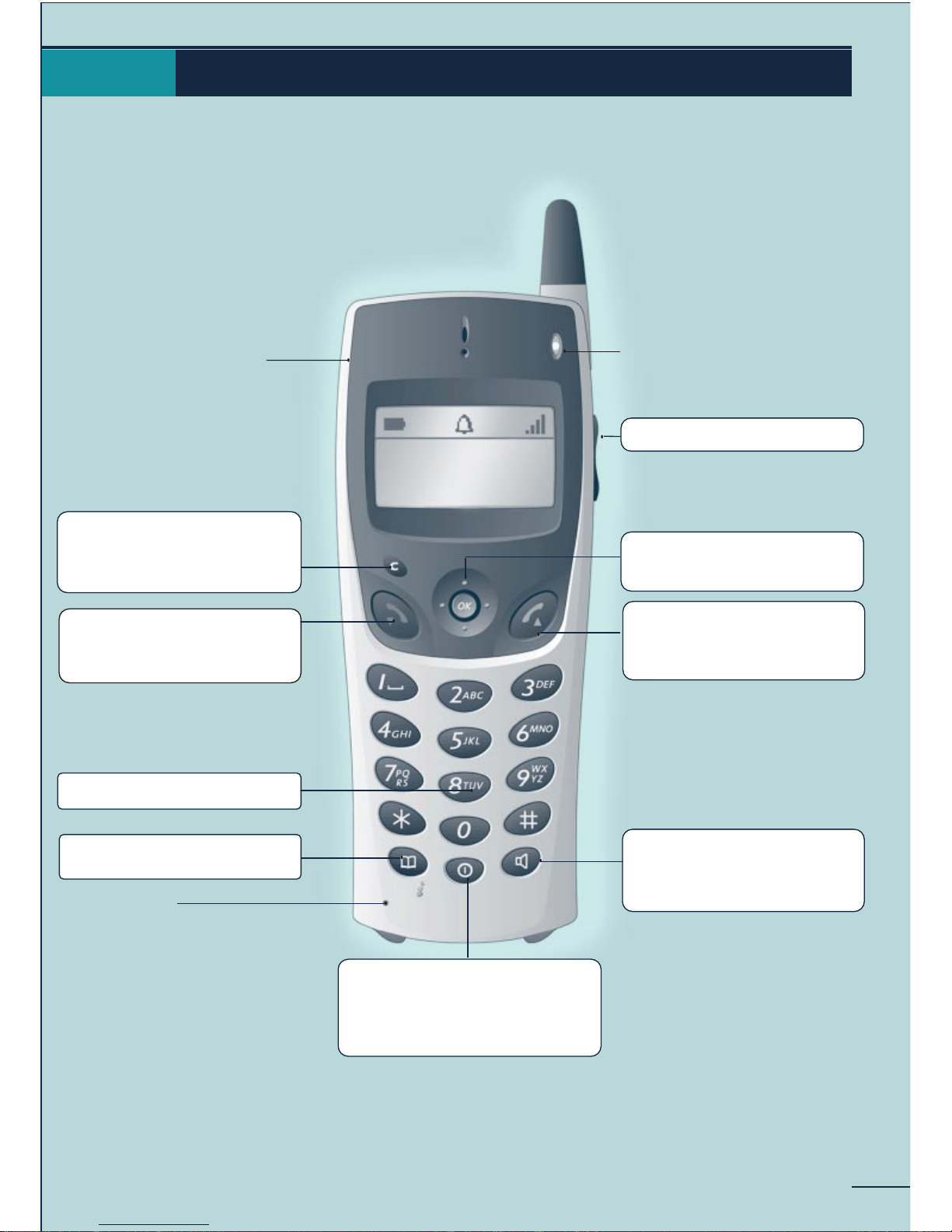
Your telephone
MARTIN PAUL
31/08/00 16:30
7
Headphone connector
· Display previous menu
· Erase last character entered
· Erase complete field (long
press)
· Hang up
· Return to idle
· Lock/unlock the keypad
(long press)
· Activate / deactivate
vibrator (long press)*
· Company directory
· Telephone ID (long press)
· Microphone
* depending on your model of telephone
Light indicating:
· Going out of radio coverage
(fast flashing)
· New message:
- green DDS 100
- red DDS 200
(slow flashing)
· Adjust audio volume
· Access to the MENU
· Navigate
· Confirm
· Off-hook
· Redial (long press)
· Switching between calls
(during enquiry call)
· Activate/deactivate
loudspeaker
· Activate the secret on
hands-free charger
· On / Off (long press)
· Access to the On/Off menu
(1st press) to switch off the
telephone, activate/disable the
vibrator, activate/disable the
ringer, lock the keypad
Page 10
8
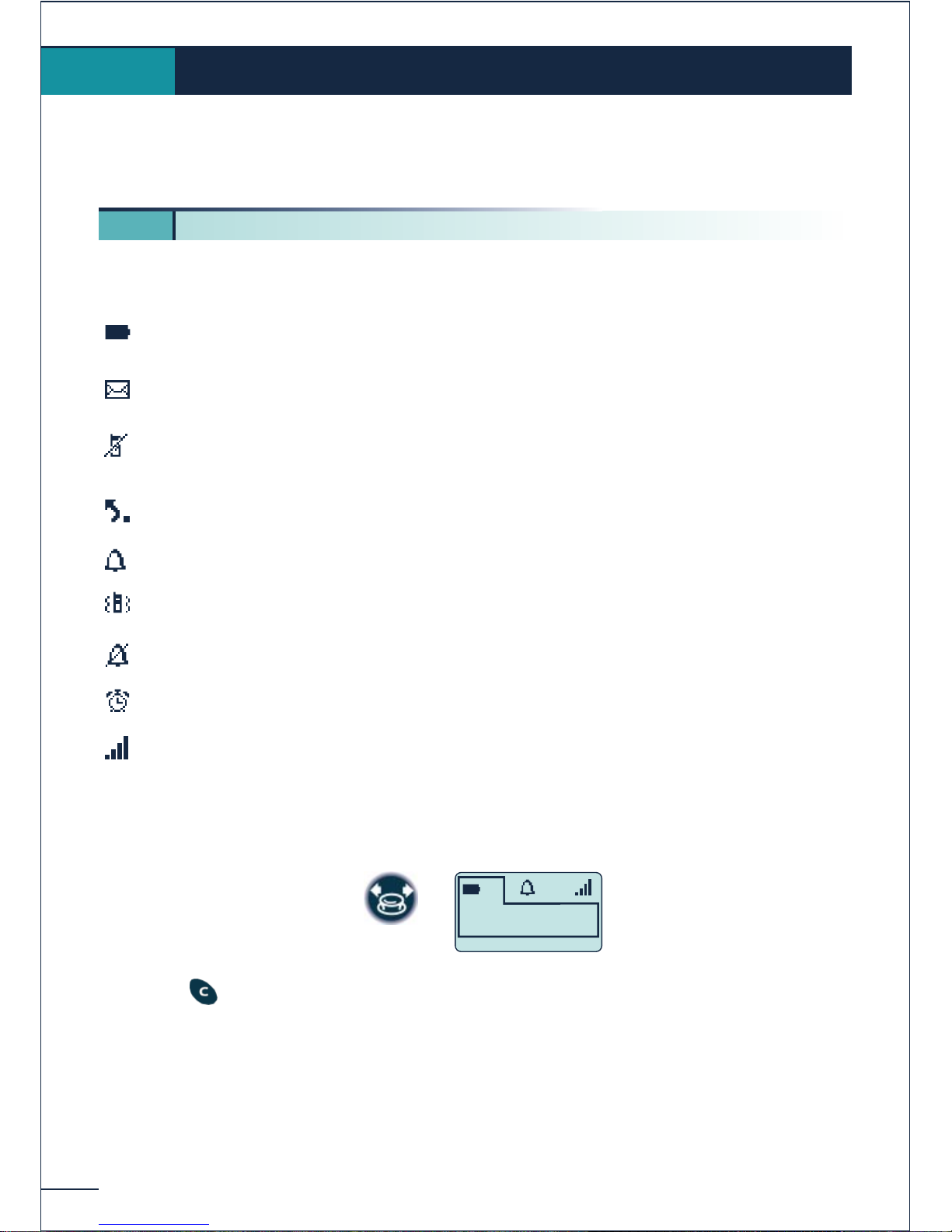
The display features 1 line of status icons and 3 lines of 16 alphanumerical characters.
The DDS 200 also features a display and backlit keypad.
The status icons are displayed on the welcome screen and indicate the status of the
telephone.
Battery charge level
Messages received:
voice and text messages, call-back requests and unanswered calls
Calls received that have remained unanswered (if no other types of
message)
Call forwarding activated
Ringer active
Vibrator active (DDS 200)
Ringer disabled
Programmed call-back time
Radio reception quality
You can obtain details on the status icons from the tooltips that appear on the welcome
screen when you use the navigator:
Press the key to make these tooltips disappear.
Display and corresponding icons
1.
1 1. Status icons
Battery
full power
Page 11
9
Display and corresponding icons
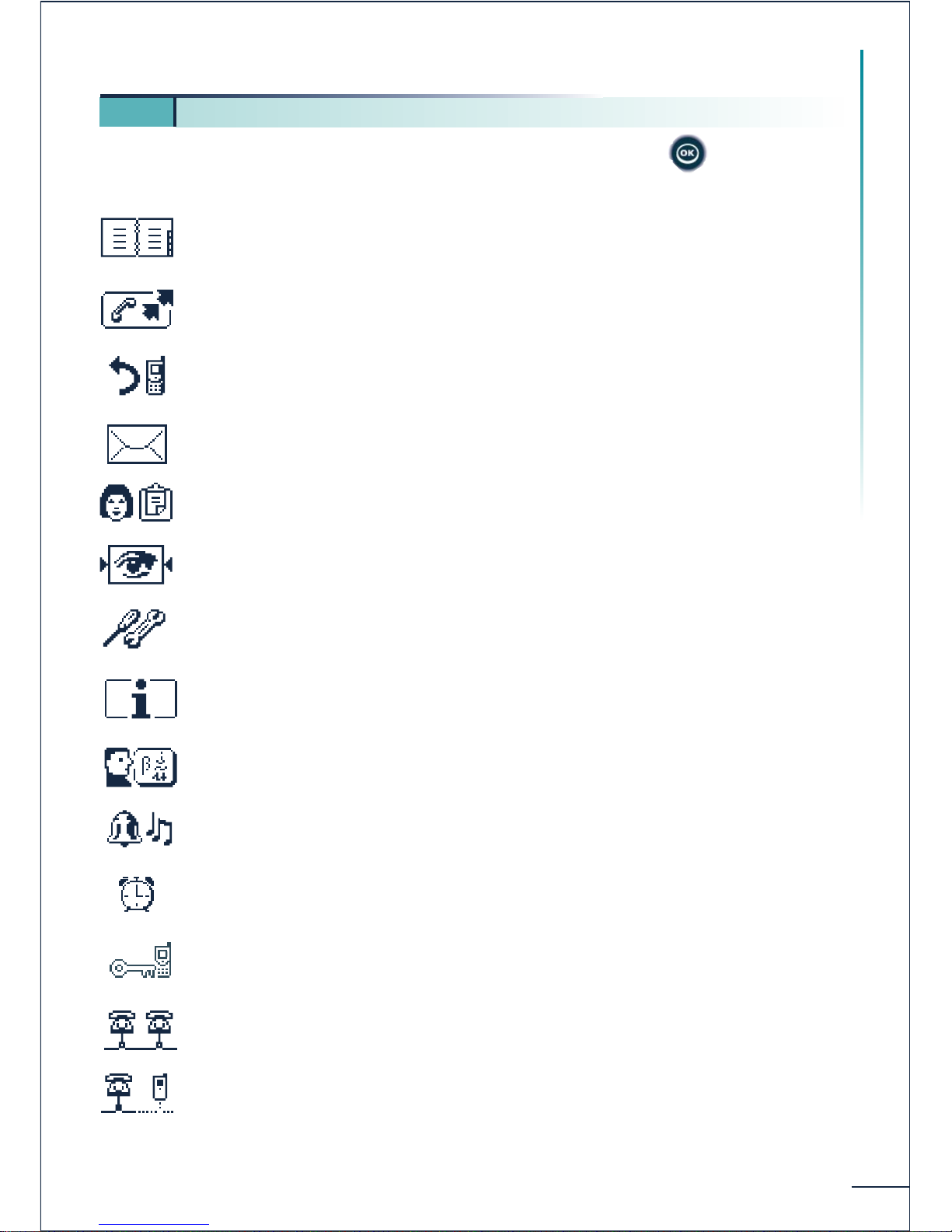
The MENU is accessible from the welcome screen by pressing the key.
It provides access to all the functions available on your system.
Directories:
manage your personal directory and access the company directory.
Redial:
call back one of the last 6 numbers dialled.
Forwarding:
forward your calls to another number.
Mail:
consult the messages and send voice and text messages.
Manager/secretary*
Supervision*
Adjustment:
adjust contrast, activate or deactivate the beeps, lighting, etc.
Guide :
Programming, list of functions..
Selecting the language
Adjusting the ringer
Appointment:
program a call-back time.
System lock:
prohibit outgoing calls and modification of the programming.
System selection
Installation (installation reserved)
* These icons are only proposed if the corresponding functions are installed.
1 2. MENU icons
Page 12
10
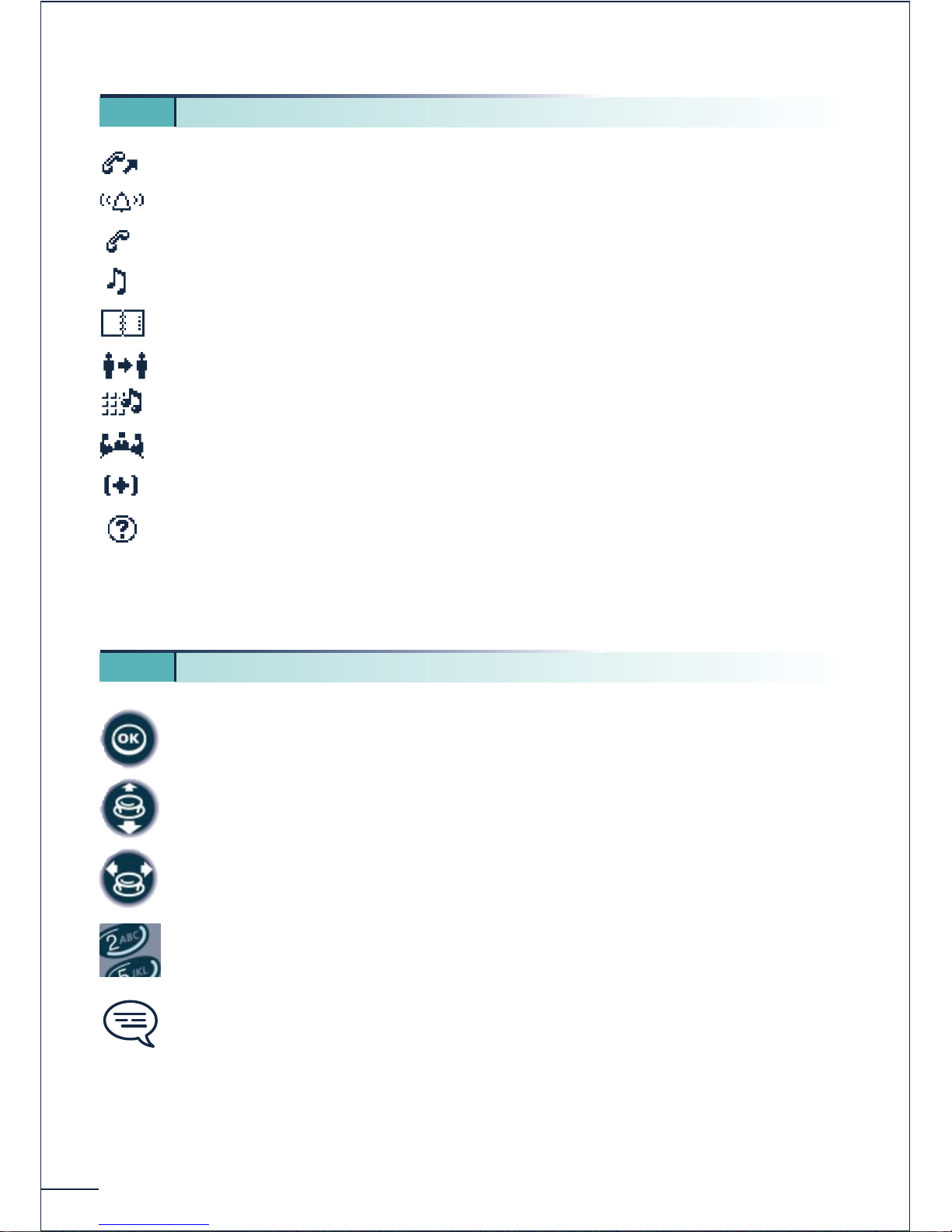
Making a call
Answering a call*
In conversation*
Call on hold*
Accessing the directories
Transferring a call
Switching to DTMF signals
Setting up a conference
Additional options
Call duration and cost
* In the event of a multiple call, the icons are given indices to represent the different correspondents
Press briefly on the navigation key to access the MENU and to confirm.
Move the navigation key up or down.
Move the navigation key to the left or right.
Use the keypad to enter digits and letters.
Important information.
These symbols can be supplemented by small icons or texts.
All the implicit or personalized codes are presented in a table of codes provided with the
telephone.
1 3. Call icons
1 4. How to use this manual?
Page 13
11
Display and corresponding icons
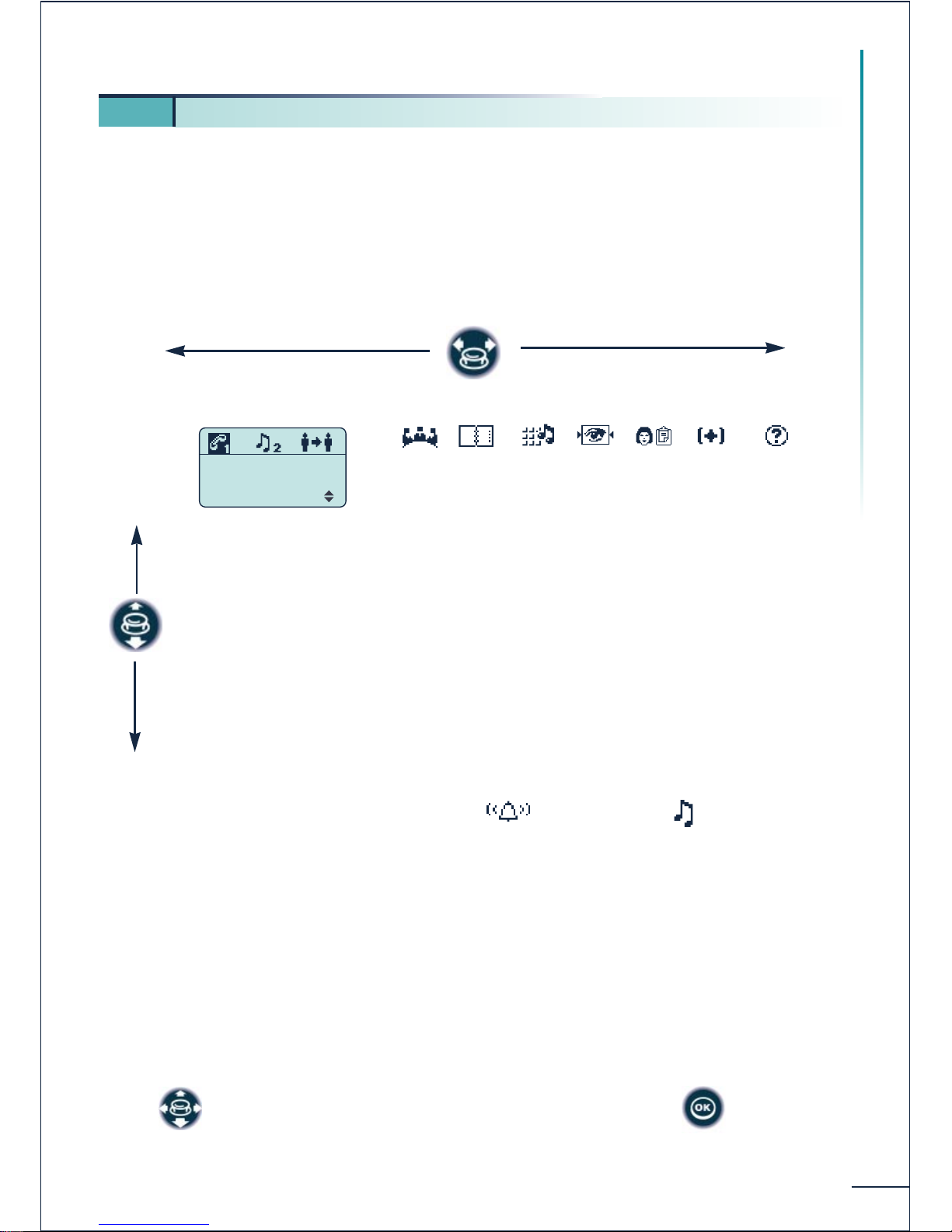
You can access the options proposed by your system when in the various operating phases
in several ways, by using:
the list of icons at the top of the screen
the list of options at the bottom of the screen
Some functions are only accessible from the text menu options.
Example of options that can be proposed during a conversation:
Conference
Directories
Send MF
Supervis° List
Boss List
Assistant List
Enquiry Call
Forbid Camp On
Call Duration
Call in progress
Situation of second call (reception of a call or call on hold )
Transfer ¯
Conference
Directories
MF
Supervision
Manager/secretary
Other options
Call duration
Select an icon or an option from the text menu then confirm
1 5. How to use your telephone
SMITH John
in conversation
Transfer
Page 14
12
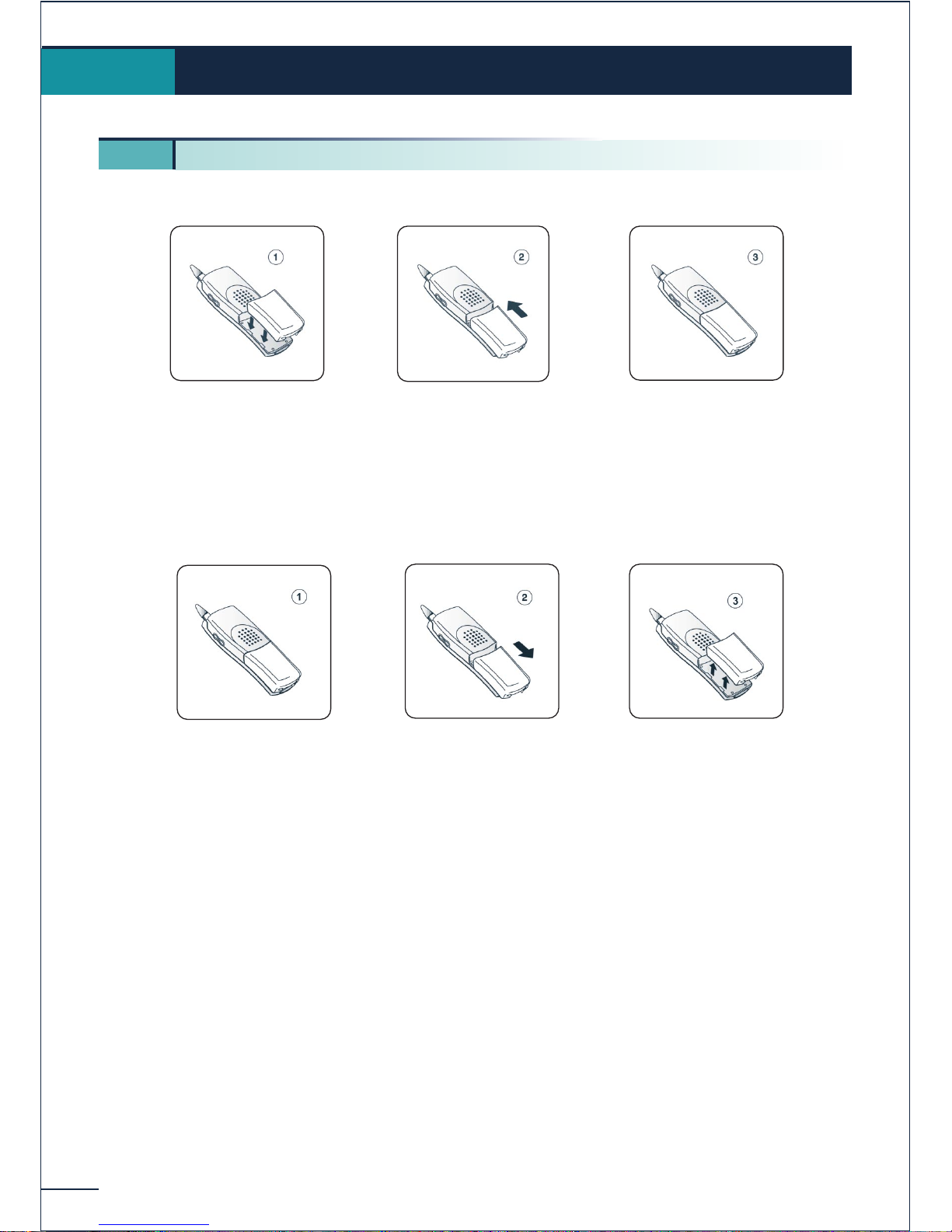
Installing the battery:
Removing the battery:
The DDS 100 functions exclusively with the Ni-Mh battery, and the DDS 200 with
the Li-Ion battery.
Getting started
2.
2 1. Installing the battery in the telephone
Position the battery in
the slide following the
mark on the label
Slide it until it
clicks into place
Slide the battery
towards the bottom
of the telephone
Remove it from
the slide
Page 15
13
Getting started
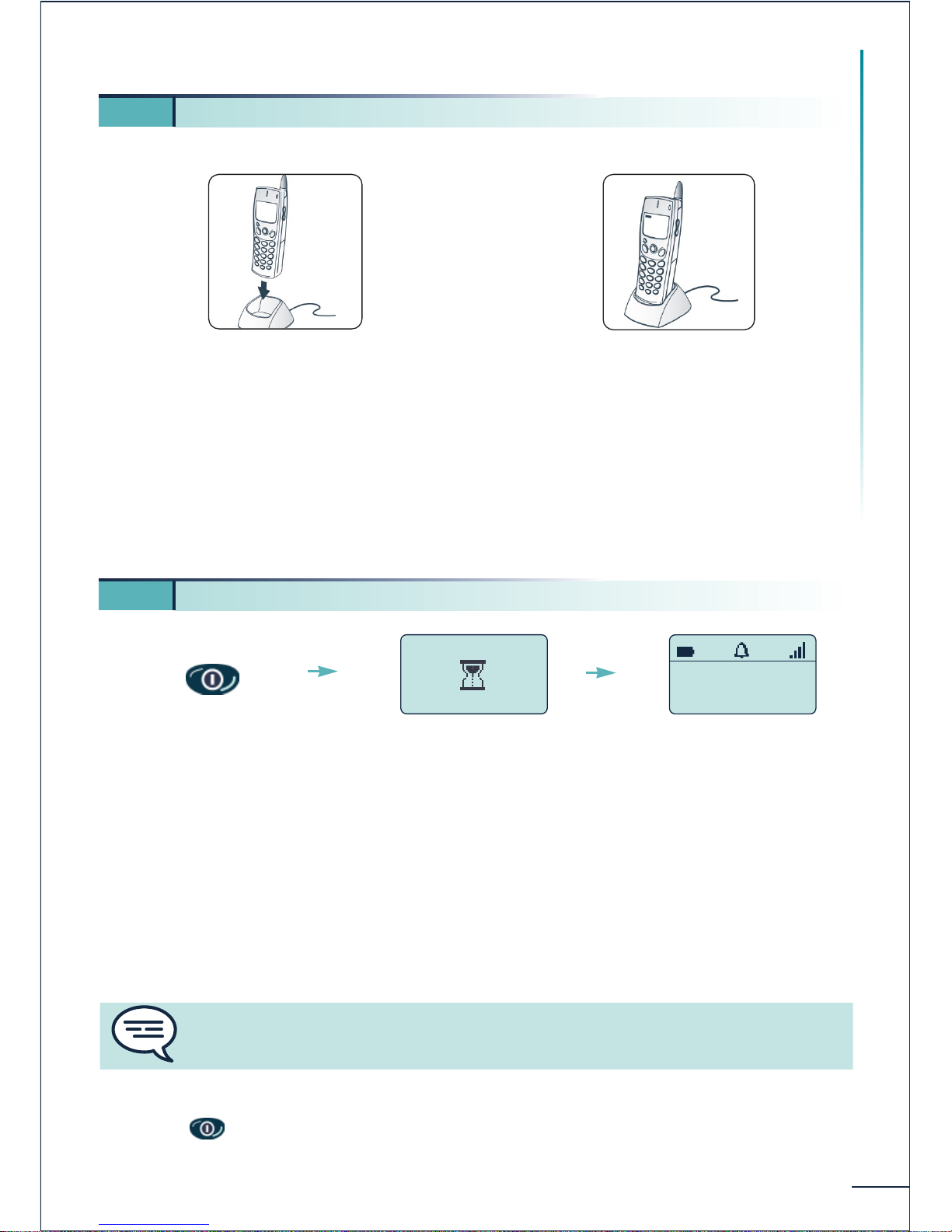
Recharge your telephone battery regularly. The telephone can be on or off when
recharging the battery. If the telephone is to remain unused or out of its charger for
several weeks, remove the battery and store it separately.
* battery charged after 3h or 5h depending on the model.
If the display does not come on or if the battery charge level icon flashes, recharge the
battery.
If the radio coverage icon does not appear on the telephone display:
Check that you are in an area of radio coverage (if not, move closer to a base station).
Check that your telephone is correctly installed on the system (contact the PBX
manager for this).
Switching off your telephone:
Press the key (long press).
2 2. Charging your telephone battery
Connect the charger and
place the telephone in
the charging holder
Battery being charged*
The green light is on and
the battery icon is
displayed
2 3. Switching on your telephone
MARTIN Paul
31/08/00 16 :30
Switch on
(long press)
Wait a moment
(about 3 seconds)
Your telephone
is switched on
If the display indicates: "System 1 - Auto install ?", see paragraph "Registering
the telephone" or contact your installation technician.
Page 16
14
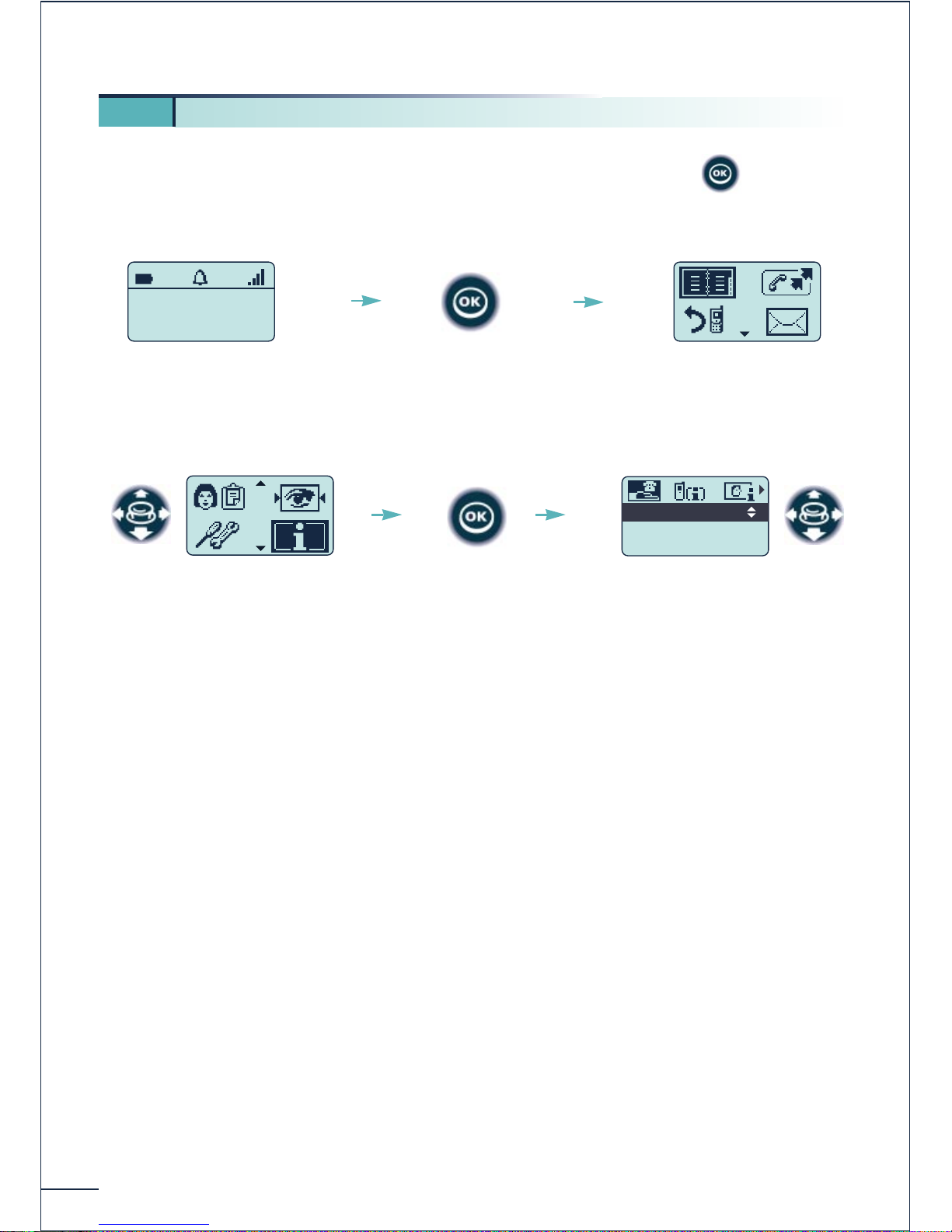
The MENU can be accessed from the welcome screen by pressing the key.
The following screen is displayed:
Accessing the functions:
2 4. Accessing the MENU and navigating
MARTIN Paul
31/08/00 16 :30
Confirm
Select a function in
the MENU
Within the function you can
move horizontally along the
different icons or vertically in
the text menus
Associate
Overflow
Password
Confirm
Welcome screen
Main menu
Page 17
15
Using your telephone
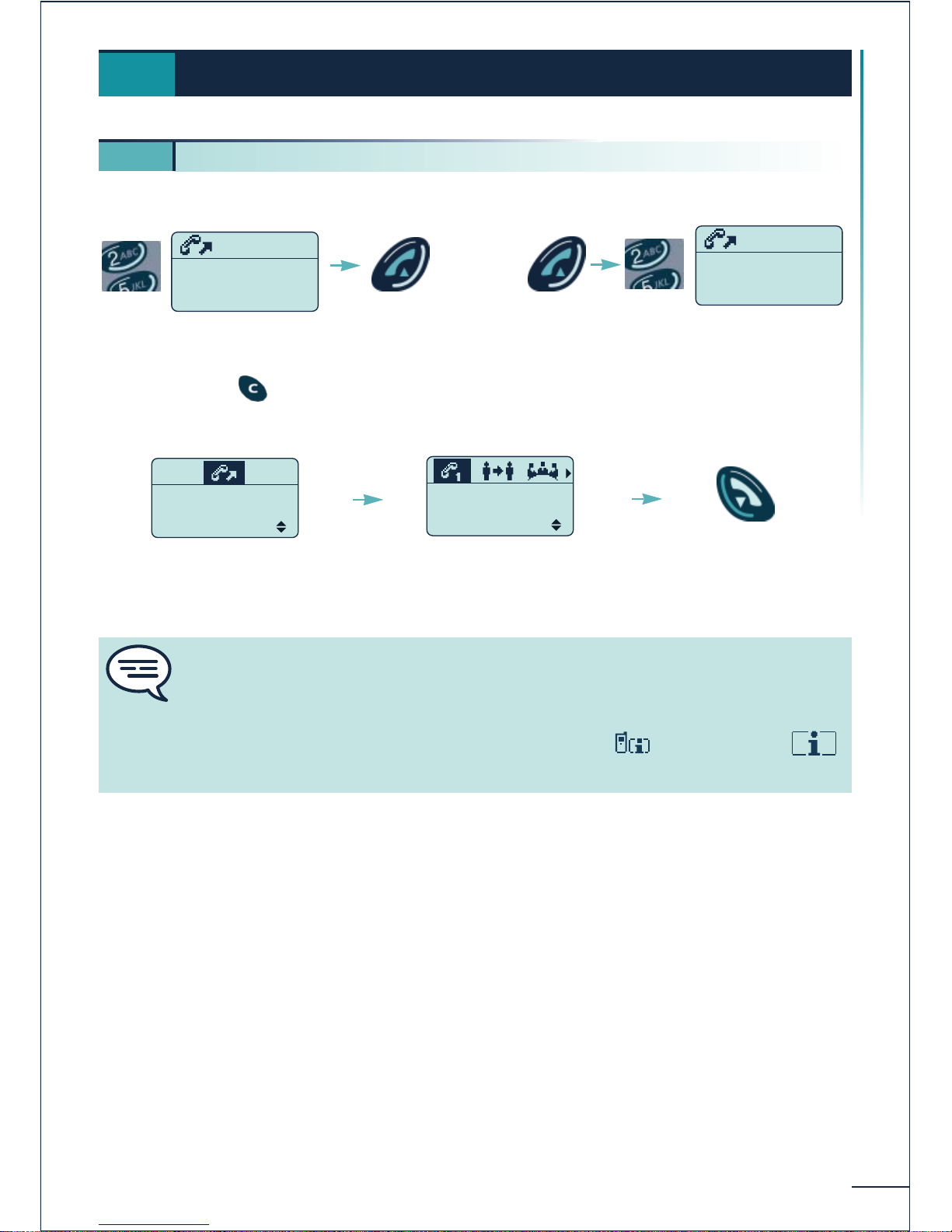
Block mode dialling Digit-by-digit mode dialling
Erase using the key
OPTIONS:
Your correspondent doe not answer, you can confirm the option:
"Call back" to request a call-back
"Text Mail" to send a text message
"Voice Mail" to leave a voice message
"Answer LS" to send a message directly over your correspondent's loudspeaker
"DECT" to call his DECT mobile terminal
Using your telephone
3.
3 1. Making a call
SMITH John
in conversation
Transfer
Dial
Send the
call
You are in
conversation
Hang up
- To make a call to the exterior, dial the "Direct outside line" code before your
correspondent's number.
- To call the operator, dial the "Attendant call" code.
Consult the corresponding codes under the heading "Call" of the
function
77625-----------
Number ?
SMITH John
is alerted
Call Back
Your correspondent's
phone is ringing
Dial
77625-----------
Number ?
OR
Off-hook
Page 18
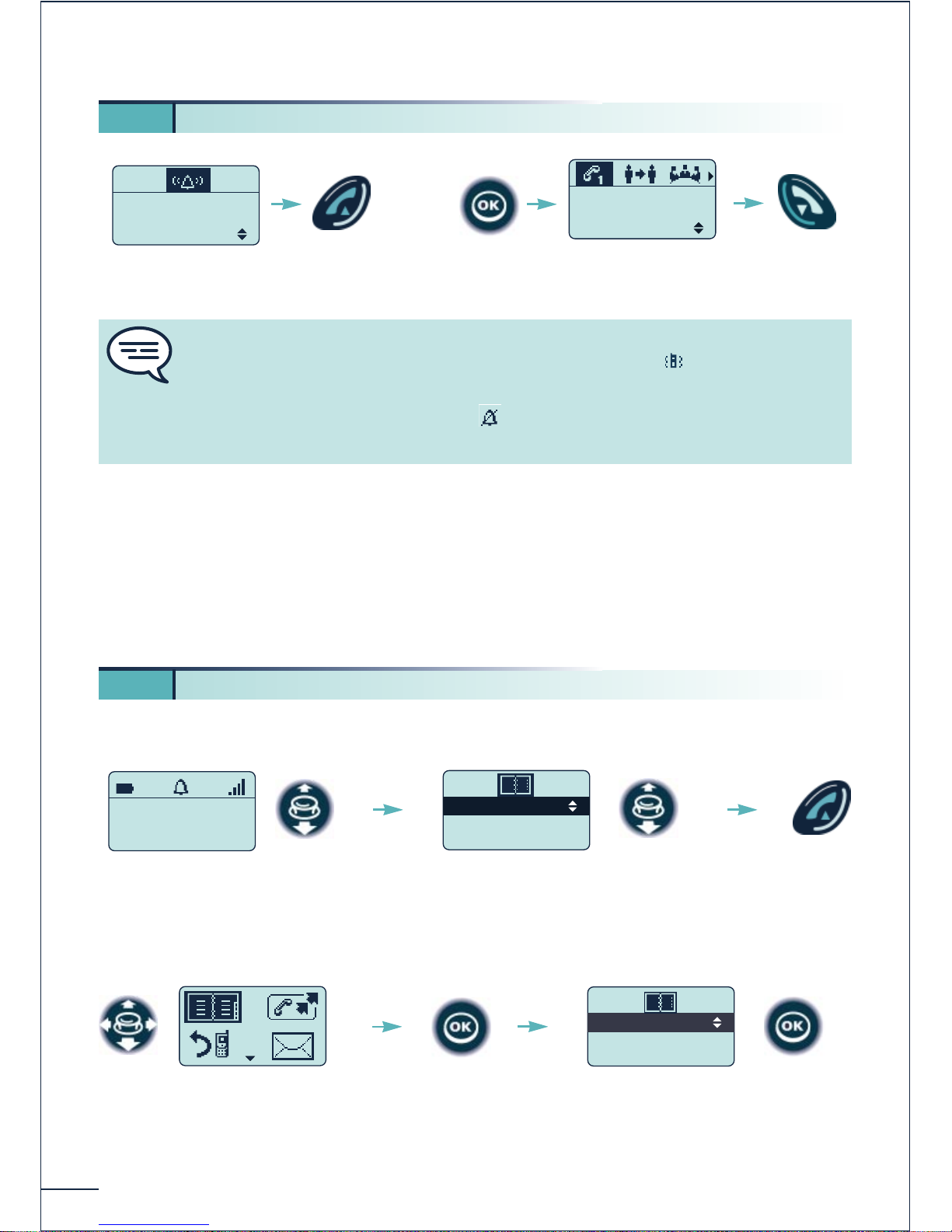
OPTIONS :
When your telephone rings, you can confirm the option:
"Silent" to disable the ringer.
"Reject Call" to forward the call to the overflow number without off-hooking.
Direct access
From the MENU
Actuate the navigator
downwards
Select the name of the person you
wish to call
MARTIN Paul
31/08/00 16 :30
SMITH JOHN
WEBER PIERRE
Select the "Directories"
function
Send the
call
16
3 2. Answering a call
BELLER Yves
is calling
Take the Call
BELLER Yves
in conversation
Transfer
You are receiving
a call
Off-hook
You are in
conversation
Hang up
The ringer does not ring if:
the vibrator is enabled and the ringer is disabled, the icon is displayed
on the welcome screen,
the ringer is disabled and the icon is displayed on the welcome screen.
The light flashes (green) if the vibrator and ringer are disabled.
OR
3 3. Calling from your personal directory
Confirm access to the
"Personal Dir"
Personal Dir
Phone Book
Confirm
Page 19
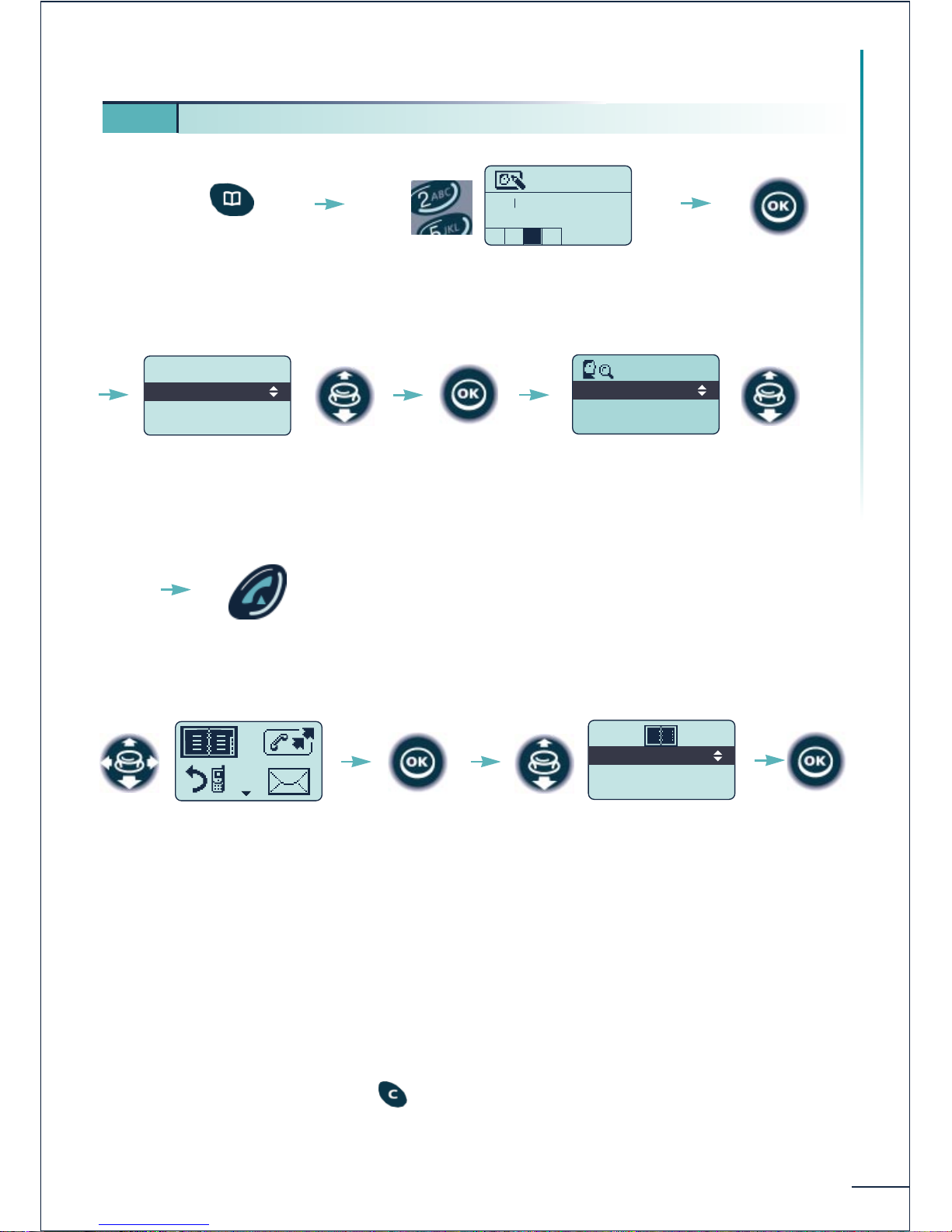
Direct access
From the MENU
(*) To enter the name: the keys of the numerical keypad have letters that can be displayed
by pressing the key the appropriate number of times in succession. A grid at the bottom
of the display indicates the selected character.
Example: press "8" two times in succession to display the letter "U".
Wait for the cursor to move or actuate the navigator to the right to proceed to the next
character.
In case of error, erase using the key.
17
Using your telephone
3 4. Calling your correspondent by name (phone book)
BELL
Name ?
L
5
J
K
Confirm
Press the
"Phone Book" key
Select the desired type of
search (by surname, initials,
or surname and first name)
Send the call
.Name
.Initials
.Name & 1stName
BELL
BELL Joseph
BELLER Yves
2 Answers
Enter the name or initials (*)
(first name and name) of your
correspondent
Confirm
Select the desired name
Select the "Directories"
function
Select the "Phone Book"
option
Personal Dir
Phone Book
Confirm
Confirm
Page 20
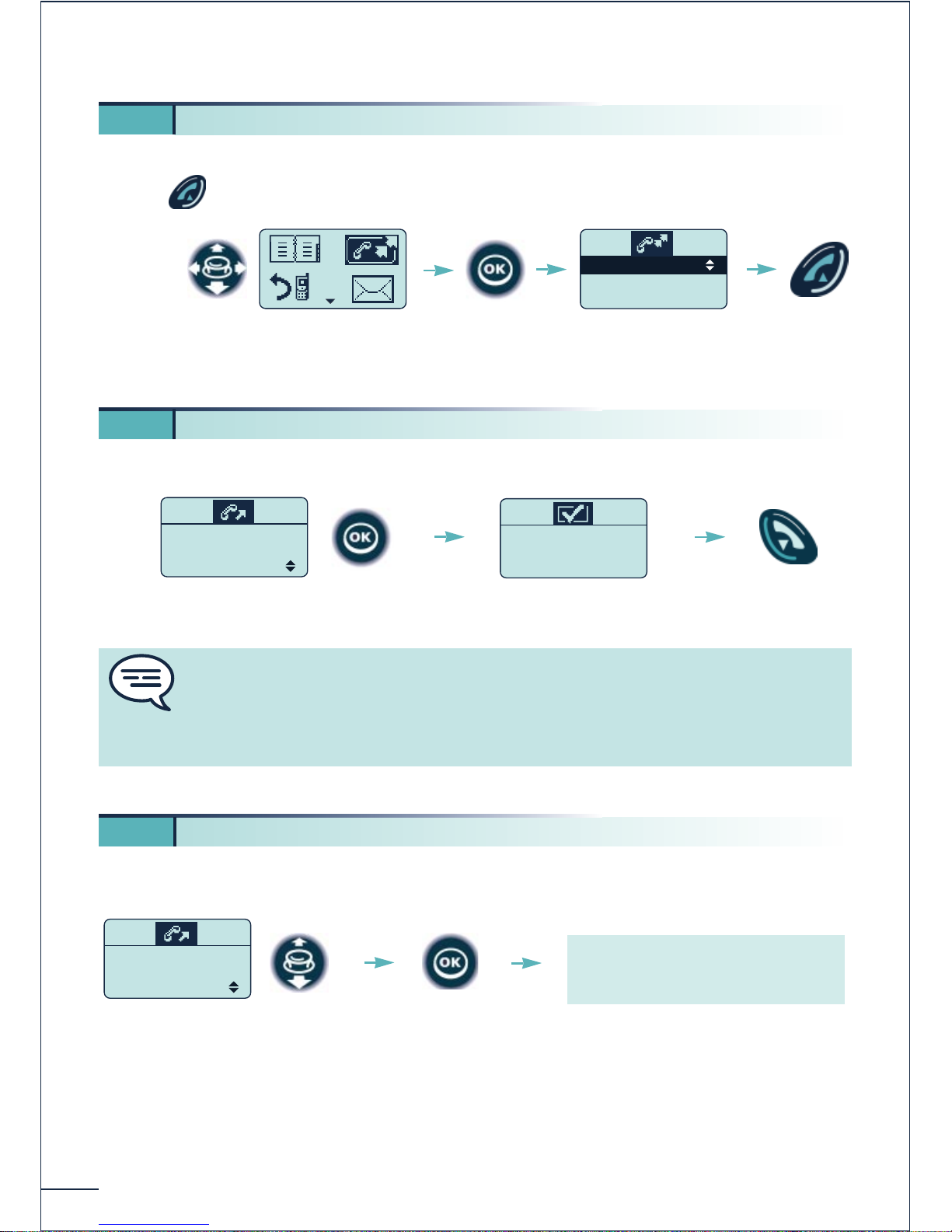
18
WEBER Pierre
SMITH John
0145681721
To call back the last number dialled:
press (long press),
When your correspondent's number does not reply or is busy:
You correspondent does not answer or is busy:
3
5. Calling back one of the last 6 numbers dialled (Redial)
Select the "Redial"
function
Select a name or
number
WEBER Pierre
SMITH John
0145681721
Confirm
or else:
Send the
call
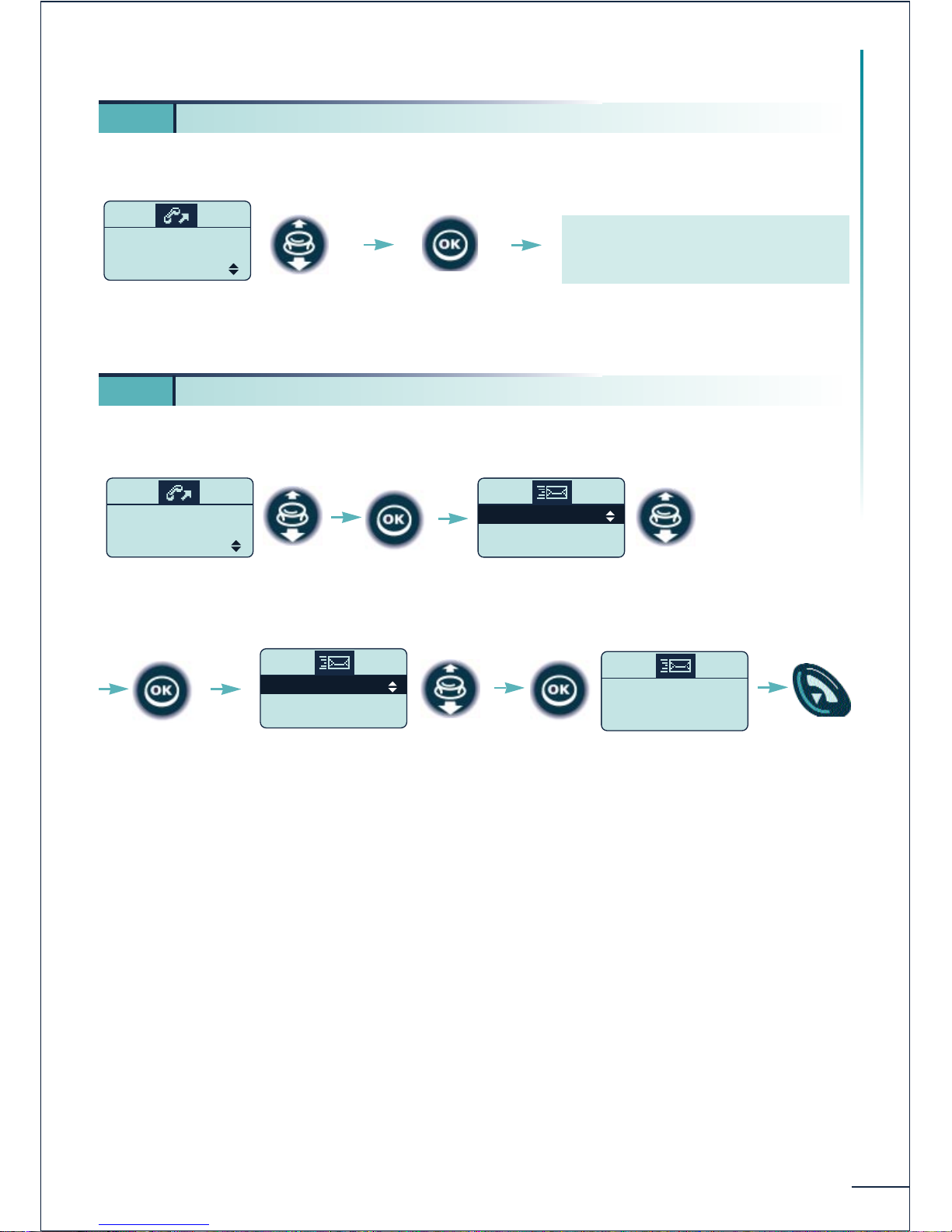
3 6. Making a call-back request
Confirm the "Call Back"
option
SMITH John
is alerted
Call Back
The request is accepted
CallBk accepted
Hang up
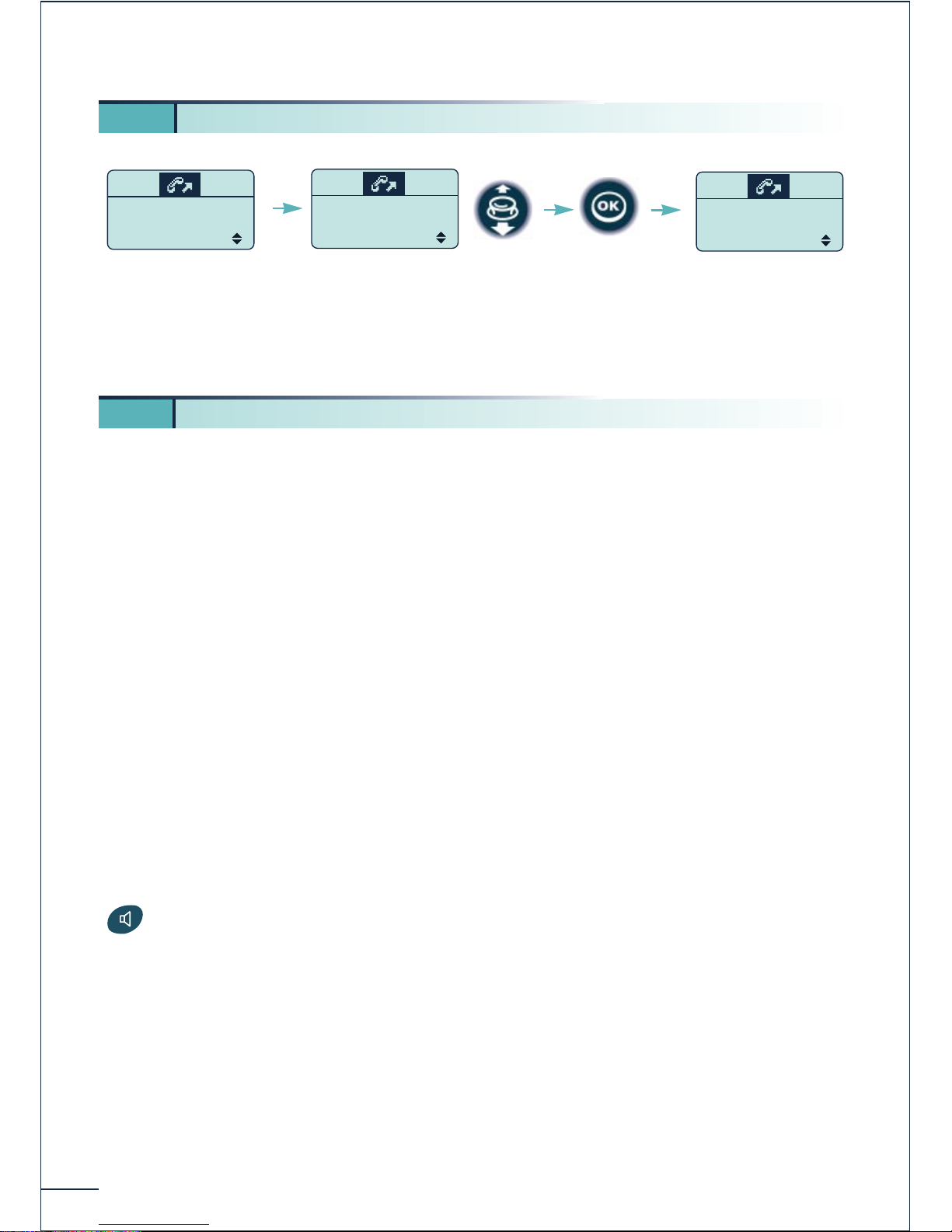
3 7. Calling a correspondent on his loudspeaker
Select the "Answer LS"
option
SMITH John
is alerted
Answer LS
Confirm
Your are connected directly to your
correspondent's loudspeaker.
If your correspondent is busy, you will be called back automatically has soon as he
hangs up.
If your correspondent has activated call forwarding on his telephone, the call-back
request is not forwarded.
Your correspondent must off-hook
if he wants to answer you.
Page 21
Your correspondent does not answer or is busy:
Your correspondent does not answer or is busy:
19
Using your telephone
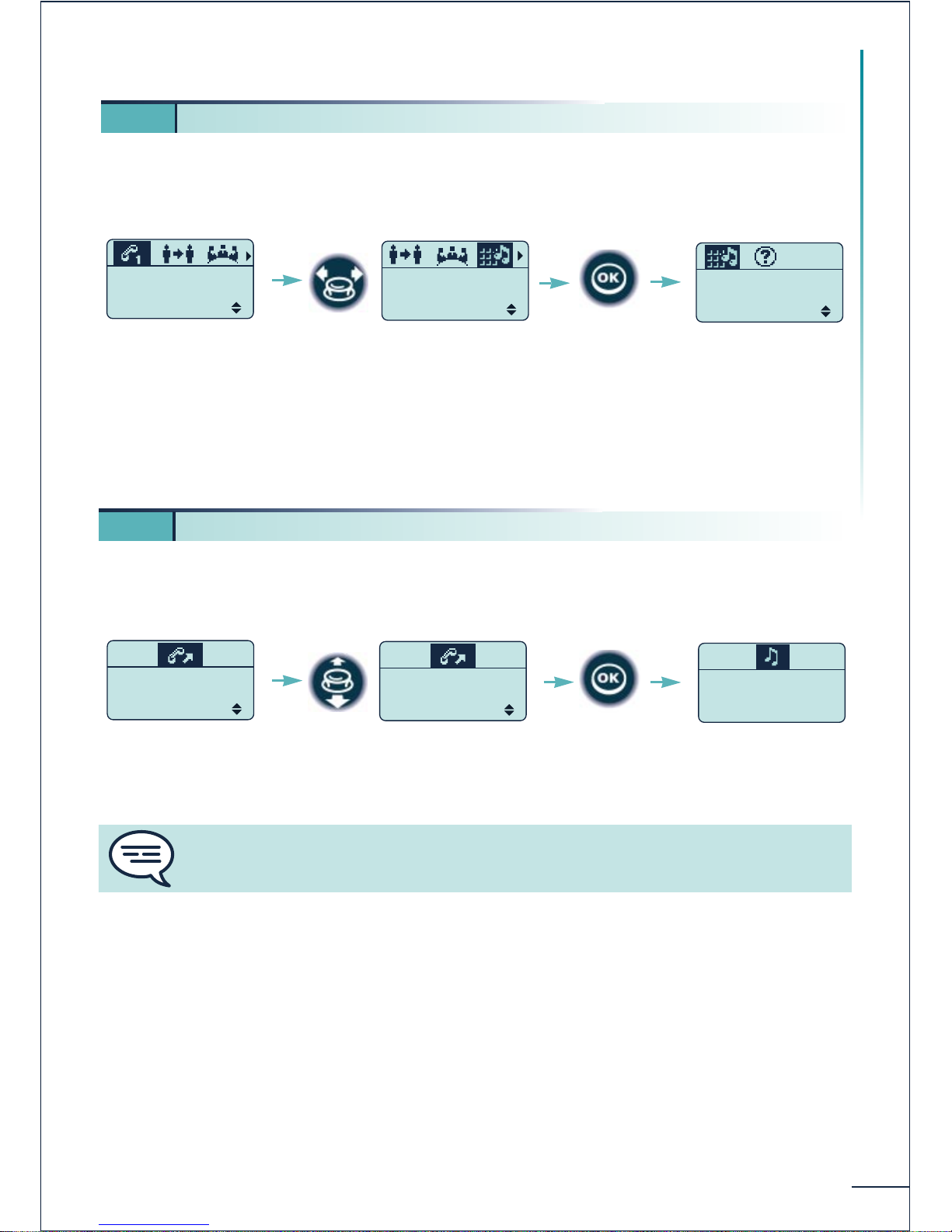
3 8. Leaving a voice message
Select the "Voice Mail"
option
SMITH John
is alerted
Voice Mail
Confirm
Follow the instructions of the voice
guide
3 9. Leaving a text message
Select the "Text Mail"
option
SMITH John
is alerted
Text Mail
Select the type of message
Fixed Messages
Prg Messages
New Message
Confirm
Types of messages :
- Fixed messages: predefined messages
- Prg Messages: predefined messages to be completed
- New Message: message to be composed as desired (32 characters maximum)
(See § 7.4)
Confirm
Select the message
Urgent please c
Please call me
Confirm to send the
message
Your msg is sent
Return
to idle
Page 22
20
Headset mode:
If the "Headset" option is available (single-line terminal, system programming), as soon
as you mmlug in the headset jack you can receive calls without touching your telephone
set.
An incoming call is signalled by a beep and your telephone off-hooks automatically. At
the end of the communication your telephone set automatically returns to idle.
"Voice desktop" charger:
As soon as the telephone is placed in the "Voice desktop" charger, the hands-free
function is available:
- when an incoming call arrives, if you off-hook without removing the telephone from
the charger, you can talk in hands-free mode.
- during a conversation, as soon as you place the telephone in the charger you enter
hands-free mode.
In hands-free mode the + and - keys on the charger are used to adjust the volume and the
key on the telephone cuts off the microphone momentarily (the light on the charger
flashes).
3 10. Overriding a forwarded call
The call is forwarded
to another number
Þ
SMITH John
is alerted
Call Back
Select the "Override"
option
Þ
SMITH John
is alerted
Override
Confirm
WEBER Pierre
is alerted
Call Back
The call is redirected
to the called terminal
3 11. Using hands-free mode
Page 23
During a call, you sometimes have to send DTMF signals, for example, for a voice message
service, an automatic switchboard or when remotely consulting an answering machine:
To deactivate the function, confirm the "Deact MF" option.
You call an internal correspondent whose terminal is busy (single-line terminal). To camp
on:
21
Using your telephone
3 12. Sending DTMF signals
In conversation
SMITH John
in conversation
Transfer
Select the "Send MF"
option or the "DTMF"
icon
SMITH John
in conversation
Send MF
Send MF
Deact MF
All digits dialled are
then sent in DTMF
Confirm
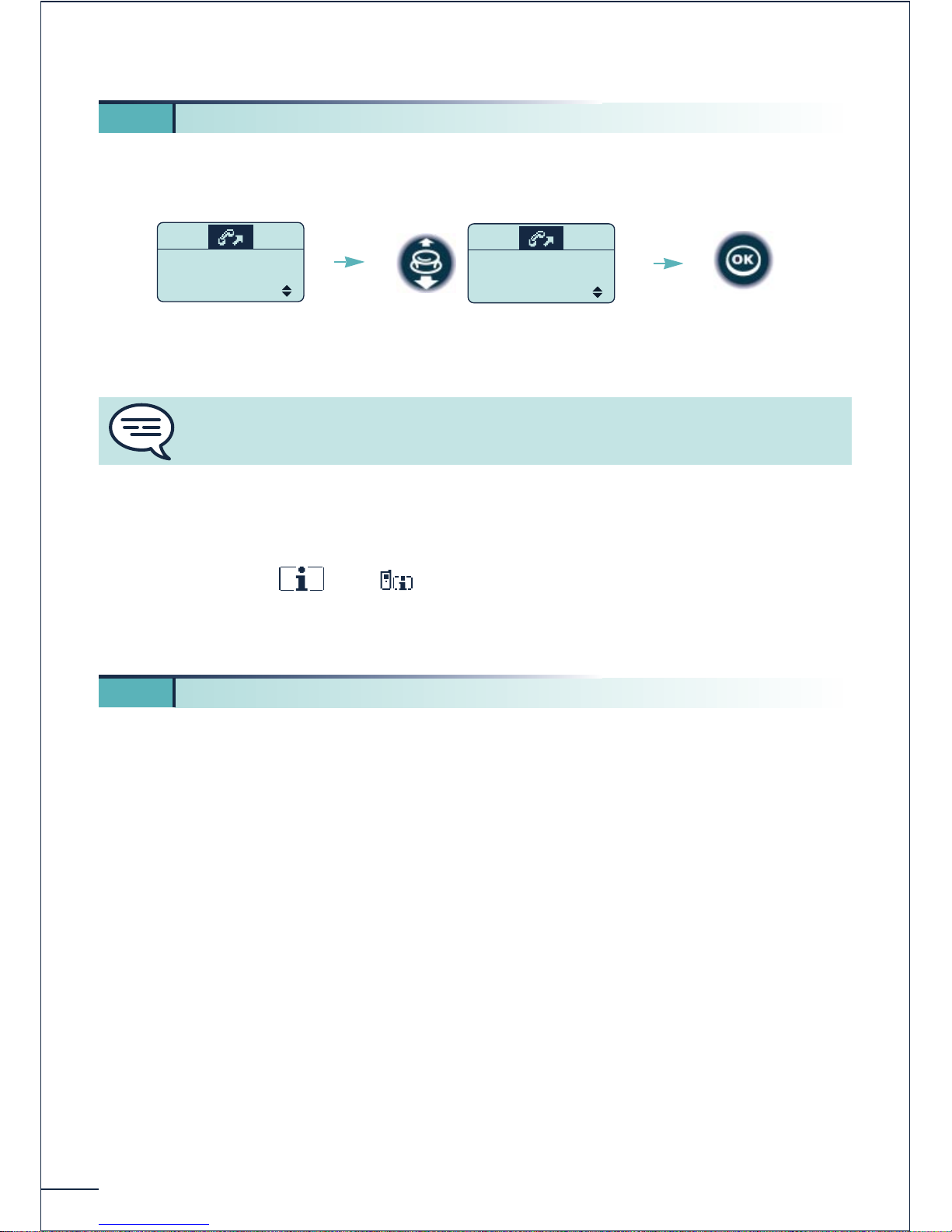
3 13. Camp-on when a correspondent is busy
Correspondent busy
SMITH John
is busy
Call Back
Select the
"Wait" option
SMITH John
is busy
Wait
Confirm
SMITH John
Please wait
Your correspondent is informed that you are waiting. If he does not answer your call,
his terminal will ring automatically when he hangs up.
Page 24
22
Your correspondent's terminal is busy (single-line terminal). If you are are authorized, you
can intrude on the ongoing conversation. To do this:
Protecting yourself against intrusion
You can protect yourself against intrusion by validating the "Intrus protect" option
under the heading ÞÞ "Services" Þ "Diverse services" before
establishing your communication. The protection is cancelled when you hang up.
You can make an external call independently of the access restrictions This call will be
specifically identified by the call charging management application.
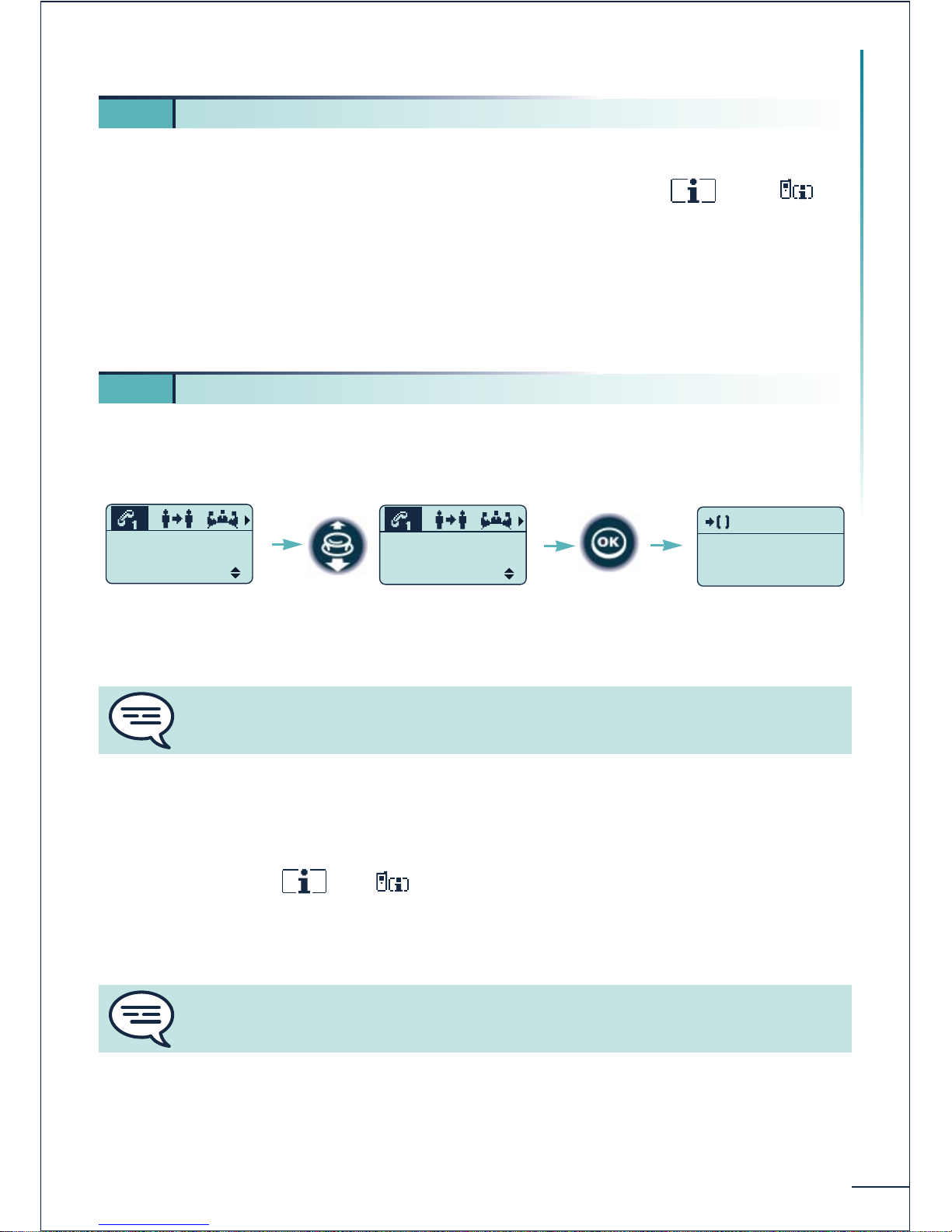
1. Enter the "Private call" code
2. Enter your personal identification code (PIN code)
3. Enter your personal code if applicable
4. Enter your correspondent's number
3 14. Intrusion into a conversation
Correspondent busy
SMITH John
is busy
Call Back
Select the "Intrusion"
option
SMITH John
is busy
Intrusion
Confirm
If one of the 3 correspondents hangs up, the other 2 remain in communication.
3
15. Calling a private external number
Page 25
23
Using your telephone
You can allocate the cost of your external communications to customer account numbers.
1. Validate the "Account code" function under the heading ÞÞ
"Services" Þ "Diverse services".
2. Enter the customer's account number.
3. Enter the "Direct outside line" code followed by the number of your
correspondent.
You can place a correspondent on hold and pick up the call on any one of the company's
terminals.
Picking up a "parked" call:
From the terminal on which the call was parked: validate the "Park/Retrieve" function
under the heading ÞÞ "Services" Þ "Pick up services".
From any terminal: repeat the same operation then enter the number of the terinal on
which the call was parked.
3 16. Allocating your calls to customer account codes
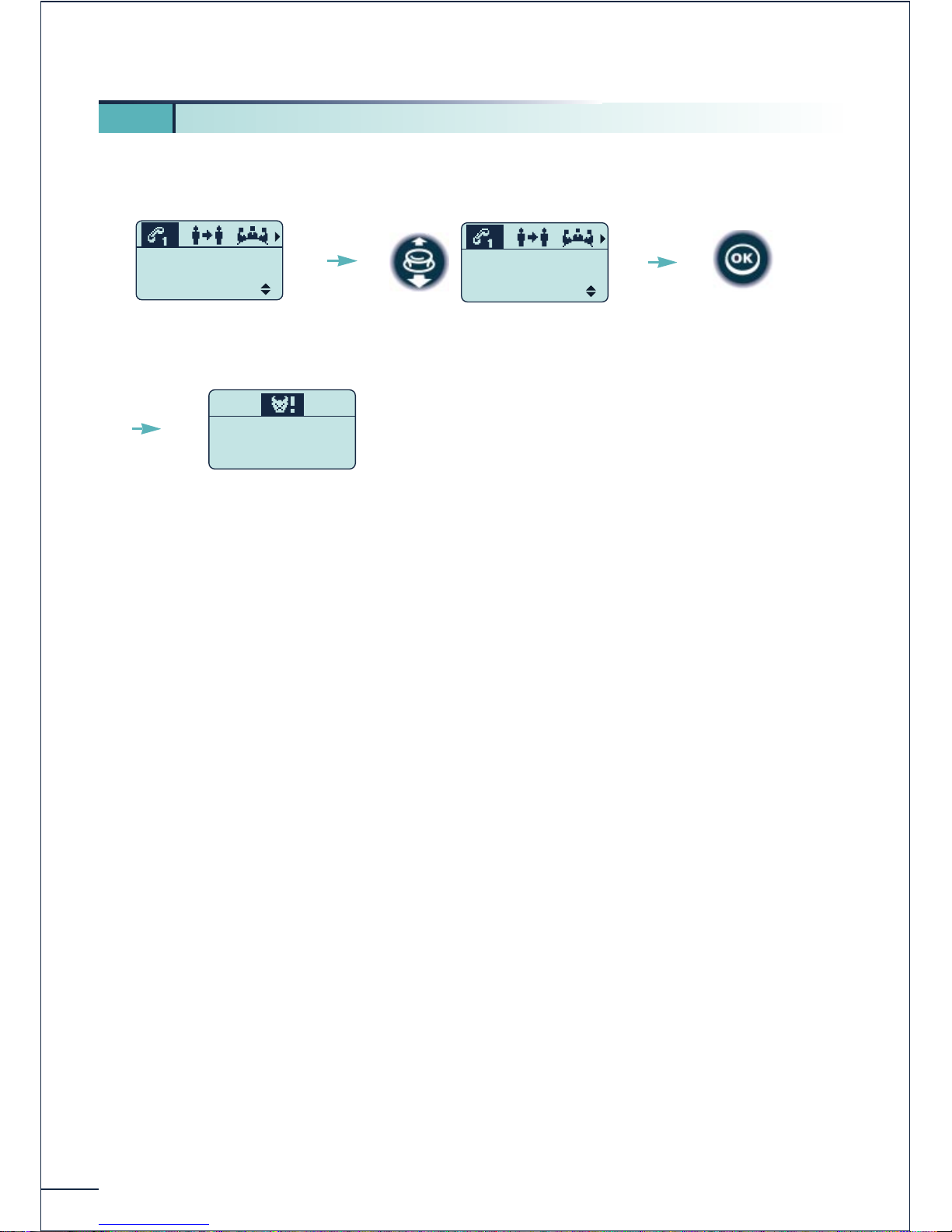
3 17. Placing an external correspondent on hold (parking)
Call in progress
0103556432
in conversation
Transfer
Select the
"Park" option
0103556432
in conversation
Park
Confirm
EXTENTION :
PARKING
Dial the number of a
terminal or hang up
If you hang up without dialling a terminal number, the call is "parked" on your
terminal.
If the call is not picked up retrieved within a given lapse of time, it is forwarded to
the operator.
Page 26
24
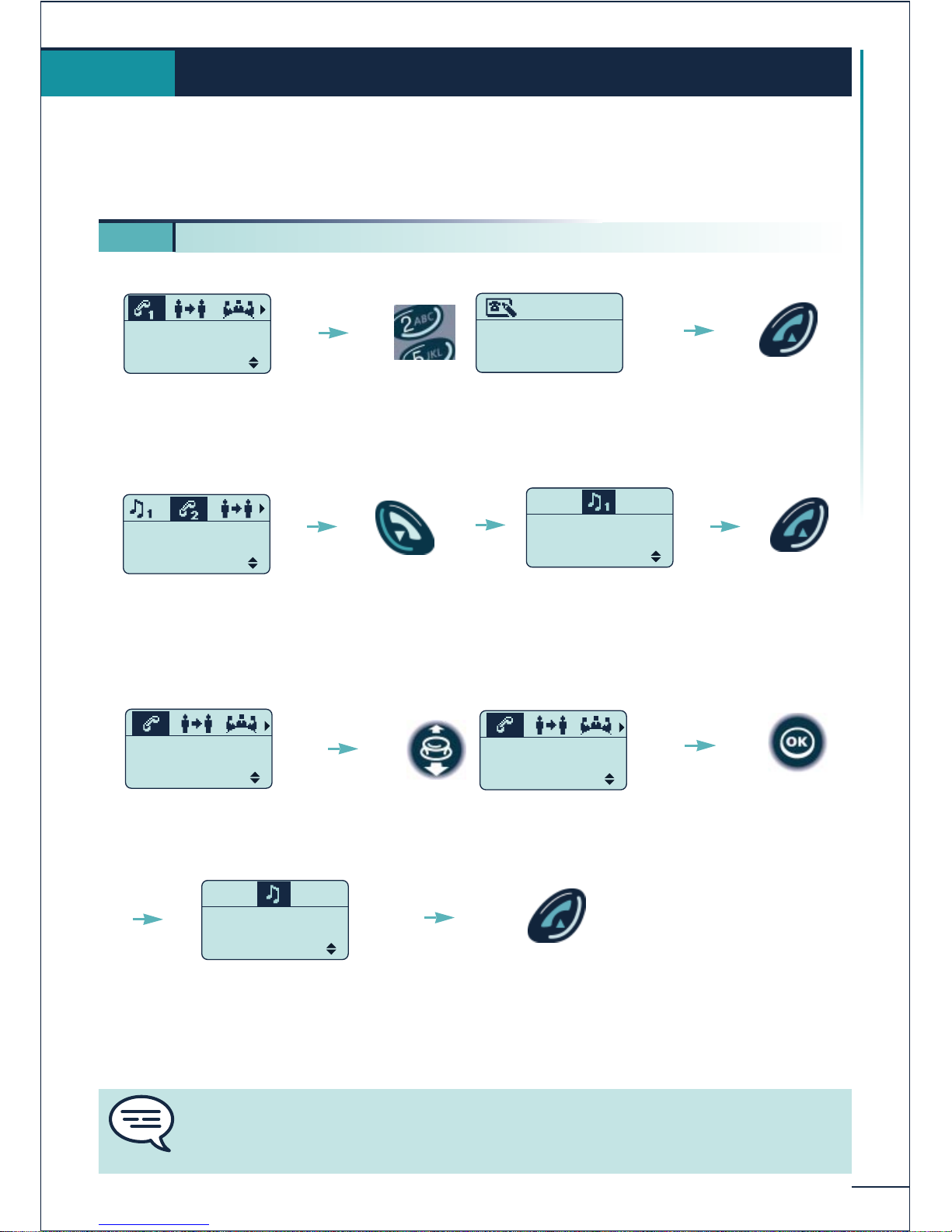
You can report malicious calls:
If the call is of internal origin, it is reported to the system by a specific message.
If the call is of external origin, it can be reported to the public switchboard operator.
3 18. Reporting malicious calls
Call in progress
0103556432
in conversation
Transfer
Select the "Trace" option
0103556432
in conversation
Trace
Confirm
Request progress
Page 27
25
Handling several calls
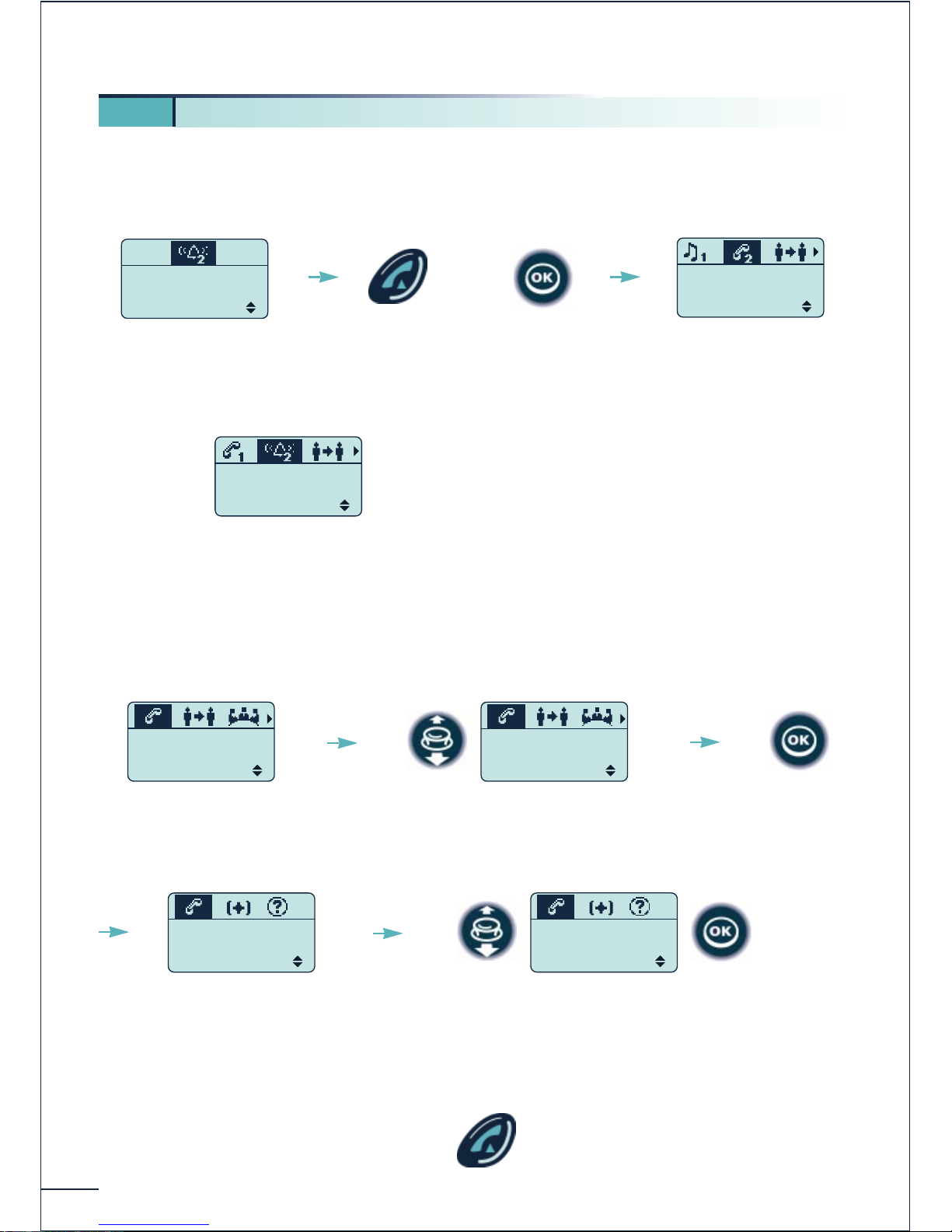
Certain functions can be activated either by using the text menu options or by selecting
an icon in the icon strip with the navigator.
Multi-line configuration
Single-line configuration
CAUTION: In a single-line configuration, if you hang up during an enquiry call you make
a transfer.
Handling several calls
4.
4 1. Calling a second correspondent (enquiry call)
102 ---------
Number ?
Send the call
The first correspondent is
on hold
SMITH John
in conversation
Transfer
Dial the number
Cancel the
enquiry call
Recover the first
correspondent
WEBER Pierre
in conversation
Transfer
WEBER Pierre
Hold recalling
Retrieve ?
The first correspondent
calls back
The first correspondent is
on hold
SMITH John
in conversation
Transfer
To cancel the enquiry call,
select the "Enquiry Off"
option
SMITH John
in conversation
Enquiry Off
Confirm
WEBER Pierre
Hold recalling
Retrieve ?
The first correspondent
calls back
Recover the first
correspondent
You can also initiate an enquiry call by first confirming the option:
"Enquiry Call " when you are sending DTMF signals.
"Directories" to use your private directory or call by name.
Call in progress
Page 28
26
During a call, a second correspondent tries to contact you:
Multi-line configuration
Single-line configuration
4 2. Answering a second call during a conversation
A second incoming call is
signalled by several "beeps"
BELLER Yves
is calling
Take the Call
Off-hook
The first correspondent is
placed on hold
BELLER Yves
in conversation
Transfer
OR
If you do not take the second call
immediately, it continues to be
signalled camped until your
correspondent hangs up.
BELLER Yves
is calling
Transfer
A second incoming call is
signalled by several "beeps"
BELLER Yves
is camped on
Transfer
BELLER Yves
is camped on
Consult
Confirm
Select the "Consult"
option
In conversation with the
second correspondent
BELLER Yves
in conversation
Transfer
Return to the first correspondent by
confirming the "Broker Call" option
BELLER Yves
in conversation
Broker Call
OR
Page 29
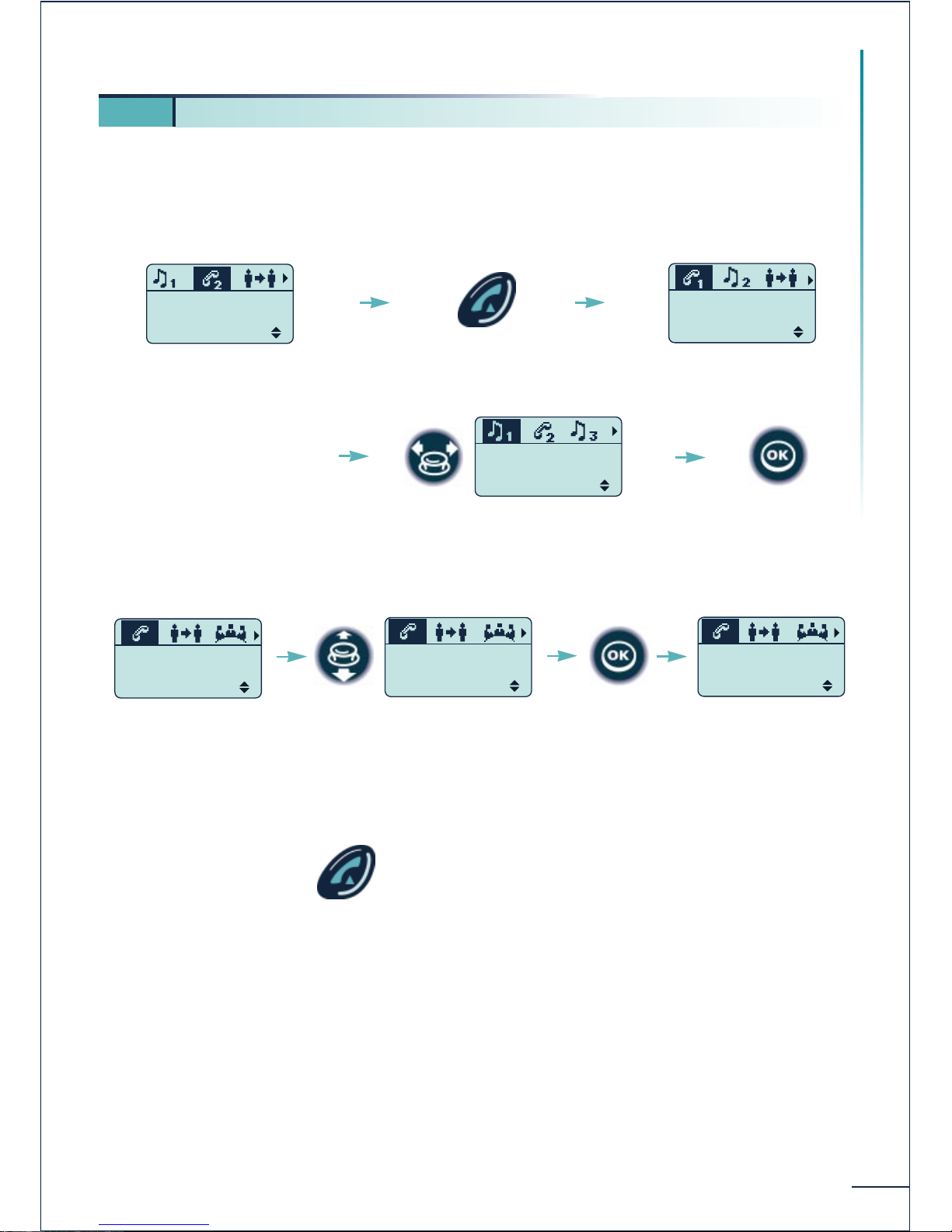
27
Handling several calls
You are in conversation with a correspondent, a second correspondent is on hold, to
switch from one correspondent to the other:
Multi-line configuration
Single-line configuration
4 3. Switching between calls (broker call)
SMITH John
in conversation
Transfer
Recover the
correspondent on hold
WEBER Pierre
in conversation
Transfer
If several calls are on
hold
Select the call
WEBER Pierre
Hold recalling
Retrieve ?
Confirm
SMITH John
in conversation
Transfer
Select the "Broker Call"
option
SMITH John
in conversation
Broker Call
Confirm
WEBER Pierre
in conversation
Transfer
In conversation with a
second correspondent
Return to the first
correspondent
OR
Page 30
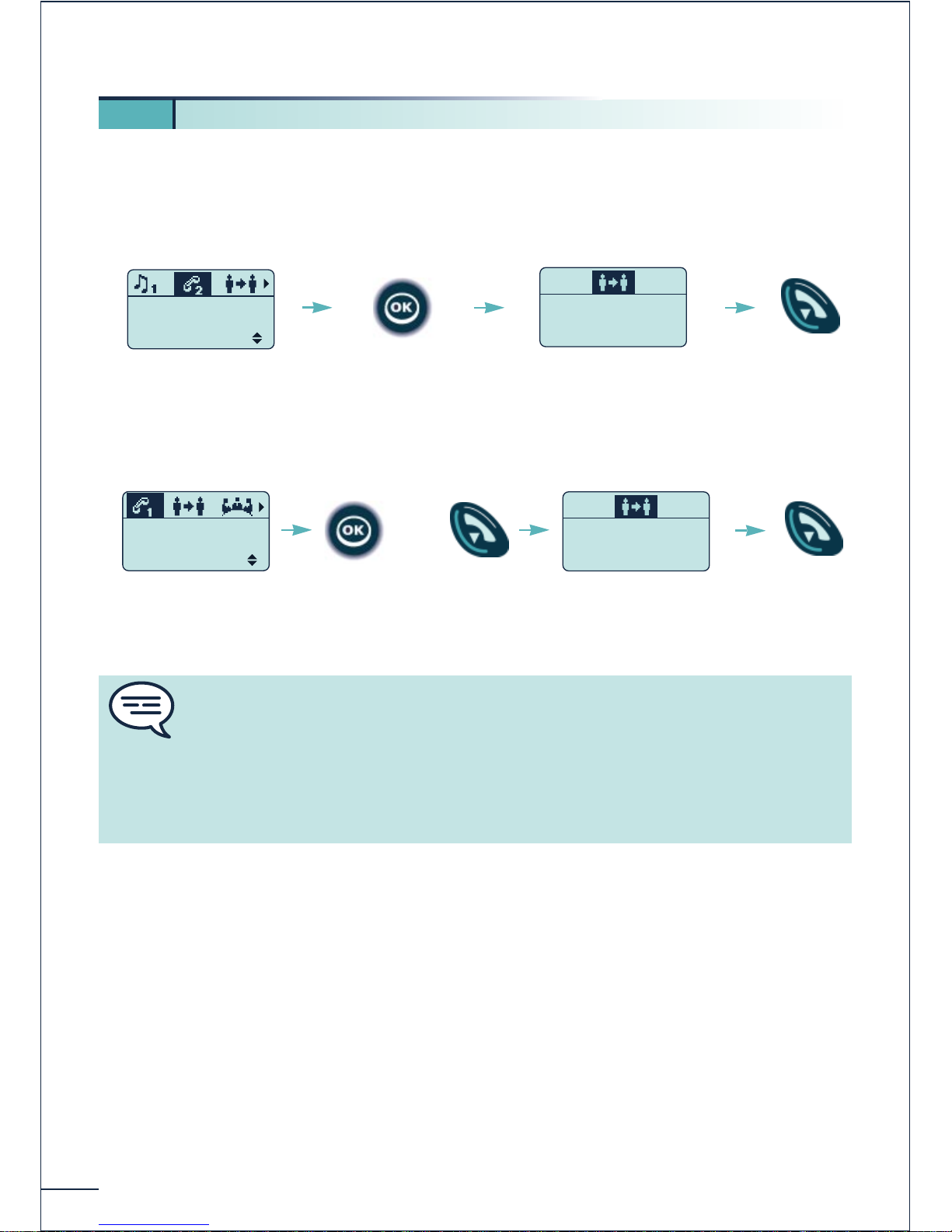
28
You are holding a conversation. Make an enquiry call to contact the transfer destination
number, then:
Multi-line configuration
Single-line configuration
4
4. Transferring a call
SMITH John
in conversation
Transfer
Confirm the
option
"Transfer"
The first correspondent is
placed on hold
Transfer Succeed
00:53
Transfer accepted
Return to
idle
The first correspondent is
placed on hold
WEBER Pierre
in conversation
Transfer
Confirm the option
"Transfer" or hang
up
Transfer accepted
Transfer Succeed
00:53
OR
Return to
idle
You can also initiate a transfer by confirming the "Transfer" option before calling
a second correspondent.
You can transfer your call immediately without waiting for your second
correspondent to reply, even if he is busy.
Transfer between two external correspondents is not usually authorized (depends on
the country)
Page 31
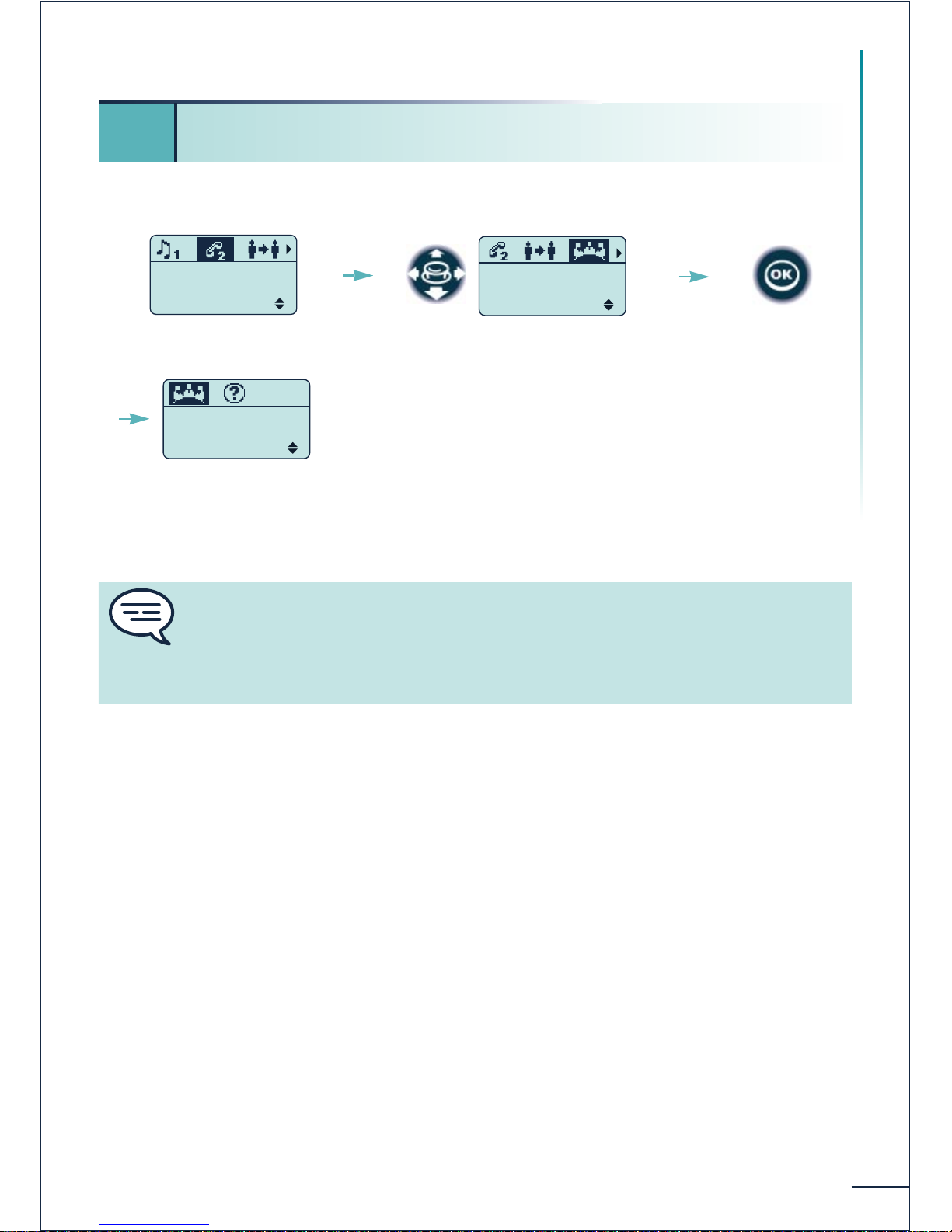
29
Handling several calls
You are in conversation with one correspondent and a second is on hold:
4 5. Three-way conference with 2 internal and/or external
correspondents (3-way conference)
Select the "Conference" icon
or option
WEBER Pierre
in conversation
Transfer
WEBER Pierre
in conversation
Conference
Confirm
WEBER Pierre
SMITH John
End Conference
Conference in progress
To cancel the conference, confirm the "End Conference" option. You recover the your
first correspondent.
You can also initiate a conference by conforming the "Conference" option before
calling a second correspondent.
If you hang up during a conference, your two correspondents remain in
communication (restriction possible for two external correspondents).
Page 32
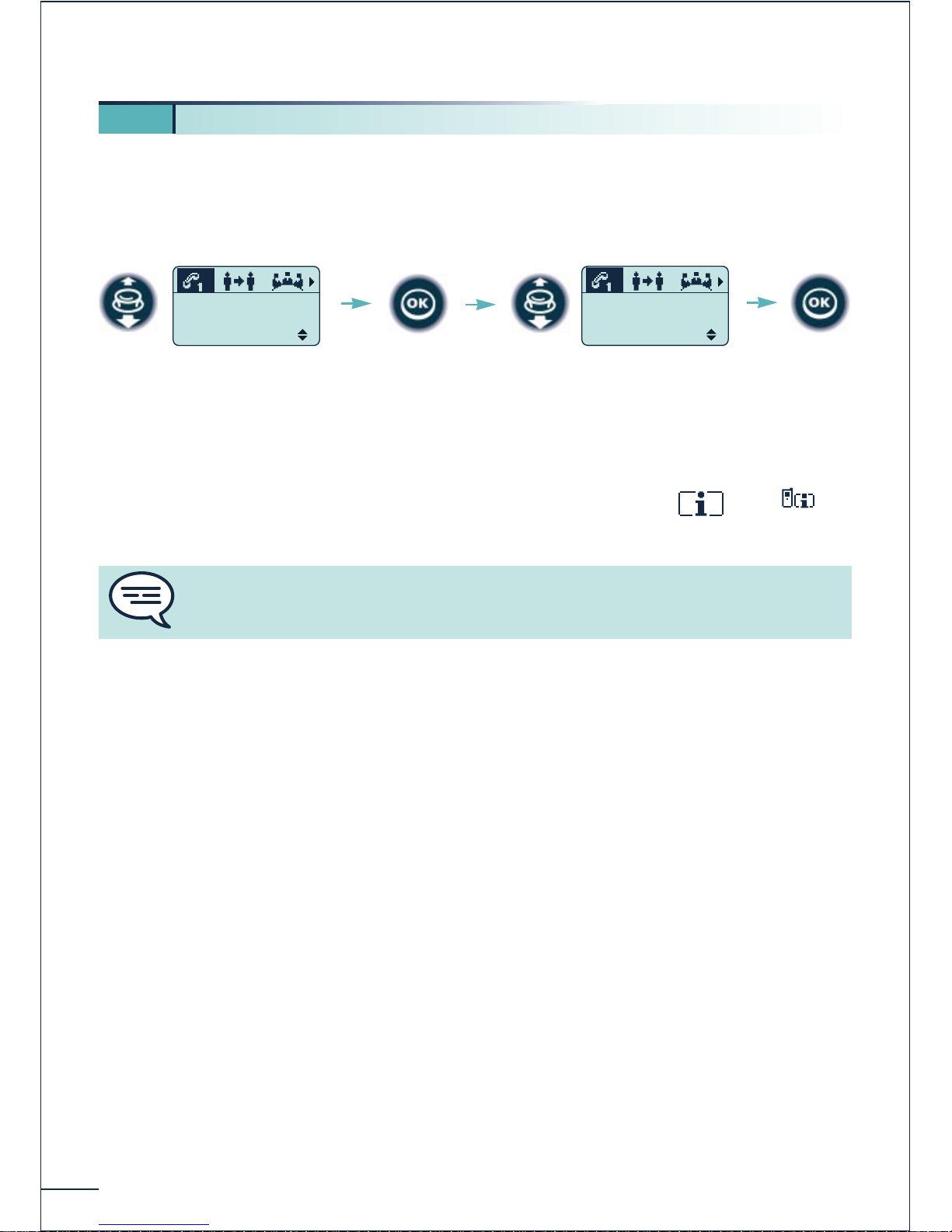
30
You can prohibit camping on of your correspondents when your terminal is busy. External
calls will be forwarded to the operator.
During a call
Before making a call
Confirm the function "Camp On Control" under the heading ÞÞ
"Services" Þ "DND/locking/VG".
4 6. Camp-on busy control
WEBER Pierre
in conversation
Forbid Camp On
Confirm
Select the
"Forbid Camp On" option
To cancel, select the
"Permit Camp On" option
WEBER Pierre
in conversation
Permit Camp On
Confirm
The function remains valid until the next change, even after hanging up.
Page 33
31
Handling several calls
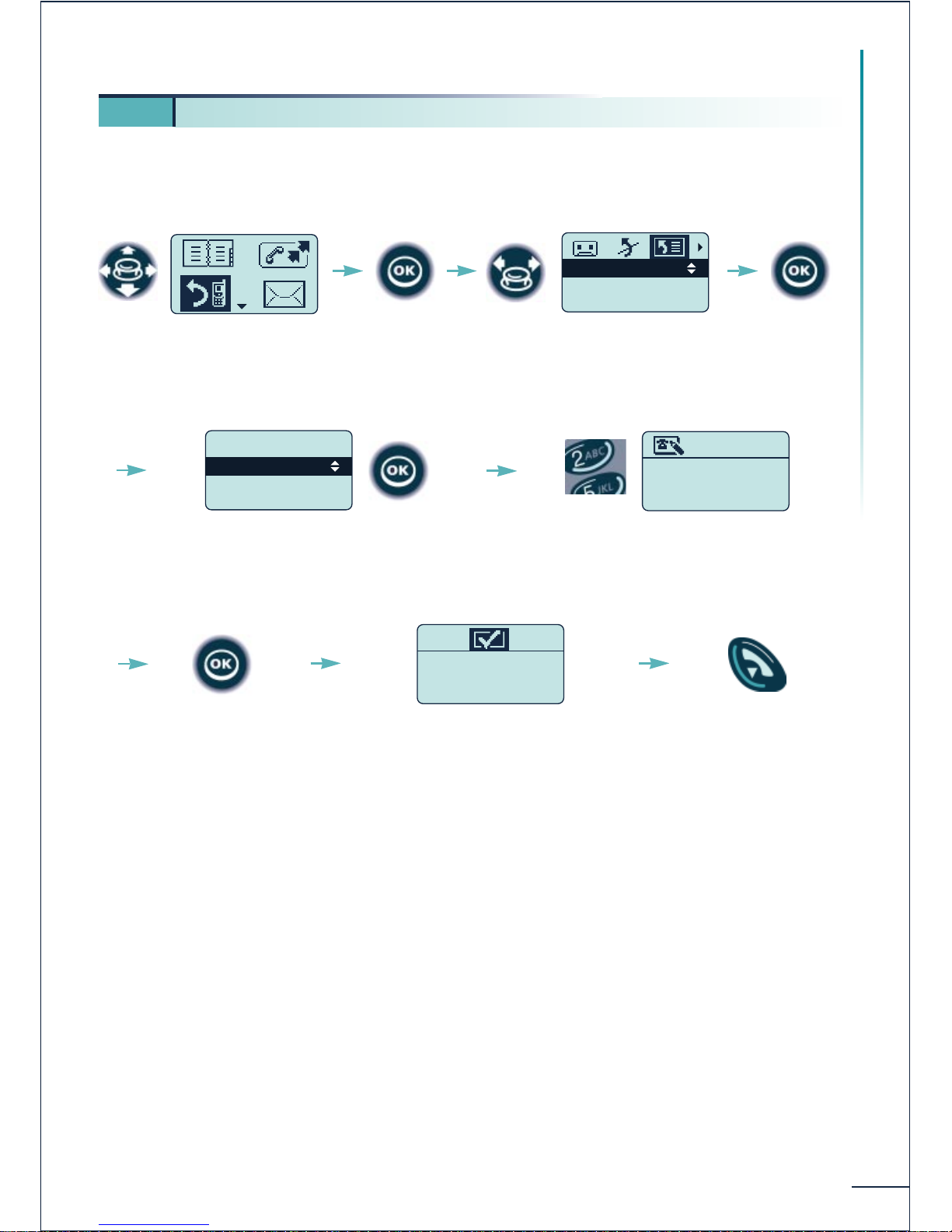
You can request the immediate forwarding of calls when your terminal is busy.
Addressee?
0130030306-----
Enter the forwarding
destination number
Forwarding is
accepted
Programming OK
Confirm
Return to
idle
4 7. Forwarding calls when you are busy
Select the "Forwarding"
function
Fwd On Busy
Fwd On No Rep
Fwd Busy/NoRep
Confirm "Dial a Number" or
use another option
Confirm
Select the
"Forwarding List" icon
Confirm the
"Fwd On
Busy"
function
.Dial a Number
.Personal Dir
.Phone Book
Fwd On Busy
Page 34
32
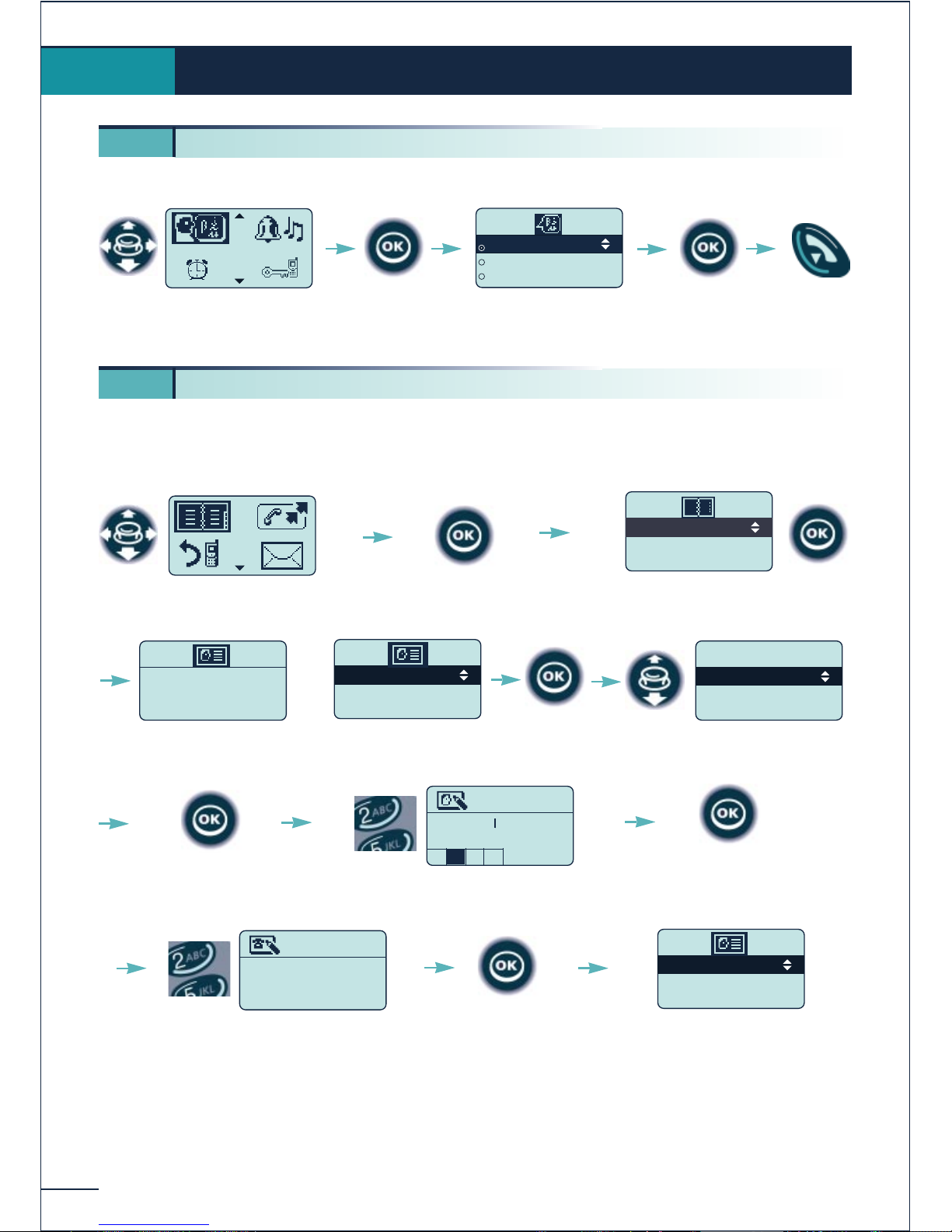
You chan choose the language of the display and voice guides.
Creating an entry in your personal directory
Your personal directory can contain up to 12 numbers.
(*) To enter the name: the keys of the numerical keypad have letters that can be displayed
by pressing the key the appropriate number of times in succession. A grid at the
bottom of the display indicates the character selected.
Example: press "8" two times in succession to display the letter "U".
Customizing and adjusting your telephone
5.
5 1. Choosing the language
Select the "Directories"
function
Confirm
Personal Dir
Phone Book
Confirm access to the
"Personal Dir"
Empty directory
Add an entry ?
SMITH JOHN
Name?
N
O 6M
Confirm
Select the
"Create" option
Confirm
Enter the name (*)
(14 characters max.)
Confirm
Select the "Language"
function
Confirm
French
English
German
Select the language of
your choice
Return to
idle
Confirm
5 2. Programming your personal directory
Create
Back
Options
0123456789
Number ?
Enter the number
(30 figures max.)
Confirm
SMITH JOHN------
OR
MARTIN JACK
SMITH JOHN
BELLER YVES
Page 35
33
Customizing and adjusting your telephone
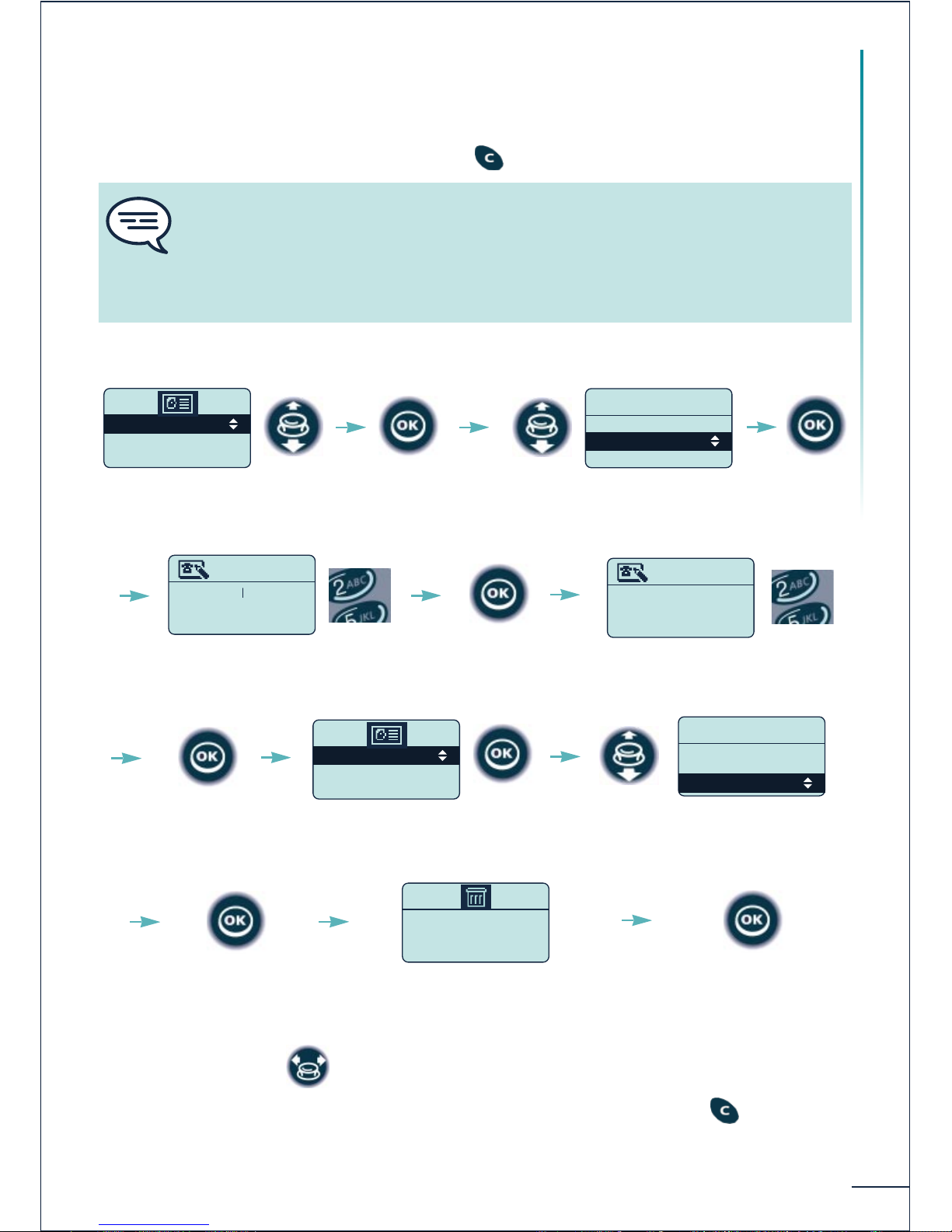
Modifying or erasing an entry in your directory
(*) Use the navigator to select the letter or figure to modify.
Before entering the name and number, erase the old ones using the key.
Select the desired entry
MARTIN ERIC
SMITH JOHN
BELLER YVES
Confirm
Call
Modify
Create
MARTIN ERIC
Select "Modify"
MARTIN ERIC
Name ?
0123456789
Number ?
Modify the name (*)
(14 characters max.)
Confirm
Modify the number (*)
(30 figures max.)
MARTIN JACK
SMITH JOHN
BELLER YVES
Confirm
Select "Delete"
Confirm
Delete
MARTIN JACK ?
Confirm
Modify
Create
Delete
MARTIN JACK
Confirm
Wait for the cursor to move or actuate the navigator to the right to proceed to the
next character.
If you make a mistake, erase it using the key.
Program your personal directory using the phone book.
After selecting a name in the phone book, confirm twice then confirm the "To
Directory" option.
Your personal directory is automatically programmed with the name you have
selected.
Page 36
34
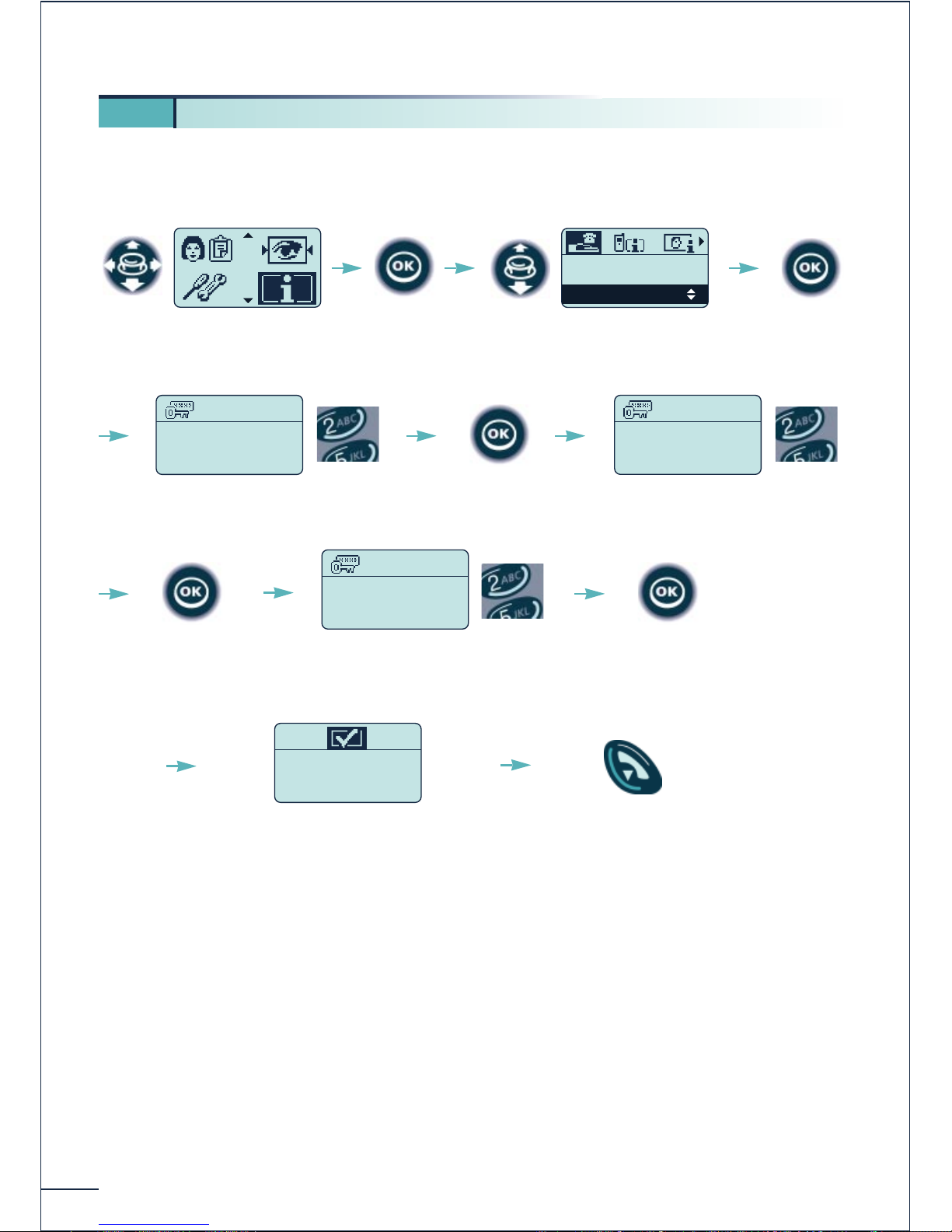
Your telephone password is 0000 by default. You are asked for this password in order to
access certain functions.
5 3. Programming your own password
Select the "Guide"
function
Confirm
Associate
Overflow
Password
Select
"Password"
Old password:
....
Password?
Confirm
Enter your password or the
default password 0000
Confirm
New password:
....
Password?
Enter the new password
4 figures
Confirm
For checking:
....
Password?
Confirm the new password
Confirm
Programming OK
Return to
idle
Page 37
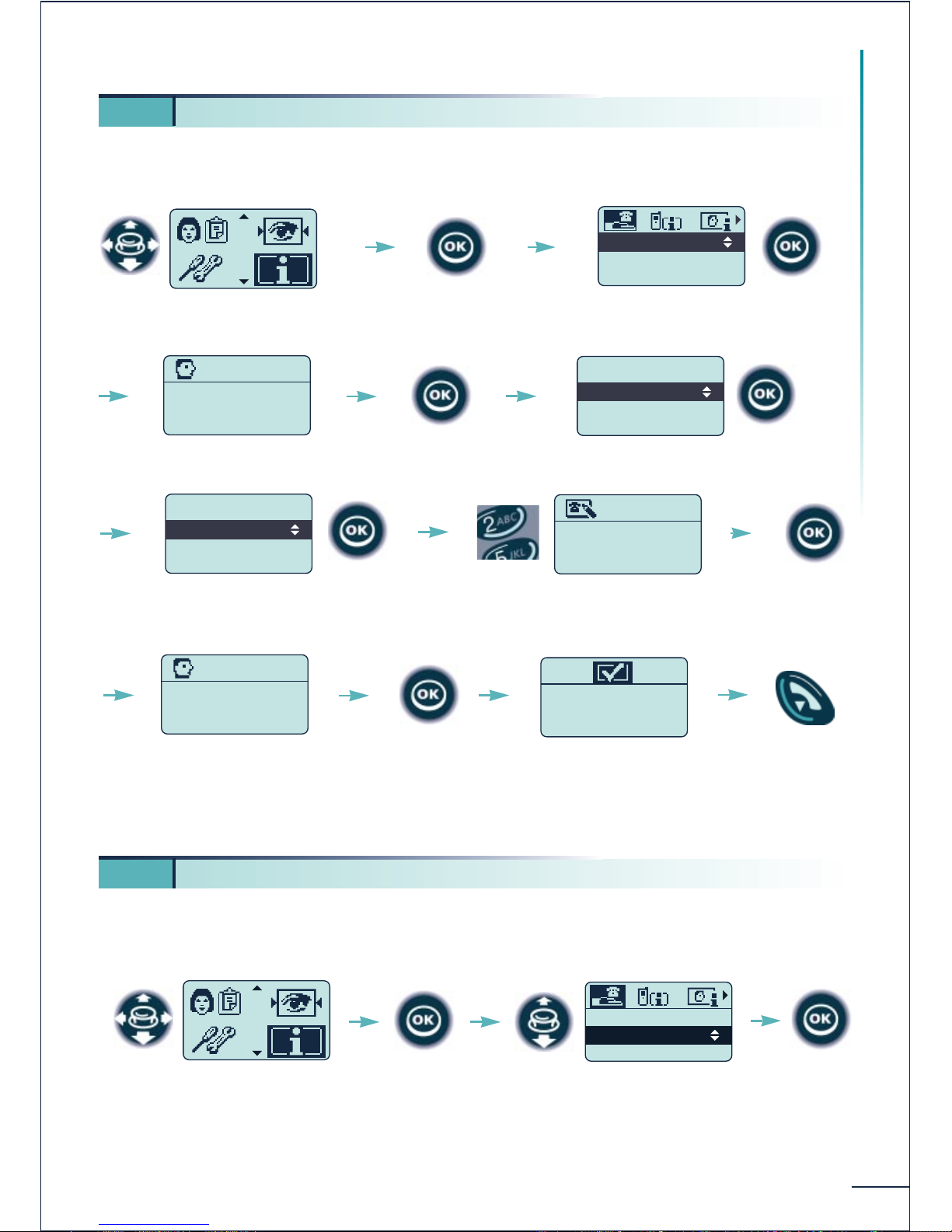
The associate number can be an internal terminal number, the number of the voice
message service or the pager number. It can be used as a call overflow number.
(*) Confirm "Delete" to delete the associate number.
If your terminal is unavailable, outside the coverage area or out of service, calls to it are
automatically forwarded to this number if it has been programmed.
Proceed in the same way as when programming the associate number.
35
Customizing and adjusting your telephone
5 4. Programming your associate number
Select the "Guide"
function
Confirm
Associate
Overflow
Password
Validate "Associate"
Associate
Assoc undefined
Confirm "Modify" (*)
Confirm
.Modify
.Delete
.Back
Associate
.Dial a Number
.Personal Dir
.Phone Book
Associate
Confirm "Dial a Number"
or use other options
Addressee ?
75412
Enter the number
Confirm
Associate
75412
Confirm
Programming OK
Return to
idle
5
5. Programming your overflow number
Select the "Guide"
function
Confirm
Associate
Overflow
Password
Select "Overflow"
Confirm
Page 38
36
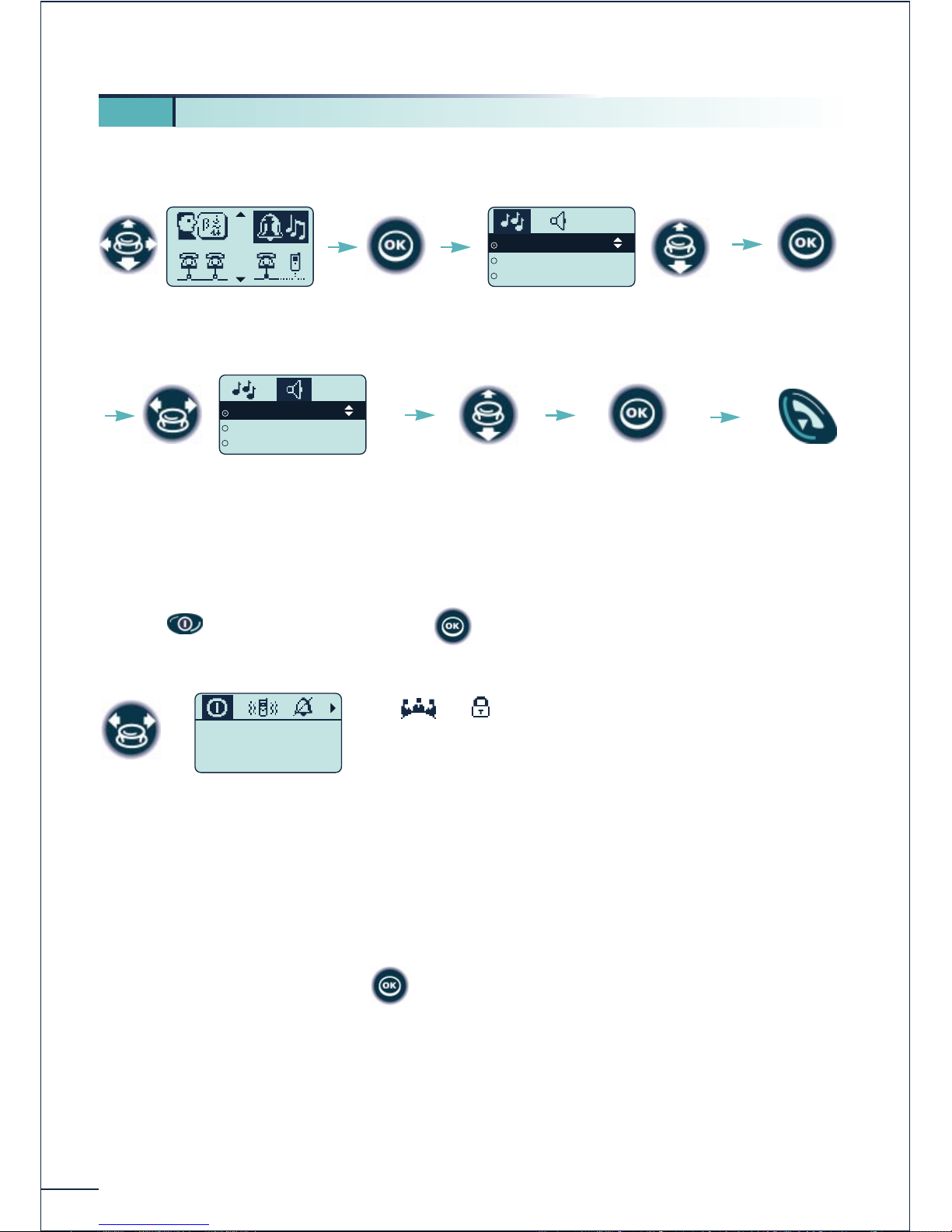
Choosing the melody and volume
Rapid customizing of the ringer
Depending on your activity, the ringer parameters can be modified rapidly by a short press
on the key and then pressing the key.
Switch off the telephone
Activate / disable the vibrator (DDS 200)
Activate / disable the ringer ¯
Activate / disable meeting mode (progressive ringing)
Activate the keyboard lock
Validate the chosen option with
5
6. Customizing the ringer
Select the "Ringer"
function
Confirm
Melody 1
Melody 2
Melody 3
Select the melody of your
choice
Level 1
Level 2
Level 3
Select the "Volume"
icon
Confirm
Confirm
Increase /
reduce the
volume
Return to
idle
Switch off
the set ?
Page 39
37
Customizing and adjusting your telephone
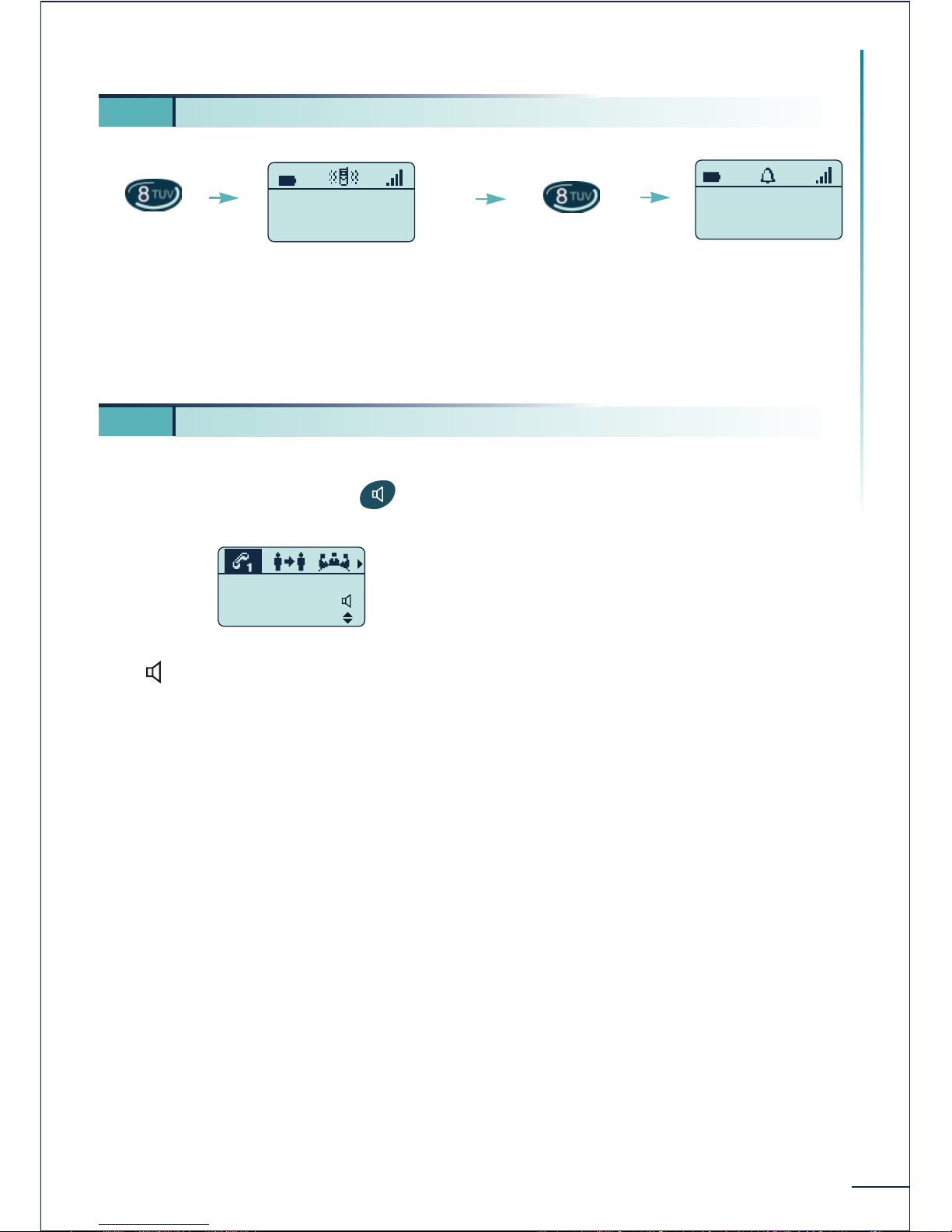
This key can be used to switch rapidly from the ringer to the vibrator and vice-versa.
You can activate or disable the terminal loudspeaker when dialing a number of during a
conversation by pressing the key.
The icon indicates activation of the loudspeaker.
The audio level, like the earpiece volume, can be adjusted by using the + and - key located
on the side. When making the adjustment, beeps indicate selection of the maximum or
minimum level.
The loudspeaker can be particularly useful for listening to the voice guides, when listening
to recorded messages for example.
5 7.Activating the vibrator or ringer (DDS 200)
MARTIN Paul
30/08/00 16 :30
Long press
Vibrator activated and
ringer disabled
MARTIN Paul
31/08/00 16 :30
Vibrator disabled
and ringer
activated
Long press
5 8. Using the loudspeaker
SMITH John
in conversation
Transfer
Page 40
38
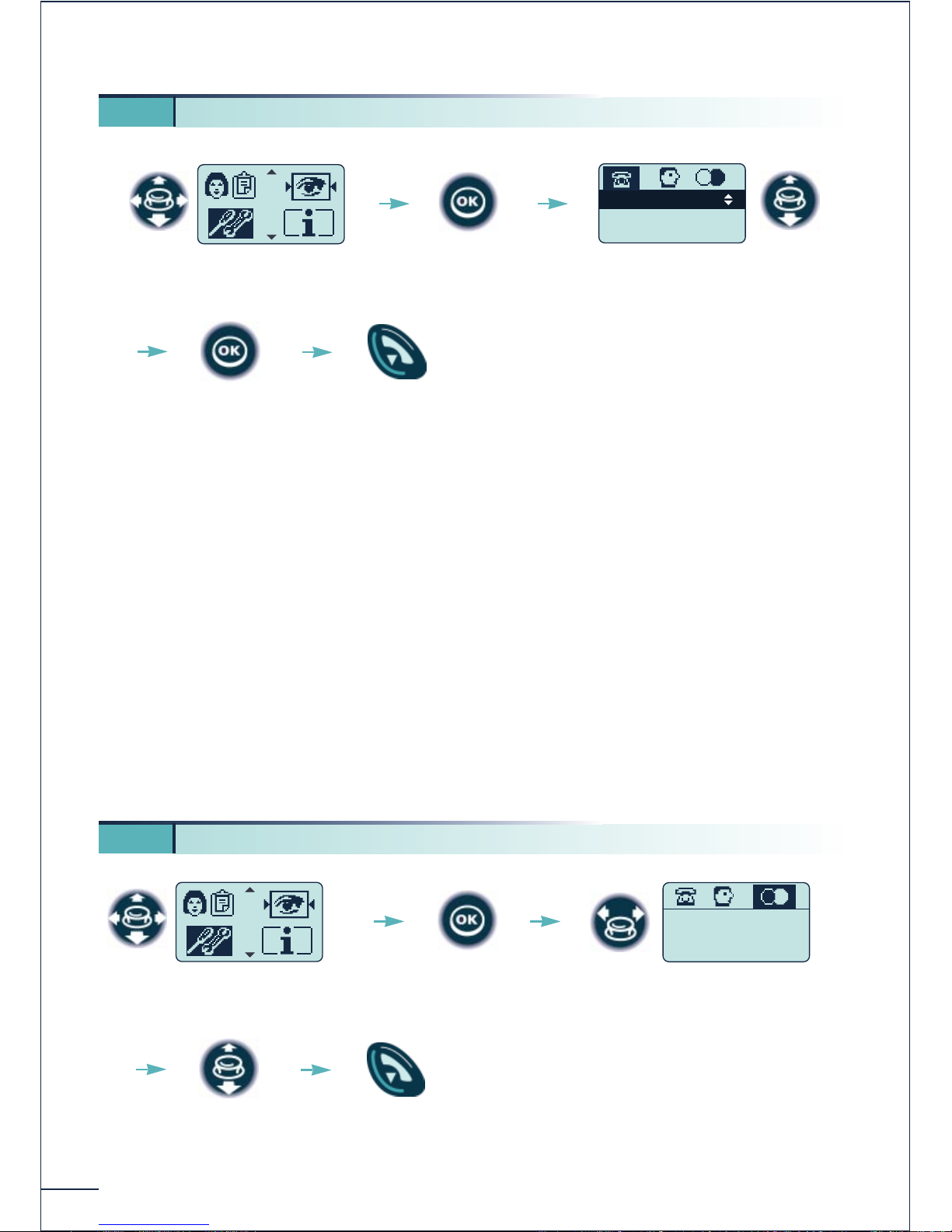
* You can activate or disable the following functions:
Back-light (DDS 200)The telephone is back-lit when you press a key
Ringer The telephone rings when there is an incoming call
Vibrator (DDS 200)The telephone vibrates when there is an incoming call
Keypad beep A beep is emitted each time a key is pressed
Warning beep A beep is emitted as soon as an error is detected
Coverage beep A beep is emitted when the radio link is no longer
detected
Screen Saver Screen proposed after a period of inactivity
5 9. Adjusting your telephone functions
Select the "Adjustment"
function
Confirm
Back-light
Ringer
Vibrator
Select the function* you want to
activate or disable
Activate /
disable
Return to
idle
5 10. Adjusting screen contrast
Select the "Adjustment"
function
Confirm
Contrast : 3/5
Select the "Contrast"
icon
Increase or
decrease
the contrast
Return to
idle
Page 41
39
Customizing and adjusting your telephone
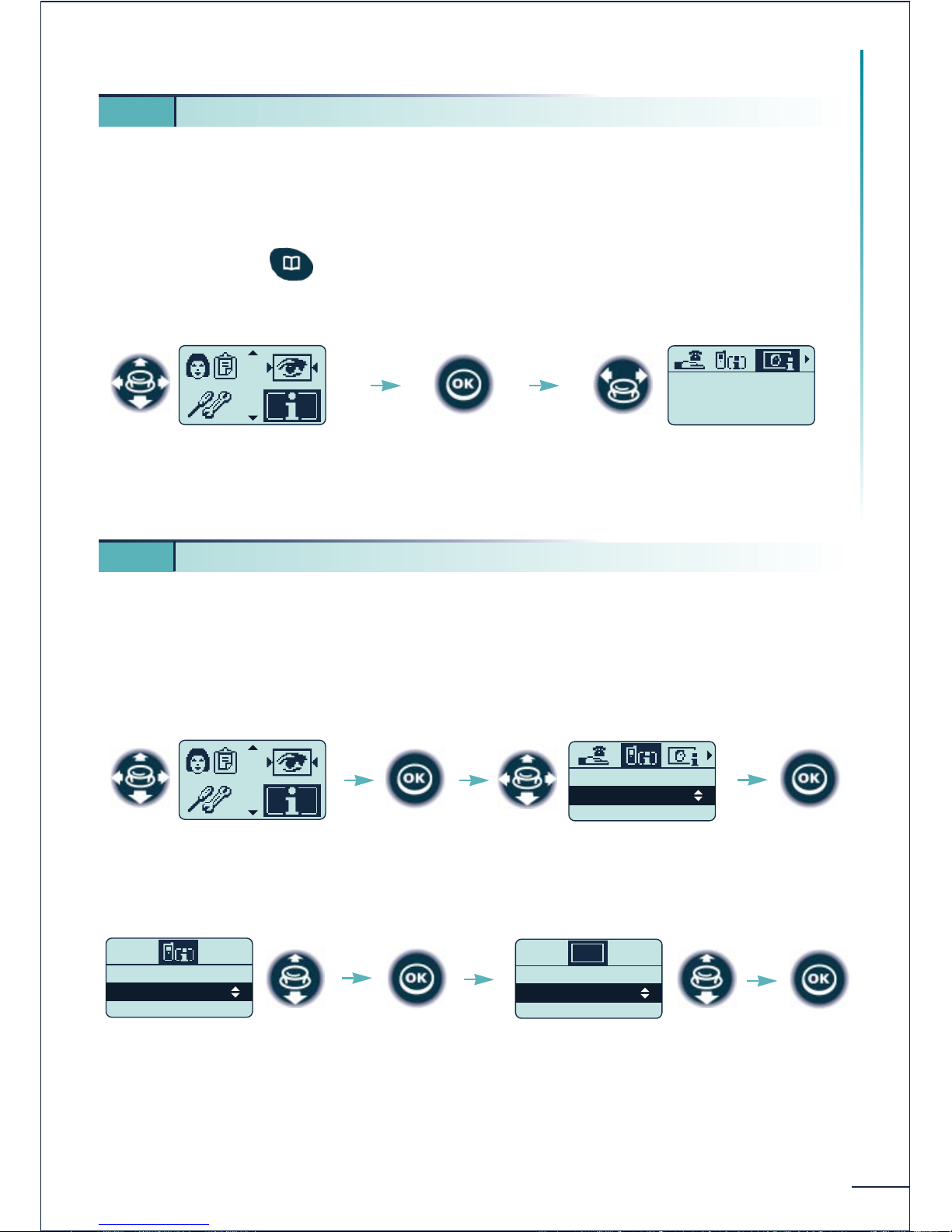
The identifier or the telephone number are displayed permanently when the telephone is
within the radio coverage zone and is not being used (when screen save is not displayed).
If the telephone number is not displayed:
- in standby mode: long press,
-or:
The available functions can be implemented by entering a code (see table of codes) if they
are not directly accessible through an icon.
The list of functions available under the "Services" heading can be used to access these
functions without having to know the activation code.
Select the "Guide"
function
Confirm
MARTIN Paul
74816
Select the
"Who ?" icon
5 11. Identifying the telephone you use
5 12. Using the list of functions
Select the "Guide"
function
Select the desired group of
functions
Fwd services
DND/locking/VG
Pick up services
Confirm
Call
Services
Select the
"Consultation" icon
then the "Services"
option
Confirm
Confirm
Select the function to activate
Set lock/unlock
VG on/off
Secret Ident.
LOCK
Confirm
Page 42

40
Defining function groups
Fwd services
Fwd Immediate : immediate unconditional forwarding
Fwd On Busy : immediate forwarding on busy
Fwd On No Rep : delayed forwarding on no reply
Fwd Busy/NoRep : forwarding on busy or no reply
Remote Forward : immediate forwarding of one terminal from another terminal
Deact Forward : deactivation of programmed forwarding
Deact FollowMe : deactivation of forwarding from the forwarding destination terminal
Deact Rem Fwd : deactivation of forwarding from another terminal
DND/locking/VG
Set lock/unlock : locking/unlocking of the terminal
DND on/off : activating/disabling the "do not disturb" function
VG on/off : activating/disabling the playing of voice guides
Secret Ident. : hiding your identity
Display Ident. : hiding the identity of your correspondent
Camp On Control : controlling camp-on busy
Pick up services
Group pick up : picking up a group call
Ext pick up : picking up a call on another terminal
Night pick up : answering the general bell
Park/Retrieve : parking/retrieving a call
Common Hold : holding in a pick-up group
Assoc services
Overflow assoc : validation of overflow to the associate number on no reply
Overfl. on busy : validation of overflow to the associate number on busy
Overfl. on B/NR : validation of overflow to the associate number on busy or no reply
Canc assoc ovflw : cancellation of programmed overflow
Consult & CallBk
CalBk last call : call-back to last caller remains unanswered
Charging info : display of charging meters
Alarm Consult : consultation of the alarms
Appoint reminder
Set appointment : programming an appointment reminder
Cancel appointm : cancelling an appointment reminder
Page 43

41
Customizing and adjusting your telephone
Voice mail
Voice mail num. : access to the voice mail
List.voice msg : consultation of the voice messages
Notif.Voice msg : notification of arrival of a voice message
Send voice msg : leaving a voice message
Call recording : recording the conversation
Diverse services
Intrus protect : temporary protection against intrusion
Account code : allocating a call to a customer's account
Substitution : substitution of one terminal for another
Hunting grp in : returning to the hunting group
Hunting grp out : leaving the hunting group
Set out for mov : putting the terminal out of service
Meet Me Conf. : programmed conference
Z Behind UA: analogue terminal behind a IDS terminal
Auto Conference : supervised automatic conference
Announcement : message broadcasting over the loudspeaker
Man. Cconference : supervised manual conference
Paging Services
Paging : replying to a paging call
Transparency
Decad : transparency in decadic dialing
DTMF : transparency in voice frequency dialing
Alpha : Alphapage connection
The proposed list of functions depends on the configuration of your system and the
authorizations given by the system administrator.
Page 44
42
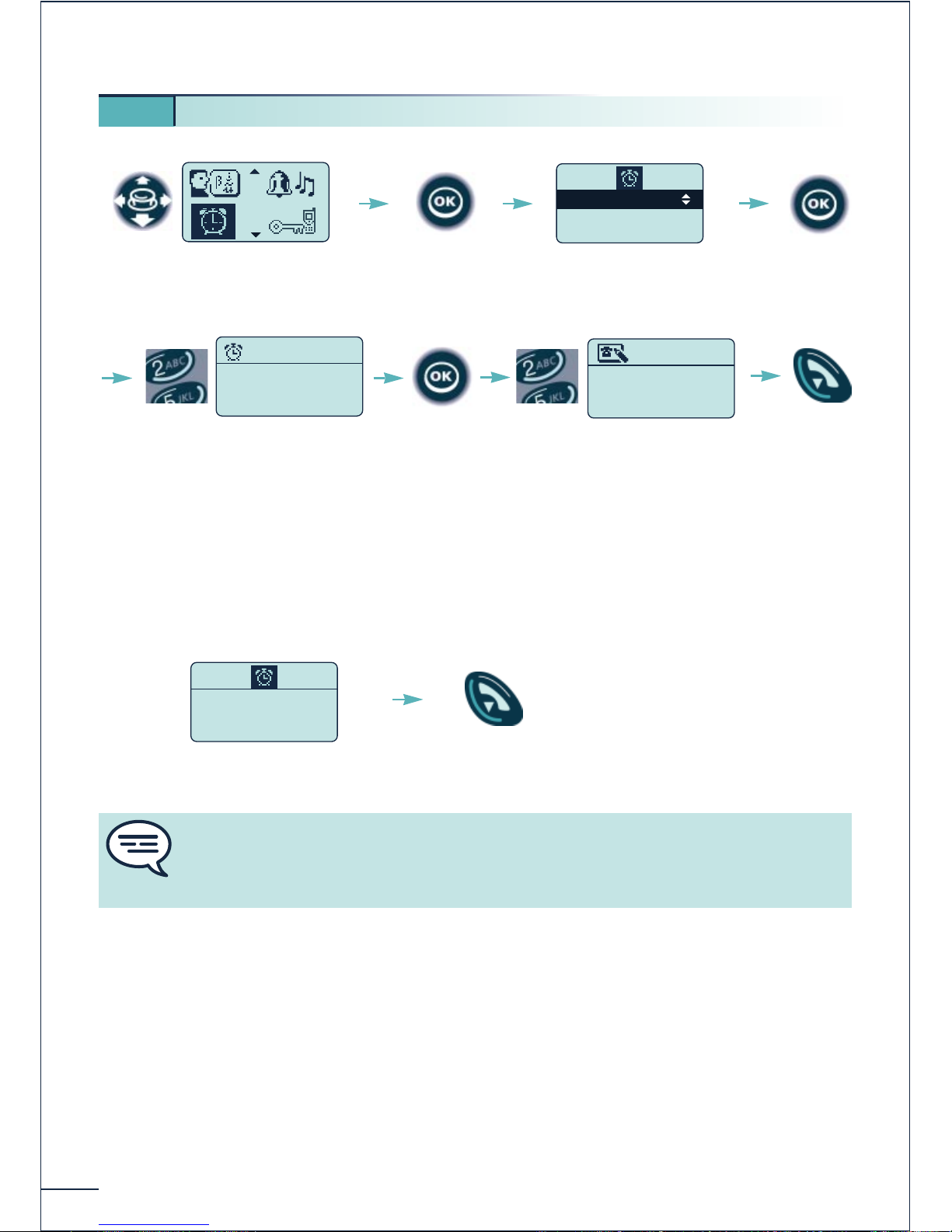
(*) If you do not enter a number, the appointment reminder will be given on your terminal
by default.
At the programmed time, your telephone rings:
To cancel your appointment reminder request:
Select the "Cancel appointm" and confirm.
5 13. Programming an appointment reminder
Select the "Appointment"
function
Confirm
Set appointment
Cancel appointm
Select
"Set appointment"
Confirm
Enter the time of the reminder
(hour, minutes)
18:30
Appointment
Confirm
............
Addressee ?
Return to
idle
Enter the number of the
reminder addressee terminal
(*) if applicable and confirm
((@))) 14:38
Confirm the
response
If you do not confirm the response to the first call, a second call will be made. If the
second call remains unconfirmed, the reminder request will be cancelled. If your line
is forwarded to another number, your call will not follow the forwarding.
Page 45
43
Customizing and adjusting your telephone
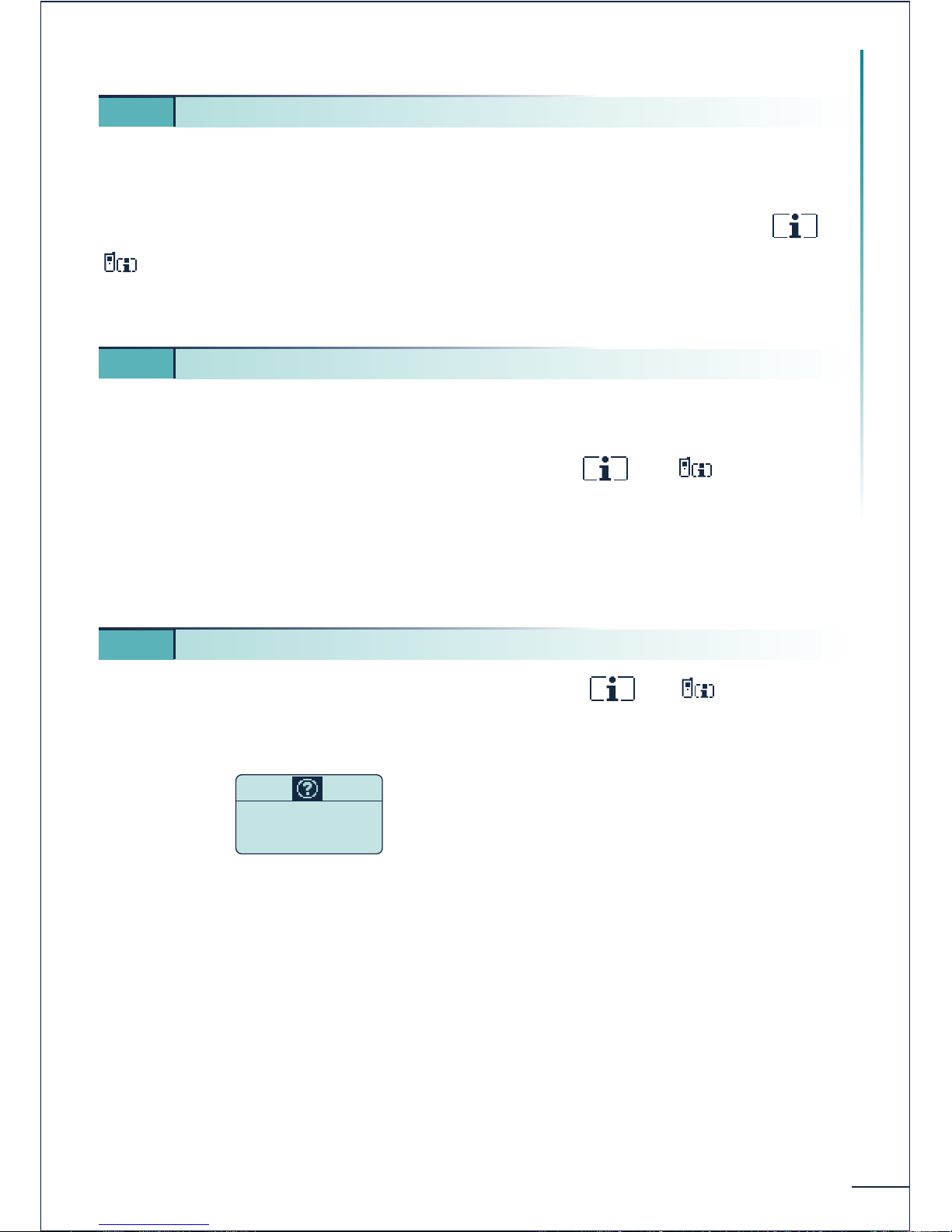
If you hide your identity when you make a call, your name or number will not be displayed
on your correspondent's terminal.
Before making a call, validate the "Secret Ident." function under the heading Þ
Þ "Services" Þ "DND/locking/VG".
This function remains activated until it is cancelled using the same procedure.
You can render your terminal temporarily inaccessible to all calls other than operator
calls.
Validate the function "DND on/off" under the heading ÞÞ "Services"
Þ "DND/Locking/VG".
This function remains activated until it is cancelled using the same procedure.
The current status is shown on the standby screen.
Validate the "Charging info" function under the heading ÞÞ "Services"
Þ "Consult & CallBk".
5 14. Hiding your identity
5
15. Do not disturb function
5
16. Finding out the cost of your external calls
Calls cost :
Last :
Total :
Display of the cost or number of units
of the last communication and the
total since the counters were last reset
Page 46
44
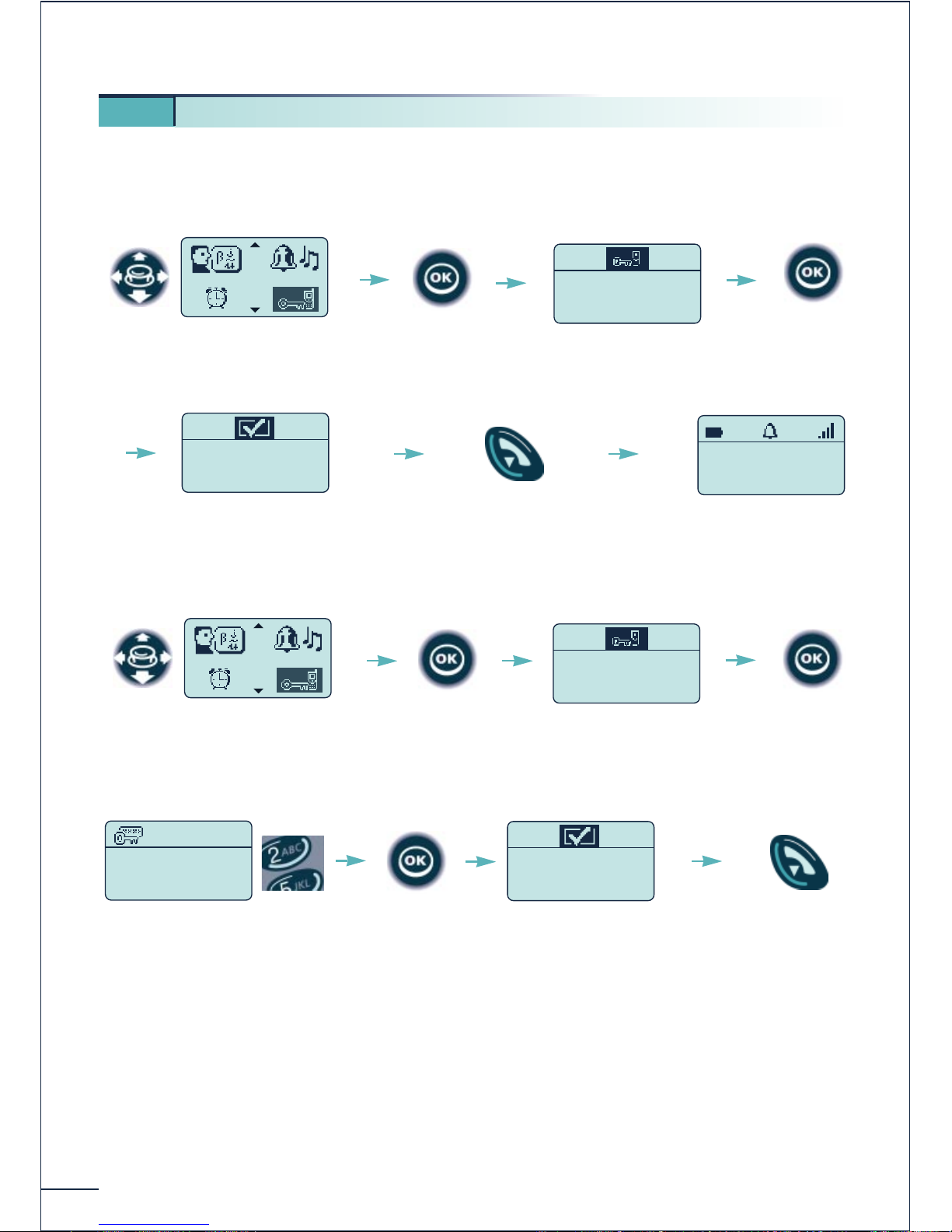
This function is used to prohibit all external communications (*) (except entry of the
password) and any changes in the programming of your telephone:
To unlock:
(*) If making an external call with block mode dialing, do not forget to enter the password
after the "Direct outside line" code.
5 17. Locking your telephone
Select the "Lock"
function
Confirm
Set is locked
Locking confirmed
MARTIN Paul
31/08/00 16 :30
Set is locked
Return to
idle
Select the "Lock"
function
Confirm
* * * *
Password?
Enter your password
Confirm
Set is unlocked
Unlocking confirmed
Return to
idle
Lock handset ?
Confirm
Unlock handset ?
Confirm
Page 47
45
While you are away - When you return
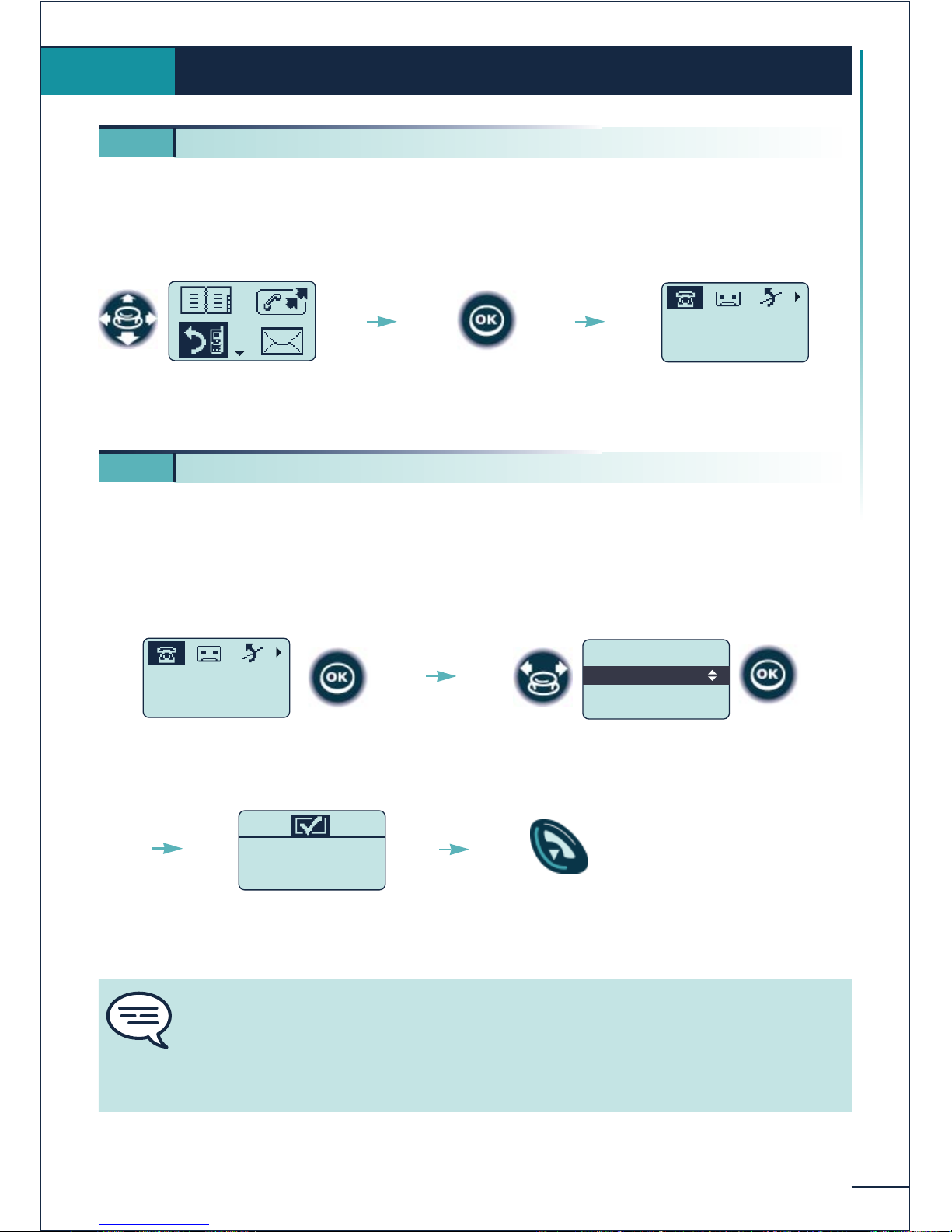
There are several types of call forwarding. Whatever the type of forwarding you choose,
you must access the "Forwarding" function.
To do this:
This number can be that of an internal terminal (operator etc.), a home number, a mobile
phone number, your voice message service or the pager.
To activate forwarding to the last number used
While you are away - When you return
6.
6 1. Forwarding calls
Select the "Forwarding"
function
Confirm
Fwd immediate
00388674526
Desactivated
Status of last forwarding
action
The forwarding is
accepted
Confirm access to immediate
forwarding
.Activate Fwd
.Modify Fwd
.Back
Fwd immediate
Programming OK
Confirm the "Activate Fwd"
option
Return to
idle
You can continue to make calls while your telephone is forwarded. Only the
forwarding addressee can call you.
General remark concerning forwarding: you can only activate a single forwarding
option on your telephone.
Programming a new forwarding option will cancel the previous one.
6 2. Forwarding calls to another number (immediate forwarding)
Fwd immediate
00388674526
Desactivated
Page 48
46
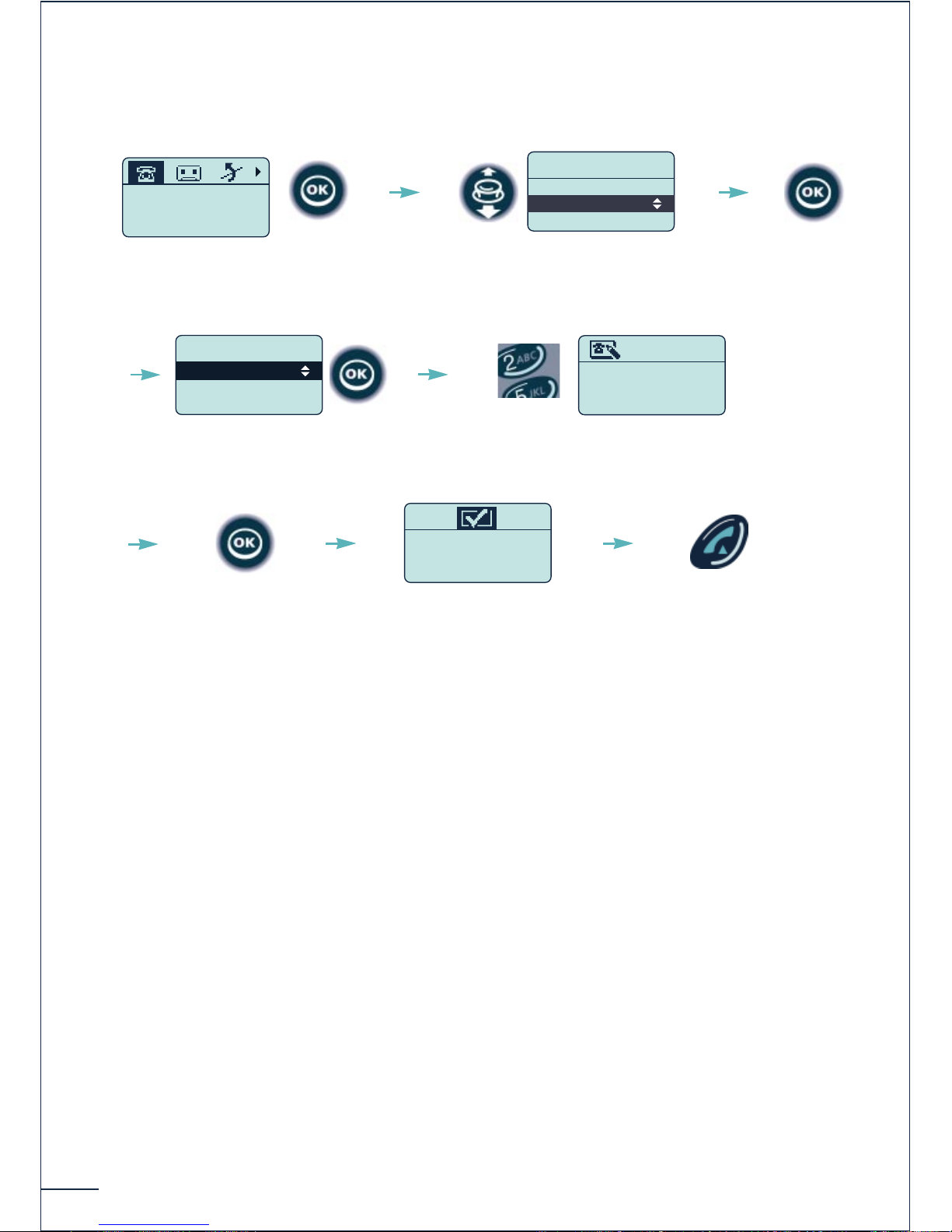
To change the forwarding destination number
Confirm access to immediate
forwarding
Fwd immediate
.Activate Fwd
.Modify Fwd
.Back
.Dial a Number
.Personal Dir
.Phone Book
Fwd immediate
Addressee?
0130030306-----
Programming OK
Select the "Modify Fwd"
option
Confirm
Enter the forwarding
destination number
Confirm
Confirm "Dial a Number"
or use another option
The forwarding is
accepted
Return to idle
Fwd immediate
00388674526
Desactivated
Page 49
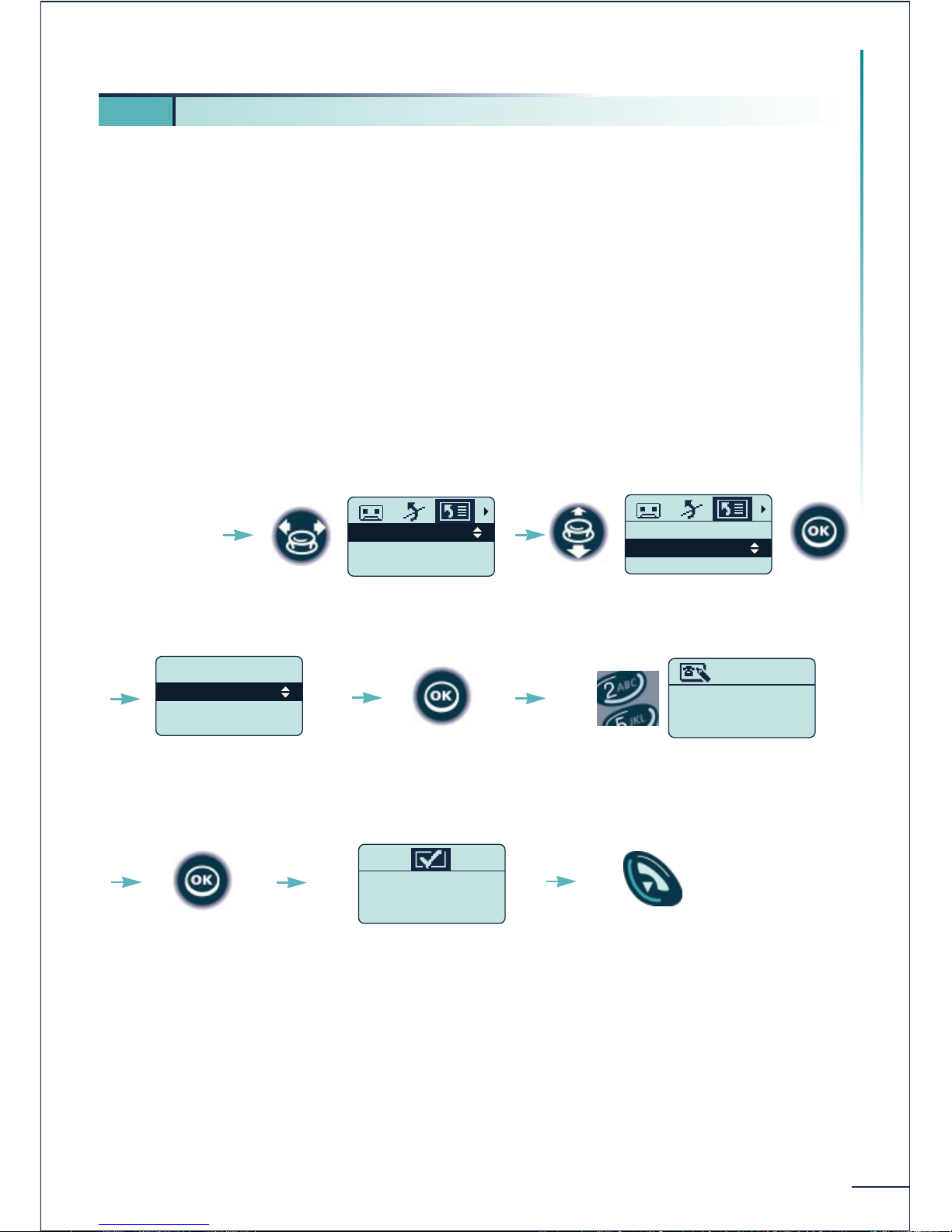
Other types of forwarding exist:
Fwd On No Rep: forward when you are absent (delayed forwarding on no reply).
Fwd On Busy: forwarding when you are already in conversation (immediate forwarding
on busy).
Fwd Busy/NoRep: forwarding when you are absent or in conversation (forwarding on
busy or no reply).
Remote Forward: forwarding one terminal from another terminal (immediate remote
forward).
Example: Forwarding calls when you are absent (delayed forwarding on no
reply)
47
While you are away - When you return
6 3. Other types of call forwarding
Access the
"Forwarding"
function
.Dial a Number
.Personal Dir
.Phone Book
Fwd On No Rep
Fwd On Busy
Fwd On No Rep
Fwd Busy/NoRep
Confirm "Dial a
Number" or use
another option
Select the "List of
forwarding options" icon
Select " Fwd On No Rep" then
confirm
Fwd On Busy
Fwd On No Rep
Fwd Busy/NoRep
Addressee ?
75491-----
Enter the forwarding
destination number
Programming OK
Confirm
The forwarding is
accepted
Return to idle
Confirm
Page 50
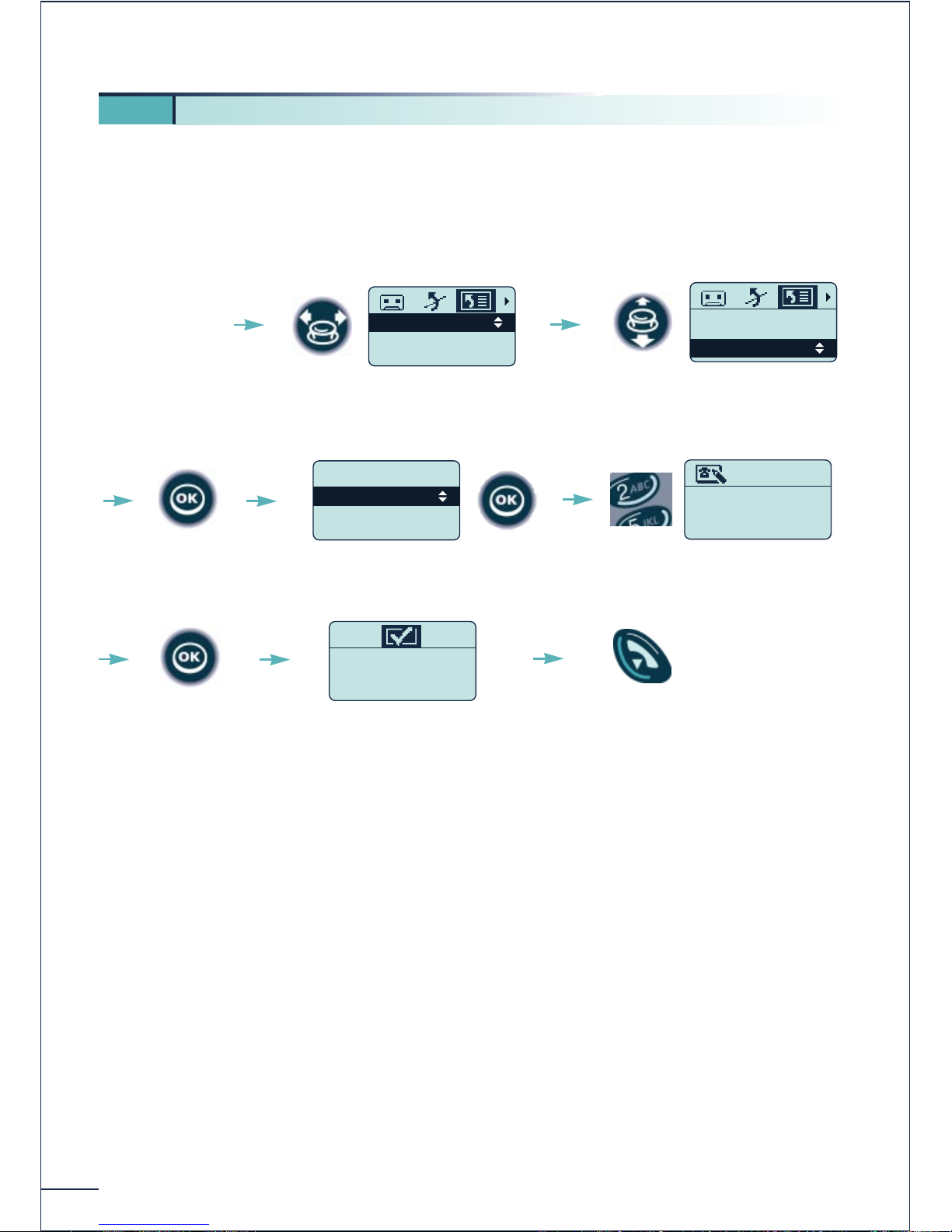
Forwarding your calls from another terminal (follow me)(*)
You are working temporarily in another office and you want your calls to be forwarded
to that office. On the terminal to which you want your calls to be forwarded:
48
6 4. Remote forwarding of calls (immediate forwarding)
Access the
"Forwarding"
function
Fwd On Busy
Fwd On No Rep
Fwd Busy/NoRep
Select the "List of
forwarding options" icon
Addressee ?
75491-----
Enter the number of the
terminal to forward
Select "Remote Forward"
Programming OK
Confirm
The forwarding is
accepted
Return to idle
Fwd On No Rep
Fwd Busy/NoRep
Remote Forward
Confirm
.Dial a Number
.Personal Dir
.Phone Book
Remote Forward
Confirm "Dial a Number"
or use another option
Page 51
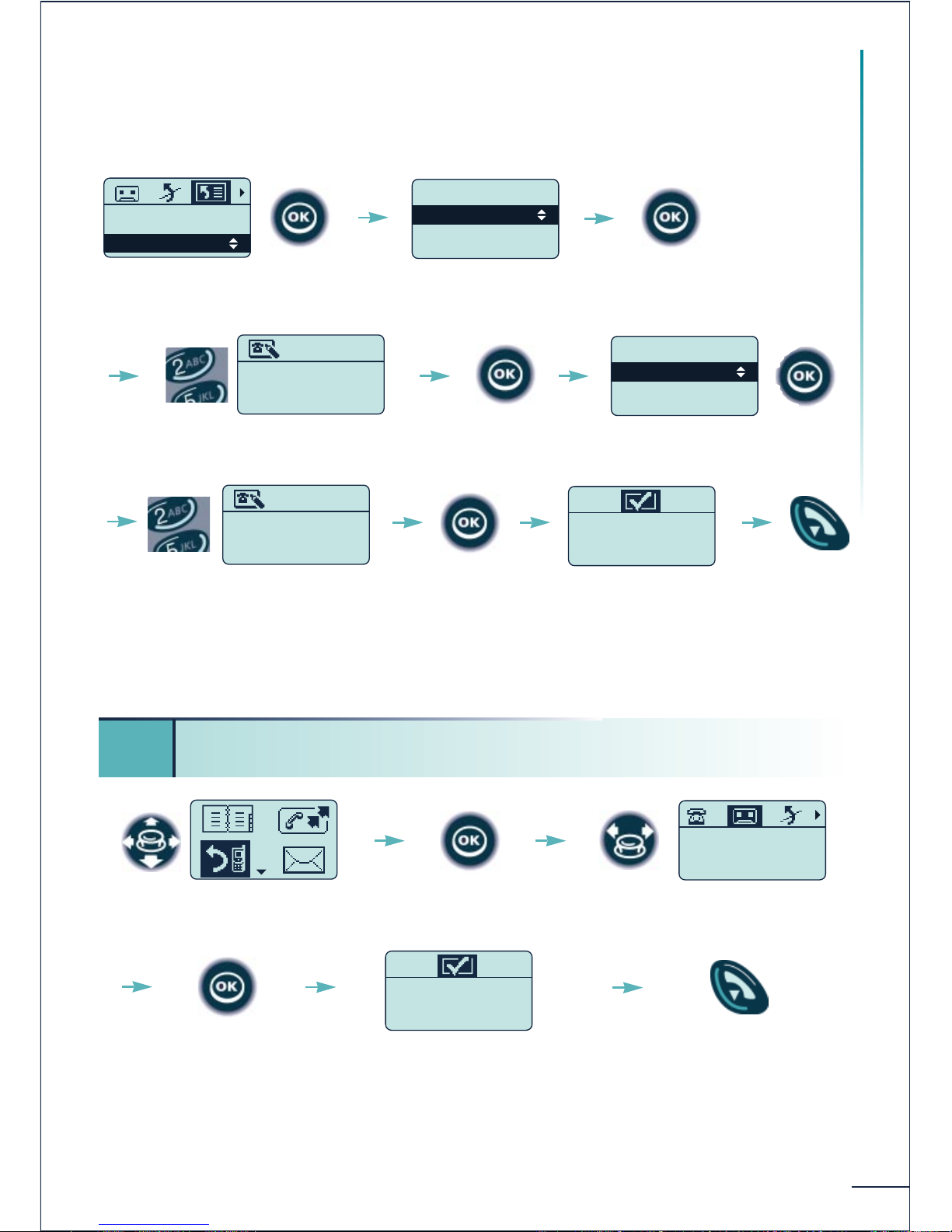
49
While you are away - When you return
Forwarding the calls from any terminal in the company (*)
To forward the calls from any terminal in the company to another terminal:
(*) These two functions are mutually incompatible and their availability depends on the
configuration of your system.
You can also make another type of forwarding to your voice mail by selecting the "List
of forwarding options" icon and entering the number of the voice mail as the
destination of the programmed forwarding.
6 5. Forwarding calls to your voice mail service (immediate
forwarding)
Fwd immediate
Voice Mail
Select the "Forwarding"
function
Confirm
Select the "Voice mail"
icon
Confirm
Programming OK
The forwarding is accepted
Return to idle
Fwd On No Rep
Fwd Busy/NoRep
Remote Forward
Confirm the
"Remote Forward" function
Addressee ?
75491-----
Enter the forwarding
destination number
Confirm
Addressee?
0130030306-----
Enter the number of the
terminal to forward
Confirm
Programming OK
Return to
idle
The forwarding is
accepted
.Dial a Number
.Personal Dir
.Phone Book
Remote Forward
Confirm "Dial a Number"
or use another option
Confirm
.Dial a Number
.Personal Dir
.Phone Book
Set to forward
Confirm "Dial a Number"
or use another option
Page 52
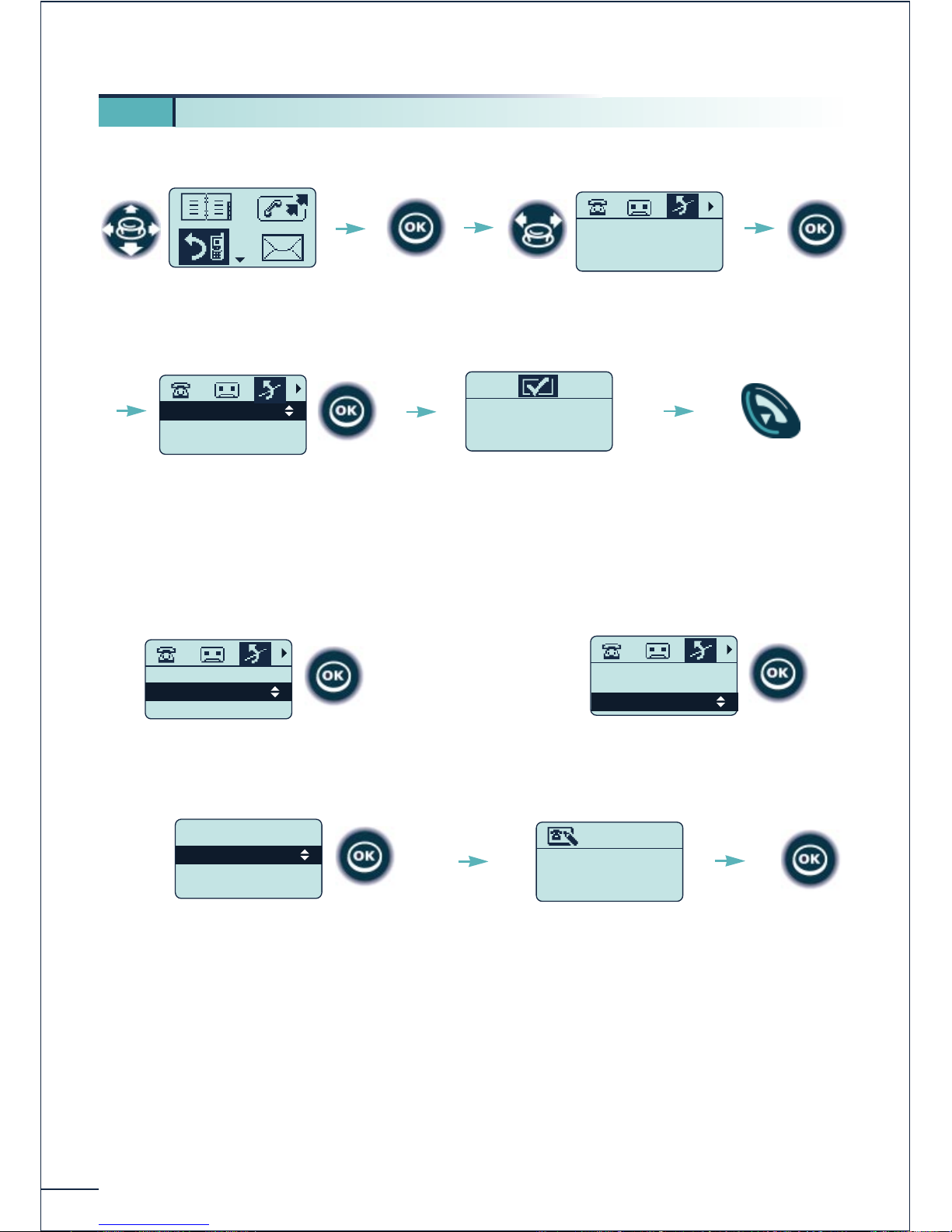
50
On your terminal
6 6. Cancelling all forwarding functions
Immediate Fwd to
01302254
Activated
Select the "Forwarding"
function
Confirm
Select the "Forwarding
cancellation" icon
Confirm the
"Deact Forward" option
Deact Forward
Deact FollowMe
Deact Rem Fwd
Return to
idle
Forwarding off
Cancellation of
forwarding is accepted
Confirm the
"Deact FollowMe" option
Deact Forward
Deact FollowMe
Deact Rem Fwd
Confirm the
"Deact Rem Fwd" option
Deact Forward
Deact FollowMe
Deact Rem Fwd
Addressee ?
75491-----
Enter the number of
the terminal on which
forwarding must be
cancelled
Confirm
From the forwarding destination
terminal
From any terminal in the company
OR
Confirm "Dial a Number"
or use another option
.Dial a number
.Personal Dir
.Phone Book
Deact Rem Fwd
Confirm
Page 53
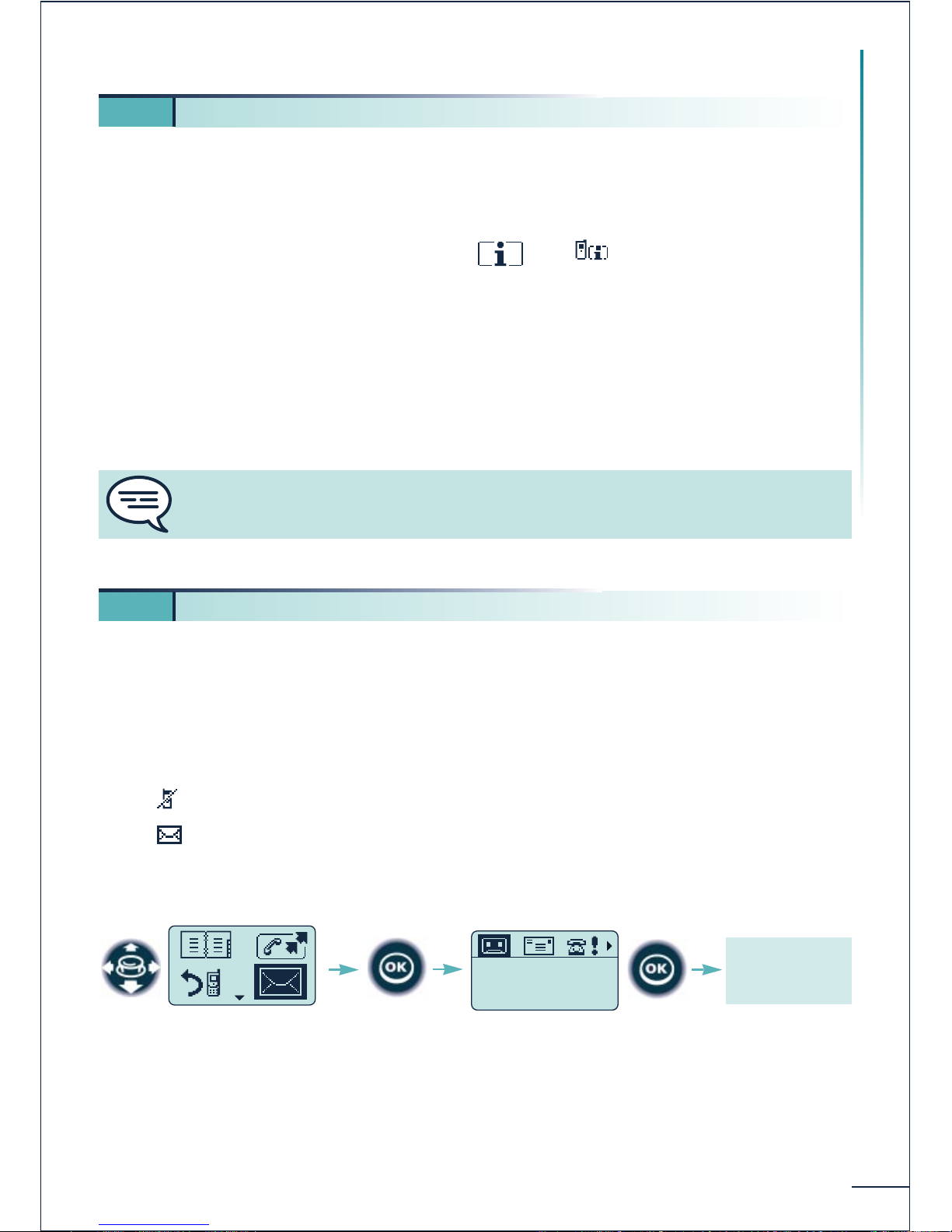
51
While you are away - When you return
This can be an internal number, a voice message service number or a paging number.
If you have defined an associate number beforehand (see § "Programming your
associate number"), you can forward your calls to this number by confirming the
corresponding function under the heading ÞÞ "Services" Þ "Assoc
services".
Overflow assoc: delayed forwarding (overflow) when you do not reply,
Overfl. on busy: immediate forwarding (overflow) when your line is busy,,
Overfl. on B/NR: forwarding (overflow), which is delayed if you do not reply or
immediate if your line is busy.
To cancel forwarding confirm the "Canc assoc ovflw".
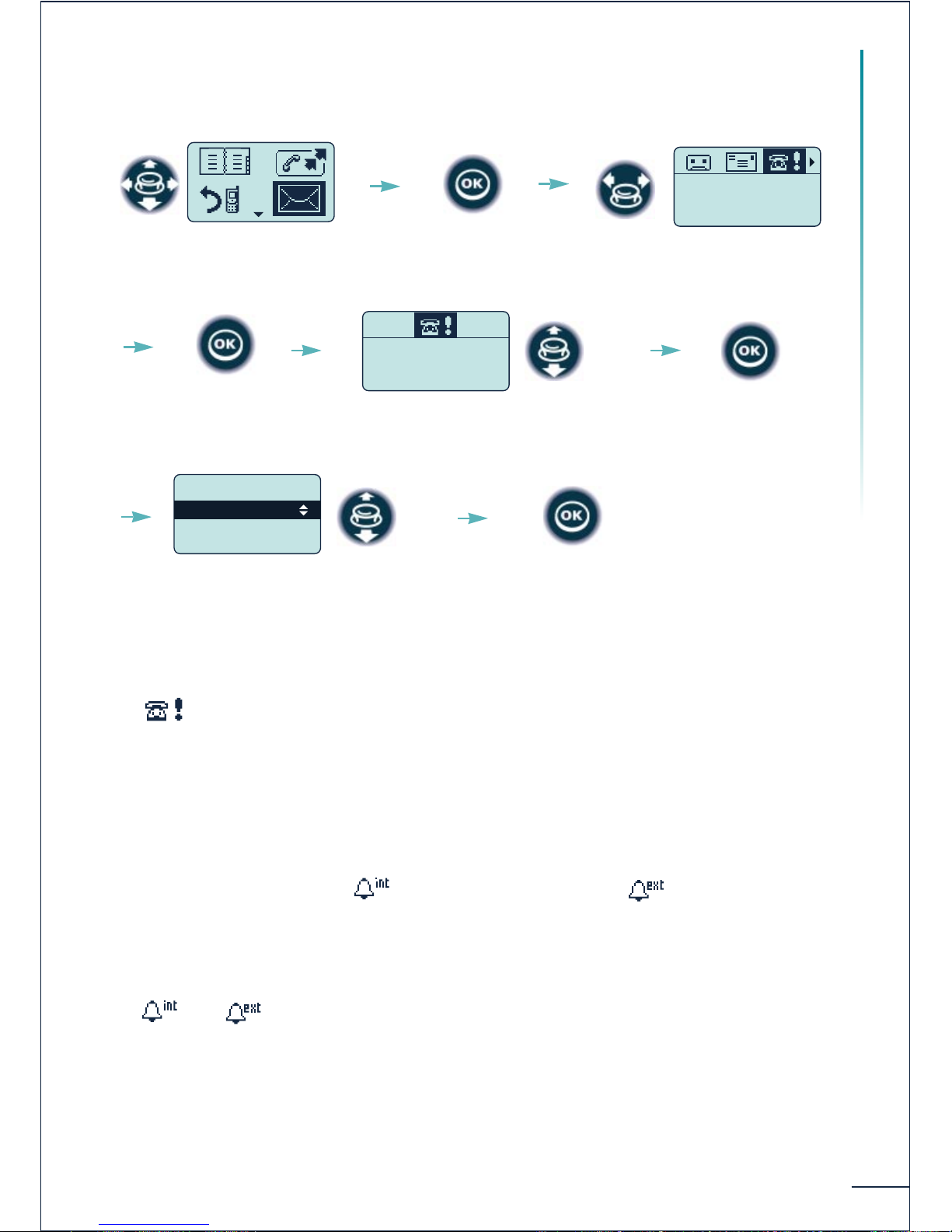
You can consult the messages left while you were away: voice messages, call-back requests,
text messages, list of unanswered internal and external calls.
When you have received a new message:
-the indicator light is on (green on DDS 100, red flashing slowly on DDS 200),
- the icon is displayed on the saver screen if only unanswered messages are present,
- the icon is displayed on the saver screen in the other cases.
Voice messages
6 7. Forwarding calls to an associate number (overflow)
When forwarding is programmed it takes priority over overflow to the associate
number.
6 8. Consulting the messages left while you were away
2 New voic msg
Select the "Messages"
function
Follow the
instructions of
the voice guide
Validate to access the voice
messages
Confirm
Page 54
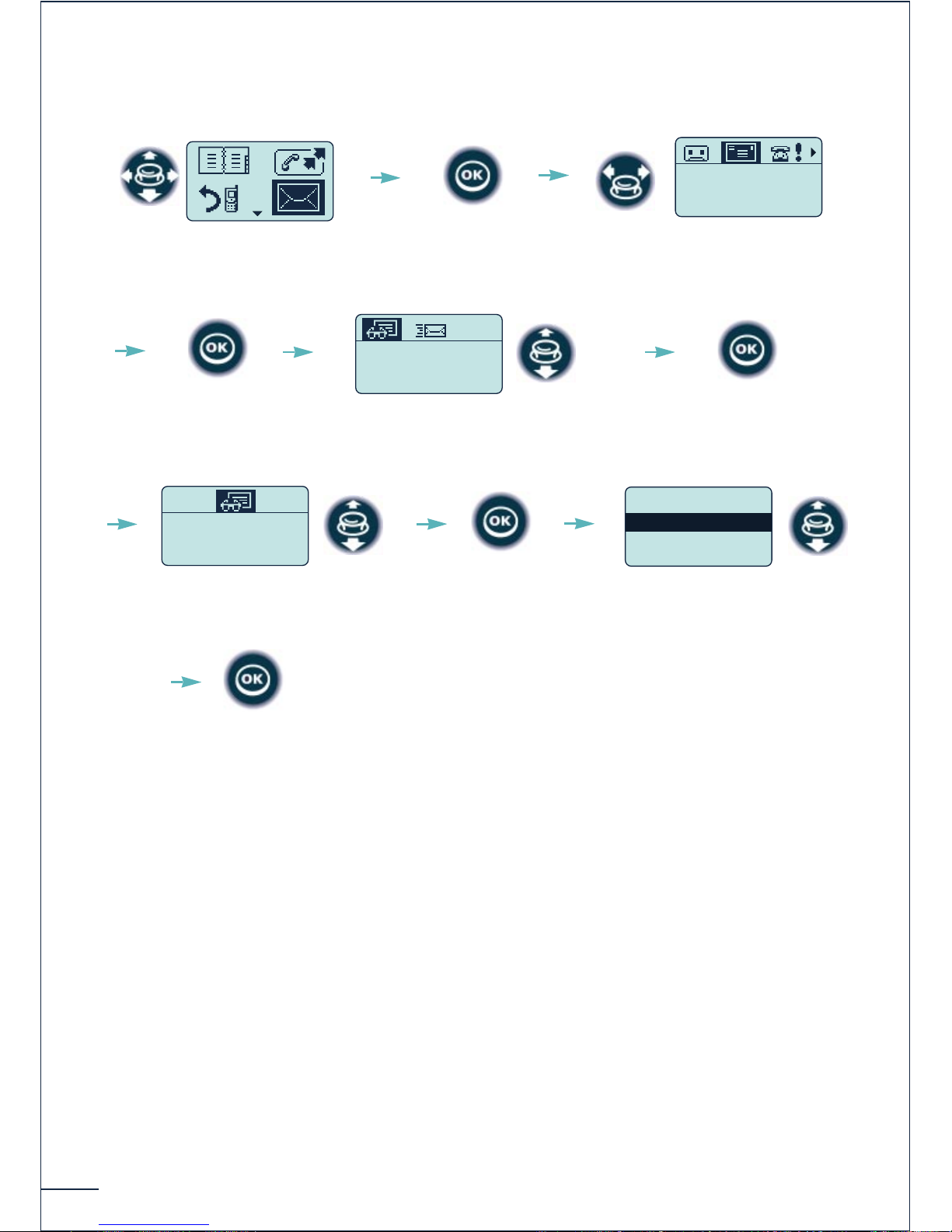
52
Text messages
OPTIONS:
Delete : erase the message. The message remains stored until it is erased.
Call Back : call back directly the person who left the message.
If your correspondent replies when you call back, the message is
erased automatically.
Answer By Text : send back a text message to the person who left the message.
Next : proceed to the next message.
Back : return to the previous screen.
Confirm
Select the "Messages"
function
2 New Text Msg
Select the "Text messages"
icon
Confirm
WEBER Pierre
01/08/00 14:32
1/2
Select the message you want
to read
Confirm
Message content
.....
Navigate in the pages of the
message
Confirm
.Delete
.Call Back
.Answer By Text
Options
Select an option
Confirm
Page 55
53
While you are away - When you return
Call-back requests
If you use the "Call Back" option, the request is erased even if your correspondent does
not answer. Otherwise the request remains stored as long as the "Delete" option has
not been confirmed.
The icon is only present if there is at least one call-back request (8 maximum).
Lists of unanswered internal or external calls
The procedure for consulting the lists of unanswered internal or external calls is identical
to that for the call-back requests.
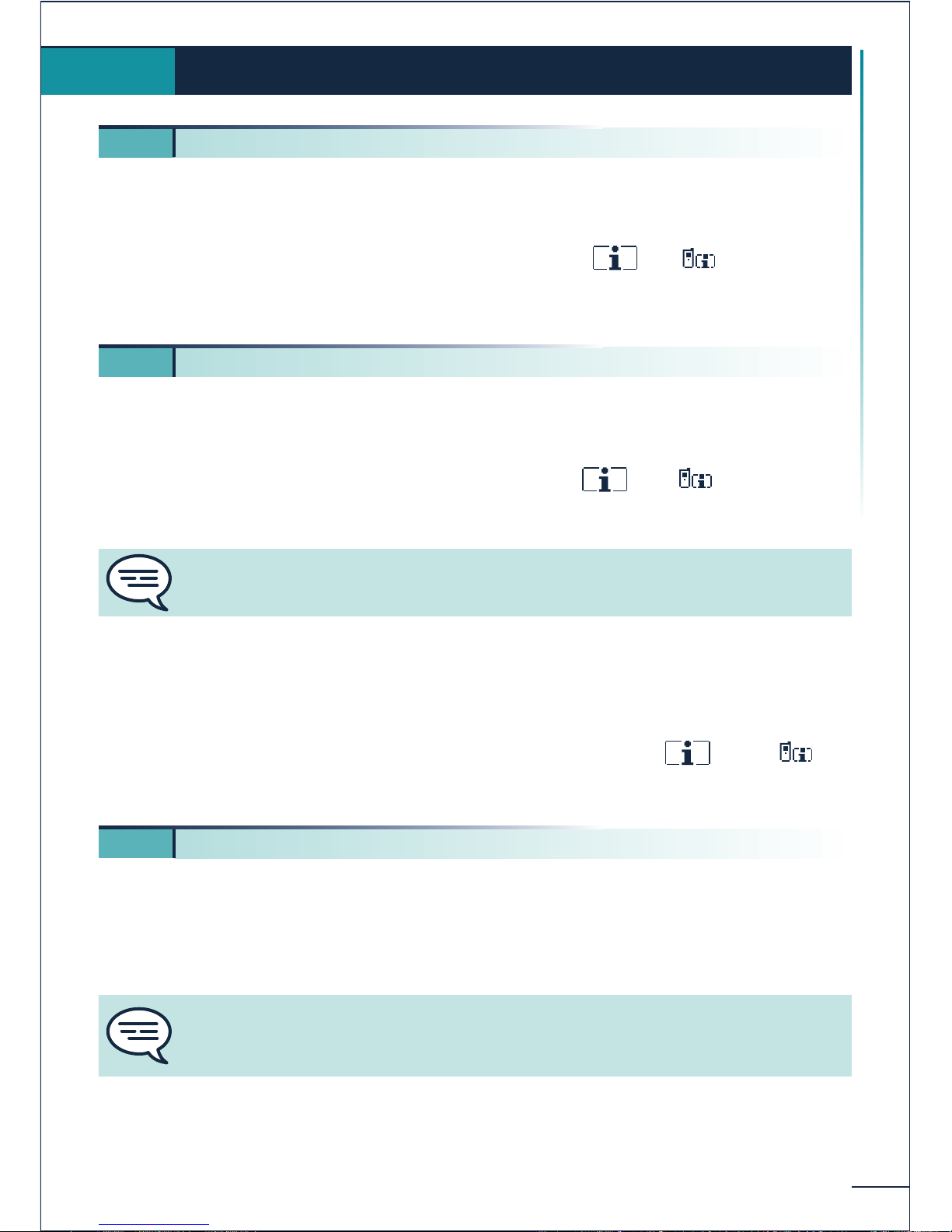
To access the lists, select the icon (internal calls) or the icon (external calls).
If you use the "Call Back" option, the message is erased automatically if your
correspondent replies. Otherwise it remains stored as long as the "Delete" option has
not been validated.
The and icons are only present if there is at least one message (16 maximum).
Select the "Messages"
function
2 Call Back
Confirm
Select the
"Call-back requests" icon
Confirm
WEBER Pierre
1/2
Select the person to call back
Confirm
. Delete
. Call Back
. Back
Options
Select an option
Confirm
Page 56

54
You can call back the last unanswered internal caller without knowing their telephone
number.
Confirm the function "CalBk last call" under the heading ÞÞ
"Services" Þ "Consult & CallBk".
You are automatically routed to the person who made the last call.
If you reply to a call before confirming this function, the information is lost.
6 9. Calling back the last internal caller
Page 57
55
Group operation
When the operator is absent, incoming external calls are forwarded to a general bell. You
can answer these calls:
Confirm the function "Night pick up" under the heading ÞÞ "Services"
Þ "Pick up services".
Picking up a call on another terminal
If you are duly authorized, you can pick up a call made to another terminal.
Confirm the "Ext pick up" function under the heading ÞÞ "Services"
Þ "Pick up services", then dial the number of the terminal that is ringing.
Group call pick-up
You belong to a call pick-up group, from your terminal you can pick up an incoming call
to any of the terminals in the group.
Confirm the "Group pick up" function under the heading ÞÞ
"Services" Þ "Pick up services".
Hunting group call:
Some terminals can be associated to form a group. You can contact any one of them by
dialling the group number.
Group operation
7.
7
1. Answering the general bell
7
2. Call pick-up
The system can be configured to prevent call pick-up on certain telephones.
7
3. Hunting groups
Belonging to a group does not affect the management of direct calls. A specific
telephone within a group can always be called by using its own number.
Page 58
56
Temporary exit from your hunting group:
Confirm the function "Hunting grp out" under the heading ÞÞ
"Services" Þ "Diverse services".
Return into your group:
Confirm the function "Hunting group in" under the heading ÞÞ
"Services" Þ "Diverse services".
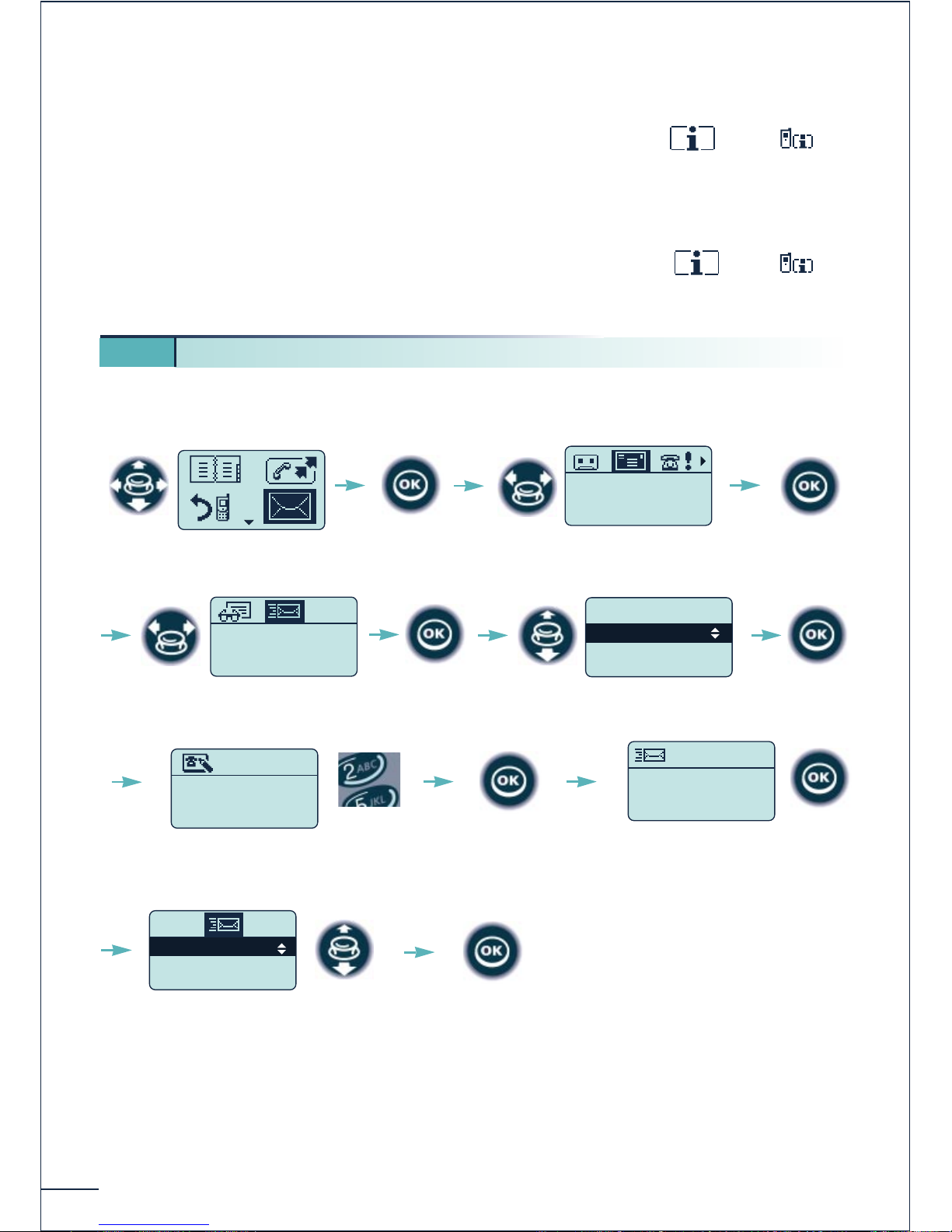
You can send a text message directly to an internal correspondent without calling him.
7 4. Sending a text message to an internal correspondent
Select the "Messages"
function
Confirm
0 New text Msg
Send a Message ?
.Dial a Number
.Personal Dir
.Phone Book
Adressee ?
Select the
"Text messages" icon
Confirm
Confirm
Specify the addressee
SMITH John
Confirm ?
Confirm the identify of the
addressee
Confirm
Addressee?
0130030306-----
Enter the number of the
message addressee
Fixed Messages
Prg Messages
New Message
Choose the type of message (*)
you want to send
Confirm
Confirm
(*) There are three types of messages:
Fixed Messages: predefined messages
Prg Messages: predefined messages to be completed
New Message: messages to be composed freely (32 characters maximum)
Page 59
57
Group operation
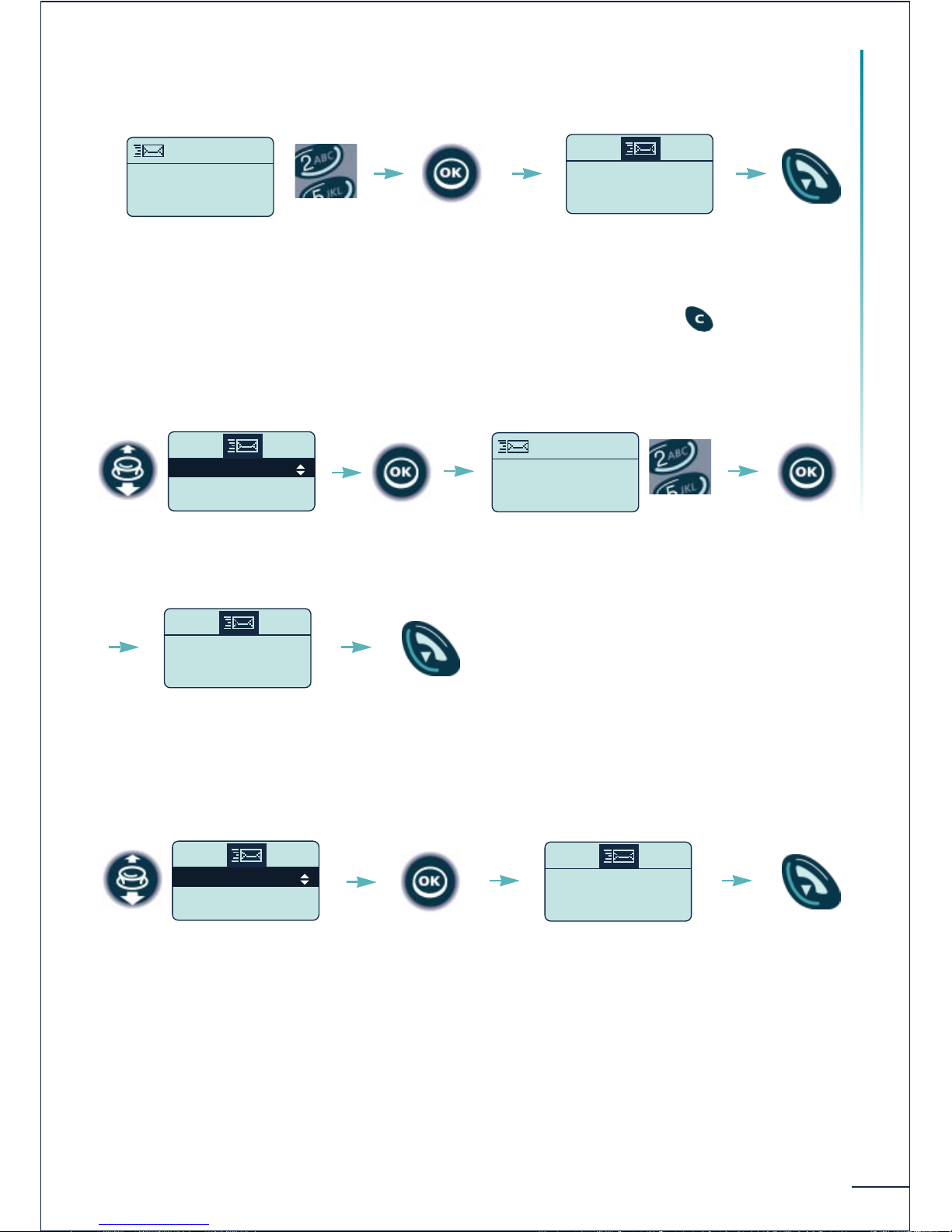
If the selected message has to be created:
When editing a message, the characters entered can be erased with
If the selected message has to be completed:
If the selected message is predefined:
----------------
----------------
New Message
Compose the text of the
message
Confirm
Meeting on the
Meeting room no
Please call no
Complete the message
Meeting on the
**/** at **:**
Prg Messages
Confirm
Your msg is sent
Return to
idle
Confirm
Select a message
Urgent please c
Please call me
Your msg is sent
Confirm
Select a message
Return to
idle
Your msg is sent
Return to
idle
Page 60
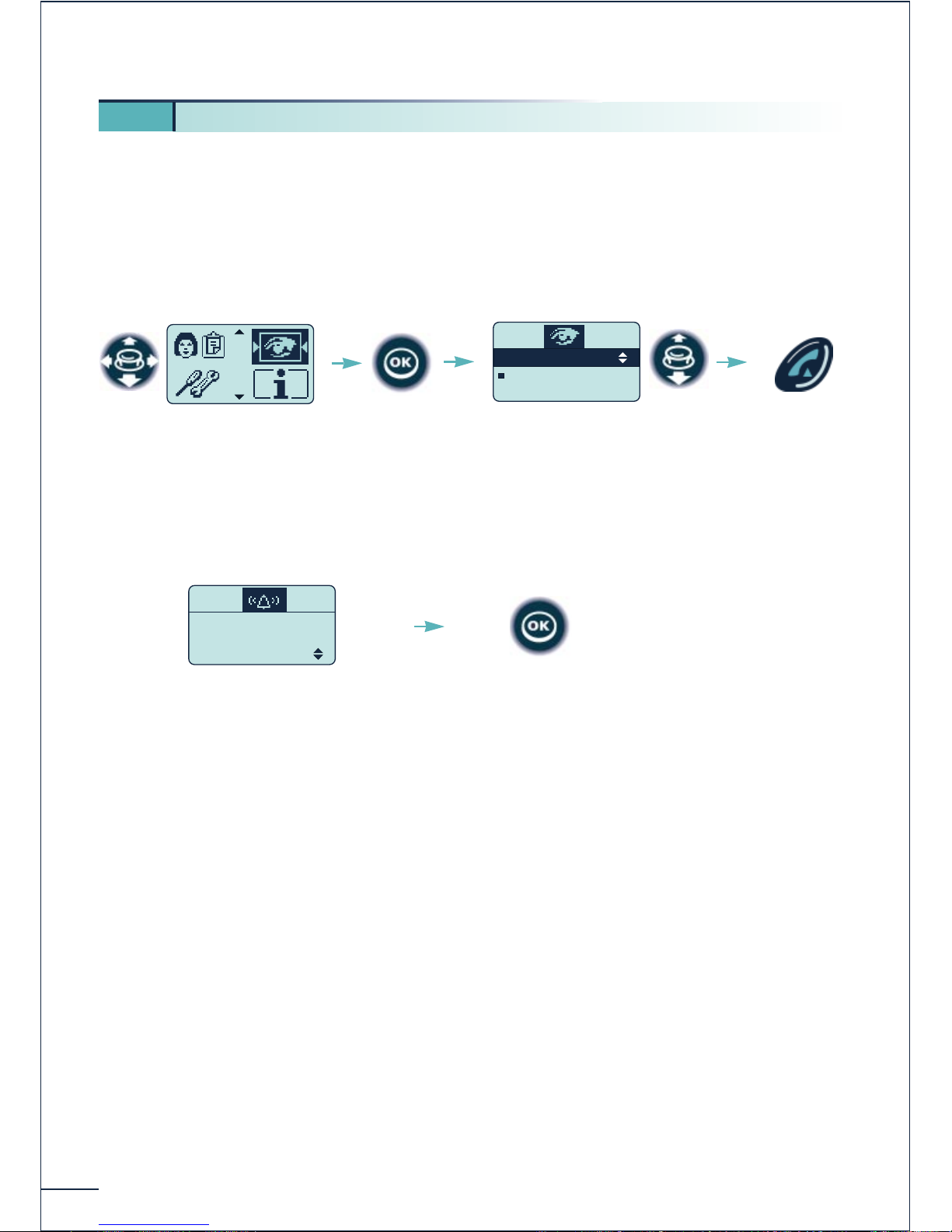
58
The supervision function enables one to find out the status of a terminal and be informed
of the calls it receives (supervision with ringer).
This function is defined by your system administrator.
Consulting the status of a terminal
Supervising the calls
: terminal free
n : terminal busy
SMITH JOHN
WEBER PIERRE
Confirm
Select the
"Supervis List" function
To call the
selected
terminal directly
7 5. Supervising a terminal
BELLER Yves
is calling 7416
Take the Call
Confirm the option
"Take the Call" to pick
up the call
Your terminal rings to
indicate that there is an
incoming call to
supervised terminal
no. 7416
Page 61
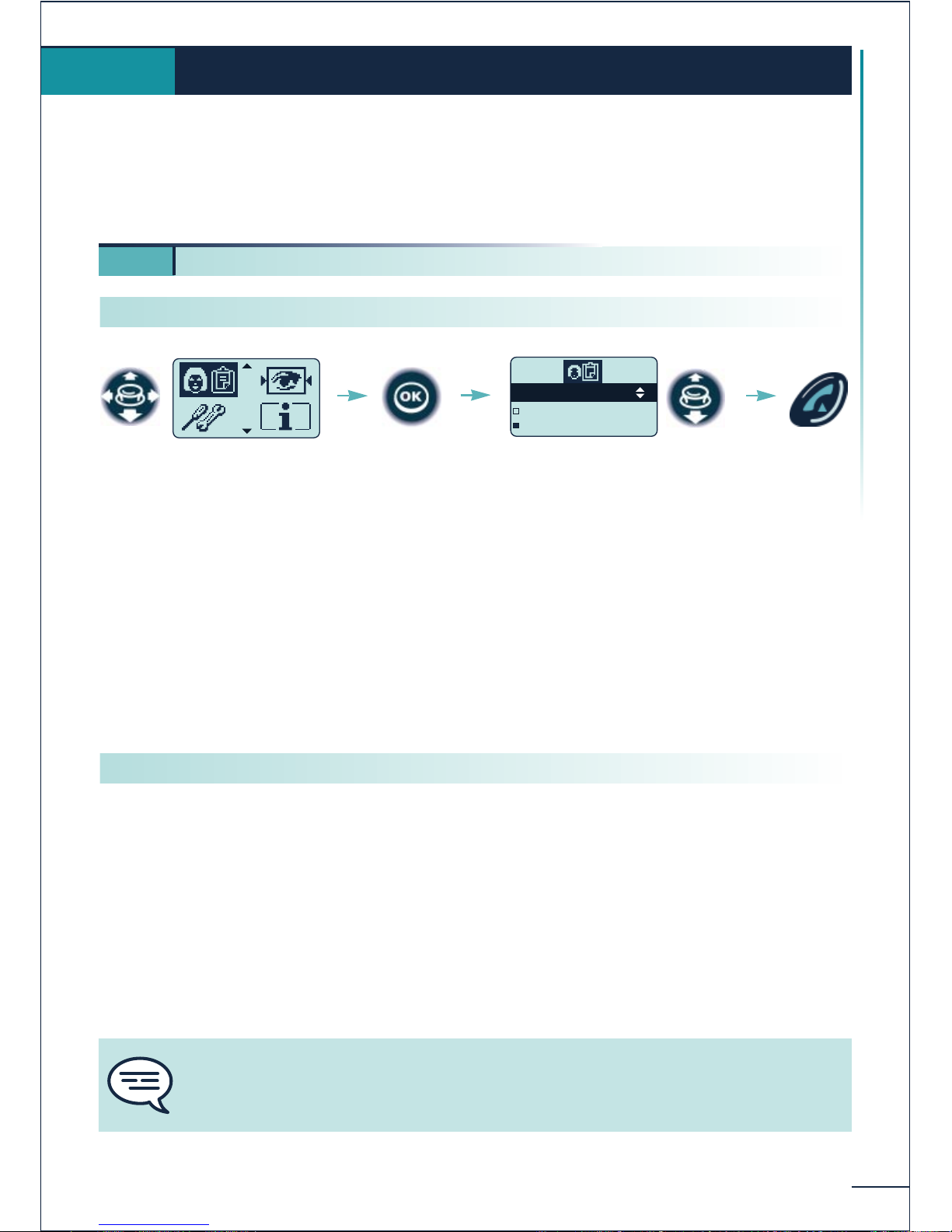
59
MANAGER/SECRETARY filtering set
The manager/secretary filtering set is a special configuration comprising at least two
multiline terminals offering specific operating options. The manager/secretary
configuration can comprise several manager terminals and several secretary terminals.
(*) Display of the status of the secretary's terminal.
The following supervision icons exist:
No icon : secretary available
¨ : secretary absent
n : secretary in conversation
The filtering function allows calls to the manager's terminal to be forwarded to the
secretary's terminal.
The filtering is associated with a filtering table defined by the system administrator.
This table can contain either priority numbers or numbers to filter.
If you have a table of numbers to filter, only the calls from correspondents identified in
that table will be forwarded to the secretary.
If you have a table of priority numbers, only the correspondents identified in that table
can call you directly.
MANAGER/SECRETARY filtering set
8.
8 1. Manager terminal
Select the
"Manager/secretary"
function
Select the secretary (*)
Monica
Edith
Julia
Confirm
Send the
call
You cannot activate simultaneously a table of priority numbers and a table of
numbers to filter. Activation of the table of priority numbers cancels filtering by the
table of numbers to filter.
Calling a secretary directly
Activating call filtering
Page 62
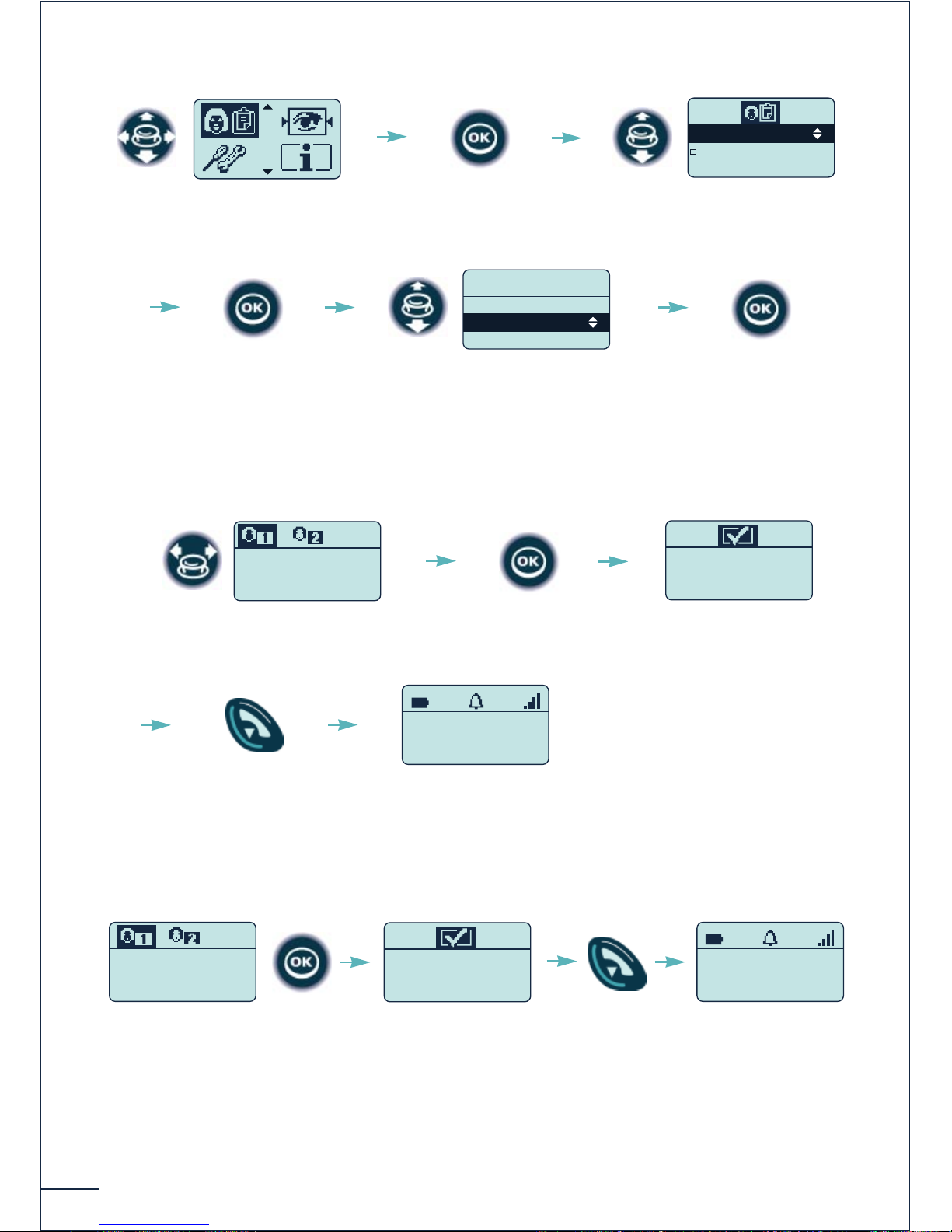
60
Table of numbers to filter
To activate filtering:
Or, to deactivate filtering (activated beforehand):
Select the
"Manager/secretary"
function
Confirm
Select the secretary to
whom the filtered calls are
to be sent
Monica
Edith
Julia
Confirm
Select the list of filtered calls
Fwd list 4 to
Monica and
take others?
Filtering is activated
Programming OK
Return to
idle
Filtered calls
forwarded to
Ext. 7402
BAUSS Hugo
Filtering Þ 7402
31/08/00 16:30
Deactivate Fwd
list 4 to
Monica?
Programming OK
BAUSS Hugo
31/08/00 16:30
Select the "Filtering"
option
.Call
.Filtering
.Back
Monica
Confirm
Confirm
Page 63
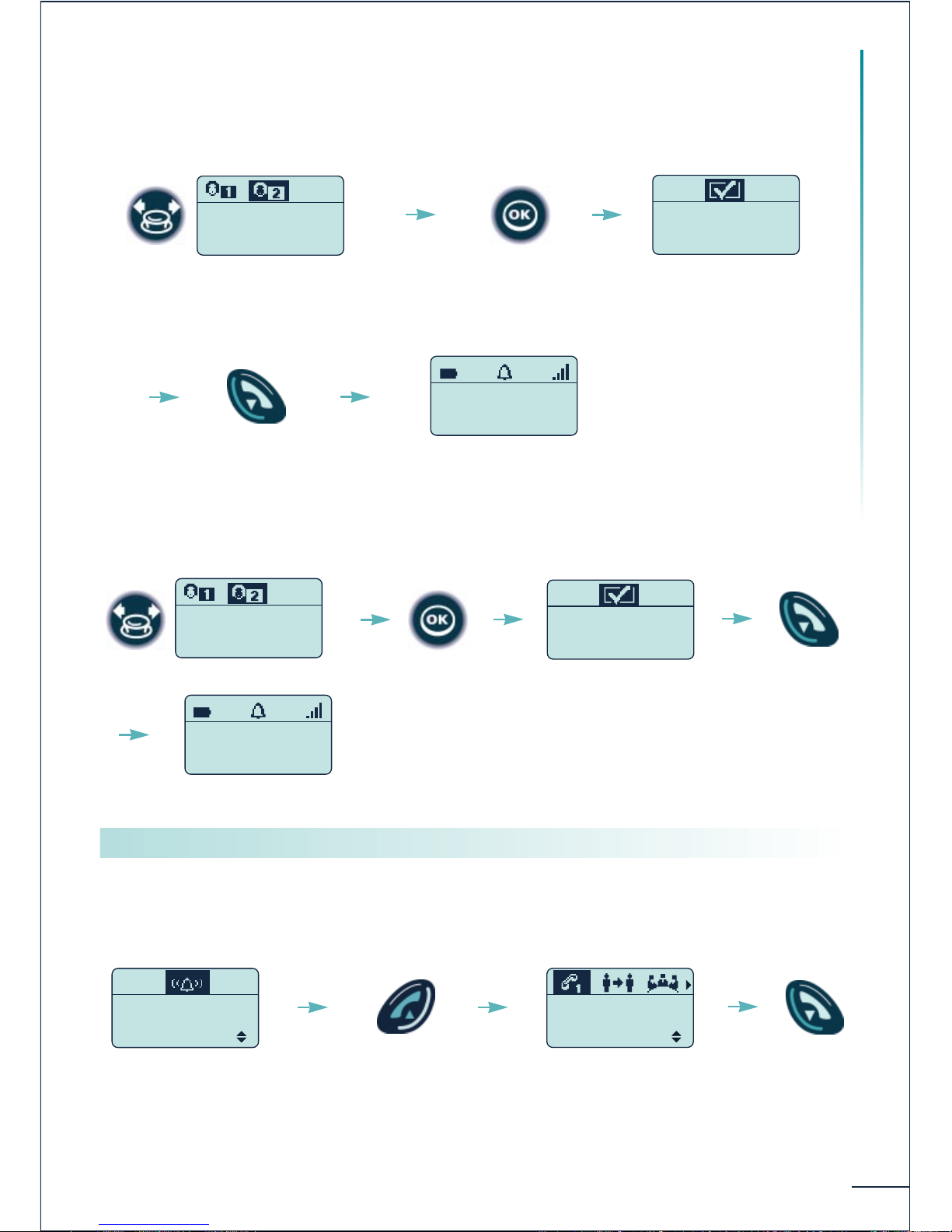
61
MANAGER/SECRETARY filtering set
Table of priority numbers
To activate filtering:
Or, to deactivate filtering (activated beforehand):
When a filtered call is forwarded to your secretary, your terminal emits a specific ringing
tone.
To pick up the call:
Select the list of priority calls
Take list 3
and Fwd others
to Monica?
Programming OK
Return to
idle
Filtered calls forwarded
to Ext. 7402
BAUSS Hugo
Filtering Þ 7402
31/08/00 16:30
Deactivate
take list 3 ?
Programming OK
BAUSS Hugo
31/08/00 16:30
Call filtered to secretary's
terminal Ext. 7402
BELLER Yves
is calling 7402
Take the Call
Off-hook
You are in
conversation
BELLER Yves
in conversation
Transfer
Return to idle
Confirm
Picking up the filtered calls
Filtering is activated
Page 64
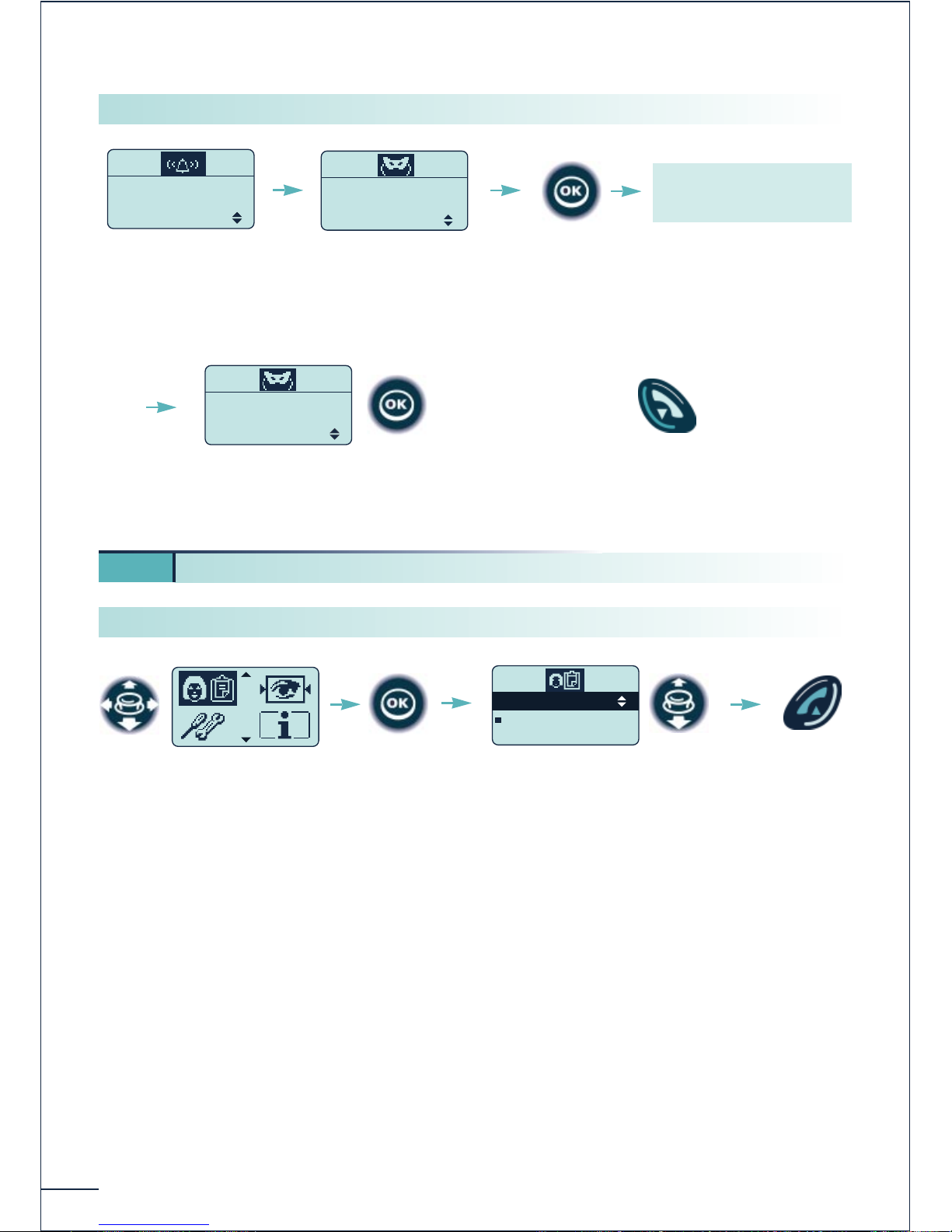
62
(*) Display of the status of the manager's terminal.
: manager available
n : manager in conversation
Call filtered to the
secretary's terminal
Ext. 7402
BELLER Yves
is calling 7402
Take the Call
The secretary off-
hooks
BELLER Yves
in conversation 7402
Listen
The microphone of your
terminal is automatically
switched off.
BELLER Yves
Secret listening
Pick Up
Return to
idle
OR
Confirm the
"Listen" option
Confirm the "Pick Up" option
to take the call
8 2. Secretary's terminal
Select the
"Manager/secretary"
function
Select the manager's
terminal (*)
BAUSS Hugo
SMITH John
Confirm
Send the
call
Listening "discreetly" to a filtered conversation
Calling a manager directly
Page 65
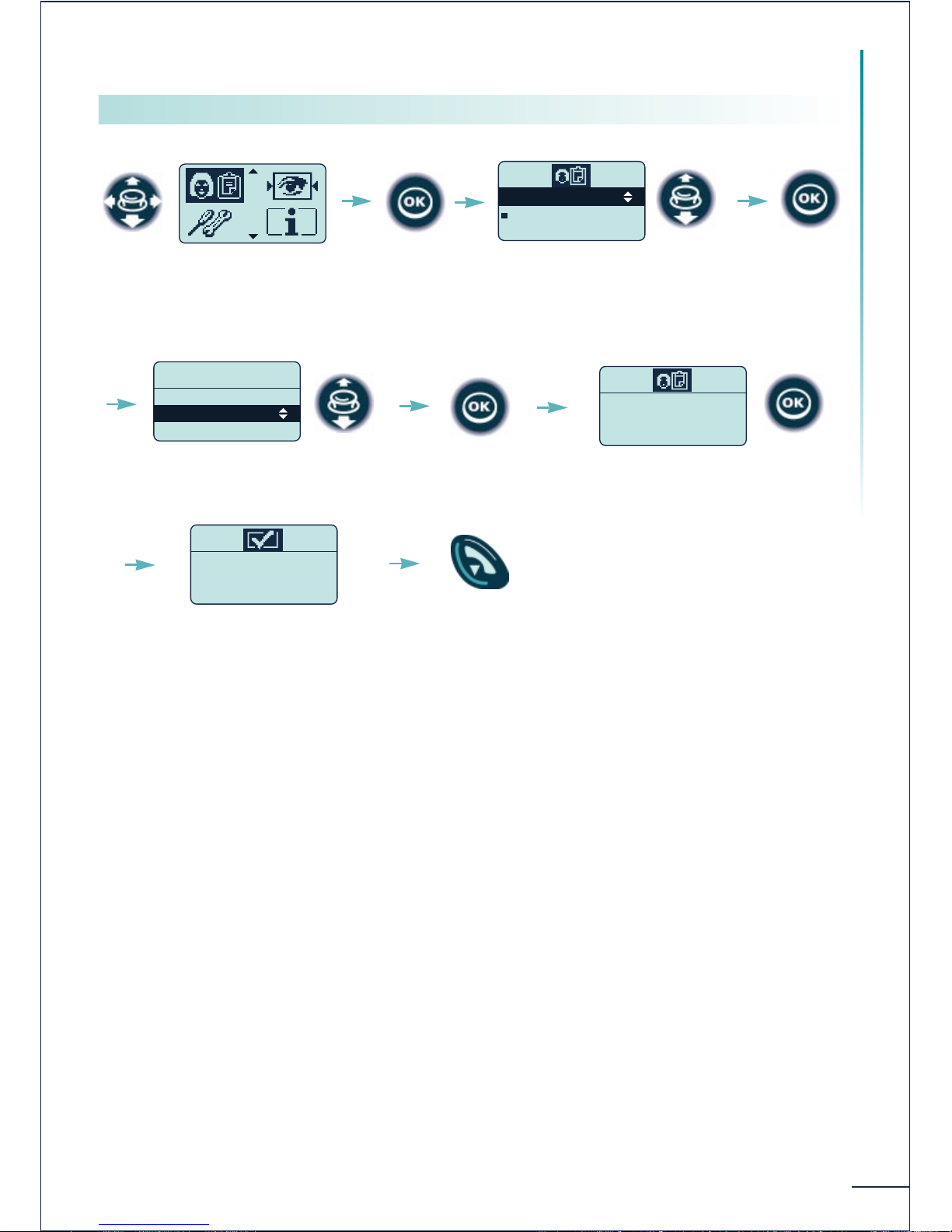
63
MANAGER/SECRETARY filtering set
Proceed in the same manner to deactivate absence mode.
When "Secretary absent" mode is confirmed, all call filtering via the secretary
is cancelled.
Select the
"Manager/secretary"
function
Select the manager's
terminal
BAUSS Hugo
SMITH John
Confirm
Confirm
.Call
.Absence Mode
.Filtering
BAUSS Hugo
Confirm activation of absence
mode
Activate
absence mode ?
Confirm
Absence mode
is activated
Programming OK
Return to
idle
Select the "Absence Mode"
function
Signalling your absence on the manager's terminal
Page 66
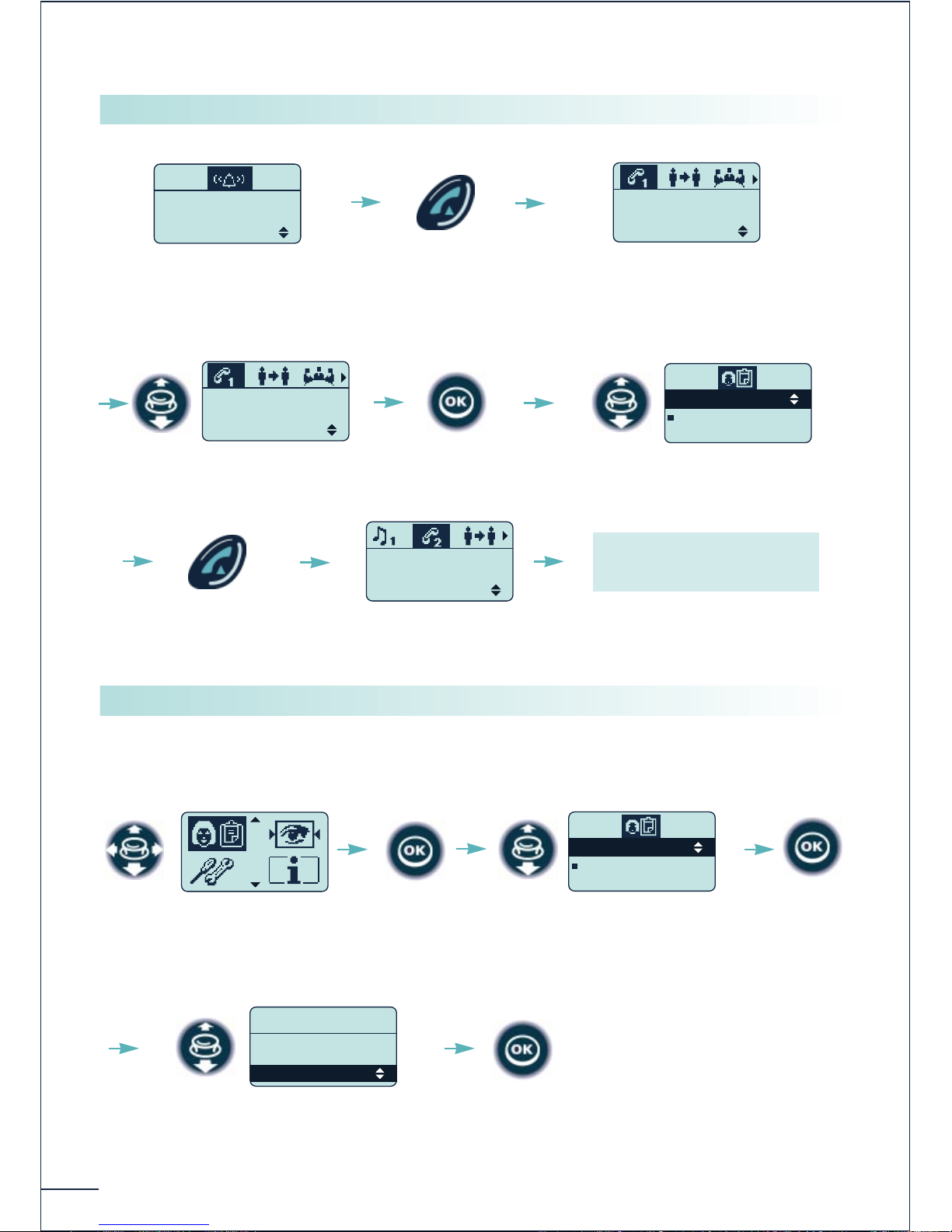
64
You can activate or deactive call filtering on the manager's terminal in his place,
whether the filtered calls are forwarded to you or not.
BELLER Þ 7400
is calling
Take the Call
Reception of a filtered call
coming from manager's
terminal Ext. 7400
Ta ke
the call
BELLER Yves
in conversation
Transfer
Call in progress
BELLER Yves
in conversation
Boss list
Select the "Boss List"
option
BAUSS Hugo
SMITH John
Select the filtered manager
(Ext. 7400)
Confirm
Initiate the
call
BAUSS Hugo
in conversation
Transfer
The manager answers
- either transfer the call
- or recover the first
correspondent
Select the
"Manager/secretary"
function
Select the manager
BAUSS Hugo
SMITH John
Confirm
Confirm
.Call
.Absence Mode
.Filtering
BAUSS Hugo
Select the "Filtering" option
Confirm
Managing the filtered calls
Managing call filtering in place of the manager
Page 67
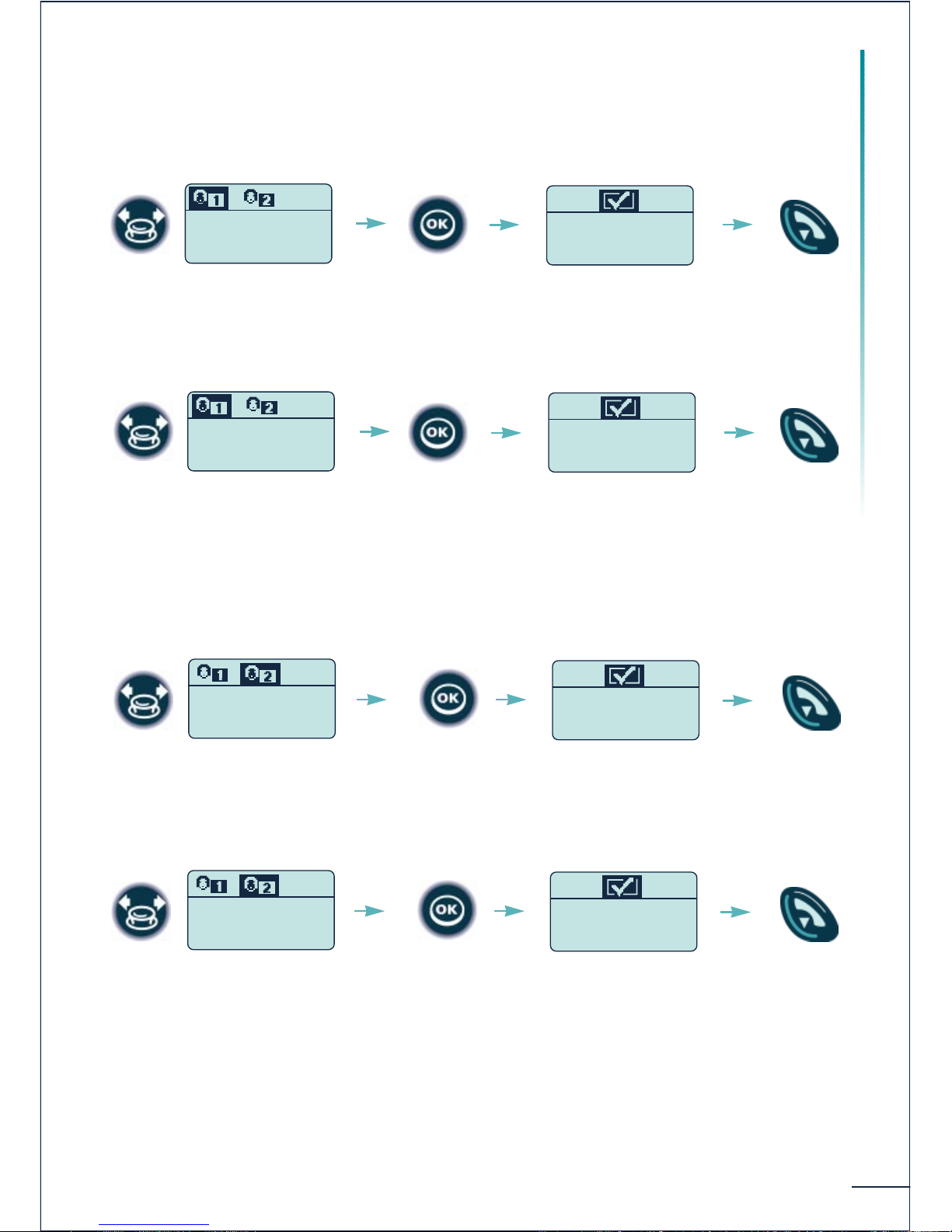
MANAGER/SECRETARY filtering set
65
Table of numbers to filter
To activate filtering:
Or, to deactivate filtering:
Table of priority numbers
To activate filtering:
Or deactivate filtering:
Select the list of priority
numbers
BAUSS takes
list 2 and Fwd
others to me ?
Programming OK
Select the list of filtered
numbers
Programming OK
Confirm
Fwd list 4 to
me and BAUSS
take others ?
Return to
idle
Deactivate Fwd
list 4 to
me ?
Programming OK
Confirm
Return to
idle
Confirm
Return to
idle
Select the list of priority
numbers
Deactivate
BAUSS takes
list 2 ?
Programming OK
Confirm
Return to
idle
Select the list of filtered
numbers
Page 68
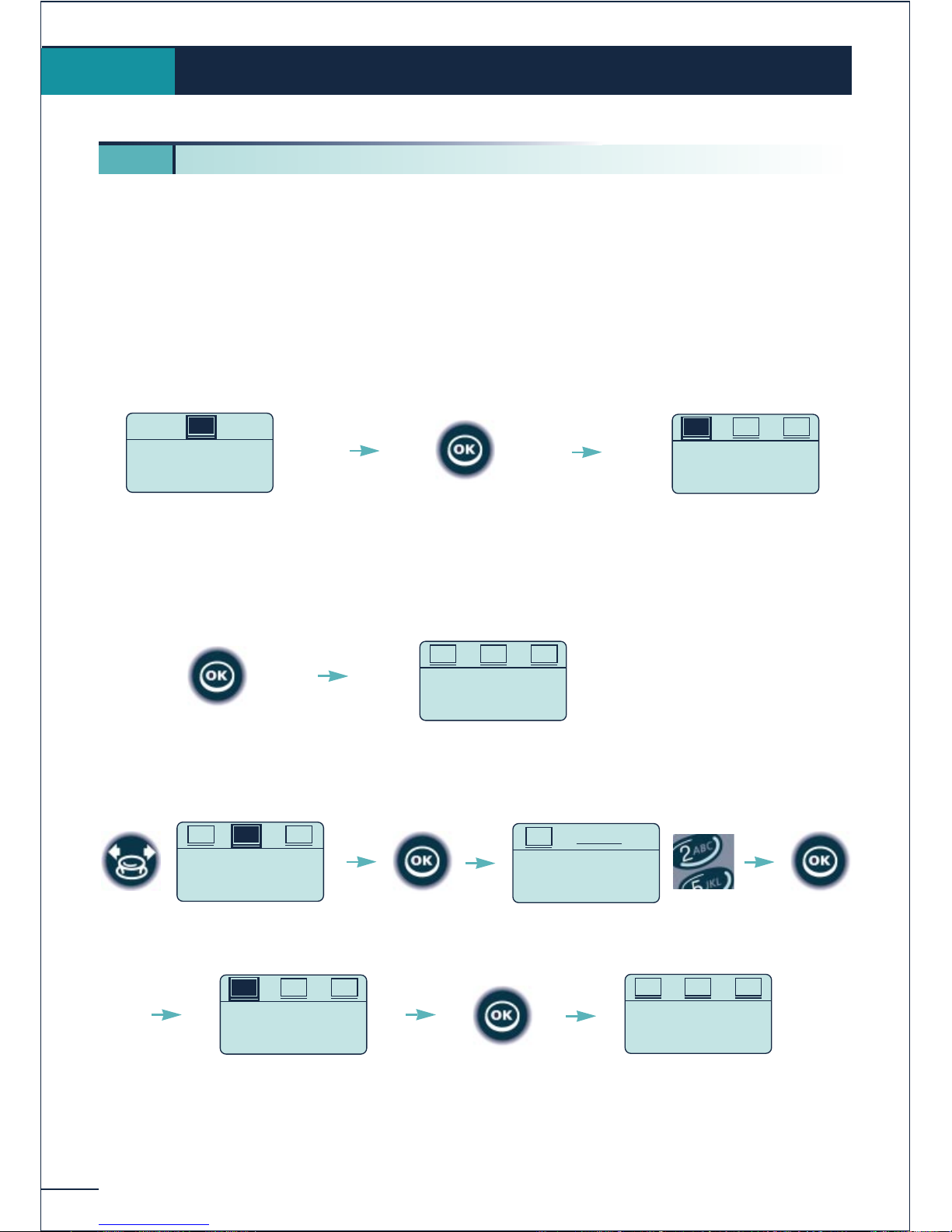
66
For the mobile telephone to function, it must be registered on at least one Belgacom or GAP
system (registration operation).
If when first switched on the display indicates: "System 1 - Auto install ?"
your telephone has not been registered on any system; consult your installation technician
or proceed as follows:
1. Prepare your system for registration (see system installation guide).
2. When the system is ready, the station always displays the starting screen:
3. You have two subscription possibilities:
a - If the system does not use an AC code
b - If the system uses an AC (authentication code)
The registration operation can take up to 1 minute.
Registering the telephone
9.
9 1. Registering the telephone on a system for the first time
SYSTEM 1
Auto install ?
SUB
Launch
Subscription ?
AC PRK
SUB
Confirm to install
the telephone
Subscription
Running ...
ACSUB PRK
Launch subscription
Configure
AC code ?
SUB PRK
AC
AC Code
........................
AC
Launch
Subscription ?
AC PRK
SUB
Subscription
Running ...
ACSUB PRK
Select "AC" Confirm
Enter the code
Confirm
Launch subscription
Page 69
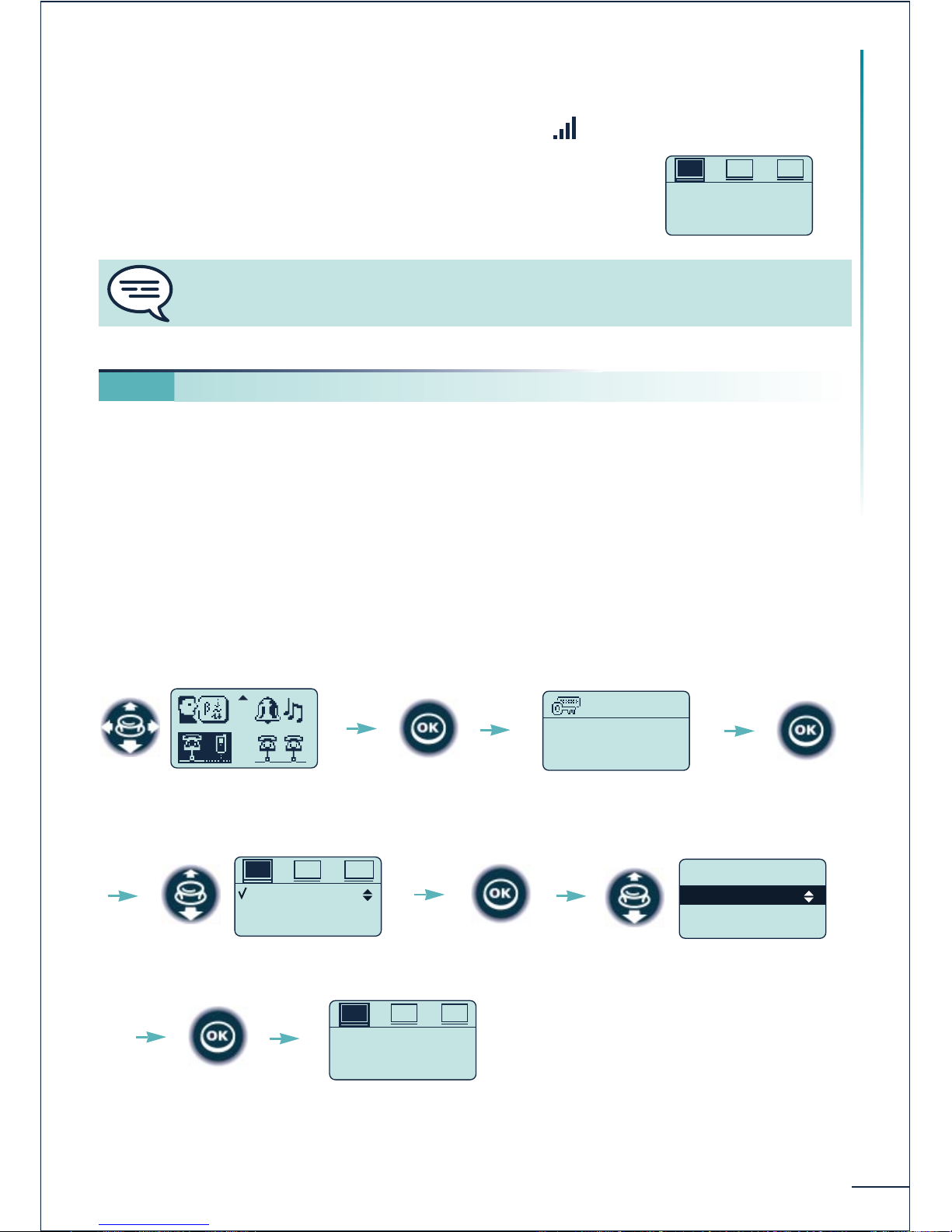
67
Registering the telephone
If the registration operation runs correctly (Subscription accepted), the telephone is
ready for use, and the radio coverage icon appears .
If the registration operation has not been successful, the
station proposes launching the subscription again.
The telephone can be registered on several systems (maximum of 5).
Note: entry 1 is usually reserved for use with your main BELGACOM system. You can select
the other entries to register your telephone under another system (BELGACOM or other).
Proceed as follows to register your telephone on a new system when it is already
registered on one or more systems:
1. Prepare your system for registration (see the system installation manual or consult
your installation manager).
2. When the system is ready:
9 2. Registering the telephone on other systems
* * * *
Password?
Confirm
Launch
Subscription ?
AC PRK
SUB
SYSTEM 1
SYSTEM 2
SYSTEM 3
IPEI SOFT
SUB
SYSTEM 2
Install
Edit name
Launch
Subscription ?
AC PRK
SUB
Select the "Installation"
function
Enter the installation
password (314987)
Confirm
Select a system
Confirm
Select "Install"
Confirm Registration can
begin
Utilization of the telephone in GAP mode can lead to functional limitations for which
no claims will be considered under the terms of the warranty.
Page 70
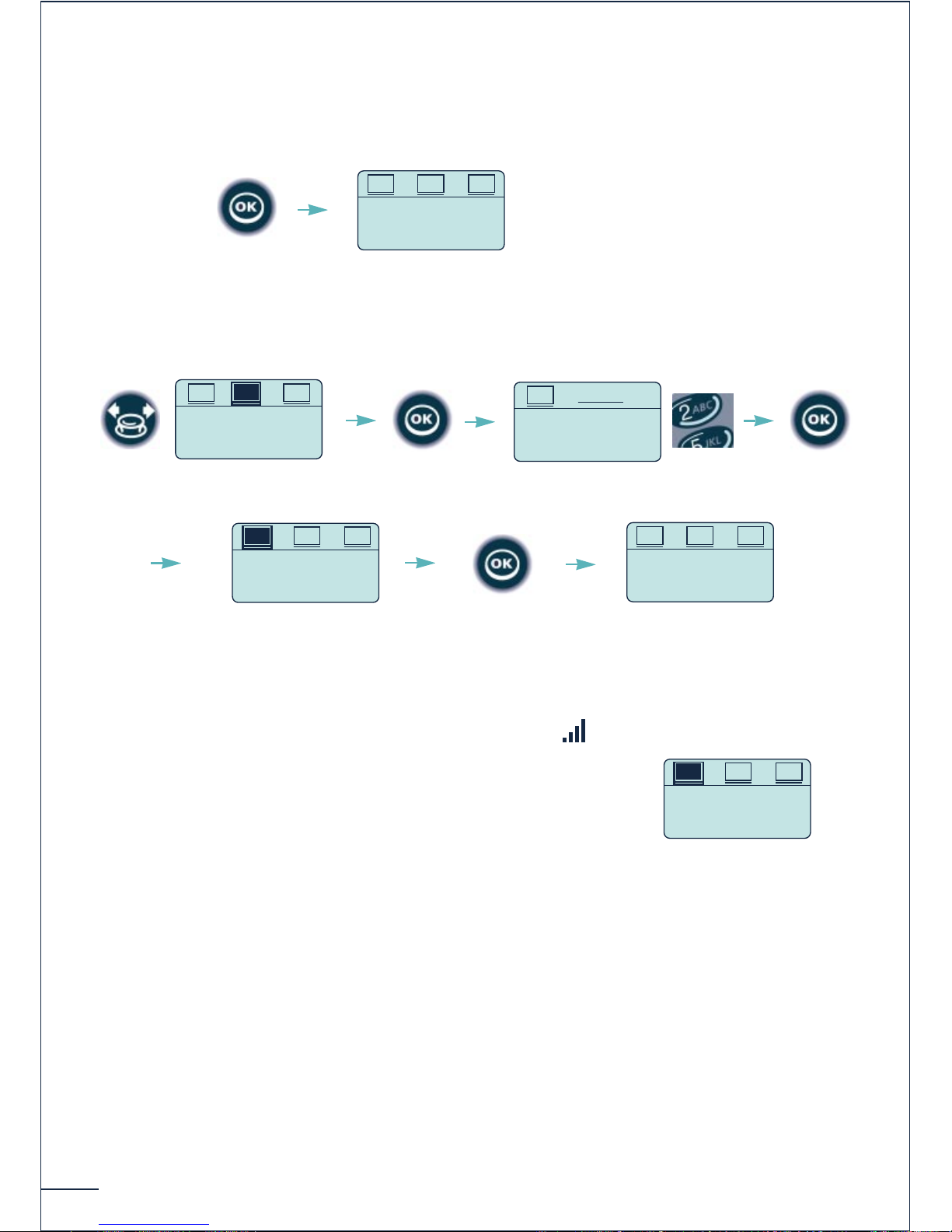
68
3. You have two subscription possibilities:
a - If the system does not use an AC code
b - If the system uses an AC (authentication code)
The registration operation can take up to 1 minute.
If the registration operation runs correctly (Subscription accepted), the telephone is
ready for use, and the radio coverage icon appears: .
If the registration operation has not been successful, the
station proposes launching the subscription again.
Depending on the type of system in question, the telephone registration operation can
require one or more additional operations on the system.
Subscription
Running ...
ACSUB PRK
Launch subscription
Launch
Subscription ?
PRKSUB
AC
AC Code
........................
AC
Launch
Subscription ?
AC PRK
SUB
Subscription
Running ...
ACSUB PRK
Select "AC" Confirm
Enter the code Confirm
Launch subscription
Launch
Subscription ?
AC PRK
SUB
Page 71
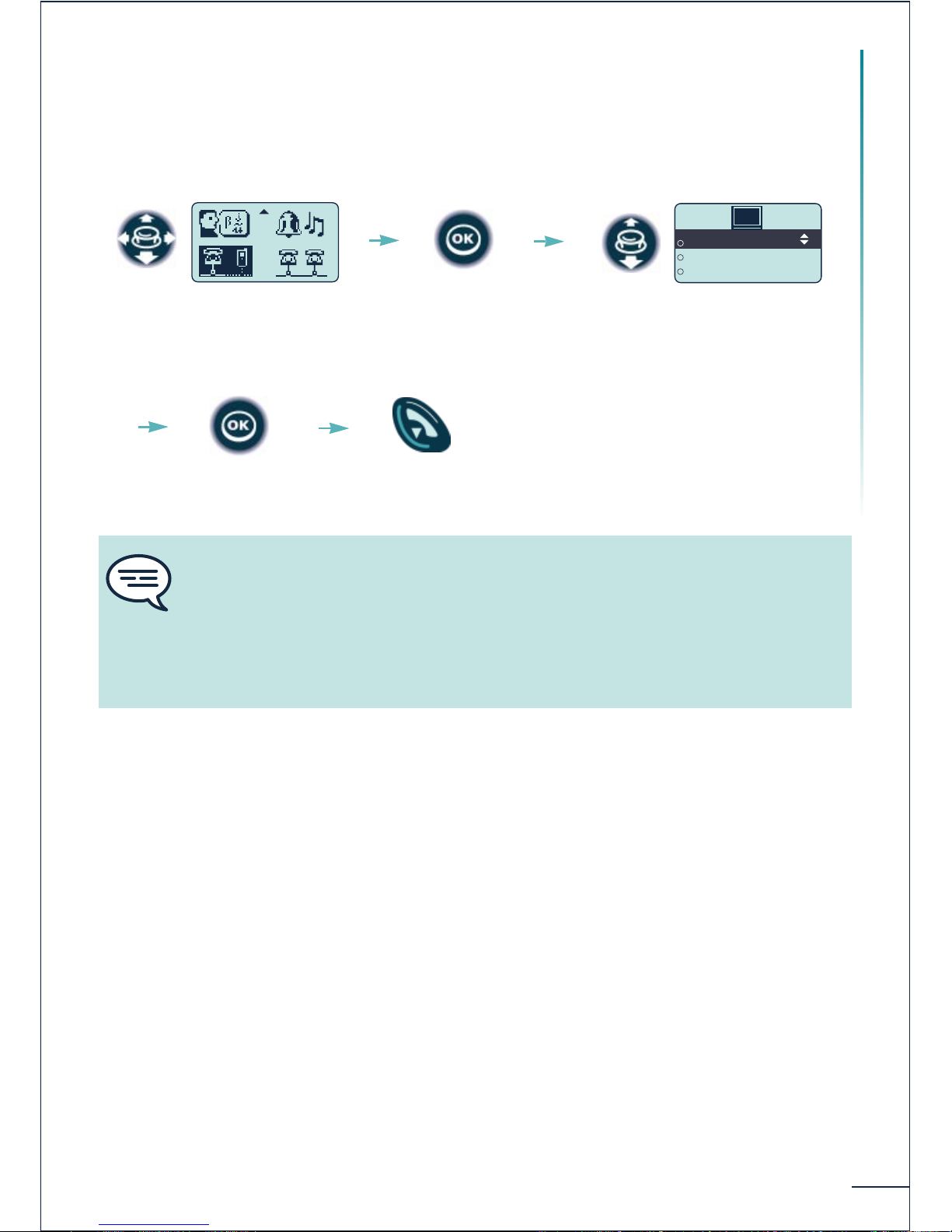
69
Registering the telephone
Selecting your telephone system
Your telephone can be programmed to function on 5 different DECT systems
(BELGACOM or GAP).
SYSTEM 1
SYSTEM 2
Lock to any
SYS
Select the "System"
function
Select the desired input (the
chosen option is indicated by the
radio button with a central dot)
Confirm Return to idle
Confirm
The selection is retained even after switching the telephone on/off. The selection of
a specific system (SYSTEM) forces operation on a specific system. This selection
must be changed if one wishes to change system. Selecting "Lock to any" enables
the telephone to connect automatically when it enters a system coverage zone. If the
systems programmed in the telephone have common coverage zones, the telephone
selects the first system found.
Page 72
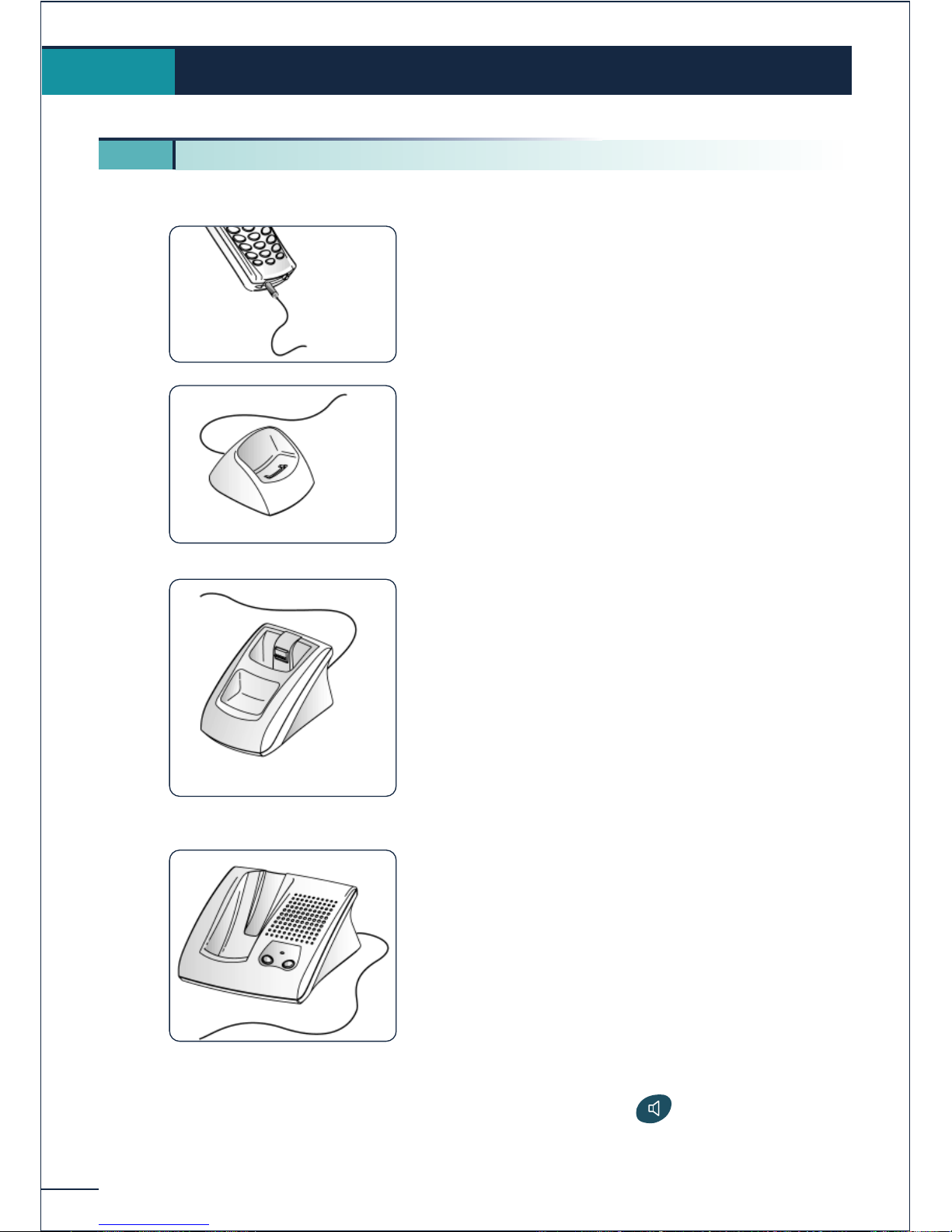
70
Press the phone key to enable or disable
the microphone mute (toggle).
Accessories
10.
10 1. Chargers
The "Corded" charger features:
1. a cable for connection to mains power via an
AC/DC adapter.
The "Basic Desktop" charger features:
1. a holder for the telephone,
2. a cable for connection to mains power via an
AC/DC adapter.
The "Dual Desktop" charger features:
1. a support with:
a recess for the telephone,
a recess for an extra battery,
a light indicating the charge level of the
extra battery,
2. a cable for connection to mains power via an
AC/DC adapter.
The "Voice Desktop" charger features:
1. a support with:
a recess for the telephone,
a loudspeaker and microphone for use in
"hands free" mode,
two + /- volume adjustment buttons,
2. a cable for connection to mains power via an
AC/DC adapter.
Page 73
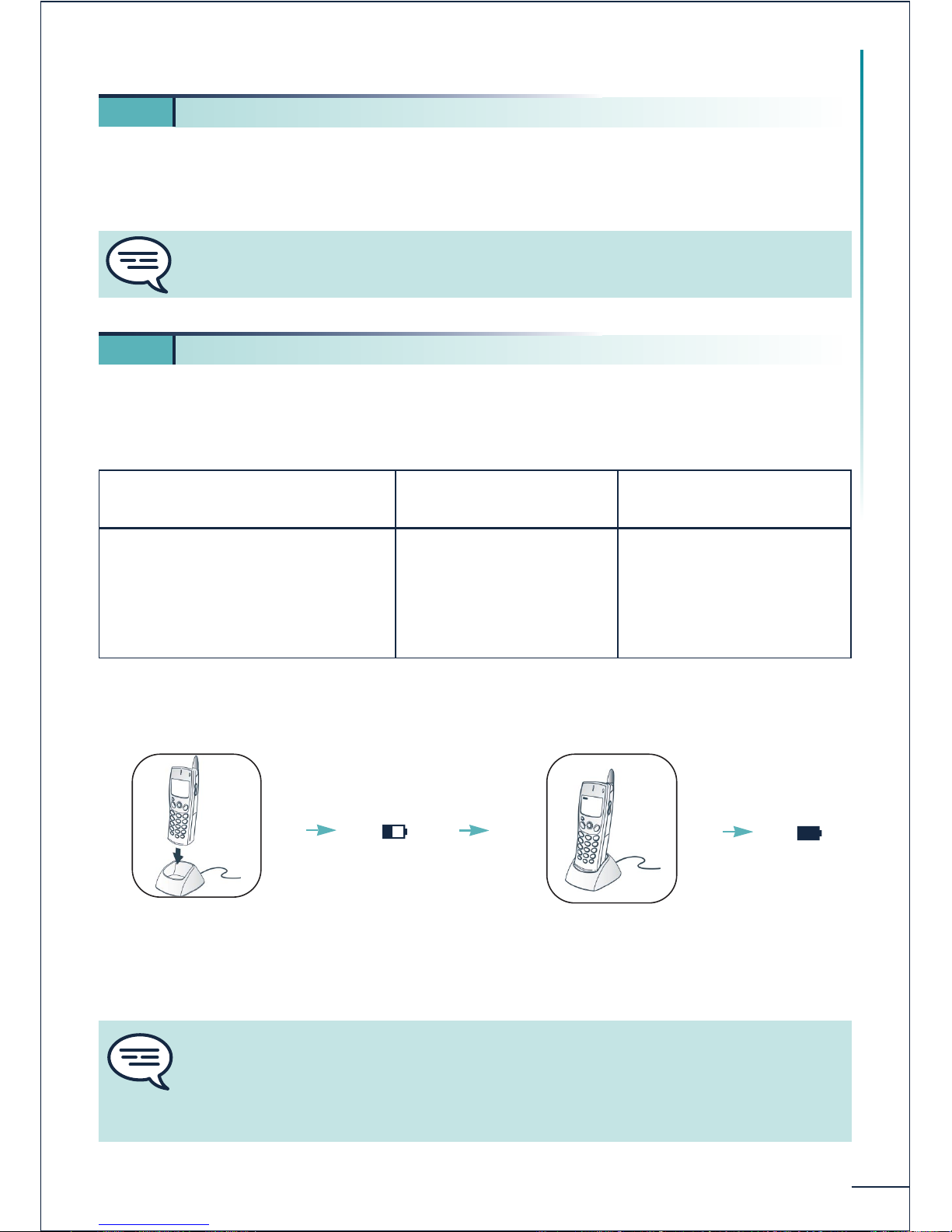
71
Accessories
Input: 230 V - 50 Hz
Output: 12 V DC - 500 mA
The DDS 200 is supplied with a Li-Ion battery, with a capacity of 600 mAh - 3.6 V.
The DDS 100 is supplied with a NiMh battery, with a capacity of 550 mAh - 3.6 V.
Initial charge:
10 2. Characteristics of the mains power adapter
10 3. Battery
Autonomy of your telephone
On standby in the radio
coverage zone
In continuous conversation
Li-Ion battery
135 hours
15 hours
NiMh battery
120 hours
13 hours
Place the telephone
in the charging
holder
Battery icon
flashing
In charging phase
(5 hours minimum)
The battery
is charged
The mains power socket used must be close to the charger/holder and easily
accessible, so that it can be used as an "on/off" facility.
Maximum battery performance is only reached after around 10 charge/discharge
cycles.
These batteries contain polluting substances: do not dispose of them in a dustbin take them to a specialized collection point.
Page 74
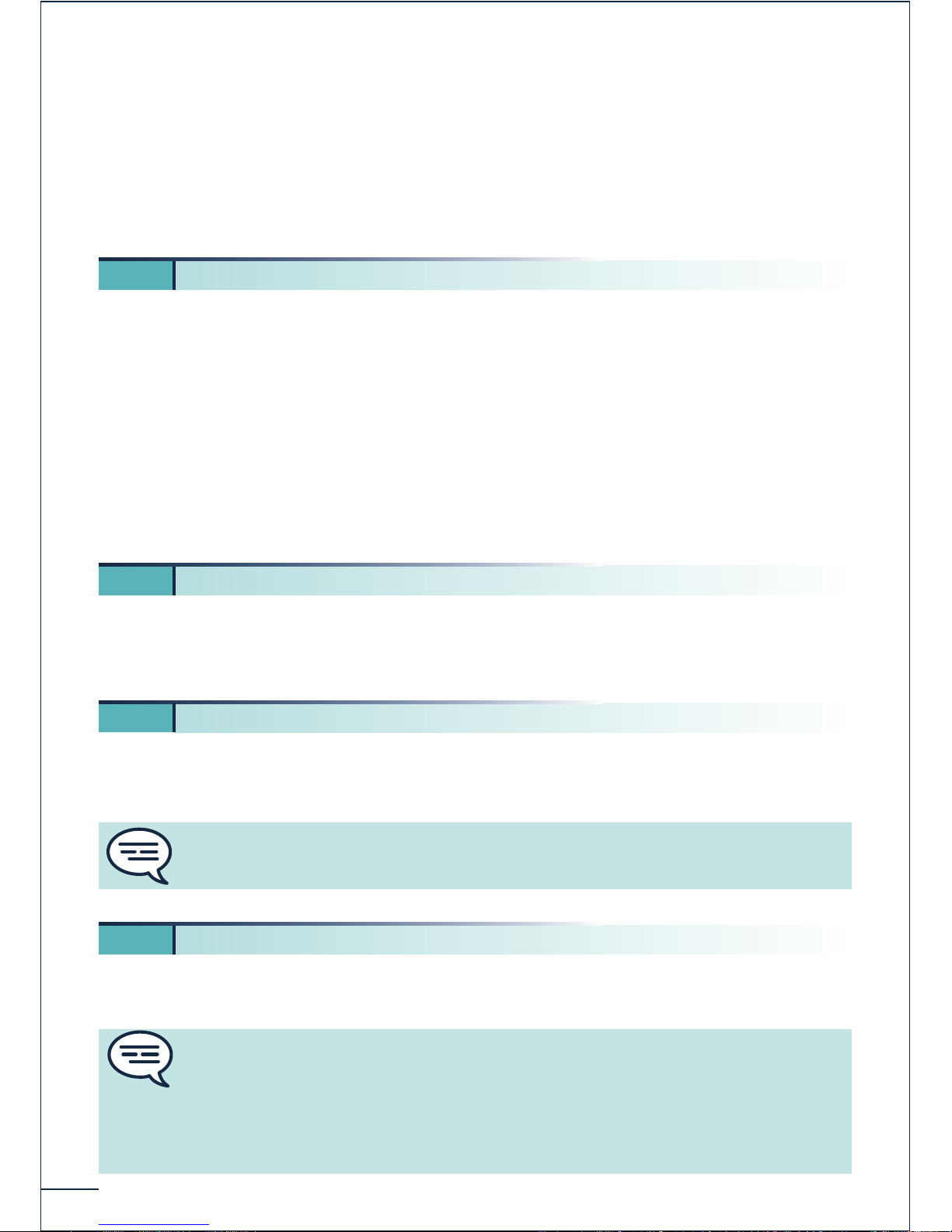
72
Battery charging time:
DDS 100:~ 5 h 00
DDS 200: ~ 3 h 00
Additional battery: ~ 2 h 30
The charger is powered on (AC/DC adapter connected to mains supply).
Place the extra battery in the appropriate recess of the charging holder. The charging time
is about 2 hours 30 minutes (Li-Ion or NiMh battery).
The two-coloured light of the "Dual" charger gives the following indications:
Out: extra battery not installed.
Red: extra battery being charged.
Green: extra battery fully charged.
The side of the telephone features a headphone / external microphone socket.
Contact your retailer to find out the characteristics of the various headphone models.
Your telephone does not require any particular servicing. However, it may be cleaned
using a soft, damp cloth.
To avoid losing your telephone, get into the habit of clipping it onto your belt. Your
10 4. Charging the extra battery (on the "Dual" support)
10 5. Headphone / external microphone
10 6. Cleaning your telephone
10 7. Transporting and protecting your telephone
Do not use soap or detergent that would risk altering the colours or damaging the
surface of the telephone.
Various models of carrying case are available. Ask your installation technician for
information. It is vital to use the special protective carrying case if your telephone is
to be used in an industrial environment (presence of dust, filings, vapours of diverse
origins and risk of being dropped). If the telephone is used with a carrying case, the
belt clip must be removed.
Page 75
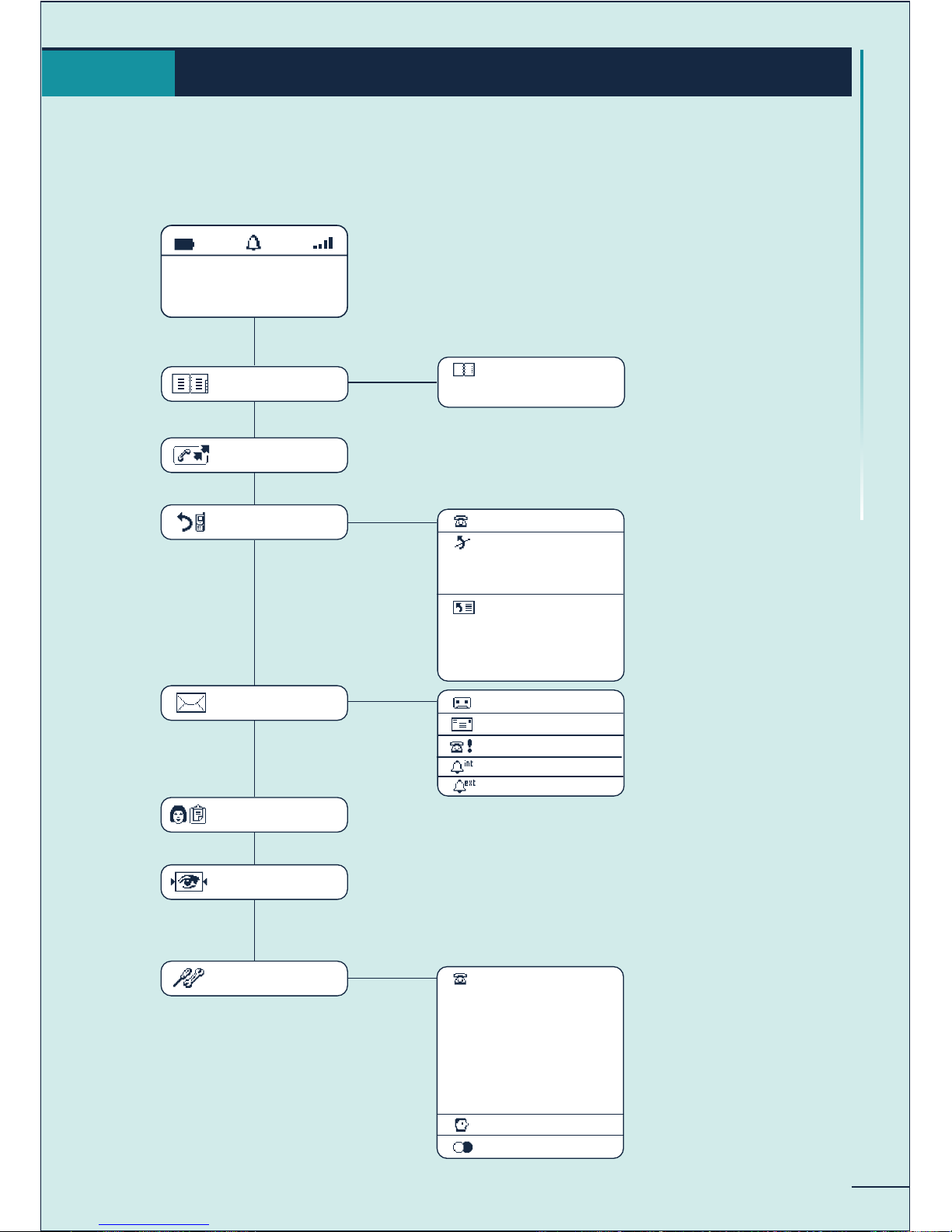
73
MENU tree-structure
MENU tree-structure
11.
DIRECTORIES
Personal Dir
Phone Book
FORWARDING
Immediate Fwd
Deact Forward
Deact FollowMe
Deact Rem Fwd
Fwd On Busy
Fwd On No Rep
Fwd Busy/NoRep
Remote Forward
REDIAL
MAIL
New voic msg
New Text Msg
Call Back
Miss Int Cal
Miss Ext Cal
MANAGER/
SECRETARY
SUPERVISION
ADJUSTMENTS
Back-light
Ringer
Vibrator
Keypad beep
Warning beep
Coverage beep
Screen Saver
Current name:
Contrast:
MARTIN Paul
30/10/00 15:30
Page 76
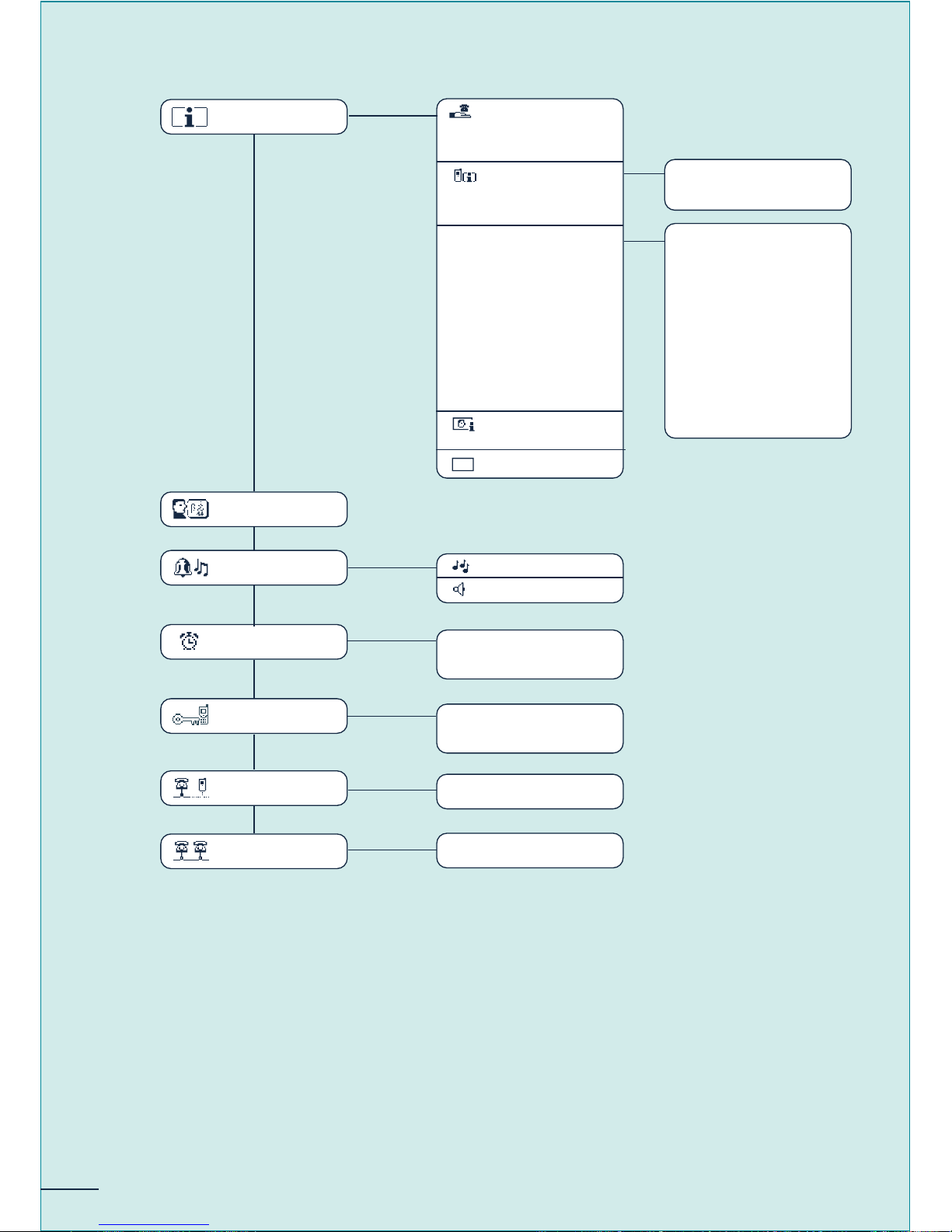
74
GUIDE MENU
Associate
Overflow
Password
Call
Services
Handset identity
Handset test?
Fwd services
DND/locking/VG
Pick up services
Assoc services
Consult & CallBk
Appoint reminder
Voice mail
Diverse services
Paging Services
Transparency
SELECTING THE
LANGUAGE
ADJUSTING THE
RINGER
Melody
Level
REMINDER/
APPOINTMENT
Set appointment
Cancel appointm
SYSTEM LOCK
Locking the telephone
functions
INSTALLATION
Register the handset
SYSTEM
Selection of system
TEST
Ext. Call
Operator
Page 77

75
Glossary
Answering a night call:
This functions enables you to answer a call signalled by the general bell.
Broker call:
Function enabling the user to switch back and forth between several simultaneous calls.
Call transfer:
Function enabling a call to be transferred to another telephone within the system.
Conference:
The conference function allows the user, in contact with two correspondents, to set up a
three-way conference.
DECT:
European cordless telephone standard: Digital Enhanced Cordless Telecommunication.
DECT telephone: cordless telephone complying with the DECT standard.
Enquiry call:
This function allows a user who is communicating with one correspondent to contact a
second correspondent without losing the first one.
Filtering:
This function, offered to "boss/secretary" tandems, enables calls intended for the boss's
terminal to be directed to the terminal of one or more secretaries.
General bell:
If the operator is absent, the internal and external calls intended for the operator are
linked to an external signalling system that enables any authorized terminal to answer
these calls.
Hold:
This function enables a correspondent to be placed on hold while you carry out another
operation before picking up the correspondent again from the same terminal.
Hunting group:
Several telephones grouped under one directory number. A call to this number is directed
to one of the free telephones within the group.
Interphone:
This function enables you to receive internal calls in interphone mode by connecting them
automatically to the loudspeaker.
Intrusion:
This function allows you to interrupt a call between two correspondents (of whom at
least one is internal).
Glossary
12.
Page 78

76
Manager/secretary:
Series of special services (filtering, forwarding) between a manager's terminal and a
secretary's terminal.
Multi-line terminal:
Terminal that has at least two lines.
Numéris:
French digital public network, also called ISDN (Integrated Services Digital Network).
Parking:
This function places an outside call on hold, for subsequent recovery on another
"authorised" extension within the system.
Password:
This password controls access to the programming and terminal locking functions by the
user (default password: 0000).
Personal directory:
This directory contains the personal numbers of the user of a terminal.
Pick-up group:
This function enables you to answer a call ringing on another terminal. Calls can only be
picked up within the pick-up group.
Sending DTMF signals:
During a conversation, DTMF codes are sometimes required. These codes are used when
a user wants to consult a voice server, access a PABX or remotely consult an answering
machine.
Single-line terminal:
Terminal that has only one line.
Sub-address:
To contact your correspondent's fax, PC or telephone by Numéris (ISDN), it may
necessary to add a four-figure sub-address to the number.
Page 79

77
Index
A
Accessing the MENU and navigating . . . . . . . . . . . . . . . . . . . . . . . . . . . . . . . . . . . p. 14
Activate call filtering . . . . . . . . . . . . . . . . . . . . . . . . . . . . . . . . . . . . . . . . . . . . . . . p. 59
Activating headset mode . . . . . . . . . . . . . . . . . . . . . . . . . . . . . . . . . . . . . . . . . . . p. 72
Activating the vibrator or ringer (DDS 200) . . . . . . . . . . . . . . . . . . . . . . . . . . .p.37
Adjusting screen contrast . . . . . . . . . . . . . . . . . . . . . . . . . . . . . . . . . . . . . . . . . . . p. 38
Adjusting the ringer volume . . . . . . . . . . . . . . . . . . . . . . . . . . . . . . . . . . . . . . . . . p. 36
Adjusting your telephone functions . . . . . . . . . . . . . . . . . . . . . . . . . . . . . . . . . . . p. 38
Allocating your calls directly to customer accounts . . . . . . . . . . . . . . . . . . . . . . . p. 23
Answering a call . . . . . . . . . . . . . . . . . . . . . . . . . . . . . . . . . . . . . . . . . . . . . . . . . . p. 16
Answering a second call during a conversation . . . . . . . . . . . . . . . . . . . . . . . . . . . p. 26
Answering the general bell . . . . . . . . . . . . . . . . . . . . . . . . . . . . . . . . . . . . . . . . . . p. 55
B
Battery . . . . . . . . . . . . . . . . . . . . . . . . . . . . . . . . . . . . . . . . . . . . . . . . . . . . . . . . . p. 71
Broker call . . . . . . . . . . . . . . . . . . . . . . . . . . . . . . . . . . . . . . . . . . . . . . . . . . . . . . p. 27
C
Call forwarding . . . . . . . . . . . . . . . . . . . . . . . . . . . . . . . . . . . . . . . . . . . . . . . . . . . p. 45
Call pick-up . . . . . . . . . . . . . . . . . . . . . . . . . . . . . . . . . . . . . . . . . . . . . . . . . . . . . p. 55
Call-back request . . . . . . . . . . . . . . . . . . . . . . . . . . . . . . . . . . . . . . . . . . . . . . . . . p. 18
Calling a corresondent on his loudspeaker . . . . . . . . . . . . . . . . . . . . . . . . . . . . . . p. 18
Calling a manager directly . . . . . . . . . . . . . . . . . . . . . . . . . . . . . . . . . . . . . . . . . . . p. 62
Calling a private external number . . . . . . . . . . . . . . . . . . . . . . . . . . . . . . . . . . . . . p. 22
Calling a second correspondent (enquiry call) . . . . . . . . . . . . . . . . . . . . . . . . . . . p. 25
Calling a secretary directly . . . . . . . . . . . . . . . . . . . . . . . . . . . . . . . . . . . . . . . . . . p. 59
Calling back one of the last 6 numbers dialled (Redial) . . . . . . . . . . . . . . . . . . . . . p. 18
Calling back the last internal caller . . . . . . . . . . . . . . . . . . . . . . . . . . . . . . . . . . . . p. 54
Calling from your personal directory . . . . . . . . . . . . . . . . . . . . . . . . . . . . . . . . . p. 16
Calling in hands-free mode . . . . . . . . . . . . . . . . . . . . . . . . . . . . . . . . . . . . . . . . . . p. 20
Calling your correspondent by name (company directory) . . . . . . . . . . . . . . . . . . p. 17
Camp-on busy terminal . . . . . . . . . . . . . . . . . . . . . . . . . . . . . . . . . . . . . . . . . . . . p. 21
Cancelling all diversions . . . . . . . . . . . . . . . . . . . . . . . . . . . . . . . . . . . . . . . . . . . . p. 50
Characteristics of the mains power adapter . . . . . . . . . . . . . . . . . . . . . . . . . . . . . p. 71
Chargers . . . . . . . . . . . . . . . . . . . . . . . . . . . . . . . . . . . . . . . . . . . . . . . . . . . . . . . p. 70
Charging the additional battery . . . . . . . . . . . . . . . . . . . . . . . . . . . . . . . . . . . . . . p. 72
Charging your telephone battery . . . . . . . . . . . . . . . . . . . . . . . . . . . . . . . . . . . . . p. 13
Choosing the melody and volume . . . . . . . . . . . . . . . . . . . . . . . . . . . . . . . . . . . . p. 36
Cleaning your telephone . . . . . . . . . . . . . . . . . . . . . . . . . . . . . . . . . . . . . . . . . . . p. 72
Consulting the messages left while you were away . . . . . . . . . . . . . . . . . . . . . . . . p. 51
Controlling hold on busy . . . . . . . . . . . . . . . . . . . . . . . . . . . . . . . . . . . . . . . . . . . p. 30
Index
13.
Page 80

78
Customizing the ringer . . . . . . . . . . . . . . . . . . . . . . . . . . . . . . . . . . . . . . . . . . . . . p. 36
D
Diverting calls to another number (immediate forward) . . . . . . . . . . . . . . . . . . . p. 45
Do not disturb . . . . . . . . . . . . . . . . . . . . . . . . . . . . . . . . . . . . . . . . . . . . . . . . . . . p. 43
E
Enquiry call . . . . . . . . . . . . . . . . . . . . . . . . . . . . . . . . . . . . . . . . . . . . . . . . . . . . . . p. 25
F
Finding out the cost of your external communications . . . . . . . . . . . . . . . . . . . . . p. 43
Forwarding call to the associate number (overflow) . . . . . . . . . . . . . . . . . . . . . . . p. 51
Forwarding calls to your voice message service (immediate forward) . . . . . . . . . p. 49
Forwarding calls when you are busy . . . . . . . . . . . . . . . . . . . . . . . . . . . . . . . . . . . p. 31
G
Headphone / external microphone . . . . . . . . . . . . . . . . . . . . . . . . . . . . . . . . . . . . p. 72
Hiding your identity . . . . . . . . . . . . . . . . . . . . . . . . . . . . . . . . . . . . . . . . . . . . . . . p. 43
Hunting groups . . . . . . . . . . . . . . . . . . . . . . . . . . . . . . . . . . . . . . . . . . . . . . . . . . . p. 55
I
Identifying the telephone you use . . . . . . . . . . . . . . . . . . . . . . . . . . . . . . . . . . . . . p. 39
Installing the battery in the telephone . . . . . . . . . . . . . . . . . . . . . . . . . . . . . . . . . p. 12
Intrusion into a conversation . . . . . . . . . . . . . . . . . . . . . . . . . . . . . . . . . . . . . . . . p. 22
L
Leaving a text message . . . . . . . . . . . . . . . . . . . . . . . . . . . . . . . . . . . . . . . . . . . . . p. 19
Leaving a voice message . . . . . . . . . . . . . . . . . . . . . . . . . . . . . . . . . . . . . . . . . . . . p. 19
Listening secretly to a filtered conversation . . . . . . . . . . . . . . . . . . . . . . . . . . . . . p. 62
Locking your telephone . . . . . . . . . . . . . . . . . . . . . . . . . . . . . . . . . . . . . . . . . . . . p. 27
M
Making a call . . . . . . . . . . . . . . . . . . . . . . . . . . . . . . . . . . . . . . . . . . . . . . . . . . . . . p. 15
Managing call filtering . . . . . . . . . . . . . . . . . . . . . . . . . . . . . . . . . . . . . . . . . . . . . . p. 64
MENU tree-structure . . . . . . . . . . . . . . . . . . . . . . . . . . . . . . . . . . . . . . . . . . . . . . p. 73
O
Other types of forwarding . . . . . . . . . . . . . . . . . . . . . . . . . . . . . . . . . . . . . . . . . . p. 47
Overriding a forwarded call . . . . . . . . . . . . . . . . . . . . . . . . . . . . . . . . . . . . . . . . . p. 20
P
Parking . . . . . . . . . . . . . . . . . . . . . . . . . . . . . . . . . . . . . . . . . . . . . . . . . . . . . . . . . p. 23
Picking up filtered calls (manager's terminal) . . . . . . . . . . . . . . . . . . . . . . . . . . . . p. 61
Placing an external correspondent on hold (parking) . . . . . . . . . . . . . . . . . . . . . . p. 23
Programming an appointment reminder . . . . . . . . . . . . . . . . . . . . . . . . . . . . . . . . p. 42
Page 81

79
Index
Programming your associate number . . . . . . . . . . . . . . . . . . . . . . . . . . . . . . . . . . p. 35
Programming your overflow number . . . . . . . . . . . . . . . . . . . . . . . . . . . . . . . . . . p. 35
Programming your own password . . . . . . . . . . . . . . . . . . . . . . . . . . . . . . . . . . . . p. 34
Programming your personal directory . . . . . . . . . . . . . . . . . . . . . . . . . . . . . . . . . p. 32
R
Rapid personalization of your telephone . . . . . . . . . . . . . . . . . . . . . . . . . . . . . . . p. 32
Registering the telephone . . . . . . . . . . . . . . . . . . . . . . . . . . . . . . . . . . . . . . . . . . . p. 66
Registering the telephone on a system for the first time . . . . . . . . . . . . . . . . . . . p. 66
Registering the telephone on other systems . . . . . . . . . . . . . . . . . . . . . . . . . . . . . p. 67
Remote forwarding of your calls (immediate forward) . . . . . . . . . . . . . . . . . . . . . p. 48
Reporting malicious calls . . . . . . . . . . . . . . . . . . . . . . . . . . . . . . . . . . . . . . . . . . . p. 24
S
Selecting the language . . . . . . . . . . . . . . . . . . . . . . . . . . . . . . . . . . . . . . . . . . . . . . p. 32
Sending a text message to an internal correspondent . . . . . . . . . . . . . . . . . . . . . p. 56
Sending DTMF signals . . . . . . . . . . . . . . . . . . . . . . . . . . . . . . . . . . . . . . . . . . . . . . p. 21
Signalling your absence to the manager terminal . . . . . . . . . . . . . . . . . . . . . . . . . p. 63
Supervising a terminal . . . . . . . . . . . . . . . . . . . . . . . . . . . . . . . . . . . . . . . . . . . . . p. 58
Switching between calls (broker call) . . . . . . . . . . . . . . . . . . . . . . . . . . . . . . . . . . p. 27
Switching off your telephone . . . . . . . . . . . . . . . . . . . . . . . . . . . . . . . . . . . . . . . . p. 13
Switching on your telephone . . . . . . . . . . . . . . . . . . . . . . . . . . . . . . . . . . . . . . . . p. 13
T
Three-way conference with internal and/or external correspondents (conference) p. 29
Transferring a call . . . . . . . . . . . . . . . . . . . . . . . . . . . . . . . . . . . . . . . . . . . . . . . . . p. 28
Transporting and protecting your telephone . . . . . . . . . . . . . . . . . . . . . . . . . . . . p. 72
U
Using hands-free mode . . . . . . . . . . . . . . . . . . . . . . . . . . . . . . . . . . . . . . . . . . . . . p. 20
Using the list of functions . . . . . . . . . . . . . . . . . . . . . . . . . . . . . . . . . . . . . . . . . . . p. 39
Using the loudspeaker . . . . . . . . . . . . . . . . . . . . . . . . . . . . . . . . . . . . . . . . . . . . . p. 37
Using your telephone . . . . . . . . . . . . . . . . . . . . . . . . . . . . . . . . . . . . . . . . . . . . . . p. 11
Page 82

80
Declaration of compliance
We,
Alcatel Business Systems,
hereby declare that we assume
Digital terminal DDS 100/200 (Alcatel Reflexes 4076)
product to be compliant with the essential requirements of Directive 1999/5/CE
of the European Parliament and Council.
Any unauthorised modification to the product shall render this declaration of
compliance null and void. A copy of the original of this declaration of compliance
can be obtained by post from:
ALCATEL BUSINESS SYSTEMS
Technical Services - Approvals Manager
1, route du Dr. Albert Schweitzer
F 67408 Illkirch - France
3EU 19601 GNAA Ed.01
 Loading...