

Page 1
Andriod
Andriod Andriod
Andriod 高清影音播放器
高清影音播放器高清影音播放器
高清影音播放器
MX
MXMX
MXⅢ
ⅢⅢ
Ⅲ
User Manual
User ManualUser Manual
User Manual
Sorry to the changes of our products parameters but without notice
.
Page 2
M8 User Manual
1
1. About MXⅢ
ⅢⅢ
Ⅲ (a.k.a. M82)
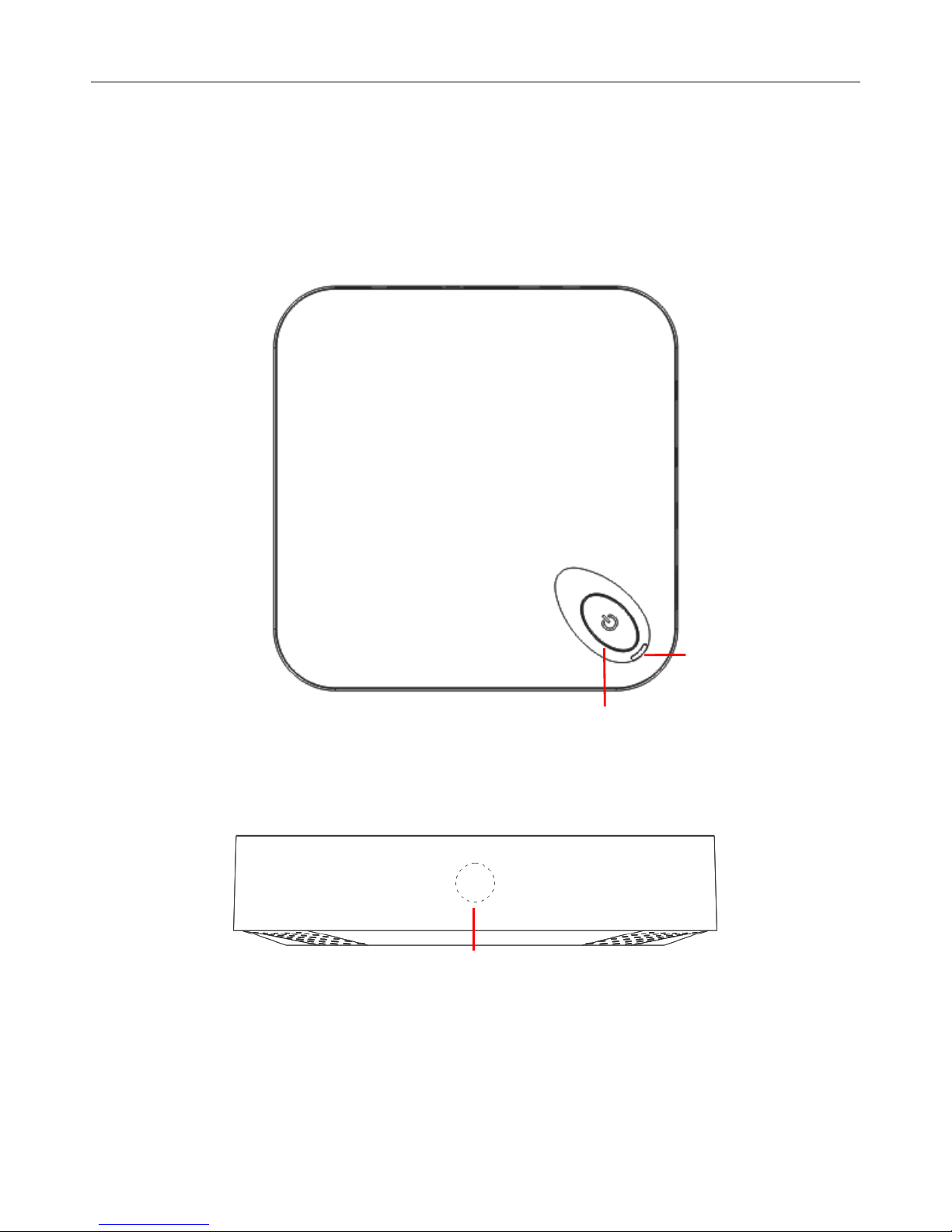
1.1 Overview
((((Top View))))
((((Front View))))
Infrared Sensor
Power Button
Power LED
Page 3
M8 User Manual
2
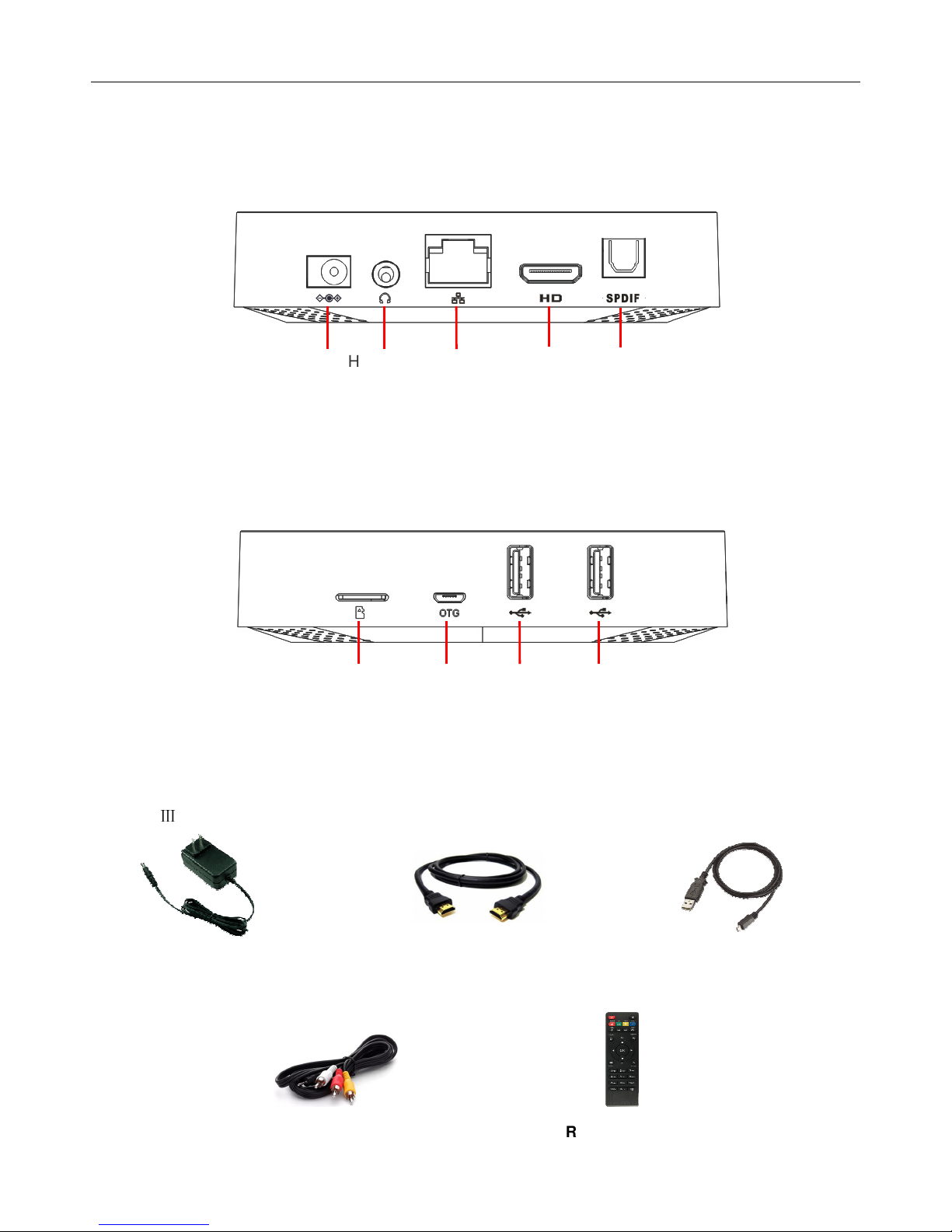
((((Back View))))
((((Right View))))
1.2 Accessories
MXⅢ includes the following accessories
Power Adapter USB Cable HDMI Cable
AV Cable
Remote Control
Headphone
&
Upgrade
B
utton
Power
Port
RJ45
Port
HDMI
Port
SPDIF
Port
TF
Card
OTG
Port
USB
Port
USB
Port
Page 4
M8 User Manual
3
* Accessories and appearance are subject to change without prior notice
2. Getting Started
2.1 Basic Operations
2.1.1 Power On/ Off and Sleep
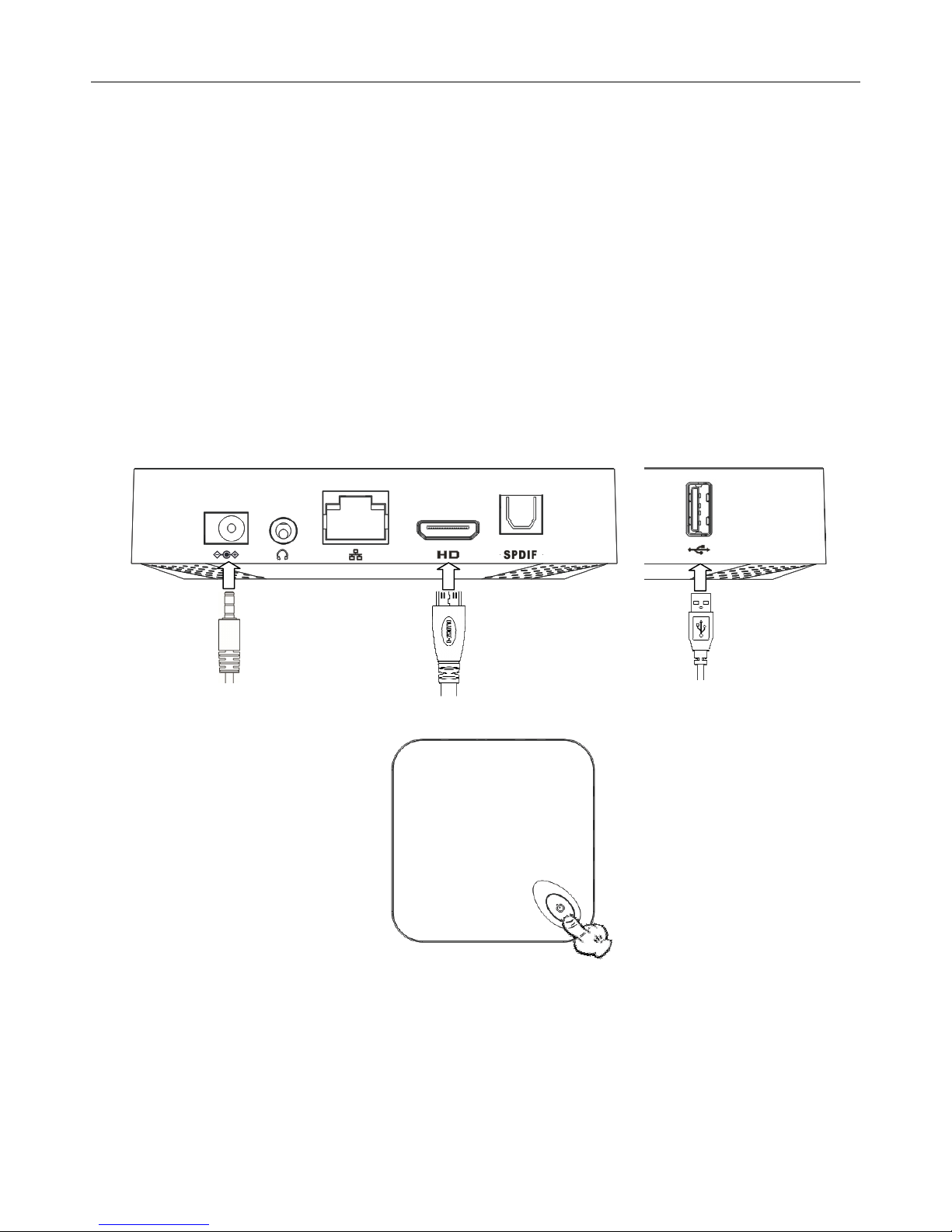
1. Connect the MXⅢ to the TV with HDMI cable, connect MXⅢ to the power adaptor,
Connect
mouse, air mouse or other input devices with USB port
2. Press power button to start MXⅢ, power LED turns into blue
3. Under the power on mode, long press power button over 10 seconds to power off the device,
Power LED turns off
4. Under power on mode, press remote control’s power button, device is entering into sleep
mode. Power LED turns into red
5. Under sleep mode, device will be wake when you press remote control’s power button,
Page 5
M8 User Manual
4
power LED turns from red to blue
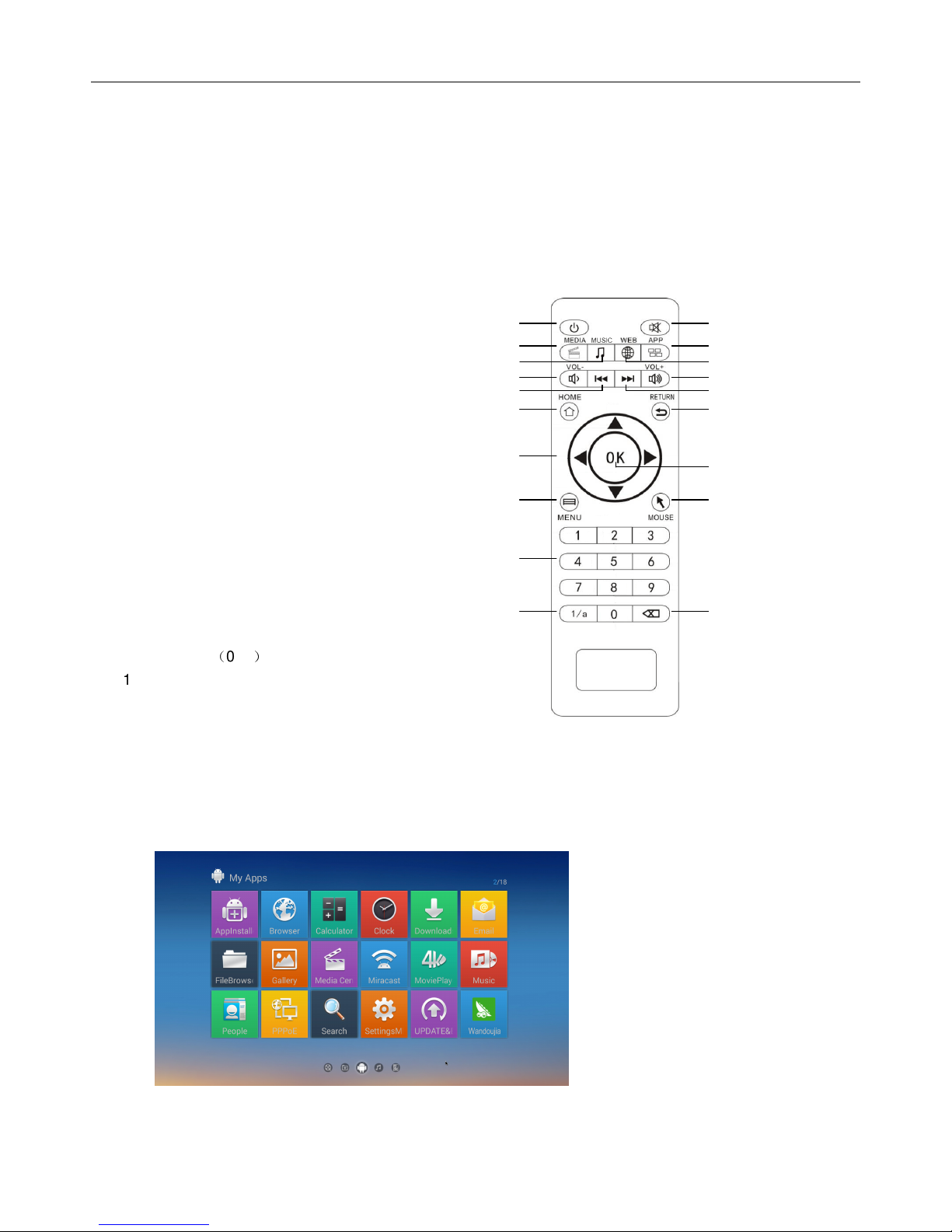
2.1.2 Remote Control Introduction
1. Standby/Wake up
2. Mute
3. Media
4. APPS
5. Music
6. Web
7. Volume -
8. Volume +
9. Previous
10. Next
11. Home
12. Return
13. Arrow keys
14. OK
15. Menu
16. Mouse
17. Numbers(0~9)
18. Characters S
witching Key
19. Delete
2.1.3 Open applications
Use remote control’s arrow keys to choose the wanted program, click OK button to open the
selected program
1
2
3
4
7
8
11
13
15
17
18
12
16
19
14
6 5
10
9
Page 6
M8 User Manual
5
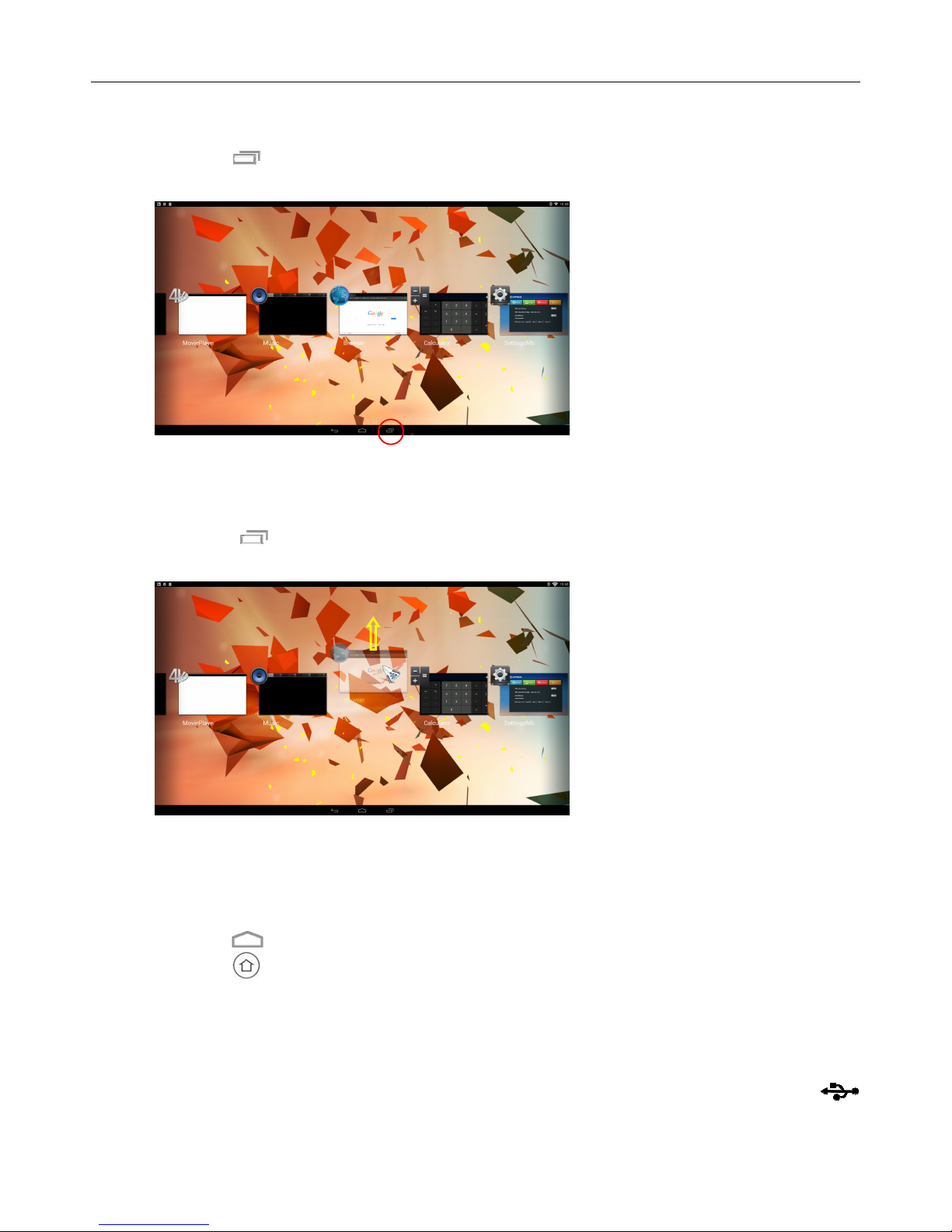
2.1.4 Switch in the applications
Click icon to view recently used programs, click program icon to switch application
arbitrarily
2.1.5 Close Applications
Click icon * to view recently used programs, choose one of them by click and hold,
drag it to blank area to close the application
* This function only operated in the condition of Mouse mode
2.1.6 Back To Home Screen
Click icon to return to home screen
Click icon on remote control to return to home screen
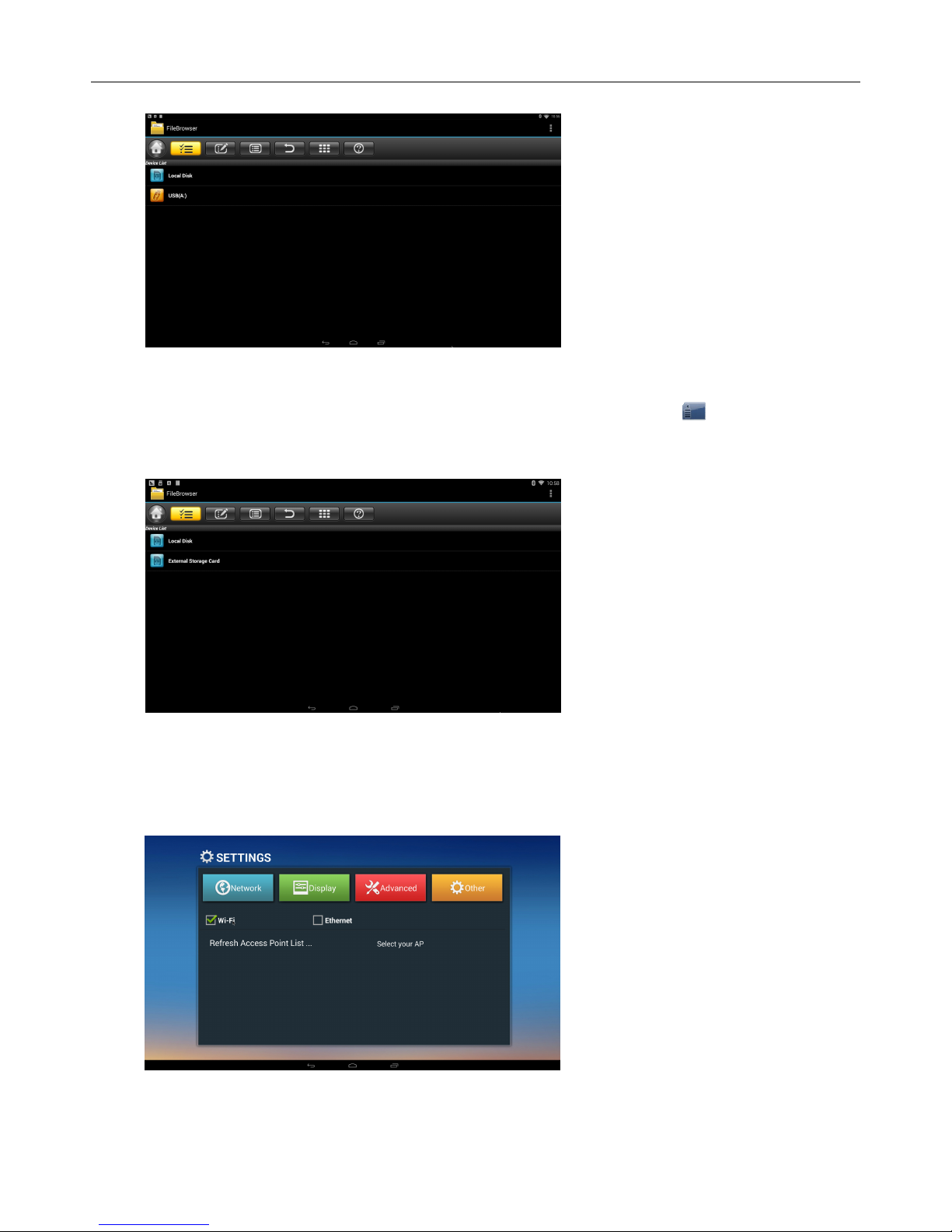
2.1.7 Read External Storage Data
Read U Disk
Insert U flash disk or removable hard disk into USB port in the status of power on, icon
appears in top left corner of the desktop, open “FileBrowser”, the identified USB(A:) will
Page 7
M8 User Manual
6
appear under “Local Disk”, U disk’s operation is available now
Read TF card
Insert TF card into the device in the status of power on, when icon appears in top left
corner of the desktop, open “FileBrowser”, the identified External Storage Card will appear
under “Local Disk”, TF card’s operation is available now
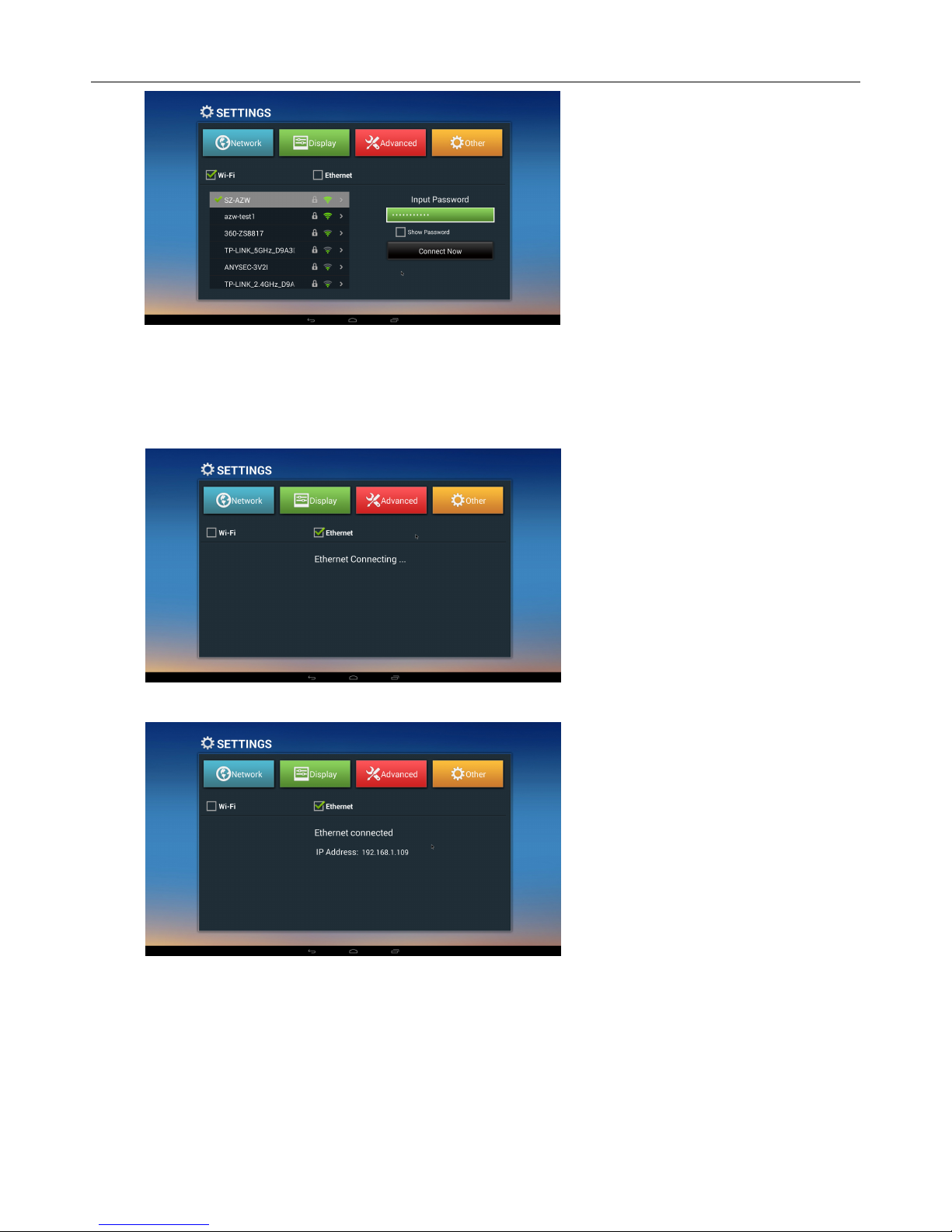
2.1.8 WIFI Function
Home Screen SETTINGSNetwork Select“Wi-Fi”to open WIFI function
Choose hotspot
Input Password Connect to the network
Page 8
M8 User Manual
7
2.1.9 Ethernet Function
Home Screen SETTINGSNetwork Select “Ethernet” to open Ethernet function
Insert network cable, network will be connected automatically
2.2
Advanced Operations
2.2.1 WLAN Hotspot
Operations on MXⅢ:
Page 9
M8 User Manual
8
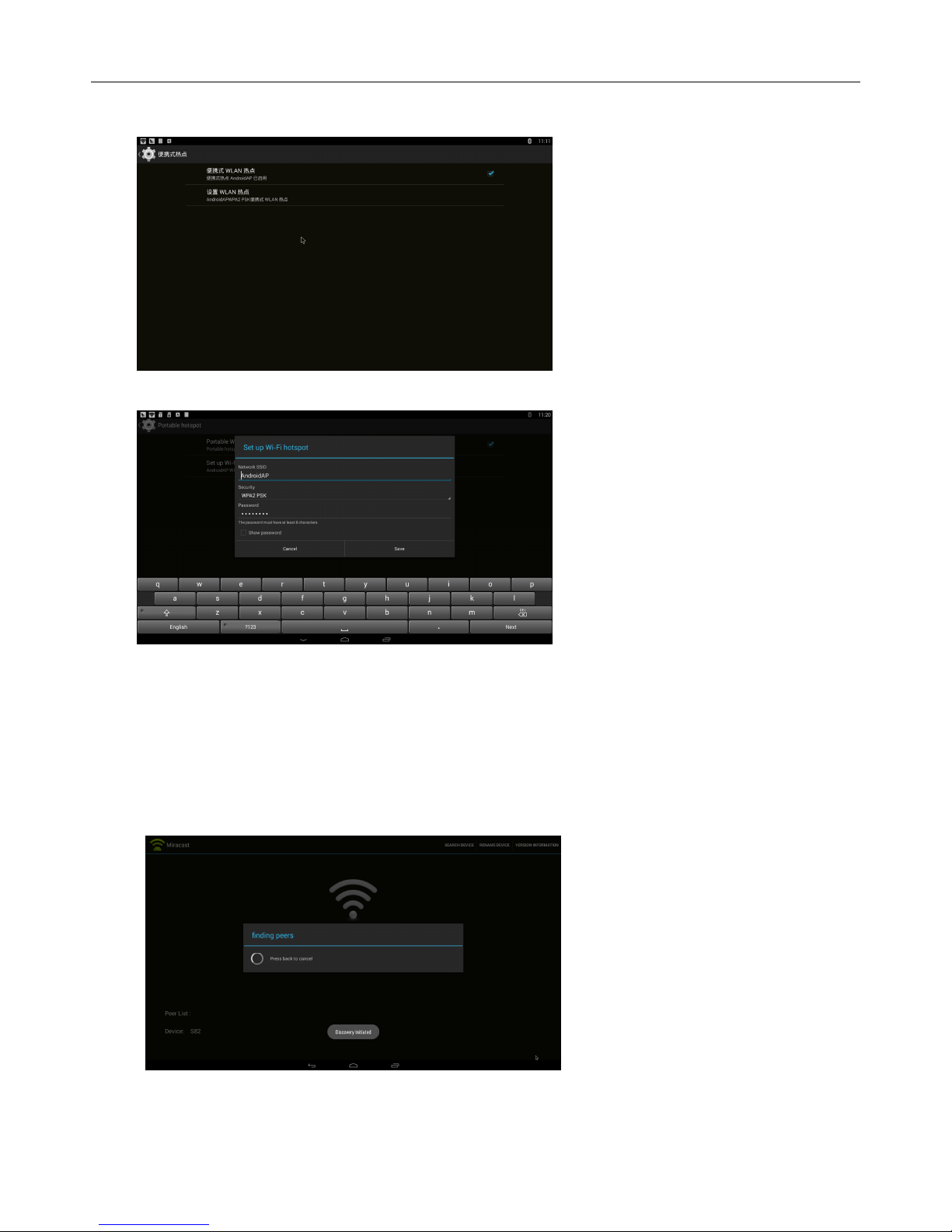
Home Screen SETTINGS OtherMore SettingMore…Portable hotspot Select
“Portable Wi-Fi hotspot”
Select “Set up Wi-Fi hotspot” to set up “Network SSID”、“Security”、“Password” parameters
* Ensure connected to the wired network, MXⅢ can be used as wireless AP to support more
wireless devices access in the family
2.2.2 Miracast
Operations on MXⅢ
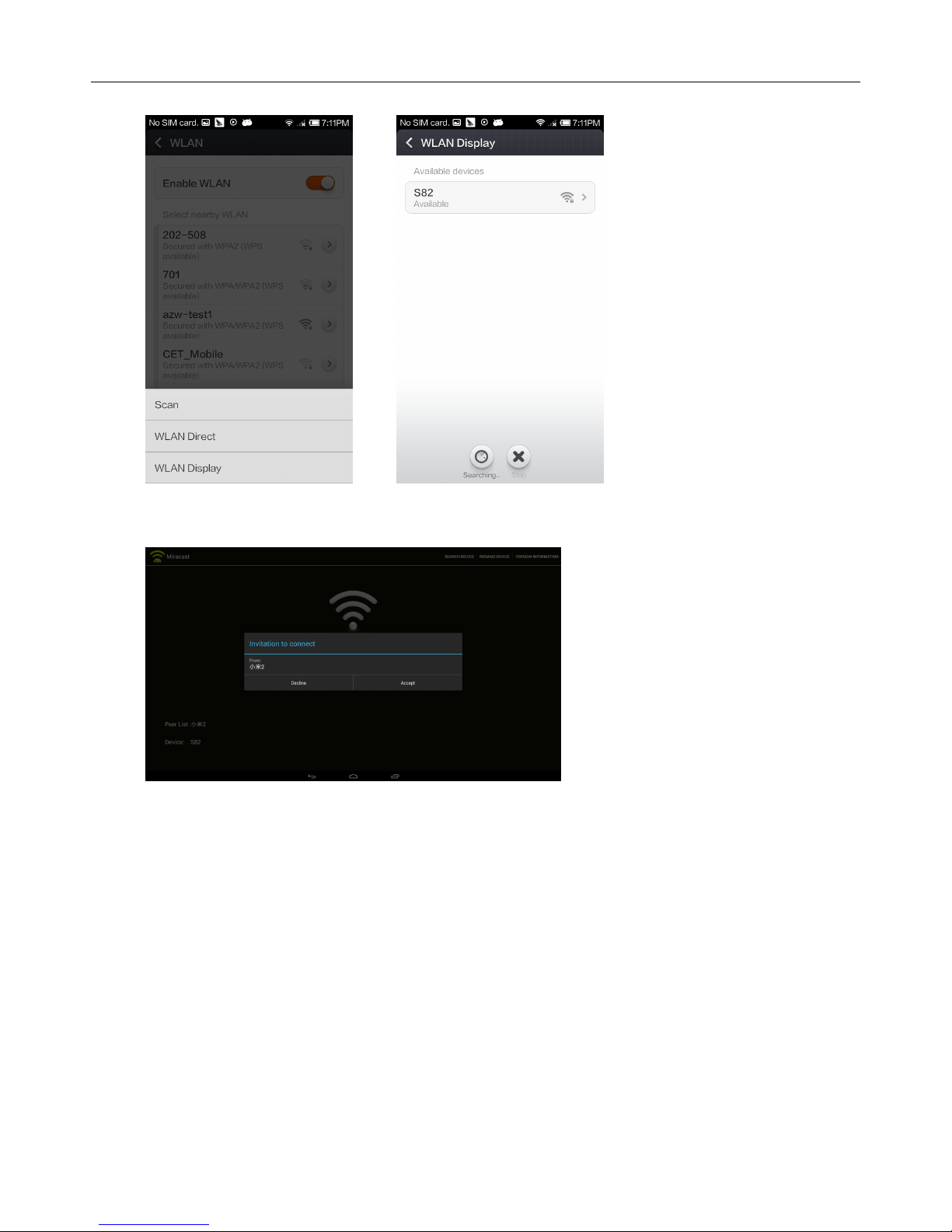
Home Screen My recommendMiracast Open Miracast service
Operations on other devices (for example MIUI 2)
Home Screen
Settings WLAN Press menu WLAN Display Find the devices
Page 10
M8 User Manual
9
searched (MXⅢ), click invite
Corresponding device will be listed when MXⅢ begin to search, a pop-up invite window
appears, click “accept”
Complete connection, MXⅢ will display other device’s images
2.2.3 DLNA
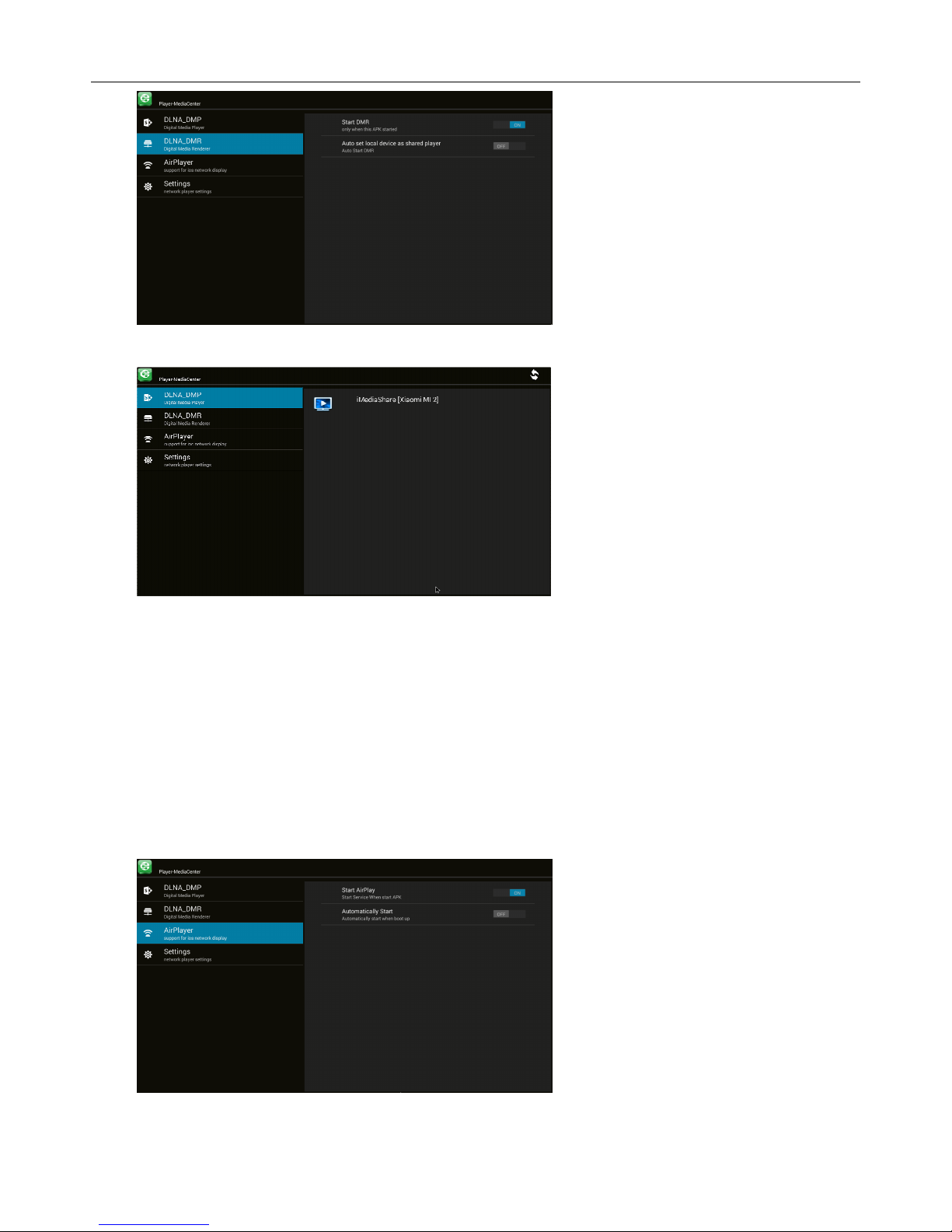
Ensure other devices like Iphone, Android smart phone, etc have opened iMediaShare *,
Ensure them in the same local wireless LAN with MXⅢ
Operations on MXⅢ
Home ScreenMy recommendMedia CenterDLNA DMRStart DMRON
Page 11
M8 User Manual
10
Select DLNA DMP to search device
Complete connection, MXⅢ will display other device’s images
* DLNA software including but not limited to iMediaShare
2.2.4 AirPlayer
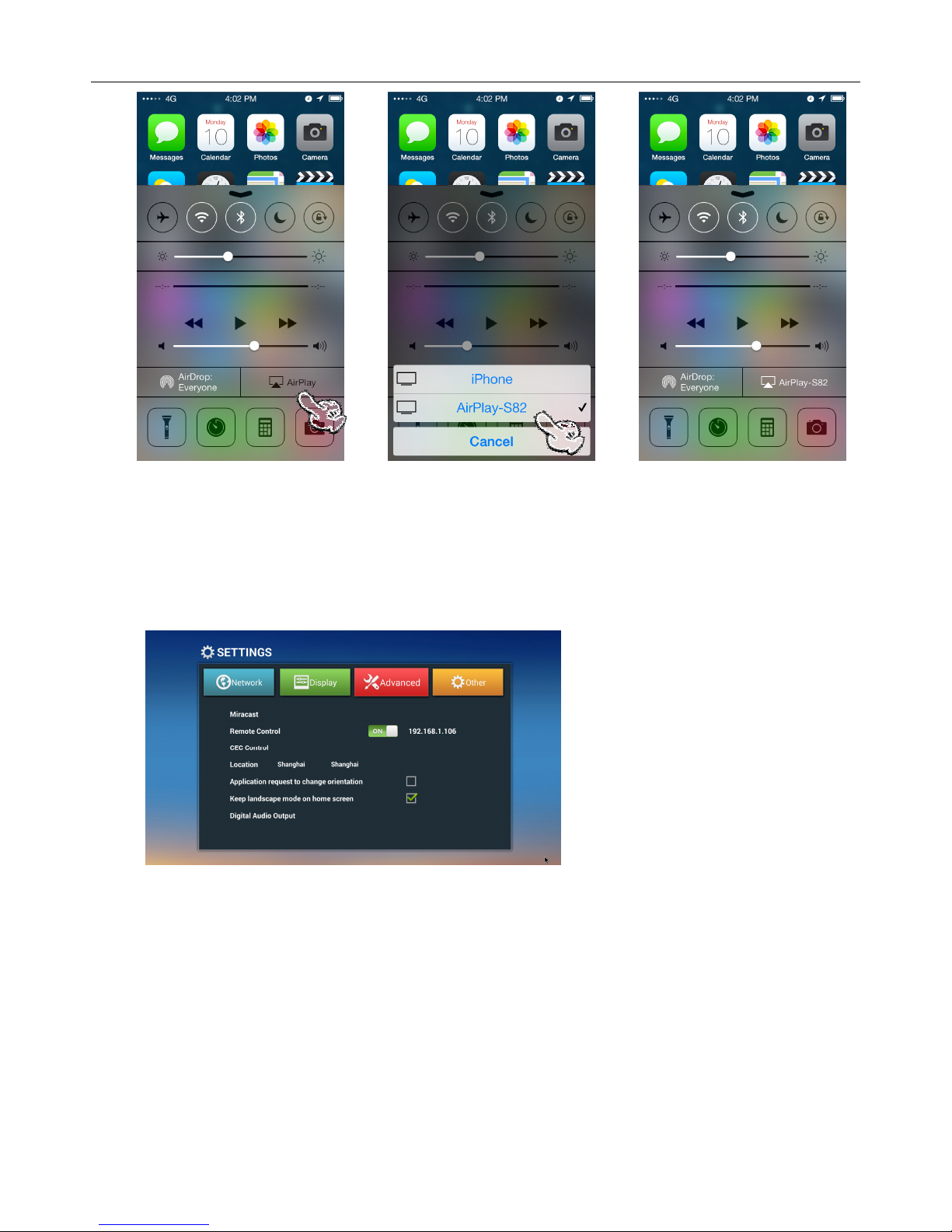
Ensure Iphone devices (iPhone, iPad etc) in the same local wireless LAN with MXⅢ
Operations on MXⅢ:
Home Screen My recommendMedia CenterAirPlayerStart AirPlayerON
Operations on Iphone devices
Page 12
M8 User Manual
11
Through WIFI, multimedia content (Images, music and videos) in Iphone devices can be
transferred to TV for playing
2.2.5
Remote Control
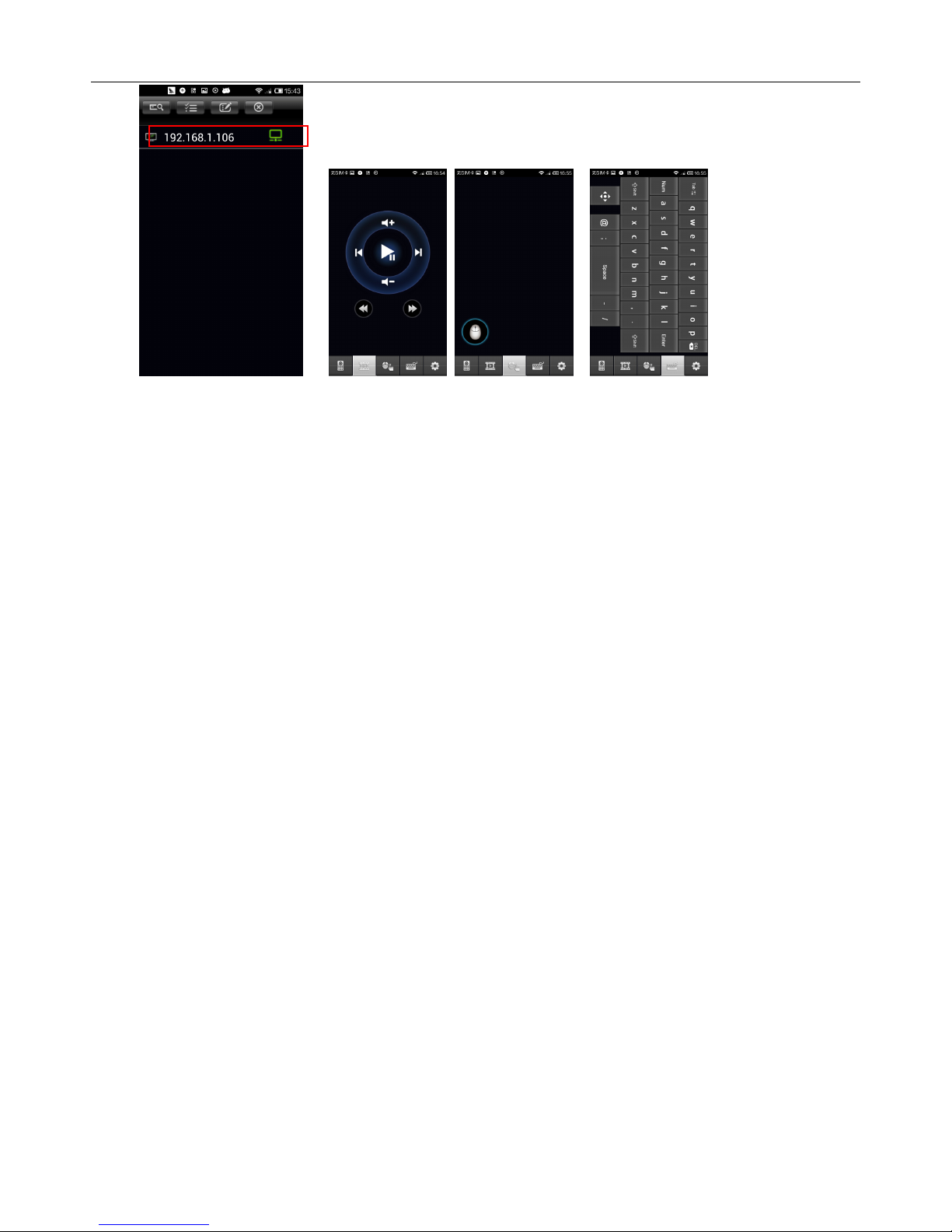
Home Screen SETTINGS AdvancedRemote ControlON Show the IP address
Ensure phone is in the same local wireless LAN with MXⅢ, install RemoteIME.apk and start
the program, choose the IP address, then you can control the MXⅢ (support shifting
between remote mode, movie mode, mouse mode and keyboard mode)
Page 13
M8 User Manual
12
* RemoteIME.apk only can run well on android platform
Page 14
M8 User Manual
13
根據
根據根據
根據 NCC 低功
低功低功
低功率率率率電波
電波電波
電波輻輻輻輻射性電機管
射性電機管射性電機管
射性電機管理理理理辦法
辦法辦法
辦法規定
規定規定
規定:
第十二條
第十二條第十二條
第十二條 經型式認證合格之低功率射頻電機
經型式認證合格之低功率射頻電機經型式認證合格之低功率射頻電機
經型式認證合格之低功率射頻電機,,,,非經許可
非經許可非經許可
非經許可,,,,公司
公司公司
公司、、、、商號或使用者
商號或使用者商號或使用者
商號或使用者
均不得擅自變更頻率
均不得擅自變更頻率均不得擅自變更頻率
均不得擅自變更頻率、、、、加大功率或變更原設計之特性及功能
加大功率或變更原設計之特性及功能加大功率或變更原設計之特性及功能
加大功率或變更原設計之特性及功能。。。。
第十四條
第十四條第十四條
第十四條
低功率射頻電機之使用不得影響飛航安全及干擾合法通信
低功率射頻電機之使用不得影響飛航安全及干擾合法通信低功率射頻電機之使用不得影響飛航安全及干擾合法通信
低功率射頻電機之使用不得影響飛航安全及干擾合法通信;;;;經發現有
經發現有經發現有
經發現有
干擾現象時
干擾現象時干擾現象時
干擾現象時,,,,應立即停用
應立即停用應立即停用
應立即停用,,,,並改善至無干擾時方得繼續使用
並改善至無干擾時方得繼續使用並改善至無干擾時方得繼續使用
並改善至無干擾時方得繼續使用。。。。
前項合法通信
前項合法通信前項合法通信
前項合法通信,,,,指依電信法規定作業之無線電通信
指依電信法規定作業之無線電通信指依電信法規定作業之無線電通信
指依電信法規定作業之無線電通信。。。。
低功率射頻電機須忍受合法通信或工業
低功率射頻電機須忍受合法通信或工業低功率射頻電機須忍受合法通信或工業
低功率射頻電機須忍受合法通信或工業、、、、科學及醫療用電波輻射性電
科學及醫療用電波輻射性電科學及醫療用電波輻射性電
科學及醫療用電波輻射性電
機設備之干擾
機設備之干擾機設備之干擾
機設備之干擾。。。。
 Loading...