

Page 1
Page 2
Page 3
Page 4
03
Bluetooth Headset BTH-200 User Manual
04
English
4.CHANGE THE INSTRUCTION
5. TURN THE HEADSET ON/OFF
5.1 To turn the headset on
Press and hold the answer / cancel call button 3 seconds until you see a
quick flash of blue LED light. After that the LED will flash every two
seconds. (When battery is low it will flash red indicator light)
5.2 To turn the headset off
Press and hold the answer / cancel call button 3 seconds until you hear
two short tones followed by three quick flash of red indicator light
then stop flash. The headset switches off and LED will stop flash.
1.3 Product Features
■
Bluetooth Technology up to 10 meters wireless transmission range
■
Direct answers remote voice dialing
■
Rechargeable battery
■
Adjustable ear hook for both right-ear listener or left-ear listener
■
Compatible with the most Bluetooth enabled cellular phones
■
Headset profile and hands-free profile.
1.4 How to Start
Before you can use your headset you must first:
■
Charge the headset battery, using an appropriate charger
■
Pair the headset with a device for example, a mobile phone.
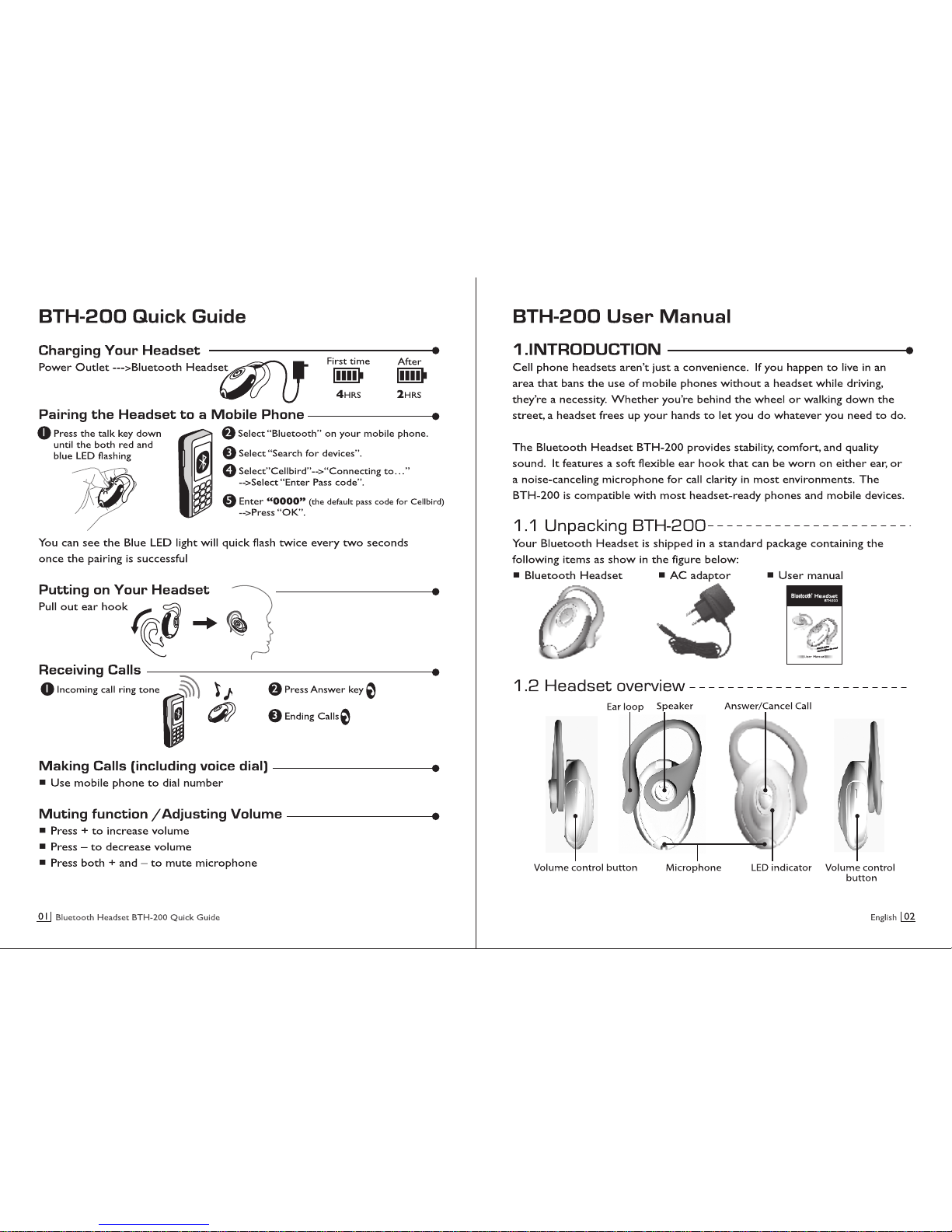
2.CHARGING
The headset comes with a built-in rechargeable battery.
To fully charge the battery for first time, it will take up
to 4 hours, after that it takes 2 hours to get fully
recharge. The talking time for a fully charge battery is
3.5 hours, standby time is up to 100 hours. When the battery is charging, the
LED indicator shows a steady blue light. Charge the headset battery, using
provided charger. Use other charger may damage the battery and headset.
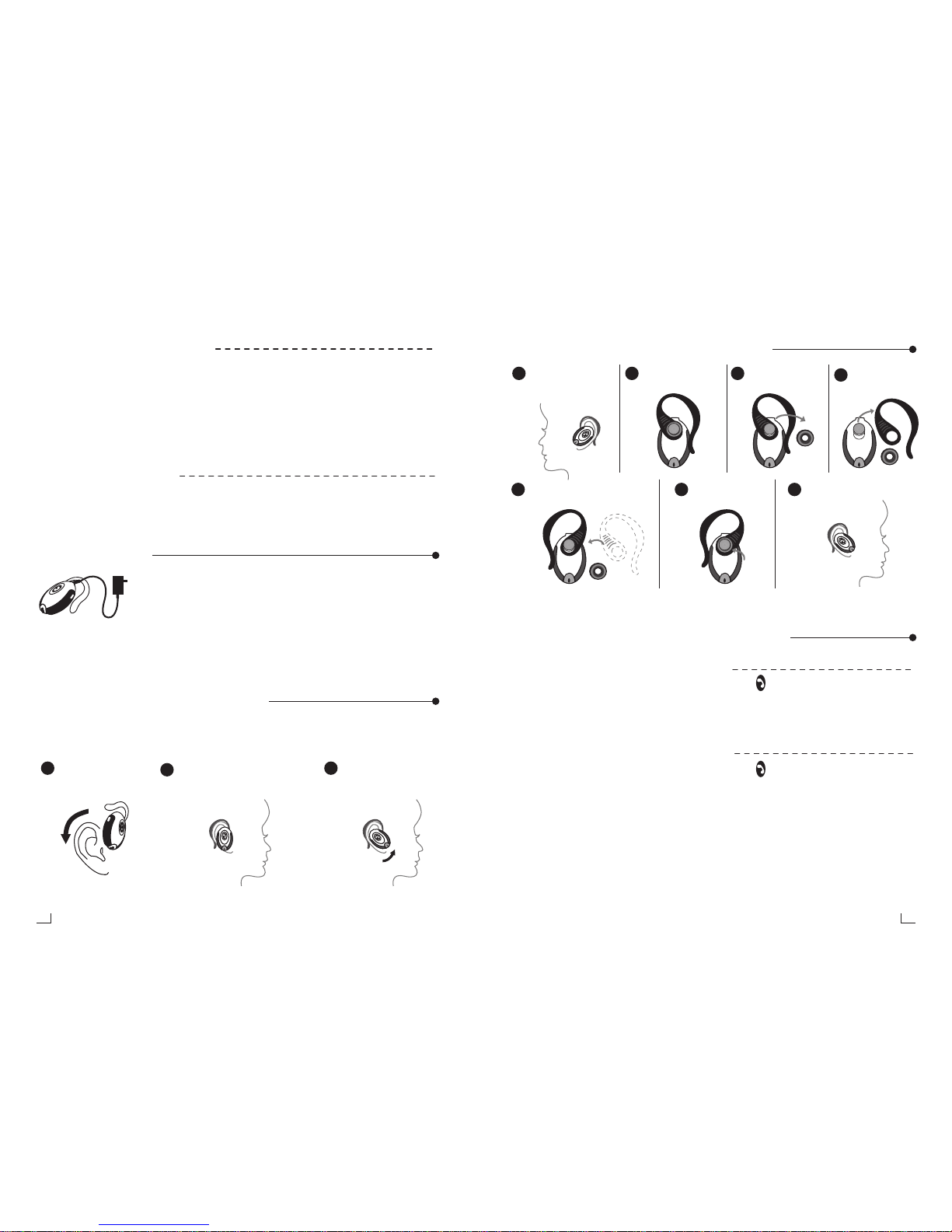
3.WEARING THE HEADSET
The design of the Bluetooth Headset is very flexible and convenient. The
factory defaults and the instructions in this manual are for wearing the
headset on the right/left ear. Follow these steps:
Pull the ear hook Point the microphone
toward your mouth.
Loop the ear hook behind
your ear as show and press
the headset to your ear.
1
Start change over.2Remove rubber
cushion.
3
Remove hook.
4
Change the way replace
on the Bluetooth headset.
5
Replace rubber
cushion on.
6
2
3
Remove Bluetooth
headset from either
side of ear.
1
Complete the exchange.
Put on ear.
7
Page 5
05
Bluetooth Headset BTH-200 User Manual
06
English
6. PAIRING
Before the headset can be used with your mobile phone, it must first be
paired. This process registers the headset and your mobile phone to each
other. Pairing is necessary to establish a connection between Bluetooth
enable devices. Your headset only needs to be paired once with each mobile
phone that you use; however, its unique design enables you to pair it with
other mobile phones. After pairing, you can use the headset to receive and
initiate phone calls without additional configuration.
6.1 Pairing the headset with a phone
The Bluetooth Headset has passed the compatibility test and can be used
with most mobile phones from Nokia, Sony Ericsson, Siemens, Motorola and
Philips. Once you have hair your headset with the phone, you do not need
to pair it again. (Note: Except Nokia Phone)
1.After turning on the headset, continue pressing the talk key down until
the both red and blue LED flashing, indicating the headset is ready to be
connected to the wireless device for the first time.
2.Select “Bluetooth” on your mobile phone.
3.Select “Search for devices”.
4.Select”cellbird” from the option list;
“Connecting to…”appears on the screen. Select “Enter Pass code”.
5.Enter “0000” (the default pass code for Cellbird), and then press “OK”.
You can see the Blue LED light will quick flash twice every two second
once the pairing is successful
Note: If your headset doesn’t set under the pair mode, your Bluetooth mobile phone will not
be able to find the headset, so the headset must set on the pairing mode.
If the headset doesn’t pair up with mobile phone within one minute, the headset will turn off
automatically, the previous pair will not work, you will need to repeat steps from 1 to 3 until it
success.
7. MAKING AND ANSWERING CALLS
Once you have success to pair the headset with your phone, you can make
and receive calls using the headset as long as it is turned on and with in
range of the phone. For best performance, use the headset and phone in
the same room.
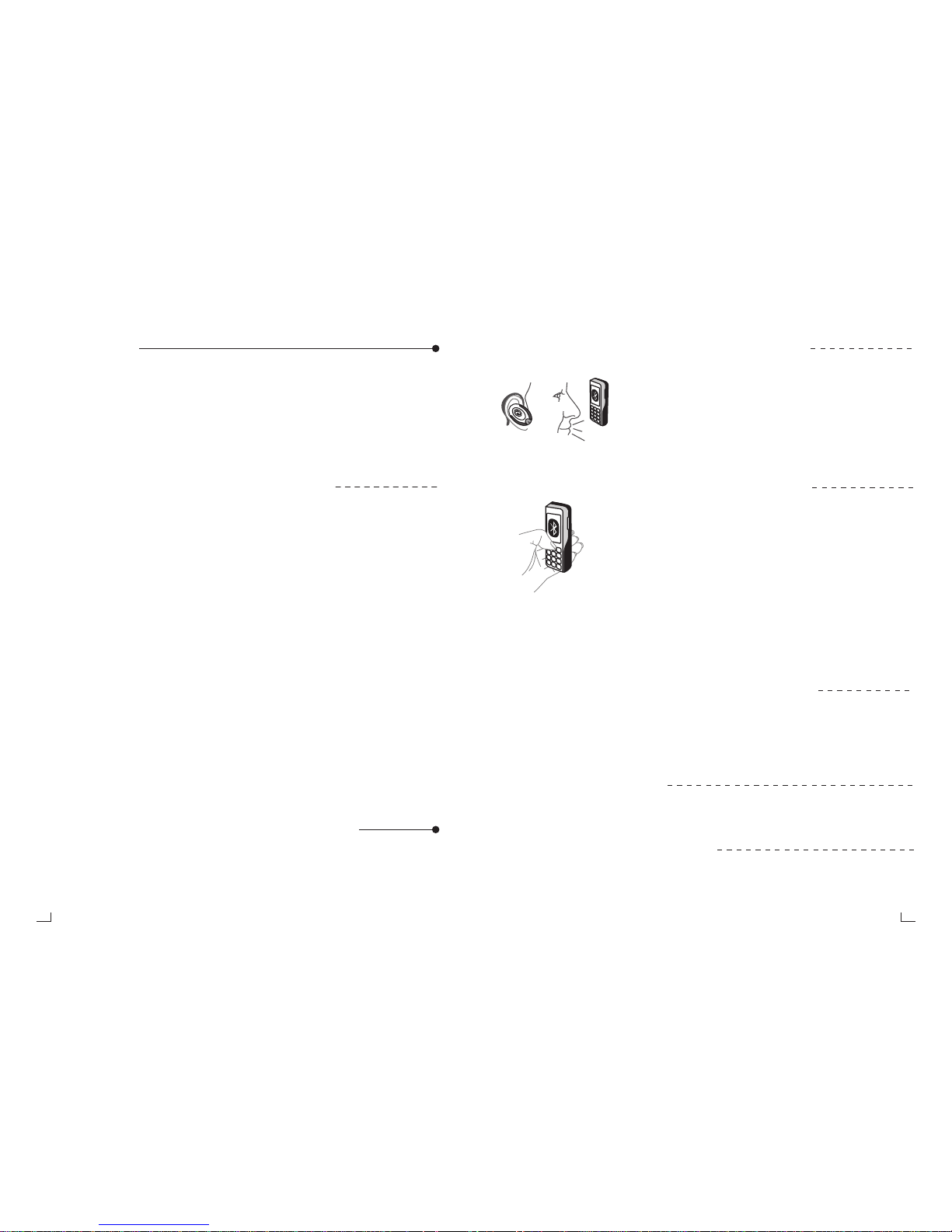
7.1 To make a call using voice dialing
If your mobile phone supports the voice dialing
function, you can make a voice call through the headset.
Say a name or voice command to place a phone call.
This function is especially convenient and safe when you
are driving. However, it depends on your mobile phone
supporting function. Refer to the mobile phone’s user
manual to see if the voice dialing function is supported.
7.2 To make a call using number pad
You can place a phone call with your headset linked to your
mobile phone. Use your mobile phone to dial the desired
number, and then use the Bluetooth Headset to talk and
listen to the caller. If you want to use your mobile phone to
talk / listen, disconnect the paired link between the headset
and the mobile phone.
7.3 To answer a call using the call handling button
■
When the headset rings, press the call handling button.
■
To adjust volume press + to increase volume or press – to decrease volume.
■
End the call by pressing the call handling button.
7.4 To activate/cancel mute function
■
Press volume + and – at the same time for two seconds will activate
mute function.
■
Press volume + or volume – for over two second will cancel the
mute function.
7.5 To reject a call
When the headset rings, press and hold the call handling button until
you hear a long beep.
7.6 To adjust the volume
You can adjust the headset speaker volume during a call or the ring
volume when you are not engaged in a call.
■
To increase/decrease the volume, press +/-
Page 6
 Loading...