

Page 1

BEC 7800(N)
(802.11n) Dual WAN
ADSL2+ Firewall Router
Quick Start Guide
Page 2

Page 3
Billion BEC 7800(N) (802.11n) Dual WAN ADSL2+ Firewall Router
PLEASE READ THE QUICK START GUIDE AND FOLLOW THE
Do not use the
router
in high humidity or high temperatures.
Avoid using this
product
and all
access
ories
outdoors.
STEPS CAREFULLY. THIS QUICK START GUIDE WILL HELP YOU
INSTALL THE DEVICE PROPERLY AND AVOID IMPROPER USAGE.
IF YOU NEED MORE INFORMATION ON THIS SOFTWARE
CONFIGURATION, PLEASE REFER TO THE USER’S MANUAL ON
CD-ROM.
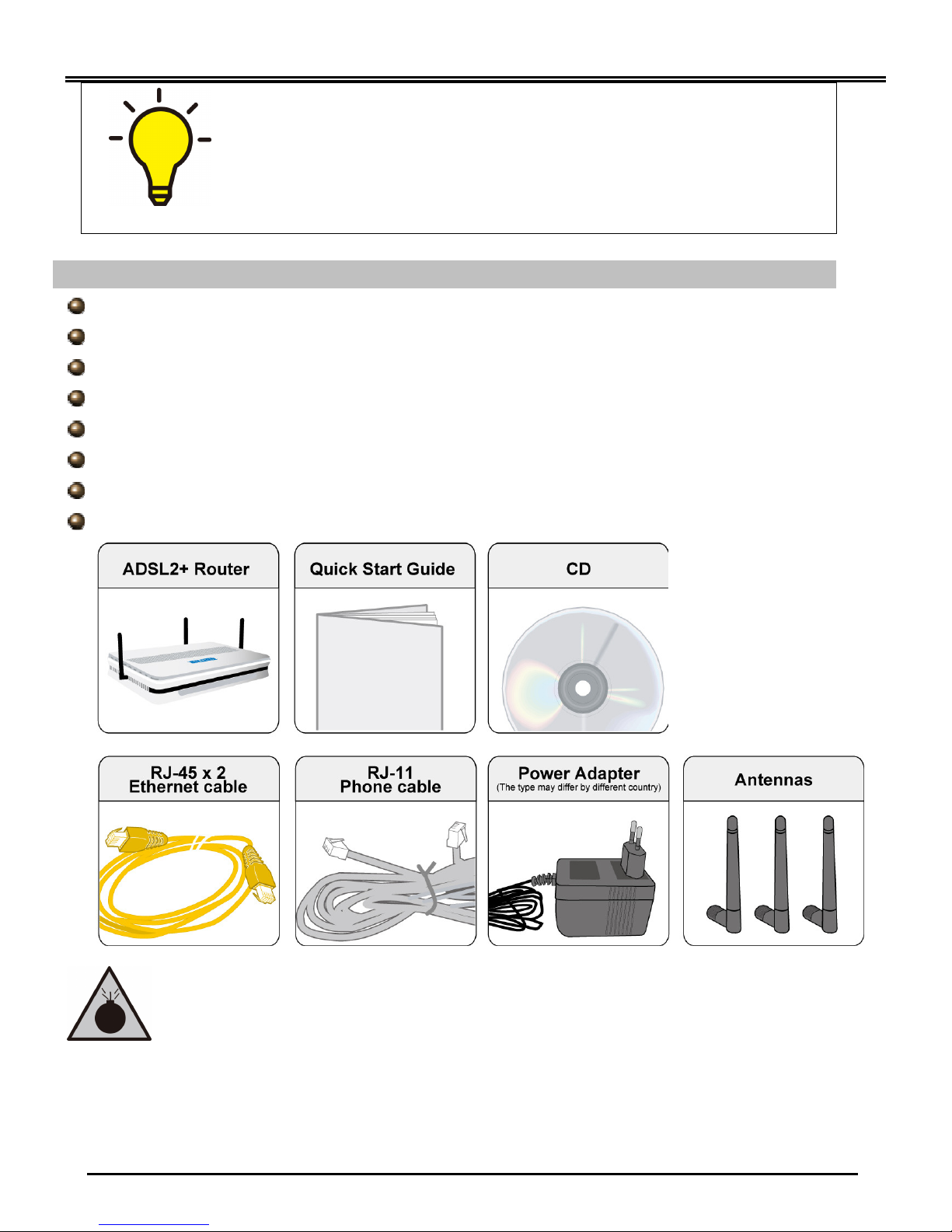
Package Contents
BEC 7800(N) (802.11n) Dual WAN ADSL2+ Firewall Router
CD containing the on-line manual
RJ-11 ADSL/telephone cable
Ethernet (RJ-45) cable
Three 2dBi detachable antennas (Wireless model only)
Power adapter
This Quick Start Guide
Splitter/ Micro-filter (Option)
Do not use the same power source for the router as other
equipment.
Do not open or repair the case yourself. If the router is too hot,
turn off the power immediately and have it repaired at a qualified
service center.
Warning
-1-
Page 4

Place the router on a stable surface.
Attention
Quick Start Guide
Only use the power adapter that comes with the package. Using a
different voltage rating power adaptor may damage the router.
-2-
Page 5
Billion BEC 7800(N) (802.11n) Dual WAN ADSL2+ Firewall Router
Connect the
Connect the supplied
Press it to reset
Connect your computer
When power on, it will lit green.
WAN 10/100M Ethernet port
Lit when connected to an
Lit Green when
L
it when connected to
a
transmitted
/
received
.
Power
Lit green when
a
wireless
received
.
Connect the
Push WPS button
Lit orange when WAN port
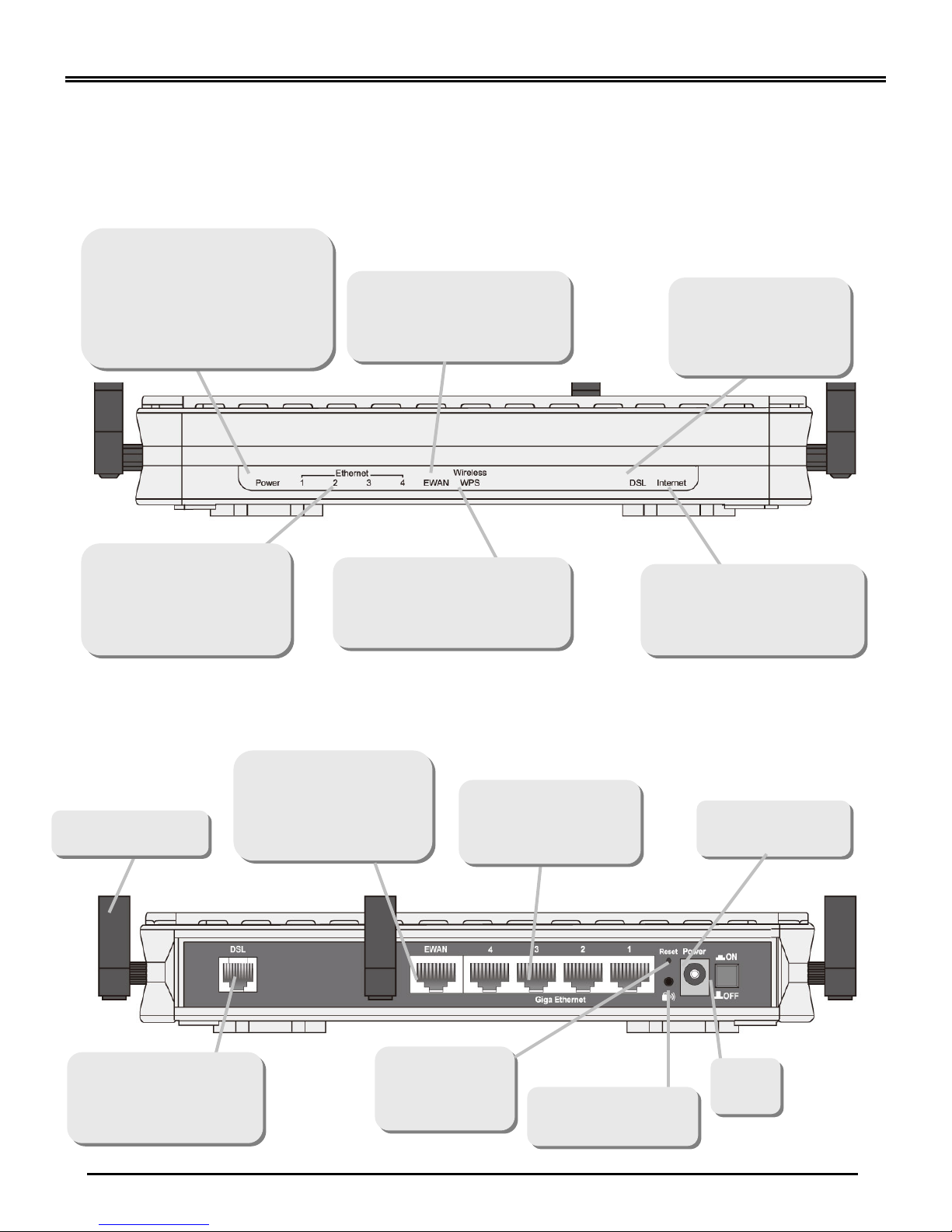
Hardware Overview
The Front LEDs
When the system is booting, it
will blink orange at the same
time. While the system is ready,
it will only lit green. When
system booting failed or in the
emergency mode, it will only lit
orange.
broadband connection device.
Lit orange for 10/100Mbps.
Blinking when data is
successfully connected
to an ADSL DSLAM,
(“line sync”).
Ethernet device.
Lit green for 1000Mbps;
Lit orange for 10/100Mbps.
Blinking when data is being
Transmitted / Received.
connection is established. Lit
orange when WPS is enabled.
Flash green when data is sent /
The Rear Ports
detachable antenna
(with auto crossover
support); connect Cable
Modem, VDSL, and Fiber
Modem or PON optic lines
with your RJ-45 cable
to a LAN port, using the
included Ethernet cable
(with RJ-45 cable)
fails to get IP address. Flash
green when WAN port gets IP
ad dress successfully and
when data is transmitted.
supplied power
adapter to this jack
RJ-11 cable to this port
when connecting to the
ADSL/telephone
network
-3-
the device or
restore to factory
default settings
to trigger Wi-Fi
Protected Setup
ON/OFF
switch
Page 6
Quick Start Guide
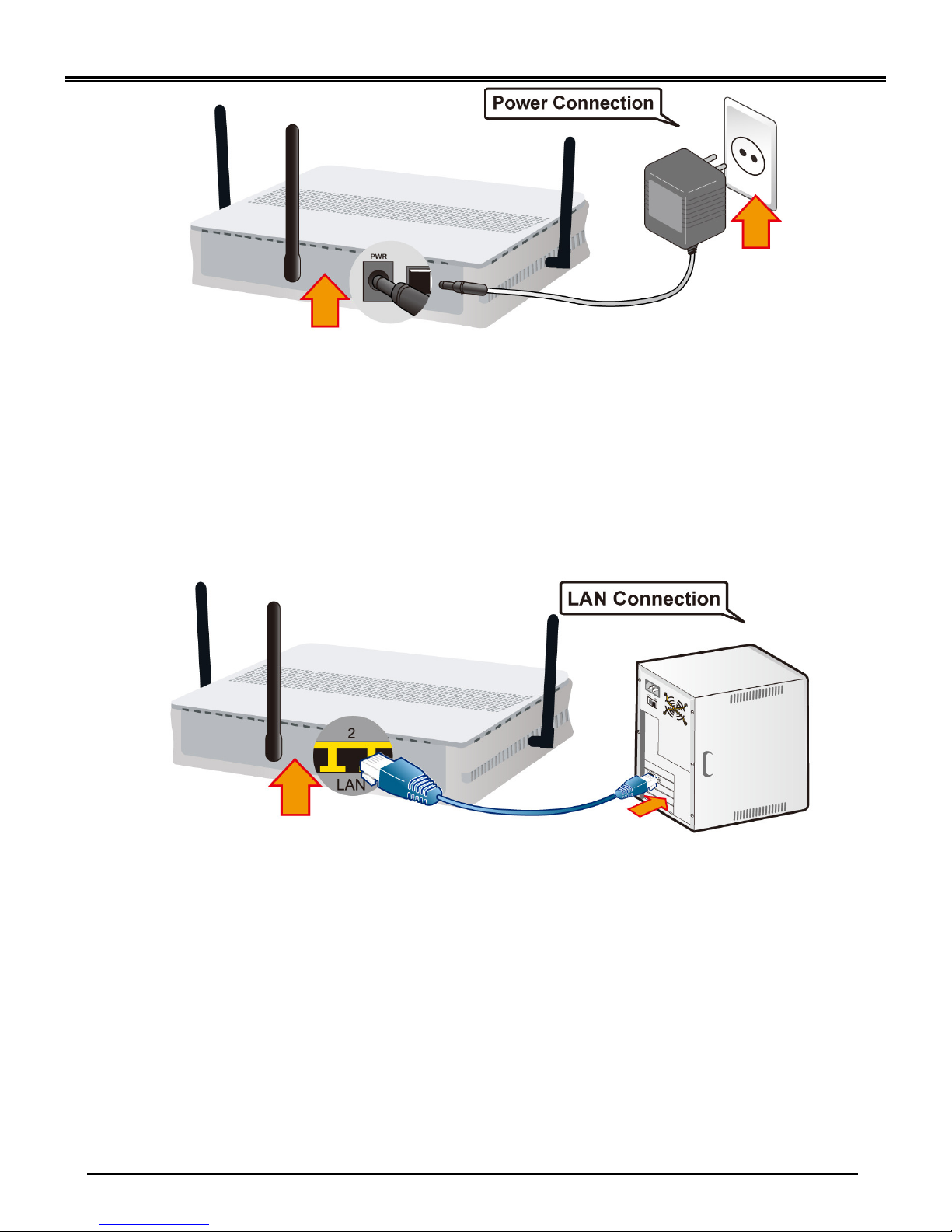
Plug the supplied power adapter to the wall jack and the other side to the router.
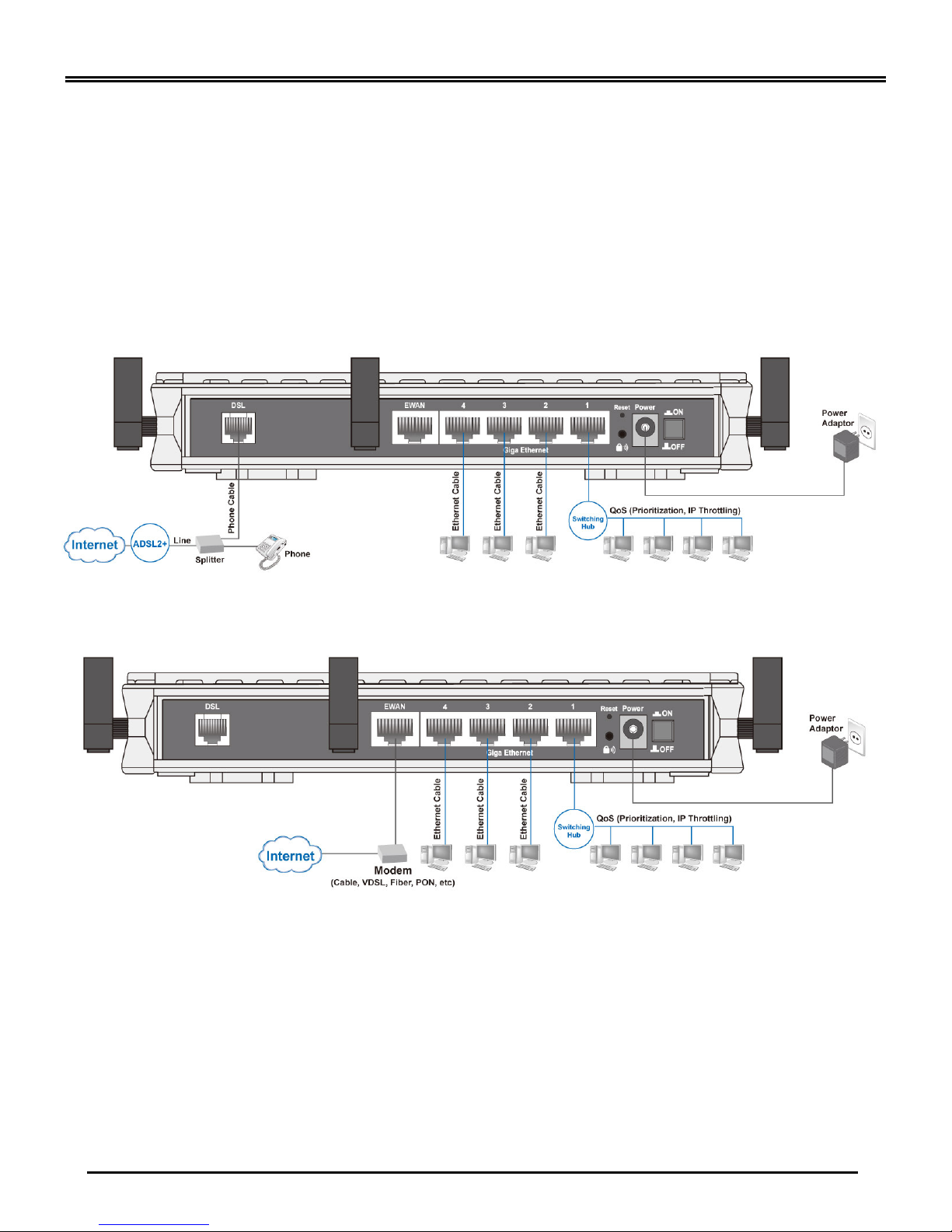
Hardware Connection
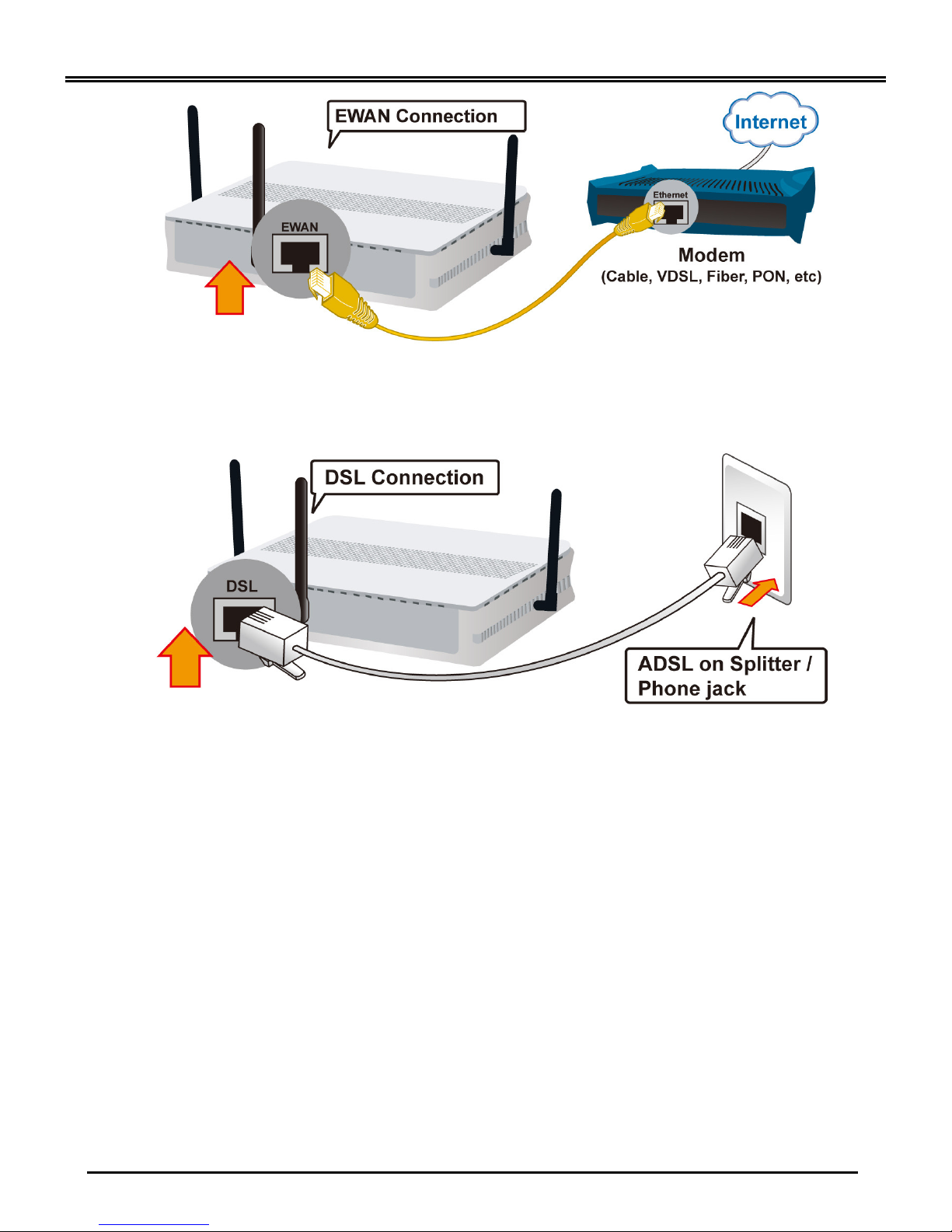
Users will not be able to connect to the internet through EWAN if DSL is already connected to the
internet. Only one connection type (EWAN or DSL) is allowed to connect to the internet at one time.
ADSL Router Mode
Broadband Router Mode
Hardware Installation
1. Power Connection
Please note that the plug type may differ according to different countries.
-4-
Page 7
Billion BEC 7800(N) (802.11n) Dual WAN ADSL2+ Firewall Router
2. LAN Connection
Connect the supplied RJ-45 Ethernet cable to one of the Giga Ethernet ports, and
the other side to the PC’s Ethernet interface.
3. EWAN Connection
Connect the supplied RJ-45 Ethernet cable to the Ethernet WAN port (EWAN), and
connect the other side to another alternative broadband device, such as Cable
Modem, VDSL, Fiber Modem or PON optic lines.
-5-
Page 8
Quick Start Guide
4. ADSL Connection
Connect the supplied RJ-11 phone cable to the router’s ADSL port, and the other
side to the phone jack on the wall.
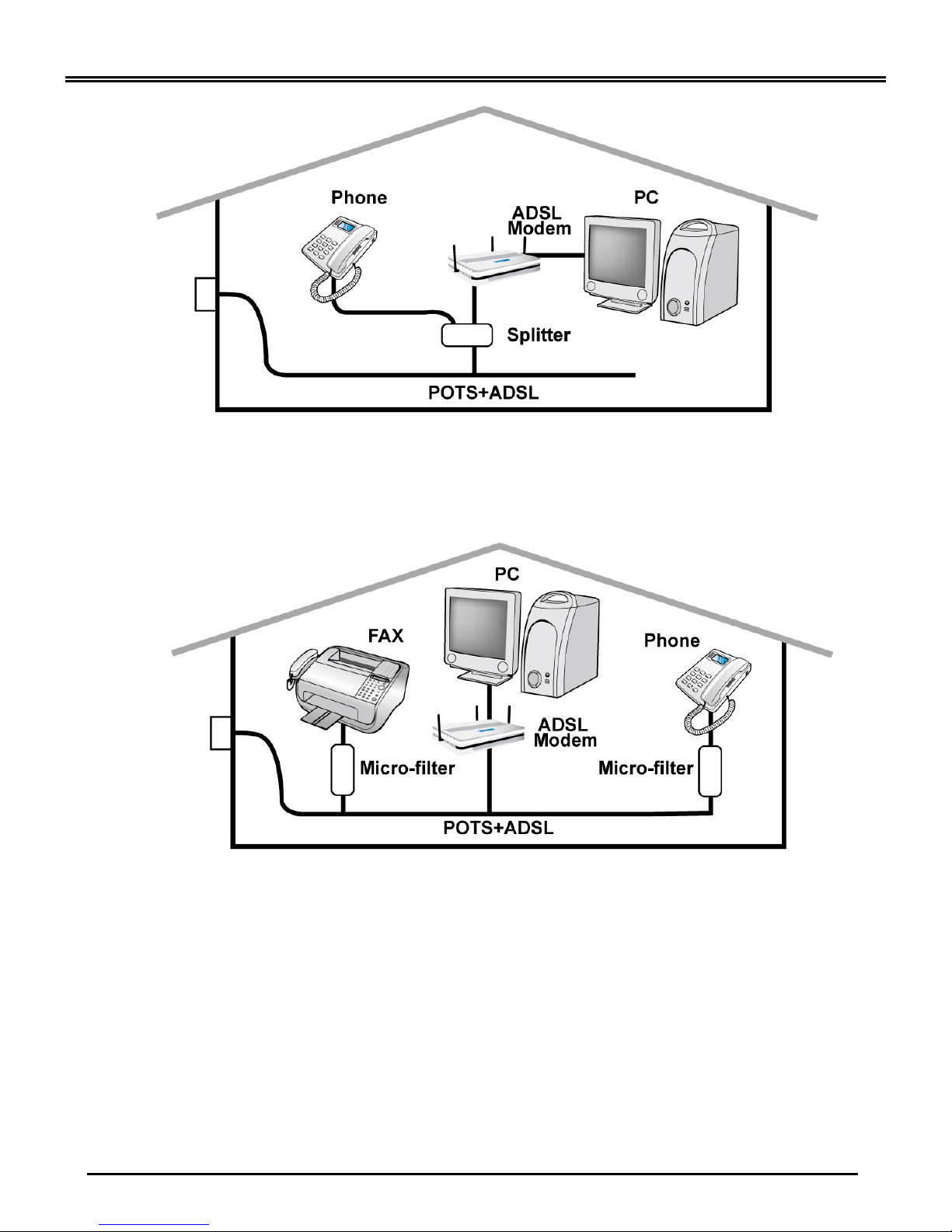
5. Splitter/ Micro-filter Connection
Splitter / Micro-filter are important for ADSL installation. It helps high-frequency
signals are directed to the ADSL modem, and low-frequency signals are directed to
the telephone or other analog voice-channel device to prevent inter-modulation
distortion and get good speed and stable ADSL sync rate.
a) Splitter connection
If the installation has only a single telephone and a single ADSL modem, then a
splitter can be employed.
-6-
Page 9
Billion BEC 7800(N) (802.11n) Dual WAN ADSL2+ Firewall Router
b) Micro-filter connection
If the installation has several telephones or other analog devices, then an internal
micro-filter can be employed at each analog device.
-7-
Page 10

Quick Start Guide
BEC 7
800
(N):
V1.00EN
Troubleshooting
1. None of the LEDs are on when you turn on the router.
Check the connection between the adapter and the router. If the error persists, you may have a
hardware problem. In this case you should contact technical support.
2. You have forgotten your router login and/or password.
Try the default login and password, please refer to Chapter 3 of the User’s Manual. If this fails,
you can restore your router to its factory settings by holding the Reset button on the back of your
router for 1~2 seconds.
3. Can’t ping any PCs on the LAN.
Check the Ethernet LEDs on the front panel. The LED should be on for a port that has a PC
connected. If it is off, check the cables between your router and the PC. Make sure you have
uninstalled any software firewall for troubleshooting. Verify that the IP address and the subnet
mask are consistent between the router and the workstations.
4. Frequent loss of ADSL linesync (disconnections).
Ensure that all other devices connected to the same telephone line as your router (e.g.
telephones, fax machines, analogue modems) have a line filter connected between them and
the wall socket (unless you are using a Central Splitter or Central Filter installed by a qualified
and licensed electrician), and ensure that all line filters are correctly installed and the right way
around. Missing line filters or line filters installed the wrong way around can cause problems with
your ADSL connection, including causing frequent disconnections. If you have a back-to-base
alarm system you should contact your security provider for a technician to make any necessary
changes.
Product Support and Contact Information
Most problems can be solved by referring to the Troubleshooting section in the User’s Manual. If
you cannot resolve the problem with the Troubleshooting chapter, please contact the dealer where
you purchased this product.
Contact BEC
WORLDWIDE
http://www.bectechnologies.com
BEC Product Registration
BEC is committed to before and after sales customer services. You will get the most out of your BEC's products after
registration. Please register online at www.billion.com/register to receive valuable services and support from us.
-8-
 Loading...