

Page 1

1
BEC 6200WZL
4G/LTE Cellular Broadband Router
Quick Start Guide
Page 2

Page 3
BEC 6200WZL 4G/LTE Cellular Broadband Router
1
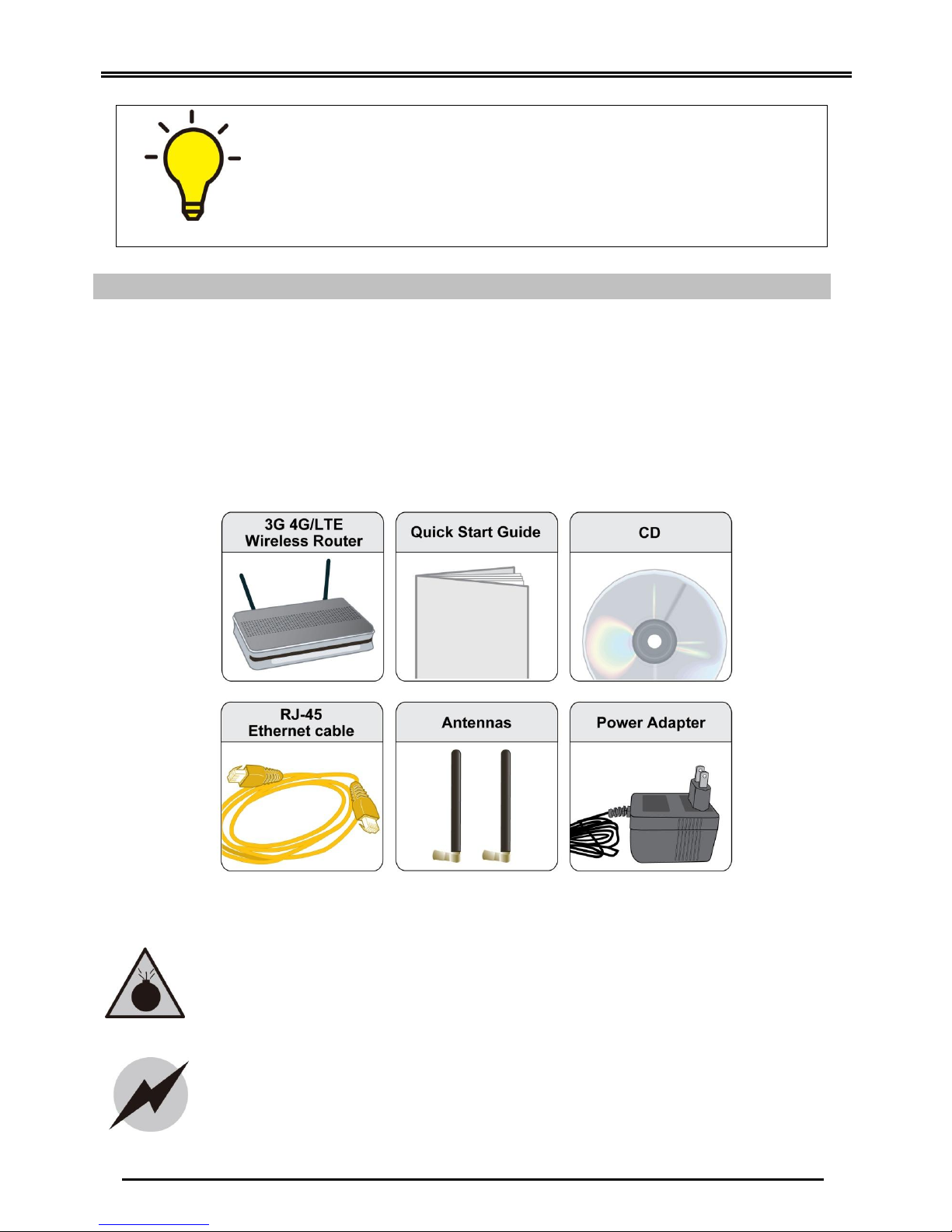
Package Contents
BEC 6200WZL 4G/LTE Cellular Broadband Router
This Quick Installation Guide
CD containing User Manual
RJ-45 Ethernet Cable
Two 3G/4G-LTE detachable antennas
Power adaptor
Warning
Do not use the router in high humidity or high temperatures.
Do not use the same power source for the router as other equipment.
Do not open or repair the case yourself. If the router is too hot, turn off
the power immediately and have it repaired at a qualified service center.
Avoid using this product and all accessories outdoors.
Attention
Place the router on a stable surface.
Only use the power adapter that comes with the package. Using a
different voltage rating power adaptor may damage the router.
PLEASE READ THE QUICK START GUIDE AND FOLLOW THE
STEPS CAREFULLY. THIS QUICK START GUIDE WILL HELP YOU
INSTALL THE DEVICE PROPERLY AND AVOID IMPROPER USAGE.
IF YOU NEED MORE INFORMATION ON THIS SOFTWARE
CONFIGURATION, PLEASE REFER TO THE USER MANUAL ON
CD-ROM.
Page 4
Quick Start Guide
2
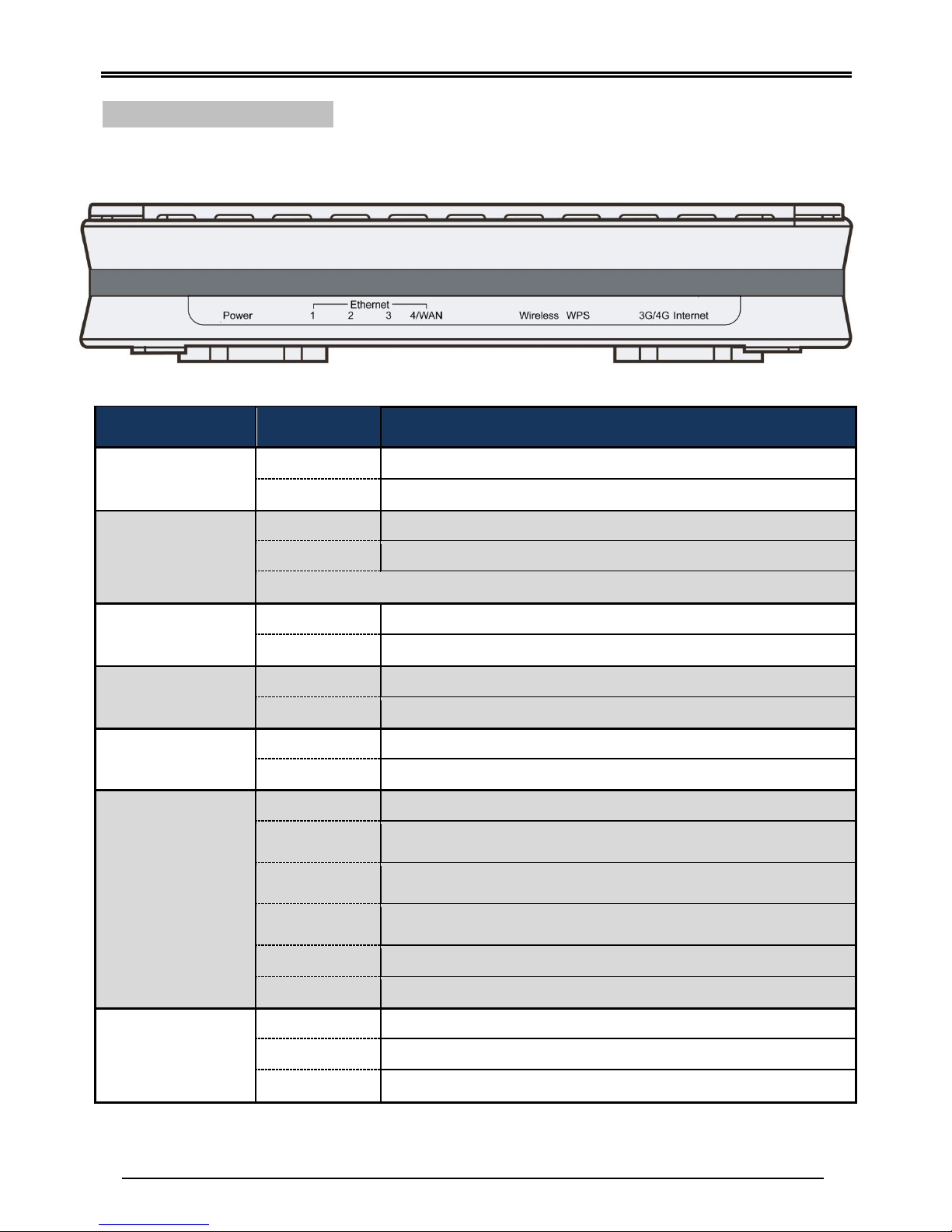
Front Panel LEDs
LED
STATUS
DESCRIPTION
Power
Green
System is up and ready
Red
Boot failure
Ethernet Port
LAN 1 ~ 4
Green
LAN Port is connected to an Ethernet unit, e.g. PC, Notebook, Xbox
Blinking
Data being transmitted/received
Note: port #4 can be configured as WAN port for broadband connectivity
EWAN on LAN 4
Green
BEC 6200WZL is successfully connected with a broadband connection device.
Blinking
Data being transmitted/received
Wireless
Green
Wireless connection established
Blinking
Data being transmitted / received
WPS
Green
Wireless client has been connected via WPS successfully
Blinking
WPS is enabled and ready for other wireless clients to join
3G/4G
(Received Signal
Strength Indicator)
Green
RSSI greater than -69 dBm. Excellent signal condition
Green
Flashing quickly
RSSI from -81 to -69 dBm. Good signal condition
Orange
Flashing quickly
RSSI from -99 to -81 dBm. Fair signal condition.
Orange
Flashing slowly
RSSI less than -99 dBm. Poor signal condition.
Orange
No signal and the 4G_LTE module is in service
Off
No LTE module or LTE module fails
Internet
Green
WAN IP received and traffic is passing thru the device.
Red
WAN IP request failed.
Off
BEC 6200WZL is either in bridged mode or WAN connection not ready.
Page 5
BEC 6200WZL 4G/LTE Cellular Broadband Router
3
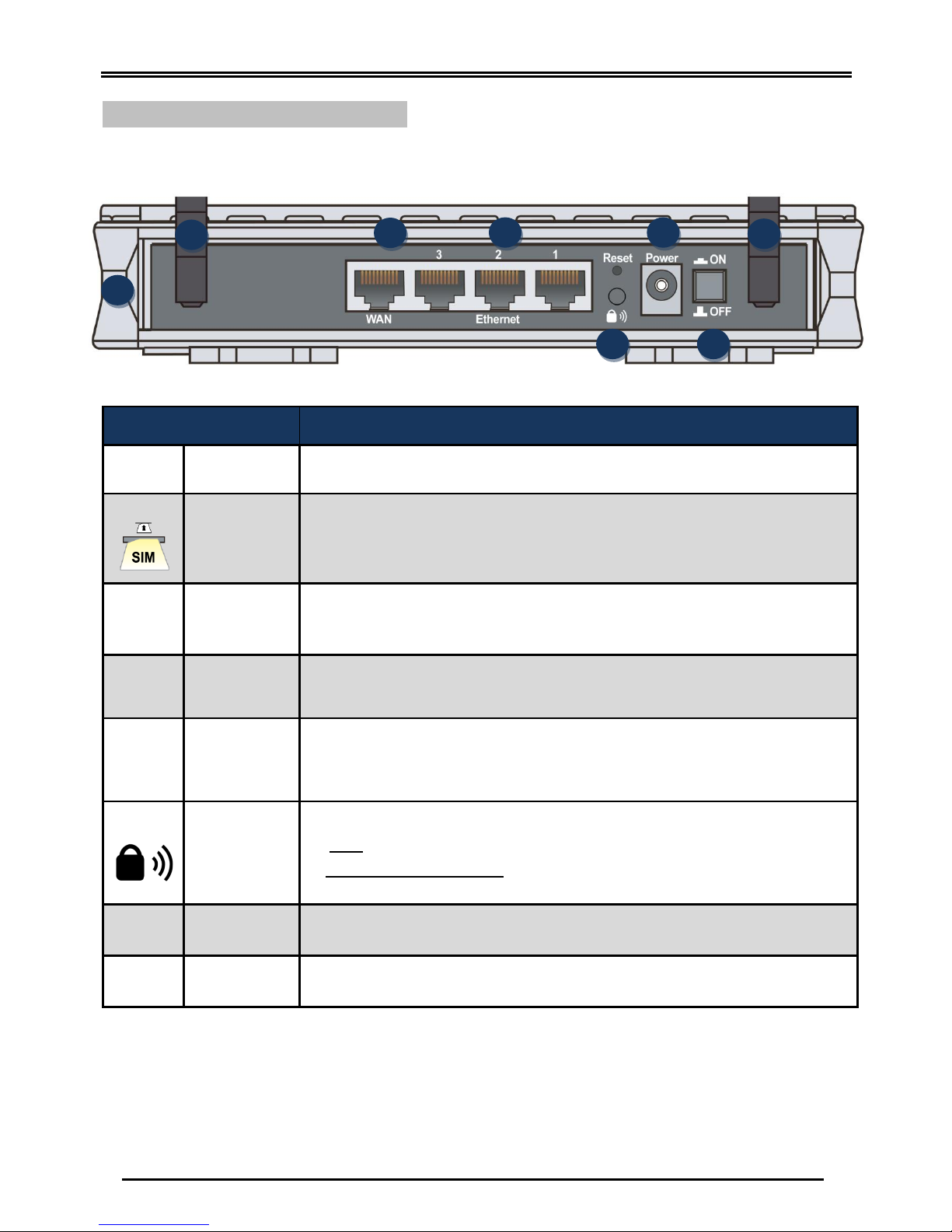
Rear Panel Connectors
PORT
MEANING
1
LTE Antenna
Screw the supplied LTE antennas onto the antenna connectors on both sides.
2
SIM Card Slot
Insert the mini SIM card (2FF) with the gold contact facing down.
Push the mini SIM card (2FF) inwards to eject it
3
WAN
Connect a UTP Ethernet cable (Cat-5 or Cat-5e) to one of the four LAN ports when
connecting to a PC or an office/home network of 10Mbps /100Mbps.
4
Ethernet LAN
(1~4)
Connect to Fiber/ Cable/ xDSL Modem with a RJ-45 cable
WAN Port (LAN port 4) can also be a regular Ethernet LAN port.
5
Reset
After the device is powered on, press it 6 seconds or above: to restore to factory
default settings (this is used when you cannot login to the router, e.g. forgot your
password)
6
WPS &
Wireless
On/Off
By controlling the pressing time, users can achieve two different effects:
(1) WPS*1: Press &hold the button for less than 6 seconds to trigger WPS function.
(2) Wireless ON/OFF button: Press & hold the button for more than 6 seconds to
On/Off the wireless.
7
Power Jack
(DC)
Connect the supplied Power Adapter to this jack.
8
Power Switch
Power ON/OFF switch
6
7 1 3 1 4
8
2
Page 6
Quick Start Guide
4
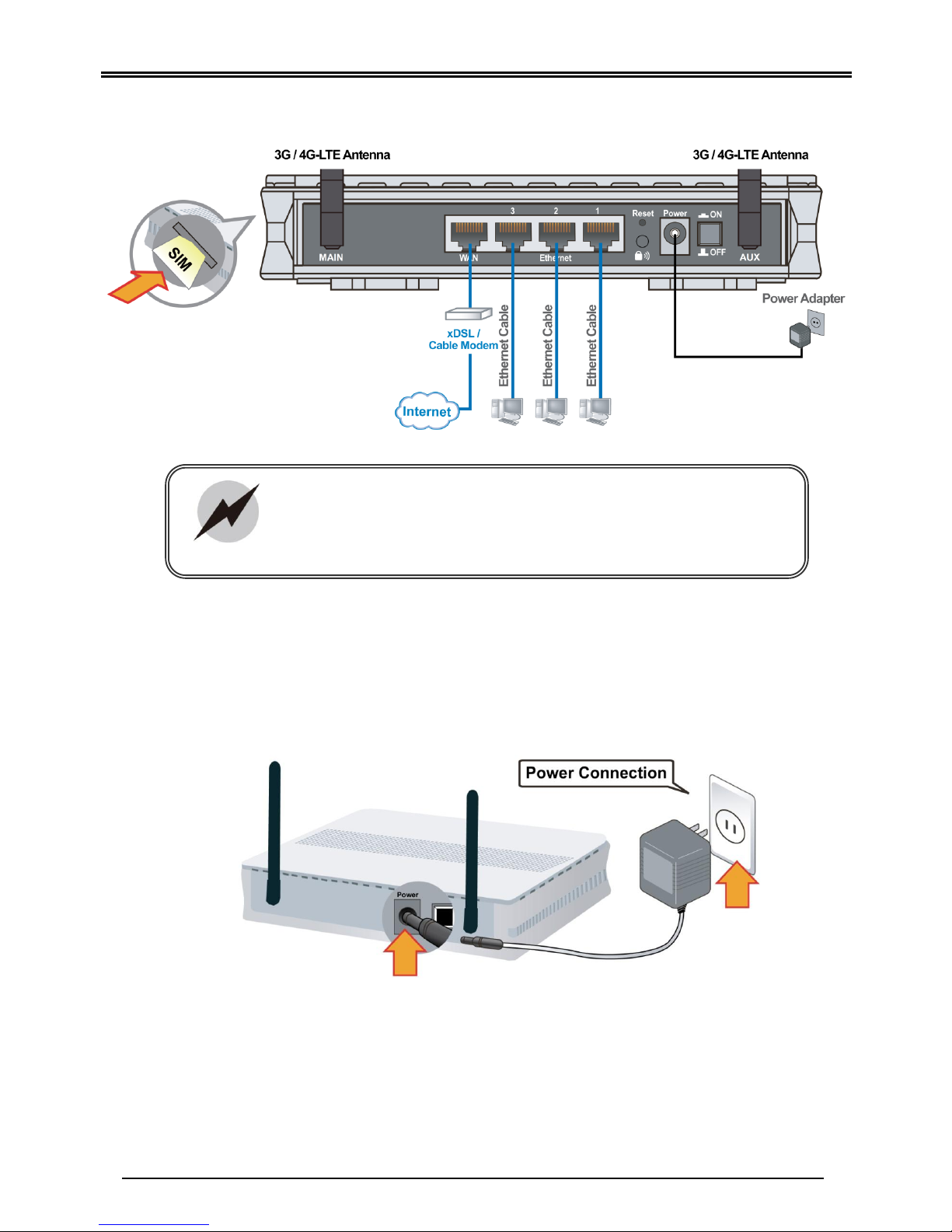
Hardware Connection
Hardware Installation
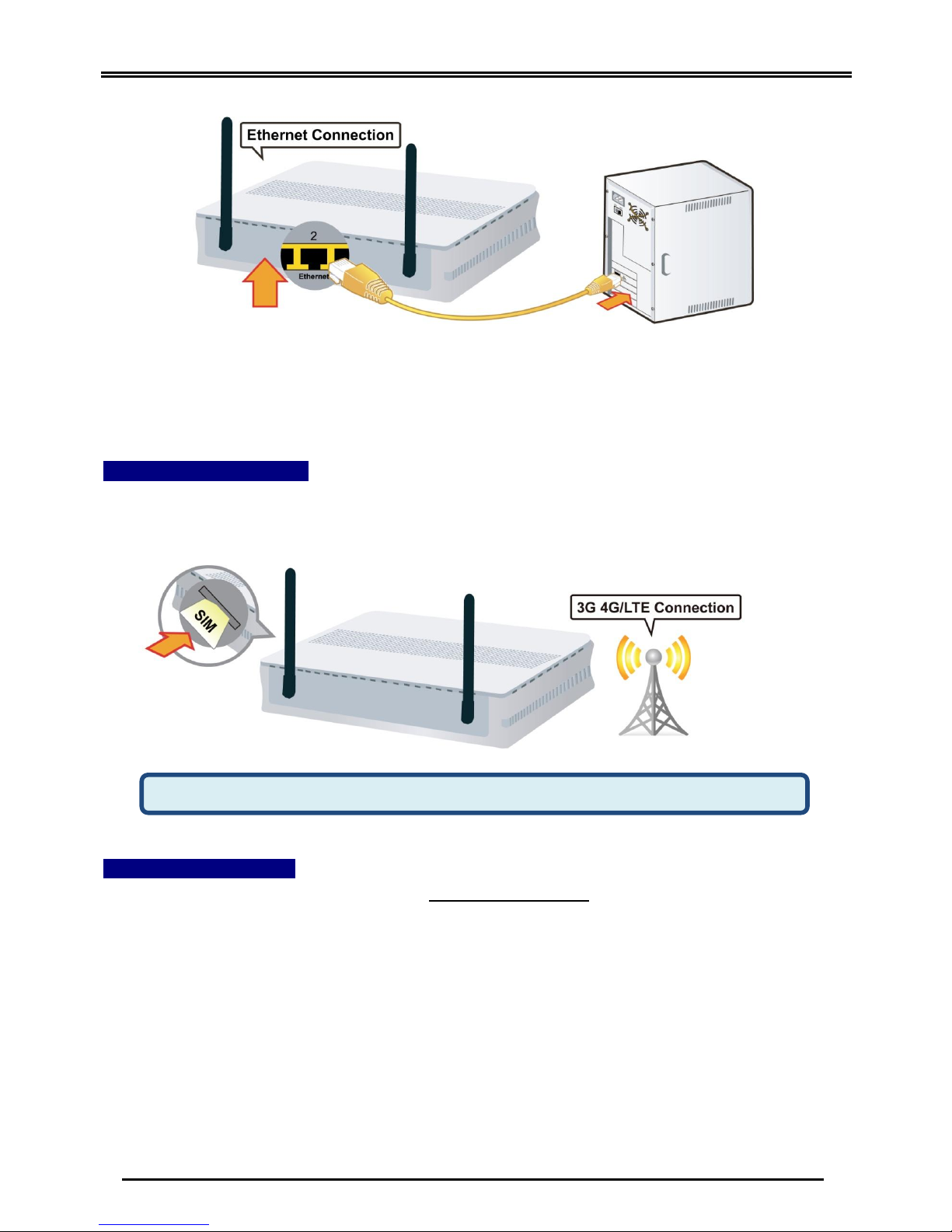
1. Power Connection
Plug in the supplied power adapter to the wall jack, the other side to the 6200WZL then
power ON the 6200WZL by pressing the Power On/Off button.
2. LAN Connection
Connect the supplied RJ-45 Ethernet cable to one of the Ethernet ports, and the other side
to the PC’s Ethernet interface.
Attention
Connect the detachable 3G/4G-LTE antennas to the two jacks on the
back of the device and make sure they are firmly screwed in.
The MAIN antenna connector is used for primary 3G/4G-LTE.
If deciding to use ONE antenna, make sure the MAIN antenna connector
is being connected at all times.
Page 7
BEC 6200WZL 4G/LTE Cellular Broadband Router
5
3. WAN Link Interface and Connection
BEC 6200WZL support dual WAN interfaces, 4G LTE and EWAN. <Please refer to User
Manual for detailed Internet setup>
3.1 4G_LTE Connection
Slide the SIM card into the card slot of the device with the gold contact facing down. Make
sure that the SIM card has been slid into the bottom of the slot with a click. When removing
the SIM card, press the SIM card again it will be ejected from the card slot.
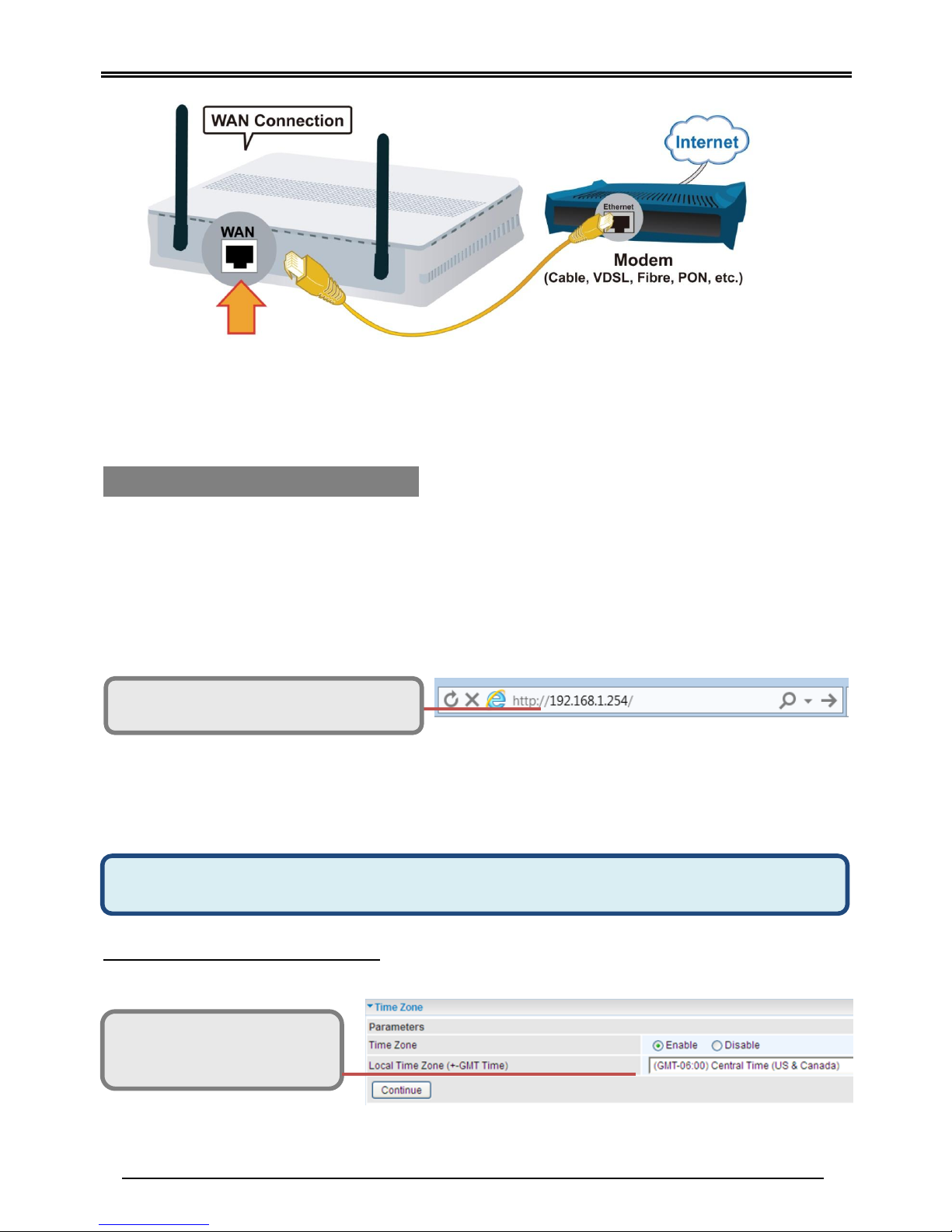
3.2 EWAN Connection
Connect RJ-45 Ethernet cable to the Ethernet WAN port, and connect the other side to
another alternative broadband device, such as Cable Modem, VDSL, Fiber Modem or PON
optic lines.
WARNING: Please power off the device before inserting or removing the SIM
Page 8
Quick Start Guide
6
Connecting to the Router
The default IP of modem is 192.168.1.254 with subnet 255.255.255.0. Make sure the attached
PC to this router is in the same subnet and has an IP address in the range between 192.168.1.1
~ 192.168.1.253.
Open a web browser and type http://192.168.1.254 in the URL address bar.
The login prompt will appear. Input the default username (admin) and password (admin) for
Account type, Administrator. *This username / password may vary by different Internet Service Providers.
Quick Setup Your Router
Step 1: Time Zone configuration
Enable and select your Time Zone then click Continue to go on to the next step
URL Address bar: type
http://192.168.1.254
Before start configuring the 6200WZL, make sure you have the WAN port connected
with your Internet box or fiber line.
Time Zone: select your time zone
Next Step: click Next
Page 9
BEC 6200WZL 4G/LTE Cellular Broadband Router
7
Step 2: WAN / Internet Connection Setup
Select the appropriate WAN protocol then fill out the information provided by your ISP in all
relevant parameters. For 3G/4G_LTE connection, if your Service Provider is not on the list,
please select Other and fill out all of the appropriate fields.
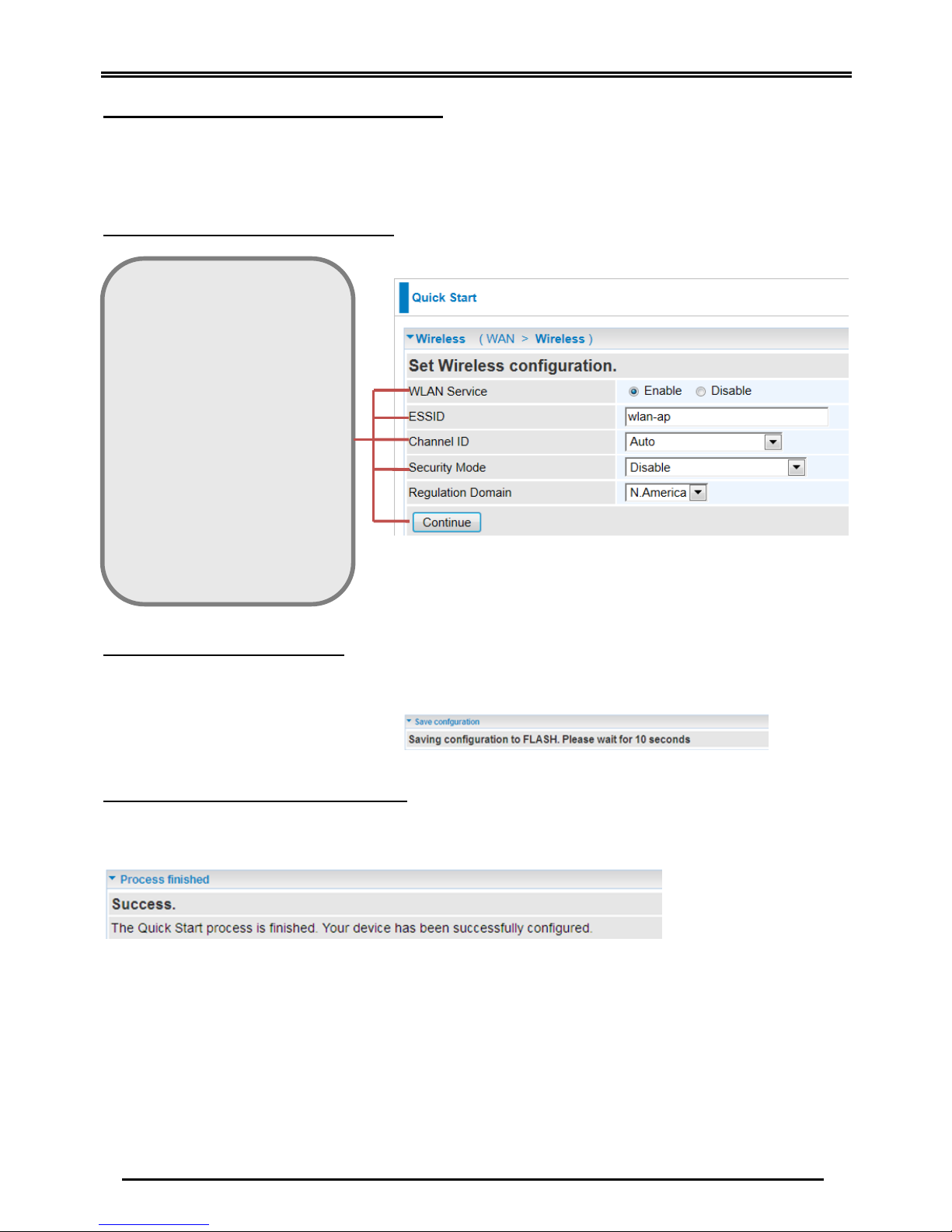
Step 3: Setup Wireless Connection
Step 4: Saving Configuration
Wait for 10 - 20 seconds for the router to establish an Internet connection.
If no responses for more than 30 seconds please check the SIM Card connection or/and
information is/are being input properly.
Step 5: Quick Start Wizard Complete
“Success!” message will be shown if the Internet connection is ready to go.
If not, please check your WAN, Internet Connection, setup again.
Please see the relevant sections of User Manual for detailed information.
Troubleshooting
1. None of the LEDs are on when you turn on the router.
Check the connection between the adapter and the router. If the error persists, you may have
a hardware problem. In this case you should contact technical support.
WLAN Service: select Enable
ESSID: Assign an unique name
Channel ID: pick from 1~11
Security Mode: select a mode
- Disable (No security)
- WPA
- WPA2 (Most secure one)
- WPA / WPA2 (auto detect WPA
mode with wireless clients)
- WEP (Less secure one)
Security Parameters: key for wireless
authentication
- WPA / WAPA2 Share Key: Assign a
key between 8 ~ 63 characters.
- WEP: select Open System, use
default WEP Key 1 then assign 26
Hex codes
Next Step: click Continue
Page 10

Quick Start Guide
8
2. You have forgotten your router login and/or password.
Try the default login and password, please refer to User Manual. If this fails, you can restore
your router to its factory settings by holding the Reset button on the back of your router for 6
seconds or more.
3. Can’t ping any PCs on the LAN.
Check the Ethernet LEDs on the front panel. The LED should be on for a port that has a PC
connected. If it is off, check the cables between your router and the PC. Make sure you have
uninstalled any software firewall for troubleshooting. Verify that the IP address and the subnet
mask are consistent between the router and the workstations.
uninstalled any software firewall for troubleshooting. Verify that the IP address and the subnet
mask are consistent between the router and the workstations.
Product Support and Contact Information
Most problems can be solved by referring to the Troubleshooting section in the User Manual. If
you have other inquiries or need further technical support, please contact with your Internet
Service Provider or visit us at www.bectechnologies.net.
 Loading...