

Page 1

1
User Manual
English
Bea-fon S33
Page 2

2
General Information
Congratulations on the purchase of your Bea-fon S33!
Please read this information before using the phone to
make a better use of your phone. We are not responsible
for any damage due to your misunderstanding of this
information and misacting.
We are endeavoring to improve our products and services.
We reserve all the rights to revise and change the
description of this product and its software as well as this
user’s manual without obligation to notify any person of
such revisions and changes.
This user manual is for your better use of this phone not
an approval of any accessories. All the pictures in this
manual are for reference only. There may be slight
difference between the appearance of phone/ keys/
contents of display used in this manual and those of your
phone. Please refer to your phone for actuality. Some
features introduced in this manual are network or
subscription-supported features. Please contact your
network operator for further information.
Please check the package contents to ensure that all
components listed below are included. If the product is
defective or if there is a component missing, immediately
contact the retailer where you purchased this handset.
Page 3

3
General Information
Your Bea-fon S33 box contains:
• 1 mobile phone (S33)
• 1 desktop charger (S33)
• 1 travel charger (S33)
• 1 battery (S33)
• User manuals (S33)
If you find the size of the script not easily readable for
you, you can also find this manual on our website, where
you will be able to adjust the size of the script.
Go to: www.beafon.com
Device Code:
This device code ensures that unauthorized persons will
not be able to use your phone. The default code is 1122.
PIN-Code:
The PIN-code was supplied to you by your network
operator together with your SIM card and/or
adjusted/set up by yourself.
Page 4

4
Direction
General Information .......................................................... 2
Device Code: .................................................................. 3
PIN-Code: ...................................................................... 3
Direction .......................................................................... 4
My Phone ......................................................................... 6
Keys Description ............................................................... 8
Icons Description .............................................................. 9
My Phone ....................................................................... 10
Power-on and Power-off ................................................. 10
Lock the Keypad ........................................................... 10
Favorite numbers .......................................................... 10
Phonebook ..................................................................... 11
Add new contact ........................................................... 11
Make a call ................................................................... 11
Make a call from phonebook ........................................... 11
Speed dial .................................................................... 12
Activation Speed dial function ......................................... 12
Adding speed dial numbers ............................................ 12
Message ........................................................................ 12
Writing and sending SMS ............................................... 12
Inbox .......................................................................... 13
Outbox ........................................................................ 13
Drafts .......................................................................... 13
Sent messages ............................................................. 14
Advanced ..................................................................... 14
SMS settings ................................................................ 14
Voicemail ..................................................................... 14
Call center ..................................................................... 14
Call history ................................................................... 14
Call settings ................................................................. 15
Organizer ....................................................................... 16
Alarm .......................................................................... 16
Tasks ........................................................................... 16
Calculator .................................................................... 16
Torch ........................................................................... 17
Service ........................................................................ 17
Page 5

5
FM radio ........................................................................ 17
FM radio ...................................................................... 17
Settings ......................................................................... 18
Tone settings ................................................................ 18
SOS Settings ................................................................ 18
Phone settings .............................................................. 20
Setup Time and date ..................................................... 20
Language ..................................................................... 20
Pref. input method ........................................................ 20
Auto keypad lock .......................................................... 20
Setup wallpaper and LCD backlight ................................. 20
Network settings ........................................................... 21
Security settings ........................................................... 21
Connectivity (Bluetooth) ................................................ 21
Restore factory settings ................................................. 22
Basic Specifications: ...................................................... 22
FAQ ............................................................................... 23
Battery .......................................................................... 25
Phone ............................................................................ 26
For your safety ............................................................... 28
Certification information (SAR): ...................................... 32
Information .................................................................. 32
Information: ................................................................. 33
Address: ...................................................................... 33
Page 6

6
My Phone
1
Left menu key
2
Arrow key left and favorit numbers
3
Dial Key
4
Key * / + / p / w / In write mode choose a
symbol
5
Loudspeaker
6
Arrow key up / short key message
7
Right menu key
8
Arrow key right / Keylock
9
Power on/off key / call end key
10
Arrow key down / Short key alarm
11
# Key: on the starting screen, by holding
this button you activate / deactivate silent
mode. In edit mode, change the input
method.
12
SOS button
13
Charger micro USB port
14
Polyphon speaker
Page 7

7
Installation
Note!
Turn off the phone and disconnect the charger before
removing the battery cover.
Installing the SIM Card and battery
1.Remove the battery cover.
2.Insert the SIM card by carefully sliding into the holder.
Make sure the SIM card's contacts are facing inwards.
3.Insert the battery by sliding it into the battery
compartment.
4.Replace the battery cover.
Page 8

8
Keys Description
Key
Function
Left menu
key
Main menu and confirmation key
Right menu
key
Phonebook and return key
End key
Short press:return to the standby mode
and hang up the call
Long press: power off or power on the
mobile phone
Send key
Enter call records and dial up a call
Navigatio
n key
Up
Write message
Down
Alarm
Left
Favorite
Right
The lock key
Key
0
Short press: enter 0
Long press:Torch on/off
1
Short press:enter 1
Press and hold it: set the voice mailbox
number
2-9
Short press:enter 2 to 9
Long press: dial up the corresponding
number set in the fast dialup function
*
Short press:Enter the number input page
and enter *
Long press: Enter * + P W
#
Short press: Enter the number input page
and enter #
Long press: Change between the silent
profile and the current profile
Page 9

9
Icons Description
Icon
Description
Network signal strength of SIM
Current battery capacity
There are unread short messages on
SIM
There are un-received calls on SIM
There are forwarded calls on SIM
The alarm is enabled
Keylock
The current profile is the standard
profile
The current profile is the silent mode
The current profile is the vibrate and
ring
The current profile is the vibrate only
The current profile is the vibrate then
ring
Headset Mode
This icon shows when your phone is in
roaming state. SIM card is roaming.
Page 10

10
My Phone
Power-on and Power-off
When phone is in the power-off status, press and hold the
【End key】 to power on phone.
When phone is in the standby status, press and hold the
【End key 】 , to power off phone.
Lock the Keypad
Lock the keypad in two ways:
Automatically locked: According to the “Settings -
Phone settings - Auto keypad lock” menu, the phone is
automatically locked by the keypad lock time.
Manually locked:
In the standby screen, press to enter the locked state.
Note: On the locked state, press any key to bright the phone,
pop-up the screen of unlock prompt.
Favorite numbers
Add new Favorite
1.Press enter into Phonebook.
2.Select a number and press Edit
3.Select From phonebook and press OK
4.Use scroll to view the Contacts
5.Press OK and Yes to save the contact.
Call Favorite numbers
1.Press enter into Phonebook.
2.Select a number and press .
Page 11
11
Phonebook
Add new contact
1.Press enter into Phonebook.
2.Select Add new contact and press Option.
3.Press OK to choose add contact To phone or To
SIM.
4.Use scroll to Edit Name and Number.
5.Press option and save to save the contact.
Note: Press twice for the international prefix +
Always add + before the country code for making
international call.
Make a call
1. In standby, enter the phone number including the
area code, delete with Clear.
2. Press to dial and press Abort or to cancel
calling.
Make a call from phonebook
1.Press to open the phonebook.
2.Use scroll to view the contacts or quick search
by pressing the first letter of the name.
3.Press to call the selected contacts.
Page 12

12
Speed dial
1.Press enter into Phonebook.
2.Select Contact and press Option.
3.Select Speed dial and press OK.
The numerical keys 2-9 can be used for speed dialing.
Activation Speed dial function
1.Press select and press OK.
2.Select Speed dial and press OK.
3.Select Status and press OK.
4.Select On and press OK.
Adding speed dial numbers
1.Press enter into Phonebook.
2.Select Contact and press Option.
3.Select Speed dial and press OK.
4.Select 2 and press Add to add phone number from
phonebook for numerical key "2 ".
5.Press Yes to save the speed dial number.
6.Repeat the step, the same way to add speed dial
entries for others numerical keys.
To speed dial, Press and hold the corresponding key.
Message
Writing and sending SMS
1.Press scroll to and press OK.
2.Select Write SMS and press OK.
3.Input message.
Page 13

13
4.Press Options to send message.
Inbox
1.Press scroll to and press OK.
2.Select Inbox and press OK.
3.Select a message from the list and press Option
and view the read message.
4.Press option you can see:
View
Read the message
Reply
Input your message and send to the sender.
Delete
Press Select to delete the message.
Copy to Phone/SIM
Copy the message to the Phone or SIM
Move to Phone/SIM
Move the message to the Phone or SIM
Delete all
Press OK to delete all messages in Inbox folder.
Copy all
Press OK to copy all messages in Inbox folder to Phone
or SIM.
Move all
Press OK to move all messages in Inbox folder to
Phone or SIM.
Outbox
Here you can see the messages which you not send
out.
Drafts
Here you can see the messages which you saved.
Page 14

14
Sent messages
Here you can see the messages which you sent.
Advanced
SMS settings
Here you can set the Profile, Short Message Service
Centre (SMSC) etc.
Voicemail
Voicemail is a service supplied by your network operator.
For more information and for the voice mailbox number,
contact your network operator. When you have a new
voice mail message, your phone will receive a message.
Note: In standby mode: Press and hold key number 1 for directly
calling the Voice mail. Only the number saved under voice mail
address 1 is called.
Call center
Call history
All received, missed, dialed calls are saved in call center.
View call history
1.Press scroll to and press OK.
2.Select Call history and press OK.
3.Use scroll to view the call logs.
4.Press OK to see call log details.
5.Press Options you will see:
Call
Make a call
View
View the details for the call
Page 15

15
Send text message
Send SMS to the selected number
Save
Save the selected phone number
Delete
Delete the call log
Edit before call
Edit the phone number before make a call
Call settings
1.Press scroll to and press OK.
2.Select Call settings and press OK.
3.Then you can see:
Caller ID
Caller ID may be used to display a caller's telephone
number: Set by network, Hide ID and Send ID
Call waiting
When this network service is activated, the
network notifies you of a new incoming call while you
have a call in progress. Press OK to answer the waiting
call. The first call is put on hold or press the red key to
reject the call.
Call divert
To divert your incoming calls to your voice mailbox or
some other phone number (network service). Select
the divert option you want. Several divert options may
be active at the same time.
Call barring
With this network service you can restrict the making
and receiving of calls with your phone.
Call time reminder
Press OK to select Off/Single/Periodic.
Page 16
16
Organizer
Alarm
1.Press scroll to and press OK.
2.Press scroll to Alarm and press OK.
3.Press Edit to select status on/off.
4.Enter the Time directly by keypad.
5.Enter Snooze time (min)
6.Scroll to select Repeat, Alarm volume and Alert
type.
7.Press Yes to save .
8.To Edit the alarm ,press Edit, to stop it, press Off.
Tasks
1.Press scroll to and press OK.
2.Press scroll to Tasks and press OK.
Add Task
1.Subject: Press Option and Edit to enter a Name for
the event.
2.Priority: Set the priority
3.Due Time: Enter date and time for the event.
4.Alarm: Set Alarm tome
5.Repeat: Set repeat times for the event.
6.Details: Enter more information about the event .
7.Status: Set the Status Done/Undone
8.Press Option and Save to the save the event.
Calculator
1.Press scroll to and press OK.
Page 17
17
2.Press scroll to Calculator and press OK.
3.Enter the first number and use “#” to enter
decimal point.
4.Use to select( + - * ÷)
5.Enter the next number and press LSK. The result is
shown on the screen.
Torch
Set the Torch on or off
Service
The Service dependent’s on our Network operator.
FM radio
FM radio
1.Press scroll to and press OK.
2.Press Option to view Channel list.
3.Select Manual input can input the channel you
prefer.
4.Select Auto search can auto search your local radio
channel.
5.Press the key (arrow up and down) to set volume
and
6.Press the key (arrow key left and right) will
increase or reduce 0.1 HZ.
Note: The listening effect will be influenced while listening
indoors or the phone is shield. You can use the following
ways to improve the effect: close to the window, plug in and
Page 18

18
change the position of headphones line or adjust the
channels by hand.
Settings
Tone settings
You can set the rings of incoming call, alarm, on ect.
1.Press scroll to and press OK.
2.Press scroll to Tone setting and press OK.
Incoming call
Set the ring tone for incoming calls
Alert type
Select whether an incoming call should be signaled by
Ring only, Vib. only, Vib.and ring, Vib. then ring (Vib. =
vibration) or Silent mode.
Ring volume
Set the volume for the incoming call
Ring type
You can select Single, Repeat or Ascending
Message
Set the tone for a received SMS.
Message volume
Set the volume for the message
Keypad
Select whether the confirmation of a
pressed button should be confirmed with a
Silent, Click, Tone or Human voice tone.
Keypad volume
Set the volume for the keypad
SOS Settings
Status
Set On or Off the SOS function.
Page 19

19
SOS number
There you can edit and save at most five SOS number in
your phone.
SOS Message
Edit the content of the SOS message which will be sent
out automatically when the SOS function is using.
Functionality
By pressing the SOS button, the S33 will send an SOS
Message person (in case mobile number or telephones
with SMS function is available for emergency contact) to
the emergency numbers you have previously saved and
will be automatically dialed in the given sequence. The
mobile phone switches on the hands free function at full
volume and at the same time, if the SOS call is not
answered within 25 seconds the next number is dialed
etc.
Attention: If the SOS call is forwarded to the voicemail, the SOS
mode will end.
Note:
• If you want to stop or cancel the SOS call, press the
RSK button.
• When changing a phone card: Always make sure that
there is sufficient credit on your phone card because
private emergency numbers cannot be dialed without
sufficient credit.
• As a rule, the international emergency call 112 can still
be called outside of the regional network of your
network operator.
Page 20

20
Phone settings
1.Press scroll to and press OK.
2.Press scroll to Phone settings and press OK.
Then you can setup as below:
Setup Time and date
1.Select Time and date and press OK.
2.Enter Time, Date, Date format and press Save.
Language
1.Select the Language and press OK
2.Use scroll to select a input method form the list
and press OK.
Pref. input method
1.Select Pref.input method and press OK.
2.Use scroll to select a input method form the list
and press OK.
Auto keypad lock
Select the Auto keypad lock and press OK
Turn off and on auto keypad lock
Setup wallpaper and LCD backlight
1.Select Wallpaper and press OK.
2.Then you can choose a wallpaper.
3.Press OK to save .
4.Use scroll to Brightness and press OK.
5.Use to adjust the Brightness.
Page 21
21
6.Use to adjust the seconds.
Network settings
1.Press scroll to and press OK.
2.Press scroll to Network settings and press OK.
Network selection
Here you can search or select your local networks.
Preferred networks
Here you can select your preferred networks
Security settings
1.Press scroll to and press OK.
2.Press scroll to Security settings and press OK.
Here you can do security settings for SIM card, phone
SIM security
Here you can setup PIN lock status on or off.
Change PIN code
Phone security
Here you can setup Phone lock status on/off.
Change password
Connectivity
1.Press scroll to and press OK.
2.Press scroll to Connectivity and press OK.
3.Press scroll to Bluetooth and press OK.
Your options include:
Blutooth:
ON or OFF the Bluetooth function
Page 22
22
Visibility:
ON or OFF the visibility.
My device:
Show the device which is connected and paired
Search audio device:
Search for the audio device.
My name:
Edit the name of Bluetooth.
Advanced:
Set up Audio path and view the device address of Bluetooth.
Audio path:
You can select leave in phone or forward to Bluetooth headset.
My address:
View Bluetooth address.
Restore factory settings
4.Press scroll to and press OK.
5.Press scroll to Security settings and press OK.
Press OK and input password (1122) to reset your
phone.
Basic Specifications:
Network –
Dual-Band:
GSM 900/DCS1800
Dimension:
111 x 51 x 13,5 mm
Battery:
Li-ion 3.7V - 800mAh
Standby time:
<250 hours*
Talk time:
<480 minutes*
*Variation in operation times may occur depending on SIM card,
network, and usage settings, usage style and environments.
Page 23

23
FAQ
If your phone appears the questions frequently, please
refer to the answers as follows. After that, you cannot
solve the questions, please contact with the mobile
phone dealers or network operator.
Can’t turn the phone on:
• Check battery installation, please install battery
correctly.
• Check if battery level is low, change a battery or
charge the battery.
• Check if entered incorrect PIN code 3 times in a row. If
yes, the phone is locked, then you should enter your
PUK code (please contact your network operator for
your PUK code).
SIM error:
• Is the SIM card dirty? Please clean it.
• Try and reinstall the SIM card.
• Is the SIM card damaged? Please contact your network
operator.
Weak signal or no signal:
• You may be in a location where the reception is bad,
such as tunnel or cellar, please relocate and try again.
• You can try turning around slightly or get near the
window if you are in a room.
• Please contact your network operator, if you still have a
weak signal or no signal.
Bad talking quality:
• Weak signal? See: Weak signal or no signal.
Page 24

24
• Check if battery if battery is low. Charge the battery or
change the battery.
• Use the up volume key to adjust the microphone
volume during a call.
Can’t make a call:
• Check if you enter the correct number and press green
key.
• Check if you set call barring, if yes, please cancel it.
• Check if the SIM card is registered in the network.
• If your SIM card is a prepaid card, please make sure
there is enough money on the card.
Can’t receive calls:
• Is the SIM card registered in the network?
• Check if your phone is turned on.
• Check if screens shows no signal, if yes, see: Weak
signal or no signal.
• Check if you set call barring, if yes, please cancel it.
Screen is dark:
• Check if battery if battery is low. Charge the battery or
change the battery.
• Adjust the wallpaper.
• Your phone may be affected with damp, keep it dry.
PIN locked:
• Check if entered incorrect PIN code 3 times in a row.
If yes, the phone is locked, then you should enter your
PUK code (please contact your network operator for
your PUK code).
Tips: if all suggests and solutions can’t solve your problem, please
check Customer Service on www.beafon.com. Please do not
disassembly or repair your phone without professional guide.
Page 25

25
Battery
• Your phone is powered by a rechargeable battery.
• Note that a new battery's full performance is achieved
only after two or three complete charge and discharge
cycles! The battery can be charged and discharged
hundreds of times but it will eventually wear out.
• When the operating time (talk-time and standby time)
is noticeably shorter than normal, it is time to buy a
new battery. Use only batteries approved by the phone
manufacturer and recharge your battery only with the
chargers approved by the manufacturer.
• Unplug the charger when not in use. Do not leave the
battery connected to a charger for longer than 10 days,
since overcharging may shorten its lifetime. If left
unused a fully charged battery will discharge itself over
time.
• Temperature extremes can affect the ability of your
battery to charge.
• Use the battery only for its intended purpose.
• Never use any charger or battery which is damaged.
• Do not short-circuit the battery. Accidental
short-circuiting can occur when a metallic object (coin,
clip or pen) causes direct connection of the + and terminals of the battery (metal strips on the battery)
for example when you carry a spare battery in your
pocket or purse. Short-circuiting the terminals may
damage the battery or the connecting object.
• Leaving the battery in hot or cold places, such as in a
closed car in summer or winter conditions, will reduce
the capacity and lifetime of the battery. Always try to
keep the battery between 15°C and 25°C. A phone
Page 26

26
with a hot or cold battery may temporarily not work,
even when the battery is fully charged. Batteries
performance is particularly limited in temperatures
well below freezing.
• Do not dispose of batteries in a fire!
• Dispose of batteries according to local regulations
(e.g. recycling).
• Do not dispose as household waste.
• Do not charge your mobile phone if the battery is not
installed.
Phone
Your phone is a product of superior design and
craftsmanship and should be treated with care.
The suggestions below will help you to fulfil any warranty
obligations and to enjoy this product for many years.
• Keep the phone and all its parts and accessories out of
the reach of small children.
• Keep the phone dry. Precipitation, humidity and all
types of liquids or moisture can contain minerals that
will corrode electronic circuits.
• Do not use or store the phone in dusty, dirty areas. Its
moving parts can be damaged.
• Do not store the phone in hot areas. High
temperatures can shorten the life of electronic devices,
damage batteries, and warp or melt certain plastics.
• Do not store the phone in cold areas. When it warms
up (to its normal temperature), moisture can form
inside, which may damage electronic circuit boards.
• Do not attempt to open the phone. Non-expert
handling may damage it.
Page 27

27
• Do not drop, knock or shake the phone. Rough
handling can break internal circuit boards.
• Do not use harsh chemicals, cleaning solvents, or
strong detergents to clean the phone. Do not paint the
phone. Paint can clog the moving parts and prevent
proper operation.
• Use only the supplied or an approved replacement
antenna. Unauthorized antennas, modifications or
attachments could damage the
• phone and may violate regulations governing radio
devices.
All of the above suggestions apply equally to your phone,
battery, charger or any accessory. If any of them is not
working properly, take it to your nearest qualified service
facility.
Page 28
28
For your safety
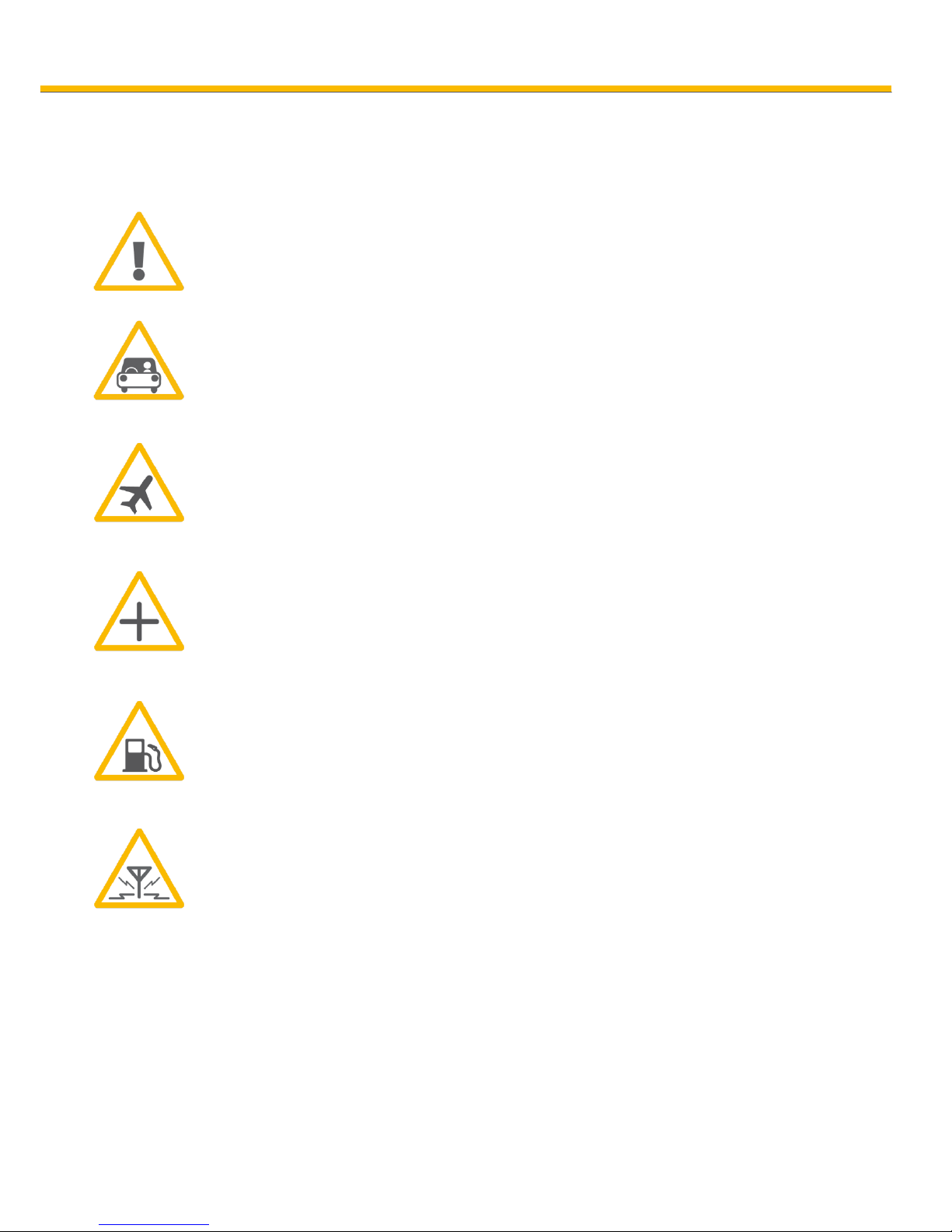
Read these simple guidelines. Breaking the
rules may be dangerous or illegal.
Do not switch on the phone when wireless
phone use is prohibited or when it may cause
interference or danger.
Road safety comes first
Do not use a hand-held phone while driving.
Switch off in aircraft
Wireless devices can cause interference in
aircraft.
Switch off in hospitals
Follow any regulations or rules. Switch the
phone off near medical equipment.
Switch off when refueling
Do not use the phone at a refueling point. Do
not use near fuel or chemicals.
Interference
All wireless phones may get interference,
which could affect performance.
Page 29

29
Traffic Safety:
Do not use a hand-held telephone while driving a vehicle.
Always secure the phone in its holder; do not place the
phone on the passenger seat or where it can break loose
in a collision or sudden stop. Remember road safety
always comes first!
Operating environment:
Remember to follow any special regulations in force in
any area and always switch off your phone whenever it is
forbidden to use it, or when it may cause interference or
danger.
Use the phone only in its normal operating positions.
Parts of the phone are magnetic. Metallic materials may
be attracted to the phone, and persons with a hearing aid
should not hold the phone to the ear with the hearing aid.
Always secure the phone in its holder, because metallic
materials may be attracted by the earpiece.
Do not place credit cards or other magnetic storage
media near the phone, because information stored on
them may be erased.
Electronic devices:
Most modern electronic equipment is shielded from radio
frequency (RF) signals. However, certain electronic
equipment may not be shielded against the RF signals
from your wireless phone.
Pacemakers:
Pacemaker manufacturers recommend that a minimum
separation of 20 cm (6 inches) be maintained between a
handheld wireless phone and a pacemaker to avoid
potential interference with the pacemaker. These
recommendations are consistent with the independent.
Research by and recommendations of Wireless
Technology Research.
Page 30

30
Persons with pacemakers:
• Should always keep the phone more than 20 cm (6
inches) from their pacemaker when the phone is
switched on.
• Should not carry the phone in a breast pocket.
• Should use the ear opposite the pacemaker to
minimize the potential for interference.
• If you have any reason to suspect that interference is
taking place, switch off your phone immediately.
Hearing aids:
Some digital wireless phones may interfere with some
hearing aids. In the event of such interference, you may
want to consult your network operator.
Other medical devices:
Operation of any radio transmitting equipment, including
cellular phones, may interfere with the functionality of
inadequately protected medical devices. Consult a
physician or the manufacturer of the medical device to
determine if they are adequately shielded from external
RF energy or if you have any questions. Switch off your
phone in health care facilities when any regulations
posted in these areas instruct you to do so. Hospitals or
health care facilities may be using equipment that could
be sensitive to external RF energy.
Posted facilities:
Switch your phone off in any facility where posted notices
so require.
Potentially explosive atmospheres:
Switch off your phone when in any area with a potentially
explosive atmosphere and obey all signs and instructions.
Sparks in such areas could cause an explosion or fire
resulting in bodily injury or even death.
Page 31

31
Users are advised to switch off the phone when at a
refueling point (service station). Users are reminded of
the need to observe restrictions on the use of radio
equipment in fuel depots (fuel storage and distribution
areas), chemical plants or where blasting operations are
in progress.
Areas with a potentially explosive atmosphere are often
but not always clearly marked. They include below deck
on boats; chemical transfer or storage facilities; vehicles
using liquefied petroleum gas (such as propane or
butane); areas where the air contains chemicals or
particles, such as grain, dust or metal powders; and any
other area where you would normally be advised to turn
off your vehicle engine.
Vehicles:
RF signals may affect improperly installed or
inadequately shielded electronic systems in motor
vehicles (e.g. electronic fuel injection systems, electronic
anti-skid (anti-lock) braking systems, electronic speed
control systems, air bag systems). Check with the
manufacturer or its representative regarding your vehicle.
You should also consult the manufacturer of any
equipment that has been added to your vehicle.
Page 32

32
Certification information (SAR):
This model phone meets the EU requirements for
exposure to radio waves.
The exposure standard for mobile phones employs a unit
of measurement known as the Specific Absorption Rate,
or SAR. The SAR limit recommended by The Council of
the European Union is 2.0 W/kg. Tests for SAR have been
conducted using standard operating positions with the
phone transmitting at its highest certified power level in
all tested frequency bands.
The highest SAR value for this device when tested at the
ear was 0.415 W/kg.
If you want a copy of the Declaration of Conformity,
please contact us: [email protected]
Information
While there may be differences between the SAR levels of
various phones and at various positions, they all meet
the EU requirements for RF exposure.
Liability Disclaimer:
• Bea-fon Mobile GmbH shall not bear any liability for
any relevant, indirect, special, incidental, or inevitable
injuries caused by using of this product, including
injuries which have been considered, or unconsidered,
likely to happen.
• For any losses caused by natural disasters (such as
earthquake, flood, etc.) or any acts or accidents
(including deliberate or accidental misuses by the user
under these accidents or other unusual circumstances)
which are beyond our liability scope, non-responsibility
should be accounted on us.
Page 33

33
Information:
S33 distributed by Beafon mobile GmbH
For more Information, please visit the Bea-fon
Homepage: www.beafon.com or contact us:
[email protected]
Address:
BEAFON MOBILE GmbH
4722 Peuerbach
Enzing 4
Austria
 Loading...