

Page 1
EX-SM14 – Quick Start Guide
Table of contents
1. Safety instruction ………….……………………………………. 35
2. Technical specifictions ………………………………………… 37
3. Notice of content and ownership ……………………….. 38
4. Your EX-SM14 Smartphone ………………………………… 42
5. Getting started …………………………………………………… 49
6. Applications & widget ………………………………………… 54
7. Accessories in the box ………………………………………… 57
8. Common issues and solutions ……………………………. 60
9. Additional safety instructions …………………………….. 64
Read the safety instructions prior to
operation !
Page 2
EX-SM14 – Quick Start Guide
2
1. Safety instructions
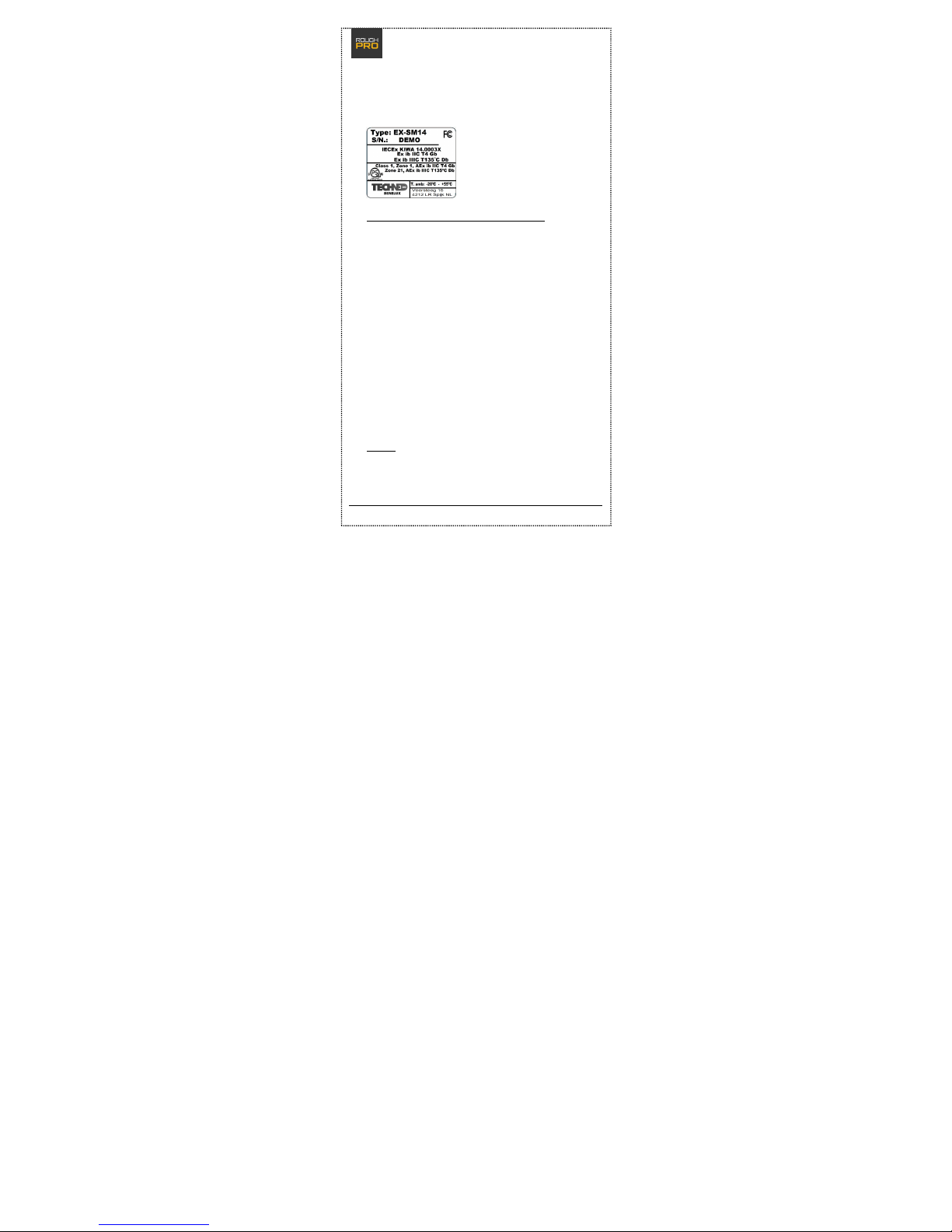
FCC:
Conditions for safe use in Class I, Zone 1
1. Charging is only allowed in Safe Area´s in
combination with the provided USB charger and
special USB cable with type number
BC_EX-SM14_USB_cable_1.
The supplied PSB05R-050Q(A)-R wall mount adapter
has a temperature operating range of 0°C to 45°C.
2. Data transfer is only allowed in Safe Area´s using
the special USB cable.
3. Prior to operation it must be ensured that the
outer material is not damaged in any way.
A non functioning smartphone or a smartphone
with a damaged body may not be used in a Class I,
Zone 1.
All compartments need to be closed during use in
Class I, Zone 1.
Repair
Only the manufacturer is allowed to repair the
device. Otherwise the warranty is void and the safe
Page 3
EX-SM14 – Quick Start Guide
3
operations of the device cannot be guaranteed.
Defective devices can be send to:
BCom Mobile B.V.
EX-SM14 repair
Veersteeg 15
4212LR Spijk
Maintenance
Maintenance, like replacing the battery, may only be
carried out by the manufacturer.
Taking the device into operation
After(re-)installing the SIM card(s) it must be ensured
that the rubber gasket in the SIM compartment is
clean and undamaged. The compartment must be
closed tightly using the two screws.
The compartment with the USB and headphone
connectors must be closed using the lid, prior to
using the device in Class I, Zone 1, or close to water
or dust.
Page 4
EX-SM14 – Quick Start Guide
4
2. Technical specifications
IP68 Waterproof (1.2 m deep, 40 min.)
4.5" High Impact Resistant LCD screen
Android 4.2 (Jelly Bean)
MT6589T 1.5 GHz Quad-Core processor
GSM 850/900/1800/1900 MHz
WCDMA/UMTS 850/1900MHz
Dual SIM: Dual-Standby / One-Talk
8.0 Mpx AF camera (incl. LED flash)
2.0 Mpx FF camera (front)
1 GB memory (RAM)
4 GB storage memory (1.7 GB free for end user)
Micro-SD slot (supports 32 GB max.)
Wi-Fi b/g/n with Tethering
Bluetooth 4.0
GPS / A-GPS / EPO
Accelerometer, Gyro, Compass, Auto light sensor
2200 mAh battery
3. Notice of content and ownership
The manufacturer has reviewed the contents of this
Page 5
EX-SM14 – Quick Start Guide
5
documentation with regard to accuracy, but they may,
nevertheless, contain errors or unintentional omissions.
Bluetooth is a registered trademark of Bluetooth SIC,
Inc. JAVA is a registered trademark of Sun Microsystems,
Inc.
Several functionalities described within this document
refer to network services and require support by your
network- or service provider. Please refer to either of
them for specific information regarding these
functionalities.
This device may contain parts, technology or software
upon which the export regulations and local laws of
specific countries apply. Exporting, when in
contradiction with local laws, is prohibited.
Before using this device, please thoroughly acquaint
yourself with the contents of the following "Safety and
user instructions" and the chapter "Additional safety
instructions".
This symbol states that the device meets
the European directives with regards to
safety and electric interference.
Page 6
EX-SM14 – Quick Start Guide
6
Safety and user instructions
SAFETY ON THE
ROAD
Adhere to local laws.
Keep your hands
available to operate
the vehicle at all
times. Your primary
responsibility is road
safety.
EMERGENCY
NUMBERS
Have the
smartphone
switched on and
functioning. Dial
the emergency
number and press
the call-button.
State your location.
Do not terminate
the call without
permission.
INTERFERENCE
Every wireless
device may be
susceptible to
electromagnetic
disturbances that
could influence
performance.
POWER DOWN IN
HOSPITALS
Switch off your
device when near
medical appliances.
SOS
Page 7
EX-SM14 – Quick Start Guide
7
EXPANSIONS
Only use approved
expansions. Do not
connect any
incompatible
products.
POWER DOWN
ABOARD
AIRPLANES
Wireless devices
may cause
electromagnetic
disturbances in
airplanes.
CONNECTING TO
OTHER DEVICES
Is only permitted in
Safe Area’s.
SAVE THE
ENVIRONMENT
The battery must
be recycled or
disposed of
properly according
to local laws and
regulations and
always kept
separate from
household waste.
BACK-UP COPIES
Remember to make
copies or written
notes of important
information, such as
passwords or
parameters of
network providers.
KEEP CHILDREN
SAFE
Keep every small
item of the device,
such as memory
cards, out of reach
of children.
Page 8
EX-SM14 – Quick Start Guide
8
• Prior to using this device for the first time, make
yourself acquainted with all safety- and user
instructions.
• Keep this manual stored properly so that you
may consult it easily at a later time. Carefully
follow the notifications supplied within this
manual.
• Follow all instructions for use and operation
carefully.
• Before cleaning the device, unplug it from any
and all electrical outlets.
• To insert the SIM card and connect accessories,
follow the instructions of your vendor and only
use accessories that were recommended by the
vendor of this device. Connections are only
permitted in Safe Area’s.
IP68
Your device is IP68 certified and therefore can be
submerged in water for 40 minutes, 1.2 m deep. When
you use the device in water deeper than 1.2 m, for more
than 40 minutes, or open the device (except for inserting
the SIM(s) and/or SD card), the warranty will be voided.
Page 9
EX-SM14 – Quick Start Guide
9
4. Your EX-SM14 Smartphone
Preparing for first use
Before you begin, make sure the smartphone is switched
off, the charger is not connected and you are in Safe
Area.
Now follow all steps described below to insert the SIM
card(s) and/or micro-SD card.
>Please note: Damage caused by not carefully inserting
the SIM card(s) and/or micro-SD card is not covered by
warranty.
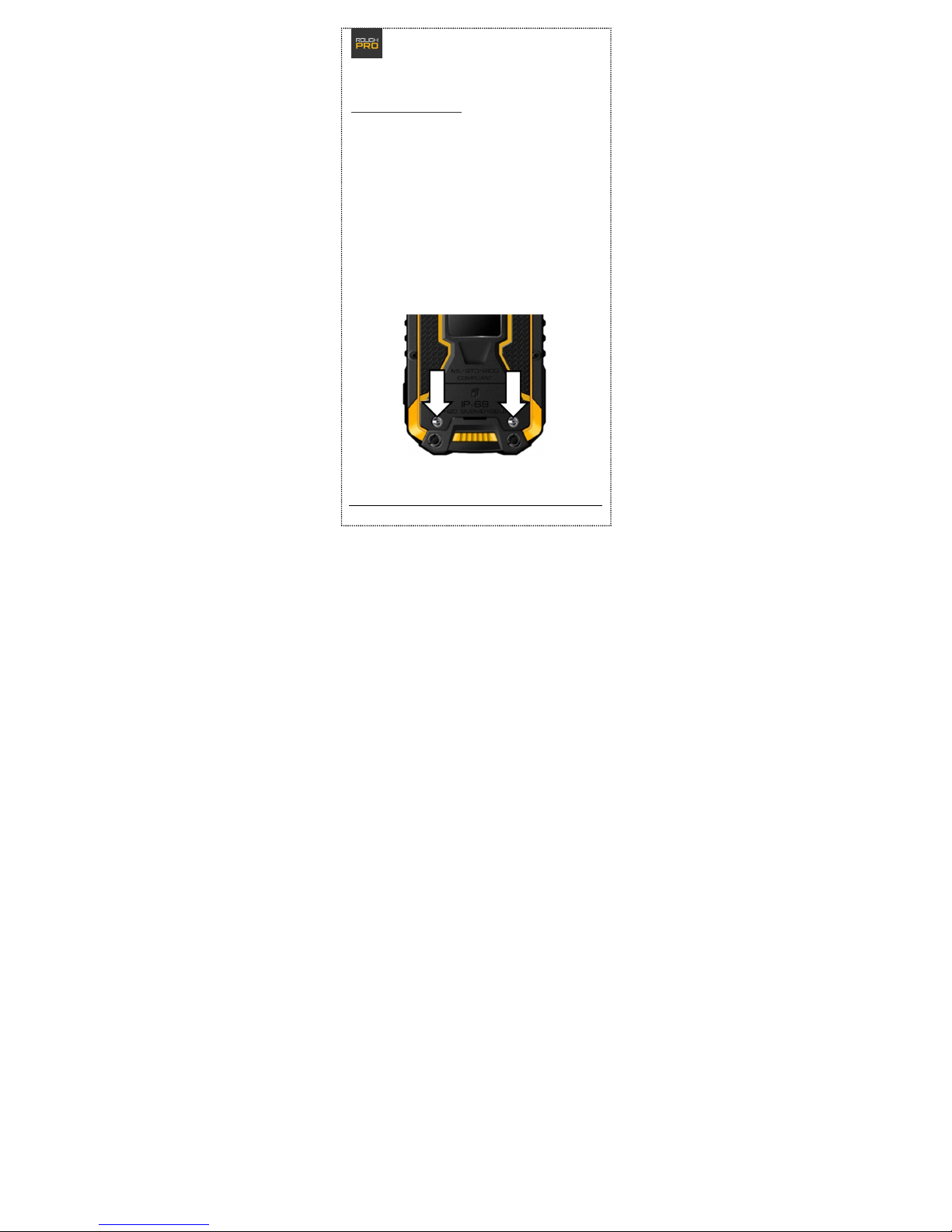
• Step 1: Loosen the screws indicated below,
usin g t he special to ol in t he box .
Page 10
EX-SM14 – Quick Start Guide
10
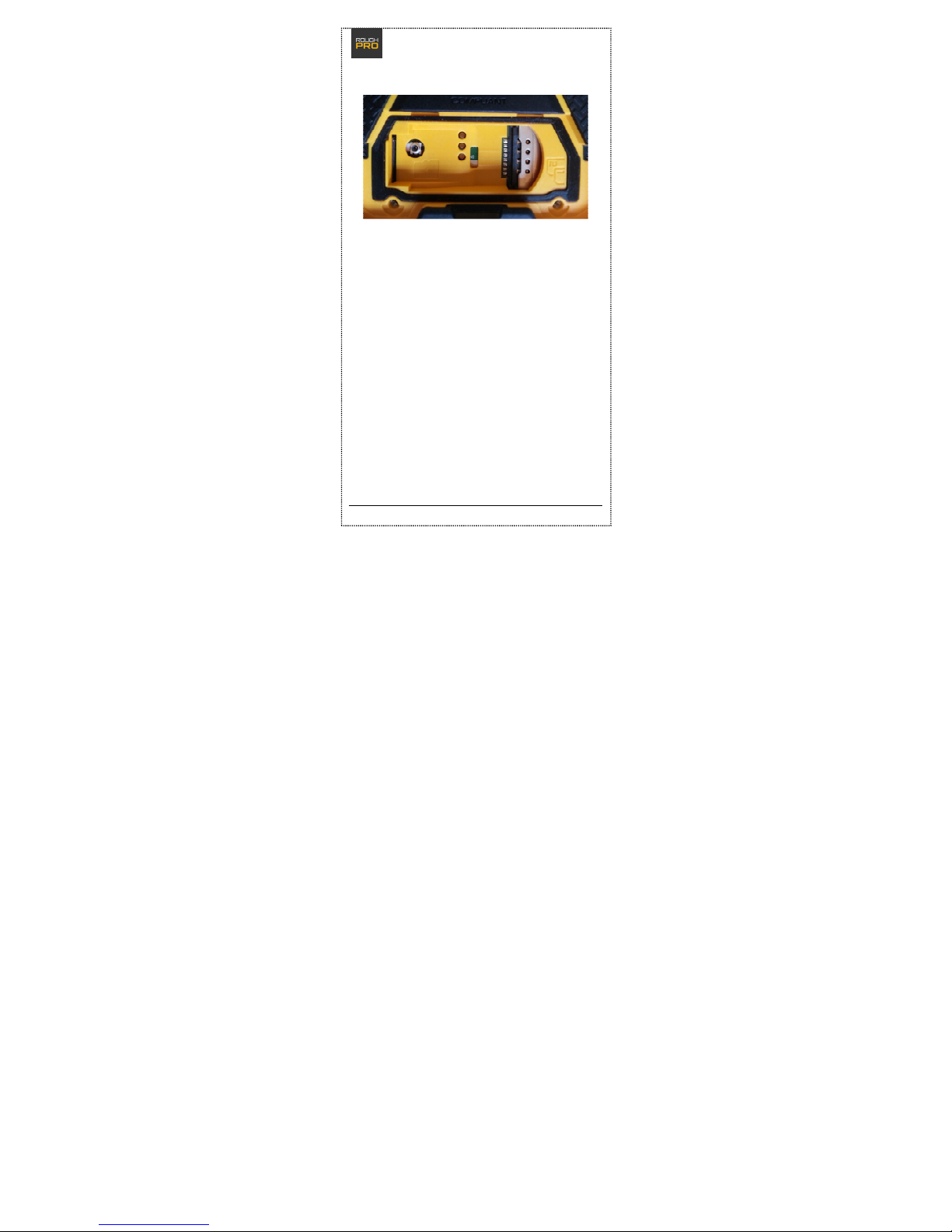
• Step 2: Op en the lid .
>Ple ase no te: On top of the two dedicated SIM s lots
you' ll find a 's lot' in whic h a S IM card also eas ily fits .
This space should not be us ed for SI M c ards.
Page 11
EX-SM14 – Quick Start Guide
11
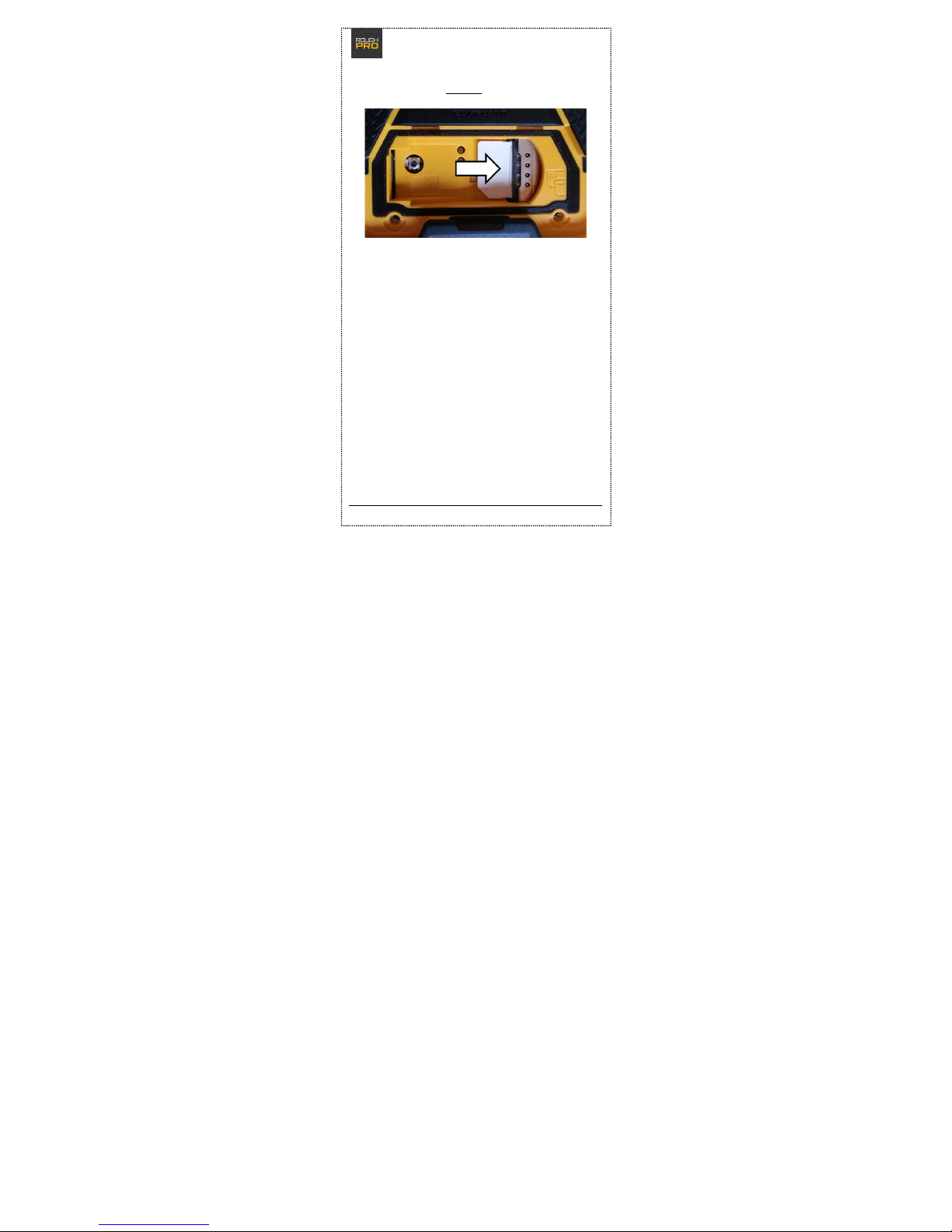
• Step 3: I f available, insert SIM 2 (chip facin g
down ) in the b ottom slot , a s s how n h ere:
Page 12
EX-SM14 – Quick Start Guide
12
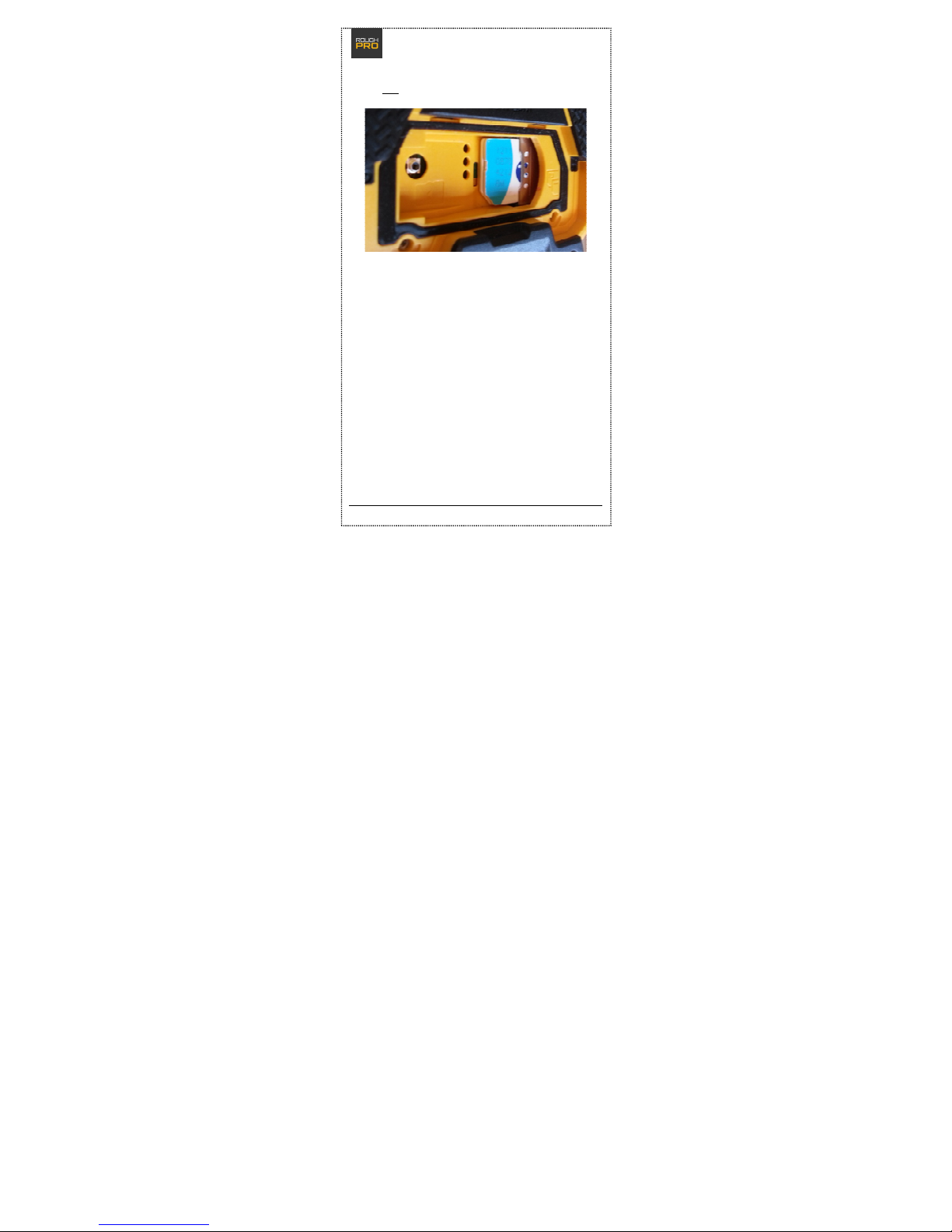
• Step 4: Insert SIM 1 (chip f acing down) in the
top slot, as shown here:
>Please note: To get the fastest connection, SIM 1 should
be used for data.
Page 13
EX-SM14 – Quick Start Guide
13
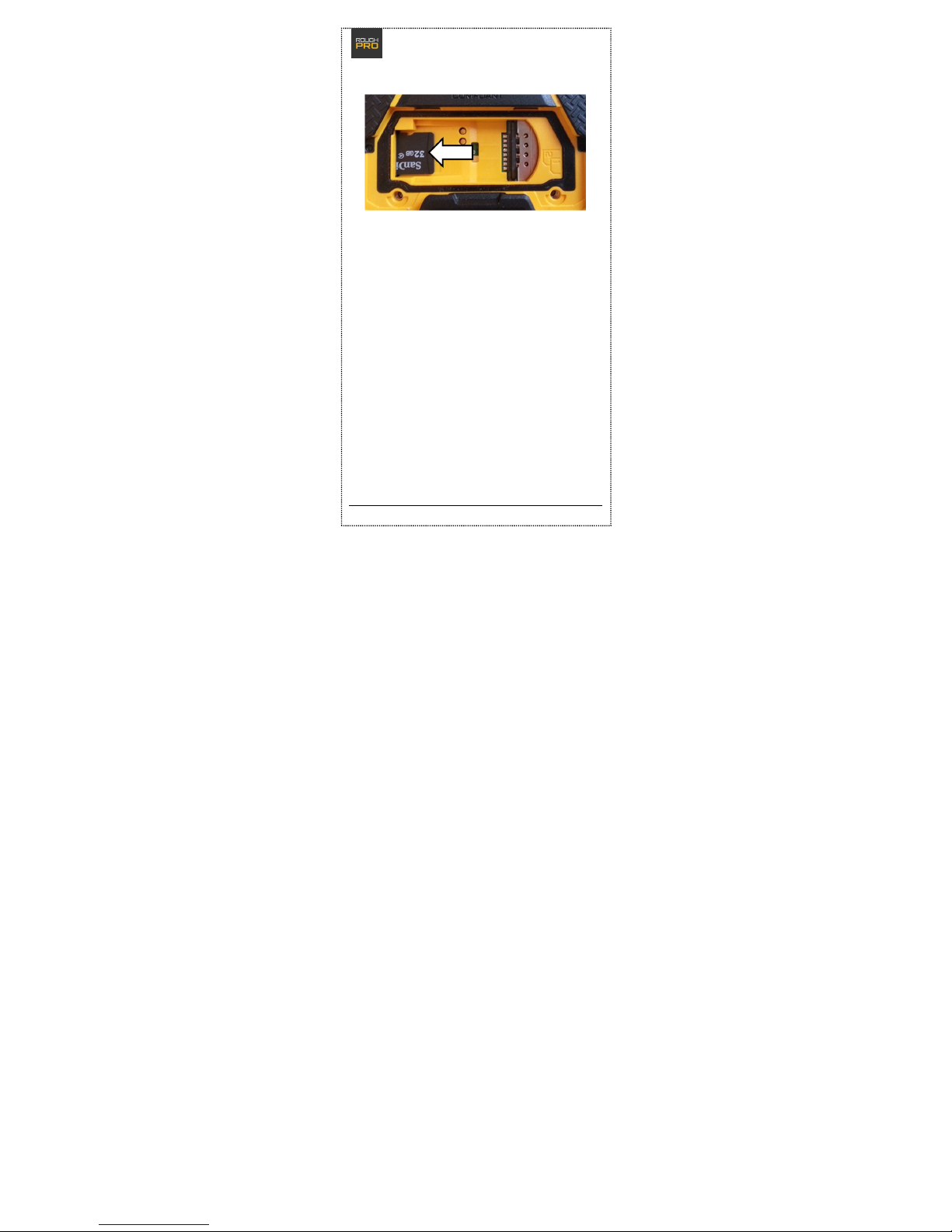
• Step 5: In ser t a micro-SD card as follows:
>Please note: When closing the lid, make sure to
carefully tighten the screws turn by turn. A well-closed
lid is crucial for keeping the device waterproof.
Page 14
EX-SM14 – Quick Start Guide
14
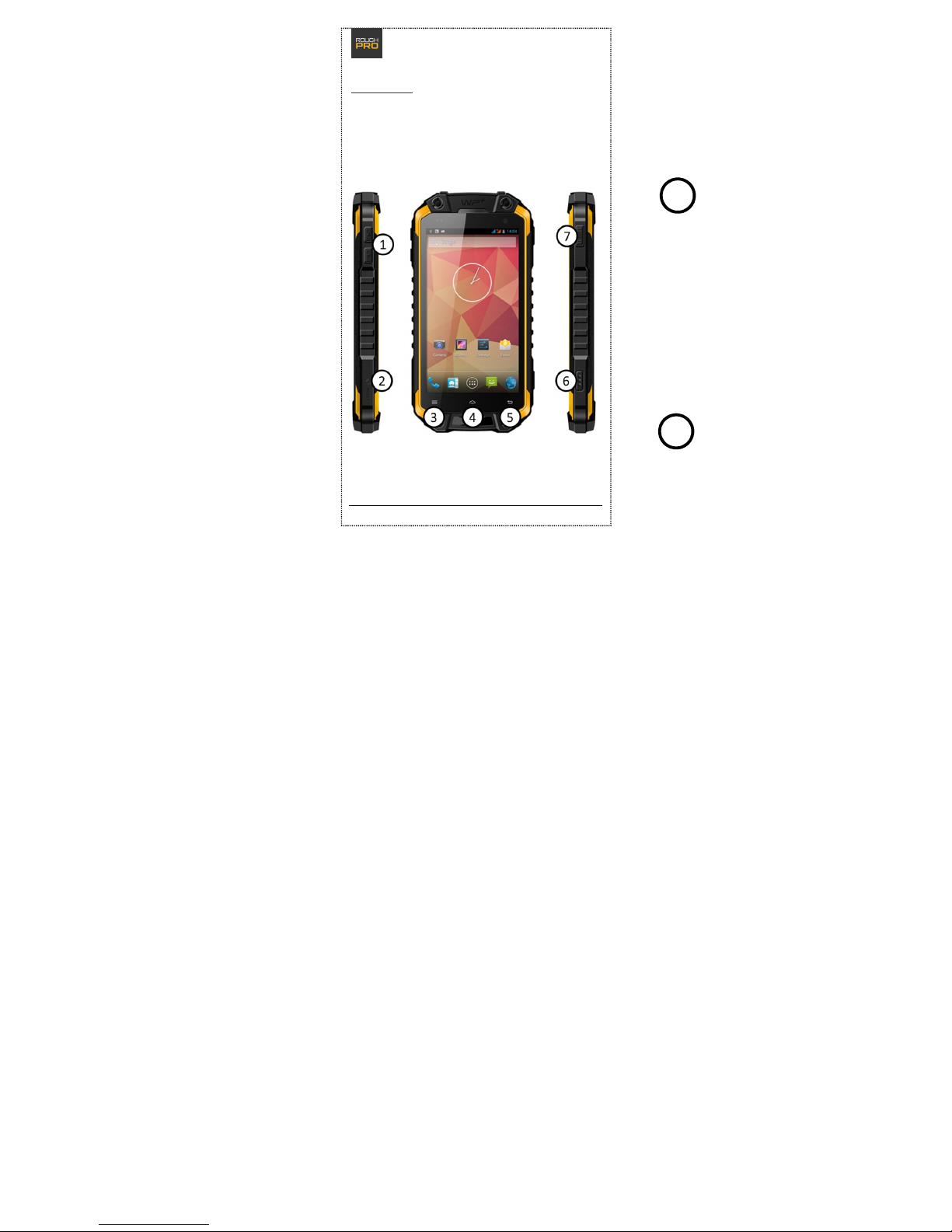
Your device
Below you'll find a picture of the left side view, the front
view and the right side view of your EX-SM14. The 4 ondevice buttons and 3 on-device soft buttons are marked
with numbers 1 through 7:
Page 15
EX-SM14 – Quick Start Guide
15
The buttons
(1) Volume buttons: The volume buttons adjust all the
different sound levels of the phone.
(2) Reset button: By pushing this button you'll restart
the device.
(3) Menu button: Depending on 'where you are' or what
application you are using, the menu button will bring up
the extra functionalities and/or actions.
(4) Home button: Pressing this button will bring you
back to the default (home) screen at all times. Keeping
the button pressed, brings up your recently used apps,
allowing you to switch between apps rapidly.
(5) Back button: This one always leads you back to the
previous screen.
(6) Alarm button: If you're using for instance BCom's
"Man Down" application, you can press this button to
set off the alarm. Without additional software this
button has no function.
(7) Power button: Use the power button to switch the
smartphone on or off. If the smartphone is switched on,
a quick press on the power button will automatically put
the device in standby mode (or bring it back to active
mode). Keep the power button pressed and a menu will
appear.
Page 16
EX-SM14 – Quick Start Guide
16
5. Getting started
When you switch on your smartphone for the first time,
you will be given a number of questions in order to
configure the device to your liking. Follow these steps
carefully. At the end Android will show you how to use
the smartphone and give you a couple of usability tips.
>Please note: You can always change things later by
pressing the Menu button while in the Home screen (see
below) and choose "System settings".
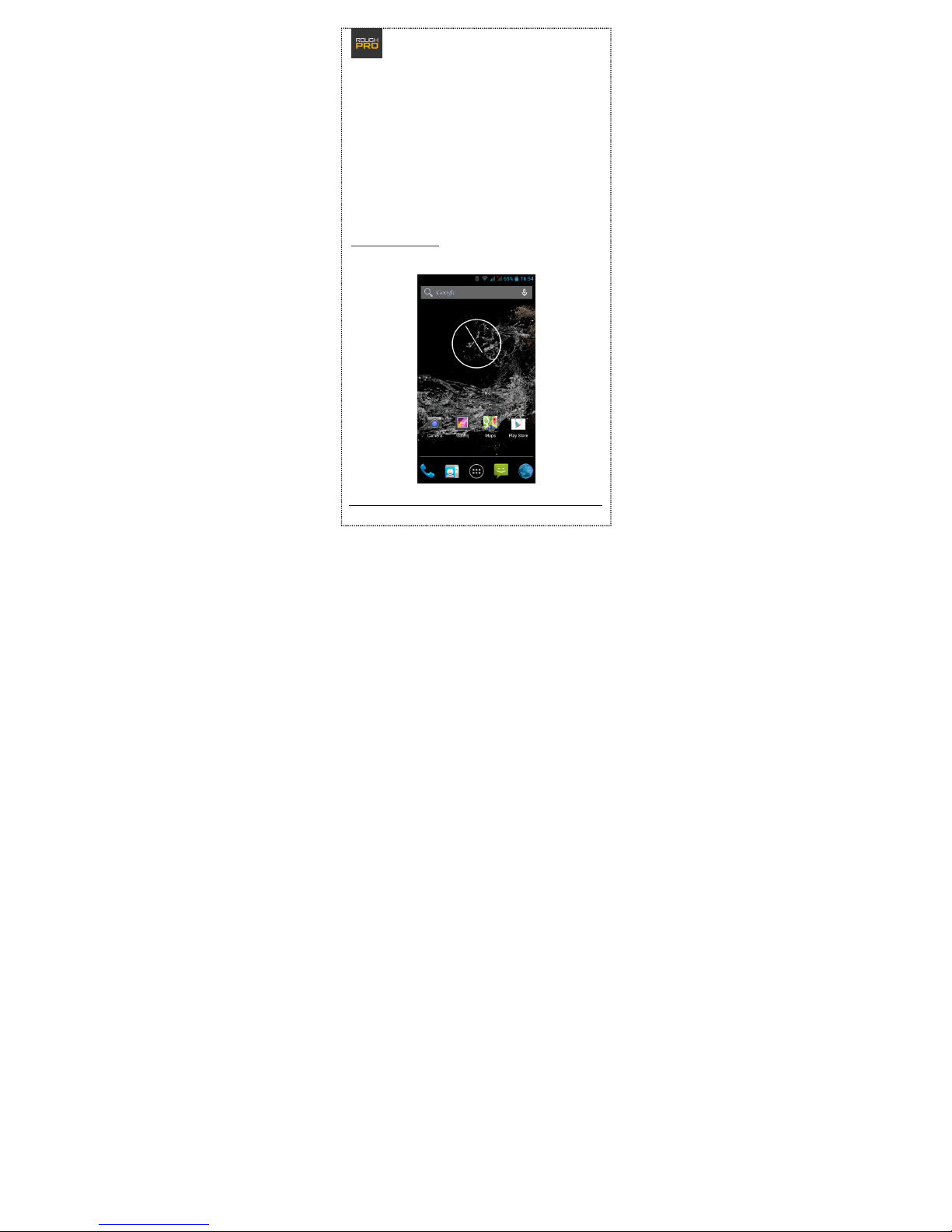
The Home screen
This is how your Home screen will look:
Page 17
EX-SM14 – Quick Start Guide
17
The Home screen is the default screen of your
smartphone. Here you can 'start fresh' and easily reach
all applications. In the bottom bar you will always find
the main menu button in the middle, surrounded by
the most popular apps. As with so many things on this
device, you can customize this bar and adjust it to your
preference.
In total there are five Home screens, which you can
access by swiping from left to right and vice versa.
You can change the background image by placing your
finger on an empty spot and holding it there for a
moment.
You can add shortcuts to the Home screen by touching
and holding your finger on an empty spot in the screen.
A sub-menu will appear which will allow you to add any
shortcut of an app to the Home screen.
By touching and holding your finger on an icon (rather
than tapping it), you can move the icon, or delete it by
dragging it to the appearing trash can icon top of the
screen.
Tapping the main menu button will bring you to the
main menu of your smartphone, showing all installed
applications. You can transfer an icon to your home
screen by touching and holding it for a couple of
seconds.
Page 18
EX-SM14 – Quick Start Guide
18
Unlocki ng the sc reen
When the smartphone is in standby mode, you'll need
to unlock the screen before you can use it. Here's how:
• Press the power button
• Place your finger on the closed padlock in the
middle of the screen.
• A circle around the lock and an icon of an opened
padlock on the right-hand side will appear.
• Drag the circle to the right, place it around the
opened padlock and let it go. The screen should
now be unlocked.
Page 19
EX-SM14 – Quick Start Guide
19
6. Applications & widgets
Applica tions
Your smartphone comes with a number of standard
applications, better known as "apps". In this chapter we
will explain to you what the most important apps can do
for you.
• Phone
In the bottom left corner of your home screen you will
find the telephone icon. Tapping it will open the
smartphone app through which you can make calls.
You now have three ways to place a call:
1 | By tapping the smartphone icon on the top-left you
will enter the standard telephone screen that allows you
to enter a smartphone number directly.
2 | Tapping the clock symbol will bring up the call
history. By tapping the smartphone icon next to an
entry, the smartphone will dial the number listed.
3 | Tapping the contact icon on the right will bring up all
your saved contacts with their respective smartphone
numbers.
>Tip: Once you start dialing a number, the corresponding
sequence of numbers in your contact list will appear in
the top of your screen. You may also enter a name, like
5646 for "JOHN".
Page 20
EX-SM14 – Quick Start Guide
20
• Camera
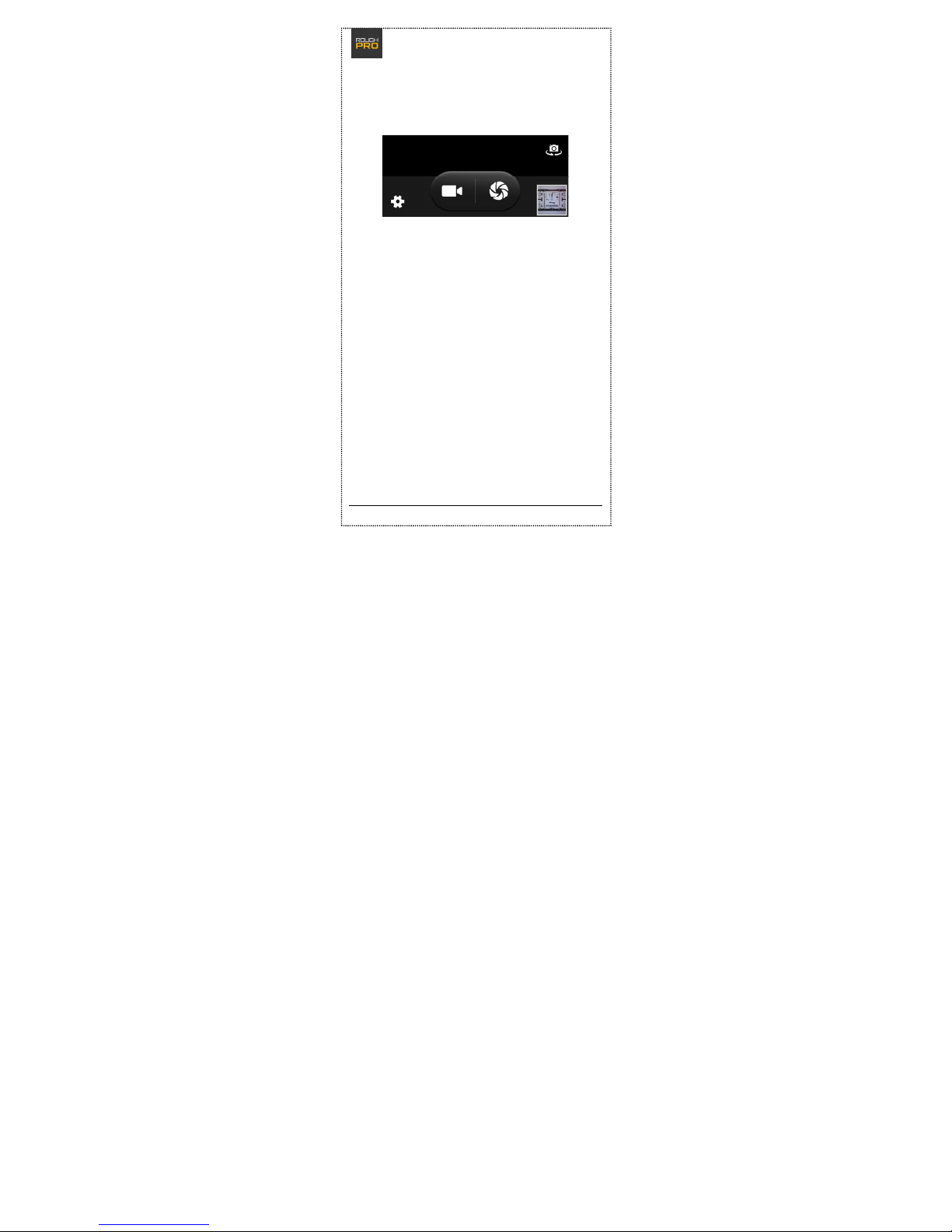
Tapping to camera icon will open the camera
application.
Here you can select the video or photo camera.
Next to the 'camera options' (i.e. main) button, you will
see a thumbnail of the latest picture or vide oclip made.
Tapping this picture lets you view and possibly share the
picture.
Above the thumbnail you will find a small camera icon
with circling arrow below it. Tapping it lets you switch
between rear and front camera.
On the left-hand side a "Settings" icon is located. Tap
this to view and change the camera settings.
Page 21
EX-SM14 – Quick Start Guide
21
• Messages
The 'text balloon' icon brings up the "Messages" menu.
Tapping the icon in the bottom-left corner starts a new
conversation. A keyboard will appear automatically.
>Tip: Android does not deal with individual messages –
all messages are displayed as if they form a
conversation. Therefore, you see what has already been
discussed before.
>Tip: To delete a conversation, simply put your finger on
the conversation, hold it there until a trash can icon
appears, then tap that icon.
At the line on top of your screen, you can enter a
smartphone number. If you wish to add one or more
contacts out of your smartphone book, tap the contact
icon on the right-hand side of the top line.
By tapping the icon of a folded paper plane, the message
will be sent.
Widgets
Page 22
EX-SM14 – Quick Start Guide
22
Android 4.2 offers a huge amount of widgets – a kind of
app that can be put on your main screen. To put a widget
there, tap the menu button to enter the main menu,
then hit "Next" and tap "Widgets". By sliding your finger
left and right, you can scroll through all widgets. Tapping
and holding a widget for some seconds enables you to
drag it to the main screen and determine where to place
it.
>Please note: In some cases, an app has its own widget.
If this is so, these Widgets will be shown in this menu as
well.
Page 23
EX-SM14 – Quick Start Guide
23
7. Accessories in the box
USB cable
With the included USB cable you can charge the battery
of your device or connect your smartphone to a
computer.
• Charging the battery: First connect the (included)
wall plug charger to the USB connector of the
cable and insert the micro-USB connector into
the USB port of your phone. Lastly, plug the
charger into a wall socket.
• Connecting to a computer: Before you start,
make sure your smartphone is switched off. Now
insert the micro-USB connector into the USB port
of your phone, then plug the standard USB
connector at other end of the cable into the
appropriate USB port of a computer. Lastly,
switch on your phone. When you want to
disconnect, we strongly advise you to make sure
the hardware (phone) is removed safely, i.e.
through the "remove hardware safely" option of
your computer. Doing it differently, might
damage the data on your phone.
While your smartphone is connected to a computer, the
battery is being charged as well.
Page 24
EX-SM14 – Quick Start Guide
24
>Please note: Never allow Windows to format the
memory of your smartphone. This could damage the
internal memory of your smartphone beyond repair. The
same goes for formatting your SD card: use your
smartphone to do this, or use a compatible SD card
reader.
Charger and battery
Only use the included charger and always in a dry
environment. Short-circuiting may cause fire, personal
injuries and increases the risk of an explosion. If you still
would like to use a different charger, please consult your
retailer first.
This smartphone comes with an original battery. In case
of a defective battery, please contact your retailer.
>Ple ase note: The chapter "Add itional safety
inst ruc tions" contains more informatio n about the
batt ery and how t o use it.
Page 25
EX-SM14 – Quick Start Guide
25
8. Common issues and solutions
Issue
Potential causes and
solutions
The device
does not
switch on
- The battery is not charged.
The battery
does not
charge
- The battery is depleted and
needs to be charged for a
prolonged period of time.
- Charger or USB cable is
defective.
- Battery is defective.
A SIM error
occurs
- The SIM card has gotten
dirty and therefore cannot
be read properly.
- The SIM card is not
properly inserted (see also
chapter 3 for proper SIM
insertion).
- The SIM card is
damaged/defective. Please
contact your provider.
>Please note: This also
applies to SIM2.
Page 26
EX-SM14 – Quick Start Guide
26
The signal is
poor
- Check whether the on
-
screen signal indicator
shows more than two bars.
If this is not the case, you
are in a location with poor
reception.
> Please note: This also
applies to SIM2.
It is not
possible to
make a call
- "Caller ID" is disabled and
your provider does not allow
anonymous calling.
- There is a strong source of
disruption in the vicinity.
- You may have set
limitations in the settings for
calling.
- Your provider has not yet
activated your SIM card.
Page 27
EX-SM14 – Quick Start Guide
27
It is not
possible to
connect to a
network
- The network's signal is
poor or there are strong
disruptions nearby.
- The SIM card is not
properly inserted (see also
chapter 3 for proper SIM
insertion).
- The SIM card is
damaged/defective. Please
contact your provider.
- "Airplane mode" is
activated, all wireless
communications are
disabled. Next to the time
indicator, one or two
airplane icons are displayed.
Page 28
EX-SM14 – Quick Start Guide
28
The
smartphone is
not able to
establish a (3G)
internet
connection
- Check with your provider if
"data" is part of your bundle.
- Make sure "data
connection" is enabled on
your phone.
- Obtain the correct APN
settings (on the website of
your network provider) and
set your smartphone
accordingly. Go to: Settings >
More > Mobile networks >
Access Point Names.
- In case you use the services
of an MVNO provider, make
sure "roaming" is activated.
Go to: Settings > SIM
management > Roaming.
My pictures
are too dark
- Check your camera
settings.
- The environment does not
have sufficient light.
My pictures
are blurry.
- Make sure the object
you're trying to take a
picture of does not move.
- While taking a picture, hold
your smartphone still.
- The environment does not
have sufficient light.
Page 29
EX-SM14 – Quick Start Guide
29
The battery
drains too
quickly
Smartphones are heavy
consumers when it comes to
energy. Therefore, the
operational battery time is
highly dependent on how
the smartphone is used. On
average, it's not uncommon
a smartphone needs be
recharged by the end of the
day.
The GPSfunctionality is
not working
properly / I do
not get a GPS
fix
- Check if "GPS" is enabled.
- Windshields with heat
protection, windshield
heating, multi-storey
buildings or heavy
forestation are known to
scramble GPS or block it
altogether.
- Try to establish a GPS
connection outside, in an
open field. After
approximately 5 minutes,
you should have a fix.
Page 30
EX-SM14 – Quick Start Guide
30
9. Additional safety instructions
Local laws and regulations
Take into account possible special laws and regulations
that might apply to the place in which you use your
smartphone.
Volume
To prevent hearing impairment, make sure to keep the
volume of earphones to a responsible level.
Pacemakers
People carrying a pacemaker need to follow these
instructions:
• When the smartphone is switched on, always
maintain a distance of at least 15 cm from the
pacemaker.
• Never carry the smartphone a breast pocket.
• When making calls, hold the smartphone to your
right ear (opposite the pacemaker).
Hearing aid devices
Your smartphone may cause interference with certain
hearing aid devices. If this is the case, please contact the
manufacturer of the hearing device.
Precautions for using your battery and charger
The battery charge depends on the network you use, the
smartphone settings and the environment in which the
smartphone is used. You EX-SM14 is designed for normal
operation during 24 hours.
Page 31
EX-SM14 – Quick Start Guide
31
Under no circumstance use a charger that is damaged in
any way.
When using the smartphone in the vicinity of a basestation of a network, power usage will decrease. The
battery time in which a device can remain in standby
mode or be operational for calling is strongly affected by
the strength of the signal of the mobile network.
Charging time depends on the remaining battery power,
the type of battery and the charger used for charging the
battery. A battery may be charged and discharged
hundreds of time, but it will become worn out over time.
Unplug the charger when it is not being used. Do not
leave the smartphone attached to the charger for a
period exceeding 48 hours straight. Overcharging may
drastically decrease battery life. Even when unused, a
fully charged battery will slowly get depleted.
In case your smartphone or charger gets wet, do not
attempt to dry it in a heating device, such as a dryer or a
microwave oven. Doing so, may cause burn wounds or
lead to swelling or even explosion of the phone, battery,
charger, or the heating device used.
>Please note: The manufacturer hereby declares to
repudiate all responsibility for any direct or collateral
damage that results from failure to comply to one or
more of the instructions above or incorrectly executed
procedures.
Page 32
EX-SM14 – Quick Start Guide
32
Radiation and SAR
The EX-SM14 meets the requirements for the CE
marking, also with regard to radiation. Your smartphone
is equipped with multiple senders and receivers
(GSM/UMTS/Wi-Fi). The design of your device is such,
that it meets CE-requirements.
Radio waves influence the human body, they are
absorbed within the body and converted to warmth.
SAR values express the extent to which this takes place.
SAR is the acronym for Specific Absorption Rate.
In order to obtain the most objective frame of SARvalues, different means of measuring are employed. The
object is to determine the amount of Watts that are
absorbed per Kg of body mass, averaged over 10 grams
of body-tissue. The CE-marking requires this value to not
exceed 2.0 W/Kg. The SAR limitations in the United
States, established by the FCC, are even lower, at 1.6
W/Kg.
Testing for SAR-values is performed under the following
conditions:
• At the highest permitted level of transmitter
power output that the equipped sender is
capable to transmit on the various frequencies.
• At the least favorable circumstances possible in
everyday normal use, for example when the
device is held close to the head.
Page 33
EX-SM14 – Quick Start Guide
33
Your device was designed to use only the power
necessary to remain in contact with the network. Since
SAR-test protocol regulations require testing and
measuring SAR-values at maximum transmitter power
output, the actual amount of radiation will be lower
than the SAR-value that this device is specified with. This
value is strongly influenced by the network reception on
your location.
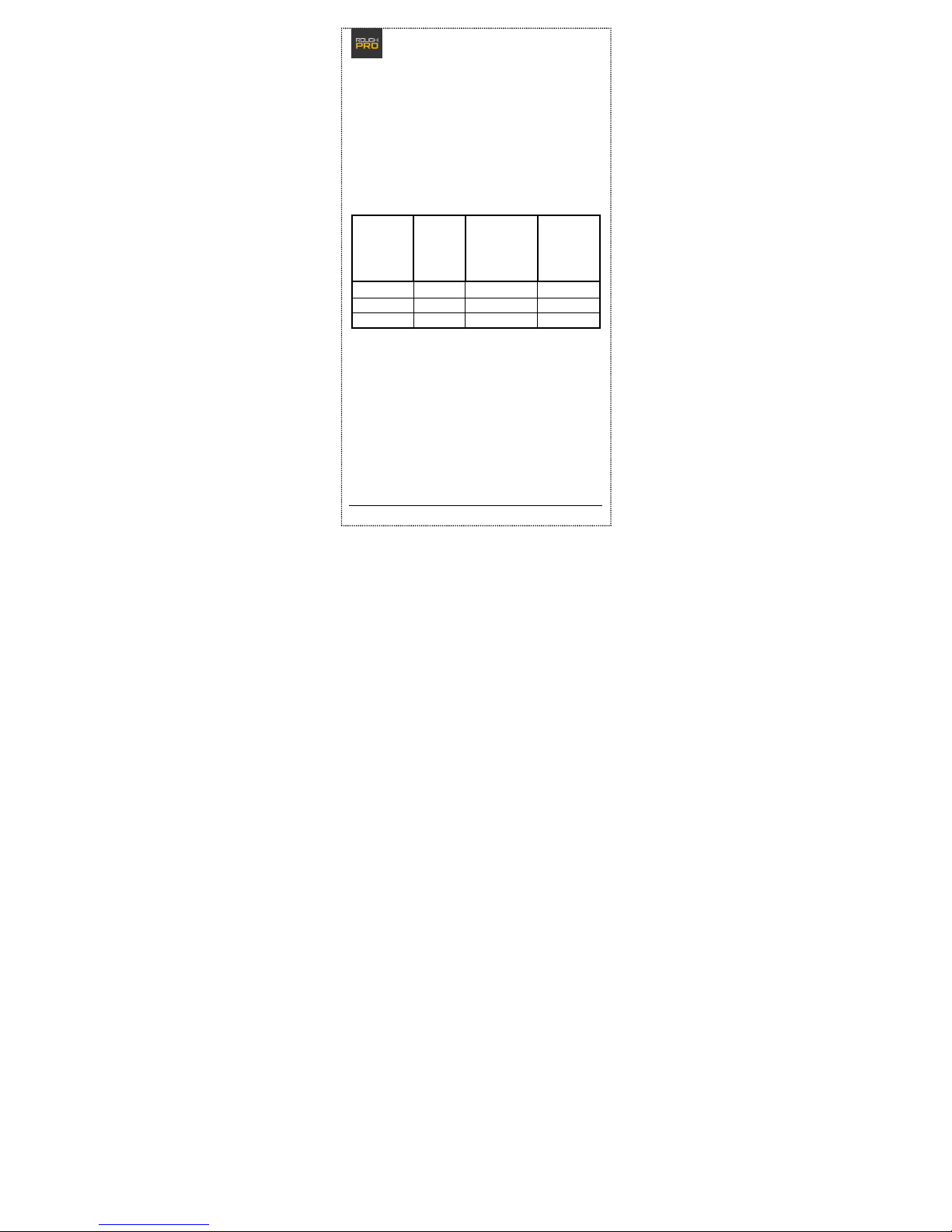
SAR values:
Mode
Highest
Reported
Head
SAR1g
(W/kg)
Highest
Reported
Body-worn
SAR1g
(1.0 cm Gap)
(W/Kg)
Highest
Reported
Hotspot
SAR1g
(1.0 cm Gap)
(W/Kg)
GSM850 1.00 1.09 1.09
GSM1900 0.29 0.44 0.51
WCDMA II 0.25 0.38 0.55
SAT – DAS – SAR: B
« Think of your health – use your cell smartphone
moderately, call with an earpiece and choose a
device with a lower SAR value».
FCC RF EXPOSURE INFORMATION:
WARNING!! Read this information before using your
phone
Page 34
EX-SM14 – Quick Start Guide
34
In August 1986 the Federal Communications
Commission (FCC) of the United States with its
action in Report and Outer FCC 96-326 adopted an
updated safety standard for human exposure
to radio frequency (RF) electromagnetic energy emitted
by FCC regulated transmitters. Those
guidelines are consistent with the safety standard
previously set by both U.S. and international
standards bodies. The design of this phone complies
with the FCC guidelines and these
international standards. Use only the supplied or an
approved antenna. Unauthorized antennas
modifications, or attachments could impair call quality,
damage the phone, or result in violation
of FCC regulations. Do not use the phone with a
damaged antenna. If a damaged antenna comes
into contact with the skin, a minor burn may result.
Please contact your local dealer for
replacement antenna.
BODY-WORN OPERATION:
This device was tested for typical body-worn
operations with the back of the phone kept 10mm
from the body. To comply with FCC RF exposure
requirements, a minimum separation distance
of 10mm must be maintained between the user's body
and the back of the phone, including the
antenna. Third-party belt-clips, holsters and similar
accessories containing metallic components
shall not be used. Body-worn accessories that cannot
maintain 10mm separation distance between
Page 35
EX-SM14 – Quick Start Guide
35
the user’s body and the back of the phone, and have
not been tested for typical body-worn
operations may not comply with FCC RF exposure limits
and should be avoided.
For more information about RF exposure, please visit
the FCC website at www.fcc.gov
Your wireless handheld portable telephone is a low
power radio transmitter and receiver. When
it is ON, it receives and also sends out radio frequency
(RF) signals. In August, 1996, the Federal
Communications Commissions (FCC) adopted RF
exposure guidelines with safety levels for
hand-held wireless phones. Those guidelines are
consistent with the safety standards previously
set by both U.S. and international standards bodies:
<ANSIC95.1> (1992) / <NCRP Report 86> (1986) /
<ICIMIRP> (1996)
Those standards were based on comprehensive and
periodic evaluations of the relevant
scientific literature. For example, over 120 scientists,
engineers, and physicians from universities,
government health agencies, and industry reviewed the
available body of research to develop
the ANSI Standard (C95.1). Nevertheless, we
recommend that you use a hands-free kit with
your phone (such as an earpiece or headset) to avoid
potential exposure to RF energy. The
design of your phone complies with the FCC guidelines
(and those standards).
Page 36
EX-SM14 – Quick Start Guide
36
Use only the supplied or an approved replacement
antenna. Unauthorized antennas,
modifications, or attachments could damage the phone
and may violate FCC regulations.
NORMAL POSITION:
Hold the phone as you would any other telephone with
the antenna pointed up and over your
shoulder.0
RF Exposure Information:
This product is compliance to FCC RF Exposure
requirements and refer to FCC website search for FCC
ID: 2AD2CEX-SM14 to gain further information include
SAR Values.
This device complies with part 15 of the FCC rules.
Operation is subject to the following two
conditions:
(1) this device may not cause harmful interference, and
(2) this device must accept any interference received,
including interference that may
cause undesired operation.
NOTE: The manufacturer is not responsible for any
radio or TV interference caused by
unauthorized modifications to this equipment. Such
modifications could void the user’s
authority to operate the equipment.
NOTE: This equipment has been tested and found to
comply with the limits for a Class B
Page 37
EX-SM14 – Quick Start Guide
37
digital device, pursuant to part 15 of the FCC Rules.
These limits are designed to provide
reasonable protection against harmful interference in a
residential installation. This equipment
generates uses and can radiate radio frequency energy
and, if not installed and used in
accordance with the instructions, may cause harmful
interference to radio communications.
However, there is no guarantee that interference will
not occur in a particular installation. If
this equipment does cause harmful interference to
radio or television reception, which can be
determined by turning the equipment off and on, the
user is encouraged to try to correct the
interference by one or more of the following measures:
- Reorient or relocate the receiving antenna.
- Increase the separation between the equipment and
receiver.
-Connect the equipment into an outlet on a circuit
different from that to which the receiver is
connected.
-Consult the dealer or an experienced radio/TV
technician for help
Do not use the device with the environment which
below minimum -10℃ or over maximum
50℃, the device may not work.
Changes or modifications to this unit not expressly
approved by the party responsible for
Page 38
EX-SM14 – Quick Start Guide
38
compliance could void the user’s authority to operate
the equipment.
Ad Hoc function is supported but not able to operate
on non-US frequencies.
 Loading...