

Page 1
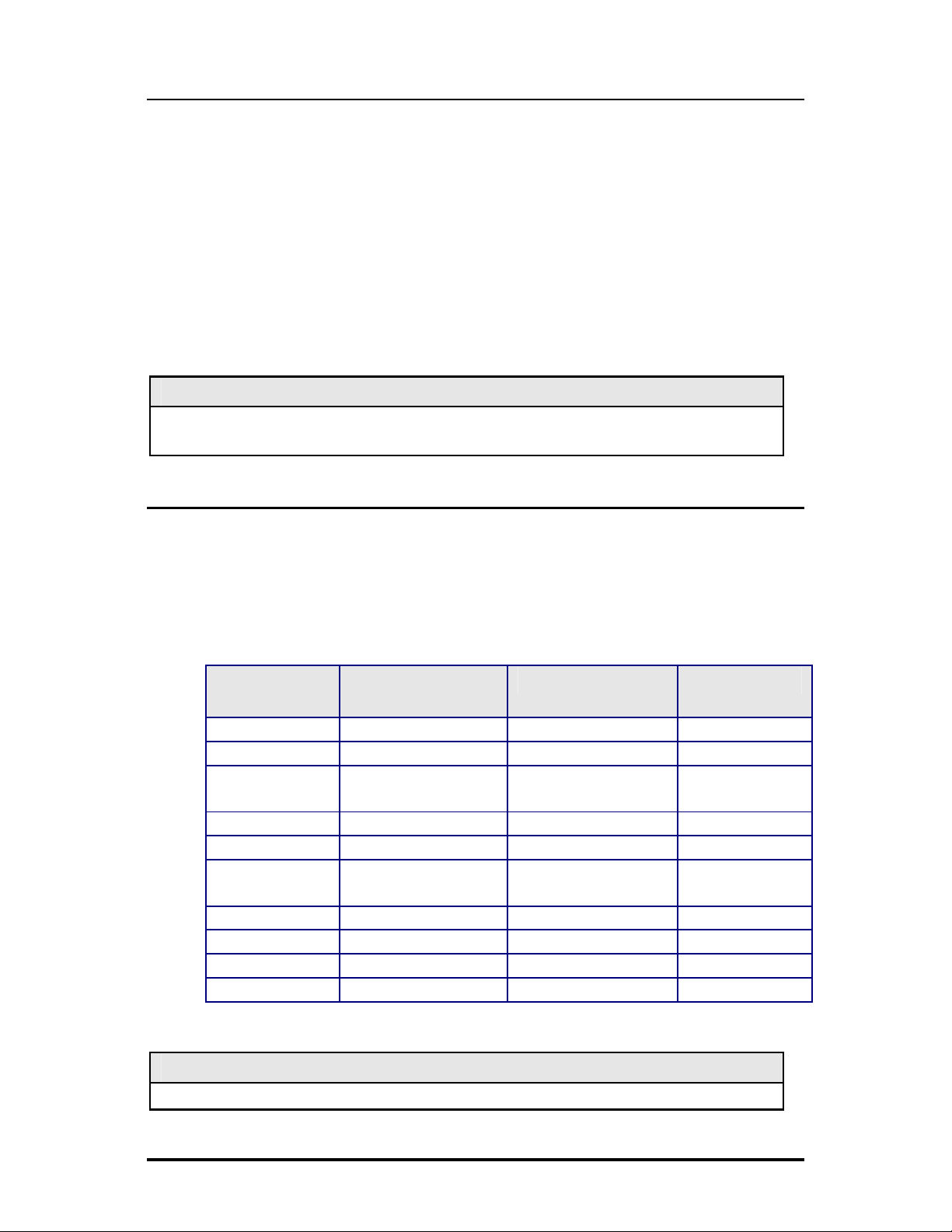
iMcV-MediaLinX
Operation Manual
Page 2

FCC Radio Frequency Interference Statement
This equipment has been tested and found to comply with the limits for a Class B computing device, pursuant to Part 15 of the FCC Rules.
These limits are designed to provide reasonable protection against harmful interference when the equipment is operated in a commercial
environment. This equipment generates, uses and can radiate radio frequency energy and, if not installed and used in accordance with the
instruction manual, may cause harmful interference to radio communications. Operation of this equipment in a residential area is likely to
cause harmful interference in which the user will be required to correct the interference at his own expense.
Any changes or modifications not expressly approved by the manufacturer could void the user’s authority to operate the equipment.
The use of non-shielded I/O cables may not guarantee compliance with FCC RFI limits. This digital apparatus does not exceed the Class B
limits for radio noise emission from digital apparatus set out in the Radio Interference Regulation of the Canadian Department of
Communications.
Le présent appareil numérique n’émet pas de bruits radioélectriques dépassant les limites applicables aux appareils numériques de classe B
prescrites dans le Règlement sur le brouillage radioélectrique publié par le ministère des Communications du Canada.
Warranty
IMC Networks warrants to the original end-user purchaser that this product, EXCLUSIVE OF SOFTWARE, shall be free
from defects in materials and workmanship under normal and proper use in accordance with IMC Networks' instructions
and directions for a period of six (6) years after the original date of purchase. This warranty is subject to the limitations set
forth below.
At its option, IMC Networks will repair or replace at no charge the product which proves to be defective within such
warranty period. This limited warranty shall not apply if the IMC Networks product has been damaged by unreasonable
use, accident, negligence, service or modification by anyone other than an authorized IMC Networks Service Technician
or by any other causes unrelated to defective materials or workmanship. Any replaced or repaired products or parts carry
a ninety (90) day warranty or the remainder of the initial warranty period, whichever is longer.
To receive in-warranty service, the defective product must be received at IMC Networks no later than the end of the
warranty period. The product must be accompanied by proof of purchase, satisfactory to IMC Networks, denoting
product serial number and purchase date, a written description of the defect and a Return Merchandise Authorization
(RMA) number issued by IMC Networks. No products will be accepted by IMC Networks which do not have an RMA
number. For an RMA number, contact IMC Networks at PHONE: (800) 624-1070 (in the U.S and Canada) or (949) 4653000 or FAX: (949) 465-3020. The end-user shall return the defective product to IMC Networks, freight, customs and
handling charges prepaid. End-user agrees to accept all liability for loss of or damages to the returned product during
shipment. IMC Networks shall repair or replace the returned product, at its option, and return the repaired or new
product to the end-user, freight prepaid, via method to be determined by IMC Networks. IMC Networks shall not be
liable for any costs of procurement of substitute goods, loss of profits, or any incidental, consequential, and/or special
damages of any kind resulting from a breach of any applicable express or implied warranty, breach of any obligation
arising from breach of warranty, or otherwise with respect to the manufacture and sale of any IMC Networks product,
whether or not IMC Networks has been advised of the possibility of such loss or damage.
EXCEPT FOR THE EXPRESS WARRANTY SET FORTH ABOVE, IMC NETWORKS MAKES NO OTHER WARRANTIES,
WHETHER EXPRESS OR IMPLIED, WITH RESPECT TO THIS IMC NETWORKS PRODUCT, INCLUDING WITHOUT
LIMITATION ANY SOFTWARE ASSOCIATED OR INCLUDED. IMC NETWORKS SHALL DISREGARD AND NOT BE
BOUND BY ANY REPRESENTATIONS OR WARRANTIES MADE BY ANY OTHER PERSON, INCLUDING EMPLOYEES,
DISTRIBUTORS, RESELLERS OR DEALERS OF IMC NETWORKS, WHICH ARE
INCONSISTENT WITH THE WARRANTY SET FORTH ABOVE. ALL IMPLIED WARRANTIES INCLUDING THOSE OF
MERCHANTABILITY AND FITNESS FOR A PARTICULAR PURPOSE ARE HEREBY LIMITED TO THE DURATION OF THE
EXPRESS WARRANTY STATED ABOVE.
Every reasonable effort has been made to ensure that IMC Networks product manuals and promotional materials
accurately describe IMC Networks product specifications and capabilities at the time of publication. However, because of
ongoing improvements and updating of IMC Networks products, IMC Networks cannot guarantee the accuracy of printed
materials after the date of publication and disclaims liability for changes, errors or omissions.
ii
Page 3

Table of Contents
FCC Radio Frequency Interference Statement ....................................................ii
Warranty............................................................................................................ii
About the iMcV-MediaLinX................................................................................1
Configuration Instructions ..................................................................................1
Installing an iMcV Module..................................................................................1
FX LinkLoss, TX LinkLoss, Link Fault Pass-Through, FiberAlert and Far End Fault.3
Link Fault Pass-Through (LFPT)...........................................................................4
Auto Negotiation on iMcV-MediaLinX................................................................6
Additional MediaLinX Features...........................................................................7
LED Operation...................................................................................................8
Installation Troubleshooting ...............................................................................9
Specifications ...................................................................................................10
IMC Networks Technical Support.....................................................................10
Fiber Optic Cleaning Guidelines.......................................................................11
Electrostatic Discharge Precautions...................................................................11
Safety Certifications..........................................................................................12
iii
Page 4

About the iMcV-MediaLinX
A
The SNMP manageable iMcV-MediaLinX module provides a single conversion
between 10/100 Base-T twisted pair and 100 Base-SX/FX fiber. Each iMcVMediaLinX includes one RJ-45 connector and one pair of ST or SC fiber optic
connectors. iMcV-MediaLinX modules install into any modular, SNMP manageable
iMediaChassis, as well as the MediaChassis series, which is unmanaged.
The iMcV-MediaLinX is also available in a single-strand fiber version that allows two
wavelengths to share one fiber strand—Full-Duplex data travels on different
wavelengths; for example 1310 nm and 1550 nm—doubling the capacity of fiber.
Also, one RJ-45 connector and one ST or SC fiber connector are included.
NOTE
ll iMcV-MediaLinX modules, including 1300 nm multi-mode and 1310 nm single-mode
(TX/FX), 850 nm multi-mode fiber (TX/SX) and single-strand versions (TX/SSFX) will be referred
to as iMcV-MediaLinX throughout this guide except where differences need to be indicated.
Configuration Instructions
iMcV-MediaLinX modules have user-configurable features. Refer to the matrix for
configuring both managed (via an SNMP compatible management application such as
iView²) or the DIP Switch configuration table for unmanaged iMcV-MediaLinX
modules.
Installing an iMcV Module
iMcV Modules install in IMC Networks’ SNMP manageable iMediaChassis series or in
any MediaChassis.
To install an iMcV Module:
1.
Remove the blank bracket covering the slot where the module is to be installed
by removing the screws on the outside edges of the bracket.
2.
Slide the iMcV Module into the chassis, via the cardguides, until the module is
seated securely in the connector.
3.
Secure the module to the chassis by tightening the captive screw.
Save any “blanks” removed during installation for future use if the configuration
4.
requirements change.
NOTE
All modules are hot-swappable
1
Page 5
Managed Modules
To manage one or more iMcV-MediaLinX Modules, an SNMP agent must be present
in the chassis: The iMediaChassis series requires an SNMP Management Module. To
configure Managed Modules, install the module first, and then configure using the
management software. All fiber type information is now loaded into a NVRAM
during manufacturing. This is viewed only via iView² software, within the modules
details.
Requirements:
• SNMP Firmware version C2
• iView² 1.8.6 or higher
NOTE
If the module is going to be managed via the software management, configuration settings
will override any hardware settings, such as DIP Switches or jumpers.
Unmanaged Modules
Before installing, configure iMcV-MediaLinX Modules for desired features listed in the
table below. After configuring the DIP Switches for the desired settings, install the
module and connect the appropriate cables. For further information, refer to the
Installing an iMcV Module section.
DIP Switch on
S1
1
2
3
4
5
6
7
8
9
10
Feature DIP Switch Options Default Setting
Auto Negotiation ON ON
TX FDX OFF OFF
TX 100Mbps ON OFF
TX 10Mbps OFF OFF
TX LinkLoss OFF OFF
FX LinkLoss ON OFF
FX FDX
FX HDX ON OFF
FiberAlert OFF OFF
Selective Advertising OFF OFF
Far End Fault OFF OFF
Flow Control OFF OFF
OFF OFF
BEST PRACTICES
When possible, it is always a good idea to configure DIP Switches to match software settings.
2
Page 6

iMcV-MediaLinX
FX LinkLoss, TX LinkLoss, Link Fault Pass-Through, FiberAlert and Far
End Fault
iMcV-MediaLinX modules include the troubleshooting features such as TXLL, FXLL,
LFPT, FA and FEF that help locate
silent failures
on a network. Before attempting to
install the module(s), understand how these features work and react to a specific
network configuration. The features offered are based on the board revision; refer to
the DIP Switch Configuration Table.
Link Integrity
During normal operation, link integrity pulses are transmitted by all point-to-point
Ethernet devices. When an IMC Networks media converter receives valid link pulses,
it knows that the device to which it is connected is up and sending pulses, and that
the copper or fiber cable coming from that device is intact. The appropriate “LNK”
(link) LED is lit to indicate this.
The IMC Networks media converter also sends out link pulses from its copper and
fiber transmitters, but normally has no way of knowing whether the cable to the other
device is intact and the link pulses are reaching the other end. The combination of
3
Page 7

FiberAlert and LinkLoss allows this information to be obtained, even when physical
access to a remote device (and its link integrity LED) is not available.
FX LinkLoss (FXLL)
FX LinkLoss is a troubleshooting feature. When a fault occurs on the fiber segment of
a conversation, FX LinkLoss detects the fault and passes this information to the
twisted pair segment. If a media converter is not receiving a fiber link, FX LinkLoss
disables the transmitter on the media converter’s twisted pair port. This results in a
loss of link on the device connected to the twisted pair port.
TX LinkLoss (TXLL)
TX LinkLoss is a troubleshooting feature. When a fault occurs on the twisted pair
segment of a conversion, TX LinkLoss detects the fault and passes this information to
the fiber segment. If a media converter is not receiving a twisted pair link, TX
LinkLoss disables the transmitter on the media converter's fiber port. The result is in a
loss of the link on the device connected to the fiber port.
Link Fault Pass-Through (LFPT)
Link Fault Pass-Through (LFPT) is a troubleshooting feature that combines TX and FX
LinkLoss from both the local and remote iMcV-MediaLinX modules. LFPT is enabled
by turning on both FX and TX LinkLoss on both modules. This feature allows either
end of the conversion to detect a link fault occurring at the other end of the media
conversion chain.
Regardless if there is a break in segment 1, 2 or 3, the link will drop on the switches
at both ends. The link fault is passed through the media conversion and is observed at
each end. It acts just like it would if the devices were directly connected.
4
Page 8

FiberAlert (FA)
By default FA is turned off. When enabled, if a fault occurs on the fiber line, affecting
data in one direction, FA stops sending a signal in the opposite direction. FXLL will
act on this lack of signal propagating the loss of like to the copper port when FXLL is
enabled.
FiberAlert minimizes the
problems associated with the
loss of one strand of fiber. If a
strand is unavailable, the IMC
Networks device at the
receiver end notes the loss of
link. The device will then stop
transmitting data and the link
signal until a signal or link pulse
is received. The result is that the link LED on BOTH sides of the fiber connection will
go out indicating a fault somewhere in the fiber loop. Using FiberAlert, a local site
administrator is notified of a fault and can quickly determine where a cable fault is
located.
WARNING
Enable FiberAlert on one side of a media conversion only. Enabling it on both sides
would keep both transmitters off indefinitely.
Far End Fault
By default, FEF is disabled. When enabled, and a fault occurs on the fiber line,
affecting data in one direction, an FEF signal will be sent in the opposite direction,
indicating the fault. FXLL will act on this signal propagating the loss of link to the
copper port when FXLL is enabled.
FEF versus FA
FEF is preferred when the devices at both ends of the fiber can interpret the FEF
signal. This allows FEF to be turned on at both ends, which will engage the FEF
regardless of which direction the fault occurs. (Please refer to diagram on previous
page) For example if a fault should occur on segment 2 in the direction of segment 1
to 3, FEF would be engaged on the iMcV-MediaLinX between segment 2 and 3. This
would then send a signal back to the iMcV-MediaLinX between segment 1 and 2. If
the iMcV-MediaLinX between segment 1 and 2 is in a managed chassis, the chassis
would send a trap that the port is down. Alternatively, if the iMcV-MediaLinX is not
in a managed chassis, FXLL could be engaged to propagate the fault onto the copper
port; this would cause segment 1 to show no link on both ends.
5
Page 9

FA is used when connecting to a device that does not support FEF. If an FEF signal is
sent to a device that does not support FEF, the device acts as if there is still a good
connection. The FEF signal is mistaken for data. FA works similar to FEF, in that
when there is a fault in one direction of the fiber, it acts on the fiber in the opposite
direction. But unlike FEF, FA sends no signal. Because of this, FA can not be
enabled on both ends. If it is enabled at both ends and a fault occurs, FA will turn
signal off in the opposite direction; the device on the other side of the fiber will see
the loss of signal and engage FA, turning off signal. The net result will be the signal
turned off in both directions, even after the fault has been repaired.
It is highly recommended that only one is chosen, either FEF or FA. If both are
selected FA will take precedence over FEF.
Auto Negotiation on iMcV-MediaLinX
iMcV-MediaLinX modules include the feature Auto Negotiation. When Auto
Negotiation is enabled, the module negotiates as a 10/100 Mbps full-duplex device.
If the connected device can operate at 100 Mbps full-duplex, a link is established.
Auto Negotiation (DIP Switch #1) is enabled by default.
If the twisted pair port on the other device does not have the ability to Auto
Negotiate or a half-duplex connection is desired, then Auto Negotiation must be
disabled. The iMcV-MediaLinX is capable of 10 Mbps (half and full duplex) as well as
100 Mbps (half and full duplex).
The following diagram shows a typical application with three possible configurations.
Configure Auto Negotiation on an iMcV-MediaLinX by adjusting the DIP Switch
setting (for unmanaged modules) or via the management software. Refer to the DIP
Switch table for switch location and settings.
For more information on LinkLoss/FiberAlert/LFPT/FEF, visit the IMC Networks Web
site at http://www.imcnetworks.com/support/
If unsure of how to implement these
features in a specific configuration, contact IMC Networks Technical Support at
(800) 624-1070 (U.S./Canada), +32-16-550880 (Europe) or via e-mail at:
techsupport@imcnetworks.com
.
6
Page 10

Additional MediaLinX Features
Selective Advertising
Selective Advertising, when used in combination with Auto Negotiation,
advertises only the configured speed and duplex mode for the twisted pair
port. If a specific speed and/or duplex mode are desired, IMC Networks
recommends using Selective Advertising, rather than Force Mode, when
connecting to devices that only use Auto Negotiation.
Switch Settings for Selective Advertising Configuration
Function Auto Negotiation Selective Adv Speed Duplex
100 Mbps FDX ON
ON 100 FDX
100 Mbps HDX ON ON 100 HDX
10 Mbps FDX ON
ON 10 FDX
10 Mbps HDX ON ON 10 HDX
100 FDX/10 HDX ON OFF 100/10 FDX/HDX
Flow Control
Whether the copper port is configured for 10Mbps or 100Mbps, the only need for
flow control is to pass congestion at the customer’s location back up to the fiber port.
If the copper port is supporting PAUSE due to the outcome of the Auto Negotiation
process, then congestion on the copper port will cause PAUSE frames to be sent out
the fiber port. In a like fashion, if congestion occurs on the fiber port, then the
copper port will send PAUSE if flow control is enabled on the copper port through
the outcome of Auto Negotiation. In half duplex mode, the unit will provide physical
“Back Pressure” for flow control instead of PAUSE.
Flow control can be disabled via a DIP Switch or through SNMP management. If
disabled, the copper port will not advertise a flow control capability. Flow control
should be enabled if the end device, such as a switch, also has flow control
capability, and it is enabled.
TX Duplex Mode
The Duplex Mode settings of the iMcV-MediaLinX converter are offered on DIP
Switch #2: FDX:OFF, HDX:ON The default duplex mode for iMcV-MediaLinX is
Full-Duplex. This mode is recommended if the End device does not offer Auto
Negotiation, or is not desired.
7
Page 11

FX Duplex Mode
The Duplex Mode on the fiber port can be configured using DIP Switch #6. This
mode is available if the iMcV-MediaLinX is connected to a legacy device fiber-based
port. If the legacy device is only capable of HDX, the iMcV-MediaLinX guarantees
that it will not transmit at the same time it is receiving.
AutoCross Feature for Twisted Pair Connection
All twisted pair ports on the iMcV-MediaLinX includes AutoCross, a feature that
automatically selects between a crossover workstation and a straight-through
connection depending on the connected device.
LED Operation
Each iMcV-MediaLinX Module features diagnostic LEDs that provide information on
features and ports.
iMcV-MediaLinX
TXLL
100
LNK/ACT
FDX/COL
FXLL
LNK/ACT
FDX/COL
Twisted Pair LED
Glows when TX LinkLoss is enabled.
Glows yellow when 100 Mbps is selected on port.
Glows green when a link is established on port.
Blinks green when data activity occur.
Glows yellow when port is in Full-Duplex Mode.
Blinks yellow when modules are being operated in
Half-Duplex Mode and collisions occur.
Fiber Optic LED
Glows green when FX LinkLoss is enabled.
Glows green when a link is established on port.
Blinks green when data activity occurs.
Glows yellow when port is in Full-Duplex Mode.
Blinks yellow when modules are being operated in
Half-Duplex Mode and collisions occur.
8
Page 12

Installation Troubleshooting
• During installation, first test the fiber and twisted pair connections with all
troubleshooting features disabled, then enable these features, if desired, just
before final installation. This will reduce the features’ interference with testing.
• When connecting to an end device, such as another switch, be sure to use the
same configuration on its port as well as the iMcV-MediaLinX. For example, if
the end device is set to a FORCE mode, then set the copper port of the iMcVMediaLinX to a FORCE mode as well.
If using a high powered device (which is designed for long distance installations) for a
short distance installation, the fiber transmitters may overdrive the receivers and
cause data loss. If this is the case, an optical attenuator may need to be added to the
connection.
For fiber specifications, visit the IMC Networks Web site at:
www.imcnetworks.com/adocs/fcs.asp
or contact IMC Networks for more information.
9
Page 13

Specifications
Environmental
Operating Temperature
32° - 122° F (0° - 50° C)
Storage Temperature
130° - 158° F (-25° - 85° C)
Humidity:
5 - 95% (non-condensing)
Power Consumption (Typical)
iMcV-MediaLinX: 300mA
Fiber Optic Specifications
For fiber optic specifications, please visit:
http://www.imcnetworks.com/adocs/fcs.asp
IMC Networks Technical Support
Tel:
+32-16-550880 (Europe)
Fax:
E-Mail:
Web:
(949) 465-3000 or (800) 624-1070 (in the U.S. and Canada);
(949) 465-3020
techsupport@imcnetworks.com
www.imcnetworks.com
10
Page 14

Fiber Optic Cleaning Guidelines
Fiber Optic transmitters and receivers are extremely susceptible to contamination by
particles of dirt or dust, which can obstruct the optic path and cause performance
degradation. Good system performance requires clean optics and connector ferrules.
Use fiber patch cords (or connectors, if you terminate your own fiber) only from
1.
a reputable supplier; low-quality components can cause many hard-to-diagnose
problems in an installation.
Dust caps are installed at IMC Networks to ensure factory-clean optical devices.
2.
These protective caps should not be removed until the moment of connecting
the fiber cable to the device. Should it be necessary to disconnect the fiber
device, reinstall the protective dust caps.
Store spare caps in a dust-free environment such as a sealed plastic bag or box
3.
so that when reinstalled they do not introduce any contamination to the optics.
4.
If you suspect that the optics have been contaminated, alternate between
blasting with clean, dry, compressed air and flushing with methanol to remove
particles of dirt.
Electrostatic Discharge Precautions
Electrostatic discharge (ESD) can cause damage to your add-in modules. Always
observe the following precautions when installing or handling an add-in module or
any board assembly.
Do not remove unit from its protective packaging until you’re ready to install it.
1.
Wear an ESD wrist grounding strap before handling any module or component.
2.
If you do not have a wrist strap, maintain grounded contact with the system unit
throughout any procedure requiring ESD protection.
Hold boards by the edges only; do not touch the electronic components or gold
3.
connectors.
After removal, always place the boards on a grounded, static-free surface, ESD
4.
pad or in a proper ESD bag. Do not slide the board over any surface.
WARNING!
Integrated circuits and fiber optic components are
extremely susceptible to electrostatic discharge damage. Do not
handle these components directly unless you are a qualified service
technician and use tools and techniques that conform to accepted
industry practices.
11
Page 15

Safety Certifications
UL/CUL: Listed to Safety of Information Technology Equipment, including
Electrical Business Equipment.
CE: The products described herein comply with the Council Directive on
Electromagnetic Compatibility (2004/108/EC) and the Council
Directive on Electrical Equipment Designed for use within Certain
Voltage Limits (2006/95/EC). Certified to Safety of Information
Technology Equipment, Including Electrical Business Equipment. For
further details, contact IMC Networks.
Class 1 Laser product, Luokan 1 Laserlaite,
’
European Directive 2002/96/EC (WEEE) requires that any equipment that bears this
symbol on product or packaging must not be disposed of with unsorted municipal
waste. This symbol indicates that the equipment should be disposed of separately
from regular household waste. It is the consumer’s responsibility to dispose of this
and all equipment so marked through designated collection facilities appointed by
government or local authorities. Following these steps through proper disposal and
recycling will help prevent potential negative consequences to the environment and
human health. For more detailed information about proper disposal, please contact
local authorities, waste disposal services, or the point of purchase for this equipment.
12
Page 16

19772 Pauling • Foothill Ranch, CA 92610-2611 USA
TEL: (949) 465-3000 • FAX: (949) 465-3020
www.imcnetworks.com
© 2009 IMCNetworks. All rights reserved.
The information in this document is subject to change without notice. IMC Networks assumes no responsibility for any
errors that may appear in this document. iMcV-MediaLinX is a trademark of IMC Networks. Other brands or product
names may be trademarks and are the property of their respective companies.
Document Number 56-80911-01 A0 June 2009
 Loading...