

Page 1

Using
Remote Access
Concentrator Software
Server Tools for
Windows NT
Marketing Release 5.1
Part No. 118358-A Rev. A
September 1997
Page 2

4401 Great America Parkway 8 Federal Street
Santa Clara, CA 95054 Billerica, MA 01821
Copyright © 1997 Bay Networks, Inc.
All rights reserved. Printed in the USA. September 1997.
The information in this document is subject to change without notice. The
statements, configurations, technical data, and recommendations in this document
are believed to be accurate and reliable, but are presented without express or
implied warranty. Users must take full responsibility for their applications of any
products specified in this document. The information in this document is
proprietary to Bay Networks, Inc.
The software described in this document is furnished under a license agreement
and may only be used in accordance with the terms of that license. A summary of
the Software License is included in this document.
Trademarks
Optivity and Bay Networks are registered trademarks and Remote Annex,
Quick2Config, System 5000, Bay Networks Press, and the Bay Networks logo are
trademarks of Bay Networks, Inc.
Microsoft, MS, MS-DOS, Win32, Windows, and Windows NT are registered
trademarks of Microsoft Corporation.
All other trademarks and registered trademarks are the property of their respective
owners.
Restricted Rights Legend
Use, duplication, or disclosure by the United States Government is subject to
restrictions as set forth in subparagraph (c)(1)(ii) of the Rights in Technical Data
and Computer Software clause at DFARS 252.227-7013.
Notwithstanding any other license agreement that may pertain to, or accompany
the delivery of, this computer software, the rights of the United States Gov ernment
regarding its use, reproduction, and disclosure are as set forth in the Commercial
Computer Software-Restricted Rights clause at FAR 52.227-19.
Statement of Conditions
In the interest of improving internal design, operational function, and/or reliability ,
Bay Networks, Inc. reserves the right to make changes to the products described in
this document without notice.
Bay Networks, Inc. does not assume any liability that may occur due to the use or
application of the product(s) or circuit layout(s) described herein.
Portions of the code in this software product are Copyright © 1988, Regents of the
University of California. All rights reserved. Redistribution and use in source and
binary forms of such portions are permitted, provided that the above copyright
notice and this paragraph are duplicated in all such forms and that any
documentation, advertising materials, and other materials related to such
distribution and use acknowledge that such portions of the software were
developed by the University of California, Berkeley. The name of the University
may not be used to endorse or promote products derived from such portions of the
software without specific prior written permission.
Using Remote Access Concentrator Server Tools for Windows NTii
Page 3

SUCH PORTIONS OF THE SOFTWARE ARE PROVIDED “AS IS” AND
WITHOUT ANY EXPRESS OR IMPLIED WARRANTIES, INCLUDING,
WITHOUT LIMITATION, THE IMPLIED WARRANTIES OF
MERCHANTABILITY AND FITNESS FOR A PARTICULAR PURPOSE.
In addition, the program and information contained herein are licensed only
pursuant to a license agreement that contains restrictions on use and disclosure
(that may incorporate by reference certain limitations and notices imposed by third
parties).
iiiUsing Remote Access Concentrator Server Tools for Windows NT
Page 4

Bay Networks, Inc. Software License Agreement
NOTICE: Please carefully read this license agreement before copying or using the
accompanying software or installing the hardware unit with pre-enabled software
(each of which is referred to as “Software” in this Agreement). BY COPYING OR
USING THE SOFTWARE, YOU ACCEPT ALL OF THE TERMS AND
CONDITIONS OF THIS LICENSE AGREEMENT. THE TERMS EXPRESSED
IN THIS AGREEMENT ARE THE ONLY TERMS UNDER WHICH BAY
NETWORKS WILL PERMIT YOU TO USE THE SOFTWARE. If you do not
accept these terms and conditions, return the product, unused and in the original
shipping container, within 30 days of purchase to obtain a credit for the full
purchase price
1. License Grant. Bay Networks, Inc. (“Bay Networks”) grants the end user of the
Software (“Licensee”) a personal, nonexclusive, nontransferable license: a) to use
the Software either on a single computer or, if applicable, on a single authorized
device identified by host ID, for which it was originally acquired; b) to copy the
Software solely for backup purposes in support of authorized use of the Software;
and c) to use and copy the associated user manual solely in support of authorized
use of the Software by Licensee. This license applies to the Software only and does
not extend to Bay Networks Agent software or other Bay Networks software
products. Bay Networks Agent software or other Bay Networks software products
are licensed for use under the terms of the applicable Bay Networks, Inc. Software
License Agreement that accompanies such software and upon payment by the end
user of the applicable license fees for such software.
2. Restrictions on use; reservation of rights. The Software and user manuals are
protected under copyright laws. Bay Networks and/or its licensors retain all title
and ownership in both the Software and user manuals, including any revisions
made by Bay Networks or its licensors. The copyright notice must be reproduced
and included with any copy of any portion of the Software or user manuals.
Licensee may not modify, translate, decompile, disassemble, use for any
competitive analysis, reverse engineer, distribute, or create derivative works from
the Software or user manuals or any copy, in whole or in part. Except as expressly
provided in this Agreement, Licensee may not copy or transfer the Software or
user manuals, in whole or in part. The Software and user manuals embody Bay
Networks’ and its licensors’ confidential and proprietary intellectual property.
Licensee shall not sublicense, assign, or otherwise disclose to any third party the
Software, or any information about the operation, design, performance, or
implementation of the Software and user manuals that is confidential to Bay
Networks and its licensors; however, Licensee may grant permission to its
consultants, subcontractors, and agents to use the Software at Licensee’s facility,
provided they have agreed to use the Softw are only in accordance with the terms of
this license.
3. Limited warranty . Bay Networks warrants each item of Software, as delivered
by Bay Networks and properly installed and operated on Bay Networks hardware
or other equipment it is originally licensed for, to function substantially as
described in its accompanying user manual during its warranty period, which
begins on the date Software is first shipped to Licensee. If any item of Software
fails to so function during its warranty period, as the sole remedy Bay Networks
will at its discretion provide a suitable fix, patch, or workaround for the problem
that may be included in a future Software release. Bay Networks further warrants
to Licensee that the media on which the Software is provided will be free from
defects in materials and workmanship under normal use for a period of 90 days
Using Remote Access Concentrator Server Tools for Windows NTiv
Page 5

from the date Software is first shipped to Licensee. Bay Networks will replace
defective media at no charge if it is returned to Bay Networks during the warranty
period along with proof of the date of shipment. This warranty does not apply if
the media has been damaged as a result of accident, misuse, or abuse. The
Licensee assumes all responsibility for selection of the Software to achieve
Licensee’s intended results and for the installation, use, and results obtained from
the Software. Bay Networks does not warrant a) that the functions contained in the
software will meet the Licensee’s requirements, b) that the Softw are will operate in
the hardware or software combinations that the Licensee may select, c) that the
operation of the Software will be uninterrupted or error free, or d) that all defects
in the operation of the Software will be corrected. Bay Networks is not obligated to
remedy any Software defect that cannot be reproduced with the latest Software
release. These warranties do not apply to the Software if it has been (i) altered,
except by Bay Networks or in accordance with its instructions; (ii) used in
conjunction with another vendor’ s product, resulting in the defect; or (iii) damaged
by improper environment, abuse, misuse, accident, or negligence.
vUsing Remote Access Concentrator Server Tools for Windows NT
Page 6

THE FOREGOING WARRANTIES AND LIMITATIONS ARE EXCLUSIVE
REMEDIES AND ARE IN LIEU OF ALL OTHER WARRANTIES EXPRESS
OR IMPLIED, INCLUDING WITHOUT LIMITATION ANY WARRANTY OF
MERCHANTABILITY OR FITNESS FOR A PARTICULAR PURPOSE.
Licensee is responsible for the security of its own data and information and for
maintaining adequate procedures apart from the Software to reconstruct lost or
altered files, data, or programs.
4. Limitation of liability. IN NO EVENT WILL BAY NETWORKS OR ITS
LICENSORS BE LIABLE FOR ANY COST OF SUBSTITUTE
PROCUREMENT; SPECIAL, INDIRECT, INCIDENTAL, OR
CONSEQUENTIAL DAMAGES; OR ANY DAMAGES RESULTING FROM
INACCURATE OR LOST DATA OR LOSS OF USE OR PROFITS ARISING
OUT OF OR IN CONNECTION WITH THE PERFORMANCE OF THE
SOFTWARE, EVEN IF BAY NETWORKS HAS BEEN ADVISED OF THE
POSSIBILITY OF SUCH DAMA GES. IN NO EVENT SHALL THE LIABILITY
OF BAY NETWORKS RELATING TO THE SOFTWARE OR THIS
AGREEMENT EXCEED THE PRICE PAID TO BAY NETWORKS FOR THE
SOFTWARE LICENSE.
5. Government Licensees. This provision applies to all Software and
documentation acquired directly or indirectly by or on behalf of the United States
Government. The Software and documentation are commercial products, licensed
on the open market at market prices, and were developed entirely at private
expense and without the use of any U.S. Government funds. The license to the
U.S. Government is granted only with restricted rights, and use, duplication, or
disclosure by the U.S. Government is subject to the restrictions set forth in
subparagraph (c)(1) of the Commercial Computer Software––Restricted Rights
clause of FAR 52.227-19 and the limitations set out in this license for civilian
agencies, and subparagraph (c)(1)(ii) of the Rights in Technical Data and
Computer Software clause of DFARS 252.227-7013, for agencies of the
Department of Defense or their successors, whichever is applicable.
6. Use of Software in the European Community. This provision applies to all
Software acquired for use within the European Community. If Licensee uses the
Software within a country in the European Community, the Software Directive
enacted by the Council of European Communities Directive dated 14 May, 1991,
will apply to the examination of the Software to facilitate interoperability.
Licensee agrees to notify Bay Networks of any such intended examination of the
Software and may procure support and assistance from Bay Networks.
7. Term and termination. This license is effective until terminated; however, all
of the restrictions with respect to Bay Networks’ copyright in the Software and
user manuals will cease being effective at the date of expiration of the Bay
Networks copyright; those restrictions relating to use and disclosure of Bay
Networks’ confidential information shall continue in effect. Licensee may
terminate this license at any time. The license will automatically terminate if
Licensee fails to comply with any of the terms and conditions of the license. Upon
termination for any reason, Licensee will immediately destroy or return to Bay
Networks the Software, user manuals, and all copies. Bay Networks is not liable to
Licensee for damages in any form solely by reason of the termination of this
license.
8. Export and Re-export. Licensee agrees not to export, directly or indirectly , the
Software or related technical data or information without first obtaining any
required export licenses or other governmental approvals. Without limiting the
Using Remote Access Concentrator Server Tools for Windows NTvi
Page 7

Remote Access Concentrator Software Server Tools for Windows NT
foregoing, Licensee, on behalf of itself and its subsidiaries and affiliates, agrees
that it will not, without first obtaining all export licenses and approvals required by
the U.S. Government: (i) export, re-export, transfer, or divert any such Software or
technical data, or any direct product thereof, to any country to which such exports
or re-exports are restricted or embargoed under United States export control laws
and regulations, or to any national or resident of such restricted or embargoed
countries; or (ii) provide the Software or related technical data or information to
any military end user or for any military end use, including the design,
development, or production of any chemical, nuclear, or biological weapons.
9. General. If any provision of this Agreement is held to be invalid or
unenforceable by a court of competent jurisdiction, the remainder of the provisions
of this Agreement shall remain in full force and effect. This Agreement will be
governed by the laws of the state of California.
Should you have any questions concerning this Agreement, contact Bay Networks,
Inc., 4401 Great America Parkway, P.O. Box 58185, Santa Clara, California
95054-8185.
viiUsing Remote Access Concentrator Server Tools for Windows NT
Page 8

Remote Access Concentrator Software Server Tools for Windows NT
LICENSEE ACKNOWLEDGES THAT LICENSEE HAS READ THIS
AGREEMENT, UNDERSTANDS IT, AND AGREES TO BE BOUND BY ITS
TERMS AND CONDITIONS. LICENSEE FURTHER AGREES THAT THIS
AGREEMENT IS THE ENTIRE AND EXCLUSIVE A GREEMENT BETWEEN
BAY NETWORKS AND LICENSEE, WHICH SUPERSEDES ALL PRIOR
ORAL AND WRITTEN AGREEMENTS AND COMMUNICATIONS
BETWEEN THE PARTIES PERTAINING TO THE SUBJECT MATTER OF
THIS AGREEMENT. NO DIFFERENT OR ADDITIONAL TERMS WILL BE
ENFORCEABLE AGAINST BAY NETWORKS UNLESS BAY NETWORKS
GIVES ITS EXPRESS WRITTEN CONSENT, INCLUDING AN EXPRESS
WAIVER OF THE TERMS OF THIS AGREEMENT.
viii
Using Remote Access Concentrator Server Tools for Windows NT
Page 9

Contents
About This Guide
Before You Begin . . . . . . . . . . . . . . . . . . . . . . . . . . . . . . . . . . . . . . . . . . . . . . . . . . . . . . . . . . . . . . . . . . . . . . . . . . . xi
Conventions . . . . . . . . . . . . . . . . . . . . . . . . . . . . . . . . . . . . . . . . . . . . . . . . . . . . . . . . . . . . . . . . . . . . . . . . . . . . . . xi1
Acronyms . . . . . . . . . . . . . . . . . . . . . . . . . . . . . . . . . . . . . . . . . . . . . . . . . . . . . . . . . . . . . . . . . . . . . . . . . . . . . . . x11
Ordering Bay Networks Publications . . . . . . . . . . . . . . . . . . . . . . . . . . . . . . . . . . . . . . . . . . . . . . . . . . . . . . . . . . . xiv
Bay Networks Customer Service . . . . . . . . . . . . . . . . . . . . . . . . . . . . . . . . . . . . . . . . . . . . . . . . . . . . . . . . . . . . . . xiv
How to Get Help . . . . . . . . . . . . . . . . . . . . . . . . . . . . . . . . . . . . . . . . . . . . . . . . . . . . . . . . . . . . . . . . . . . . . . . . . . . xv
Chapter 1
Introduction
NA Utility Features . . . . . . . . . . . . . . . . . . . . . . . . . . . . . . . . . . . . . . . . . . . . . . . . . . . . . . . . . . . . . . . . . . . . . . . . . 1-1
Windows NT Server Access Security Features . . . . . . . . . . . . . . . . . . . . . . . . . . . . . . . . . . . . . . . . . . . . . . . . . . . 1-2
Using RAC Documentation. . . . . . . . . . . . . . . . . . . . . . . . . . . . . . . . . . . . . . . . . . . . . . . . . . . . . . . . . . . . . . . . . . . 1-2
User Authentication Issues . . . . . . . . . . . . . . . . . . . . . . . . . . . . . . . . . . . . . . . . . . . . . . . . . . . . . . . . . . . . . . . 1-2
Name Server Issues . . . . . . . . . . . . . . . . . . . . . . . . . . . . . . . . . . . . . . . . . . . . . . . . . . . . . . . . . . . . . . . . . . . . 1-3
Logging Issues . . . . . . . . . . . . . . . . . . . . . . . . . . . . . . . . . . . . . . . . . . . . . . . . . . . . . . . . . . . . . . . . . . . . . . . . 1-3
Documentation Exceptions . . . . . . . . . . . . . . . . . . . . . . . . . . . . . . . . . . . . . . . . . . . . . . . . . . . . . . . . . . . . . . . 1-3
Platform Requirements. . . . . . . . . . . . . . . . . . . . . . . . . . . . . . . . . . . . . . . . . . . . . . . . . . . . . . . . . . . . . . . . . . . . . . 1-4
Chapter 2
Selecting Server Tools Options
Selecting a Security Server . . . . . . . . . . . . . . . . . . . . . . . . . . . . . . . . . . . . . . . . . . . . . . . . . . . . . . . . . . . . . . . . . . 2-1
Creating a RADIUS Authentication and Accounting Server . . . . . . . . . . . . . . . . . . . . . . . . . . . . . . . . . . . . . . 2-6
Selecting Booting/Logging Options. . . . . . . . . . . . . . . . . . . . . . . . . . . . . . . . . . . . . . . . . . . . . . . . . . . . . . . . . . . . . 2-8
Using the Event Viewer. . . . . . . . . . . . . . . . . . . . . . . . . . . . . . . . . . . . . . . . . . . . . . . . . . . . . . . . . . . . . . . . . 2-10
Configuring a RADIUS Server . . . . . . . . . . . . . . . . . . . . . . . . . . . . . . . . . . . . . . . . . . . . . . . . . . . . . . . . . . . . . . . 2-13
Creating and Configuring a RADIUS Server. . . . . . . . . . . . . . . . . . . . . . . . . . . . . . . . . . . . . . . . . . . . . . . . . 2-14
Modifying RADIUS Server Information . . . . . . . . . . . . . . . . . . . . . . . . . . . . . . . . . . . . . . . . . . . . . . . . . . . . . 2-15
Deleting RADIUS Server Information . . . . . . . . . . . . . . . . . . . . . . . . . . . . . . . . . . . . . . . . . . . . . . . . . . . . . . 2-16
Displaying Version Information. . . . . . . . . . . . . . . . . . . . . . . . . . . . . . . . . . . . . . . . . . . . . . . . . . . . . . . . . . . . . . . 2-17
Chapter 3
Understanding Erpcd
Editing Files . . . . . . . . . . . . . . . . . . . . . . . . . . . . . . . . . . . . . . . . . . . . . . . . . . . . . . . . . . . . . . . . . . . . . . . . . . . . . . 3-2
Using the acp_userinfo File . . . . . . . . . . . . . . . . . . . . . . . . . . . . . . . . . . . . . . . . . . . . . . . . . . . . . . . . . . . . . . . . . . 3-2
Defining User Profiles . . . . . . . . . . . . . . . . . . . . . . . . . . . . . . . . . . . . . . . . . . . . . . . . . . . . . . . . . . . . . . . . . . . 3-2
Using the acp_keys File . . . . . . . . . . . . . . . . . . . . . . . . . . . . . . . . . . . . . . . . . . . . . . . . . . . . . . . . . . . . . . . . . . . . 3-16
Creating Encryption Keys . . . . . . . . . . . . . . . . . . . . . . . . . . . . . . . . . . . . . . . . . . . . . . . . . . . . . . . . . . . . . . . 3-17
Using the acp_dialup File . . . . . . . . . . . . . . . . . . . . . . . . . . . . . . . . . . . . . . . . . . . . . . . . . . . . . . . . . . . . . . . . . . . 3-18
Using Local and Remote Addresses. . . . . . . . . . . . . . . . . . . . . . . . . . . . . . . . . . . . . . . . . . . . . . . . . . . . . . . 3-19
viiUsing Remote Access Concentrator Server Tools for Windows NT
Page 10

Contents
Chapter 4
Using Security Features
Using Windows NT Domain Security . . . . . . . . . . . . . . . . . . . . . . . . . . . . . . . . . . . . . . . . . . . . . . . . . . . . . . . . . . . 4-2
Support for Multiple Domains . . . . . . . . . . . . . . . . . . . . . . . . . . . . . . . . . . . . . . . . . . . . . . . . . . . . . . . . . . . . . 4-2
Multiple Domain Authentication Setup Procedure . . . . . . . . . . . . . . . . . . . . . . . . . . . . . . . . . . . . . . . . . . . . . 4-3
Setting RAC Security Parameters . . . . . . . . . . . . . . . . . . . . . . . . . . . . . . . . . . . . . . . . . . . . . . . . . . . . . . . . . . . . . 4-4
Security Requirements . . . . . . . . . . . . . . . . . . . . . . . . . . . . . . . . . . . . . . . . . . . . . . . . . . . . . . . . . . . . . . . . . . 4-4
Types of Security . . . . . . . . . . . . . . . . . . . . . . . . . . . . . . . . . . . . . . . . . . . . . . . . . . . . . . . . . . . . . . . . . . . . . . 4-5
PPP Security. . . . . . . . . . . . . . . . . . . . . . . . . . . . . . . . . . . . . . . . . . . . . . . . . . . . . . . . . . . . . . . . . . . . . . . . . . 4-6
CLI Security . . . . . . . . . . . . . . . . . . . . . . . . . . . . . . . . . . . . . . . . . . . . . . . . . . . . . . . . . . . . . . . . . . . . . . . . . . 4-7
Virtual CLI Security. . . . . . . . . . . . . . . . . . . . . . . . . . . . . . . . . . . . . . . . . . . . . . . . . . . . . . . . . . . . . . . . . . . . . 4-7
AppleTalk Security . . . . . . . . . . . . . . . . . . . . . . . . . . . . . . . . . . . . . . . . . . . . . . . . . . . . . . . . . . . . . . . . . . . . . 4-7
Port Server Security . . . . . . . . . . . . . . . . . . . . . . . . . . . . . . . . . . . . . . . . . . . . . . . . . . . . . . . . . . . . . . . . . . . . 4-8
Third Party Security Types . . . . . . . . . . . . . . . . . . . . . . . . . . . . . . . . . . . . . . . . . . . . . . . . . . . . . . . . . . . . . . . 4-8
Using ACE/Server Security . . . . . . . . . . . . . . . . . . . . . . . . . . . . . . . . . . . . . . . . . . . . . . . . . . . . . . . . . . . . . . . . . . 4-8
Additional Security Types. . . . . . . . . . . . . . . . . . . . . . . . . . . . . . . . . . . . . . . . . . . . . . . . . . . . . . . . . . . . . . . . 4-9
RADIUS Security . . . . . . . . . . . . . . . . . . . . . . . . . . . . . . . . . . . . . . . . . . . . . . . . . . . . . . . . . . . . . . . . . . . . . . . . . 4-10
RADIUS and ACP Protocol Operation . . . . . . . . . . . . . . . . . . . . . . . . . . . . . . . . . . . . . . . . . . . . . . . . . . . . . 4-11
RADIUS Authentication . . . . . . . . . . . . . . . . . . . . . . . . . . . . . . . . . . . . . . . . . . . . . . . . . . . . . . . . . . . . . . . . 4-12
PPP and CHAP Support. . . . . . . . . . . . . . . . . . . . . . . . . . . . . . . . . . . . . . . . . . . . . . . . . . . . . . . . . . . . . . . . 4-12
Access-Request Attributes . . . . . . . . . . . . . . . . . . . . . . . . . . . . . . . . . . . . . . . . . . . . . . . . . . . . . . . . . . . . . . 4-13
Access-Accept and Access-Reject Attributes. . . . . . . . . . . . . . . . . . . . . . . . . . . . . . . . . . . . . . . . . . . . . . . . 4-15
RADIUS Accounting . . . . . . . . . . . . . . . . . . . . . . . . . . . . . . . . . . . . . . . . . . . . . . . . . . . . . . . . . . . . . . . . . . . 4-15
RADIUS Accounting Process . . . . . . . . . . . . . . . . . . . . . . . . . . . . . . . . . . . . . . . . . . . . . . . . . . . . . . . . . . . . 4-16
Accounting-Request Attributes. . . . . . . . . . . . . . . . . . . . . . . . . . . . . . . . . . . . . . . . . . . . . . . . . . . . . . . . . . . 4-16
RADIUS Configuration Management . . . . . . . . . . . . . . . . . . . . . . . . . . . . . . . . . . . . . . . . . . . . . . . . . . . . . . 4-17
Backup Security . . . . . . . . . . . . . . . . . . . . . . . . . . . . . . . . . . . . . . . . . . . . . . . . . . . . . . . . . . . . . . . . . . . . . . . . . . 4-21
RADIUS Dictionary File . . . . . . . . . . . . . . . . . . . . . . . . . . . . . . . . . . . . . . . . . . . . . . . . . . . . . . . . . . . . . . . . . . . . 4-21
viii
Using Remote Access Concentrator Server Tools for Windows NT
Page 11

Figures
Figure 2-1. The Server Tools Options Dialog Box. . . . . . . . . . . . . . . . . . . . . . . . . . . . . . . . . . . . . . . . . . . . . . . . . 2-2
Figure 2-2. Event Viewer. . . . . . . . . . . . . . . . . . . . . . . . . . . . . . . . . . . . . . . . . . . . . . . . . . . . . . . . . . . . . . . . . . . 2-11
Figure 2-3. The Radius Servers Dialog Box . . . . . . . . . . . . . . . . . . . . . . . . . . . . . . . . . . . . . . . . . . . . . . . . . . . . 2-13
Figure 2-4. The Version Dialog Box . . . . . . . . . . . . . . . . . . . . . . . . . . . . . . . . . . . . . . . . . . . . . . . . . . . . . . . . . . 2-17
ixUsing Remote Access Concentrator Server Tools for Windows NT
Page 12

Figures
x
Using Remote Access Concentrator Server Tools for Windows NT
Page 13

About This Guide
Using Bay Networks® Remote Access Concentrator Server Tools for
®
Microsoft
Remote Access Concentrators (RACs) on a Windows NT network.
This guide is intended for System Administrators or others who need to
configure RAC servers. It assumes that you are familiar with network
protocols and that you know the parameter values needed to configure
RACs.
If you want to Go to
Read an overview of Server Tools features Chapter 1
Windows NT®, you can to boot, configure, and manage
This guide is part of the complete RAC documentation set. You
should refer to other manuals in the set for information not related
to Remote Access Concentrator Server Tools for Windows NT.
Learn how to set RAC security parameters Chapter 2
Understand erpcd and security requests Chapter 3
Use security features Chapter 4
Before You Begin
Before using this guide, you must:
• Install the Remote Access Concentrator.
• Install the Remote Access Concentrator Software for Windows
and Windows NT.
xiUsing Remote Access Concentrator Server Tools for Windows NT
Page 14
About This Guide
Conventions
This manual uses the following printing conventions:
Convention: Represents:
special type
special type
Return
In examples, special type indicates system output.
Bold special type indicates user input.
In command examples, this notation indicates that
pressing enters the default value.
Return
bold Bold indicates commands, pathnames, or filenames that
must be entered as displayed.
italics In the context of commands and command syntax,
lowercase italics indicate variables for which the user
supplies a value.
[ ] In command dialog, square brackets indicate default
values. Pressing selects this value. Square brackets
Return
appearing in command syntax indicate optional
arguments.
{ } In command syntax, braces indicate that one, and only
one, of the enclosed value must be entered.
| In command syntax, this character separates the different
options available for a parameter.
Notes provide important information.
xii
Using Remote Access Concentrator Server Tools for Windows NT
Warnings inform you about conditions that can have
adverse effects on processing.
Cautions notify you about dangerous conditions.
Page 15

Acronyms
About This Guide
ACP Access Control Protocol
ARA AppleTalk Remote Access
ARAP AppleTalk Remote Access Protocol
bfs block file server
CHAP Challenge Handshake Authentication Protocol
CLI Command Line Interface
erpcd expedited remote procedure daemon
IP Internet Protocol
IPX Internetwork Packet Exchange
ISDN Integrated Services Digital Network
NFS Network File Server
PAP Authentication Protocol
PPP Point to Point Protocol
RAC Remote Access Concentrator
SLIP Serial Line Internet Protocol
TCP Transmission Control Protocol
TFTP Trivial File Transfer Protocol
UD User Datagram Protocol
VCLI virtual command line interface
Using Remote Access Concentrator Server Tools for Windows NT
xiii
Page 16

About This Guide
Ordering Bay Networks Publications
To purchase additional copies of this document or other Bay Networks
publications, order by part number from Bay Networks Press
following numbers:
• Phone--U.S./Canada: 888-422-9773
• Phone--International: 510-490-4752
• FAX--U.S./Canada and International: 510-498-2609
The Bay Networks Press catalog is available on the World Wide Web atsupport.baynetworks.com/Library/GenMisc. Bay Networks
publications are available on the World Wide Web at support.baynetworks.com/Library/tpubs.
Bay Networks Customer Service
™
at the
Y ou can purchase a support contract from your Bay Networks distrib utor
or authorized reseller, or directly from Bay Networks Services. For
information about, or to purchase a Bay Networks service contract, either
call your local Bay Networks field sales office or one of the following
numbers:
Region Telephone number Fax number
United States and
Canada
Europe 33-4-92-96-69-66 33-4-92-96-69-96
Asia/Pacific 61-2-9927-8888 61-2-9927-8899
Latin America 561-988-7661 561-988-7550
Information about customer service is also available on the World Wide Web at support.baynetworks.com.
800-2LANWAN; then enter
Express Routing Code (ERC) 290,
when prompted, to purchase or
renew a service contract
508-916-8880 (direct)
508-916-3514
xiv
Using Remote Access Concentrator Server Tools for Windows NT
Page 17

How to Get Help
If you purchased a service contract for your Bay Networks product from
a distributor or authorized reseller , contact the technical support staff for
that distributor or reseller for assistance.
If you purchased a Bay Networks service program, call one of the
following Bay Networks Technical Solutions Centers:
About This Guide
Technical Solutions Center Telephone number Fax number
Billerica, MA 800-2LANWAN 508-916-3514
Santa Clara, CA 800-2LANWAN 408-495-1188
Valbonne, France 33-4-92-96-69-68 33-4-92-96-69-98
Sydney, Australia 61-2-9927-8800 61-2-9927-8811
Tokyo, Japan 81-3-5402-0180 81-3-5402-0173
Using Remote Access Concentrator Server Tools for Windows NT
xv
Page 18

About This Guide
xvi
Using Remote Access Concentrator Server Tools for Windows NT
Page 19

Remote Access Concentrator Server Tools for Windo ws NT allows
you to boot and configure Remote Annexes and Remote Access
Concentrators (RACs) on a W indo ws NT network. You can manage one
or more RACs using the na utility. In addition, the product takes
advantage of W indo ws NT domains to authenticate and authorize users.
NA Utility Features
Thena utility lets you monitor and modify RAC operating characteristics.
It allows you to:
• Boot a RAC.
• Reset a RAC.
Chapter 1
Introduction
• Identify a RAC by its Internet address or host name.
• Set and show values for all RAC configuration parameters.
• Save current configuration parameter settings into script files.
• Copy the current configuration parameters from one port to
another or from one RAC to another.
• Create new site defaults.
1-1Using Remote Access Concentrator Server Tools for Windows NT
Page 20

Chapter 1 Introduction
Windows NT Server Access Security Features
Remote Access Concentrator Server Tools for Windo ws NT works with
a Windows NT Server to provide access security. You define user and
group access parameters in Windo ws NT , and link the appropriate group
definitions with the RAC using the Server Tools Options graphical user
interface.
Remote Access Concentrator Server Tools for Windows NT allows you
access to the standard RAC log file, a RADIUS server log file, and the
Windows NT Event Log.
Using RAC Documentation
In addition to this manual, you need the Managing Remote Access
Concentrators Using Command Line Interfaces and Remote Access
Concentrator Software Reference. These guides provide reference,
procedure, and feature descriptions.
Be aware that minor differences e xist between Windows NT -basederpcd
and UNIX-based erpcd. This section lists these issues, and guides you
to the appropriate manuals.
User Authentication Issues
Remote Access Concentrator Server Tools for Windows NT takes full
advantage of W indows NT Server user authentication and authorization.
Logon and remote dial-in events trigger security services from W indows
NT . For information about Remote Access Concentrator Server T ools for
Windows NT user authentication, see Chapter 2, Chapter 3, and
Chapter 4 in this guide
.
1-2
Using Remote Access Concentrator Server Tools for Windows NT
Page 21

Chapter 1 Introduction
Name Server Issues
Remote Access Concentrator Server Tools for Windows NT supports
DNS and IEN-116 name servers. Bay Networks does not ship IEN-116
for Windows NT. For more information, see Managing Remote Access
Concentrators Using Command Line Interfaces
. Be aware that IEN-116
discussions do not apply to Remote Access Concentrator Server Tools
for Windows NT.
Logging Issues
Besides the standard RAC log destinations, you can configure Remote
Access Concentrator Server Tools for Windows NT to send Syslog and
ACP log messages to the W indo ws NT Event Log. See Chapter 3 in this
guide for details. For additional logging information, refer to Managing
Remote Access Concentrators Using Command Line Interfaces.
Documentation Exceptions
Some information in Managing Remote Access Concentrators Using
Command Line Interfacesdoes not apply to Remote Access Concentrator
Server T ools for Windows NT due to innate differences between Windows
NT and UNIX environments. Certain UNIX-based RA C features are not
implemented in Remote Access Concentrator Server T ools for W indows
NT .
Using Remote Access Concentrator Server Tools for Windows NT
1-3
Page 22

Chapter 1 Introduction
Platform Requirements
Remote Access Concentrator Server Tools for Windows NT requires:
• Windows NT Server version 3.51 or 4.0 configured to support
the TCP/IP protocol.
• Administrative privileges on the server.
• 15 MB free disk space on an NTFS drive.
• One Windows NT Server client license per RAC.
• A PC with an Intel Pentium (or any fully compatible) CPU or a
DEC Alpha (running Windows NT Server 4.0).
• 32 MB RAM.
• CD-ROM drive to install the product.
1-4
Using Remote Access Concentrator Server Tools for Windows NT
Page 23

Chapter 2
Selecting Server Tools Options
The Server Tools Options window appears after you complete the
installation process. Double-click on the Options icon in the Bay
Networks program group window. The Server Tools Options window
has four tabbed dialog boxes that allow you to select a security server,
select booting and logging options, choose and configure a RADIUS
server, and view information about your current Remote Access
Concentrator Server Tools for Windows NT software version. This
chapter includes:
• Selecting a Security Server and Group Authentication
• Selecting Booting/Logging Options
• Configuring a RADIUS Server
• Displaying Version Information
Selecting a Security Server
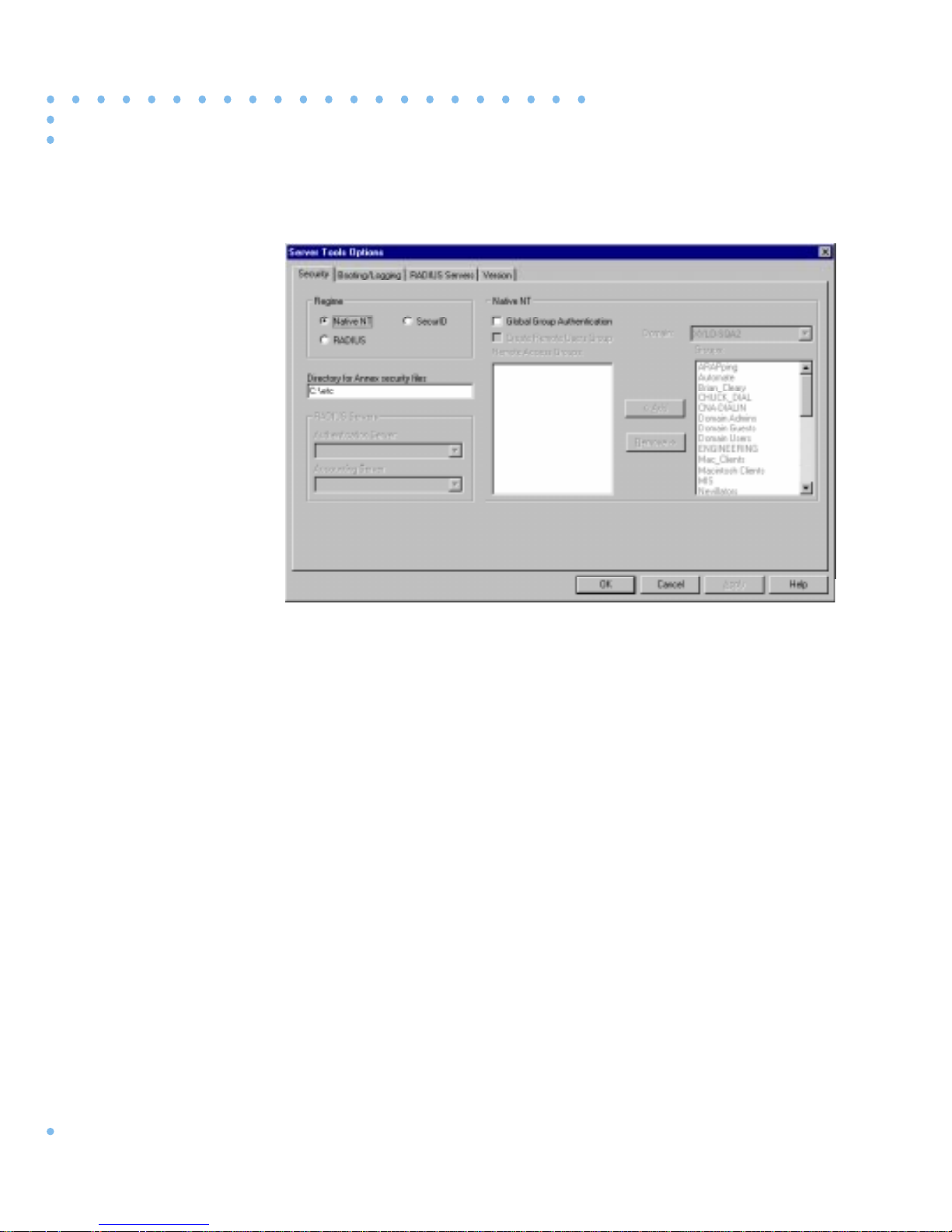
TheSecurity tab dialog box allows you to choose a security regime, select
RADIUS Authentication and Accounting servers, and add or remove
domains and remote access groups.
▼ T o view this inf ormation, click the Security tab on the Server Tools Options
window (Figure 2-1 on page 2-2 illustrates the Server Tools Optionsdialog
box).
2-1Using Remote Access Concentrator Server Tools for Windows NT
Page 24
Chapter 2 Selecting Server Tools Options
Specify a Regime
Figure 2-1. The Server Tools Options Dialog Box
To select options in the Security window:
Select the protocol you desire from the Regime radio box.
• Native NT (default selection)
• RADIUS Security
• SecurID
2-2
Using Remote Access Concentrator Server Tools for Windows NT
Page 25

Chapter 2 Selecting Server Tools Options
Native NT Security
1. If you select Native NT in the Regime radio box, the Directory
for Annex security files field becomes active. Accept the
default or enter a new destination drive and directory for the
acp_logfile file.
This field designates the drive on which you installed Remote
Access Concentrator Server Tools and the etc directory, where
the system stores the acp_dialup, acp_keys, and acp_userinfo
files.
2. If you select Native NT as your security protocol, click the
Global Group Authentication check box.
You must select this box if you want to use Windows NT global
groups to authenticate users. If you do not select it, the system
will authenticate user names and passwords only.
3. If you select Native NT and want to create a default remote
users group, click the Create Remote Users Group check box.
If you want to create a new Remote Users Group, see
RADIUS
Security on page 2-4.
4. If you select Native NT, choose an existing domain from the
Domain field.
Using Remote Access Concentrator Server Tools for Windows NT
When you choose a domain, the groups within that domain
appear in the Groups list box.
5. If you select Native NT, choose a name from the Groups list
box.
6. Click
Add to move the group(s) you select to the Remote
Access Groups list box.
The groups you add appear in the Remote Access Groups list
box preceded by their domain names. All users in these groups
will be allowed access once Windows NT domain security
authenticates them. Any users who are not members of the
groups listed here will not have access to the RACs, their ports,
or networks.
2-3
Page 26

Chapter 2 Selecting Server Tools Options
You can double-click on a group name from the Remote Access
Groups list, to move it to theGroups list. If you want to change
your selections, highlight the group from the Groups list box
and click on Remove, or double-click the group name.
If you install Remote Access Concentrator Server T ools on a primary
domain controller, the groups you select here must ha ve local log on
privileges to allow authentication. For more information about this
privilege, refer to Installing Remote Access Concentrator
Software for Windows and Windows NT
documentation set.
included with your
RADIUS Security
Third Party Security
▼ If you selectRADIUS as your security protocol, select theAuthentication
Server and Accounting Server in the RADIUS Servers list box.
If the only options available in these two drop–do wn lists
are local and same as authentication server, you need
to create a list of servers from which to choose. For more
information on this procedure, see Configuring a
RADIUS Server on page 2-13. Chapter 4 provides
additional information regarding RADIUS security.
1. If you are usingSecurID, click the SecurID Regime radio box
selection, and all of the fields become dimmed.
2. When you have completed your Security setup, click on OK
to set the changes you made and close the dialog box.
3. Click on Cancel to close the dialog box without saving or
applying your changes.
4. Click on Apply to set your changes and leave the Server
Tools Options window open on your desktop. Use this option
if you want to make changes in any of the other tabbed
dialogs.
2-4
Using Remote Access Concentrator Server Tools for Windows NT
Page 27

Chapter 2 Selecting Server Tools Options
Y ou can add or remo ve a newRemote Users Group (on theSecurity tab
window) within the Server T ools Options application. Ho wev er , unless
this new group already exists, you must first create the new group and its
information via the Windows NT operating system.
▼ To add a new default group, click the Create Remote Users Group check
box.
▼ Remote Users Group appears automatically in the Remote Access
Groups list. If you find you do not need the group, you can delete it before
you click on OK or Apply by selecting it and clicking on Remove, or by
deselecting the Create Remote Users Group check box.
To create a new Group:
1. Click on the Administrative Tools icon in the Windows NT
program group window.
The Administrative Tools window appears.
2. Click on the User Manager for Domains icon.
The User Manager for Domains dialog box appears.
3. Add the new Group and associated information.
For more information, see the Windows NT documentation
on using the options in this window.
4. When you have completed adding your Group information,
click on the Security tab in the Server Tools Options window.
The Security dialog box opens.
5. Click on the Domain pull–down menu.
The list boxes Groups and Remote Access Groups become
active and list the group(s) you created in the above steps.
Using Remote Access Concentrator Server Tools for Windows NT
2-5
Page 28

Chapter 2 Selecting Server Tools Options
6. Select the newly created Group from the Groups list box and
click on Add.
The selected group appears in the Remote Access Groups list
box.
7. When you have completed your changes, click on OK to set
the changes you made and close the dialog box.
Click on Cancel to close the dialog box without saving or
applying your changes.
Click on Apply to set your changes and leave the Server
Tools Options window open on your desktop. Use this option
if you want to make changes in any of the other tabbed
dialogs.
Creating a RADIUS Authentication and Accounting
Server
To create a RADIUS Authentication or Accounting server:
1. From the Server Tools Options window , click on theRADIUS
Servers tab.
The RADIUS Servers dialog box opens.
2. Click on New.
All information fields become active.
3. Enter the Host Name of the RADIUS server to be created.
2-6
Using Remote Access Concentrator Server Tools for Windows NT
Page 29

Chapter 2 Selecting Server Tools Options
4. Tab to the IP Address text field and enter the IP Address that
goes with the Host Name.
Repeat step 4 to configure the Secret format, the Timeout
period, and the number of Retries (for more details on
Secret, Timeout, and Retries, see
Chapter 4).
5. Click on Accept to apply the new server information or
Revert to cancel your changes.
You can modify any of the fields before you click on
Accept or Revert. After Accept or Revert is chosen, the
fields become inactive. To reactivate (for editing) these
fields, select the server, then choose Modify.
6. Click on OK to save your changes and close the dialog box.
Click on Cancel to close the dialog box without saving or
applying your changes.
Click on Apply to set your changes, and leave the Server
Tools Options window open on your desktop. Use this option
if you want to make changes in any of the other tabbed
dialogs.
Before you select a Backup Server, you must create more than one
new RADIUS server . When you create a second RADIUS server , the
first RADIUS server then appears in the Backup Server drop–down
list.
Using Remote Access Concentrator Server Tools for Windows NT
2-7
Page 30
Chapter 2 Selecting Server Tools Options
Selecting Booting/Logging Options
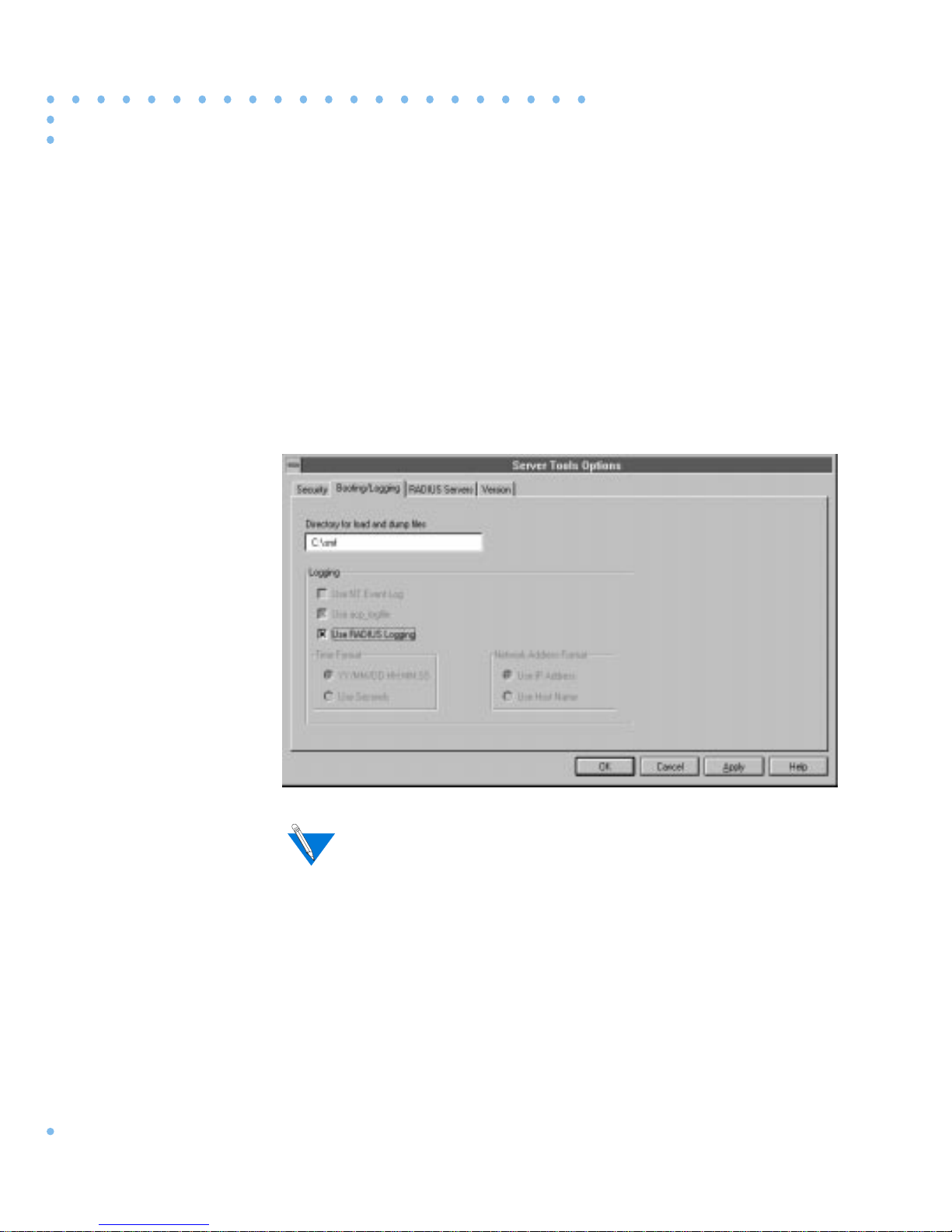
TheBooting/Loggingtab window allo ws you to select log files, to choose
locations for load and dump files, and to choose directories, time formats
and network address formats for the log file.
▼ To display this window, choose the Booting/Logging tab in the Server
Tools Options window.
2-8
Using Remote Access Concentrator Server Tools for Windows NT
If you select Use NT Event Log, your settings for time and network
address formats appear in the acp_logfile and in the Detail window
of the NT
Event Log.
Page 31

Chapter 2 Selecting Server Tools Options
To select options in the Booting/Logging window:
1. In the Directory for load and dump files field, you can accept
the default or enter a drive and directory for the RAC
system images and dump files.
This field automatically lists the drive on which the Remote
Access Concentrator Server Tools is installed, and the bfs
default directory, where the system stores load and dump
files.
If you enter a new directory , use the File Manager to move
the RAC software images to the ne w directory. If you do
not move the images to the new directory, the RACs will
be unable to boot.
2. Click either Use NT Event Log, Use acp_logfile,orUse
RADIUS Logging to choose a method for storing log
messages.
You can log RAC syslog messages, and erpcd or RADIUS
security messages.
• If you select Use NT Event Log, the system stores messages
in the Applications portion of the standard Windows NT
Event Log.
• If you select Use acp_log file, the system stores messages in
theacp_logfile in the chosen directory in the Security dialog
box. You can view theacp_logfile by double-clicking on the
acp_logfile icon in the Bay Networks program group
window.
• If you select Use RADIUS logging, the system sends
messages in the RADIUS server.
RADIUS logging is not available (grayed–out) unless you
select the RADIUS security regime from the Security
dialog box.
Using Remote Access Concentrator Server Tools for Windows NT
2-9
Page 32

Chapter 2 Selecting Server Tools Options
3. If you select Use acp_logfile in the Booting/Logging dialog
box, specify a time listings format in the Time Format box.
You can choose:
• YY/MM/DD HH:MM:SS to display the date and time that
• Use Seconds to list time in seconds since January 1, 1970.
4. If you select Use acp_logfile or NT Event Log from the
Booting/Logging dialog box, select an IP address or Host
Name format from the Network Address Format box.
You can choose:
• Use IP Address to place the Internet address of a RAC that
an event occurred (e.g., 95/12/30 06:22:15).
generates logging messages in the log files.
• Use Host Name to include a RAC name in the log files instead
of the RAC’s Internet address.
The time and address formats you choose appear in the
acp_logfile or RADIUS logging. If you choose Use NT
Event Log, the format appears in the Detail window of
the NT Event Log.
Using the Event Viewer
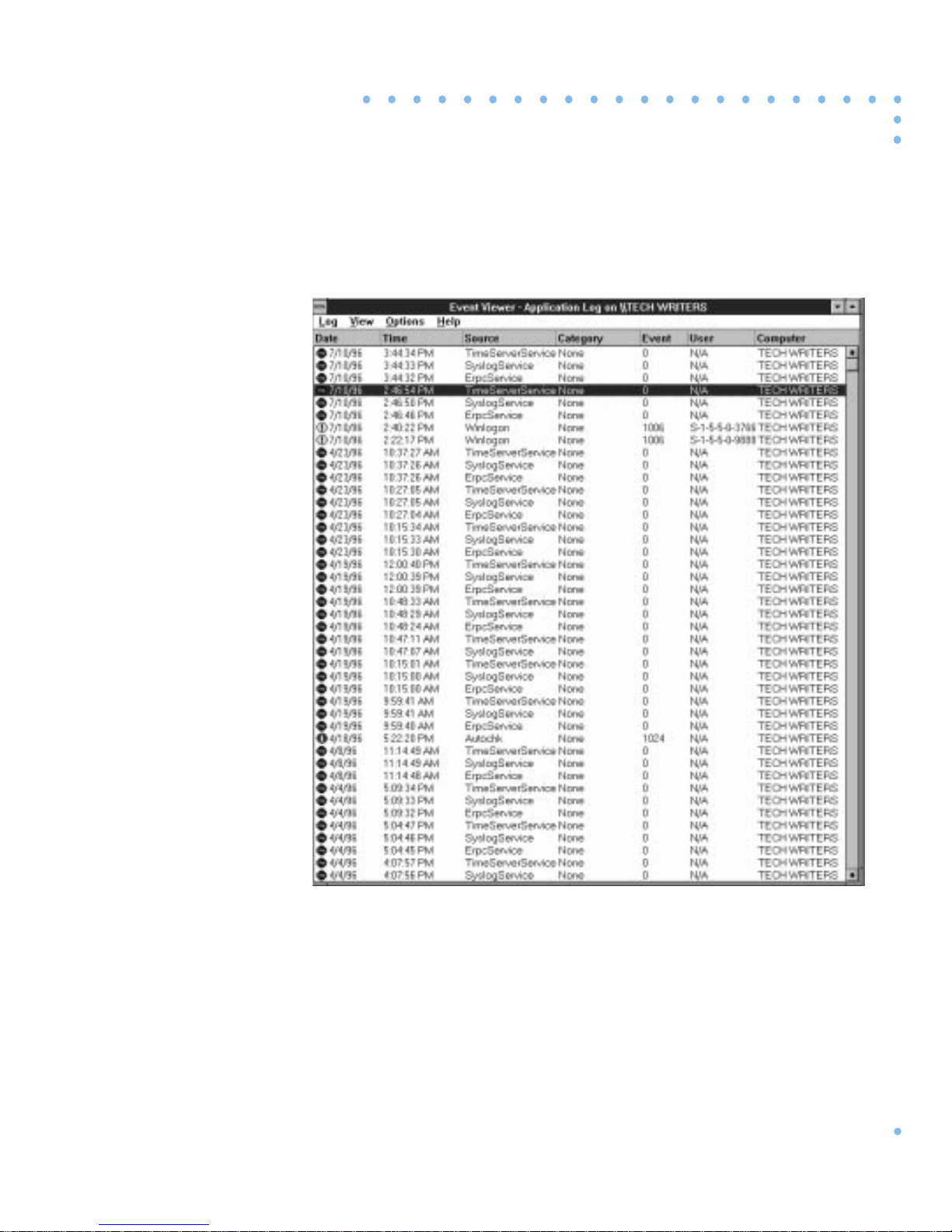
Remote Access Concentrator Server Tools uses the standard Windows
NT Event Viewer. If you select Use NT Event Log from the Booting/
Logging dialog box, the Windows NT Application Event Log includes
syslog and security messages.
2-10
Using Remote Access Concentrator Server Tools for Windows NT
Page 33
Chapter 2 Selecting Server Tools Options
▼ To view Windows NT logs, double-click on the Event Viewer icon in
Administrative Tools and select Application from the Log menu.
WARNING
Figure 2-2. Event Viewer
Using Remote Access Concentrator Server Tools for Windows NT
2-11
Page 34

Chapter 2 Selecting Server Tools Options
The Windo ws NT Event Log stores information in the following columns:
•Anicon at the beginning of each line indicates the severity of
the message.
• Date stores the date that the event was logged in Windows NT.
• Time stores the time that the event was logged into Windows
NT. The Detail window of the Event Log lists the times events
occur.
• Source lists the software that logged the event.
– For syslog messages from a RAC or from the network,
– For messages generated by erpcd, the column displays
– For security messages, the log entry reads Annex_ACP.
Annex_syslog appears.
Annex_syslog.
• Category classifies events.
• Event displays the event number (the RAC generates a number
to identify each event).
• User displays
N/A. Remote Access Concentrator Server Tools
does not use this column.
• Computer displays the name of the host on which erpcd is
installed.
Y ou can view theDetail window of the Event Log by double-clicking
on any line in the Windows NT Event Log.
2-12
Using Remote Access Concentrator Server Tools for Windows NT
Page 35
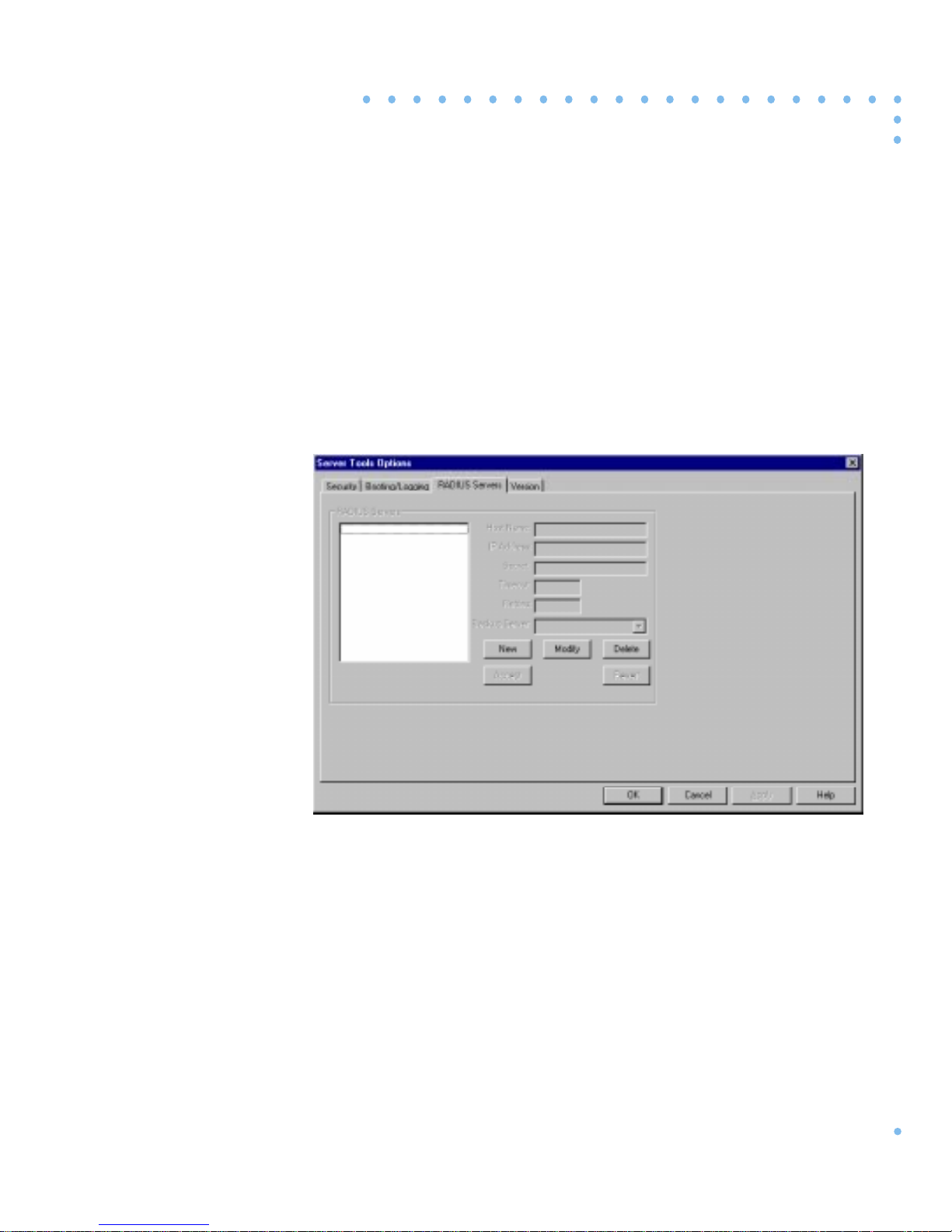
Configuring a RADIUS Server
TheRADIUS Servers tab dialog box allows you to create, modify , delete
and configure a RADIUS server, and to set the IP Address and Secret
format parameters.
▼ T o view this inf ormation, clic k on the RADIUS Servers tab of the Server
Tools Options window.
Chapter 2 Selecting Server Tools Options
Figure 2-3. The Radius Servers Dialog Box
First Time Use
When you open the RADIUS Servers dialog box for the first time (after
installation), the information fields are blank and inactive. You need to
create and configure the RADIUS servers that you will be using. Use the
following procedures to create, configure, modify, and delete your
RADIUS servers and associated parameters.
Using Remote Access Concentrator Server Tools for Windows NT
2-13
Page 36

Chapter 2 Selecting Server Tools Options
Creating and Configuring a RADIUS Server
To create and configure a new RADIUS Server:
1. Click on New.
All information fields become active.
2. Enter the Host Name of the RADIUS Server you ar e creating
in the text field.
3. Tab to the IP Address text field and enter the IP address of
the Host Name.
4. Repeat step 3 to configure the Secret format, the Timeout
period, and the number of Retries.
5. Click on Accept to apply the new server information, or
Revert to cancel your changes.
You can modify any of the fields before you click on
Accept or Revert. After choosing Accept or Revert, the
fields become inactive. To reactivate (for editing) these
fields, select the server, then choose Modify.
6. Click OK to save your changes and close the Server Tools
Options window.
Click on Cancel to close the dialog box without saving or
applying your changes.
Click on Apply to set your changes, and leave the Server
Tools Options window open on your desktop. Use this option
if you want to make changes in any of the other tabbed
dialogs.
Before you can select a Backup Server, you must create more than
one new RADIUS servers. When you create a second RADIUS
server, the first RADIUS server then appears in the Backup Server
drop-down list.
2-14
Using Remote Access Concentrator Server Tools for Windows NT
Page 37

Chapter 2 Selecting Server Tools Options
Modifying RADIUS Server Information
1. Select a desired RADIUS server from the RADIUS Servers
list box.
When you select a RADIUS server, the information fields on
the right side of the dialog box automatically fill in with the
appropriate information pertaining to the RADIUS server
you chose. Click on Modify.
All information text fields become active, except the Host
name.
2. Place your cursor in the information field you wish to
change, and enter the new information.
3. Click on Accept to save the modified information or Revert
to cancel your changes.
You can modify any of the fields before you click on
Accept or Revert. After choosing Accept or Revert, the
fields become inactive. To reactivate these fields, select
the server, then choose Modify.
4. Click OK to save your changes and close the Server Tools
Options window.
Click on Cancel to close the dialog box without saving or
applying your changes.
Click on Apply to set your changes and leave the Server
Tools Options window open on your desktop. Use this option
if you want to make changes in any of the other tabbed
dialogs.
Using Remote Access Concentrator Server Tools for Windows NT
2-15
Page 38

Chapter 2 Selecting Server Tools Options
Deleting RADIUS Server Information
1. Select the RADIUS Server to be deleted and click on Delete.
All information text fields remain inactive and a
confirmation dialog box appears.
2. Click OK to delete the RADIUS Server or Cancel to exit the
confirmation dialog box without deleting any server
information.
The confirmation dialog box closes.
3. Click OK to save your changes and close the Server Tools
Options window.
Click on Cancel to close the dialog box without saving or
applying your changes.
Click on Apply to set your changes and leave the Server
Tools Options window open on your desktop. Use this option
if you want to make changes in any of the other tabbed
dialogs.
2-16
Using Remote Access Concentrator Server Tools for Windows NT
Page 39
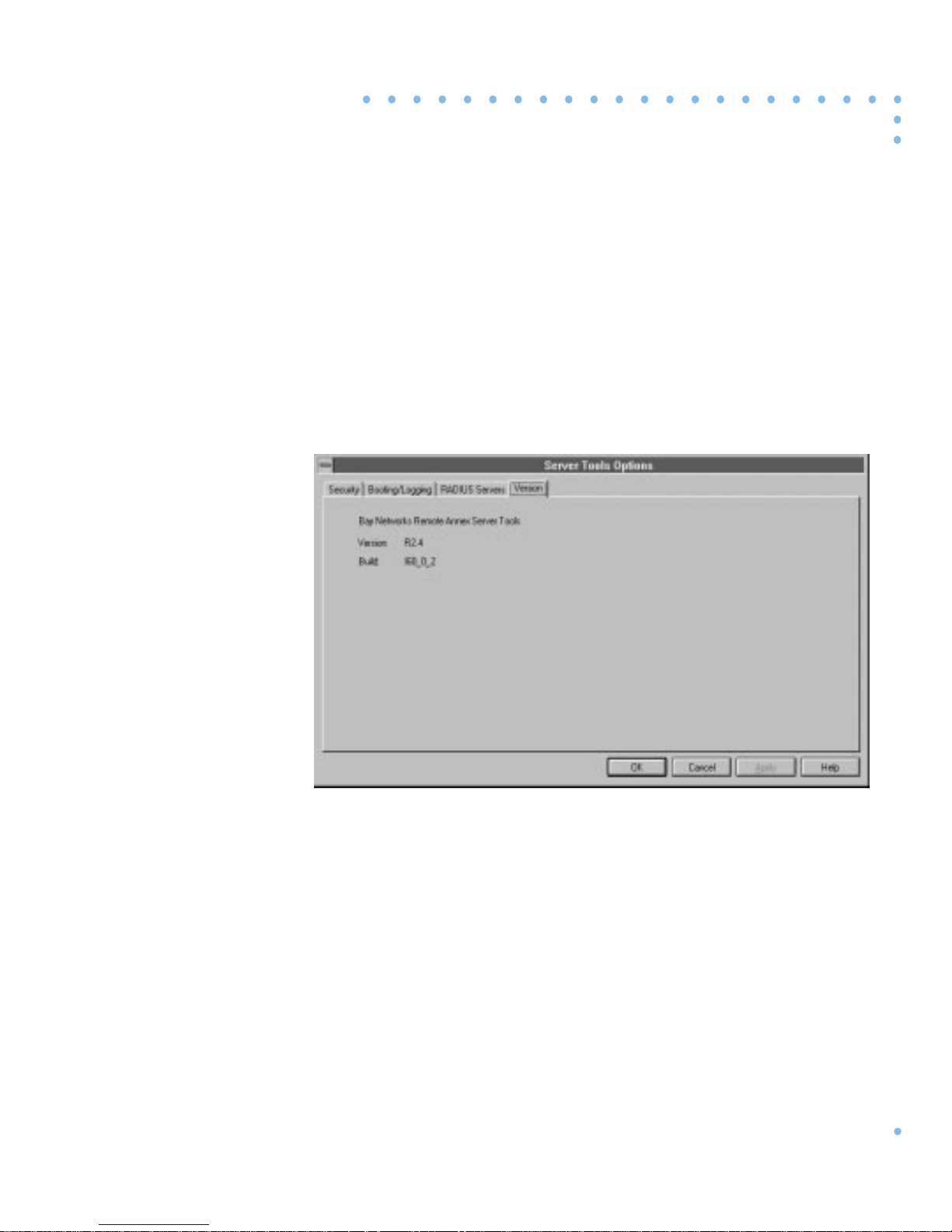
Displaying Version Information
The Version tab window provides the company and product name,
version number, and build number for the Remote Access Concentrator
Server Tools.
▼ To view this information, click on the Version tab of the Server Tools
Options window.
Chapter 2 Selecting Server Tools Options
Figure 2-4. The Version Dialog Box
Using Remote Access Concentrator Server Tools for Windows NT
2-17
Page 40

Chapter 2 Selecting Server Tools Options
2-18
Using Remote Access Concentrator Server Tools for Windows NT
Page 41

Chapter 3
Understanding Erpcd
Remote Access Concentrator Server T ools uses theexpeditedremote
procedurecall daemon (erpcd) running on a Windo ws NT server .Erpcd
responds to all RAC boot, dump, and ACP security requests. ACP’s
eservices file, stored in the \etc directory, lists the services that erpcd
provides. Eservices includes controls for:
• The block file server (bfs) program sends boot files to a RAC
and collects dump files from a RAC.
• The Access Control Protocol (ACP) program provides security
when you define a Windows NT server as a security server.
The Remote Access Concentrator Server Tools
implements erpcd differently, because it uses Windows
NT domain authentication.
This chapter describes the files you can edit. It includes:
• Editing Files
• Using the acp_userinfo File
• Using the acp_keys File
• Using the acp_dialup File
3-1Using Remote Access Concentrator Server Tools for Windows NT
Page 42

Chapter 3 Understanding Erpcd
Editing Files
You can edit the acp_userinfo, acp_dialup, and acp_keys files from the
Bay Networks program group window. There is an icon for each file in
the program group window.
▼ To open an individual file, such as the acp_userinfo file, from the Bay
Networks program group windo w , double-c lic k on the respective icon
and the file will open in the Windows NT Notepad editor.
The changes take effect immediately. User names and group names are
not case-sensitive.
Using the acp_userinfo File
The acp_userinfo file stores information about the RAC commands and
protocols available to users. When a user logs into the server, erpcd
matches the login environment with acp_userinfo entries, and controls
user access based on these entries.
Defining User Profiles
Defining user profiles is useful only when you want to restrict user
privileges for remote access connections.
Network access is controlled bythe acp_userinfo file, based on user login
environments. When you create a profile, erpcd authenticates users and
attempts to match the user name with an entry from the acp_userinfo
file. If a profile matches the login environment,erpcd downloads attribute
information.
3-2
Using Remote Access Concentrator Server Tools for Windows NT
Page 43

Chapter 3 Understanding Erpcd
For example, if a user who belongs to the Engineering group requests
access to a RAC port on Monday morning at 10 a.m. and a profile excludes
Engineering group members from using that RAC on Mondays between
9 and 11 a.m., the user cannot log in to the port. In this case, Remote
Access Concentrator Server Tools authenticates the user’s W indo ws NT
name and password, matches the current environment (the RAC, port,
day and time) to an entry in acp_userinfo, and downloads instructions
(or attributes) so that the RAC denies access to the user.
User Profile Formats
The acp_userinfo file stores user profiles in theuser ...end block format.
This format includes:
• User to begin the block.
• One or more keywords that specify the user environment.
Entries must contain:
• A keyword, an equal sign (=) and a value, without spaces.
For an explanation of these keywords, refer to
Environment Keywords on page -4.
User
• A semicolon (;) to separate keyword/value statements.
• A backslash (\) at the end of a line if you continue the entry
on a second line.
Y ou cannot use each ke yword more than once in any user
profile. A line cannot exceed 80 characters. You cannot
include spaces on either side of the equal sign, the
semicolon, or within the value, except in a v alue for time.
Using Remote Access Concentrator Server Tools for Windows NT
3-3
Page 44

Chapter 3 Understanding Erpcd
Using Profile Environment Keywords
User profiles contain one or more keywords that define user login
conditions. Erpcd matches these conditions to environment conditions
listed in a user profile.
• The attributes that erpcd applies when all user profile elements
match the login environment of the user.
•
end to conclude the profile.
The acp_userinfo file can include as many user profiles as you need.
The matching process requires that all elements in a user profile match
the login environment of the user.
Since erpcd uses the first profile it finds that matches the login
environment of a user, you need to specify profiles in the order in
which you want them to match.
Username and Group
Ke ywords
The username keyword specifies a single Windo ws NT user . Thegroup
keyword allo ws you to create a user profile for any member of a Windows
NT group.
▼ To use these keywords, enterusername= or group= followed by a user or
group name.
If you do not enter a user or group name, the profile applies to all
users. Use an asterisk as a wildcard following a partial name, or an
asterisk alone to indicate that the profile applies for all users or
group members who meet the criteria.
If you do not enter a domain name, erpcd assumes the user is
registered in the domain in which Remote Access Concentrator
Server Tools is installed. If you create a profile for a user or group in
a different domain, you must enter the domain name, two
backslashes, and the user or group name
Marketing\\Russell).
(e.g.,
3-4
Using Remote Access Concentrator Server Tools for Windows NT
Page 45

Chapter 3 Understanding Erpcd
time Keyword
protocol Keyword
Thetime keyword defines a period of time during which profile attributes
apply .
▼ To use this keyword, type time= followed by one or more of the following:
• A day of the week (e.g., Thursday).
• A specific date, including the month and the date
March 1).
(e.g.,
• A range of hours in hh:mm format (e.g.,
enter start time and end time. You can enter
06:30). You must
a.m. or p.m.
following the times.
If you do not enter a day and/or a date, erpcd applies the start and end
time every day of the week. If you omit
a.m. or p.m., the time defaults
to the 24-hour format.
The protocol keyword defines a protocol by which a user can connect to
a RAC.
▼ To define a protocol, type protocol= followed by slip, ppp, or cli.
You cannot enter more than one protocol on a line. However, you can
repeat the
protocol= format and add a second or third profile.
annex and ports
Keywords
The annex and ports keywords specify the RACs and ports to which
profile attributes will apply.
▼ T o list RACs and/or ports, typeannex= and/orports= followed by one
or more RAC names or IP addresses and one or more port numbers,
respectively.
Use an asterisk to specify a partial RAC name or IP address. You can
enter individual port numbers separated by commas or a range of port
numbers using dashes (e.g.,
Using Remote Access Concentrator Server Tools for Windows NT
ports=1,3,6-22).
3-5
Page 46

Chapter 3 Understanding Erpcd
T o combine theannex and port keywords in one line, separate keyword/
value entries with a semicolon (e.g.,
ports=1,3,6-22
more ports, the profile attributes apply to all RACs.
Understanding Profile Attributes
In each user profile, one or more attributes follow keywords and their
values. This section explains the attributes you can include.
annex=Annex 02, 245.132.88.22;
). If you omit RAC names or addresses and list one or
accesscode
The accesscode attribute controls the text users enter when logging in to
a dial-back port. Before you can use the accesscode attribute, you must
define at least two modem pools (one for dial-in and one for dial-out) in
the acp_userinfo file. A modem pool groups asynchronous ports on one
or more RACs.
Modem pool definitions appear at the end of the acp_userinfo file. To
define a modem pool:
1. From the Bay Networks program group window, doubleclick on the appropriate icon to open the acp_userinfo file.
The acp_userinfo file opens in the Notepad editor.
2. Find the area of the file where entry inf ormation resides and
pool followed by a name f or the modem pool (e.g.,pool
type
inboundpool1
3. T ype
ports followed by one or more port numbers, @, and
).
one or more RAC names or IP addresses.
Separate port numbers with commas and/or enter a range
of numbers with dashes (e.g.,
ports 1,6-10@Annex01).
3-6
Using Remote Access Concentrator Server Tools for Windows NT
Page 47

Chapter 3 Understanding Erpcd
The acp_userinfo file can store accesscode attributes in a user profile.
To create an accesscode entry:
1. Type
2. Type
accesscode followed by a code name.
For IPX clients, enter
phone_no followed by an actual phone number (e.g.,
phone_no 634-5789).
IPX for the access code.
If you do not enter a phone number, the system prompts the user
for it. Enter
charge_back for IPX clients, and the system
prompts a user for a phone number, drops the connection, and
calls the user back at that number.
3. Type
4. Type
5. Type
in_pool followed by the name of an inbound modem
pool (e.g.,
pool (e.g.,
end.
in_pool inboundpool1).
out_pool followed by the name of an outbound modem
out_pool outboundpool1).
job followed by one CLI command, its arguments, and
You do not need to enter a job specification.
6. Type
end.
clicmd
The clicmd attribute lists CLI commands that erpcd will execute if the
profile matches. To use this attribute:
1. From the Bay Networks program group window, doubleclick on the appropriate icon to open the acp_userinfo file.
The acp_userinfo file opens in the Notepad editor.
2. Find the area of the file where entry inf ormation resides and
clicmd.
type
3. Enter a single user or superuser CLI command, or the name
of an existing macro defined for a RAC.
Using Remote Access Concentrator Server Tools for Windows NT
3-7
Page 48

Chapter 3 Understanding Erpcd
4. Type end.
Repeat the line you created in Steps 1-3 if you want to use more
than one CLI command. Erpcd executes CLI commands in the
order in which they appear.
climask
5. Add
clicmd...end following the last line that lists a CLI
command.
Use this line if you want to continue the CLI session after erpcd
executes the last CLI command.
You cannot use clicmd unless you set the cli_security parameter to
Y. Do not include the same CLI command in the clicmd and climask
entries.
Theclimask attribute limits the CLI commands users can execute. T o use
this attribute:
1. From the Bay Networks program group window, doubleclick on the appropriate icon to open the acp_userinfo file.
The acp_userinfo file opens in the Notepad editor.
2. Find the area of the file where entry inf ormation resides and
climask.
type
3. Enter the CLI commands. If you enter more than one
command, separate commands with spaces.
4. Type
3-8
Using Remote Access Concentrator Server Tools for Windows NT
end to conclude the climask entry.
Use include files in place of repeated climask entries. T o use these
files, type include and the file name. Store include files in the same
directory as the acp_userinfo file.
Page 49

Chapter 3 Understanding Erpcd
When a user name and password match the profile, erpcd sends this list
to the RAC, which prevents the user from executing the commands.
You cannot use climask unless the cli_security parameter is set to Y .
Do not include the same CLI command in the clicmd and climask
entries.
deny
filter
The deny attribute prev ents a user from connecting to a RAC. To use the
command:
1. From the Bay Networks program group window, doubleclick on the appropriate icon to open the acp_userinfo file.
The acp_userinfo file opens in the Notepad editor.
2. Find the area of the file where entry inf ormation resides and
deny following a user name or group name.
type
If you include additional attributes in a profile that uses deny, the
profile will not execute them.
When erpcd denies access to a RAC, it generates a message in the log
file. For CLI users, the message appears on the screen.
The filter attribute sets network address restrictions for specific users or
groups. These restrictions apply to the port on which a user logs in.
To use the attribute:
1. From the Bay Networks program group window, doubleclick on the appropriate icon to open the acp_userinfo file.
Using Remote Access Concentrator Server Tools for Windows NT
The acp_userinfo file opens in the Notepad editor.
3-9
Page 50

Chapter 3 Understanding Erpcd
2. Find the area of the file where entry information resides,
and type
filter.
3. Enter a filter definition.
4. Type
end.
Repeat the line you created in Steps 1-3 if you want to use more
than one filter. Erpcd executes filter attributes in the order of
appearance.
Each filter definition includes categories for direction, scope, family,
criteria, and actions. Separate each part of the filter definition with a space.
• Direction applies the filter to incoming or outgoing packets.
You can enter
input or output. T o apply a filter to incoming as
well as outgoing packets, you must create two separate
definitions.
• Scope controls how erpcd matches the filter definition. You can
enter
include to apply the filter to packets that match the
definition, or
exclude to apply the filter to packets that do not
meet the definition.
• Family, an optional part of the definition, specifies the protocol
to which the filter applies. Currently, the system supports only
ip.
3-10
Using Remote Access Concentrator Server Tools for Windows NT
Page 51

Chapter 3 Understanding Erpcd
• Criteria includes the conditions for the filter. This section uses a
keyword followed by a value. You can enter:
•
dst_address (the destination address of the packet)
followed by an IP address.
dst_port (the destination port) followed by a port number
•
from 1-65535 or by a service name.
src_port (the source port number) followed by a port
•
number from 1-65535 or by a service name.
src_address (the source address of the packet) followed by
•
an IP address.
address_pair for incoming or outgoing packets passing
•
between two addresses, followed by two IP addresses. Enter
both addresses, separated by a space, on the same line. If you
use this keyword, you cannot use
src_address.
dst_address or
port_pair for incoming or outgoing packets passing
•
between two ports or services, followed by a port number or
service name. If you use this keyword, you cannot use
dst_port or src_port.
protocol (the transport protocol of the packet) followed by
•
a number from 1 to 65535 or by
tcp, udp, or icmp.
T o match all addresses or port numbers, enter -1 or*
in place of an address or port number. For service
names, you can enter domain, finger, ftp, name,
nfs, nntp, rlogin, route, routed, router ,
rtelnet, sftp, smtp, telnet, tftp, time, who,
or login.
• Actions specify activity of a filter when its criteria match a
packet. Enter one or more of the following actions:
•
discard discards the packet. If you use syslog, icmp, or
netact with discard, the system discards the packet after
it takes those actions.
Using Remote Access Concentrator Server Tools for Windows NT
3-11
Page 52

Chapter 3 Understanding Erpcd
• icmp discards the packet and sends an ICMP message
indicating that the destination is unreachable.
netact defines activity for a SLIP or PPP dynamic dial-out
•
line. When you use
netact in a filter that is enabled on SLIP
or PPP dynamic dial-out line, packets that match the filter
constitute activity on the line. If the line is not up,
netact
discards the packet.
no_start, used with include (in the Scope category),
•
specifies that packets defined as activity will not activate a
dynamic dial-out line, but will keep the line up and will reset
the net_inactivity timer parameter to zero.
syslog logs the event in the log files.
•
route
The route attribute defines the IP routes that a router makes available
through a RAC when it dials in. Use this attribute when you do not w ant
a router to incur overhead in running a routing protocol itself. T o use this
attribute:
1. From the Bay Networks program group window, doubleclick on the appropriate icon to open the acp_userinfo file.
The acp_userinfo file opens in the Notepad editor.
2. Find the area of the file where entry inf ormation resides and
route.
type
3. Enter an IP address for the destination of the route.
4. Enter a subnet mask for the address of the destination.
3-12
Using Remote Access Concentrator Server Tools for Windows NT
Page 53

Chapter 3 Understanding Erpcd
5. Enter an IP address for the gateway that is the next hop for
the route.
If you enter an asterisk, the RAC uses the remote address of the
port as the gateway.
6. If necessary , you can enter a number from 1 to 15 to indicate
the number of hops to the destination, or -h to indicate that
the route is hardwired.
You can skip this step. You do not have to enter a number of
hops or
-h.
at_zone
7. Type
end.
The at_zone attribute lists AppleTalk zones on a network. To use this
attribute:
1. From the Bay Networks program group window, doubleclick on the appropriate icon to open the acp_userinfo file.
The acp_userinfo file opens in the Notepad editor.
2. Find the area of the file where entry inf ormation resides and
at_zone.
type
3. Enter one or more zone names.
If you use more than one zone name, separate names using
spaces (e.g.,
at_zone zone1 zone2). Zone names can use up to
32 characters; you cannot use non-printable characters. If you
enter a name that contains spaces, enclose the entire name in
double quotation marks.
4. Type
end.
Using Remote Access Concentrator Server Tools for Windows NT
3-13
Page 54

Chapter 3 Understanding Erpcd
at_connect_time
at_nve_filter
The at_connect_time attribute specifies the number of minutes that an
ARA connection can remain open. To use this attribute:
1. From the Bay Networks program group window, doubleclick on the appropriate icon to open the acp_userinfo file.
The acp_userinfo file opens in the Notepad editor.
2. Find the area of the file where entry inf ormation resides and
at_connect_time followed by the number of minutes.
type
user john
at_connect_time 12
end
The above example limits the session to twelve minutes.
The at_nve_filter attribute allows you to include or exclude users from
specific objects, network numbers, subzones, and zones. Specify one
at_nve_filter attribute for each user in a profile. To use this attribute:
1. From the Bay Networks program group window, doubleclick on the appropriate icon to open the acp_userinfo file.
3-14
The acp_userinfo file opens in the Notepad editor.
2. Find the area of the file where entry inf ormation resides and
at_nve_filter.
type
3. T ype
include or exclude.
4. Enter an object name followed by a colon (:).
5. Enter a network number or subzone name followed by @.
6. Enter a zone name.
Using Remote Access Concentrator Server Tools for Windows NT
Page 55

Chapter 3 Understanding Erpcd
7. Type end.
user username=john
at_passwd smith
at_nve_filter exclude joe*:*@ *:*@sales end
end
For object names, network numbers or subzone names, and zone
names, you can use an asterisk as a wildcard. All entries in steps 3,
4, and 5 are case-sensitive and can use up to 32 characters.
at_password
The at_password attribute stores a passwords for registered AppleTalk
users. Remote Access Concentrator Server Tools uses the passwords to
authenticate all AppleTalk users. To use this attribute:
1. From the Bay Networks program group window, doubleclick on the appropriate icon to open the acp_userinfo file.
The acp_userinfo file opens in the Notepad editor.
2. Find the area of the file where entry inf ormation resides and
at_password followed by a password using 1 to 9
type
characters.
Include punctuation marks in the password. If you use spaces
and/or hexadecimal values, use the backslash (/) preceding
these characters.
If you want to allow AppleTalk guests access to the network, you
should use the na utility to set the at_guest parameter to Y . You can,
however, create an at_password attribute here using Guest (case
sensitive) as a user name.
Using Remote Access Concentrator Server Tools for Windows NT
3-15
Page 56

Chapter 3 Understanding Erpcd
chap_secret
Thechap_secret attribute defines the token used for authentication when
you use the CHAP protocol for PPP links. CHAP authenticates users
based on the user names in the acp_userinfo file. To create a token:
1. From the Bay Networks program group window, doubleclick on the appropriate icon to open the acp_userinfo file.
The acp_userinfo file opens in the Notepad editor.
2. Find the area of the file where entry inf ormation resides and
chap_secret following by the token.
type
Each token can use up to 32 alphanumeric characters. Bay
Networks recommends that all tokens use at least 16 characters.
Using the acp_keys File
The acp_keys file stores RAC names or IP addresses and corresponding
encryption keys.Erpcd uses the ke ys you define here to create encryption
keys that the security server and a RA C use to exchange messages. When
the security server receives an encrypted message from a RA C, it matches
the key with an associated RA C in the acp_keys file. If there is no match,
the RAC and the server cannot communicate.
To create an entry in the acp_keys file:
1. From the Bay Networks program group window, double-
2. Find the area of the file where entry inf ormation resides and
3-16
Using Remote Access Concentrator Server Tools for Windows NT
click on the appropriate icon to open the acp_keys file.
The acp_keys file opens in the Notepad editor.
enter one or more RAC names or IP addresses.
Use an asterisk (wildcard) for any part of an IP address. If you
list more than one RAC, you must separate names or IP
addresses using commas.
Page 57

Chapter 3 Understanding Erpcd
3. Type a colon to separate RAC names or addresses from the
encryption key.
4. Enter an encryption key that uses up to 15 characters.
You cannot use spaces or tabs here. Encryption keys are casesensitive. For additional information, refer to
Creating
Encryption Keys on page 3-17.
For example, annex1, annex2: abcxyz is a simple entry that defines an
encryption key for two RA Cs. If you need to continue an entry on a second
line, use the backslash (/) at the end of the first line.
Erpcd first attempts to match complete IP address entries in the
acp_keys file. If erpcd does not find an exact match, it searches
entries that contain wildcards. In either case, erpcd uses the first key
entry it finds.
Creating Encryption Keys
Define encryption keys by setting the acp_key parameter for each RAC.
If the key value is not the same in theacp_keys file and for the acp_key
parameter, the RA C and the server cannot communicate. In addition, you
must set the enable_security parameter to
To set up encryption keys:
1. From the Bay Networks program group window, doubleclick on the appropriate icon to open the acp_keys file.
The acp_keys file opens in the Notepad editor.
2. Find the area of the file where entry inf ormation resides and
enter RAC names or IP addresses and encryption keys in
the acp_keys file.
3. Use the admin command to set the acp_key parameter for
each RAC you listed in the acp_keys file.
4. Use the Services control panel to stop or pause erpcd.
Y to use security features.
Using Remote Access Concentrator Server Tools for Windows NT
3-17
Page 58

Chapter 3 Understanding Erpcd
5. Use the reset annex security command to reset security for
the RACs whose keys you added or changed.
6. Use the Services control panel to restart erpcd.
Using the acp_dialup File
The acp_dialup file stores user names, RAC names and addresses, and
port numbers. Erpcd matches Annex and user entries to provide IP
addresses for users dialing in to the network. It denies access to users if
it does not find a matching entry.
To use the information in acp_dialup, you must set the
address_origin parameter to ACP via the na utility. This allows a
RAC to search the acp_dialup file for the remote client’s user name
and for local and remote addresses.
To create an entry in the acp_dialup file:
1. From the Bay Networks program group window, doubleclick on the appropriate icon to open the acp_dialup file.
The acp_dialup file opens in the Notepad editor.
2. Go to the end of the file and enter a user name. If
authentication is performed with multiple domain
controllers, enter the domain name and the user name like
this:
domain-name\\user-name
3. Enter one or more port numbers followed by @ and one or
more RAC names or IP addresses.
Separate port numbers with commas and/or enter a range of
numbers with dashes (e.g.,
1,3,6-10@Annex01).
3-18
Using Remote Access Concentrator Server Tools for Windows NT
Page 59

Chapter 3 Understanding Erpcd
4. Enter a remote address followed by a local address.
Use an asterisk (wildcard) for any part of an IP address. You
must use spaces to separate the user name, port number/RAC,
Local Address, and Remote Address fields.
Using Local and Remote Addresses
If theacp_dialup file contains a matching user name and local and remote
addresses exist in the file, the RACuses those values. If the acp_dialup
file contains a matching user name and a remote address but not a local
address, the RAC uses the remote address from the file, and uses the
RAC’s IP address for the local address.
If the file does not contain a matching user name, the RAC uses values
from the local_address and remote_address parameters.
• If both parameters contain addresses, the RAC uses these v alues.
• If both parameters are set to
0.0.0.0, the RAC negotiates for
both addresses with the remote PPP client. The connection is
denied for a remote SLIP client.
•Iflocal_address contains a value and remote_address is set to
0.0.0.0, the RAC uses the local address and negotiates with the
remote PPP client for the remote address. The connection is
denied for a remote SLIP client.
Using Remote Access Concentrator Server Tools for Windows NT
3-19
Page 60

Chapter 3 Understanding Erpcd
3-20
Using Remote Access Concentrator Server Tools for Windows NT
Page 61

Chapter 4
Using Security Features
Remote Access Concentrator Server Tools uses standard Windows
NT domain security and RAC-based security features to protect your
network from unauthorized access. T o use Remote Access Concentrator
Server Tools security features:
• Use the Windo ws NT Administrative T ools/User Manager f or
Domains to create groups, user names, and passwords.
• Use the na utility to set security parameters on the RAC for the
types of security you want.
Erpcd authentication is not case-sensitive. Group names
cannot contain spaces.
Use group authentication by selecting options in theSecurity dialog box:
• Select Global Group Authentication.
• Select a domain, then select the groups whose members can be
authenticated.
If you are using Global Group Authentication, select
Native NT as your Security Regime.
For more information on group authentication, see Chapter 3.
This chapter summarizes most security features and explains the
relationship between Windows NT domain security and server-based
security. It includes:
• Using Windows NT Domain Security
• Setting Remote Access Concentrator Security Parameters
• Using ACE/Server Security
• RADIUS Security
Although this manual documents the differences between UNIX and
Windows NT implementation, the RADIUS for Windows NT
implementation is significantly different from the UNIX implementation.
T o avoid confusion, all RADIUS for Windows NTinformation is included
in this chapter.
4-1Using Remote Access Concentrator Server Tools for Windows NT
Page 62

Chapter 4 Using Security Features
Using Windows NT Domain Security
When a user logs on to a RAC, to one of its ports, or to a network, the
system performs authentication based on the security parameters you
enter. Once you set the parameters that enable a type of security:
• The system checks the Windows NT user name and password.
• If you selected Global Group Authenticationand chose groups
for remote access in the Server Tools Options windows, the
system performs additional authentication. If the user name and
password are valid, the system determines whether the user is a
member of any groups you select.
Support for Multiple Domains
Remote Access Concentrator Server Tools can authenticate users from
domains other than the default domain of the security server . T o facilitate
this feature, the Windo ws NT administrator must establish at least a oneway trust relationship.
A trusting domain controller can be linked to one or more trusted domain
controllers. When a cross-domain authentication request arrives at the
(trusting) domain controller, the request is transferred to the appropriate
(trusted) domain controller. The domain security of the trusted controller
accounts manager database includes the user in question and
authenticates that user.
4-2
Using Remote Access Concentrator Server Tools for Windows NT
Page 63

Chapter 4 Using Security Features
Multiple Domain Authentication Setup Procedure
Follow these W indows NT steps to facilitate support for multiple domain
authentication:
Windows NT Steps
Server Tools Steps
1. Establish the appropriate trust relationship among
domains.
2. Load the Remote Access Concentrator Server Tools on the
trusting domain controller.
3. Define the user(s) in the trusted domain’s security accounts
manager database.
All Windows NT users who require authorization must use the Remote
Access Concentrator Server Tools software to configure these services.
Those definitions are accomplished in the following steps:
1. Add a valid entry(s) in the acp_userinfo file.
2. If the caller requires a dial-up address, add a valid entry(s)
in the acp_dialup file.
The name of the user must be defined in theacp_userinfo andacp_dialup
file in the format:
domain-name\\user-name
For example, a user named Stephen from the Marketing domain would
log on as
Marketing\\Stephen.Windo ws NT and W indo ws 95 use this
format.
Using Remote Access Concentrator Server Tools for Windows NT
4-3
Page 64

Chapter 4 Using Security Features
Setting RAC Security Parameters
The Access Control Protocol (ACP) of the RAC provides server-based
security. When you define one network server as a security server, use
ACP software default settings or modify the software to create a
customized security policy for your network. This section includes:
• Security Requirements
• Types of Security
Security Requirements
Before you can use server-based security, you must use the na utility to:
• Set the enable_security parameter to Y.
• Define one server as the primary security server by entering its
address in the pref_secure1_host parameter. Define a backup
security server in the pref_secure2_host parameter.
• If a RAC queries the primary server and does not receive a
response within the time defined in the
network_turnaround parameter, the RAC queries the
backup server.
• If the backup server does not respond within the time specified,
the RAC broadcasts to the network for another server running
erpcd (as long as the security__broadcast parameter is set to
Y).
For instructions on using the na utility and detailed explanations for
each parameter, see Managing Remote Access Concentrators Using
Command Line Interfaces.
4-4
Using Remote Access Concentrator Server Tools for Windows NT
Page 65

Chapter 4 Using Security Features
You can customize security features by editing several ACP files. These
files are maintained by the security server through the Remote Access
Concentrator Server Tools program window.
• The acp_keys file includes encryption key information.
• The acp_dialup file contains user names and addresses for dial-
up connections.
• The acp_userinfo file contains initial login environment
information and start-up CLI commands.
Types of Security
Configure your system for several types of server -based security by using
the na utility to set security parameters. Once these parameters are set,
Remote Access Concentrator Server T ools uses Windo ws NT user names
and passwords to authenticate users. This section describes the type of
server-based security that use W indo ws NT domain security. It includes:
• PPP Security
• CLI Security
• Virtual CLI Security
• AppleTalk Security
• Port Server Security
You must set certain parameters to enable each type of security
described here. Once you set parameters, each user will have to enter
a user name and password. Remote Access Concentrator Server T ools
grants access only to those user names and passwords listed in any
Windows NT global group you selected in the Remote Access
Groups tab window.
Using Remote Access Concentrator Server Tools for Windows NT
4-5
Page 66

Chapter 4 Using Security Features
PPP Security
Point-to-Point (PPP) provides a link between hosts that carry IP , IPX, and
ARA protocols. After PPP negotiates Link Control Protocol (LCP)
options, the hosts at either end of the link authenticate their identities
using PAP or CHAP security protocols.
▼ To configure Windows NT security for PPP links, you must set the
• PAP is a two-way handshake in which hosts exchange user
names and passwords in clear text.
• CHAP is a three-way handshake that uses a secret token defined
in the acp_userinfo file to authenticate users.
ppp_security_protocol parameter.
• If you set ppp_security_protocol to pap, the system uses
Windows NT user names and passwords for authentication.
• If you set ppp_security_protocol to chap–pap, the system first
requests CHAP security. If CHAP is not acknowledged, it
requests PAP.
CHAP does not authenticate Windows NT user names,
passwords, or remote access groups. It authenticates
based on user names from the acp_userinfo file and the
CHAP token.
▼ To log user access for PPP, set the slip_ppp_security parameter to Y.
If you want to set ppp_security_protocol and slip_ppp_security to
values other than the ones described here, the system will not use
Windows NT user names and passwords for authentication.
4-6
Using Remote Access Concentrator Server Tools for Windows NT
Page 67

Chapter 4 Using Security Features
CLI Security
The Command Line Interpreter (CLI) of the RAC allo ws users to connect
to hosts, move between established sessions, modify port characteristics,
and display statistics for the RAC, hosts, and the network. CLI provides
superuser commands for network administration and management.
▼ T o configure server-based security for CLI connections , set the cli_security
parameter to
Y.
Virtual CLI Security
Virtual CLI (VCLI) connections allow network users access to CLI
commands. When a user enters a telnet command to connect to a RAC,
and requests the CLI at the port server prompt, the RAC’s port server
process creates a virtual CLI connection.
AppleTalk Security
Remote Access Concentrator Server T ools authenticates AppleT alk users
via the acp_userinfo file. This file includes entries for usernames and
passwords, a guest profile for anonymous access, and an AppleTalk
connection timer.
▼ To authenticate AppleTalk users, set the at_security parameter to Y.
Using Remote Access Concentrator Server Tools for Windows NT
4-7
Page 68

Chapter 4 Using Security Features
Port Server Security
The port server process of the RAC allows it to accept telnet or rlogin
connection requests from network users, hosts, and applications. When
a user connects to a RAC via telnet or rlogin and responds to the port
prompt by entering a port or rotary number, the security server requires
a Windows NT domain user name and password. To configure serverbased security:
• For port server connections, set the port_server_security
parameter to
Y.
• For VCLI connections, set the vcli_security parameter to
Third Party Security Types
Remote Access Server Tools for Windows NT supports ACE/Server
(SecurID) security.
Using ACE/Server Security
The ACE/Server tok en is an access control security token used to identify
users of computer systems and secure TCP/IP networks. Used in
conjunction with the SecurID card hardware or software access control
modules (ACMs), the ACE/Server token automatically generates a
unique, unpredictable access code every 60 seconds. The A CE/Server, a
daemon that interfaces with the user database, allows the system
administrator to monitor login attempts and generate reports.
T o use ACE/Server (SecurID) security , select the security regime SecurID
radio button in the Security dialog box.
Y.
4-8
Using Remote Access Concentrator Server Tools for Windows NT
Page 69

Chapter 4 Using Security Features
Creating a SecurID
Client for an NT
Server:
Supported ACE/
Server Releases
Y ou must transfer a binary copy of thesd_conf.rec file from the SecurID
server to the Windows NT root directory. Also the server must be
registered as a SecurID client.
Remote Access Concentrator Server T ools offers support for A CE/Server
Release 2.1.1 and 2.2.
ACE/Server is supported using ACP. For more information on
configuring SecurID security using the graphical user interface, see
Chapter 2.
Additional Security Types
Remote Access Concentrator Server Tools supports port server, CLI,
VCLI, and PPP security using Windows NT domain user names and
passwords. Remote Access Concentrator Server Tools supports:
• Security Filters, ARA and Dial-back security defined in the
acp_userinfo file.
• Dial-up security defined in the acp_dialup file.
Remote Access Concentrator Server Tools and UNIX-based systems
support local RAC security and Proprietary IPX security in the same way .
Remote Access Concentrator Server T ools does not support the following
server-based security types:
• Connection Security
• Password History and Aging
• Blacklisting
• Kerberos Authentication
Using Remote Access Concentrator Server Tools for Windows NT
4-9
Page 70

Chapter 4 Using Security Features
RADIUS Security
RADIUS is an IETF-developed protocol that defines a communication
standard between a Network Access Server (NAS) and a host-based
communication server. RADIUS modes are as follows:
• RADIUS Authentication includes authentication of the
dial-up user to the RADIUS server, and authentication of the
RADIUS server to the NAS. RADIUS supports authentication
modes PAP and CHAP.
• RADIUS Accounting, another IETF-developed protocol, defines
a communication standard between an NAS and a host-based
accounting server. It records duration of service, packet
throughput, and raw throughput.
• RADIUS Authorization is not supported in this release, but
Authorization is addressed by the Access Control Protocol
(ACP). Authorization of the acp_userinfo, acp_restrict, and
acp_dialup files applies to users that are authenticated through
RADIUS.
4-10
Using Remote Access Concentrator Server Tools for Windows NT
Page 71

Chapter 4 Using Security Features
RADIUS and ACP Protocol Operation
RADIUS and ACP servers work together to provide the user with a
standard means of communication between a Network Access Server and
a host-based server.
When or If... The...
the security profile matches the
Server Tools Options dialog box
RADIUS On/Off radio button,
the user name and password are
entered correctly,
expedited remote procedure call
daemon (ERPCD)/ACP prompts the
RAC for the user name and password.
ERPCD/ACP sends a RADIUS Access-
Request packet to the RADIUS server
(this packet contains the normal
RADIUS header and the Access-
Request attributes).
the Access-Accept, Access-
ERPCD/ACP re-sends the packet.
Reject, or Access-Challenge
packet fails to arrive in the
specified amount of time,
no response is received, ERPCD/ACP sends the Access-
Request packet to the backup RADIUS
server, if configured in theServer Tools
Options dialog box.
ERPCD/ACP receives an Access-
Accept packet,
ERPCD/ACP receives an Access-
Reject or an unsupported Access-
ERPCD/ACP considers the user
validated.
ERPCD/ACP considers the user
invalidated.
Challenge or the backup
RADIUS server also fails to
respond,
Using Remote Access Concentrator Server Tools for Windows NT
4-11
Page 72

Chapter 4 Using Security Features
RADIUS Authentication
RADIUS authentication supports the authentication modes PAP and
CHAP. This section covers the following topics:
PPP and CHAP Support
RADIUS requires PPP/CHAP enforcement to be in the RADIUS server .
The... Then...
• PPP and CHAP Support
• Access-Request Attributes
• Access-Accept and Access-Reject Attributes
RAC sends the ACP server an ACP
Authorization-Request message
containing the CHAP information,
RADIUS server validates the
information and returns either an
Access-Accept or Access-Reject
message,
If the RADIUS On/Off radio button in the Server Tools Options/
Securitydialog box is set to off, the ACP server v alidates against the
chap_secret entry in the acp_userinfo file.
the ACP server determines if
RADIUS is to be used (set in
Server Tools Options dialog box)
and sends a request to the RADIUS
server containing the CHAP
information needed for validation.
the ACP server responds to the
RAC with REQ_GRANTED or
REQ_DENIED for authorization.
4-12
Using Remote Access Concentrator Server Tools for Windows NT
Page 73

Chapter 4 Using Security Features
Access-Request Attributes
ERPCD/ACP sends Access-Request packets which indicate ho w the user
connects to the RAC. This information is used by the server as a hint or
a restriction. The available access-request attributes are:
User-Name
User-Password
CHAP-Password
NAS-IP-Address
NAS-Port-Type
Indicates the name of the user that the RADIUS server will authenticate.
An unterminated ASCII string identical to the user name that ERPCD/
ACP retrieves via the user name prompt. You can specify up to 31
alphanumeric characters.
Specifies the user password that the RADIUS server will authenticate.
Specifies the response value of a CHAPuser in response to the password
challenge.
Indicates the IP address of the RAC authenticating the user or sending an
Accounting packet.
Specifies the RAC port handling the user session. This v alue corresponds
to the physical port type. Supported port types:
• Async (0)
• ISDN Sync (2)
• ISDN Async V.120 (3)
• Virtual (5)
Using Remote Access Concentrator Server Tools for Windows NT
4-13
Page 74

Chapter 4 Using Security Features
NAS-Port
Framed-Protocol
Specifies the current port number connection.
NAS–Port number example:
nxxx (decimal)
n= Description
0 Serial interface port
2 Virtual (VCLI, FTP)
3 Dial-out
4 Ethernet (outbound)
Although not an attribute, CHAP-Challenge appears in the
Authenticator of the RADIUS header.
Specifies the link level protocol type allowable to the user. Supported
values are:
• PPP
• SLIP
Service-Type
4-14
Specifies the type of service the user will receive. Supported types of
service are:
• Login
• Framed
• NAS–Prompt
• Outbound
• Administrative
Using Remote Access Concentrator Server Tools for Windows NT
Page 75

Chapter 4 Using Security Features
Access-Accept and Access-Reject Attributes
In this version, attributes included in the RADIUS Access-Accept and
Access-Reject packets are ignored by ERPCD/ACP. However, ERPCD/
ACP does instruct the RAC to display text sent in a Reply-Message
attribute as long as the user is a CLI or port server user.
RADIUS Accounting
RADIUS Accounting defines a communication standard between a NAS
and a host-based accounting server . It records duration of service, packet
throughput and raw throughput. This section covers the follo wing topics:
• RADIUS Accounting Process
• Accounting-Request Attributes
To utilize RADIUS Accounting, select the Use RADIUS Logging
radio button in the Booting/Logging dialog box.
Using Remote Access Concentrator Server Tools for Windows NT
4-15
Page 76

Chapter 4 Using Security Features
RADIUS Accounting Process
The following table describes the RADIUS accounting process:
When or If... The...
Acct-Status-Type
the RAC sends an ACP Audit-log to
the server,
ERPCD/ACP receives a login or
logout log request,
The ERPCD/ACP server receives
the RADIUS Accounting-
Response,
security profile for the ACP
Authorization-Request must match
the Security dialog box RADIUS
Regime On/Off radio button setting.
On = RADIUS security active.
Off = Native NT security active.
ERPCD/ACP sends an Accounting-
Request packet to the RADIUS
Accounting server.
ERPCD/ACP returns the ACP audit
log verification PDU to the RAC.
Accounting-Request Attributes
ERPCD/ACP sends Accounting-Request packets with the following
attributes:
Marks whether the Accounting packet sent to the RADIUS server is the
beginning or end of a dial-up session.
• Start (1) - ERPCD/ACP login events
• Stop (2) - ERPCD/ACP logout events
• Accounting-on (7) - ACP logging connection
• Accounting-off (8) - ACP audit logging connection becomes
4-16
Using Remote Access Concentrator Server Tools for Windows NT
becomes active
inactive
Page 77

Chapter 4 Using Security Features
Acct-Delay-Time
Acct-Input-Octets
Acct-Output-Octets
Acct-Session-Id
Acct-Authentic
Acct-Input-Packets
Acct-Output-
Packets
Acct-Session-Time
Other Attributes
Specifies the time (in seconds) the RADIUS client has been trying to send
a specific Accounting packet.
Specifies number of octets received during the session.
Specifies number of octets sent during the session.
A numeric string identified with the session reported in the packet.
Specifies how the user is authenticated. Always set to RADIUS.
Specifies how many packets received during the session.
Specifies how many packets sent during the session.
Specifies the elapsed session time as calculated in RADIUS.
All attributes that are included in the Access-Request packet are also
included in the Accounting-Request packet.
RADIUS Configuration Management
Configuring the RADIUS Authentication and Accounting server inv olves
setting parameters to define the operating and administrative attributes of
the server. This section covers the following topics:
• RADIUS Servers
• Secret Format
• Response Timeout and Number of Retries Format
• Backup Server
• Fail-over Algorithm
Using Remote Access Concentrator Server Tools for Windows NT
4-17
Page 78

Chapter 4 Using Security Features
Default Values
If there is no configuration record for a RADIUS server, the following
default values are used:
Attribute Value
Secret 0x0
Timeout 4 seconds
Retries 10
Backup server None
RADIUS Authentication Server and Accounting Server
• RADIUS Authentication Server is the host name of the RADIUS
Authentication server.
• Accounting Server is the host name of the RADIUS Accounting
server.
If an Accounting server is not specified, it defaults to the A CP server .
If a RADIUS server is not specified, the RADIUS server defaults to
the ACP server.
4-18
Secret Format
The format for secret is an ASCII string or a hexadecimal string. The
hexadecimal string format always starts with0x followed by a string
of bytes, with each two hexadecimal digits indicating one byte. The
maximum limit is 16 in ASCII, or the hexadecimal equivalent.
Using Remote Access Concentrator Server Tools for Windows NT
Page 79

Chapter 4 Using Security Features
Response Timeout and Number of Retries Format
The Response Timeout and Number of Retries values are set in the
RADIUS Servers dialog box.
timeout The number of seconds to wait for a response before sending
a retry.
retries The number of times to retry before fail-over to the backup
server, or authentication is discontinued.
Fail-over occurs if the hostis the original primary server. This entry
must be on one line.
Backup Server
The host name or Internet address of the backup RADIUS server or
RADIUS Accounting server is configured using the RADIUS Server’s
dialog box:
1. From the Server Tools Options dialog box, click on the
Security tab.
2. Select the RADIUS radio button to enable the RADIUS
security server.
If you do not select this option, your security server will default
to native Windows NT security.
3. From the Server Tools Options dialog box, click on the
RADIUS Servers tab.
4. Click the Backup Server down arrow to select the backup
RADIUS server or RADIUS accounting server.
IfNoneis displayed in the Backup Server drop–down list,
see Configuring a RADIUS Server on page 2-13 for
information on creating new RADIUS servers.
Using Remote Access Concentrator Server Tools for Windows NT
4-19
Page 80

Chapter 4 Using Security Features
Fail-over Algorithm Process
The following table describes the fail-over algorithm process for
authentication and accounting.
When or If... The...
a user is to be authenticated, RADIUS server first polled is specified
in the Server Tools Options dialog
box.
an Access-Request packet is sent
to the RADIUS server,
ERPCD/ACP waits the specified
timeout value (4 seconds by default)
for the response packet.
the time expires, ERPCD/ACP retries the request.
the maximum number of retries
(10 by default) is reached without
a response from the server,
attempt to authenticate against the
primary server fails and ERPCD/ACP
attempts to authenticate against the
backup server (if defined).
no response is received from the
user is rejected.
backup server,
an accounting fail-over occurs,
failure of the backup server.
the server remains the same until,
both the accounting primary
server and backup fail,
acp_logfile records RADIUS
accounting.
4-20
Using Remote Access Concentrator Server Tools for Windows NT
Page 81

Backup Security
If you configure port server, CLI, VCLI, and PPP security to use W indows
NT domain names and passwords, and the ACP security server is not
available, the RA C uses its locally stored password parameters to restrict
user access. These parameters settings serve as backup security. To use
backup security , you must set the parameters listed in the following table.
For: Back up Security uses:
Port Server port_password
Incoming Port port_password
VCLI vcli_password
Chapter 4 Using Security Features
RADIUS Dictionary File
Included in the distribution kit is a reference RADIUS dictionary file
which resides in the security files area. The erpcd server does not use
this file; it is provided as documentation and a convenience. This file
defines keywords, types, and values for RADIUS attributes and their
corresponding code points. The file is in a format that is used as input by
some RADIUS servers to parse messages and write text output files.
Customers might have existing dictionaries with differences in the
keyword names, and may want to evaluate the impact to their databases
and output reports.
The file we provide includes the latest IETF definitions of the RADIUS
protocol at the time of release. It includes all attributes and values that
are needed to support our RAC and erpcd implementation. It is not
necessary that our definitions be used directly , but other dictionaries may
have to be extended to cover our usage.
Using Remote Access Concentrator Server Tools for Windows NT
4-21
Page 82

Chapter 4 Using Security Features
This file can be used as a reference to add or change existing RADIUS
dictionaries as need be. Since it is in the format of some of the popular
RADIUS servers, in some cases it may be used as a direct replacement.
Howev er, the network manager should review the dependencies and make
a decision on how to apply the differences.
The following is a partial example of the some of the dictionary contents:
ATTRIBUTE User-Name 1 string
ATTRIBUTE Password 2 string
ATTRIBUTE CHAP- Password 3 string
ATTRIBUTE NAS-IP-Address 4 ipaddr
ATTRIBUTE NAS-Port 5 integer
ATTRIBUTE Service-Type 6 integer
ATTRIBUTE Framed-Protocol 7 integer
ATTRIBUTE Framed-IP-Address 8 ipaddr
<...>
# Framed Protocols
VALUE Framed-Protocol PPP 1
VALUE Framed-Protocol SLIP 2
VALUE Framed-Protocol ARAP 3
VALUE Framed-Protocol Gandalf-SL/MLP 4
VALUE Framed-Protocol IPX/SLIP 5
4-22
Using Remote Access Concentrator Server Tools for Windows NT
Page 83

Chapter 4 Using Security Features
# User Service Types
VALUE Service-Type Login-User 1
VALUE Service-Type Framed-User 2
VALUE Service-Type Callback-Login-User 3
VALUE Service-Type Callback-Framed-User 4
VALUE Service-Type Outbound-User 5
VALUE Service-Type Administrative-User 6
VALUE Service-Type NAS-Prompt 7
VALUE Service-Type Authenticate-Only 8
VALUE Service-Type Callback-NAS-Prompt 9
<...>
Using Remote Access Concentrator Server Tools for Windows NT
4-23
Page 84

Chapter 4 Using Security Features
4-24
Using Remote Access Concentrator Server Tools for Windows NT
Page 85

Index
A
Access Control Protocol.
access security
features, for Windows NT server 1-2
accesscode attribute 3-6
acct-authentic attribute 4-17
acct-delay-time attributes 4-17
acct-input-octets attribute 4-17
acct-input-packets attribute 4-17
acct-output-octets attribute 4-17
acct-output-packets attribute 4-17
acct-session-id attribute 4-17
acct-session-time attribute 4-17
acct-status-type attribute 4-16
ACE/Server security 4-8
ACP 3-1, 4-21
acp_dialup 3-2
acp_dialup file 2-3, 3-18, 4-5, 4-9
using local and remote addresses with 3-
19
acp_key parameter 3-17
acp_keys 3-2
acp_keys file 2-3, 3-16, 4-5
creating encryption keys with 3-17
acp_logfile 2-8
acp_userinfo file 3-2 to 3-16, 4-5, 4-6, 4-7
defining user profiles with 3-2 to 3-16
address_origin 3-18
addresses, using local and remote 3-19
admin utility 3-17
annex keyword 3-5
at_connect_time attribute 3-14
at_guest parameter 3-15
at_nve_filter attribute 3-14
at_password attribute 3-15
at_security parameter 4-7
at_zone attribute 3-13
attributes, profile 3-6 to 3-16
See
ACP
B
Bay Networks Press xiv
bfs directory 2-9
block file server.
See
bfs directory
C
CHAP security protocol 4-6
chap_secret attribute 3-16
CHAP-password attribute 4-13
cli_security parameter 3-8, 4-7
clicmd attribute 3-7
climask attribute 3-8
configuring a RADIUS server 2-1
create remote users group check box 2-3
customer support
programs xiv
Technical Solutions Centers xv
D
default values 4-18
deny attribute 3-9
detail window 2-12
displaying version information 2-1, 2-17
documentation exceptions 1-3
documentation, using remote access
concentrators 1-2 to 1-4
list of documentation exceptions 1-3
logging issues 1-3
name server issues 1-3
user authentication issues 1-2
domain, selecting 2-3
E
editing files 3-2
enable_security parameter 3-17, 4-4
erpcd 2-9, 3-1, 4-4
differences in Windows NT-based vs.
UNIX-based 1-2 to 1-4
understanding 3-1 to 3-19
eservices file 3-1
Index-1Using Remote Access Concentrator Server Tools for Windows NT
Page 86

Index
etc directory 2-3
event viewer 2-10
F
files, creating 3-2 to 3-19
acp_dialup file 3-18
acp_keys file 3-16
acp_userinfo file 3-2 to 3-16
filter attribute 3-9
framed-protocol attribute 4-14
G
global group authentication 2-3, 4-1
group keyword 3-4
H
host name 2-10, 2-14
I
icons
options 2-1
introduction 1-1 to 1-4
IP Address 2-7, 2-10, 2-14
K
keywords
profile environment 3-4 to 3-6
L
N
na utility 3-15, 3-18, 4-1
features 1-1
using for security 4-4
name servers 1-3
NAS-IP-address attribute 4-13
NAS-port attribute 4-14
NAS-port-type attribute 4-13
native NT security 2-3
net_inactivity timer parameter 3-12
network address format box 2-10
network_turnaround parameter 4-4
P
PAP security protocol 4-6
platform requirements 1-4
port_server_security parameter 4-8
ports keyword 3-5
ppp_security_protocol parameter 4-6
pref_secure1_host parameter 4-4
pref_secure2_host parameter 4-4
printing conventions xii
profiles, defining user 3-2 to 3-16
understanding profile attributes 3-6 to 3-
16
user profile formats 3-3
using profile environment keywords 3-4
protocol keyword 3-5
publications, ordering xiv
local_address parameter 3-19
logging 1-3
options 2-8
selecting options 2-1 to 2-10
M
modifying 2-15
multiple domains 4-2
authentication setup procedure 4-3
Index-2
Using Remote Access Concentrator Server Tools for Windows NT
R
RADIUS
access request attributes 4-13
access-accept attributes 4-15
access-reject attributes 4-15
accounting process 4-16
accounting-request attributes 4-16
ACP protocol operation 4-11
authentication 4-12
backup security 4-21
Page 87

Index
dictionary file 4-21
PPP and CHAP support 4-12
RADIUS accounting 4-15
RADIUS authentication and accounting serv-
er
creating 2-6
RADIUS configuration management
authentication and accounting server 4-
17
backup server 4-19
fail-over algorithm 4-20
response timeout and number of
retries 4-19
secret format 4-18
RADIUS security 4-10
RADIUS server 2-15
creating 2-14
deleting 2-16
regime 2-2
related documents 1-2 to 1-4
remote access groups list 2-3
remote users group
creating 2-5
remote_address parameter 3-19
route attribute 3-12
S
SecurID 4-8
security
backup 4-21
protocols
CHAP 4-6
PAP 4-6
requirements 4-4
server-based 4-4
types of server-based 4-5
AppleTalk security 4-7
CLI security 4-7
port server security 4-5
PPP security 4-6
virtual CLI security 4-8
using Windows NT domain 4-2
security regime 2-1
security server selection 2-17
security_broadcast parameter 4-4
selecting a security server 2-1
server tools options
selecting booting and logging options 2-1
server tools options window 4-2
displaying version information in 2-17
selecting groups for authentication 2-5
selecting logging options in 2-8 to 2-10
using event viewer in 2-10
service-type attribute 4-14
slip_ppp_security parameter 4-6
supported server-based security types 4-8
T
Technical Solutions Centers xv
third party security types 2-4, 4-8
time format box 2-10
time keyword 3-5
U
use NT event log 2-8
user authentication 1-2
user manager for domains 4-1
user...end block 3-3
user-name attribute 4-13
username keyword 3-4
user-password attribute 4-13
using ACE/Server security 4-8
V
vcli_security parameter 4-8
virtual CLI security 4-7
W
windows
detail 2-12
server tools options 4-2
Using Remote Access Concentrator Server Tools for Windows NT
Index-3
Page 88

Index
server tools options window 2-1
Index-4
Using Remote Access Concentrator Server Tools for Windows NT
 Loading...