

Page 1
Welcome to your NOOK
Read me first
™
™
Quick Start Guide
Getting started made easy…
Page 2
Get started in a few easy steps
This Quick Start Guide gives you the basics to use your NOOK.
It will introduce you to some of the features, explain navigating on
your NOOK, walk you through the registration process, and show
you how to purchase, download and read your first eBook.
Learn more
Please read the User Guide for complete information on all the
features of your NOOK. It comes pre-loaded on your NOOK in the
My Documents section of my library. Please see section 12 for
instructions to open my library. Once in my library, tap View My
Documents on the color touchscreen, then highlight the User Guide and
tap the Select button.
Additional support
Please visit www.nook.com/support for additional information, including:
• A PDF version of the NOOK User Guide
that you can download to your computer
• Tutorial videos
• Frequently Asked Questions
Customer Support
If you have any questions, you may also call Customer Service,
toll-free, at 1-800-THE-BOOK (843-2665), and select Option 2
for Digital Technical Support.
Page 3
Get to know your NOOK
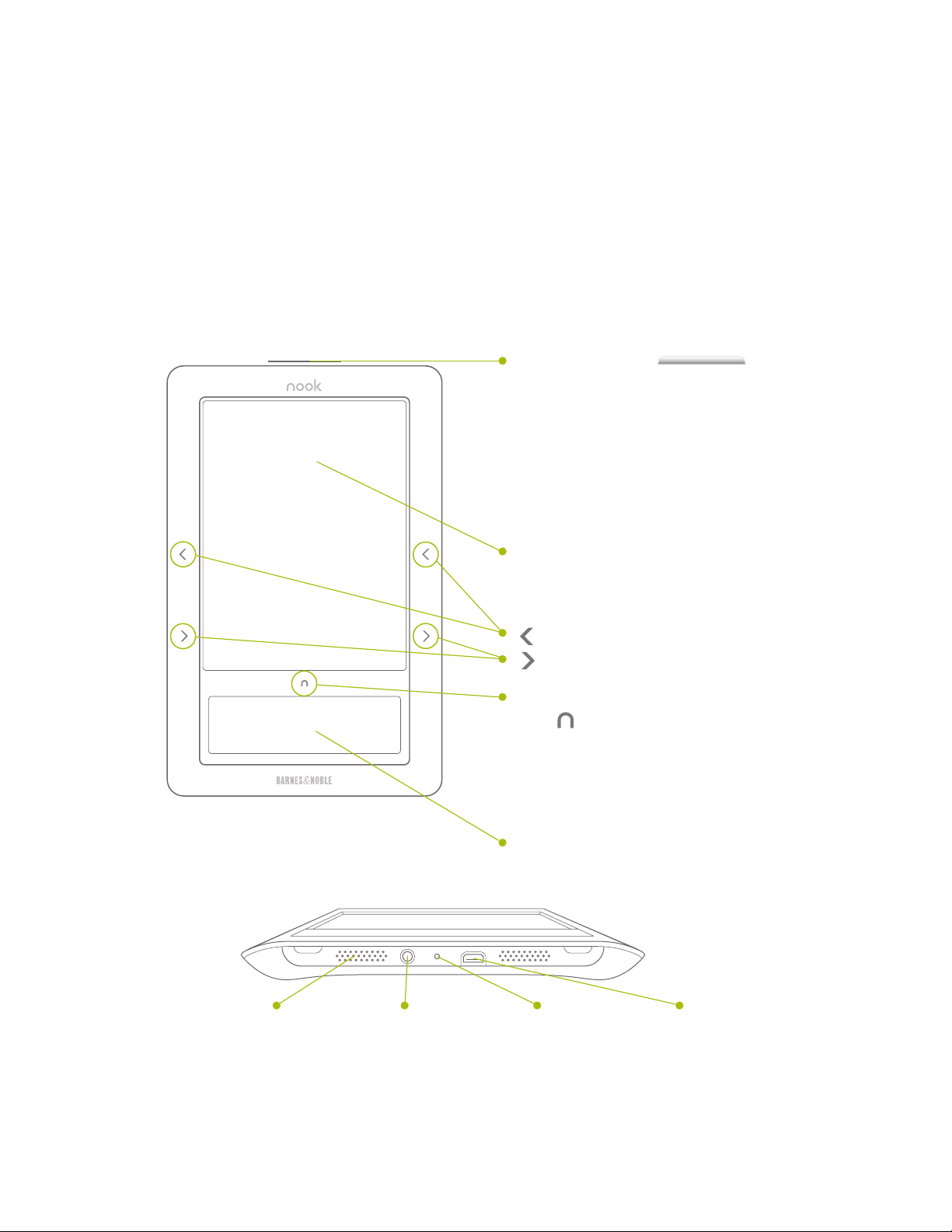
Power Button
On the top edge of your NOOK
is the silver power button. Press
once and release to turn your
NOOK on, to put it to sleep, and
to wake it up. Press and hold for
about 7 seconds to completely
power o your NOOK.
Reading Screen
See section 4.
Page Turn Buttons
Turn back one page.
Turn forward one page.
Home Button
This NOOK symbol acts as
the Home button and is touch
sensitive. Touch any time to light
up the color touch screen or to
go to your NOOK’s Home menu.
1
Headphone
Jack
Color Touchscreen
See sections 5 to 8.
Charging
Indicator Light
USB PortSpeaker
Page 4
What comes
with your NOOK
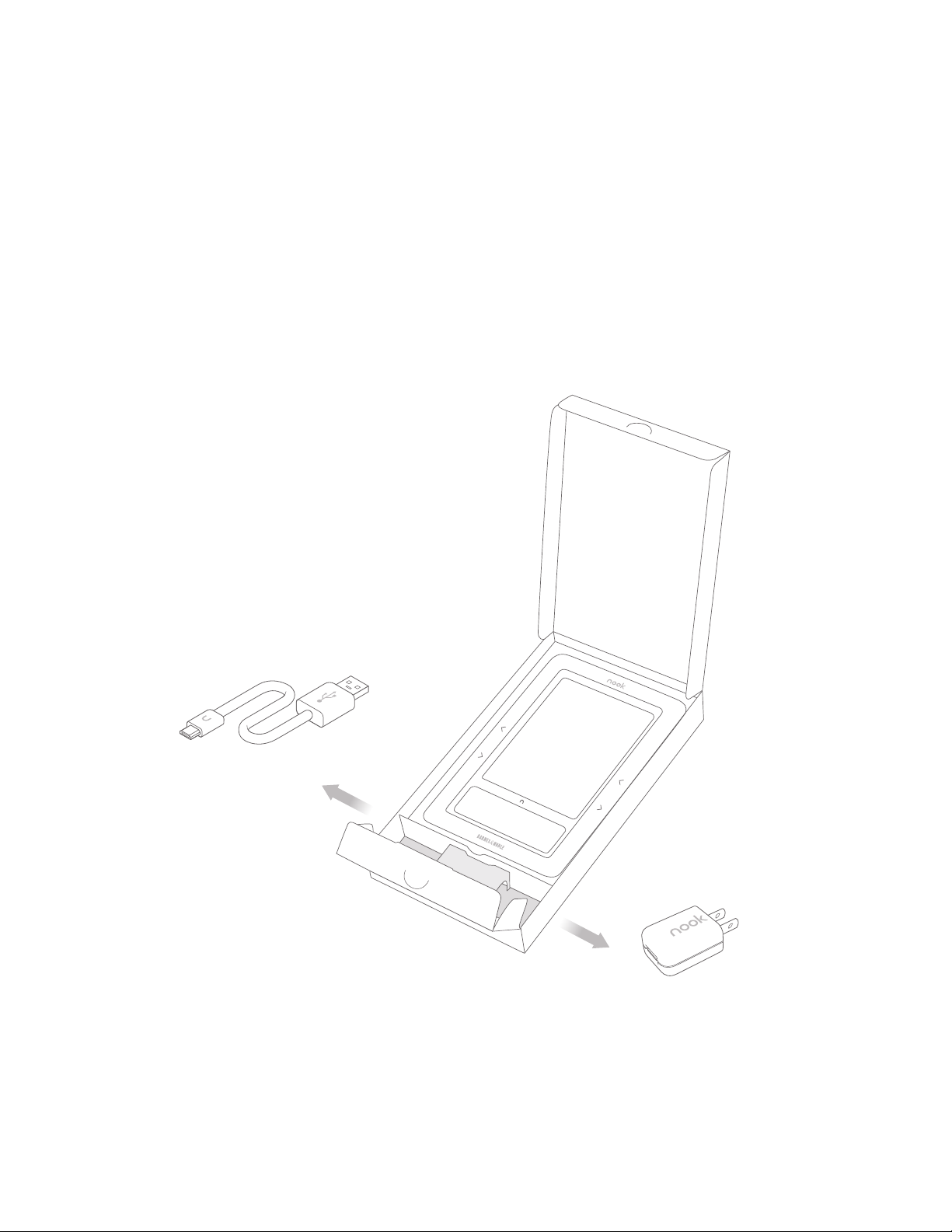
The small compartment at the bottom of
the packaging with the silver NOOK logo
contains the Power Adapter and
the USB Cable.
Open the lid from the top.
2
USB Cable
Power Adapter
Page 5
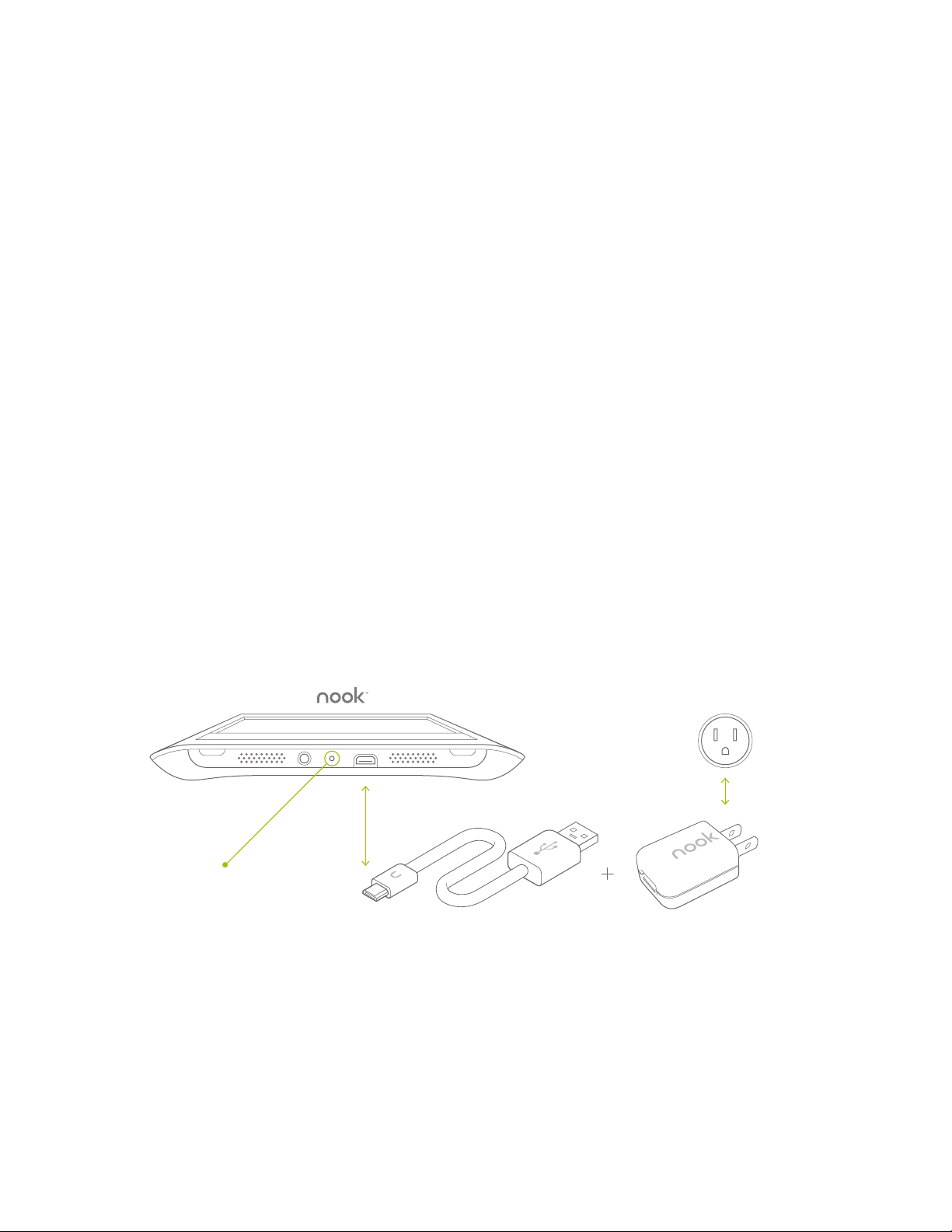
Charge your NOOK
You must fully charge your NOOK before using it the first time.
Plug your NOOK into a wall outlet using the Power Adapter and
USB Cable included with your NOOK.
You can use your NOOK while it charges. The yellow charging
indicator lights up while charging. When the light turns o, your
NOOK is fully charged. Typical charging time is approximately
3½ hours when charging from a wall outlet.
Wall Outlet
3
Charging
Indicator Light
USB
Cable
Power
Adapter
Page 6
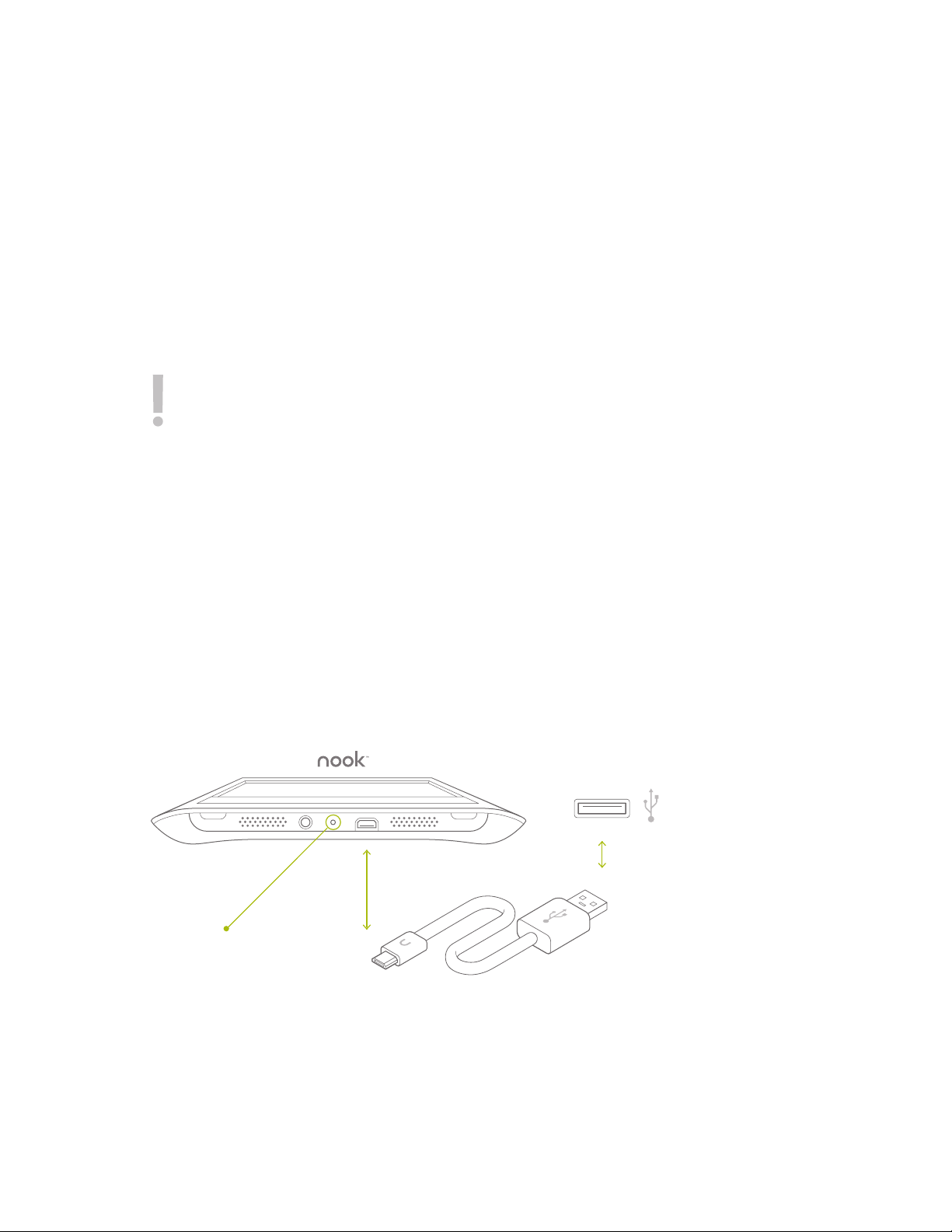
Charge your NOOK
3 continued
Important note:
connected it to a wall outlet or computer to charge. This will stop
the charging process. When you connect it to the wall outlet, your
NOOK will automatically turn on and then go into sleep mode after
the preset amount of time. The first time you charge your NOOK,
or if your NOOK's battery power is extremely low, then it may take
up to 30 minutes before your NOOK turns on and the yellow
charging indicator lights up. This is normal.
You can also charge your NOOK by connecting it to a USB port
on your computer. Please refer to your User Guide for additional
instructions about this feature.
DO NOT turn off your NOOK after you have
Computer / USB
Charging
Indicator Light
USB
Cable
Page 7
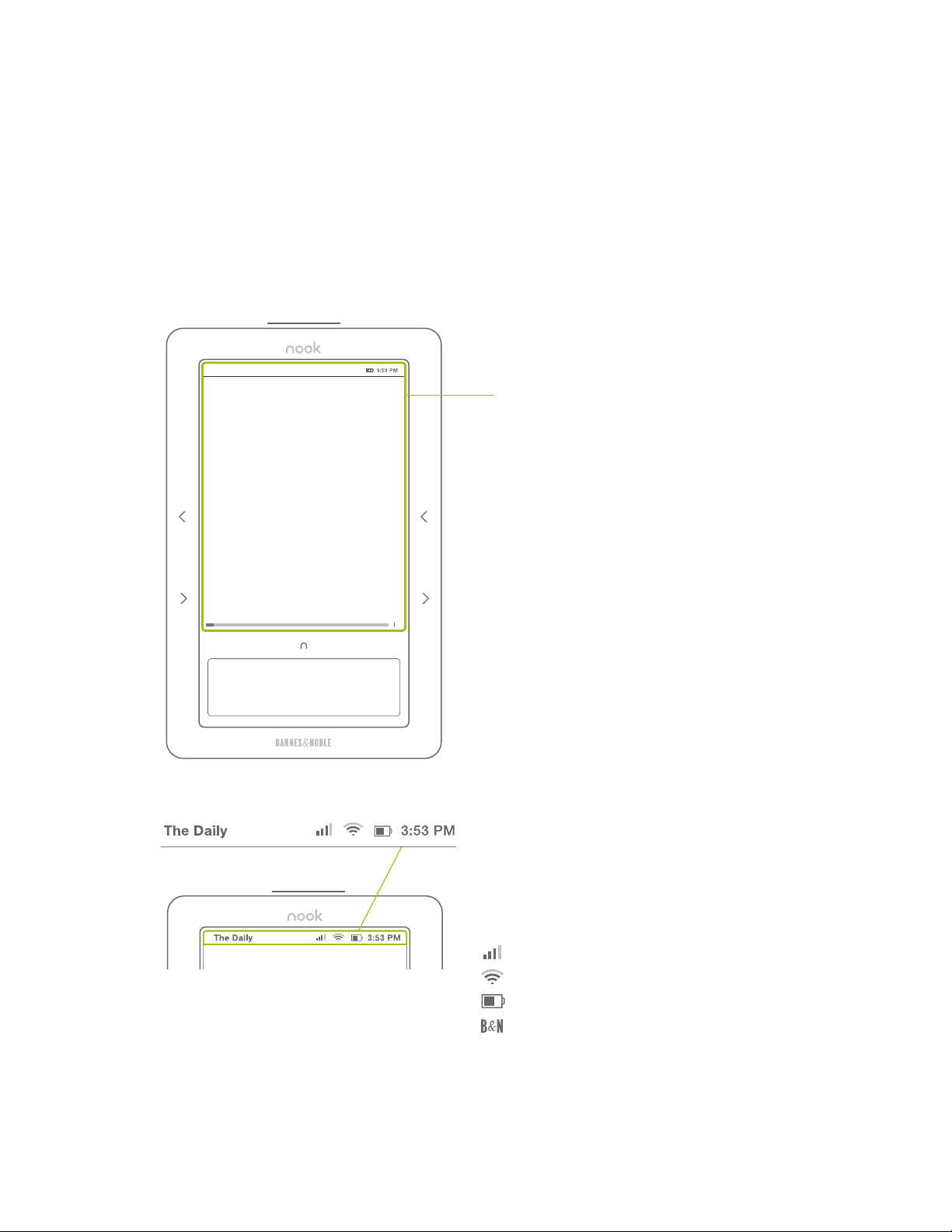
Reading screen
Pride and Prejudice (Barnes & Noble...)
Bin gley, “for a king dom! Upon my hon our, I never
met with so ma ny pl easan t gir ls in my l ife as I ha ve
thi s even ing; a nd the re are sever al of t hem, y ou see ,
unc ommon ly pr etty.”
“You are da ncing wi th the only han dsome gi rl in
the room, ” said Mr. D arcy, l ookin g at th e elde st
Mis s Ben net.
“O h, she is th e mos t beau tiful crea ture I ever
beh eld! But ther e is one of her siste rs s ittin g do wn
jus t be hind you, who is very pre tty, and I da re s ay
ver y agr eeabl e. Do let m e ask m y part ner t o
int roduc e you .”
“W hich do y ou me an?” and turn ing r ound, he
loo ked f or a mome nt a t Eli zabet h, t ill, catch ing her
eye , he wit hdrew hi s ow n, and coldl y sa id, “She is
tol erabl e; but n ot hand some e nough to temp t me
and I am in no hum our at pr esent to giv e
con seque nce t o you ng la dies who a re sl ighte d by
6 230
4
Reading Screen
This is where you read your
eBooks, newspapers, magazines,
PDF documents, and more. You
can also shop Barnes & Noble’s
eBookstore for great new titles.
The reading screen is not touch
sensitive. Use the color touchscreen
below and the page turn buttons on
the left and right sides of the
reading screen to navigate on the
reading screen.
The reading screen uses E Ink
display technology that gives crisp
images without glare, like a printed
page. It is comfortable to read
outdoors and in direct sunlight, but,
like paper, it cannot be read in the
dark and requires an external light
source, like a well-lit room or a
book light.
®
*
For NOOK 3G + Wi-Fi model device only
Status Bar
A status bar at the top of the
reading screen displays the cellular
or Wi-Fi signal strength, battery
charge, and time.
3G cellular signal strength
Wi-Fi® signal strength
Battery charge indicator
Indicates when your NOOK is
connected to the B&N In-Store
Wi-Fi in a Barnes & Noble Bookstore
*
Page 8
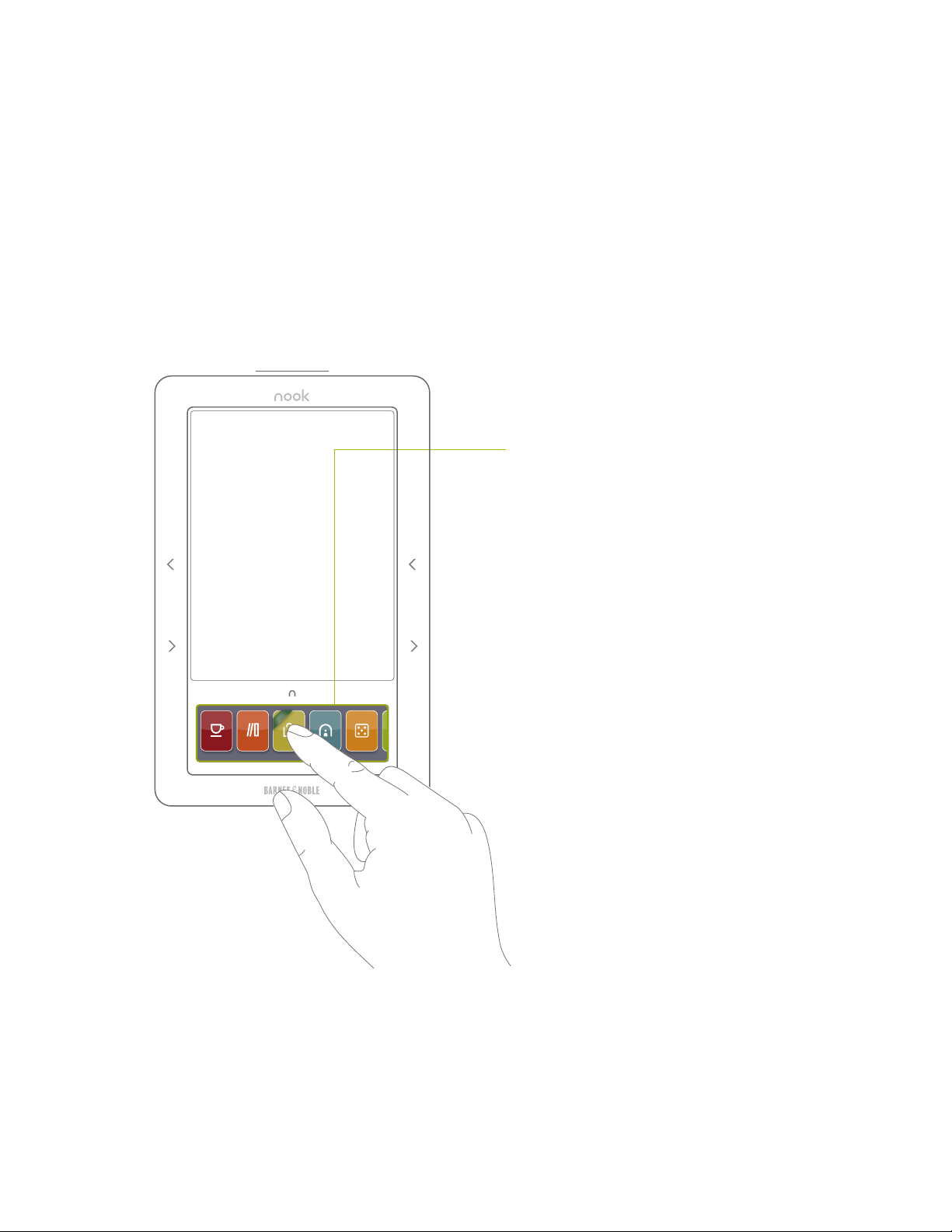
Color touchscreen
e
or
t
s
n
i
the daily my librar y shop reading now
games
5
Color Touchscreen
The lower segment of your
NOOK is a color LCD display
that is touch sensitive.
Use your finger to tap an icon
on the Home menu, enter
text using the on-screen
keyboard, navigate and select
items on the reading screen,
select menu options, and
change your preferences in
the Settings area.
Important note: You must use
your fingers for navigation and
input. The color touchscreen
will not recognize the touch or
input of a pen, stylus, fingernail,
or other hard material.
Your color touchscreen will go
dark after a short time of
inactivity to save battery power.
To light-up the touchscreen just
double-tap the Home button or
tap and hold the Home button
for one second. You can also
adjust the time before the
touchscreen goes dark by
tapping settings from the Home
menu, then Display, and
Touchscreen timer.
Page 9
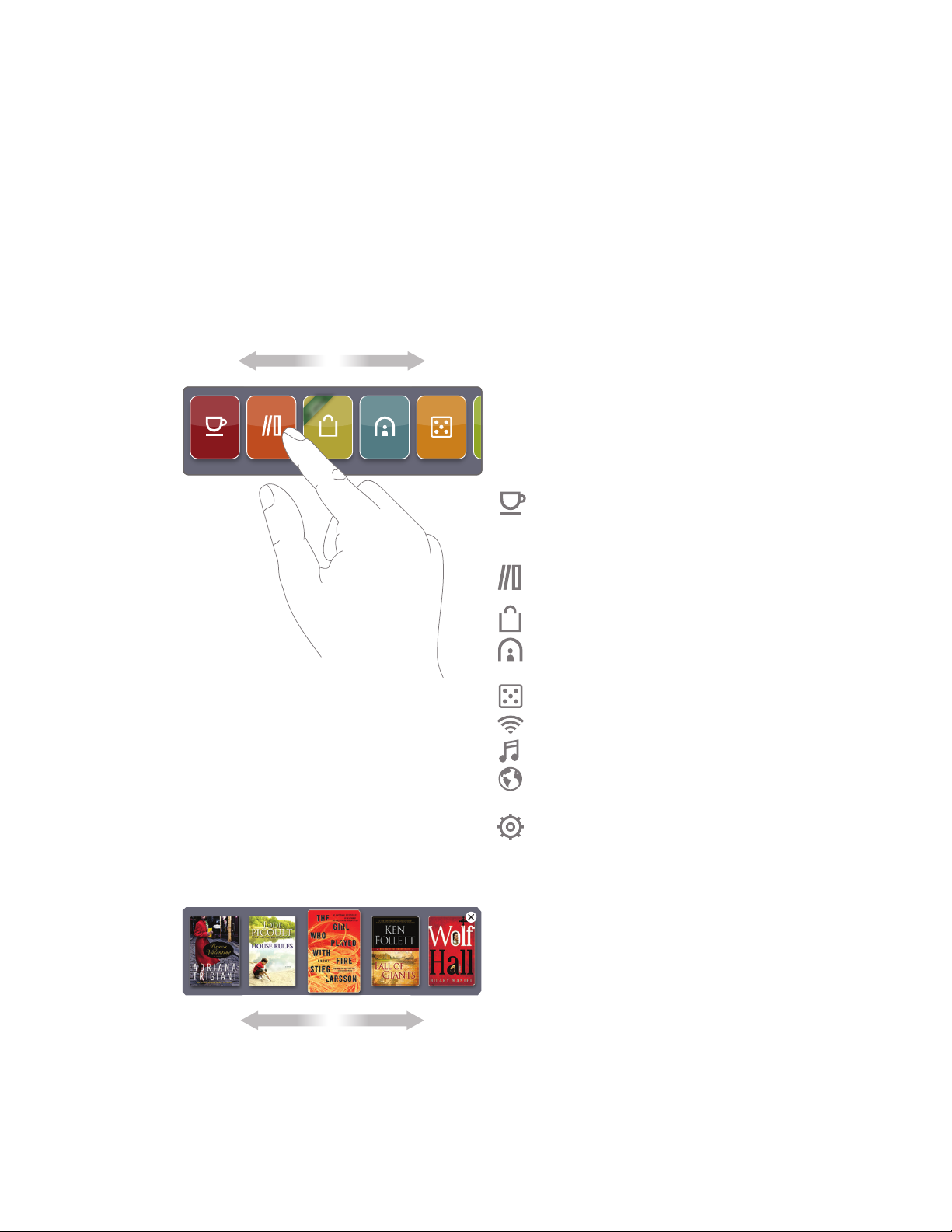
Color touchscreen menus
Home Menu
e
r
o
t
s
in
the da ily my lib rary shop reading now
games
The Home menu is your jumping
o point to the dierent areas of
your NOOK. From here you
can select:
the daily—unique content from
B&N, as well as subscription and
lending notifications
my library—all of your eBooks, PDFs,
and other documents
shop—Barnes & Noble’s eBookstore
reading now—shortcut to what
you’re currently reading
6
Slide your finger on the color
touchscreen from right to left
to show additional Home
menu icons; or from left to
right to go back.
games
wifi—Wi-Fi settings
audio—audio player controls
web—beta version basic web
browser
settings—preferences and
user settings
View by Cover
Viewing eBooks in your library
or the eBookstore is as easy as
moving your finger. Swipe across
their covers to find the one
you want.
Page 10
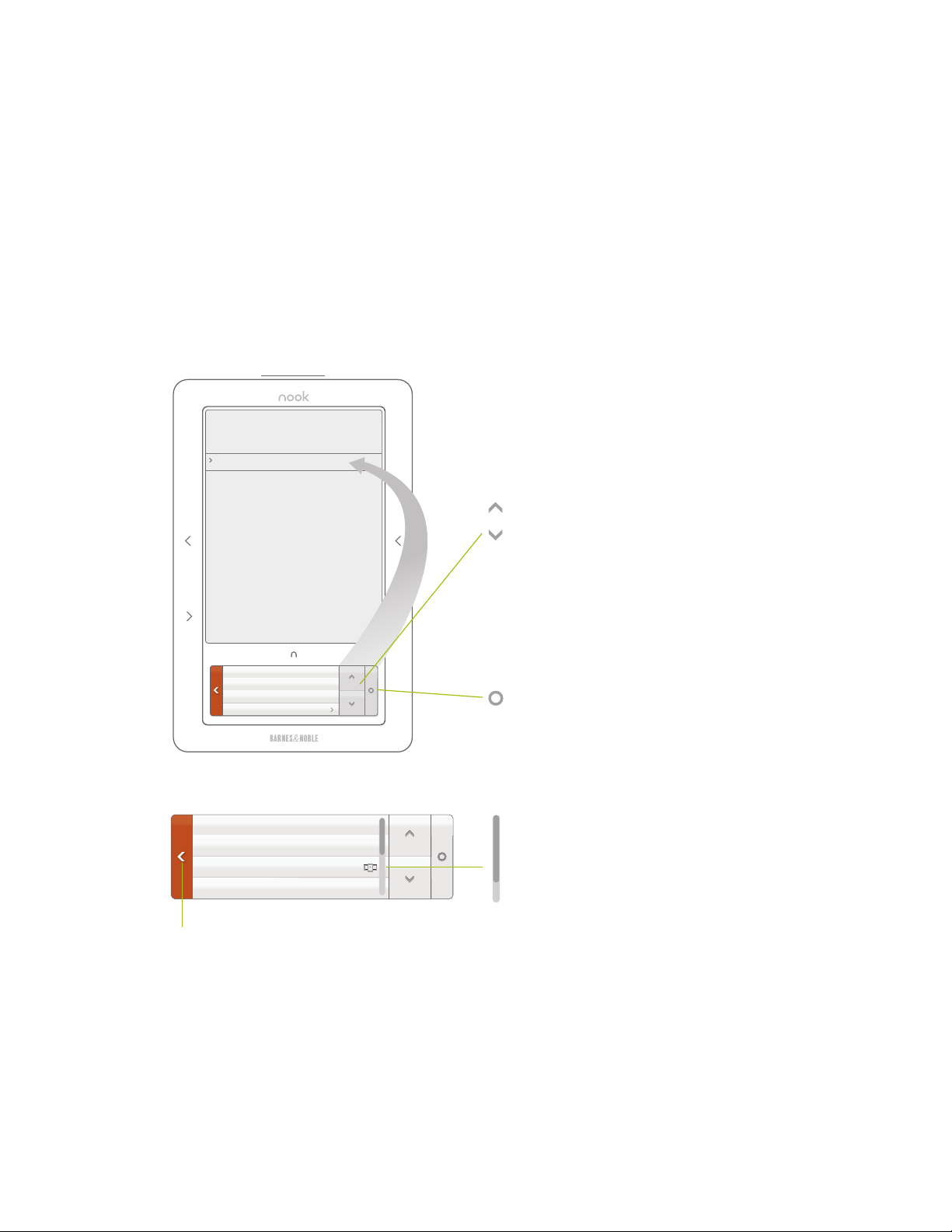
Navigation on the
color touchscreen
Library
My Do cumen ts
Display ing 1-2 of 2
NOOK Tour
Barnes & Noble
NOOK Us er Guide
Barnes & Noble
6 230
View My B&N Library
View Item Details & Options
Check for new content
Sort by Title
7
Color Touchscreen
Actions
Use these buttons on the
color touchscreen:
Up/Down Arrows—Use these up
and down arrow buttons to
navigate on the reading screen by
moving the cursor up or down.
Move to and highlight a specific
title in shop or my library using
these arrow buttons.
Select button—This small circle is
the icon for the Select button,
used as an "Enter" key or to select
an item on the reading screen.
View My Documents
View Item Details & Options
Show Covers
Check for new B&N content
Back button—This left arrow takes
you back to the previous screen
or section.
Scrollbar—This vertical bar means
that there are additional menu
items not shown on the color
touchscreen but can be viewed
by swiping your finger up or
down on the color touchscreen
to scroll through the entire menu.
The scrollbar shows your location
in the menu list.
Page 11
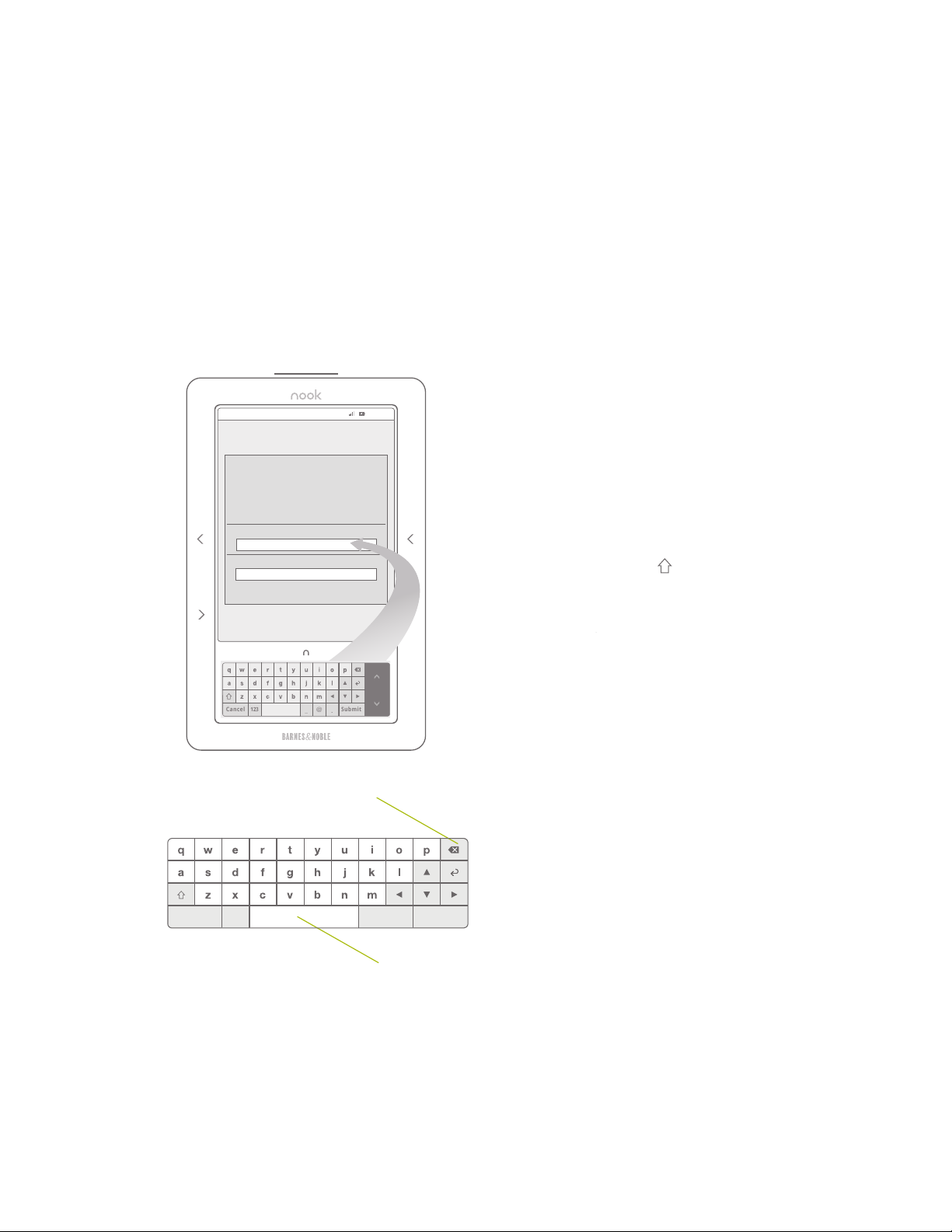
Color touchscreen keyboard
Keyboard
8
My NOOK
Regist er your noo k
Enter the email address and password associated with your
B&N account.
By registering your nook, you agree to the nook Terms of
Service found in the Policies section at the end of the nook
User Guide. You can find the nook User Guide in my library
under My Documents.
Email ad dress
Password
Tap Submit to register.
123
Cance l Submi t
@
_
.
Backspace key
3:53 PM
The on-screen keyboard
automatically appears when any
text input is needed. Use it to
search for titles in the
eBookstore or take notes as
you read.
Tap the Shift key to capitalize
letters. Tap once for shift to
capitalize the next letter or tap
twice for caps lock.
Tap the 123 key to see the
primary number and
punctuation keyboard.
Tap the #+= key when using
the number keyboard to see
additional characters and
punctuation marks.
123Can cel Sea rchCle ar
Space bar
Page 12

Before you register
your NOOK
Before registering your NOOK, you must have:
• Wireless signal and connectivity
• A valid Barnes & Noble online (BN.com) account
• A password with alphanumeric characters only and
no signs, symbols, or special characters
• A valid credit card and expiration date set as the
default credit card in your BN.com account
• Billing address information completed and associated
with the default credit card
Important Note:
Your password is case sensitive and must be alphanumeric characters ONLY
(a-z, A-Z, and 0-9). No blank spaces, signs, symbols, or other special
characters are allowed. If you have any of these characters in your password,
then before registering your NOOK, you must first sign-in to your account at
BN.com to change your password. Then you can register your NOOK.
9
In addition, you must have the billing information in your BN.com account
completed, including a valid credit card with expiration date and associated
billing address. You must set one credit card in your account as the default
credit card, which will be charged when you purchase eBooks directly on
your NOOK.
If you don’t have a BN.com account, go to www.nook.com/setup to create an
account online. Please have a credit card ready to complete this process.
Once created, you will still need to register your NOOK to this account. Tap
settings and then tap Device on your NOOK’s color touchscreen to register.
Page 13
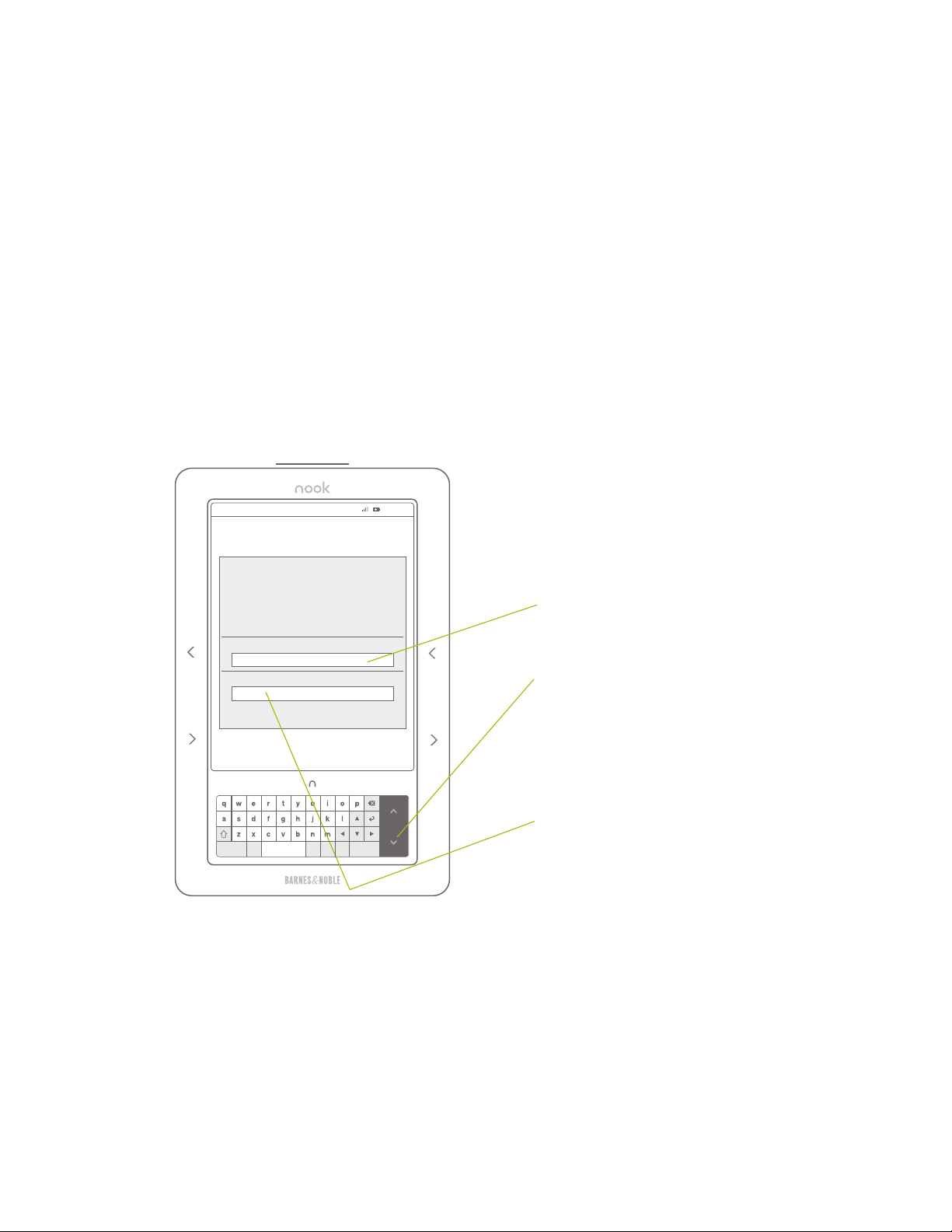
Register your NOOK
10
You need to register your NOOK to an existing Barnes & Noble online
account to buy and enjoy eBooks and periodicals.
Before you register, please make sure you have a wireless connection,
either with 3G cellular (depending on your NOOK model) or Wi-Fi in a
Barnes & Noble Bookstore, AT&T Wi-Fi hotspot, or another Wi-Fi hotspot
Enter the email address and
My NOOK
Regis ter yo ur noo k
Enter the email address and password associ ated with your
B&N account.
By registering your nook, you agree to the nook Terms of
Service found in the Policies secti on at the end of the nook
User Guide. You can find the nook User Guide in my libr ary
under My Documents.
Email a ddress
3:53 PM
password used to access
your Barnes & Noble online
account. To do so:
1. Enter your email address
in this field.
**
.
Password
Tap Submit t o register.
2. Tap the down arrow
button on the right side of
the color touchscreen one
time to move the cursor to
the password field below.
3. Now enter your
123
Canc el Subm it
@
_
.
password. Then tap Submit.
If you don’t have a BN.com account, go to www.nook.com/setup
to create an account online before registering your NOOK.
**
Please see the User Guide or nook.com/support for instructions
and additional information for connecting to Wi-Fi.
Page 14
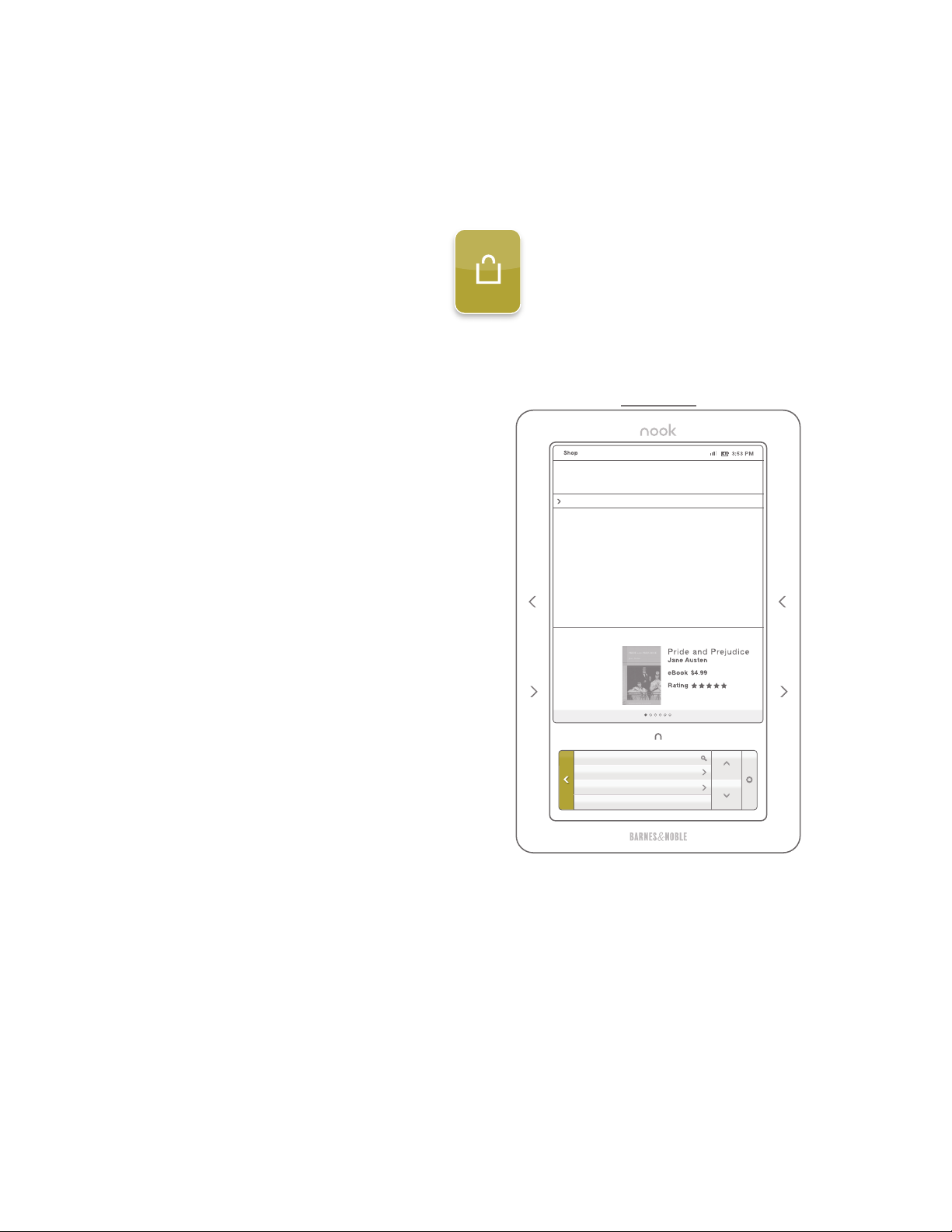
Visit the B&N
eBookstore
After your NOOK is registered,
press the Home button and then tap
shop on the color touchscreen to
explore the world of eBooks.
You can browse, sample for free,
and then buy eBooks.
Get today’s paper or subscribe to
newspapers and magazines.
11
Welcome to Barnes & Noble
More tha n a million eBooks from the world' s largest b ookseller
eBooks
Magazi nes
Newspa pers
Bestse llers
New Re leases
B&N Re commends
New York Times Bestse llers
Romanc e Top 100
Teens Top 100
To purchase an eBook on your
NOOK, find the title on the reading
screen, then tap Buy for__ on the
color touchscreen and follow the
on-screen prompts. The item will be
charged to your account’s default
credit card and automatically
download to your NOOK.
To read the title you just purchased
and downloaded, you must go to my
library from the Home menu. Please
see Section 12 for instructions.
Speci al Off ers an d Art icles
The Do n't
Miss L ist
Selec t to se e top
LendMe@ eBooks.
< Go Back See More >
Search
Browse
Collections
View Promotion
Page 15
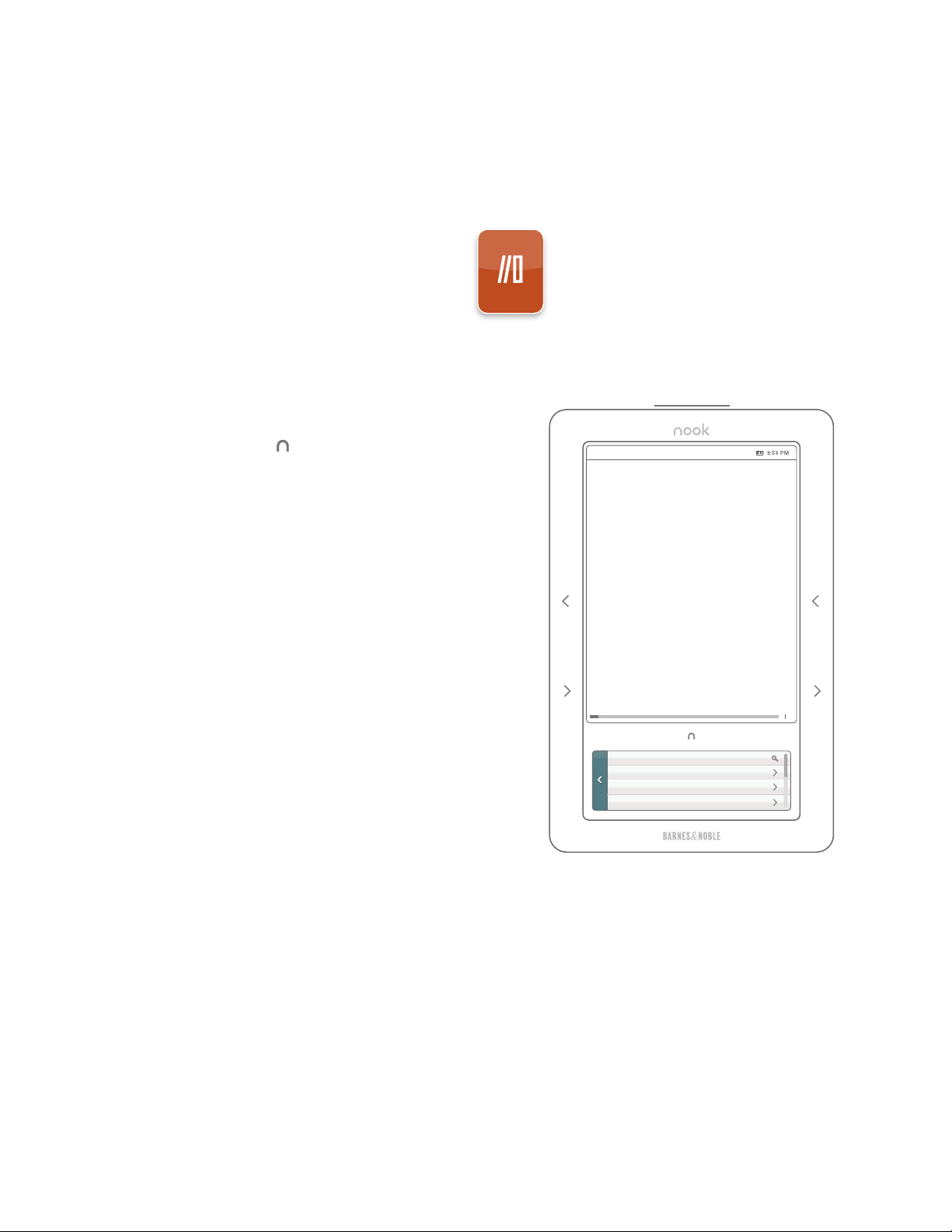
Read an eBook
When you buy an eBook, it downloads
in seconds to your NOOK.
To read a just purchased eBook:
12
1. Touch the Home button
2. Tap my library on the color touchscreen
3. Be sure you are viewing
My B&N Library
4. Tap Check for new B&N content
on the color touchscreen
5. Use the up or down arrow buttons
to highlight the new eBook or any title
you would like to read
6. Tap the Select button on the color
touchscreen
7. Your eBook will open if it is on your
NOOK. If it does not open, tap
Download, wait for the eBook to
download, and then tap Read
Turn Pages
Use the previous/next page turn
buttons on the sides of your NOOK to
turn pages while reading. If you prefer,
once it is dark, swipe the color
touchscreen with your finger from right
to left to turn the page forward—just
like flipping the pages of a print book.
The quick flash of the reading screen
when changing pages is normal.
Pride and Prejudic e (Barnes & Noble...)
Bin gley, “for a king dom! Upo n my ho nour, I neve r
met with so ma ny pl easan t gir ls in my l ife a s I ha ve
thi s even ing; a nd the re are sever al of t hem, y ou see ,
unc ommon ly pr etty.”
“You are da ncing wi th the only han dsome gi rl in
the room, ” said Mr. D arcy, l ookin g at th e elde st
Mis s Ben net.
“O h, she is th e mos t beau tiful crea ture I ever
beh eld! But ther e is one of her sist ers sitti ng d own
jus t be hind you, who is very pr etty, and I da re s ay
ver y agr eeabl e. Do l et me a sk my p artne r to
int roduc e you .”
“W hich do you mea n?” a nd tur ning rou nd, h e
loo ked f or a mome nt a t Eli zabet h, t ill, catch ing her
eye , he wi thdre w hi s ow n, and coldl y sa id, “She is
tol erabl e; but n ot han dsome e nough to temp t me
and I a m i n n o h umour at pr esent to g ive
con seque nce t o you ng la dies who a re sl ighte d by
Find
Go to
Bookmarks
Font Amasis Medium
6 230
Page 16
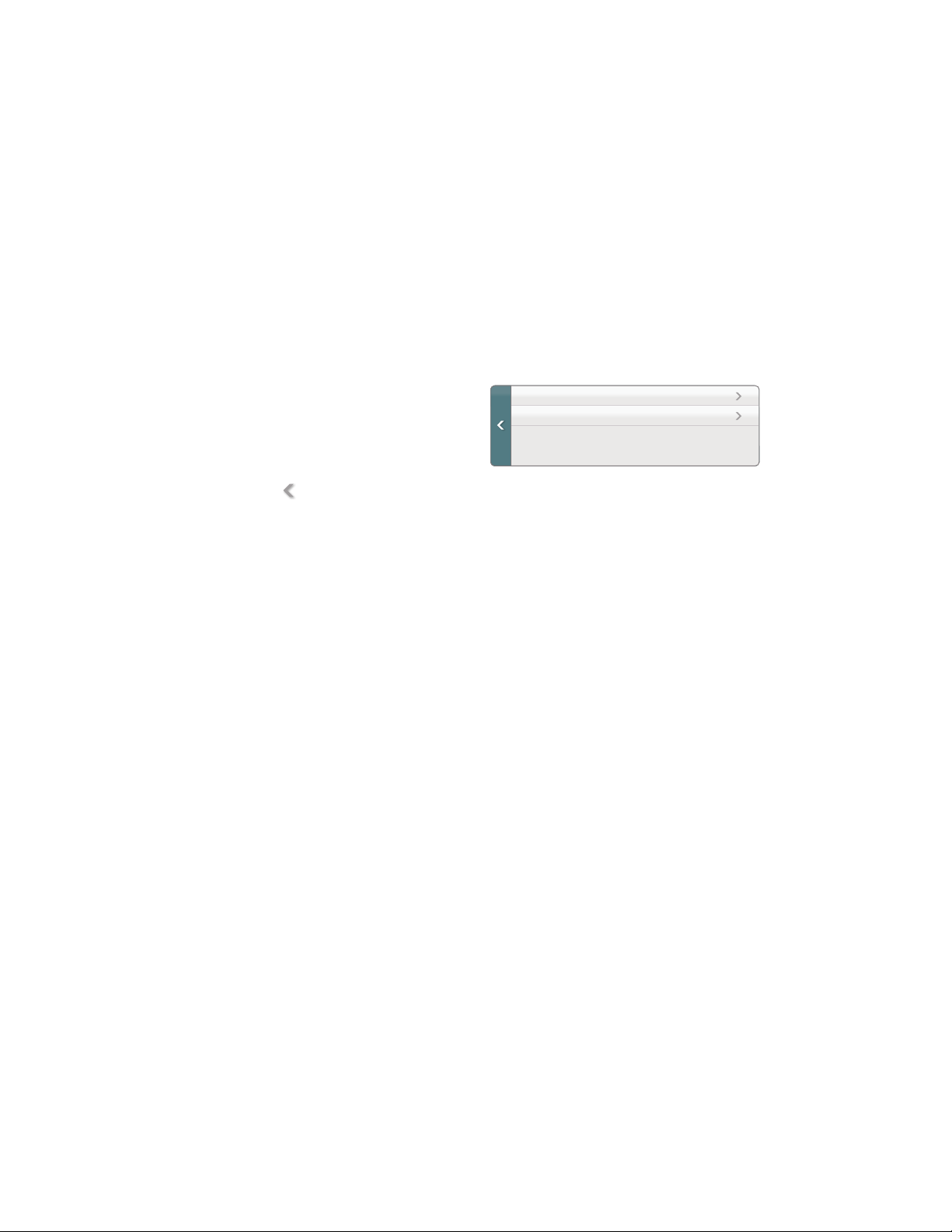
Change Text Size
Change Text Size
13
While you are in an eBook, tap
Font on the color touchscreen.
Then tap Text size and select the
size you would like to change to.
Tap the Back button to
continue reading.
Text size Medium
Text font Amasis
Customer support
If you have any questions, please call Customer Service, toll-free, at
1-800-THE-BOOK (843-2665), and select Option 2 for Digital
Technical Support. Outside the United States, call 1-201-438-1834.
Also, visit us online at www.nook.com/support.
Barnes & Noble, Inc. 122 Fifth Avenue, New York, NY 10011 USA.
© 2009-2010 Barnes & Noble, Inc. All rights reserved. NOOK and the NOOK logo are
trademarks of Barnes & Noble, Inc. or its affiliates. Patent Pending.
Screenshots and product images are simulated and for instructional purposes only. They
may dier from the actual product and are subject to change without notice. Your use of
NOOK is subject to the NOOK Terms of Service located in the User Guide and here:
www.nook.com/legal
Contains Reader® Mobile technology by Adobe Systems Incorporated.
All trademarks or registered trademarks that are not the property of
Barnes & Noble or its affiliates are the property of their respective owners.
 Loading...