

Page 1
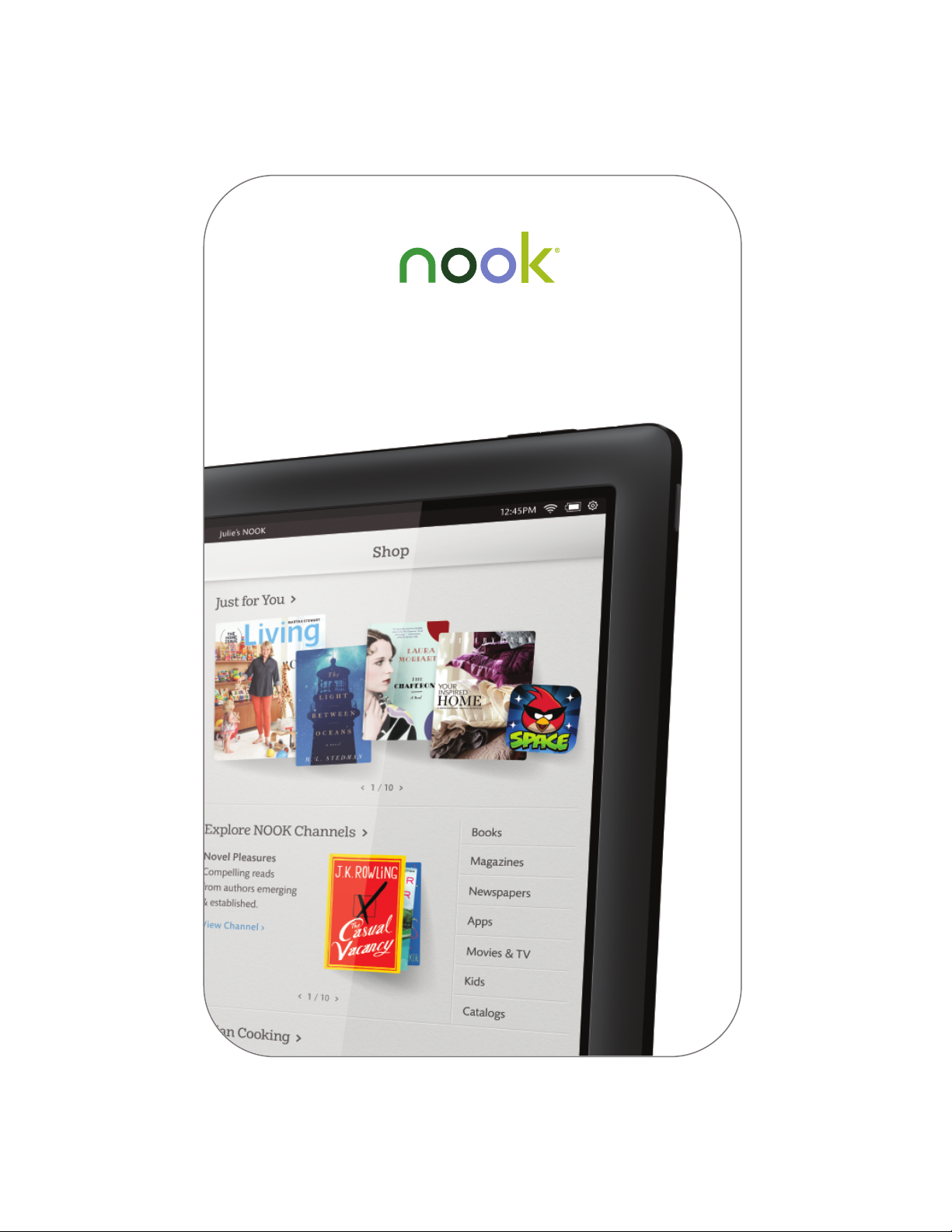
Welcome to your NOOK® HD
Quick Start Guide
+
Page 2
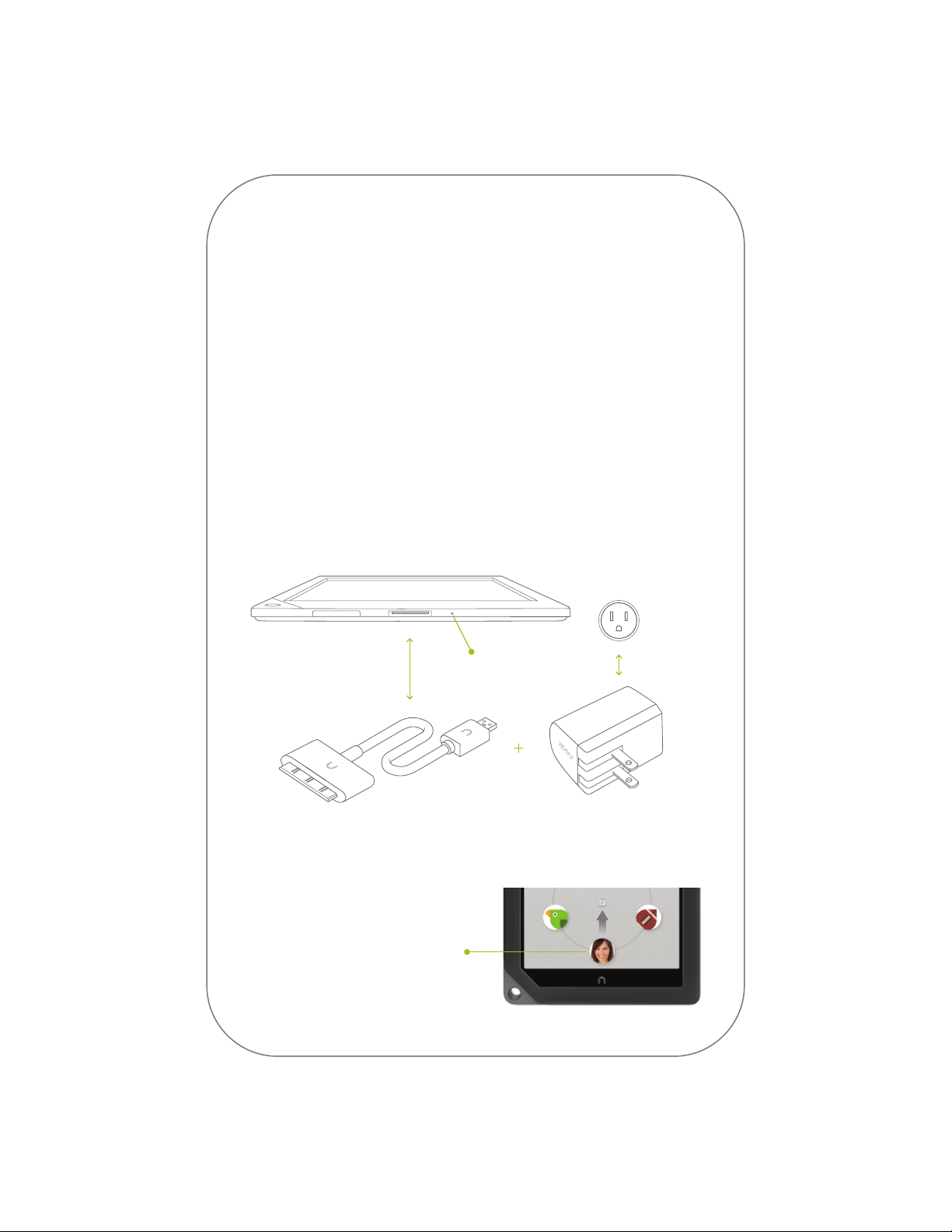
1 Charge your NOOK
You must charge your NOOK before using it the first time.
Plug your NOOK into a wall outlet using the Power Adapter and 30-pin
Cable included with your device.
You can use your NOOK while it charges.
The charging indicator light on the bottom of your device will show orange
when charging and will turn green when the battery is full. It takes
-
approximately 4
Note: To charge your NOOK, you must plug it into a wall outlet.
Your NOOK will not charge when connected to a computer.
5 hours to charge your NOOK.
Wall Outlet
30-pin
Cable
Unlock your NOOK
Slide your profile icon or picture
to the center of the circle to unlock
your NOOK after waking it from
sleep mode or turning it on.
Charging
Indicator Light
Power
Adapter
Page 3
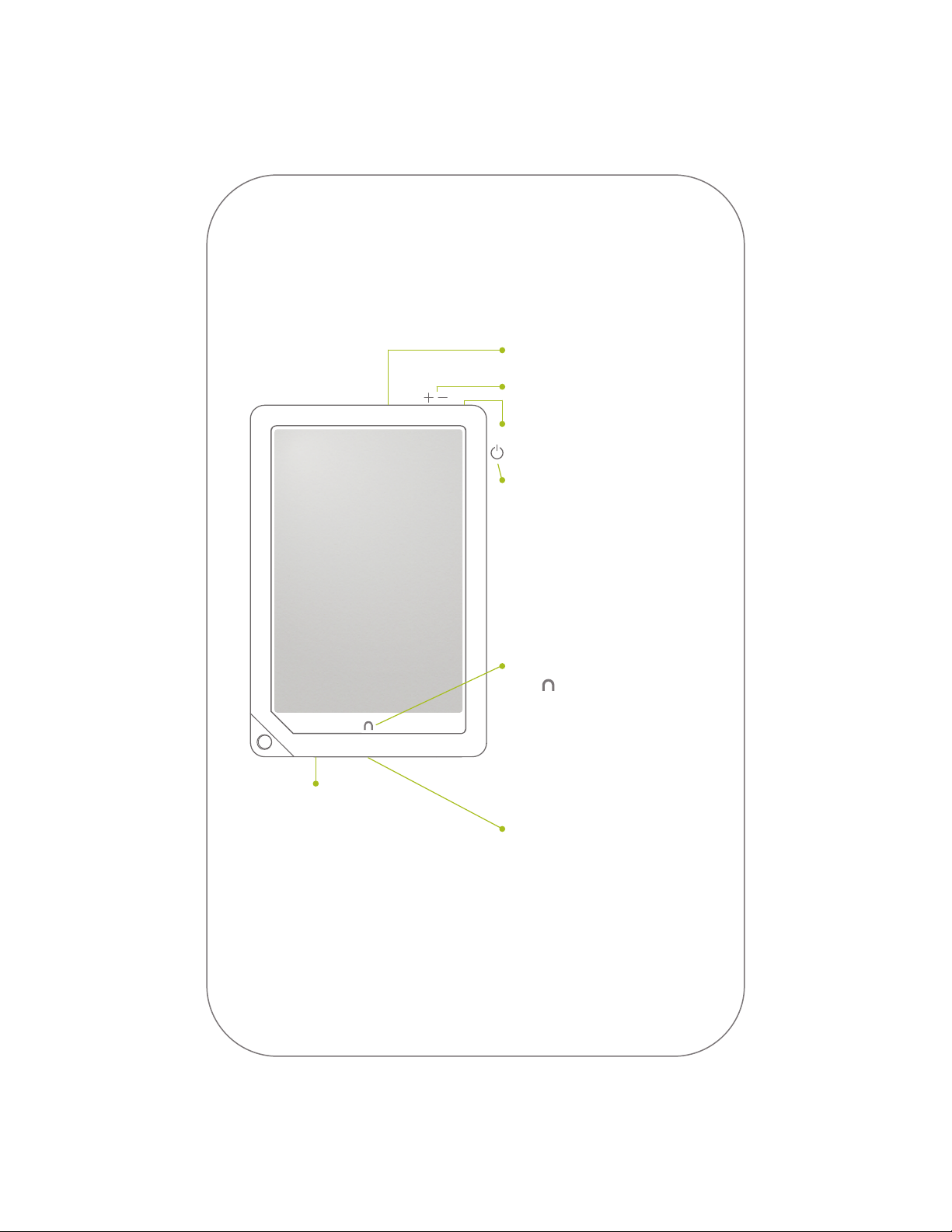
Get to know your NOOK
2
Microphone
Volume Buttons
Headphone Jack
(
Power Button
Press and hold the power
button for about 2 seconds
to turn your NOOK on or o.
NOOK Button
This NOOK symbol below
the display is a button. Press it to
wake up your device from sleep
mode (turn the display on).
When the device is on, pressing
the NOOK Button brings you
microSD™ Memory
Card Slot
On the bottom of your NOOK,
lift the flap from the bottom to
insert a microSD memory card
for storing your personal files such
as PDF documents, videos, music,
pictures, and more.
*
microSD memory card not included
*
to your Home screen.
30-pin Port
Port for charging and
connecting to a computer
3.5mm
)
Page 4
3
Set up: turning on your
NOOK for the first time
1. Select the Language for Your NOOK
Follow the on-screen directions for setting up your NOOK.
2. Connect to a Wi-Fi® Network
To register your NOOK and to purchase and download books, videos,
periodicals, and more, you must be connected to a Wi-Fi network.
3. Read and Accept the Terms of Service
4. Register Your NOOK
You must register your NOOK to your Barnes & Noble (BN.com)
account. This gives you access to any items in your NOOK library and
allows you to shop for new books, magazines, newspapers, movies & TV
shows, and apps on your NOOK.
Please answer the questions on the screen and follow the step-by-step
instructions to either register your NOOK to an existing BN.com
account or to create a new one directly on your NOOK. Tap on the
underlined sections to fill-in the blanks or complete the sentences with
your information.
5. Set-up Your Profile
Select your interests and choose some free samples.
That's it. You've registered your NOOK. You're ready to shop at The NOOK
™
; read your favorite books, magazines, and newspapers, watch movies
Store
and TV shows, and more.
Page 5
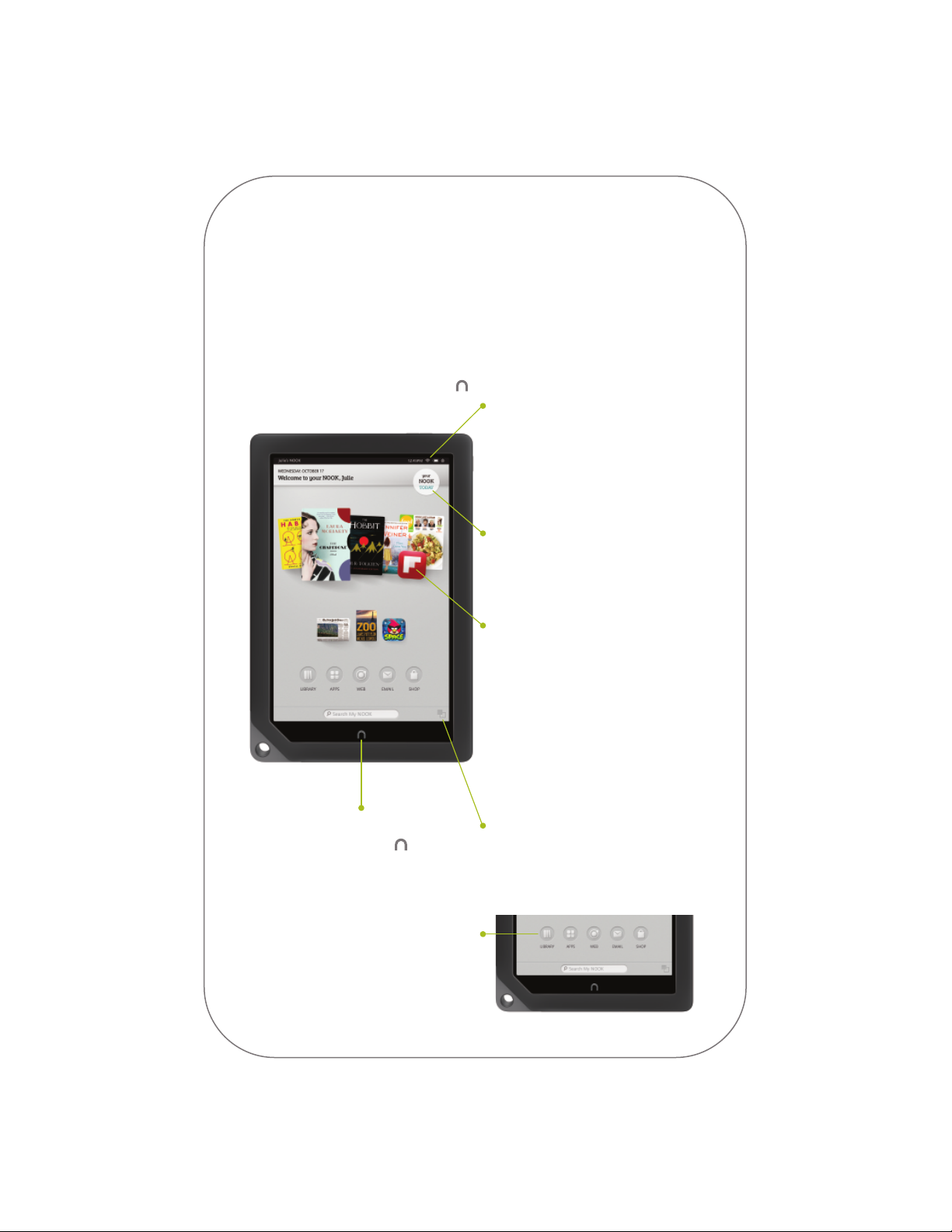
Home screen
4
Home Screen
You can get to your Home screen at any
time by pressing the NOOK Button .
Status Bar
The Status Bar includes the time
and icons for battery status, Wi-Fi
connectivity, and a shortcut to
Settings. Any notifications will also
appear in the Status Bar.
Your NOOK Today
Tap here to check in for daily
updates, check the weather, and get
new ideas for what to read next.
Active Shelf
The Active Shelf holds books,
magazines, newspapers, movies &
TV shows, and apps that you have
recently received (for example,
purchased, downloaded, or
borrowed). You can move back
and forth through the Active Shelf
by swiping your finger across its
contents. Tap on an item to open it.
NOOK Button
Press the NOOK Button at anytime
to go back to your Home screen.
Nav Buttons
Tap the Nav Buttons on your Home
screen to open various features on
your NOOK, such as library, apps, web,
email, and shop.
Recent Drawer
Tap here to view recently opened
books and other items, or recently
used apps.
Page 6
5
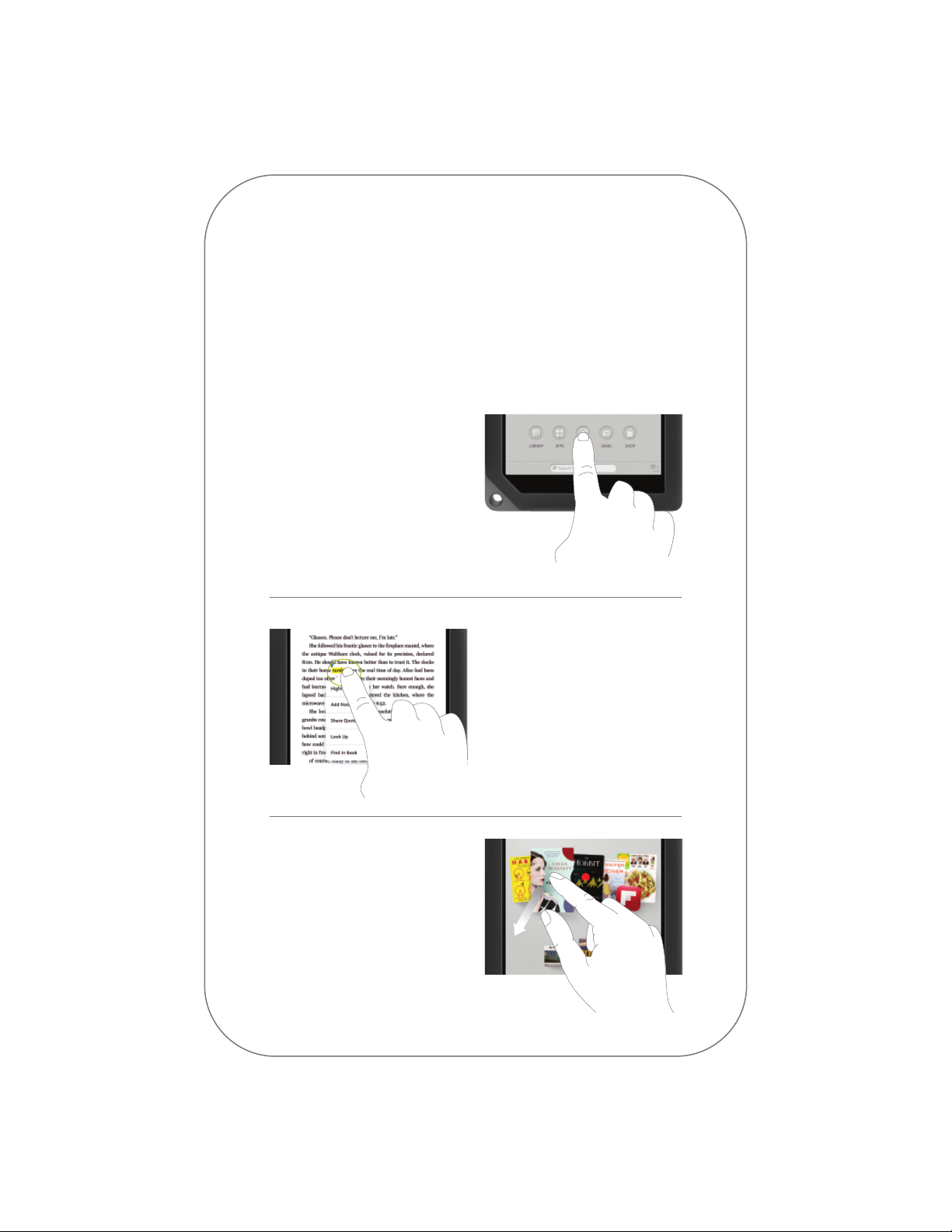
Touch navigation
The following gestures help you to use
®
and navigate on your NOOK
.
Tap & Double Tap
To select a feature or item,
touch your fingertip quickly
to the screen once, as though
you were tapping a key on
a keyboard. Double tap your
finger quickly on a book cover
in your library to bring up
additional details.
Press & Hold
Touch your finger to the
screen and hold it there for
approximately 2 seconds. In
many situations, pressing and
holding will open a menu,
such as the Highlight and
Look Up menu while reading.
Drag
Press and hold on an object
and slide it to another location
on the screen.
Page 7
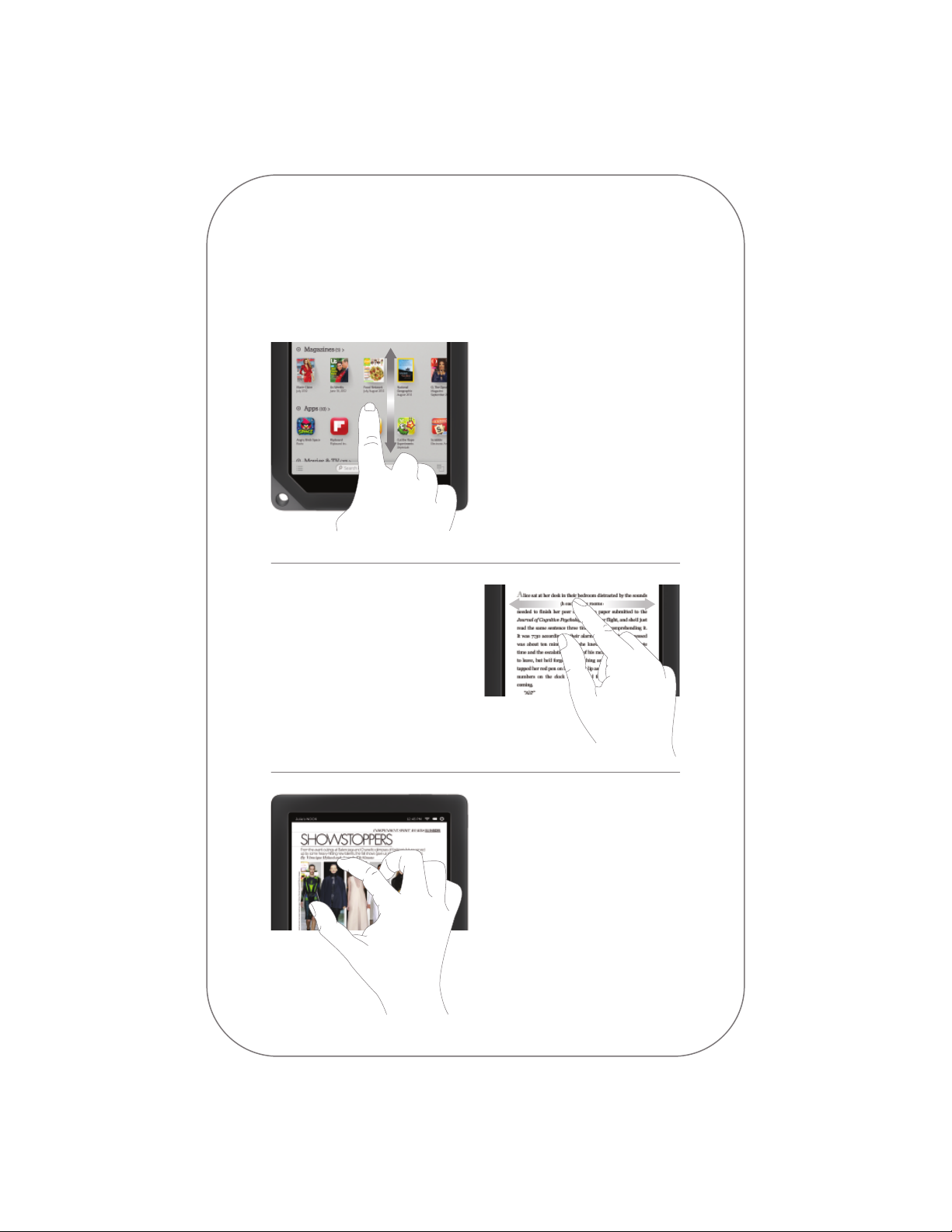
Touch navigation, continued
Scroll
Slide your finger up or down
the screen to scroll through
a vertical list.
Swipe
Glide your finger across the
screen, usually to the left or
the right, to turn pages or
scroll through a list.
Pinch or Zoom
Place two fingers – typically
your thumb and forefinger –
about an inch apart on the
screen. Slide them together to
“pinch in.” In most situations,
pinching in shrinks the image.
Slide your fingers apart to
“pinch out.” In most situations,
pinching out enlarges an image.
Page 8
6
Start reading
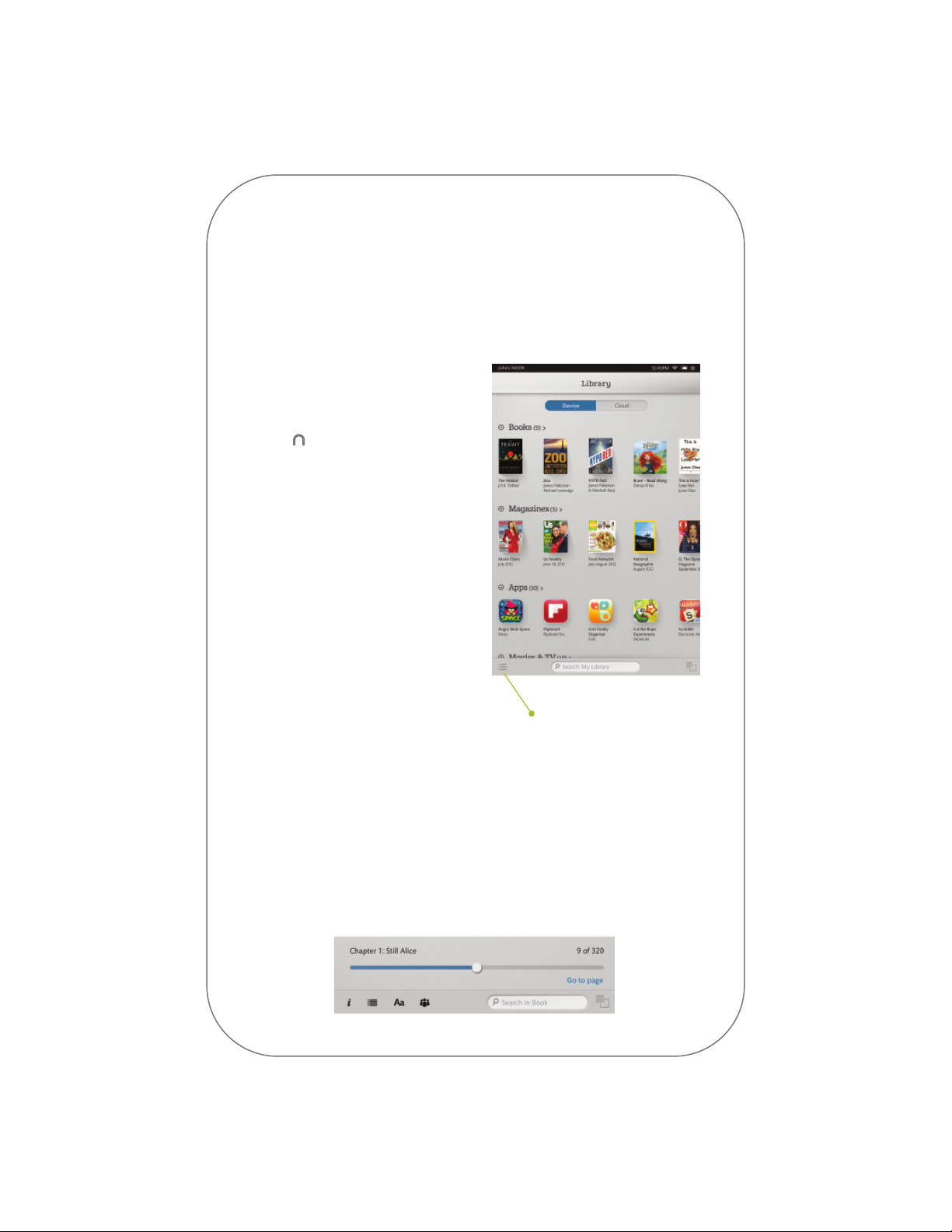
Find a Book
You’ll find your books, magazines,
newspapers, movies & TV shows,
catalogs, and apps in your Library. To
get to your Library, press the NOOK
Button to display your Home
screen. Then tap library. Your Library
contains all your content, which you
can sort and view the way you want.
Open a Book
To open a book or item, tap on
its cover.
Turn Pages
There are two ways to turn the
page of a book forward or back:
• Tap the right or left edge
of the screen.
• Swipe from right to left
or left to right.
Tap here and then
tap Refresh to sync.
Change Text Size & More
When in a book, tap the center of the screen or the up arrow at the bottom
of the screen to bring up the Reading Tools. To adjust the text, tap the text
icon and select your text size, font style, and other options. You can also:
• Browse the table of contents and view your notes and bookmarks
• Search for words or phrases
• Go to a specific page number
• Show the time and status bar
Page 9
Discover new favorites
7
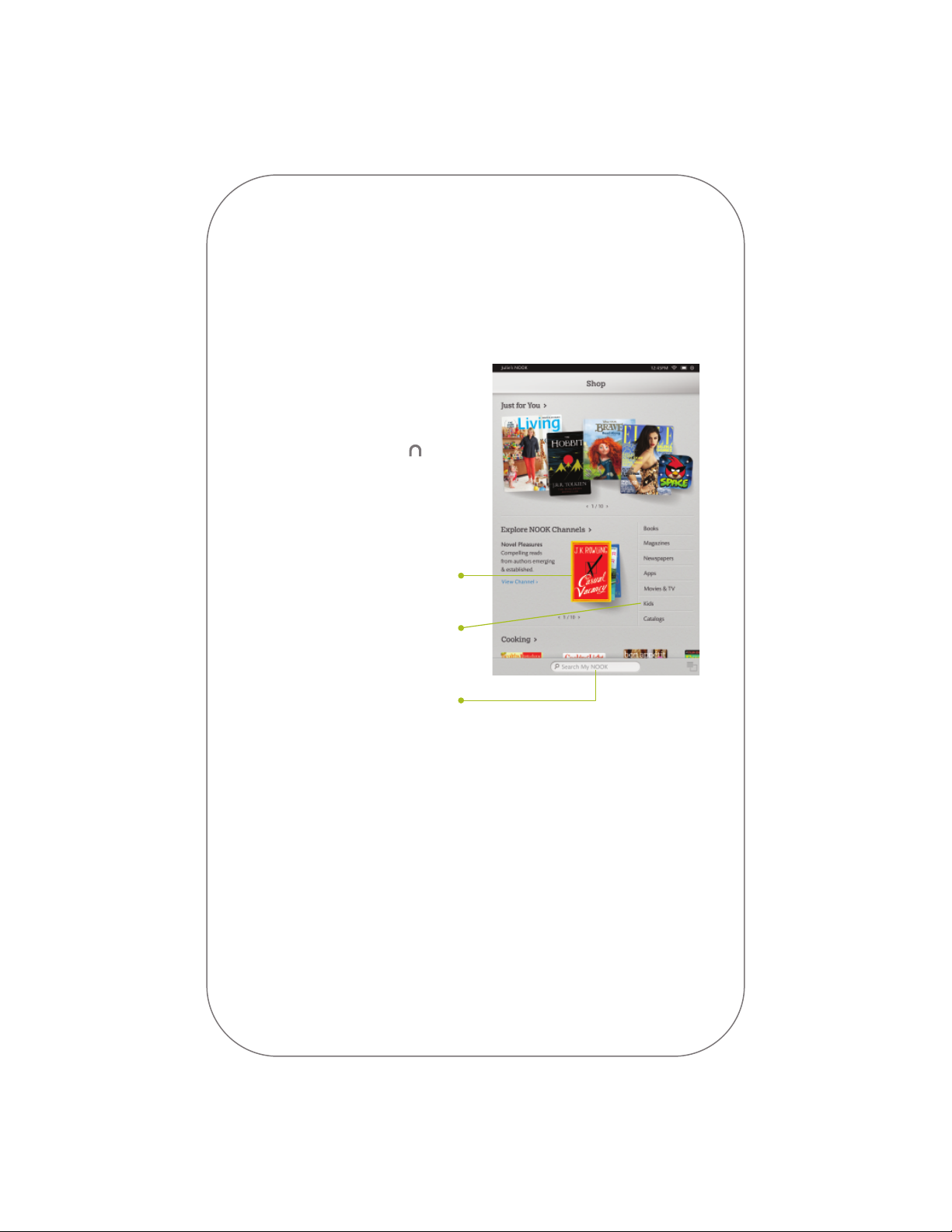
Shop at The NOOK Store
Shopping is fun and easy on
your NOOK.
To visit The NOOK Store:
1. Connect to Wi-Fi
2. Press the NOOK Button
to display your Home screen
3. Tap the shop icon
Browse Channels
& Categories
• Swipe to scroll through NOOK
Channels for recommendations
that match your interests.
• Tap on a category to see
books, magazines, movies, TV
shows, and more.
Search The NOOK Store
Tap in the search field to display
an on-screen keyboard to search
by a title, author name, or topic.
Just Tap to Buy
Once your BN.com account is set up with a valid credit card, you can make
purchases with the tap of your finger. Just tap on the Buy button next to the
book, magazine, newspaper, movie, TV show, catalog, or app you want. Tap
Confirm and your NOOK downloads the item to your Home screen and your
Library automatically.
Page 10
8
Learn more
User Guide
In addition to this Quick Start Guide, please read the User Guide
for complete information about all the features of your NOOK.
You’ll find a copy of the User Guide in your Library on your NOOK.
Additional Support
Please visit NOOK.com/support for additional information, including:
®
• A PDF version of the NOOK
that you can download to your computer
• Tutorial videos
• Live Chat with a NOOK Expert
• Frequently Asked Questions
You can also tweet Customer Service
HD+ User Guide
@
NOOK_care.
barnesandnoble.com llc, 76 Ninth Avenue, New York, NY 10011 USA.
© 2012 barnesandnoble.com llc. All rights reserved.
NOOK, NOOK Store, and the NOOK logos are trademarks of barnesandnoble.com llc or its aliates.
Patent Pending. Screenshots and product images are simulated and for instructional purposes only.
They may dier from the actual product and are subject to change without notice. Content shown may
vary from actual available content, which may change without notice. Your use of NOOK is subject to the
NOOK Terms of Service located in the Settings area of your device and here: www.NOOK.com/support.
Contains Reader
Mobile are either registered trademarks or trademarks of Adobe Systems Incorporated in the United
States and/or other countries. Wi-Fi
registered trademarks that are not the property of barnesandnoble.com llc or its aliates are the property
of their respective owners. Certain third-party applications may require membership.
This device complies with Part 15 of the FCC Rules.
Operation is subject to the following two conditions:
(1)
this device may not cause harmful interference, and
(2)
this device must accept any interference received, including interference
that may cause undesired operation.
Ver. 2.0.0.A 640-00051-01 A
®
Mobile technology by Adobe Systems Incorporated. Adobe®, Reader® and Reader®
®
is a registered mark of the Wi-Fi Alliance. All trademarks or
 Loading...