

Page 1
(5.0 Lollipop)
User Manual
Android
Tablet PC
Model: A1048
Page 2
Page 3

Azpen User Guide
-1-
-2-
Contents
1. Safety instruction....................................................................................... 3
1.1 Right Place .............................................................................................. 3
1.2 Battery ...................................................................................................... 3
1.3 Alternating Current ........................................................................... 3
1.4 Using Tablet .......................................................................................... 3
2. Getting started .......................................................................................... 4
2.1 Power on and off ................................................................................ 4
2.2 Using the touch screen ....................................................................5
2.3 Battery and charging ......................................................................... 6
2.4 Status bar icons and indicators ................................................... 7
2.5 Shortcut icon ......................................................................................... 8
2.6 Lock screen ....................................................................................... 10
2.7 Change the wallpaper .................................................................. 10
2.8 Manage downloads ....................................................................... 11
3. Main menu ................................................................................................. 12
3.1 Applications install and uninstall ............................................. 12
3.2 Camera .................................................................................................. 14
3.3 Music ...................................................................................................... 14
3.4 Videos .................................................................................................... 15
3.5 Pictures .................................................................................................. 16
3.6 File manager ....................................................................................... 16
3.7 Recording ............................................................................................. 17
4. Settings ....................................................................................................... 18
4.1 Wireless & networks ....................................................................... 18
4.2 Data usage ........................................................................................... 19
4.3 More ........................................................................................................ 20
4.4 Sound & Notification .......................................................................20
4.5 Display ................................................................................................... 21
4.6 Storage .................................................................................................. 21
4.7 Apps ........................................................................................................ 22
4.8 Personal ...................................................................................................23
4.9 Language & input ............................................................................. 26
4.10 Backup & reset ................................................................................ 27
4.11 Date & time ..........................................................................................28
4.12 Accessibility........................................................................................29
4.13 Printing.................................................................................................30
4.14 About Tablet.....................................................................................30
Troubleshooting.............................................................................................31
FAQ .....................................................................................................................34
Page 4
b. If the LCD touch screen breaks, please carefully avoid
the liquid which can leak from the screen. If the liquid
mercury gets on you, please use water to clean it off or
consult with a doctor.
c. Please avoid anything with a sharp end to touch the
screen. Products with sharp ends will scratch the creen.
d. Please do not put heavy pressure on the screen. It may
break or damage the screen.
e. Please do not take apart or repair the tablet. This may
void the warranty. Bring the tablet to a service center if
necessary.
2. Getting started
2.1 Power on and off.
a. Power on
Press and hold the power button for 3 seconds, the tablet
will turn on.
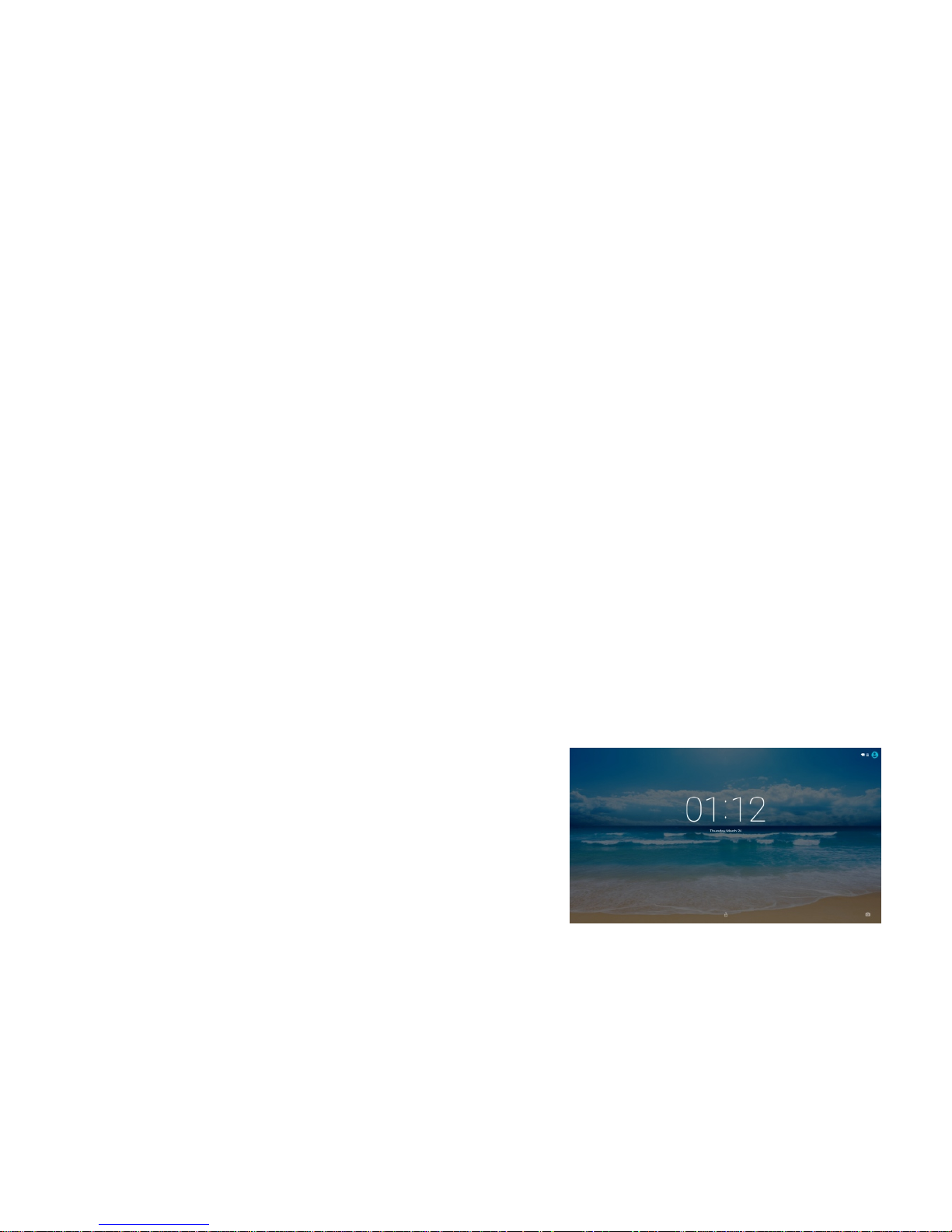
Then you will need to unlock the touch screen. The
factory setup the screen unlock by using slide mode.
Press the lock on the touch screen, slide up to unlock
the touch screen.
To setup a different unlock method by go to Settings >
Security > select the method to unlock your tablet.
1. Safety instruction
1.1 Right Place
a. This tablet is not waterproof and cannot be used
underwater.If you accidentally drop the tablet into water,
wipe off any water droplets with a dry cloth.
b. Do not leave the tablet in excessive heat such as in a car
or in direct sunlight. High temperature can cause the
tablet to malfunction.
c. Please keep the tablet clean. Dust could cause tablet to
malfunction.
d. Do not leave the tablet near anything having a strong
magnetic field or near anything emitting strong radio
waves.
1.2 Battery
a. Please only use the Azpen Charger to charge your Azpen
tablet.
b. Do not use tablet near a fire source. The fire could
cause a battery explosion.
1.3 Alternating Current
a. Do not use a damaged plug to charge your tablet. It may
cause electric shock.
b. Please do not touch the power plug with a wet hand. It
may cause electric shock.
c. Please use the tablet with proper voltage and current.
Improper voltage and current will damage the tablet.
1.4 Using Tablet
a. Please use proper computer cleaning materials to clean
the tablet. Make sure the tablet is dry before turning on
the power.
-3-
-4-
Page 5
b. Power off
When the tablet is on, press and hold the Power button
for 2 seconds, a shut down window will appear on the
screen.
Select “OK”, the tablet will power off. It is important to
save the battery when the tablet is not in use for a period
of time.
2.2 Using the touch screen
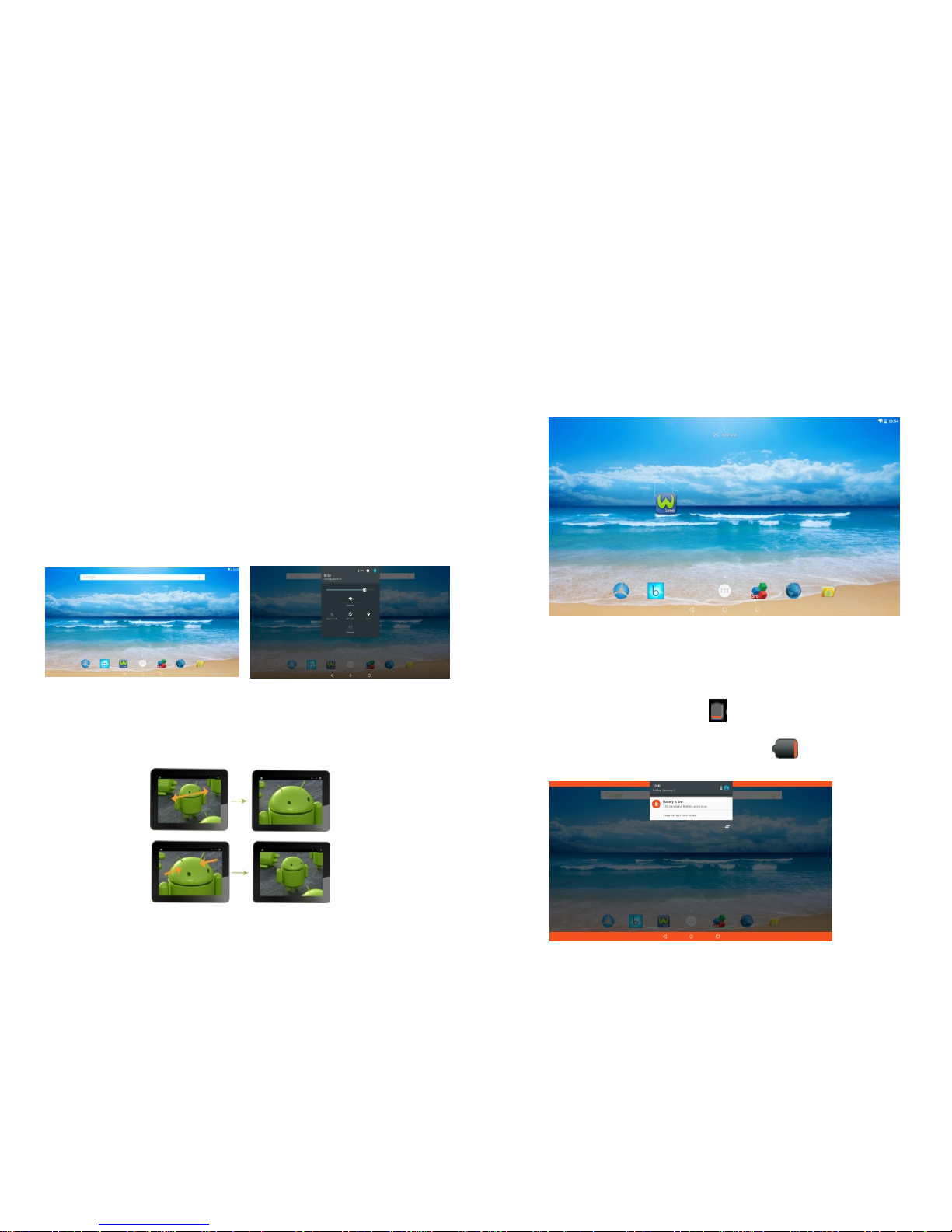
a. Swipe
To scroll a webpage, or move between pictures, use your
finger to touch the screen and slide up and down or right
and left.
b. Pinch
To zoom in and out of a picture, touch the screen with
two fingers pinch them together or apart.
c. Drag
To move something from one place to another, touch and
hold the item you want to move until the application
begins to shake, and then slide your finger to the position
where you want to put it.
2.3 Battery and charging
2.3.1 First time charging.
For the first time, charge the battery for 8-12 hours.
When battery is low, a low battery icon appears in the
top right of the screen.
2.3.2 How to charge battery
When the battery falls below 15%, the following
message appears on the screen.
-5-
-6-
Page 6
a. Connect Azpen to a power adapter.
b. When finished charging, the screen will display a full
battery picture.
c. When the battery falls below 15%, it will take 4-5 hours
to complete a full charge.
2.3.3 Maximize your battery life
Go Settings > Display
Select- Brightness, move the slide bar to left side can
decrease brightness.
- Sleep, select a shorter sleep time to extend
battery life.
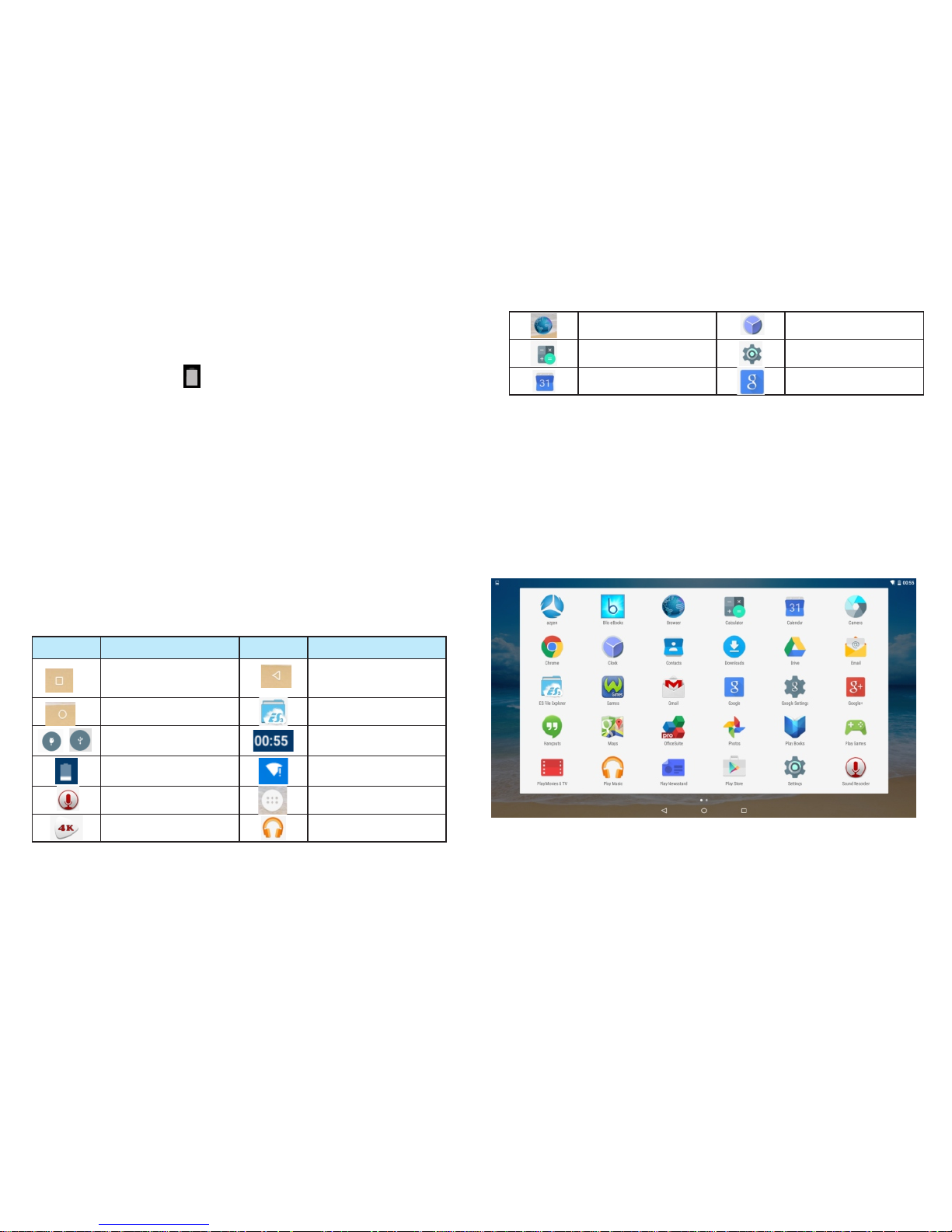
2.4 Status bar icons and indicators
2.5 Shortcut icon
2.5.1 Create shortcut icon on the home page
Go to the application page, press and hold the application
icon for 2 seconds.The icon will appear on the home
page,
-7-
-8-
Internet Browser
Calculator
Clock
Settings
Ic on Functions Ic on Functions
Opens a list of thumbnail
images of apps you've
worked recently.
Go back to home page
New external device
connect
Shows the battery level
or charging status.
Play Videos
File manager
Time
Wi-Fi Signal
Go to application page
Music player
Recorder
Opens the previous screen
you were working in, even
if it was in a different app.
Google search
Calendar
Page 7
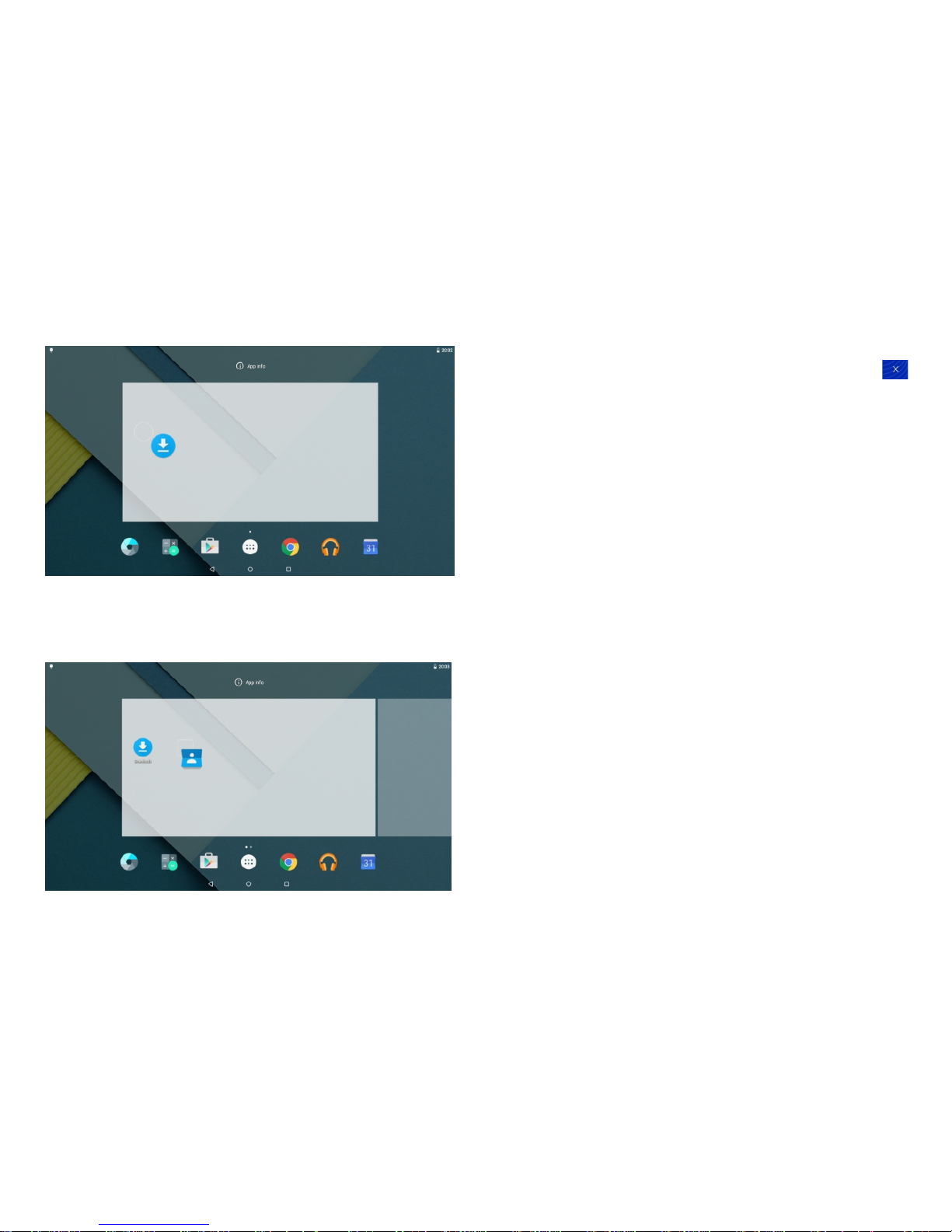
2.5.2 Delete shortcut icon from the homepage
Press and hold the shortcut icon for 2 seconds. On the
top of the home page appears a Recycle Bin logo ,
drag the icon to the Recycle Bin logo. Afer the icon
changes to a red color, release it. The icon will be deleted.
2.6 Lock screen
To protect personal information, you can adjust your
tablet's lock settings:
Step 1: Go to Settings.
Step 2: Scroll down and touch Security.
Step 3: Touch Screen lock.
Step 4: Touch the type of lock to use.
a.None
b.Swipe
d.Pattern
e.PIN
f.Password
2.7 Change the wallpaper
a. Touch & hold anywhere on a Home screen that's not
occupied. A list of options appears.
-9- -10-
Page 8
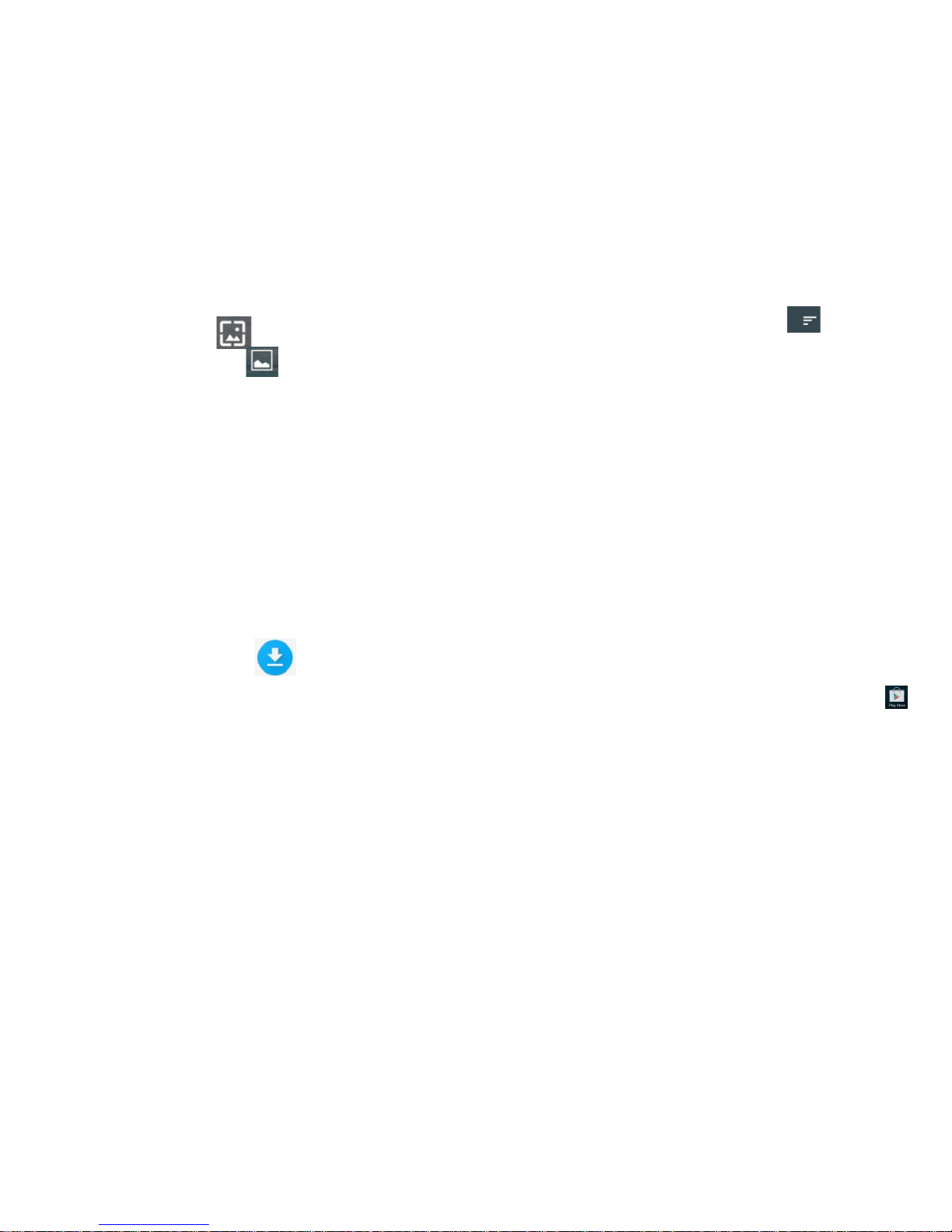
b. Touch WALLPAPERS to choose wallpapers
directly or touch pick image to choose wallpapers
from Files
2.8 Manage downloads
Files, applications, or some other items you download
from Play Store, Email, or websites are stored in
your tablet internal storage. You can use the Downloads
application to view, open, or delete them. Some mobile
networks restrict the size of the files you can download,
to manage the demands on their Open Downloads and
manage downloaded files.
a. Touch the Downloads icon from a Home page or
Applications page.
b. Touch an item to open it.
c. Touch headings for earlier downloads to view them.
d. Check items you want to share. Then touch the Share
icon and choose a sharing method from the list.
e. Check items you want to delete. Then touch the Trash
icon.
f. At the top right of the screen, touch to switch back
and forth.
3. Main menu
3.1 Applications install and uninstall
Check Unknown sources first by go to Settings >
Security. Make sure your tablet Unknown
sources allow installation of non-Market applications.
Install: The applications can be installed from websites,
play store, micro SD external card or USB flash
drive. Select the application to install. Then, click on the
install button to go to install page. After install, a small
window appears on the bottom with two buttons. One
is “Open” for opening the application, the other is
“Done” for completion. After installing, an icon shows
on the application page.
Install application from Play Store: Click Play Store icon
on the Application Page. For access the Play Store,
register a Google account. After the tablet connected
with a valid Google account, you are able to download
applications from Play Store.
Search the applications by category, or by price; also
could type the application's name on the search bar.
After find the application you want to install, click
download > Accept & download to confirmation.
-11-
-12-
Page 9
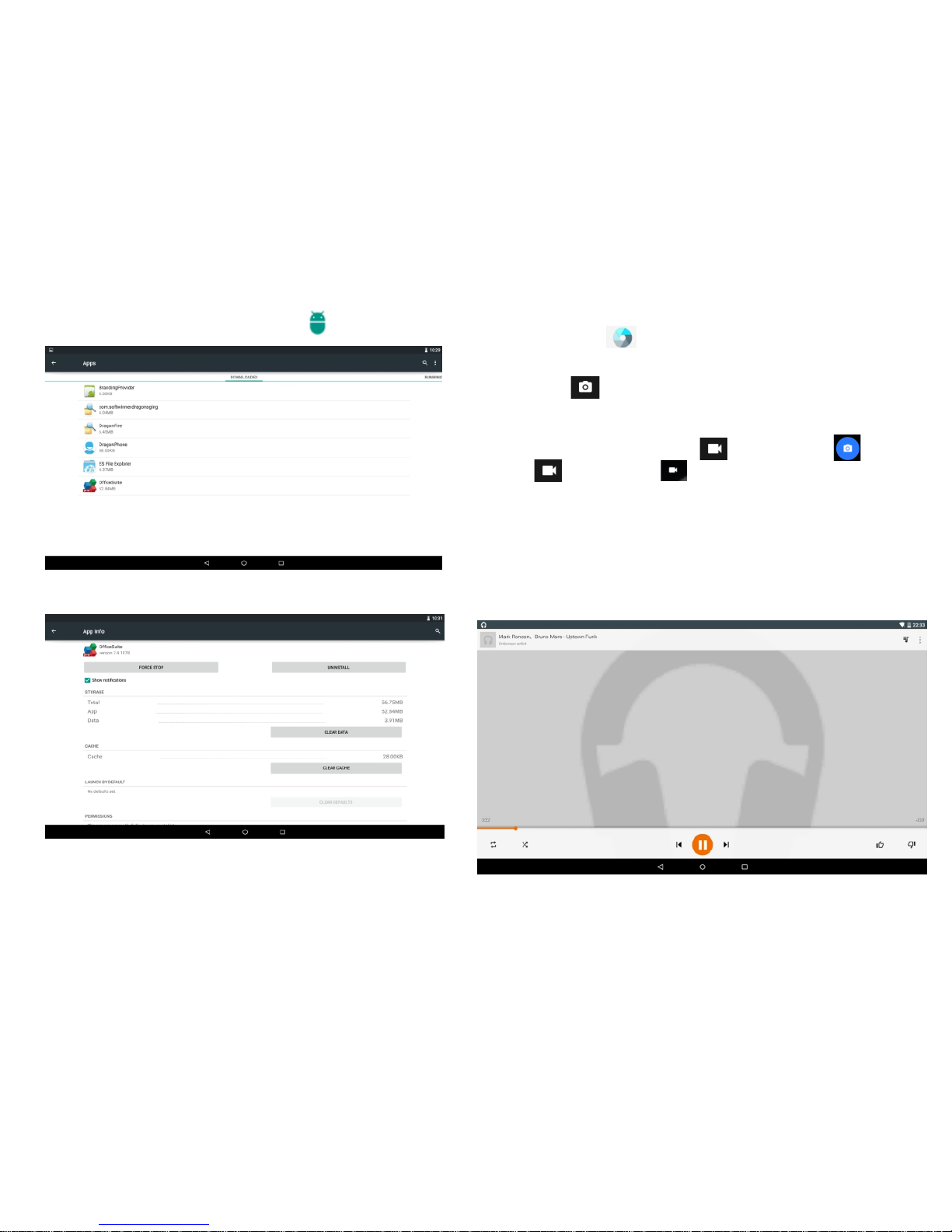
a. Click the application icon that you want to uninstall.
b. Click Uninstall button. The application is uninstalled.
Uninstall:Go to Settings, click Apps
3.2 Camera
Click the icon to start.
3.2.1Taking pictures.
Tap logo to take a quick picture. Click right side
menu will show more camera options.
3.2.2 Taking videos.
Slide from left to right , video /camrea appears ,
tap and then tap on the right side to record videos.
3.3 Music
Support most of the popular types of audio formats,
including MP3、WAV、WMA etc. Plug in your
headphones, use the built-in Stereo speakers, or hook
up your tablet to a home entertainment system
-13-
-14-
Page 10
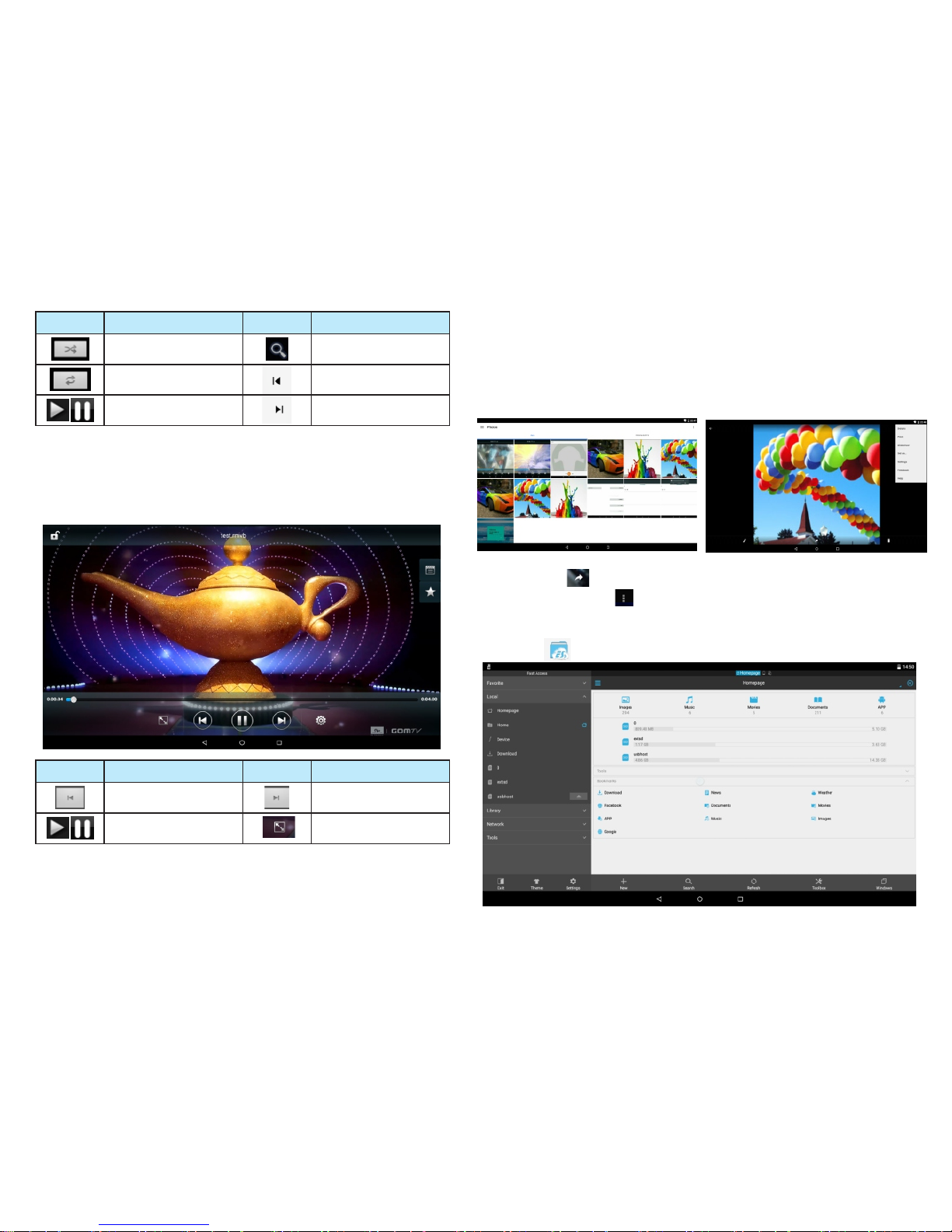
3.4 Videos
Videos in a variety of video formats, such as MKV、
AVI、WMV、MP4、MOV、FLV、3GP. With Azpen, you can
watch super high-resolution videos wherever you go.
3.6 File Manager
Start File manager to manage files.
3.5 Pictures
The Azpen tablet supports BMP、JPG、JPEG、PNG picture
formats. The tablet is the perfect way to take your
pictures with you and share them with friends and family
on a high-resolution screen.
Back
Next
Play/Stop
Video format 16:9 /4:3
FunctionsButtons FunctionsButtons
Random play
Search music online
Repeat play
Play/Stop
Back
Next
FunctionsButtons FunctionsButtons
Tap the icon to sha re the pictures w ith friends and f amily.
Tap the menu icon t o select detail s, print or more fu nctions.
-15-
-16-
Page 11
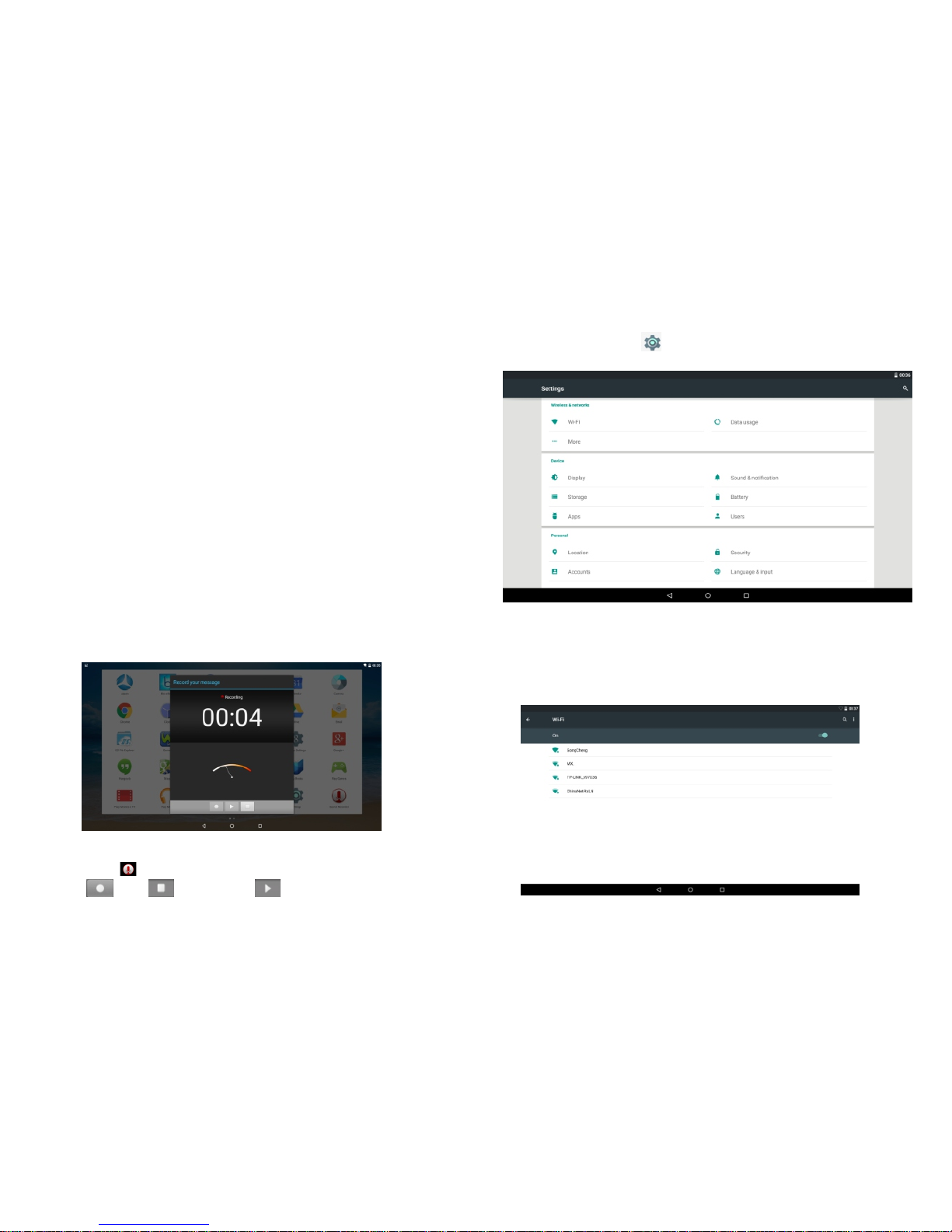
4. Settings
Click on Settings , will appear a setting menu as below.
4.1 Wireless & networks
Connect with Internet
The Azpen tablet can connect to the internet by using
Wi-Fi.
Go to Settings > Wireless & Networks > Wi-Fi .
Click “local” on the left , then click “ homepage” Manage three
types of memory in this tablet.
a. Internal Storage
b. External Sdcard
c. USB Storage
1. The name “o” is internal storage file.
2. The name ”extsd” is external sdcard file.
3. The name “usbhost” is USB storage file.
File manager features.
* Operate files (Copy, Paste, Cut/Move, Create, Delete and
Rename, Share/Send) in the phone and computers.
* Multi select files
* Application manager -- Manage apps (Install, Uninstall,
Backup, Shortcuts, Category)
* View different file formats, photos, docs, videos anywhere,
support third party applications such as Document To Go to
open document files
3.7 Recording.
Click on icon to start recording. Record a voice note by
tap , tap to stop, tap to play.
Make sure turn on Wi-Fi.
-17-
-18-
Page 12
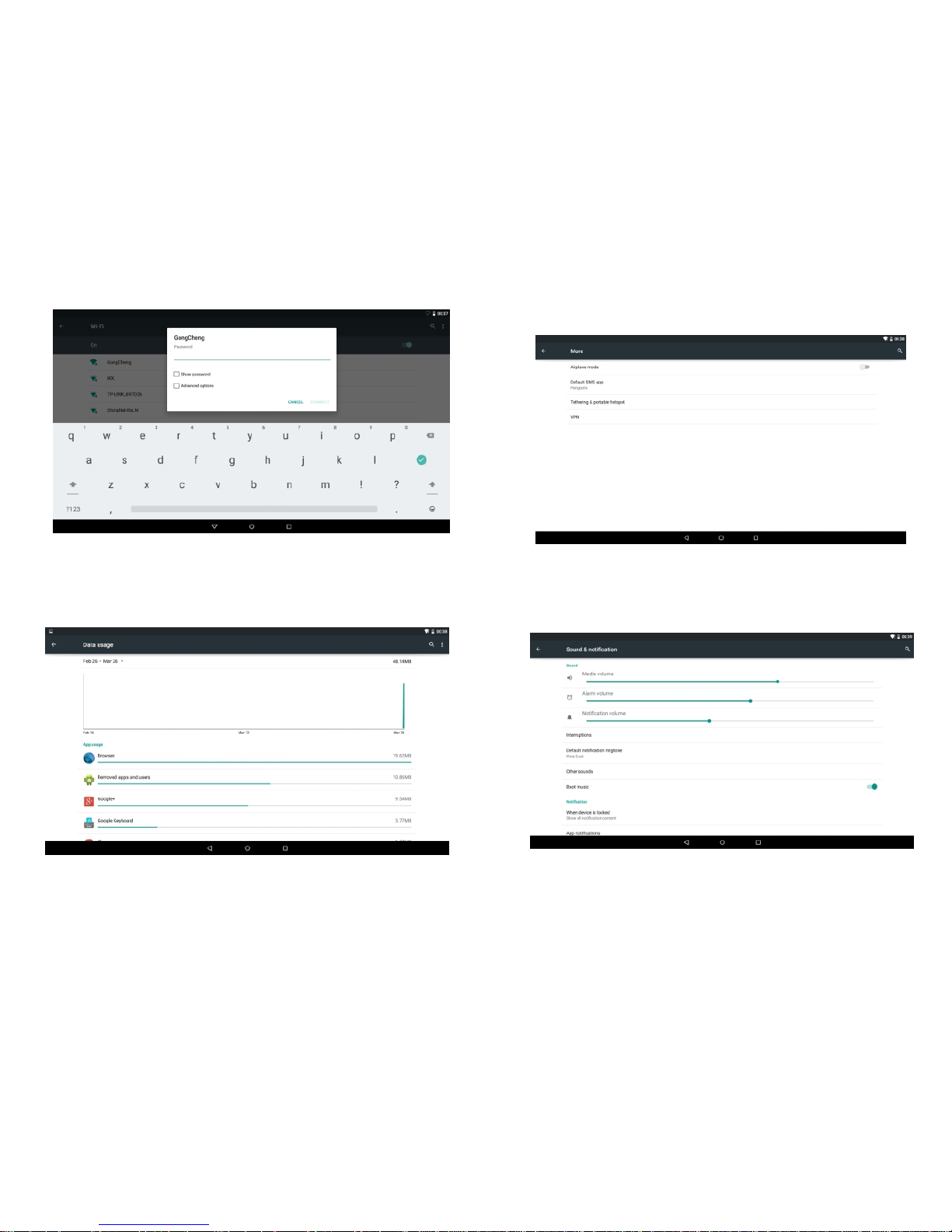
On the drop-down list, select the network and type your
router password.
4.2 Data usage
Check data usage.
4.3 More
For more information on Airplane mode,default SMS app
etc.
4.4 Sound & notification
Click on Sound & notification to go to sound setting.
Volume: To adjust Music ,Video games,& other media
Notifications,Alarms Volumes
Default notificatiom sounds:Select default notificatiom sounds.
-19-
-20-
Page 13
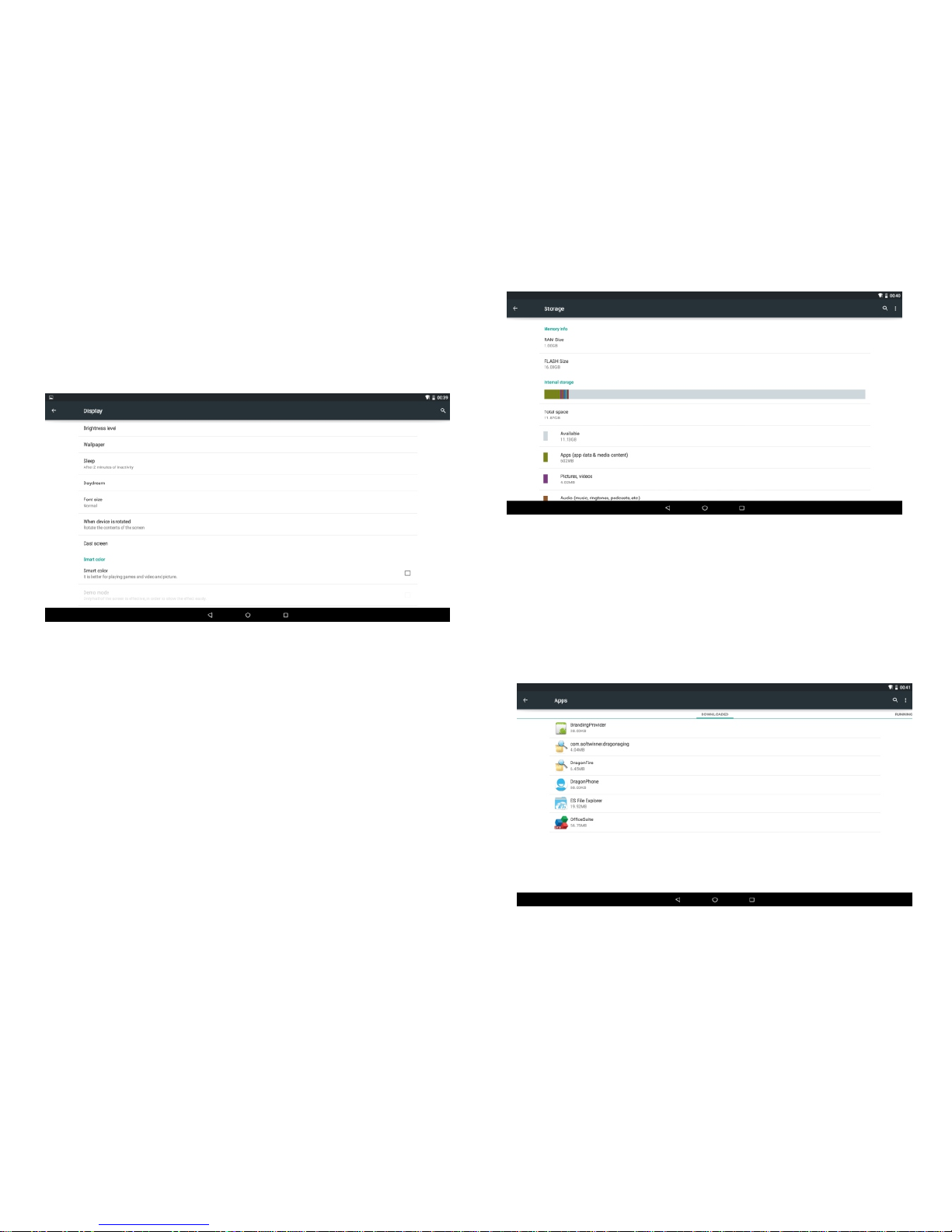
4.5 Display
Other sound
Touch sounds:open or close touch sounds
Screen lock sound: open or close screen lock sound
A: Brightness Level
B: Wallpaper
C:Sleep: Adjust the delay before the screen
automatically turns off.
D: Day dream
E: Font Size: Small Normal Large Huge
4.6 Storage
To check the RAM space,the nand flash space, Micro SD
space,
4.7 Apps
A: Unknown sources: Allow installation of non-Market
applications.
B: Manage applications: Manage and remove installed
applications.
C: Running services: View and control currently running
services.
D: Storage use: View storage used by applications.
-21-
-22-
Page 14
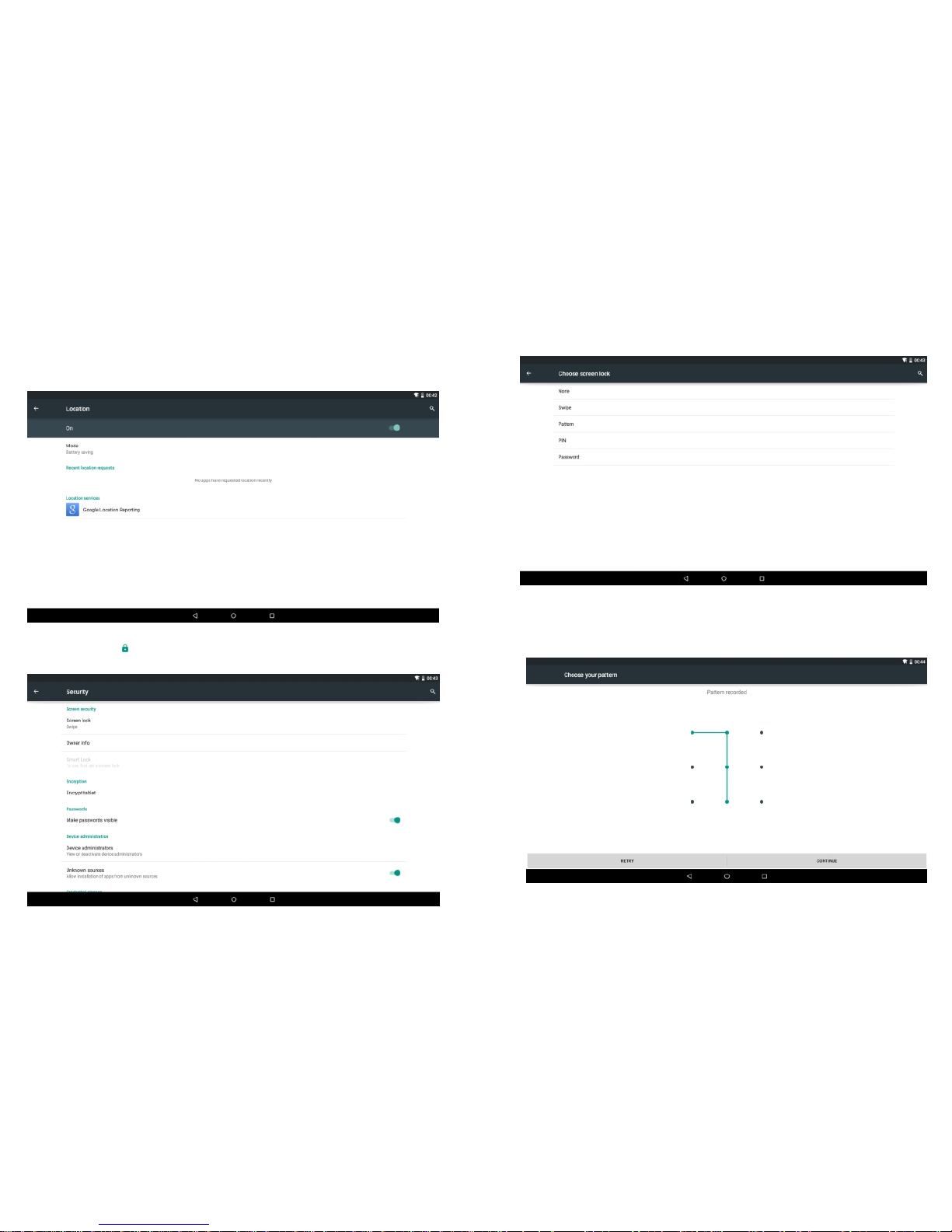
Location
Touch the off/on bar to turn Location on to use Google’s
location service
4.8 Personal
Security
Tap the icon to enter the security settings interface as
below:
Screen lock: Tap "screen lock" to select screen lock with none,
swipe,pattern, or password ,PIN .
Unlock screen by a pattern: Draw the unlock pattern with a
minimum of 4 points, tap "Continue" to complete the setting.
-23-
-24-
Page 15
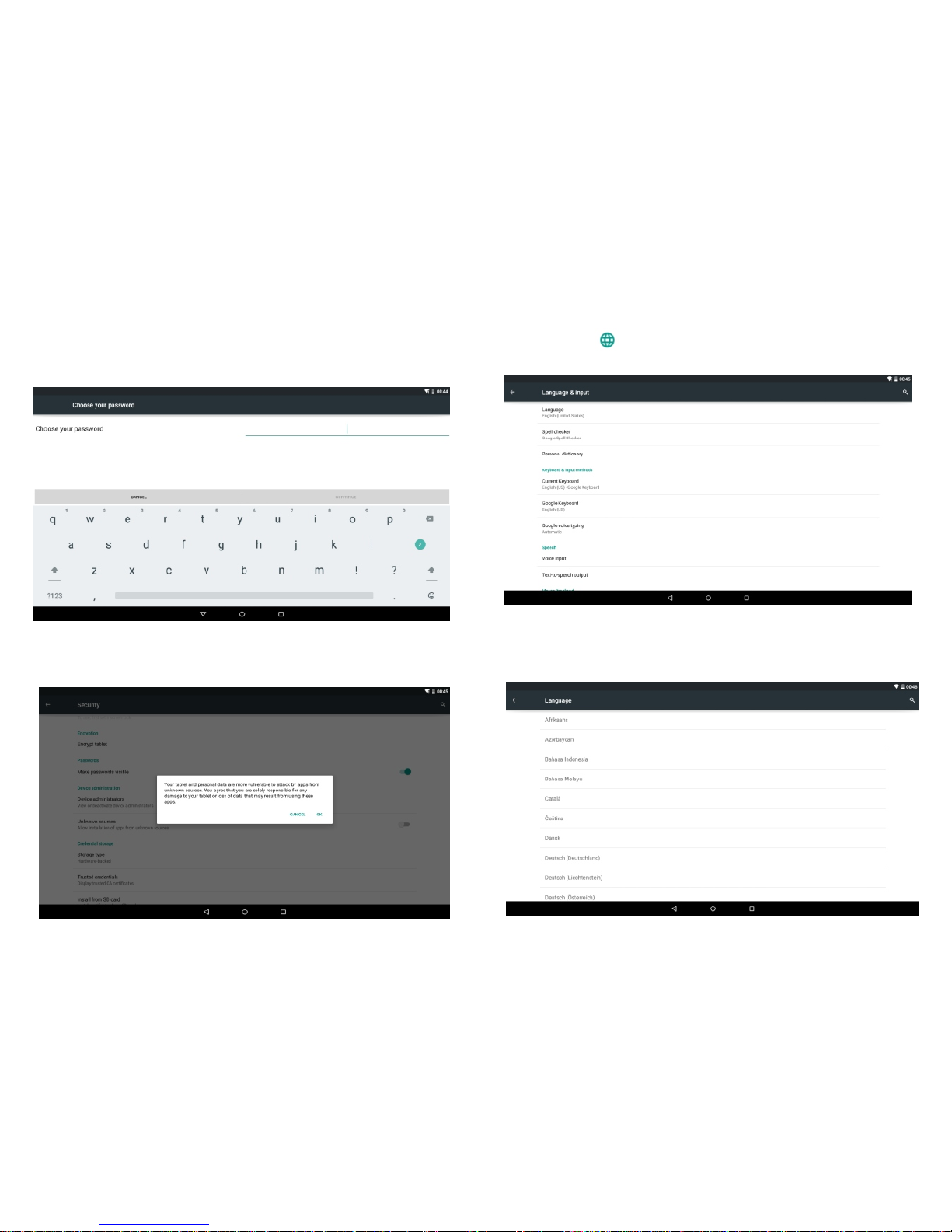
Unlock screen by a password: Input a password with 4
characters, tap "OK" to complete the setting. The device will
prompt you to input the correct password when unlocking.
Device Administrator: Tick the box behind the "Unknown
sources", the system will allow installation of non-Market
applications:
4.9 Language & input
Tap the icon to enter the language and input method
settings interface as below:
Language: The device supports multi-languages. You can
select an operation interface of different languages according
to your needs. Select a language option, tap to confirm and go
back.
-25-
-26-
Page 16
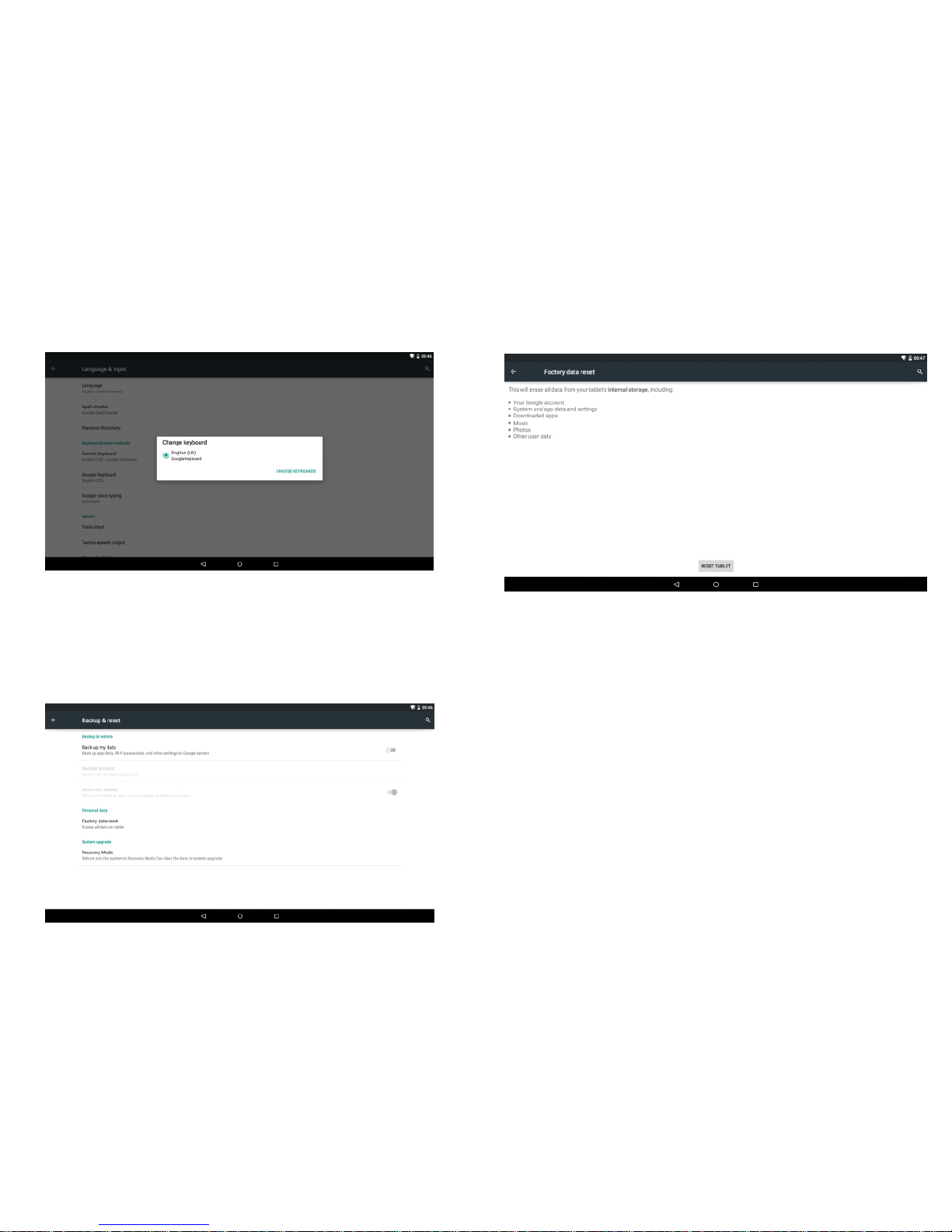
Keyboard & input method: Set the keyboard and input
methods as you need:
4.10 Backup & reset
Tick the box behind the "back up my data" to back up
application data, Wi-Fi passwords, and other settings to
Google servers.
Tick the box behind the "Automatic restore", the system will
restore backed up settings or other data if it reinstalls an
application.
Personal data:
Tap the "Factory data reset" to erases all data on the device.
NOTE: Please back up all your data of the internal memory
before reset the device, or you will lose all the data.
4.11 Date & time
A: Automatic: Use network-provided values
B: Select time zone
C: USE 24-hour format
D: Select date format
-27-
-28-
Page 17
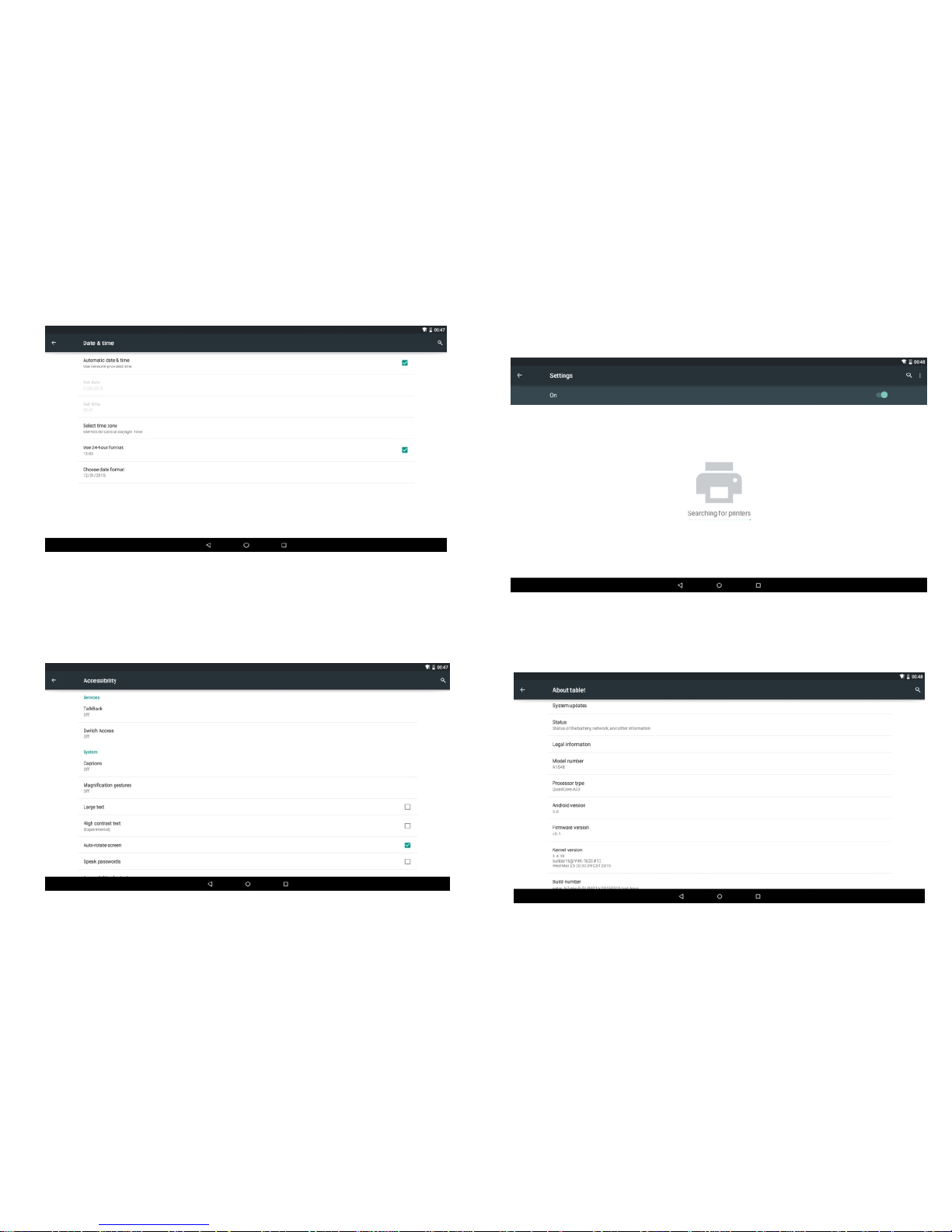
4.12 Accessibility
Tab the icon to set the TalkBack, Large text, Auto-rotate
screen, Speak passwords, Touch & hold delay as below:
4.13 Printing
support Google Cloud printing service:
4.14 About Tablet
Tap to check System updates, Status and Legal information as
below:
-29-
-30-
Page 18
Troubleshooting
Device cannot connect to Wi-Fi
1) Ensure the wireless network is working by testing it using
another wireless device.
2) Ensure the device and the wireless router is within the
range of the wireless network to be connected too. Walls or
other obstructions will reduce the possible distances between
wireless devices.
3) Ensure the security password being used is correct.
Device doesn't turn on
1) You cannot turn on the device when the battery charge is
below the critical level, please charge the battery.
2) Press the RESET button by a pin inserted into the RESET
hole and check if it is restarting normally or not.
3) Check if the charger is connected correctly. hhhhbrightest
setting, or when being charged, this device can get quite hot.
This is normal and should not cause any inconvenience when
in use.
System has anomalies and doesn't work correctly
Installing some third-party applications may
cause the system to operate incorrectly. Press
the RESET button and perform a system reset
to resolve this issue.
Troubleshooting
Cannot set E-mail Account or registration application
1) Ensure that the tablet is connected to a Wi-Fi network and
can connect to the Internet.
2) Ensure your E-mail settings have been entered correctly
for the account being accessed.
3) Make sure your system time and local time is correct.
Cannot record
Press the RESET button by a pin inserted into the RESET hole ,
and then check if the record function works correctly.
The stand-by time of the device is too short
1) The duration of the lithium battery varies with
environmental temperature changes and the service
conditions. If the environment temperature is too low or too
high, the duration of the battery will be affected. It is
recommended to use this device at normal temperature.
2) Battery life is dependent on usage. High volume, WIFI, and
the frequent use may cause the battery to be drained at a
higher rate.
No sound via earphone
1) Please check if the volume setting is 0.
2) Please check if audio file is broken, and try to play another
audio file to confirm. If the audio file is broken, it may cause
severe noise or static.
The color distortion of video or picture display
Press the RESET button by a pin inserted into the RESET hole
to resolve this issue.
Cannot copy files
1) Please check if the device is connected to the computer
correctly.
2) Please check if the memory space is full.
3) Please check if the USB cable is broken.
Troubleshooting
-31-
-32-
Page 19

No sound or no image via HD Output.
1) Please check if the device is connected to an HD cable
correctly, and the TV settings of the HD port is correct.
2) Please check if the HD cable is broken.
3) Press the RESET button by a pin inserted into the RESET hole,
then check if the HD output function works correctly.
Other troubles
Please follow up the steps as below to fix the other troubles
before you return the MID/Tablet to us:
1) Press the RESET button by a pin inserted into the RESET
hole, then check if the function works correctly;
2) Upgrade the firmware from the CD and restart the device
and then check if the function works correctly.
Will my existing eBooks be compatible with
this device?
Most popular e-book formats that are not
DRM protected are compatible as long as
they are in a supported format: TXT, LRC,
PDF, HTM, EPUB, etc. If they are not compatible,
an application may be available on APKShare.com,
which could assist you.
Will this device play High Definition video?
Yes, the maximum HD resolution is 1920x1080.
Can I add more storage?
Yes, there is a Micro SD card slot on the base of the unit,
which supports up to 32GB of additional memory.
Can I use an external keyboard?
No, but there are applications on APKShare.com which may
make on screen typing easier for you.
Can I run multiple applications at once?
Yes, if you plan on running several applications at the same
time we recommend installing a task manager for the unit to
run most efficiently.
Frequently Asked Questions
FAQ
Troubleshooting
-33-
-34-
Page 20
The device complies with RF specifications when the device used at
0mm from your body.
 Loading...