

Page 1
Page 1 of 28
Axicon Auto ID Limited | Linear verier user guide | October 2017
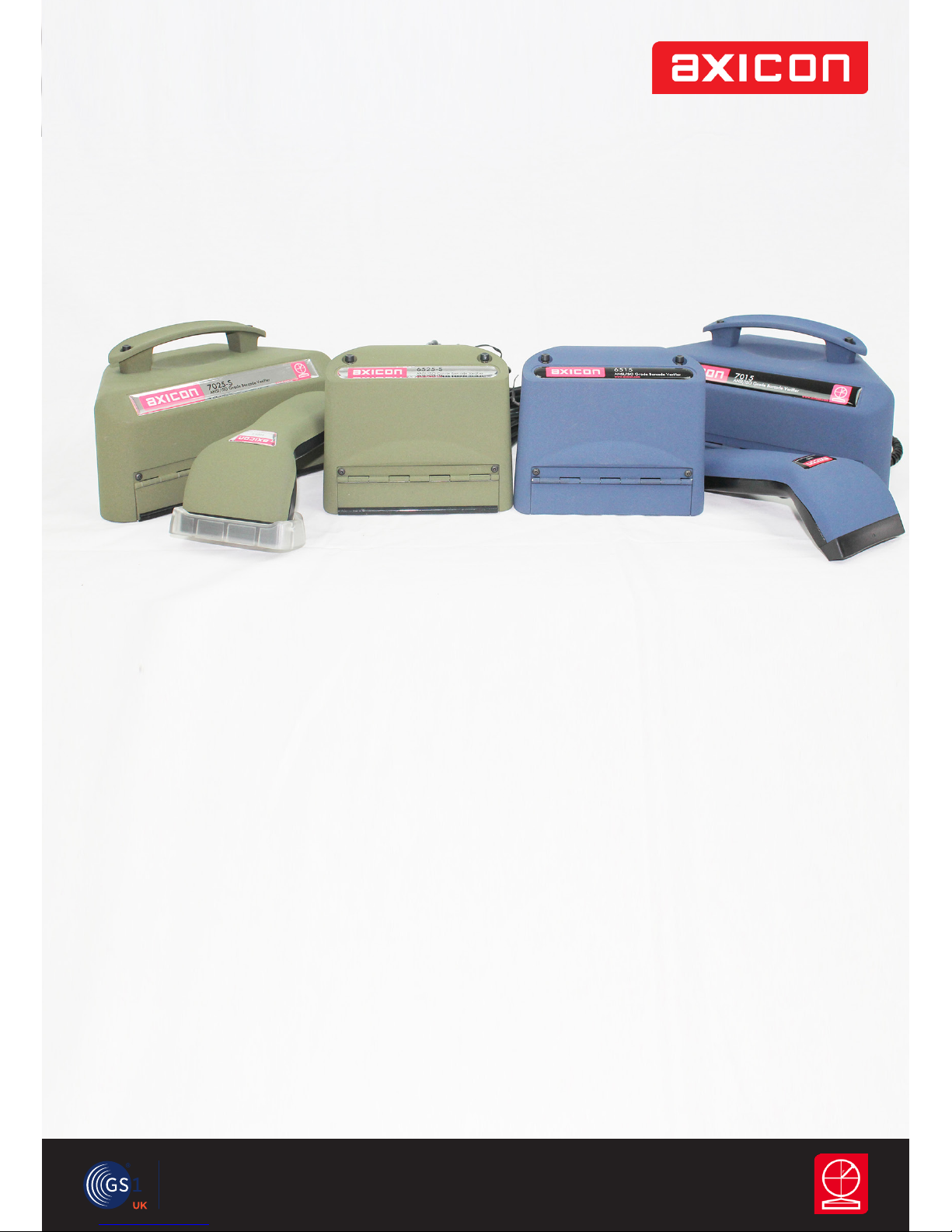
Axicon 6000, 6500, 7000 series
THE BARCODE EXPERTS
Church Road, Weston on the Green, Oxfordshire, OX25 3QP, UK
Tel: +44 (0)1869 351155 | Email: [email protected]
Web: www.axicon.com
user guide
Axicon linear
barcode veriers
Industry
Partner
Page 2

Page 2 of 28
Axicon Auto ID Limited | Linear verier user guide | October 2017
Axicon 6000, 6500, 7000 series
Page 3
Page 3 of 28
Axicon Auto ID Limited | Linear verier user guide | October 2017
Axicon 6000, 6500, 7000 series
Contents
Important information 4
Introduction 5
Installation 6
Holding the verier 8
Getting started 10
Calibration 11
Software windows 12
Continuous scan 14
Selecting the verier 15
Setup 16
Software licence 22
Warranty 24
Service contract 25
Annual servicing 26
Certicate of conformance 27
Contact us 28
Page 4

Page 4 of 28
Axicon Auto ID Limited | Linear verier user guide | October 2017
Axicon 6000, 6500, 7000 series
Important information
The Axicon verier is a high precision opto-electronic device and should be handled
carefully. Please keep and use the case to protect the verier when it is not in use.
Only use power and data cables supplied by Axicon as the use of non-approved
accessories will invalidate the warranty. If the verier is dropped (or subjected
to similar misuse) the accuracy of the results may be aected and it should be
returned to Axicon immediately for servicing.
We recommend that the verier is factory serviced annually to ensure that it
remains compliant to ISO/IEC 15426-1. The unit should be returned to Axicon or to
your approved Axicon reseller for this servicing.
Software updates are always available free of charge, and can be downloaded from
our website, www.axicon.com
Page 5

Page 5 of 28
Axicon Auto ID Limited | Linear verier user guide | October 2017
Axicon 6000, 6500, 7000 series
Introduction
What is in the case.
One or more of the following veriers:
• Axicon 6000 series verier with USB cable.
• Axicon 6500 series verier with USB cable.
• Axicon 7000 series verier with USB cable.
• Software CD.
• Wallet containing this user guide and calibration sheet
The Axicon verier is designed to work with any PC running a version of Microsoft
Windows currently supported by Microsoft.
Page 6

Page 6 of 28
Axicon Auto ID Limited | Linear verier user guide | October 2017
Axicon 6000, 6500, 7000 series
Installation
Software installation.
Insert the CD into the CD drive. The Install Program should run automatically (if
not, open the CD using Windows Explorer and double-click the Autorun Program).
Click Install Axicon Verier and follow the installation instructions after agreeing
to the licence terms and conditions.
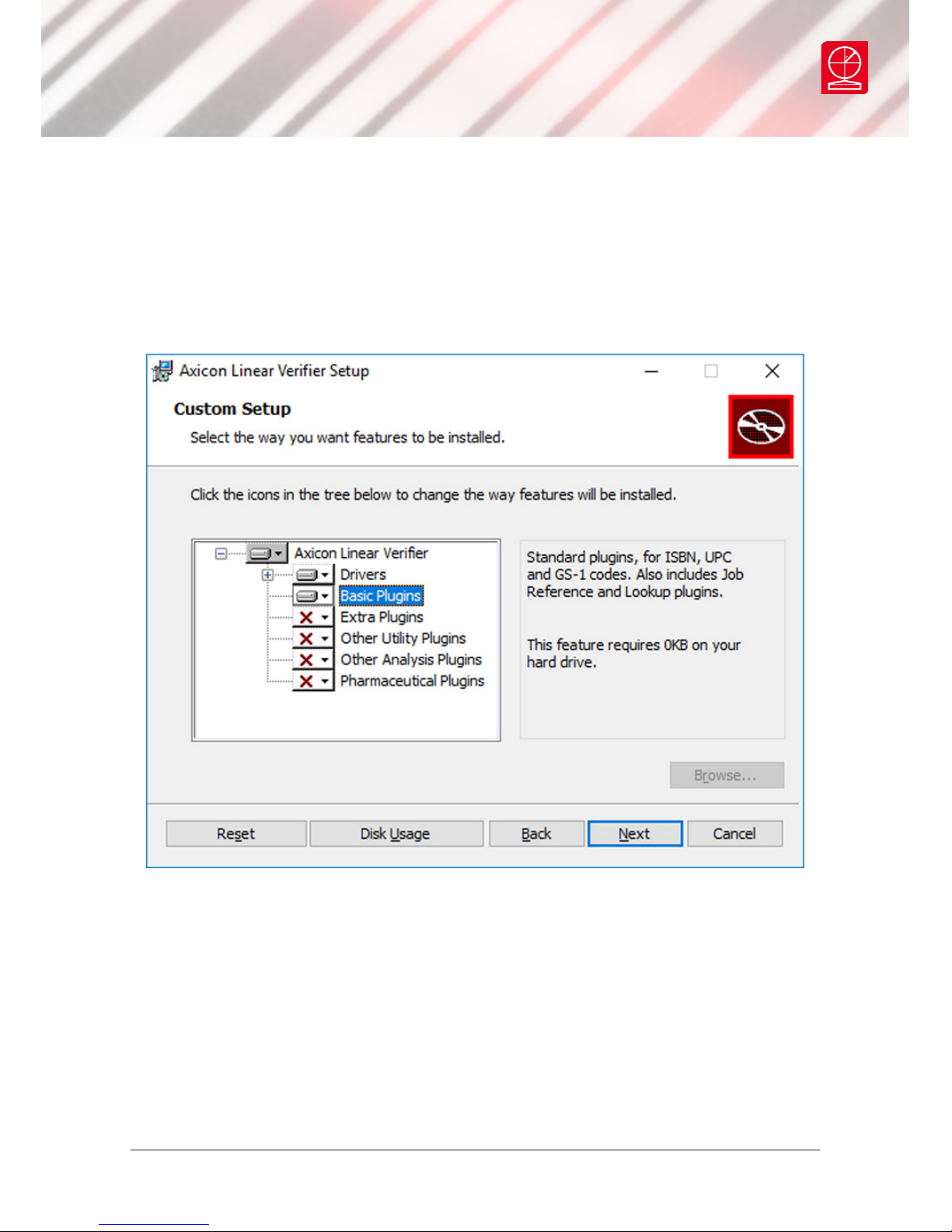
At the Custom setup window, the boxes relating to Drivers and Main Program are
automatically selected. It also provides for optional extra plugins (see page 7).
After installation is completed you will nd the Axicon Verier directory in Start
Menu/Programs and a shortcut to the program on your desktop.
If you have downloaded the software from our website then simply click on the
setup le and follow the instructions.
Hardware installation
Plug the verier into any available USB port on the computer. For Windows
7, Windows 8 and Windows 10 installations the drivers should be installed
automatically.
Note: Please follow these installation instructions in the correct order, namely
installing the software before the verier is plugged into any USB port. If the
verier is plugged in before the software has been installed, Windows will attempt
to nd the correct drivers for the verier via the internet, and choose an incorrect
option. This then causes problems as the software is unable to install the correct
driver.
Page 7
Page 7 of 28
Axicon Auto ID Limited | Linear verier user guide | October 2017
Axicon 6000, 6500, 7000 series
When you reach the Custom setup window you will see a selection of optional
plugins. The Drivers and Basic Plugins are selected by default. If you require
other plugins then simply select one or more of the Extra, Utility, Analysis or
Pharmaceutical plugins.
Scan File Data Extractor and the In-line verier software are installed as part
of the software package. Scan File Data Extractor enables you to summarise and
record all the verications made in a standalone database. It uses the data from
the Axicon scan les (those with a .scn extension) to create a complete record of all
the les that have been saved, either automatically or manually. More information
about this is available via the website www.axicon.com.
The Inline Verier software can be used with the Axicon S-range veriers to check
every barcode being printed on a production line.
Page 8

Page 8 of 28
Axicon Auto ID Limited | Linear verier user guide | October 2017
Axicon 6000, 6500, 7000 series
Holding the verier
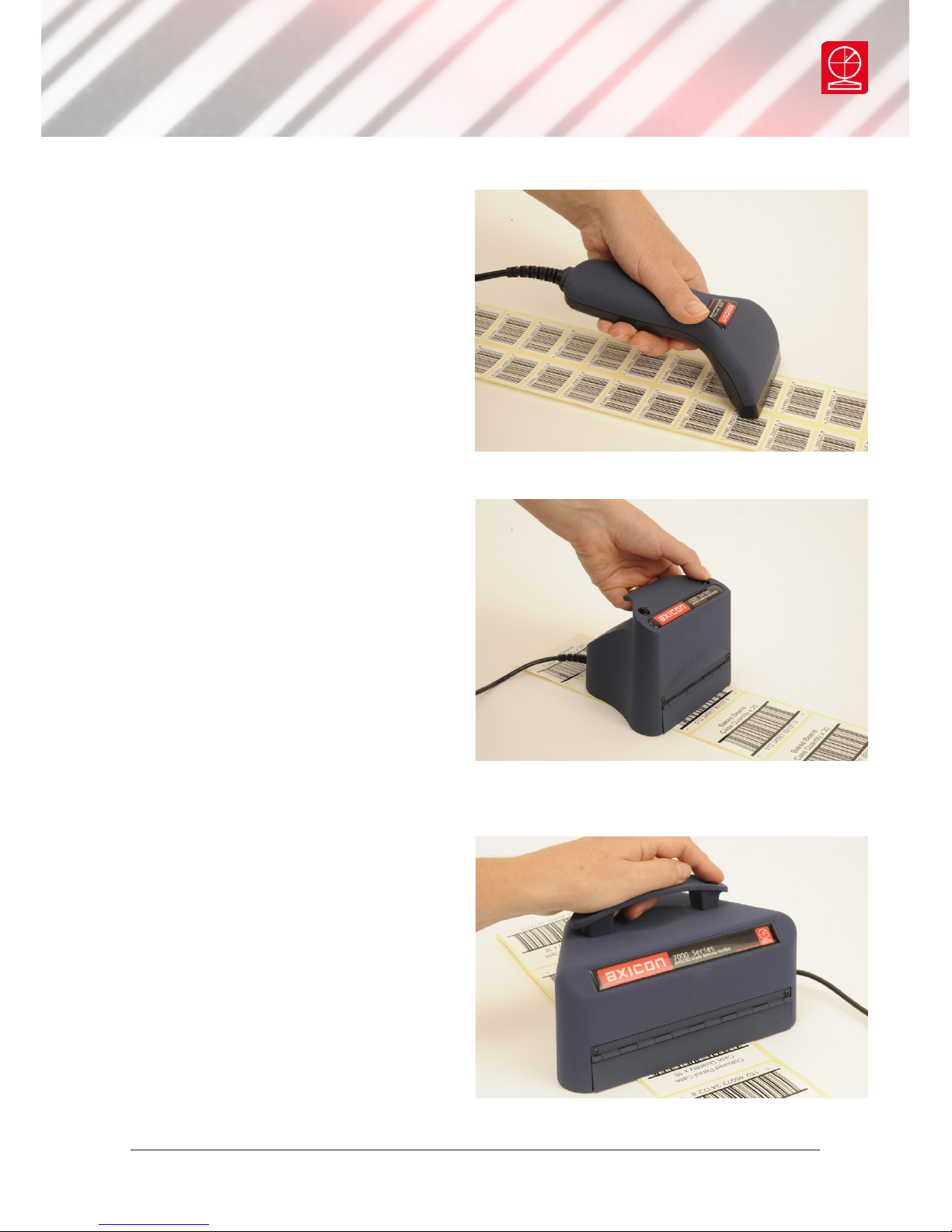
The Axicon veriers are all designed to be used with the verier positioned so that
it touches the barcode, as shown in the pictures opposite.
Each verier can be controlled via the software, and they also have a button to
take a scan. The button on the 6000 series is underneath the read head. The 6500
and 7000 series each have two buttons on the top. These have the same function so
use whichever button is more convenient.
Wait for at least a minute after switching on the verier (when the red LEDs will be
illuminated) before using it. This allows the circuitry of the reader to stabilise.
It is important that the front ap of the 6500 or 7500 verier is closed so that as
much ambient light as possible is excluded from the verication process.
If the code you are verifying is printed around the circumference of a curved
surface, the varying distance of the reader from the code may produce inconsistent
results.
Press the trigger button. The reader will beep and the data from the rst scan will
be displayed in the software immediately. For full ISO/IEC verication you should
scan the barcode ten times, moving through its height and avoiding the top 10% and
bottom 10%.
Page 9
Page 9 of 28
Axicon Auto ID Limited | Linear verier user guide | October 2017
Axicon 6000, 6500, 7000 series
The Axicon 6000 series - All four
corners of the verier are touching
the surface. The 6000 series verier
cannot be used for symbols wider
than 66mm, and this dimension
includes the quiet zones.
The 6500 series can be operated
either horizontally or vertically (on
the side of a carton) but always in
contact with the barcode. The 6500
series verier cannot be used for
symbols wider than 125mm, and this
dimension includes the quiet zones.
The Axicon 7000 series is being
placed at onto the label with the
barcode in the eld of view. The 7000
series verier cannot be used for
symbols wider than 200mm, and this
dimension includes the quiet zones.
Page 10
Page 10 of 28
Axicon Auto ID Limited | Linear verier user guide | October 2017
Axicon 6000, 6500, 7000 series
Getting started
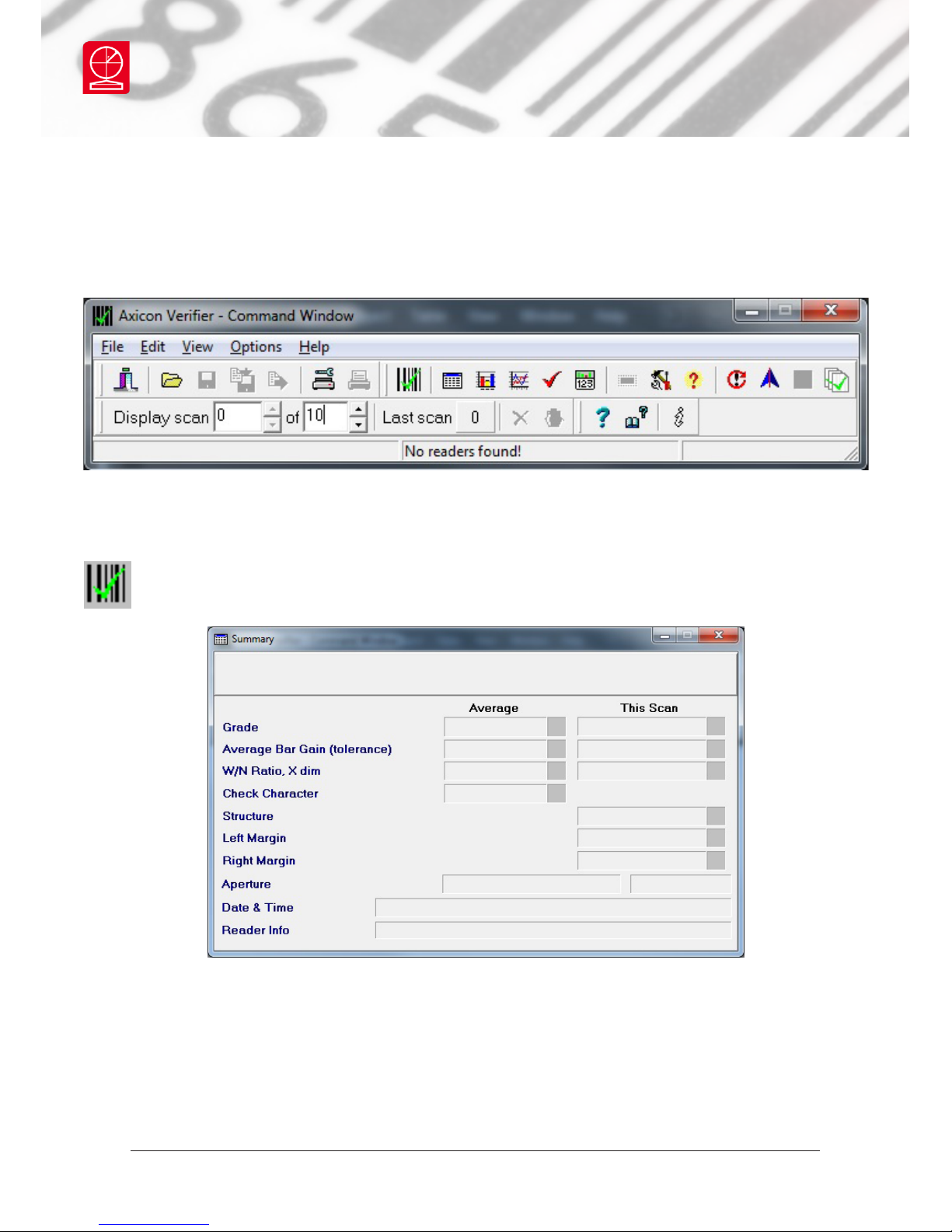
When you rst start the software you will see the Command window and the
Summary window.
Information is also given on the:
• bar gain (ink spread or bleed),
• the size of the x-dimension (the width of the narrowest bars)
• validation of the check digit
• structure
• the quiet zones (the clear spaces or light margins each side of the barcode)
The Command window gives access to all of the main features of the verier. Use
the pull down menus or the icons to operate the software.
The Summary window shows the overall print quality of the barcode as
measured by the ISO/IEC or ANSI standards.
Page 11
Page 11 of 28
Axicon Auto ID Limited | Linear verier user guide | October 2017
Axicon 6000, 6500, 7000 series
Calibration
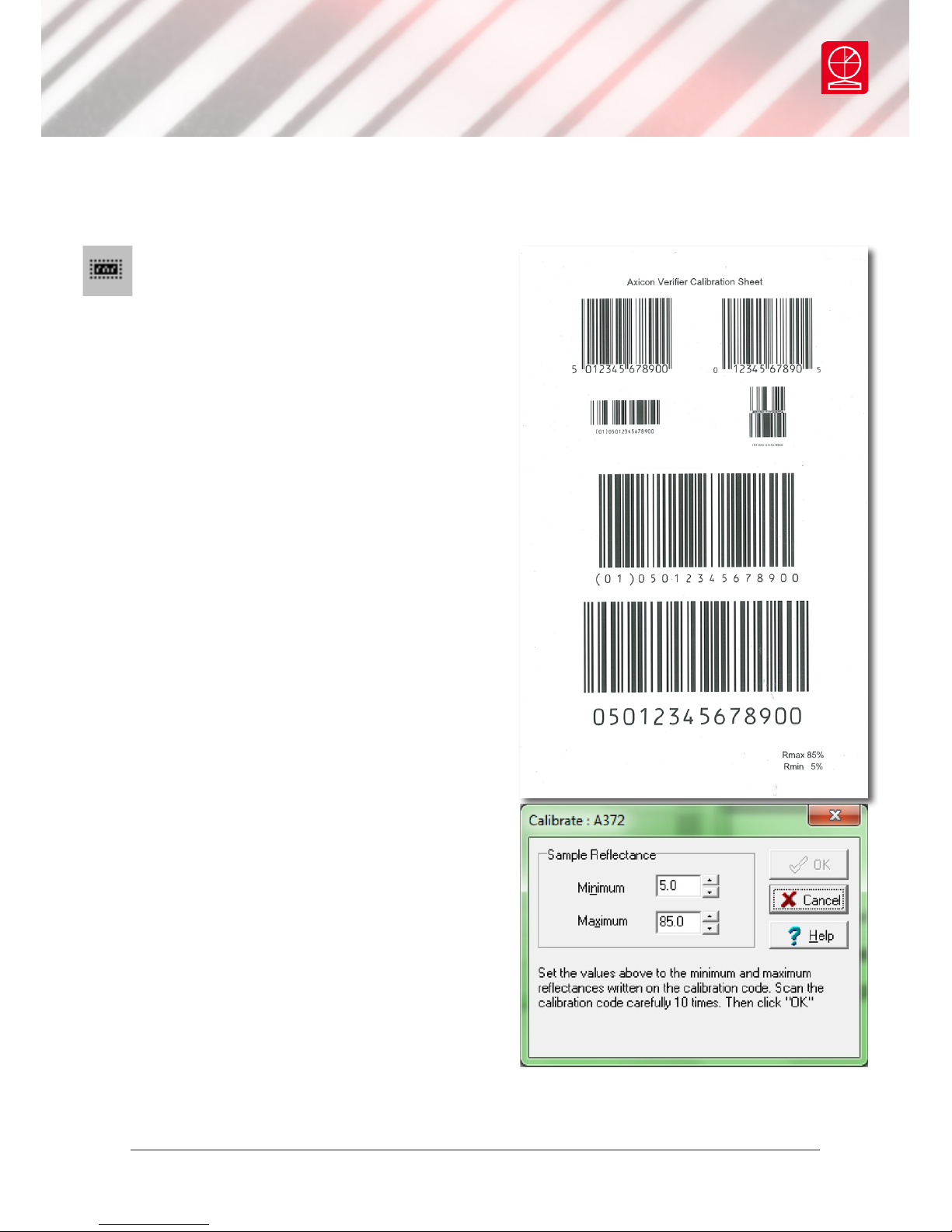
Calibration should be carried out
after installation and at regular
intervals. When the software detects
an uncalibrated reader the following dialogue
box will appear Reader XXXX has not been
calibrated. You must click OK to continue.
You will also need your calibration card which
should be located in your documentation
wallet.
For the Axicon 6000 series use the EAN-13
or UPC-A calibration code at the top of the
card. For the Axicon 6500 and 7000 series use
either of the large calibration codes at the
bottom of the card.
Calibration is a quick and simple process.
Select Calibrate from the Options menu
of the command window (or press F2). You
will see a window with two edit boxes for
minimum and maximum reectance values.
Ensure that the values shown in the window
match the values printed at the bottom of
the calibration card. Modify the gures on
the window if necessary to ensure that they
are the same as the card.
With the Calibration window open scan the
calibration barcode 10 times. Then click the
OK button. The verier is now calibrated
and ready to use. After calibration, store
the calibration card in the documentation
wallet, away from light and physical damage.
If your calibration card should ever become
damaged or discoloured, please contact Axicon or your supplier for a replacement.
Page 12
Page 12 of 28
Axicon Auto ID Limited | Linear verier user guide | October 2017
Axicon 6000, 6500, 7000 series
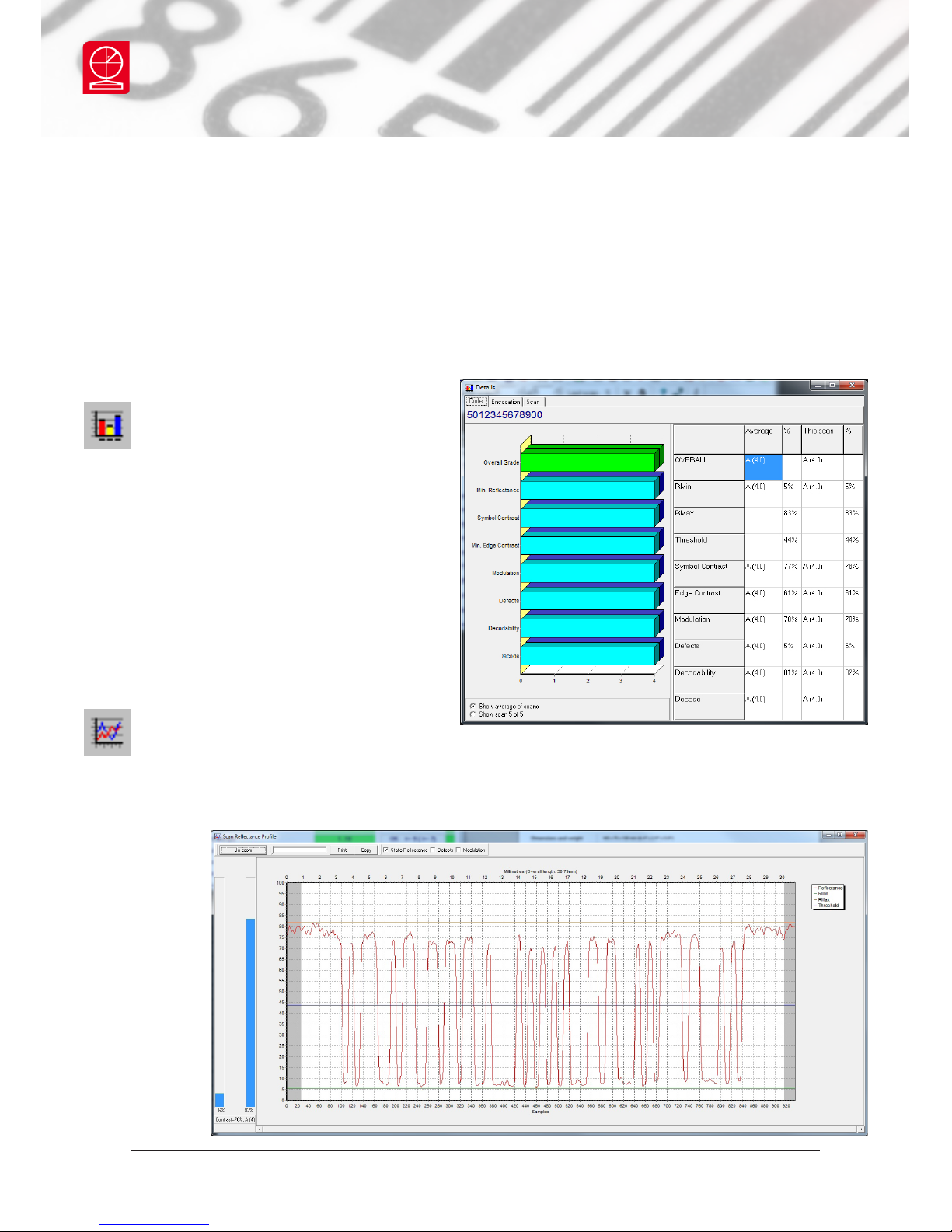
Details
This window shows each of the
ISO/IEC parameters that are
measured and individually graded (as
both grades and percentages). Seven
parameters are graded and the lowest
single grade becomes the overall grade
for that scan. If the Summary window
has shown poor print quality then the
Details window is the ideal point to
initially see what is wrong with the
barcode.
Scan reectance prole
The scan reectance prole window shows you what the barcode will look
like to a scanner. At the top of the graph are the higher levels of reectance from
the background and at the bottom of the graph are the lower levels of reectance
from the
darker bars.
Software windows
There are ve more windows you can open to look at the verication results. Go
to the View menu on the Command window, and the select the window you want,
or use the icons that appear just below the menu headings. If you hold your mouse
over each icon a brief description of its function will appear at the bottom left
of the Command window. The four most important windows are briey described
below.
Page 13
Page 13 of 28
Axicon Auto ID Limited | Linear verier user guide | October 2017
Axicon 6000, 6500, 7000 series
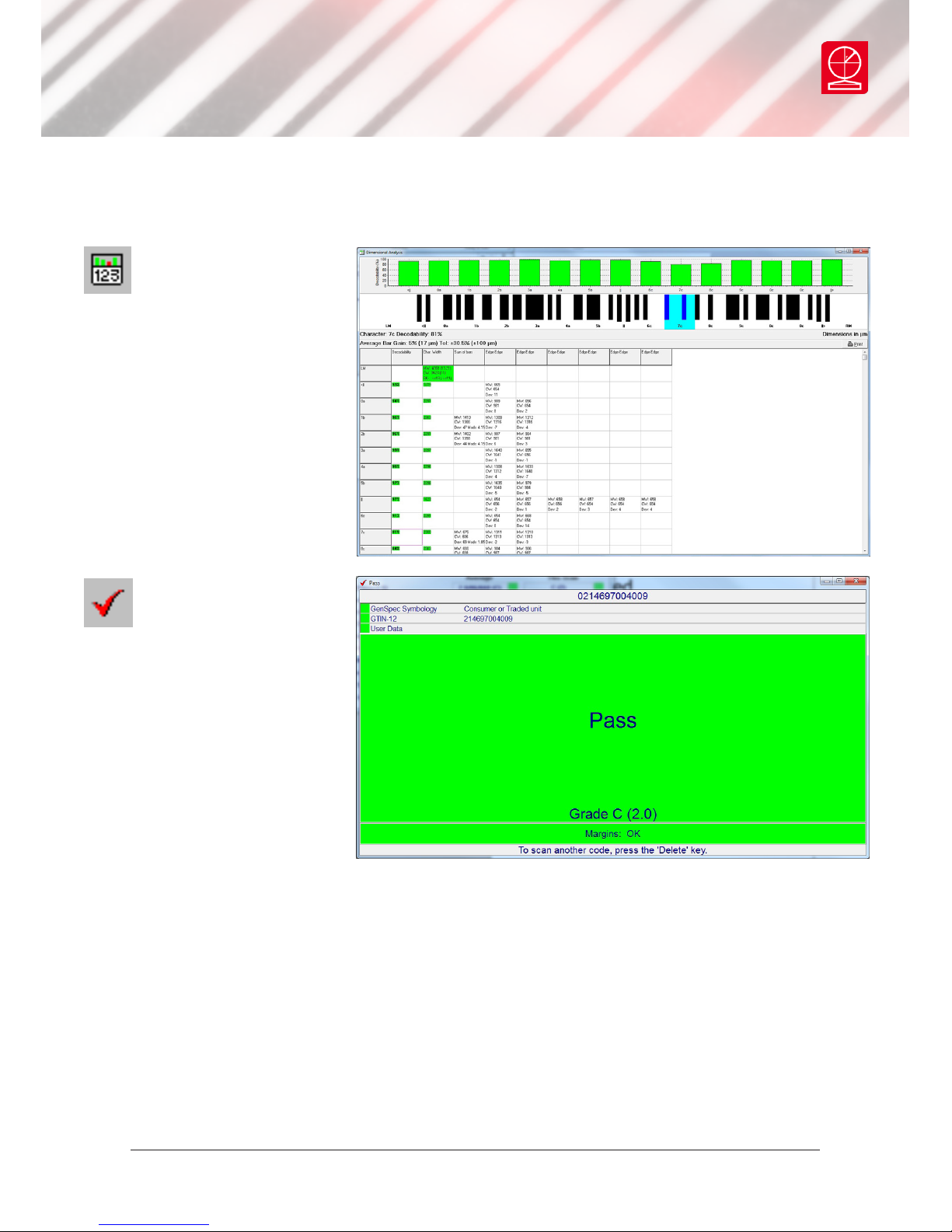
Dimensional Analysis
If the Details window
has shown a poor
Decodability grade then
this is normally because of
bad dimensional accuracy
– this screen will show the
accuracy of the bar/space
dimensions and highlight
any problem areas.
Pass / Fail
This window is ideal
for users who need
a quick visual indication of
whether the barcode meets
the right print quality
standards.
Rearranging the windows
Most of the windows described above can be moved, expanded or shrunk as
required. When you have decided which windows you would like displayed on your
PC just use the View pull-down menu and click on Save Positions. Then whenever
the software is started it will always have those windows in those positions.
The help menu from the command window gives you access to context-sensitive
help about the software. It also has a search function to nd relevant information.
The F1 key can also be used as a shortcut to switch on this help.
Page 14
Page 14 of 28
Axicon Auto ID Limited | Linear verier user guide | October 2017
Axicon 6000, 6500, 7000 series
Continuous scan
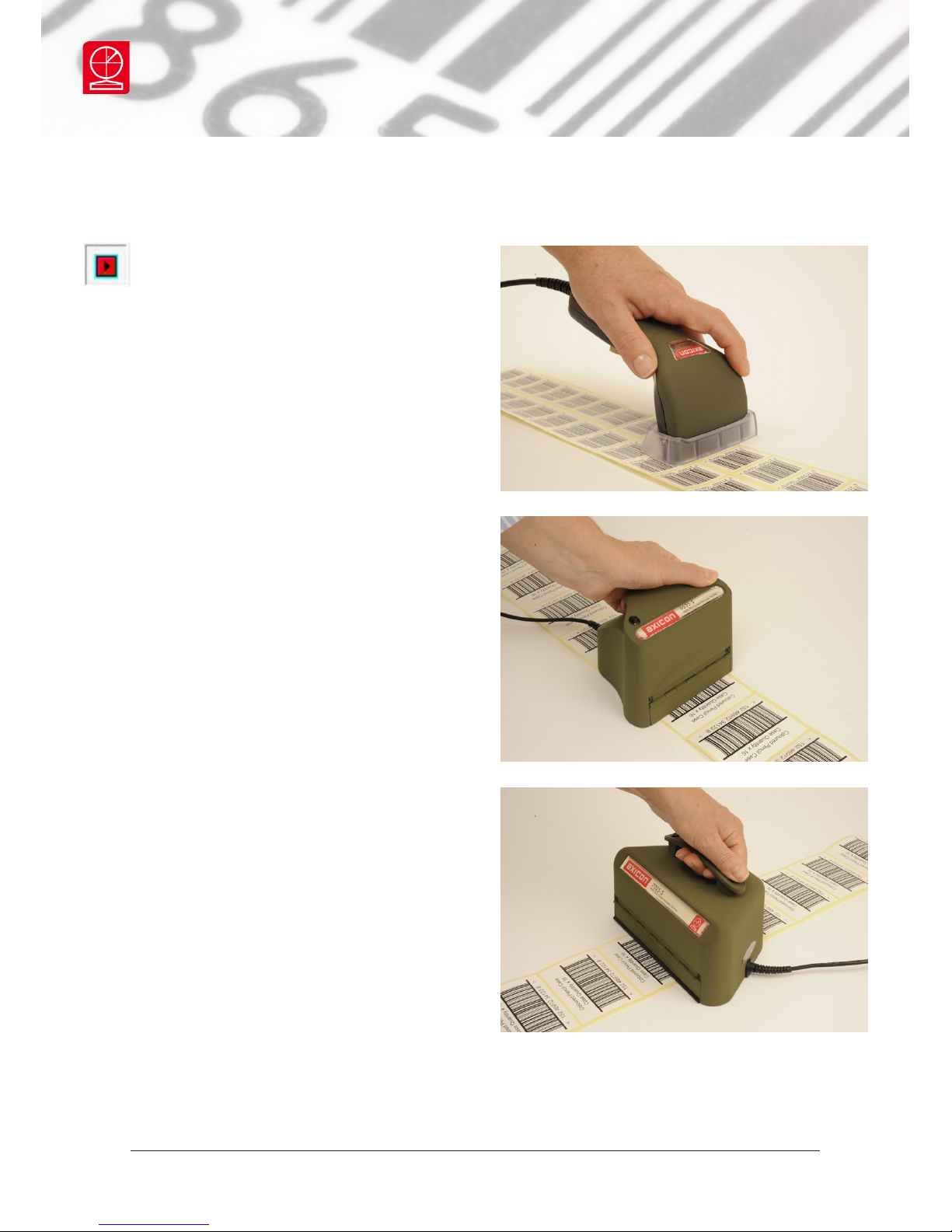
The Axicon S range veriers have
a unique continuous scan feature.
When rst installed this feature is
automatically activated on start-up (but
can be de-activated if required) and
allows the user to get an assessment of
the barcode quality in a fraction of the
time that it would take with other linear
veriers.
The verier should be placed either just
above or just below the barcode and the
trigger pressed. With the trigger still
pressed, move the verier down the height
of the barcode. The verier will scan at
the rate of 100 verications a second until
it reaches the bottom of the barcode (or
gets to the maximum number of scans).
The verier will automatically calculate an
average of the results of all of the scans
to provide an overall quality grade based
upon an assessment across the scanned
bar height.
When verifying barcodes on awkward
shaped packaging you may nd it easier to
switch o the Continuous scan mode. This
feature can be activated or de-activated
as required with a toggle switch on the
Command window.
6025-S
6525-S
7025-S
Page 15
Page 15 of 28
Axicon Auto ID Limited | Linear verier user guide | October 2017
Axicon 6000, 6500, 7000 series
Selecting the verier
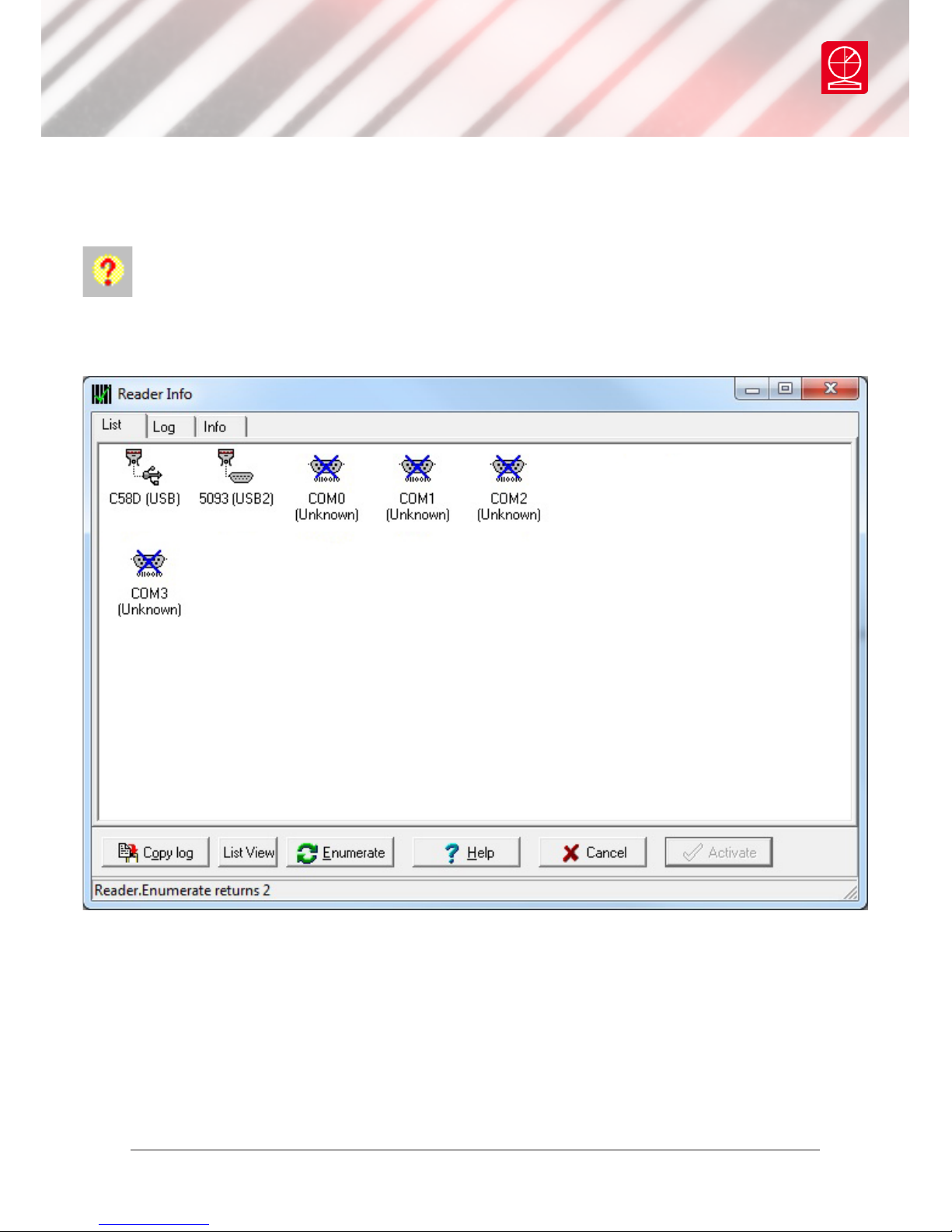
If you have more than one verier plugged into your computer at the same
time (for example a 6015 and a 7015), you will need to choose which one you
want to use. If the LEDs are not illuminated on the verier you need, go to
the Options menu on the Command window, and then choose Show Reader Info (or
use the shortcut F3).
A new window, Reader info, will appear.
At the bottom you see the button Enumerate. Click on this and in a few moments
all the connected veriers will be displayed as small icons. The rst four characters
are the serial number of each verier which is clearly marked on each one. Double
click on the icon for the particular verier you wish to activate.
Page 16
Page 16 of 28
Axicon Auto ID Limited | Linear verier user guide | October 2017
Axicon 6000, 6500, 7000 series
Setup
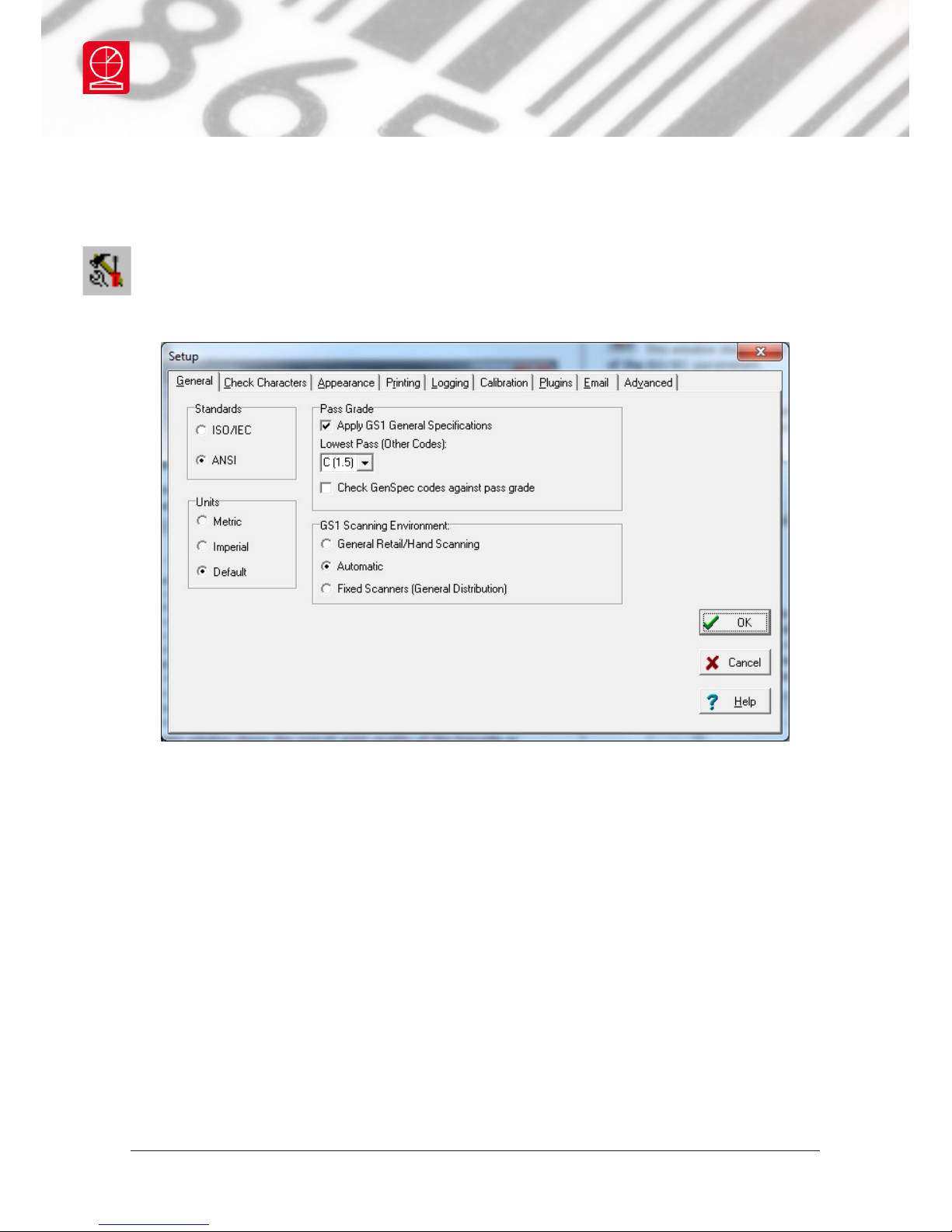
All of the primary conguration of the verier is done through the Setup
section. From the Command window choose Options then Setup or press F5.
General
Standards: Click on ISO if you want only the numeric ISO result to be shown – or
click on ANSI if you would prefer to be shown both results. The default is to track
the Windows settings for metric or imperial measurements – alternatively you can
set this as required.
Pass Grade: If you are working with GS1 barcodes then the Apply GS1 General
Specications should remain ticked. The user can select the pass/fail grade for
other barcode types as specied either by an industry application specication or
by their customer.
Page 17
Page 17 of 28
Axicon Auto ID Limited | Linear verier user guide | October 2017
Axicon 6000, 6500, 7000 series
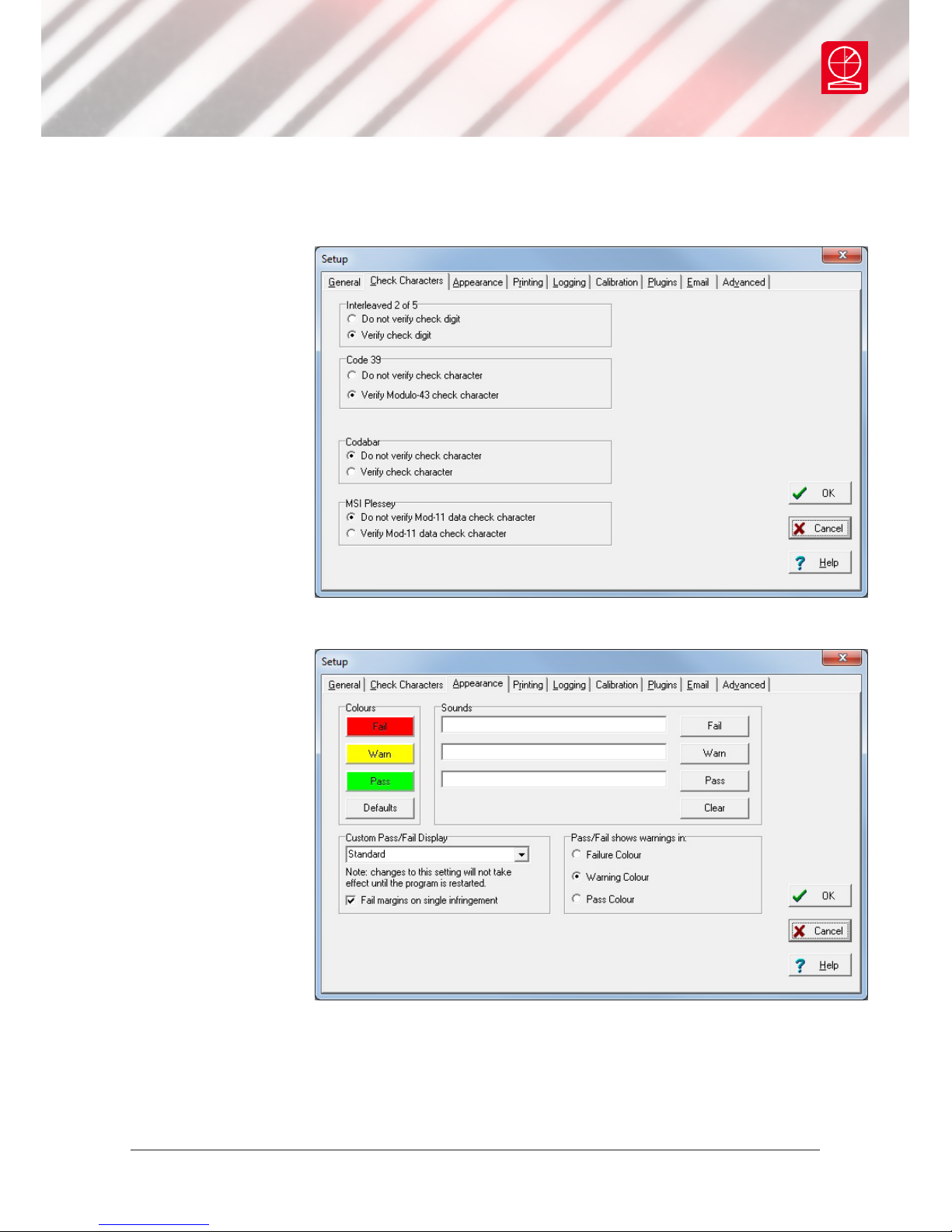
Check Characters
This tab allows the user
to select the barcode
types that have
optional check digits.
If these are being used
then the verier can be
set to validate them.
Appearance
This tab can be used
to adjust any display
colours/shades for the
pass, warning and fail
messages – and can
also be used to add
Windows wave sounds
to give an audible
indication of quality.
Page 18
Page 18 of 28
Axicon Auto ID Limited | Linear verier user guide | October 2017
Axicon 6000, 6500, 7000 series
Setup
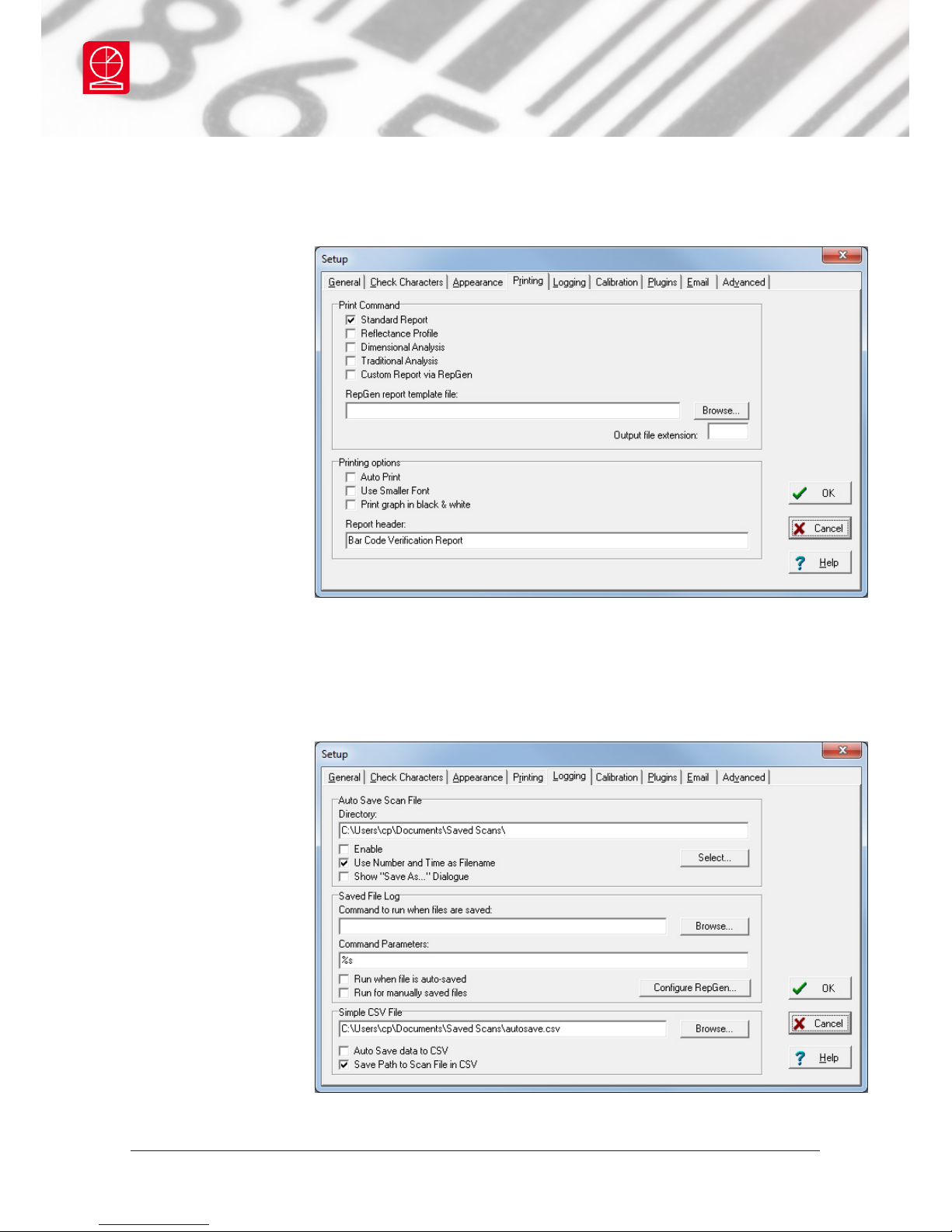
Printing
This tab can be used
to pre-select any
particular reports that
are required. This
includes the option to
have a personalised
report generated
through the built-in
Report Generator.
The verier software
can also be set to
Autoprint to avoid
forgetting to print a
particular report.
Tick Print graph in black & white if you are using a monochrome (black and white)
printer, otherwise a scan reectance prole will only show the outline and not
the detail. Also, the standard printed report can be personalised if required using
the Report header
feature.
Logging
The Logging tab is
used to set the saving
of records and to run
pre-congured external
programs from the
verier.
If the Enable box is
ticked under the Auto
Save Scan File section
(at the top) then the
software will auto save
every scan le in the chosen directory.
Page 19
Page 19 of 28
Axicon Auto ID Limited | Linear verier user guide | October 2017
Axicon 6000, 6500, 7000 series
The les saved through this process can be regarded as audit quality records of the
verications made and can also be used for remote diagnostics purposes. The les
can be saved automatically with a lename comprising the decoded number, date
and time and a sequential number, or by using a dialogue box.
Save File Log allows users to run any Windows program each time a le is saved. It
is intended for use with RepGen or ScanDB, but could be used to perform any action
on the saved le.
Simple CSV File allows a subset of the scan information to be automatically
appended to the specied le in CSV format.
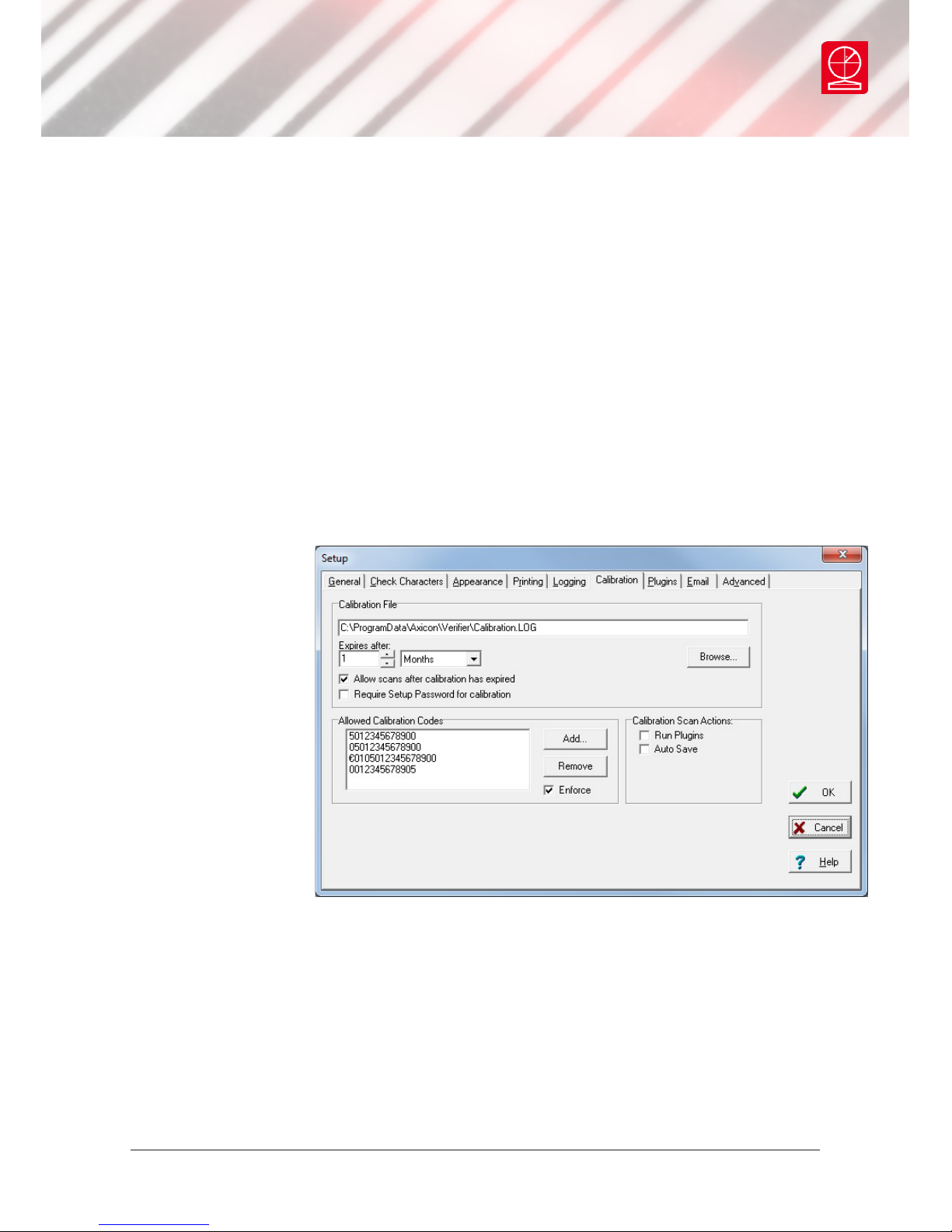
Calibration
The Calibration tab
species the le and
directory in which
calibration data will
be saved. This can be
altered by clicking
on the browse button
and choosing the
required directory
and lename. If Allow
scans after calibration
has expired is not
ticked, no scans will
be allowed until the
verier has been calibrated. Within the Allowed Calibration Codes is a list of the
data content of barcodes with which calibration is permitted
Page 20
Page 20 of 28
Axicon Auto ID Limited | Linear verier user guide | October 2017
Axicon 6000, 6500, 7000 series
Setup
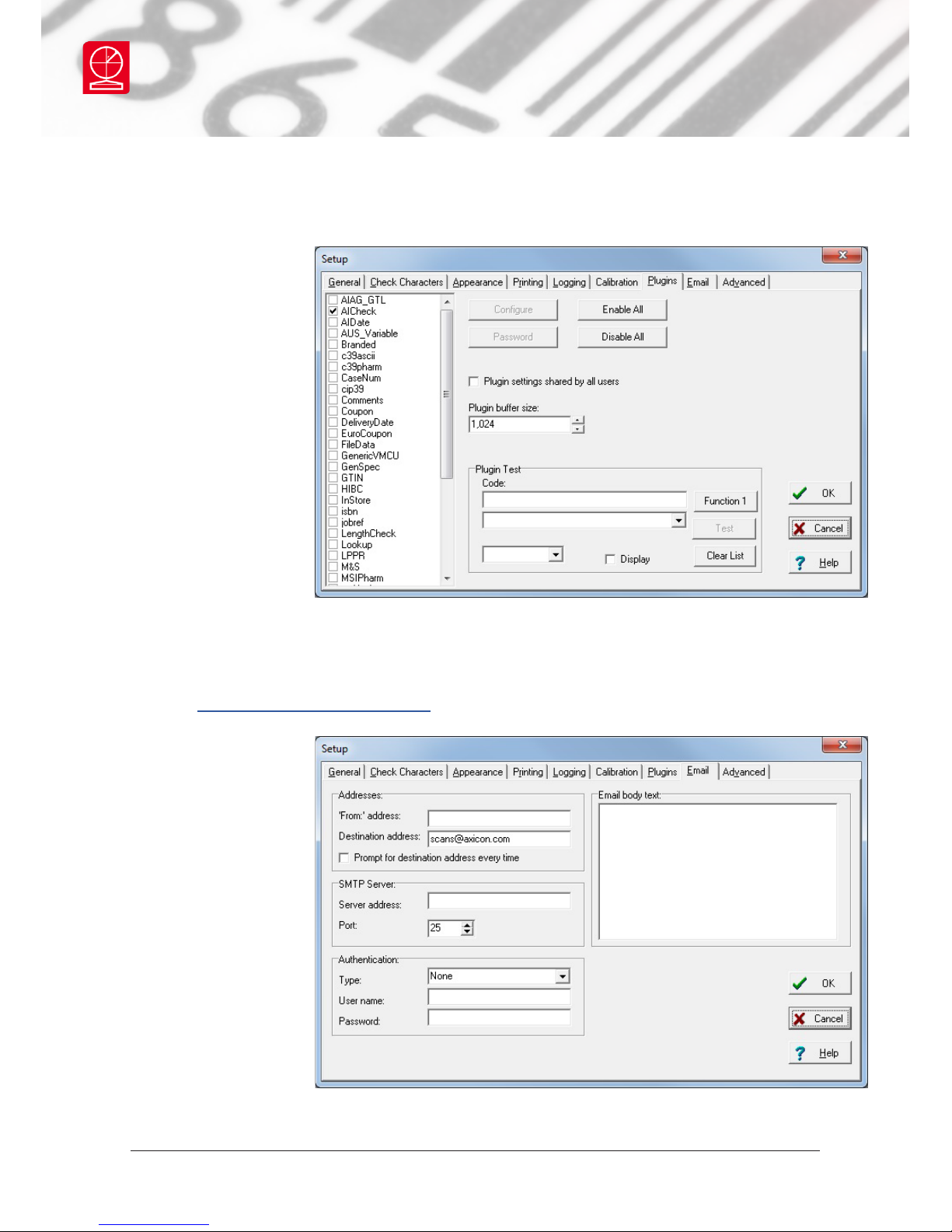
Plugins
The Plugins tab
allows the software
to be tailored to
industry specic or
user specic features,
such as running
a product lookup
database, validation
of the structure of
variable weight items,
or identifying the
formats of European
pharmaceutical codes –
and a whole lot more.
The Plugins can be installed from the CD by using the Install Optional Plugins or
can be downloaded from our website. An explanation of what each plugin does is on
our website www.axicon.com/plugins.
Email
The Email tab allows
scan les to be
emailed. Users can
congure the From:
and Destination
address, and the email
server to be used. You
can also enter the text
to be used in the email
body here.
Page 21
Page 21 of 28
Axicon Auto ID Limited | Linear verier user guide | October 2017
Axicon 6000, 6500, 7000 series
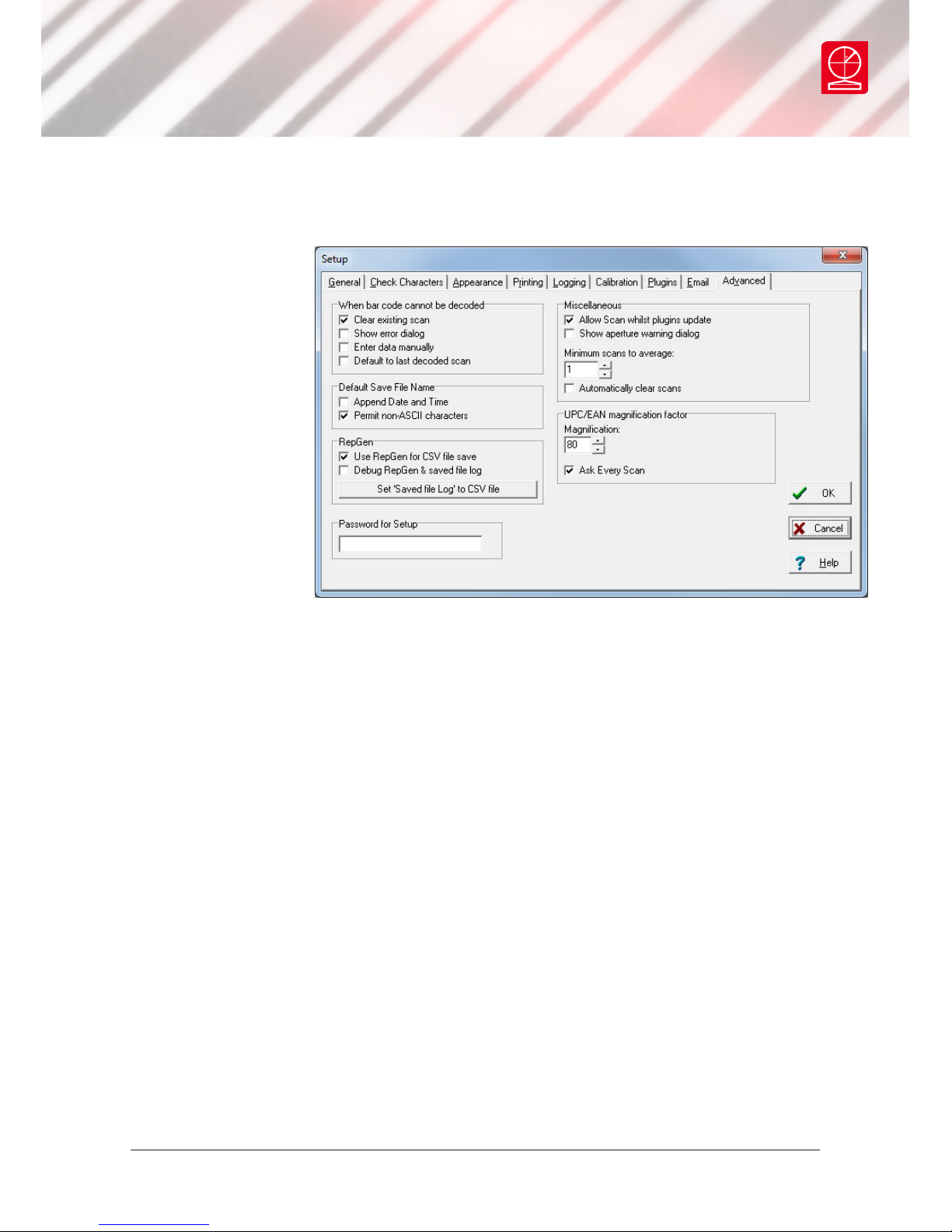
Advanced
There are several
settings in the
Advanced tab. If a
barcode is such a poor
quality that the verier
cannot decode it then
there is an option to
manually input the
barcode under When
barcode cannot be
decoded. Use RepGen
for CSV le save is
ticked by default: this
means that simple CSV le saving is performed using repgen.exe and the supplied
template le csv-template.txt.
UPC/EAN magnication factor is for users using the discontinued Axicon 5000
verier.
The Password for Setup allows password protection of the settings in the Setup
dialogue. This is useful for ensuring features such as the Pass/Fail grade and le
saving directories can only be altered by an authorised user. To apply a setup
password, enter it in the Password for Setup box and click OK. You will be asked to
re-enter the password you gave. Now, to alter the settings you must enter the same
password into the Password for Setup again before you click OK.
Page 22

Page 22 of 28
Axicon Auto ID Limited | Linear verier user guide | October 2017
Axicon 6000, 6500, 7000 series
Software licence agreement
This software is Copyright © 1995 - 2017
Use of the software is subject to the Axicon software licence terms set out below.
Using the software indicates your acceptance of these licence terms. If you do not
accept these within 14 days, you may return the entire unused product for a full
refund.
Axicon grants you a licence to use any number of copies of the software, but only
for use with an Axicon verier. “Use” means storing, loading, installing, executing
or displaying the software. You may not modify the software or disable any of its
licensing or control features.
Ownership
The software is owned and copyrighted by Axicon Auto ID Limited. Your licence
confers no title or ownership in the software and is not a sale of rights in the
software.
Copies
You may only make copies of the software for archival purposes or when copying is
an essential step in its use. You must reproduce all copyright notices in the original
software on all copies. You may not copy the software onto a bulletin board or
similar publicly accessible system.
No disassembly or decryption
You may not disassemble or decompile the software without prior written consent
from Axicon.
Transfer
Your licence will automatically terminate upon any transfer of the software.
Upon transfer, you must deliver the software, including any copies and related
documentation, to the transferee. The transferee must accept these licence terms
as a condition of the transfer.
Termination
Axicon may terminate your licence upon notice of failure to comply with any
of these terms. Upon termination, you must immediately destroy the software,
together with all copies, adaptations and merged portions in any form.
Page 23

Page 23 of 28
Axicon Auto ID Limited | Linear verier user guide | October 2017
Axicon 6000, 6500, 7000 series
Export requirements
You may not export or re-export the software in contravention of any applicable
laws or regulations.
This agreement should be construed in accordance with the laws of England.
DISCLAIMER
In the following the expression “verier” means the verier hardware and the
associated software.
We have taken care to ensure that this verier is free from defects. However since
we have no control over the circumstances in which you might use it you must
satisfy yourself that it is suitable for your needs. Neither Axicon Auto ID Limited
nor the vendor of this verier can accept any liability for any loss or damage
(consequential or otherwise) which may be caused by its use.
If the verier or any part of it is defective in any way, or in some other way does
not meet your expectations, the liability of Axicon Auto ID Limited is limited to the
cost of the product. You should bear this limitation in mind if you use this verier
in any situations where the acceptance or rejection of shipments of goods or your
reputation may depend upon the quality of a barcode.
Page 24

Page 24 of 28
Axicon Auto ID Limited | Linear verier user guide | October 2017
Axicon 6000, 6500, 7000 series
Warranty
All Axicon products covered by this documentation (Axicon 6000, 6500 and 7000
series veriers) are sold with a two year parts and labour warranty against
manufacturing defects. This is a return to bench warranty with shipping costs in one
direction being borne by the customer/distributor.
Should you need to return the unit to Axicon the original case (plus appropriate
packaging) must be used. If the equipment is returned without the original case, we
will automatically charge an additional sum for its replacement.
Axicon’s standard repair turnaround time is 7-10 working days. This standard
warranty does not include the provision of a loan unit. Loan units can be supplied
on request.
Axicon reserves the right to charge an inspection fee for any equipment returned
under warranty for which no fault is found. Please contact us to obtain an RMA
number before returning any equipment. This number must be quoted on all
documentation. We cannot accept responsibility for equipment returned without an
RMA number.
Page 25

Page 25 of 28
Axicon Auto ID Limited | Linear verier user guide | October 2017
Axicon 6000, 6500, 7000 series
Maintenance agreement
A service contract may be purchased within 30 days from the date of despatch.
This allows you to return your verier back to us at no extra cost for its annual
VCAS (verier conformance and alignment service) so that you can be sure it still
measures barcode quality in accordance with the requirements of ISO/IEC 15426-1.
The service contract will also extend the warranty beyond two years, so that if it
breaks down, all parts and labour will be provided free of any extra charges. The
only exception is when the verier has been misused, in which case labour costs
will be covered, but not those of the parts.
Page 26

Annual service
All veriers need servicing every year to ensure that they measure barcode quality
in accordance with the relevant ISO/IEC standards. This verier conformance and
alignment service (VCAS) ensures that the verier is internally dust-free, checks
that it is focused correctly, and adjusts the hardware to account for any change in
the brightness of the LEDs used to illuminate the barcodes.
This annual service is not the same as user calibration, as it looks at the output of
the LEDs and corrects for any variance in their evenness of illumination across the
whole eld of view. Over time the LEDs will fade but they will not fade uniformly.
User calibration ensures that the verier is measuring the darkest and brightest
reectances correctly but it cannot correct for any variance in the illumination.
After your verier has been serviced, we will return it you with the latest version
of the software on CD together with a new calibration card, and a new user guide
that will include the new certicate of ISO/IEC conformance. You will then need
to calibrate the verier before you use it again. The latest software can always be
downloaded free of charge from our website, www.axicon.com.
To arrange for your verier to be serviced:
1. Contact us on
Telephone: +44 (0) 1869 351155 | Fax +44 (0) 1869 352404
Email: [email protected]
2. We will provide you with an RMA number (Return to Manufacturer Authority)
and an RMA form.
3. Please ll in all details requested on the RMA form, including the RMA number.
4. Return the verier (including all cables) in its original case with the completed
RMA form, purchase order and your payment details to us at Axicon Auto ID
Ltd, Church Road, Weston on the Green, Oxfordshire OX25 3QP. We cannot take
responsibility for units returned in alternative packaging.
5. We will normally complete the servicing of your verier within 7-10 days.
Axicon 6000, 6500, 7000 series
Page 26 of 28
Axicon Auto ID Limited | Linear verier user guide | October 2017
Page 27
Certicate of ISO/IEC
conformance
We, Axicon Auto ID Limited, of Church Road, Weston on the Green, Oxfordshire,
OX25 3QP, UK, hereby declare, that the following barcode verier(s):
Model number(s)
Serial number(s)
has been designed and manufactured at our address in the UK to verify barcode
quality and to conform to: ISO/IEC 15426-1 Barcode verier conformance
specication - Part 1: Linear symbols.
The equipment has been tested using reference test symbols traceable to the
USA’s National Institute of Standards and Technology’s reectance standards.
We also state that this equipment, when used with the latest verier software,
and congured appropriately has the features to meet the requirements of the
United States Food and Drug Administration regulation,
Title 21 CFR Part 11.
This verier has been quality assurance checked today, and conforms to this
ISO/IEC standard. This declaration of conformity is valid for a year.
Issue date
Expiry date
Signed
Authorised signatory
At or before the expiry date the verier should be returned to Axicon for its
annual servicing. This VCAS (verier conformance and alignment service) will
ensure that the verier remains conformant to ISO/IEC 15426-1 for another year.
Church Road, Weston on the Green,
Oxfordshire, OX25 3QP, UK
Page 27 of 28
Axicon Auto ID Limited | Linear verier user guide | October 2017
Page 28

Contact us
Axicon Auto ID Ltd
Church Road
Weston on the Green
Oxfordshire
OX25 3QP
UK
Tel: +44 (0) 1869 351 155
Fax: +44 (0) 1869 351 205
Email: [email protected]
Website: www.axicon.com
As Axicon continually improves its products, their specications and features are
subject to change without notice. All trademarks are acknowledged as belonging to
their respective companies.
Your Axicon distributor
 Loading...