

Page 1
AXEM Technology
11 rue Auguste Perret, 94042 Créteil, FRANCE – [email protected] – +33 (0)1 41 94 11 85 – www.axemtec.com
Siret : 45071140300045 - APE : 4652Z - RCS : CRETEIL 450711403 - N° TVA intracom : FR05450711403 - Capital : 500 000,00 €
File : AT-12 user guide
Version : V1.0
1/39
AT-12 Windows
User guide
Page 2
AXEM Technology
11 rue Auguste Perret, 94042 Créteil, FRANCE – [email protected] – +33 (0)1 41 94 11 85 – www.axemtec.com
Siret : 45071140300045 - APE : 4652Z - RCS : CRETEIL 450711403 - N° TVA intracom : FR05450711403 - Capital : 500 000,00 €
File : AT-12 user guide
Version : V1.0
2/39
Table of content
1 Background.............................................................................................................................. 3
2 Device performance structure .................................................................................................. 5
Product appearance ......................................................................................................... 5
Interface description ......................................................................................................... 5
3 Device initialized setting ........................................................................................................... 9
Language setting .............................................................................................................. 9
Keyboard layout and language setting ............................................................................ 10
User license agreement .................................................................................................. 12
Network setting ............................................................................................................... 12
Username and password settings ................................................................................... 13
Personalized setting ....................................................................................................... 14
Complete setting ............................................................................................................. 15
4 Desktop layout ....................................................................................................................... 16
Windows 10 start ............................................................................................................ 16
Charm menu bar ............................................................................................................. 17
APP Interface introduction .............................................................................................. 18
5 System setting ....................................................................................................................... 19
Display application icon .................................................................................................. 19
System information ......................................................................................................... 21
Quick start ...................................................................................................................... 21
System setting ................................................................................................................ 23
Quick start and setup ...................................................................................................... 24
Language installation ...................................................................................................... 25
7 NFC function test ................................................................................................................... 27
8 Keystroke custom description ................................................................................................ 30
9 Special module description .................................................................................................... 33
Battery lock ..................................................................................................................... 33
Waterproof state ............................................................................................................. 33
Operation of Power key shut down ................................................................................. 34
10 Accessories ........................................................................................................................ 35
Docking cradle, USB, Ethernet 10Mb .............................................................................. 35
Keyboard for AT-12 tablet QWERTY .............................................................................. 35
Shouder / Back Strap ...................................................................................................... 35
Hand strap ...................................................................................................................... 36
Page 3
AXEM Technology
11 rue Auguste Perret, 94042 Créteil, FRANCE – [email protected] – +33 (0)1 41 94 11 85 – www.axemtec.com
Siret : 45071140300045 - APE : 4652Z - RCS : CRETEIL 450711403 - N° TVA intracom : FR05450711403 - Capital : 500 000,00 €
File : AT-12 user guide
Version : V1.0
3/39
Car holder ....................................................................................................................... 36
11 special module description ................................................................................................. 37
Instructions for the use of a stylus ................................................................................... 37
12 Common problem asked .................................................................................................... 38
Page 4
AXEM Technology
11 rue Auguste Perret, 94042 Créteil, FRANCE – [email protected] – +33 (0)1 41 94 11 85 – www.axemtec.com
Siret : 45071140300045 - APE : 4652Z - RCS : CRETEIL 450711403 - N° TVA intracom : FR05450711403 - Capital : 500 000,00 €
File : AT-12 user guide
Version : V1.0
4/39
Attention:
1.The instructions in this guide refer to the windows 10 system. If you are using other
windows operating systems, some operations may be slightly different. If you are using
another Windows operating system, some operations may not suit you.
2.The instructions describe the general functions of most models. Your computer may
not have some functionality, or some features on your computer are not described in
the manual.
3.This user guide applies the following models: AT-12 & AT-12 Plus rugged tablet.
4.The illustrations in this guide may be different from the product itself.
Page 5
AXEM Technology
11 rue Auguste Perret, 94042 Créteil, FRANCE – [email protected] – +33 (0)1 41 94 11 85 – www.axemtec.com
Siret : 45071140300045 - APE : 4652Z - RCS : CRETEIL 450711403 - N° TVA intracom : FR05450711403 - Capital : 500 000,00 €
File : AT-12 user guide
Version : V1.0
5/39
1.电源键
1 Device performance structure
Product appearance
Interface description
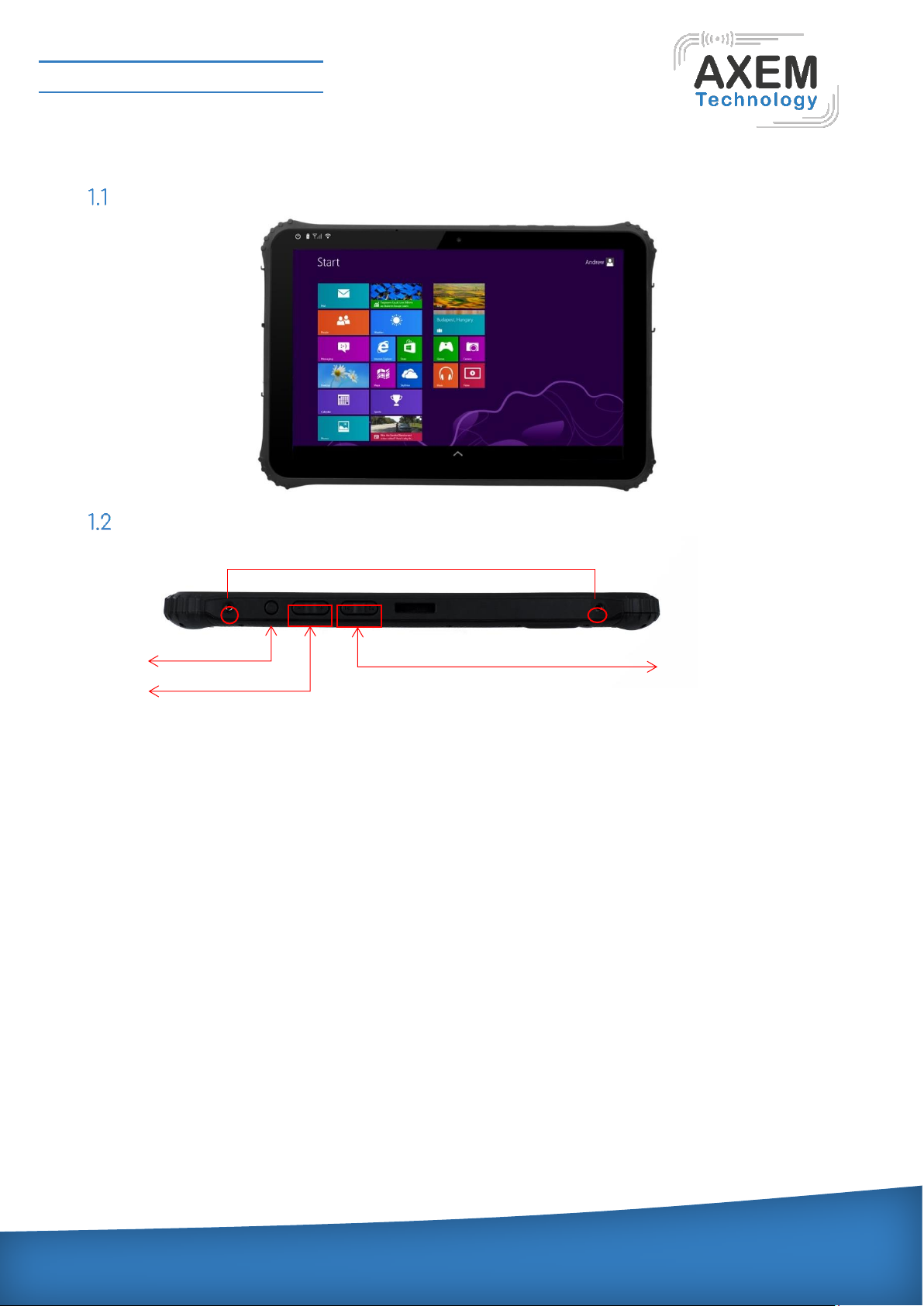
1. Power key: press it to turn your tablet PC on or off. Press during 5 seconds to turn on and
during 10 seconds to turn off. For sleep mode or awaken, press for a short while.
2.sound -/ sound+: to reduce / increase the volume.
3.P1/P2: development for customer customized.
4.Nut: for the belt and strap.
3.P1P2 1 2
4
Page 6
AXEM Technology
11 rue Auguste Perret, 94042 Créteil, FRANCE – [email protected] – +33 (0)1 41 94 11 85 – www.axemtec.com
Siret : 45071140300045 - APE : 4652Z - RCS : CRETEIL 450711403 - N° TVA intracom : FR05450711403 - Capital : 500 000,00 €
File : AT-12 user guide
Version : V1.0
6/39
10.触摸屏
6.充电指示灯
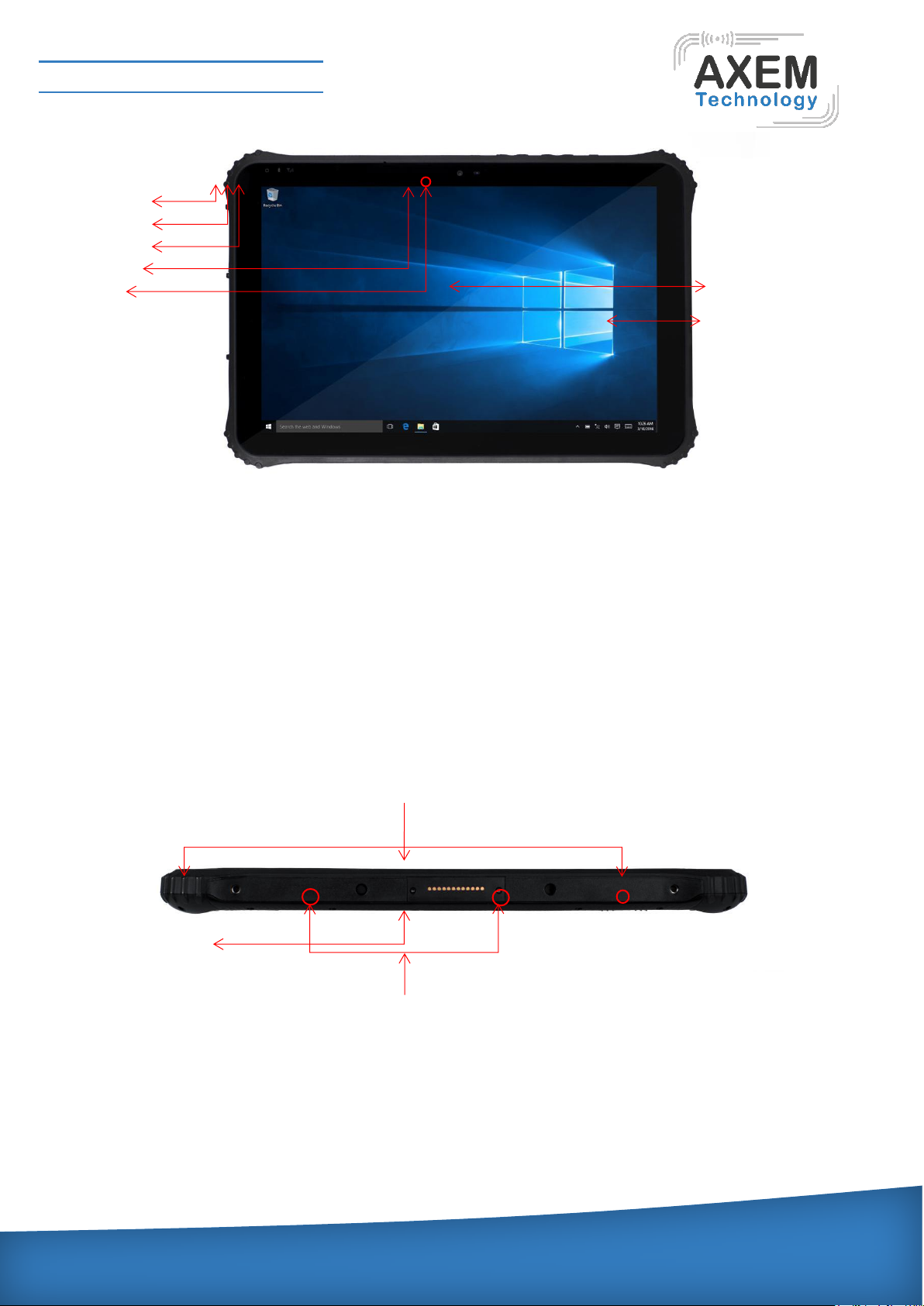
5.Power light: the indicator will light when system is started after press power button.
6.charging light: the indicator will light when the device is connected to an adapter for charging.
7.Network light 3G/4G: the indicator will often light after network 3G/4G is recognized.
8.Front Camera: 2M Front Camera, to take photos and record video.
9.light sensor: The light sensation can adjust the brightness automatically.
10.TP: 5 points capacitive panel, G+G, Rigidness: above 7H, anti-scratch, TP thickness: 1.1mm,
COF, support to handwritten, optional for SLR AR film.
11.LCD: 12.2inch, Resolution: 1920*1200.
12.lock keyboard screw: fix the keyboard lock to the tablet body by provided screws when installing
the keyboard.
13.keyboard locating hole: device connect base or keyboard by this two-positioning hole. This can
prevent poor contact because of shaking.
14.POGO pin: this interface matched with location hole, convenient aim and firm
link rugged tablet and key or docking.
12
13
14.
8
9.
11
5.
7. 6 10
Page 7
AXEM Technology
11 rue Auguste Perret, 94042 Créteil, FRANCE – [email protected] – +33 (0)1 41 94 11 85 – www.axemtec.com
Siret : 45071140300045 - APE : 4652Z - RCS : CRETEIL 450711403 - N° TVA intracom : FR05450711403 - Capital : 500 000,00 €
File : AT-12 user guide
Version : V1.0
7/39
24.USB2.0
22.RS232
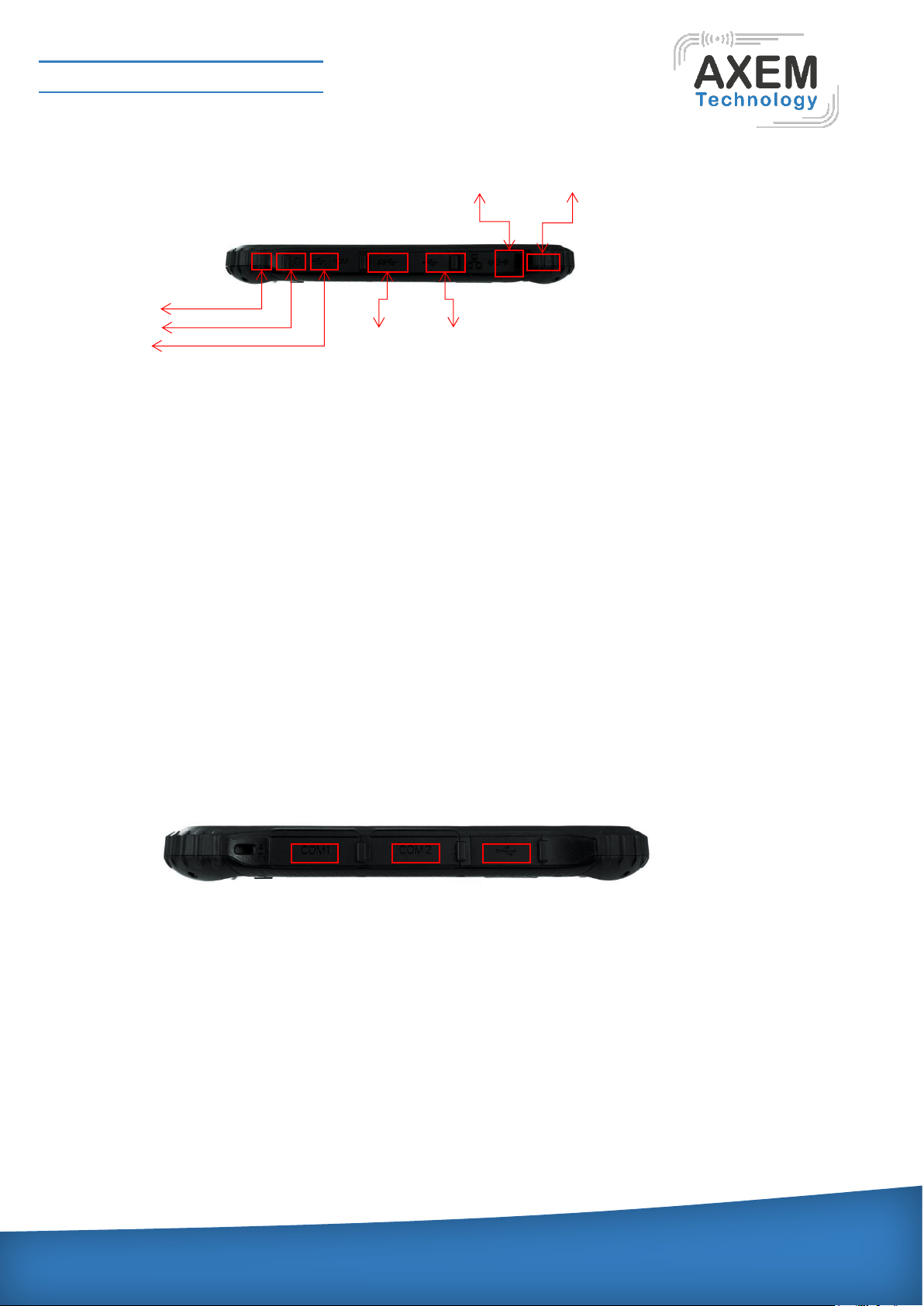
15.earphone jack: 3.5mm standard Earphone Audio output Interface.
16.Micro USB: interface for Data transferring. Possible for using the pallet to transfer it into standard
USB interface.
17.HDMI: connect to the Monitor/High Definition TV and other display device, to transfer or play the
Audio/Video, to transfer and play the pictures.
18.USB3.0: data high speed transmission interface (Android system without USB3.0, if USB3.0
function is needed, OTG function cannot be used).
19.USB2.0: standard data transmission interface.
20.Ethernet port: RJ45 net export.
21.DC jack: by DC interface charge for your rugged tablet.
22.RS232: Standard protocol of RS232, interface can be used to develop and connect other
devices.
23.RS485: Standard protocol of RS485, interface can be used to develop and connect other
devices.
23.RS485
18.USB3.0
20.
21.DC
19.USB2.0
15.
16
14
22.RS232
19.USB2.0
Page 8
AXEM Technology
11 rue Auguste Perret, 94042 Créteil, FRANCE – [email protected] – +33 (0)1 41 94 11 85 – www.axemtec.com
Siret : 45071140300045 - APE : 4652Z - RCS : CRETEIL 450711403 - N° TVA intracom : FR05450711403 - Capital : 500 000,00 €
File : AT-12 user guide
Version : V1.0
8/39
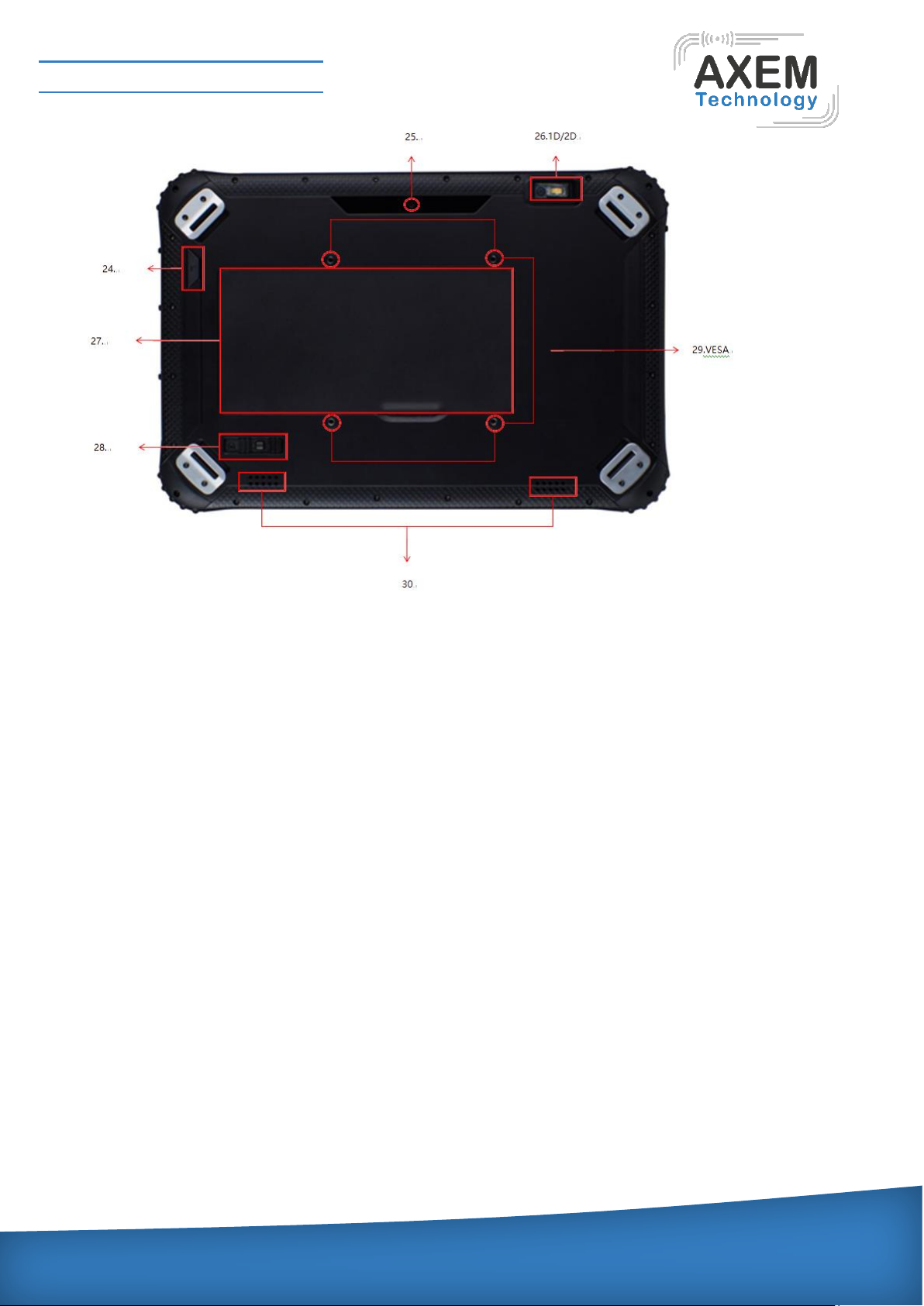
24.F key:
barcode scan.
25.Rear camera: rear 5.0MP, the function is for taking photos and videos.
26.1D/2DScanner: support one-dimensional /two-dimensional.
27.Battery: AT-12 is equipped with 3.7V/13000mAh, AT-12 Plus is equipped with 6300mAh/7.4V
1000mAh/7.4V (Dual battery).
28.Battery Lock: let the battery locked to lock the state when be used, which can prevent the battery
from falling off.
29.VESA holes: VESA hole can be fixed directly to the vehicle or other facilities by screws.
30.Speaker: the integrated loudspeaker allows you not to use any additional equipment to hear the
voice.
Page 9
AXEM Technology
11 rue Auguste Perret, 94042 Créteil, FRANCE – [email protected] – +33 (0)1 41 94 11 85 – www.axemtec.com
Siret : 45071140300045 - APE : 4652Z - RCS : CRETEIL 450711403 - N° TVA intracom : FR05450711403 - Capital : 500 000,00 €
File : AT-12 user guide
Version : V1.0
9/39
2 Device initialized setting
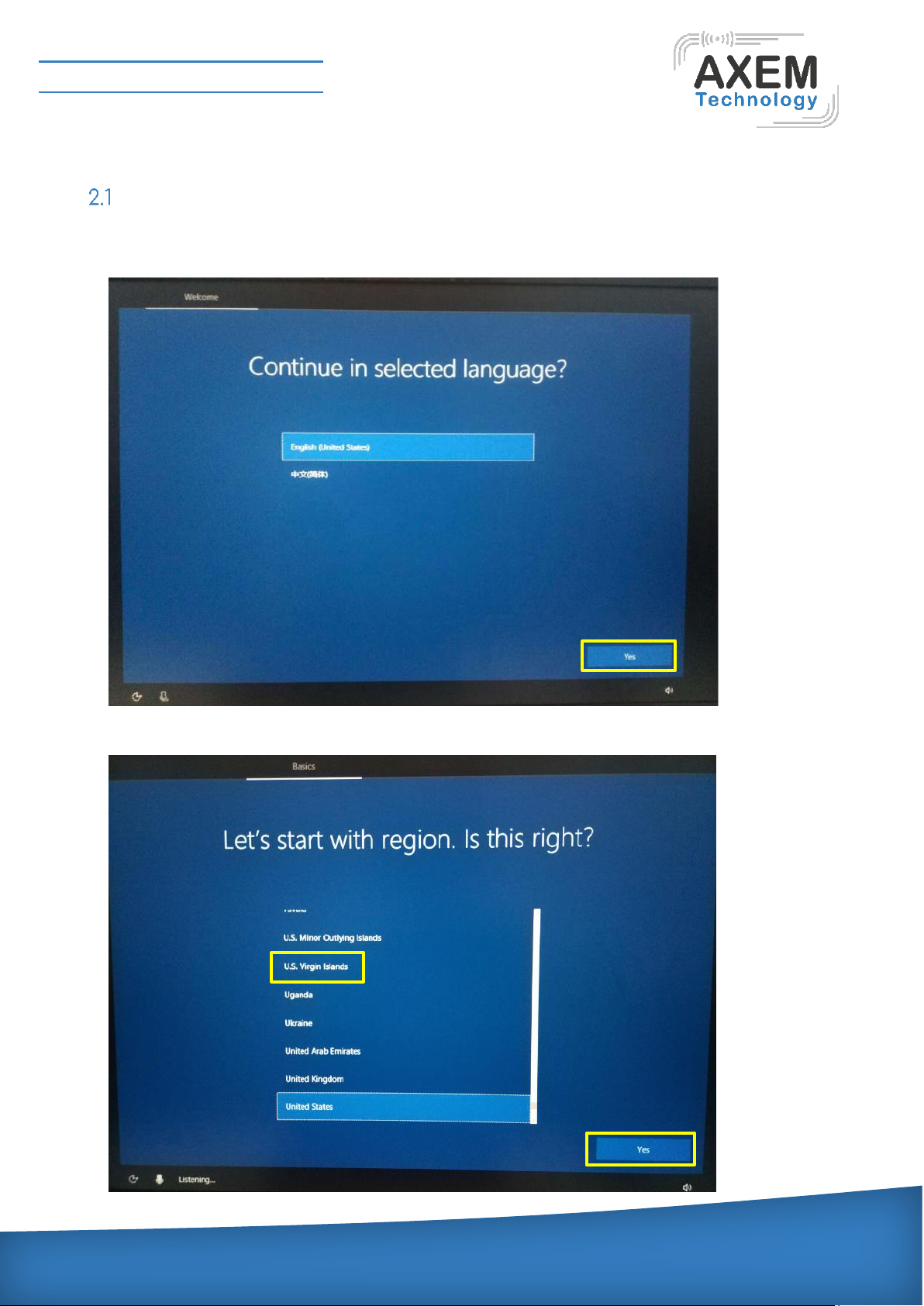
Language setting
A: click“Yes”to go to the next step depending on the language you want.
B: select the area of use according to language.
Page 10
AXEM Technology
11 rue Auguste Perret, 94042 Créteil, FRANCE – [email protected] – +33 (0)1 41 94 11 85 – www.axemtec.com
Siret : 45071140300045 - APE : 4652Z - RCS : CRETEIL 450711403 - N° TVA intracom : FR05450711403 - Capital : 500 000,00 €
File : AT-12 user guide
Version : V1.0
10/39
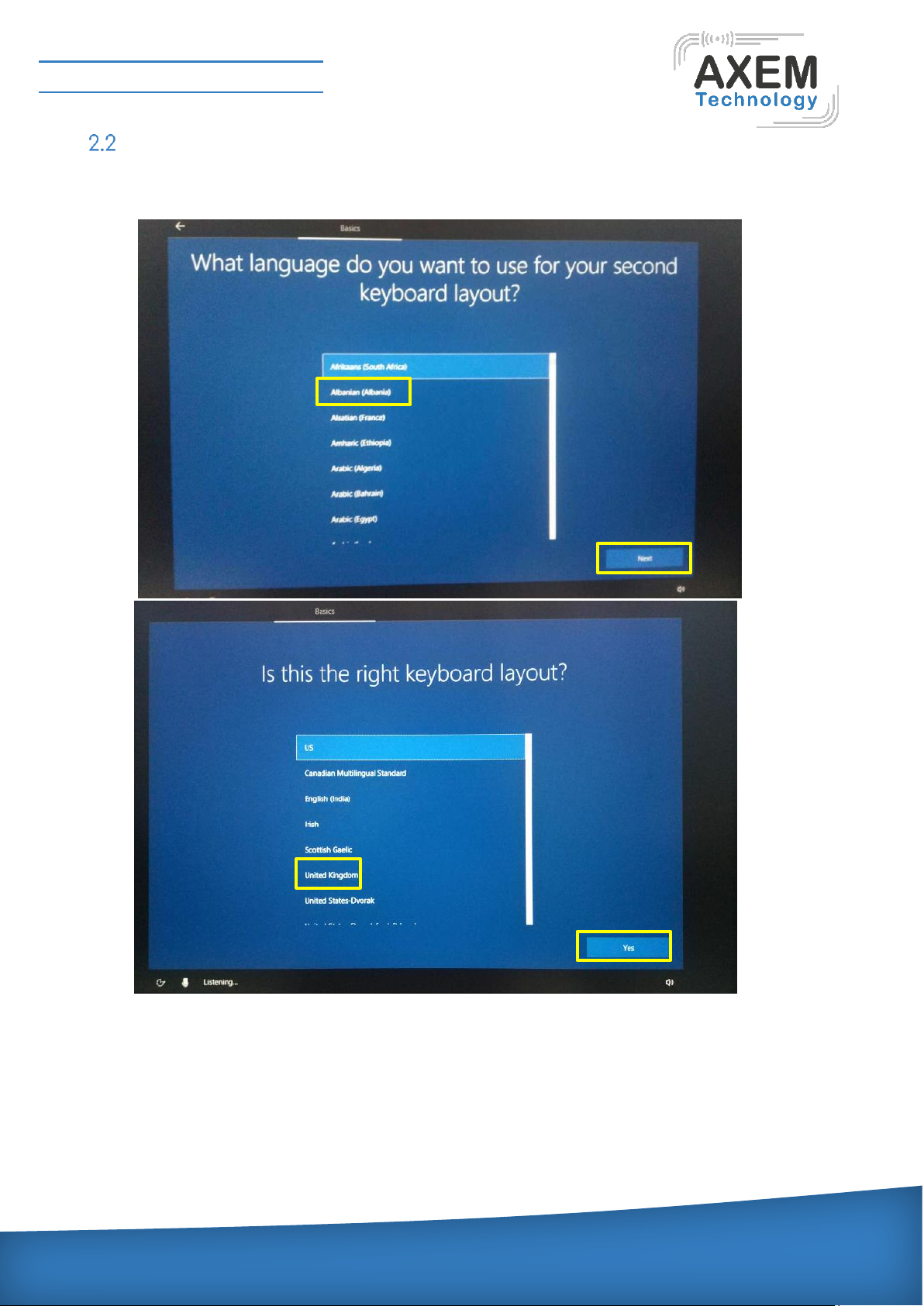
Keyboard layout and language setting
A: choose the keyboard layout and language you like, click "Yes" to enter the next step.
Page 11
AXEM Technology
11 rue Auguste Perret, 94042 Créteil, FRANCE – [email protected] – +33 (0)1 41 94 11 85 – www.axemtec.com
Siret : 45071140300045 - APE : 4652Z - RCS : CRETEIL 450711403 - N° TVA intracom : FR05450711403 - Capital : 500 000,00 €
File : AT-12 user guide
Version : V1.0
11/39
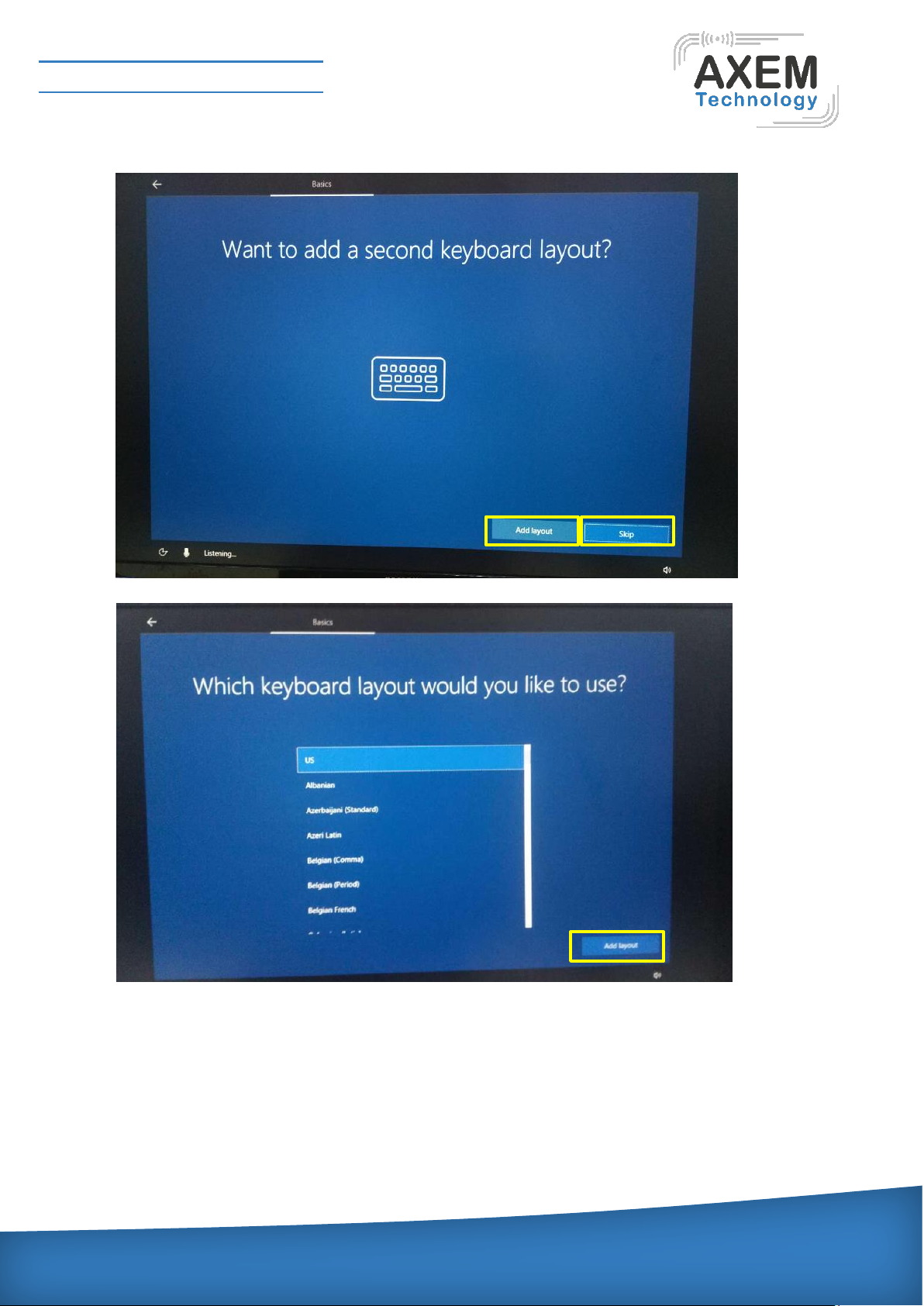
B: if one keyboard cannot be satisfied, add a second keyboard or skip here.
Page 12
AXEM Technology
11 rue Auguste Perret, 94042 Créteil, FRANCE – [email protected] – +33 (0)1 41 94 11 85 – www.axemtec.com
Siret : 45071140300045 - APE : 4652Z - RCS : CRETEIL 450711403 - N° TVA intracom : FR05450711403 - Capital : 500 000,00 €
File : AT-12 user guide
Version : V1.0
12/39
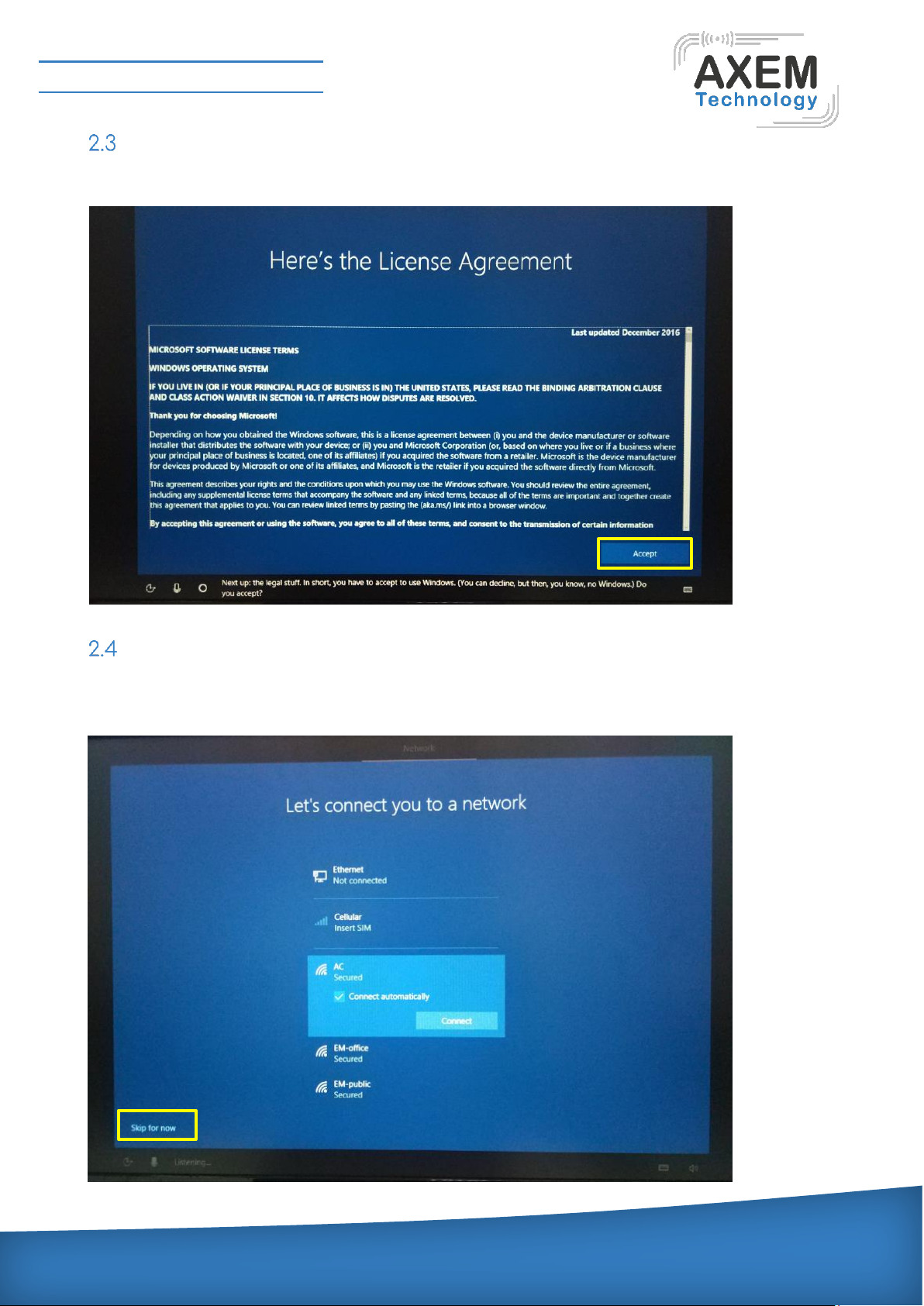
User license agreement
This is the Microsoft software license agreement, click “accept” to enter the next step.
Network setting
Choose the network you want to connect and enter your password. (it is recommended to skip the
network connection, otherwise it may take too long for the system to check for updates.)
Page 13
AXEM Technology
11 rue Auguste Perret, 94042 Créteil, FRANCE – [email protected] – +33 (0)1 41 94 11 85 – www.axemtec.com
Siret : 45071140300045 - APE : 4652Z - RCS : CRETEIL 450711403 - N° TVA intracom : FR05450711403 - Capital : 500 000,00 €
File : AT-12 user guide
Version : V1.0
13/39
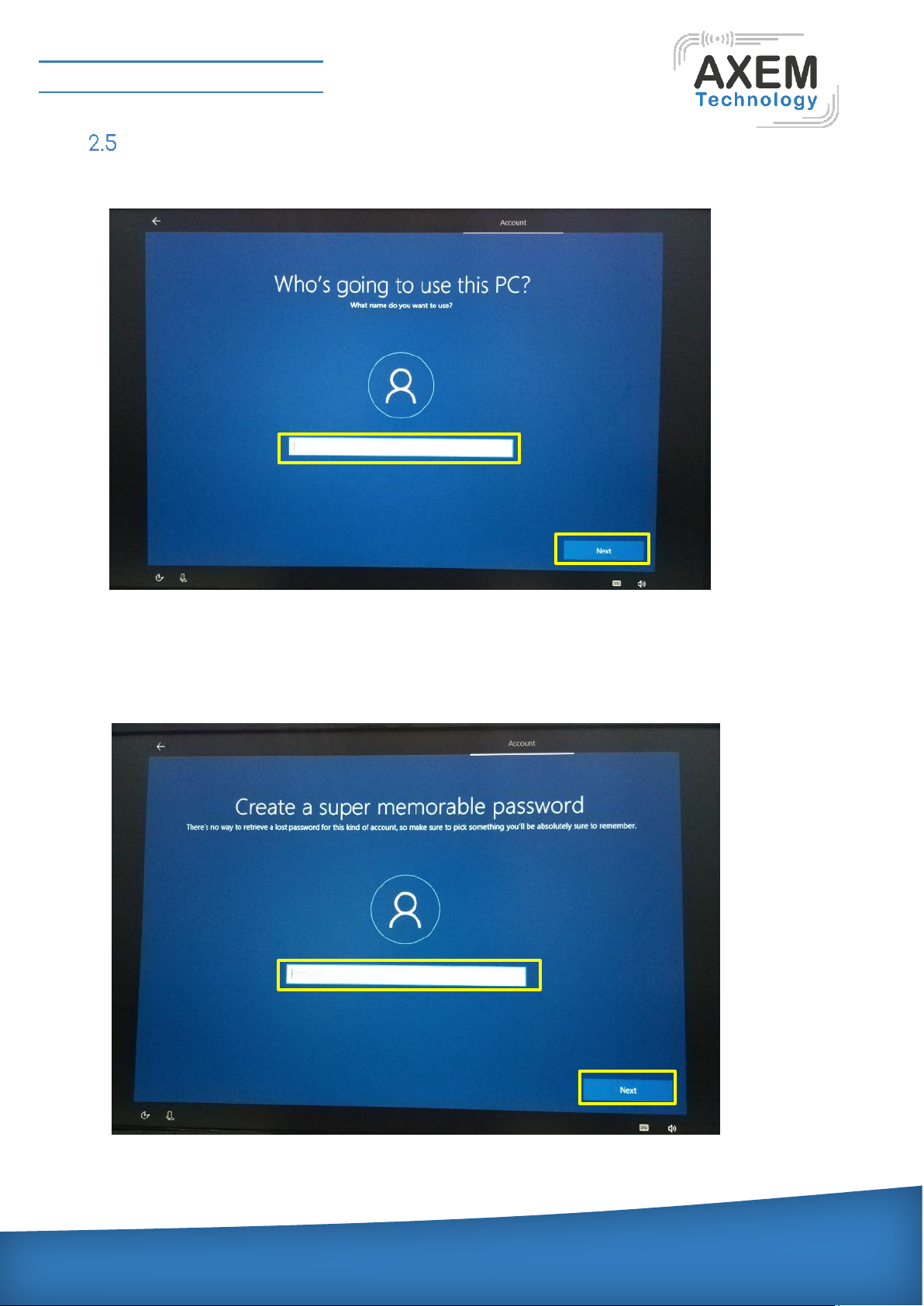
Username and password settings
A: setting the username, go to the next step.
B: setting password
Enter the password, click “Next ” the device will restart, do not do anything else during the device
restart.
Page 14
AXEM Technology
11 rue Auguste Perret, 94042 Créteil, FRANCE – [email protected] – +33 (0)1 41 94 11 85 – www.axemtec.com
Siret : 45071140300045 - APE : 4652Z - RCS : CRETEIL 450711403 - N° TVA intracom : FR05450711403 - Capital : 500 000,00 €
File : AT-12 user guide
Version : V1.0
14/39
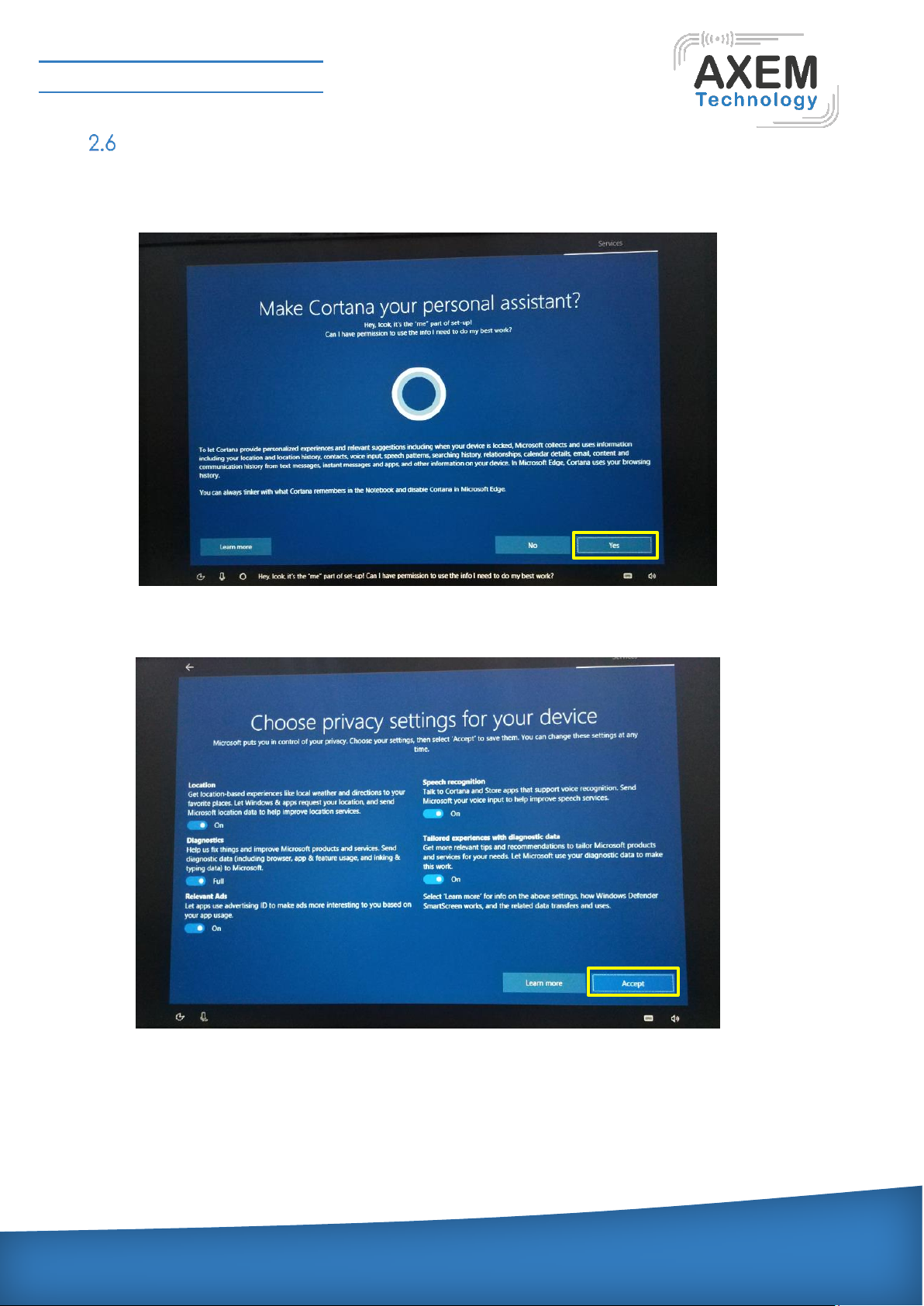
Personalized setting
A: make cortana your personal assistant.
B: choose privacy settings for your device.
Page 15
AXEM Technology
11 rue Auguste Perret, 94042 Créteil, FRANCE – [email protected] – +33 (0)1 41 94 11 85 – www.axemtec.com
Siret : 45071140300045 - APE : 4652Z - RCS : CRETEIL 450711403 - N° TVA intracom : FR05450711403 - Capital : 500 000,00 €
File : AT-12 user guide
Version : V1.0
15/39
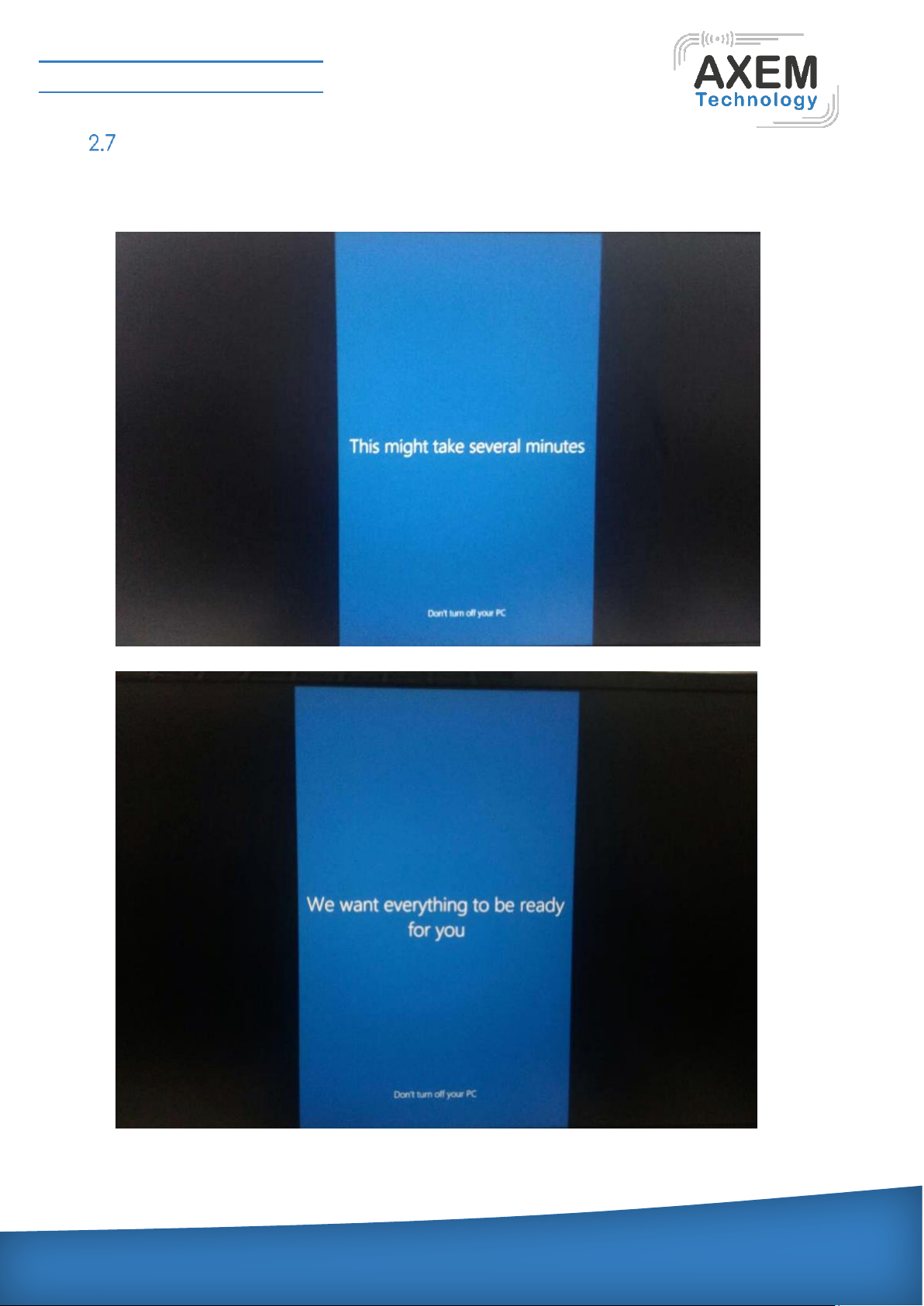
Complete setting
Wait for the system to enter the desktop, do not shut down the computer.
Page 16
AXEM Technology
11 rue Auguste Perret, 94042 Créteil, FRANCE – [email protected] – +33 (0)1 41 94 11 85 – www.axemtec.com
Siret : 45071140300045 - APE : 4652Z - RCS : CRETEIL 450711403 - N° TVA intracom : FR05450711403 - Capital : 500 000,00 €
File : AT-12 user guide
Version : V1.0
16/39
3 Desktop layout
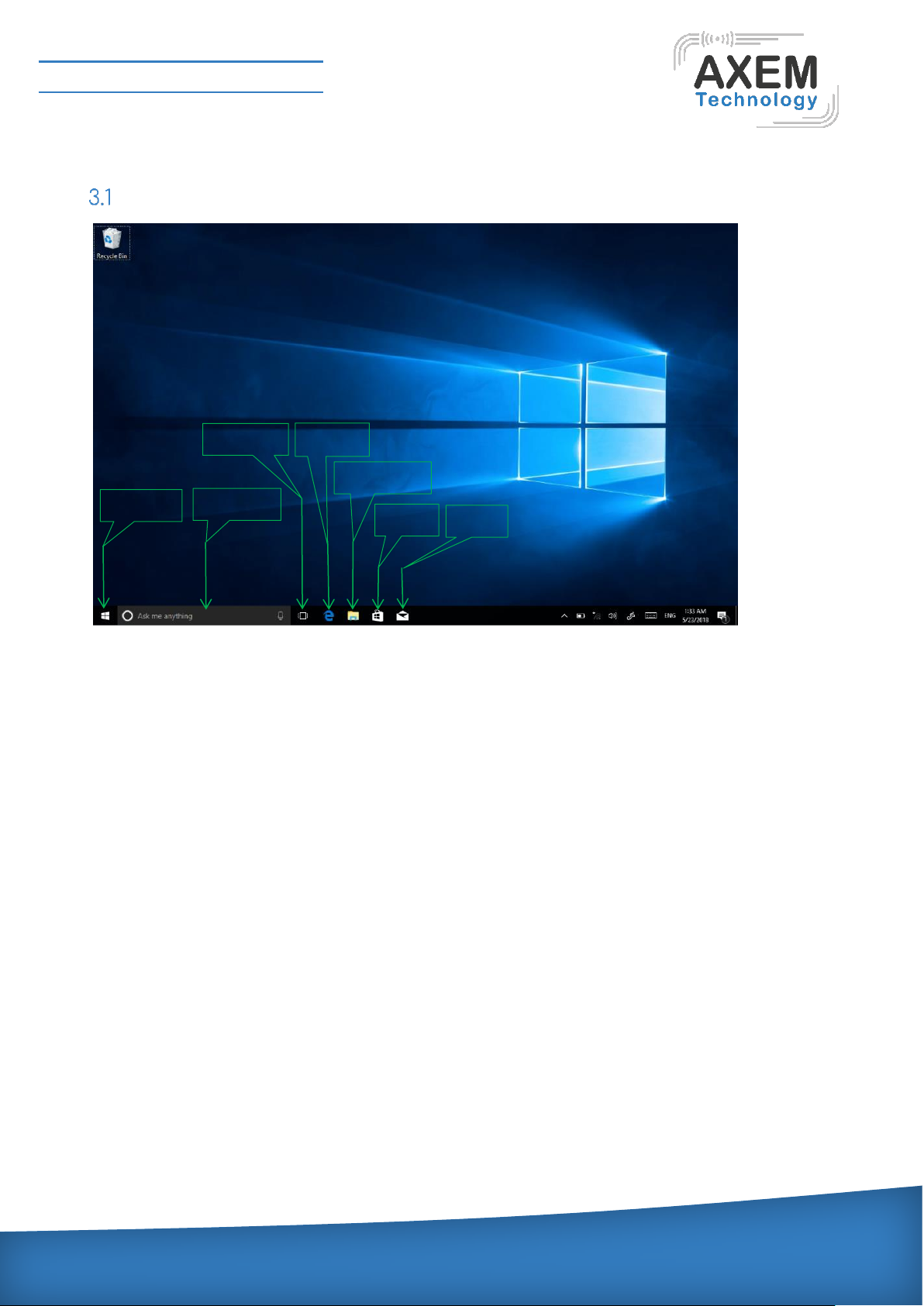
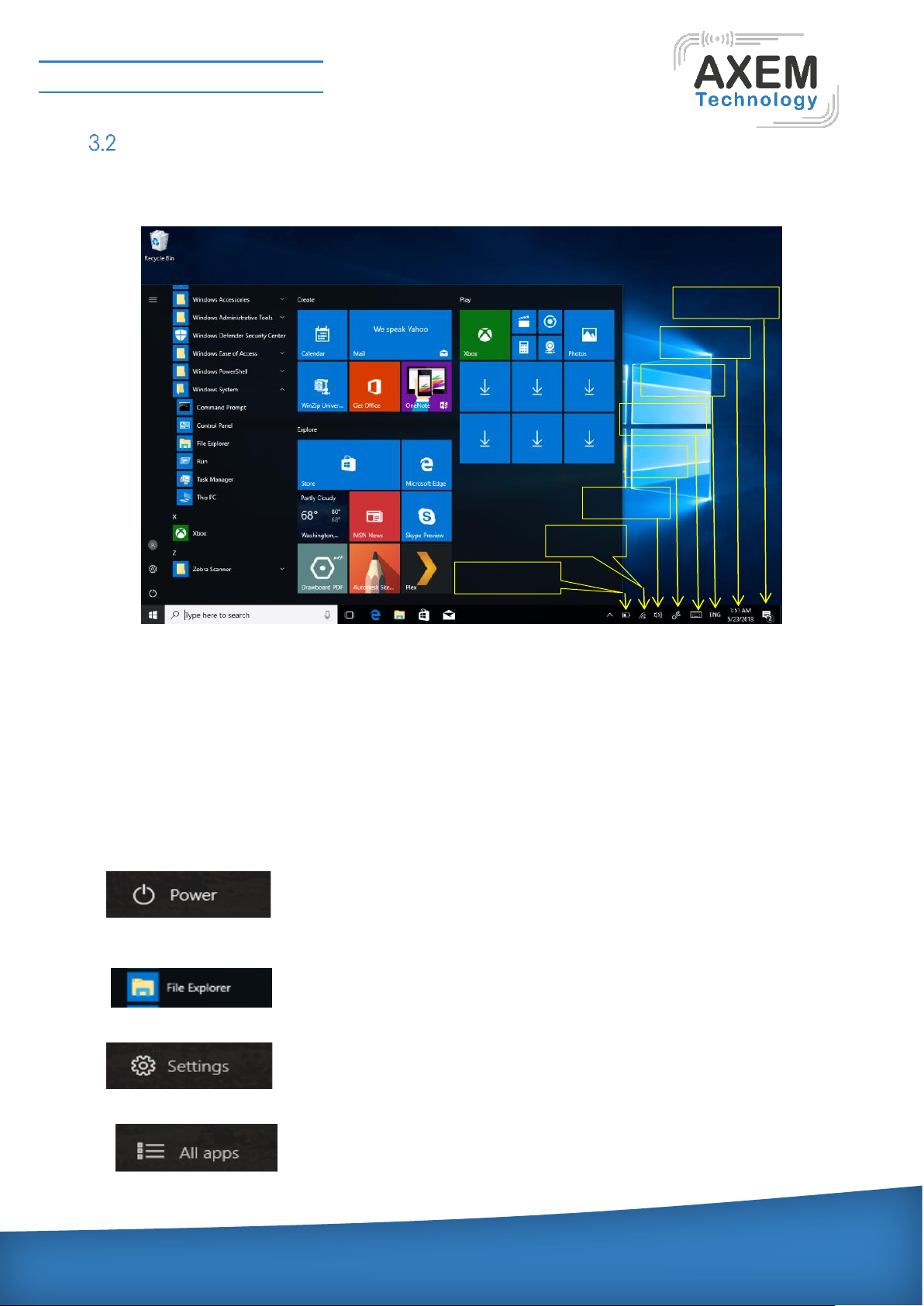
Windows 10 start
①start icon ——Quick launch of installed applications.
②search for ——Enter the key character search page or open the application.
③task view ——Open multiple tasks to quickly switch applications with this icon.
④IE browser.
⑤file explore ——For quick viewing of recently used files and administration files.
⑥store ——Download installation application.
⑦email ——Log in to email account to receive and send mail.
16
1
2
3
4 5 6 7 8 9 10
11
11
12
13
17
14
15
① start icon
② search for
③ task view
⑦email
④ browser
⑤ file explorer
⑥ store
Page 17
AXEM Technology
11 rue Auguste Perret, 94042 Créteil, FRANCE – [email protected] – +33 (0)1 41 94 11 85 – www.axemtec.com
Siret : 45071140300045 - APE : 4652Z - RCS : CRETEIL 450711403 - N° TVA intracom : FR05450711403 - Capital : 500 000,00 €
File : AT-12 user guide
Version : V1.0
17/39
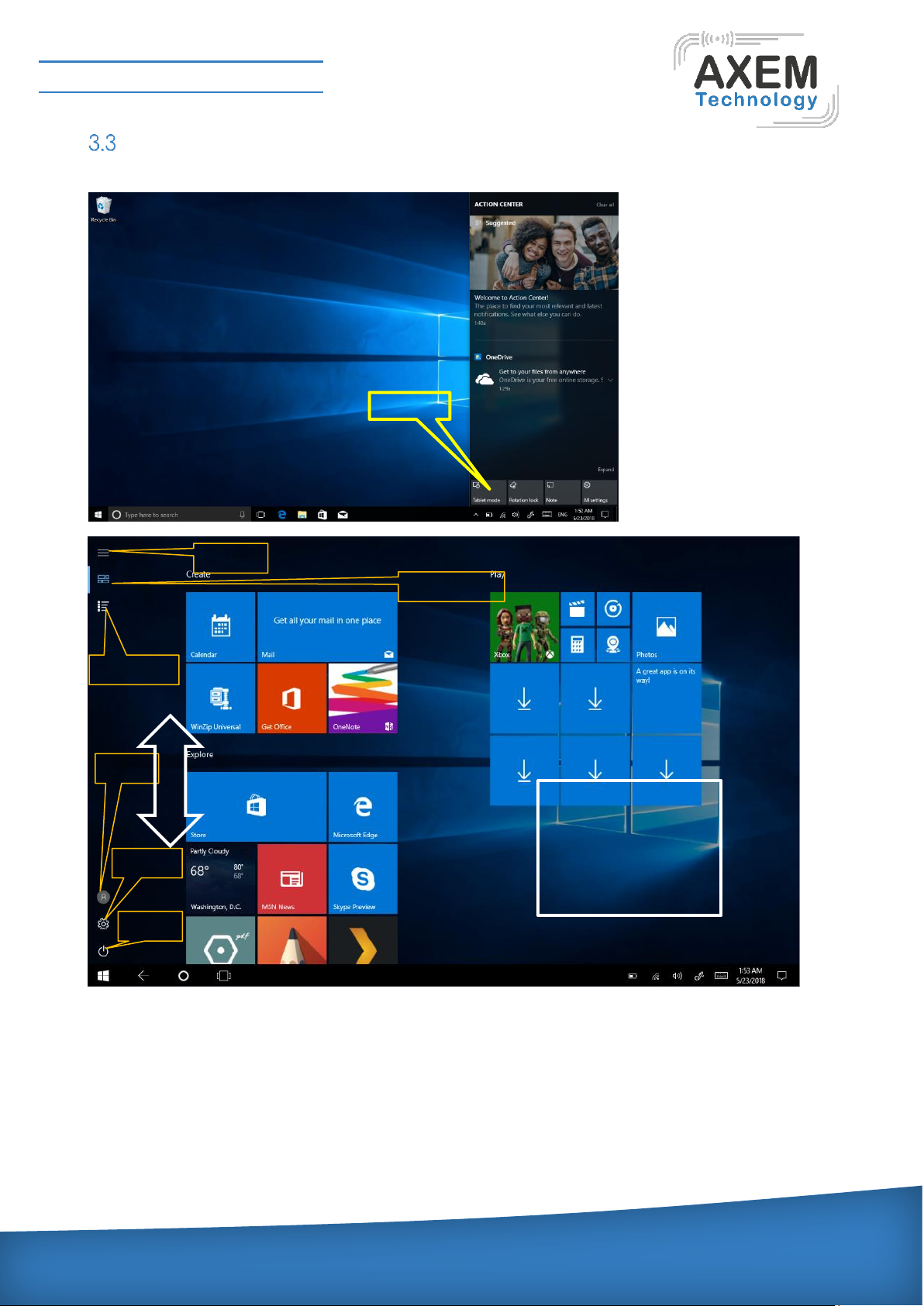
Charm menu bar
Press the Start button to open the charm menu bar including: Start, Device, Settings, Search
program.
①battery level—— view the system of battery voltage.
②network —— View the status of device management network connections.
③sound ——Control audio and adjust volume.
④pen —— pen and Windows ink settings.
⑤keyboard —— touch keyboard button.
⑥language ——Set up and manage the current input method.
⑦time/date—— time and date setting.
⑧action center—— View system notification information.
Including: browse files, settings, power keys, App
Sleep, shut down, restart
Search for files and applications
Device system
① battery level
④ pen
⑤ keyboard
⑥ language
⑦ time/date
③ sound
② network
⑧ action center
Page 18
AXEM Technology
11 rue Auguste Perret, 94042 Créteil, FRANCE – [email protected] – +33 (0)1 41 94 11 85 – www.axemtec.com
Siret : 45071140300045 - APE : 4652Z - RCS : CRETEIL 450711403 - N° TVA intracom : FR05450711403 - Capital : 500 000,00 €
File : AT-12 user guide
Version : V1.0
18/39
APP Interface introduction
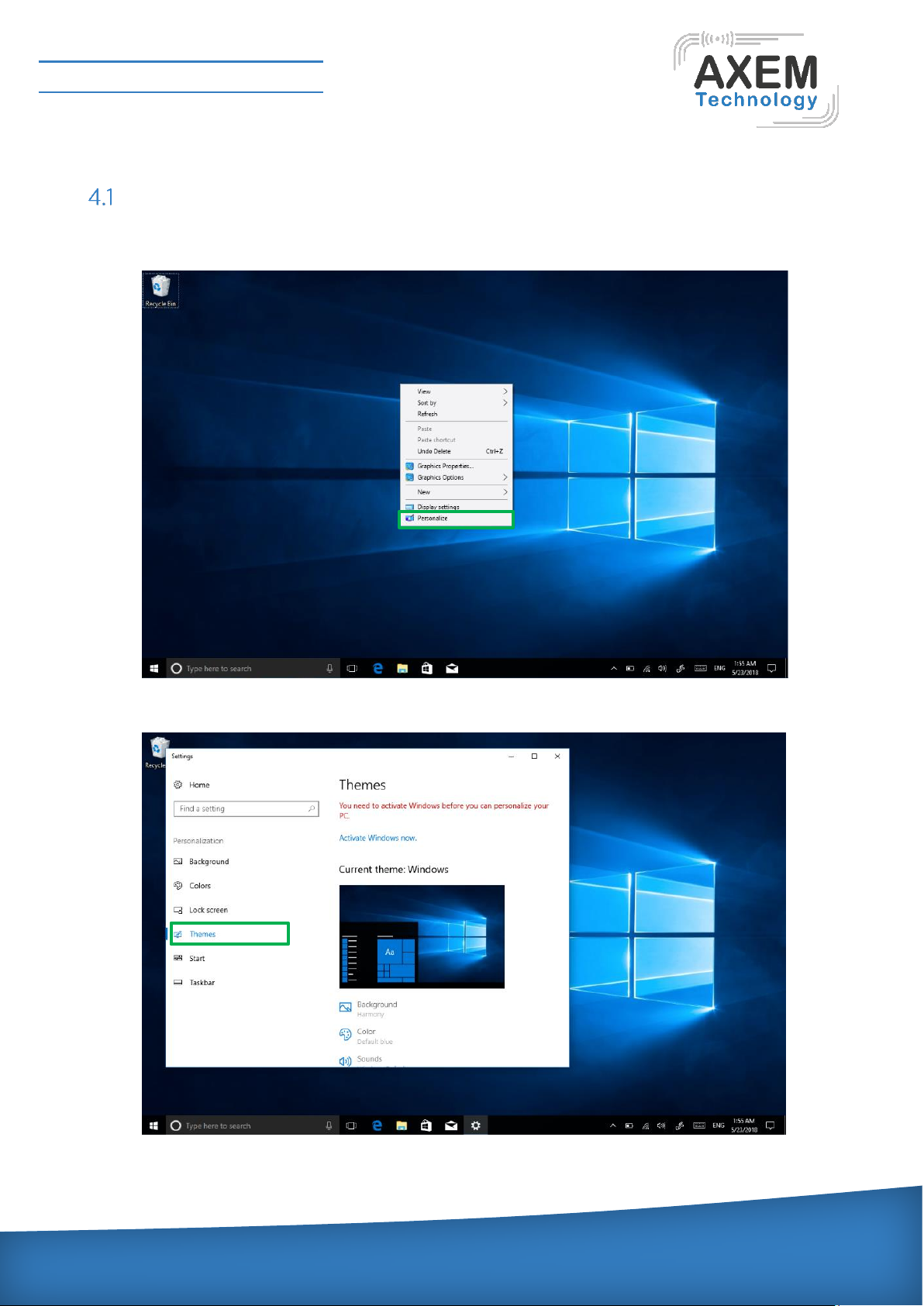
Add "magnet" file: All app-----select the application icon, mouse with right key -----pin to start ---return to the fixed magnet to view the application.
Delete magnet file: fixed magnet, mouse with right key-----select cancel screen.
①start
②pinned tiles
③all apps
④user
⑤setting
⑥power
1
2
Page 19
AXEM Technology
11 rue Auguste Perret, 94042 Créteil, FRANCE – [email protected] – +33 (0)1 41 94 11 85 – www.axemtec.com
Siret : 45071140300045 - APE : 4652Z - RCS : CRETEIL 450711403 - N° TVA intracom : FR05450711403 - Capital : 500 000,00 €
File : AT-12 user guide
Version : V1.0
19/39
4 System setting
Display application icon
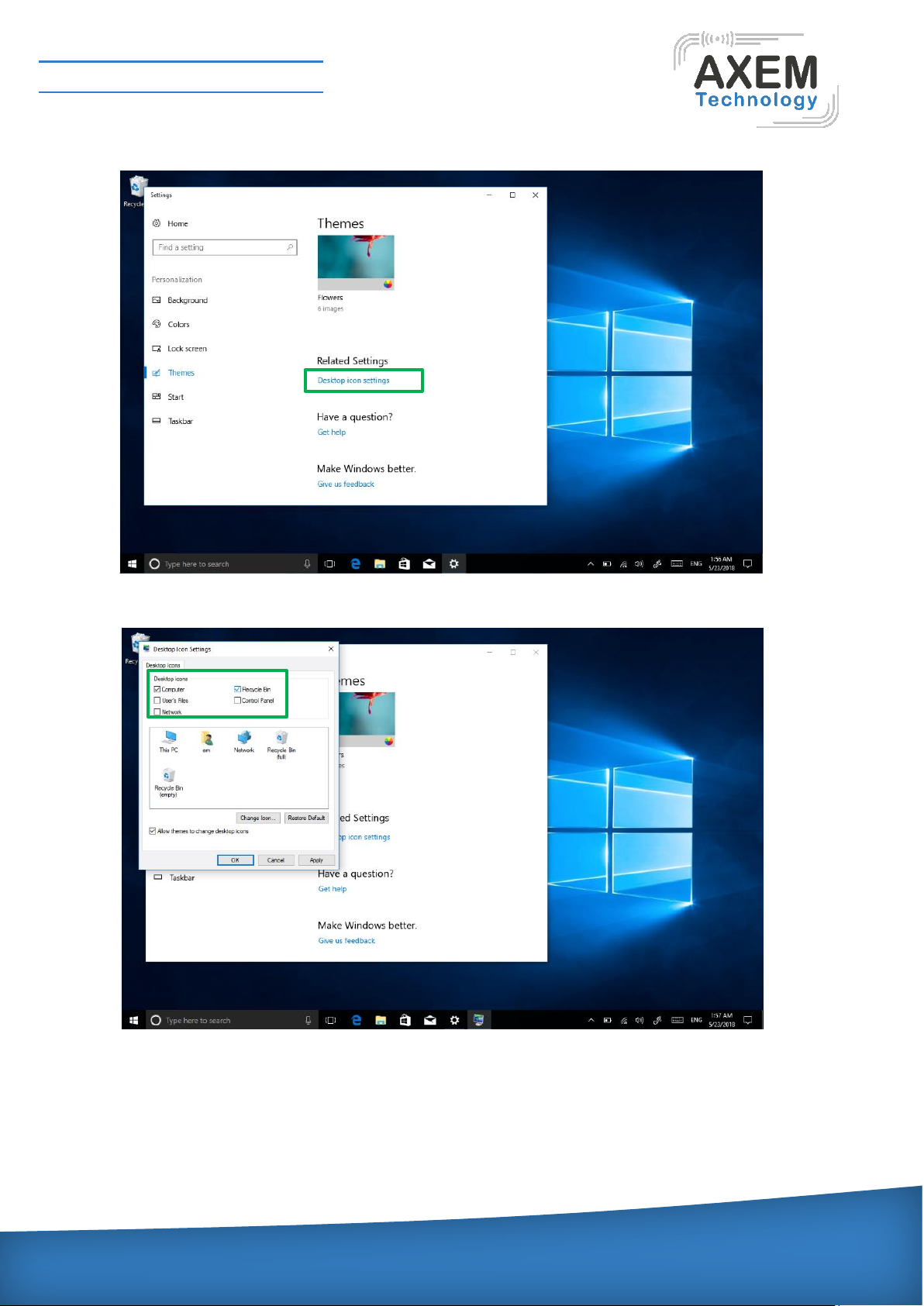
A: click on the right mouse key and select “personalize”, as below picture.
B: personalize window, click “theme” with the mouse left key.
Page 20
AXEM Technology
11 rue Auguste Perret, 94042 Créteil, FRANCE – [email protected] – +33 (0)1 41 94 11 85 – www.axemtec.com
Siret : 45071140300045 - APE : 4652Z - RCS : CRETEIL 450711403 - N° TVA intracom : FR05450711403 - Capital : 500 000,00 €
File : AT-12 user guide
Version : V1.0
20/39
C: click “Desktop icon setting” with the mouse left key.
D: Tick in front of the computer icon and click “OK”
Page 21
AXEM Technology
11 rue Auguste Perret, 94042 Créteil, FRANCE – [email protected] – +33 (0)1 41 94 11 85 – www.axemtec.com
Siret : 45071140300045 - APE : 4652Z - RCS : CRETEIL 450711403 - N° TVA intracom : FR05450711403 - Capital : 500 000,00 €
File : AT-12 user guide
Version : V1.0
21/39
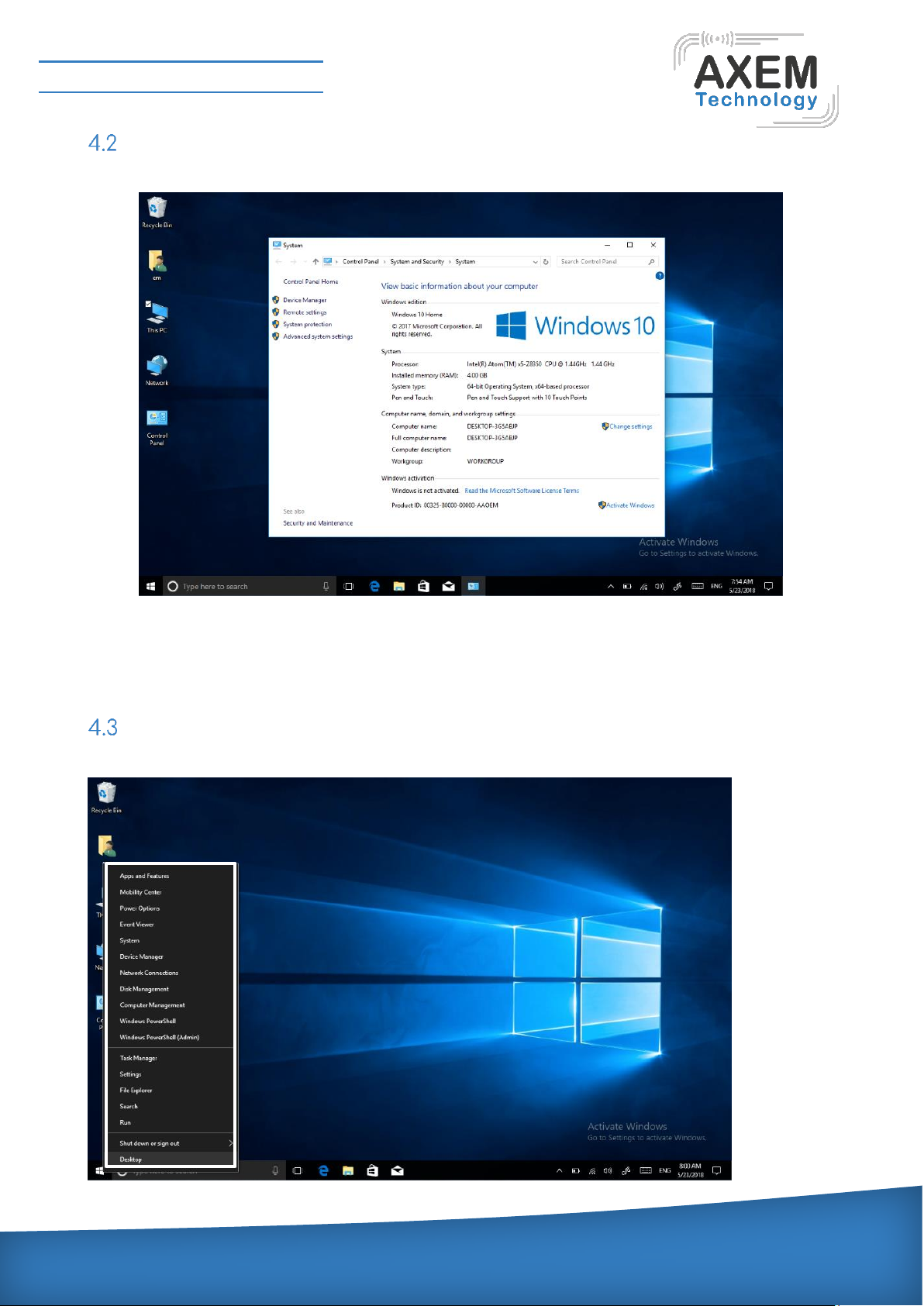
System information
Click the right mouse key or touch the computer icon to open the extension option. Click on
“properties” to view system information, Windows system version, hardware configuration
information, computer name, Windows activation, etc.
Quick start
Page 22

AXEM Technology
11 rue Auguste Perret, 94042 Créteil, FRANCE – [email protected] – +33 (0)1 41 94 11 85 – www.axemtec.com
Siret : 45071140300045 - APE : 4652Z - RCS : CRETEIL 450711403 - N° TVA intracom : FR05450711403 - Capital : 500 000,00 €
File : AT-12 user guide
Version : V1.0
22/39
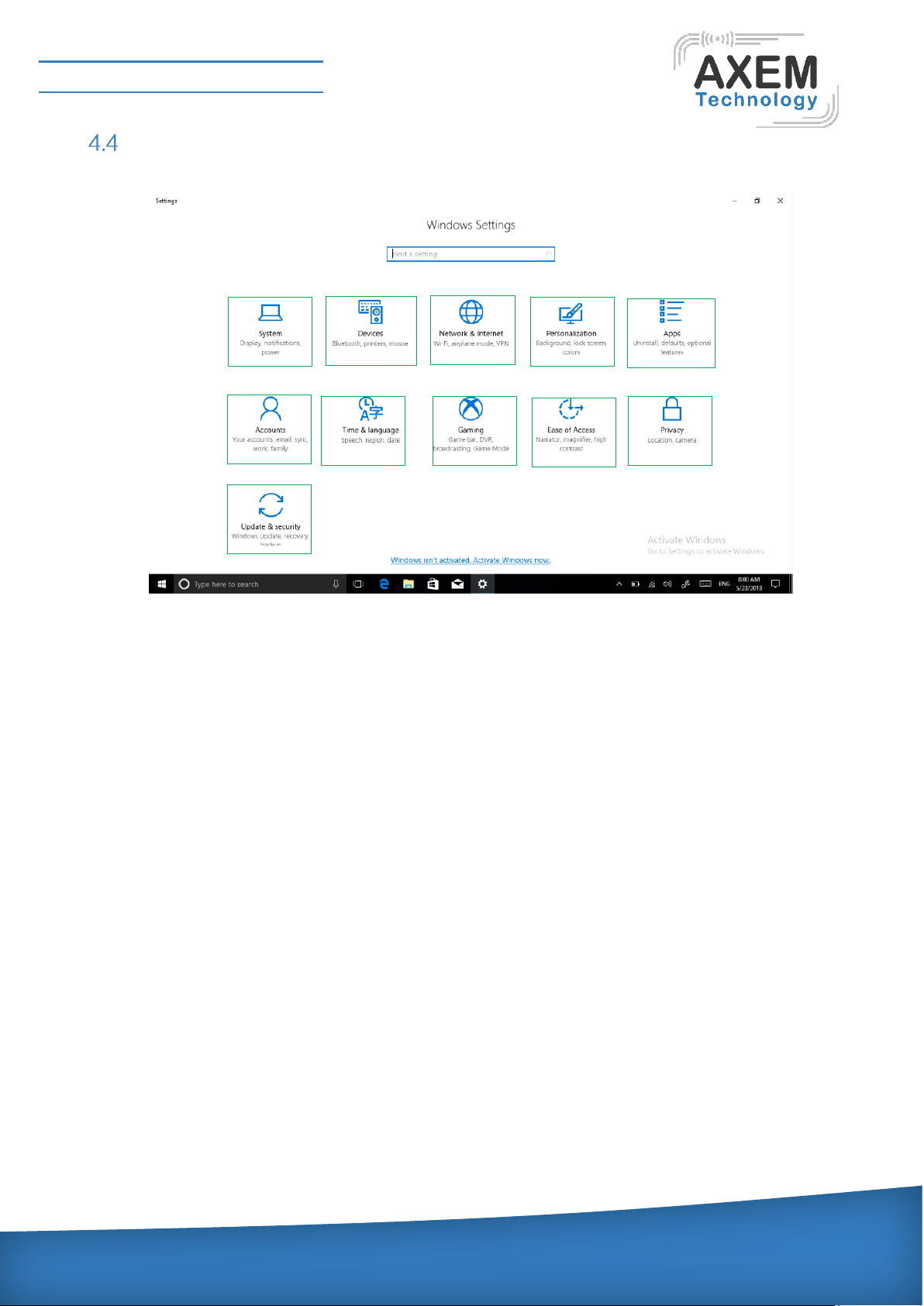
Click the right mouse button or click the touch to start the icon, open the advanced boot interface,
and open the corresponding function.
1)Apps and features -----manage installed applications and drivers, update drivers and
applications.
2)Mobility center-----adjust the screen brightness, volume size, detect battery power, set the
direction of the screen.
3) Power Options-----management about the power settings, on the battery power turn off screen
after how long times, PC goes to sleep after how long times.
4) Event Viewer-----view Windows logs, custom views, subscriptions, application and service logs.
5) System -----view system and hardware configuration information.
6) Device Manager -----manage device drivers, disable and enable devices, unknown device driver
installation management.
7) network connection -----quickly start the network setup. On this page, you can set up the mobile
phone network, Wi-Fi and Ethernet.
8) disk management -----local and external disk management, partitioned disk format.
9) computer management -----opening computer system tools, storage, services, etc.
10) the Windows Power Shell -----CMD command runs the window.
11) Windows Power Shell (Admin) -----CMD administrator: commands to run windows.
12) task manager -----Force the system to turn off the background programs and services, and check
the running state of the computer.
13) setting -----open the system settings.
14) file explore ----- open and check file.
15) search -----search for a web site or application.
16) run -----CMD running window.
17) shut down or sign out-----turn off the computer, sleep in, restart and sign off the user.
18) desktop ----- back to desktop.
Page 23
AXEM Technology
11 rue Auguste Perret, 94042 Créteil, FRANCE – [email protected] – +33 (0)1 41 94 11 85 – www.axemtec.com
Siret : 45071140300045 - APE : 4652Z - RCS : CRETEIL 450711403 - N° TVA intracom : FR05450711403 - Capital : 500 000,00 €
File : AT-12 user guide
Version : V1.0
23/39
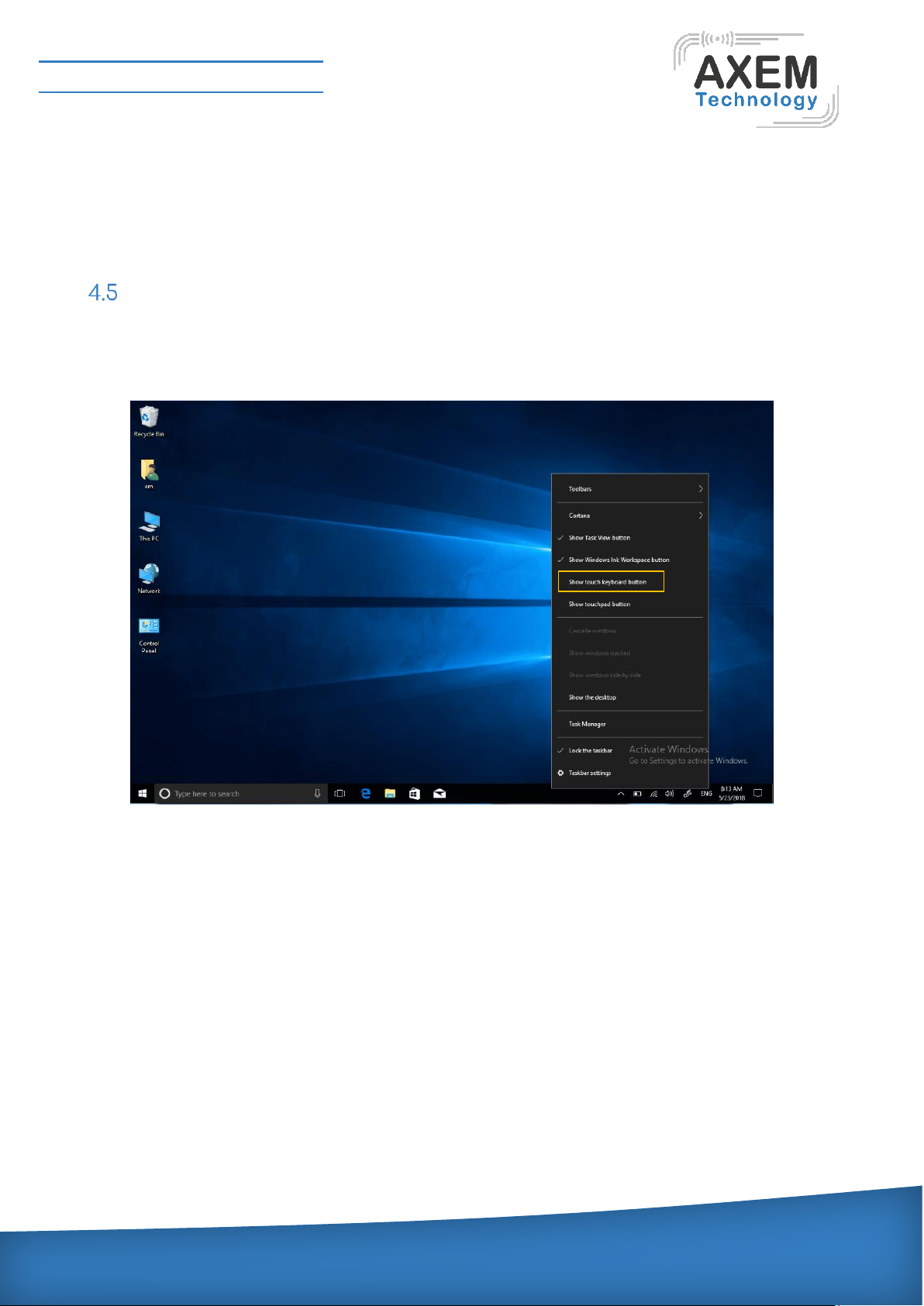
System setting
1) system----- display settings, notifications & action, power & sleep, battery, storage, tablet mode,
multitasking, projecting to this PC, shared experiences, about remote desktop
2) device ----- Bluetooth & other devices, printer & scanner, mouse, typing, pen &Windows ink , auto
play ,USB.
3) network and Internet----- view network status, Wi-Fi settings, cellular settings, ethernet, dial-up,
VPN settings, airplane mode, mobile hotspot, data usage, proxy settings.
4) Personalization ----- background setting, colors, lock screen, theme setting. (start menu bar
settings, taskbar) these two items need to be set up after system activate.
5) Apps -----Apps and features (can be applied to install, modify or uninstall), default apps (can add
default startup applications), offline maps, Apps for websites.
6) account-----view your info, add e-mail and apps accounts, sign-in options, access work or School,
family&other people, sync your settings.
7) time and language----- the time and date can be set at the interface (when the device is connected
to the Internet when it opens automatically, it can synchronize with the network), Region & language
(Region setting, adding other language packages), speech settings.
8) game-----control how game bar opens and recognizes you game, record game clips, screenshots,
and broadcast using game bar. game bar, game DVR, broadcasting, game mode.
9) Easy of access ----- can be settings, narrator, magnifier, high contrast, closed captions, keyboard,
mouse, other options.
7 6 8
11
9
4
5
10
3 2 1
Page 24
AXEM Technology
11 rue Auguste Perret, 94042 Créteil, FRANCE – [email protected] – +33 (0)1 41 94 11 85 – www.axemtec.com
Siret : 45071140300045 - APE : 4652Z - RCS : CRETEIL 450711403 - N° TVA intracom : FR05450711403 - Capital : 500 000,00 €
File : AT-12 user guide
Version : V1.0
24/39
10) Privacy ----- privacy can be settings, including general, location, camera, microphone,
notifications, speech, inking & typing, account info, contacts, calendar, call history, app diagnostics.
11) Update & security----- Windows update, windows defender, backup systems, troubleshooting,
recovery systems, activation, find my devices, for developers, Windows insider program.
Quick start and setup
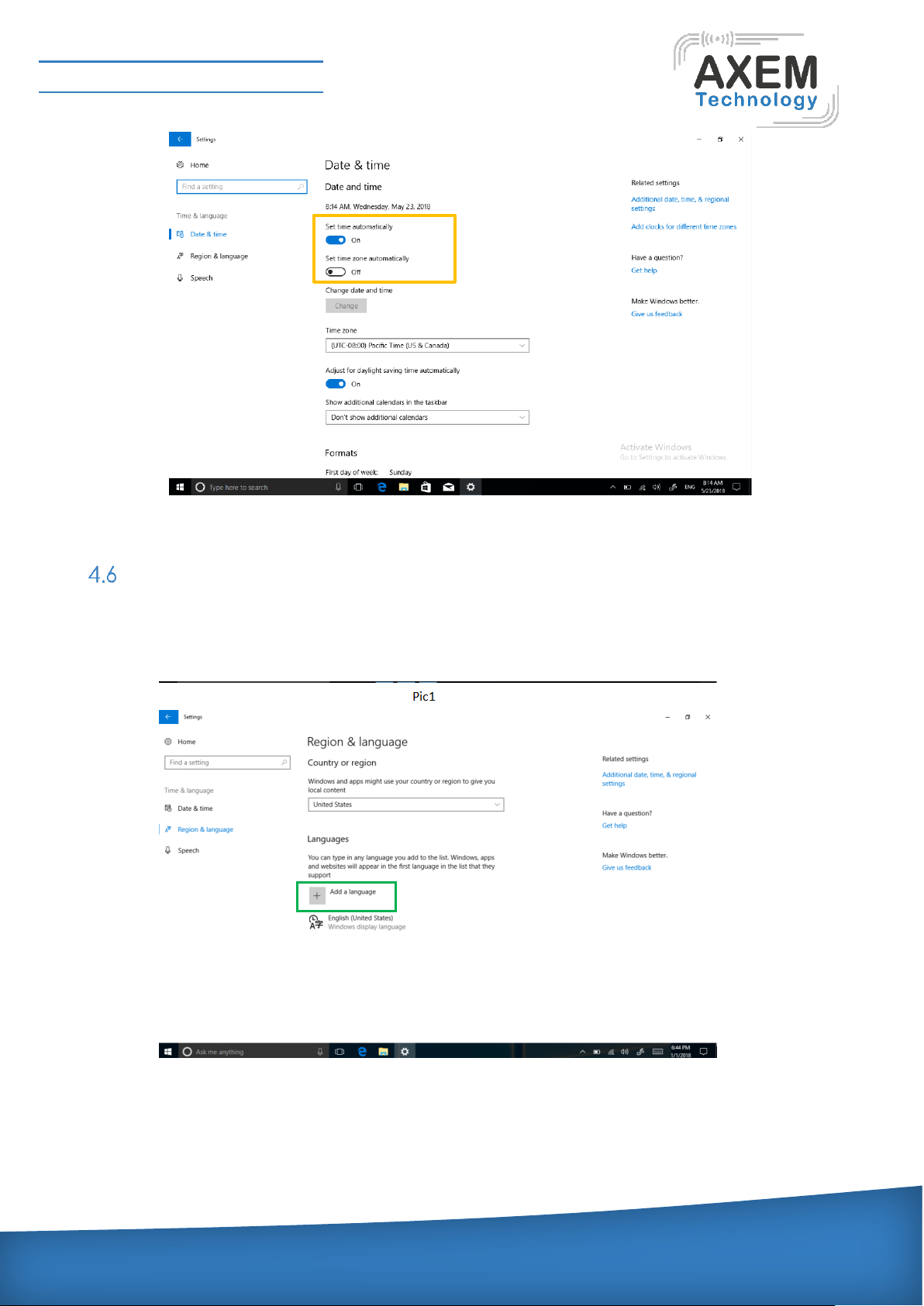
Open show touch keyboard button----- more touch on the taskbar or mouse with right key to choose
it.
System activation: the device cannot be activated during networking, please refer to the below
picture, and then try to activate again after synchronizing the time zone.
Page 25
AXEM Technology
11 rue Auguste Perret, 94042 Créteil, FRANCE – [email protected] – +33 (0)1 41 94 11 85 – www.axemtec.com
Siret : 45071140300045 - APE : 4652Z - RCS : CRETEIL 450711403 - N° TVA intracom : FR05450711403 - Capital : 500 000,00 €
File : AT-12 user guide
Version : V1.0
25/39
Language installation
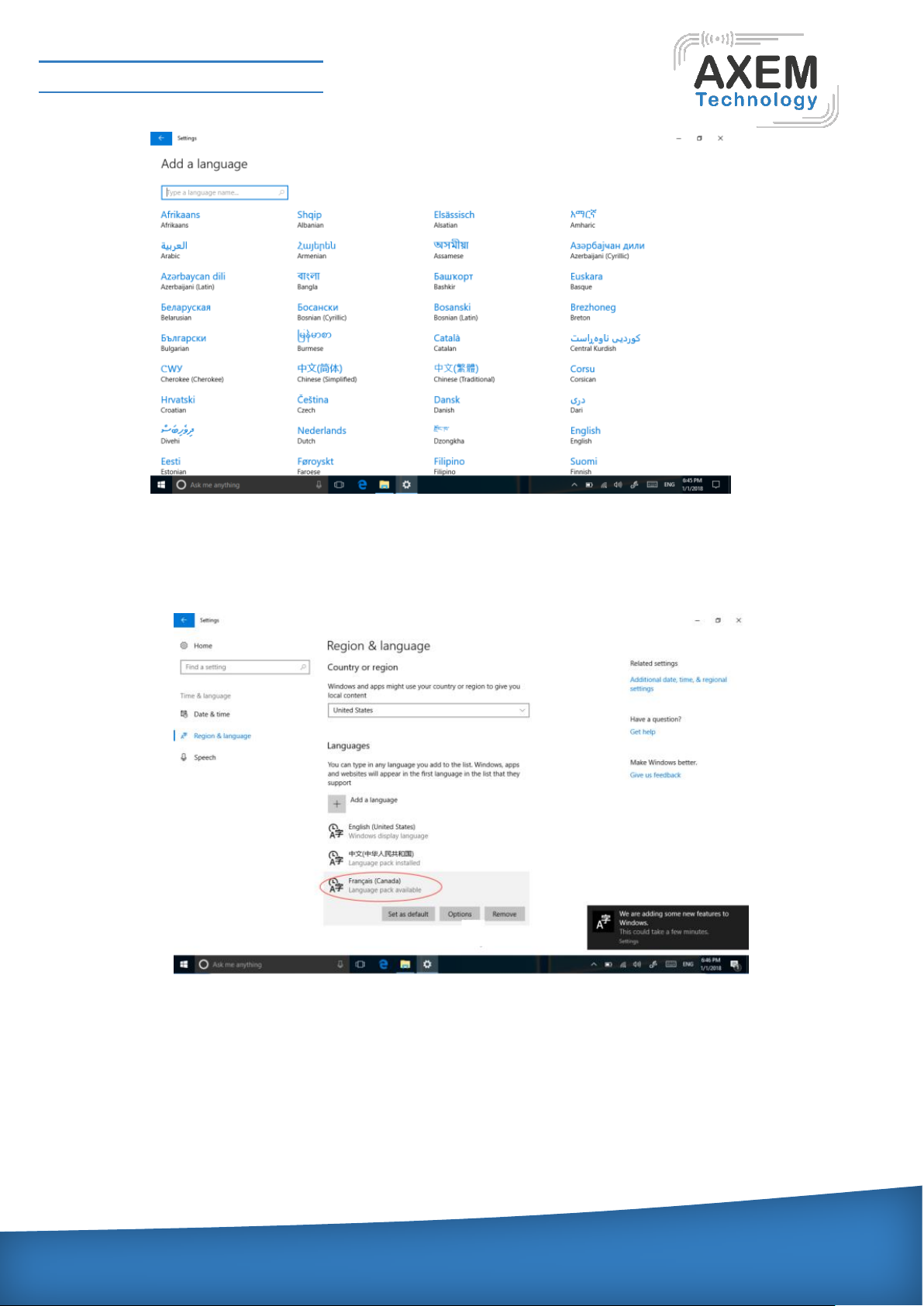
Connect to the network and open: All setting→Time & language→Region & language→Add a
language→ choose the language you need.
As below picture, select the language you want to install.
Page 26
AXEM Technology
11 rue Auguste Perret, 94042 Créteil, FRANCE – [email protected] – +33 (0)1 41 94 11 85 – www.axemtec.com
Siret : 45071140300045 - APE : 4652Z - RCS : CRETEIL 450711403 - N° TVA intracom : FR05450711403 - Capital : 500 000,00 €
File : AT-12 user guide
Version : V1.0
26/39
Choose options----download.
After download, select set as default, restart device language conversion completed, Chinese and
English language systems generally do not need to download.
Page 27
AXEM Technology
11 rue Auguste Perret, 94042 Créteil, FRANCE – [email protected] – +33 (0)1 41 94 11 85 – www.axemtec.com
Siret : 45071140300045 - APE : 4652Z - RCS : CRETEIL 450711403 - N° TVA intracom : FR05450711403 - Capital : 500 000,00 €
File : AT-12 user guide
Version : V1.0
27/39
6 NFC function test
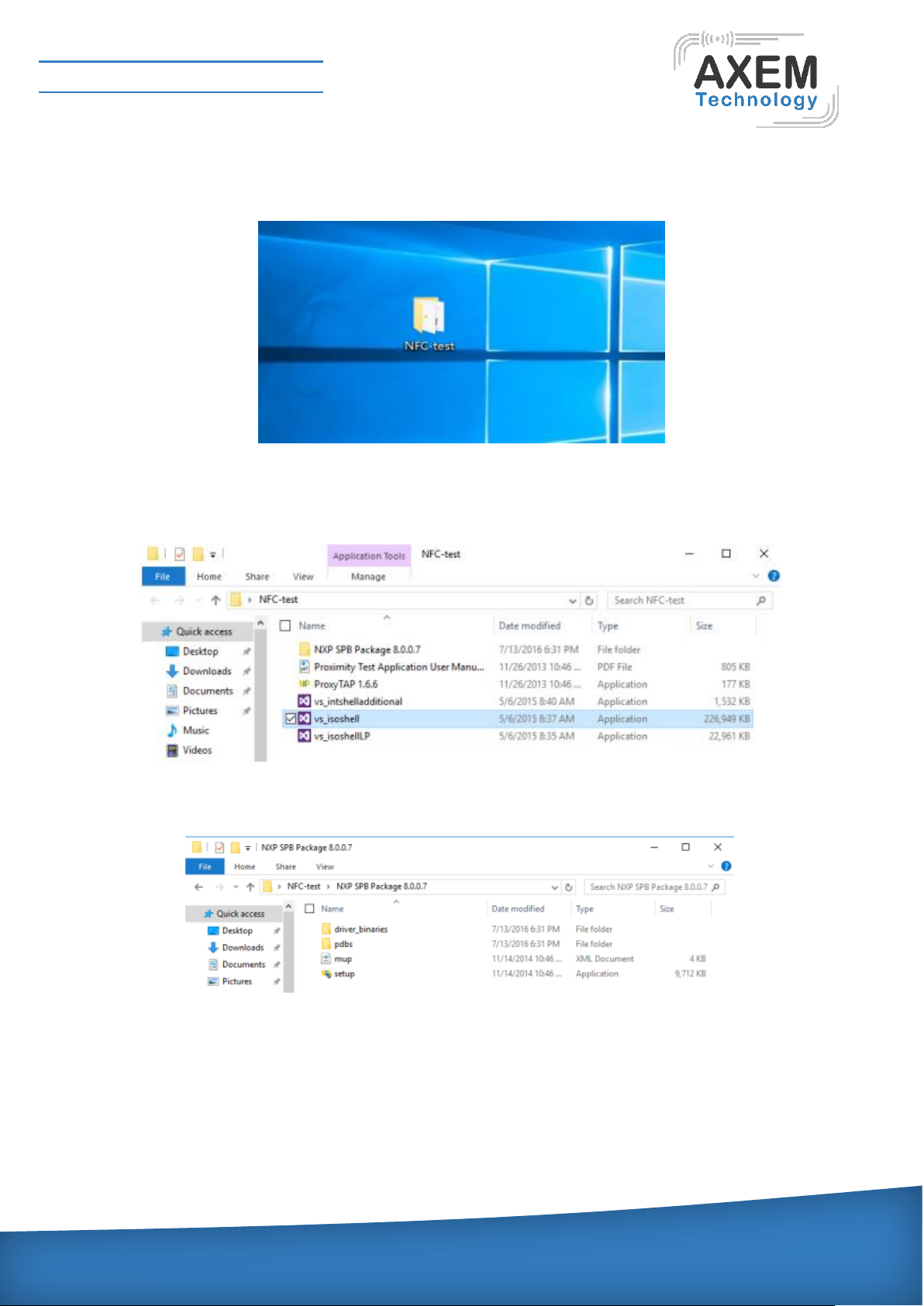
1) Copy NFC-test to desktop.
2) Open the folder and install vs_isoshell,vs_isoshelladditional and vs_isoshellLP.
3) Open NXP SPB Package 8.0.0.7 folder, install setup.
Page 28
AXEM Technology
11 rue Auguste Perret, 94042 Créteil, FRANCE – [email protected] – +33 (0)1 41 94 11 85 – www.axemtec.com
Siret : 45071140300045 - APE : 4652Z - RCS : CRETEIL 450711403 - N° TVA intracom : FR05450711403 - Capital : 500 000,00 €
File : AT-12 user guide
Version : V1.0
28/39
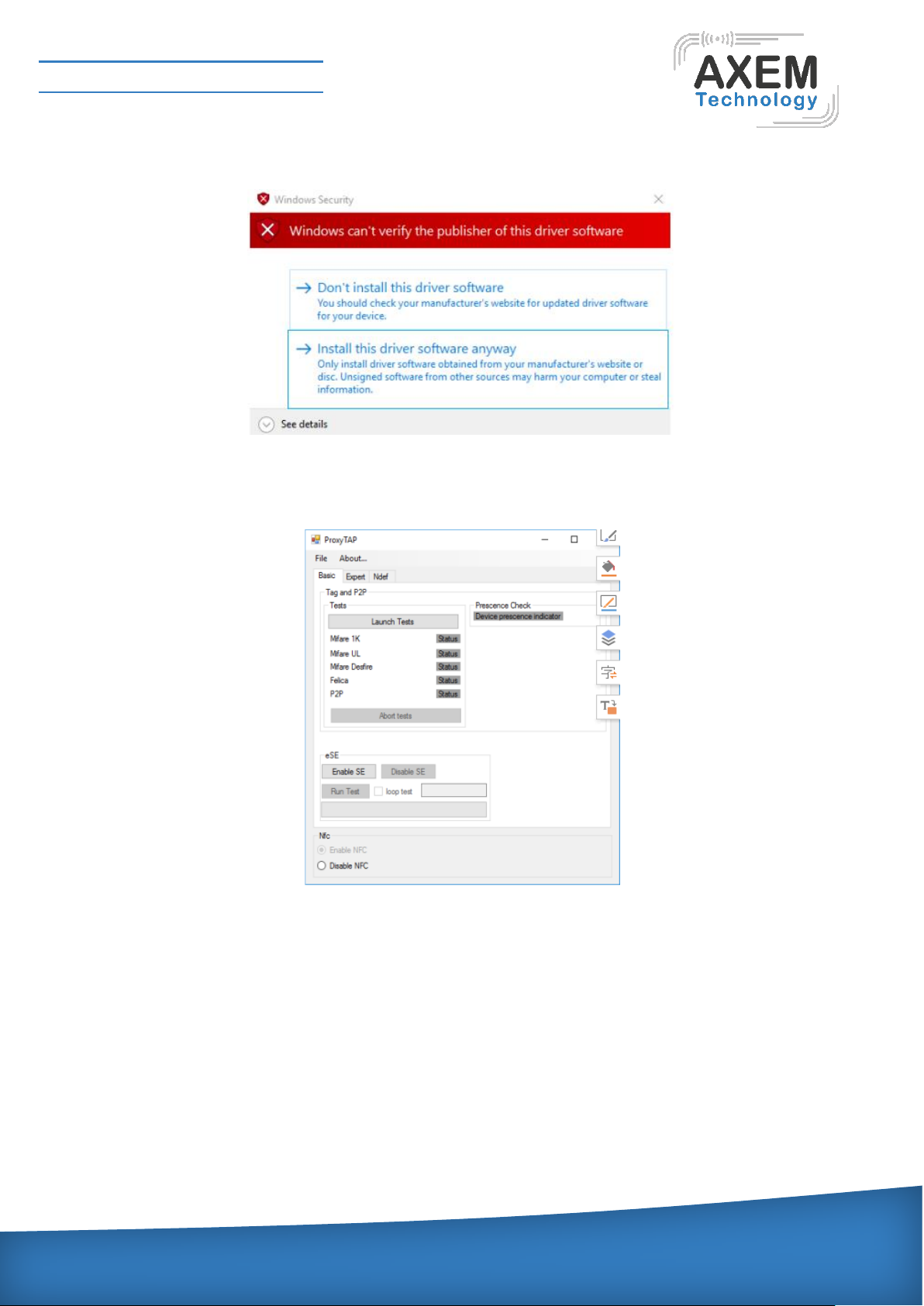
When installing, select the second item and install the driver software.
4) Return NFC-test, to run proxyTAP1.6.6.
5) The magnetic card is close to the NFC antenna recognition area, the safe distance is 1 cm, the
best distance is 3 cm.
Page 29
AXEM Technology
11 rue Auguste Perret, 94042 Créteil, FRANCE – [email protected] – +33 (0)1 41 94 11 85 – www.axemtec.com
Siret : 45071140300045 - APE : 4652Z - RCS : CRETEIL 450711403 - N° TVA intracom : FR05450711403 - Capital : 500 000,00 €
File : AT-12 user guide
Version : V1.0
29/39
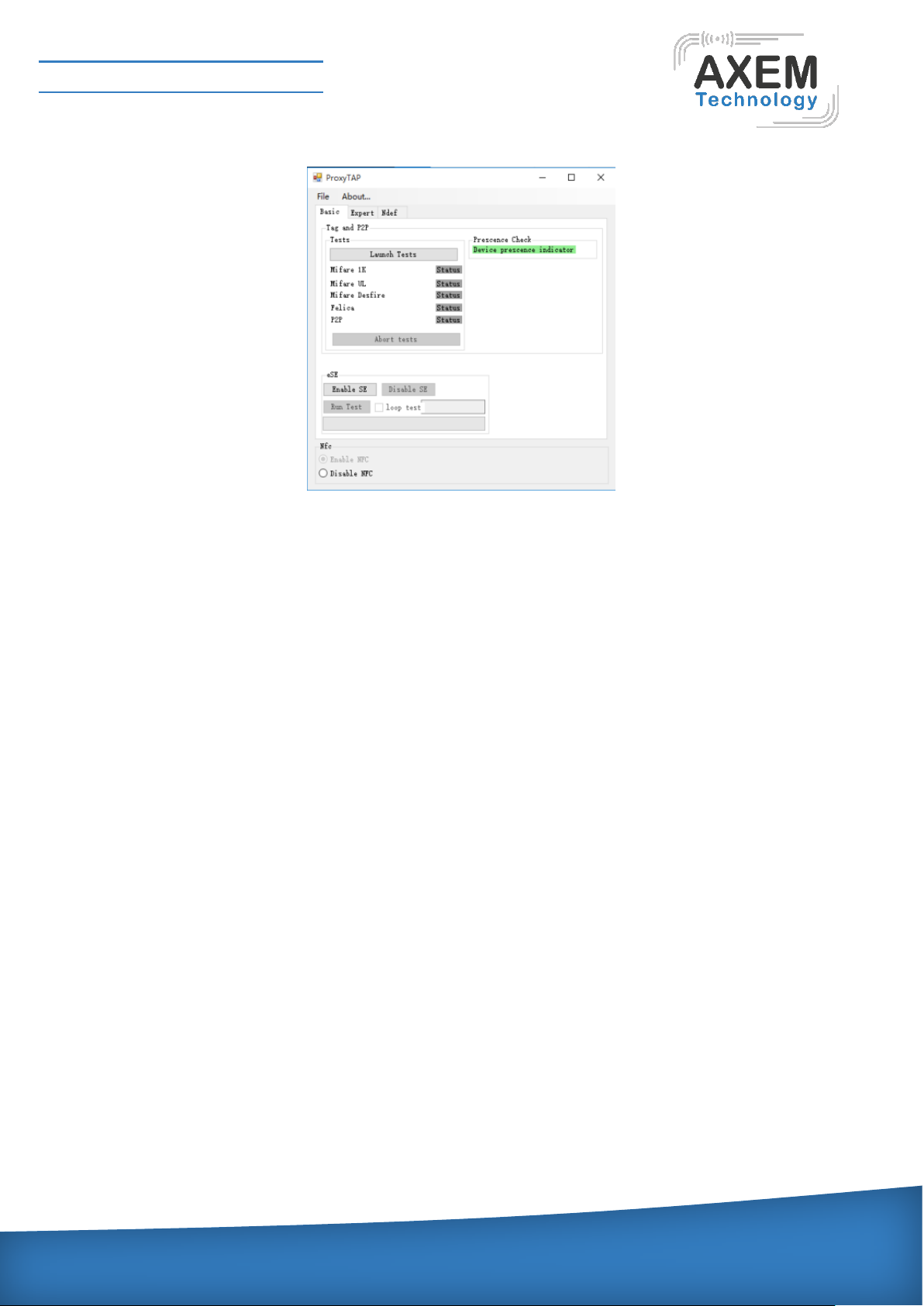
6) Green is pass, and grey is NG.
Page 30
AXEM Technology
11 rue Auguste Perret, 94042 Créteil, FRANCE – [email protected] – +33 (0)1 41 94 11 85 – www.axemtec.com
Siret : 45071140300045 - APE : 4652Z - RCS : CRETEIL 450711403 - N° TVA intracom : FR05450711403 - Capital : 500 000,00 €
File : AT-12 user guide
Version : V1.0
30/39
7 Keystroke custom description
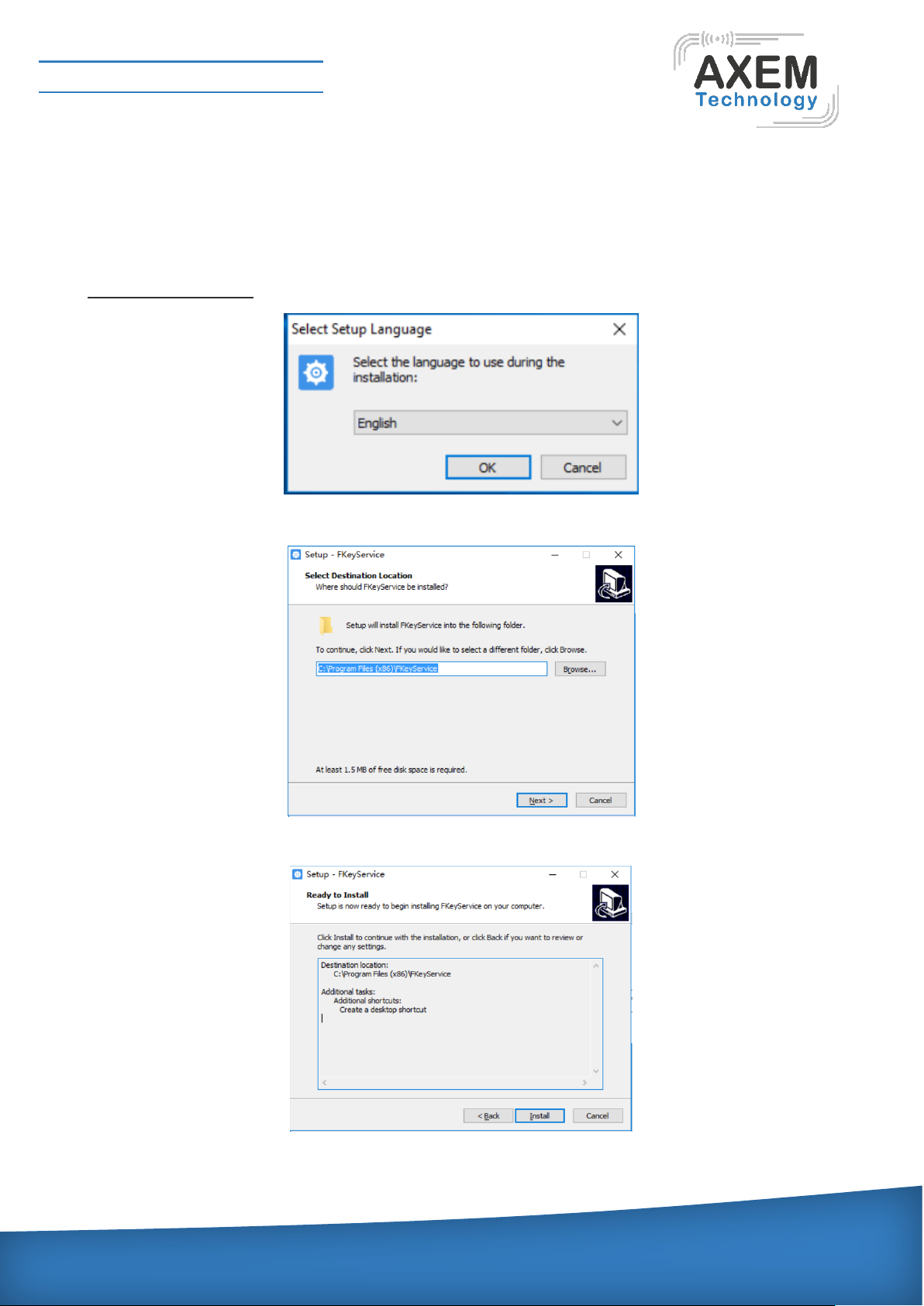
F function key can be customized. For example, press F key can quickly start the application, note:
with barcode scanning module machine, F key is generally used to start barcode scanning.
In the RuggedPad22HX64 folder directory, double click FKeyService_AT-12_x64 for installation.
Installation interface
Select the default path and click next.
Click install.
Page 31
AXEM Technology
11 rue Auguste Perret, 94042 Créteil, FRANCE – [email protected] – +33 (0)1 41 94 11 85 – www.axemtec.com
Siret : 45071140300045 - APE : 4652Z - RCS : CRETEIL 450711403 - N° TVA intracom : FR05450711403 - Capital : 500 000,00 €
File : AT-12 user guide
Version : V1.0
31/39
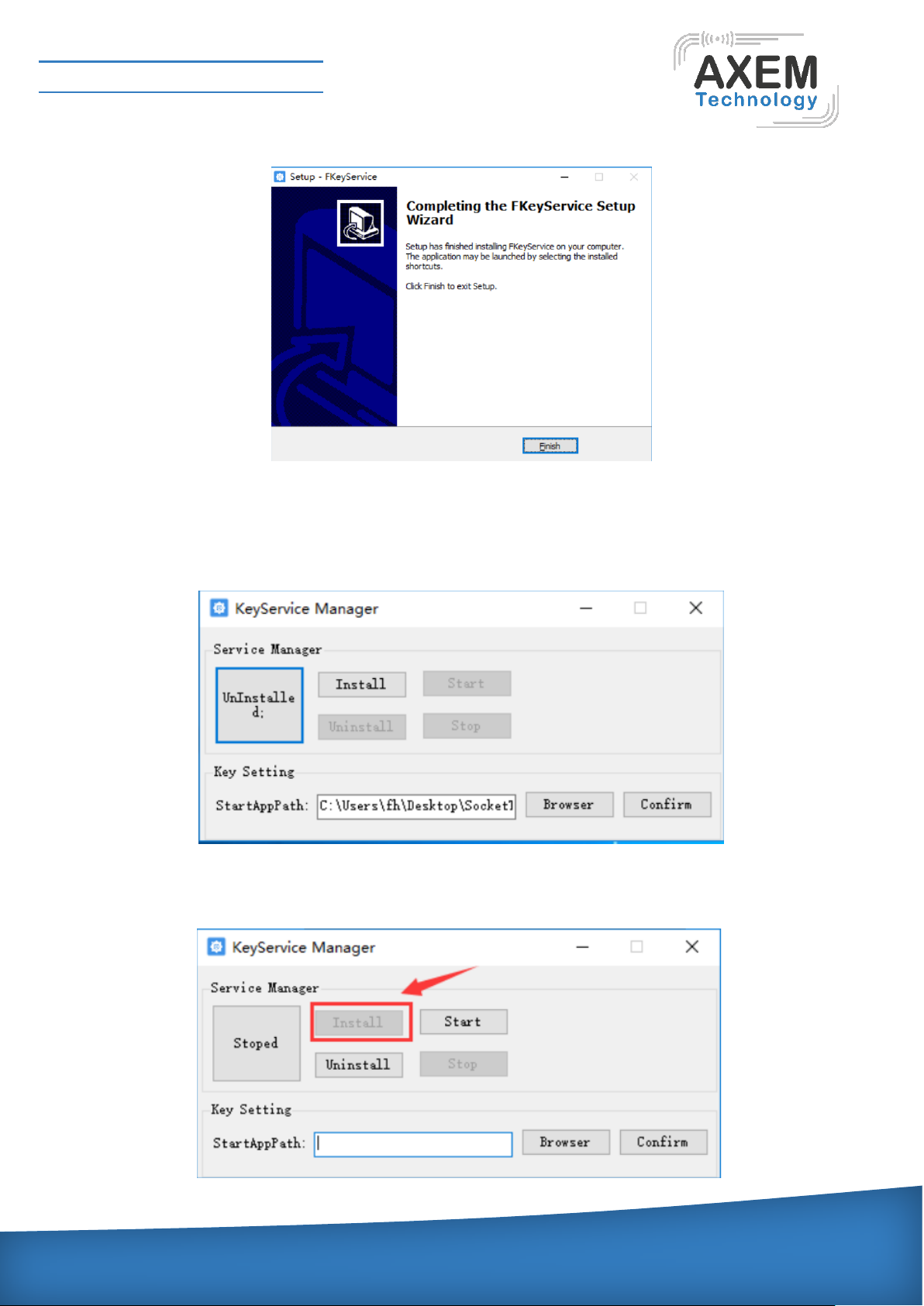
Click complete.
Configure the APP application path
Double-click the desktop icon FKeyService, to open the app application.
Install listening F function key: click Install to install.
Page 32
AXEM Technology
11 rue Auguste Perret, 94042 Créteil, FRANCE – [email protected] – +33 (0)1 41 94 11 85 – www.axemtec.com
Siret : 45071140300045 - APE : 4652Z - RCS : CRETEIL 450711403 - N° TVA intracom : FR05450711403 - Capital : 500 000,00 €
File : AT-12 user guide
Version : V1.0
32/39
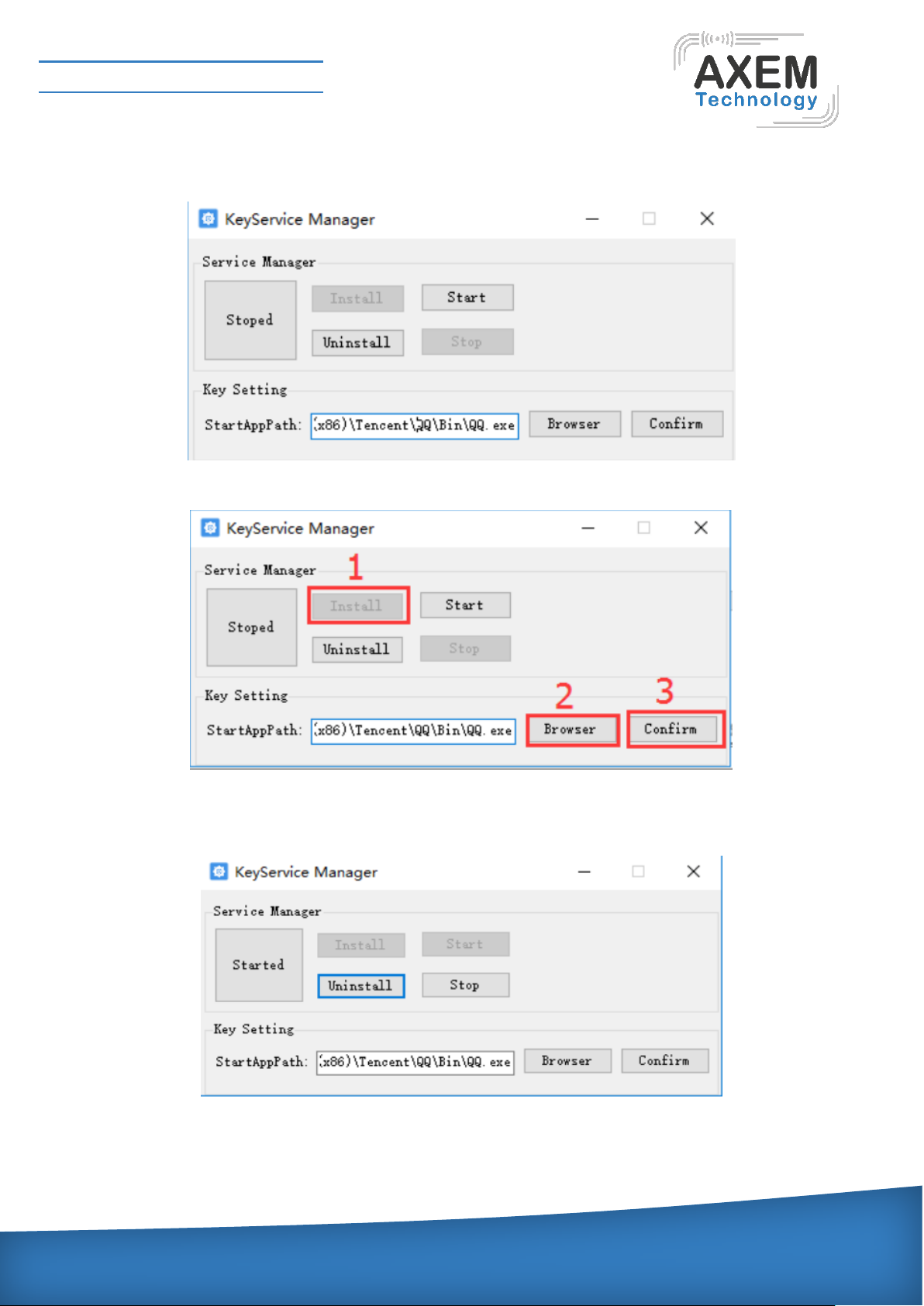
Browse for shortcuts to exe programs or programs called with F key, and then link files.
Click the Browser button to start browsing.
Click Confirm to confirm the settings for StartAppPath.
Start listening to the F function key. Click the Start button.
Page 33
AXEM Technology
11 rue Auguste Perret, 94042 Créteil, FRANCE – [email protected] – +33 (0)1 41 94 11 85 – www.axemtec.com
Siret : 45071140300045 - APE : 4652Z - RCS : CRETEIL 450711403 - N° TVA intracom : FR05450711403 - Capital : 500 000,00 €
File : AT-12 user guide
Version : V1.0
33/39
8 Special module description
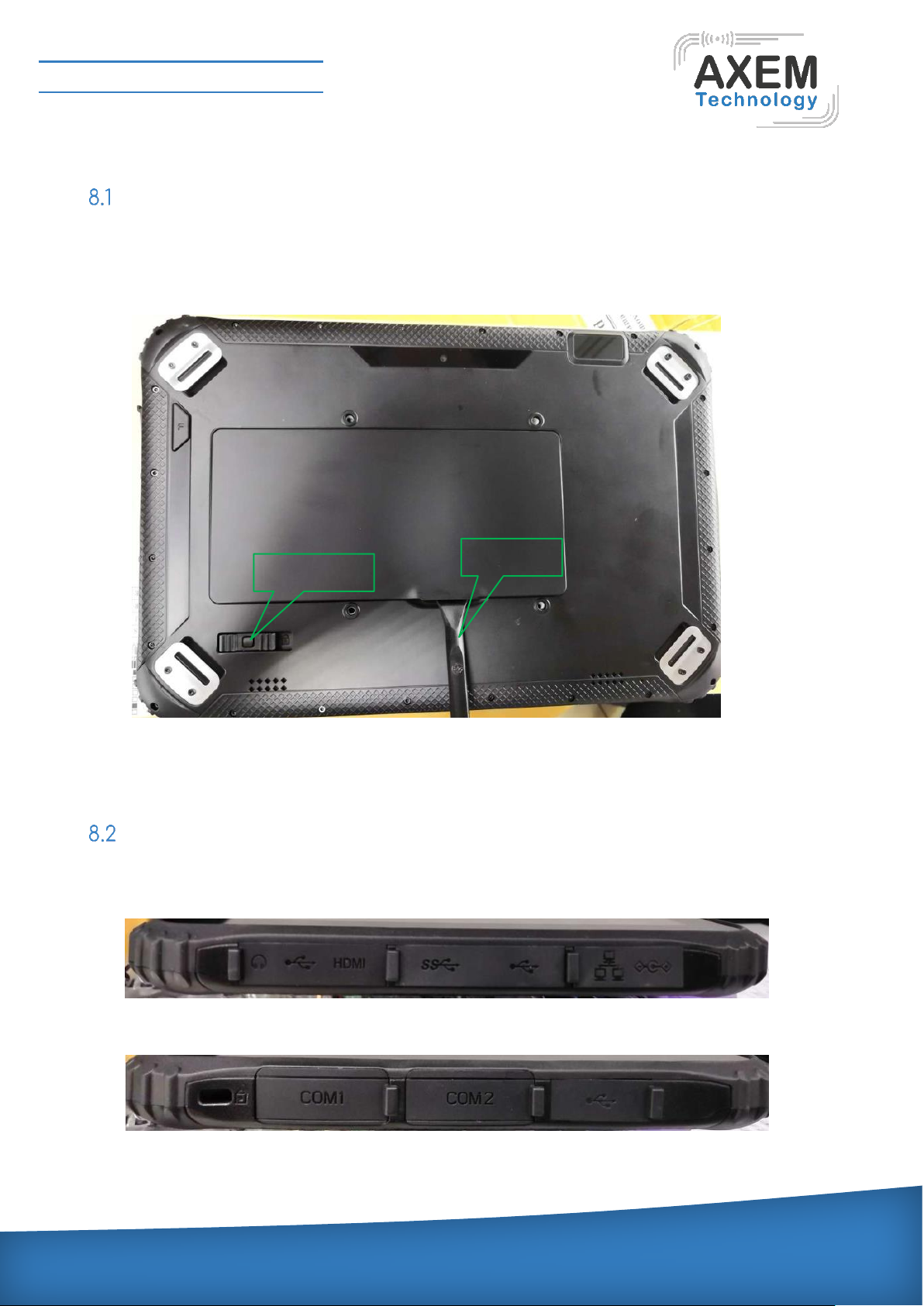
Battery lock
Move the battery lock to the limit on the left.
Use the tool to force the battery up, as shown above.
Waterproof state
HDMI, USB, Ethernet, protection plugs must be closed to be waterproof.
COM 1, COM 2, USB, protection plugs must be closed to be waterproof.
Batteries must be installed. The battery lock moves to the right limit position.
Battery lock
tool
Page 34
AXEM Technology
11 rue Auguste Perret, 94042 Créteil, FRANCE – [email protected] – +33 (0)1 41 94 11 85 – www.axemtec.com
Siret : 45071140300045 - APE : 4652Z - RCS : CRETEIL 450711403 - N° TVA intracom : FR05450711403 - Capital : 500 000,00 €
File : AT-12 user guide
Version : V1.0
34/39
Operation of Power key shut down
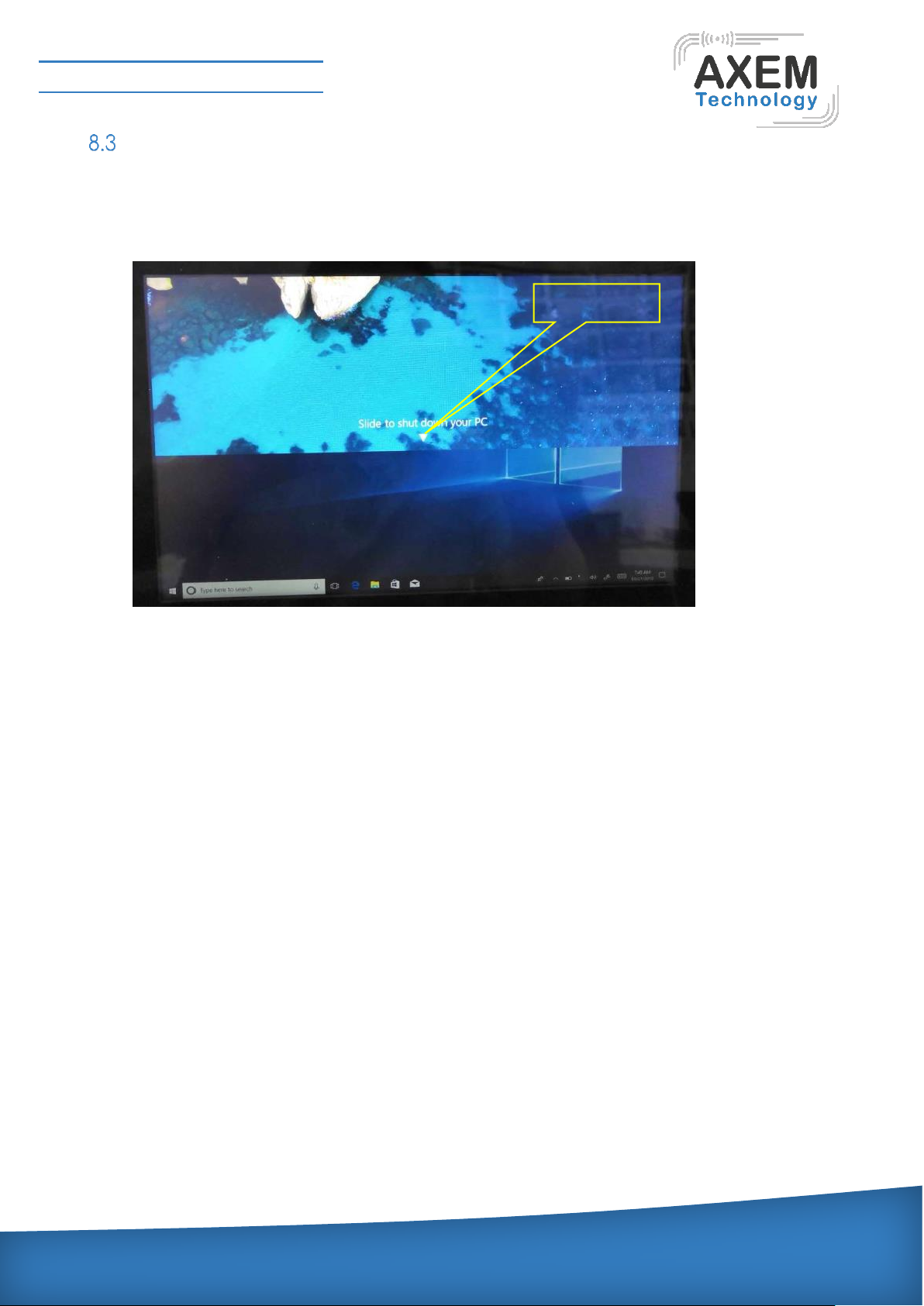
Press and hold the power key about 5S, appears slide to shut down your PC. The position of the
triangle symbol slides down and the device shuts down automatically.
Slide down
Page 35
AXEM Technology
11 rue Auguste Perret, 94042 Créteil, FRANCE – [email protected] – +33 (0)1 41 94 11 85 – www.axemtec.com
Siret : 45071140300045 - APE : 4652Z - RCS : CRETEIL 450711403 - N° TVA intracom : FR05450711403 - Capital : 500 000,00 €
File : AT-12 user guide
Version : V1.0
35/39
9 Accessories
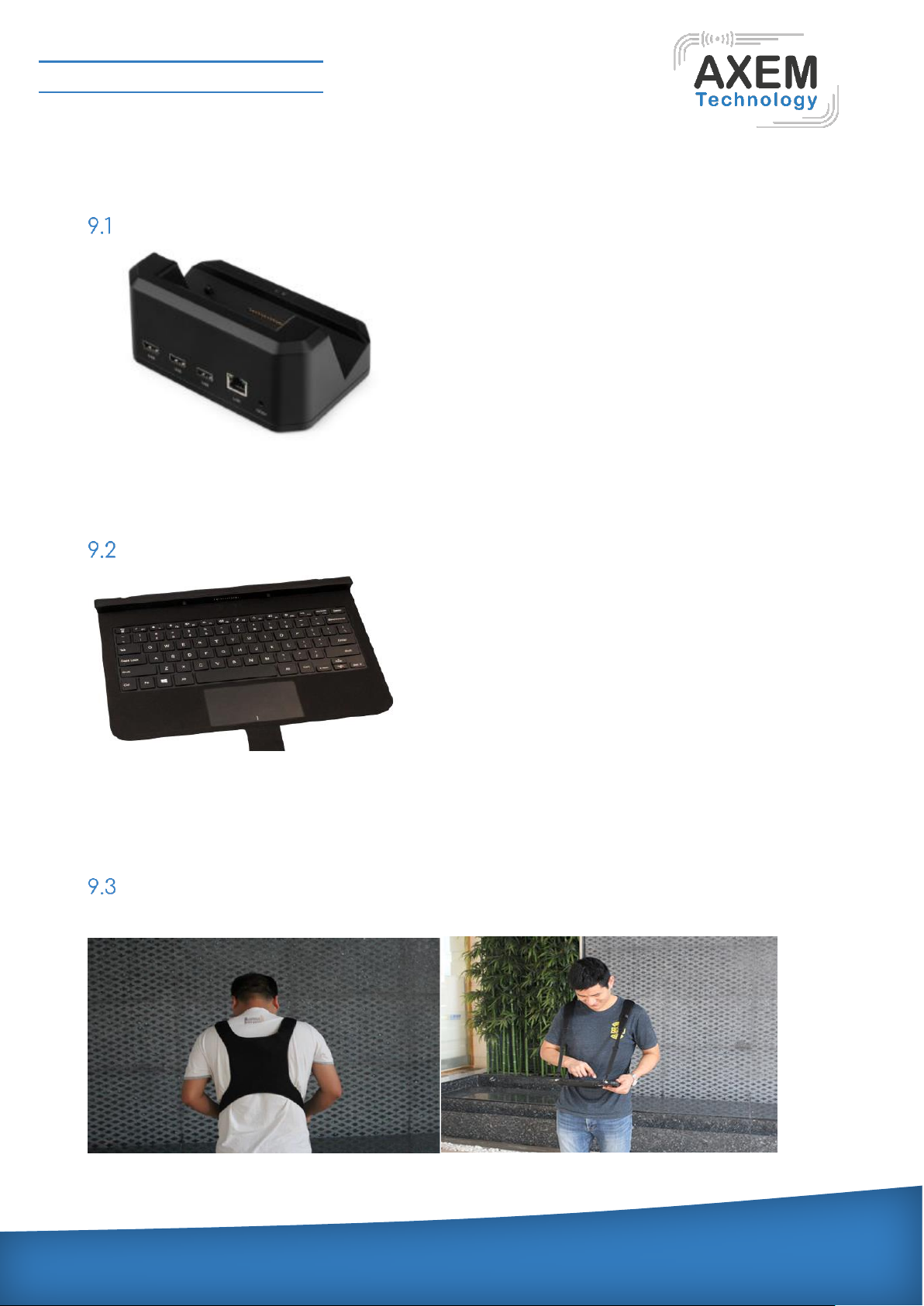
Docking cradle, USB, Ethernet 10Mb
Reference: CR0299
Keyboard for AT-12 tablet QWERTY
Reference: CLA0633
Shouder / Back Strap
Reference: HOU0464
Page 36
AXEM Technology
11 rue Auguste Perret, 94042 Créteil, FRANCE – [email protected] – +33 (0)1 41 94 11 85 – www.axemtec.com
Siret : 45071140300045 - APE : 4652Z - RCS : CRETEIL 450711403 - N° TVA intracom : FR05450711403 - Capital : 500 000,00 €
File : AT-12 user guide
Version : V1.0
36/39
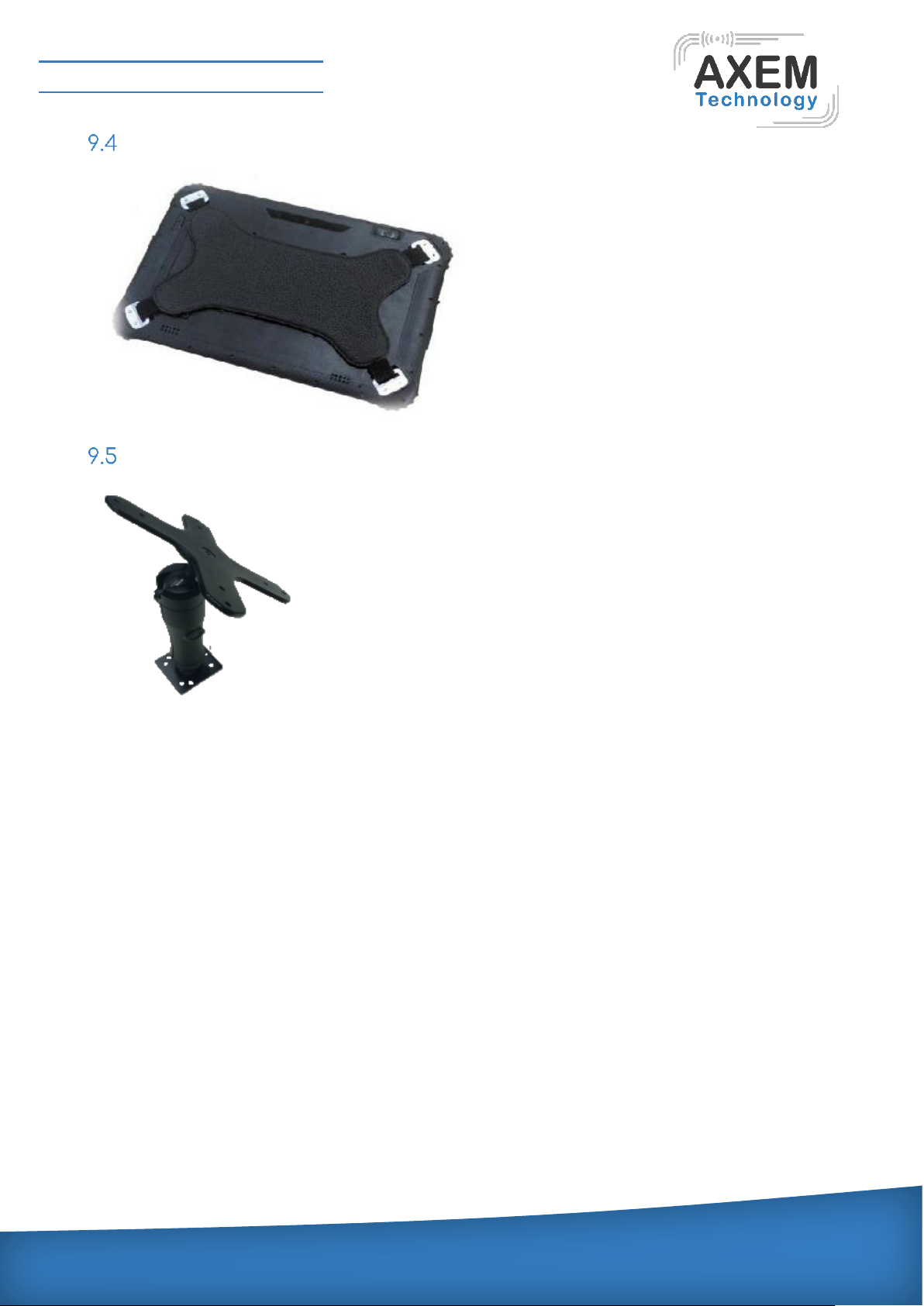
Hand strap
Car holder
Page 37
AXEM Technology
11 rue Auguste Perret, 94042 Créteil, FRANCE – [email protected] – +33 (0)1 41 94 11 85 – www.axemtec.com
Siret : 45071140300045 - APE : 4652Z - RCS : CRETEIL 450711403 - N° TVA intracom : FR05450711403 - Capital : 500 000,00 €
File : AT-12 user guide
Version : V1.0
37/39
10 special module description
Instructions for the use of a stylus
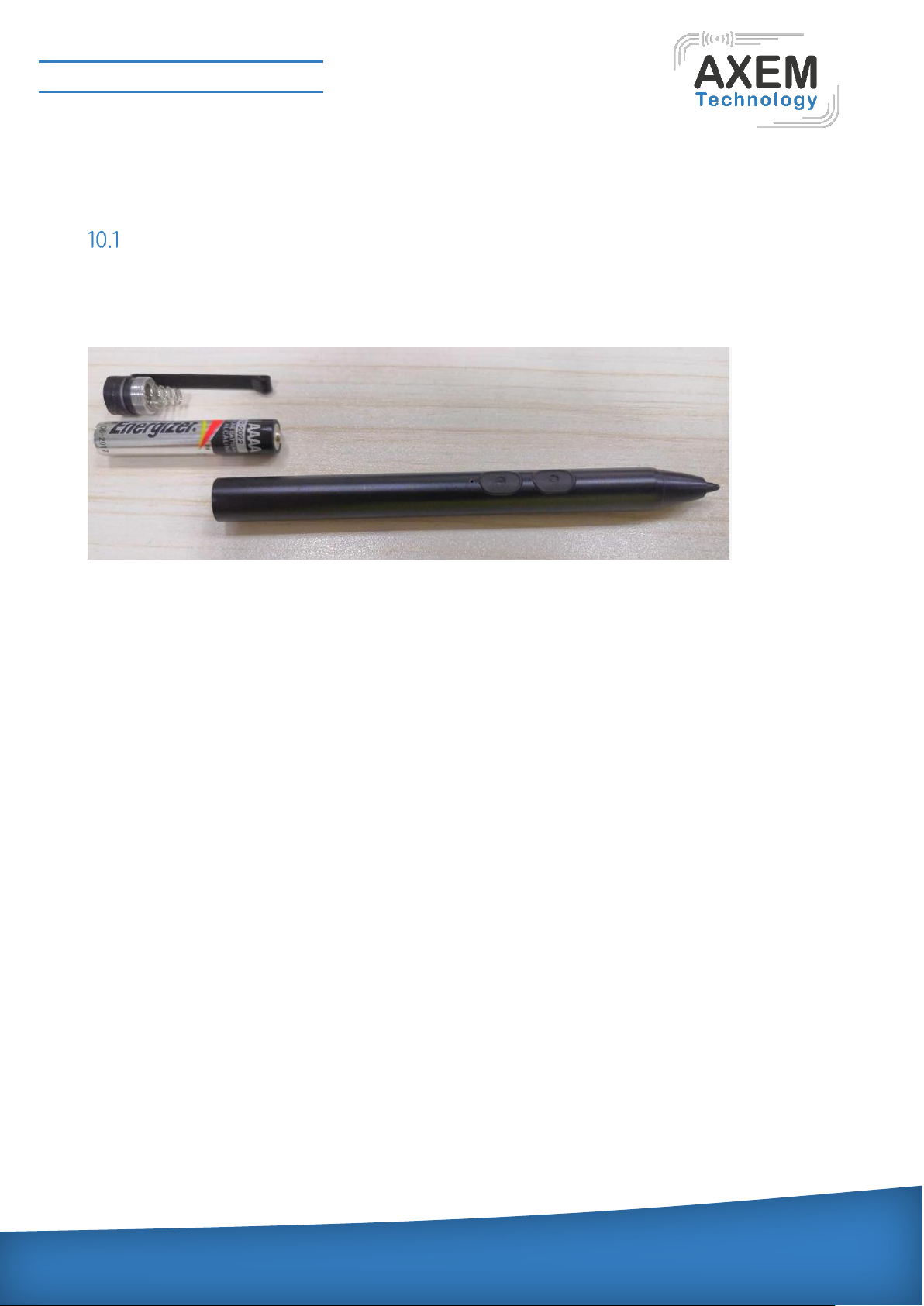
1) before Frequency modulation, make sure the battery is full, and install the battery in the direction
as the below picture.
2) By pressing the FM Hole, it can change the frequency of pen. If the changed frequency is the
same as the screen, the pen can work normally. you could press the hole one time, then try to touch
the screen If it fails, you could press the hole again until the pen work on the screen normally.
Page 38

AXEM Technology
11 rue Auguste Perret, 94042 Créteil, FRANCE – [email protected] – +33 (0)1 41 94 11 85 – www.axemtec.com
Siret : 45071140300045 - APE : 4652Z - RCS : CRETEIL 450711403 - N° TVA intracom : FR05450711403 - Capital : 500 000,00 €
File : AT-12 user guide
Version : V1.0
38/39
11 Common problem asked
1) SIM card could not be recognized.
Check the direction of the SIM card, the direction is consistent with the icon, the latch should be
locked.
2) SD card cannot be recognized.
Ensure that the SD card itself is normal, the installation direction is the same as the icon, the latch
should be locked.
3) USB interface is not recognized.
Check the interface USB interface for corruption. If not identified, connect to the network and try
again.
4) low battery (cannot power on)
There is a possible battery over discharge. It should be connected to the charger charging for more
than half an hour, reboot. It is best to charge the device in time when the remaining 20% of the power
is available.
5) Stylus
It is capacitive active stylus with three working frequencies: 400kHz, 500KHZ, 666KHZ.
The pressure (pressure return) of the stylus is 256.
6) Battery type of stylus
AAAA batteries, we usually call Battery No. 9.
Battery can be used continuously for 250 hours without charging function.
7) Windows10 update versions of different systems lose key. You will not lose key as long as
you don't brush BIOS.
If the home version of the system, reflash the Pro version of the system, and then reflash back to
the home version of the system, the system can be activated.
8) Use AT-12 and AT-12 Plus keyboard
Page 39

AXEM Technology
11 rue Auguste Perret, 94042 Créteil, FRANCE – [email protected] – +33 (0)1 41 94 11 85 – www.axemtec.com
Siret : 45071140300045 - APE : 4652Z - RCS : CRETEIL 450711403 - N° TVA intracom : FR05450711403 - Capital : 500 000,00 €
File : AT-12 user guide
Version : V1.0
39/39
A.to install the device on the keyboard, pay attention to the device hole to whose keyboard
positioning column.
B. lock the device behind the keyboard with two screws.
 Loading...