

Page 1

Shenzhen Aoxingao Technology Co., ltd
www.axaet.com
Smart Socket User Manual
Page 2
Shenzhen Aoxingao Technolog y Limited
Revision History
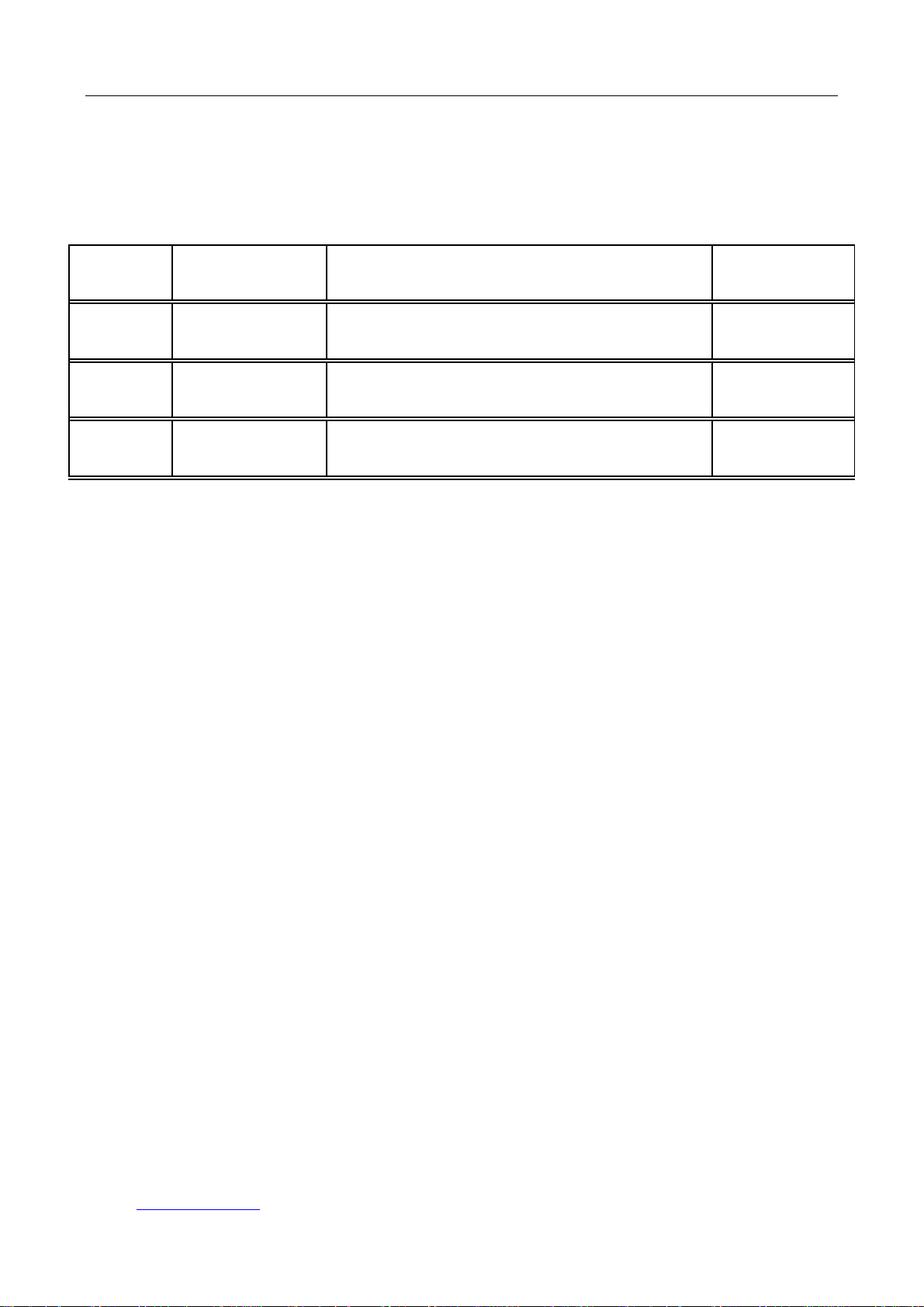
No. Revised date Revised content Reviser
1.00 2016/09/05 New -
Address:GHI 3 Floor Block B Building 7,Qingxiang Road 1,Baoneng Technology Park,Longhua Town,Shenzhen China
Website:http://www.axaet.com
2
Page 3

Shenzhen Aoxingao Technolog y Limited
Contents
1 PRODUCT OVERVIEW...............................................................................................................4
2 SPECIFICATION OF AHOME SMART SOCKET...................................................................5
3 AHOME INSTALL AND UNLOAD ............................................................................................6
3.1 APPLICATION SCOPE ................................................................................................................... 6
3.2 AHOME DOWNLOAD AND INSTALL.............................................................................................6
3.3 AHOME UNLOAD ........................................................................................................................6
4 AHOME INSTRUCTION..............................................................................................................6
4.1 OBTAIN PERMISSION ...................................................................................................................6
4.2 USER LOGIN................................................................................................................................7
4.3 USER SIGN UP.............................................................................................................................8
4.4 MODIFY PASSWORD .................................................................................................................... 8
4.5 BIND DEVICE...............................................................................................................................9
4.6 DELETING DEVICE.....................................................................................................................11
5 INTERFACE FUNCTIONS ........................................................................................................12
5.1 MAIN INTERFACE (DEVICE LIST INTERFACE)............................................................................12
5.2 CONTROL EQUIPMENT...............................................................................................................14
5.3 LIST OF TIMING GROUPS ...........................................................................................................14
5.4 EDIT TIMING GROUPS ...............................................................................................................15
MODIFY NAME..........................................................................................................................16
5.5
5.6 ADVANCED SETTINGS ...............................................................................................................17
5.7 SETUP INTERFACE .....................................................................................................................18
5.7 HELP INTERFACE.......................................................................................................................19
6 NOTICES.......................................................................................................................................19
Address:GHI 3 Floor Block B Building 7,Qingxiang Road 1,Baoneng Technology Park,Longhua Town,Shenzhen China
Website:http://www.axaet.com
3
Page 4
Shenzhen Aoxingao Technolog y Limited
1 Product Overview
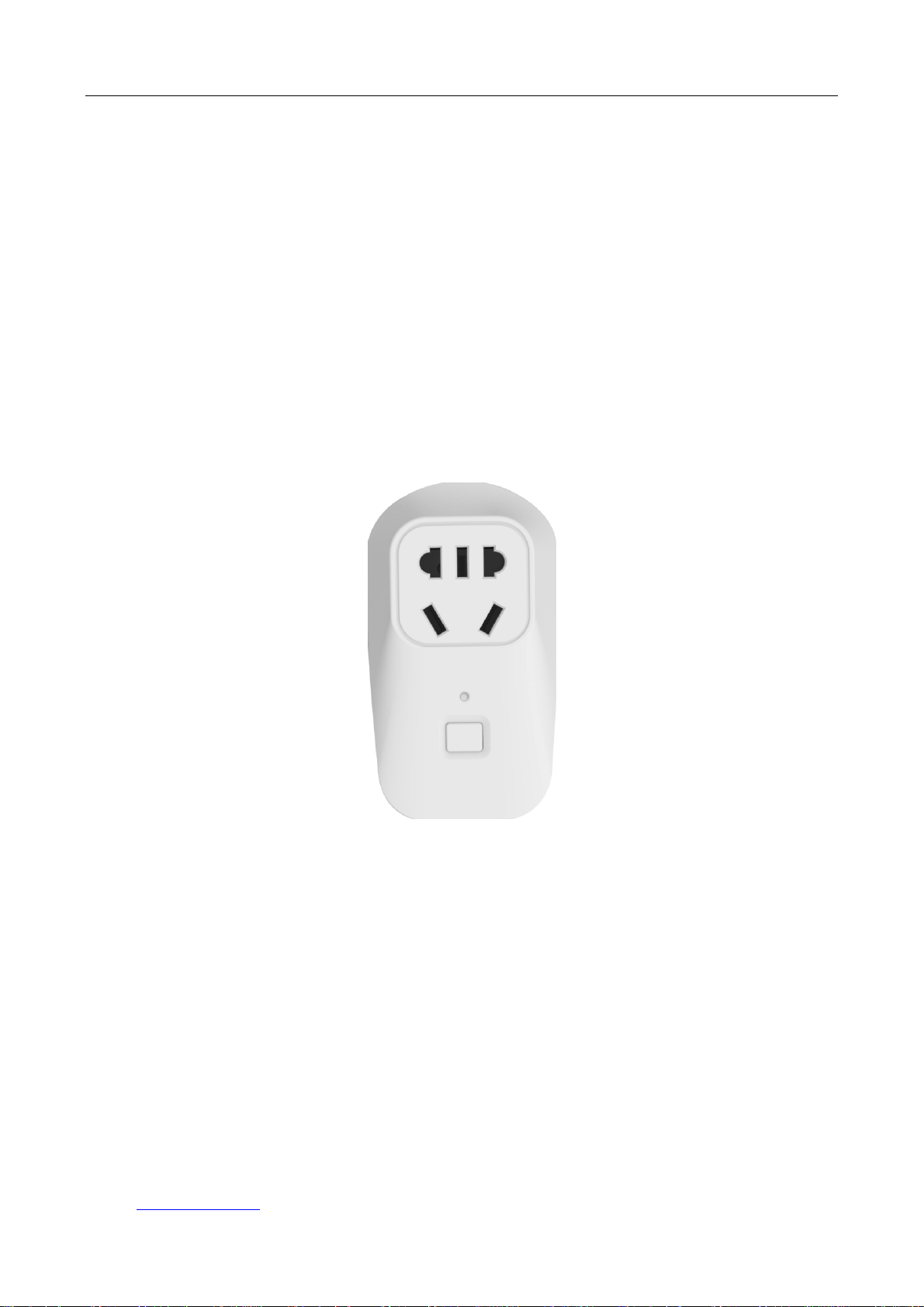
AHome Socket is a smart socket based on Bluetooth 4.0 Low Energy Technology, simply plug
it into any outlet at home, download our AHome application to control the socket through smart
phone, that means you can indirectly control the various housing facilities and household appliances
connected on the socket, which can reduce the user's cost and difficulty, also it can improve the
user's operating pleasure and acceptance.
Features of AHome Smart Socket:
LED indicator, socket will flash red light when under disconnect mode. Red light is on
when socket turn on, red light is off when socket turn off.
Turn on/off button, press button to turn on/off socket.
AHome adopts Ergonomic design, it can avoid electronic shock when plug in/out the plug.
Adopt high shell splinter, support 100 million times plug in and plug out.
Address:GHI 3 Floor Block B Building 7,Qingxiang Road 1,Baoneng Technology Park,Longhua Town,Shenzhen China
Website:http://www.axaet.com
4
Page 5

Shenzhen Aoxingao Technolog y Limited
Bluetooth control to turn on/off socket
Timer setting to turn on/off socket
Socket switch will turn on automatically in working area
Voice control to turn on/off socket
Rotation control to turn on/off socket
2 Specification of AHome Smart Socket
Model:PC085-A
Chip: TI CC2640
TxPower: 0dB
Working range: 50 meters(in open area)
Working voltage: 110V-240V /50Hz
Load power: <1000W/4.5A
Consumption in static state: <0.8W
Working temperature:-15℃—80℃
Numbers of hole: three holes
Product color: white
Material: PC +ABS
Address:GHI 3 Floor Block B Building 7,Qingxiang Road 1,Baoneng Technology Park,Longhua Town,Shenzhen China
Website:http://www.axaet.com
5
Page 6

Shenzhen Aoxingao Technolog y Limited
Product size: 93.1*52.3*36.6mm
Weight: 66.2g
3 AHome Install and Unload
3.1 Application Scope
System version: iOS 7.0 & Android 4.4 or above system
Bluetooth version: Bluetooth 4.0 or above low energy consumption phone
3.2 AHome Download and Install
App name is “AHome”
For iPhone, App can be download from App Store.
For Android phone, App can be download from Google Play or 360 Store.
Or you can download App from our website www.axaet.com.
3.3 AHome Unload
Setting-Application-select AHome, click button to unload APP, or long press AHome Logo to
unload APP.
4 AHome Instruction
4.1 Obtain Permission
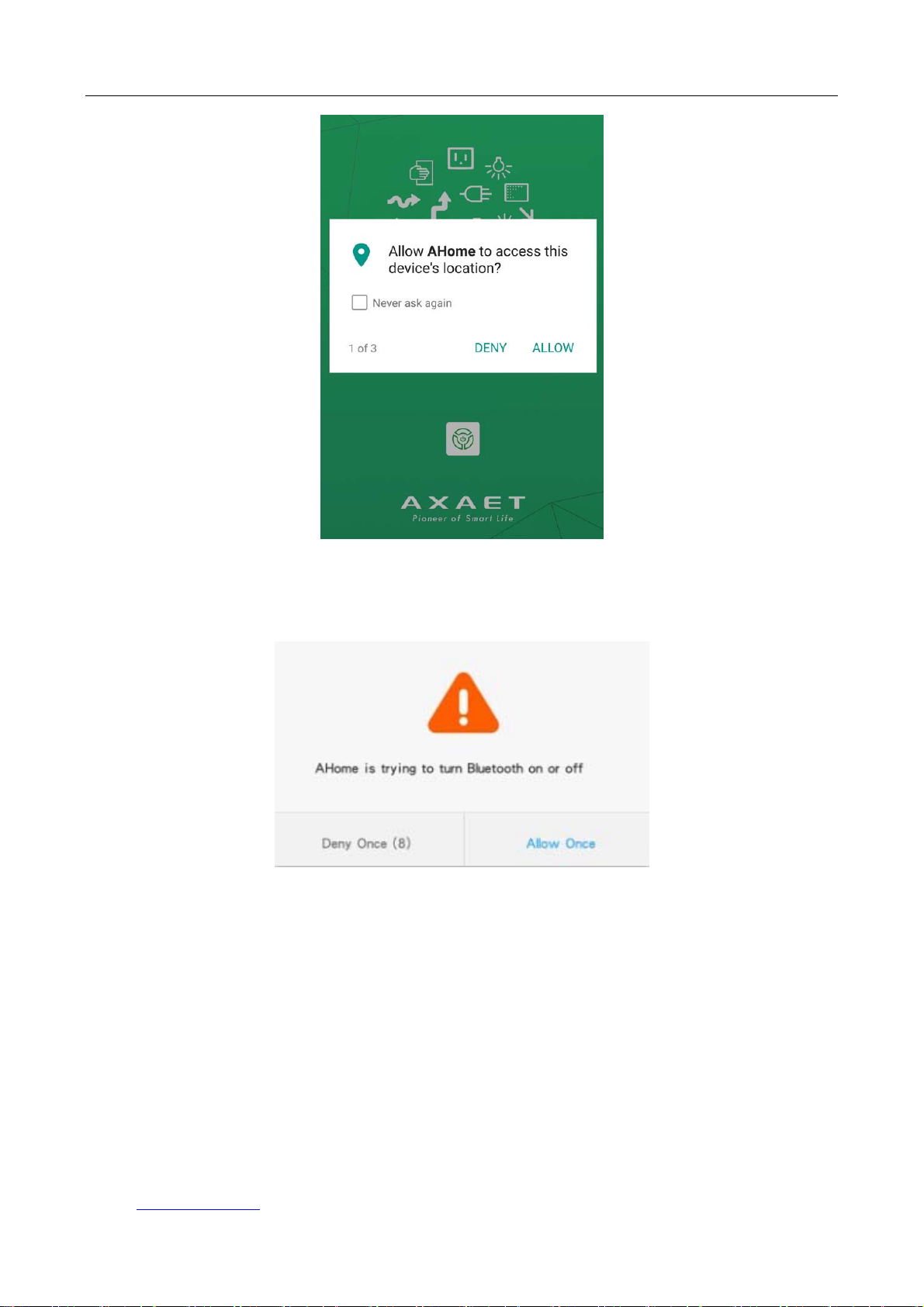
1. When running AHome, you need to obtain permissions, or some features can not be
achieved. There are two permissions need to obtain, one is to gain your location (Android
system 6.0 or above need this permission), the other one is recording permission (voice
control need this permission).
Address:GHI 3 Floor Block B Building 7,Qingxiang Road 1,Baoneng Technology Park,Longhua Town,Shenzhen China
Website:http://www.axaet.com
6
Page 7
Shenzhen Aoxingao Technolog y Limited
4.2 User Login
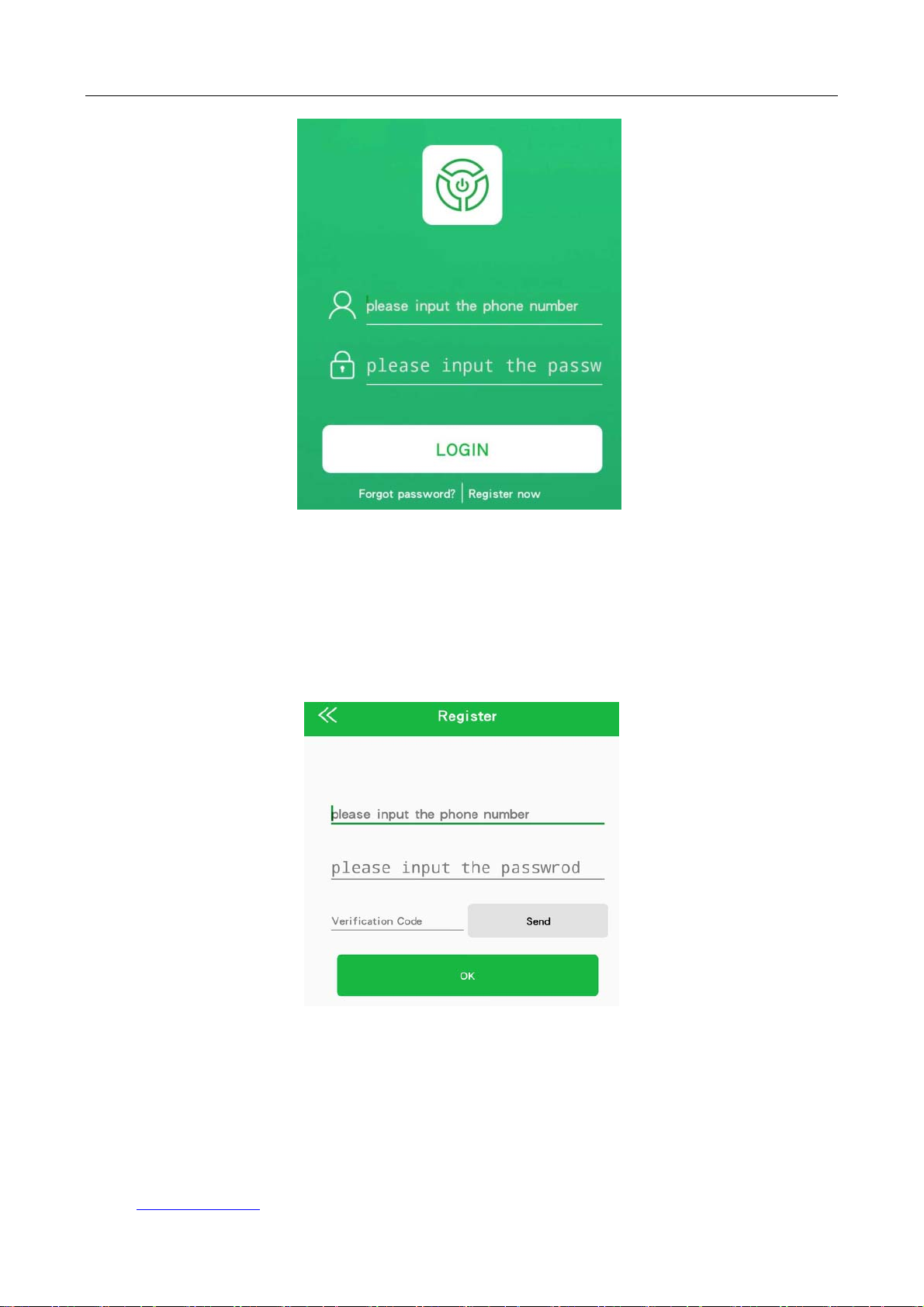
1. Turn on your mobile phone Bluetooth, click AHome App to enter Login interface.
2. If you are a new user, you need to sign up an account for login in. After login in, you will
enter the main interface (device list interface). If you do not choose to log out, the next
time you open the AHome will directly enter the main interface, otherwise you need to log
in again. Please keep your network open when login in.
Address:GHI 3 Floor Block B Building 7,Qingxiang Road 1,Baoneng Technology Park,Longhua Town,Shenzhen China
Website:http://www.axaet.com
7
Page 8
Shenzhen Aoxingao Technolog y Limited
4.3 User Sign Up
Users need to register account login. When registering account, you need to fill in mobile
phone number, password and verification code. Password can not be set less than 8 digits, click
to obtain verification code, the user's phone will get the verification code, fill in the correct
verification code, click OK to register successfully.
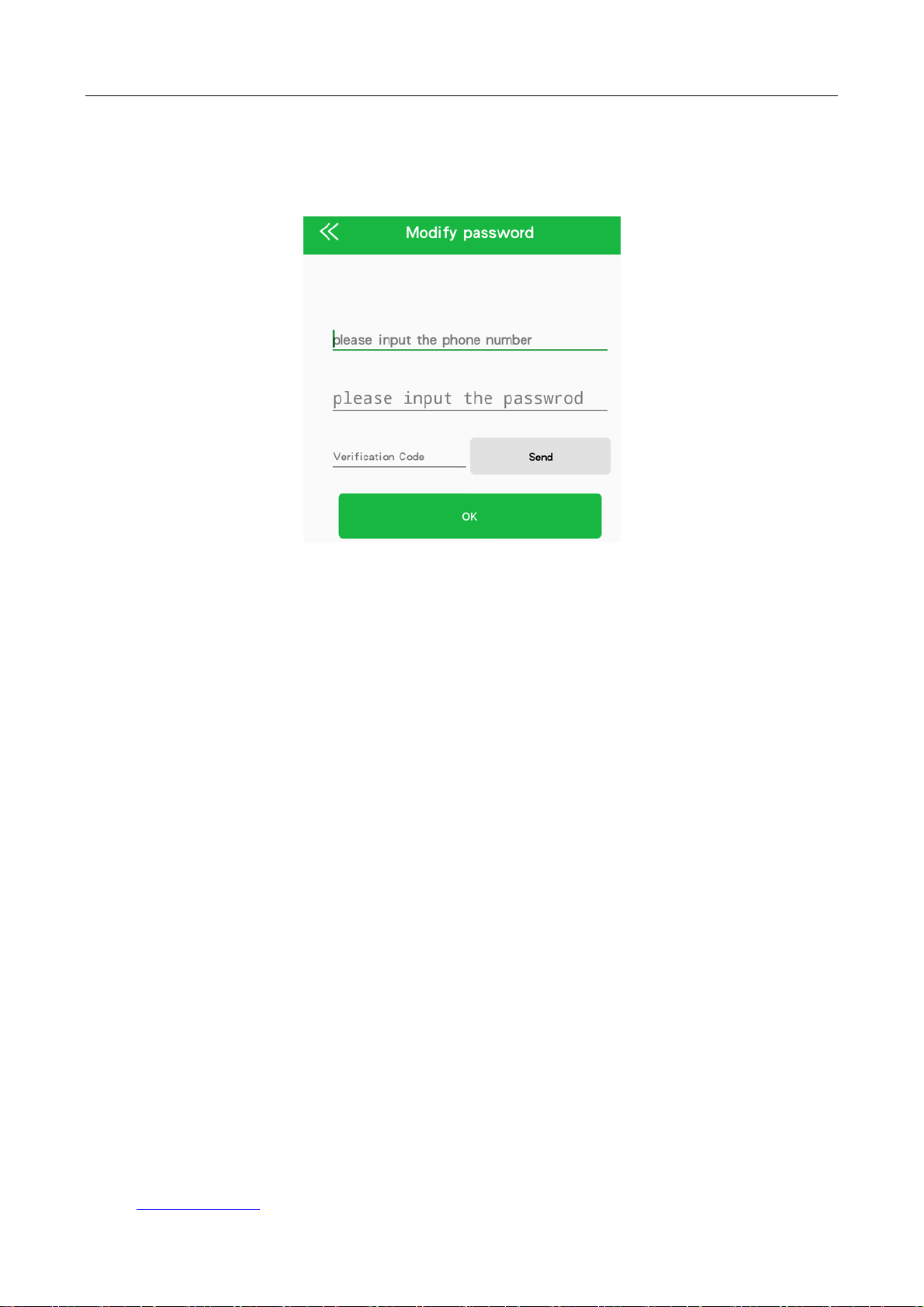
4.4 Modify Password
Address:GHI 3 Floor Block B Building 7,Qingxiang Road 1,Baoneng Technology Park,Longhua Town,Shenzhen China
Website:http://www.axaet.com
8
Page 9
Shenzhen Aoxingao Technolog y Limited
1. When the user changes the password, the specific operation and registration is the same, you
can set a new password (only four times a day to send a verification code to modify the
password ).
4.5 Bind Device
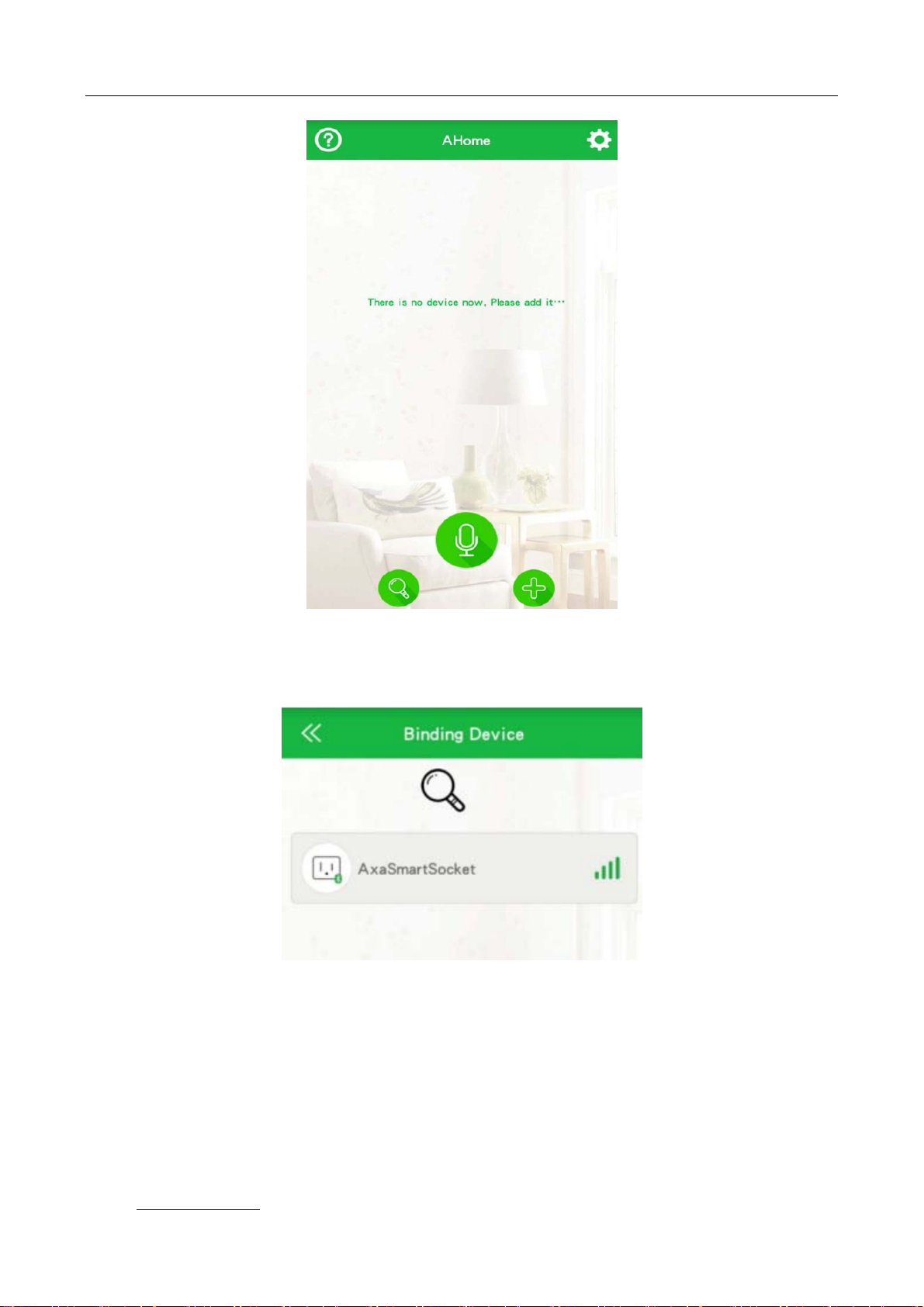
1. After entering the main interface, if there is no binding device, the interface will prompt no
equipment, please add.
Address:GHI 3 Floor Block B Building 7,Qingxiang Road 1,Baoneng Technology Park,Longhua Town,Shenzhen China
Website:http://www.axaet.com
9
Page 10
Shenzhen Aoxingao Technolog y Limited
2. Click the "+" button on the interface to enter the bound device interface. Here, the device
(including device image, device name, device signal strength) is displayed.
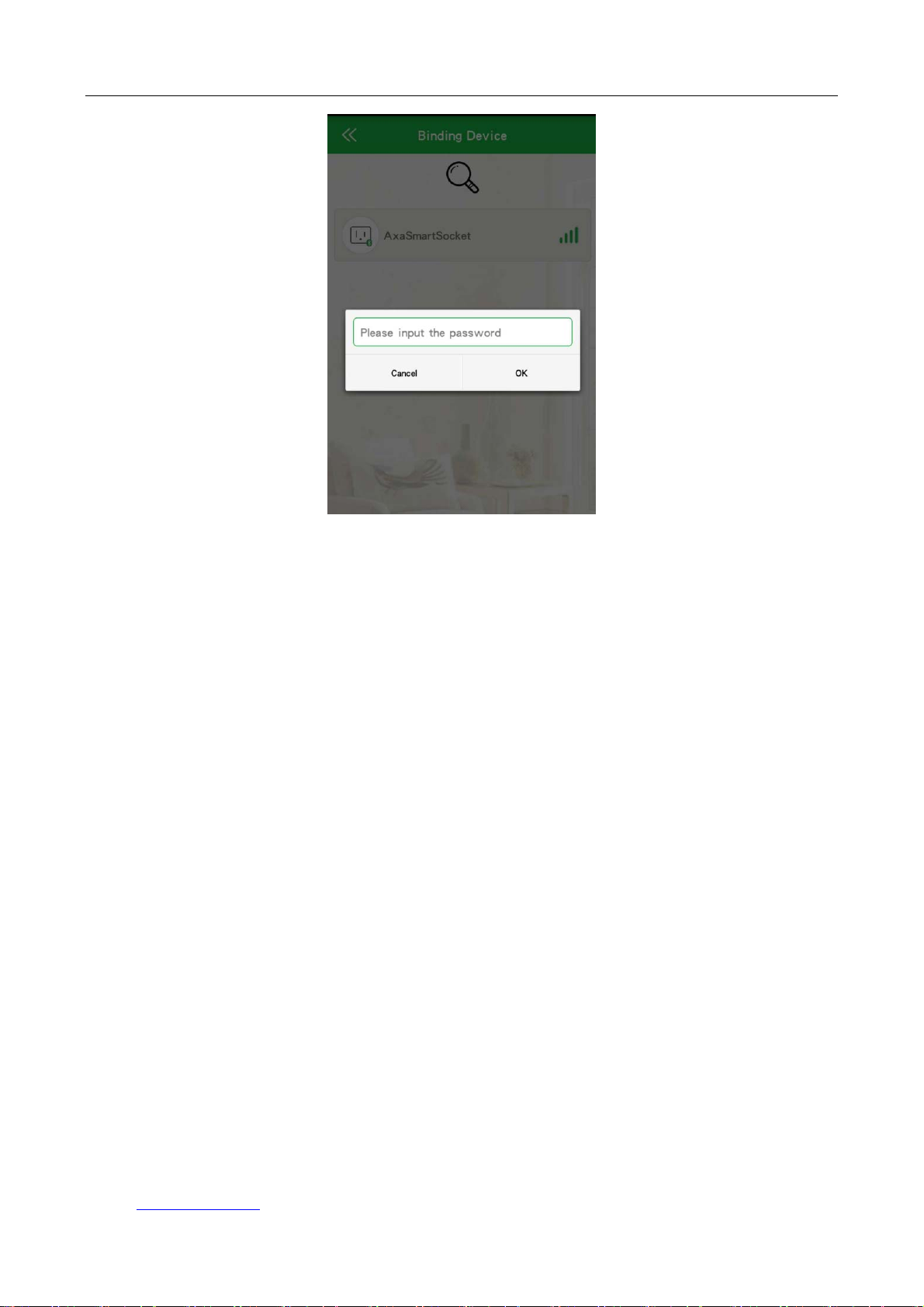
3. Click the device you want to bind, will pop up an input box to enter the 6-digit digital
password (default 123456), If password is correct and the device do not bound with two
more than mobile phones, that means device bound success, and you will enter the control
interface.
Address:GHI 3 Floor Block B Building 7,Qingxiang Road 1,Baoneng Technology Park,Longhua Town,Shenzhen China
Website:http://www.axaet.com
10
Page 11
Shenzhen Aoxingao Technolog y Limited
4.6 Deleting Device
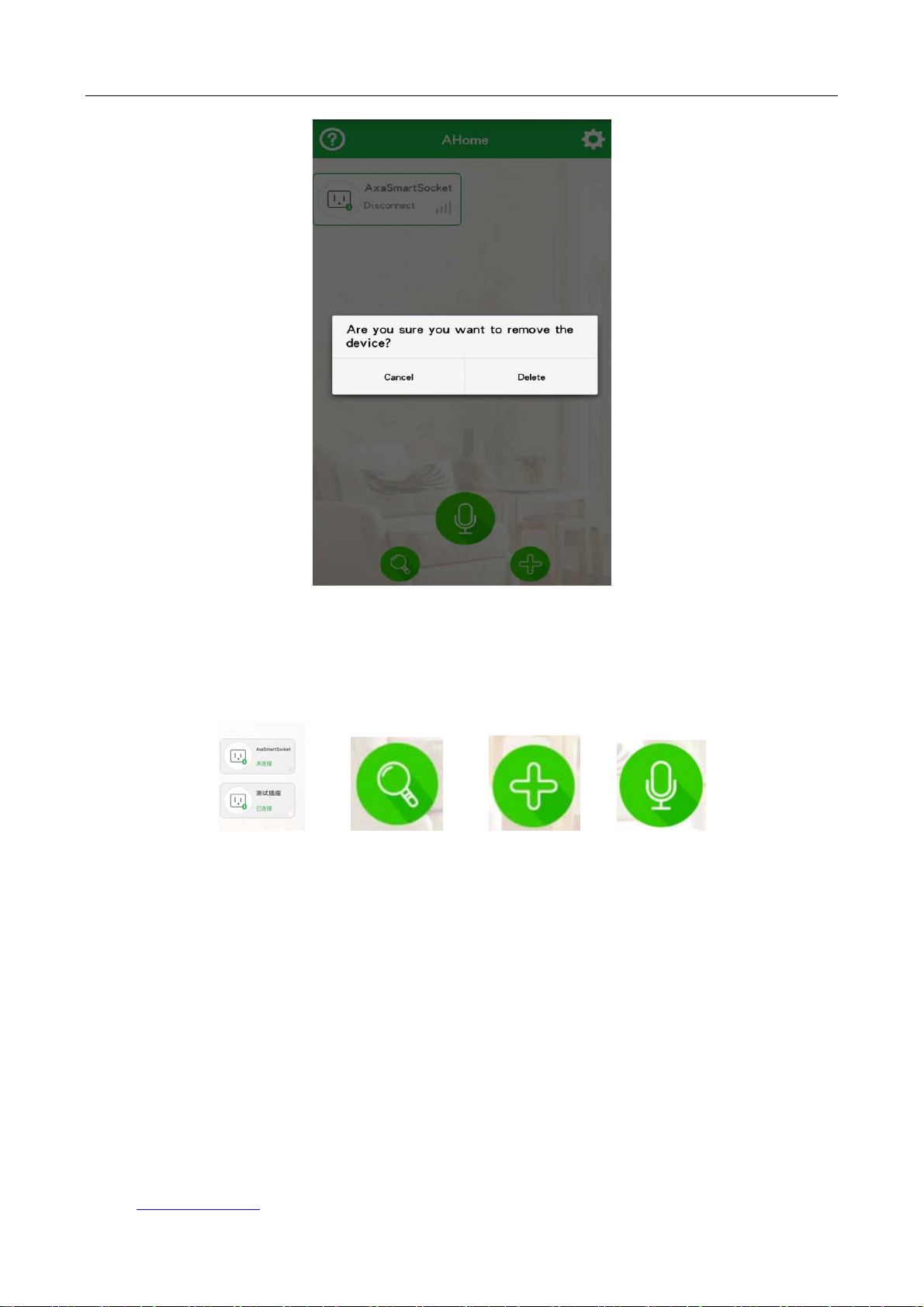
1. On the Binding Device List page, for Android phone, long press to delete the device, and
for iOS phone, slide down to remove the device.
2. If the device is removed, the device can be scanned at the Binding Device interface. You
can enter any authentication password to connect again. This prevents the device from
being forgotten because it can not be used after the device is bound.
Address:GHI 3 Floor Block B Building 7,Qingxiang Road 1,Baoneng Technology Park,Longhua Town,Shenzhen China
Website:http://www.axaet.com
11
Page 12
Shenzhen Aoxingao Technolog y Limited
5 Interface Functions
5.1 Main Interface (Device List Interface)
Device List Scan device Add device Voice control
1. Device List: Displays the devices (including device image, device name, and device
connection status) that have been bound in the list, click to connect devices.
2. Add Device: Click this button to enter the Scan Binding interface, where you can add a
device.
3. Scan device: When the device in the list shows no signal, you can scan the device through
the scan button, only the search for the device to connect.
Address:GHI 3 Floor Block B Building 7,Qingxiang Road 1,Baoneng Technology Park,Longhua Town,Shenzhen China
Website:http://www.axaet.com
12
Page 13

Shenzhen Aoxingao Technolog y Limited
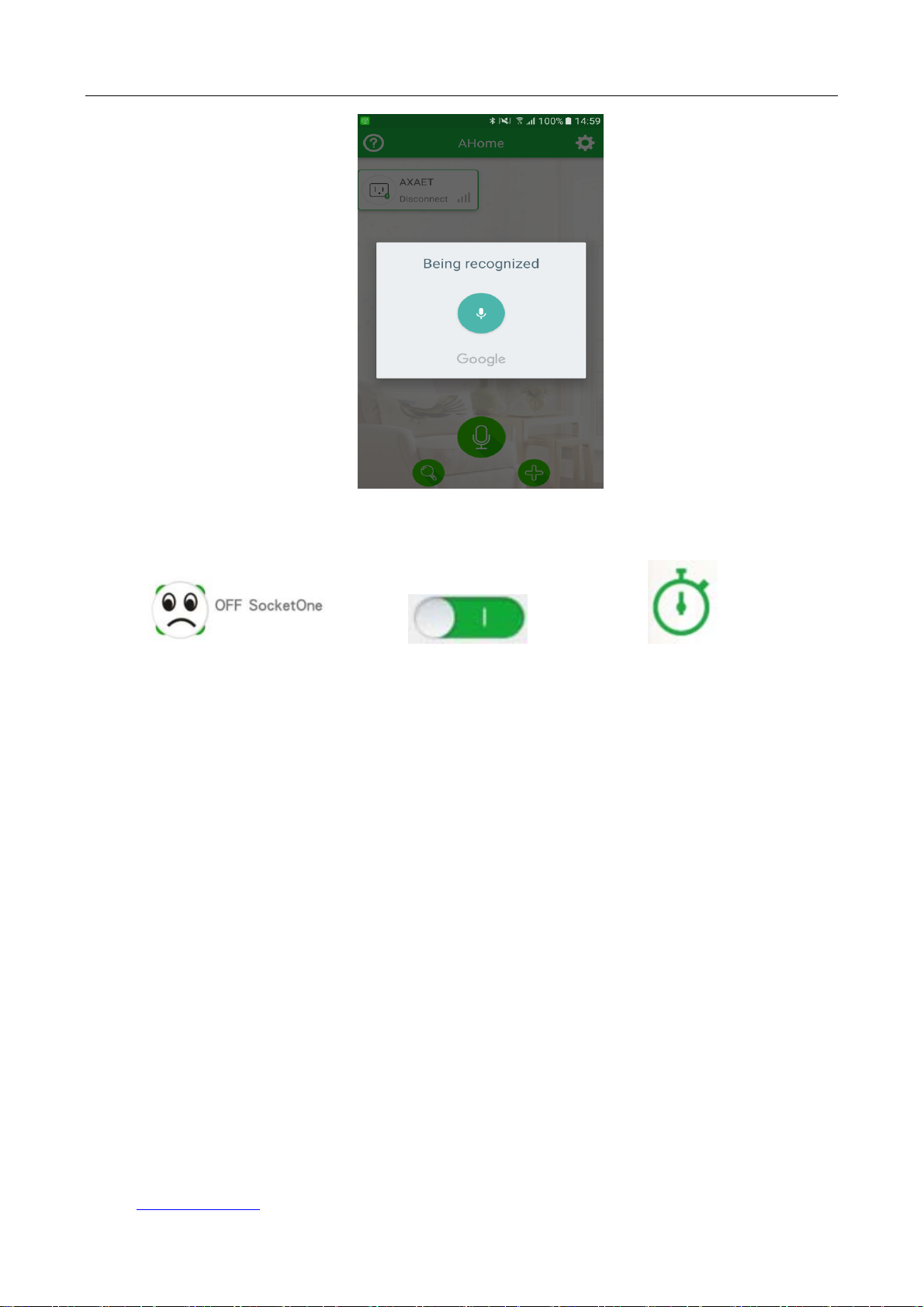
4. Voice Control: Click this button, the phone will recognize the user's voice, according to the
results of identification to send the appropriate command.
There are three ways to control voice:
a) According to the device name to control. The user can modify the device name in the
Modify Name interface. All switches of the device can be controlled by the device name.
For example, to change the device name to "smart light", when the user with voice control,
said: "open the smart light" will open all the smart light switch, if you say: "turn off the
smart light", will turn off all the smart lights switch.
b) According to the switch name to control. The user can change the name of the switch that
you want to control by modifying the name interface, which can be controlled by the
switch name. For example, to change the name of the socket 1 to "bedroom switch", when
the user uses voice control, said: "open the bedroom switch" will turn on the switch one, if
you say "close the bedroom switch".
c) According to the keyword to control. After entering the keyword of the switch you want to
control, you can customize the control. For example, if you input "I am coming back" in
"On-Key 1", "I come back" The switch will open; "Off - Keyword 1" at the input "I'm
gone", voice control, said "I'm gone", the switch will be closed.
If the voice control is inaccurate, check for the following:
1. Dialect or Putonghua non-standard may result in inaccurate speech recognition results.
2. Check if the keyword, switch name, and device name are set correctly. If they are not
correct, they may not be recognized. Set them as required.
3. Check the network connection status, when the network is unstable or the network
signal is poor, will lead to slow speech recognition or recognition failure.
Address:GHI 3 Floor Block B Building 7,Qingxiang Road 1,Baoneng Technology Park,Longhua Town,Shenzhen China
Website:http://www.axaet.com
13
Page 14
5.2 Control Equipment
Shenzhen Aoxingao Technolog y Limited
Switch control Auto button Timing Group
1. Switch control: Click the Panda head or switch name to control the socket switch on / off.
2. Auto button: Use the left and right slide buttons to turn on / off the auto connect on
function.
3. Timing Group: Click the Timing Group button to enter the Set Timing Group interface.
5.3 List of Timing Groups
Address:GHI 3 Floor Block B Building 7,Qingxiang Road 1,Baoneng Technology Park,Longhua Town,Shenzhen China
Website:http://www.axaet.com
14
Page 15
Shenzhen Aoxingao Technolog y Limited
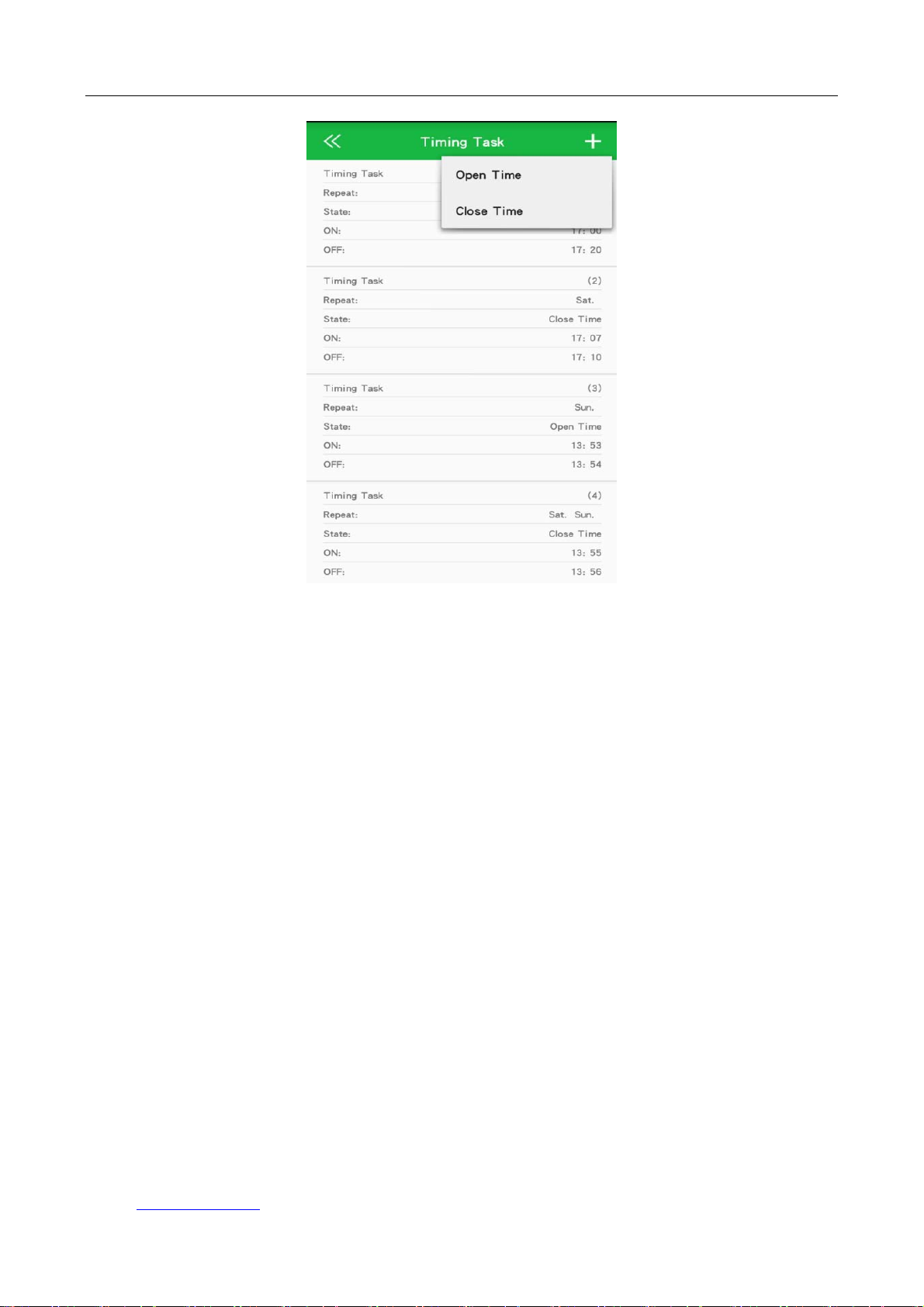
1. Mainly to display the corresponding set of switch information, click on each item can enter
the edit page.
2. Android long press to delete the group of timing, IOS version to the left can be deleted to
delete the group timing. Android
3. Click on the "+" button in the upper right corner to select the "On / Off" section. You can
add a new timer group. You can add up to 10 groups.
5.4 Edit Timing Groups
Address:GHI 3 Floor Block B Building 7,Qingxiang Road 1,Baoneng Technology Park,Longhua Town,Shenzhen China
Website:http://www.axaet.com
15
Page 16
Shenzhen Aoxingao Technolog y Limited
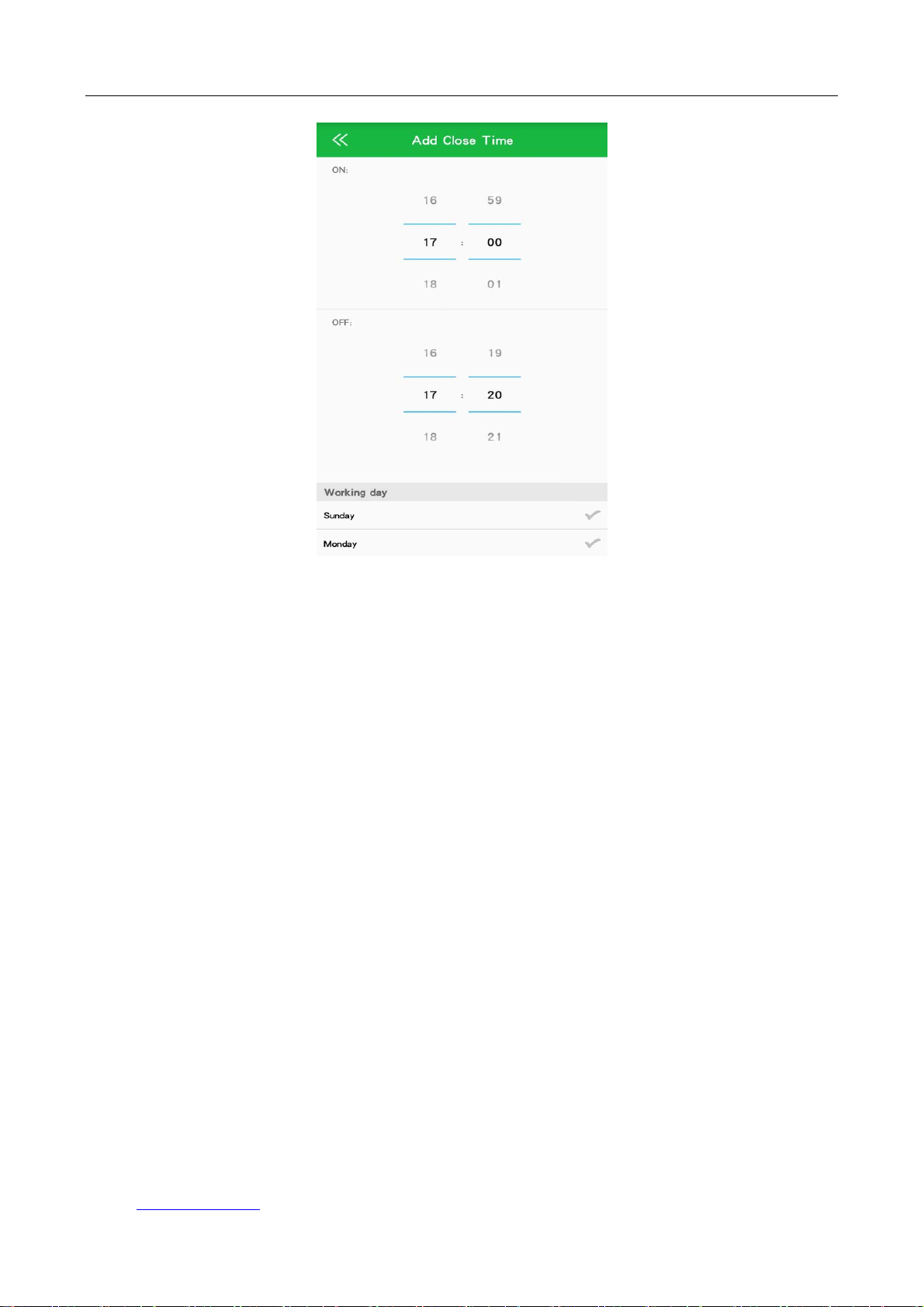
1. Turn on the light interval: Here you can set the start time and end time of the switch.
2. Turn on the light interval: Here you can set the start time and end time of the switch.
Notes:
a) In the off-light interval period, as long as the phone is connected, to set the turn-off
time, the switch does not automatically shut down.
b) The switch will automatically turn off; to manually open the switch, over five minutes
after the switch will automatically shut down.
5.5 Modify Name
Address:GHI 3 Floor Block B Building 7,Qingxiang Road 1,Baoneng Technology Park,Longhua Town,Shenzhen China
Website:http://www.axaet.com
16
Page 17
Shenzhen Aoxingao Technolog y Limited
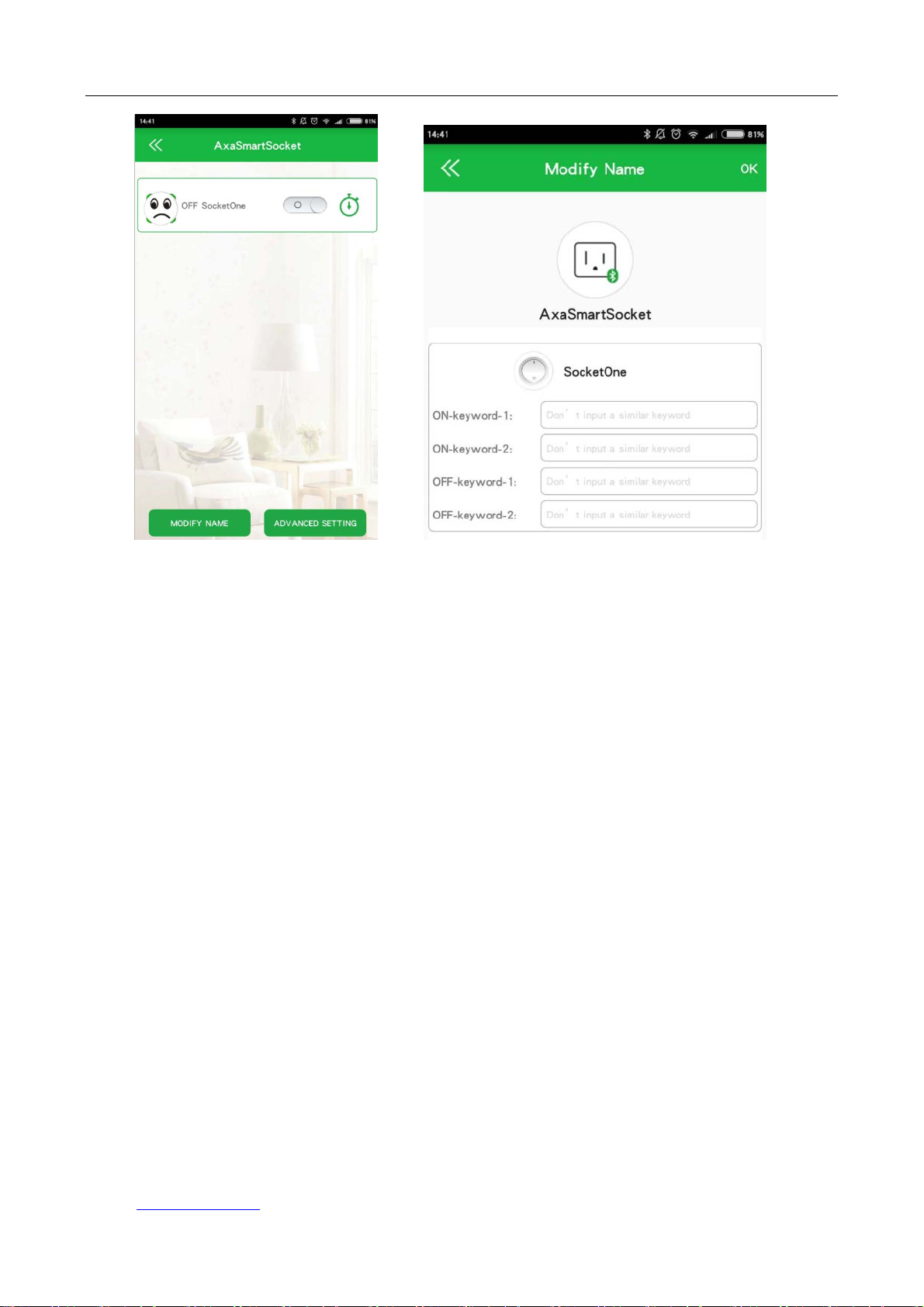
1. Modify Device Name: Used to modify the device name of the smart socket (default:
AxaSmartSocket).
2. Modify Socket Name: Used to modify the name of each corresponding switch (default
name: socket one).
3. Customized voice control keywords: to each switch, socket set custom keywords for voice
control corresponding switch; custom keywords and other keywords can not be the same
or similar, or voice control can not identify what is the corresponding switch.
Note: All changes can not contain Arabic numerals, or voice control will not be recognized.
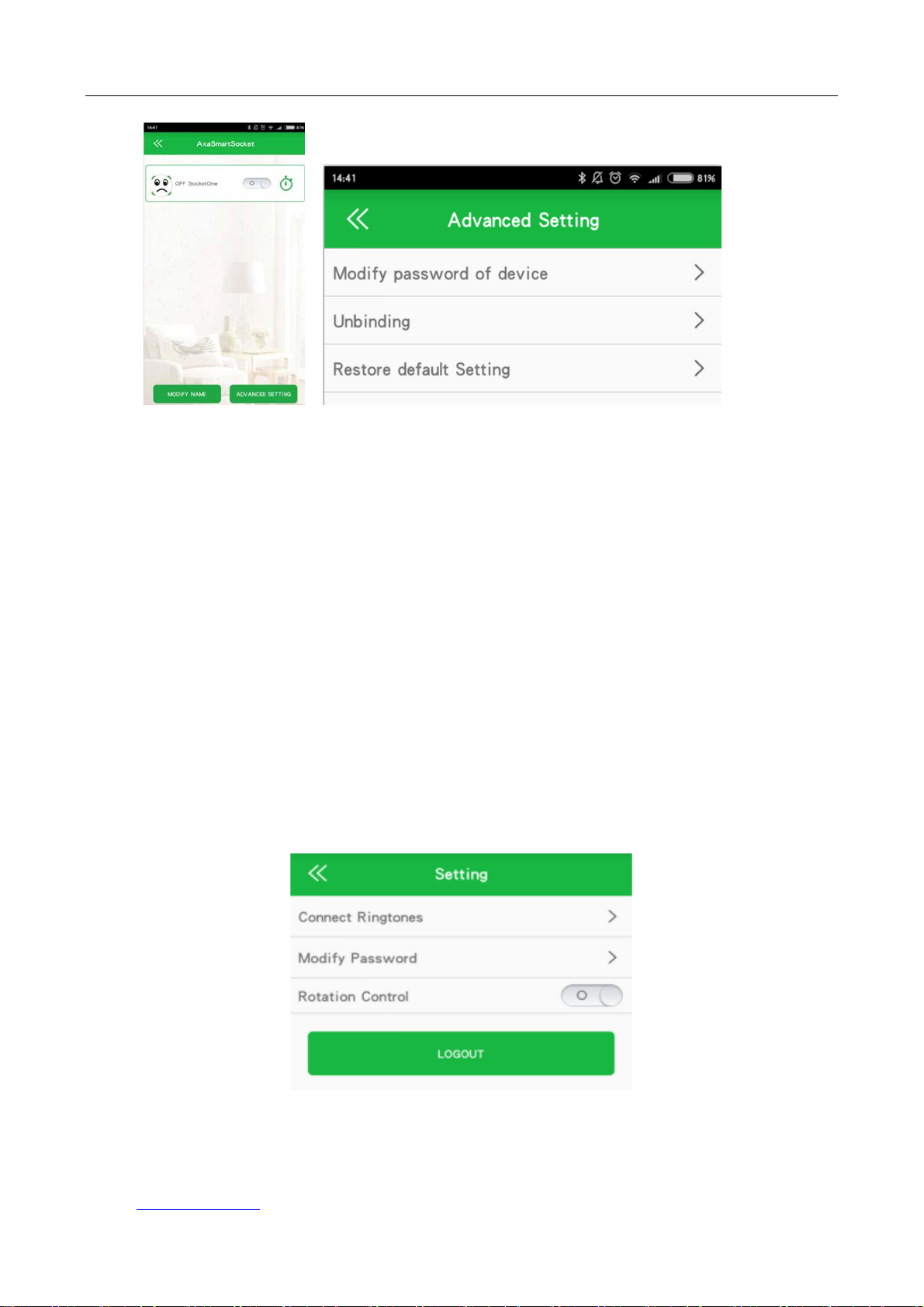
5.6 Advanced Settings
Address:GHI 3 Floor Block B Building 7,Qingxiang Road 1,Baoneng Technology Park,Longhua Town,Shenzhen China
Website:http://www.axaet.com
17
Page 18
Shenzhen Aoxingao Technolog y Limited
1. Modify the binding password: After the user binds the device for the first time, because the
default password is 123456 when binding for the first time, it is better to modify the
binding password to prevent others from maliciously binding the device. Modify the
binding password must also be 6 digits, otherwise invalid.
2. The current binding account can be invalidated. After the failure, the corresponding view
will be removed from the list. If you want to control the device, you need to enter the scan
interface to re-bind.
3. Restore the default settings: Users can restore the default settings. After the settings are
successful, all the phones bound to the device will be invalid and return to the save
interface. The corresponding view in the saved list will be removed from the list. If you
want to control the device, you need to enter the scan interface to re-bind.
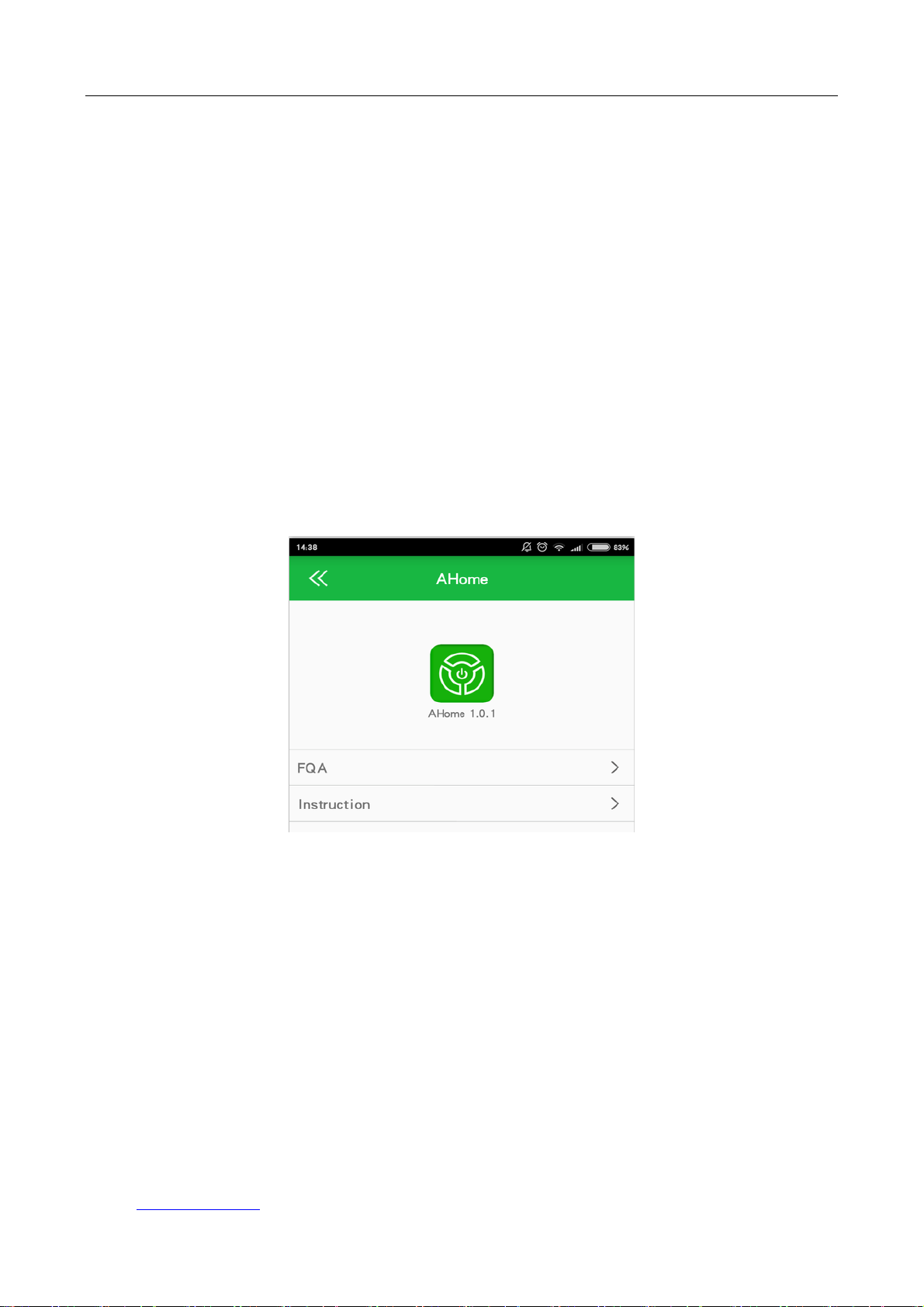
5.7 Setup Interface
Address:GHI 3 Floor Block B Building 7,Qingxiang Road 1,Baoneng Technology Park,Longhua Town,Shenzhen China
Website:http://www.axaet.com
18
Page 19
Shenzhen Aoxingao Technolog y Limited
1. Connect ringtone: You can automatically select the ring tone.
2. Modify the login password: You can automatically modify the login password.
3. Rotation control: You can turn on / off the socket switch by turning the phone (default is to
turn off this function, you want to use this function, open the rotation control switch to the
setting interface and turn off the vertical screen direction lock (slide open control panel
visible If the first switch of the current device is turned on, turn the phone to the landscape
screen and then rotate to the portrait screen (this process can not be too fast or too slow for
more than two seconds, otherwise the operation is considered unsuccessful). All switches
on the device, and vice versa, will only control the device closest to the phone when the
phone is connected to multiple devices.
4. Log out of the user: You can exit the user login.
5.7 Help Interface
1. Version of AHome
2. Prompts the user's product operating instructions and some use problems.
6 Notices
In order to ensure the product in good condition and safe use, please follow this instruction on
the instructions and reminder them.
Address:GHI 3 Floor Block B Building 7,Qingxiang Road 1,Baoneng Technology Park,Longhua Town,Shenzhen China
Website:http://www.axaet.com
19
Page 20

Shenzhen Aoxingao Technolog y Limited
1. The load can not exceed the rated power.
2. Products should be placed in places where children are not easy to reach, to prevent
children from electric shock hazard.
3. Installation to avoid in the minefield, strong magnetic field and high pressure area.
4. Do not use in damp or near heat sources to ensure your safety.
5. Make sure that the earthing wire of the socket connected to the front is unblocked to ensure
the safe use of electricity.
6. Power failure protection can not replace other electrical safety protection measures, such as
good grounding, leakage protection, overload protection.
7. Before disconnecting the appliance from the outlet, unplug the appliance and do not
energize it.
8. The surrounding noise is relatively large or more people in the control effect will be
affected when speaking.
9. When the home power outage, the socket will appear on the timing of the situation are not
allowed, just re-connect the phone calibration time.
Address:GHI 3 Floor Block B Building 7,Qingxiang Road 1,Baoneng Technology Park,Longhua Town,Shenzhen China
Website:http://www.axaet.com
20
Page 21

Shenzhen Aoxingao Technolog y Limited
Federal Communications Commission (FCC) Statement
This device complies with part 15 of the FCC Rules. Operation is subject to the following two conditions: (1)
This device may not cause harmful interference, and (2) this device must accept any interference received,
including interference that may cause undesired operation.
Note: This equipment has been tested and found to comply with the limits for a Class B digital device,
pursuant to part 15 of the FCC Rules. These limits are designed to provide reasonable protection against
harmful interference in a residential installation. This equipment generates, uses and can radiate radio
frequency energy and, if not installed and used in accordance with the instructions, may cause harmful
interference to radio communications. However, there is no guarantee that interference will not occur in a
particular installation. If this equipment does cause harmful interference to radio or television reception, which
can be determined by turning the equipment off and on, the user is encouraged to try to correct the
interference by one or more of the following measures:
●Reorient or relocate the receiving antenna.
●Increase the separation between the equipment and receiver.
●Connect the equipment into an outlet on a circuit different from that to which the receiver is connected.
●Consult the dealer or an experienced radio/TV technician for help.
Warning: Changes or modifications made to this device not expressly approved by Shenzhen Aoxingao
Technology Co.,Ltd may void the FCC authorization to operate this device.
Note: The manufacturer is not responsible for any radio or TV interference caused by unauthorized
modifications to this equipment. Such modifications could void the user’s authority to operate the equipment.
For more information, please contact us:
Tel: 0755-29232900 Fax: 0755-29676711
Website: www.axaet.com Email: [email protected]
Address:GHI 3 Floor Block B Building 7,Qingxiang Road 1,Baoneng Technology Park,Longhua Town,Shenzhen China
Website:http://www.axaet.com
21
 Loading...