

Page 1
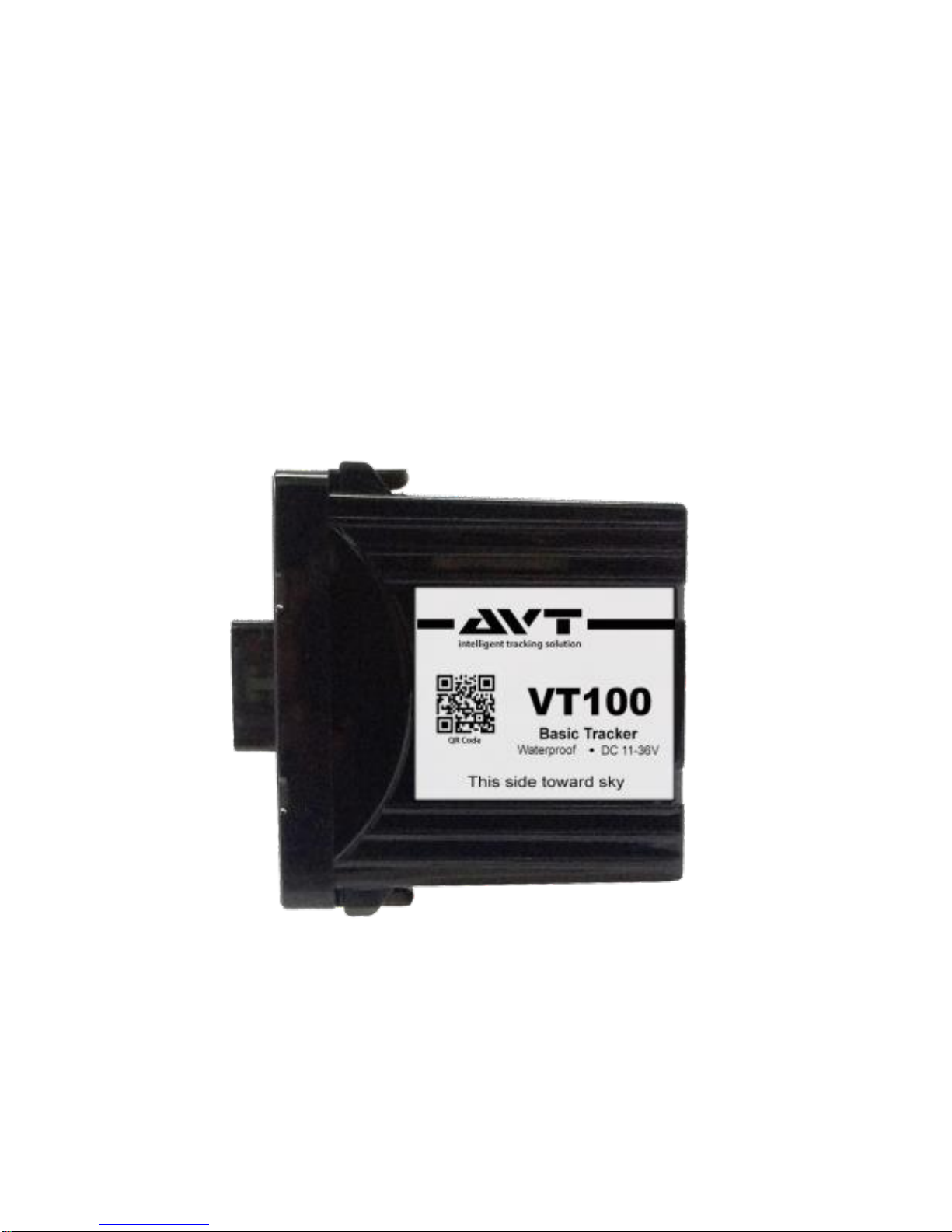
VT100 User Manual
Page 2

1 Overview
1.1 Main Functions
GPS tracking by time interval
Geofence alert
Power lost alert
Overspeed alert
Compact and lightweight
Waterproof
1.2 Specifications
Item
Specifications
Frequency
GSM
850MHz/900MHz/1800MHz/
1900MHz
Location
Accuracy
< 5 meters
Time to first
fix (TTFF)
Ave. hot start : < 3 seconds
Ave. cold start: < 23 seconds
Page 3

Back-up
battery
3.7V 160mAh
Tracker
Color
Black
Power
Supply
9V ~ 55V (DC)
Working
current
40 mA (DC 12V)
Operating
temperature
-25℃ ~75℃
Tracker
Dimension
66mm (L) x 60mm (W) x
25mm (H)
Weight
0.1kg
Page 4
2 Device Overview
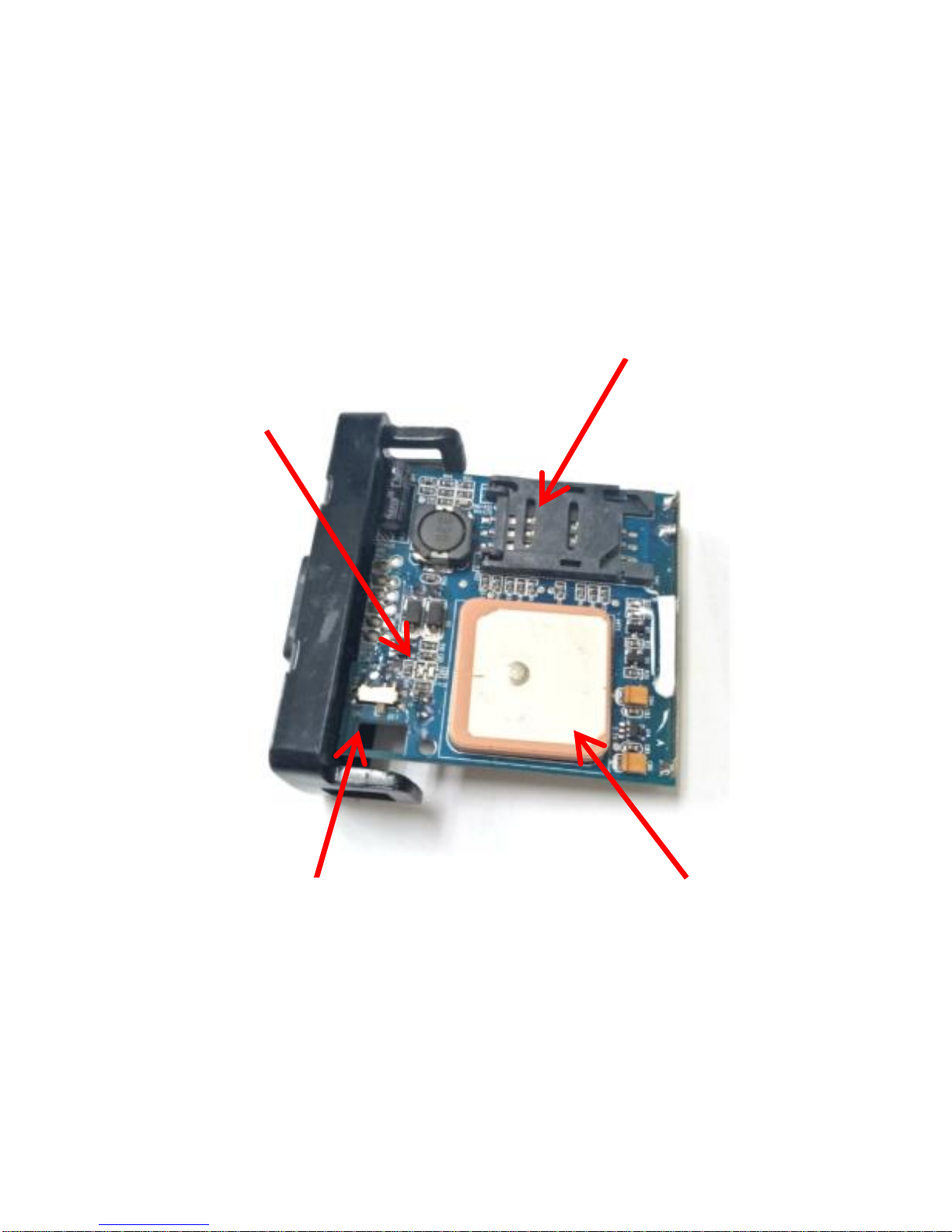
2.1 Device
SIM card slot
GPS antenna
Battery switch
LED indicators
Page 5
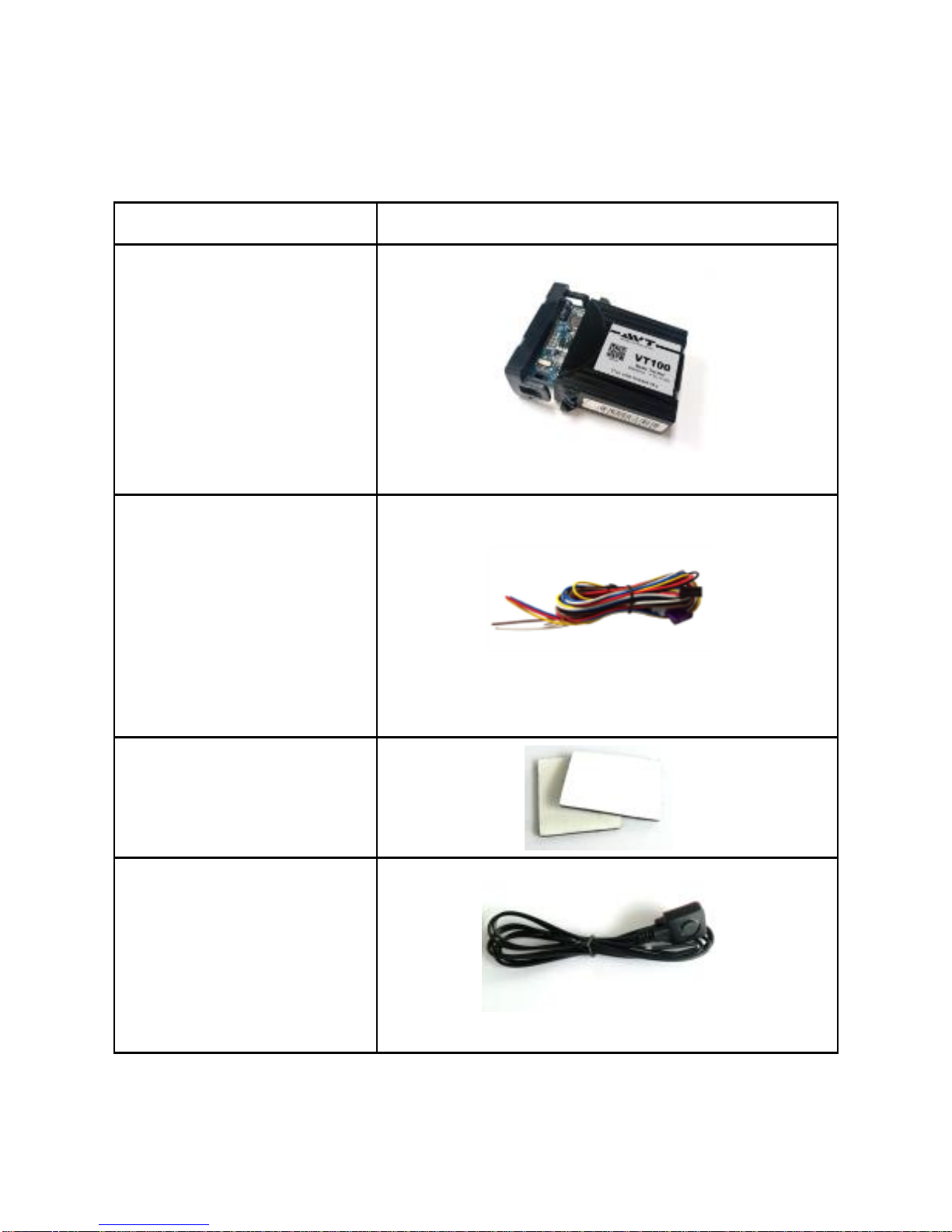
2.2 Package and accessories
Name
Picture
VT100
module
Wire harness
Velcro sticker
SOS button
Page 6

2.3 LED color indication
LED color
Status
Meaning
Green
Flashing
quickly
GPS not
located
Light off
GPS located
Red
Flashing
quickly
Searching for
GSM network
Light off
GPRS online
Page 7
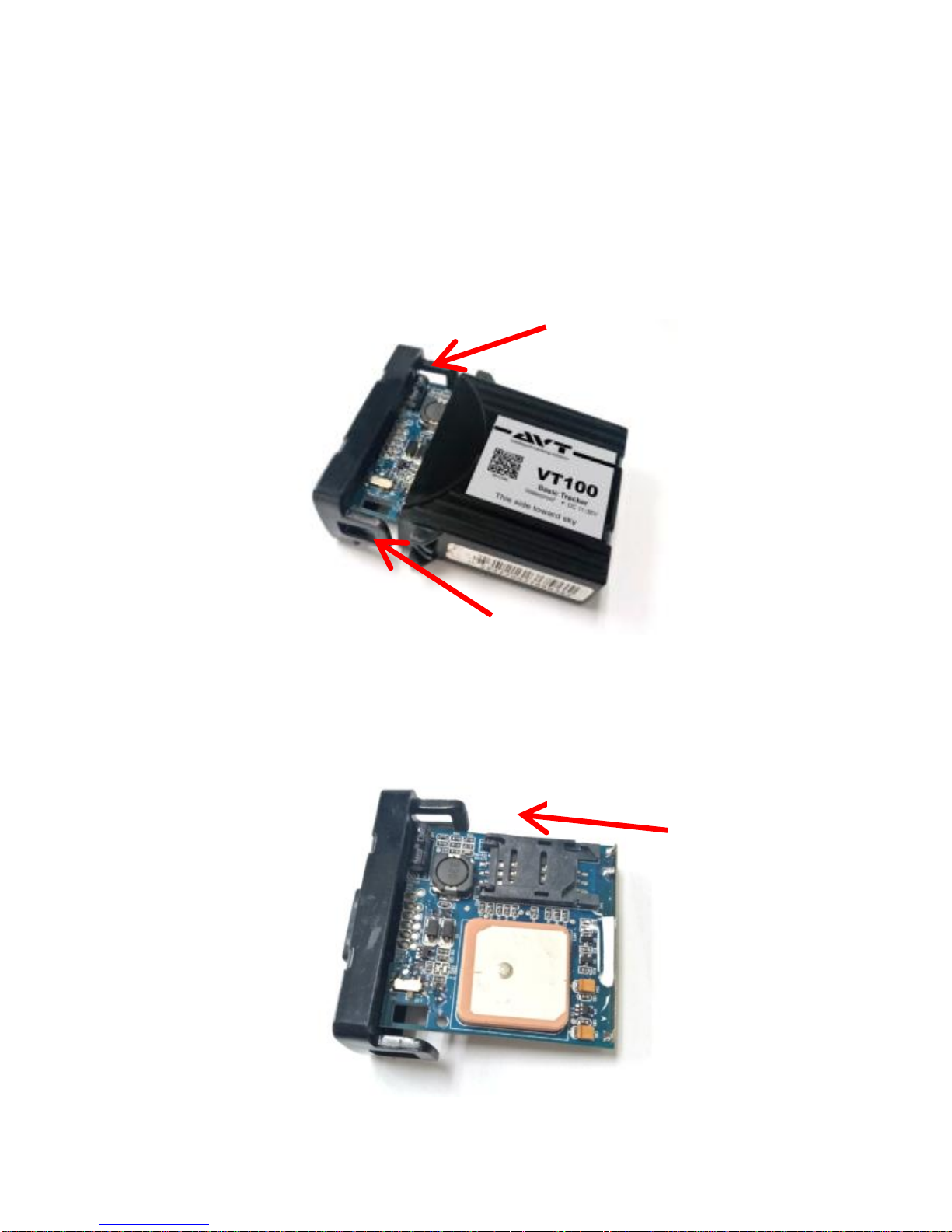
3 SIM card installation
1. Open the plastic casing by pushing the
snap joints outwards.
2. Insert the SIM card as shown below:
Open
Page 8
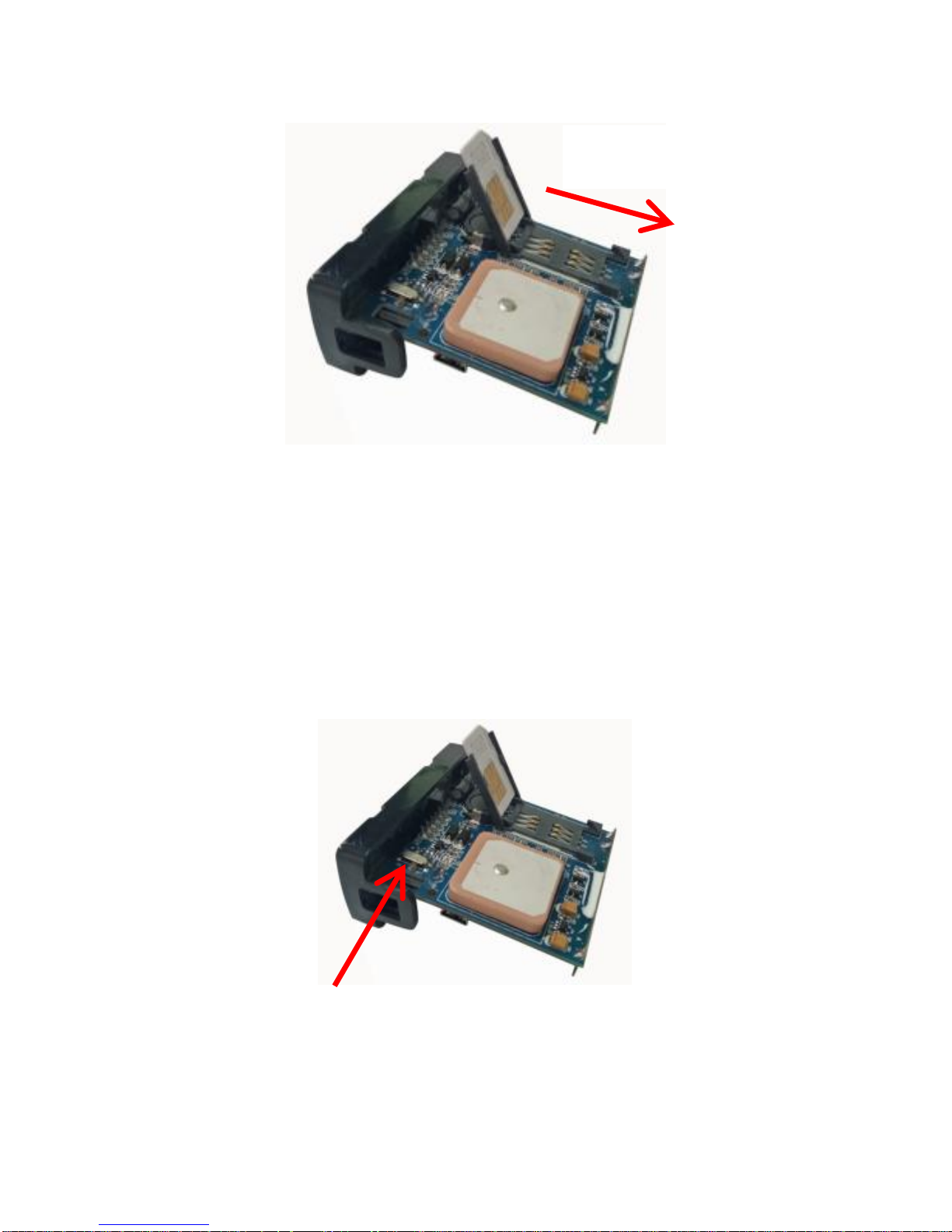
3. After SIM card is inserted, turn the battery
switch to ON and connect the device to
external power.
Lock
Battery switch
Page 9
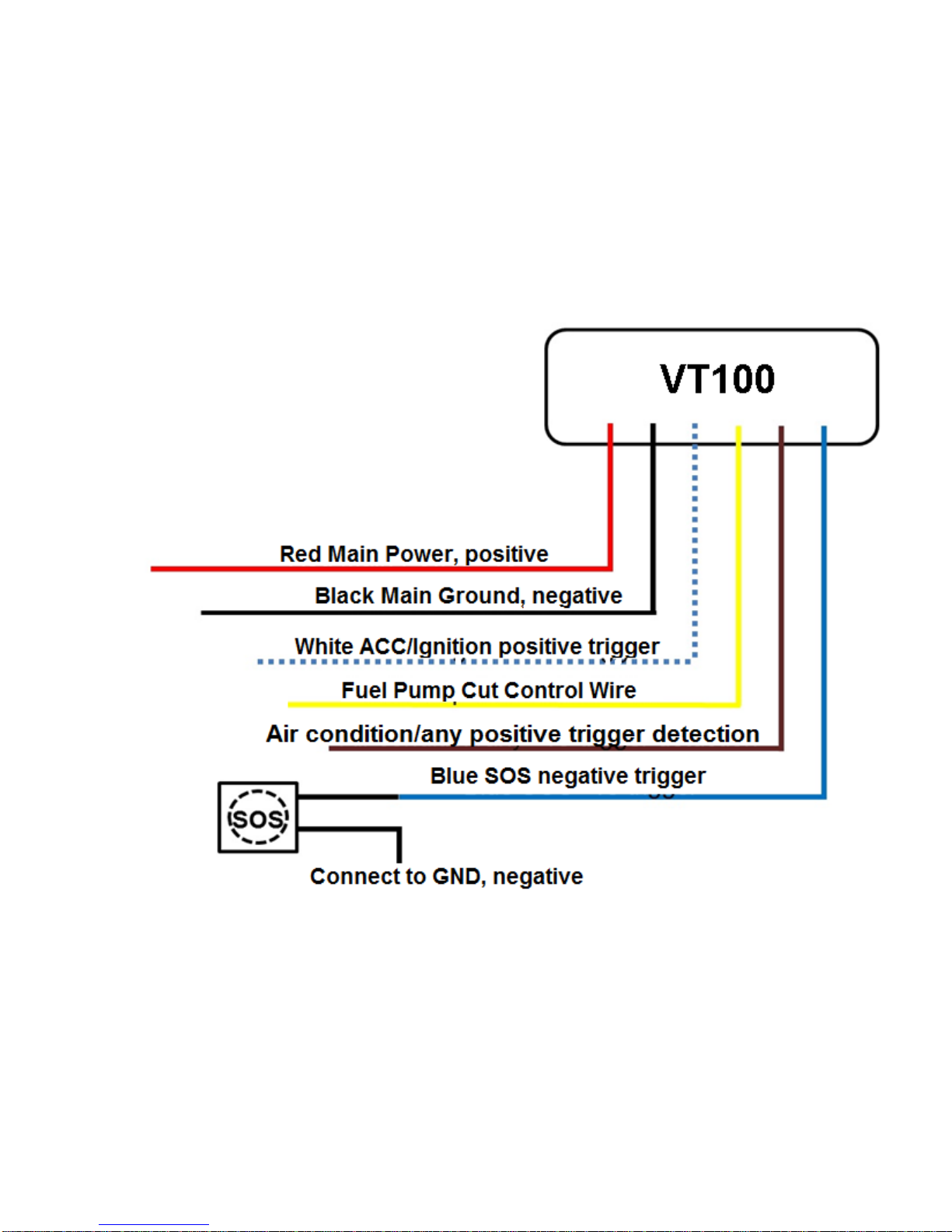
4 Wiring instructions
Color-coding of VT100 power harness:
Page 10
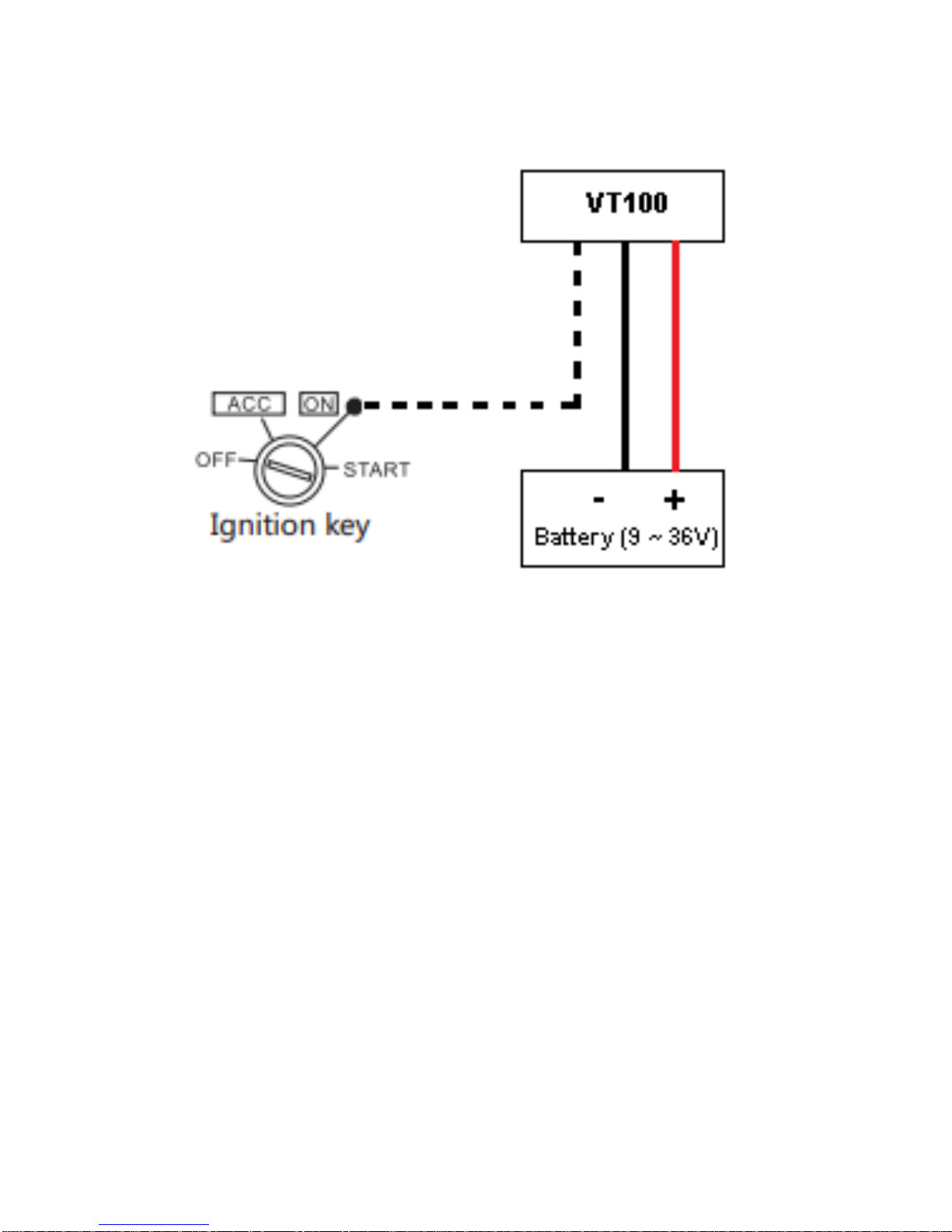
a. Connect main power wire (red) to positive
terminal of vehicle battery
b. Connect ground wire (black) to negative
terminal of vehicle battery
c. Connect ignition wire (white) to signal wire
near vehicle’s steering wheel
Page 11
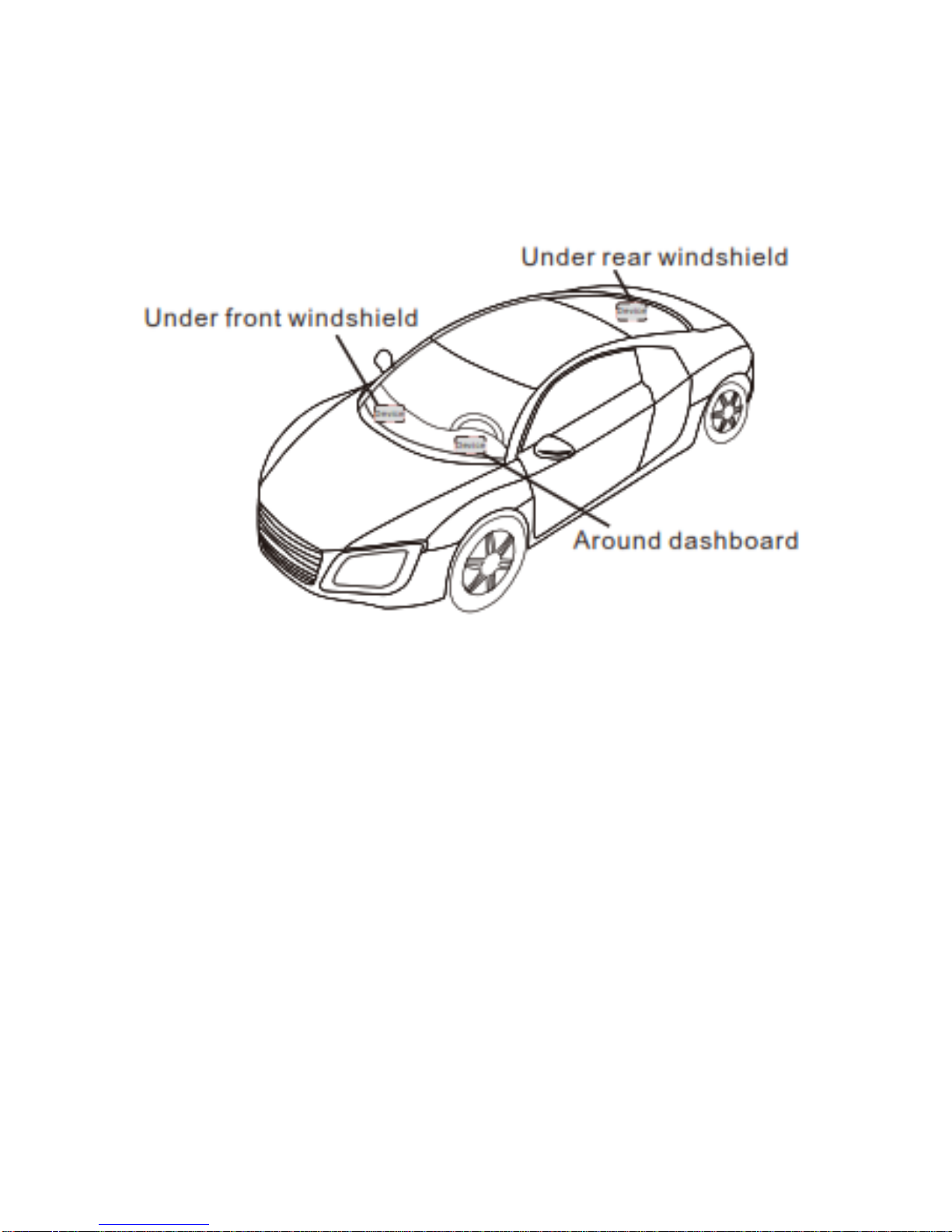
5 Installation
Note: The device should face up the sky
Tint with metallic content may affect the
signal. Change installation area to receive
better signal.
Page 12

6 Web platform and smartphone app
6.1 Log-in the web platform
Log-in to the web platform to set and
operate the device
6.2 Download smartphone app
Download and install the smartphone app
from the Apple app store or Google play
store.
7 Functions
7.1 Alarms
Power lost alarm - when the electrical supply
is cut off, an alarm will be sent to platform
and VIP number.
Engine on/off alarm – an alarm will be sent
to platform and VIP number when vehicle is
in engine on/engine off status.
Page 13

Overspeed alarm – when vehicle’s speed
exceeds the set value, an overspeed alarm
will be sent.
Geofence alarm – when the vehicle has
entered or exited the created geofence, an
alarm will be sent.
8 SMS command list
Send the following SMS commands to the
SIM number of the VT100 tracking device.
Function
SMS command
Check
device
information
INFO
Get current
location
LOCATE
Page 14

Set VIP
numbers
a. Add VIP number:
VIP<space>number1,number2,
number3
Example:
VIP +639106978119,
+639983192222,+639394075531
b. Query VIP numbers:
VIP<space>LIST
c. Delete VIP numbers:
VIPDEL
Overspeed
alarm
ALERT<space>OVERSPEED
<space>desired speed limit in km
Example:
ALERT OVERSPEED 60
ALERT OVERSPEED 0 (to disable
overspeed SMS alerts)
Page 15

Engine
on/off
alarm
ALERT<space>ENGINE<space>
ON (to enable engine on/off SMS
alerts)
ALERT<space>ENGINE<space>
OFF (to disable engine on/off SMS
alerts)
Power lost
alarm
ALERT<space>TAMPERING
<space>ON (to enable tampering
alert)
ALERT<space>TAMPERING
<space>OFF (to disable tampering
alert)
Geofence
alarm
ALERT<space>GEOFENCE
<space>ON (to enable geofence
alert)
ALERT<space>GEOFENCE
<space>OFF (to disable geofence
alert)
Page 16

Add
geofence
GEOFENCE<space>ADD<space>
ID number,name of geofence,
latitude coordinate,longitude
coordinate,geofence radius
Example:
GEOFENCE ADD 1,iNAV,
14.615464,121.037238,150
GEOFENCE ADD 2,SM MOA,
14.535425,120.982003,300
View
geofence
list
GEOFENCE<space>LIST (to view
all of the geofence)
GEOFENCE<space>LIST<space>
ID number (to view the specific
geofence)
Example:
GEOFENCE LIST
GEOFENCE LIST 1
Page 17

Delete
geofence
GEOFENCE<space>DEL<space>
ALL (to delete all of the geofence
made)
GEOFENCE<space>DEL<space>
ID number (to delete the specific
geofence)
Example:
GEOFENCE DEL ALL
GEOFENCE DEL 1
Reboot the
tracking
device
REBOOT (for immediate reboot)
REBOOT<space>1 to 24 (automatic
reboot by specific hours)
REBOOT<space>OFF (to disable
automatic reboot)
Page 18

Troubleshooting
Problem
Cause/s
Solution/s
Poor
GPS
signal
reception
GPS tracker may
be in a place
where it has poor
signal reception
such as tall
buildings or in a
basement parking
Use the GPS
tracker in
places which
have good GPS
signal reception
GPS tracker is
installed in a
wrong position
Reposition the
GPS tracker
(must be facing
the sky)
Unable
to
connect
to
network
SIM card inserted
incorrectly
Re-insert the
SIM card in the
correct position
Damaged SIM
card
Replace SIM
card
Poor GSM signal
reception
Move to area
with good GSM
signal reception
SIM card data
plan may have
expired
Reload the SIM
card with a new
data plan
Page 19

Information
IMEI number:
SIM number:
Website Link:
Username:
Password:
Page 20

Contact Us
iNAV Philippines Corporation
711 Aurora Boulevard Cor. Hemady St. Brgy.
Mariana Quezon City, Philippines, 1112
Telephone number: (02) 667-7777
Mobile number: (+63) 0998-593-0737
Email address: [email protected]
 Loading...