

Page 1
SI Mini Camcorder
Quick-Start
Guide
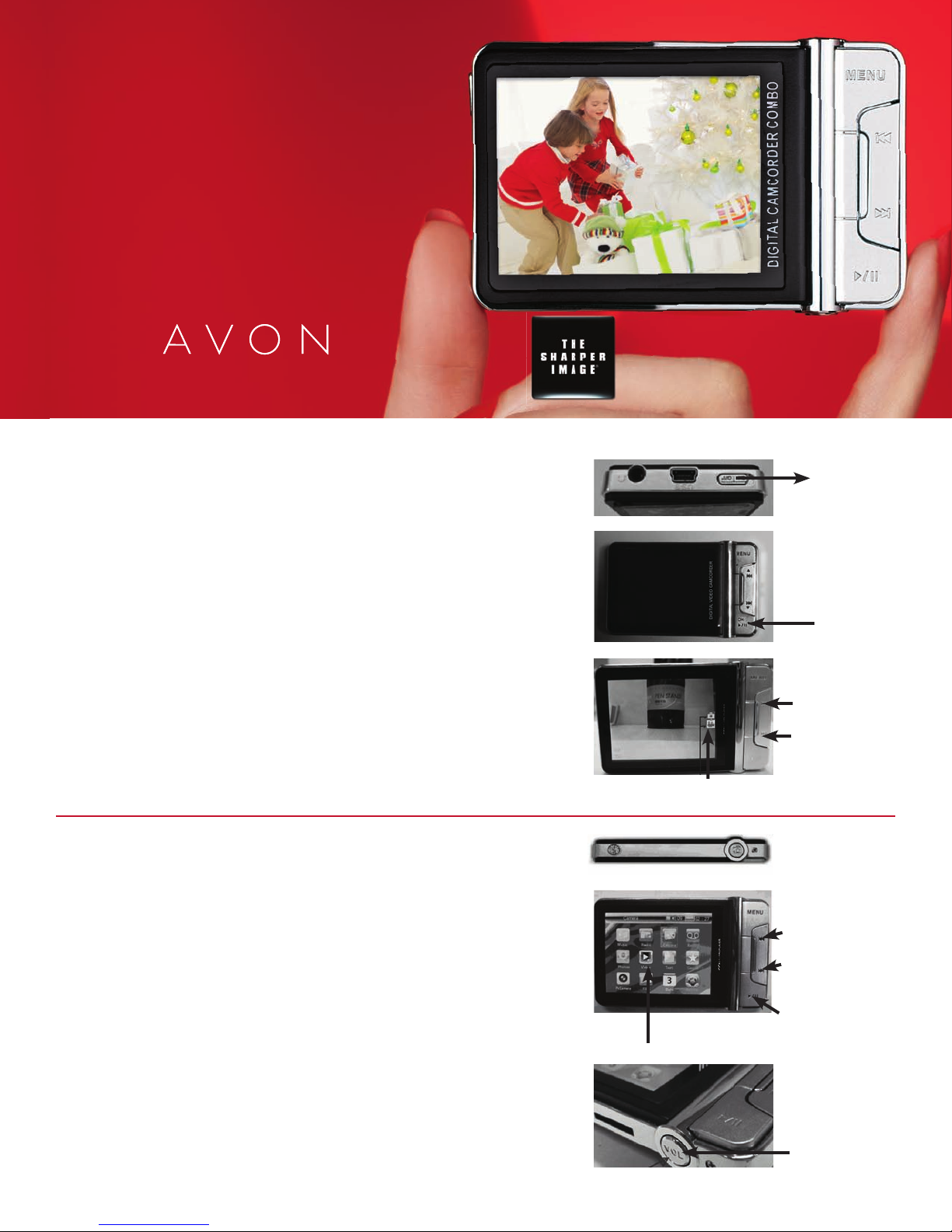
CHARGING THE BATTERY—IMPORTANT!! Camcorder must be
fully charged before fi rst use. The power switch must be turned
to the ON position in order to charge the battery. First charge
may take a minimum of 4 hours. For most effi cient charging,
set to Menu Mode. See page 4 of User Manual for instructions.
POWER
1. To turn ON camcorder, slide ON/OFF switch upward.
To turn OFF, press and hold the OK button to save
settings. Then slide the switch to OFF position.
2. If camcorder is inactive, screen will go dark.
Press and hold OK button to illuminate screen.
3. When you fi rst turn power on, camcorder will be on
Camcorder Mode as default. Press the UP or DOWN buttons
to switch between DV (video) and DSC (camera) modes.
To expand camcorder’s memory to increase amount of photos
and length of videos, use a T-Flash Micro SD card, which can
be purchased at mass retail stores. See page 8 of User Manual.
Innovative technology from
The Sharper Image
DV/DSC on-screen indicator
®
Slide ON/OFF
switch
Press and hold
OK button to
illuminate screen
Press UP button
to move
to DSC mode
from DC mode
Press DOWN
button to move
to DC mode
from DSC mode
CAMCORDER (DV) MEDIA PLAYER MODE
To record a video: Press the CAMERA button to start
recording. Press CAMERA button again to stop the recording.
The recorded video fi le will be saved automatically.
To set the video quality:
• Press the VOL button on the bottom side of the camcorder.
The DV setting menu will show on the screen.
• To adjust video quality, use UP and DOWN buttons
to move to Capture size. Select the video resolution
you wish to record.
To play the recorded video: Press the MENU button
to enter the Media Main Menu.
• Use UP and DOWN buttons to move to VIDEO ICON.
Press OK to enter video playback mode.
• Select the recorded video clip you would like to watch.
Press OK to start video playback.
THE SHARPER IMAGE® name and logo are registered trademarks. Manufactured and Marketed by Avon under license. ©The Sharper Image. All Rights Reserved.
VIDEO function
for playback
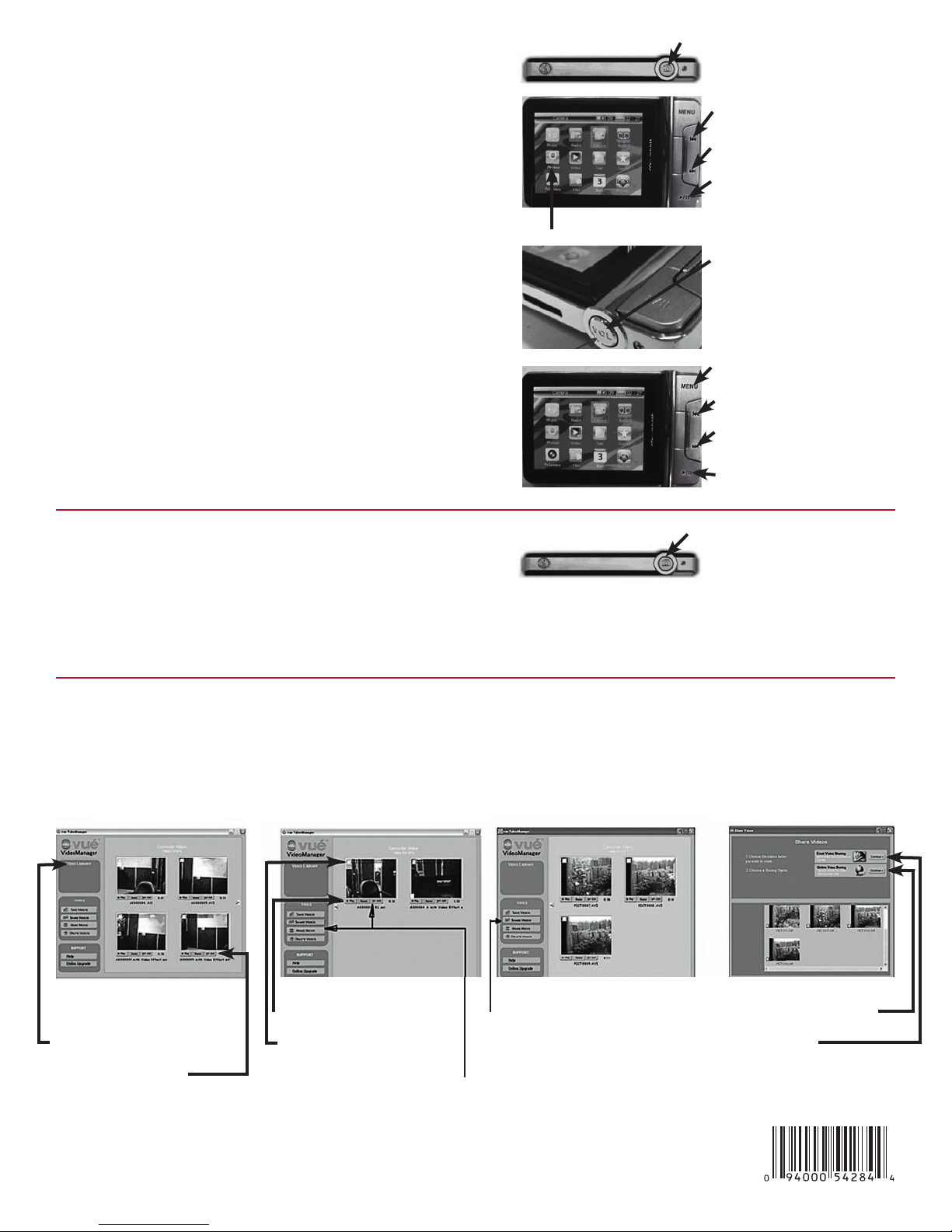
Top V iew
Camera button
Media Menu Mode
Press UP button
to move forward
to next function
Press DOWN button
to move backward
to last function
Press OK button
to enter selected
function mode
Bottom View
Press VOL button
to set DV or DSC
Page 2
DIGITAL STILL CAMERA (DSC) MODE
Top V iew Camera button
To take a photo:
• Press the CAMERA button to go to
Digital Camera mode.
• Press CAMERA button to release camera shutter.
The photo fi le will be saved automatically.
To set photo quality:
• Press the VOL button on the bottom side
of the camcorder.
The DSC Setting Menu will show on the screen.
• Use UP and DOWN buttons to move to Capture size.
• Select the resolution for the photo you wish to shoot.
To browse the photos:
• Press the MENU button to enter the Media
Main Menu.
• Use UP and DOWN buttons to move to PHOTOS icon.
Press OK button to enter Photo Browser mode.
• Select the photo(s) you wish to view
and press OK button.
MEDIA MODE
Press the MENU button to switch to Media mode.
Press UP button to move
forward to next function
Press DOWN button to move
backward to last function
Press OK button to enter
selected function mode
Select PHOTOS for browsing
Press VOL button
to set DV or DSC
Press MENU button to enter
Media mode
Press UP button to move
forward to next function
Press DOWN button to move
backward to last function
Press OK button to enter
selected function mode
Top View Camera button
To select and operate functions of the MP3 music player, MP4 video player, photo browser,
PC web cam, calendar, etc. Press the MENU button.
Press the CAMERA button to return to Camcorder or Digital Camera mode.
VIDEO MANAGER—VIDEO TOOL
VideoManager is a software tool that allows you to PLAY, EDIT, and ON-LINE SHARE your recorded videos
in a computer. Use the enclosed Vue VideoManager disk to install VideoManager in your computer.
After the installation, VideoManager will automatically be activated in your computer when you
connect your Camcorder to the USB port.
This main dialog screen
will automatically start up
in your computer
Click here to view and
choose your videos
Click here to play
or edit your videos
To play or edit videos
• Click play to playback
selected video
• Click checked box to
select video for editing
• Click Make Movie
or Edit to start
Click here to run Online
Video Sharing or Video Mail
Click here to start
Online Video Sharing
Click here to start
Video Mail
PLEASE SEE USER MANUAL ENCLOSED WITH THE CAMERA
FOR COMPLETE INSTRUCTIONS.
Avon Products, Inc. 77850-9
 Loading...