

Page 1
600-00178-000 Rev 00-I
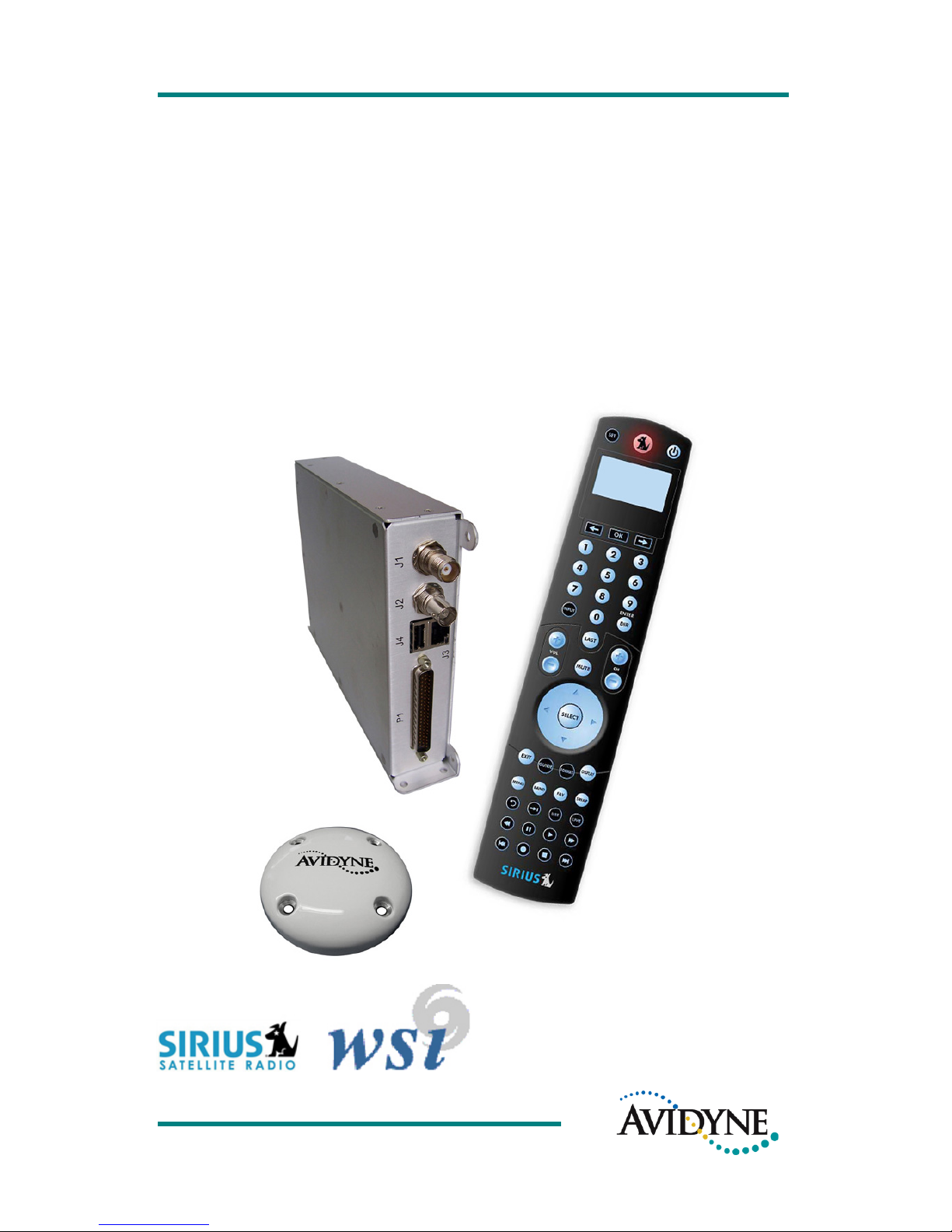
MLB700
Broadcast Datalink Receiver
With RC70 Wireless Remote Control
Page 2
600-00178-000 Rev 00-I -i- MLB700 Broadcast Datalink Receiver
Date
Revision
Description
6/14/07
00-I
Initial Release Draft
System Configuration
When contacting your Avidyne-authorized distributor or
technical support, and when logging onto MyAvidyne.com for
the first time, please have your Sirius Identification (SID)
Numbers available. SIDs appear on the Serial Tag of the
MLB700:
DATA SID
AUDIO SID
Page 3

600-00178-000 Rev 00-I -ii- MLB700 Broadcast Datalink Receiver
Intentionally Left Blank
Page 4

600-00178-000 Rev 00-I -iii- MLB700 Broadcast Datalink Receiver
Table of Contents
INTRODUCTION .............................................. 1
About t he SI RIUS Sate llite Networ k ........... .... ........ ... .... 2
WSI I nF light Weathe r: The We at her Y ou Ne ed…F rom t he
Sourc e You c an Trust™ .......... ........... ........... .... ........ ... . 3
OV ERVIEW ..................................................... 6
Key Lay out .. ... ........ ... ........ ... ........... ........... ........... .... . 8
Key De sc ri ption s . ........... .... ........ ... ........ ... ........... ........ 9
OPERATION .................................................. 13
First P ower Up ..... ... ........... ........... ........... .... ........ ... .. 13
Pairi ng Your Remot e with th e MLB700 ... ........ ... .......... 13
Activ atin g of Yo ur MLB 700 Audio Su bscript ion ........ ... 1 4
Chan ging the B atteri es .... .... ........ ... ........ ... ........... ..... 15
RC70 Re mote Cont rol O perating Mo des ........... ........... 1 5
Sirius M ode ........... ........... ........... .... ........ ... ........ ... .... 16
Prese ts ..... .... ........ ... ........... ........... ........... .... ........ ... 2 8
Adj ust in g the C ontrast of t he L CD Di splay .. .... ........ ... . 30
Page 5

600-00178-000 Rev 00-I -iv- MLB700 Broadcast Datalink Receiver
LCD Time r Fea tu re . .... ........ ... ........ ... ........... ........... ... 30
SPECIAL DISPLA Y MESSAGES......................... 32
WARRANTY .................................................. 35
WARNING AND SAFETY INFORMATION ............ 36
FC C War ni ng ........... ........... ........... .... ........ ... ........... .. 36
FC C St at em ent fo r th e M LB70 0 Radi o . ........... ........... . 36
FC C St at em ent fo r th e Re mote C ontrol ....... ........... .... 3 7
MLB7XX Radio C om plianc e wit h IC R ule s an d Regul ation s
........ ........... .... ........ ... ........ ... ........... ........... ........... . 38
Remote Co ntrol C omplia nc e wit h IC Ru le s and R eg ulations
........ ........... .... ........ ... ........ ... ........... ........... ........... . 38
Ge nera l Precaut ions . ... ........ ... ........... ........... ........... .. 39
Ge nera l Sa fet y Warni ngs......... ........... .... ........ ... ......... 39
Ge nera l Sa fet y Ca uti ons ..... ........... ........... .... ........ ... .. 40
Cleanin g a nd Maintenanc e ..... .... ........ ... ........... ........... 4 0
COPY RIGHTS & TRADEMARKS ........................ 41
SIRIUS ID ..................................................... 42
Page 6

600-00178-000 Rev 00-I -1- MLB700 Broadcast Datalink Receiver
Introduction
Congrat ul ati on s on you r p urchase o f the MLB7 00
Broad ca st D atal ink Re ceiver with RC 70 Wi reles s Re mot e
Control.
The MLB700 Broadcast Datalink Receiver is an aircraft Flight
Information Services – Broadcast (FIS-B) receiver that meets the
requirements of TSO-C157. The MLB700 is designed to provide
reception of weather and other data products that will assist the
flight crew in assessing whether current conditions for are suitable
to the flight characteristics of their aircraft.
With a valid subscription through MyAvidyne.com, the MLB700
receives WSI’s award-winning InFlight™ datalink graphical and
textual weather for display on a number of compatible display
systems. In addition, the MLB700 has the ability to receive audio
entertainment, with a valid Sirius Satellite Radio subscription, that
plays through your aircraft’s audio system and is controlled from
anywhere in the aircraft by the RC70 Wireless Remote Control.
Page 7
600-00178-000 Rev 00-I -2- MLB700 Broadcast Datalink Receiver
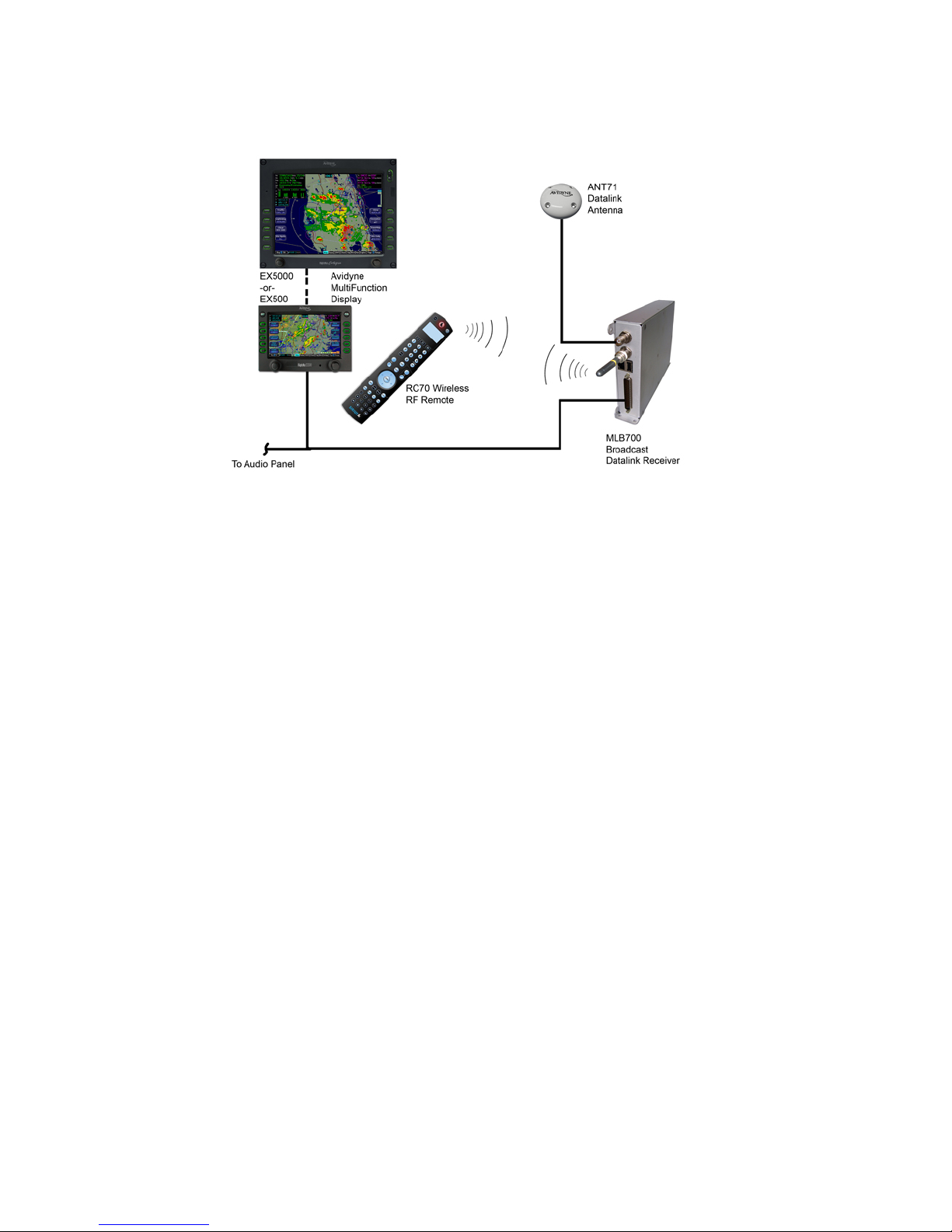
Figu re 1 . ML B700 S ys tem Di agram
About the SI RIUS Satellite Networ k
The Sirius Satellite Network is comprised of three satellites called
Radiosat 1, Radiosat 2, and Radiosat 3, which are in a geosynchronous highly elliptical orbit (HEO). These satellites have a
24-hour orbital period, and the elliptical path of the constellation
ensures that each satellite spends about 16 hours a day over the
continental United States. The primary uplink facility for Sirius is
located in Vernon, New Jersey.
Page 8

600-00178-000 Rev 00-I -3- MLB700 Broadcast Datalink Receiver
Figu re 2 . S iriu s’ th ree sa tell it es in a 24 -hour g eo-s ynch ronous
orb it, T wo of whi ch a re al wa ys o ve r th e contin enta l U.S .
Sirius broadcasts using 12.5 MHz of the S band between 2320.0
and 2332.5 MHz. All three satellites can broadcast directly to the
MLB700 receiver, and because of their highly elliptical orbit, there
will always be two of them in view at any given time. The Sirius
signal is separated into three carriers, one each for the two
satellites, and the third for the terrestrial repeater network, used
in more populated areas for the automotive market. Sirius
receivers can decode all three carrier signals at once to achieve
signal diversity.
WSI InFlig ht Weather: The Weather Yo u
Need…From the Source You can Trust™
With the MLB700, you will receive WSI’s continuous stream of
aviation weather information with complete coverage and content
for the majority of North America at any altitude.
Page 9

600-00178-000 Rev 00-I -4- MLB700 Broadcast Datalink Receiver
Among the other weather products you will receive via the
MLB700 is the award winning WSI NOWrad® radar mosaic. WSI
NOWrad is the only mosaic of the U.S. Doppler Weather Radar
network that includes continuous quality control by degreed
meteorologists. Additionally, WSI employs a combination of
advanced algorithms and up-to-the minute surface observations to
determine the type of precipitation, rain, mixed or solid. The result
is the most accurate depiction of precipitation over the United
States available anywhere.
SIRIU S Sat ellit e Ra dio: T he Best R adio On R adi o
With everything from 100% commercial-free music to in-depth
sports coverage, plus news, talk and the hottest entertainment –
you can always hear exactly what you want.
• The only home of 100% commercial free music. Whether
you’re discovering new music, or rediscovering songs you
haven’t heard in years – you’ll hear it all on SIRIUS.
• Live play-by-play and expert talk from the biggest leagues.
NFL, every game, every week, everywhere. Plus NFL Radio
24/7 news and options from top NFL pros, 40 games a
week from NBA and College Sports from over 150 schools.
Plus, NASCAR moving exclusively to SIRIUS in January
2007.
• Entertainment, Comedy and Talk that can’t be found
anywhere else. From 2 channels of Howard Stern, Blue
Collar Comedy with Jeff Foxworthy and Larry the Cable Guy
to Maxim and Playboy Radio.
• Especially for Women. Martha Stewart and her team will
inspire you 24/7 along with Cosmo Radio, Deepak Chopra
Wellness Radio, and other exclusive talk show hosts.
• World Class News, traffic and weather. Fox, CNN, NPR and
BBC. Local traffic and weather for the top 20 cities.
Page 10

600-00178-000 Rev 00-I -5- MLB700 Broadcast Datalink Receiver
• Family & Kids: G-rated fun for everyone with Radio Disney,
Discovery Kids Channel, Laugh Comedy and more.
Page 11

600-00178-000 Rev 00-I -6- MLB700 Broadcast Datalink Receiver
Overview
Using the MLB 70 0 fo r Da tal in k Gr aphic al Weat he r – The
weather data received by the MLB700 can be displayed on a
number of compatible multifunction displays (MFD). For operation
and interpretation of the datalink weather products, please consult
the Pilot’s Operating Handbook for MFD specific to your
installation.
Using th e MLB7 00 a nd RC70 for Si rius Sa tell it e Ra di o –
The MLB700 receives Sirius Satellite Radio programming, which is
sent to the aircraft’s audio panel. Depending on your specific
installation and audio panel settings, this audio can be played
through the headsets and/or cabin speakers. Here is in overview
of the controls and functions of the RC70 Wireless Remote
Control.
Page 12
600-00178-000 Rev 00-I -7- MLB700 Broadcast Datalink Receiver
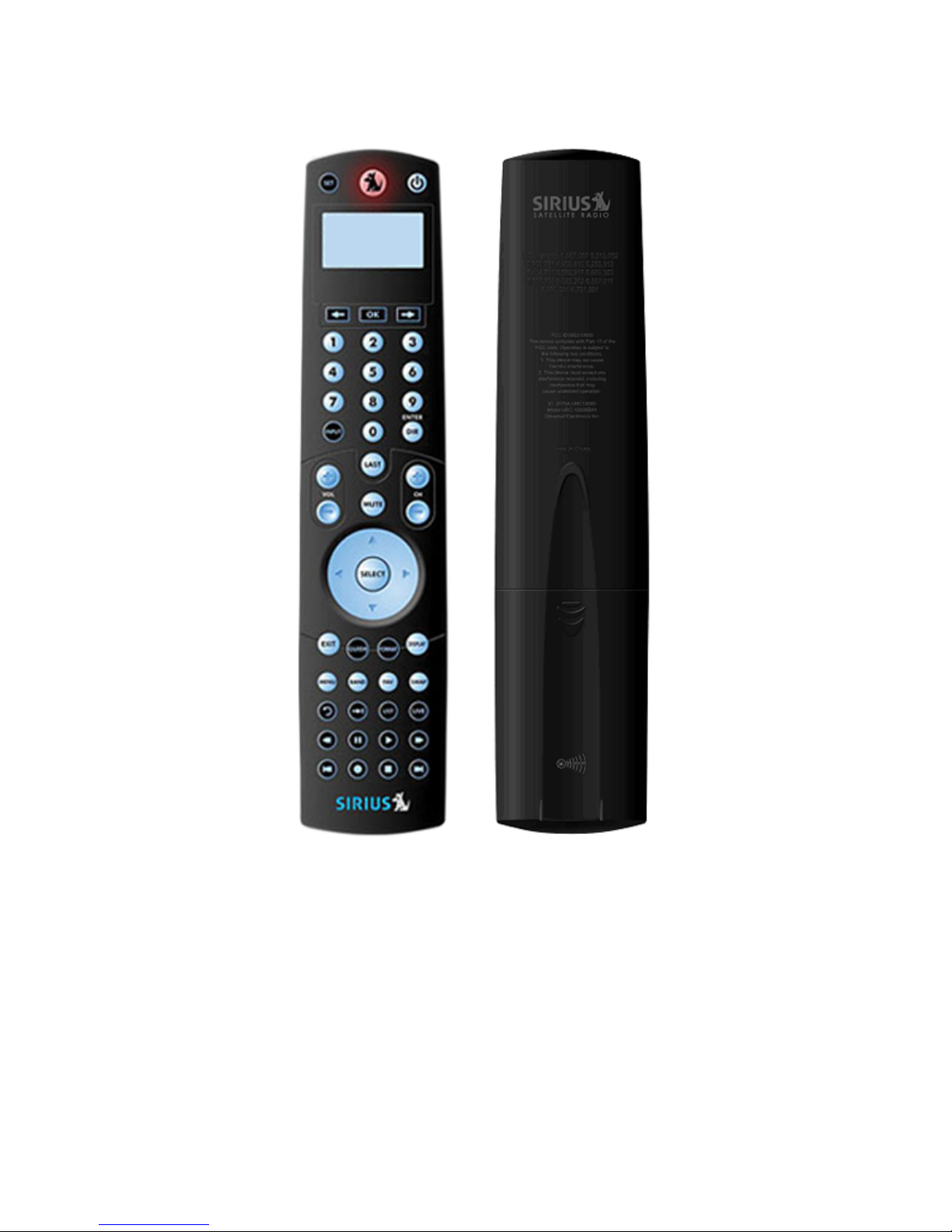
Figu re 3 . F ro nt and Ba ck Vi ews of R C7 0 R emo te
Page 13
600-00178-000 Rev 00-I -8- MLB700 Broadcast Datalink Receiver
Key Layout
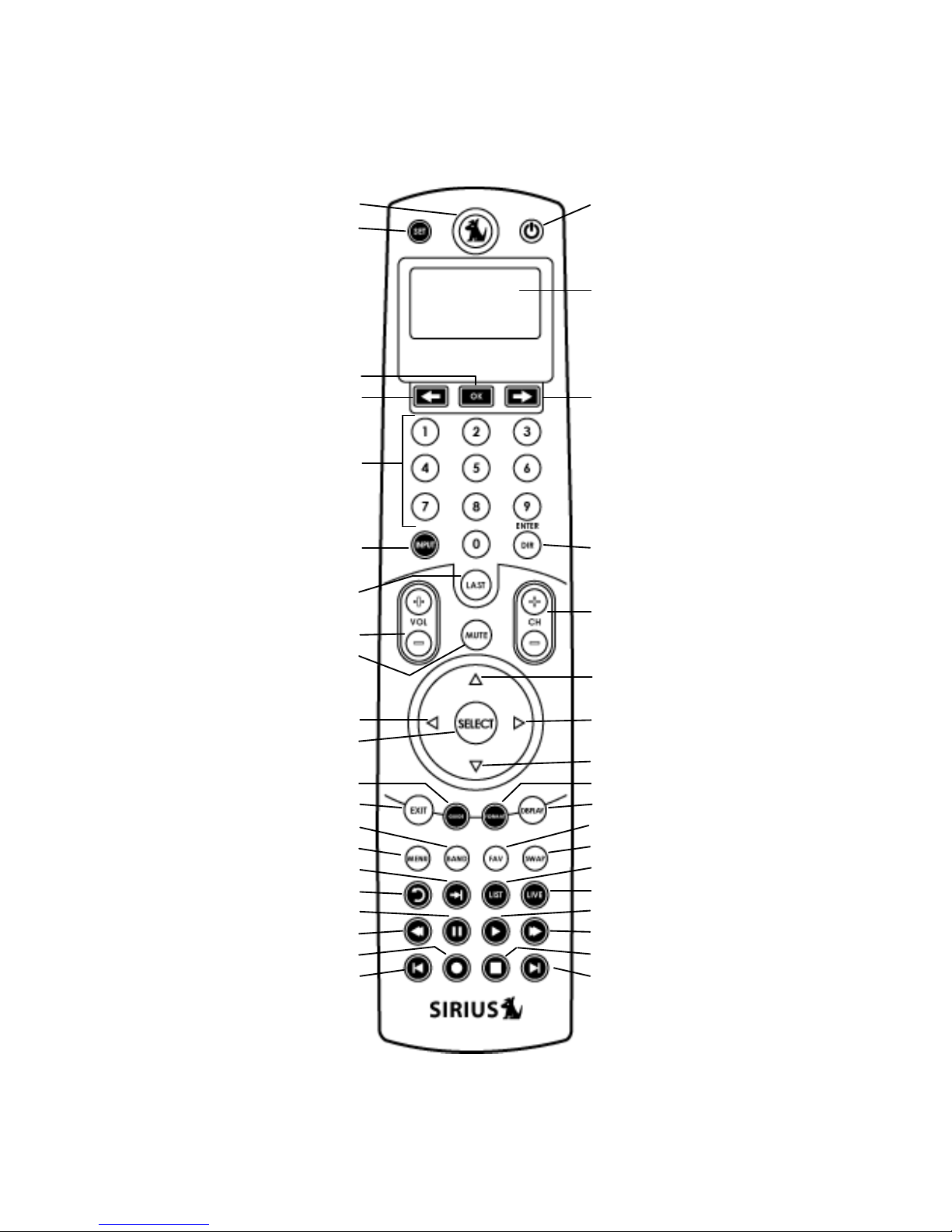
Figu re 4 . B utto n Diagra m of R C7 0 R emo te
1. SIRIUS
25. Set
23. OK
22. Scroll Left
8. Numeric Keys
Input
5. Last
19/20. Volume +/-
21. Mute
14. Cursor Left
3. Select
Guide
4. Exit
7. Band
16. Menu
Quick Skip
Skip Back
Pause
Rewind
Record
Previous
2. Power
LCD Display Screen
24. Scroll Right
9. Enter/Dir
10/11. Channel
+/-
12. Cursor Up
15. Cursor Right
13. Cursor Down
Format
17. Display
6. FAV
18. SWAP
LIST
LIVE
PLAY
Fast Forward
Stop
Next
Page 14
600-00178-000 Rev 00-I -9- MLB700 Broadcast Datalink Receiver
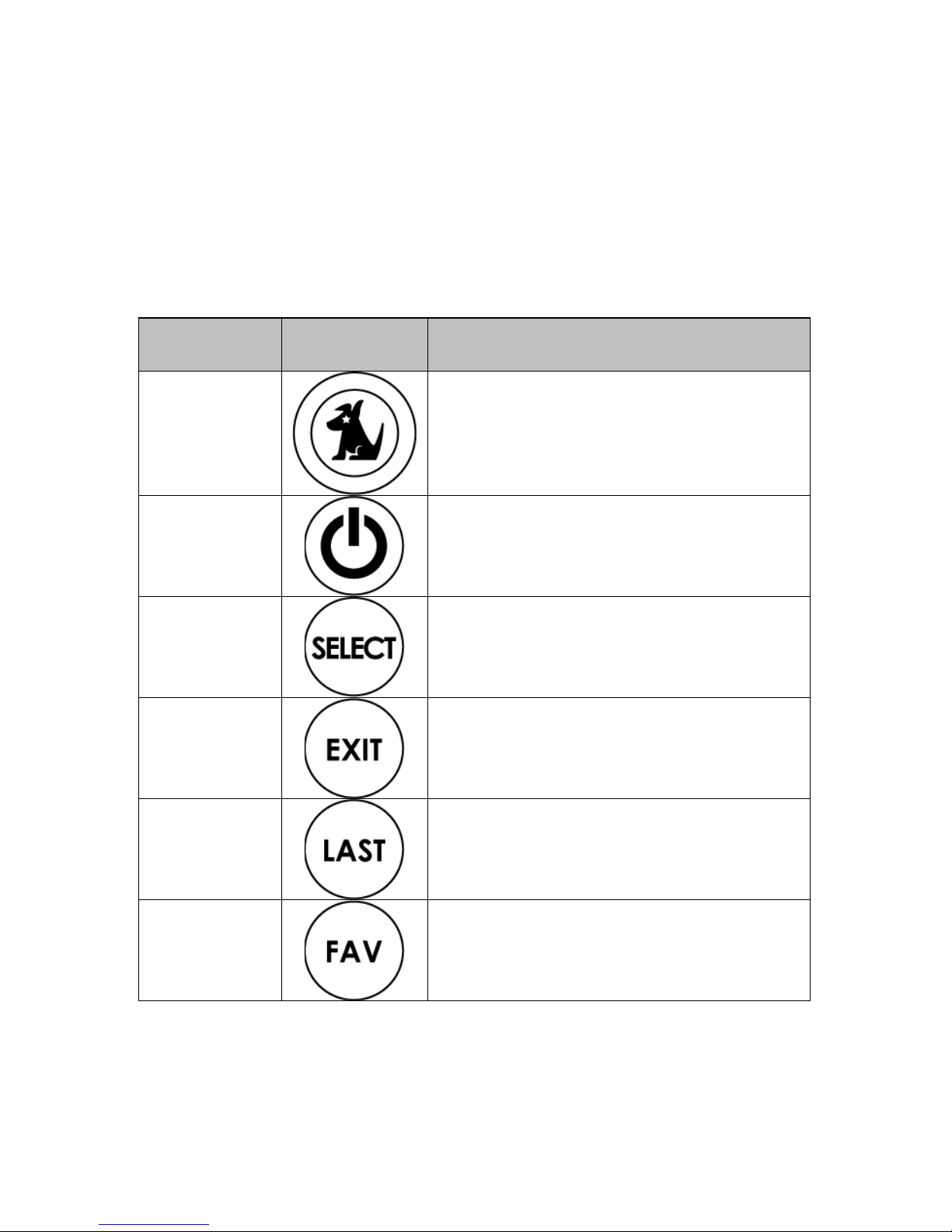
Key Descriptions
The following RC70 remote buttons are currently utilized with the
MLB700 Application.
Key ID
Sy mbol
Key
1
SIRIUS – Puts the radio in Normal
Mode.
2
Power – used to wake up remote.
3
Select – used to select a station,
menu item or a radio.
4
Exit – used to Exit the current Sirius
Mode and return to Sirius Normal
Mode.
5
Last – used to return to the
previously selected channel.
6
Fav – Favorites. Used to cycle
through the presets.
Page 15
600-00178-000 Rev 00-I -10- MLB700 Broadcast Datalink Receiver
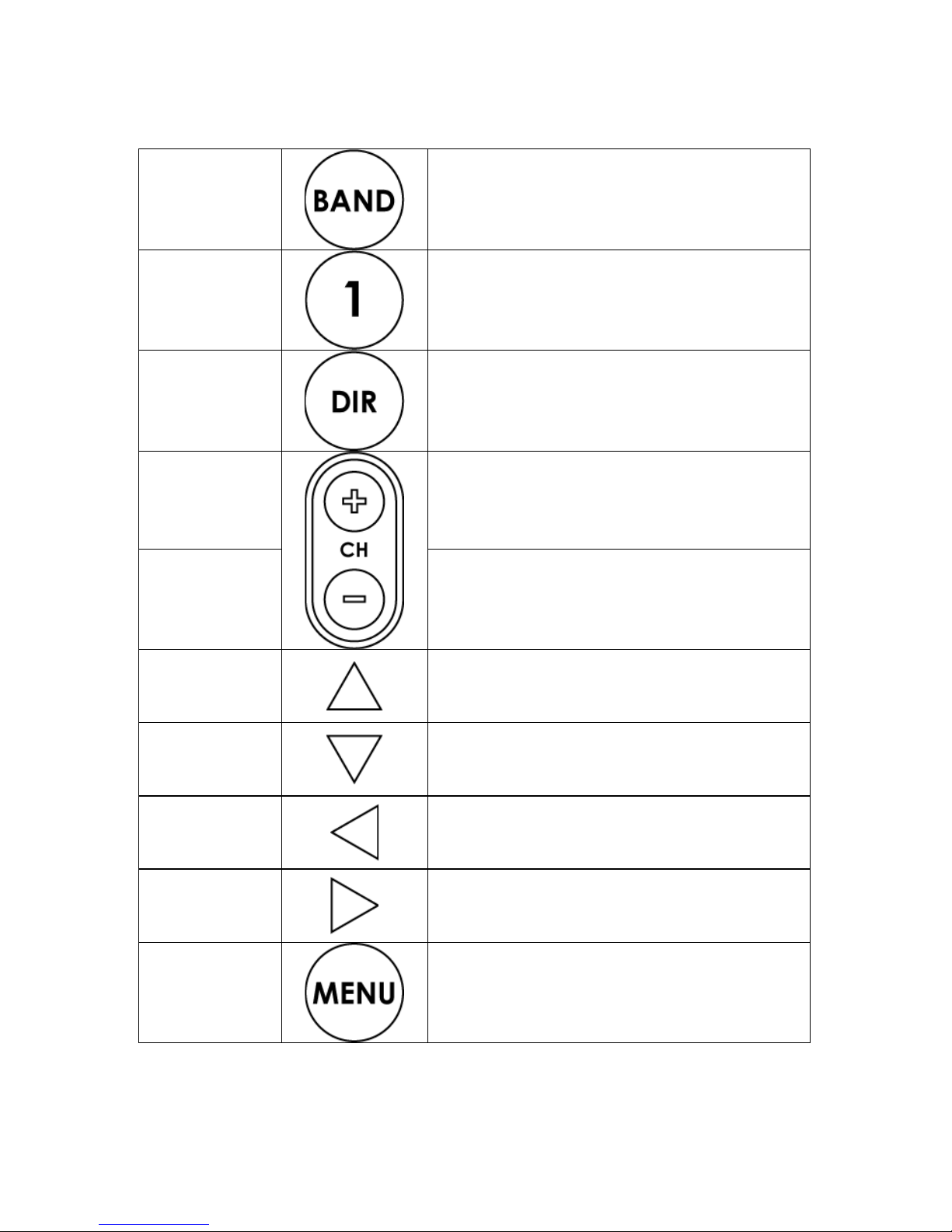
7
Band – used to select the band (for
presets).
8
0-1 Numerical Entry for channel or
preset operation.
9
Direct – used to tune directly to a
particular channel
10
CH+ Channel Up. Moves one
channel up.
11
CH- Channel Down. Moves one
channel down.
12
Cursor Up – Used to scroll up
through a channel list or menu.
13
Cursor Down – Used to scroll down
through a channel list or menu.
14
Cursor Left – This is used to enter
Sirius Category List Mode.
15
Cursor Right – This is used to enter
Category List Mode.
16
Menu – This is used to enter the
Sirius Menu Options Mode.
Page 16
600-00178-000 Rev 00-I -11- MLB700 Broadcast Datalink Receiver
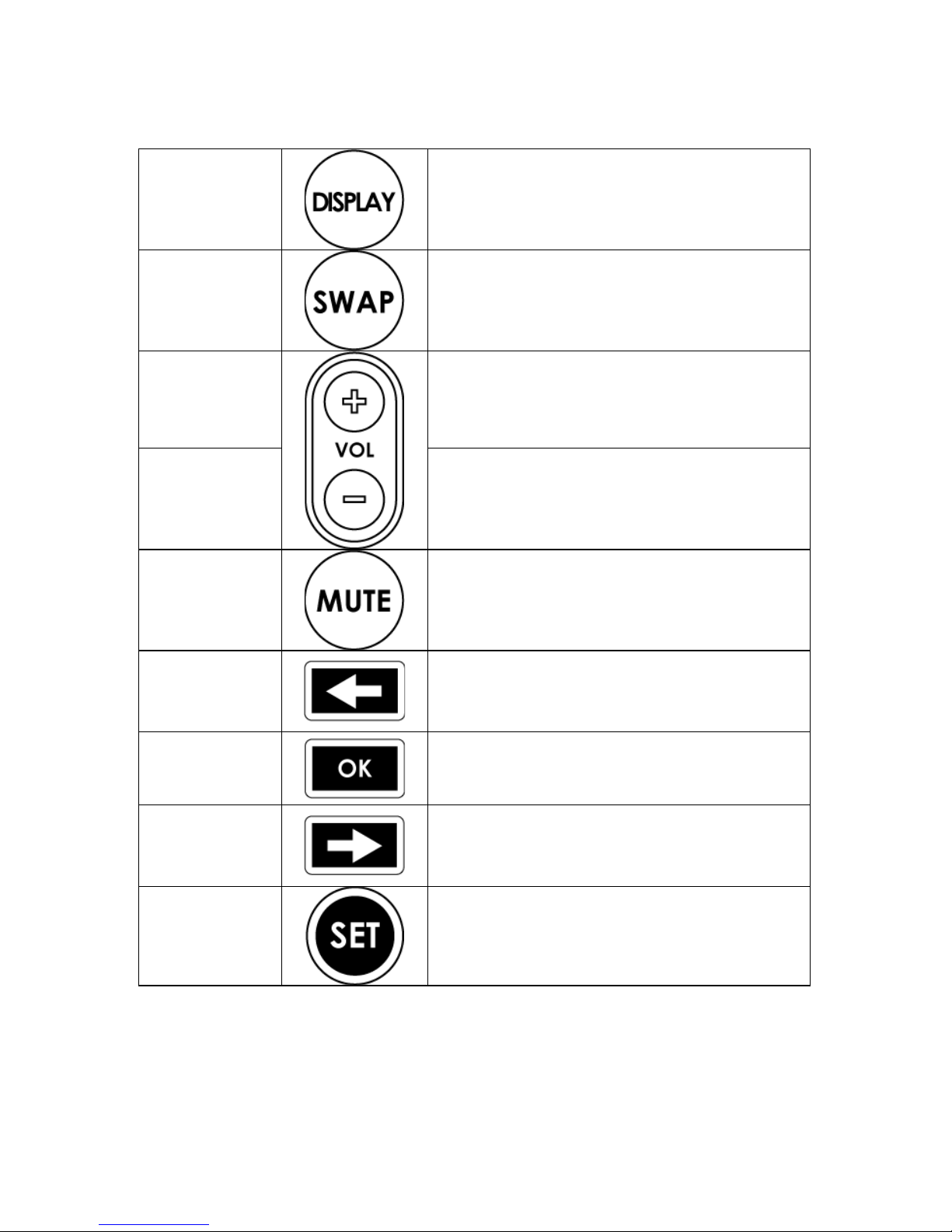
17
Display – This is used to enter Sirius
Channel List Mode.
18
Swap – will be used in future product
releases.
19
Volume Up – used to increase the
volume by one.
20
Volume Down – used to decrease
the volume by one.
21
Mute – used to pause sound.
22
Scroll Left, not transmitted. Used to
switch from Sirius Mode to Universal
Mode.
23
OK, not transmitted. Used to switch
from Sirius Mode to Universal Mode.
24
Scroll Right, not transmitted. Used
to switch from Sirius Mode to
Universal Mode.
25
Set, not transmitted. Used to
switch from Sirius Mode to Universal
Mode.
Tabl e 1. Ac tiv e Bu ttons & Des cription s
Page 17
600-00178-000 Rev 00-I -12- MLB700 Broadcast Datalink Receiver
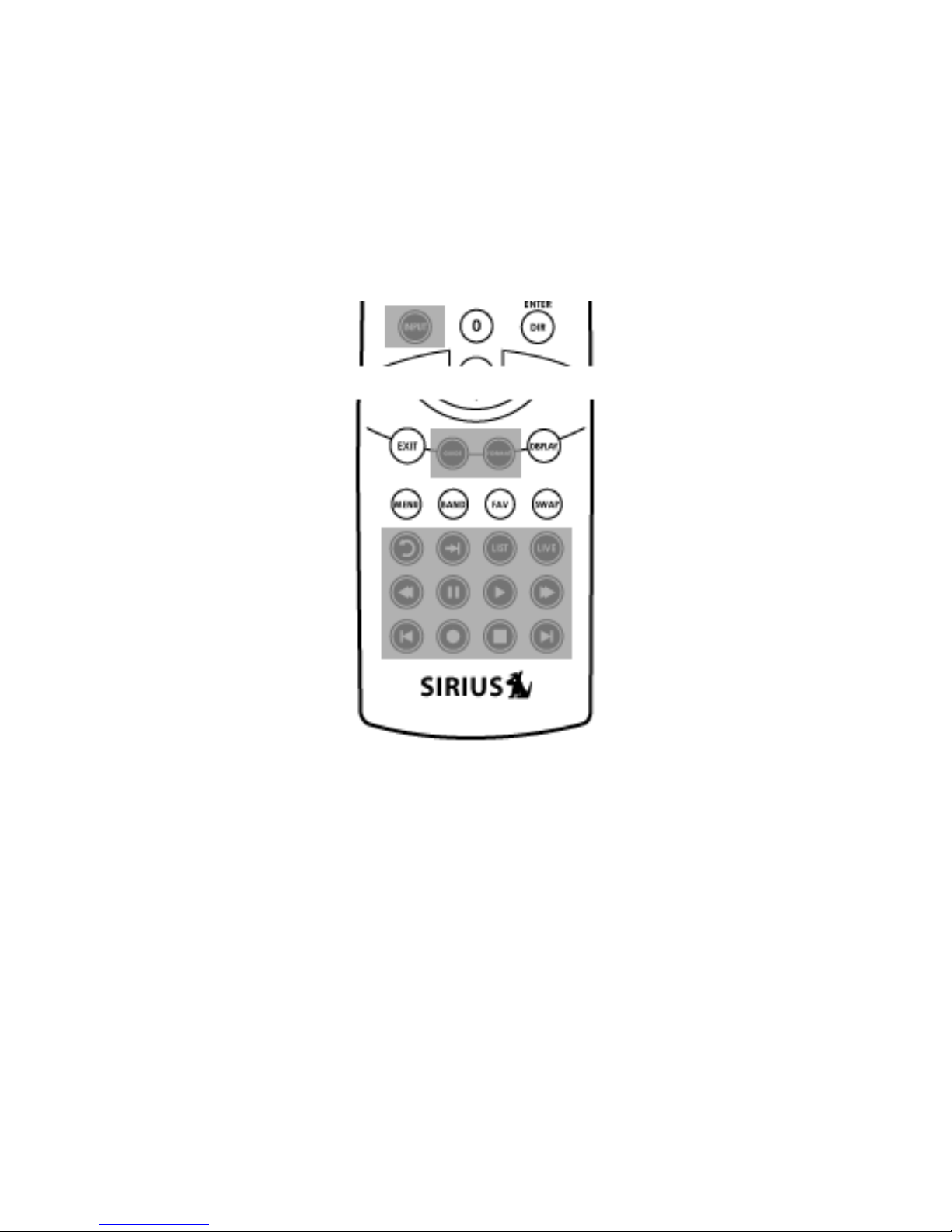
The following RC70 remote buttons are currently not utilized with
the MLB700 Application.
Figu re 5 . B utto ns Not Utili zed with MLB 700
Page 18

600-00178-000 Rev 00-I -13- MLB700 Broadcast Datalink Receiver
Operation
First Power Up
The first power up will tune to channel 184. After that, the
MLB700 radio will retain the last tuned channel in non-volatile
memory.
Pairing Your Remote with the MLB700
The first time you power up your remote, you need to pair it with
the MLB700. To pair the RC70 remote with the MLB700:
1. The MLB700 attempts to pair with a remote control
immediately following power-on initialization. Apply power
to the MLB700. If power is already applied, then remove
power for at least three seconds and then reapply power.
2. The remote’s LCD displays “SIRIUS RADIO HAS NOT BEEN
SETUP…PUSH OK TO SET UP…”.
3. Press the OK button. The LCD will display “Time
Out”. Press the O K button again until the LCD
displays “SUCCESS!”. You may have to press the OK
button up to 8 times. If the RC70 Remote does not pair
by the 8th try, restart the MLB700 and try again.
4. Once pairing is complete, the LCD displays “SUCCESS!
RADIO AND REMOTE ARE NOW PAIRED”. Then the LCD
displays “PRESS SIRIUS TO LISTEN TO MUSIC.
5. Press SIR IU S button.
You can now use the RC70 wireless remote to control your
MLB700.
Page 19

600-00178-000 Rev 00-I -14- MLB700 Broadcast Datalink Receiver
Activating of Your MLB700 A udio Subscription
Before you can listen to your MLB700, you must subscribe to
Sirius Satellite Radio service.
1. The MLB700 must remain on during the entire activation
process.
2. If the MLB700 is receiving the satellite signal, the SIRIUS
channel lineup will be updated. The LCD display reads
“UPDATING CHANNELS” on the top line and “X%
Completed (0%–100%)” on the bottom line until the
update finishes. Caution: Don’t push any buttons or
perform any operations until updating has been completed.
3. When completed, you can view the SIRIUS preview channel
184, and channel 000 without subscribing to SIRIUS. You
cannot listen to any other channels until you activate your
SIRIUS subscription.
4. Press CH+ or CH– to tune to channel 000 to view your
SIRIUS ID (SID). You will need the SID to activate your
SIRIUS subscription. The SID number is also available on the
MLB700 packaging. Write the SID number down in the
space provided on page 39.
5. Have your credit card and SID number handy and contact
SIRIUS on the Internet at https://activate.siriusradio.com
Follow the prompts to activate your subscription. You can
also call SIRIUS toll-free at 1-888-539- SIRIUS (1-888-539-
7474).
6. Once the MLB700 has received your subscription
information, the display changes to “Subscription
Updated”.
Page 20

600-00178-000 Rev 00-I -15- MLB700 Broadcast Datalink Receiver
You can now listen to all the channels and begin enjoying Sirius
Satellite Radio!
Changing the Batteries
Changing the batteries of the RC70 remote may require reassociation of the receiver.
To change the battery, slide the battery cover off at the back of
the RC70 remote. Next, replace the four AA type batteries.
Then, slide the cover back into place.
RC70 Remote Control Operating Modes
The MLB700’s RC70 remote can operate in one of two primary
modes, Sirius Mode or Universal Mode. The MLB700 does not
utilize the Universal Mode; therefore this manual does not address
the Universal Mode functionality. The RC70 remote control must
be in Sirius Mode to issue commands to the MLB700. Pressing the
SI RIUS button will place the RC70 remote control into Sirius
Mode.
Chan ging Mo des
Entering Sirius Mode/Exiting Universal Mode
If the unit is in Universal Mode, press the SI RIUS button on the
RC70 remote to exit Universal Mode and enter Sirius Mode.
Entering Universal Mode/Exiting Sirius Mode
Page 21

600-00178-000 Rev 00-I -16- MLB700 Broadcast Datalink Receiver
If the unit is in Sirius Mode, press the L EFT , OK , or
RIGHT buttons on the RC70 remote to exit Sirius Mode and enter
Universal Mode.
Sle ep M ode
In order to conserve battery life, the RC70 remote will remove the
backlighting for the display if no button presses occur within a
short amount of time. After an additional amount of time passes
the RC70 remote will then go into Sleep Mode. To wake up the
RC70 remote, press any button on the RC70 remote. The RC70
remote should display the Normal screen. If the MLB700 has been
powered up, this is not the first time entering Sirius Mode, and
appropriate timeouts have not expired, the display mode prior to
last exit should be displayed.
Mo de Ti me outs
All sub-menus will timeout to the Menu Options Mode. The Menu
Options Mode, Channel List Mode, Category List Mode, Sirius MultiRadio Select Mode, and Sirius Direct Access Control Mode will
timeout to Normal Mode.
Sirius M ode
Sirius Mode includes the following display modes:
• Sirius Normal Mode
• Sirius Channel List Mode
• Sirius Category List Mode
• Sirius Direct Access Control Mode
• Sirius Menu Option Mode
Page 22
600-00178-000 Rev 00-I -17- MLB700 Broadcast Datalink Receiver
Sirius No rmal M od e
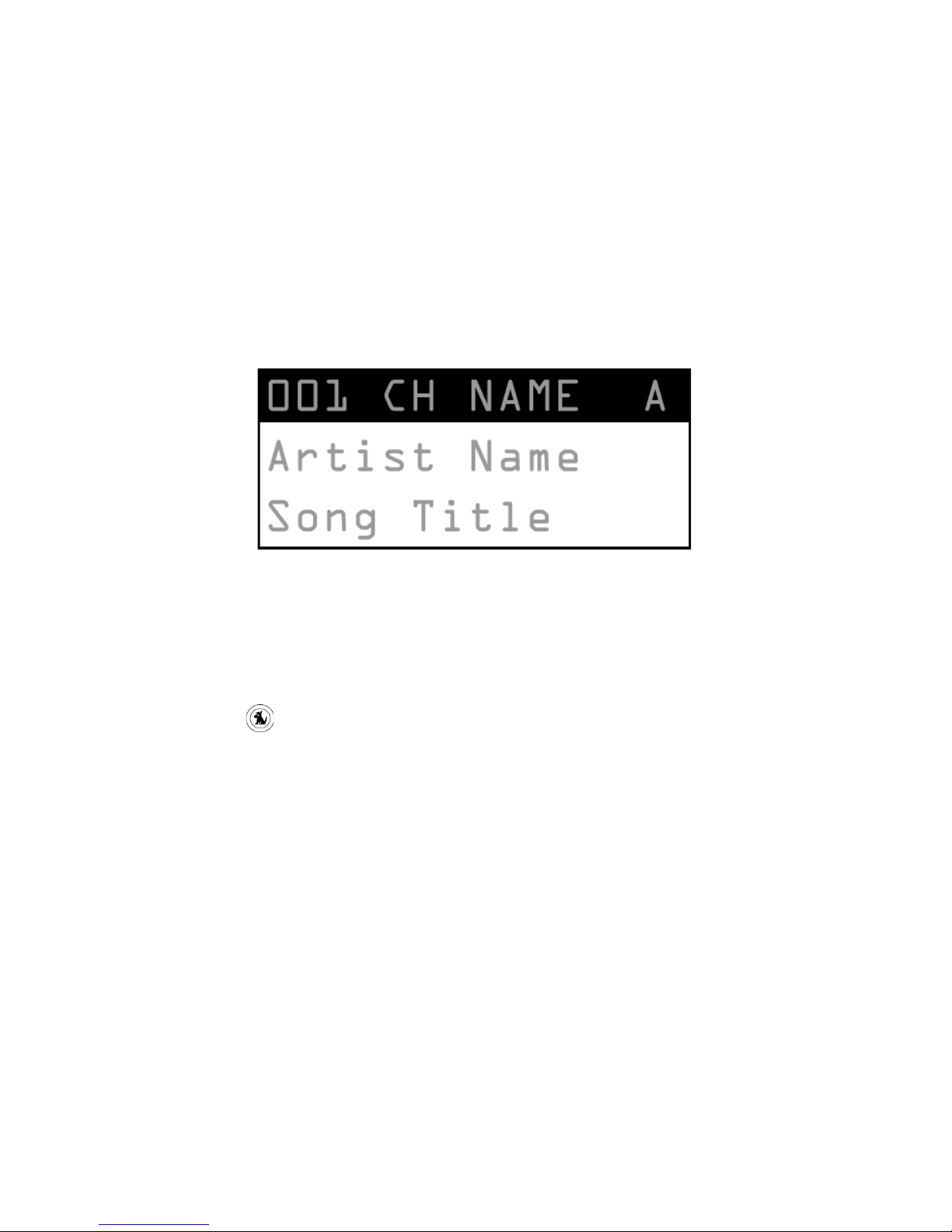
When you first turn on your MLB700, the RC70 wireless remote
displays the normal operation (default) screen. The default screen
displays the last channel selected before shutdown, the artist’s
name, the channel number, and the preset bank information.
(Figure 6)
Figu re 6 . No rma l Mo de D efa ult S cre en
Note: if the artist name or song title is too long to fit the screen,
it scrolls across the screen from right to left.
Press the SI RIU S button to enter Normal Mode.
The RC70 remote will always return to Normal Mode after “exiting”
any of the following modes.
• Channel List Mode
• Category List Mode
• Direct Access Control Mode
• Menu Options Mode
Display Button
Page 23
600-00178-000 Rev 00-I -18- MLB700 Broadcast Datalink Receiver
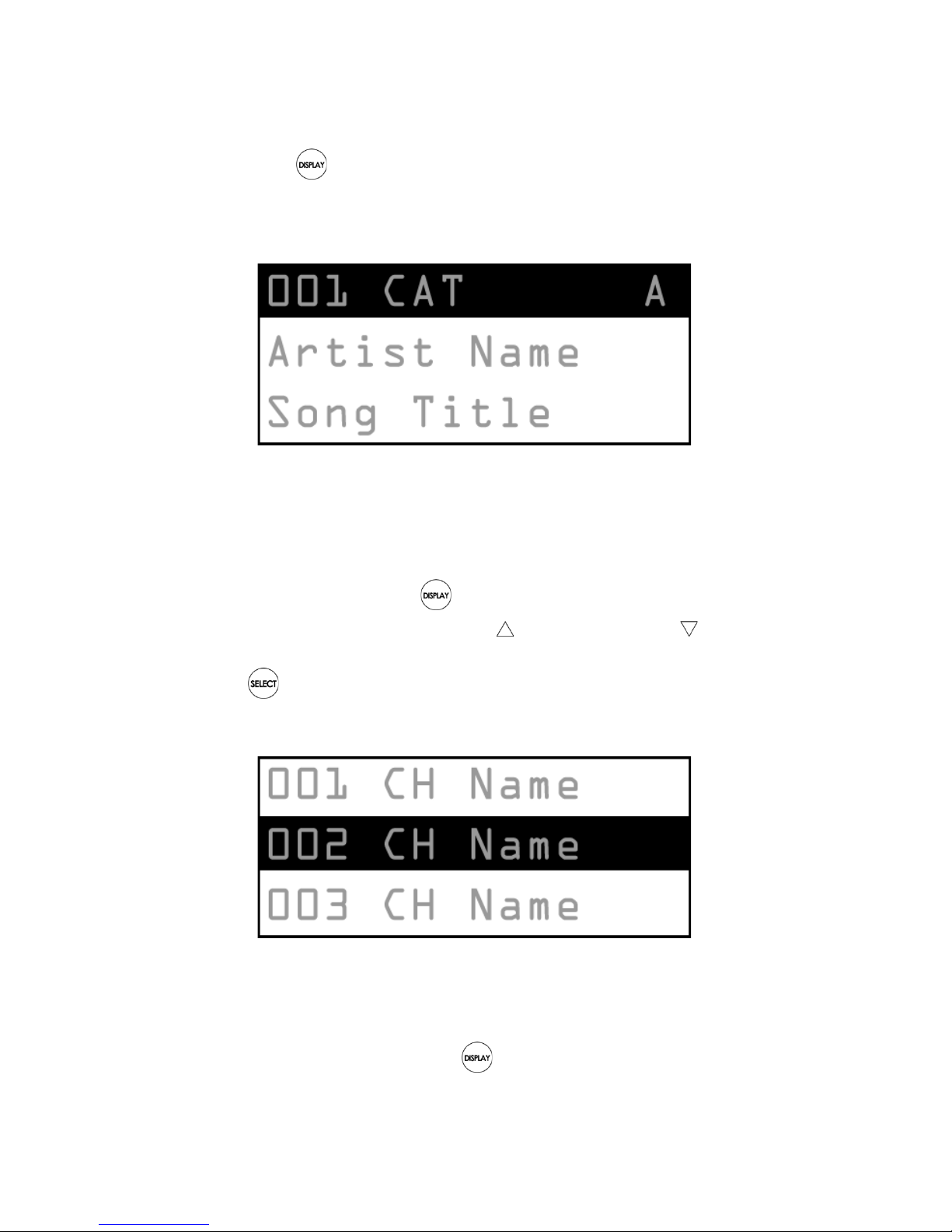
Pressing the DI SPLAY button from the default screen
switches between the channel name and category on the top line
of the display. (Figure 7)
Figu re 7 . No rma l Mo de Categ ory Di spla y F orm at
Sirius C hannel List M ode
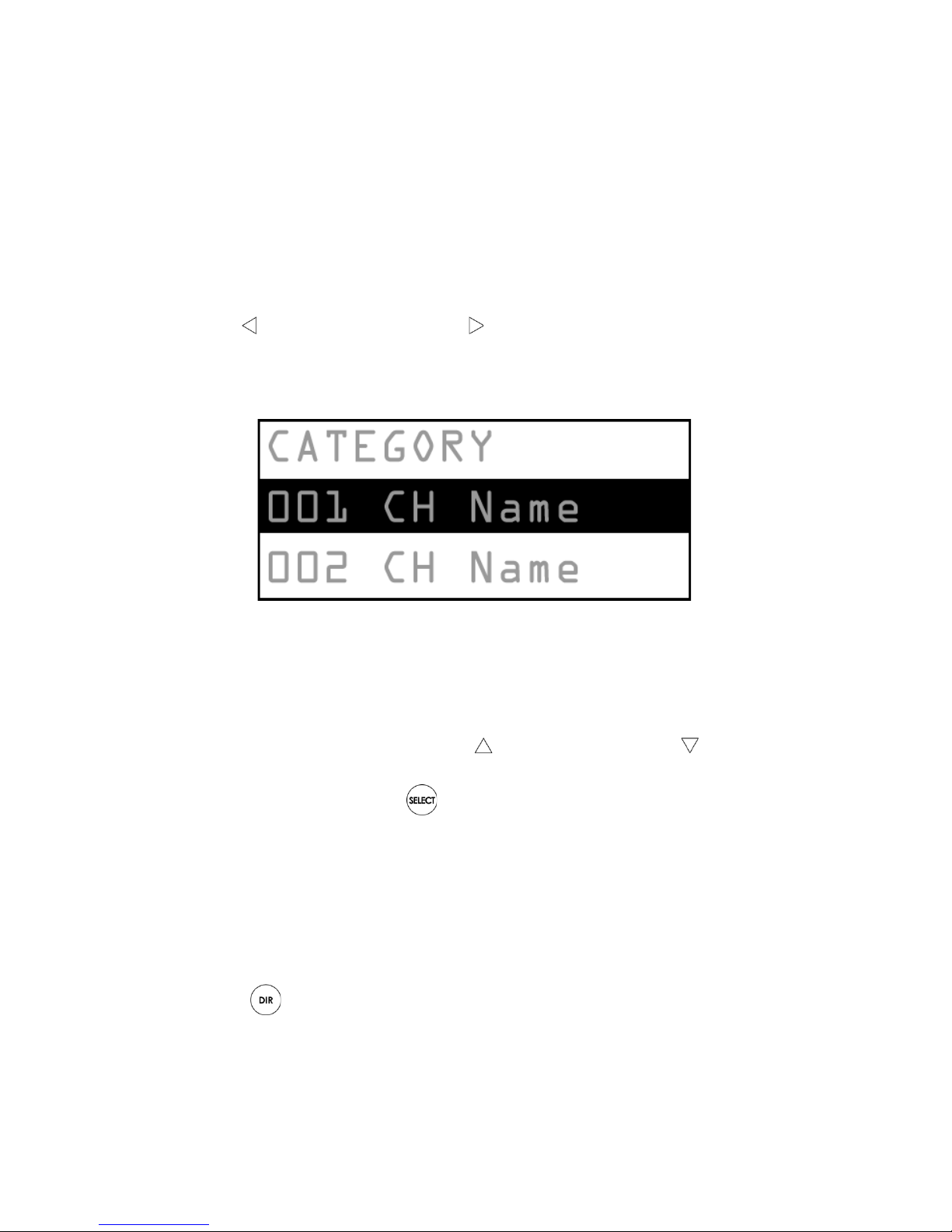
Pressing and holding the DISPLA Y button for 3 seconds
enters Channel List Mode. Use C URS OR U P, CURS OR
DO WN, CH + or CH – to scroll through the channel list. (Figure
8) Press SELECT to tune the highlighted channel and return
to the default display screen.
Figu re 8 . Ch ann el Lis t Mo de Dis pl ay
Note: To preview what is playing on other channels before
selecting a channel, press the DIS PLAY button while in the
Page 24
600-00178-000 Rev 00-I -19- MLB700 Broadcast Datalink Receiver
Channel List Mode to change between channel name, artist name
and song title.
Sirius C ategor y List Mo de
Pressing CU RSOR LEFT or CUR SO R RI GHT changes the
display to show the currently listed category. (Figure 9) Press the
cursor buttons again to scroll through the categories.
Figu re 9 . Ca teg ory List Mo de Di spl ay
The currently selected channel is highlighted on the second row.
Pressing CH + or C H – browses the channels while remaining in
Category List Mode. Pressing CUR SO R U P or CU RSO R
DO WN browses through the channels while keeping the second
line highlighted. Press SELE CT to tune the highlighted
channel.
Sirius D irect Access C ontrol M ode
Sirius Direct Access Control Mode allows stations to be directly
selected by entering their channel number. To enter this mode,
press the DIR ECT button in Normal Mode, Channel List Mode
or Category List Mode.
Page 25
600-00178-000 Rev 00-I -20- MLB700 Broadcast Datalink Receiver
When this mode is entered the display will clear. As numeric
buttons (0— 9) are entered to select a channel, the numbers will
appear on the display in line 2.
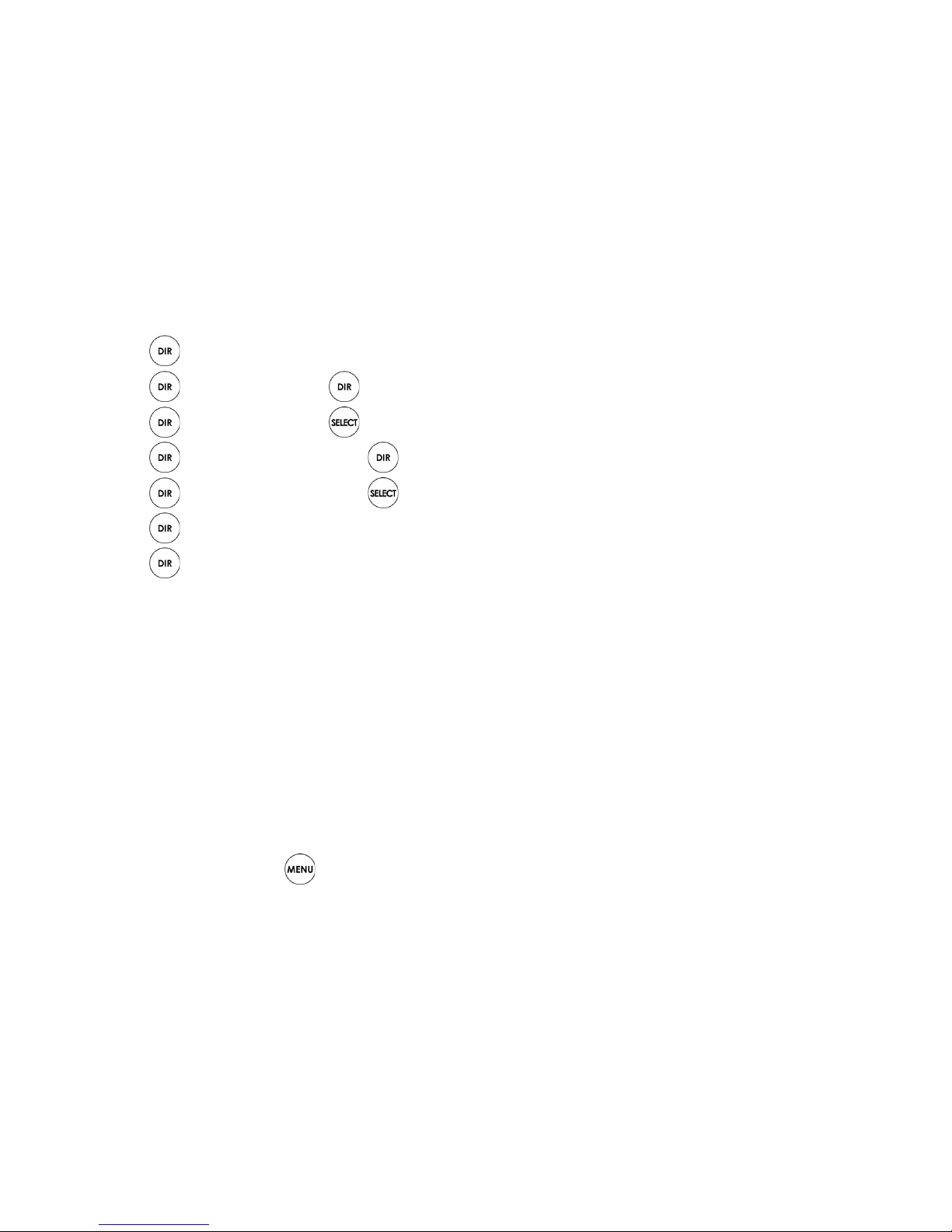
A channel can be tuned directly by pressing the numeric buttons
in one of the following sequences:
DI RECT – 1– 2 – 3
DI RECT – 1 – DI RECT
DI RECT – 1 – SE LECT
DI RECT – 1 – 2 – DI RECT
DI RECT – 1 – 2 – SE LECT
DI RECT – 1 – “Timeout”
DI RECT – 1 – 2 – “Timeout”
Note: The DIRECT button places you into the Direct Access
Control Mode. It only has to be pressed once. If three digits, for
example 1, 2, 3, are input, the channel will be tuned automatically.
If an invalid input is detected, an invalid channel message will be
displayed as described in the Sirius Special Display Messages
section.
Sirius Menu O ptio ns M od e
Pressing the MEN U button enters the Menu Options Mode.
The Menu Options Mode does not support radio tuning operations.
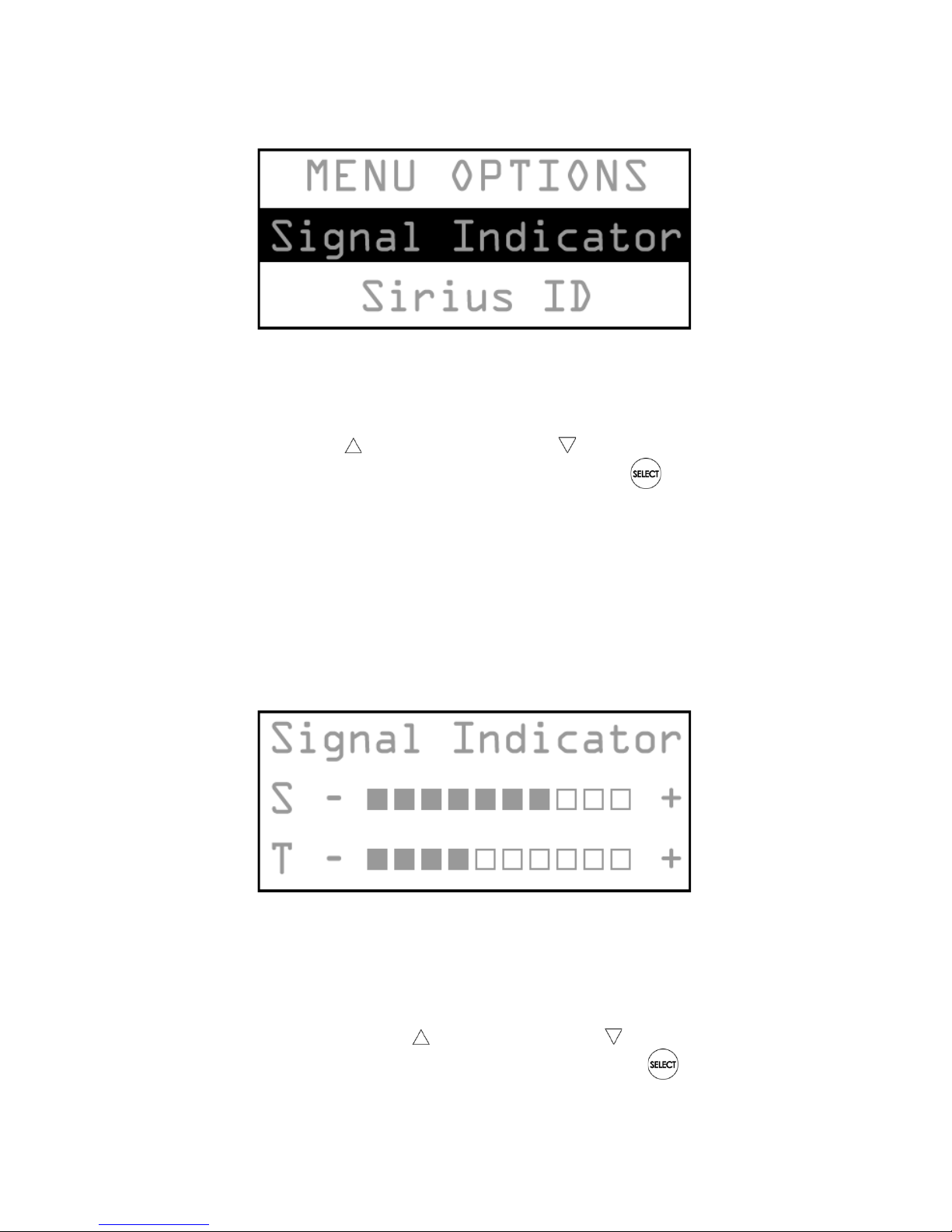
The “Menu Options” title will always be displayed on the top line
and menu items listed below. There are at least three items in the
menu list, Signal Indicator, Configuration, and Sirius ID. The item
listed in line 2 will be highlighted. (Figure 10)
Page 26
600-00178-000 Rev 00-I -21- MLB700 Broadcast Datalink Receiver
Figu re 1 0. Menu Optio ns Mo de Di spla y
Use CH +, C H –, CU RSO R UP or CURSO R DOWN to
highlight the option you wish to adjust and press SELE CT .
Signal Indicator
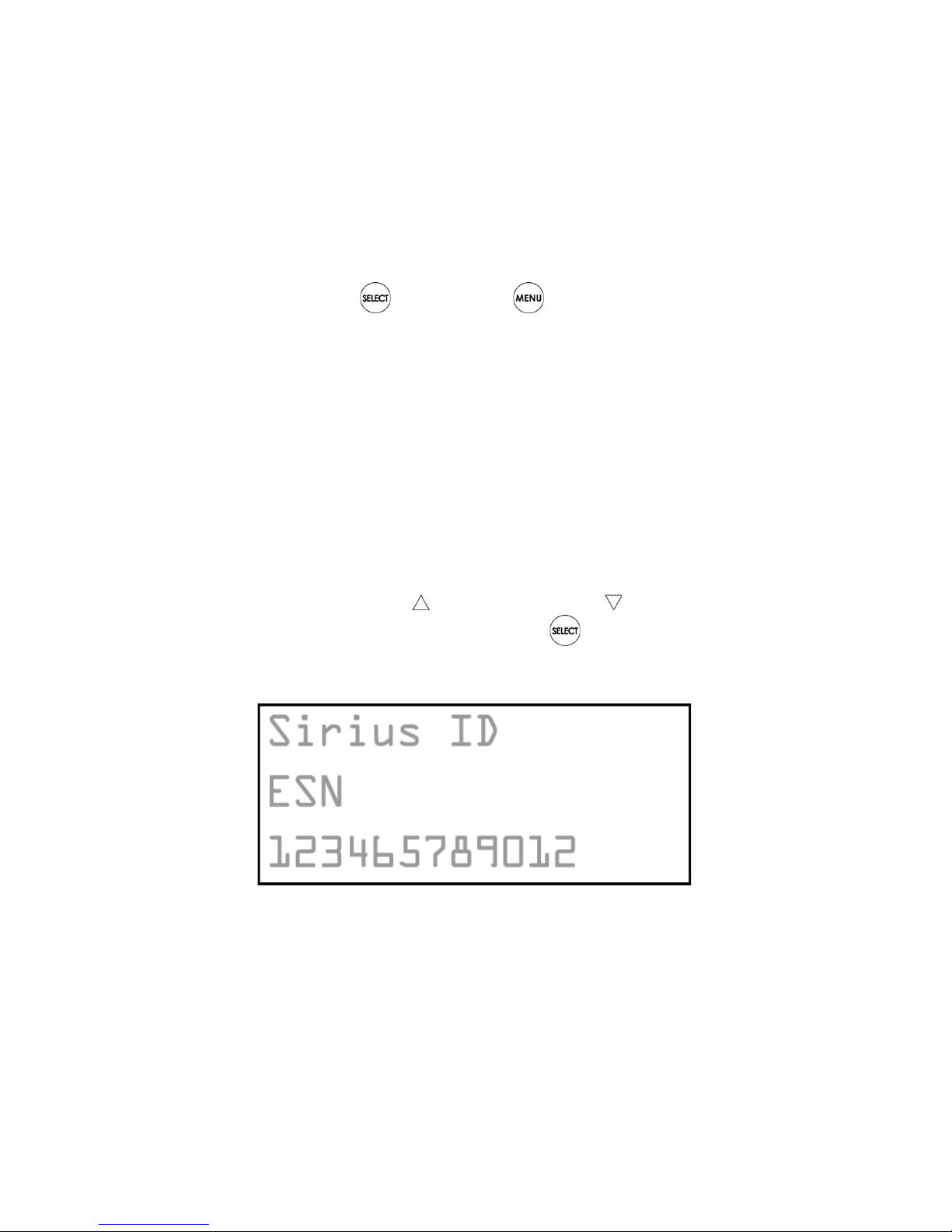
The signal indicator screen provides a visual display of the signal
strength being received from the satellites (S ) and terrestrial
transmitters (T). A consistent signal of three bars or greater is
required for a good reception.
Figu re 1 1. Si gna l In dica to r Dis pl ay
To display the signal indicator screen:
1. Press CH+, CH – , CURS OR UP or CURSO R DOW N
to highlight “SIGNAL INDICATOR” and press SE LE CT.
Page 27
600-00178-000 Rev 00-I -22- MLB700 Broadcast Datalink Receiver
2. The LCD displays two 10-segment horizontal bar graphs
(“S” and “T”) with a “-“ to the left and a “+” to the right.
The S indicates satellite signal strength and the T
indicates terrestrial signal strength (if available). (Figure
11)
3. To exit, press SELE CT or MENU .
Sirius ID
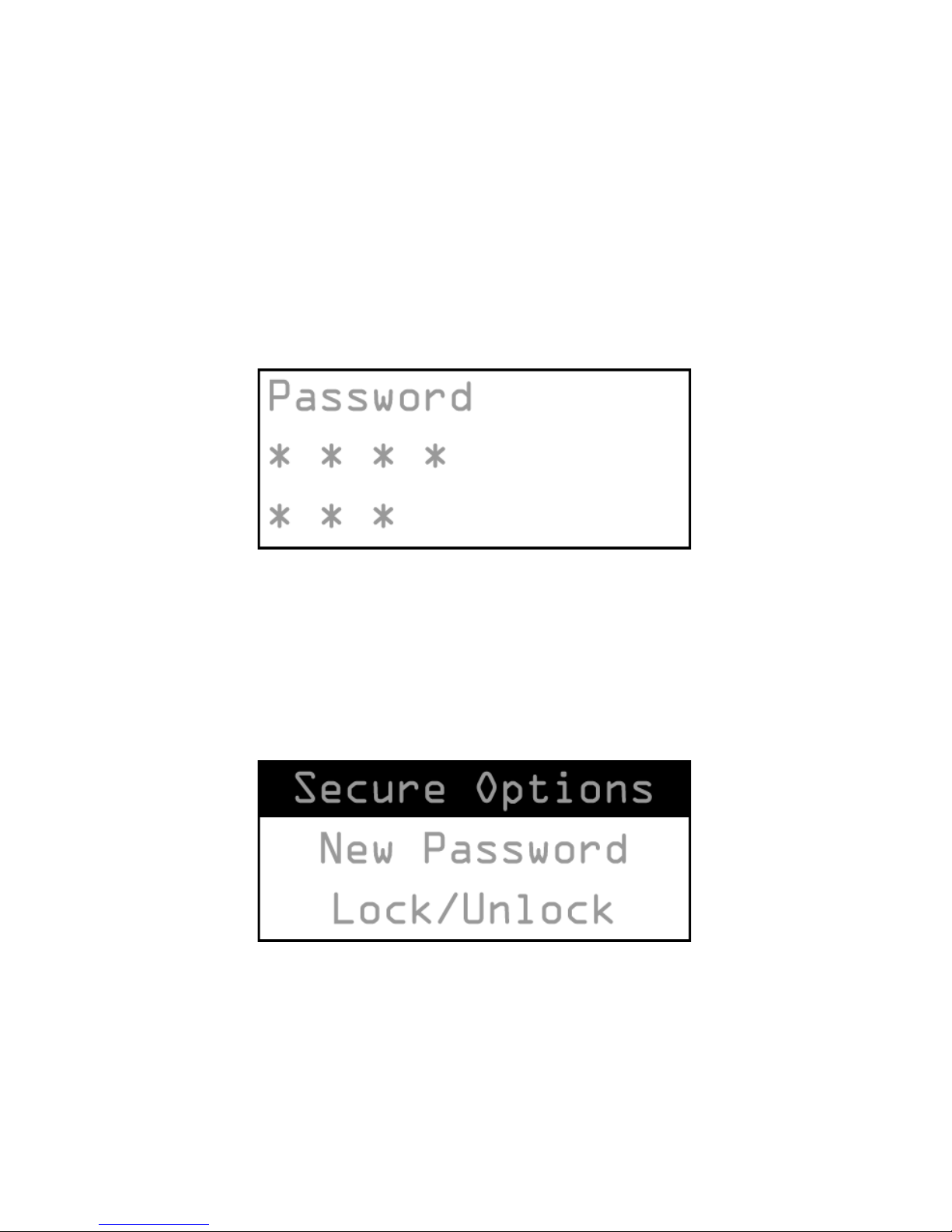
The Sirius ID menu option displays the SIRIUS ID number (SID) of
your MLB700. This 12-digit number is unique to your tuner and is
needed when activating the MLB700 to receive the Sirius Satellite
Radio service.
To display the Sirius ID:
1. Press CH+, CH – , CURS OR UP or CURSO R DOW N
to highlight “SIRIUS ID” and press SELECT .
2. The LCD displays the MLB700 Sirius ID. (Figure 12)
Figu re 1 2. Si ri us ID Dis pl ay
Page 28
600-00178-000 Rev 00-I -23- MLB700 Broadcast Datalink Receiver
Secure Options
Upon entering this menu, you will first be asked to enter a
password to continue. Your password contains 4 characters. The
default password will be “0000”. The display will show a ‘*’ for
each character entered as the password. It will not display the
password. (Figure 13)
Figu re 1 3. Se cu re Options P ass word D ispl ay
After each unsuccessful entry, the unit will revert back to the Main
Menu. After three unsuccessful consecutive entries, the unit will
revert back to Normal Mode. On a successful entry, at a
minimum, the following menus will be displayed. (Figure 14)
Figu re 1 4. Se cu re Options M enu
The menu will include the option to change your password, lock or
unlock channels, and to restore the factory defaults.
Page 29
600-00178-000 Rev 00-I -24- MLB700 Broadcast Datalink Receiver
New Password
To create a new password, select “New Password” from the
Secure Options menu. You will then be prompt to enter your new
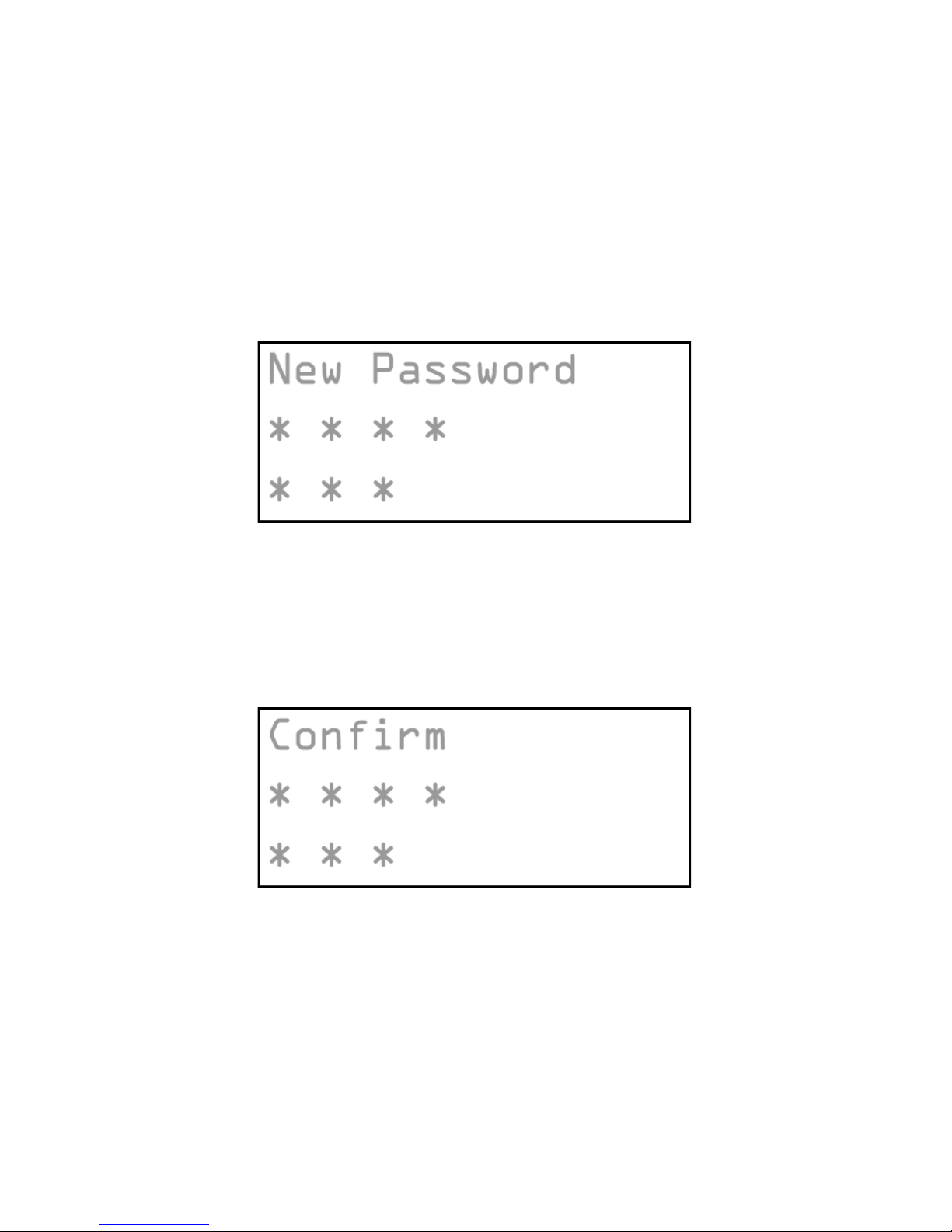
password in a 4-digit sequence (1-2-3-4). A “*” will be shown on
the display each time a digit is entered. (Figure 15)
Figu re 1 5. Ne w Pa sswo rd Dis pla y
After you entered a new password the display will change to a
confirmation screen. (Figure 16) You will need to enter the same
password again to confirm.
Figu re 1 6. Con fi rm Ne w Pass wor d Di spl ay
After the last entry of the confirmation the display will then show
“Password Changed” if the both entries match. If they don’t
match then the display will show “ Password Not Changed” then
you will be reverted back to the Secure Options menu.
Page 30
600-00178-000 Rev 00-I -25- MLB700 Broadcast Datalink Receiver
Lock/Unlock Channel
To lock or unlock a channel select “Lock/Unlock” from the Secure
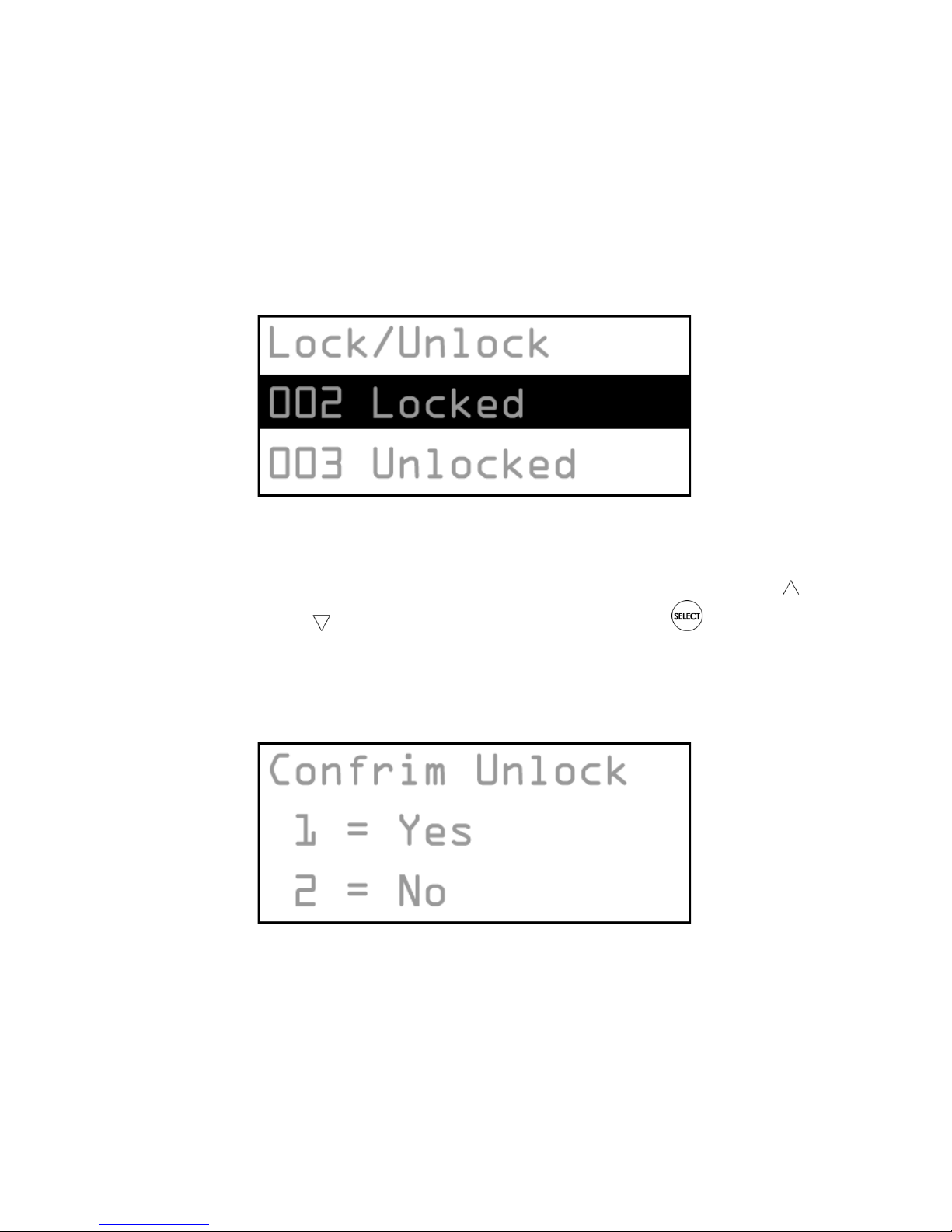
Options menu. The Lock/Unlock display will list all channels with
either a lock or unlock status. (Figure 17)
Figu re 1 7. Lo ck/Un loc k C han nel D ispla y
To unlock a locked channel, select the channel using the
CU RSO R U P or C URSOR DO WN buttons. Press SELECT.
The following display will ask you to Confirm Unlock. (Figure 18)
Press the “1” numerical button to select “Yes” or the “2”
numerical button for “No”.
Figu re 1 8. Con fi rm Un loc k Display
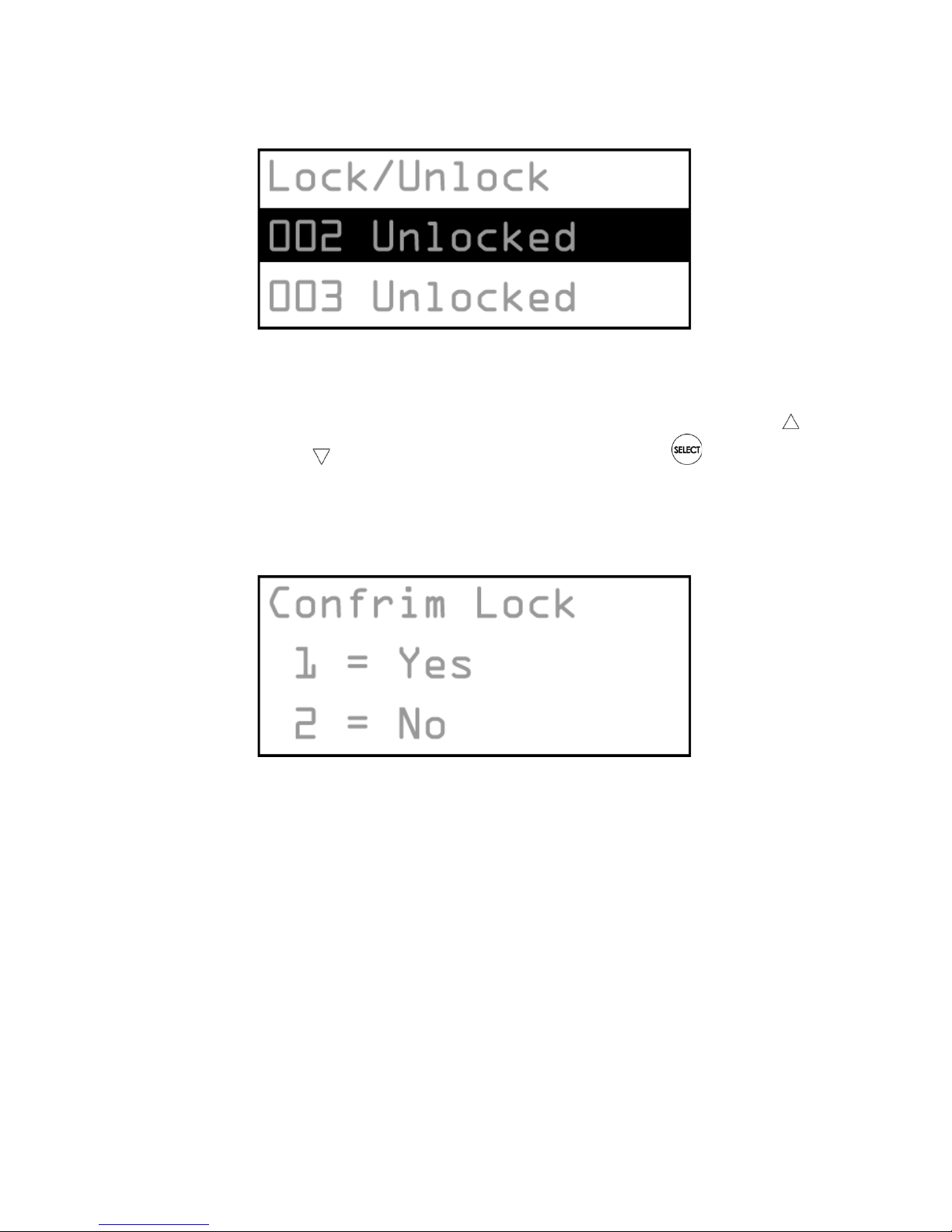
After confirmation the display will revert back to the list of
channels showing that the channel is not unlocked. (Figure 19)
Page 31
600-00178-000 Rev 00-I -26- MLB700 Broadcast Datalink Receiver
Figu re 1 9. Dis pla y S howing Unlo cke d Cha nn el
To lock an unlocked channel, select the channel using the
CU RSO R U P or C URSOR DO WN buttons. Press SELECT.
The following display will ask you to Confirm Lock. (Figure 20)
Press the “1” numerical button to select “Yes” or the “2”
numerical button for “No”.
Figu re 2 0. Con fi rm Un loc k Display
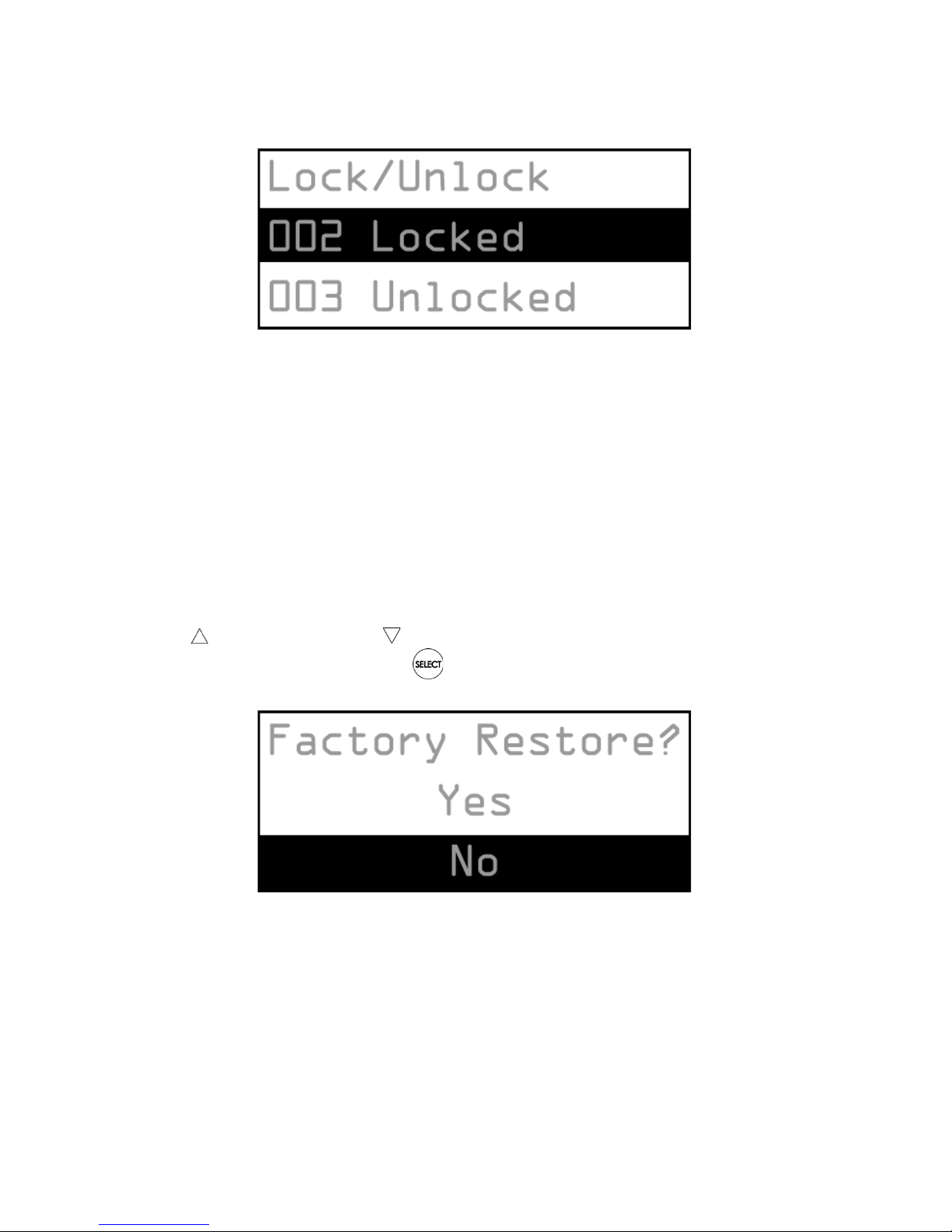
After confirmation the display will revert back to the list of
channels showing that the channel is not unlocked. (Figure 21)
Page 32
600-00178-000 Rev 00-I -27- MLB700 Broadcast Datalink Receiver
Figu re 2 1. Dis pla y S howing Lo ck ed Channel
Factory Restore
To restore the RC70 Wireless Remote back to its factory default
settings, select “Factory Restore” from the Secure Options menu.
The Factory Restore display will give you an option to choose
“Yes” or “No”. (Figure 22) To scroll to either option, press either
the CU RSOR UP or CU RSOR D OW N buttons then, choose
the option by pressing the SELE CT button.
Figu re 2 2. Fa ctory Re sto re D isplay
If you choose “Yes” to restore the factory defaults, the RC70
remote will display an “Are You Sure?” message giving you a
choice of selecting “Yes” or “No” again. Pressing “Yes” will revert
Page 33

600-00178-000 Rev 00-I -28- MLB700 Broadcast Datalink Receiver
the RC70 remote to the original factory settings for the following
parameters:
• All presets revert to empty
• Normal tuning Mode
• Passwords revert to factory default “0000”
Pressing “No” at anytime will exit you back to the Secure Options
menu.
Note: Restoring Factory Defaults only restores the above settings
in the RC70 Wireless Remote. This does not revert the MLB700
back to its default settings. For more information about the
MLB700 factory defaults please refer to your Multi-Function
Display Pilot’s Operating Handbook.
Univ er sal Mode
Universal Mode is essentially an idle mode, since button presses
are not transmitted to the MLB700. Activation of the SET
button in Universal Mode permits configuration of the RC70
remote. You must put the RC70 remote in Sirius Mode by
pressing the SIRI US button in order to operate with the
MLB700.
Presets
You can store up to 30 of your favorite channels as presets for
easy tuning. There are 10 presets per band, A, B, and C, and
channels are assigned preset numbers 0—9, for example, A1, A2,
B1, C1, etc. The current band is displayed in the upper right
corner of the default screen (Figure 3), and if the current channel
is saved as a preset, the preset number will also be displayed, for
example, C6.
Page 34

600-00178-000 Rev 00-I -29- MLB700 Broadcast Datalink Receiver
Stori ng a Pre set
To store a channel as a preset:
1. Tune to the channel you want to store.
2. Select the band by pressing and releasing the B AN D
button until the desired band is displayed in the upper right
hand corner of the display (A, B, or C).
3. Press and hold a numeric button (0— 9) in which you want
to store until the preset number appears with the band in
the upper right hand corner of the display.
The channel is now stored as a preset. Note: You can replace
previously stored presets by saving over them.
Sel ecti ng a Prese t Channel
To select a channel you have saved as a preset:
1. Select the band by pressing and releasing the B AN D
button until the desired band is displayed in the upper right
hand corner of the display (A, B, or C).
2. Press and release the numeric button in which the preset is
stored, for example, 1.
3. The preset channel is tuned.
If you select a preset that does not have a stored value, the
display will indicate that the selected preset was empty and the
channel will remain unchanged.
Page 35
600-00178-000 Rev 00-I -30- MLB700 Broadcast Datalink Receiver
Sel ecti ng Pre set Chann el with the FA VO RIT E But to n
You can also use the FA VOR IT E button to browse through
the saved presets.
Adjusting the Contrast of the LCD Display
You can adjust the contrast setting of the LCD display on the
wireless controller. To change the contrast setting:
1. Press and hold SET until the LCD displays “Initial
Setup”. Use LE FT or R IGHT to go to
“ADVANCED SETUP” and press OK.
2. From “ADVANCED SETUP”, press LEFT or RI GH T
to go to “CONTRAST”. O K.
3. The LCD displays “CONTRAST SETUP”, with 10 blocks to
show the current contrast setting. Press LE FT or
RI GHT to adjust the contrast setting.
4. When you are finished adjusting the contrast press
OK .
5. The LCD displays “CONTRAST”. Press and hold SET to
exit the menu.
LCD Timer Feature
The LCD Timer feature allows you to adjust how long the text is
displayed after each button press. You can set the time to 10,
20, or 30 seconds.
To adjust the LCD Timer:
Page 36

600-00178-000 Rev 00-I -31- MLB700 Broadcast Datalink Receiver
1. Press and hold SET until the LCD displays “Initial
Setup”. Use L EF T or RIGHT to go to Advanced
Setup. Press OK.
2. From “ADVANCED SETUP”, press LEFT or RI GH T
to go to “LCD TIMER”. Press OK.
3. The LCD displays “SET TO 20 SECONDS” (or the current
setting). Press LE FT or RIGH T to adjust the LCD
timer to 10, 20, or 30 seconds and press OK
4. The LCD displays “LCD TIMER”. Press and hold SET to
exit the menu.
Note: This adjustment does not affect the backlight. The
backlight for the LCD display and buttons turns off after 10
seconds of no activity.
Page 37

600-00178-000 Rev 00-I -32- MLB700 Broadcast Datalink Receiver
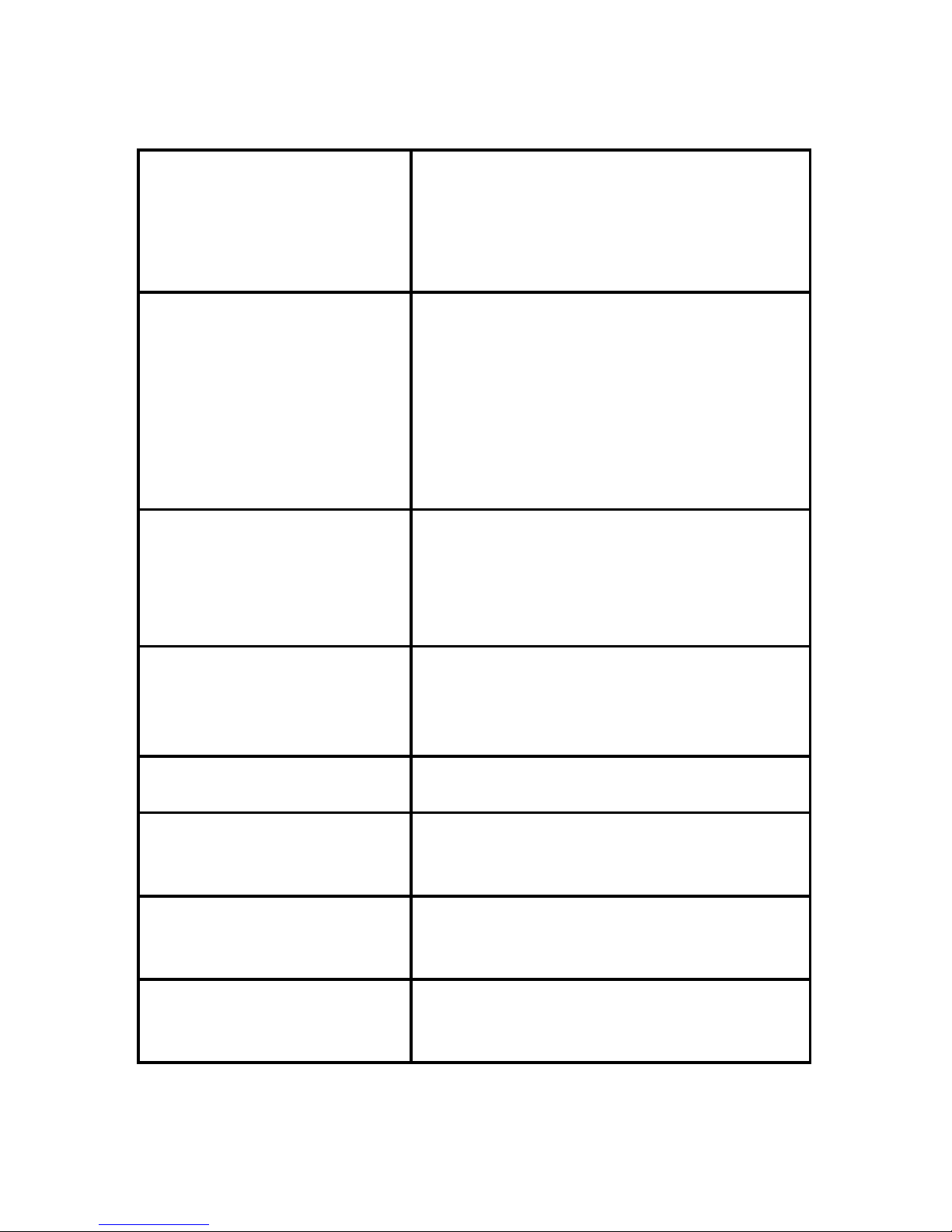
Specia l Displa y Messages
The wireless RC70 remote may also display status information
about the MLB700. These messages are described in the
following table.
Message
Ex pla nati on
Out of Range
The LCD displays Out of Range
whenever the wireless controller and
the MLB700 cannot communicate
because they are too far apart or out
of range because of some other
interference. The display returns to
normal when the wireless controller is
again within range of the tuner.
Acquiring Signal
The LCD displays Acquiring Signal
whenever the satellite signal is lost.
The LCD returns to the normal display
automatically when the MLB700
regains the satellite signal.
Updating Channels
The LCD displays Updating Channels
whenever a channel update from
SIRIUS is detected. While the channels
update, the percentage of update
progress is displayed on the screen.
Page 38
600-00178-000 Rev 00-I -33- MLB700 Broadcast Datalink Receiver
Subscription Updated
The LCD displays Subscription
Updated whenever SIRIUS broadcasts a
subscription update. Press any SIRIUS
related key to complete the update.
Antenna Not Detected
The LCD displays Antenna Not
Detected whenever there is no
antenna detected. If this message
appears, check that the antenna is
securely connected to the MLB700.
The normal display returns
automatically when the antenna is
detected again.
Invalid Channel
The LCD displays Invalid Channel
whenever you enter a channel number
that does not exist. After two
seconds, the current, active channel
information, is re-displayed.
SIRIUS ID Number (SID)
To display your SIRIUS ID (SID)
number, tune to channel 000. You can
also display the SID by selecting Sirius
ID from the Menu Options screen.
No Channel Match
There are no channels that match the
tune request.
Operation Timed Out
No response at all from the MLB700
to the RC70 remote control command
within approximately one second.
Module is Busy
This message will be displayed if the
MLB700 is to busy to respond to the
RC70 remote.
Unsupported Power Mode
This message will be displayed if the
MLB700 is waiting to come out of a
power down or hibernating state.
Page 39
600-00178-000 Rev 00-I -34- MLB700 Broadcast Datalink Receiver
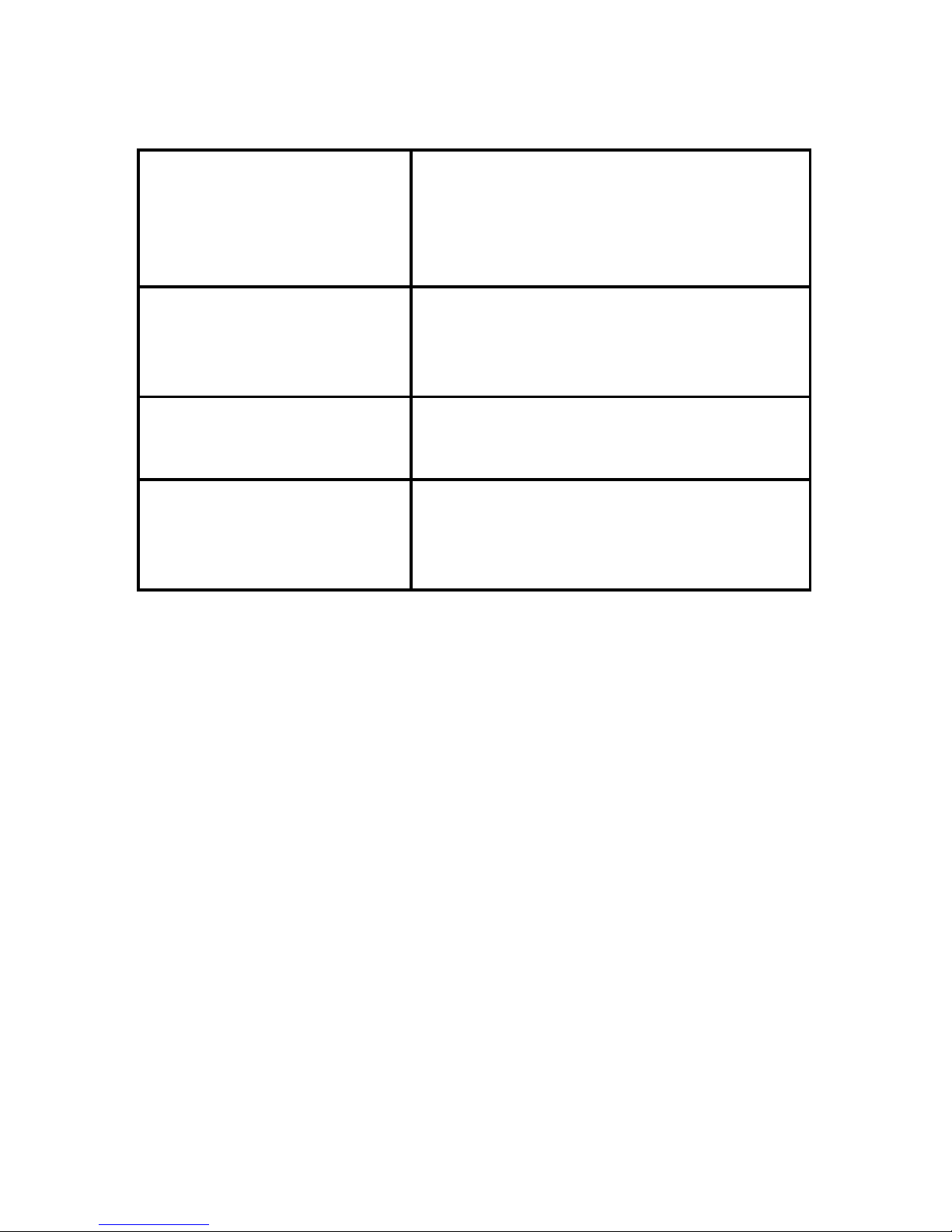
Possible Failure Error
The messages in this section below
should not appear on the remote, but
may do so if there is a failure in the
MLB700 or in the RC70 remote
control.
Bad Command Syntax
This message will be displayed if the
parameters in a command sent to the
MLB700 by the RC70 remote were
incorrect.
Command Failed
This message indicates that the
MLB700 has discovered a problem and
cannot identify its source.
Internal Error <#>
This message is returned if the error
number is not expected. The number
can be checked against the MLB700
SSP specification.
Tabl e 3. S pecia l D isplay M essa ges
Page 40

600-00178-000 Rev 00-I -35- MLB700 Broadcast Datalink Receiver
War ran ty
Avidyne warrants this Product against any defects in design, material and
workmanship for a period of twenty-four (24) months (RC70 Wireless
Remote Control for twelve (12) months) from delivery. If any Product
supplied by Avidyne hereunder fails to conform to this warranty, Avidyne
shall, at its sole discretion, cost and expense, either repair or replace the
same or provide a refund for the Product. This warranty is made upon
the express condition that:
a. Avidyne is given prompt written notice upon discovery of any
non-conformity, with explanation of the alleged deficiencies;
b. Such Product is returned to Avidyne or an Avidyne authorized
service facility;
c. The Product has not been altered, modified or changed in any
other manner than has been previously authorized by Avidyne;
and
d. Repairs to the Product have not been made by anyone other than
Avidyne or an Avidyne authorized service facility.
This Warranty does not apply to failures caused outside of the normal use
of the Product, including improper installation, physical damage,
tampering, lightning or other electrical discharge, or to Product with
altered serial numbers.
Avidyne will use reasonable efforts to repair or replace Product within ten
(10) days, and will return repaired Product or will supply replacement
Products to the customer at Avidyne’s expense.
All Products that have been repaired or replaced by Avidyne shall have
the remainder term of the original warranty or ninety days, whichever is
greater.
THIS WARRANTY EXCLUDES ALL OTHER WARRANTIES, WHETHER EXPRESS
OR IMPLIED, ORAL OR WRITTEN, INCLUDING, WITHOUT LIMITATION, ANY
WARRANTY OF MERCHANTABILITY AND/OR RITNESS FOR A PARTICULAR
PURPOSE. AVIDYNE WILL NOT, IN ANY EVENT, BE LIABLE FOR ANY
DAMAGES INCLUDING ANY LOST PROFITS OR OTHER INDIRECT, SPECIAL,
INCIDENTAL OR CONSEQUENTIAL DAMAGES OF ANY KIND OR TYPE
ARISING FROM THE USE OR INABILITY TO USE THIS PRODUCT OR FROM
DEFECTS IN THE PRODUCT.
The foregoing warranty represents Avidyne’s exclusive liability.
Page 41

600-00178-000 Rev 00-I -36- MLB700 Broadcast Datalink Receiver
Warni ng and S af ety I nf or ma tion
FCC Wa rning
This equipment may generate or use radio frequency energy.
Changes or modifications to this equipment may cause harmful
interference unless the modifications are expressly approved in
this Pilots Guide. The user could lose the authority to operate this
equipment if an unauthorized change or modification is made.
Note: This equipment has been tested and found to comply with
Part 15 of the FCC Rules. These rules are designed to provide
reasonable protection against harmful interference. This
equipment may cause harmful interference to radio
communications if it is not installed and used in accordance with
these instructions. However, there is no guarantee that
interference will not occur in a particular installation. If this
equipment does cause harmful interference to radio or television
reception, which can be determined by turning the equipment off
and on, try to correct the interference by one of more of the
following measures:
• Contact your Avidyne authorized dealer or Avidyne Customer
Service Center for help.
FCC Sta temen t for th e ML B700 R adio
Note: This equipment has been tested and found to comply with
the limits for a Class B digital device, pursuant to Part 15 of the
FCC Rules. These limits are designed to provide reasonable
protection against harmful interference in a residential installation.
This equipment generates, uses and can radiate radio frequency
energy and, if not installed and used in accordance with the
Page 42

600-00178-000 Rev 00-I -37- MLB700 Broadcast Datalink Receiver
instructions, may cause harmful interference to radio
communications. However, there is no guarantee that interference
will not occur in a particular installation. If this equipment does
cause harmful interference to radio or television reception, which
can be determined by turning the equipment off and on, the user
is encouraged to try to correct the interference by one or more of
the following measures:
• Do not use the remote control.
• Power down the equipment and remove the batteries from
the remote.
• Contact your Avidyne authorized dealer or Avidyne
Customer Support Center for help.
This product complies with FCC OET Bulletin 65 radiation exposure
limits set forth for an uncontrolled environment.
Changes not expressly approved by the party responsible for
compliance could void the user's authority to operate the
equipment.
FCC Sta temen t for th e R emo te Con trol
FCC ID: MG310000
This equipment has been tested and found to comply with the limits for a
class B digital device, pursuant to part 15 of the FCC Rules. These limits
are designed to provide a reasonable protection against harmful
interference in a residential installation. This equipment generates, uses,
and can radiated radio frequency energy and if not installed and used in
accordance with the instructions, may cause harmful interference to radio
communications. However, there is no guarantee that interference will
not occur in a particular installation. If this equipment does cause harmful
interference to radio or television reception, which can be determined by
turning the equipment off and on, the user is encouraged to try to
correct the interference by one or more of the following measures:
Page 43

600-00178-000 Rev 00-I -38- MLB700 Broadcast Datalink Receiver
• Contact your Avidyne authorized dealer or Avidyne Customer
Service Center for help.
MLB 7XX R adio Co mplia nc e wi th IC Ru les a nd R eg ula ti ons
IC: XXXXX-YYYYyyyy
Model: MLB700
Avidyne Corporation
Operation is subject to the following two conditions: (1) This
device may not cause harmful interference. and (2) this device
must accept any interference received, including interference that
may cause undesired operation.
Remote Control Co mplia nce wi th IC Ru les a nd Re gulatio ns
IC: 2575A-URC10000
Model: URC-10000
Universal Electronics Inc.
This equipment has been tested and found to comply with the limits for a
class B digital device, pursuant to part 15 of the FCC Rules. These limits
are designed to provide reasonable protection against harmful
interference in a residential installation. This equipment generates, uses
and radiates radio frequency energy and if not installed and used in
accordance with the instructions, may cause harmful interference to radio
communications. However, there is no guarantee that interference will not
occur in a particular installation. If this equipment does cause harmful
interference to radio or television reception, which can be determined by
turning the equipment off and on, the user is encouraged to try and
correct the interference by one or more of the following measures:
• Contact your Avidyne authorized dealer or Avidyne Customer
Service Center for help.
Page 44

600-00178-000 Rev 00-I -39- MLB700 Broadcast Datalink Receiver
The user is cautioned that changes and modifications made to the
equipment without the approval of the manufacturer could void the user’s
authority to operate his equipment.
Gen eral P re cau ti ons
Avidyne disclaims all liability for hearing loss, bodily injury or
property damage as a result of the use or misuse of this product.
Gen eral Sa fety Wa rn ing s
Be sure to observe the following warnings. Failure to follow these
safety instructions and warnings may result in a serious injury or
death.
Do not open, disassemble, or alter the units in any way. Doing so
may result in fire, electric shock or product damage.
Do not insert any objects into the units. Doing so may result in
fire, electric shock or product damage. Make the correct
connections. Failure to make proper connections may result in fire
or product damage.
Do not splice into electrical cables. Never cut away cable
insulation to supply power to other equipment. Doing so will
exceed the current carrying capacity of the wire and result in fire
or electric shock.
Do not install the units in areas where there are high levels of
humidity, moisture, or dust. Doing so can result in electric shock
or product failure.
Do not drop the unit or subject in to strong shocks.
If the unit doesn’t seem to be working properly, turn the unit off,
wait 10 seconds, and the turn it on again.
Page 45

600-00178-000 Rev 00-I -40- MLB700 Broadcast Datalink Receiver
Gen eral Sa fety Ca utio ns
Be sure to observe the following cautions. Failure to follow these
safety cautions may result in injury or material property damage.
• Halt use immediately if a problem appears. Failure to do so may
cause personal injury or damage to the product. Return the tuner
to your Avidyne authorized retailer or Avidyne Customer Service
Center for repairing.
Clea nin g a nd Mai ntenance
If the tuner or wireless controller becomes dirty, turn the power
off and wipe it clean with a soft clean cloth. Do not use hard
cloths, paint thinner, alcohol, or other volatile solvents to clean.
These may cause damage to the unit.
Page 46

600-00178-000 Rev 00-I -41- MLB700 Broadcast Datalink Receiver
Cop yrig hts & T rad ema rk s
© Copyright 2007 Avidyne Corporation. All Rights Reserved.
® “SIRIUS” and related marks, the SIRIUS dog logo, channel names and
logos are registered trademarks of Sirius Satellite Radio Inc. All Rights
Reserved. Z-Wave is a registered trademark of the Z-Wave Alliance.
Hardware, subscription, and activation fee required. For full Terms &
Conditions, visit http://avidyne.com. Prices and programming are subject
to change. Not available in HI and AK. Equipment and subscription sold
separately. Installation required with some equipment.
Page 47

600-00178-000 Rev 00-I -42- MLB700 Broadcast Datalink Receiver
SIRIUS ID
Write down the SIRIUS IDs (SID) of your MLB700 Tuner in the
space provided below.
SID #1 (dat a) :
SID #2 (a udi o) :
SID #3:
SID #4:
Page 48

600-00178-000 Rev 00-I
© 2007 Avidyne Corporation All Rights Reserved. Avidyne® is a registered trademark of Avidyne Corporation.
Avi dyn e Cor poration
55 Old Bedford Road
Lincoln, MA 01773
Telephone: 781-402-7400
Toll Free: 800-AVIDYNE (800-284-3963)
Fax: 781-402-7599
www .av idyn e. co m
 Loading...